 MANSOQ
 Appointments & queues
Create and verify private recurring practitioner availability
Use the linked practitioner’s Availability tab, validate required fields and save an actual Monday schedule with independently verified dates and capacity.
Current source · Actual application UI observed under a local synthetic superuser on the audited source version. Saved operations were independently read through normal product APIs. This does not qualify the full role, facility or clinical workflow matrix. · 6 min read
Before you begin
- Use an authorized scheduling administrator in the intended facility. The captured account was a local synthetic superuser.
- The synthetic practitioner identity is already linked to the Clinic department with the existing Doctor role. Production professional qualifications and full permissions require separate approval.
- Approve local timezone, validity dates, weekdays, session time, capacity and public self-booking policy before creating a real schedule.
1. Open the selected practitioner’s Availability tab
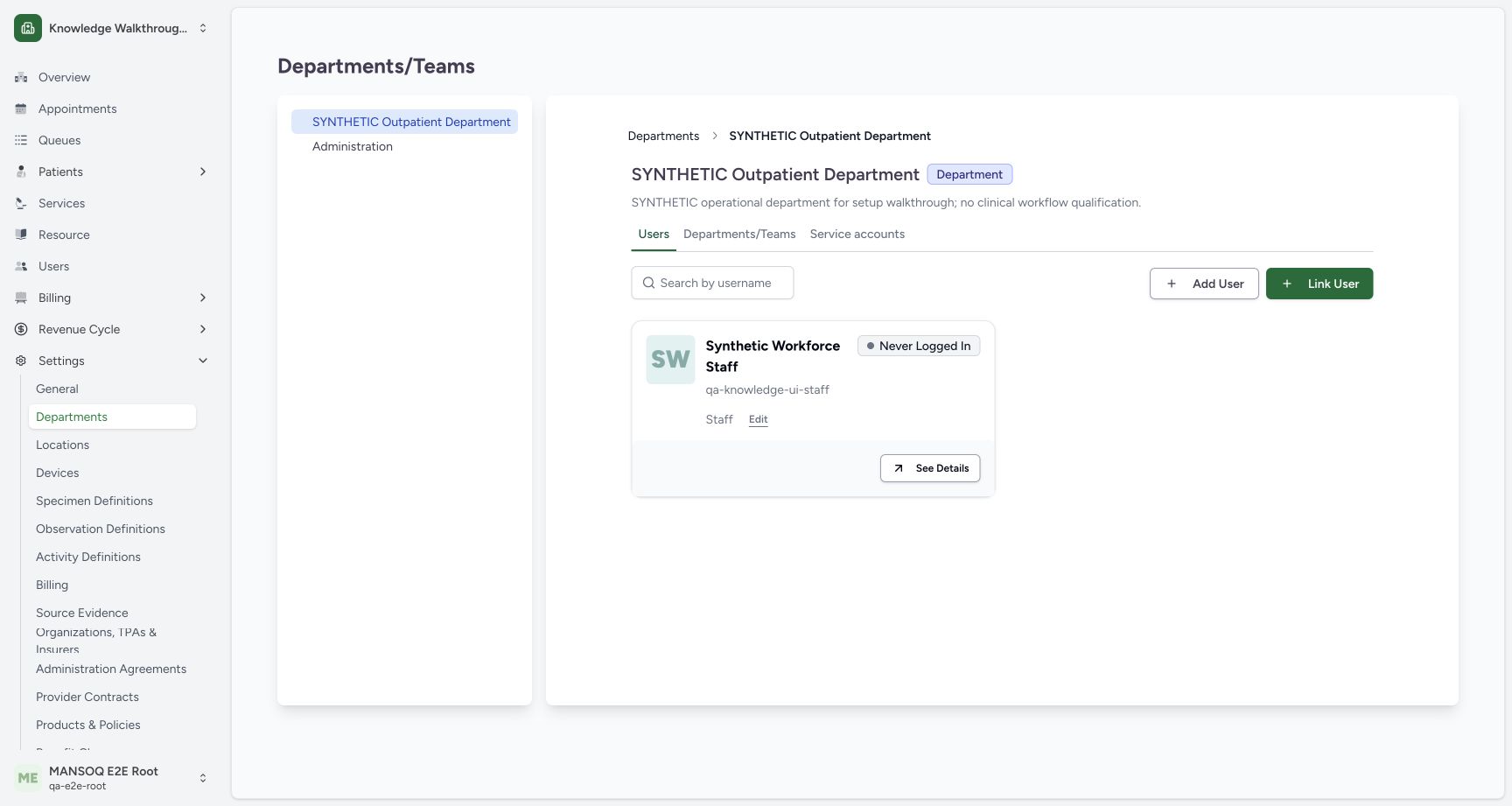
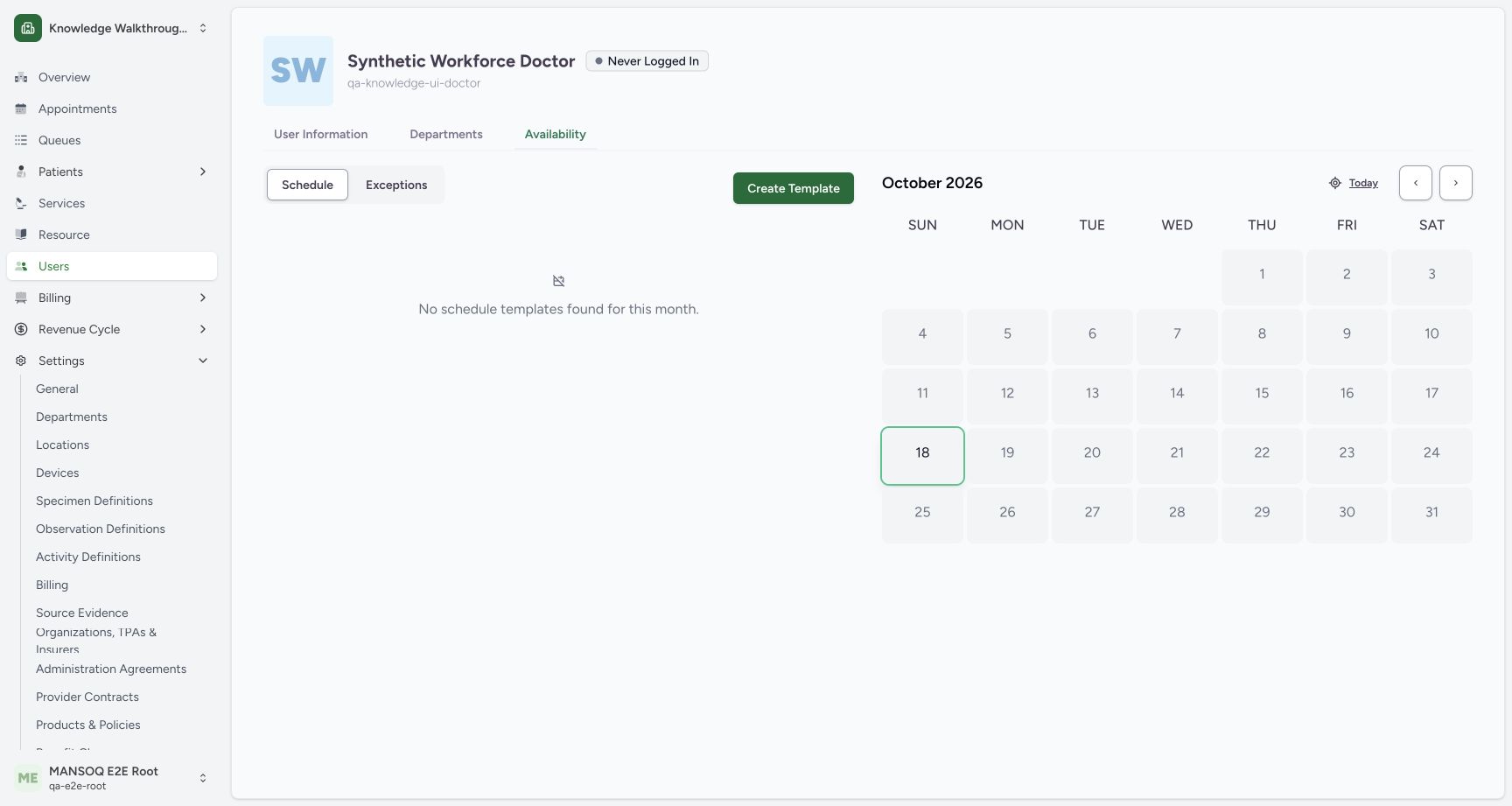
From the department’s saved member card choose See Details, then Availability. Confirm the username and facility. Check the displayed month before interpreting the calendar and choose Create Template. The initial example has no schedule templates.
2. Recognize the required template fields
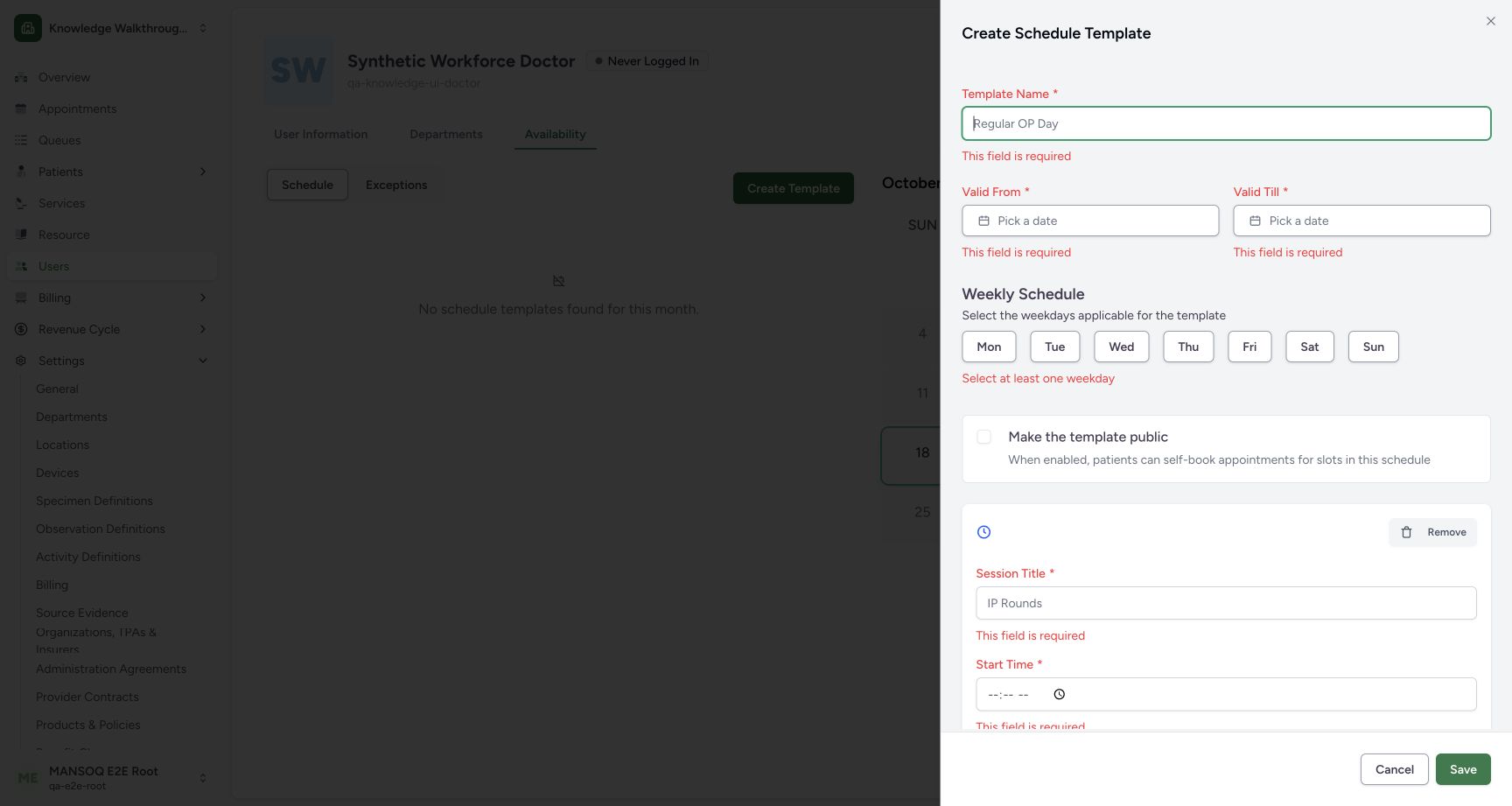
Submitting the blank form produces required-field errors for name, validity dates and session details, plus a request to select at least one weekday. Resolve every message before saving. No schedule was created by this rejected attempt.
3. Set validity, weekdays and visibility
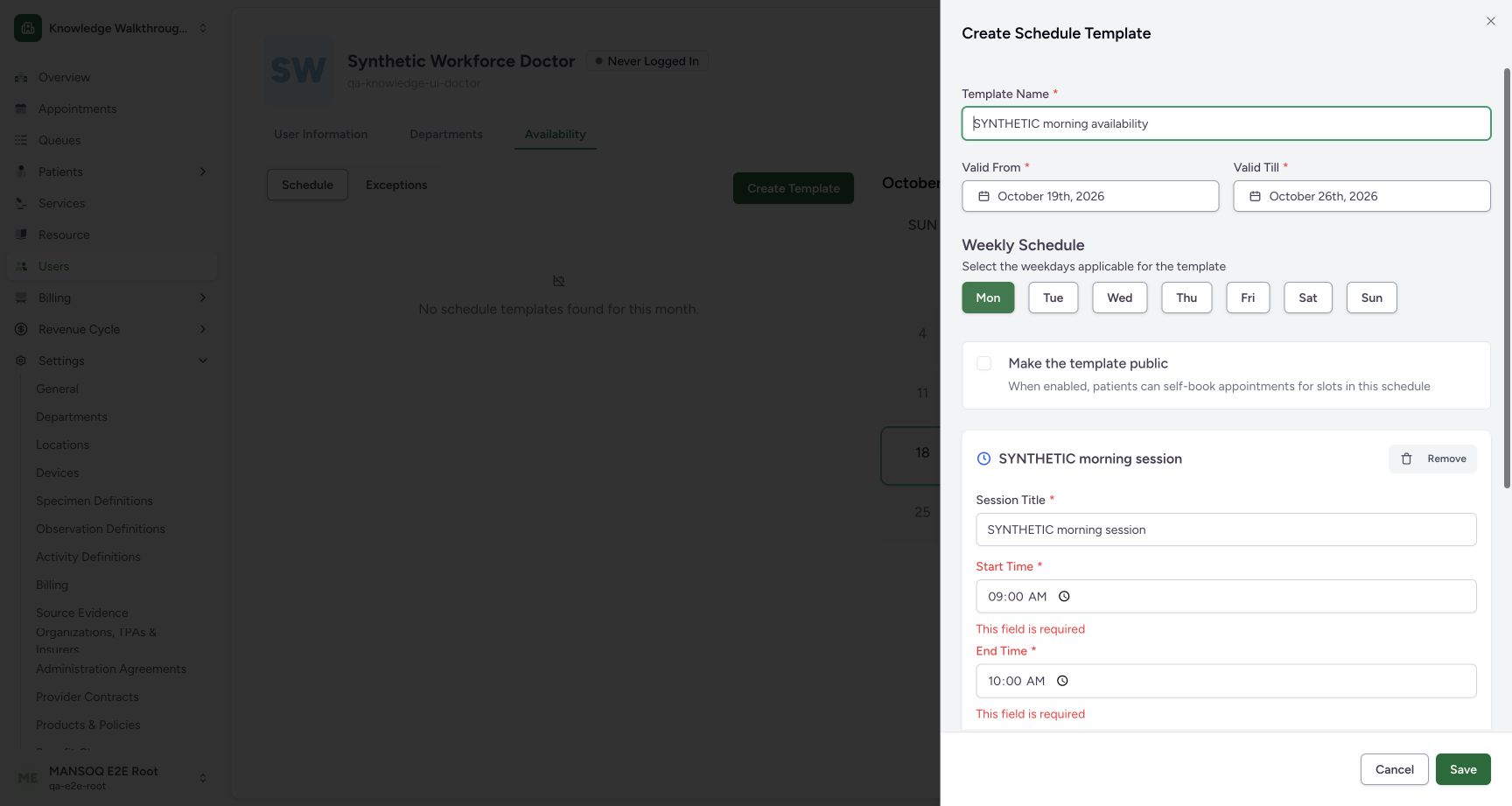
Enter the approved template name, Valid From, Valid Till and recurring weekdays. The example uses Monday, October 19–26, 2026. Review Make the template public; its explanation says patients can self-book slots when enabled. It remains unchecked here. The pictured intermediate form still has unresolved time messages; the next step completes those inputs.
4. Set session times and capacity
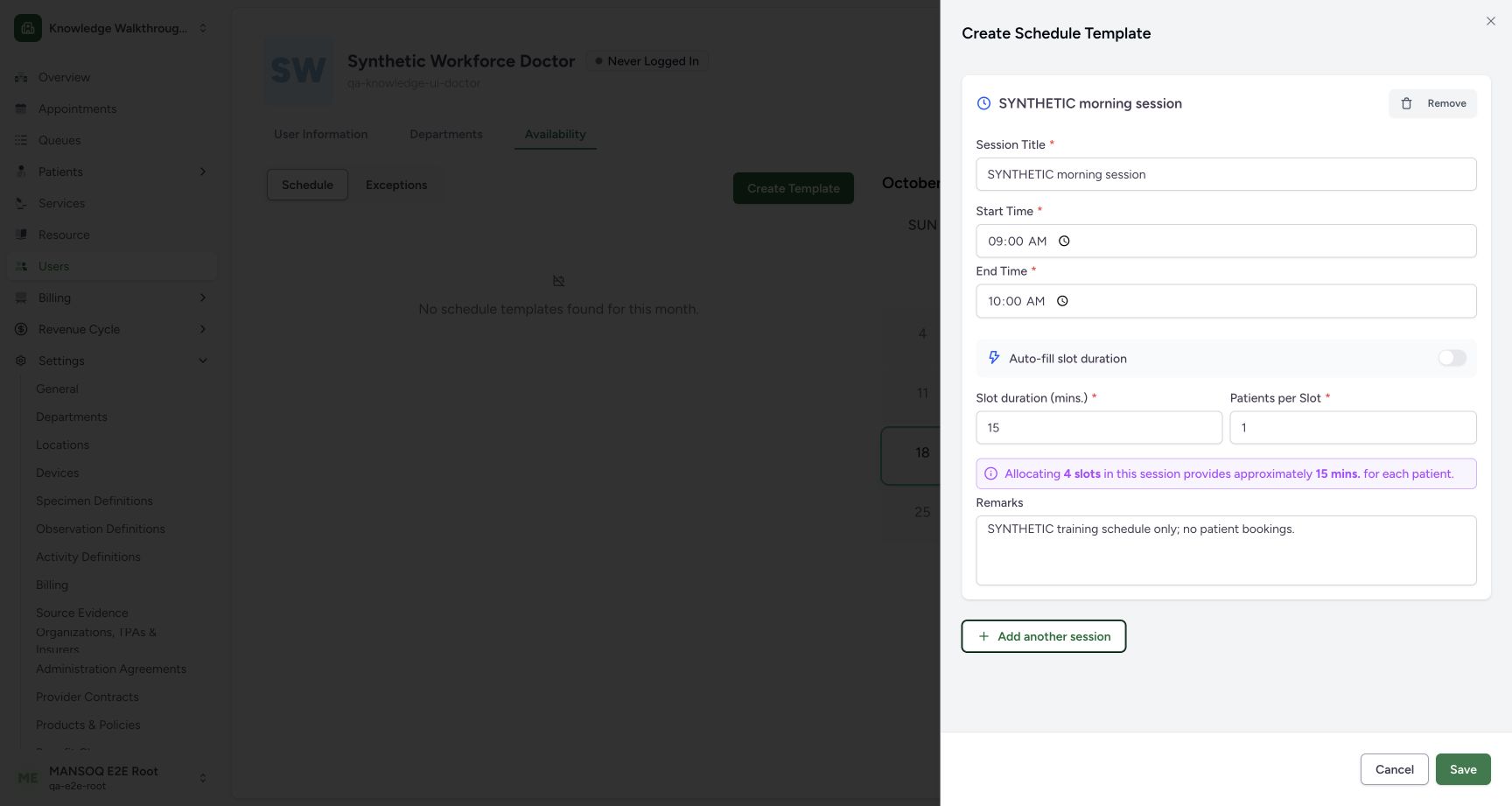
Enter the session title, start and end time, slot duration and patients per slot. The demonstrated session is 09:00–10:00 with 15-minute duration and one patient per slot; the UI calculates four slots. Review the capacity explanation, remarks and any additional sessions, then choose Save. Native time inputs must contain a completed valid time before the field error clears.
5. Verify the saved calendar and record
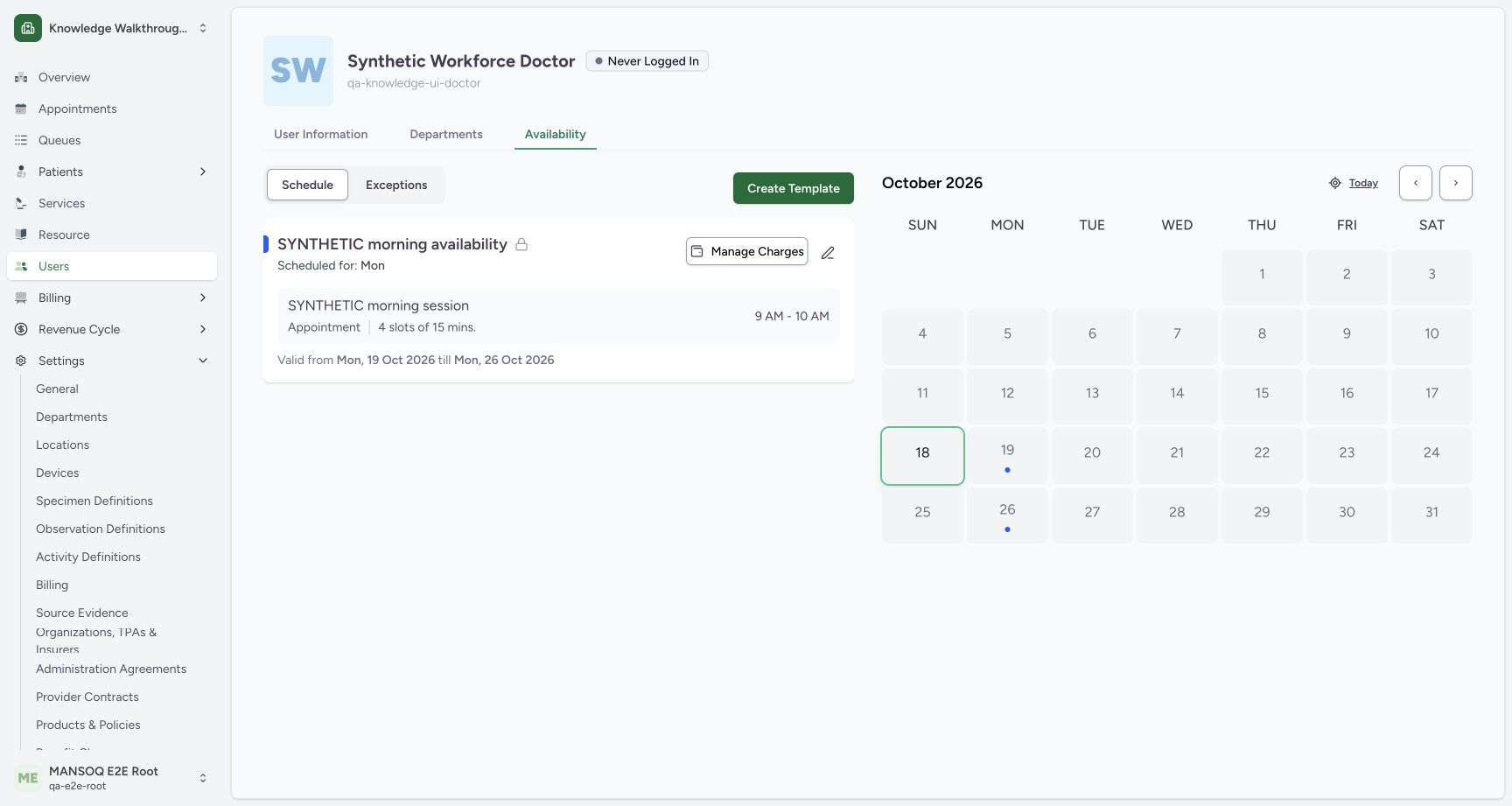
The saved card shows the template, private lock icon, Monday recurrence, four 15-minute appointment slots,09:00–10:00 and validity dates. Calendar dots appear on the two matching Mondays. Independent normal schedule GET with practitioner resource filters confirmed the private persisted template and session. The stored validity instants are UTC 21:00 on the preceding dates, which correspond to midnight Asia/Riyadh for the selected local dates. No patient booking, charge assignment or exception was created.
A template is not a completed booking workflow
The availability template configures recurring capacity. Appointments, token booking, service/room associations, charge definitions, revisit rules, exceptions, cancellations and patient self-service need their own tested flows. The Manage Charges control is visible on the saved card but was not exercised in this guide.
Keep timezones and date boundaries explicit
Read the facility business timezone, displayed local dates and actual API instants together. Do not add or subtract an offset repeatedly to make timestamps look similar. This observation establishes the saved synthetic schedule shown; it does not qualify all date/time controls or daylight-saving cases.
Troubleshooting
Time fields still show required errors
Complete the native time input and leave it so its actual value is committed. In this controlled capture, normal keyboard time adjustment cleared the initially incomplete input state; no API or form bypass was used.
The expected calendar day has no marker
Check the selected month, validity range, weekday and resource identity. Refresh the record and investigate the actual response instead of treating an empty month as evidence of unavailable data.
Source evidence
References are pinned to the private MANSOQ source repository. Repository access is required to open these links.
- repositories/platform/mansoq-web/src/Routers/routes/UserRoutes.tsx:5 · f6e9f05f
- repositories/platform/mansoq-web/src/pages/Scheduling/components/CreateScheduleTemplateSheet.tsx:85 · f6e9f05f
- repositories/platform/mansoq-web/src/pages/Scheduling/components/CreateScheduleTemplateSheet.tsx:195 · f6e9f05f
- repositories/platform/mansoq-web/src/pages/Scheduling/components/CreateScheduleTemplateSheet.tsx:231 · f6e9f05f
- repositories/platform/mansoq-web/src/pages/Scheduling/components/CreateScheduleTemplateSheet.tsx:545 · f6e9f05f
- repositories/platform/mansoq-web/src/types/scheduling/scheduleApi.ts:29 · f6e9f05f