 MANSOQ
 Facility administration
Link an existing user to a department with an approved role
Select a real synthetic account, observe the required role guard, save a Staff membership and independently verify it.
Current source · Actual application UI observed under a local synthetic superuser on the audited source version. Saved operations were independently read through normal product APIs. This does not qualify the full role, facility or clinical workflow matrix. · 6 min read
Before you begin
- Use an administrator authorized to manage memberships in the selected facility department. The captured account is a local synthetic superuser.
- An existing approved user identity and approved built-in facility role must be available. This test uses disposable local synthetic accounts and does not authorize production access changes.
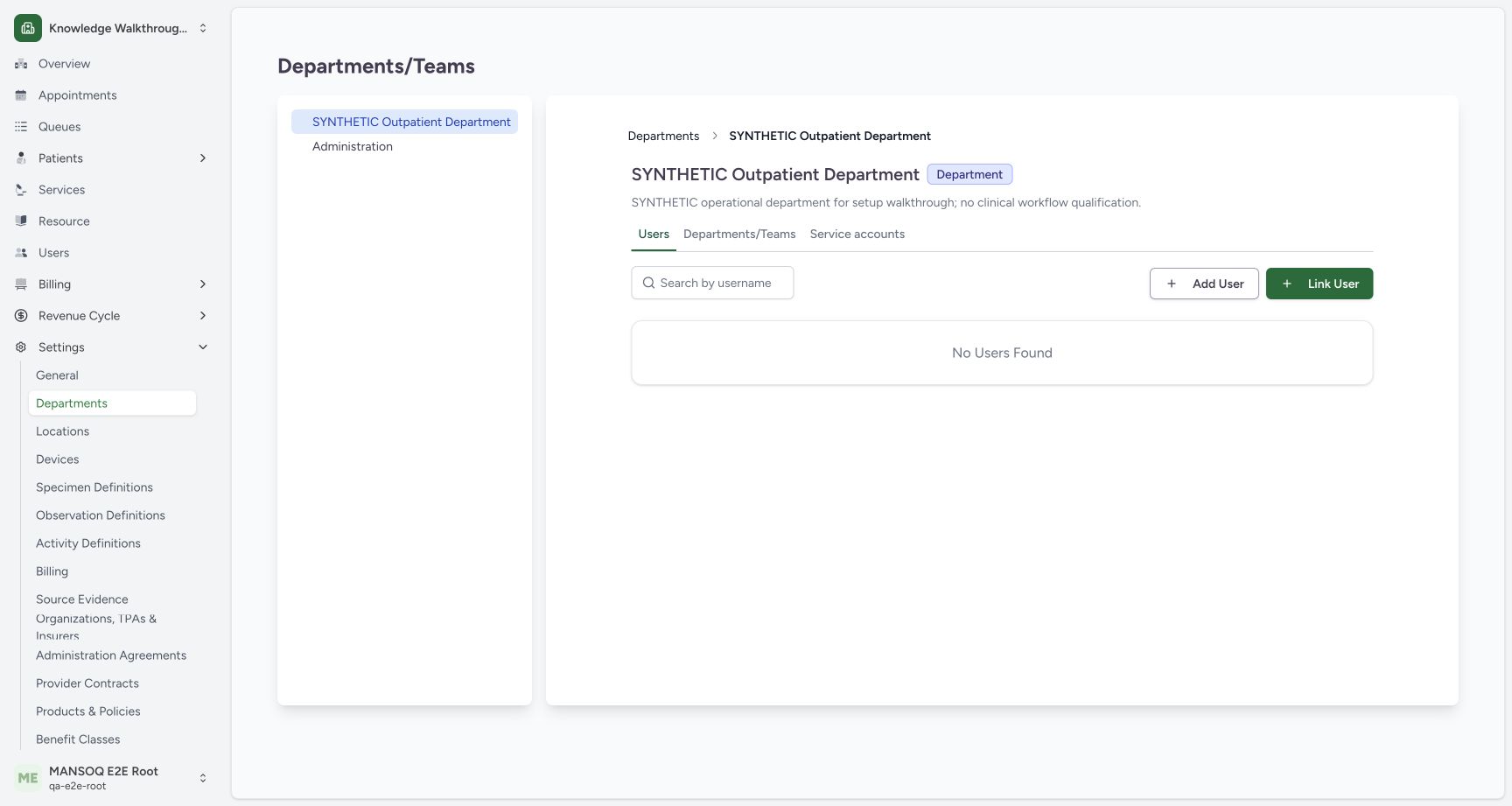
1. Open the intended department Users tab
Navigate to Settings → Departments, select the intended department and open Users. Check the department heading before choosing Link User.
2. Find and confirm the existing identity
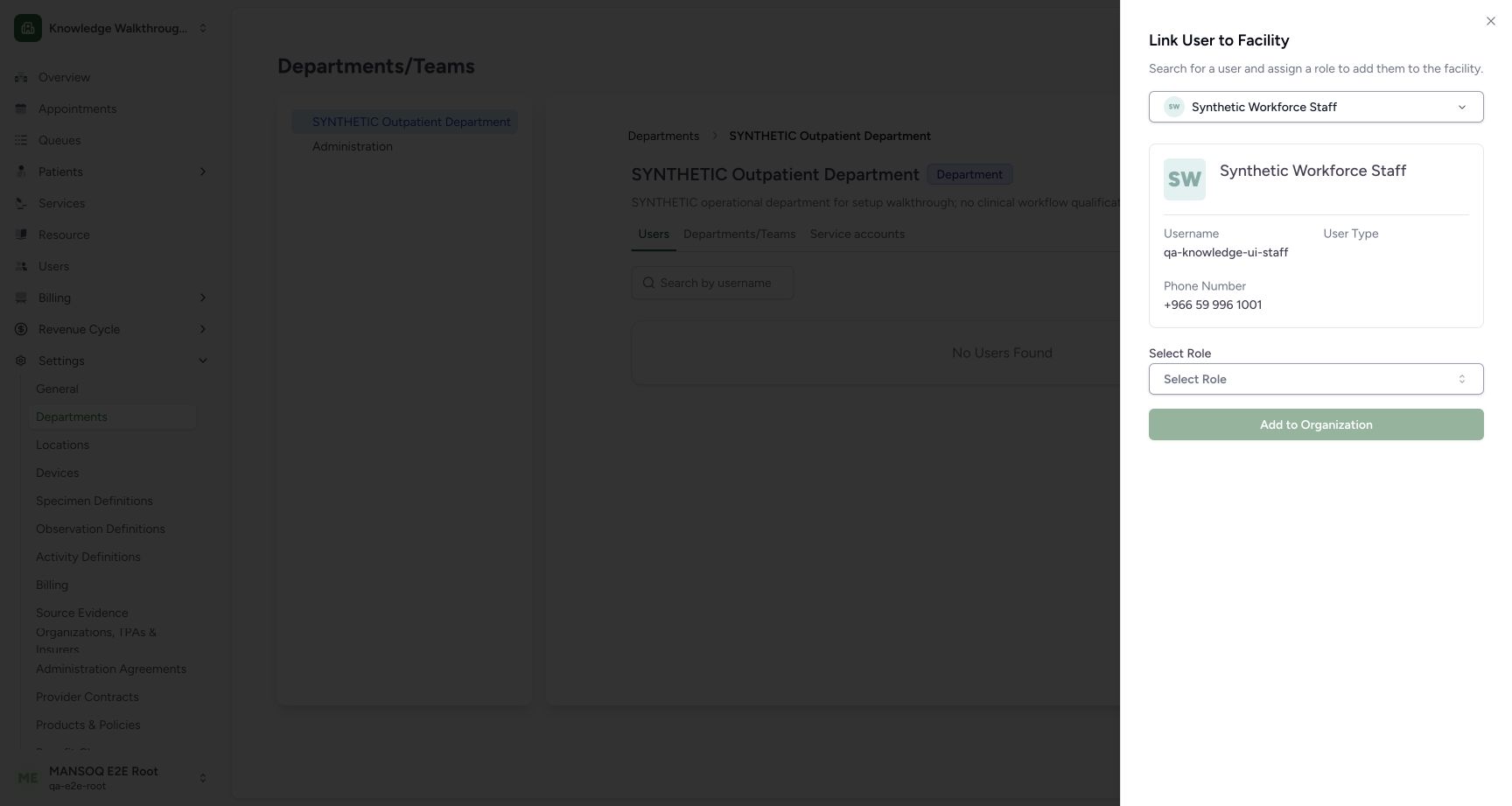
Search the user selector by the exact approved username, then select the matching identity. Confirm the displayed name and username. This example selected the prepared synthetic Staff account; it did not create another identity.
3. Select the approved facility role
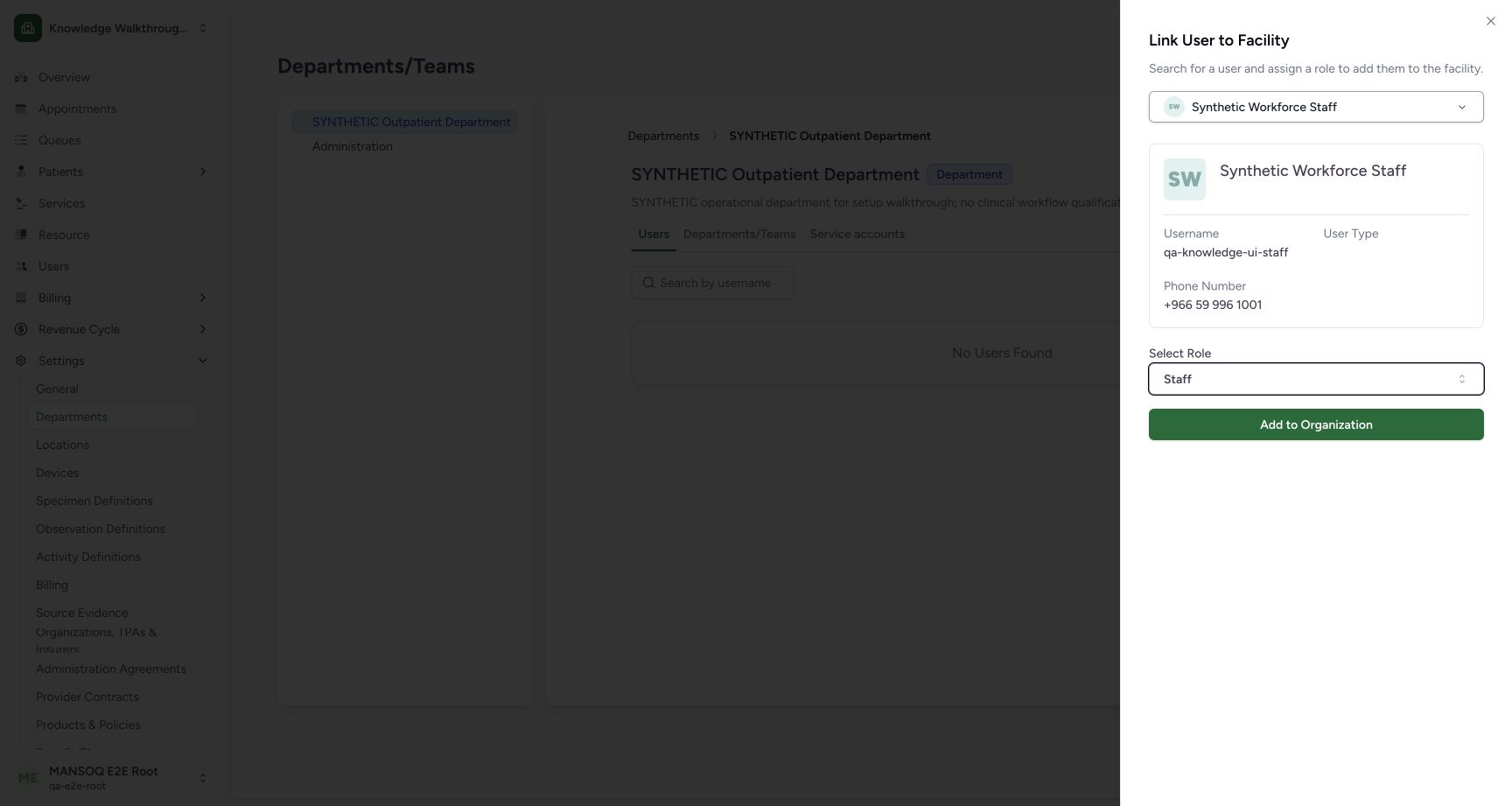
Choose the approved role from Select Role. Selecting an identity alone leaves Add to Organization disabled. This demonstration chooses the unchanged built-in Staff role within the isolated Clinic. Role descriptions and names are not a full permission audit.
4. Save and independently verify membership
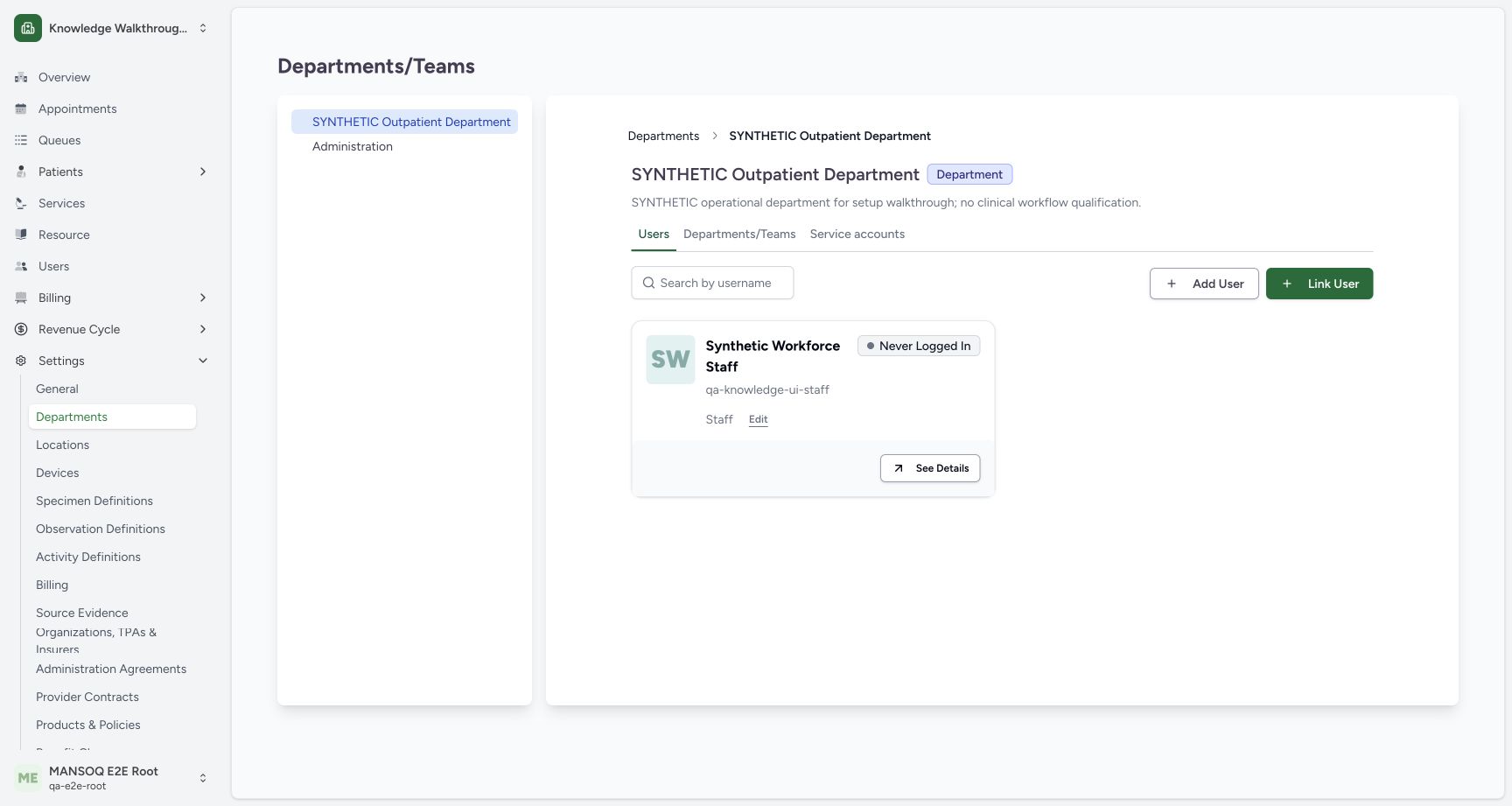
Choose Add to Organization. The saved department card shows the username and Staff role. A separate normal department-membership GET returned 200 and confirmed the same synthetic identity, membership and built-in role. Edit opens role maintenance and See Details opens the user profile; changing or removing a production role requires its own approved process.
Scope of the observed access change
A second prepared synthetic identity was also linked with the unchanged Doctor role for the scheduling example; its membership was independently read back. No system role definition or permission catalogue was edited. These saved membership observations do not establish complete positive/negative permissions across all workflows or facilities.
Troubleshooting
Add to Organization is disabled
Check both the selected identity and selected role. The observed control is intentionally disabled until both exist.
The person has the role but a workflow is unavailable
Check effective scoped permissions, organizational membership, resource configuration and deployment features. Do not assume a role label alone proves clinical or financial authorization.
Source evidence
References are pinned to the private MANSOQ source repository. Repository access is required to open these links.
- repositories/platform/mansoq-web/src/pages/Facility/settings/organizations/components/LinkFacilityUserSheet.tsx:41 · f6e9f05f
- repositories/platform/mansoq-web/src/pages/Facility/settings/organizations/FacilityOrganizationUsers.tsx:116 · f6e9f05f
- repositories/platform/mansoq-web/src/types/facilityOrganization/facilityOrganizationApi.ts:1 · f6e9f05f