 MANSOQ
 Facility administration
Understand user identity, invitation and responsibility fields
Read the actual blank identity form and distinguish credential setup, global responsibility assignments and facility membership.
Current source · Actual application UI observed under a local synthetic superuser on the audited source version. Saved operations were independently read through normal product APIs. This does not qualify the full role, facility or clinical workflow matrix. · 3 min read
Before you begin
- Have approved workforce identity and onboarding instructions. The screenshots show a blank form and do not demonstrate credential entry or invitation delivery.
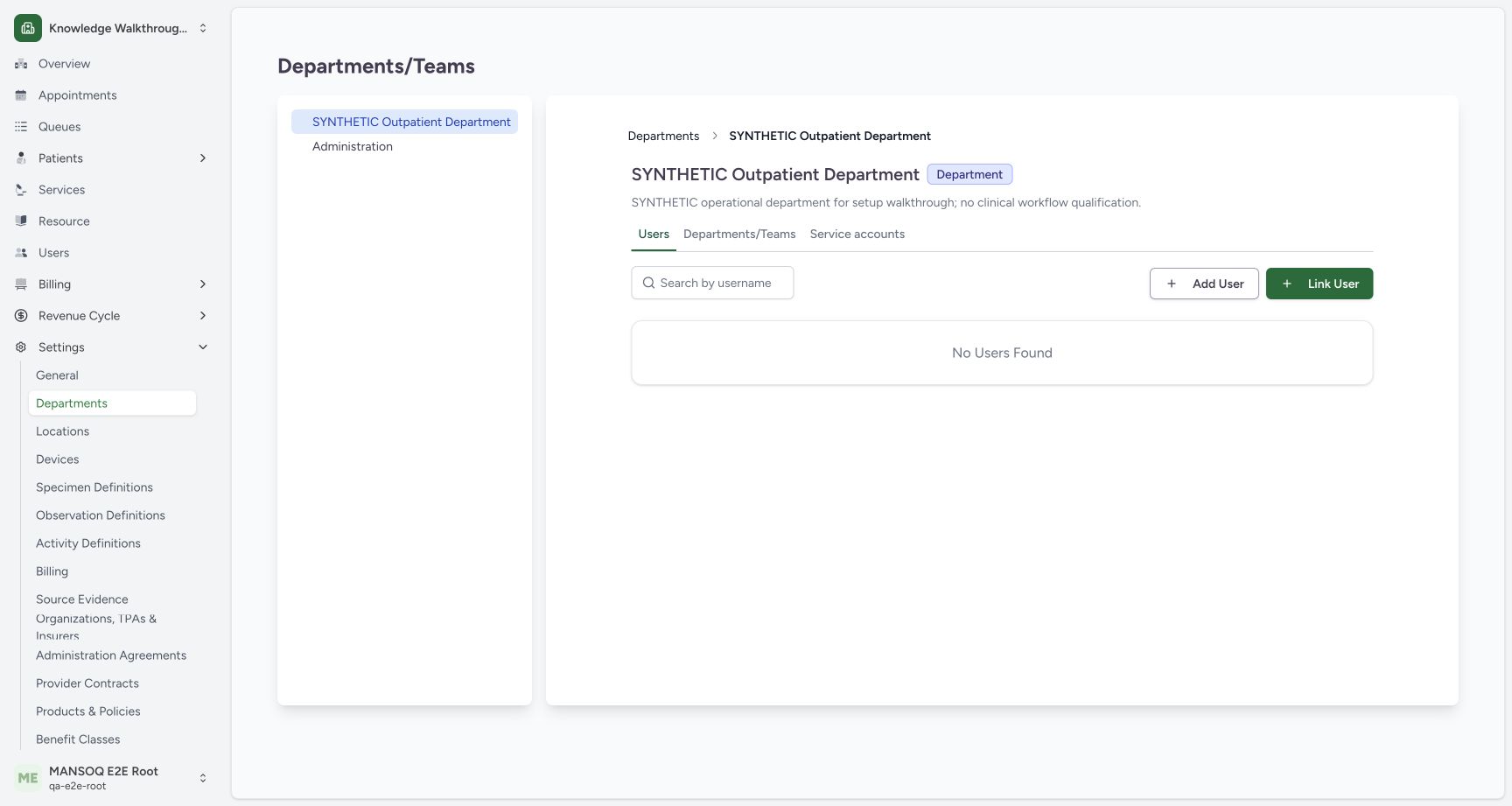
1. Open Add User from an authorized department
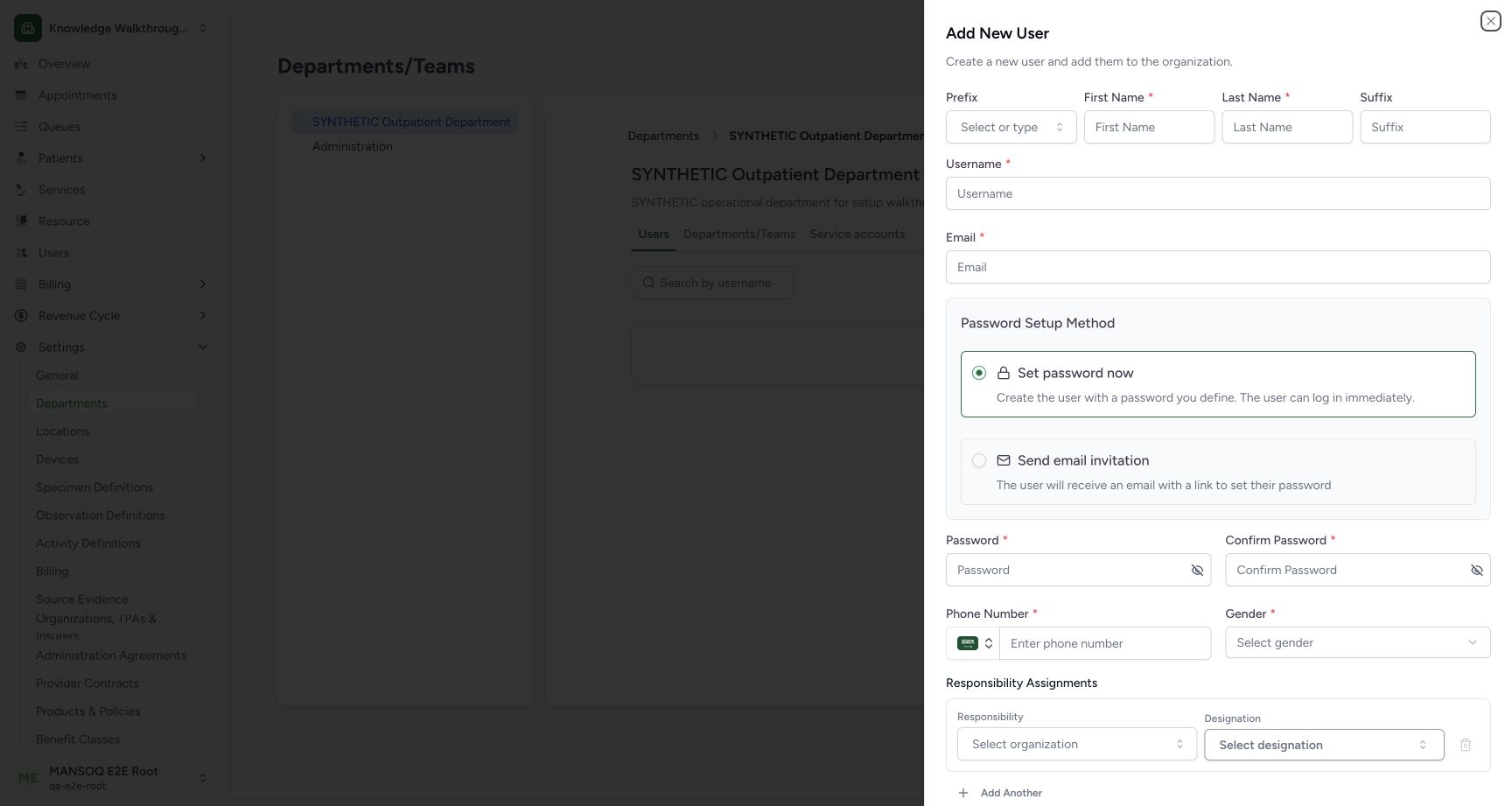
Within Settings → Departments → selected department → Users, choose Add User. Review identity fields such as prefix, name, suffix, username and email. Creating an identity is a distinct operation from selecting its department membership role.
2. Choose the approved onboarding method
The captured blank form shows Set password now selected and Email Invitation as another option. Follow the organization’s approved onboarding process. Neither password entry nor invitation submission/delivery was performed in this walkthrough; credentials must never appear in knowledge screenshots.
3. Review contact, responsibility and location fields
Continue to phone/country prefix, gender, optional responsibility/designation assignments and the geographic selector. The Create User button is disabled in this incomplete blank form. These responsibility assignments are not the same as the facility department role assigned through Link User.
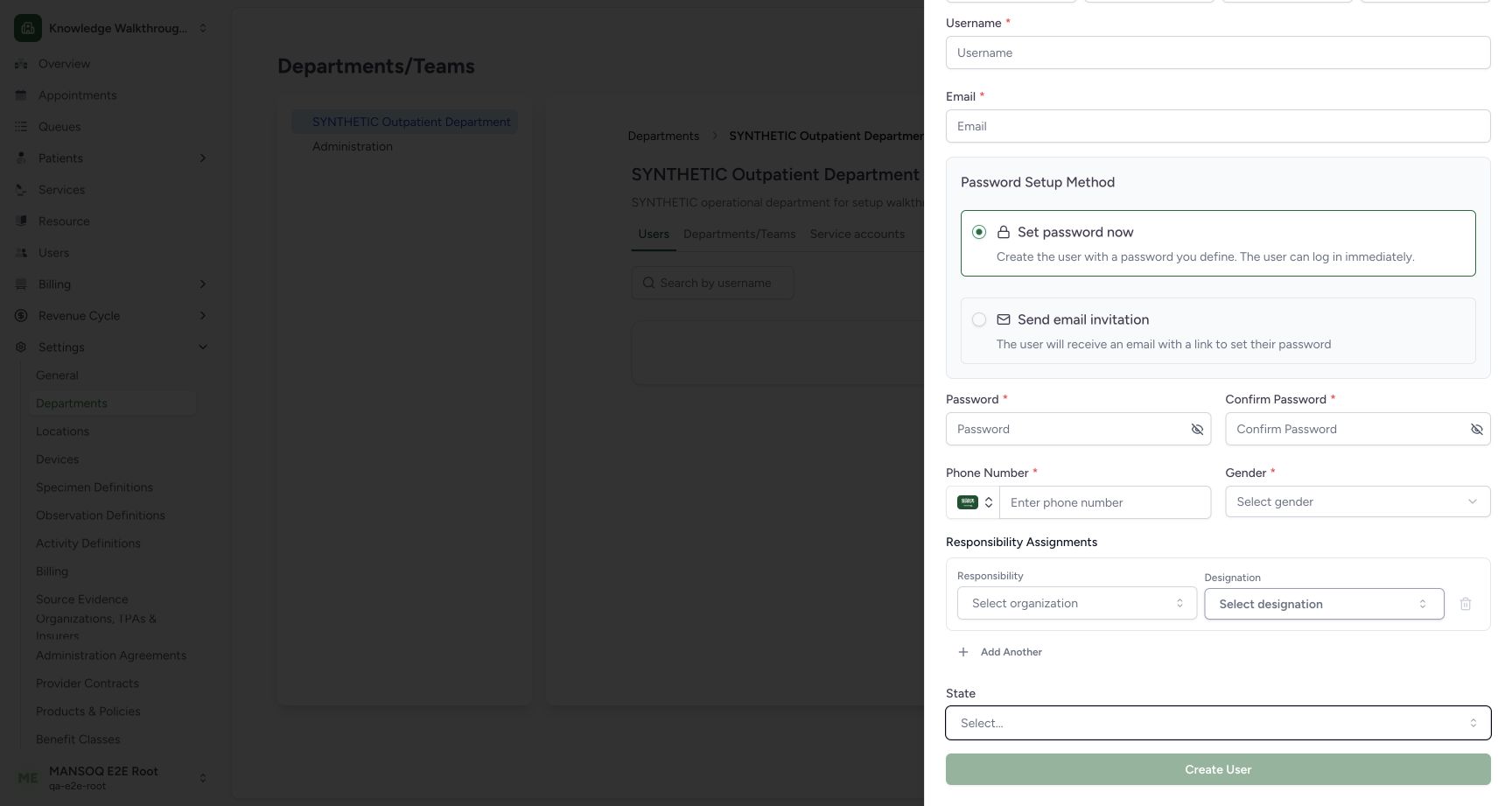
Identity creation does not finish facility access
In the audited source, successful Add User creation opens the Link User sheet with the new username. An approved facility role and organizational scope still need to be selected. The captured identity form remains unsubmitted. Separate synthetic Staff and Doctor identities were prepared through the normal local User API with private credentials, then linked through the UI in the companion guide.
Troubleshooting
A person exists but does not appear in the department
Check whether identity creation finished and whether the approved department membership was added. Do not create duplicate identities to solve a missing membership.
Source evidence
References are pinned to the private MANSOQ source repository. Repository access is required to open these links.