 MANSOQ
 Appointments & queues
Book an appointment and start consultation
Choose a scheduled resource, date and slot, confirm a patient booking and continue through the appointment detail page.
Current source · source reviewed · 3 min read
Before you begin
- The patient is registered and you have confirmed the correct record.
- The facility has a configured schedulable resource and available appointment slots.
- Your role permits the appointment action.
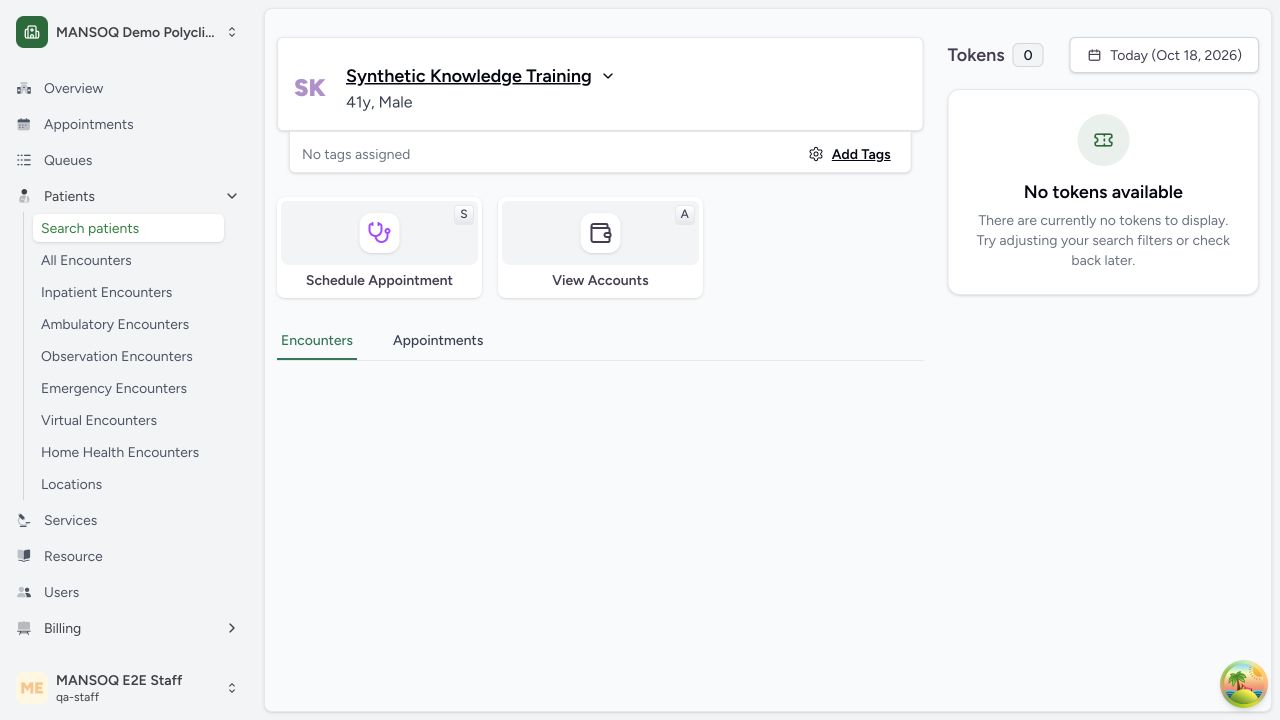
1. Open Book Appointment
From the patient’s appointment workflow, open Book Appointment. The sheet contains a booking form and a Bookings tab for the patient.
2. Choose the resource
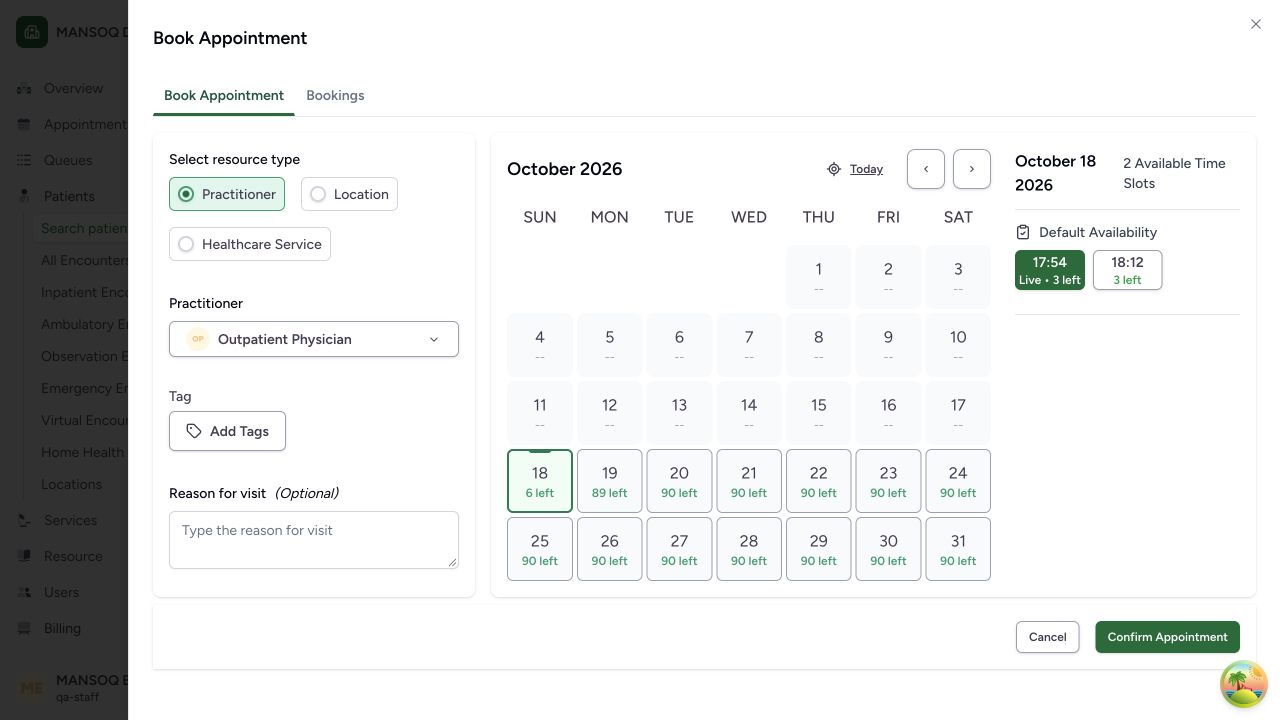
Select the resource type and the specific resource offered by your facility. Changing the resource type clears the selected resource, so check it again before booking.
The practitioner selector can initially show My Dept.. Switch to All Dept. when permitted, select the department, then select the practitioner. Availability requires an actual configured resource schedule; an empty calendar does not establish that appointments are unsupported.
3. Add context
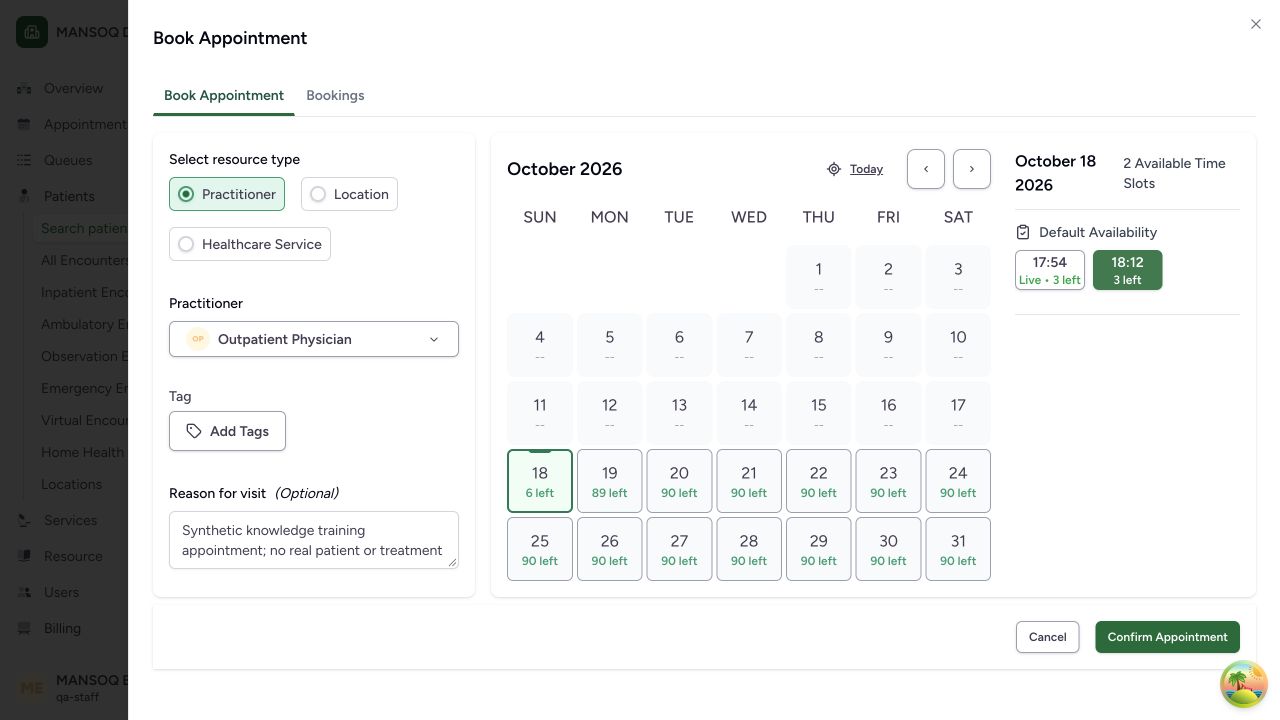
Add configured appointment tags when appropriate. Reason for visit is an optional note.
4. Choose a date and available slot
Choose the appointment date, then a slot for that resource. On the small-screen layout, use Select Date, then Select Slot. A resource must be selected before the mobile date workflow opens.
Selecting an already selected slot can clear the selection and hide the confirmation actions. Select the intended available slot again if needed. Slot capacity and live-slot labels are time dependent.
5. Confirm the appointment
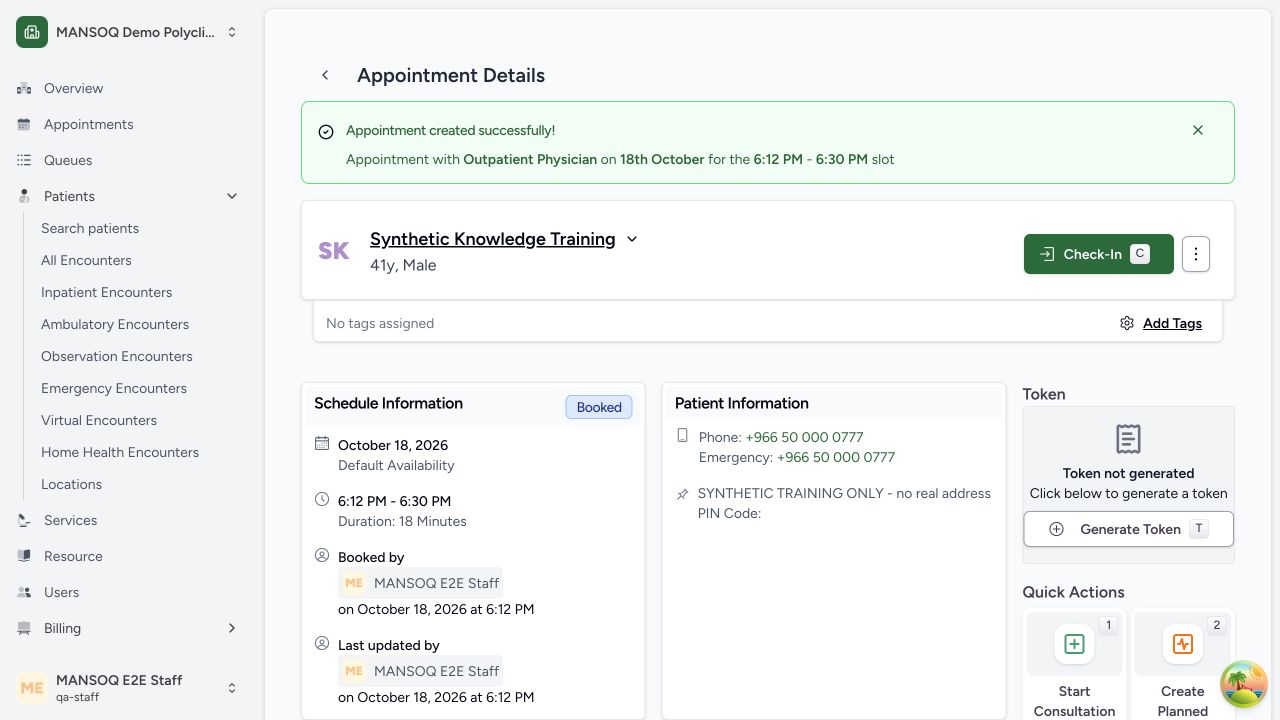
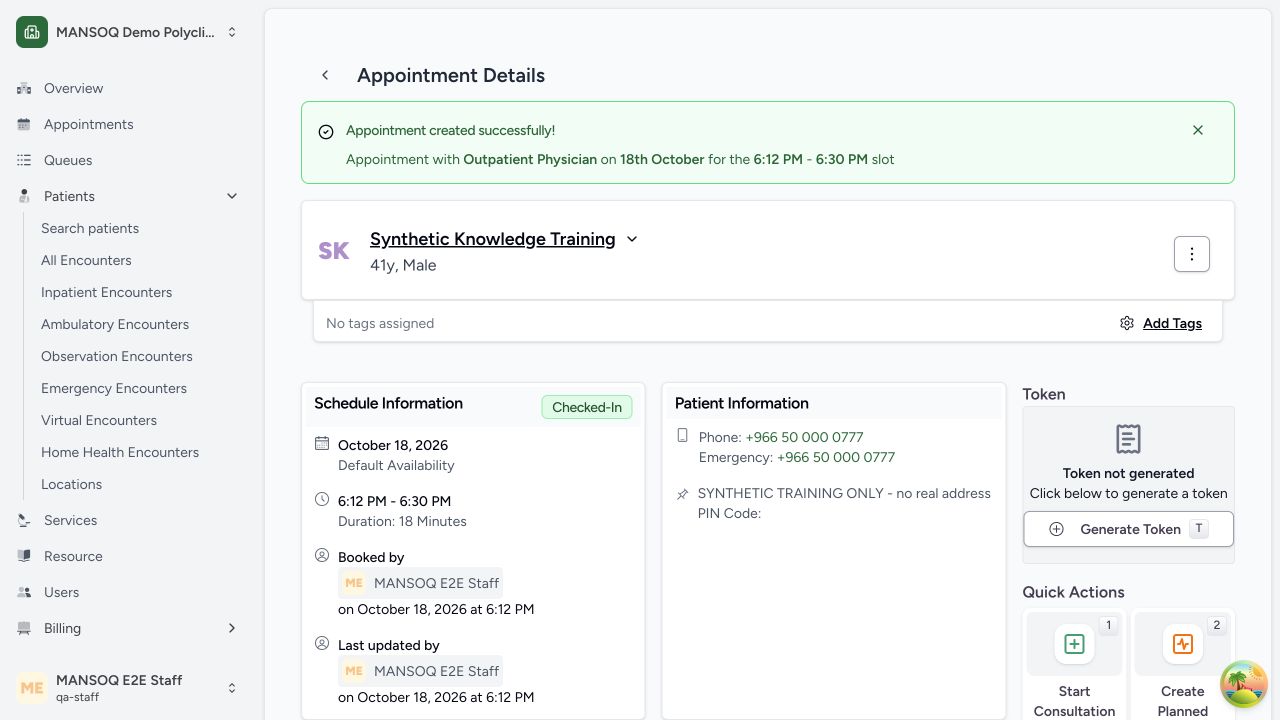
Select Confirm Appointment. The form submits the selected patient, reason and tags against the chosen slot. On success, MANSOQ opens Appointment Details for the newly created booking.
6. Continue from Appointment Details
Review the patient and schedule information. The appointment page offers permitted actions such as token generation and consultation. For a booked or checked-in appointment within the allowed check-in interval, Start Consultation opens or creates the associated encounter. Create Planned Encounter prepares a planned encounter instead.
When the patient arrives, use Check-In and verify Checked-In in Schedule Information. Arrival, queue tokens and clinical encounters are separate records. In the tested role fixture, Staff could book and check in, but encounter creation was denied; Doctor completed the clinical hand-off.
A booking is linked to a clinical encounter
If an appointment already has an associated encounter, Start Consultation changes the appointment to In Consultation and opens that existing encounter. It does not create a second encounter.
Timing and permissions
The detail screen calculates a check-in interval from deployment settings and the appointment times. Write, reschedule and token permissions are checked separately. Available actions also depend on whether the appointment has reached a final status.
Troubleshooting
Confirm Appointment is unavailable
Select a valid resource and a slot. Wait for an in-progress creation request to finish before submitting again.
Start Consultation is not available
Check the appointment status, the allowed check-in interval and your permissions. The source restricts the action to eligible booked or checked-in appointments.
Source evidence
References are pinned to the private MANSOQ source repository. Repository access is required to open these links.
- repositories/platform/mansoq-web/src/pages/Appointments/BookAppointment/BookAppointmentSheet.tsx:50 · f6e9f05f
- repositories/platform/mansoq-web/src/pages/Appointments/BookAppointment/AppointmentFormSection.tsx:37 · f6e9f05f
- repositories/platform/mansoq-web/src/pages/Appointments/BookAppointment/BookAppointmentDetails.tsx:75 · f6e9f05f
- repositories/platform/mansoq-web/src/pages/Appointments/BookAppointment/BookAppointmentDetails.tsx:169 · f6e9f05f
- repositories/platform/mansoq-web/src/pages/Appointments/AppointmentDetail.tsx:194 · f6e9f05f
- repositories/platform/mansoq-web/src/pages/Appointments/AppointmentDetail.tsx:469 · f6e9f05f