 MANSOQ
 Laboratory & radiology
Enter diagnostic report results
Create the configured preliminary report, enter observations with the correct units, handle validation and save results for review.
Current source · Source reviewed; scoped synthetic Nurse and Doctor laboratory workflow observed · 6 min read
Before you begin
- The service request belongs to the intended patient and encounter and has approved observation/report definitions.
- Required specimens have been collected. The software walkthrough is not a clinical specimen-processing protocol.
- Your role has clinical access and Can Create Diagnostic Report on Facility permission. Specialist staff need an actually configured role; a job title alone does not grant access.
1. Check collection and request identity
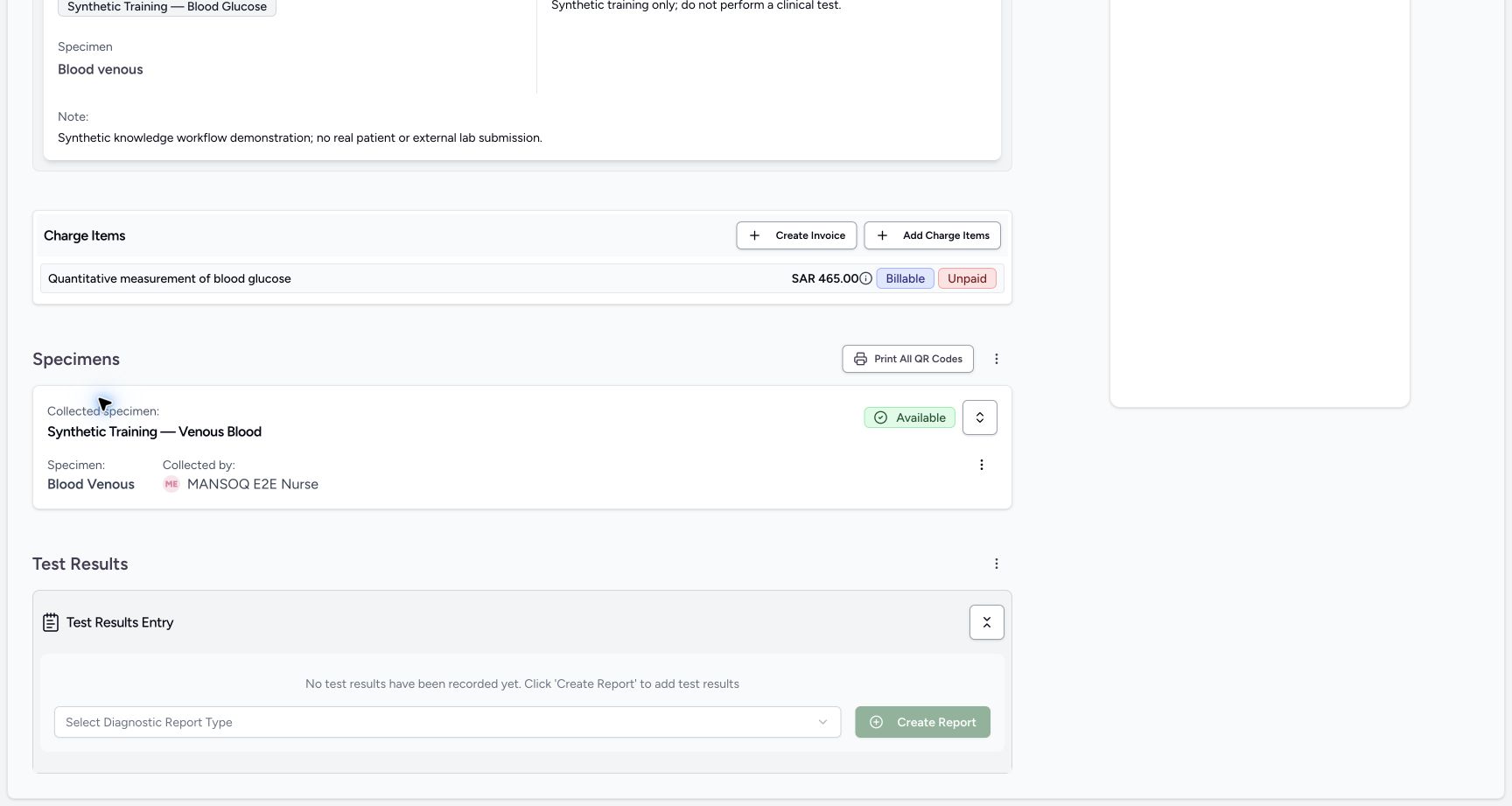
Open the service request and verify patient, requested service, specimen availability and instructions. Required collection must be satisfied before this report-creation path is enabled.
2. Select the report code and create
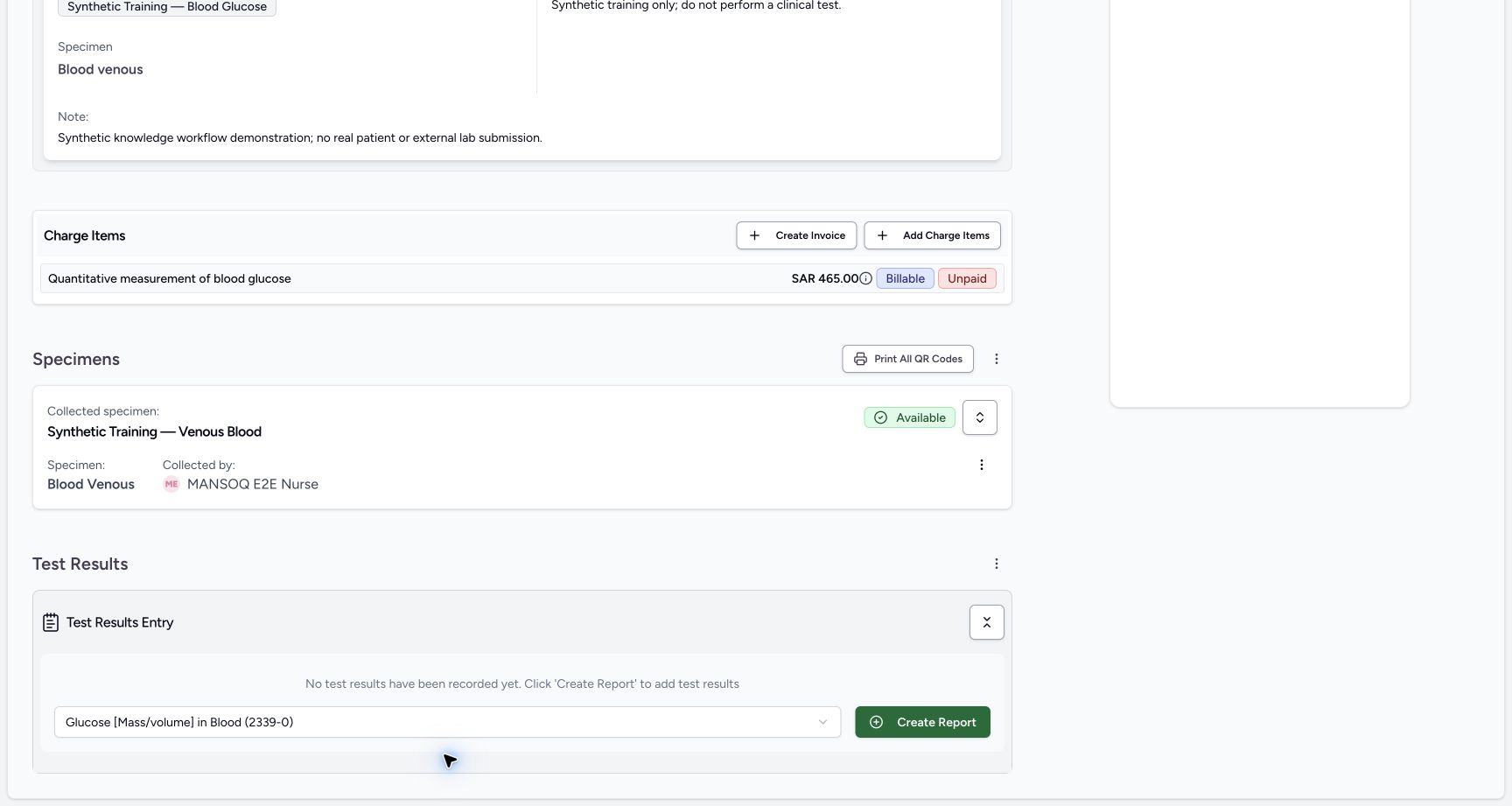
Under Select Diagnostic Report Type, select the configured report code, then Create Report. This selector chooses a code: the synthetic example uses LOINC 2339-0 Glucose [Mass/volume] in Blood. The current form creates a Preliminary report with Laboratory category; it does not begin Registered in this path.
3. Review the configured observation
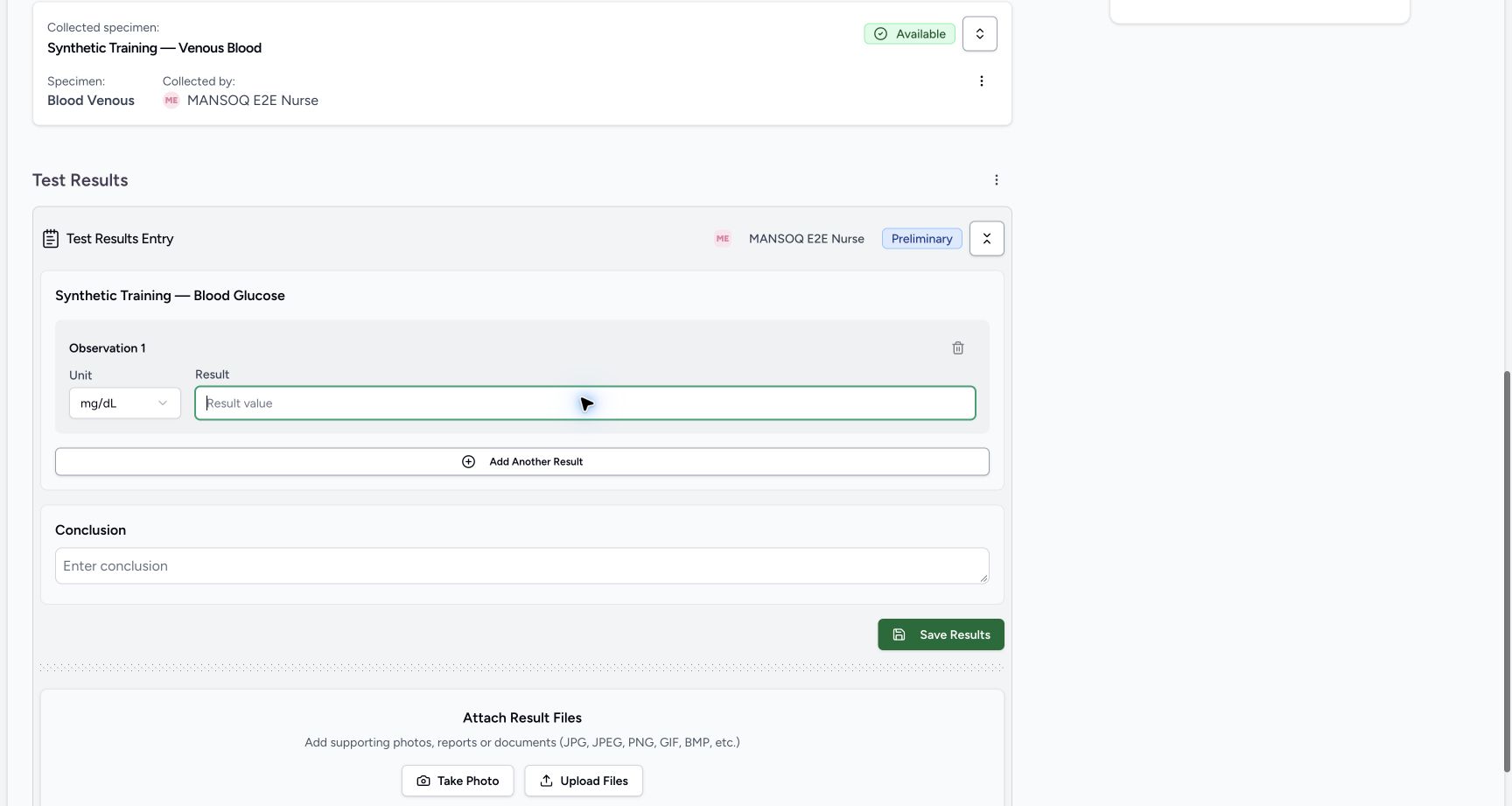
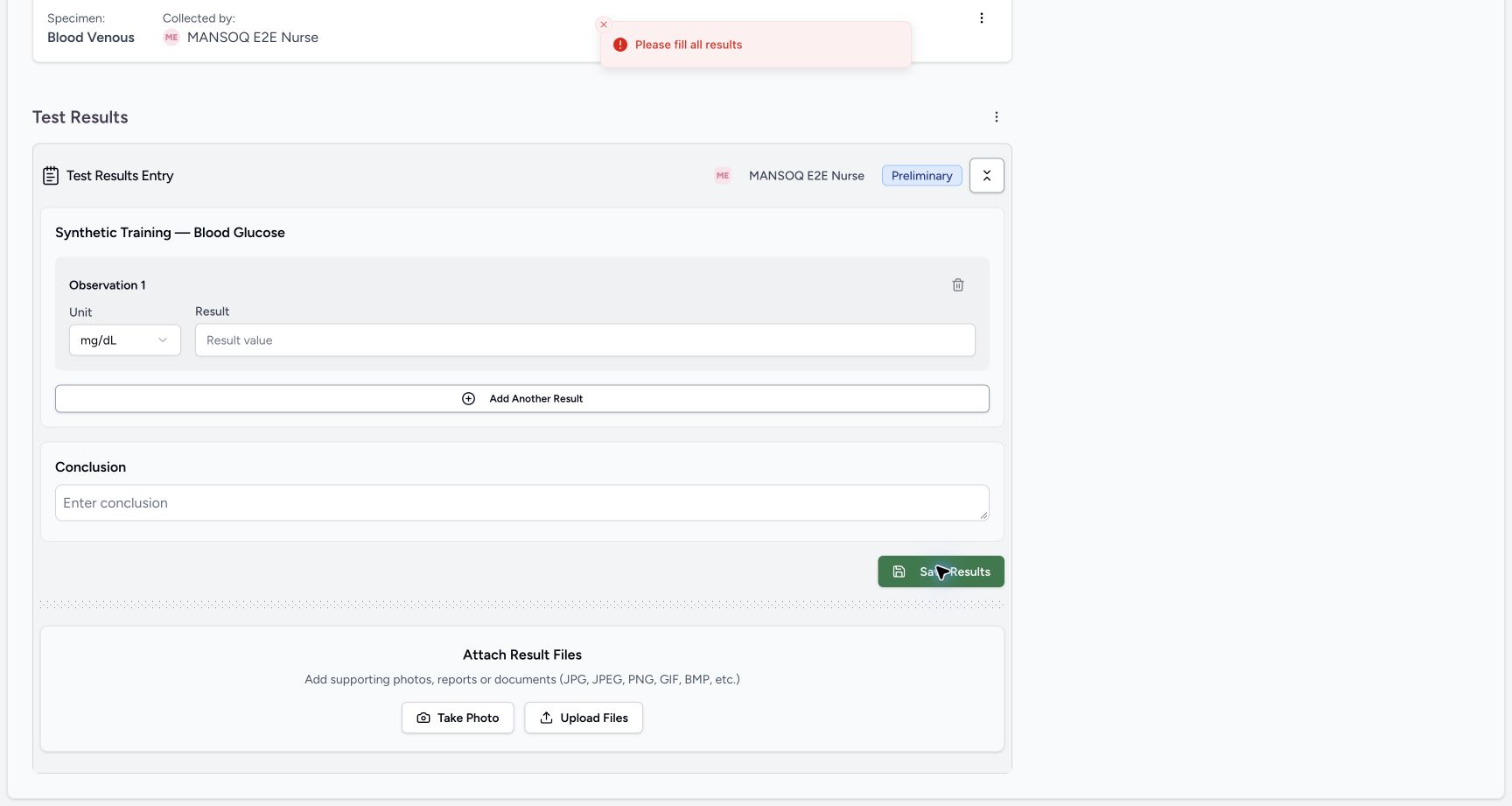
The report form displays the required observation definition. The example shows Synthetic Training — Blood Glucose, Unit mg/dL and a blank Result. Use the approved definition and measurement unit; do not substitute a code or unit merely because it is available.
4. Enter results and conclusion
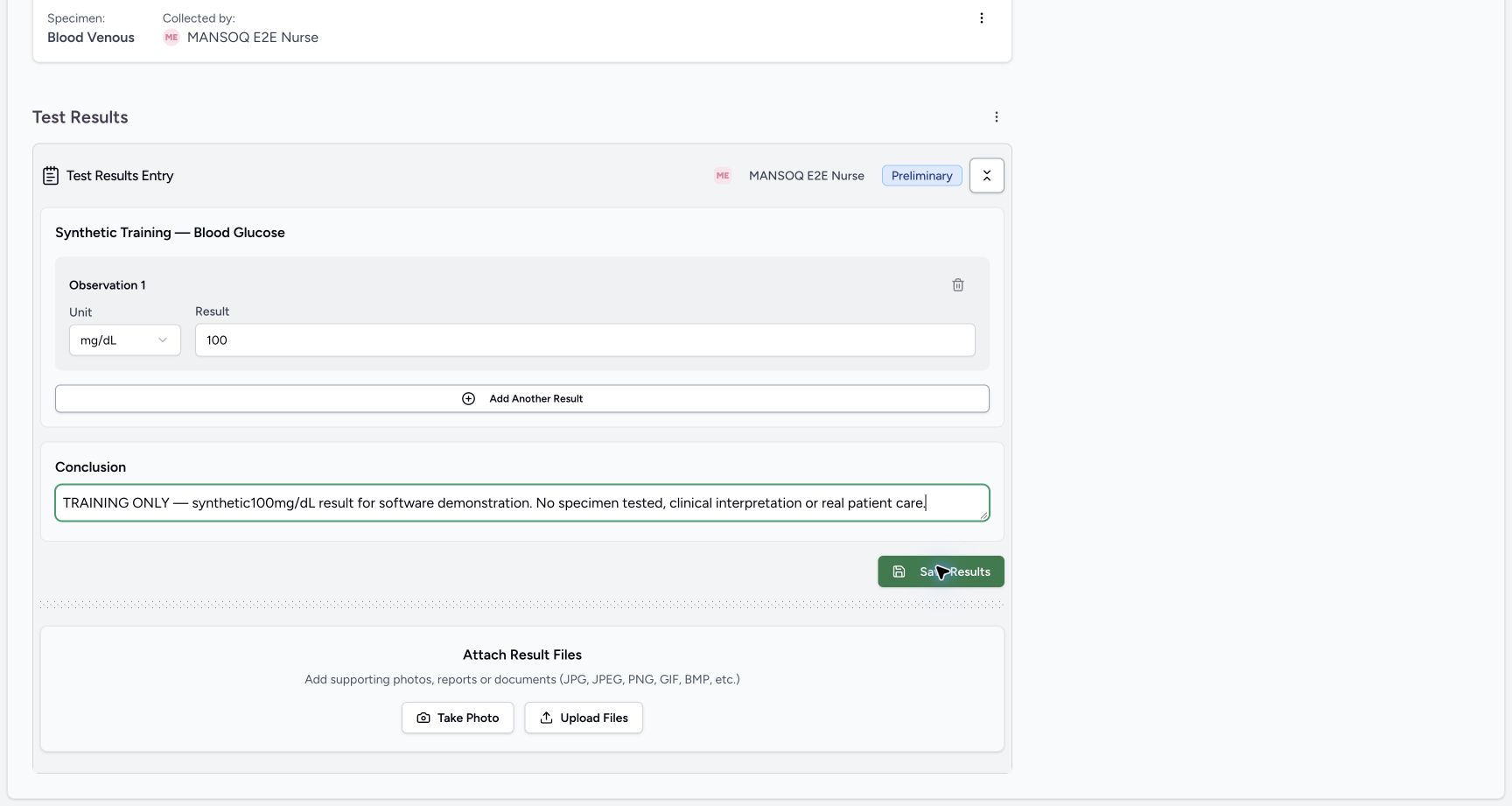
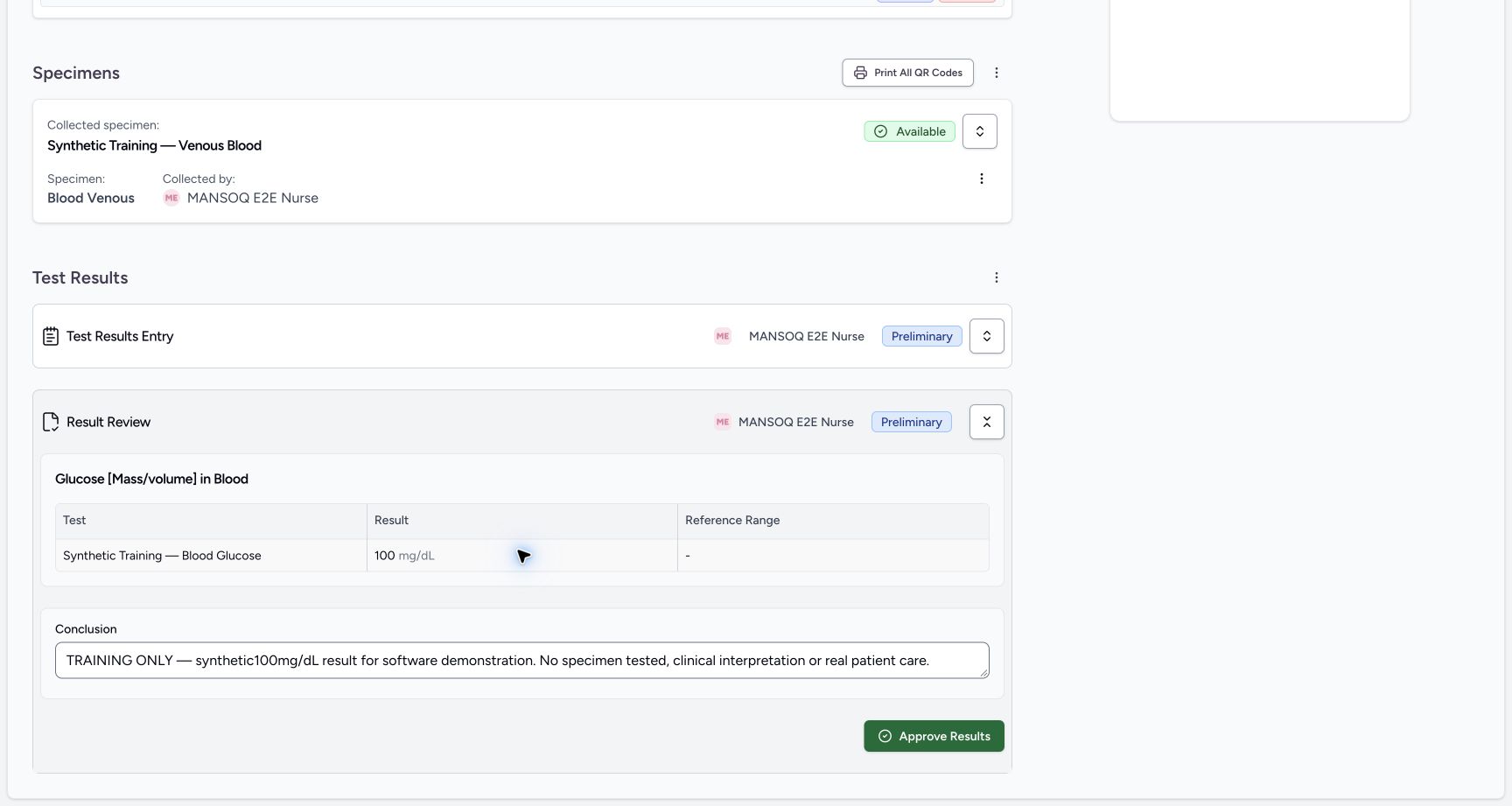
Enter the actual observation value and applicable fields exposed for its configured data type. Add a factual Conclusion where appropriate. The example enters synthetic 100 mg/dL solely to exercise the interface; it supplies no normal-range or clinical interpretation.
5. Handle blank-result validation
Selecting Save Results without any configured result displays Please fill all results in this example. Resolve the missing required data before continuing. A conclusion alone does not substitute for the observation result.
6. Save and read back the preliminary result
Select Save Results. Confirm the result, unit and conclusion under Result Review, with status Preliminary. Saving a result does not itself approve/finalize the report.
7. Hand the result to the authorized reviewer
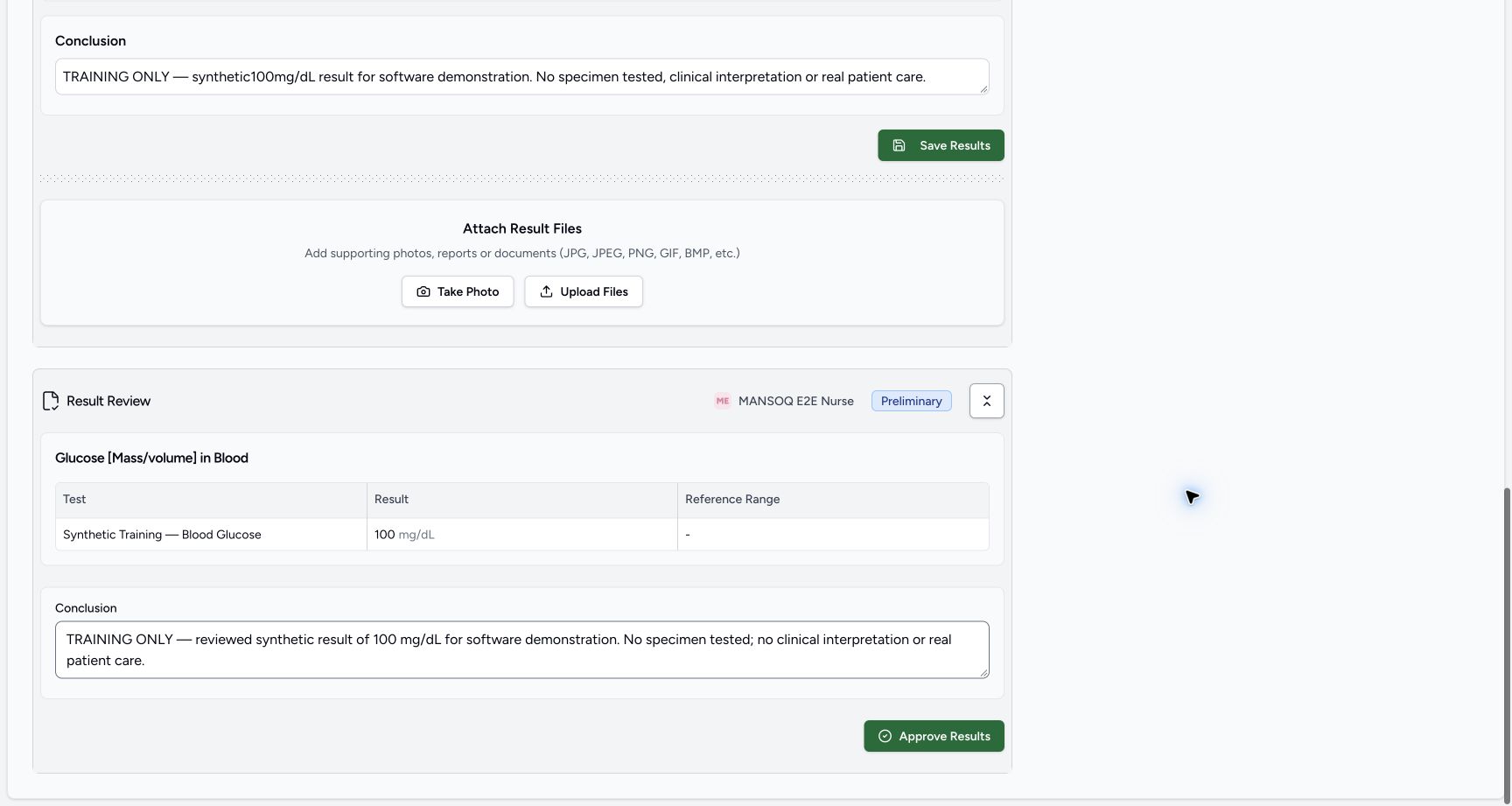
Have the appropriate authorized reviewer check the saved report. The illustrated handoff changes from Nurse entry to Doctor review, but default Nurse permission also exposes Approve Results; the walkthrough does not establish enforced separation of duties.
Attachments require a separate configured file service
The UI exposes Take Photo and Upload Files. General patient/laboratory file storage was not configured or tested in this walkthrough, so no attachment upload success is claimed. The loopback facility source-evidence storage is a different service.
Reference ranges and interpretation depend on configuration
The example shows a dash for Reference Range because its limited training definition has no qualified ranges. A dash does not establish a normal result. Configure approved ranges and interpretations before clinical use.
Persisted training example
Independent readback verifies a Nurse-created final-status Observation containing synthetic 100 mg/dL while its parent report was Preliminary before approval. Observation status and diagnostic-report status are separate fields. No real specimen, patient care or external laboratory transmission occurred.
Troubleshooting
Create Report is disabled
Check required specimen collection, configured report codes, current request state and access. Configure the correct approved definitions rather than bypassing validation.
Please fill all results
Review the configured observation fields and provide the required factual values. The synthetic value in the screenshots is not a clinical recommendation.
The expected unit or result field is absent
Ask the catalogue owner to review the observation definition, permitted data type, unit and terminology installation. Do not use an unrelated definition.
Source evidence
References are pinned to the private MANSOQ source repository. Repository access is required to open these links.
- repositories/platform/mansoq-web/src/pages/Facility/services/serviceRequests/components/DiagnosticReportForm.tsx:469 · f6e9f05f
- repositories/platform/mansoq-web/src/pages/Facility/services/serviceRequests/components/DiagnosticReportForm.tsx:500 · f6e9f05f
- repositories/platform/mansoq-core/mansoq/emr/api/viewsets/diagnostic_report.py:164 · f6e9f05f
- repositories/platform/mansoq-core/mansoq/security/permissions/diagnostic_report.py:1 · f6e9f05f