 MANSOQ
 Facility administration
Configure and verify a Clinic facility
Follow a real synthetic Clinic setup edit with visible controls, validation and independent saved-record readback; configure clinical services separately.
Current source · Source reviewed; own-facility settings edit observed · 6 min read
Before you begin
- Use an authorized administrator account assigned to the correct facility. The demonstrations used separate synthetic Facility Admin accounts.
- Have an approved facility identity, real address, geographic leaf organization and IANA business timezone. The example uses Asia/Riyadh.
- Do not reuse the synthetic fixture postcode, generic address or contact details for a real facility.
1. Select the correct facility and open General settings
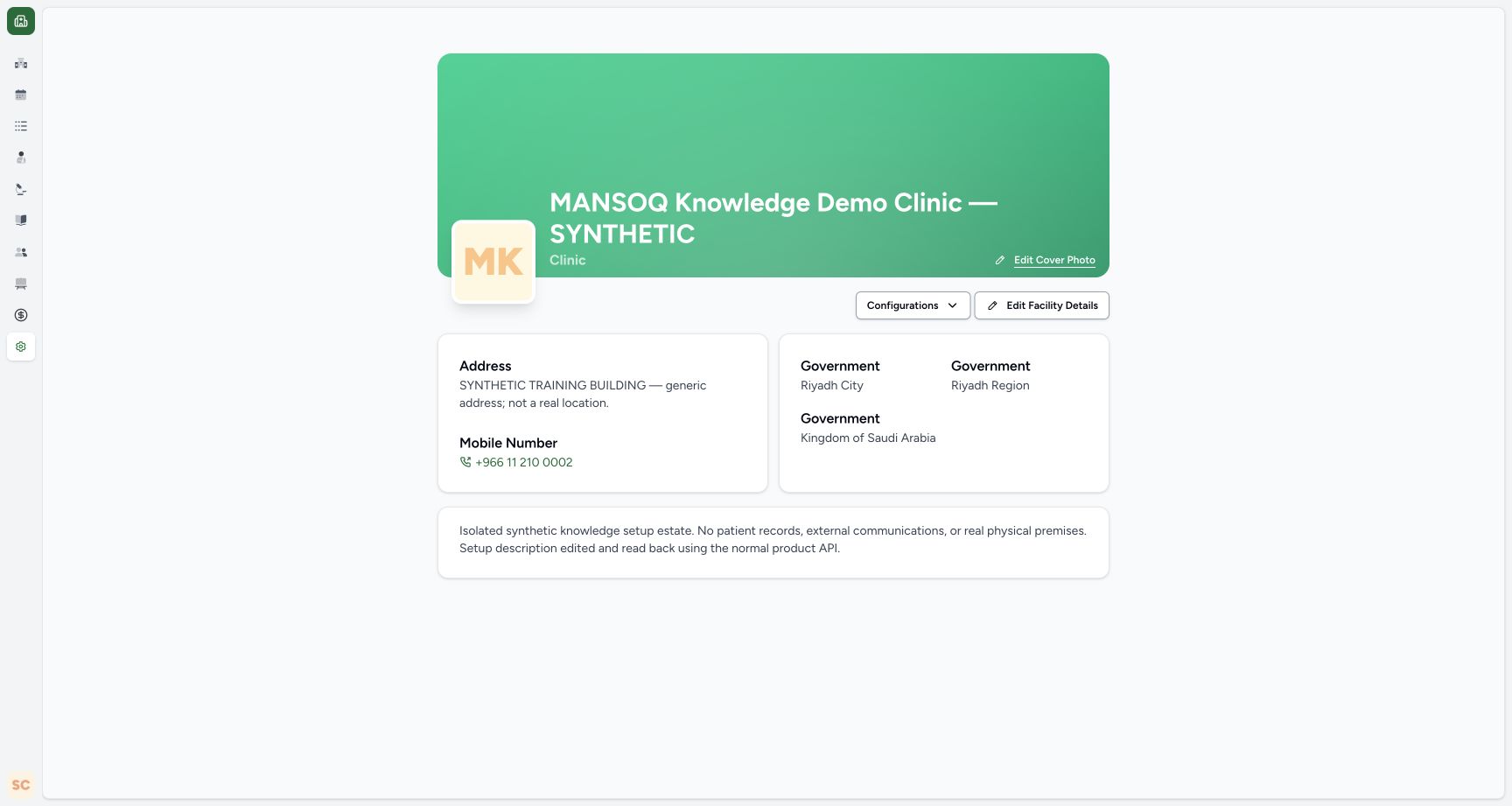
Select the assigned Clinic facility, expand Settings, and open General. Confirm the facility name and displayed Clinic classification before editing. The screenshot shows an independently created synthetic estate with no patient records.
2. Edit identity and business timezone
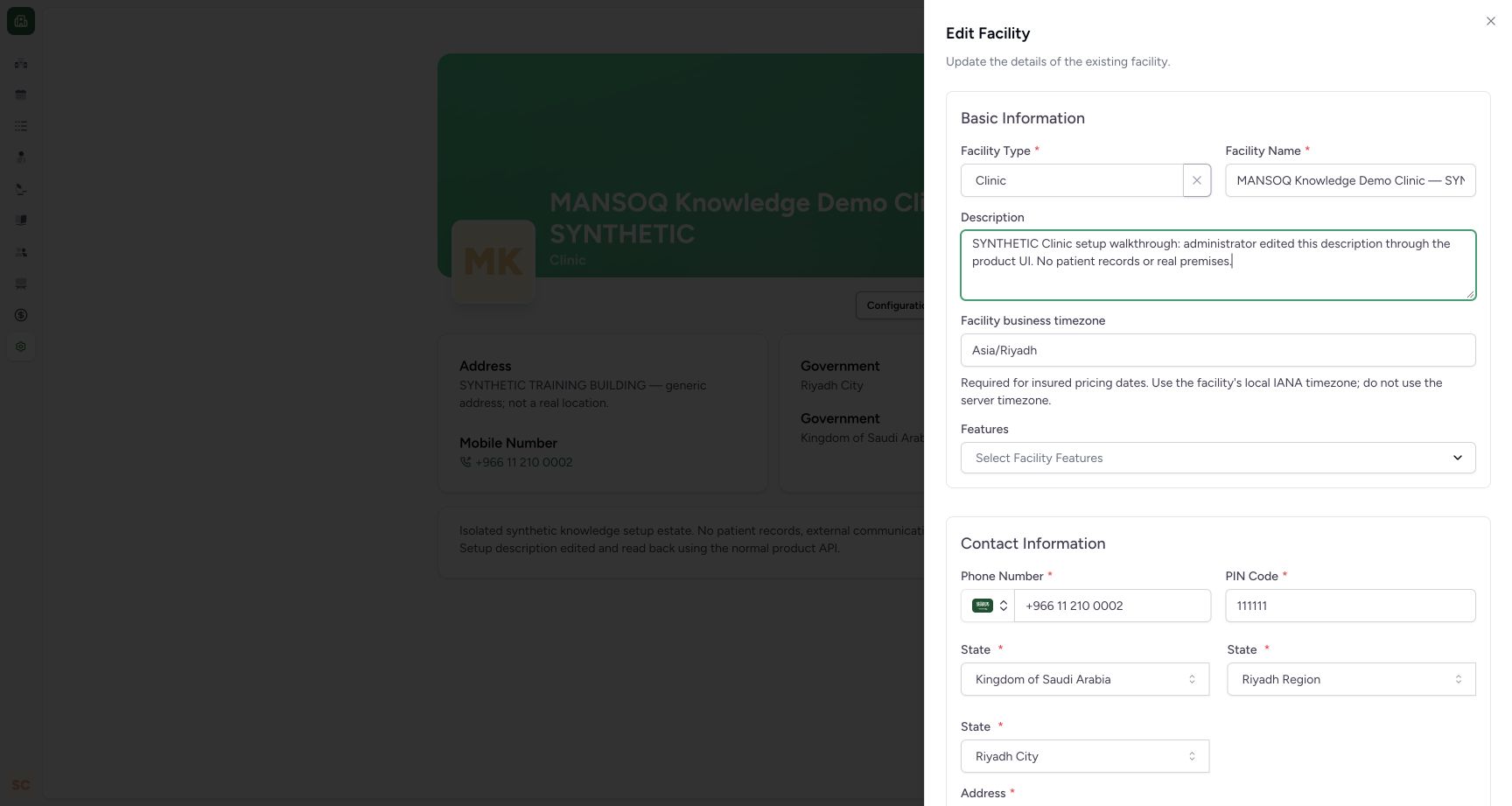
Choose Edit Facility Details. Keep the approved Clinic type and name, review the description and set the facility’s local IANA business timezone. Review features separately. The source version 2 native code for Clinic is 12; API writes use the label string, not that integer.
3. Recognize the current PIN Code limitation
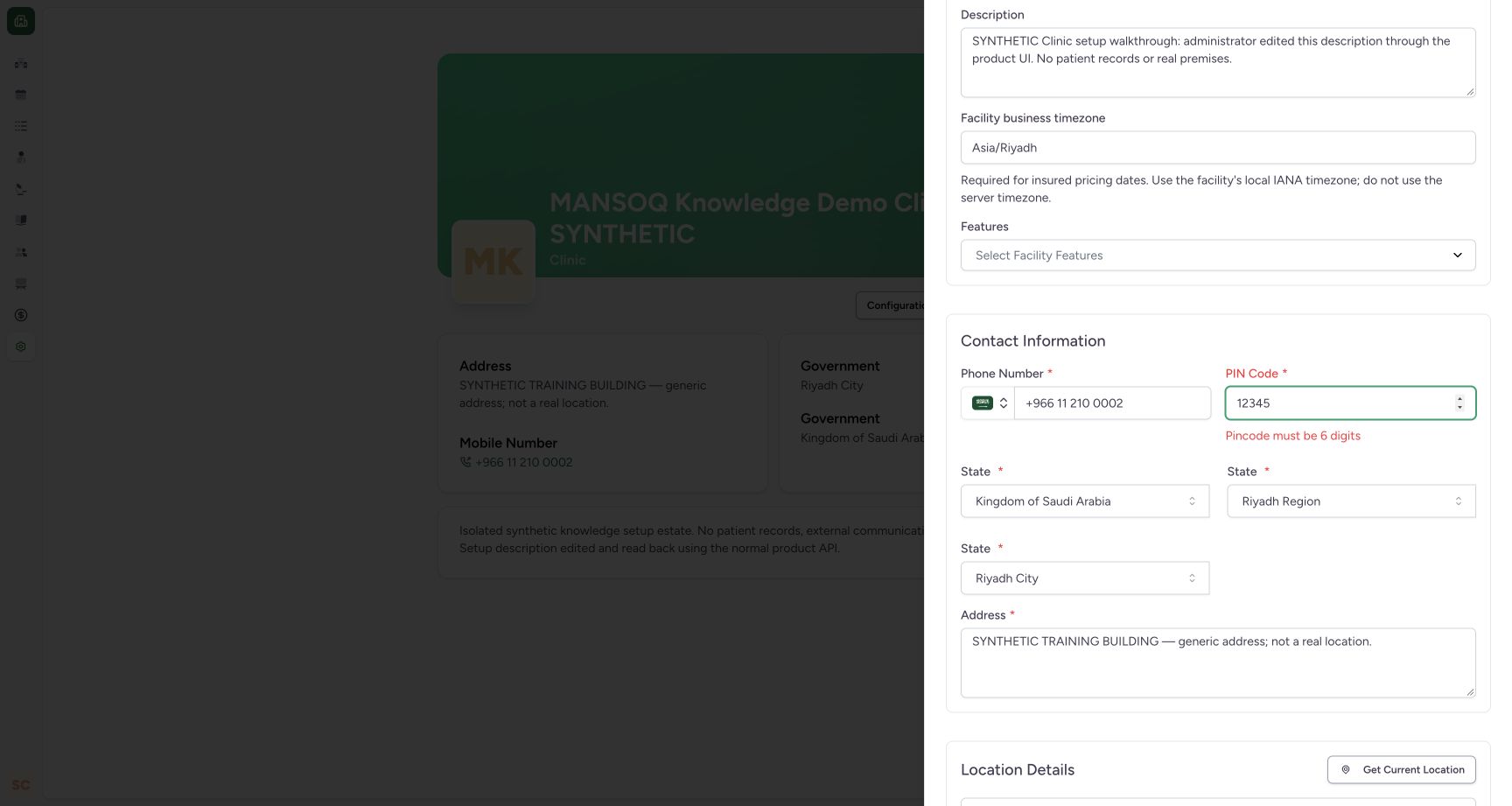
The demonstrated Clinic edit rejected the five-digit test value 12345 with Pincode must be 6 digits. The current shared form requires six digits. The fixture’s 111111 is synthetic training data, not a valid production-address recommendation. Have the deployment owner resolve localization for the real address before production use.
4. Save valid values and verify the result
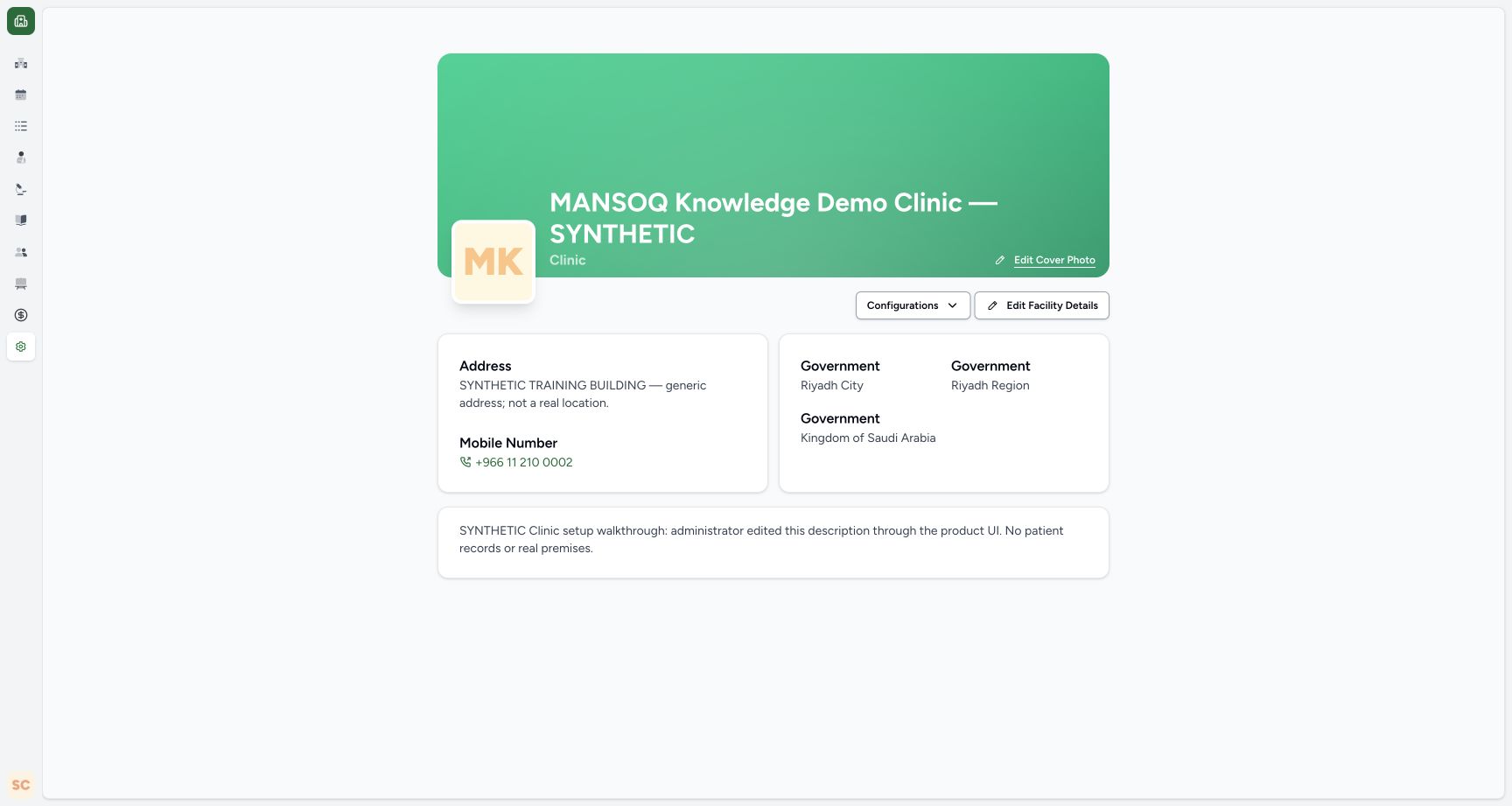
Restore the approved values, scroll to the end of the form and select Update Facility. When the edit sheet closes, check the updated description on General settings. An independent normal API read under this estate’s own Facility Admin confirmed the saved text, type, Asia/Riyadh, original features and private directory visibility. The screenshot is the saved result; the shared save-control placement is illustrated in the separate common-form reference.
5. Review the consultation room
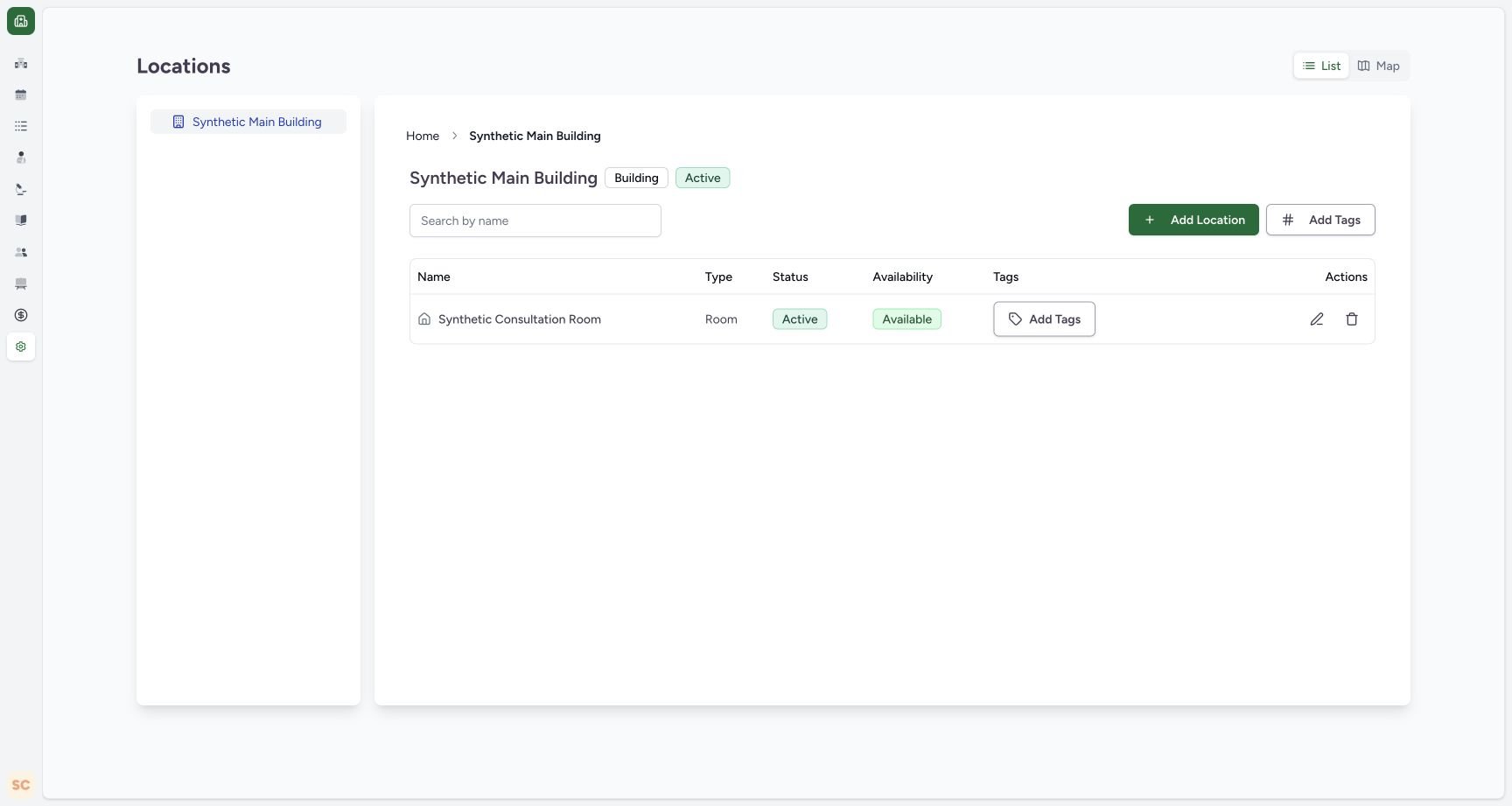
Open Settings → Locations and select the configured building. Confirm that the explicitly created Synthetic Consultation Room appears as a Room. A saved room does not create practitioner availability or appointment slots; configure and validate those workflows separately.
What was created and independently verified
This Clinic estate was created through the normal product POST /api/v1/facility/ API, which returned 200 in this isolated deployment. A separate facility GET and read-only native-code check confirmed Clinic / 12 and Asia/Riyadh. Its own department, locations, service and Facility Admin membership were then created through normal product APIs and read back. The settings edit shown above was performed through the actual application UI. Organization-screen facility creation was not captured by this walkthrough; that UI flow remains open.
Classification does not enable a module
The same shared navigation and setup components were observed across the five estates. A facility label alone does not prove that appointments, inpatient care, diagnostics, pharmacy, NPHIES, claims or finance are operational. Validate the configured service internal types, departments, locations, catalogues, deployment settings and role permissions for each intended workflow.
Address, maps and visibility
The current shared form requires a six-digit PIN Code and, in this synthetic geographic hierarchy, repeats the State label for country, region and city selectors. Check the selected geographic names. External map tiles and lookup were restricted in the isolated preview and were not qualified. Make this facility public controls facility-directory discoverability, not access to the knowledge website. Review it explicitly: the create-form defaults and existing-facility edit values can differ.
Evidence scope
The captured operation is an own-facility administrator settings edit and the specific extra screens described below. Positive own-facility reads and a negative read of the protected training Polyclinic were observed for all five accounts. These observations do not close the full role boundary, facility, medical, nonmedical or workflow matrix. No complete end-to-end clinical qualification is asserted.
Troubleshooting
The field is valid locally but the server rejects the save
Read the actual validation message, verify the facility, approved unique name and geographic leaf, and keep the existing record unchanged until the problem is resolved. Do not bypass API validation.
A required postcode does not match the real address format
The observed form currently enforces six digits. Escalate deployment localization; do not invent a real-facility address or copy the training placeholder.
Source evidence
References are pinned to the private MANSOQ source repository. Repository access is required to open these links.
- repositories/platform/mansoq-core/mansoq/facility/setup_types.py:5 · f6e9f05f
- repositories/platform/mansoq-web/src/components/Facility/FacilityForm.tsx:61 · f6e9f05f
- repositories/platform/mansoq-web/src/components/Facility/FacilityForm.tsx:169 · f6e9f05f
- repositories/platform/mansoq-web/src/types/facility/facility.ts:188 · f6e9f05f
- repositories/platform/mansoq-web/src/Utils/validators.ts:34 · f6e9f05f
- repositories/platform/mansoq-core/mansoq/emr/resources/facility/spec.py:100 · f6e9f05f
- repositories/platform/mansoq-core/mansoq/emr/api/viewsets/facility_organization.py:65 · f6e9f05f
- repositories/platform/mansoq-core/mansoq/emr/resources/location/spec.py:40 · f6e9f05f
- repositories/platform/mansoq-core/mansoq/emr/resources/healthcare_service/spec.py:18 · f6e9f05f