 MANSOQ
 Billing
Create an invoice
Select charge items for an account and create an invoice with the required invoice details.
Current source · source reviewed · 3 min read
Before you begin
- You create the invoice for an account of the patient at your facility.
- The account has Billable charge items, or you add new charge items from Charge Item Definitions on the invoice page.
- If you start from an appointment, the patient has an appointment at the facility.
- You have the permissions listed below.
1. Start the invoice
Start the invoice from one of these places:
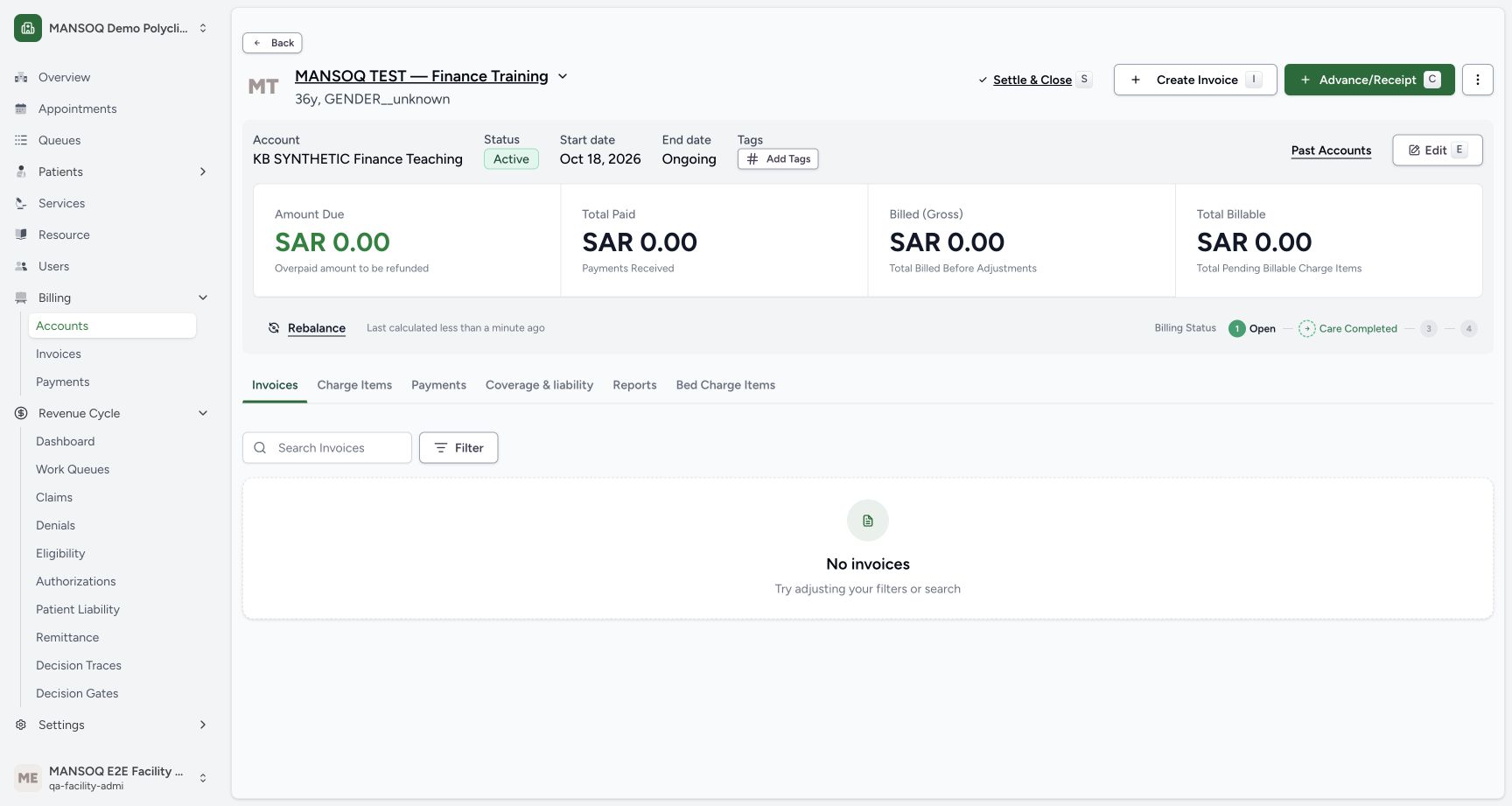
- Open the account and select the Invoices tab.
- Open the appointment page. MANSOQ can pre-select the charge items of that appointment.
- Open the account and select the Charge Items tab. Select the Billable items first.
Note: Press c on the billing and invoice pages to create an invoice. Press i on an appointment page or an account page to create an invoice with the items pre-selected.
2. Select the charge items
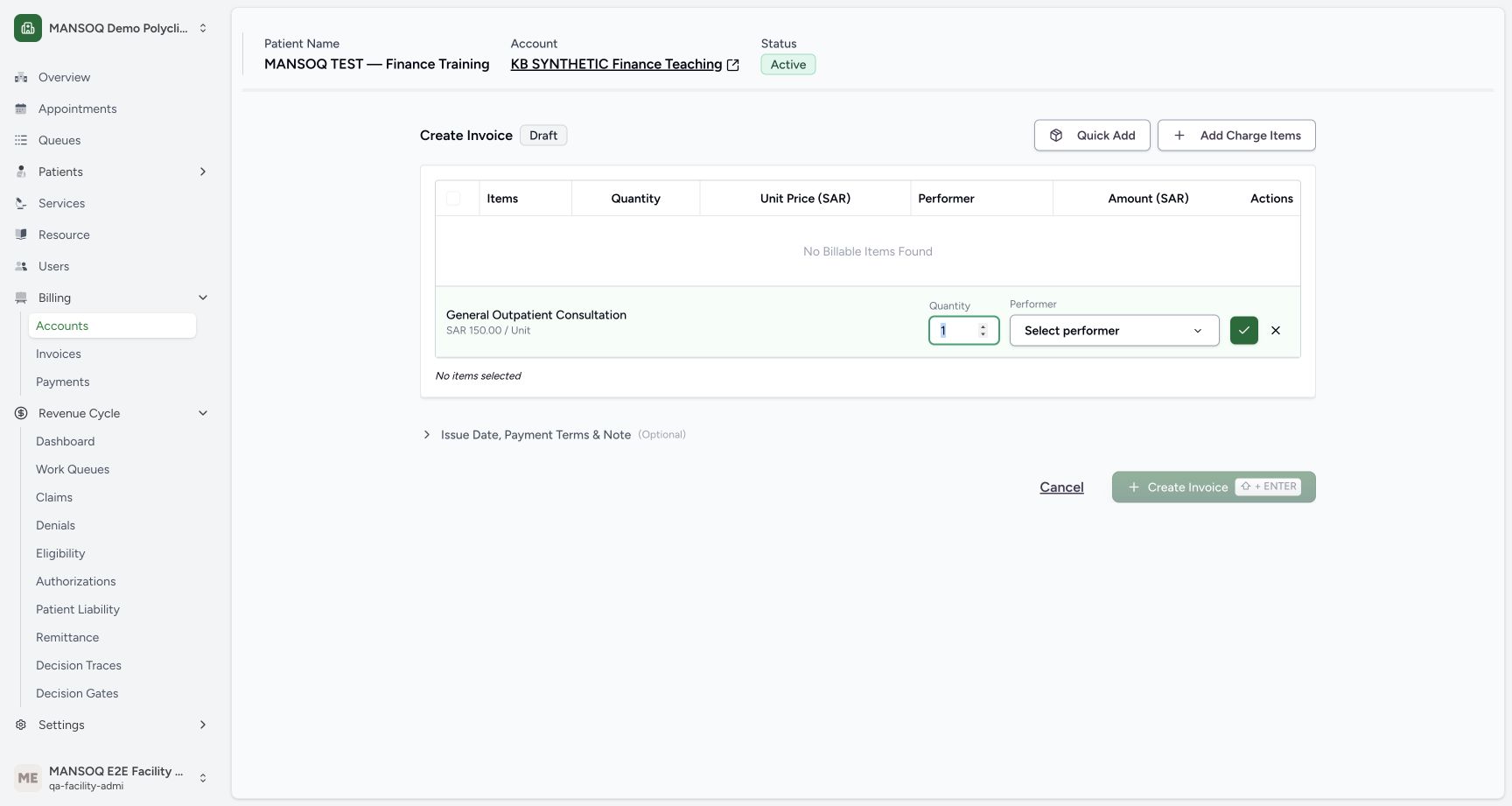
Select the Billable charge items of the account that you want to include.
You can also add new charge items on this page. Select the charge items from the Charge Item Definitions.
3. Add the invoice details
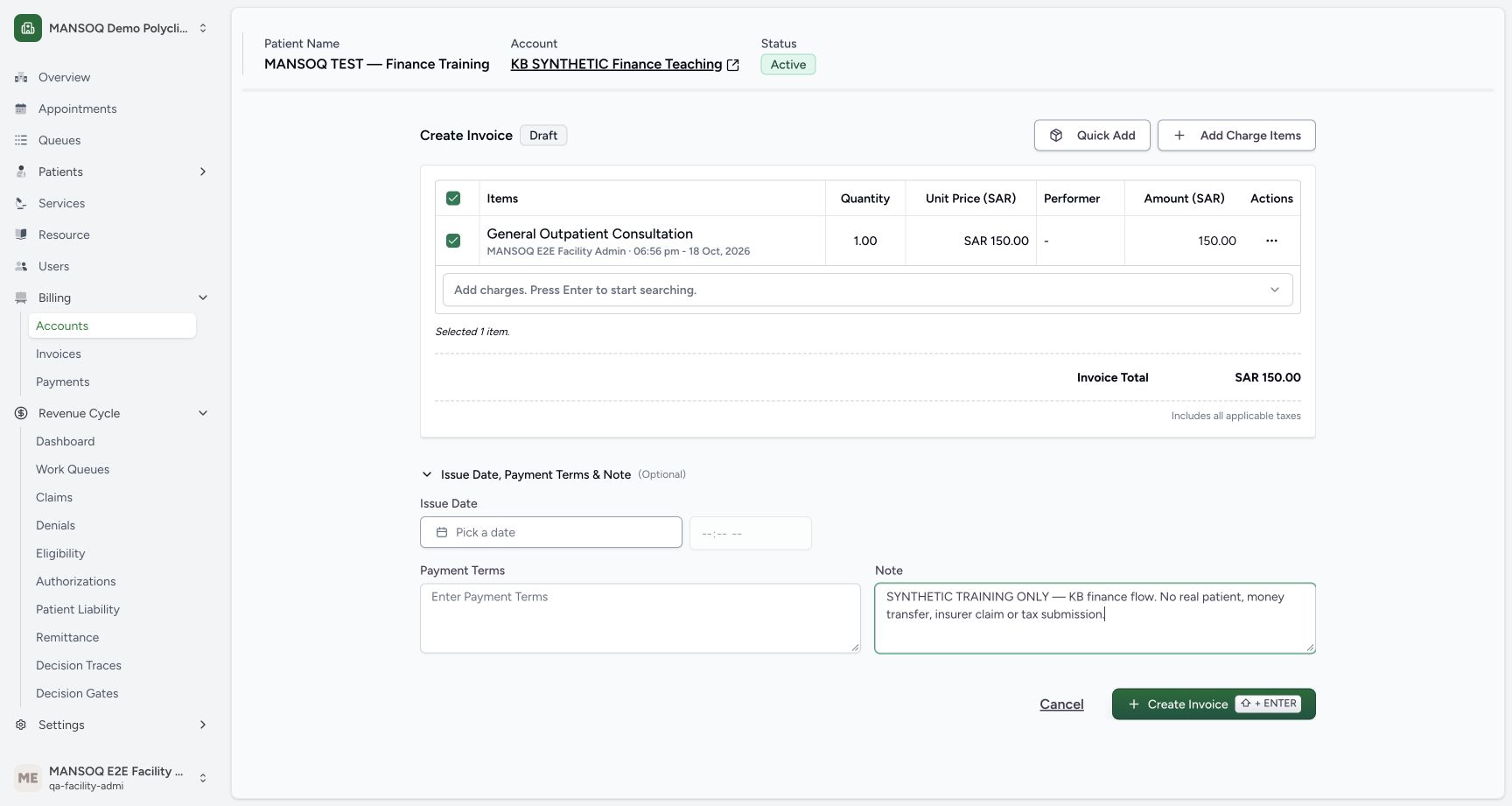
Add the optional details for the invoice.
| Components | What it captures |
|---|---|
| Payment Terms | The terms of payment for the invoice. |
| Note | More information about the invoice. |
| Issue Date | The date of issue for the invoice. |
Add optional issue-date, payment-term and note details before creating the draft. The captured form explicitly marks the example as synthetic.
4. Create the invoice
Click Create Invoice.
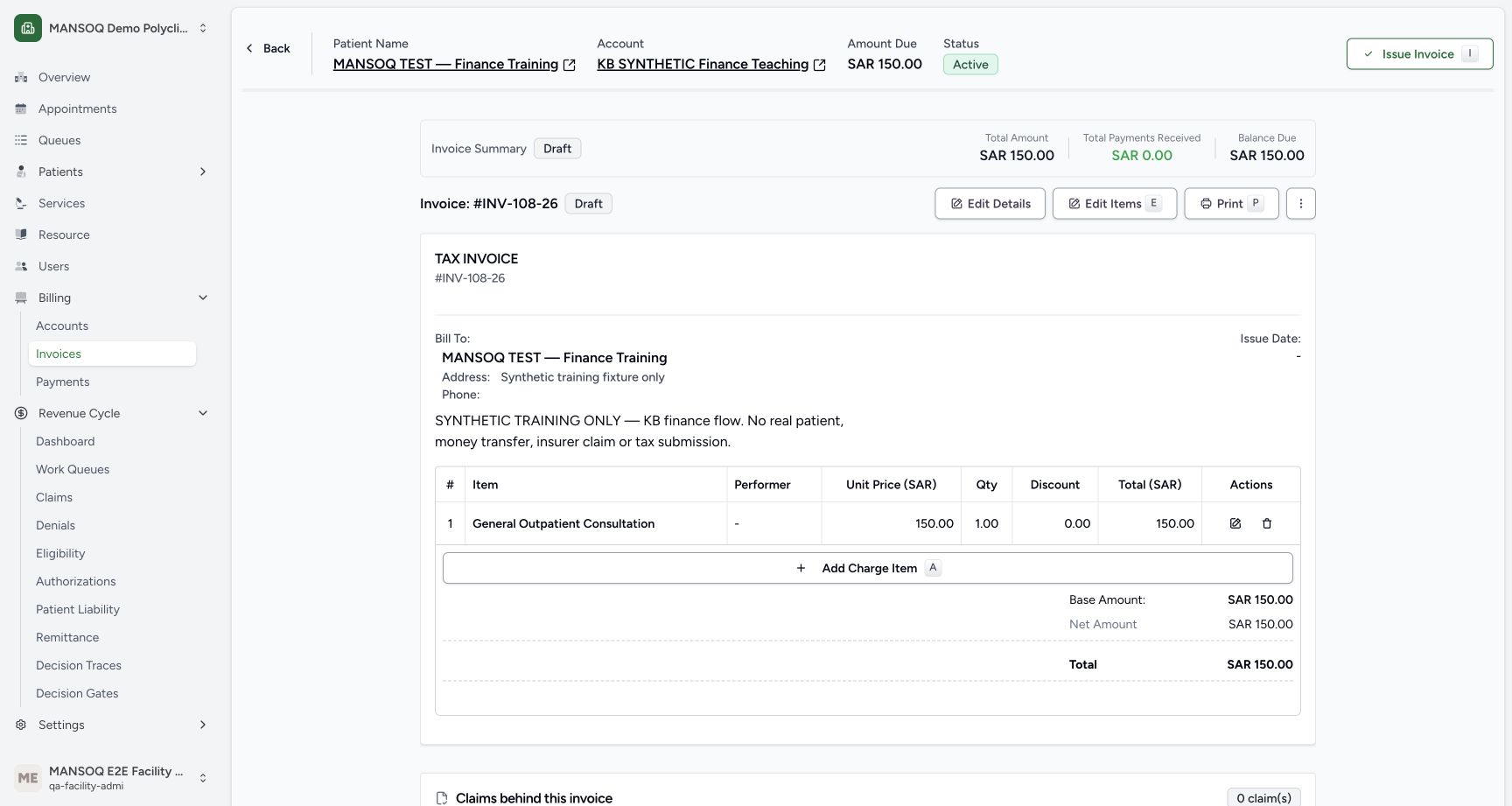
The current synthetic self-pay example saved INV-108-26 as a 150 SAR draft with one selected charge. Draft creation is separate from issue, receipt, final tax determination and electronic-document filing.
Permissions
| Permission | Access |
|---|---|
| Can Write Invoice | Lets you create an invoice. Facility Admin, Admin, Staff, Doctor, Nurse, and Pharmacist have this permission. |
Expected Outcome
- MANSOQ creates the invoice with the charge items that you selected.
- The invoice is in the Draft state.
Version and facility configuration
This procedure is grounded in the repository’s version 3.1 user guide and the audited source revision. Available encounter types, required demographics, terminology, permissions and enabled services depend on your facility configuration. Use the labels and access controls on your own instance; the source references below identify the documented implementation.
Source evidence
References are pinned to the private MANSOQ source repository. Repository access is required to open these links.
- repositories/platform/mansoq-documentation/versioned_docs/version-3.1/flows/billing/invoice/create-invoice.mdx:5 · f6e9f05f
- repositories/platform/mansoq-web/src/pages/Facility/billing/account/CreateInvoice.tsx:130 · f6e9f05f
- repositories/platform/mansoq-documentation/versioned_docs/version-3.1/flows/billing/invoice/create-invoice.mdx:24 · f6e9f05f
- repositories/platform/mansoq-documentation/versioned_docs/version-3.1/flows/billing/invoice/create-invoice.mdx:18 · f6e9f05f
- repositories/platform/mansoq-core/mansoq/emr/api/viewsets/invoice.py:584 · f6e9f05f