 MANSOQ
 Clinical care
Discharge a patient
Record discharge disposition, date and advice, then distinguish discharge from encounter completion and bed release.
Current source · source reviewed · 3 min read
Before you begin
- The patient has an open encounter of the type Inpatient, Observation or Emergency.
- The patient is ready to leave the facility.
- You have the permissions listed below.
1. Start the discharge
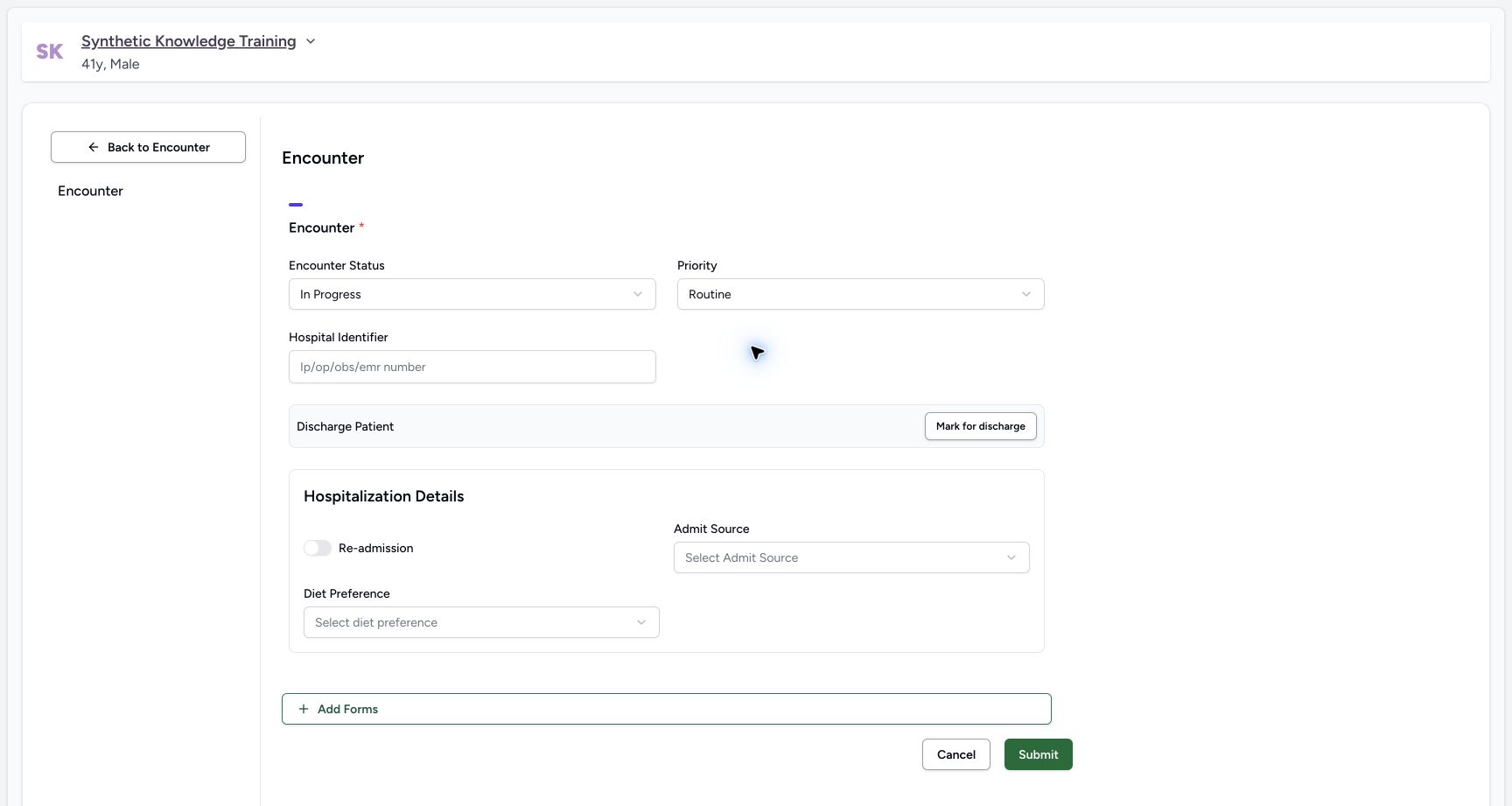
Open the correct Inpatient, Observation or Emergency encounter. Select Encounter Actions → Update Encounter Details, or use Shift+U; the Overview Update Encounter control opens the same encounter form. Under Discharge Patient, select Mark for discharge. The form changes Encounter Status to Discharged and disables that status selector while exposing discharge details. Other entry points depend on encounter class and deployment; use the controls actually shown.
2. Select the Discharge Disposition
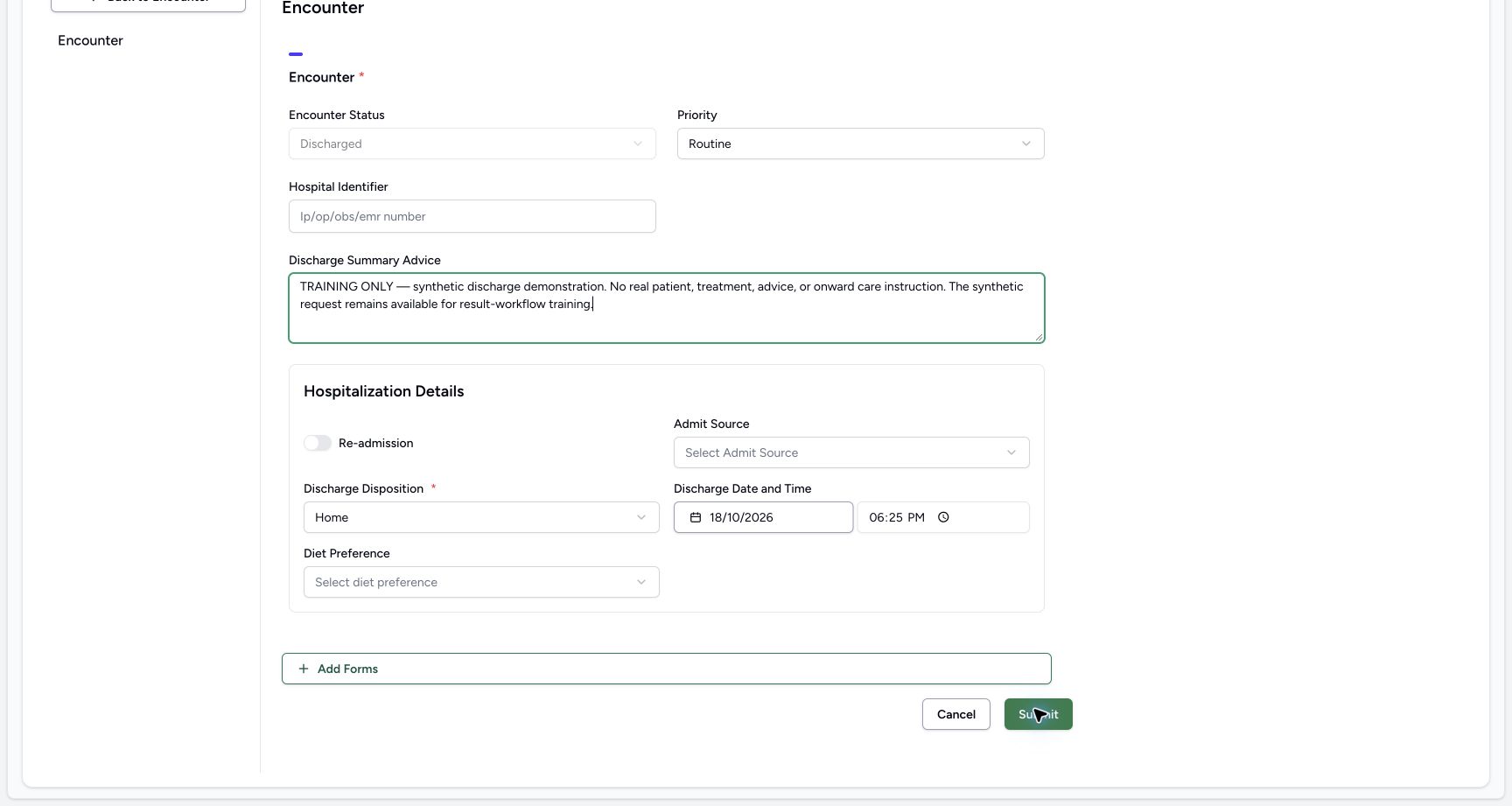
Select where the patient goes. This field is required.
| Component | What it captures |
|---|---|
| Discharge Disposition | The place the patient goes to after the facility. |
The choices are:
- Home
- Alternate home
- Other health care facility
- Hospice
- Long term care
- Left against advice
- Expired
- Psychiatric hospital
- Rehabilitation
- Skilled nursing facility
- Other
MANSOQ marks this field with an asterisk. MANSOQ refuses the form until you fill it in, for Inpatient, Observation and Emergency encounters.
Note: Your deployment can pre-fill a default discharge disposition.
3. Set the Discharge Date and Time
Set when the patient leaves the facility. MANSOQ shows this field after the status becomes Discharged. The time cannot be earlier than the start of the encounter.
4. Write the Discharge Summary Advice
Write the advice the patient takes home. This field is optional.
5. Check the Hospitalization Details
Check the rest of the Hospitalization Details:
| Component | What it captures |
|---|---|
| Admit Source | Where the patient came from. |
| Re-Admission | A switch. Turn it on when the patient comes back for the same problem. |
| Diet Preference | The dietary requirement of the patient. |
Admit Source offers these choices:
- Transferred from other hospital
- From accident/emergency department
- From outpatient department
- Born in hospital
- General Practitioner referral
- Medical Practitioner/physician referral
- From nursing home
- From psychiatric hospital
- From rehabilitation facility
- Other
Diet Preference offers these choices:
- Vegetarian
- Dairy free
- Nut free
- Gluten free
- Vegan
- Halal
- Kosher
- None
6. Submit the form
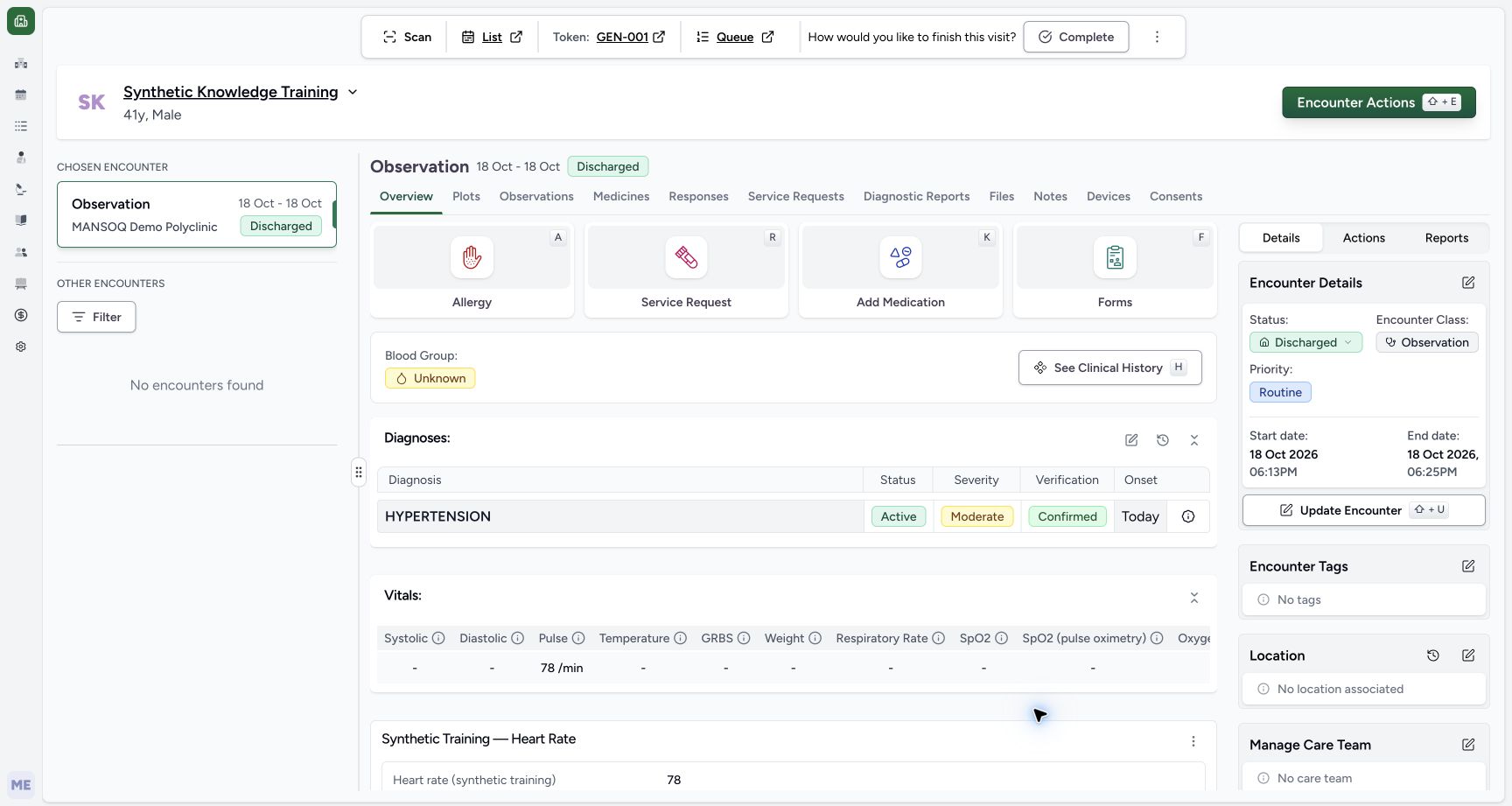
Select Submit, wait for the confirmation and return to Overview. Check the persisted Discharged status and Discharge Date and Time in Discharge Details. Open Discharge Summary Advice to review the saved text. Completion is a separate action; coordinate outstanding requests, results, medication and billing tasks according to facility policy.
Before using this workflow
Note: The discharge does not close the encounter. The encounter stays open until someone marks it as complete.
Permissions
| Permission | Access |
|---|---|
| Update Encounter non clinical | Lets you record the discharge on an encounter. Administrator, Doctor, Nurse and Facility Administrator hold this permission. |
Expected Outcome
- MANSOQ marks the encounter as Discharged.
- The encounter stays open. The care team can still change the encounter, the location, the care team, the departments and the tags.
- The patient keeps the bed until someone closes the location stay. MANSOQ frees the bed when the stay closes, or when someone marks the encounter as complete. See Assign an Encounter location.
- To close the encounter, someone must mark it as complete. See Complete an Encounter.
- MANSOQ can move a discharged encounter to another status. MANSOQ applies no rules about which status follows which.
Note: Your deployment decides which encounter types your facility uses.
Version and facility configuration
This procedure is grounded in the repository’s version 3.1 user guide and the audited source revision. Available encounter types, required demographics, terminology, permissions and enabled services depend on your facility configuration. Use the labels and access controls on your own instance; the source references below identify the documented implementation.
Verified synthetic training example
The Doctor discharged the explicitly synthetic Observation encounter using Update Encounter Details → Mark for discharge, selected Home, recorded a training-only summary and submitted. Overview subsequently showed Discharged with the saved date/time; a separate read-only database transaction confirmed status discharged and disposition home. The encounter was not marked Completed, and its synthetic laboratory request remained Active for further workflow training. This demonstration is not a clinical discharge policy.
Troubleshooting
The patient still occupies a bed after discharge
Discharge does not itself close the encounter or location stay. Close the location stay, or complete the encounter when all required work is finished.
Source evidence
References are pinned to the private MANSOQ source repository. Repository access is required to open these links.
- repositories/platform/mansoq-documentation/versioned_docs/version-3.1/flows/clinical/encounter/discharge-patient.mdx:5 · f6e9f05f
- repositories/platform/mansoq-web/src/pages/Encounters/tabs/overview/summary-panel-details-tab/discharge-summary.tsx:22 · f6e9f05f
- repositories/platform/mansoq-documentation/versioned_docs/version-3.1/flows/clinical/encounter/discharge-patient.mdx:25 · f6e9f05f
- repositories/platform/mansoq-documentation/versioned_docs/version-3.1/flows/clinical/encounter/discharge-patient.mdx:19 · f6e9f05f
- repositories/platform/mansoq-web/src/components/Questionnaire/QuestionTypes/EncounterQuestion.tsx:336 · f6e9f05f