 MANSOQ
 Appointments & queues
Create or generate a queue token
Create a patient token for a scheduled resource and category with optional supporting notes.
Current source · source reviewed · 3 min read
Before you begin
- The patient is registered in MANSOQ.
- A token category is created for the facility. See Create a token category.
- You have the permissions listed below.
1. Start a new token
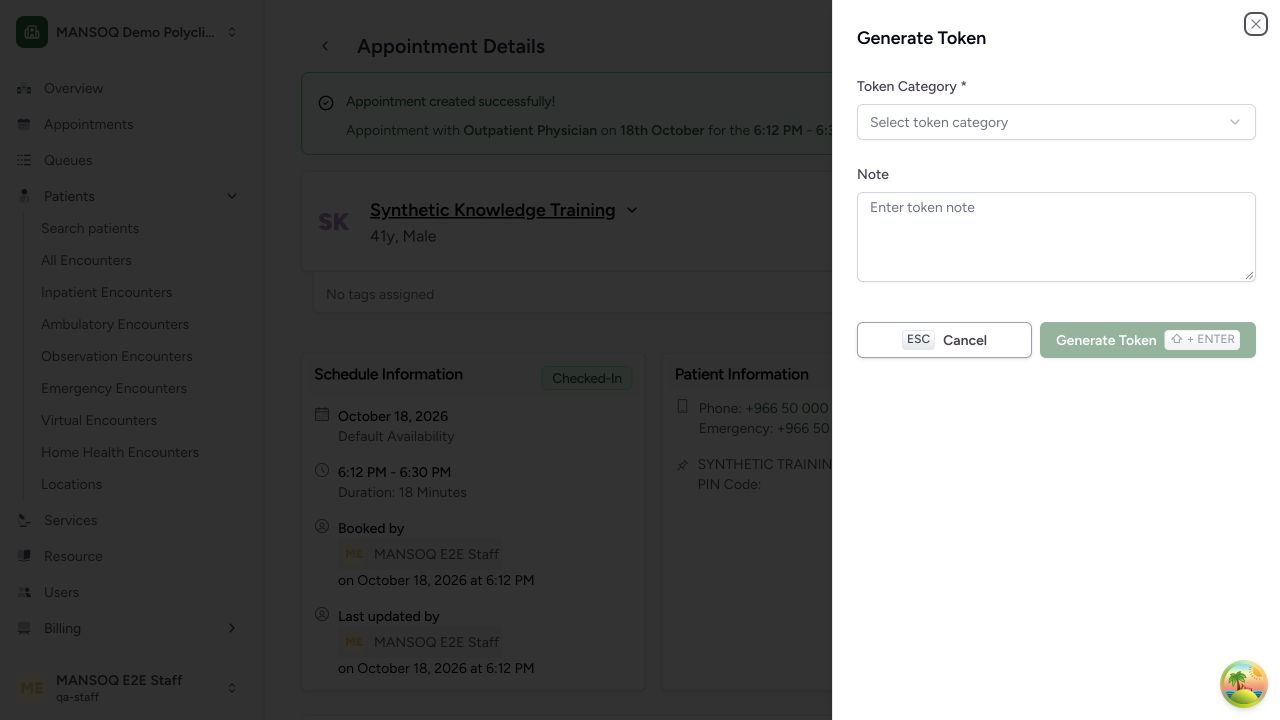
Choose the entry point for your workflow. From an appointment that has no token yet, use Generate Token in the Token section. The resulting panel is titled Generate Token. The standalone queue workflow uses Create Token and asks for the resource separately.
2. Select the resource
For a standalone token, choose the resource type and resource: practitioner, location or healthcare service. For an appointment token, the appointment already supplies that resource; verify it on Appointment Details before generating the token.
3. Select the category
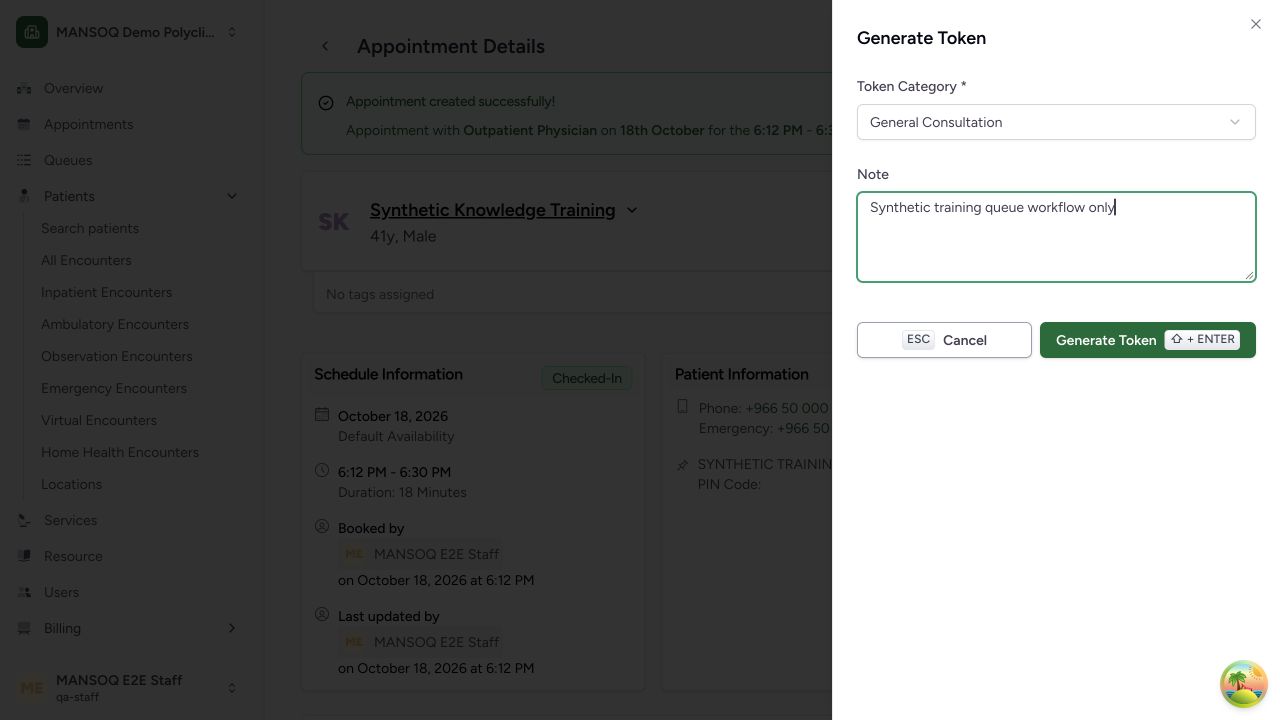
Choose the configured Token Category. A default category may be preselected. Without a category, the Generate Token action remains disabled. Create an appropriate category with an authorized setup role if none is available.
4. Add a note
Enter a Note if you need one. This is optional.
5. Save the token
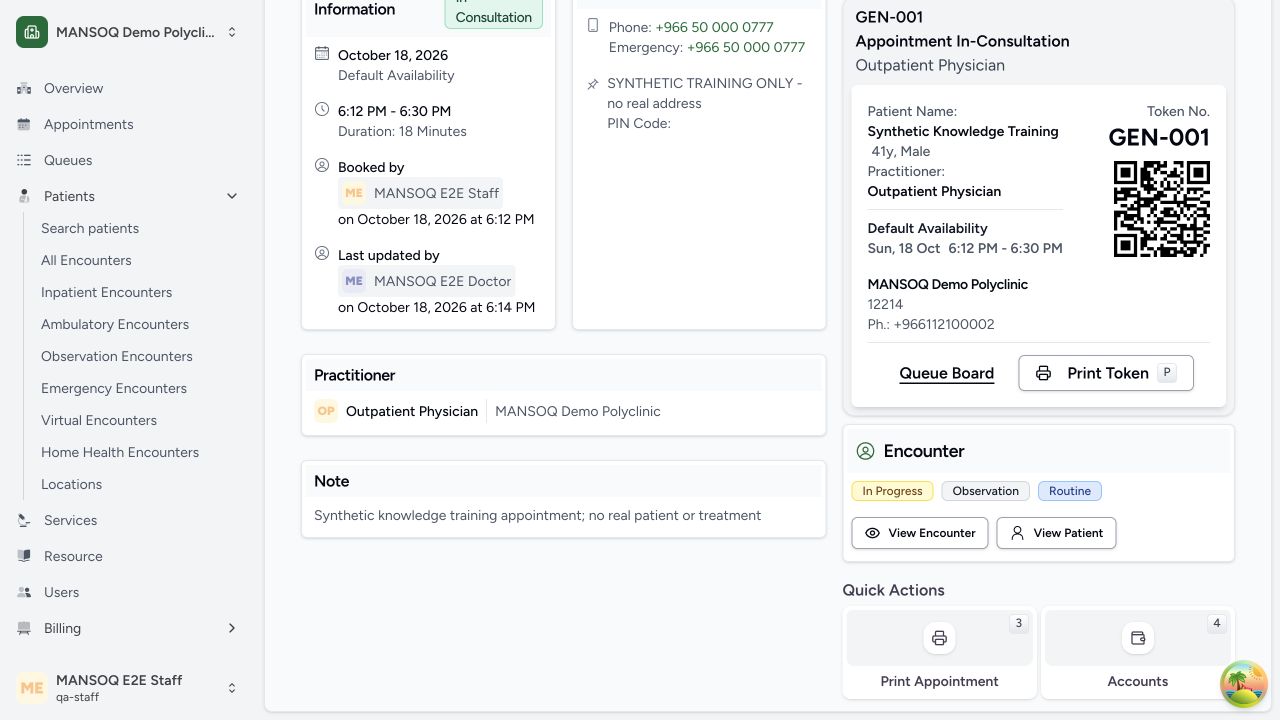
Select Generate Token for an appointment token, or Create Token in the standalone panel. Confirm the success message and generated token number. The appointment token card offers Queue Board and Print Token. In the captured synthetic run, GEN-001 appeared as Waiting on its queue board before being served.
Permissions
| Permission | Access |
|---|---|
| Can Create on Token | Lets you create a token. |
| Can list token category on Facility | Lets you select a token category. |
Expected Outcome
A token number is linked to the intended patient, resource and queue. Verify its actual queue status. The illustrated appointment token appeared as Waiting and later Serving; a Created status is not assumed for every entry point.
Version and facility configuration
This procedure is grounded in the repository’s version 3.1 user guide and the audited source revision. Available encounter types, required demographics, terminology, permissions and enabled services depend on your facility configuration. Use the labels and access controls on your own instance; the source references below identify the documented implementation.
Source evidence
References are pinned to the private MANSOQ source repository. Repository access is required to open these links.
- repositories/platform/mansoq-documentation/versioned_docs/version-3.1/flows/scheduling/token/create-token.mdx:5 · f6e9f05f
- repositories/platform/mansoq-web/src/components/Tokens/CreateTokenForm.tsx:56 · f6e9f05f
- repositories/platform/mansoq-documentation/versioned_docs/version-3.1/flows/scheduling/token/create-token.mdx:24 · f6e9f05f
- repositories/platform/mansoq-documentation/versioned_docs/version-3.1/flows/scheduling/token/create-token.mdx:17 · f6e9f05f
- repositories/platform/mansoq-web/src/pages/Appointments/components/TokenGenerationSheet.tsx:45 · f6e9f05f
- repositories/platform/mansoq-web/src/pages/Appointments/AppointmentDetail.tsx:310 · f6e9f05f