 MANSOQ
 Clinical care
Record a diagnosis
Find a coded diagnosis, check its clinical and verification status, and submit it to the correct encounter.
Current source · Source reviewed; scoped synthetic Doctor diagnosis workflow observed · 3 min read
Before you begin
- The patient has an open encounter at the facility, and that encounter is the patient's active encounter. Without an active encounter, the screen shows "Diagnosis cannot be recorded without an active encounter".
- The encounter is not Completed, Cancelled, Discontinued, or Entered in Error. In these states, all add and edit controls are read-only.
- You have the permissions listed below.
1. Open the diagnosis screen
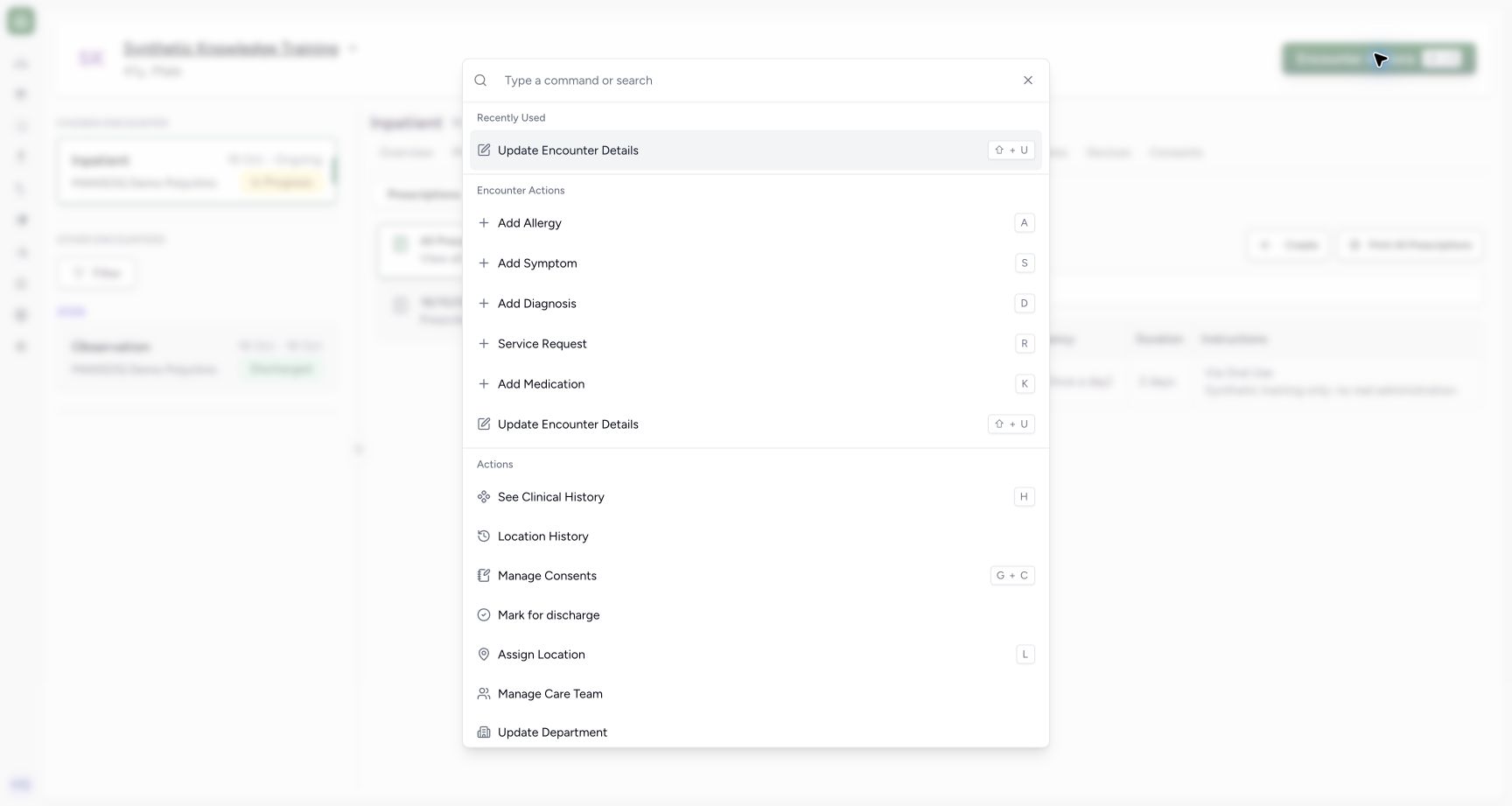
Open the correct encounter. Open Encounter Actions, then Add Diagnosis, or use the d shortcut. If a Diagnoses section is present on Overview, its edit control opens the diagnosis form. Your facility may also provide a custom Diagnosis questionnaire through Forms. Confirm the patient and encounter before entering data.
2. Start a new diagnosis
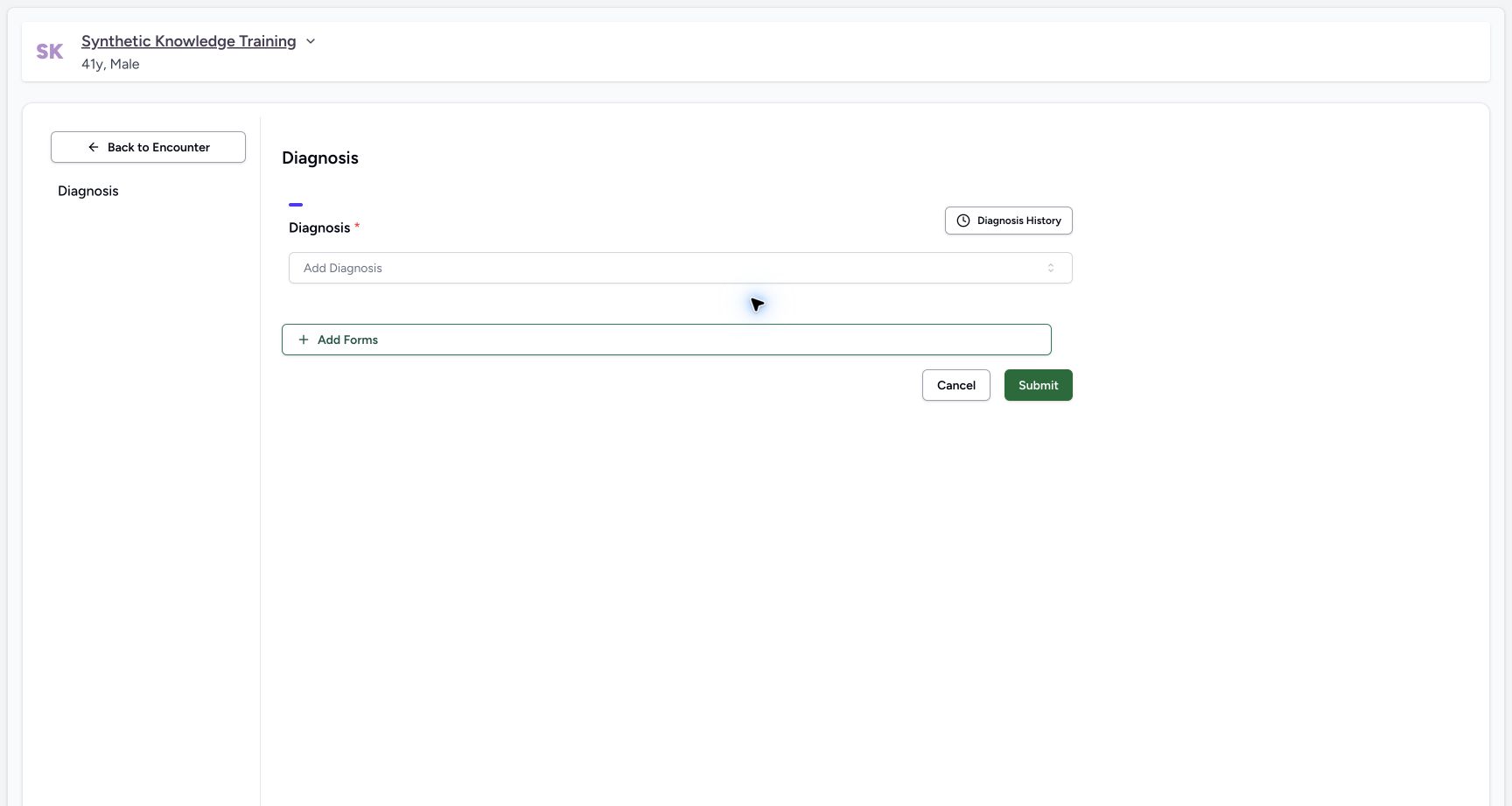
Select Add Diagnosis. For each further diagnosis, the control reads Add another Diagnosis.
3. Search for the diagnosis
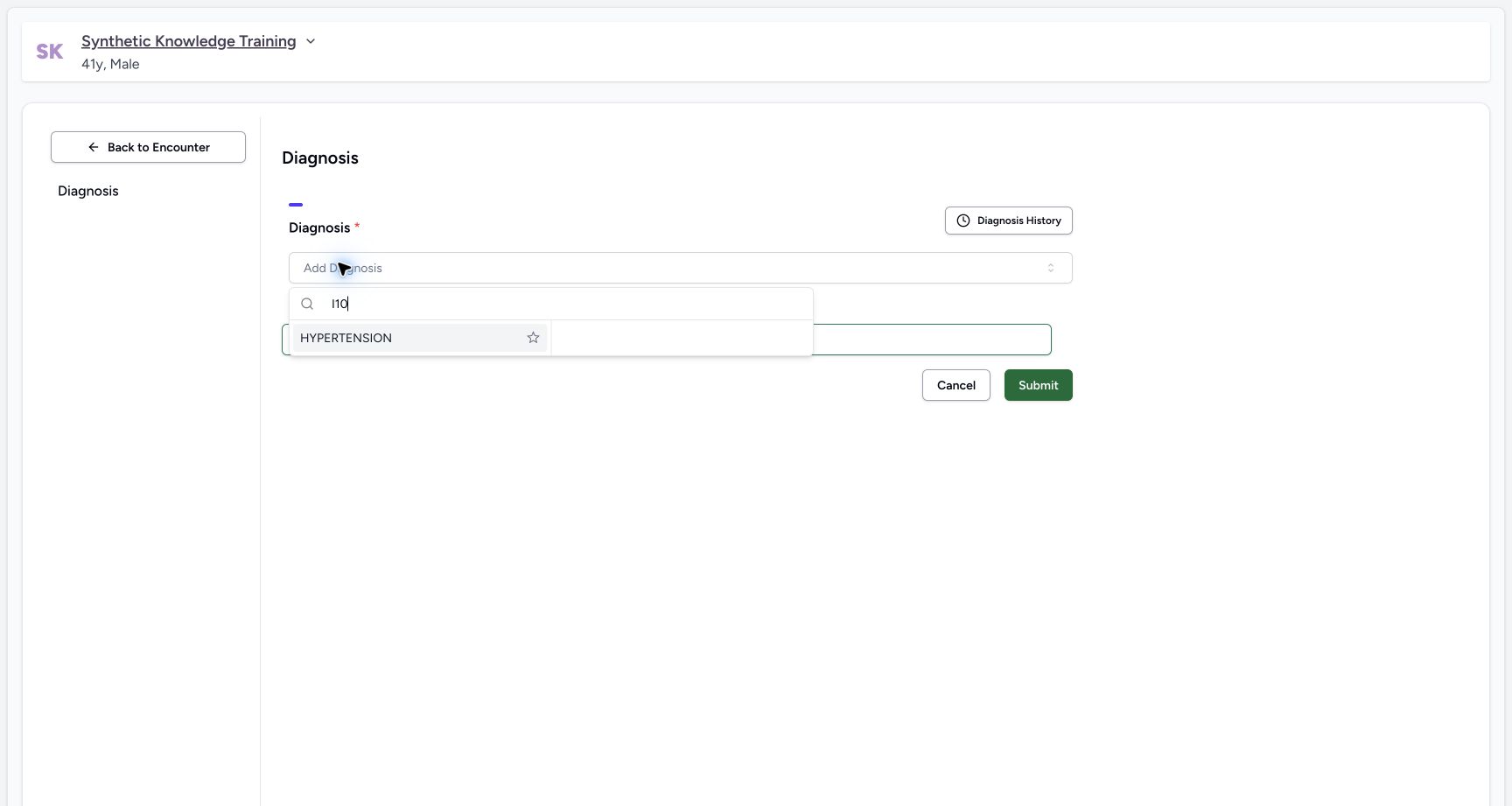
Open Add Diagnosis and type the diagnosis name or code. Choose a result from the configured system-condition-code value set. The audited default composition includes SNOMED CT clinical findings and ICD-10-AM; the terminology systems installed and configured on your instance determine the available results. Check both the code system and code when similar display names appear. Pinning controls may be available for preferred terms; use the search interface shown on your instance.
4. Select the term
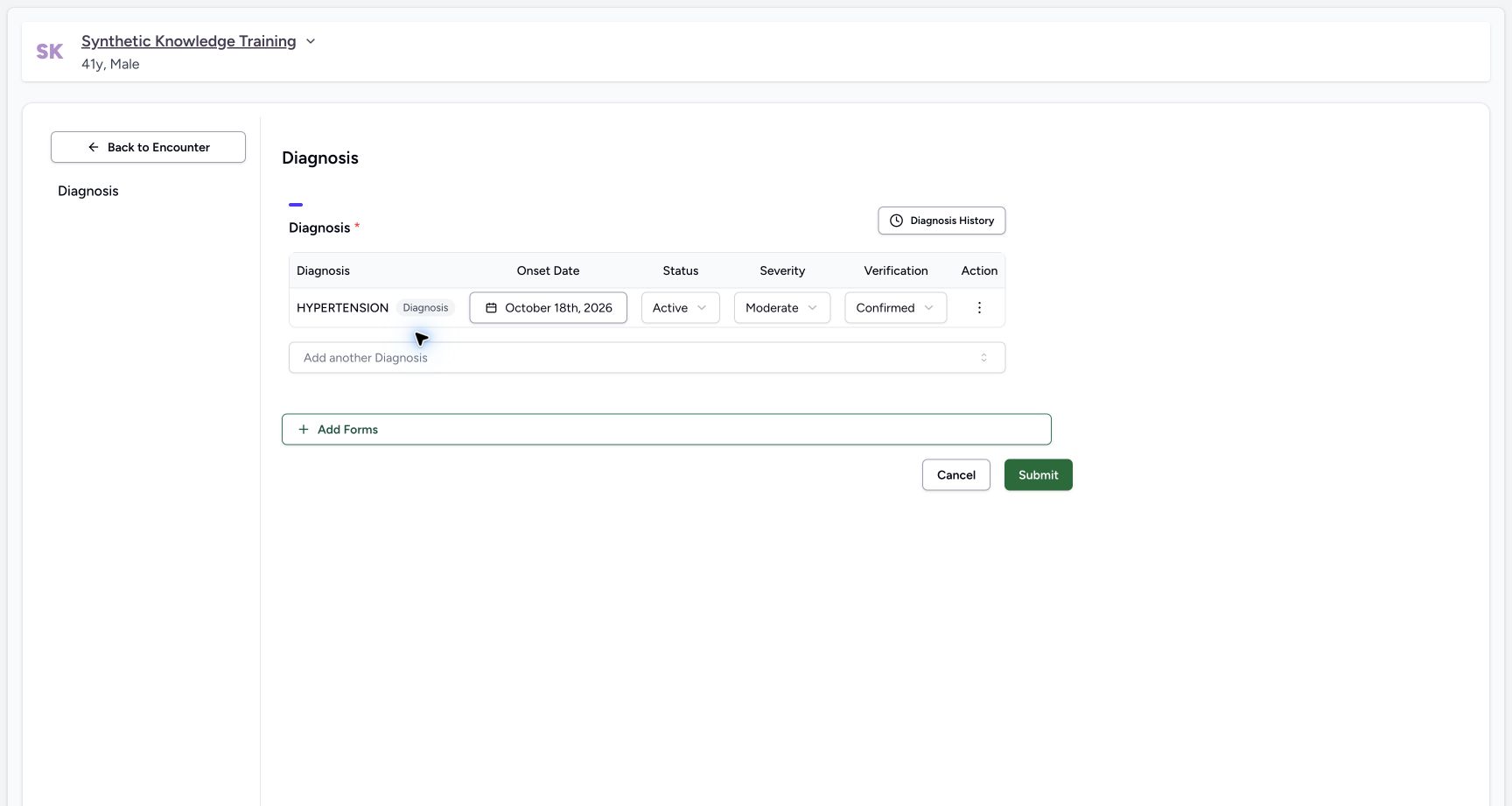
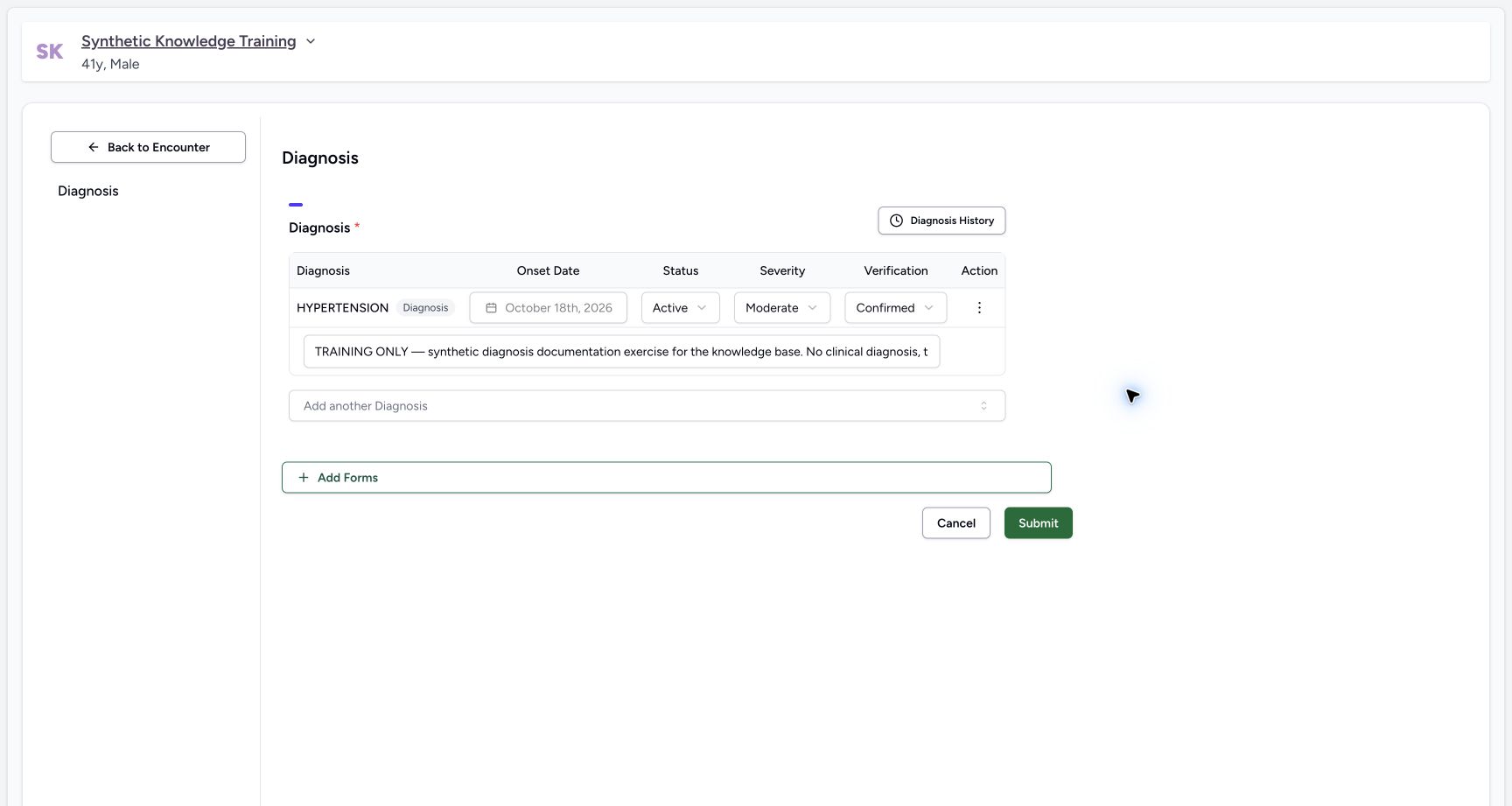
Select a term. A new row appears with these default values:
| Component | Default |
|---|---|
| Status | Active |
| Verification | Confirmed |
| Severity | Moderate |
| Onset Date | Today |
The row shows a badge with the label Diagnosis. This badge marks the record as specific to this visit.
5. Change the values
Change the values of the row if you need to.
| Component | What it captures |
|---|---|
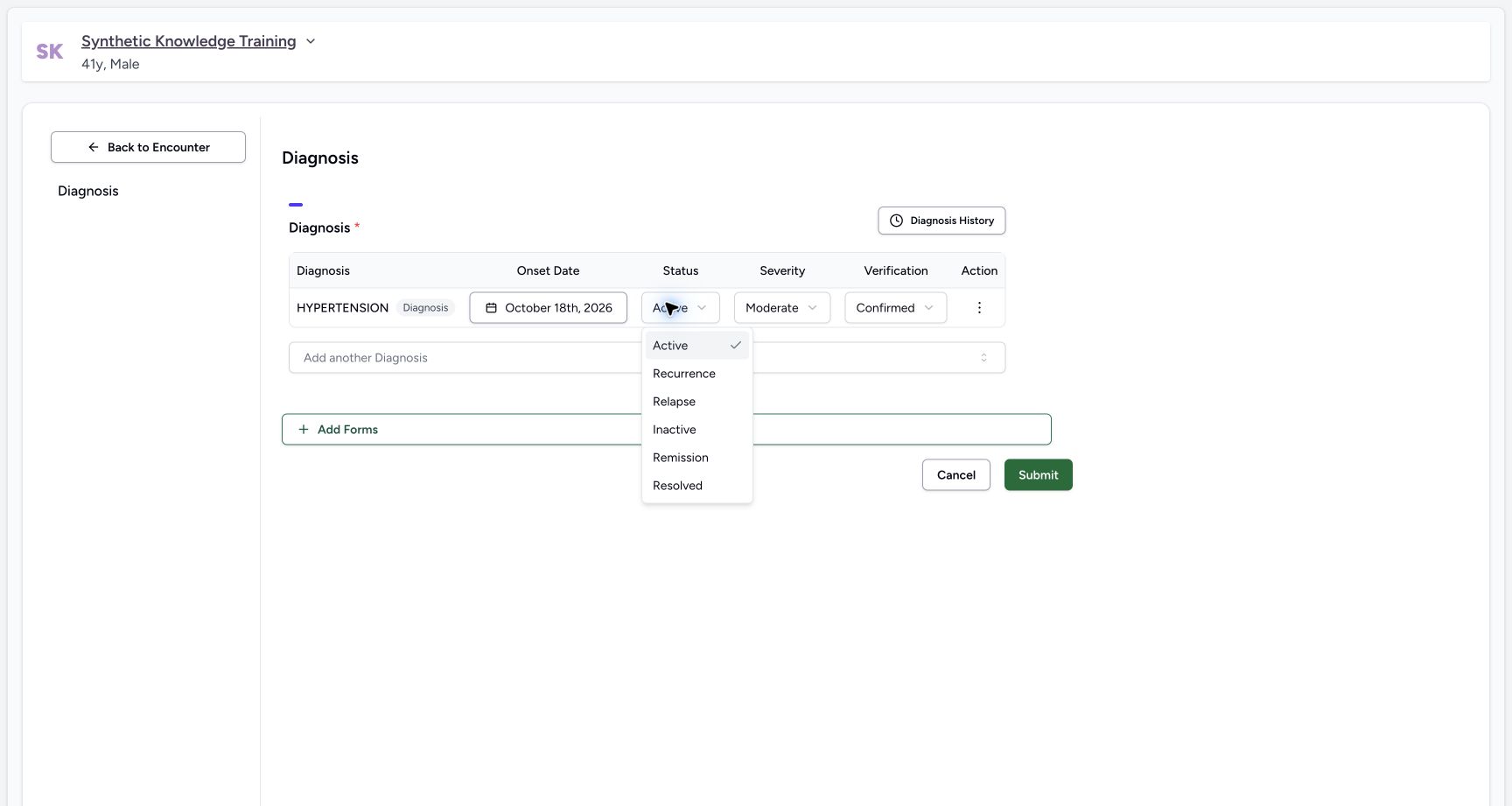
| Status | The current state of the diagnosis: Active, Recurrence, Relapse, Inactive, Remission, or Resolved. The placeholder reads "Select diagnosis status". |
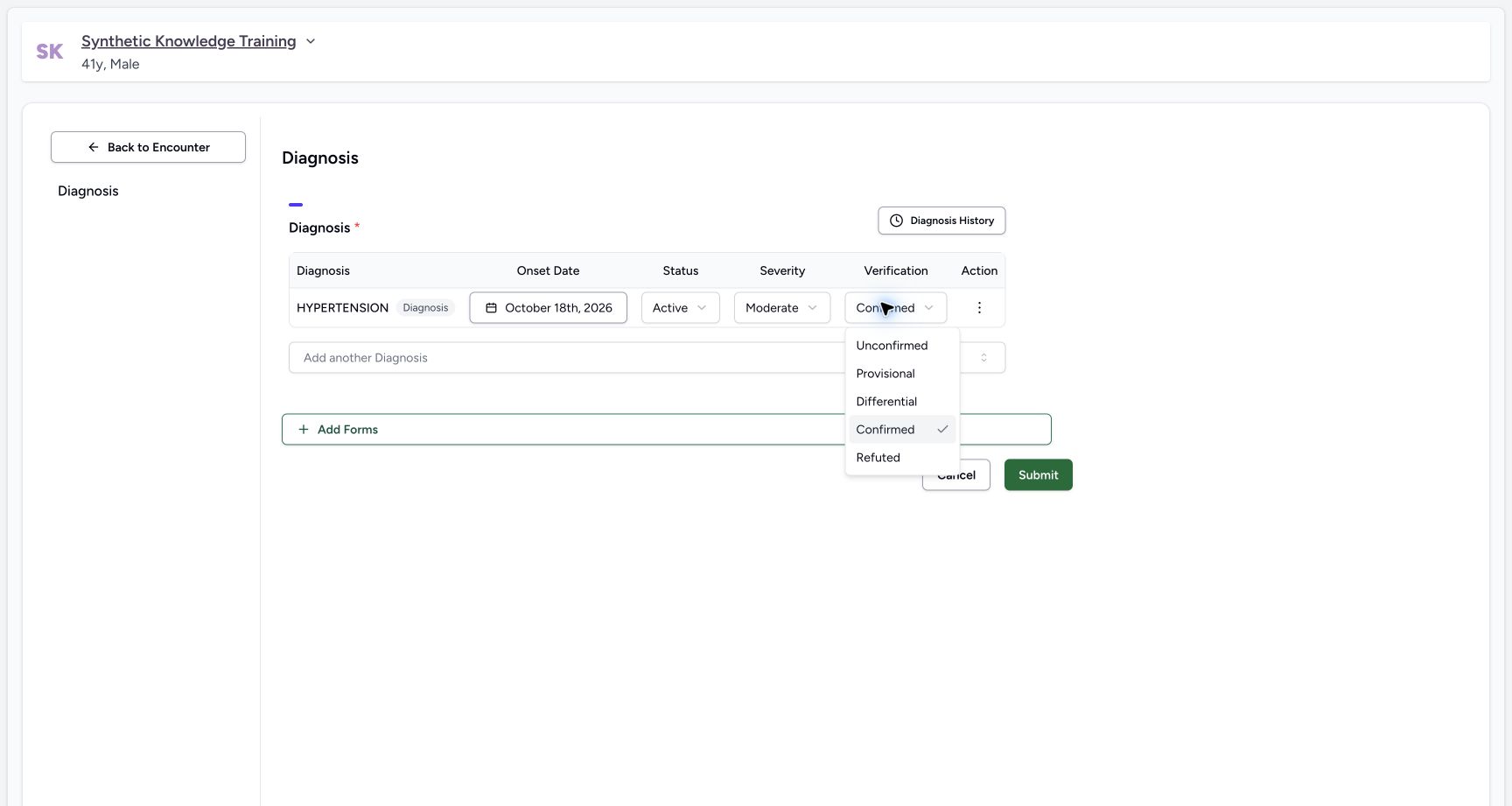
| Verification | The certainty of the diagnosis: Unconfirmed, Provisional, Differential, Confirmed, or Refuted. The placeholder reads "Select verification status". |
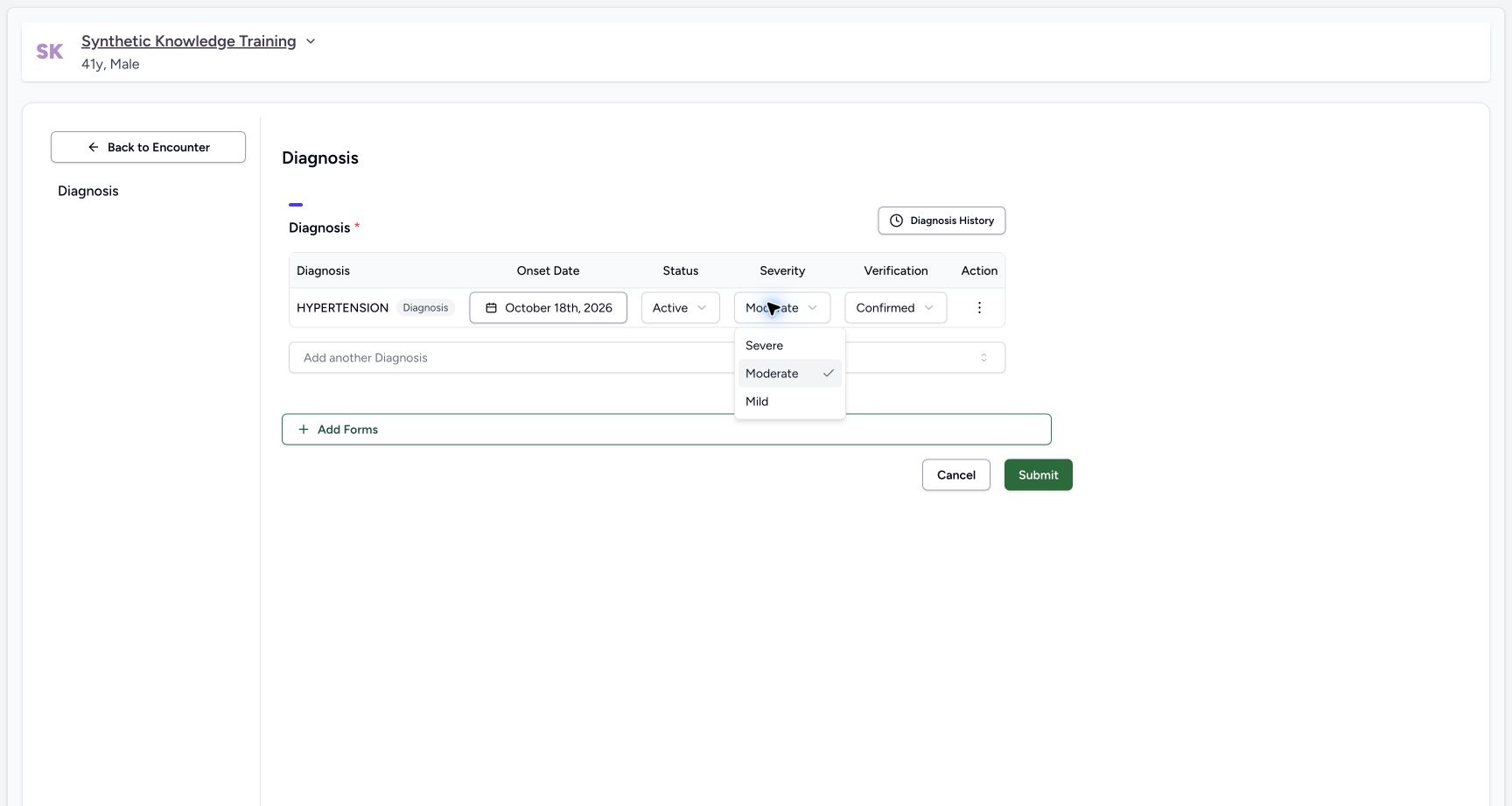
| Severity | The severity of the diagnosis: Mild, Moderate, or Severe. You can leave this field empty. The field then shows "Choose severity". |
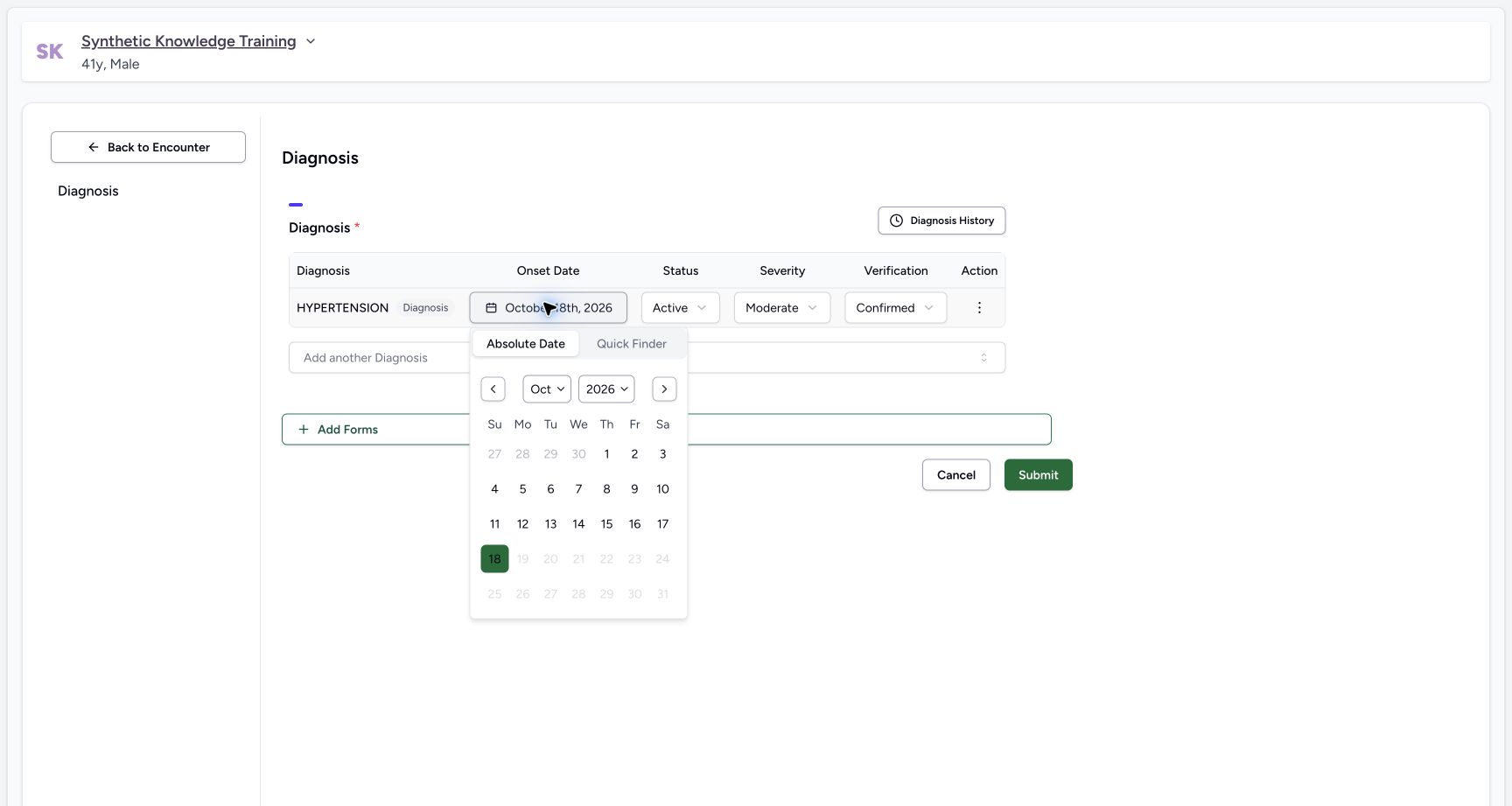
| Onset Date | The date when the diagnosis started. MANSOQ does not accept a future date. |
Note: MANSOQ does not offer Entered in Error as a verification value for a new diagnosis.
In the verified desktop calendar, dates after today are disabled. After the diagnosis is saved, its onset control is disabled in this edit path; do not assume the questionnaire permits changing a persisted onset date.
6. Add a note
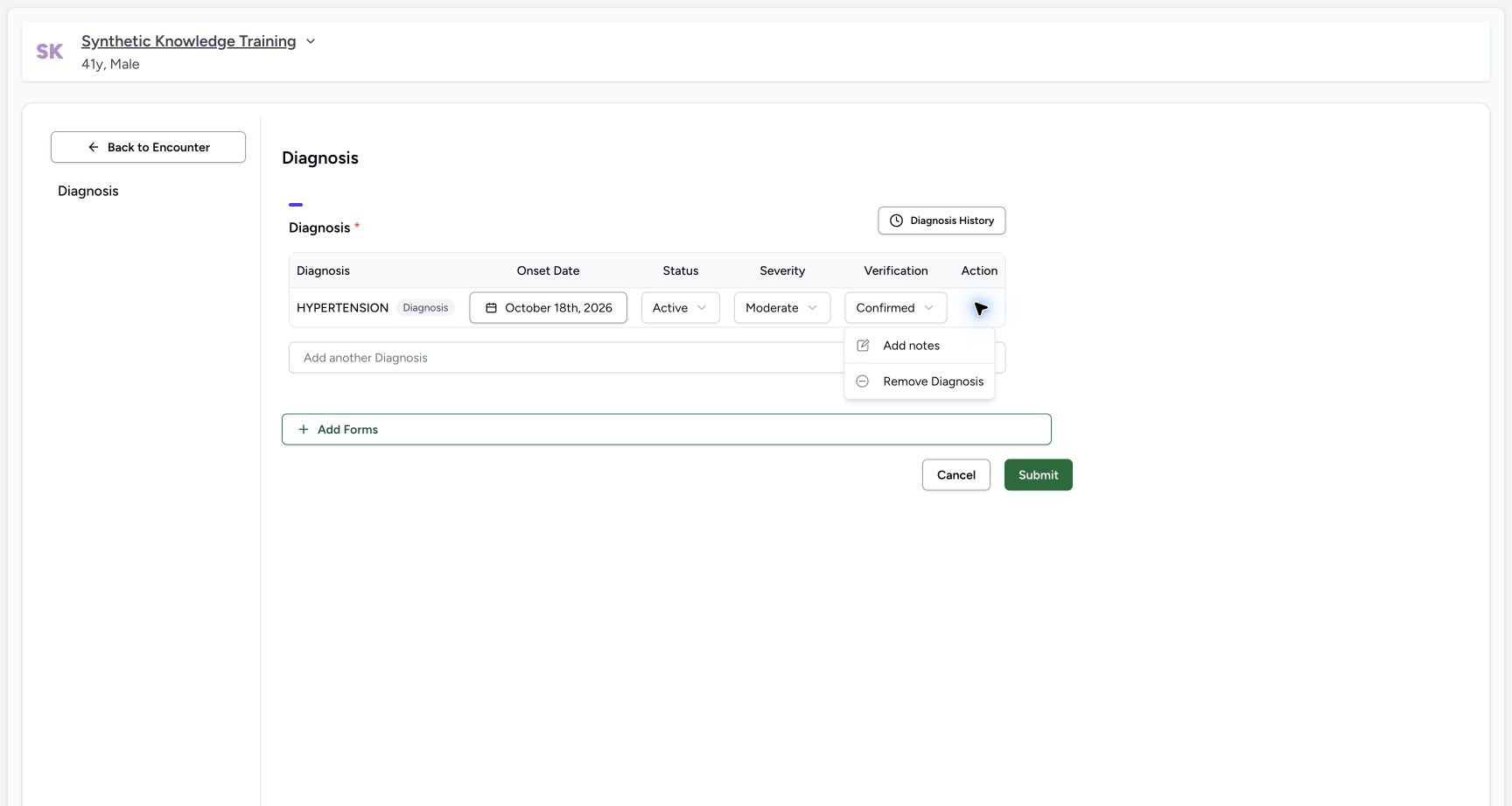
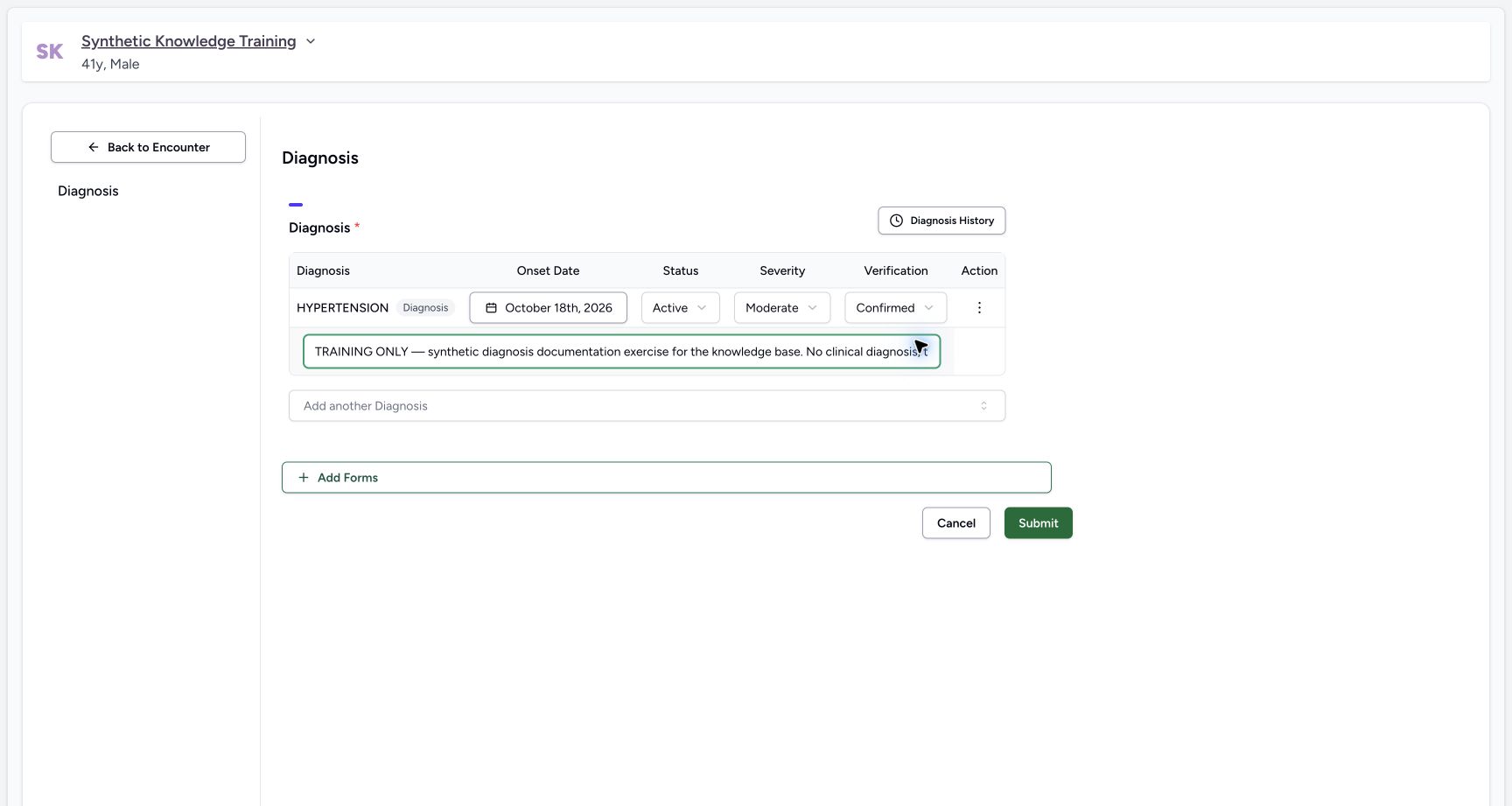
To add a note, open the more-options (⋮) menu of the row. Select Add notes. Type the note.
Select Show notes to open the note text. Select Hide notes to close the note text.
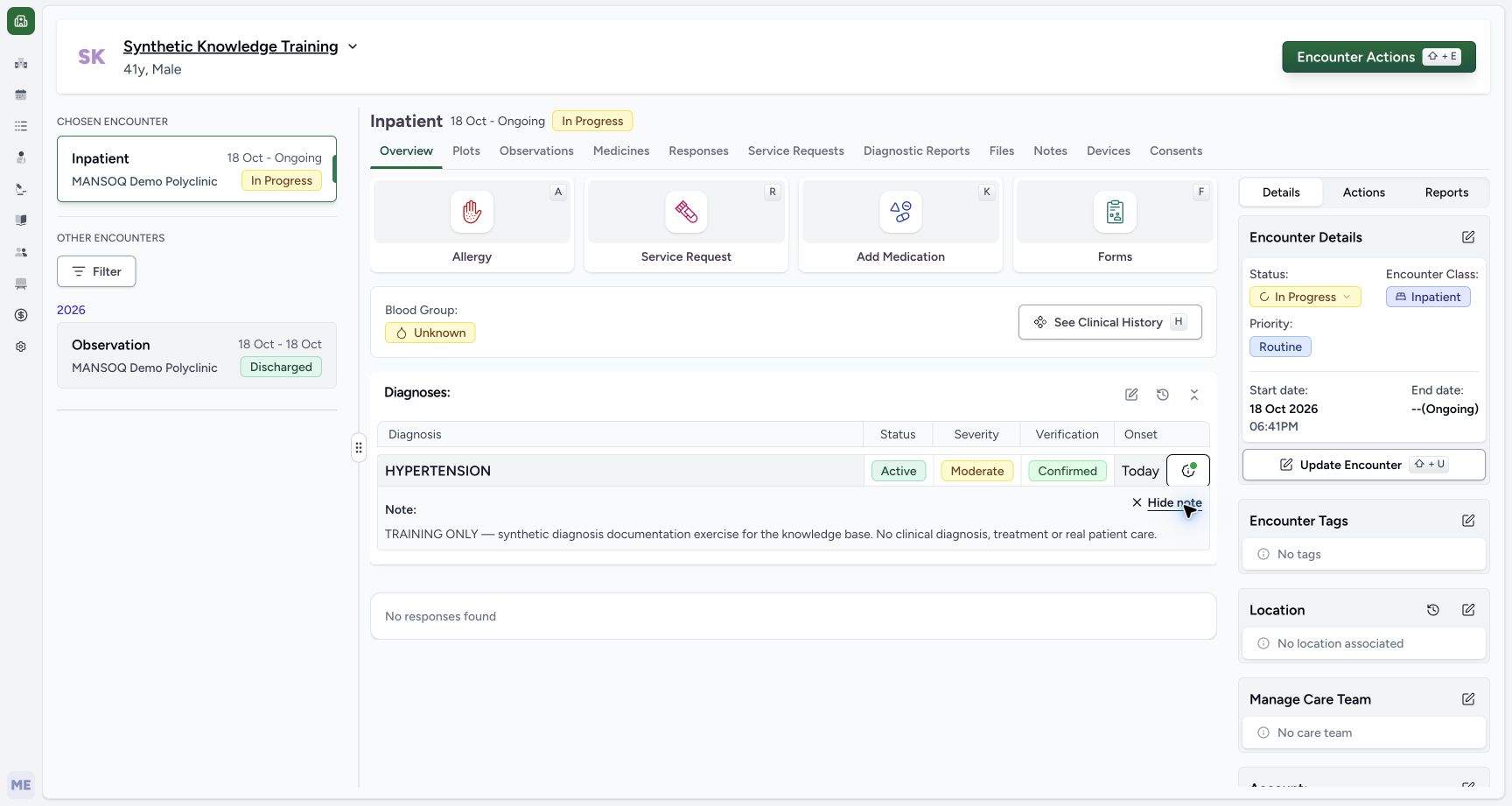
After saving, the Overview Has Note → See Note action expands the persisted note beneath its diagnosis; Hide note collapses it.
7. Add the other diagnoses
Repeat from step 2 for each further diagnosis.
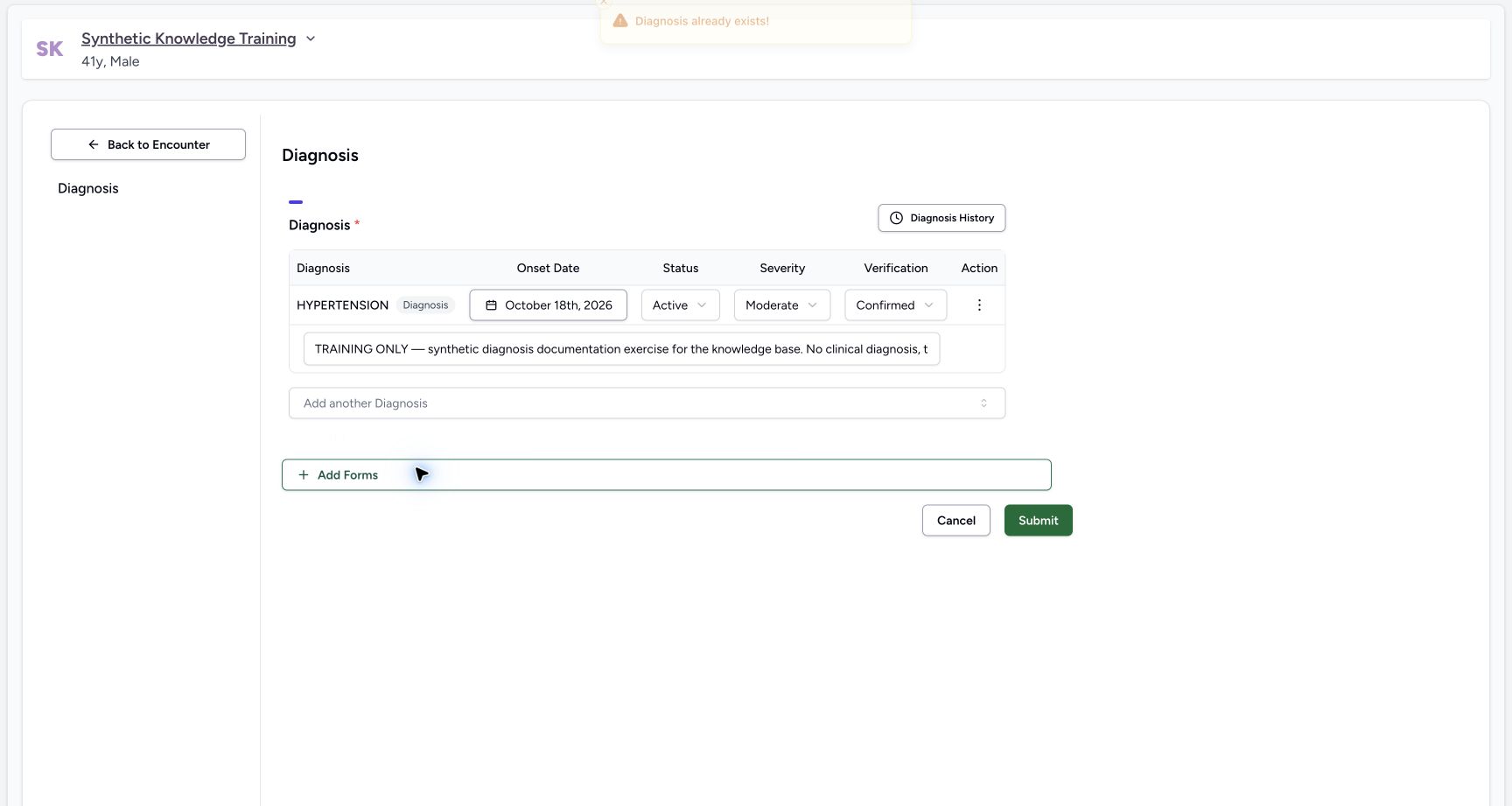
If you select a term that the encounter already has, MANSOQ shows the warning "Diagnosis already exists!". MANSOQ does not add a second row.
This warning compares the selected code/system against the current form. It does not establish patient-record identity deduplication or prohibit the condition on a later encounter.
8. Submit the diagnoses
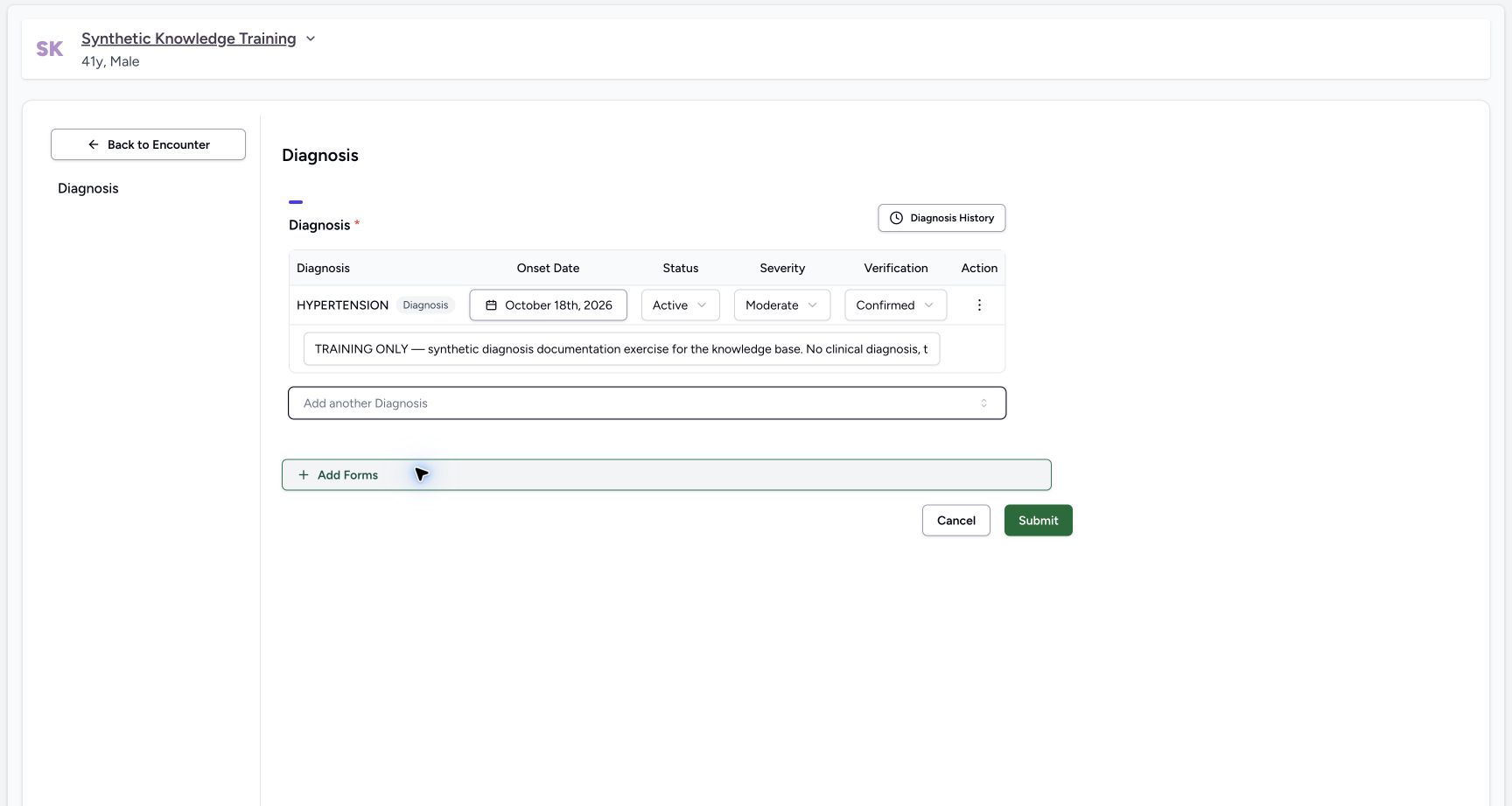
Select Submit. Confirm the diagnosis on Overview, including status, severity, verification and onset. If a note was saved, use Has Note → See Note to inspect it. Reopening the questionnaire should retain the saved values; the persisted onset control is disabled in this path.
Permissions
| Permission | Access |
|---|---|
| Can view clinical data about patients | Lets you open the clinical data of the encounter. |
| Can Read encounter related clinical data | Lets you see the diagnoses of the encounter. |
| Update Encounter related clinical data | Lets you record a diagnosis. |
Doctors, nurses, administrators, and facility administrators have the Update Encounter related clinical data permission by default.
Without view access, the encounter shows "You do not have permission to view clinical data for this encounter".
Expected Outcome
- MANSOQ shows the confirmation "Questionnaire submitted successfully".
- The diagnoses appear in the Diagnoses section of the encounter Overview tab.
- The diagnoses appear in the Past Diagnoses clinical history of the patient.
When the encounter has no diagnosis, the section shows "No Diagnoses" with the message "No Diagnoses have been recorded".
Version and facility configuration
This procedure is grounded in the repository’s version 3.1 user guide and the audited source revision. Available encounter types, required demographics, terminology, permissions and enabled services depend on your facility configuration. Use the labels and access controls on your own instance; the source references below identify the documented implementation.
Verified synthetic training example
The production-build walkthrough used Doctor on an active synthetic Inpatient encounter: search I10, select HYPERTENSION, inspect default Active / Moderate / Confirmed, observe future dates disabled, add a TRAINING ONLY note, trigger the duplicate warning, submit and reopen the saved row. Independent readback confirms one same-encounter I10 condition, Doctor author and the stored note. An earlier Observation encounter also contains its own independently verified I10 condition; this does not create a global duplicate patient.
Saved onset and correction scope
The source disables onset editing once the diagnosis has a persisted ID. Other supported status/note corrections must follow facility policy. The screenshot verifies retained values and disabled onset; it does not establish every correction or entered-in-error path.
Troubleshooting
Diagnosis search fails or a required term is missing
Ask the terminology administrator to verify that the configured code system and release are installed and the condition value set can expand and validate the term. A public ICD-10-AM fragment is not a complete licensed release. Do not substitute an unrelated code to save the form.
A future onset date cannot be chosen
The calendar disables future dates in this path. Confirm the actual onset and current facility/local date; do not change the system clock to bypass the restriction.
Diagnosis already exists!
Check the existing row and update it as appropriate. The duplicate selector does not add another same-code row to the current form.
The saved onset cannot be changed
The audited form disables onset editing for persisted diagnosis IDs. Use the facility-approved correction process rather than creating a misleading second row.
Source evidence
References are pinned to the private MANSOQ source repository. Repository access is required to open these links.
- repositories/platform/mansoq-documentation/versioned_docs/version-3.1/flows/clinical/condition/record-diagnosis.mdx:5 · f6e9f05f
- repositories/platform/mansoq-web/src/components/Questionnaire/QuestionTypes/DiagnosisQuestion.tsx:346 · f6e9f05f
- repositories/platform/mansoq-documentation/versioned_docs/version-3.1/flows/clinical/condition/record-diagnosis.mdx:29 · f6e9f05f
- repositories/platform/mansoq-documentation/versioned_docs/version-3.1/flows/clinical/condition/record-diagnosis.mdx:17 · f6e9f05f
- repositories/platform/mansoq-core/mansoq/emr/resources/condition/valueset.py:9 · f6e9f05f
- repositories/platform/mansoq-web/src/components/Questionnaire/QuestionTypes/DiagnosisQuestion.tsx:754 · f6e9f05f
- repositories/platform/mansoq-web/src/components/Questionnaire/QuestionTypes/DiagnosisQuestion.tsx:797 · f6e9f05f