 MANSOQ
 Laboratory & radiology
Create a service request
Order configured tests, procedures or services, set priority, and pass preparation instructions to the performing team.
Current source · source reviewed · 3 min read
Before you begin
- The patient is registered in MANSOQ.
- The patient has an encounter at the facility, and you record the service request under that encounter.
- The encounter is still open. MANSOQ hides the create option for a completed or an inactive encounter.
- You are a member of the facility.
- You have the permissions listed below.
1. Open the patient's encounter
- Open the patient in the facility.
- Open the encounter for which you raise the service request.
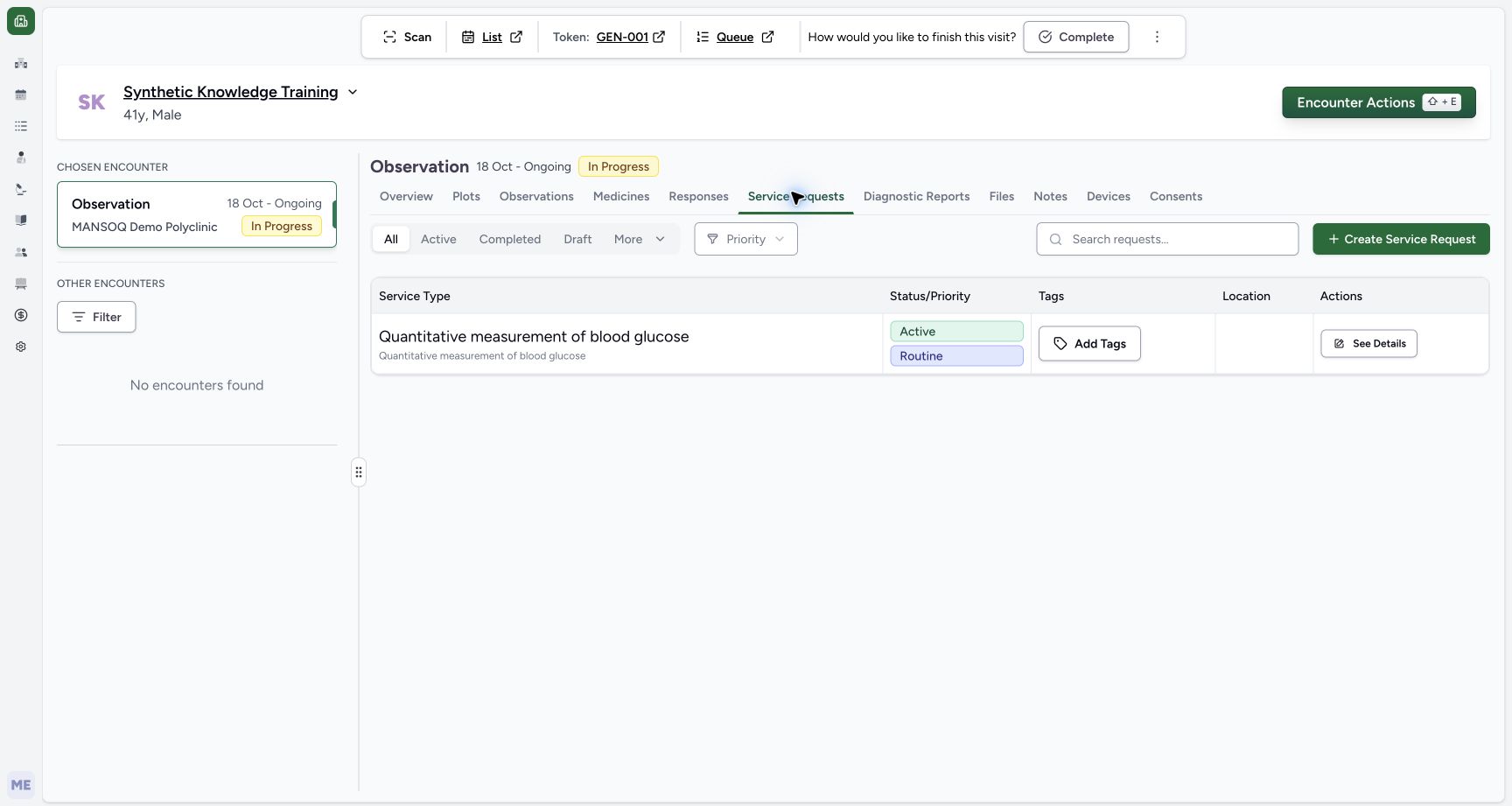
2. Open the Service Requests tab
Select the Service Requests tab in the encounter.
MANSOQ shows the service requests that already exist for the encounter.
Note: Press G and then S to open the Service Requests tab.
3. Start a new service request
Select Create Service Request on the encounter Service Requests tab. The Service Request quick action on Overview is another supported entry. Confirm the patient shown in the form. Availability of create controls depends on encounter state and access; a visible control is not proof that every subsequent action is authorized.
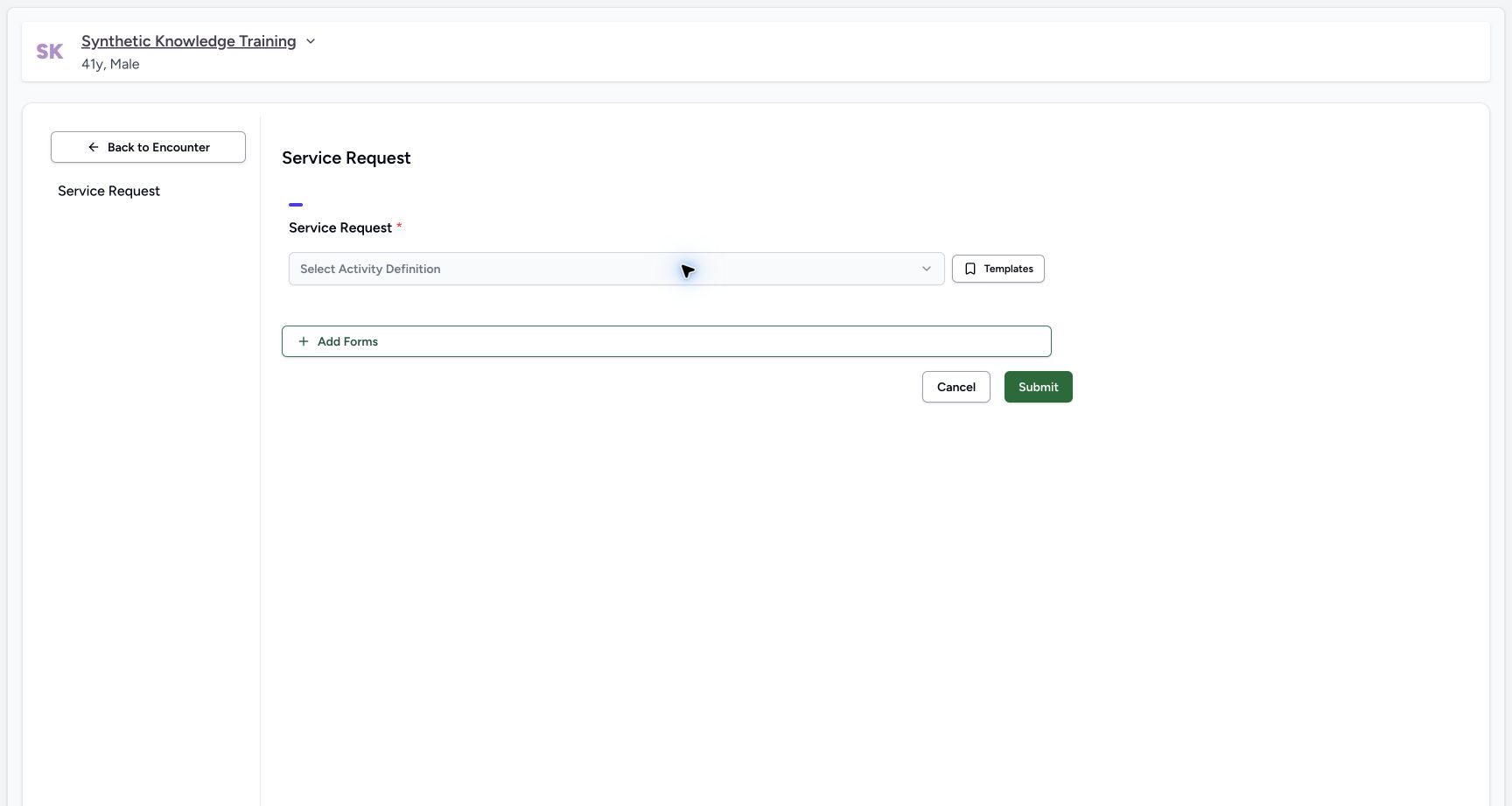
4. Select the service
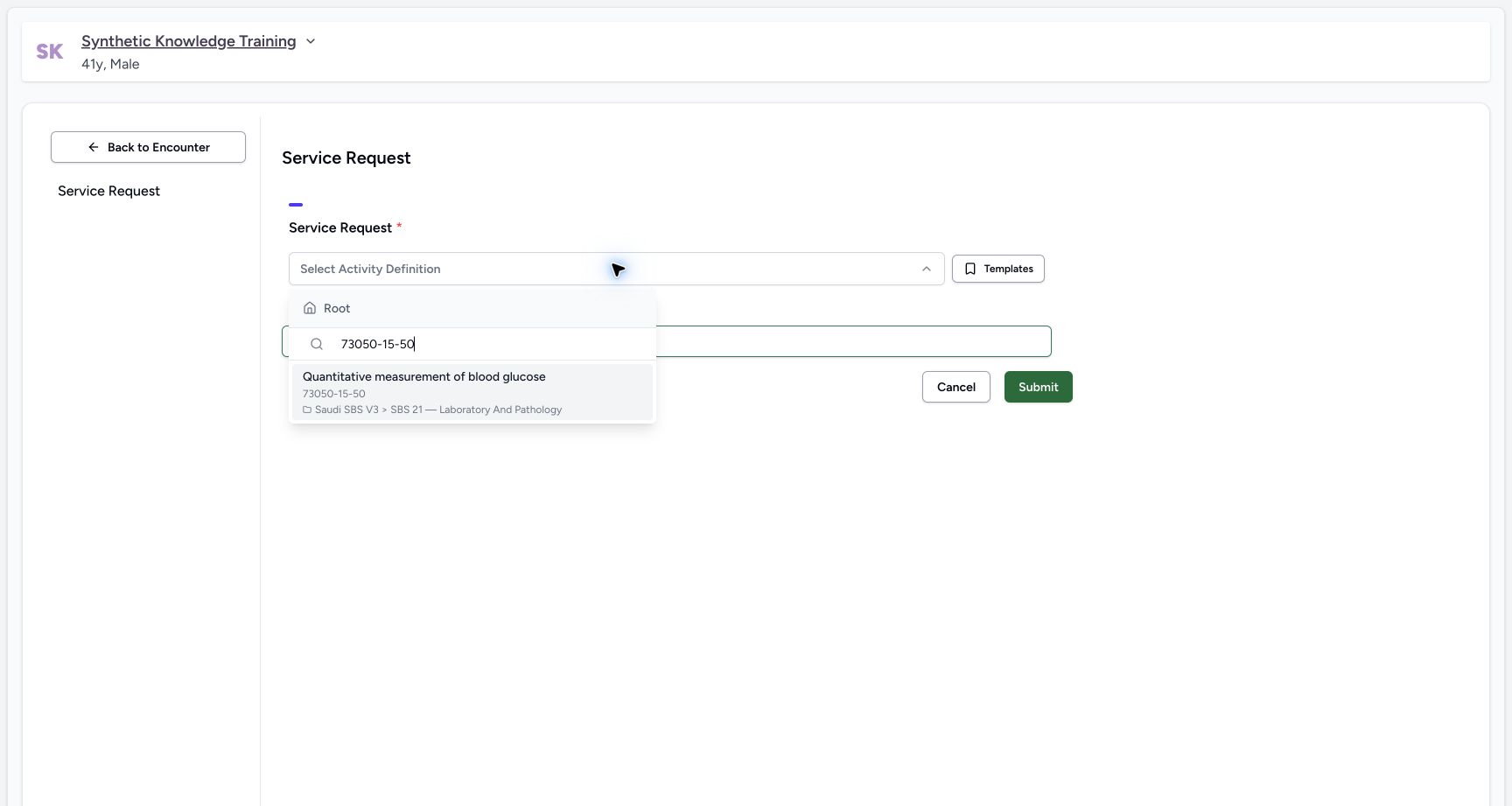
Select a service in the Select Activity Definition list. MANSOQ adds a card for that service to the form.
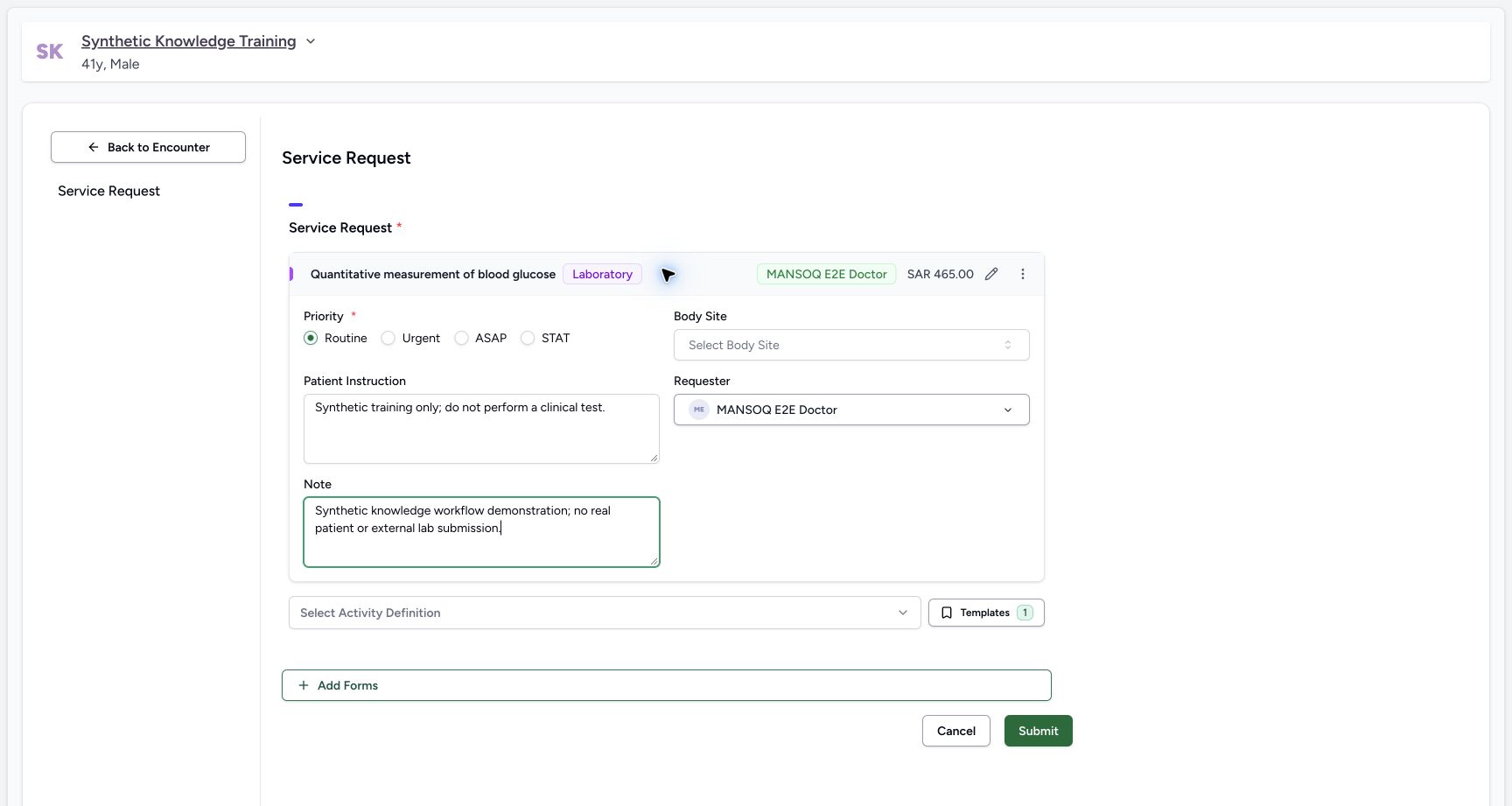
MANSOQ copies the title, the category, and the code from the service that you select. MANSOQ also copies the body site, the locations, and the healthcare service. MANSOQ sets the status to Active, the intent to Order, and the priority to Routine. MANSOQ sets you as the requester.
To request more than one service, select another service in the same list.
5. Fill in the service request details
Open the card of the service and complete the fields.
| Components | What it captures |
|---|---|
| Priority | How urgent the request is: Routine, Urgent, ASAP, or STAT. This field is mandatory. |
| Body Site | The part of the body for the service. |
| Patient Instruction | The instructions for the patient, such as how to prepare for a test. |
| Requester | The facility member who asks for the service. |
| Note | More information for the team that does the service. |
MANSOQ takes the patient and the encounter from the page that you start on. You do not select the patient.
Note: When the form holds more than one service, select Apply to All to set the same requester for every service.
Note: Which fields are mandatory depends on your deployment's configuration.
6. Submit the service request
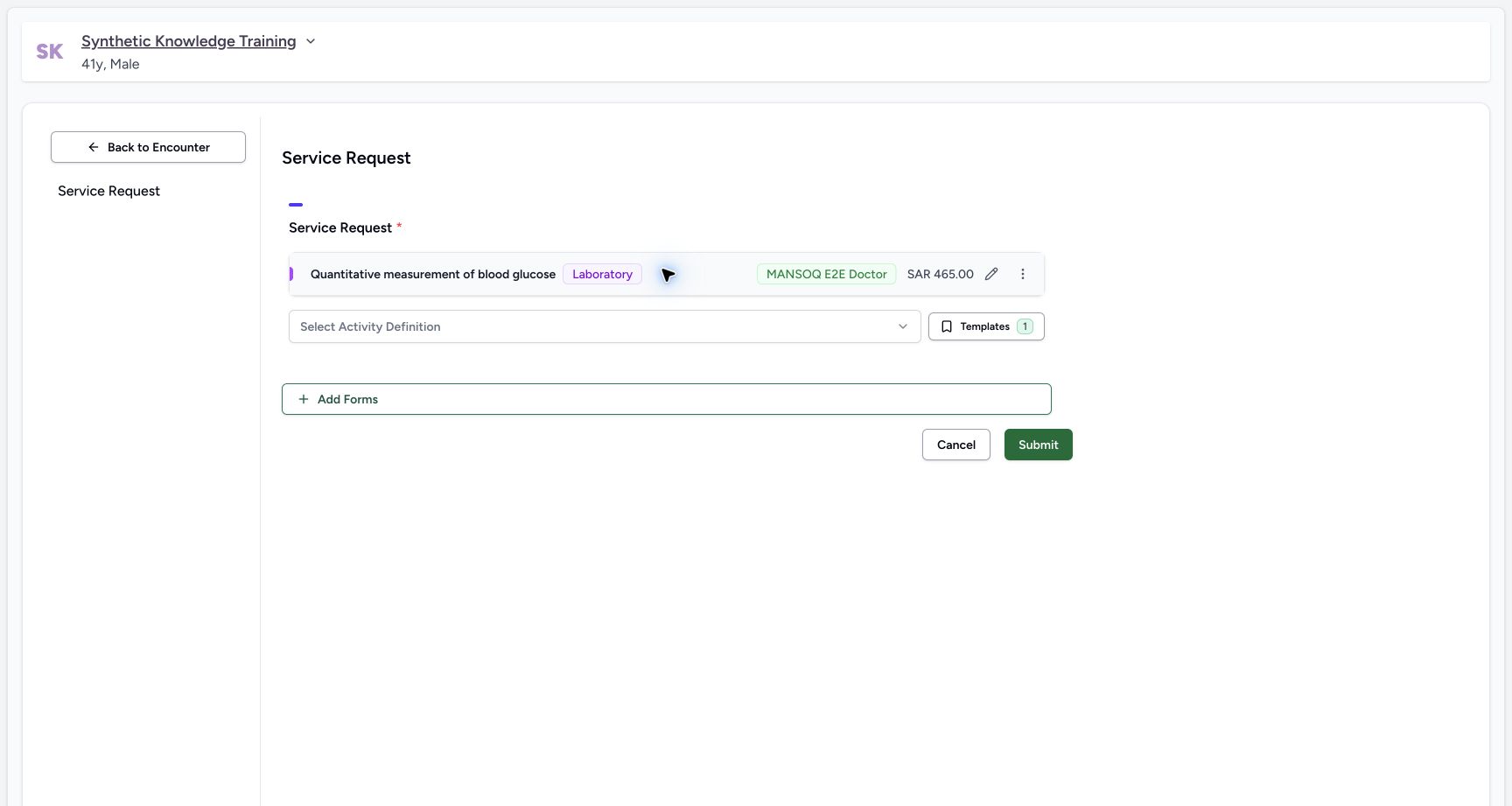
Select Submit.
Permissions
| Permission | Access |
|---|---|
| Can Write Service Request on Facility | Create and change service requests for patients at the facility. Facility Admin, Admin, Doctor, and Nurse roles hold this permission. |
Expected Outcome
- MANSOQ creates the service request for the patient under the current encounter.
- The new request shows in the Service Requests list of the encounter.
Version and facility configuration
This procedure is grounded in the repository’s version 3.1 user guide and the audited source revision. Available encounter types, required demographics, terminology, permissions and enabled services depend on your facility configuration. Use the labels and access controls on your own instance; the source references below identify the documented implementation.
Continue the performing-team workflow
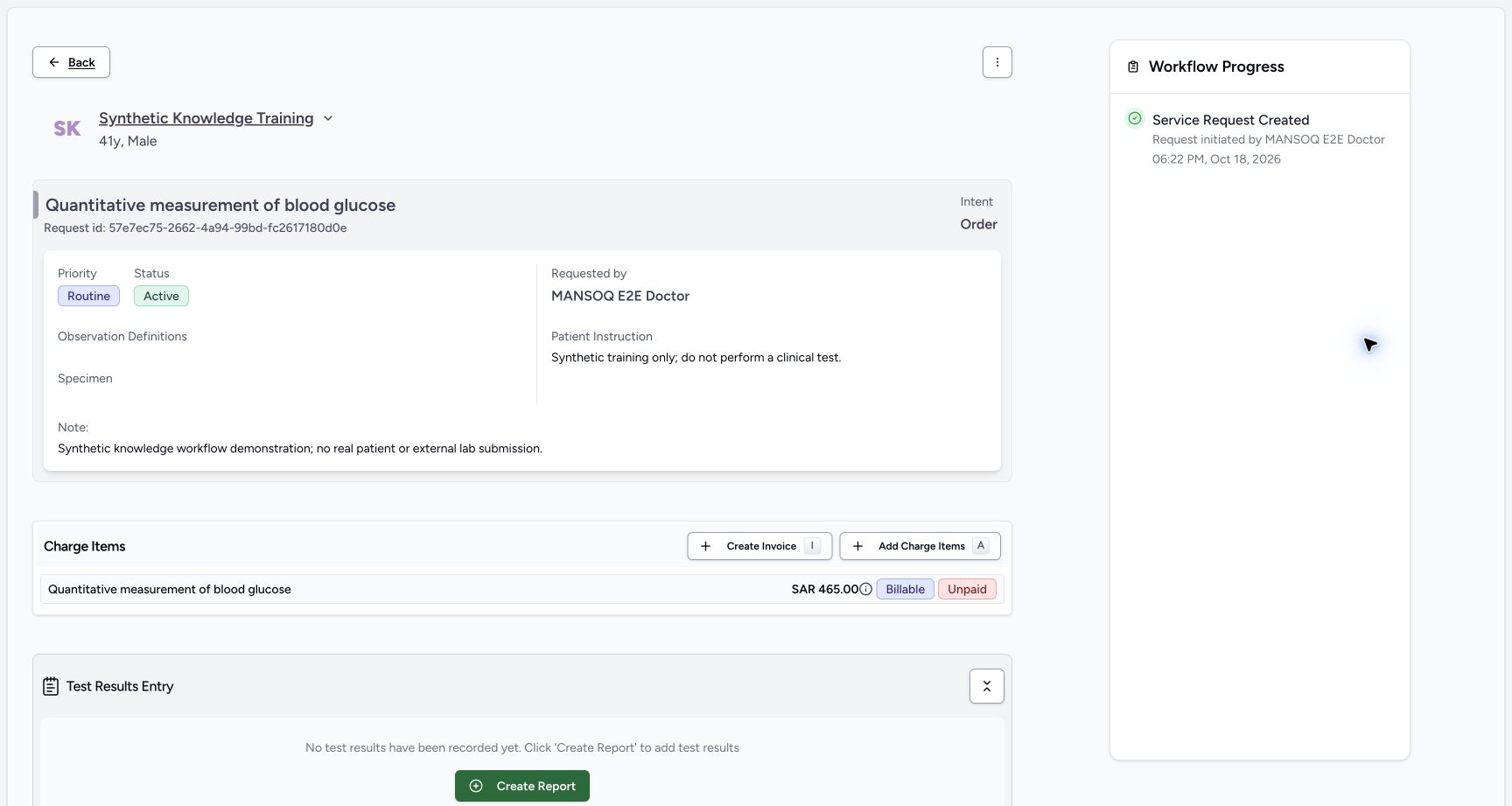
Creating the request does not record a result. On Service Requests, check the status and priority, then select See Details. The detail page shows the request identifier, requested-by staff, instructions, notes and Workflow Progress. Specimen and result tasks depend on the activity definition, specimen requirements and observation/report configuration. Follow the separate specimen and diagnostic-result guides.
Verified synthetic training example
The Doctor selected Quantitative measurement of blood glucose, Saudi SBS73050-15-50, from the imported Saudi SBS V3 catalogue. The form displayed Laboratory, the requester and a synthetic training price. After submission, the list showed Active / Routine; See Details opened the persisted request with Intent Order and the explicitly synthetic instructions. An independent readback confirmed the service request and code. The price shown belongs to synthetic demo pricing and is not a production tariff.
Troubleshooting
The required service is absent or cannot be submitted
Ask the catalogue owner to check activity-definition status, facility/category access, code-system validation, requester access and any healthcare-service/location requirements. Add approved catalogue configuration rather than choosing an unrelated service.
Source evidence
References are pinned to the private MANSOQ source repository. Repository access is required to open these links.
- repositories/platform/mansoq-documentation/versioned_docs/version-3.1/flows/clinical/service-request/create-a-service-request.mdx:5 · f6e9f05f
- repositories/platform/mansoq-web/src/components/Questionnaire/QuestionTypes/ServiceRequestQuestion.tsx:65 · f6e9f05f
- repositories/platform/mansoq-documentation/versioned_docs/version-3.1/flows/clinical/service-request/create-a-service-request.mdx:25 · f6e9f05f
- repositories/platform/mansoq-documentation/versioned_docs/version-3.1/flows/clinical/service-request/create-a-service-request.mdx:19 · f6e9f05f