 MANSOQ
 Laboratory & radiology
Collect a specimen
Create an order-linked draft specimen, identify it, validate quantity and unit, save collection, and select QR labels.
Current source · Source reviewed; scoped synthetic Nurse and Doctor laboratory workflow observed · 6 min read
Before you begin
- A service request in Draft or Active state, facility clinical access, and Can Create Specimen on Facility permission.
- The activity definition has the correct approved specimen requirements. Blank requirements do not establish that a real test needs no specimen.
- Use the facility-approved collection procedure. The synthetic 2 mL example demonstrates controls and does not establish an assay protocol.
1. Open the required specimen card
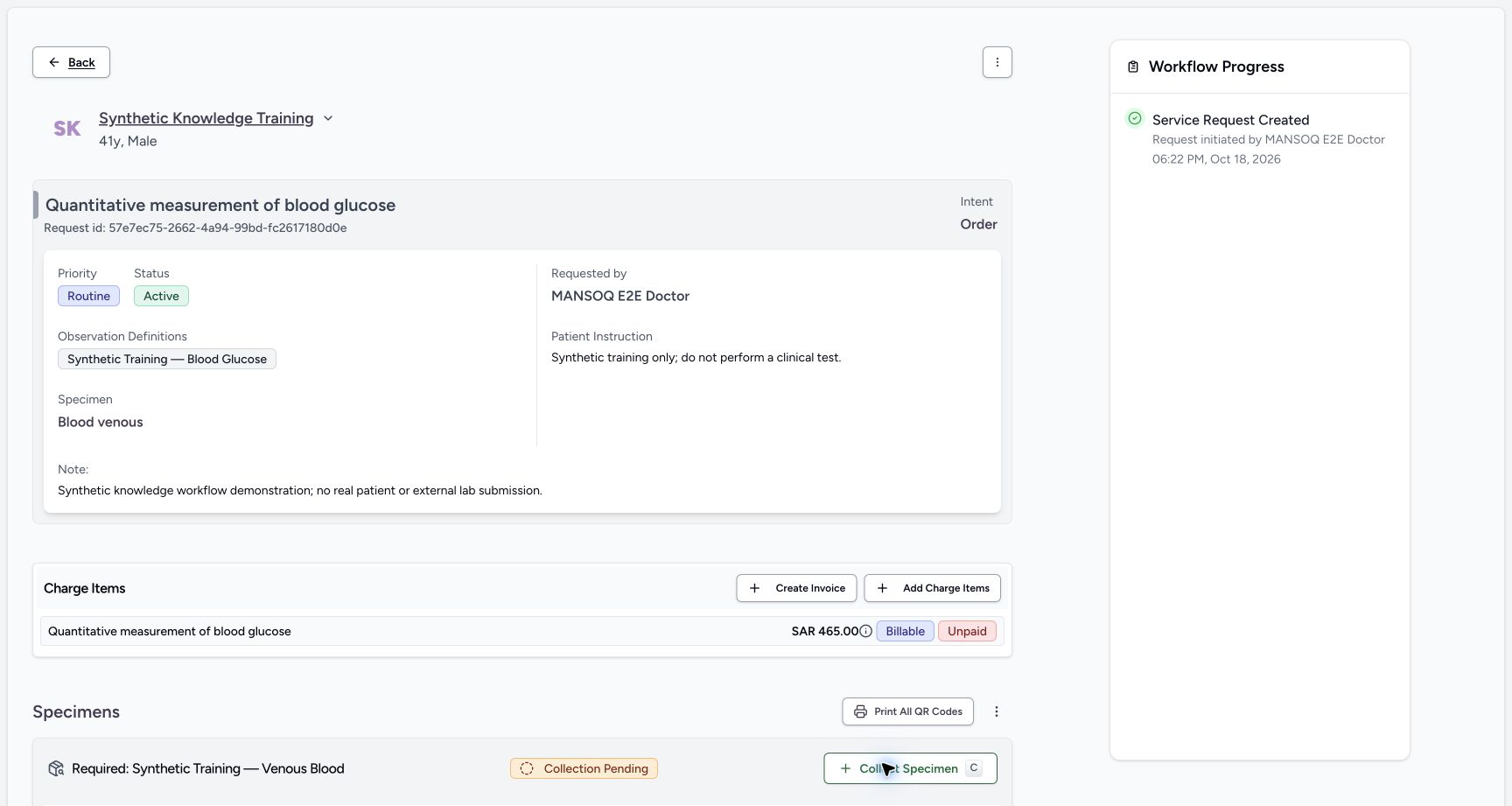
Open the correct service request and confirm the patient, service and specimen requirement. In the configured example, Synthetic Training — Venous Blood is Collection Pending and report creation waits for collection.
2. Create the draft and identifier
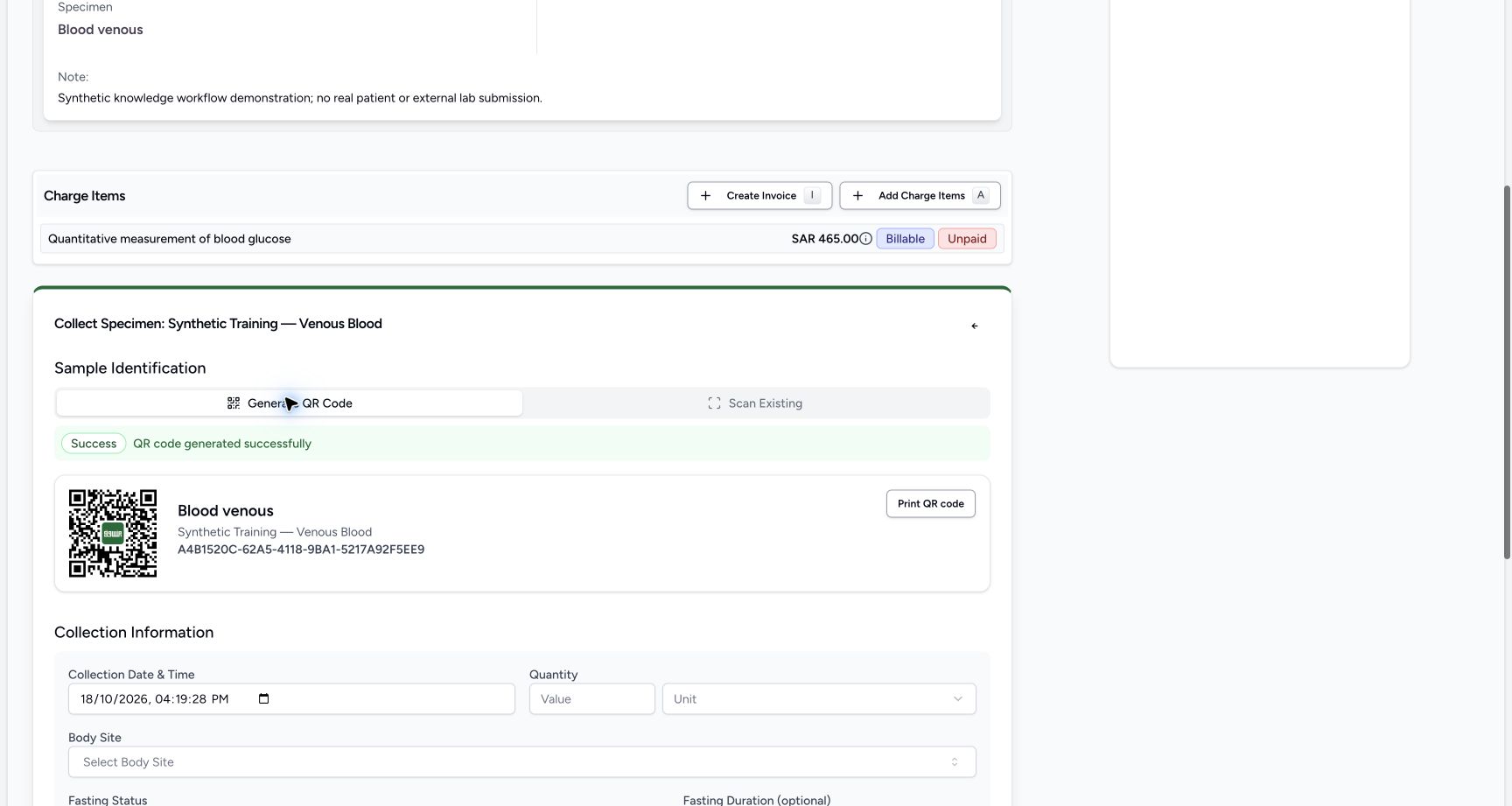
Select Collect Specimen. MANSOQ creates an order-linked draft specimen and displays its accession identifier/QR under Generate QR Code. Wait for draft creation and QR generation to finish before proceeding.
3. Record collection details
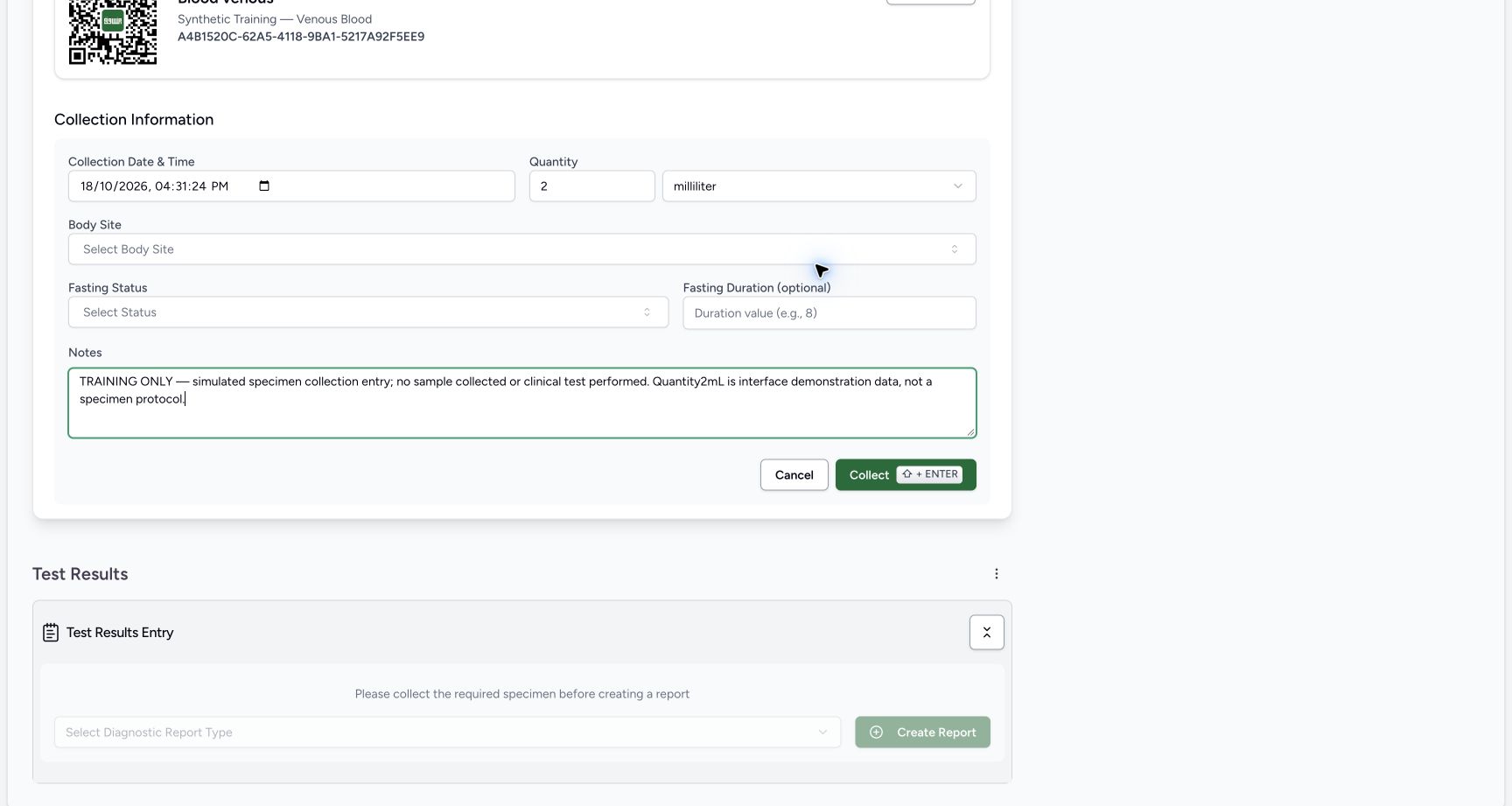
Check Collection Date & Time, Quantity and its unit, optional Body Site, Fasting Status and Notes, plus any configured container requirements. MANSOQ records the signed-in user as collector. The example leaves specialist preparation fields unconfigured and explicitly labels every entry TRAINING ONLY.
4. Resolve quantity and unit validation
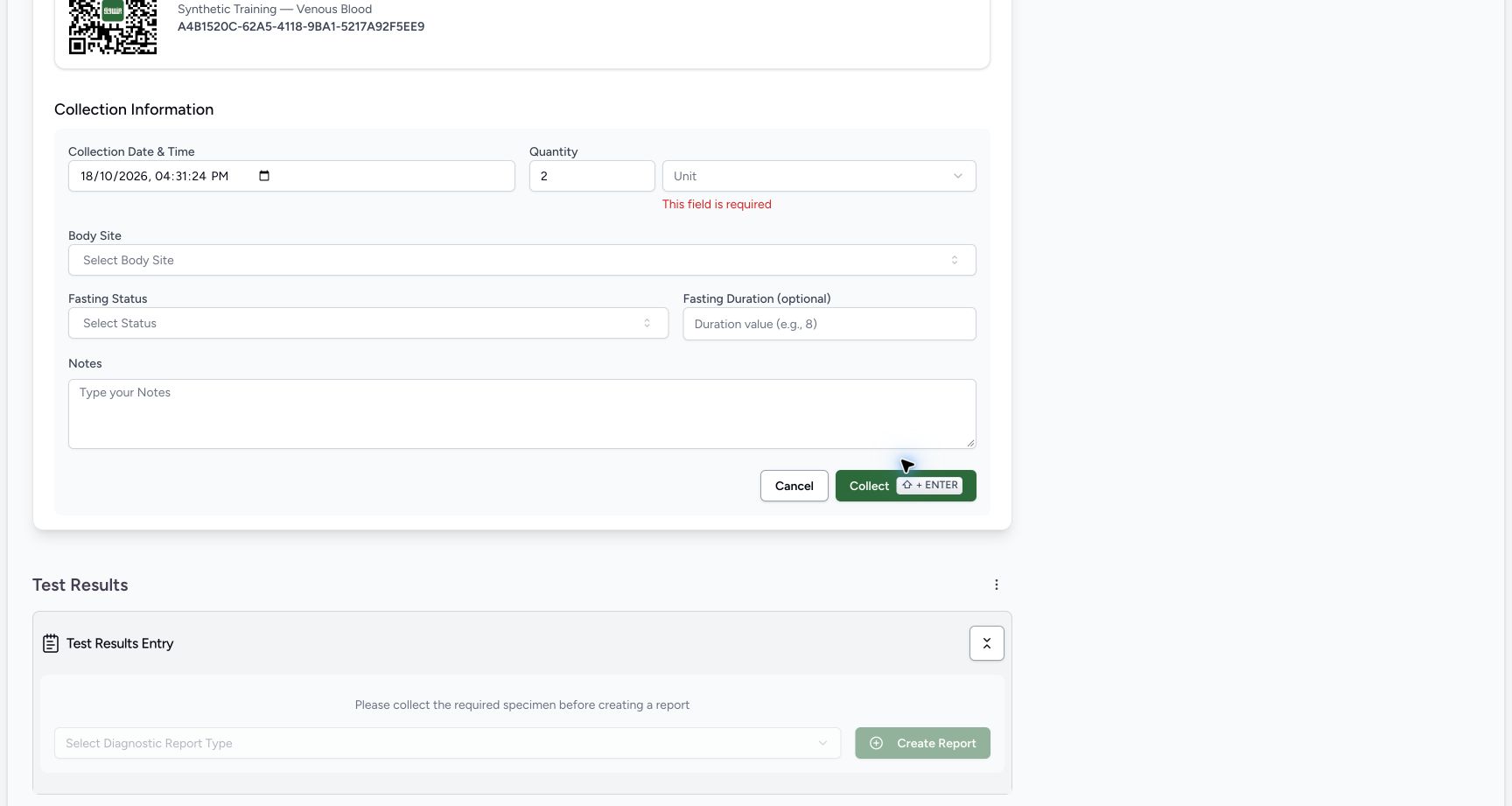
If you enter a quantity, select its unit; if you select a unit, enter its quantity. Quantity without a unit shows This field is required and does not collect the draft. The example chooses milliliter after this validation.
5. Collect and verify
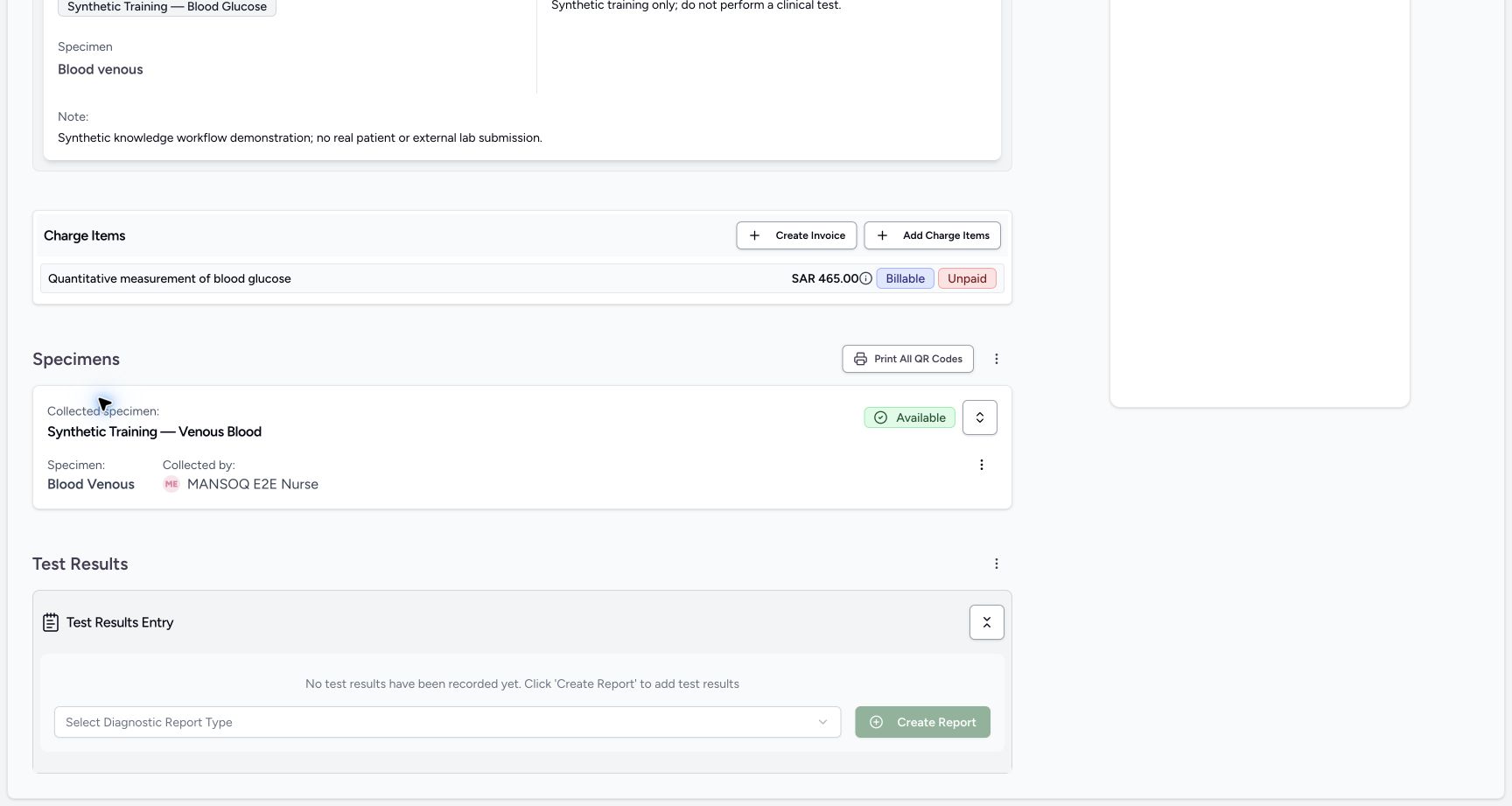
Select Collect. Confirm Available, Collected by the intended user, and the Workflow Progress collection entry. The synthetic example independently verifies the same specimen ID, Nurse collector and saved quantity.
6. Select and print specimen labels
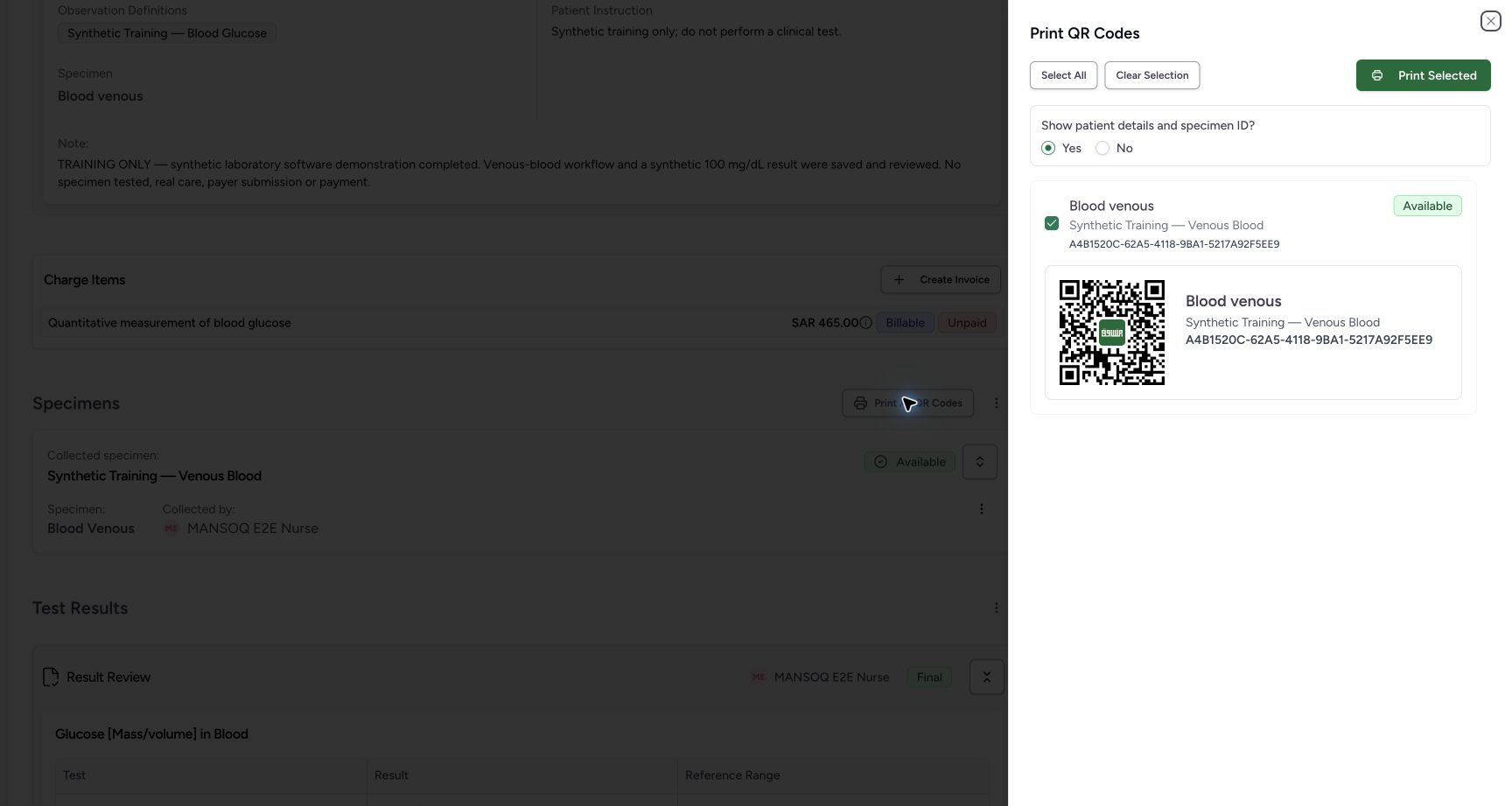
Select Print All QR Codes. In Print QR Codes, check only the required specimen labels, use Select All or Clear Selection when appropriate, choose whether to show patient details and specimen ID, then Print Selected. Verify each identifier against the correct container. The screenshot establishes selection controls; no physical printing is claimed.
Generate or scan an identifier
Generate QR Code is the illustrated path. Scan Existing is also exposed for an existing accession identifier; scanner hardware and that alternate workflow are not verified by this example.
Collection time display limitation
In this audited build, the datetime-local control uses the ISO UTC clock directly. In the Riyadh training example the default field showed 16:31 while the saved collection timeline correctly showed 19:31 local. The default instant was preserved and independently checked. Verify the intended instant and facility time zone; do not repeatedly adjust a valid saved time to compensate for its display.
Verified configuration and limits
This is a limited training configuration with HL7 venous-blood type, a source-backed quantity/unit and no configured clinical preparation, body-site protocol, reference range or interpretation. A transient QR placeholder resolved after draft creation and was not a persistent failure. No specimen was collected or tested in real life.
Troubleshooting
This field is required beside quantity/unit
Complete both parts of the quantity or leave both empty when the approved procedure permits. Do not enter an arbitrary clinical quantity to pass validation.
Specimen requirements are missing
Ask the catalogue owner to configure approved specimen definitions on the activity definition. The configuration accepts same-facility resource slugs; a blank UI is not evidence of a specimen-free assay.
Collection time differs from the local clock
Check the known UTC display issue, the intended collection instant, and the saved workflow timeline with an authorized reviewer before changing data.
Source evidence
References are pinned to the private MANSOQ source repository. Repository access is required to open these links.
- repositories/platform/mansoq-web/src/pages/Facility/services/serviceRequests/components/SpecimenForm.tsx:180 · f6e9f05f
- repositories/platform/mansoq-web/src/pages/Facility/services/serviceRequests/components/SpecimenForm.tsx:348 · f6e9f05f
- repositories/platform/mansoq-web/src/pages/Facility/services/serviceRequests/components/MultiQRCodePrintSheet.tsx:130 · f6e9f05f
- repositories/platform/mansoq-core/mansoq/emr/api/viewsets/service_request.py:397 · f6e9f05f
- repositories/platform/mansoq-core/mansoq/emr/api/viewsets/activity_definition.py:96 · f6e9f05f
- repositories/platform/mansoq-core/mansoq/security/permissions/specimen.py:1 · f6e9f05f