 MANSOQ
 Nursing
Review vital signs, observations and clinical forms
Find the encounter’s configured vital-sign summary and review individual observation values, times and recorded-by details.
Current source · source reviewed · 3 min read
Before you begin
- Open the correct patient and encounter.
- Your role permits reading clinical data.
- To enter a clinical form, your role must also permit writing to the selected encounter.
- The custom questionnaire is active for encounter subjects, shared with an organization you can read, and contains the correct observation codes and units. Facility membership alone may not expose custom forms.
1. Read the Overview
On the encounter Overview, review the clinical history, allergies, symptoms, diagnoses and vital-sign summary that are available to your role. The vital-sign summary uses the deployment’s configured primary-parameter groups.
2. Open Observations for detail
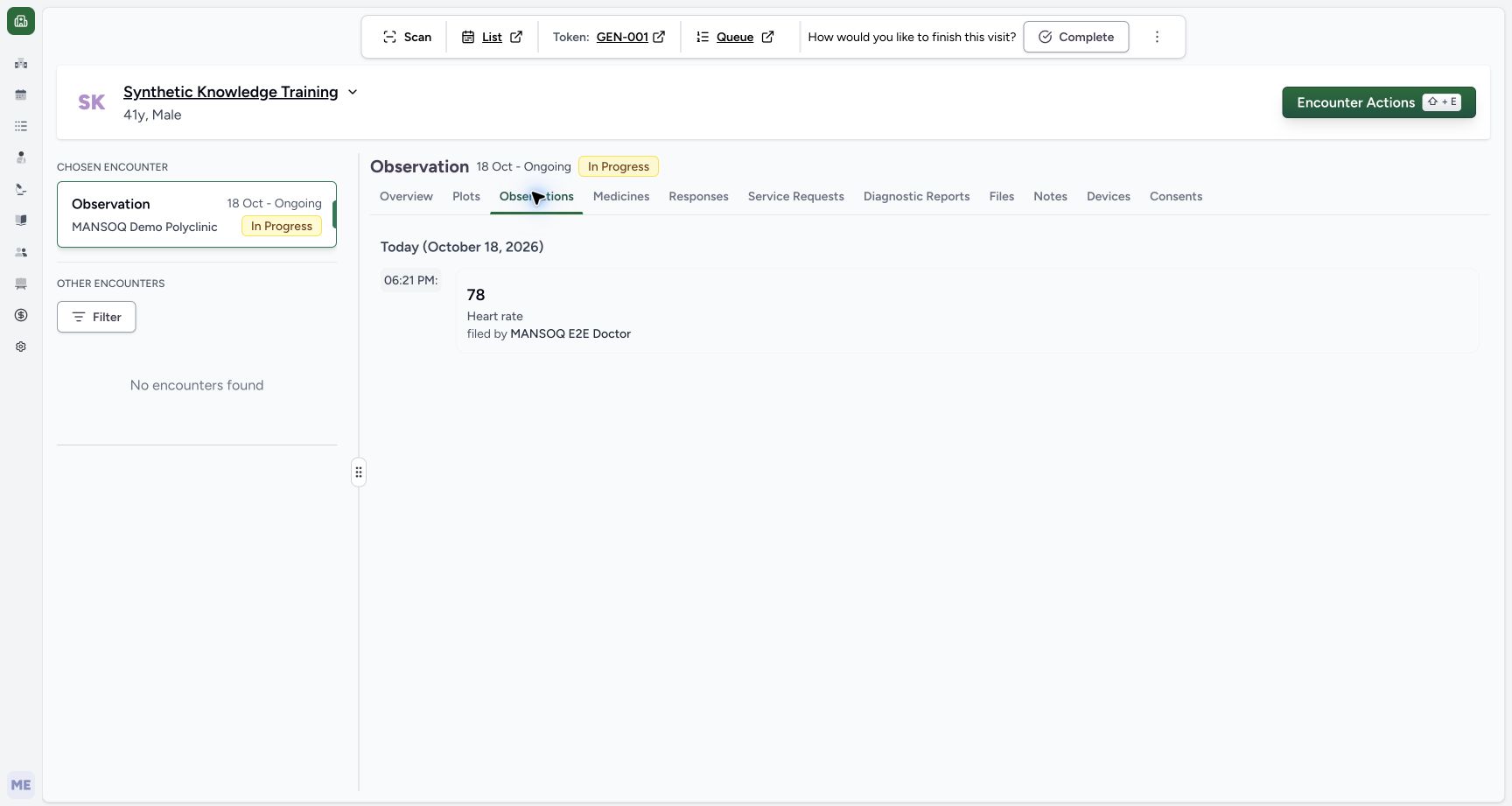
Use the encounter Observations tab to review recorded values. Entries are grouped by effective date and ordered by effective time. Each entry can show the observation name, value, note and staff member who entered it.
3. Read the recorded time carefully
Observation display uses the effective_datetime of the observation. A date group may be labelled Today or Yesterday. The visible observation time is formatted from the browser’s local date/time environment.
4. Open a configured clinical form
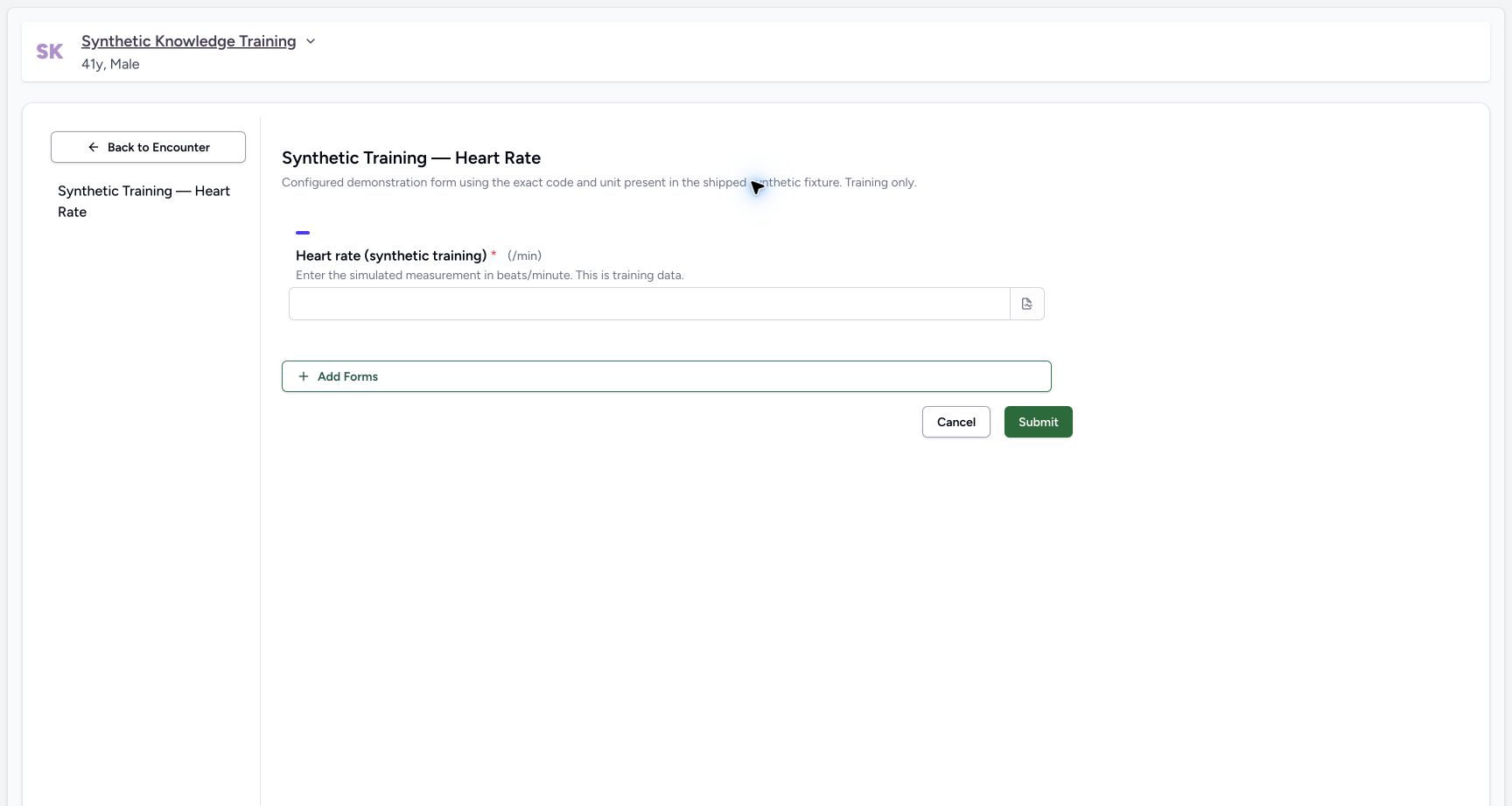
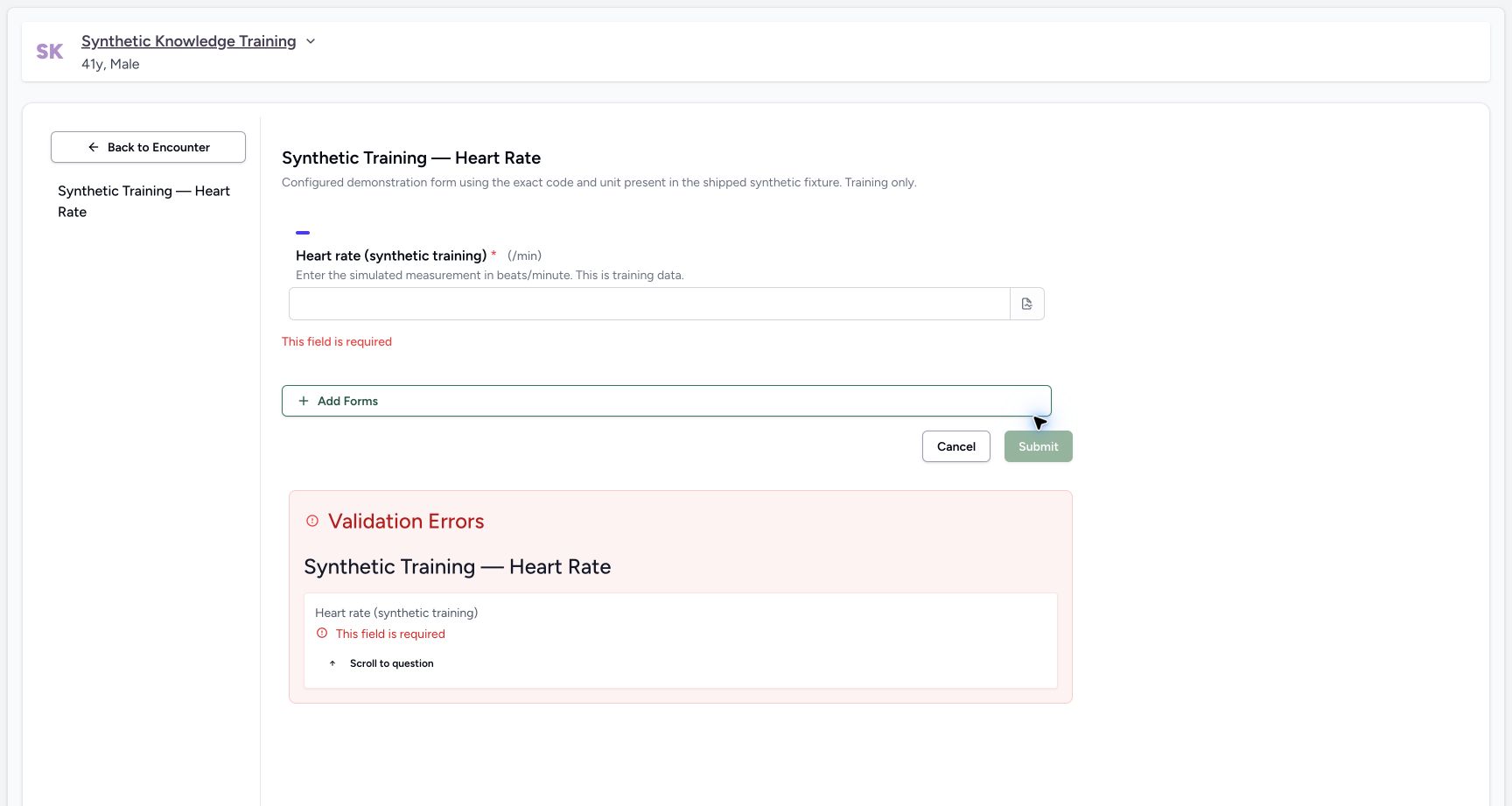
If permitted to write, use Forms from the Overview quick actions. The list searches active encounter questionnaires available through your organization access. Choose the questionnaire approved by your facility, confirm the patient, then enter the assessment values and units. Required fields are marked with an asterisk. Submit validates the form; a missing required value can show This field is required and Validation Errors.
5. Return to review
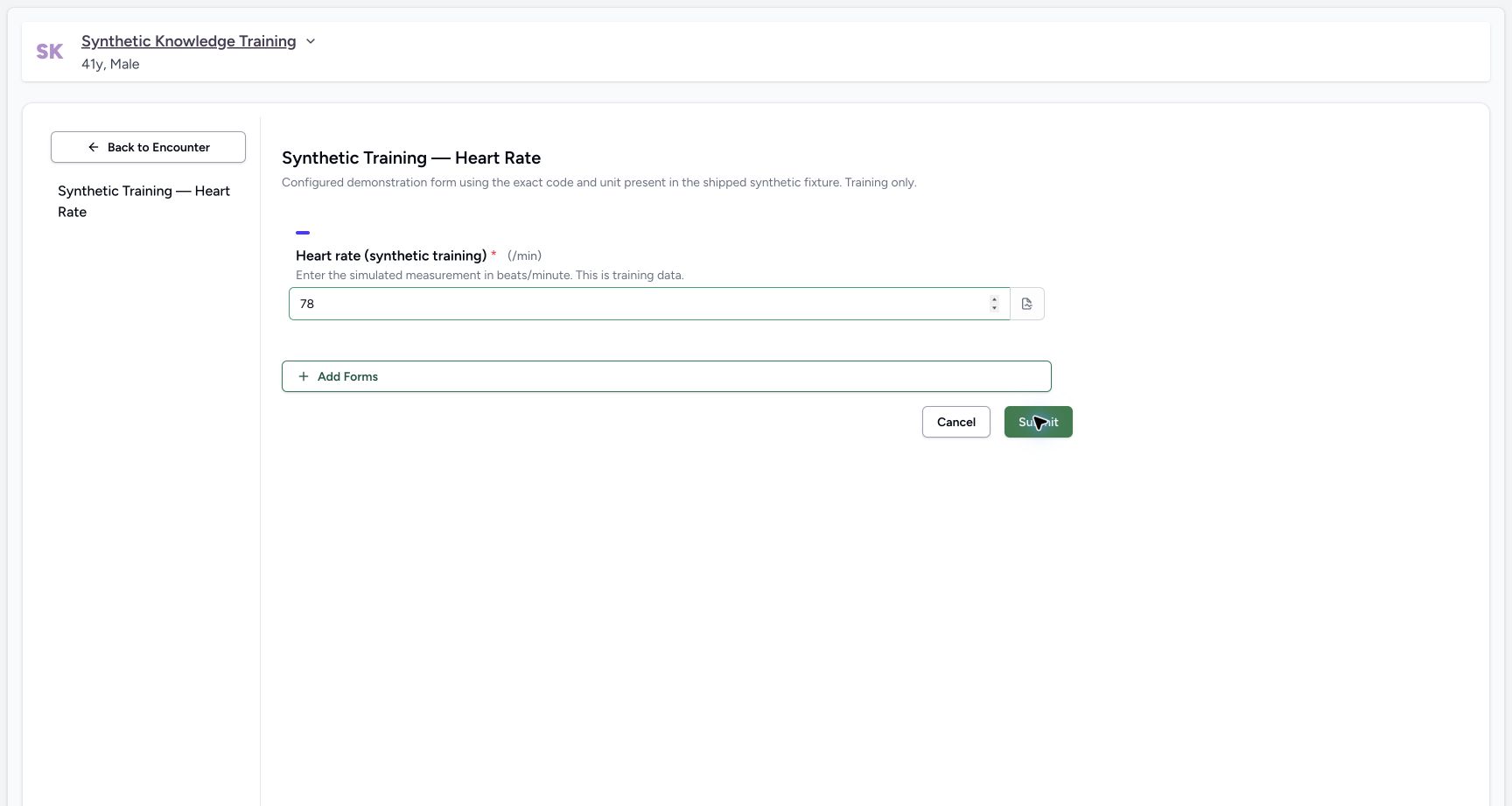
Select Submit, confirm the success message, then return to Observations and Overview. Check that the saved value, unit, time and author match what was entered. Coded questions create observations; plain text or uncoded numeric questions can remain questionnaire responses rather than populate the vital summary.
The summary is not an editable chart
The vital-sign overview component is read-only. It may not appear when there are no matching configured observations. The Observations list provides the individual entries; form-based entry depends on the active questionnaires configured for the instance.
Configuration boundary
This guide verifies the general Overview, Observations and Forms surfaces. It does not promise a universal named Vital Signs entry form or a complete nursing assessment package in every deployment.
Permission message
If clinical read permission is absent, the Overview shows a no-permission clinical-data state instead of the clinical panels.
Verified synthetic training example
A clearly labelled Synthetic Training — Heart Rate form was configured for this demonstration; it is not a promised default form. It used the exact shipped fixture LOINC8867-4 and UCUM/min concepts in explicitly marked local terminology fragments. Empty submission produced the required-field error. The Doctor entered78, submitted successfully, and an independent readback confirmed a Final coded observation. Observations displayed Heart rate78, and Overview displayed Pulse78/min.
Troubleshooting
No vital-sign section is visible
Check whether observations have been recorded for this encounter and whether their codes match the configured vital-sign groups. The summary returns no panel when no matching vital observations exist.
The needed assessment form is not listed
Ask the configuration owner to verify active status, encounter subject type, questionnaire organization sharing and your OrganizationUser role. Facility department membership and organization membership are separate access paths. Confirm the form includes coded observation questions and valid units; do not bypass validation.
Source evidence
References are pinned to the private MANSOQ source repository. Repository access is required to open these links.
- repositories/platform/mansoq-web/src/pages/Encounters/tabs/overview.tsx:38 · f6e9f05f
- repositories/platform/mansoq-web/src/pages/Encounters/tabs/overview.tsx:102 · f6e9f05f
- repositories/platform/mansoq-web/src/pages/Encounters/tabs/observations.tsx:22 · f6e9f05f
- repositories/platform/mansoq-web/src/pages/Encounters/tabs/observations.tsx:127 · f6e9f05f
- repositories/platform/mansoq-web/src/pages/Encounters/tabs/overview/quick-actions.tsx:59 · f6e9f05f
- repositories/platform/mansoq-web/src/pages/Encounters/tabs/overview/FormsDialog.tsx:43 · f6e9f05f
- repositories/platform/mansoq-web/src/components/Patient/vitals/list.tsx:137 · f6e9f05f
- repositories/platform/mansoq-core/mansoq/security/authorization/questionnaire.py:36 · f6e9f05f
- repositories/platform/mansoq-core/mansoq/emr/resources/questionnaire/utils.py:416 · f6e9f05f
- repositories/platform/mansoq-core/mansoq/emr/management/commands/seed_mansoq_demo_suite.py:1207 · f6e9f05f