 MANSOQ
 Facility administration
Create a Building and its child Room through location settings
Build and independently verify a real synthetic parent-child location hierarchy before using it for device storage.
Current source · Actual product UI operations under a local synthetic superuser on the pinned source version. Successful writes independently read through normal product APIs. No full role/facility, patient or clinical workflow qualification. · 5 min read
Before you begin
- Use an authorized administrator within the intended facility. The screenshots were captured under a synthetic local superuser; scoped role boundaries remain separately unverified.
- Approve the actual identity, status and relationships before modifying real records. All values shown are synthetic training fixtures.
1. Create the parent Building
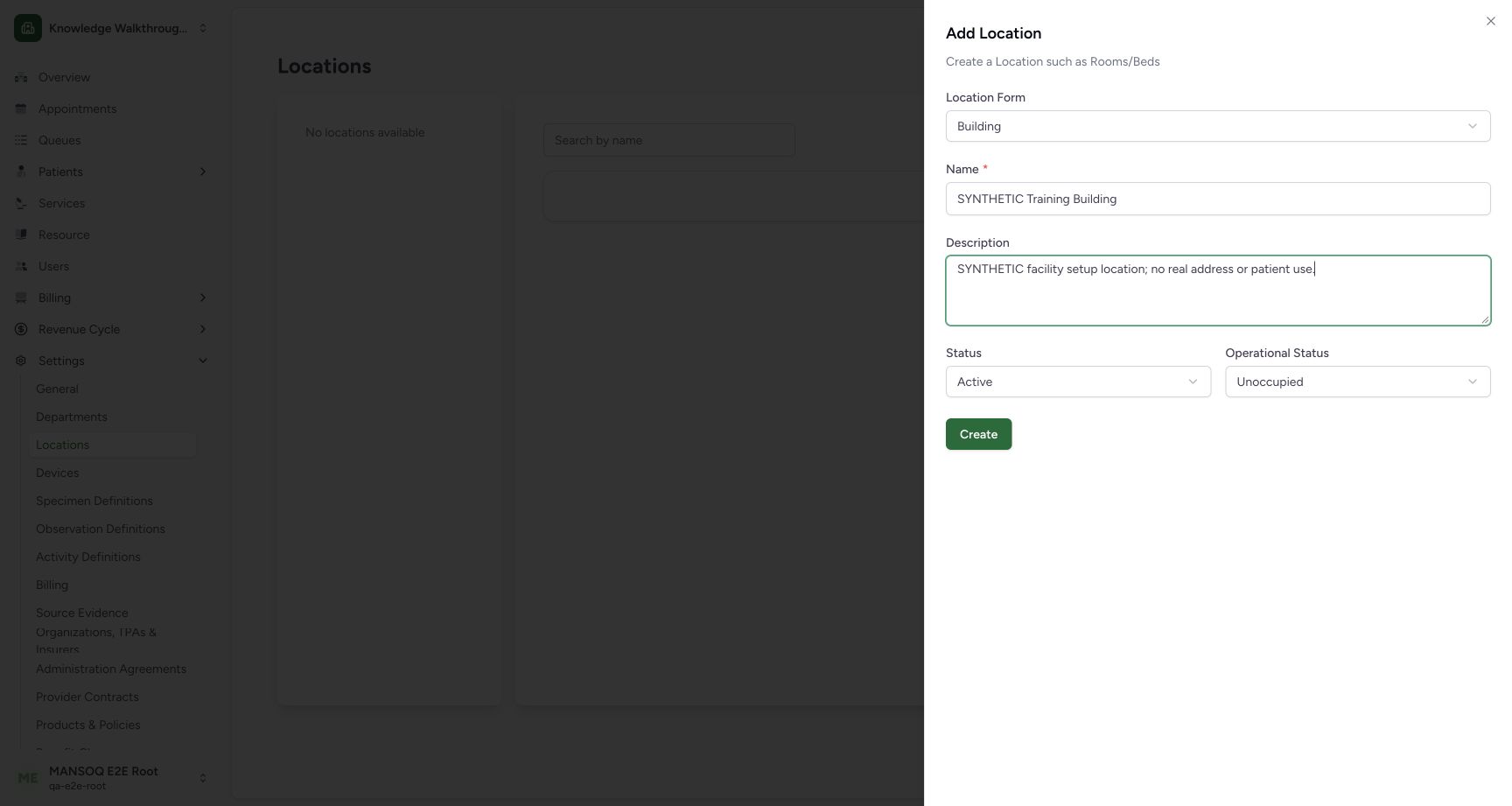
Open Settings → Locations and choose Add Location. In Location Form select Building, enter its approved name/description and inspect Status and Operational Status. Choose Create. The synthetic example keeps Active and Unoccupied.
 1234
1234- Location form: Choose the approved form; this example is a Building.
- Location name: Use an approved unique recognizable name.
- Statuses: Record status and operational status are separate selections.
- Create: Save the building, then open it before adding a child.
2. Open the Building before creating the child
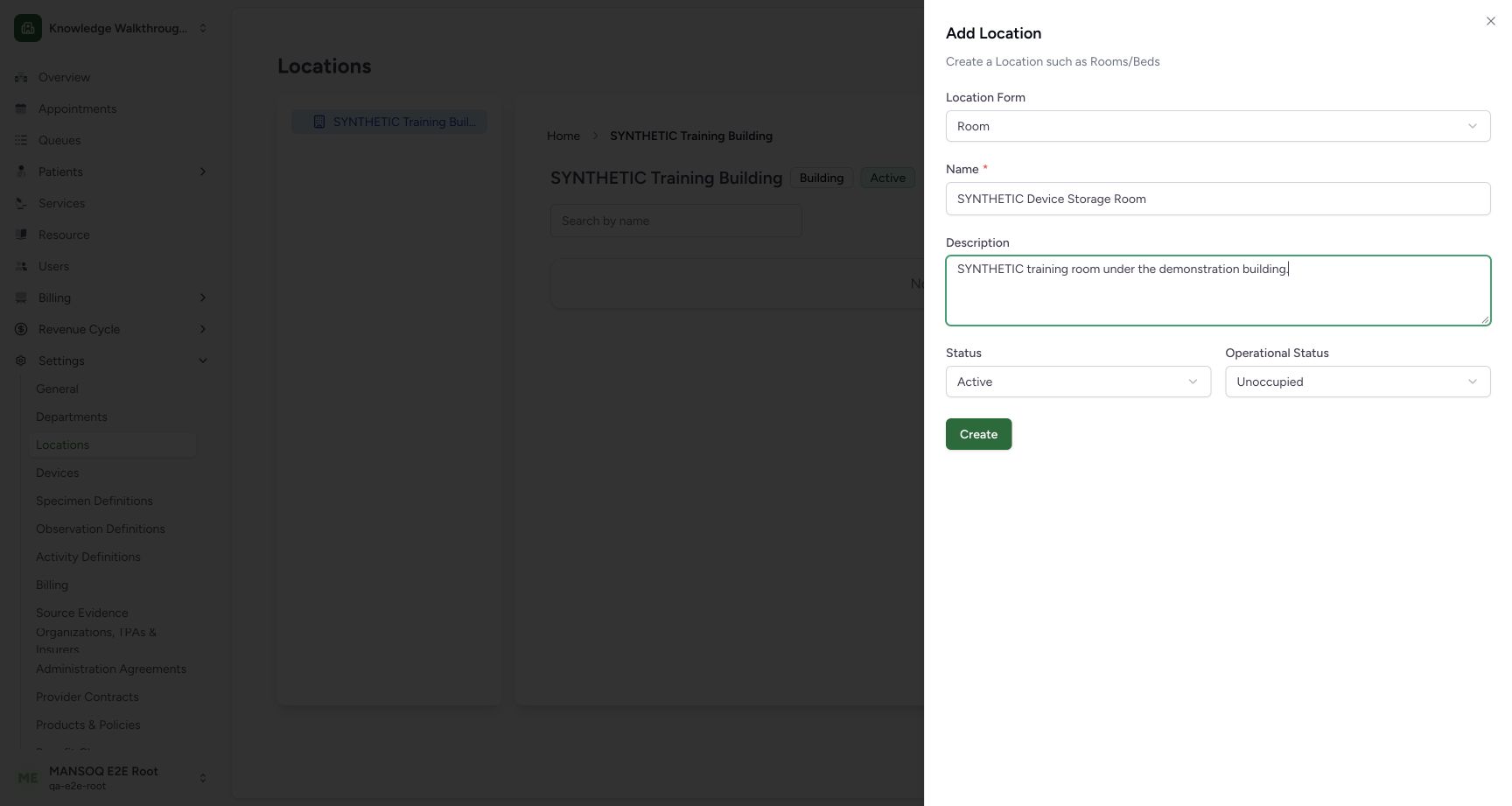
Select the saved Building from the list. Confirm the parent heading, then choose Add Location from inside that detail view. Select Room and enter its approved name/description. The parent context behind the sheet identifies where the child will be created. Choose Create.
 1234
1234- Parent context: Confirm the intended Building before adding a child location.
- Room form: This child uses Room classification.
- Child name: Name the actual approved child location.
- Create child: Save the Room under this parent and verify the hierarchy.
3. Verify the parent and child relationship
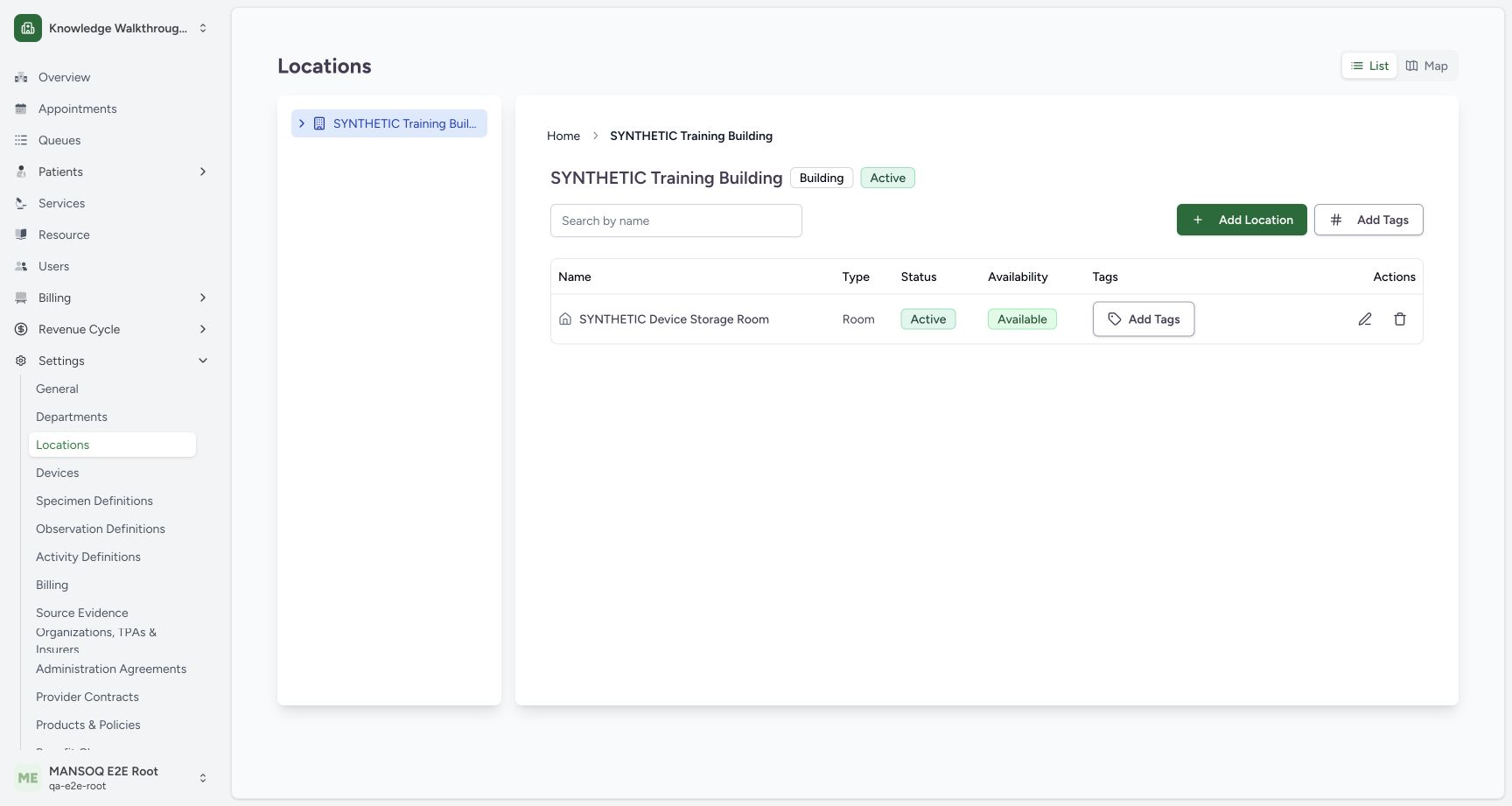
The Building detail lists the saved Room with its Room classification and displayed states. Independent normal location reads confirmed Building form bu, Room form ro and the exact intended parent identifier. The row pencil opens location editing; the delete control was not exercised.
 1234
1234- Parent building: The heading is the parent of the listed child locations.
- Saved child: Confirm the Room name and Room classification.
- Displayed states: Active and Available are shown; this does not establish clinical room readiness.
- Edit location: The row pencil opens the child location edit form.
Location forms and clinical readiness
The audited UI writes non-Bed location forms with mode kind and Bed form with mode instance. Parent and child rules are enforced by the backend. Creating a Room does not create appointment capacity, a healthcare service, bed occupancy or clinical privileges. The demonstrated Room is explicitly a synthetic storage fixture.
Map and availability limits
This walkthrough used List view. External maps and geocoding were restricted in the isolated preview and were not qualified. Active/Available display values must be understood with actual operational and system state; they are not a substitute for clinical readiness checks.
Troubleshooting
The Room appears under the wrong parent
Check the breadcrumb before creating a child and verify the saved parent through authorized detail/readback. Do not infer hierarchy from the location name alone.
Source evidence
References are pinned to the private MANSOQ source repository. Repository access is required to open these links.