 MANSOQ
 Facility administration
Prepare, preview and save a Draft HTML report template
Create a static synthetic Account Report layout while keeping report type, data context, output format, preview and saved Draft status distinct.
Current source · Actual local synthetic UI operations on the pinned application source. Successful tag and template writes independently read through normal product APIs. No full role/facility or clinical reporting qualification. · 4 min read
Before you begin
- Use an authorized administrator in the intended facility. The observed operations used a local synthetic superuser and do not establish a complete scoped permission matrix.
- Use approved administrative values. All pictured records and content are synthetic training fixtures.
1. Review the Draft layout identity and context
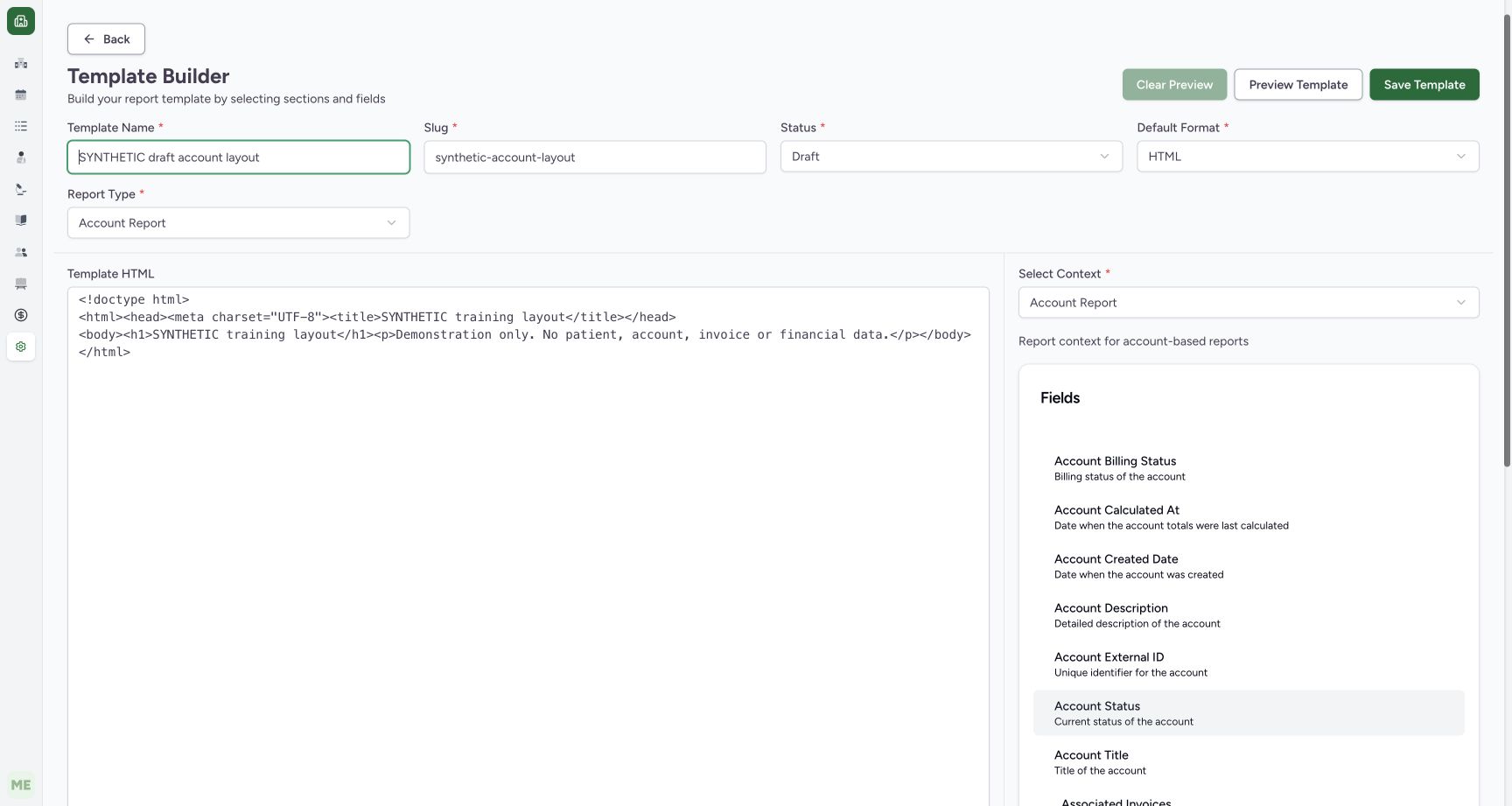
In Template Builder, enter the approved Template Name and lowercase Slug. Select Draft status and HTML default format. Review Report Type and Select Context separately; the example uses Account Report for both. The left Template HTML editor contains only a static synthetic heading and disclaimer, with no patient, account or invoice fields.
 1234
1234- Identity and slug: Use an approved name and unique lowercase slug.
- Draft and HTML: Status and default output format are separate choices.
- Data context: Account Report context determines the available fields; it is separate from Report Type.
- Save Template: Save the draft after reviewing its content; preview does not prove persistence.
2. Preview the actual output
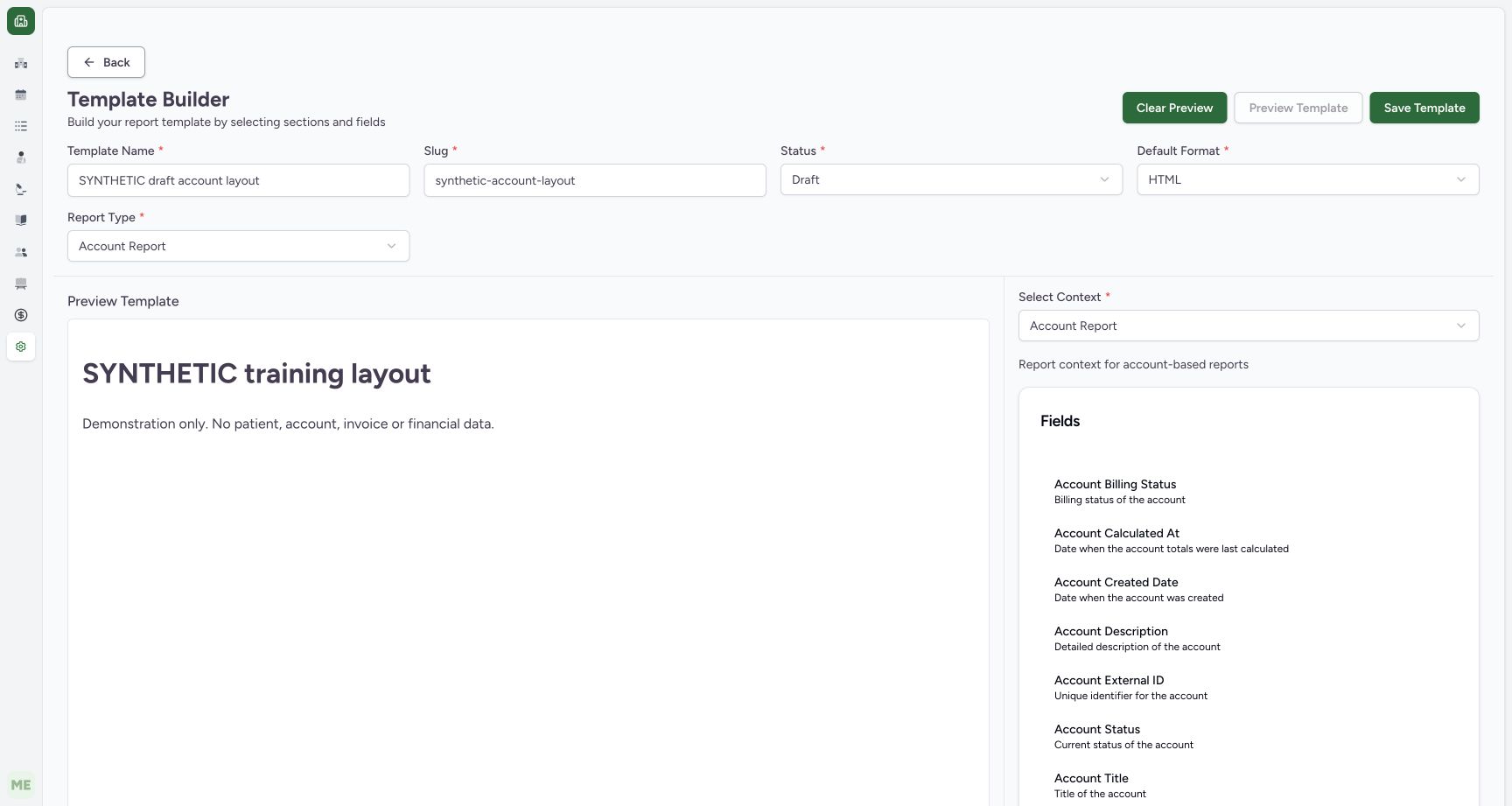
Choose Preview Template and inspect the rendered heading and disclaimer. Clear Preview returns to the editor. The pictured output is a static training layout and contains no patient, account, invoice or financial data. Preview does not save the template.
 1234
1234- Rendered preview: Inspect the output rather than assuming HTML source will render as intended.
- Clear Preview: Clear Preview returns to the HTML editor.
- Save separately: Preview does not save the template; Save Template is a separate control.
- Draft status: The current template is still Draft.
3. Save and verify the Draft template
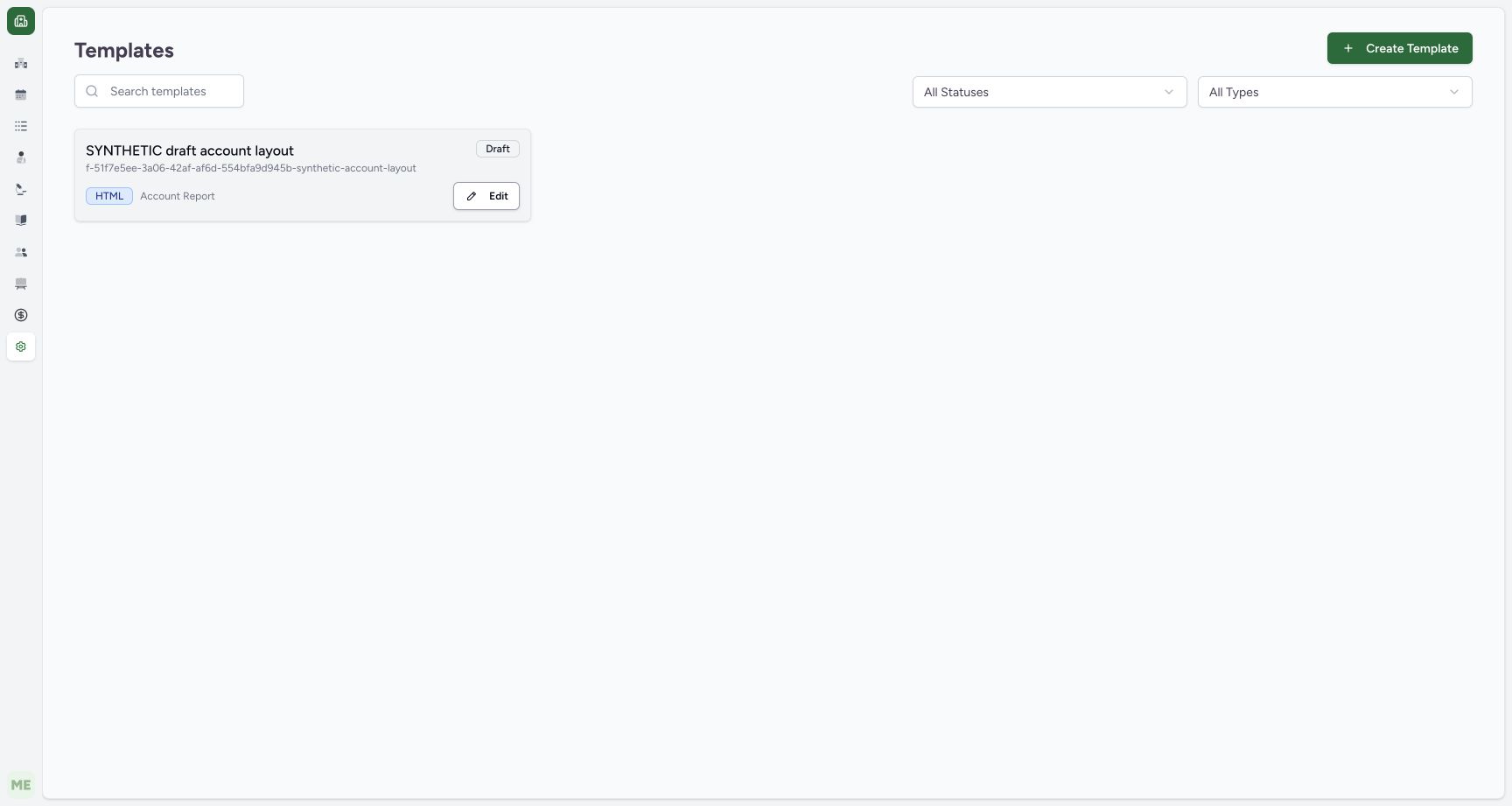
Select Save Template separately from preview. In the template catalogue, confirm the exact name, generated facility-qualified slug, Draft badge, HTML format and Account Report type. The independent normal template detail GET confirmed Draft, account_base context and the exact static HTML. Edit opens this saved template. It was not activated and no person/account report was generated.
1234- Rendered preview: Inspect the output rather than assuming HTML source will render as intended.
- Clear Preview: Clear Preview returns to the HTML editor.
- Save separately: Preview does not save the template; Save Template is a separate control.
- Draft status: The current template is still Draft.
 1234
1234- Saved template identity: Confirm the exact template name and generated full slug.
- Draft state: The template remains Draft; it was not activated.
- Format and type: HTML and Account Report are the saved choices.
- Edit saved template: Edit opens the existing full-slug template rather than a new copy.
Slug and field validation in the audited source
The schema accepts a lowercase letters/digits/hyphens slug of 5–25 characters. Its translated length message currently says max 36 while the schema max is 25, so follow the implemented constraint and actual validation response. Name, status, format, report type, context and non-empty HTML have separate fields. The pictured valid save does not exercise every invalid variant.
Preview, activation and report generation are separate
Preview submits the current HTML, context and output format. Saving persists the template. Actual report generation also requires an associating record, suitable permissions and an active template in the audited card control. This walkthrough keeps the template Draft and qualifies neither data-bound field insertion, PDF generation nor clinical/financial report correctness.
Troubleshooting
The preview differs from the intended layout
Return with Clear Preview, inspect the template HTML and selected context, then preview again before saving. Use synthetic fixtures to test placeholders before processing real records.
Source evidence
References are pinned to the private MANSOQ source repository. Repository access is required to open these links.
- repositories/platform/mansoq-web/src/pages/Encounters/TemplateBuilder/TemplateBuilder.tsx:94 · f6e9f05f
- repositories/platform/mansoq-web/src/pages/Encounters/TemplateBuilder/TemplateBuilder.tsx:224 · f6e9f05f
- repositories/platform/mansoq-web/src/pages/Encounters/TemplateBuilder/TemplateBuilder.tsx:248 · f6e9f05f
- repositories/platform/mansoq-web/src/pages/Encounters/TemplateBuilder/TemplateCard.tsx:47 · f6e9f05f
- repositories/platform/mansoq-web/src/pages/Encounters/TemplateBuilder/TemplateCard.tsx:94 · f6e9f05f