 MANSOQ
 Facility administration
Register a generic device and record its service and location history
Create an actual synthetic device inventory record, add a maintenance note and associate its storage Room with independent saved-record checks.
Current source · Actual product UI operations under a local synthetic superuser on the pinned source version. Successful writes independently read through normal product APIs. No full role/facility, patient or clinical workflow qualification. · 5 min read
Before you begin
- Use an authorized administrator within the intended facility. The screenshots were captured under a synthetic local superuser; scoped role boundaries remain separately unverified.
- Approve the actual identity, status and relationships before modifying real records. All values shown are synthetic training fixtures.
1. Open device setup and complete the required identity
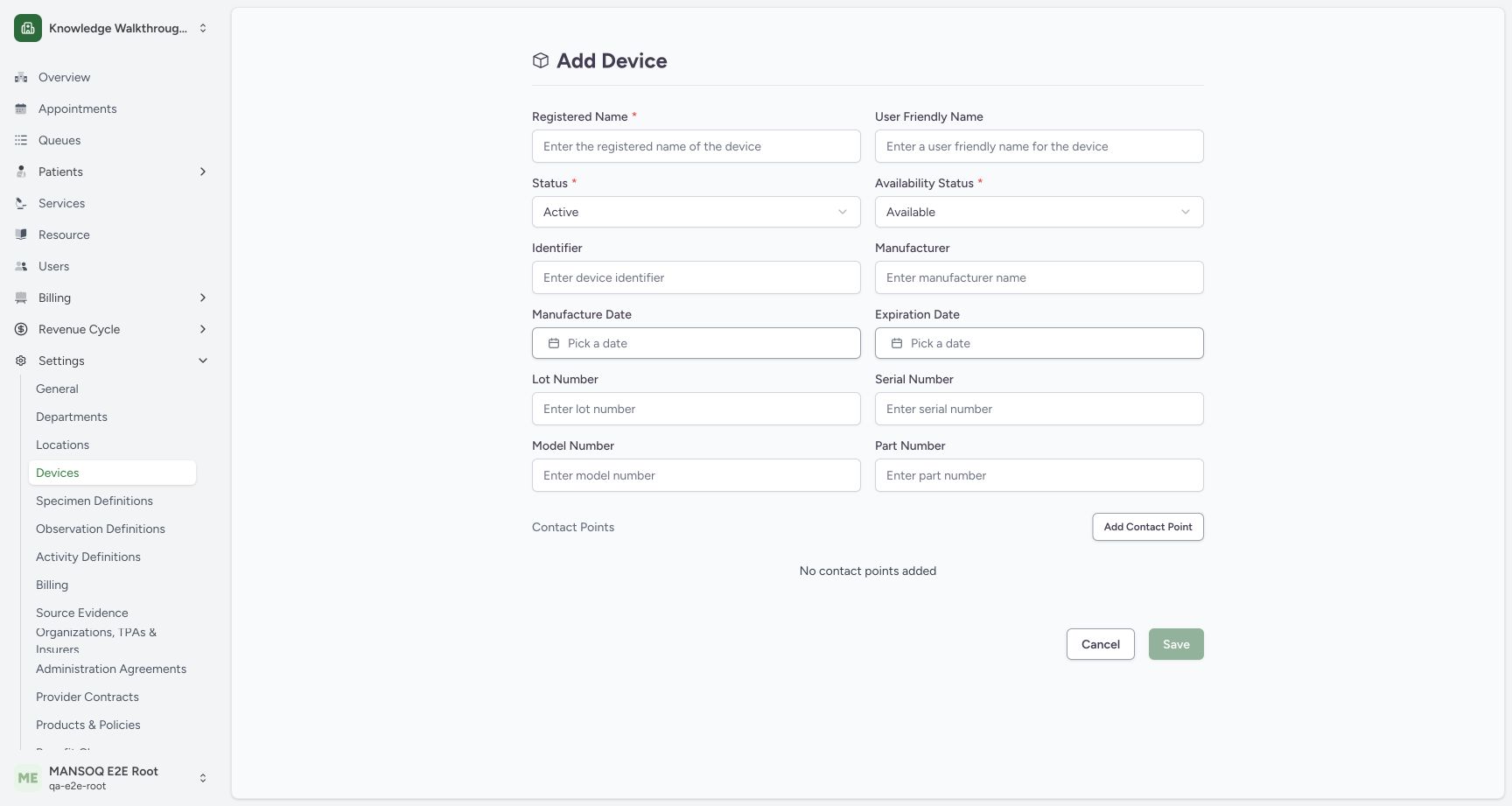
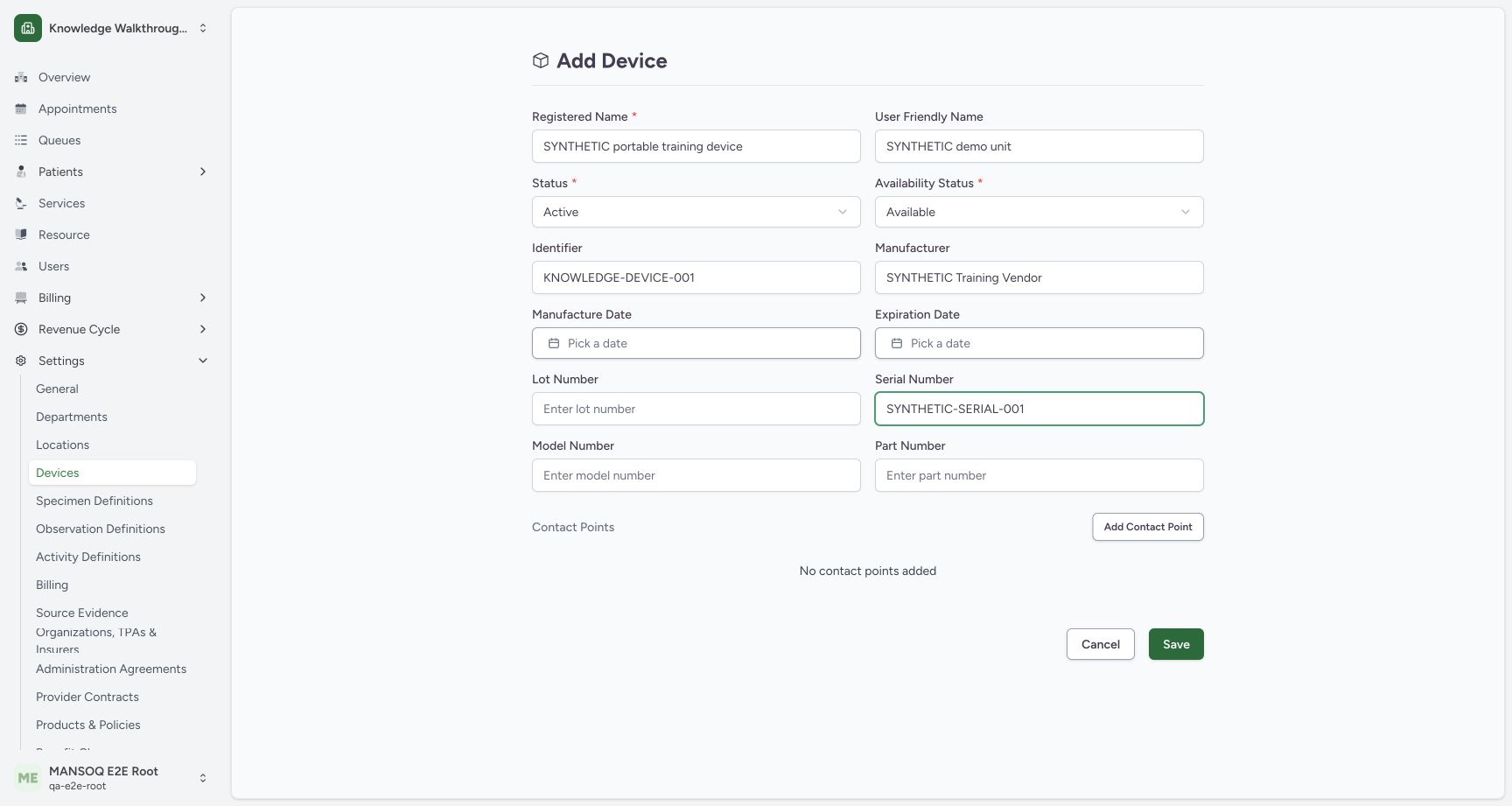
Under Settings → Devices, choose Add Device. Enter the approved Registered Name. The blank form keeps Save disabled. User Friendly Name, identifier, manufacturer, serial, model and part fields describe inventory; Status and Availability Status are separate. The generic example is not a registered plugin device or analyzer connection.
 1234
1234- Registered name: This required identity field must be completed before Save enables.
- Record status: Active is the default record status; choose the actual approved state.
- Availability: Available is a separate state from the active record status.
- Disabled Save: The blank form is incomplete and cannot be saved.
 1234
1234- Device names: Registered Name identifies the inventory record; the friendly name is separate.
- Identifier: Enter an approved asset identifier; this value is explicitly synthetic.
- Serial number: Record approved inventory metadata without confusing it with integration settings.
- Save: Save this generic inventory record, then verify its detail page.
2. Save and verify inventory metadata
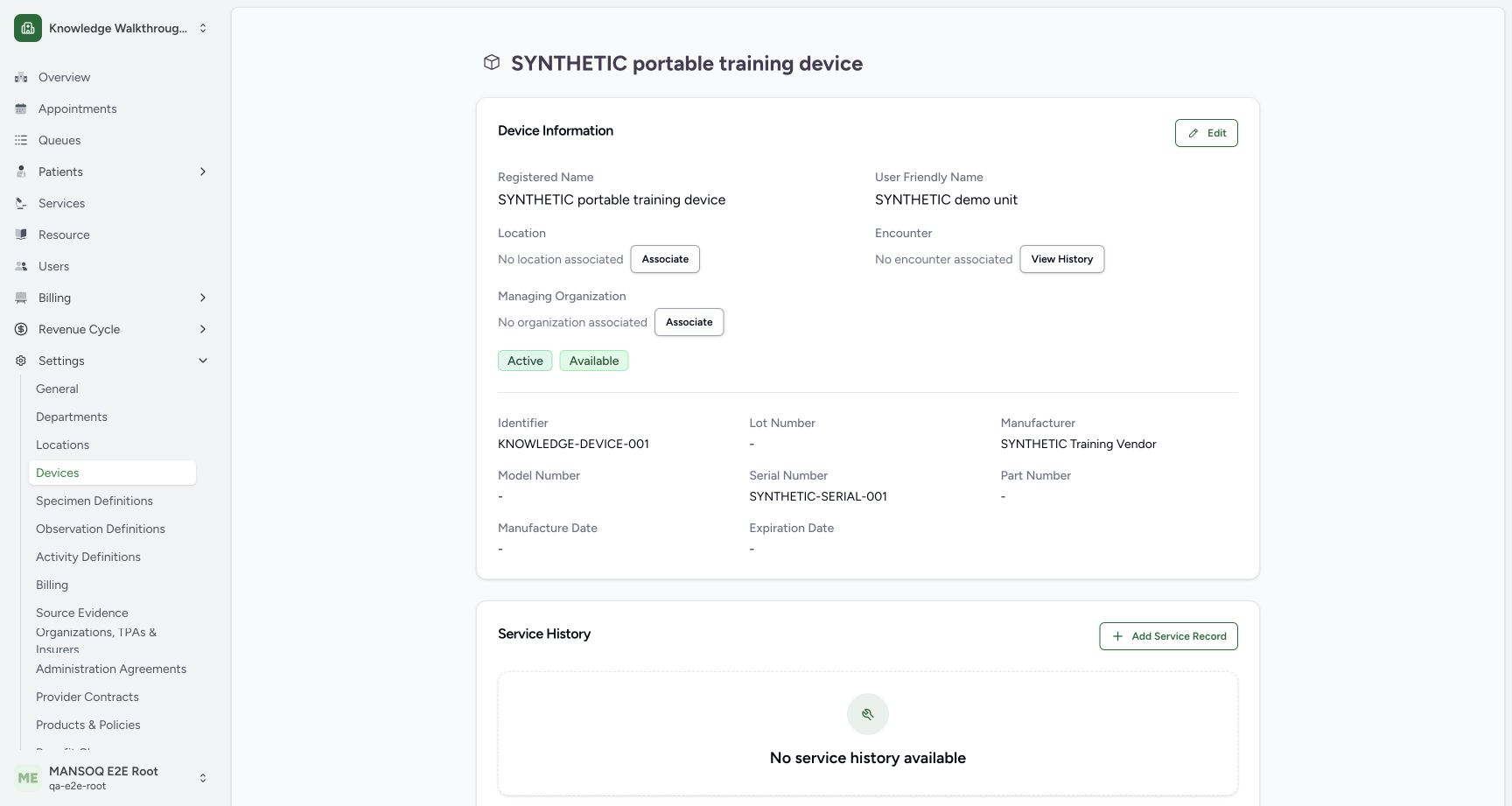
Select Save and open the new device from the device list. Confirm the registered/friendly name, identifier, manufacturer, serial and separate Active/Available values. The independent normal device-detail GET matched the saved synthetic record. Location, encounter and managing organization are separate links and were initially empty.
 1234
1234- Saved device: Confirm the registered inventory name.
- Two statuses: Record status and availability status are separate fields.
- Location association: Associate is a separate operation after inventory creation.
- Service history: Maintenance records are separate from device creation and clinical encounter use.
3. Add the service date and actual service notes
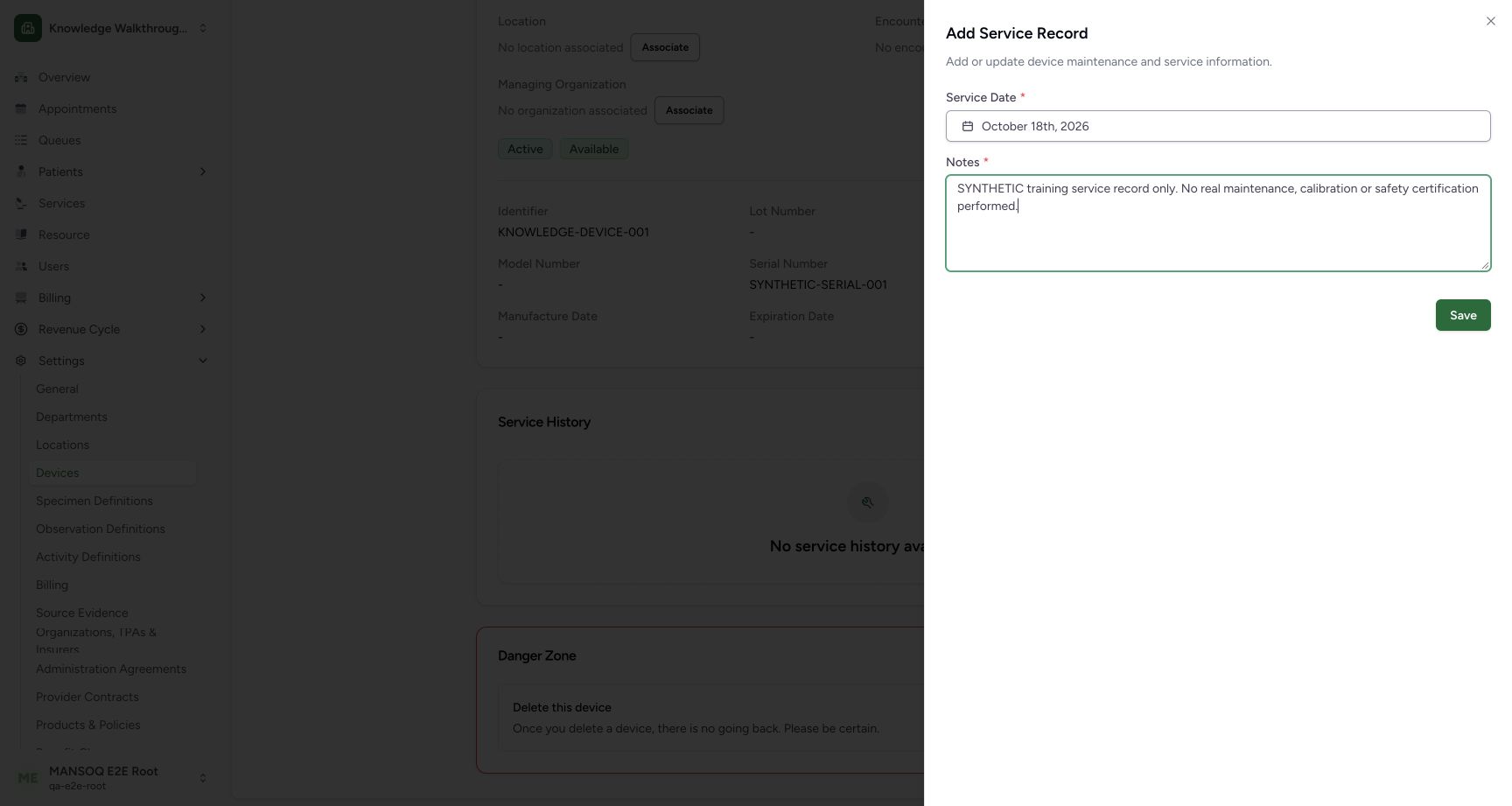
On the device detail page choose Add Service Record. Set Service Date, enter the required Notes and choose Save. This fixture explicitly states that no real maintenance, calibration or safety certification was performed. A record documents work; saving it does not perform the work.
 123
123- Service date: Choose the approved date of the actual service event.
- Required notes: Document the service performed; this fixture explicitly states no real work occurred.
- Save record: Save the date and note, then verify the service-history entry.
4. Verify service history
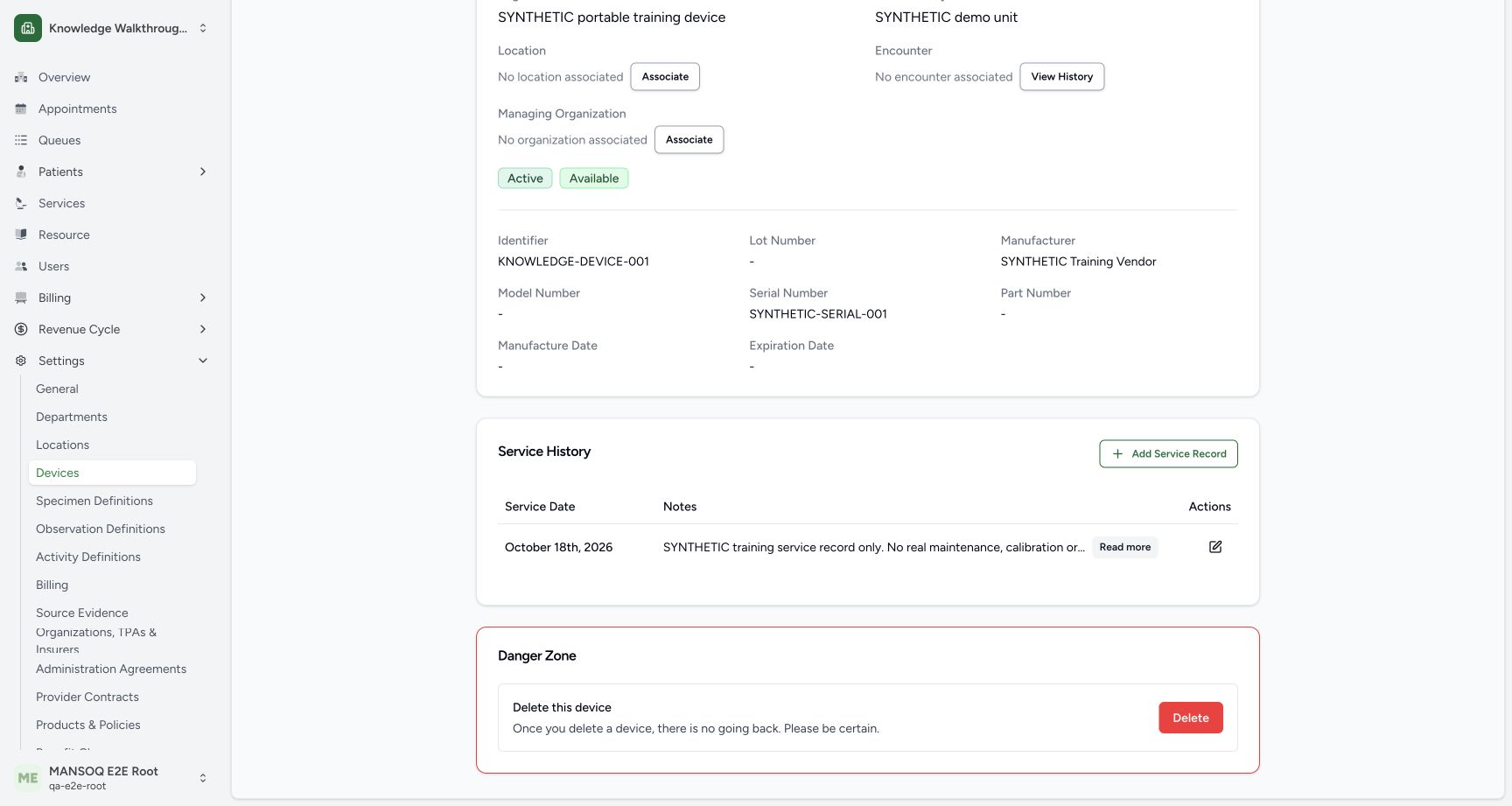
Check the saved Service History row and date. Read more expands truncated notes; the row pencil opens editing. A separate service-history API GET returned 200 and matched the date and exact synthetic note. Delete was not exercised.
 1234
1234- Saved service date: Confirm the persisted service date.
- Saved notes: Read more expands the note when the table truncates it.
- Edit record: The row action opens service-record maintenance.
- Destructive action: Delete is unrelated to service-history verification; it was not used.
5. Associate the approved storage location
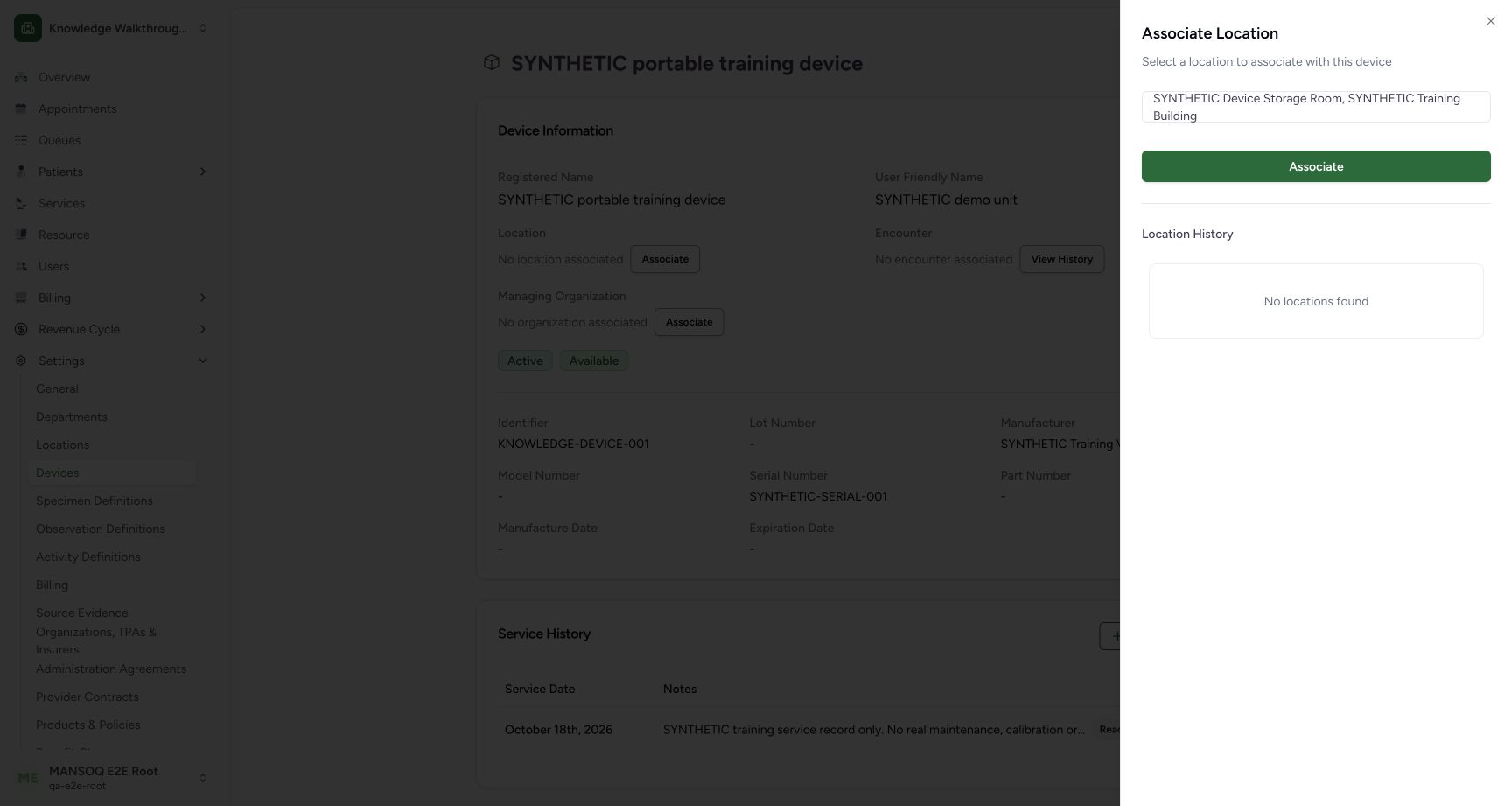
In the device’s Location area choose Associate. Select the intended existing Room and confirm its parent path. Choose Associate in the sheet. The Room was created in the companion location guide. This operation does not assign the device to a patient encounter.
 123
123- Selected location path: Confirm the Room and its parent Building to avoid a similarly named location.
- Associate: Persist the selected device location.
- Location history: This empty state precedes the first location association.
6. Verify current location and history
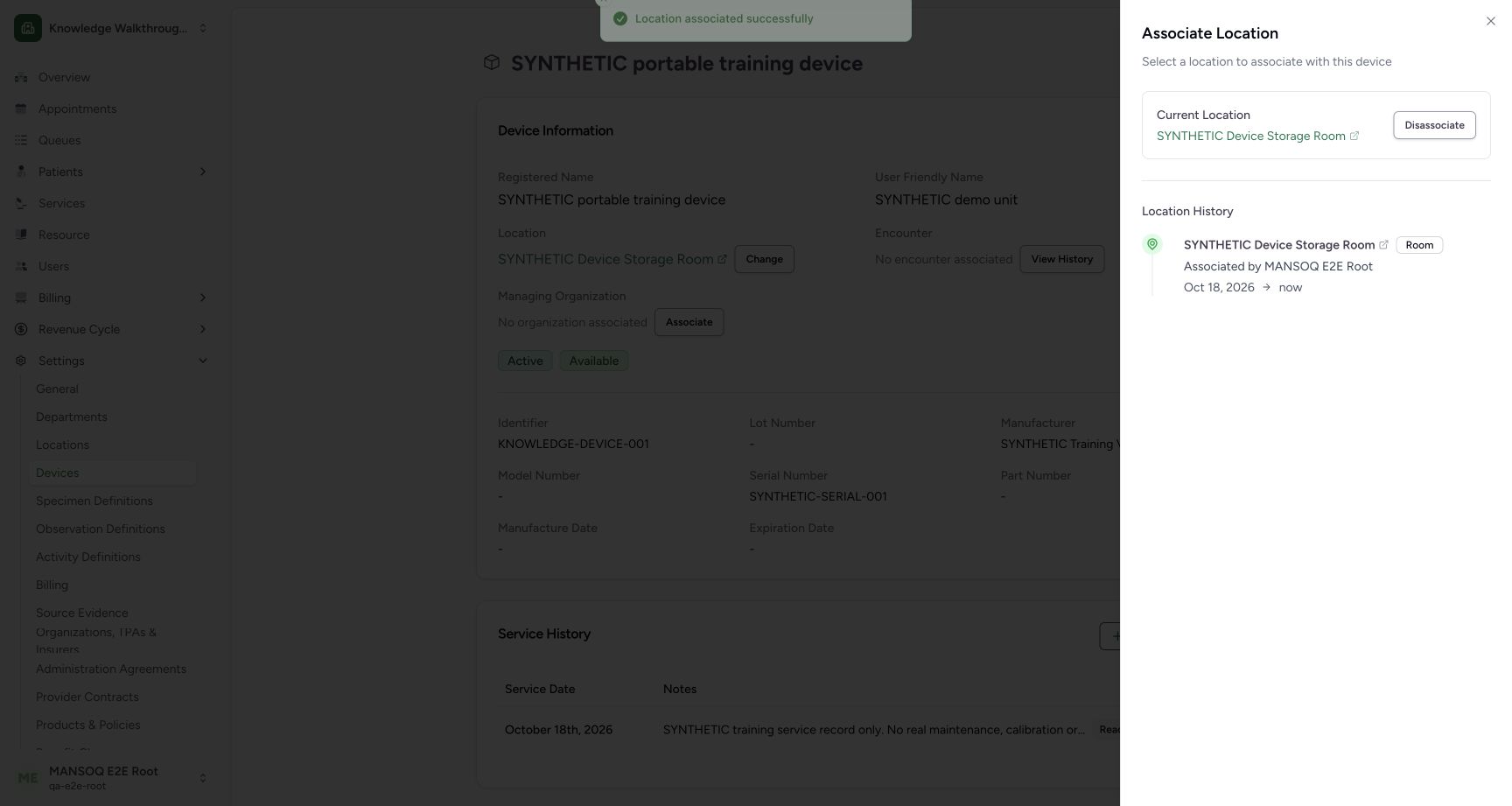
Confirm Current Location and the new Location History entry. Independent normal device-detail and location-history GETs confirmed the Room association. Disassociate is a separate operation and was not used. Managing Organization and Encounter links remain unqualified in this guide.
 1234
1234- Current location: Confirm the saved Room link.
- History entry: The history records the Room and associating synthetic account.
- Association date: Review the displayed association date and chronology.
- Disassociate control: Removal is a separate operation and was not used in this walkthrough.
Generic inventory differs from a clinical interface
The observed create form works without a registered plugin device type. Device-specific metadata, network connectivity, analyzer/result ingestion, safety maintenance, encounter association and monitoring depend on separate configuration and validation. Do not interpret an Active/Available inventory badge as a successful clinical integration.
Date and contact validation in source
The audited device form rejects a manufacture date in the future, requires an expiration date after manufacture when both exist, and rejects duplicate contact values after normalization. Those source rules were reviewed; this guide does not claim that every invalid-date/contact variation was exercised through the UI.
Troubleshooting
Save is disabled
Complete Registered Name and resolve any validation messages. Check status and availability separately.
The expected Room is absent from the picker
Verify the facility and existing location hierarchy. Create or correct the approved location through normal location setup rather than associating a similarly named record.
Source evidence
References are pinned to the private MANSOQ source repository. Repository access is required to open these links.
- repositories/platform/mansoq-web/src/pages/Facility/settings/devices/components/DeviceForm.tsx:71 · f6e9f05f
- repositories/platform/mansoq-web/src/pages/Facility/settings/devices/components/ManageLocationSheet.tsx:1 · f6e9f05f
- repositories/platform/mansoq-web/src/pages/Facility/settings/devices/components/ServiceHistoryForm.tsx:1 · f6e9f05f
- repositories/platform/mansoq-web/src/types/device/deviceApi.ts:15 · f6e9f05f