 MANSOQ
 Facility administration
Import a location hierarchy from CSV and verify every saved parent and child
Recover malformed CSV columns, inspect the full parsed hierarchy, save once and independently verify a new Wing with two Rooms.
9 min read · Source baseline f6e9f05f
Verification and applicability
Six actual1920×1080 desktop screenshots; invalid CSV header, supported three-node hierarchy preview and single normal import Save. Baseline count2→5 and three normal detailGET200 reads independently verify one new Wing and two Rooms with exact parent IDs. Actual saved catalogue/children shown. No beds/patients, repeated Save, browser extension expansion, fabricated Import navigation or every-file/facility/role claim.
Check your installed version, permissions and local configuration.
Before you begin
- Use an approved training CSV and an authorized facility administrator. This walkthrough uses an existing local synthetic superuser in one synthetic Clinic and creates only an unoccupied Wing and two Rooms, with no beds or patient assignment.
- Obtain the deployment-approved CSV-import link. This pinned location catalogue does not expose an Import button; the separate source-defined settings route is /facility/<facility-id>/settings/locations/import. Do not substitute manual Add Location or invent a navigation button.
- Prepare repeated groups of location,type,description columns. Use the English type labels shown in parentheses, such as wing and room. Keep fields plain without embedded commas or quoted multiline values: the pinned parser uses simple comma/newline splitting.
1. Distinguish manual location creation from the separate bulk-import surface
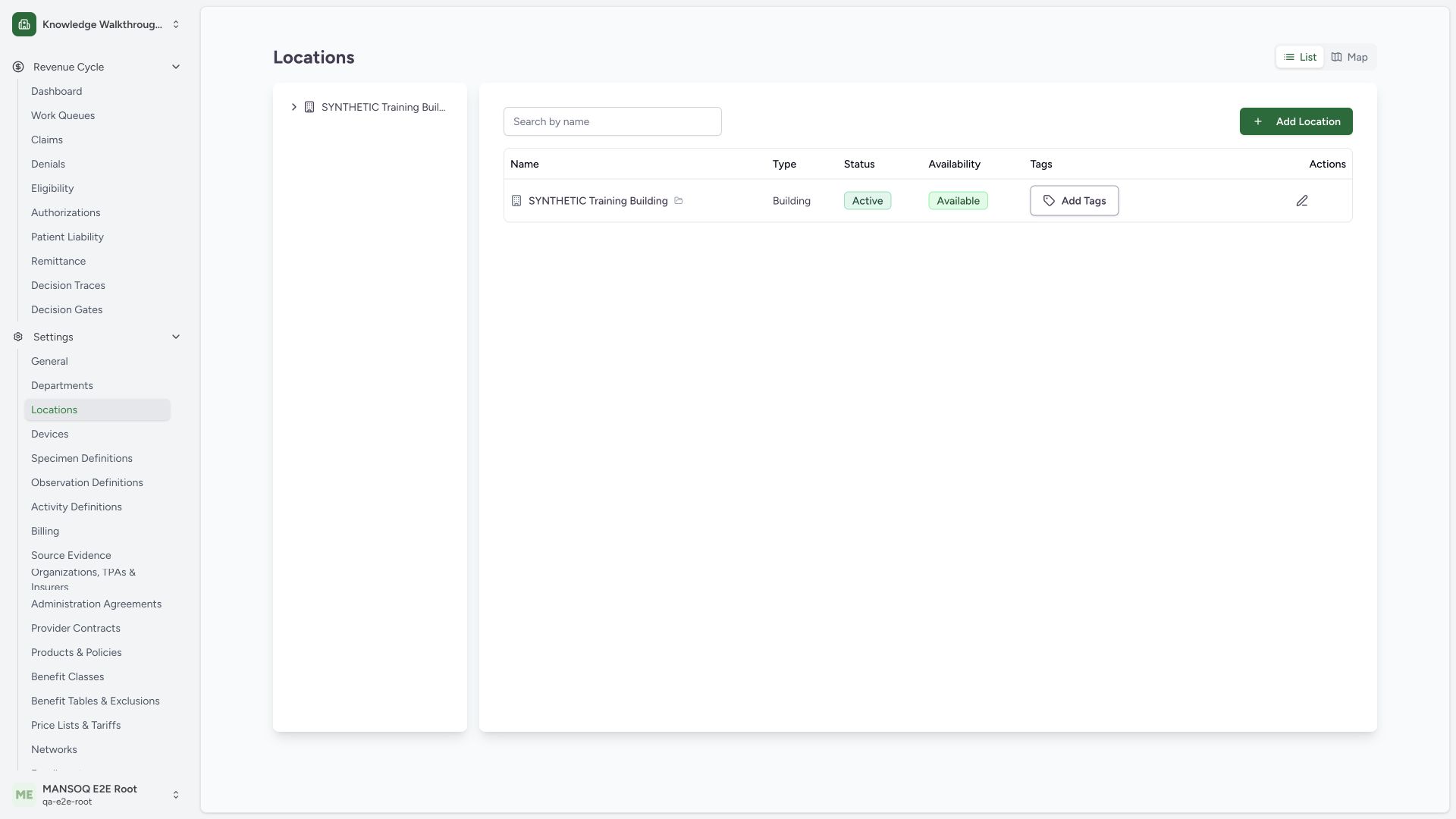
The Locations catalogue shows existing locations and Add Location, which opens manual creation. The current pinned catalogue has no CSV-import navigation control. Confirm the intended facility, then use the administrator-provided import link for this deployment. This starting view was read only.
 12
12Capture details
Actual1920×1080 Chrome pixels; source f6e9f05f. Existing local synthetic superuser, ClinicWing+2Rooms normalCSVimport, no beds/patients.
- Manual Add Location: This creates a manual form; it is separate from CSV bulk import.
- Location settings context: Confirm intended facility before using an administrator-provided import link.
2. Prepare the supported hierarchy CSV and open upload
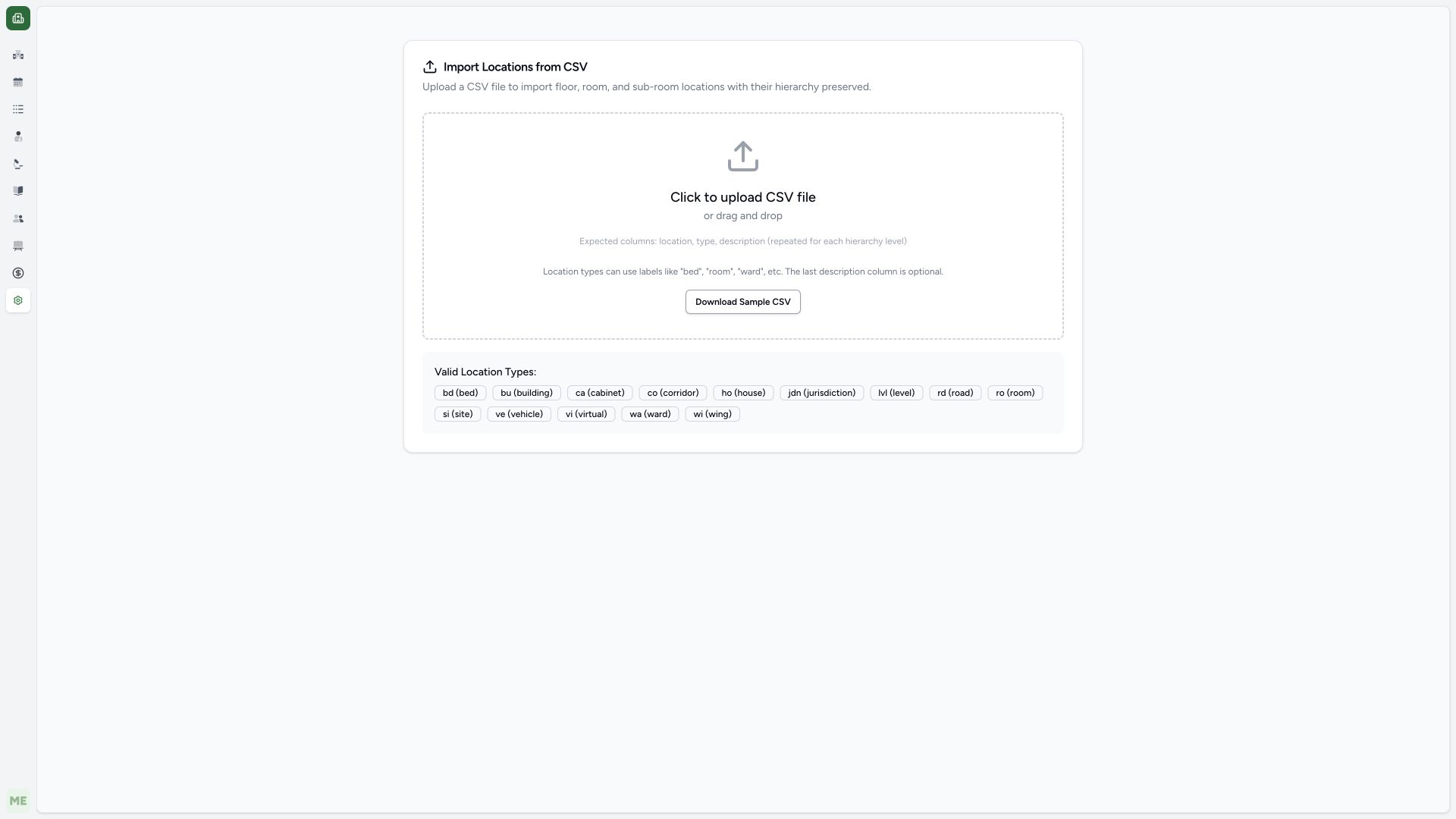
The import page shows Click to upload CSV file, Download Sample CSV and supported location type labels. The example file has six columns: a parent location/type/description group followed by a child group. Two rows repeat the same synthetic Wing name with distinct RoomA/RoomB children. Use the correct file through the normal file picker. No locations are saved merely by opening this page.
 123
123Capture details
Actual1920×1080 Chrome pixels; source f6e9f05f. Existing local synthetic superuser, ClinicWing+2Rooms normalCSVimport, no beds/patients.
- Upload CSV file: Use a synthetic CSV with groups of location/type/description for each level.
- Download Sample CSV: Review the product sample before preparing a supported file.
- Supported type labels: Use labels such as wing and room; unknown labels fall back to Room in this pin.
3. Recover malformed header grouping
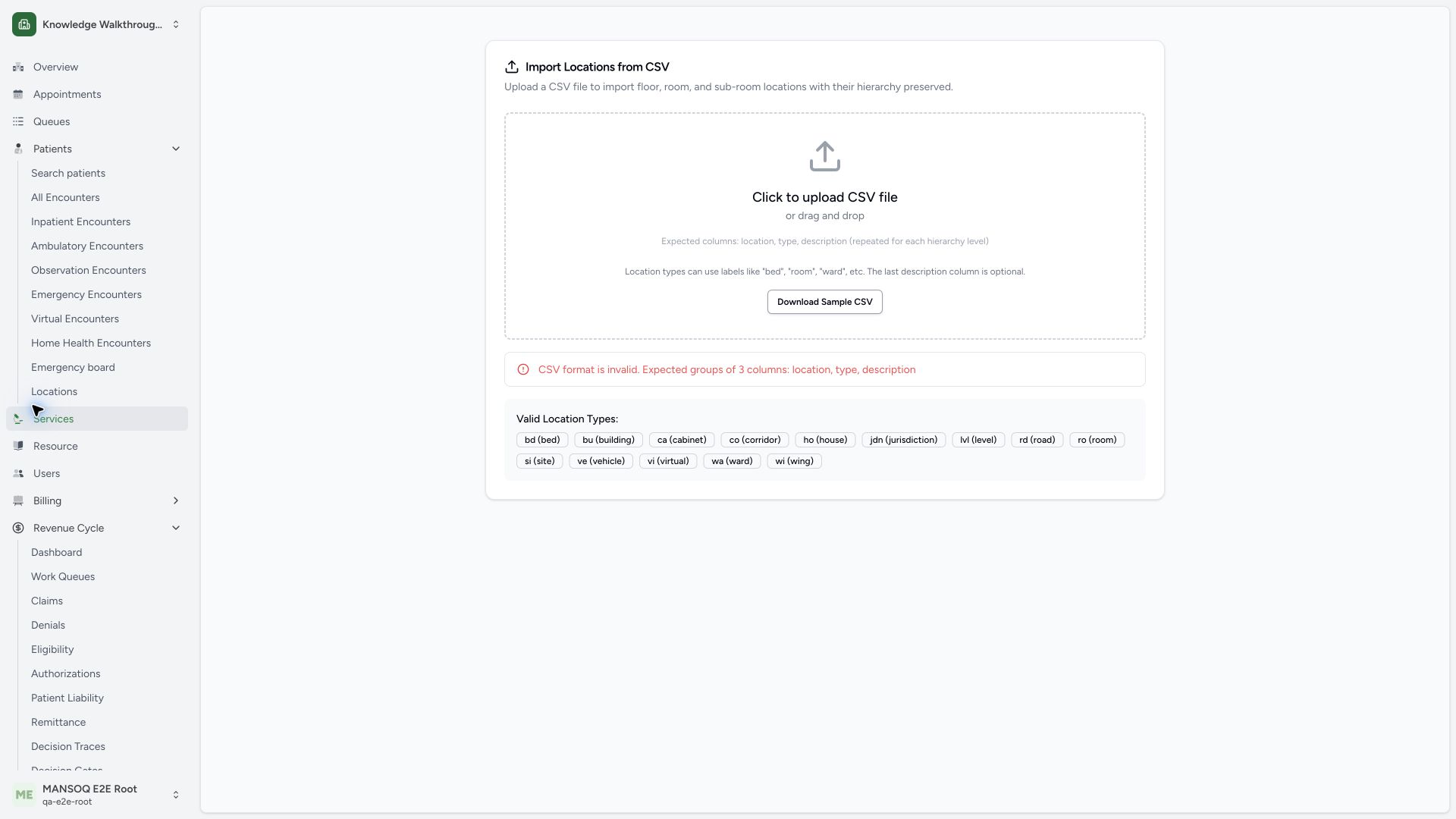
A two-column synthetic CSV produces CSV format is invalid. Expected groups of 3 columns: location, type, description. Correct the header/data grouping and upload the supported file. The invalid upload did not create any location records. This example used the normal native file picker without changing browser extension permissions.
 12
12Capture details
Actual1920×1080 Chrome pixels; source f6e9f05f. Existing local synthetic superuser, ClinicWing+2Rooms normalCSVimport, no beds/patients.
- Actual header validation: At least3columns and a multiple of3 are required for location/type/description groups.
- Upload corrected CSV: Prepare the supported hierarchy file and retry normal upload.
4. Expand and review every parsed node, then Save once
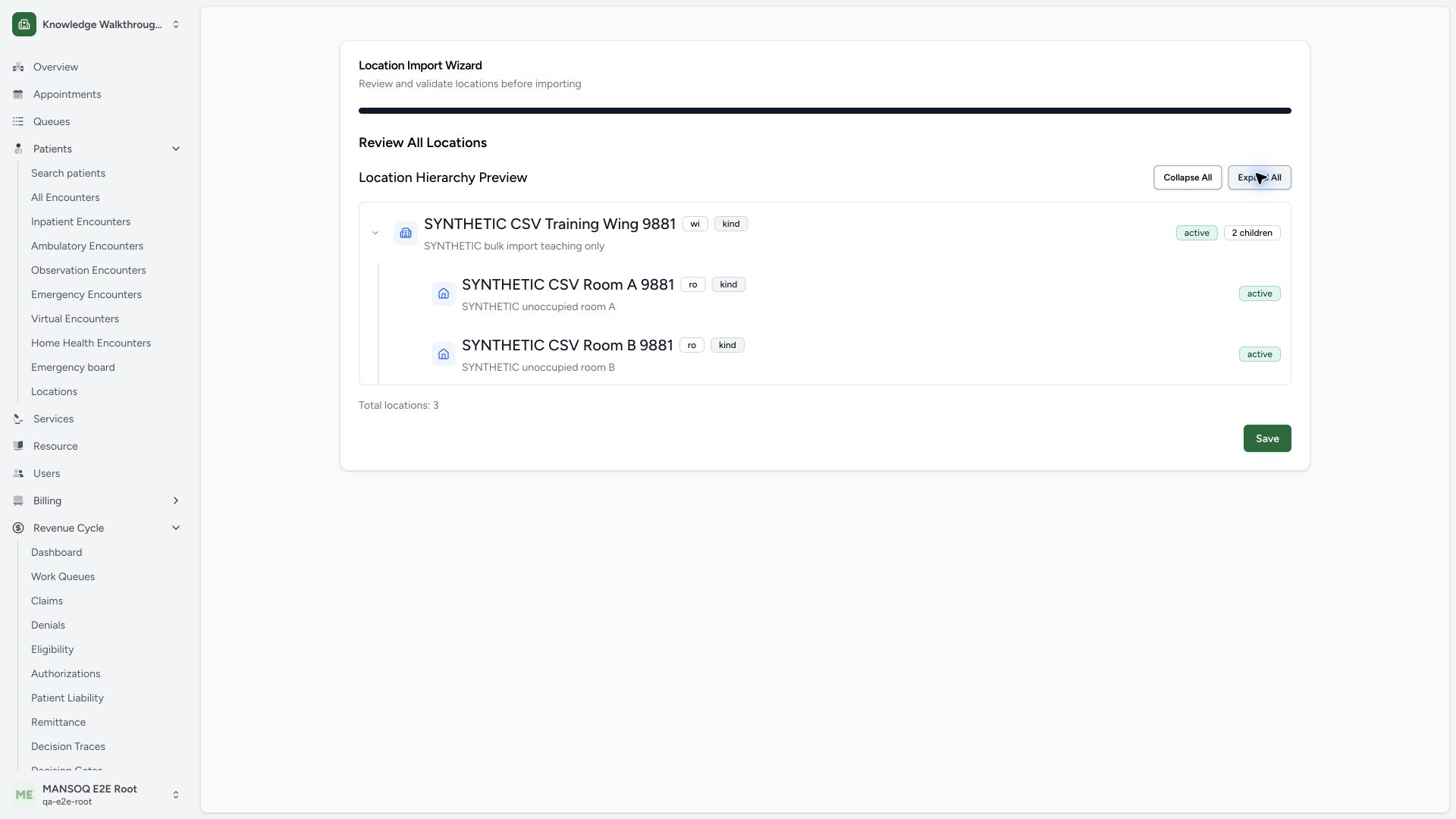
Use Expand All and confirm the Wing (wi, kind) plus both Room children (ro, kind), their names/descriptions and Total locations:3. The top full progress bar belongs to review, not proof of database completion. After review, select the actual Save button once. This source processes parent/child batches but does not disable repeated submission or provide a durable completion receipt; verify the resulting catalogue instead of clicking again.
 123456
Capture details
Actual1920×1080 Chrome pixels; source f6e9f05f. Existing local synthetic superuser, ClinicWing+2Rooms normalCSVimport, no beds/patients.
- Expand All: Inspect every nested location before saving.
- Wing parent: wi kind with2children in this reviewed hierarchy.
- First Room child: ro kind; this example creates no bed or patient assignment.
- Second Room child: Review exact name and parent grouping.
- Total locations3: Parsed review count, not persisted records.
- Save once: Current form does not disable repeated submission or show a durable completion receipt; verify saved catalogue separately.
5. Verify the new saved parent in the location catalogue
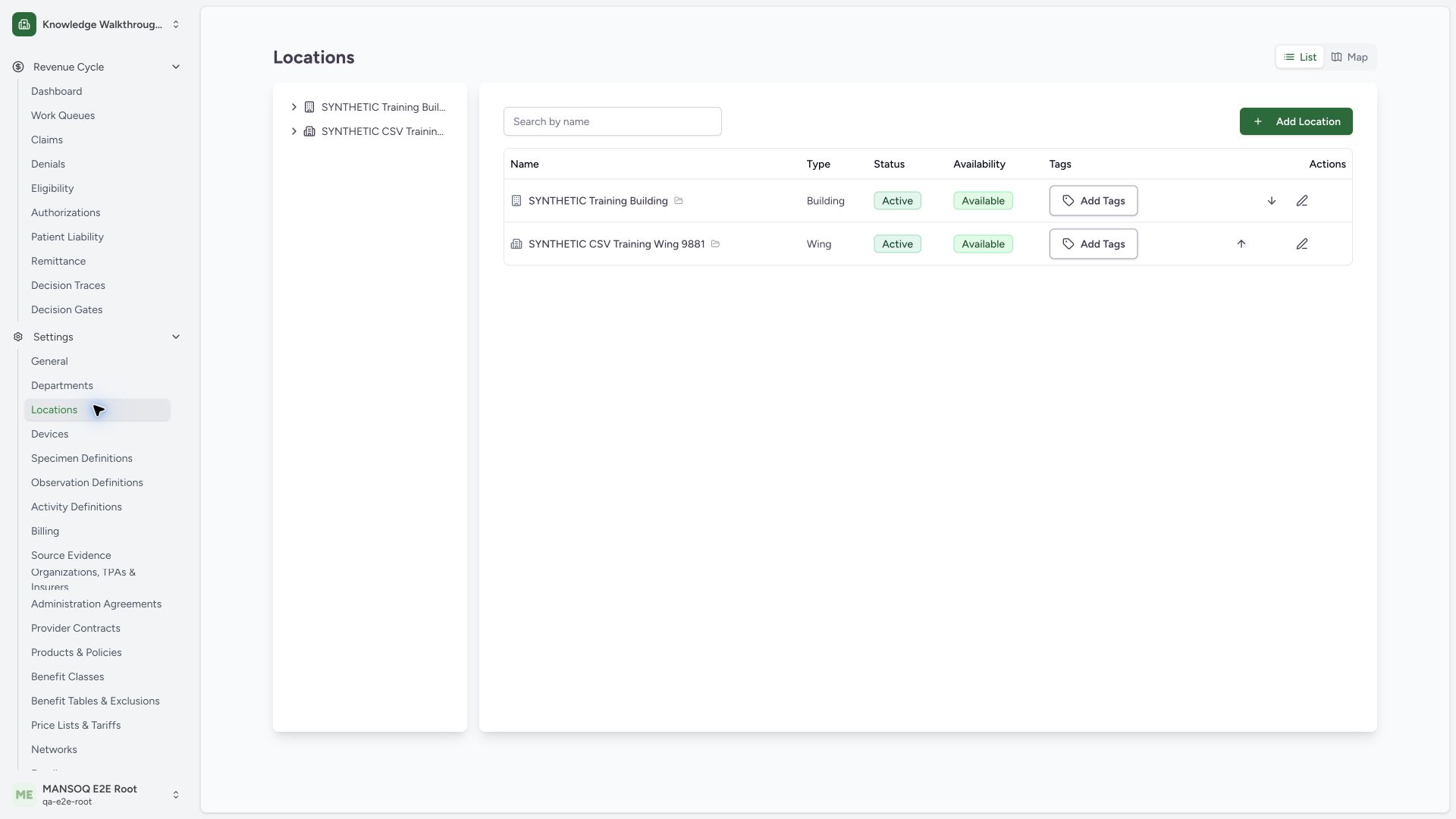
Return to Locations. The original Building remains and the new SYNTHETIC CSV Training Wing 9881 appears as Wing, Active and Available. A separate normal location list GET200 showed five total stored locations versus two before the import, and three independent detail GET200 reads confirmed exactly the three new unique records. Open the saved Wing row to inspect its children.
 123
123Capture details
Actual1920×1080 Chrome pixels; source f6e9f05f. Existing local synthetic superuser, ClinicWing+2Rooms normalCSVimport, no beds/patients.
- Saved new Wing root: Open this saved row to inspect its two child Rooms.
- Actual Wing type: Type maps from CSVwing to wi.
- Saved state badges: Normal reads separately confirm active/kind and hierarchy.
6. Verify both saved Rooms and the correct parent relationship
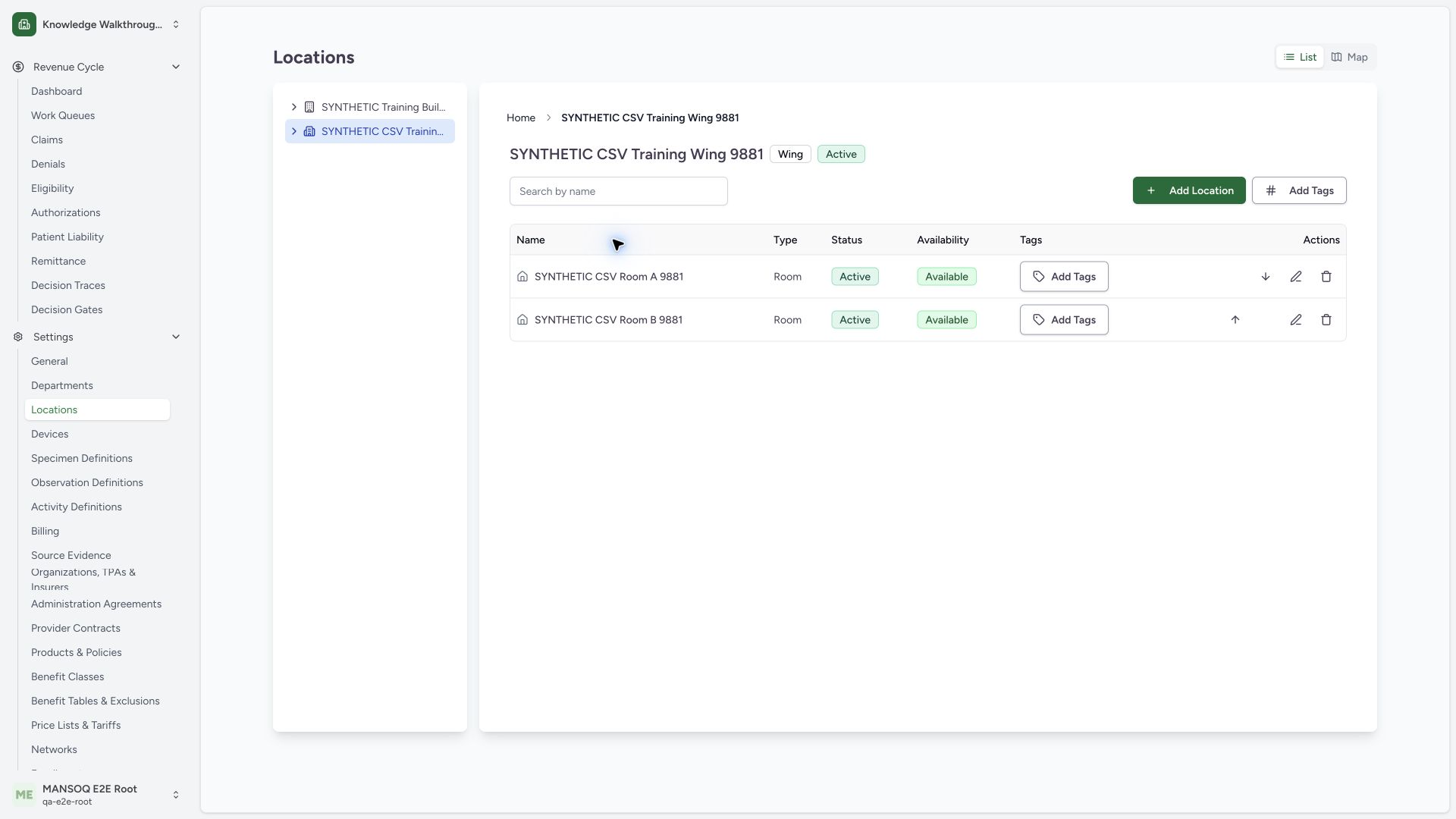
The saved Wing heading/breadcrumb identifies the real catalogue context, and both SYNTHETIC CSV Room A 9881 and SYNTHETIC CSV Room B 9881 appear as Room/Active/Available. Normal detail GET200 reads confirmed each child’s parent ID equals the imported Wing and both have form ro / mode kind. No bed or encounter was created. A transient generic toast appeared on the first navigation before these rows rendered; no import Save was repeated.
 123
123Capture details
Actual1920×1080 Chrome pixels; source f6e9f05f. Existing local synthetic superuser, ClinicWing+2Rooms normalCSVimport, no beds/patients.
- Saved parent Wing context: Breadcrumb/heading identifies the imported parent, not a preview.
- Saved Room A: Independent detail read confirms this Room’s parent is the imported Wing.
- Saved Room B: Second distinct child with same correct parent.
File layout and parser limits
The header must have at least three columns and a multiple of three. Each hierarchy level uses location, type and description. Source processing strips quotes and splits plain commas/newlines, ignores short data rows and defaults unknown English type labels to Room. The visible labels are examples such as bed, room, ward and wing; the short form codes in the badges are not what this label map expects. This guide uses simple supported fields and no quoted-comma, multiline, unknown-type or skipped-row qualification.
Review and persistence are separate
The preview merges repeated same-name nodes within the uploaded hierarchy, then shows a total count. Saving queues batches of at most twenty nodes and derives child parent IDs from the preceding parent responses. This example verified all three successful stored records; partial failure, repeated-submit protection, rollback, large files and row-by-row result reporting remain separate product/qualification work.
Troubleshooting
The preview looks complete but I am unsure Save finished
Check the normal saved catalogue and parent/child records before submitting again. The review bar is not a completion receipt, and this pinned Save control does not prevent repeated submission.
A type or number of rows looks wrong
Review the exact English label and complete three-column groups in a supported plain CSV. Do not save an unexpected hierarchy; unknown labels fall back to Room and short rows may be skipped by the source parser.
Source evidence
References are pinned to the private MANSOQ source repository. Repository access is required to open these links.
- repositories/platform/mansoq-web/src/pages/Facility/settings/layout.tsx:82 · f6e9f05f
- repositories/platform/mansoq-web/src/pages/Facility/settings/locations/LocationSettings.tsx:140 · f6e9f05f
- repositories/platform/mansoq-web/src/pages/Facility/settings/locations/LocationImport.tsx:41 · f6e9f05f
- repositories/platform/mansoq-web/src/pages/Facility/settings/locations/LocationImport.tsx:64 · f6e9f05f
- repositories/platform/mansoq-web/src/pages/Facility/settings/locations/LocationImport.tsx:131 · f6e9f05f
- repositories/platform/mansoq-web/src/pages/Facility/settings/locations/LocationImport.tsx:148 · f6e9f05f
- repositories/platform/mansoq-web/src/pages/Facility/settings/locations/LocationImport.tsx:192 · f6e9f05f
- repositories/platform/mansoq-web/src/pages/Facility/settings/locations/LocationImport.tsx:281 · f6e9f05f
- repositories/platform/mansoq-web/src/pages/Facility/settings/locations/LocationImport.tsx:463 · f6e9f05f
- repositories/platform/mansoq-web/src/pages/Facility/settings/locations/LocationImport.tsx:515 · f6e9f05f
- repositories/platform/mansoq-web/src/pages/Facility/settings/locations/LocationImport.tsx:560 · f6e9f05f
- repositories/platform/mansoq-web/src/hooks/useLocationManagement.ts:38 · f6e9f05f
- repositories/platform/mansoq-web/src/types/location/locationApi.ts:13 · f6e9f05f