 MANSOQ
 Facility administration
Define an administrative location tag and apply it to a Room
Create a facility-scoped Admin/Location definition, apply it to the correct child Room and verify the saved tag separately from its definition.
Current source · Actual local synthetic UI operations on the pinned application source. Successful tag and template writes independently read through normal product APIs. No full role/facility or clinical reporting qualification. · 4 min read
Before you begin
- Use an authorized administrator in the intended facility. The observed operations used a local synthetic superuser and do not establish a complete scoped permission matrix.
- Use approved administrative values. All pictured records and content are synthetic training fixtures.
1. Review the administrative tag definition before creating it
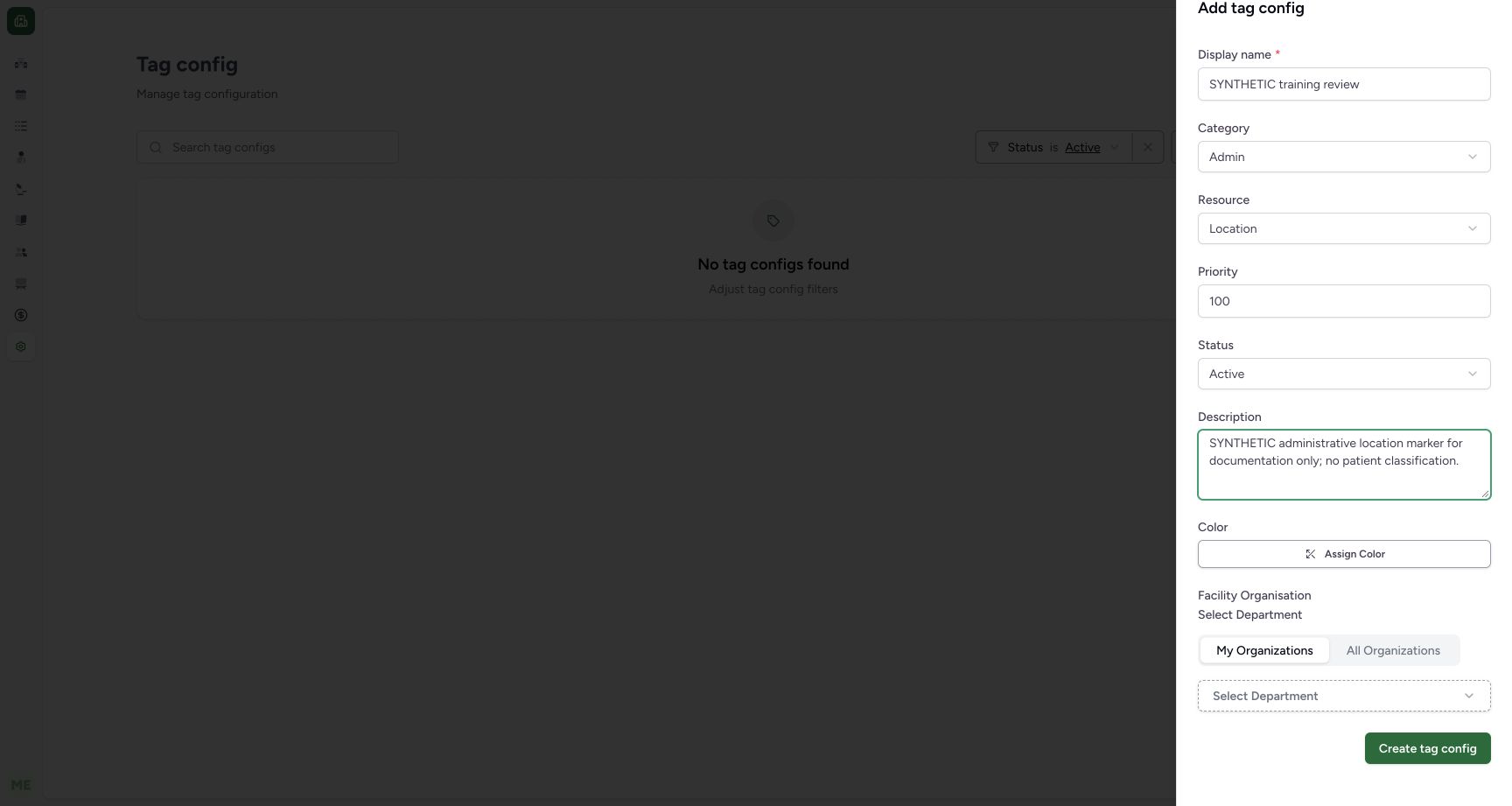
In the open Add tag config sheet, enter the approved Display name and description. Explicitly select Admin for Category and Location for Resource; the new form source defaults to Clinical and Patient. Review Priority and Status separately. This synthetic example uses 100 and Active. Select Create tag config to save the definition.
 1234
1234- Category: This administrative example explicitly chooses Admin.
- Resource boundary: Location limits the intended resource context; the default Patient was changed.
- Status and priority: Review Active and numeric priority separately.
- Create definition: This creates a tag configuration; applying it to a location is a separate step.
2. Verify the saved definition
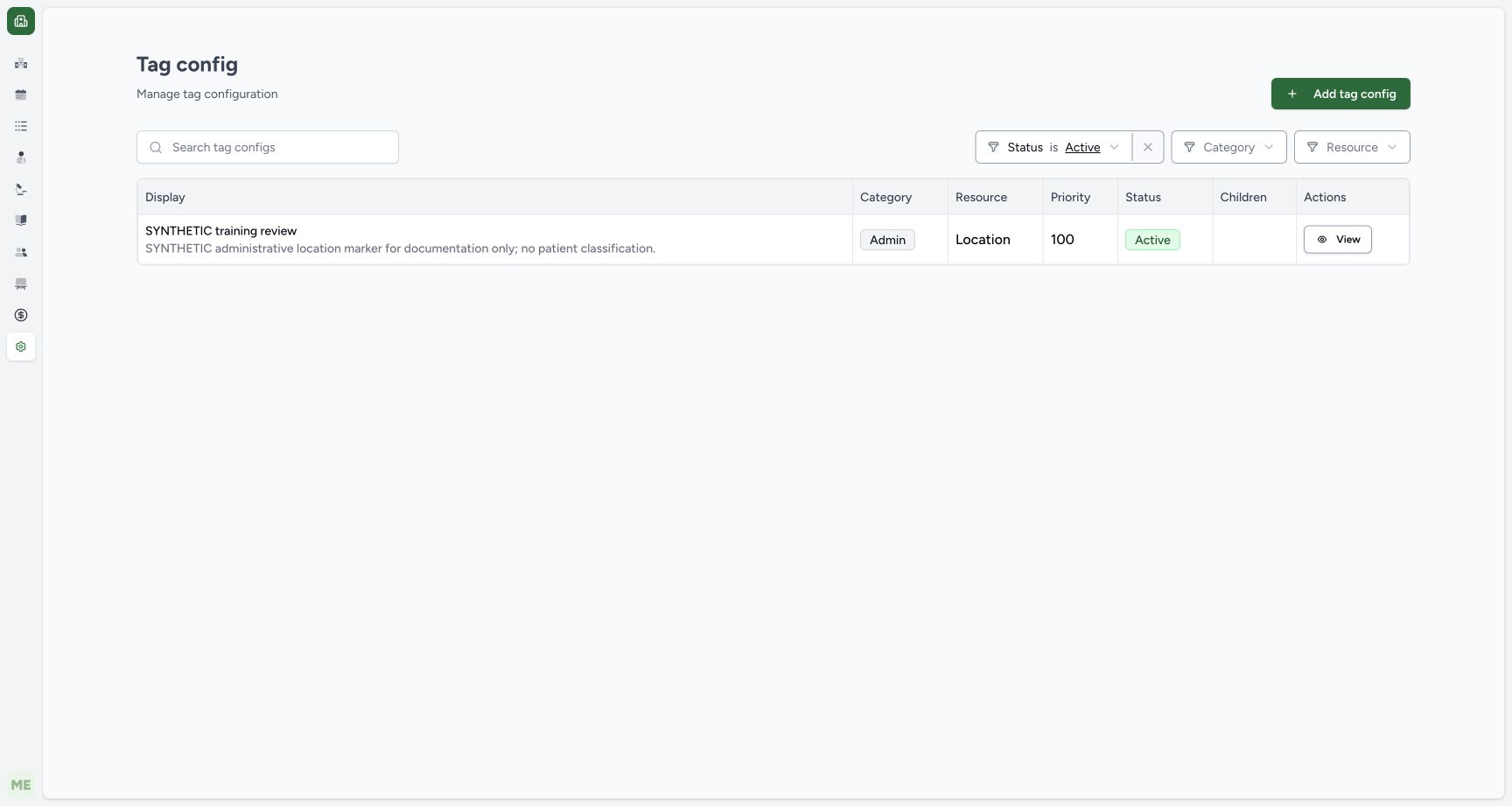
Confirm the catalogue row shows the intended display, Admin, Location, 100 and Active. View opens its definition. The independent normal tag detail GET confirmed those values and the intended Clinic facility. Creating the definition has not yet applied it to a resource.
 1234
1234- Saved definition: Confirm the exact tag name and administrative description.
- Category and resource: Admin and Location are the saved boundaries.
- Priority and status: 100 and Active are separate configuration values.
- View definition: View opens the saved tag configuration details.
3. Select the correct Room row and choose its tag
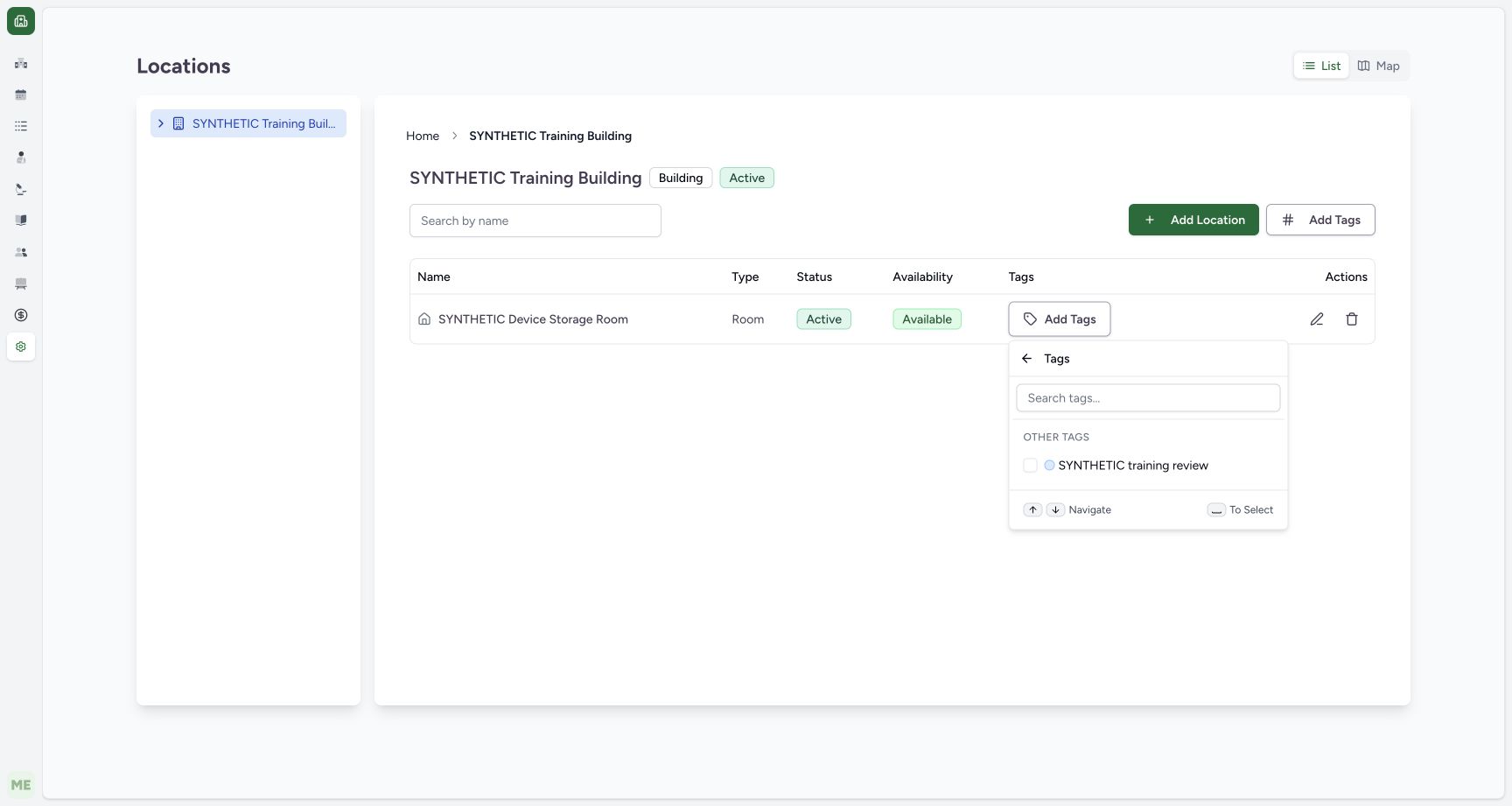
In the Building detail, identify the intended child Room. Open Add Tags on that Room row, then select the approved tag in the picker. The separate Add Tags control beside Add Location belongs to the parent Building. This example selects the synthetic administrative tag for the child Room.
 123
123- Target Room row: Check the intended child Room before changing its tags.
- Row Add Tags: This row action applies to the Room; the top Add Tags control belongs to the parent Building.
- Choose tag: Select the saved synthetic administrative tag.
4. Verify the saved Room badge
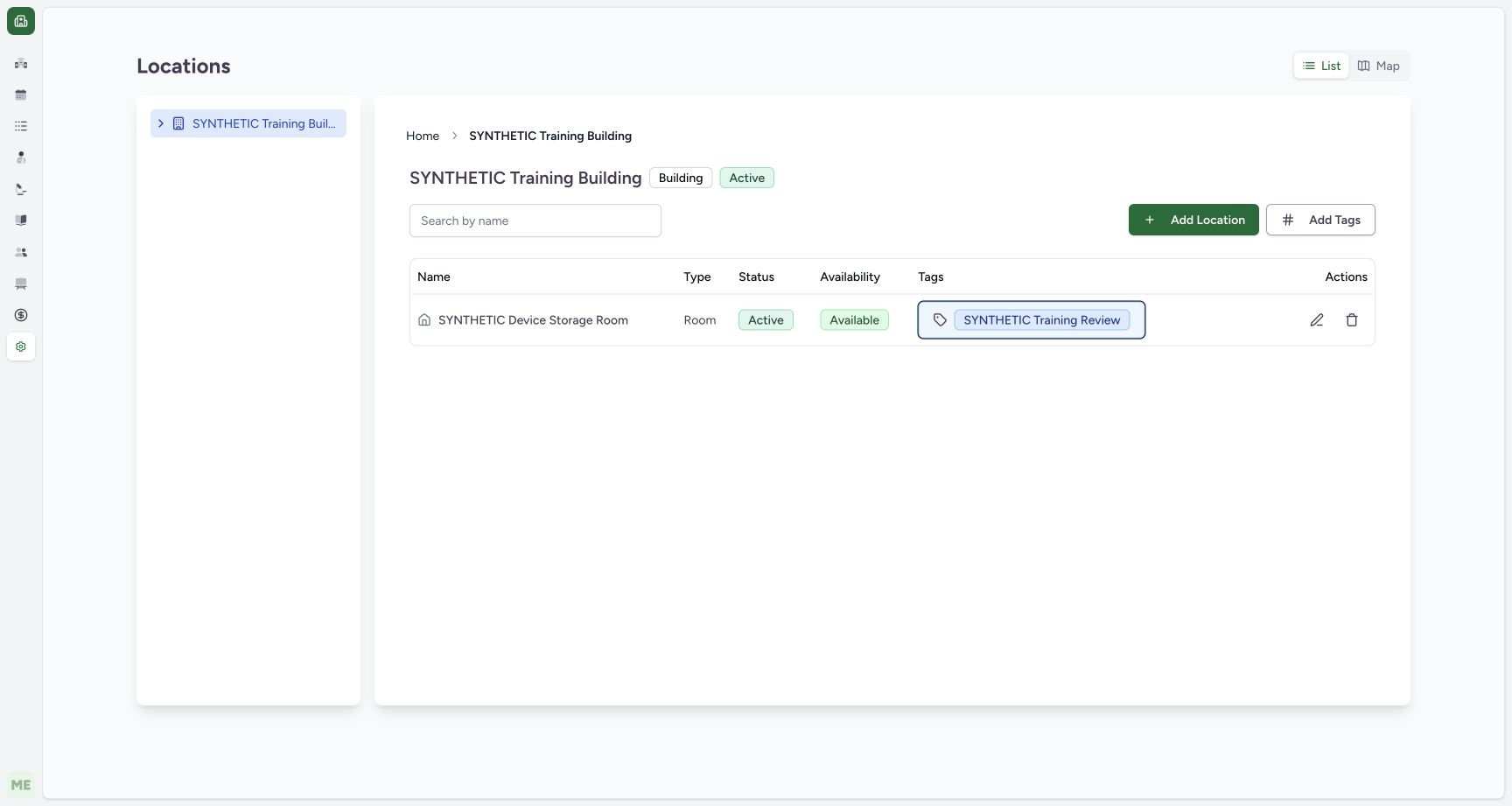
Confirm the selected Room row displays the intended tag badge. The independent Room detail GET returned the same tag identifier and display. In this example the parent Building and patient resources were not tagged, and the Room classification was unchanged.
 123
123- Tagged Room: The saved tag applies to this child Room.
- Saved tag badge: The row displays the synthetic administrative tag after persistence.
- Unchanged room type: Tagging did not change the Room classification or create clinical activity.
Definition scope differs from application
Category, resource and optional organization association belong to the definition. Applying the tag updates a specific resource. The source supports additional resource types through separate API adapters; the pictured Room operation does not qualify patient, encounter, prescription, service request, account or inventory tagging.
Resource changes and hierarchies
The audited form disables Resource when editing an existing tag or creating a child. Child definitions inherit parent category, resource and priority when loaded. Define the intended resource correctly before saving; child, archive, edit and removal operations require their own checks.
Troubleshooting
The tag is absent from the picker
Check the current facility, saved Active status, Resource and applicable organizational scope. Do not create a duplicate definition to bypass an incorrectly scoped tag.
Source evidence
References are pinned to the private MANSOQ source repository. Repository access is required to open these links.
- repositories/platform/mansoq-web/src/pages/Admin/TagConfig/TagConfigForm.tsx:79 · f6e9f05f
- repositories/platform/mansoq-web/src/pages/Admin/TagConfig/TagConfigForm.tsx:109 · f6e9f05f
- repositories/platform/mansoq-web/src/pages/Admin/TagConfig/TagConfigForm.tsx:199 · f6e9f05f
- repositories/platform/mansoq-web/src/pages/Admin/TagConfig/TagConfigForm.tsx:283 · f6e9f05f
- repositories/platform/mansoq-web/src/components/Tags/TagAssignmentSheet.tsx:25 · f6e9f05f
- repositories/platform/mansoq-web/src/components/Tags/TagAssignmentSheet.tsx:101 · f6e9f05f
- repositories/platform/mansoq-web/src/pages/Facility/settings/locations/components/LocationTable.tsx:193 · f6e9f05f