 MANSOQ
 Access & administration
Generate an encounter report, verify its PDF and use viewing, download and print controls
Confirm the correct encounter, choose an Active template, verify the stored artifact and distinguish actual resource values from template sample previews.
10 min read · Source baseline f6e9f05f
Verification and applicability
Six pictured instructions using actual 1920 × 1080 per-tab screenshots; one saved synthetic PDF independently read back, downloaded bytes match stored artifact, actual Open PDF tab shows associated resource values. Print preview observed and cancelled; no physical output, regenerated/archived record, patient-summary/account-report or all-role/facility claim.
Check your installed version, permissions and local configuration.
Before you begin
- Use a reviewed Active template matching the intended report type and encounter. This example uses an existing isolated synthetic superuser on a completed inpatient encounter; completed-encounter report permission and template generation permission are required. It does not certify every listed learner role can generate for completed encounters.
- The output is labeled a synthetic training extract, not an approved discharge document. No clinical opinion or diagnostic result is added.
1. Confirm the intended patient and encounter Reports context
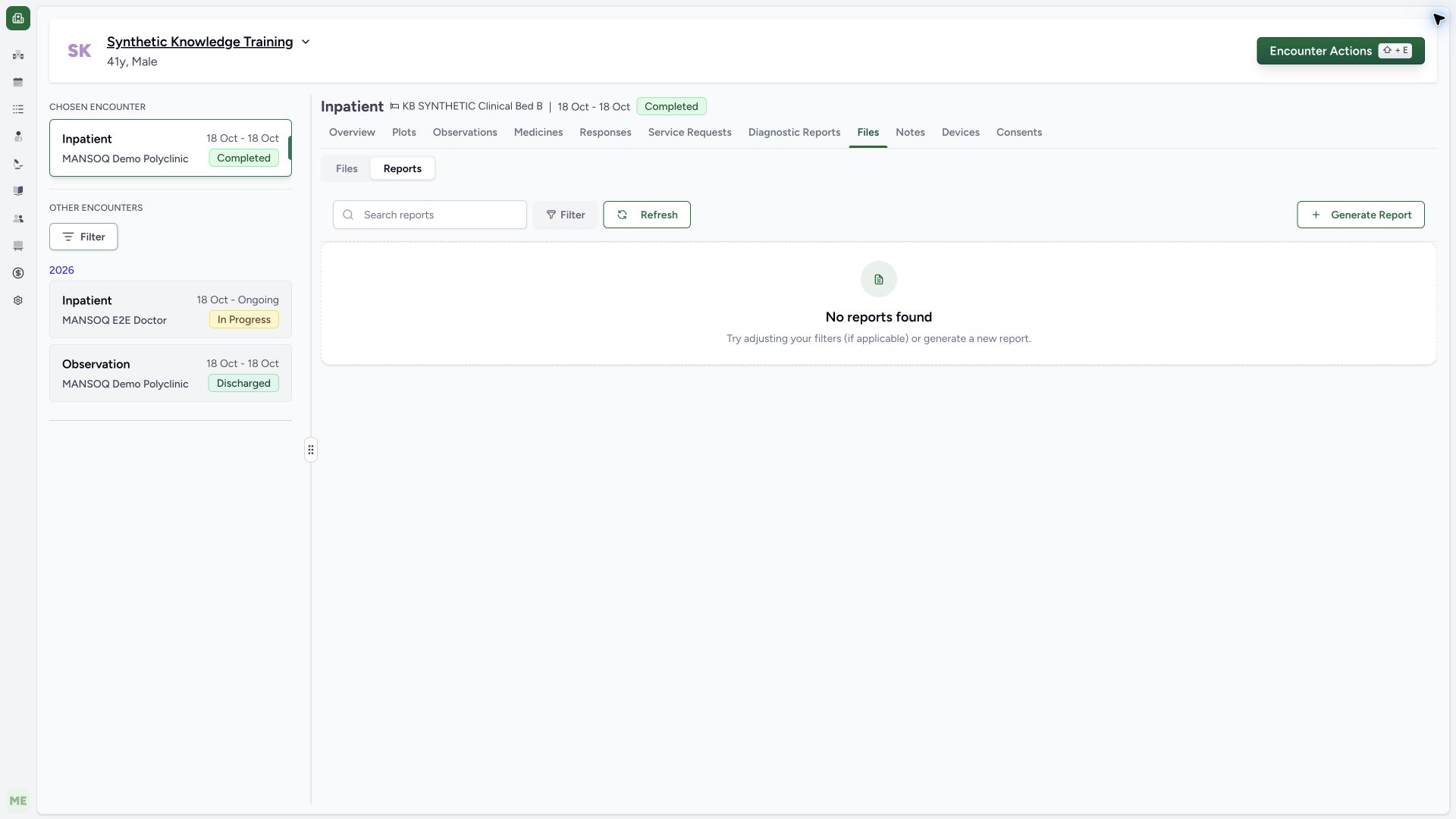
Open the intended encounter Files → Reports. Confirm the patient, facility, encounter class and status before choosing Generate Report. The example is Synthetic Knowledge Training, Inpatient, MANSOQ Demo Polyclinic, Completed, with no generated reports initially.
 1234
1234Capture details
Actual 1920 × 1080 Chrome pixels; pinned source f6e9f05f. Report template lifecycle and associated synthetic PDF output
- Synthetic patient: Confirm the intended patient.
- Completed encounter: Confirm the correct encounter and status.
- Reports tab: Reports are separate from ordinary uploaded Files.
- Generate Report: Open available templates for this encounter.
2. Choose the exact Active template
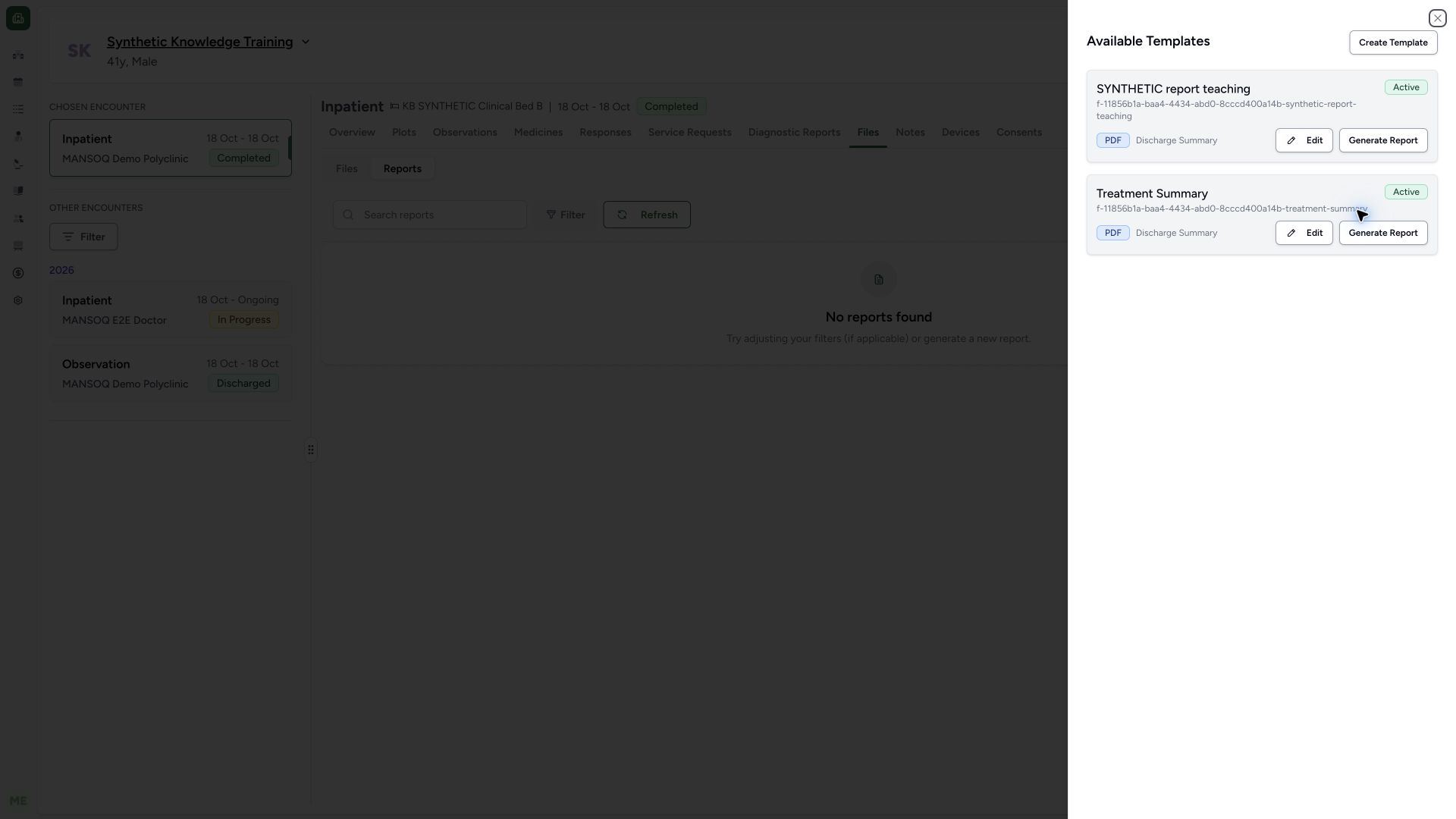
In Available Templates, verify SYNTHETIC report teaching, its unique slug, Active, PDF and Discharge Summary, then select that card’s Generate Report action once. A different active template is not a substitute for an unreviewed or retired template.
 1234
1234Capture details
Actual 1920 × 1080 Chrome pixels; pinned source f6e9f05f. Report template lifecycle and associated synthetic PDF output
- Synthetic teaching template: Synthetic teaching template
- Active: Active
- PDF and report type: PDF and report type
- Generate this template: Generate this template
3. Verify the report was stored before opening it
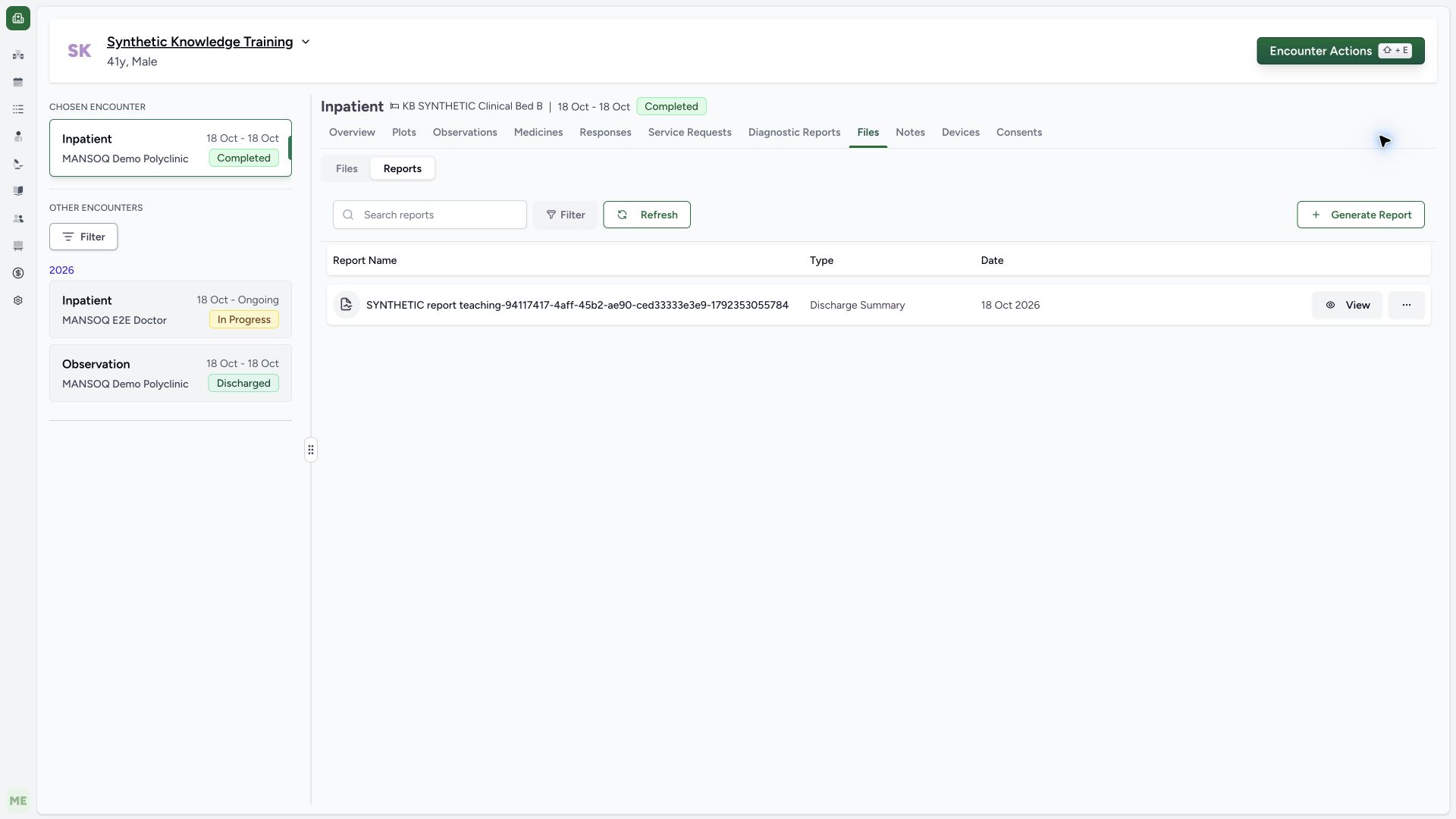
Wait for the real report row, then use View. A normal list GET200 and detail GET200 independently verify exactly one saved, upload-completed report for this template and associated completed encounter. An initial progress state or generation-started notification alone would not prove completion.
 1234
1234Capture details
Actual 1920 × 1080 Chrome pixels; pinned source f6e9f05f. Report template lifecycle and associated synthetic PDF output
- Correct synthetic patient: Confirm identity before selecting the report.
- Completed inpatient encounter: The report belongs to this completed encounter.
- New generated report row: Independent normal list/detail reads confirm the saved artifact.
- View report: Open this saved report rather than regenerate.
4. Open the saved PDF and verify actual associated values
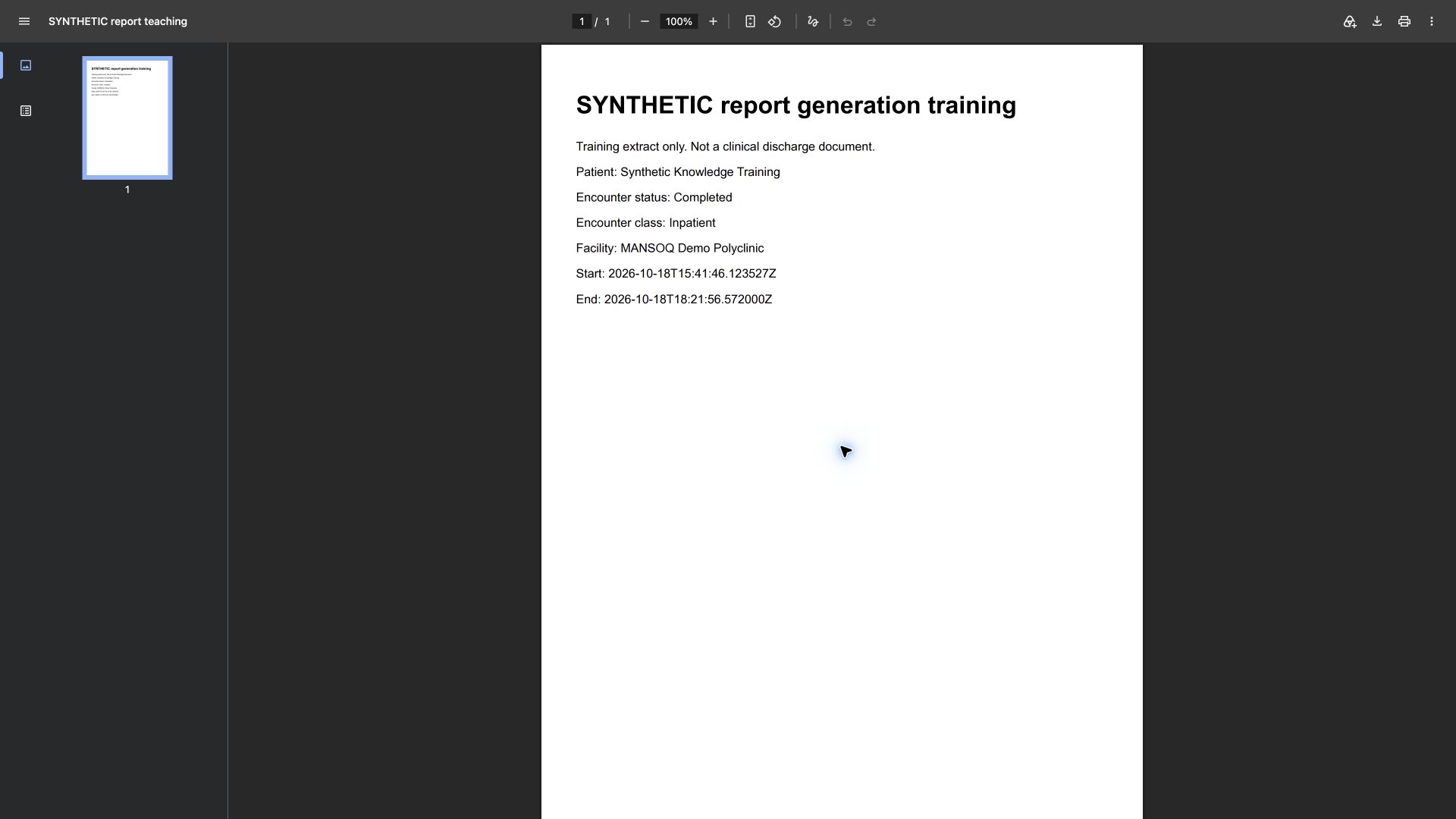
If the inline preview displays its fallback, use Open PDF to view the saved file in a new browser tab. The actual output shows Synthetic Knowledge Training, Completed, Inpatient, MANSOQ Demo Polyclinic, and its start/end timestamps. These differ from John Doe/Outpatient/City Health Center in the schema sample preview. This simple template prints ISO timestamps with Z, which are UTC values; it does not localize them.
 12345
12345Capture details
Actual 1920 × 1080 Chrome pixels; pinned source f6e9f05f. Report template lifecycle and associated synthetic PDF output
- Actual synthetic patient: Generated values differ from the John Doe sample preview.
- Completed encounter status: The PDF contains the associated completed encounter.
- Inpatient encounter class: This is the actual encounter class, not sample Outpatient.
- Actual synthetic facility: The facility matches the selected report context.
- Stored UTC timestamps: This template prints raw ISO times with Z; it does not localize them.
5. Download the existing report without creating another version
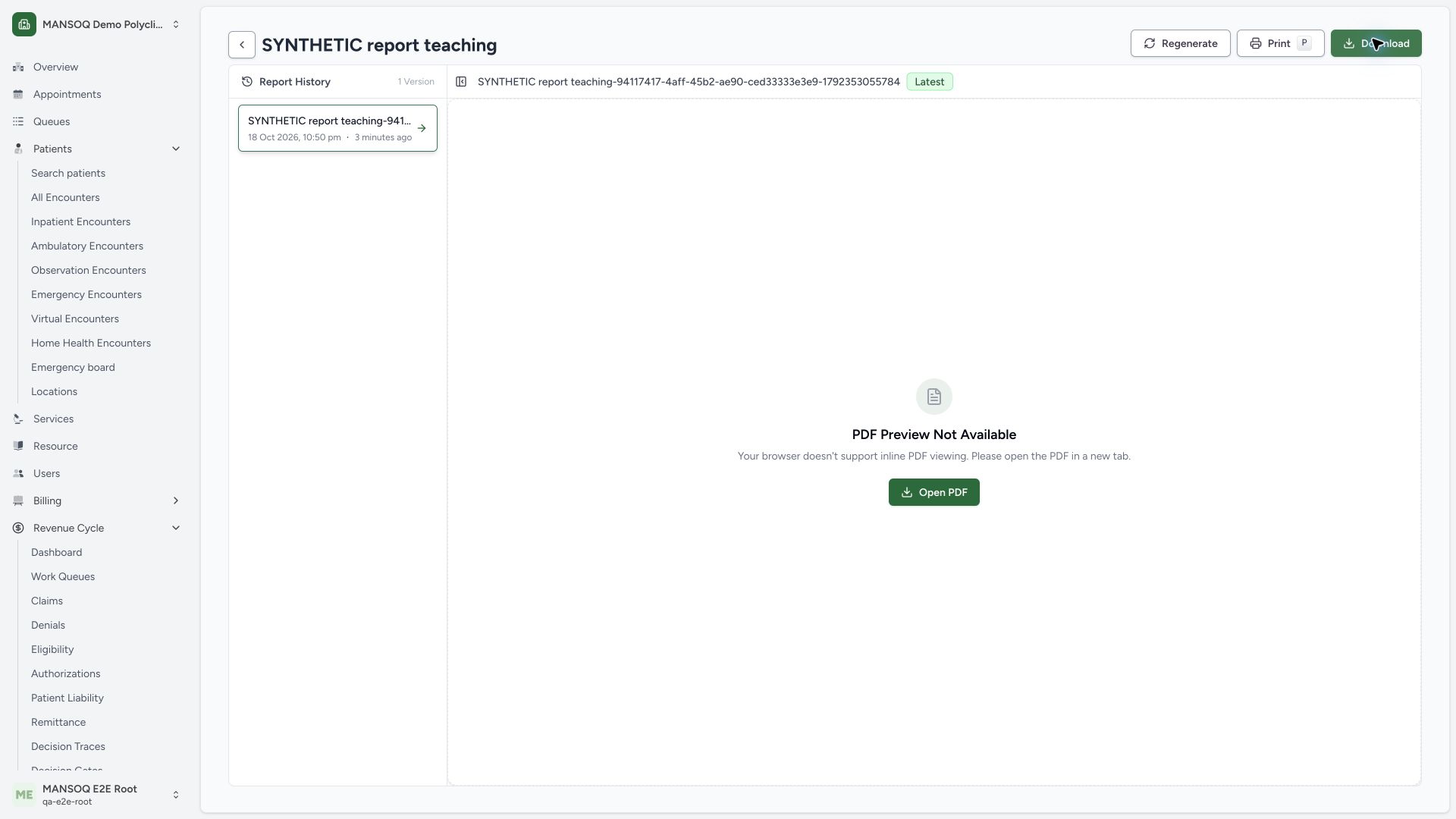
Use Download in the saved report viewer. This normal UI download produced an 8,823-byte PDF with the exact same SHA-256 as the normal signed-object read. Report History contains one saved version in this run; Regenerate was not used, so no multi-version selection or overwrite behavior is certified.
 12345
12345Capture details
Actual 1920 × 1080 Chrome pixels; pinned source f6e9f05f. Report template lifecycle and associated synthetic PDF output
- Saved version history: Choose a stored version; this example has one.
- Download saved PDF: The downloaded bytes independently match the stored artifact.
- Inline preview fallback: Fallback display is not proof that generation failed.
- Print action: Check browser print preview before any output.
- Open saved PDF: Open the existing saved PDF in the browser when inline preview is unavailable.
6. Use Print only after checking the report
After verifying the patient and report content, use the viewer’s Print control to open the browser print preview. The control is pictured beside Download. The training check opened a one-page preview and cancelled it without printing or saving through that dialog. The associated PDF content itself is pictured in the preceding output step.
12345Capture details
Actual 1920 × 1080 Chrome pixels; pinned source f6e9f05f. Report template lifecycle and associated synthetic PDF output
- Saved version history: Choose a stored version; this example has one.
- Download saved PDF: The downloaded bytes independently match the stored artifact.
- Inline preview fallback: Fallback display is not proof that generation failed.
- Print action: Check browser print preview before any output.
- Open saved PDF: Open the existing saved PDF in the browser when inline preview is unavailable.
What was independently verified
Normal report list/detail reads established the associated encounter, template, upload-completed flag, extension and MIME type. A normal signed-object GET returned PDF bytes, and a real normal UI download matched them exactly. The normal Print action opened Chrome preview, whose accessible PDF content showed one page and the same associated patient/status/class/facility/times; the dialog was cancelled. The print dialog itself is not presented as a captured in-application screen.
Training environment corrections and honest boundaries
The first generation attempt failed because the isolated training FILE_UPLOAD bucket was unset. No completed report existed after that attempt. The original source pin was preserved while local storage settings were corrected. Template sample preview and saved report viewing also require the intended same-site/blob/local-objectstore embedding and fetch configuration. The inline object preview still displayed a fallback in this Chrome setup, while normal Open PDF, Download and Print succeeded. This is not proof that every browser’s inline PDF mode is qualified.
Remaining report branches
Regeneration and competing generation locks, multiple-version selection, report archive/filter/history behavior, patient-summary and account-report contexts, richer clinical sections, template options, every permission denial and all other facility types remain separate tasks. Retirement of this synthetic template is shown in the linked administrator guide; the generated report remains stored.
Troubleshooting
Preview Template shows a different patient
That control uses schema samples. Verify the saved associated report from the correct encounter Reports page.
A generation request fails
Check its exact error and normal stored report list before trying again. Incomplete or missing stored output must not be described as successful generation.
The inline PDF pane shows a fallback
Use the visible Open PDF or Download controls, then verify actual content. Confirm the deployed browser and storage-origin configuration; do not bypass browser security warnings.
Source evidence
References are pinned to the private MANSOQ source repository. Repository access is required to open these links.
- repositories/platform/mansoq-web/src/components/Files/FilesTab.tsx:108 · f6e9f05f
- repositories/platform/mansoq-web/src/components/Files/ReportSubTab.tsx:100 · f6e9f05f
- repositories/platform/mansoq-web/src/pages/Encounters/TemplateBuilder/TemplateReportSheet.tsx:75 · f6e9f05f
- repositories/platform/mansoq-web/src/pages/Encounters/TemplateBuilder/TemplateCard.tsx:45 · f6e9f05f
- repositories/platform/mansoq-web/src/pages/Encounters/ReportViewer.tsx:125 · f6e9f05f
- repositories/platform/mansoq-web/src/pages/Encounters/ReportViewer.tsx:160 · f6e9f05f
- repositories/platform/mansoq-web/src/pages/Encounters/ReportViewer.tsx:323 · f6e9f05f
- repositories/platform/mansoq-web/src/pages/Encounters/ReportViewer.tsx:345 · f6e9f05f
- repositories/platform/mansoq-web/src/pages/Encounters/ReportViewer.tsx:575 · f6e9f05f
- repositories/platform/mansoq-core/mansoq/emr/api/viewsets/report/report_upload.py:100 · f6e9f05f
- repositories/platform/mansoq-core/mansoq/emr/reports/report_utils.py:106 · f6e9f05f
- repositories/platform/mansoq-core/mansoq/utils/csp/config.py:74 · f6e9f05f