 MANSOQ
 Access & administration
Build a report template, preview sample data and control its lifecycle
Recover required metadata, choose a matching report context, save a Draft, inspect HTML/PDF previews and verify Active or Retired state.
12 min read · Source baseline f6e9f05f
Verification and applicability
Actual full 1920 × 1080 Chrome screenshots and independent normal template detail readbacks. Clearly labeled synthetic template; sample preview is explicitly distinguished from generated report output. No clinical advice or all-role/facility claim. Exact Draft→Active/PDF→Retired lifecycle independently read back. One generated artifact is retained; retirement prevents further generation in the pictured template card.
Check your installed version, permissions and local configuration.
Before you begin
- Use an administrator authorized for the intended facility template, schema and preview permissions. The walkthrough uses the existing isolated synthetic superuser; a role name or visible menu is not sufficient proof of authorization.
- Use a reviewed template and matching context for its report type. The example is explicitly labeled a synthetic training extract, not an approved clinical discharge document.
1. Recover required metadata before saving
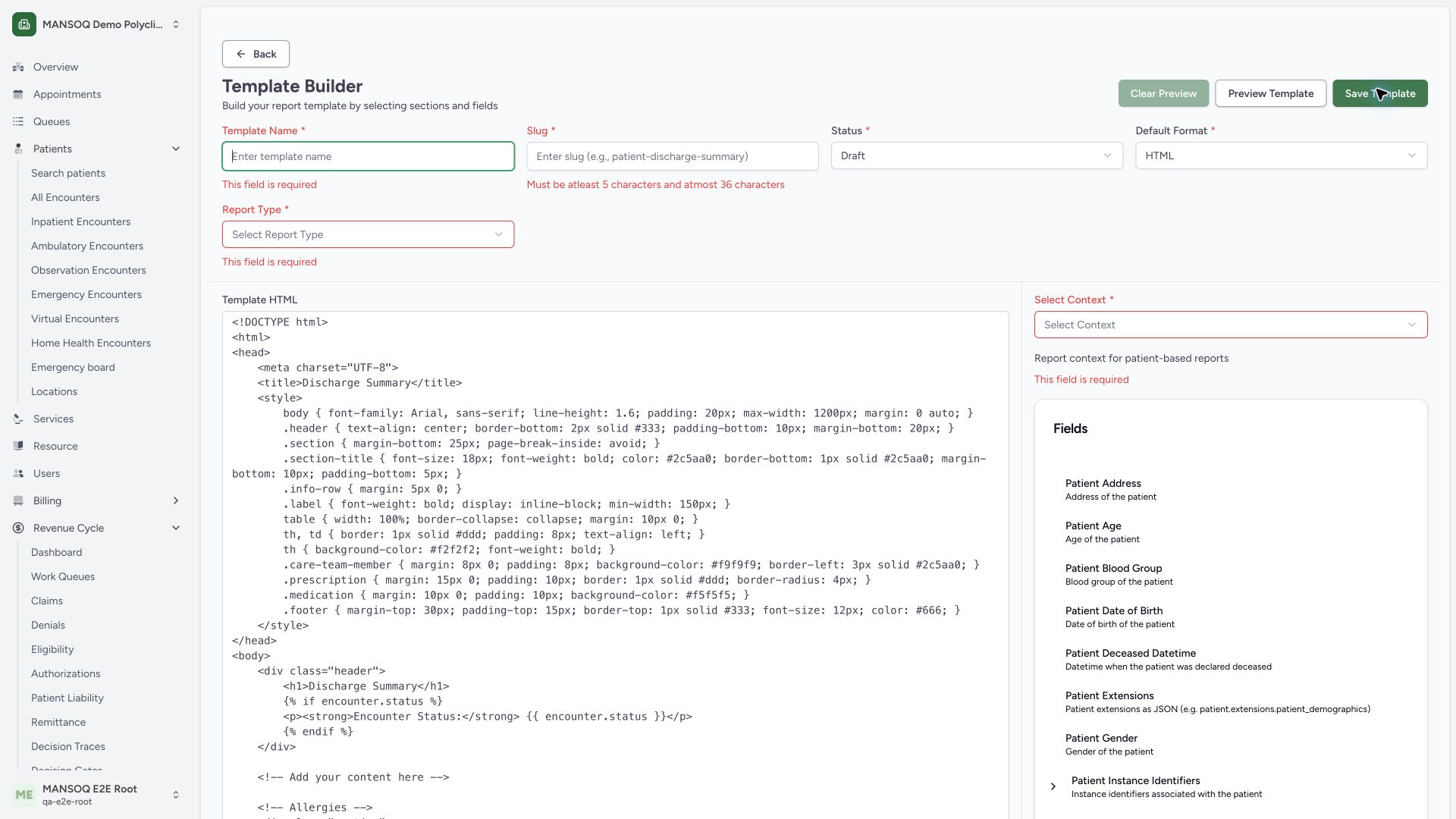
Normal Save Template rejects missing Template Name, Slug, Report Type and Select Context. Enter an approved name and a permitted unique slug. The pinned schema accepts 5–25 slug characters although its displayed length error says 36, so this example uses the shorter valid synthetic-report-teaching.
 1234
1234Capture details
Actual 1920 × 1080 Chrome pixels; pinned source f6e9f05f. Report template lifecycle and associated synthetic PDF output
- Required Template Name: Provide a clearly synthetic training name.
- Required slug: Use the installed schema’s accepted length and permitted characters.
- Choose Report Type: Report type determines the associated resource and authorizer.
- Choose matching context: Context provides the fields used by the template.
2. Choose a report type and matching context, then inspect an HTML sample
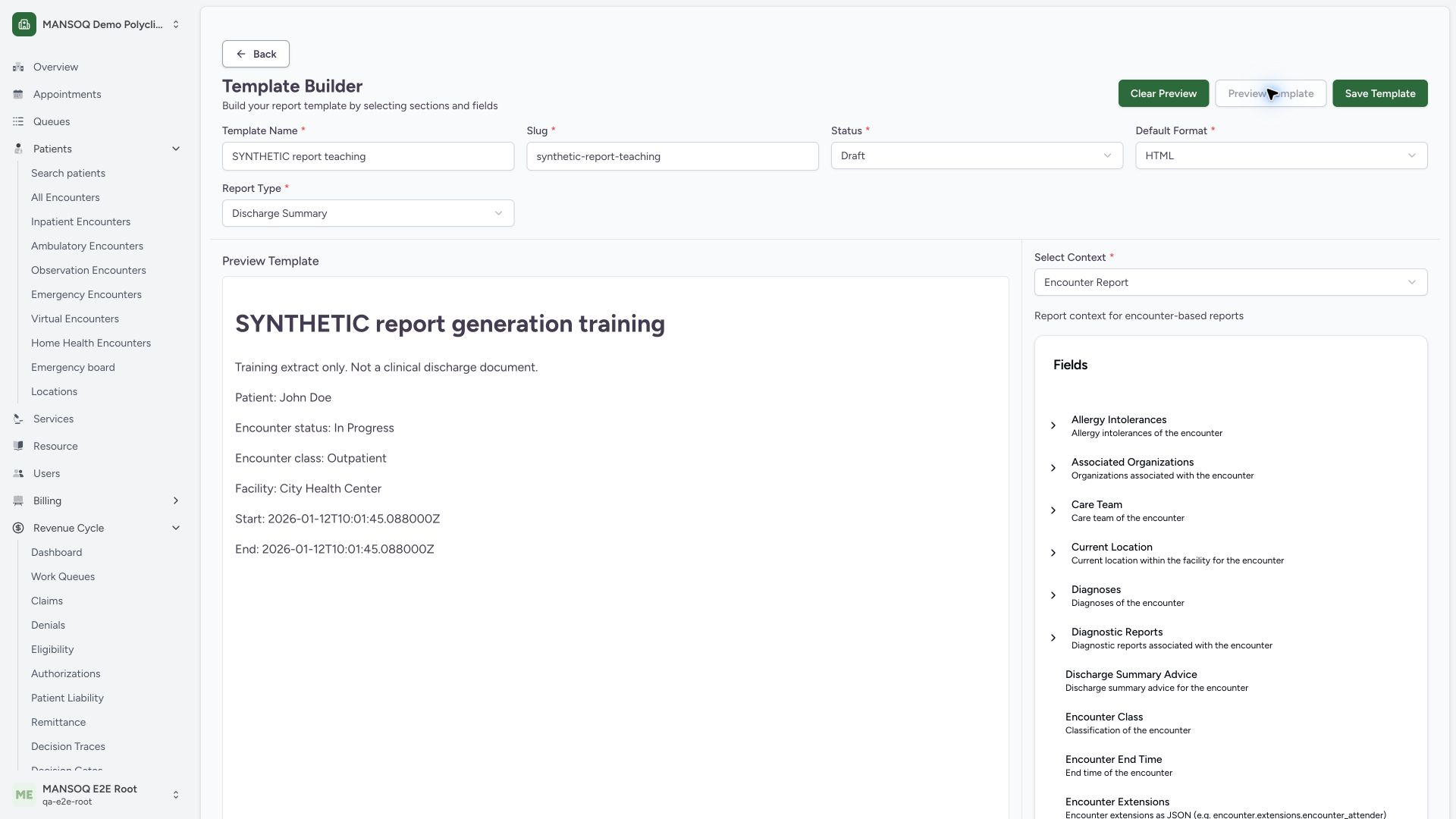
The example selects Discharge Summary, Encounter Report context, Draft and HTML. Preview Template renders the supplied HTML against schema sample data. The visible John Doe, In Progress, Outpatient and City Health Center are preview values, not the intended patient or a generated report record.
 12345
12345Capture details
Actual 1920 × 1080 Chrome pixels; pinned source f6e9f05f. Report template lifecycle and associated synthetic PDF output
- Draft template: Draft is configuration, not generated clinical output.
- Encounter Report context: Context determines the available data fields.
- Schema sample patient: John Doe is preview sample data, not the saved synthetic patient.
- Clear Preview: Return to editable source after reviewing the sample.
- Save Template: Save the reviewed template configuration separately from generating a report.
3. Save the Draft and confirm its stable saved route
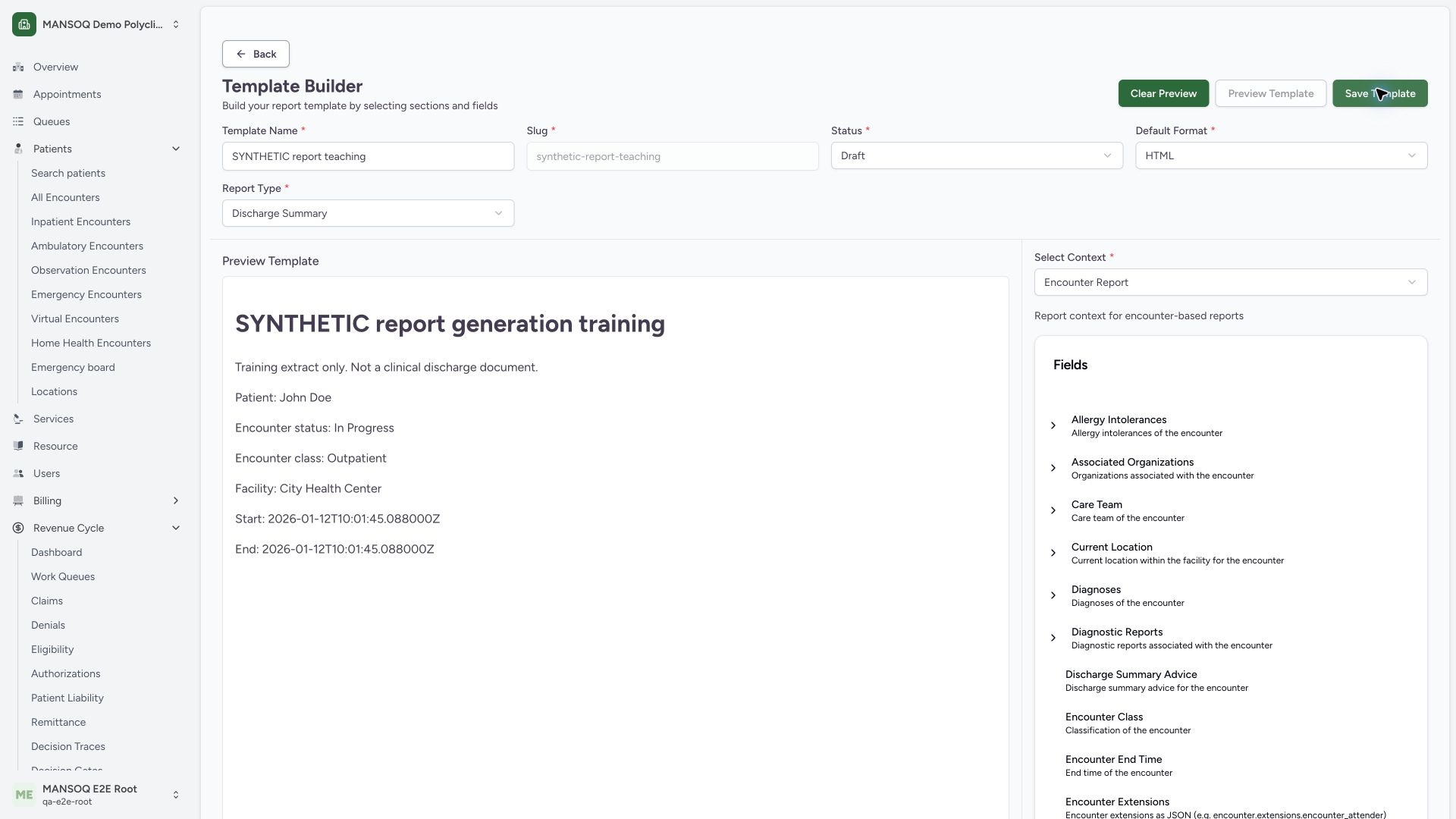
Use Save Template and confirm the editor opens the saved slug route. The slug is locked. An independent normal template detail GET200 confirms the same synthetic name, Draft status, HTML format, discharge_summary type, encounter_base context and template content. The sample pane still does not constitute patient-linked output.
 1234
1234Capture details
Actual 1920 × 1080 Chrome pixels; pinned source f6e9f05f. Report template lifecycle and associated synthetic PDF output
- Saved synthetic template name: Normal detail read independently confirms this exact configuration.
- Saved slug locked in editor: Distinguish this saved definition from a new unsaved form.
- Draft and HTML retained: A saved Draft definition is not an active generated report.
- Preview still uses sample data: This is not the actual completed synthetic encounter.
4. Save Active PDF and preview the sample output
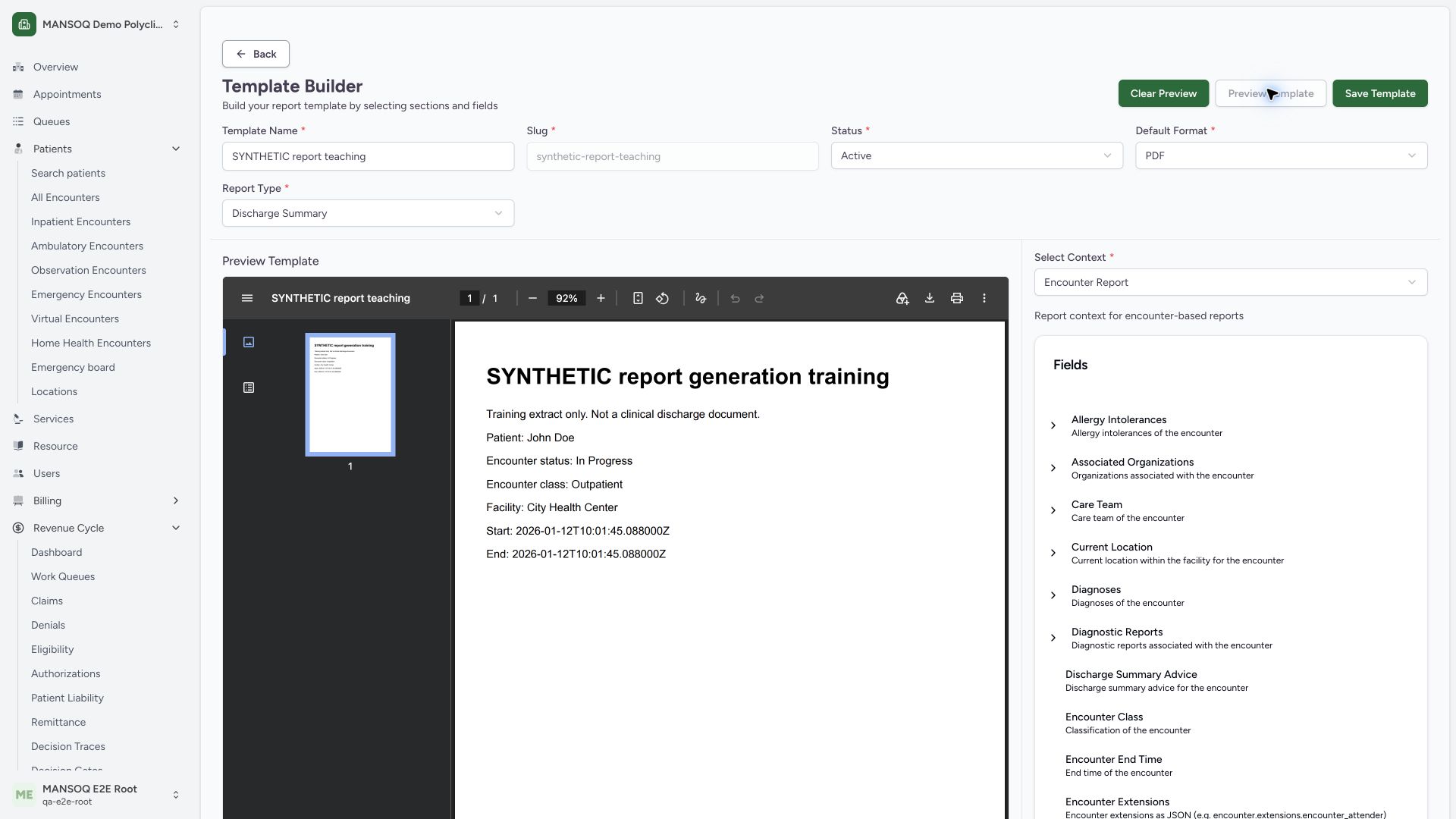
Change Status to Active and Default Format to PDF, then Save Template. An independent normal detail GET200 confirms both persisted settings. Preview Template now displays a one-page PDF with the same schema sample patient and facility; this checks rendering and does not generate a report for the completed synthetic encounter.
 1234
1234Capture details
Actual 1920 × 1080 Chrome pixels; pinned source f6e9f05f. Report template lifecycle and associated synthetic PDF output
- Active template: Active template
- PDF format: PDF format
- Sample patient only: Sample patient only
- One-page preview: One-page preview
5. Inspect the three lifecycle choices
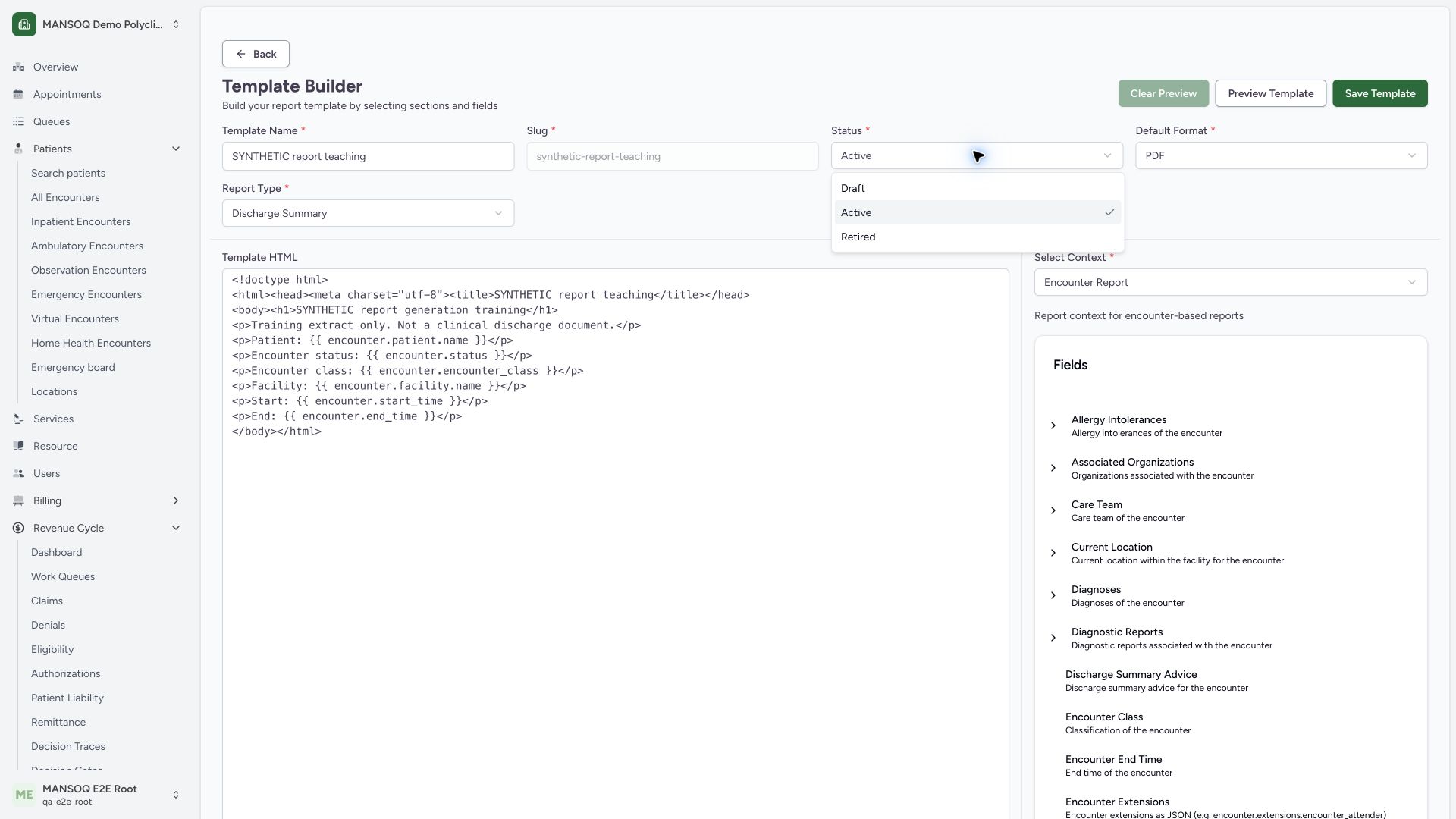
The Status menu offers Draft, Active and Retired. This example used Active for one independently verified synthetic report, then retires only its own training template. Status controls generation eligibility; changing the output format does not activate a Draft or Retired template.
 1234
1234Capture details
Actual 1920 × 1080 Chrome pixels; pinned source f6e9f05f. Report template lifecycle and associated synthetic PDF output
- Template status: Lifecycle status is separate from output format.
- Draft: Draft cannot generate output.
- Active: Generation requires Active plus authorization.
- Retired: Retire only the intended template.
6. Save retirement and verify the same template
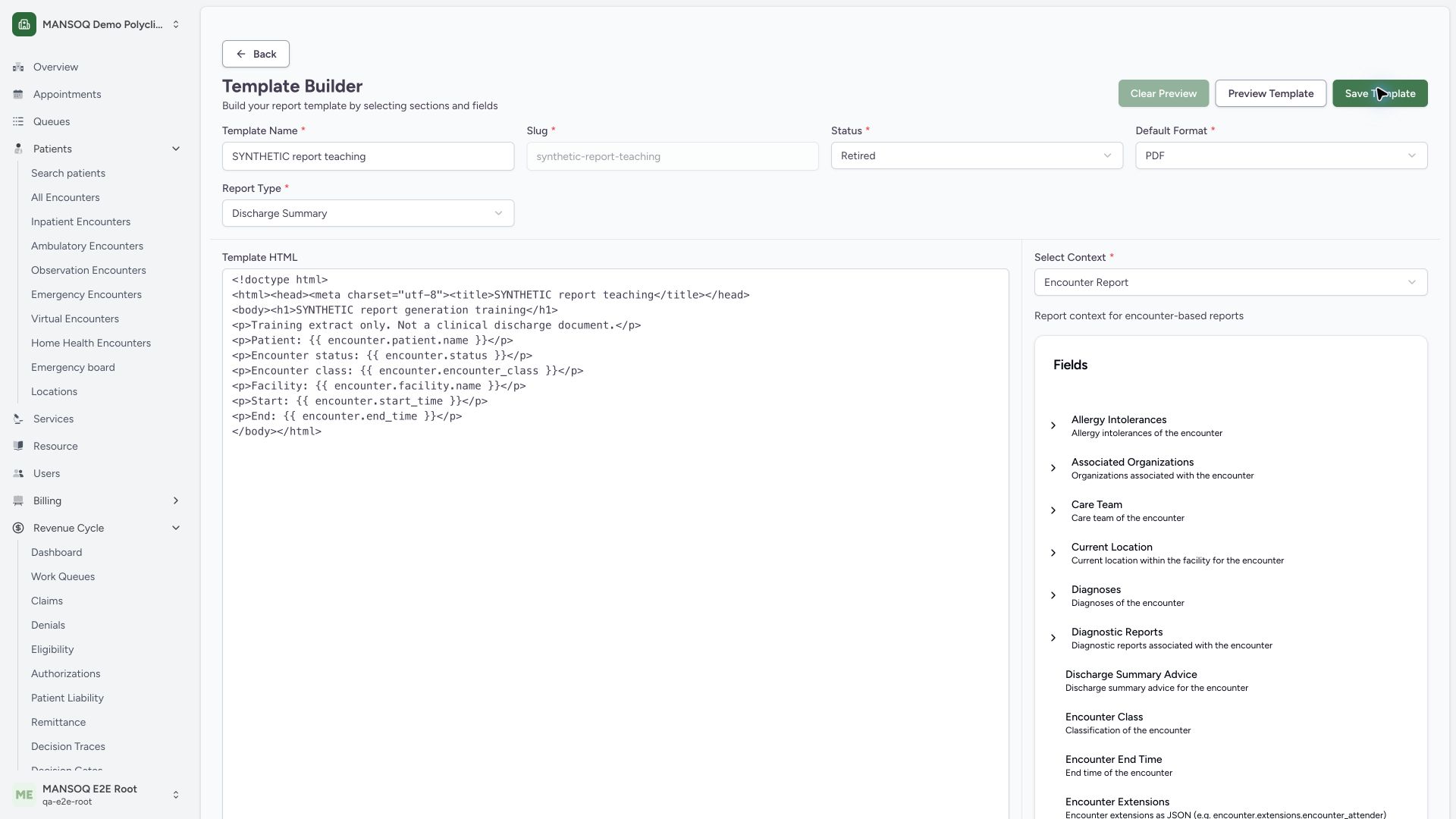
Select Retired, use Save Template, then verify the saved configuration. Normal detail GET200 confirms the same ID and slug, Retired status, PDF format and unchanged report type, context and content. The generated artifact is still stored.
 1234
1234Capture details
Actual 1920 × 1080 Chrome pixels; pinned source f6e9f05f. Report template lifecycle and associated synthetic PDF output
- Retired persisted: Independent normal template detail read verifies retirement.
- PDF unchanged: Lifecycle status and format are distinct.
- Same locked slug: The example updates the same template, not a new one.
- Save Template: Save completes the selected lifecycle change.
7. Recognize the disabled generation action after retirement
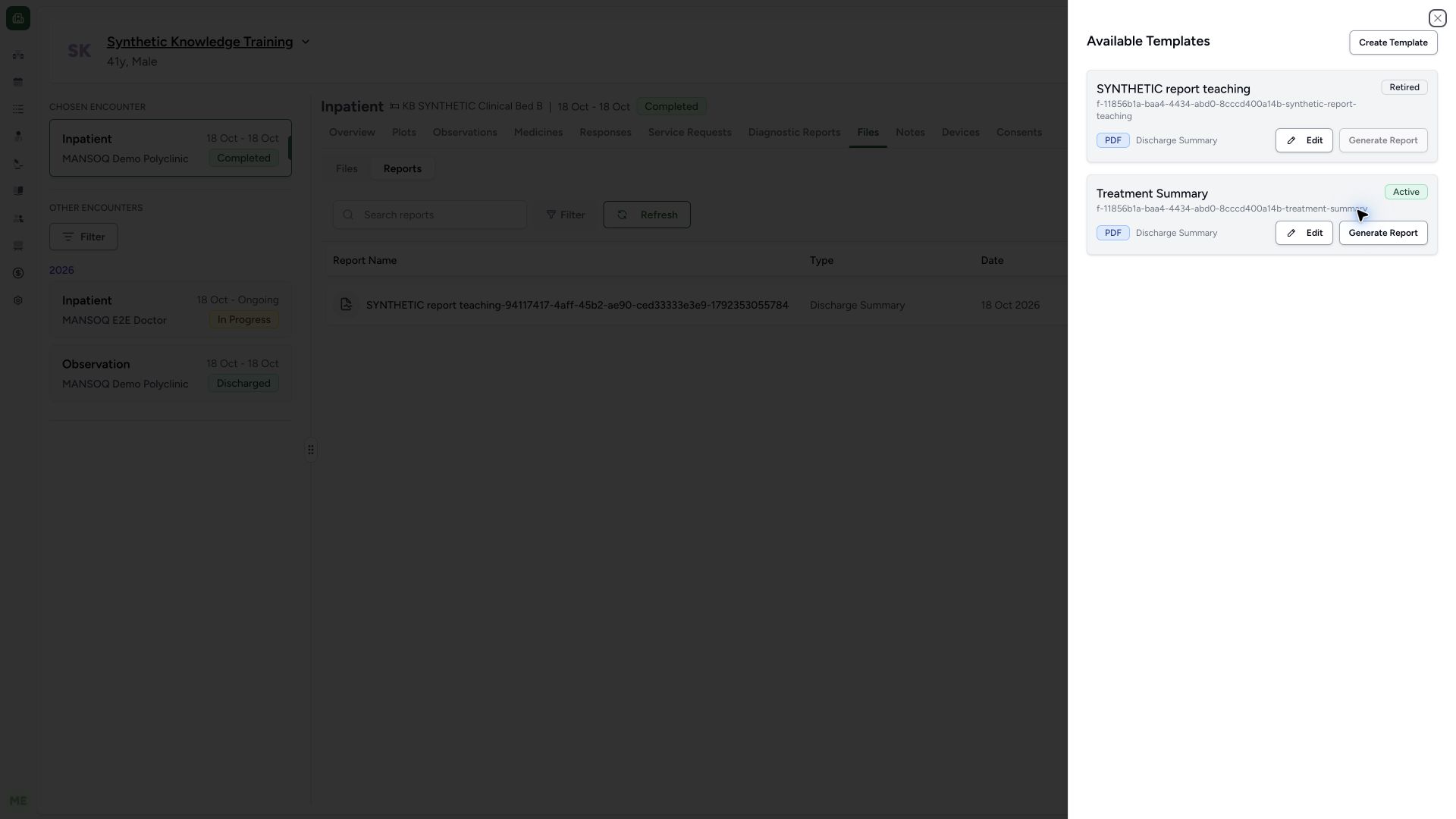
Return to the correct encounter Reports, open Generate Report and identify the exact synthetic template. It now shows Retired and a disabled Generate Report button. The unrelated active Treatment Summary is a different template and was not used. No new generation was submitted after retirement.
 1234
1234Capture details
Actual 1920 × 1080 Chrome pixels; pinned source f6e9f05f. Report template lifecycle and associated synthetic PDF output
- Retired teaching template: This is the intended synthetic template, not the active row below.
- Generation disabled: No new generation was submitted for the retired template.
- Correct template identity: Confirm the exact name and slug.
- Other active template untouched: Do not choose an unrelated template to bypass lifecycle.
Template configuration, preview and generated reports are separate
A Draft or Retired template is configuration. The generation endpoint requires an Active template, a valid associated resource and the appropriate template and resource write authorizers. Preview uses sample context. A successful output additionally requires a stored upload-completed report and its real associated resource values.
Authorization and lifecycle boundaries
Template list, write, schema, preview and report-generation permissions are separate. On this source pin, facility template writes use the root organization authorization path, while completed encounters have an additional report-generation permission. This existing synthetic superuser example does not certify Doctor, Nurse, delegated administrator or every facility access.
Troubleshooting
The PDF preview shows a sample patient
This is expected for Preview Template. Generate through the intended patient's correct encounter Reports page and verify the associated output independently.
Generation fails or remains in progress
Inspect the actual error and the saved report list. Do not treat a toast or initial progress indicator as completed output, and avoid repeated generation until the previous attempt's persisted state is understood.
Source evidence
References are pinned to the private MANSOQ source repository. Repository access is required to open these links.
- repositories/platform/mansoq-web/src/pages/Encounters/TemplateBuilder/TemplateBuilder.tsx:101 · f6e9f05f
- repositories/platform/mansoq-web/src/pages/Encounters/TemplateBuilder/TemplateBuilder.tsx:162 · f6e9f05f
- repositories/platform/mansoq-web/src/pages/Encounters/TemplateBuilder/TemplateBuilder.tsx:237 · f6e9f05f
- repositories/platform/mansoq-web/src/pages/Encounters/TemplateBuilder/TemplateBuilder.tsx:264 · f6e9f05f
- repositories/platform/mansoq-web/src/pages/Encounters/TemplateBuilder/TemplateBuilder.tsx:410 · f6e9f05f
- repositories/platform/mansoq-web/src/pages/Encounters/TemplateBuilder/TemplateBuilder.tsx:838 · f6e9f05f
- repositories/platform/mansoq-web/src/types/emr/template/template.ts:1 · f6e9f05f
- repositories/platform/mansoq-web/src/pages/Encounters/TemplateBuilder/TemplateCard.tsx:45 · f6e9f05f
- repositories/platform/mansoq-core/mansoq/emr/api/viewsets/report/template.py:183 · f6e9f05f
- repositories/platform/mansoq-core/mansoq/emr/api/viewsets/report/report_upload.py:100 · f6e9f05f
- repositories/platform/mansoq-core/mansoq/security/authorization/template.py:17 · f6e9f05f
- repositories/platform/mansoq-core/mansoq/emr/reports/authorizers/encounter.py:14 · f6e9f05f