 MANSOQ
 Appointments & queues
Review the populated appointment document
Open the actual appointment print preview and verify facility, patient, time, practitioner, note and Staff/Doctor audit names before output.
4 min read · Source baseline f6e9f05f
Verification and applicability
Ten actual 1920 × 1080 Chrome screenshots of original f6e9 synthetic training UI. Normal Staff and Doctor GET200 checks preserve Booked, Checked-In and In-Consultation for appointment981eda2f…. Doctor-only associated encounter GET200 verifies5026f458… In Progress/Ambulatory/Routine, actual period start2026-10-18T21:07:47.483Z (19October00:07Riyadh), existing department800f40d9… and Doctor creator. Staff is booking/check-in actor, Doctor is clinical creator/updater. No new grant, clinical findings/treatment, charge/token, completedcare, externalnotification or nativeprint/PDF claim.
Check your installed version, permissions and local configuration.
Before you begin
- Use the previously illustrated existing-patient practitioner-booking workflow. The patient, Staff, Doctor, Clinic and department in this example already exist as synthetic training fixtures; prior Rescheduled/Cancelled appointments stay preserved.
- Staff needs the existing booking rights to check in the appointment. Doctor needs the actual encounter-create permission in this facility. Receptionist is a job function; it is not an additional built-in security role. No memberships or permissions are changed.
- All dates are shown in the training UI local context. The appointment is 19 October 2026 at 09:00–09:15 Riyadh; the software-only demonstration begins shortly after midnight within the original UI’s one-day-before/after check-in window. The encounter starts at the actual 00:07 training time. This does not represent real attendance or care.
1. Open Print Appointment on the saved record
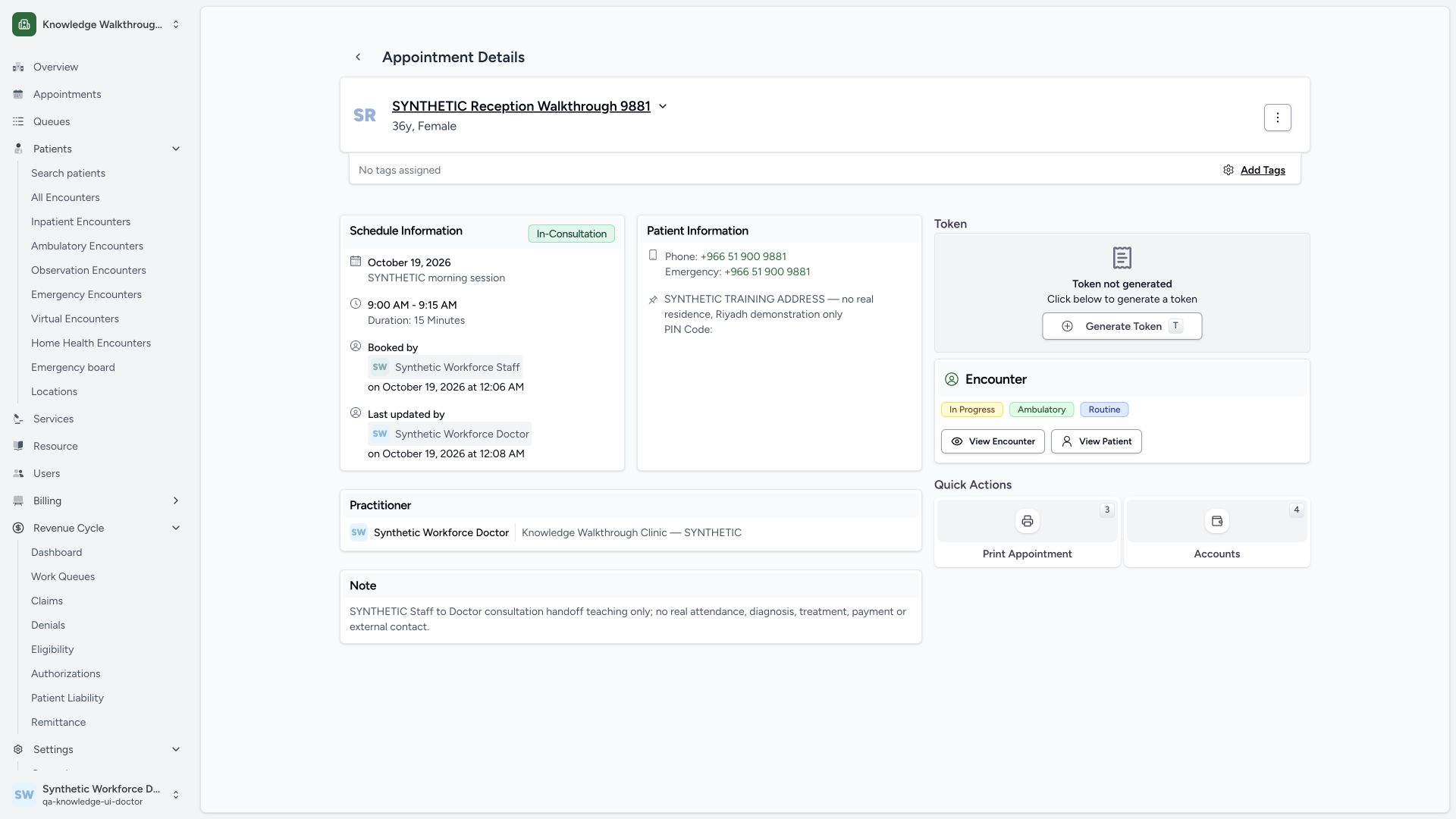
On the intended saved appointment, review its patient, time and associated encounter, then use Print Appointment. This example opens the document from the same In-Consultation appointment; opening the preview does not complete the visit or create a payment.
 123456
Capture details
Actual 1920 × 1080 Chrome pixels; pinned source f6e9f05f. existing Staff check-in and Doctor synthetic consultation handoff
- In-Consultation scheduling state: Verify the saved appointment transition after Doctor initiation.
- Staff booking actor: Booking/check-in ownership remains distinct from clinical creation.
- Doctor update actor: The existing Doctor initiated this consultation.
- Associated clinical encounter: Review In Progress, Ambulatory and Routine on the linked record.
- View Encounter: Return to the same saved associated encounter.
- Print Appointment: Open the populated appointment document separately.
2. Review the populated document and return
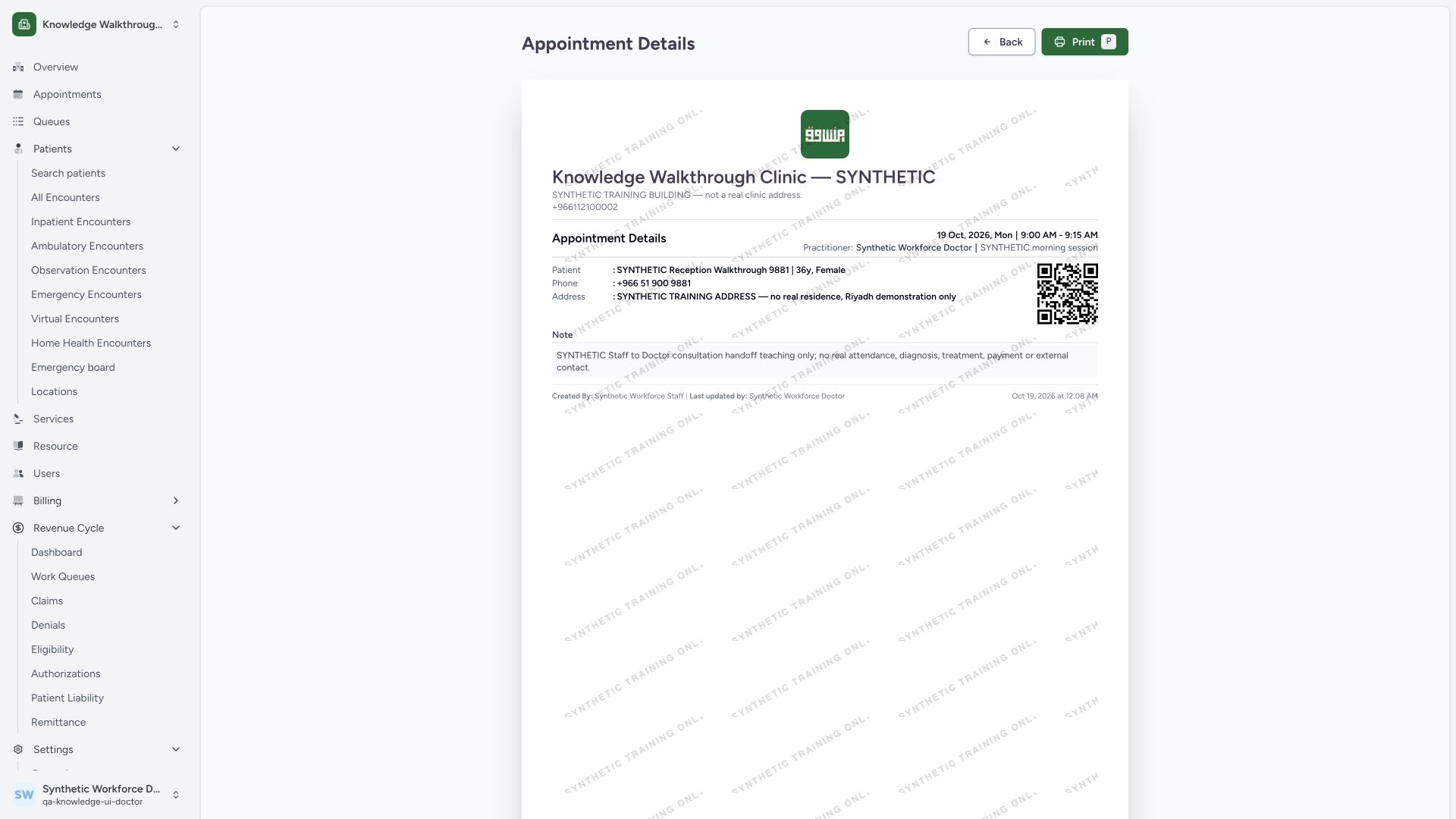
Check the synthetic facility identity, training watermark, 19 October, 09:00–09:15, Doctor, patient, note and creator/updater names. Print is the visible output entry point. This observed sequence reviews the populated preview and uses Back to return to the appointment; it does not execute native print, download a PDF or dispatch a real printer job. Charges/payments are absent because this appointment has none.
 1234567
Capture details
Actual 1920 × 1080 Chrome pixels; pinned source f6e9f05f. existing Staff check-in and Doctor synthetic consultation handoff
- Synthetic facility document identity: Check the intended Clinic brand and training watermark.
- Appointment time and practitioner: Verify19 October09:00–09:15 and the scheduled Doctor.
- Patient identity: Check the intended existing synthetic record before output.
- Saved synthetic reason: Review the appointment note.
- Creator and updater: The document distinguishes Staff and Doctor actors.
- Print control: Open normal print handling only after reviewing the document.
- Back: Return to the appointment when finished reviewing.
Two records and two actors
The appointment records the scheduling workflow. The encounter records the clinical visit context. Staff books and checks in; the existing Doctor creates the associated encounter. The saved appointment then shows In-Consultation while the clinical encounter is In Progress. Neither status means the visit is completed.
Original version and role boundary
The original f6e9 Staff screen visibly includes clinical quick actions despite this Staff account lacking encounter-create permission. They are not executed as Staff here. The Doctor account has the source-defined permission and saves the encounter normally. Later corrected product controls need their own version-specific evidence.
Synthetic scope and remaining work
The example creates only an appointment and an Ambulatory/Routine encounter with an existing department. No diagnosis, treatment, clinical response, charge, token, new care team, location or security grant is added. It does not qualify every role/facility/resource variant, completed consultation or external notification.
Troubleshooting
Check-In is unavailable
Confirm the appointment is Booked, your account can write this booking, and the appointment falls within the source-defined check-in time window. No clock or permission is changed in this walkthrough.
The expected department or practitioner is absent
Confirm your account, facility and existing membership. This example automatically selects its one eligible department; other organization choices and access boundaries require their own verified workflow.
Source evidence
References are pinned to the private MANSOQ source repository. Repository access is required to open these links.
- repositories/platform/mansoq-web/src/pages/Appointments/AppointmentDetail.tsx:544 · f6e9f05f
- repositories/platform/mansoq-web/src/pages/Appointments/AppointmentPrint.tsx:128 · f6e9f05f
- repositories/platform/mansoq-web/src/pages/Appointments/AppointmentPrint.tsx:210 · f6e9f05f
- repositories/platform/mansoq-web/src/pages/Appointments/AppointmentPrint.tsx:464 · f6e9f05f