 MANSOQ
 Inventory
Dispatch an internal stock request from the source store
Create the separate delivery, load the intended request lines, select actual stock and handle an insufficient-stock refusal before approval.
Current source · Source reviewed; scoped synthetic workflow independently verified · 9 min read
Before you begin
- Work at the intended location with an authorized role. The observed path used Facility Admin in a synthetic Polyclinic; role names alone do not prove access.
- Configure the product definition, coded base unit, physical batch and source stock before dispatch. The example begins with25 synthetic count units and uses no real supplies.
1. Open the source location dispatch work
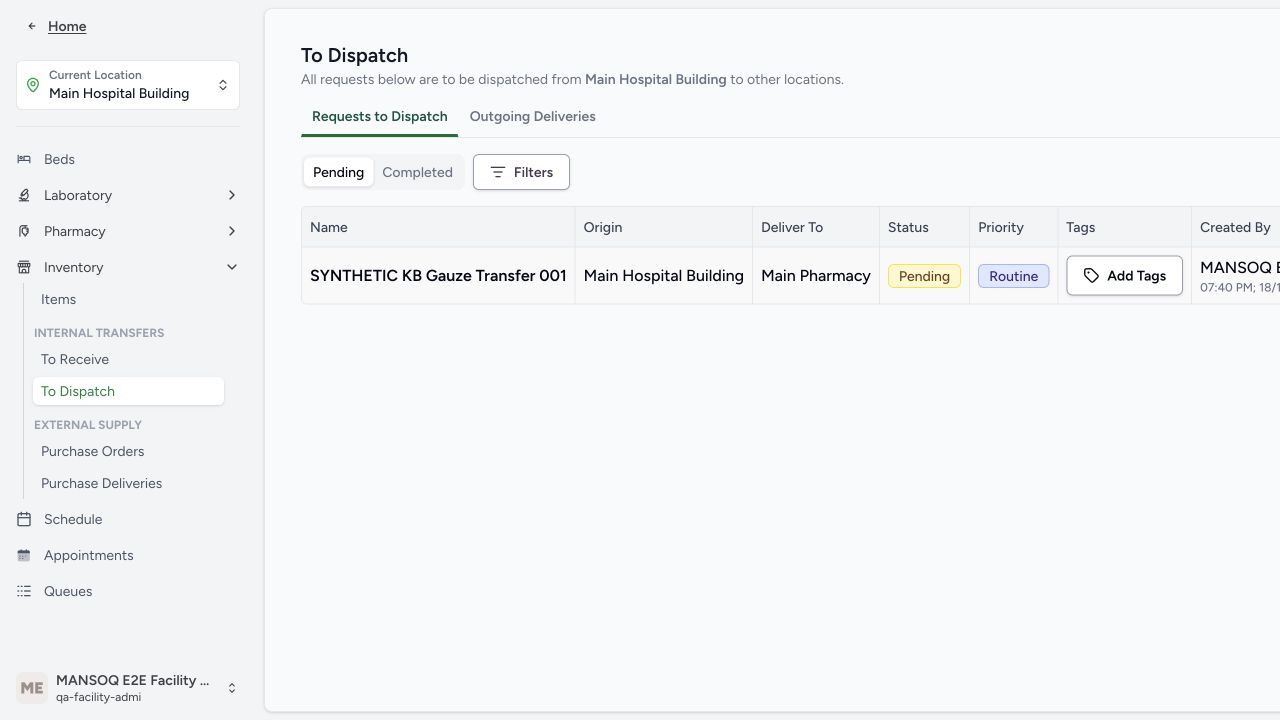
At the source store, open Inventory → To Dispatch, find the matching request and start its delivery action. Confirm direction before proceeding. The receiver still has no new stock at this point.
 1
1- Match the pending request: Match the request name, source and receiver. The Actions column lies off the right edge in this older desktop frame; scroll the table horizontally to reach View Details.
 1
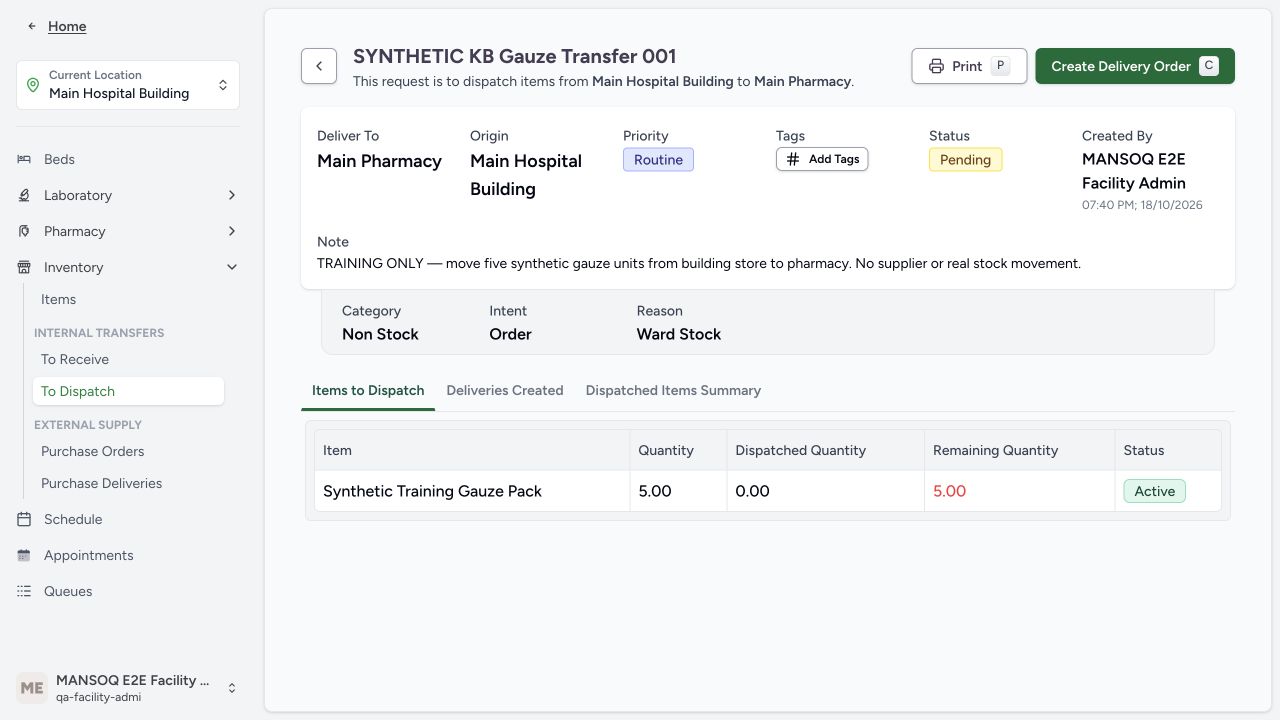
1- Create a separate delivery order: The approved request asks for stock; the delivery order records the actual batch dispatch.
2. Create the separate delivery header
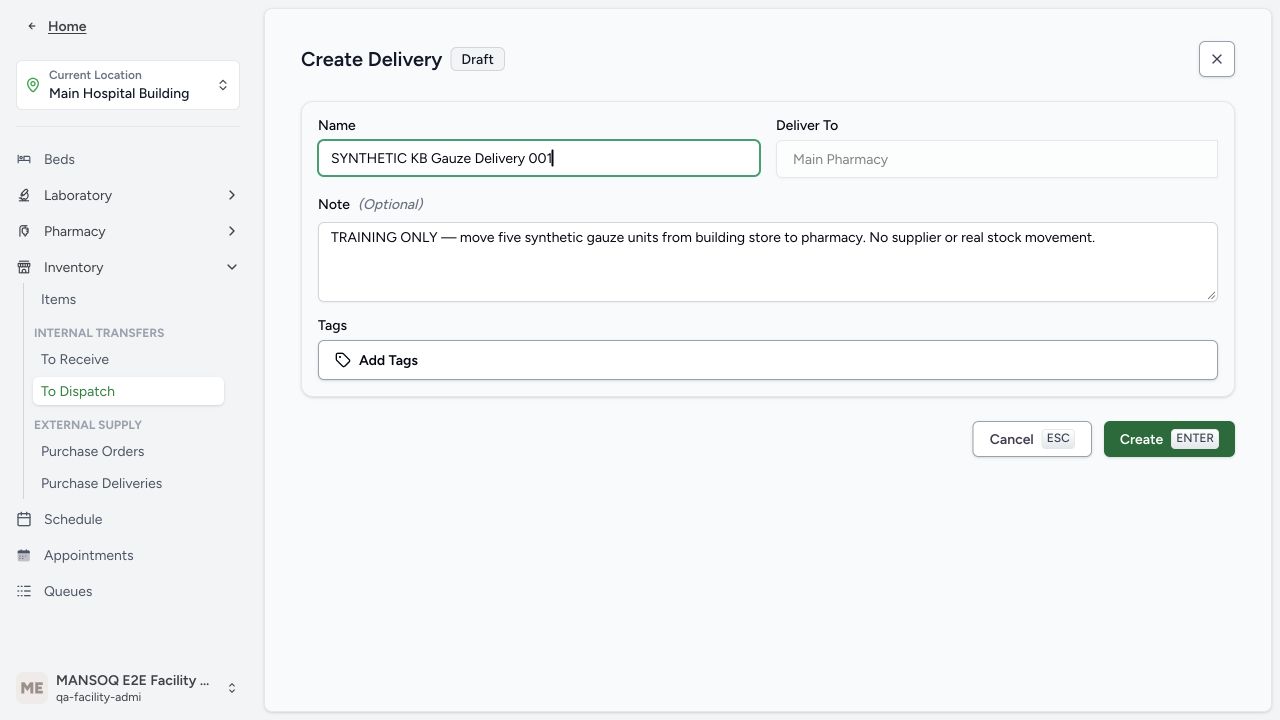
Enter a distinct delivery name and review destination and note, then create the draft delivery. The request and delivery are different records with separate status lifecycles.
 123
123- Delivery reference: Name the delivery separately from the stock request.
- Linked receiving location: The request fixes the destination as Main Pharmacy; confirm it before creating the draft.
- Create the delivery draft: This saves a delivery header linked to the approved request; no stock has moved yet.
3. Load items from the intended request
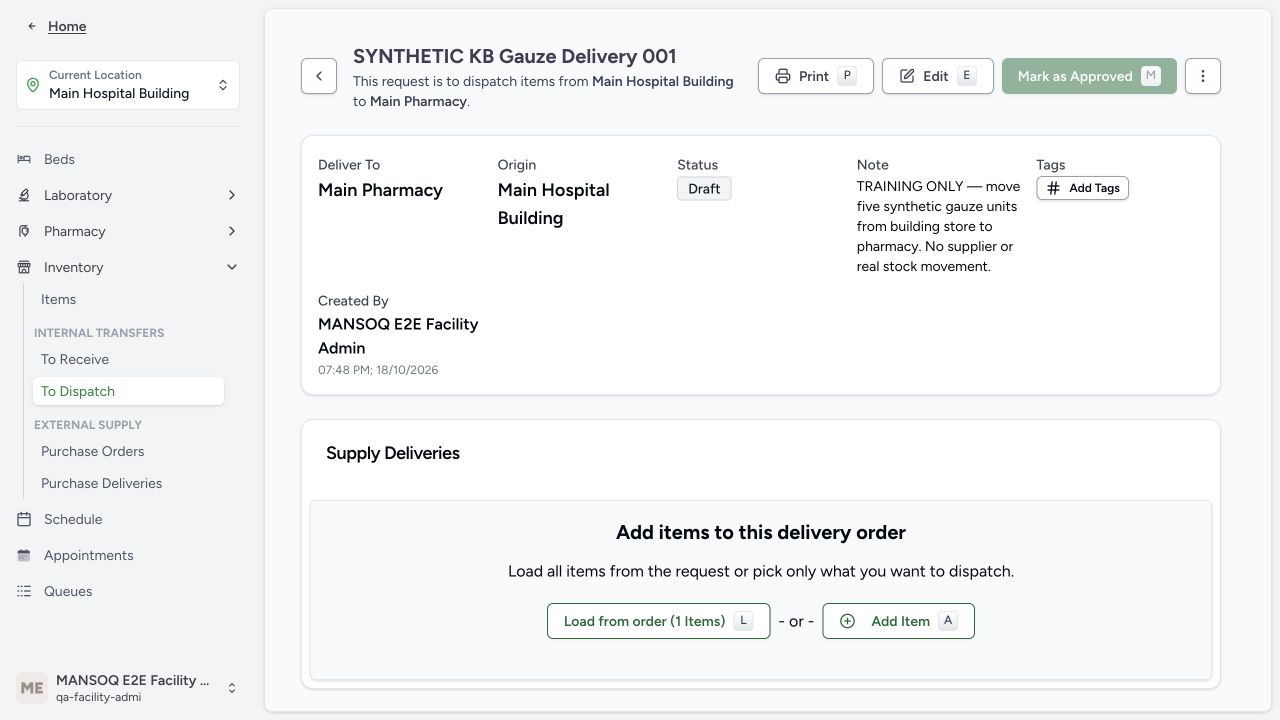
Choose the request-loading control, then select only the intended request rows. The pictured header checkbox selects all listed items; review each row before loading. A loaded request does not itself choose a physical stock lot.
 12
12- Load items from the linked request: The order contains one requested product. Loading prepares dispatch lines for batch selection and review.
- Alternative: choose items manually: Manual item selection is a separate available branch; this example uses Load from order.
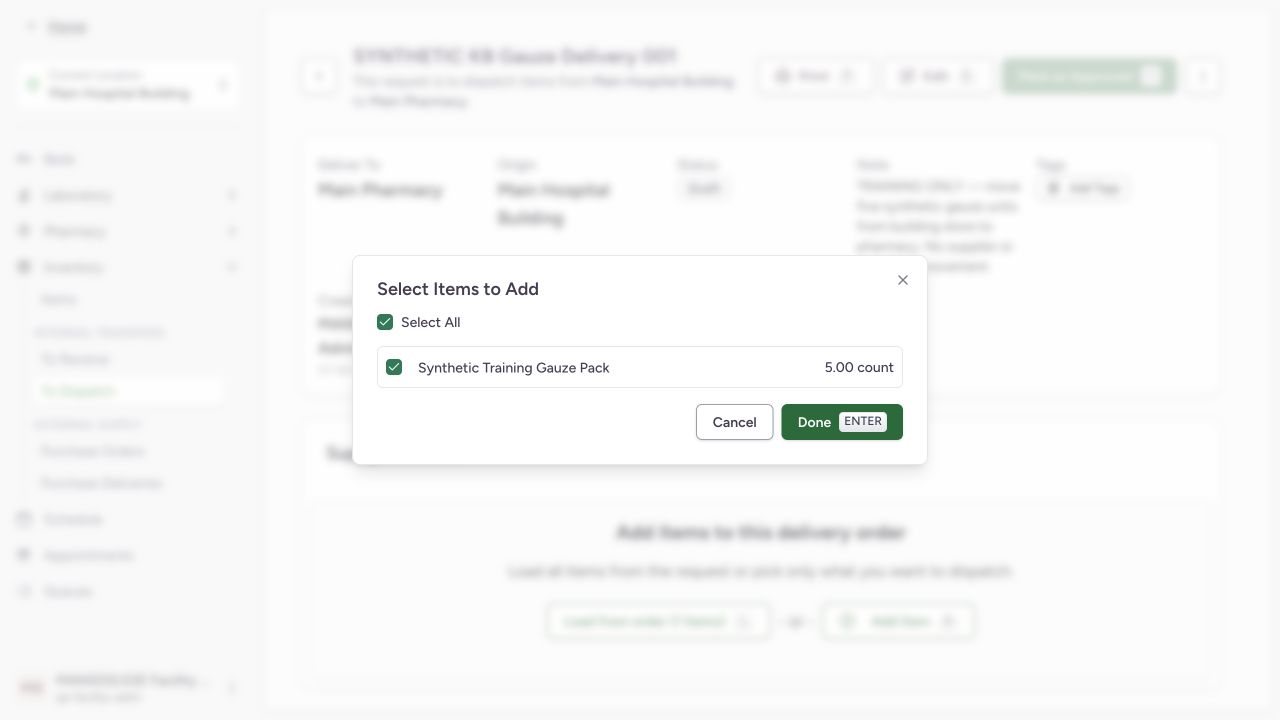 12
12- Select all listed request items: This checkbox selects all listed request items; verify each intended row before loading.
- Prepare the selected dispatch line: Done opens the batch and quantity review before saving the delivery items.
4. Choose an actual stock lot
Open the stock selector and choose the exact active product/batch at the sending location. Check available quantity and expiry. The example uses KB-GAUZE-20261018, with 25 count initially available.
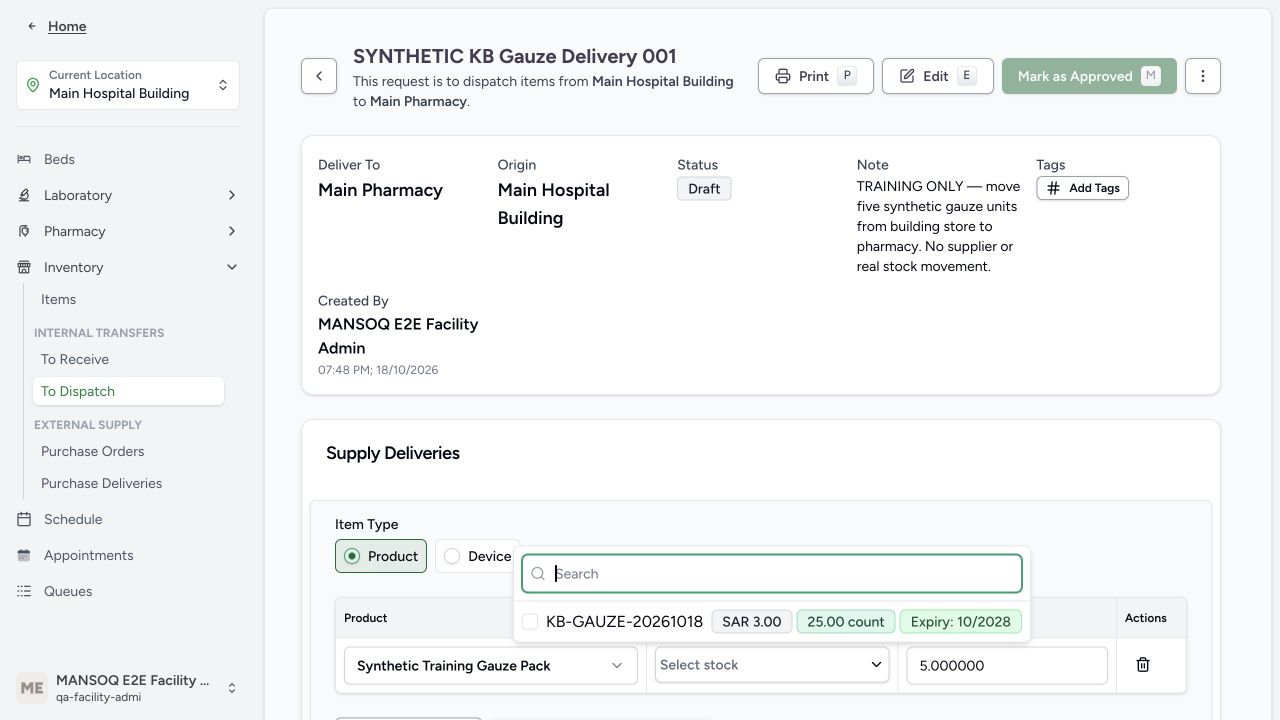 1
1- Select the exact batch: The source store has KB-GAUZE-20261018, 25 count, with October 2028 expiry. Review before allocating the five requested units.
5. Resolve the real insufficient-stock refusal
The normal Save action refused 26 units when only 25 were available, with Insufficient stock. Correct the actual quantity rather than bypassing the stock check. This deliberate failed draft saved no26-unit movement.
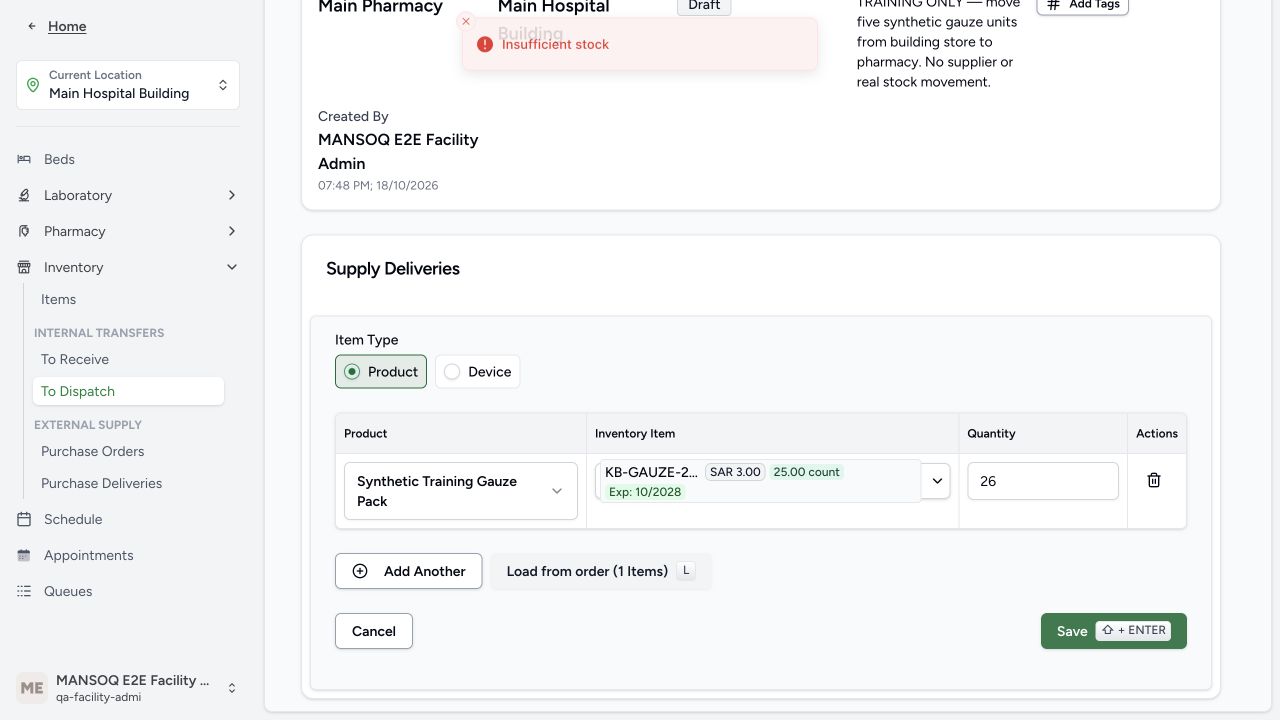 12
12- Requested allocation exceeds stock: This attempted 26-unit allocation exceeds the available 25 units.
- Insufficient stock refusal: The normal save operation refused the allocation; correct the quantity rather than bypassing the guard.
6. Review the corrected five-unit batch line
Correct to 5 units and verify batch, expiry, pack quantity and price fields. Save once. Saving a valid dispatch line creates an InProgress movement: the current source-stock calculation subtracts InProgress and Completed outgoing quantities, so source availability can fall before the delivery header is approved. The destination receives nothing until the receipt action.
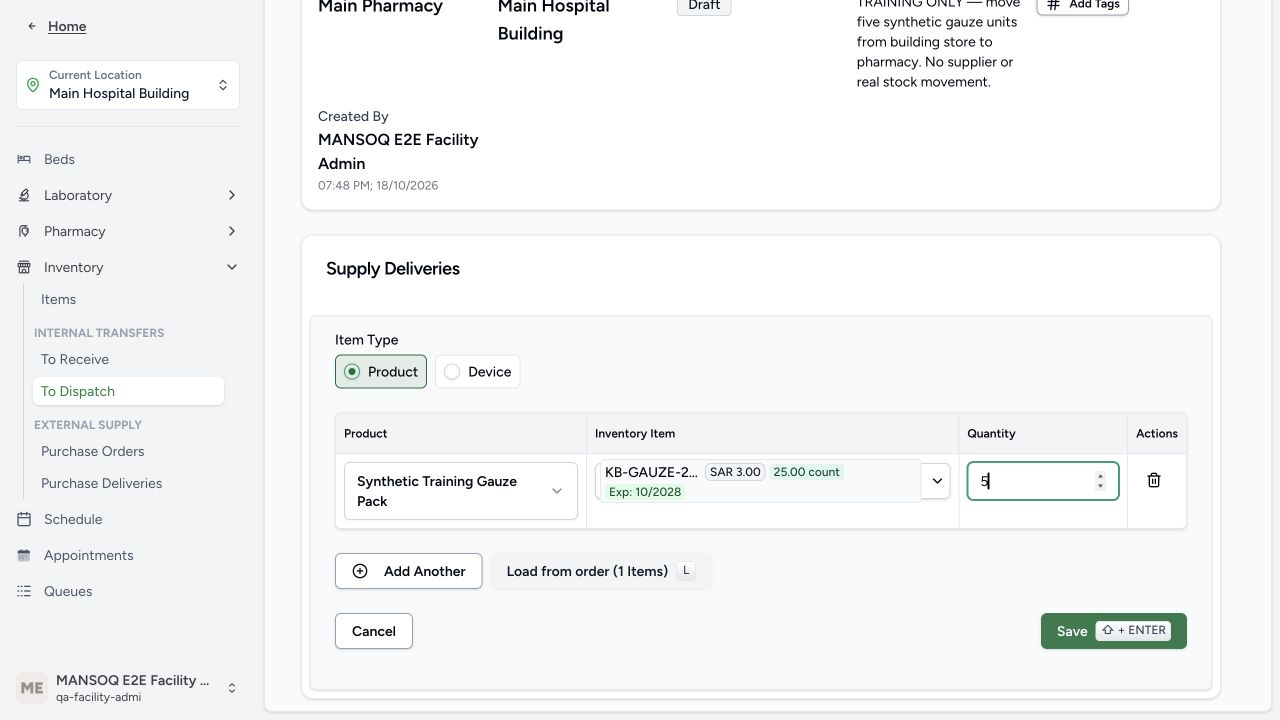 12
12- Allocate five units: The corrected five-unit allocation fits the source stock and linked request.
- Save the prepared delivery items: Save the batch allocation, then approve the separate delivery header.
7. Approve the delivery after line review
Review the saved five-unit line, then choose Mark as Approved. The header changes from Draft to Pending. Approval is separate from the destination receipt and final delivery completion.
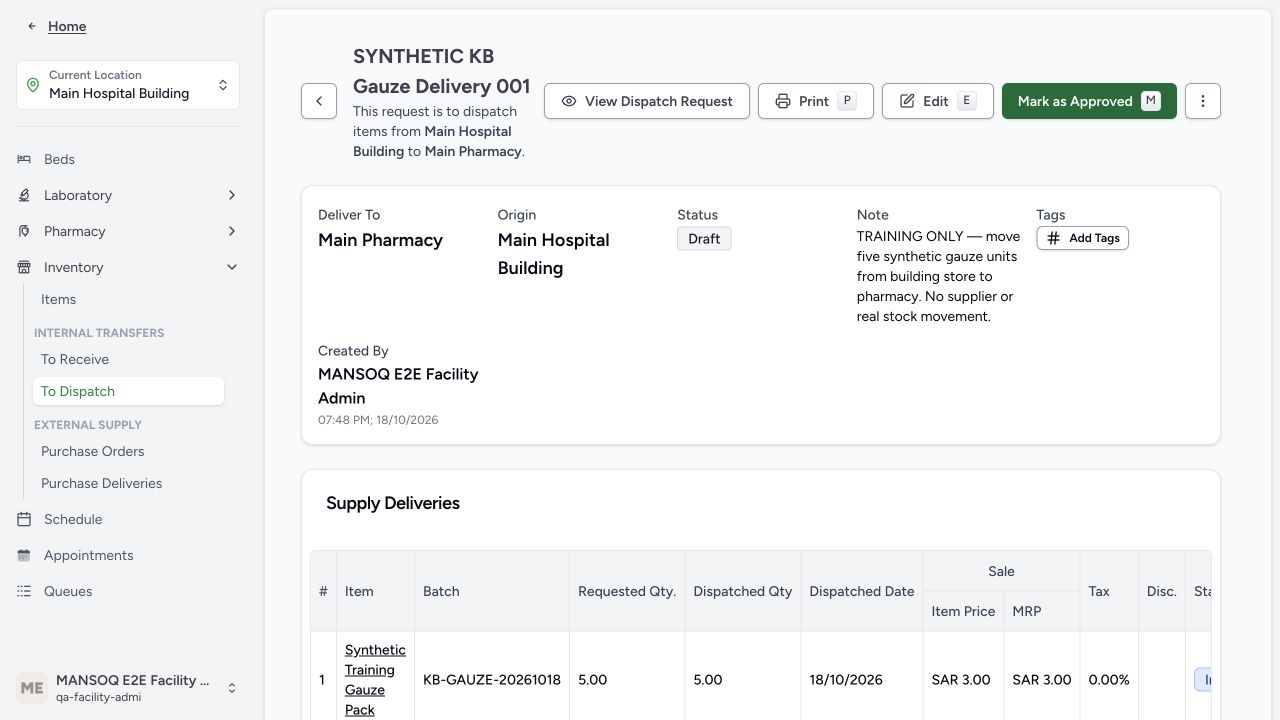 1
1- Approve the prepared delivery: The linked batch line is already In Progress. In this implementation saving it reduces available source stock; destination stock remains zero until receipt.
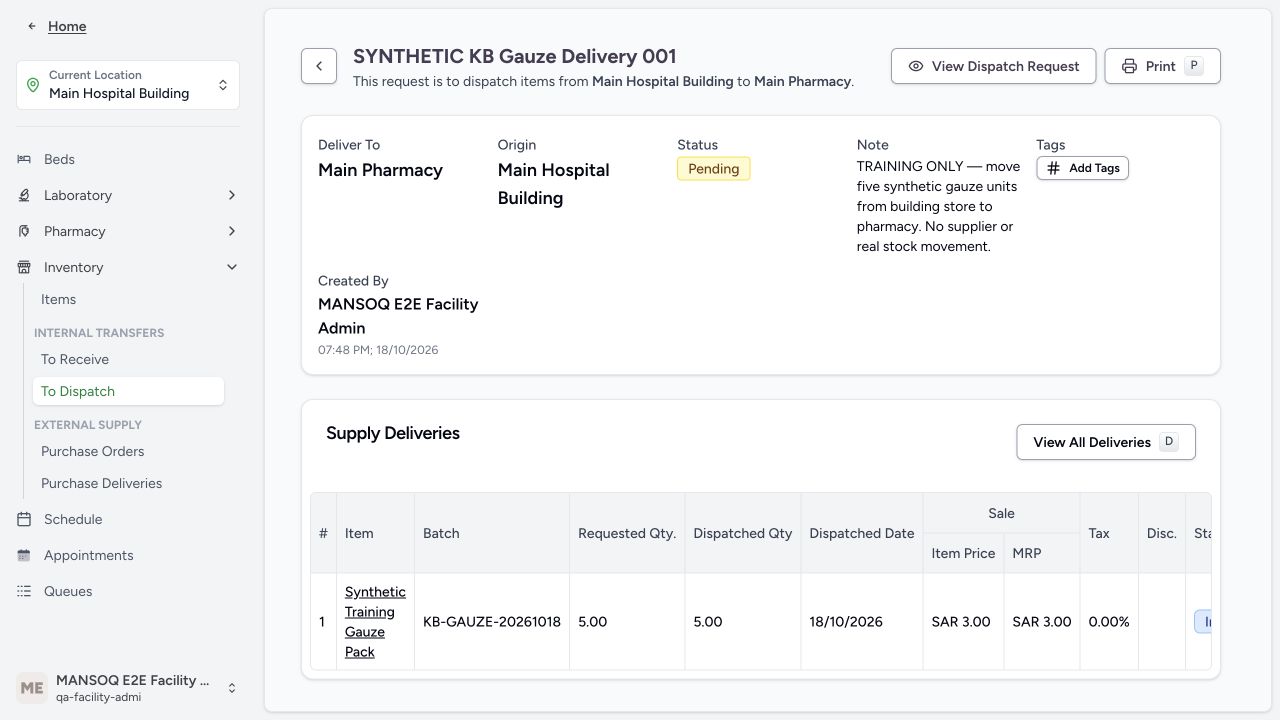 1
1- Delivery is pending receipt: The approved delivery header is Pending; its batch line remains In Progress until the receiving location processes it.
8. Hand off the pending delivery to the receiver
At the destination, open To Receive → Incoming Deliveries and find the matching pending delivery. Continue to the receipt guide. Do not infer receipt from the sending-store approval.
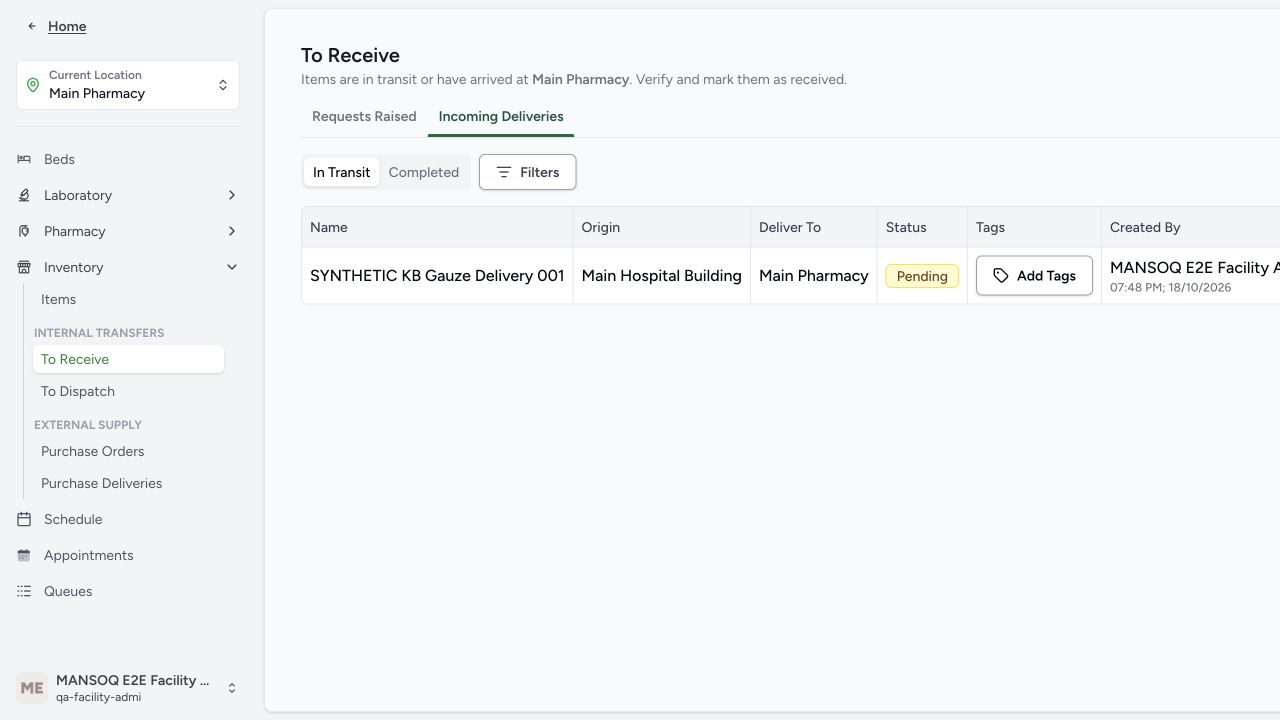 1
1- Match the pending delivery: Match the delivery reference, source and destination. The Actions column lies off the right edge in this older desktop frame; scroll the table horizontally to reach View Details.
Source evidence
References are pinned to the private MANSOQ source repository. Repository access is required to open these links.
- repositories/platform/mansoq-web/src/pages/Facility/services/inventory/ToDispatch.tsx:1 · f6e9f05f
- repositories/platform/mansoq-web/src/pages/Facility/services/inventory/externalSupply/deliveryOrder/DeliveryOrderForm.tsx:1 · f6e9f05f
- repositories/platform/mansoq-web/src/pages/Facility/services/inventory/externalSupply/deliveryOrder/AddSupplyDeliveryForm.tsx:1 · f6e9f05f
- repositories/platform/mansoq-web/src/pages/Facility/services/inventory/StockLotSelector.tsx:1 · f6e9f05f
- repositories/platform/mansoq-core/mansoq/emr/api/viewsets/inventory/supply_delivery.py:85 · f6e9f05f
- repositories/platform/mansoq-core/mansoq/emr/resources/inventory/inventory_item/sync_inventory_item.py:21 · f6e9f05f