 MANSOQ
 Inventory
Request stock from another internal location
Choose the receiving location, create and approve a product request, and distinguish requested quantities from actual dispatched stock.
Current source · Source reviewed; scoped synthetic workflow independently verified · 9 min read
Before you begin
- Work at the intended location with an authorized role. The observed path used Facility Admin in a synthetic Polyclinic; role names alone do not prove access.
- Configure the product definition, coded base unit, physical batch and source stock before dispatch. The example begins with25 synthetic count units and uses no real supplies.
1. Start in the receiving location
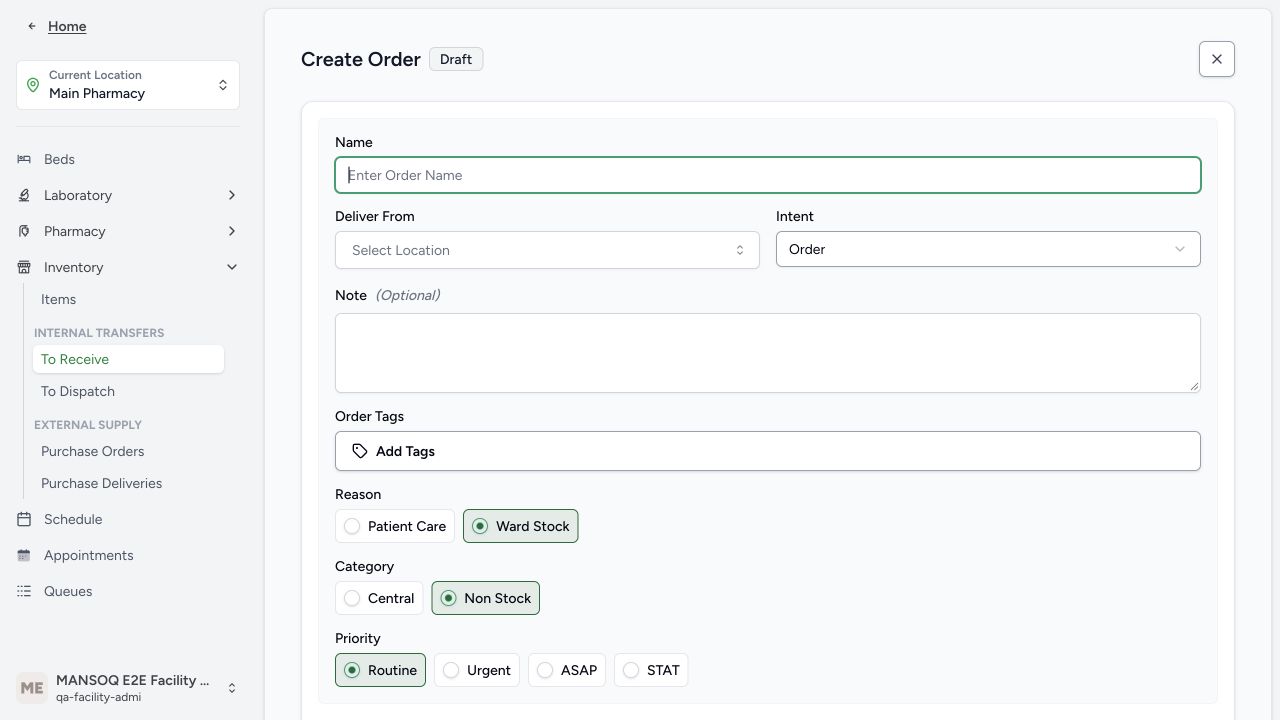
Select the location that needs stock. Open Inventory → To Receive → Requests Raised, then Raise Stock Request. The five-unit example receives into Main Pharmacy from Main Hospital Building. These are configured location names within the synthetic Polyclinic.
 123
123- Name the internal request: Use a distinct reference for the receiving location’s request.
- Choose the supplying location: Deliver From identifies the store that will dispatch stock.
- Review the request reason: The training request replenishes ward stock; patient-care requests are a separate branch.
2. Review the request header and direction
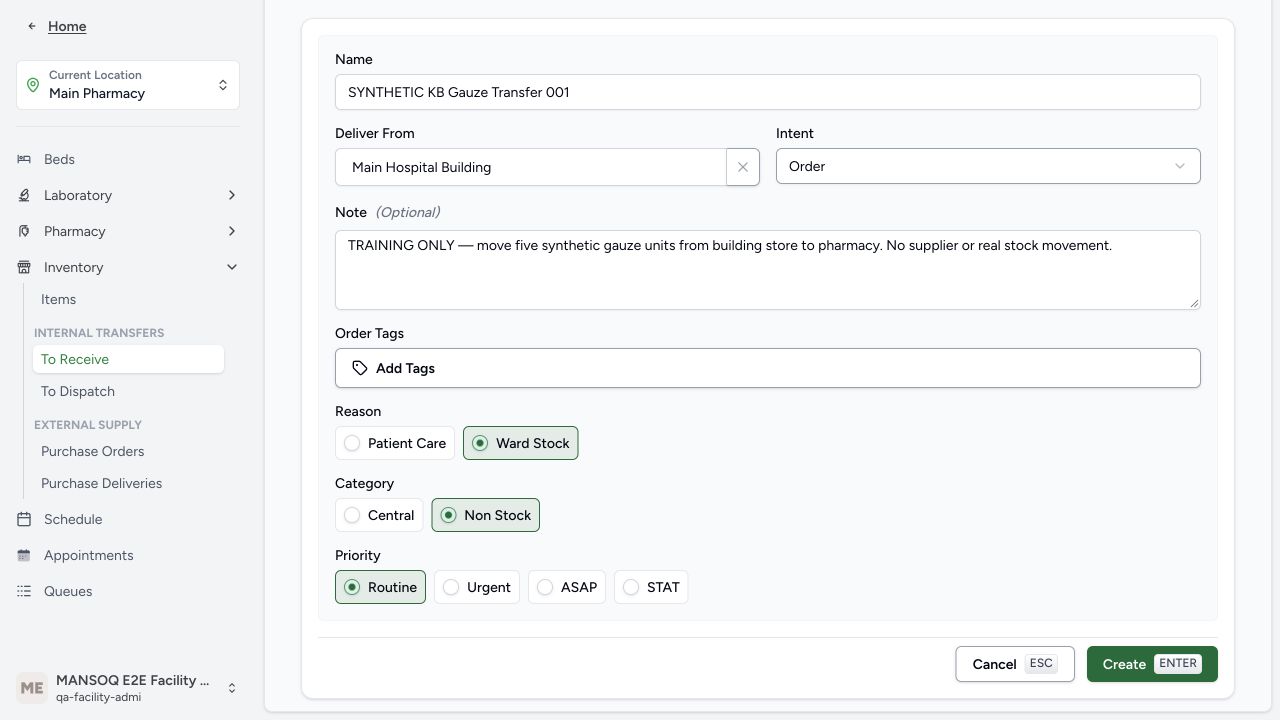
Enter a distinct Name, choose Deliver From, check Intent, note, reason, category and priority, then Create. Deliver From is the sending store; your current location is the receiver. The example uses Order, Ward Stock, Non Stock and Routine. Required and optional fields differ.
 123
123- Request identity: The synthetic request has a distinct reference.
- Supplying location: Main Hospital Building will supply the receiving Main Pharmacy location.
- Create the draft header: Saving the header does not add stock items or move inventory.
3. Select the correct product definition
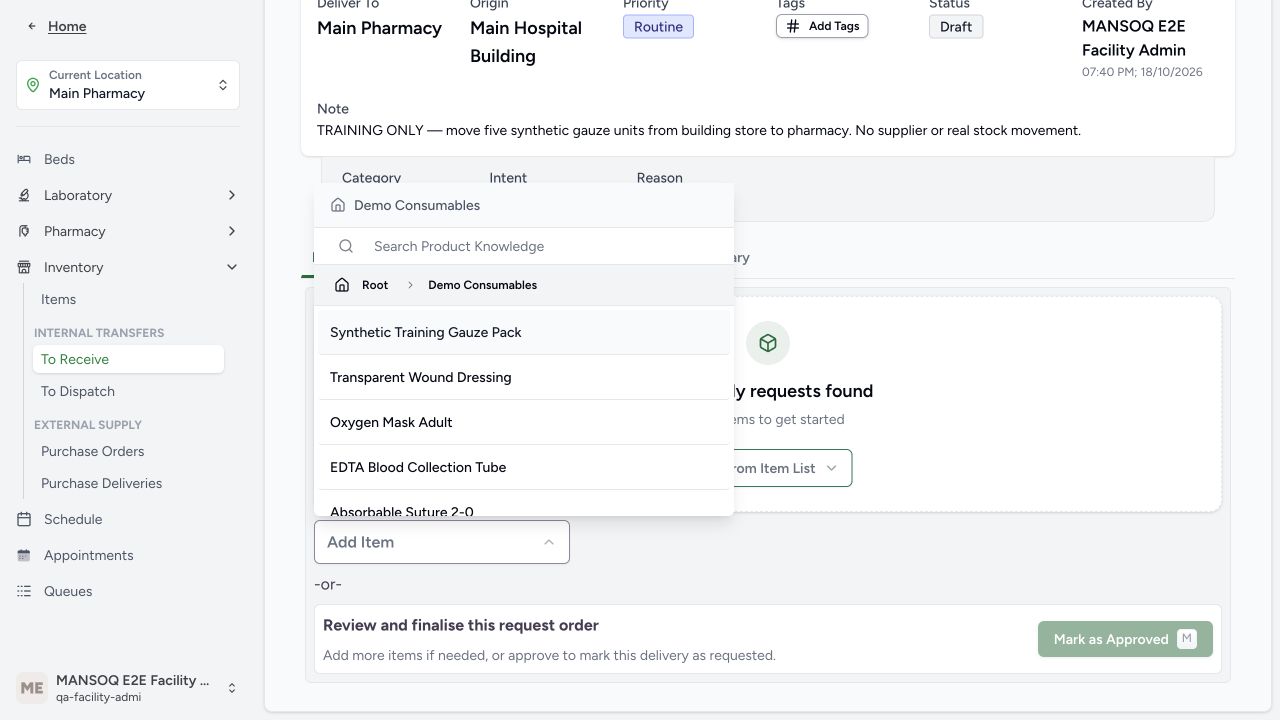
Choose Add Item, open the configured category and select the exact Synthetic Training Gauze Pack definition. The request identifies the reusable product; the sender selects the physical batch later.
 1
1- Select the exact product definition: Choose the configured synthetic gauze definition; request quantity and dispatch batch are entered later.
4. Enter the needed quantity and save the list
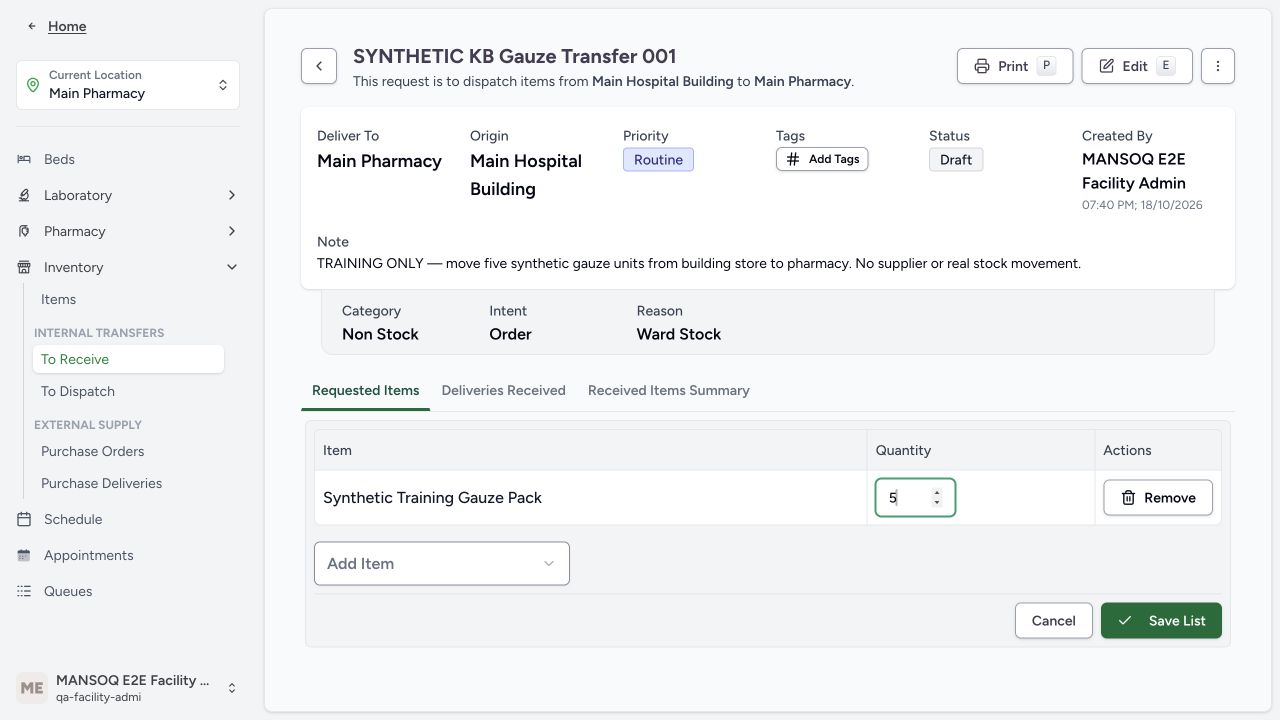
Set the quantity in the coded base unit and select Save List. The example requests5 count units. Verify that the list contains only the intended items. Removing an unsaved row and changing a saved request are different operations.
 12
12- Request five base units: The quantity belongs to the requested product definition; the supplying store chooses a physical batch later.
- Save the requested items: Save the list before approving the request.
5. Approve the prepared request
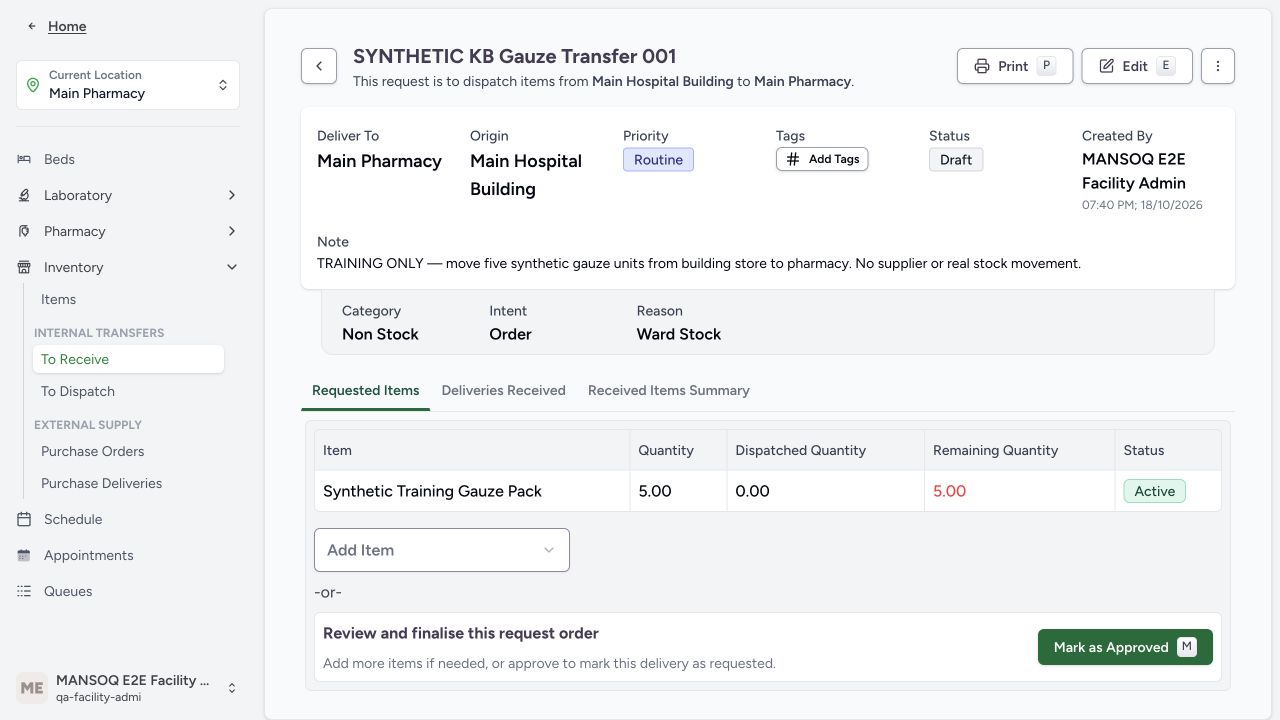
Review the receiver, origin, product and quantity, then Mark as Approved. The request moves from Draft to Pending. This approval neither creates a delivery nor receives stock.
 12
12- Review the requested line: Five units are requested; none have been dispatched yet.
- Approve the request: Approval sends the prepared request to the supplying location; it is not receipt.
6. Follow the sending-store queue
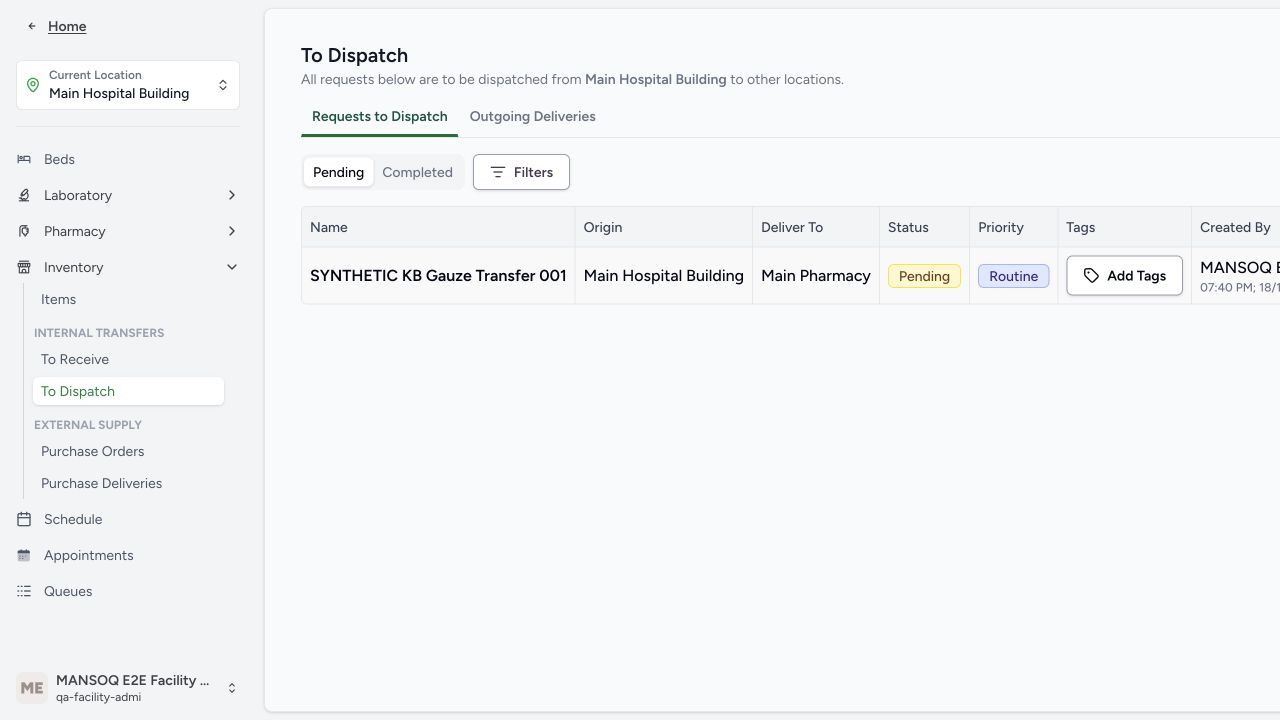
Switch to the sending store and open Inventory → To Dispatch. The request appears as a pending dispatch. Continue with the dispatch guide; requested, dispatched and remaining quantities must be read separately.
 1
1- Match the pending request: Match the request name, source and receiver. The Actions column lies off the right edge in this older desktop frame; scroll the table horizontally to reach View Details.
Source evidence
References are pinned to the private MANSOQ source repository. Repository access is required to open these links.
- repositories/platform/mansoq-web/src/pages/Facility/services/inventory/ToReceive.tsx:1 · f6e9f05f
- repositories/platform/mansoq-web/src/pages/Facility/services/inventory/externalSupply/requestOrder/RequestOrderForm.tsx:1 · f6e9f05f
- repositories/platform/mansoq-web/src/pages/Facility/services/inventory/externalSupply/requestOrder/AddItemsForm.tsx:1 · f6e9f05f
- repositories/platform/mansoq-web/src/pages/Facility/services/inventory/externalSupply/requestOrder/RequestOrderShow.tsx:1 · f6e9f05f