 MANSOQ
 Facility administration
Create an activity catalogue category as Laboratory Admin
Open the intended activity catalogue, correct required name and slug fields, and verify the saved category before adding definitions.
6 min read · Source baseline f6e9f05f
Verification and applicability
Ten actual 1920 × 1080 Chrome screenshots of original f6e9 local synthetic Laboratory UI. Existing normal Facility Admin created one category and one base activity through normal forms. Normal category/detail/search GET200 reads confirm category86c1cfe0…, activity5e5b82c5…, Active/Laboratory/Service Request, exact installed NPHIES laboratory code73050-15-50, controlled slugs and empty optional associations. No patient/order, charge, diagnosis/treatment, grant change or deletion.
Check your installed version, permissions and local configuration.
Before you begin
- Sign in with your existing Facility Admin account and open the intended facility. This observed account belongs to one synthetic Laboratory and has actual activity-definition and resource-category read/write permissions. No role or membership is changed.
- The category and activity in these screenshots are explicitly synthetic catalogue examples. They are reusable definitions; no patient, real laboratory order, clinical treatment, pricing or external transaction is created.
1. Open Activity Definitions in the intended facility
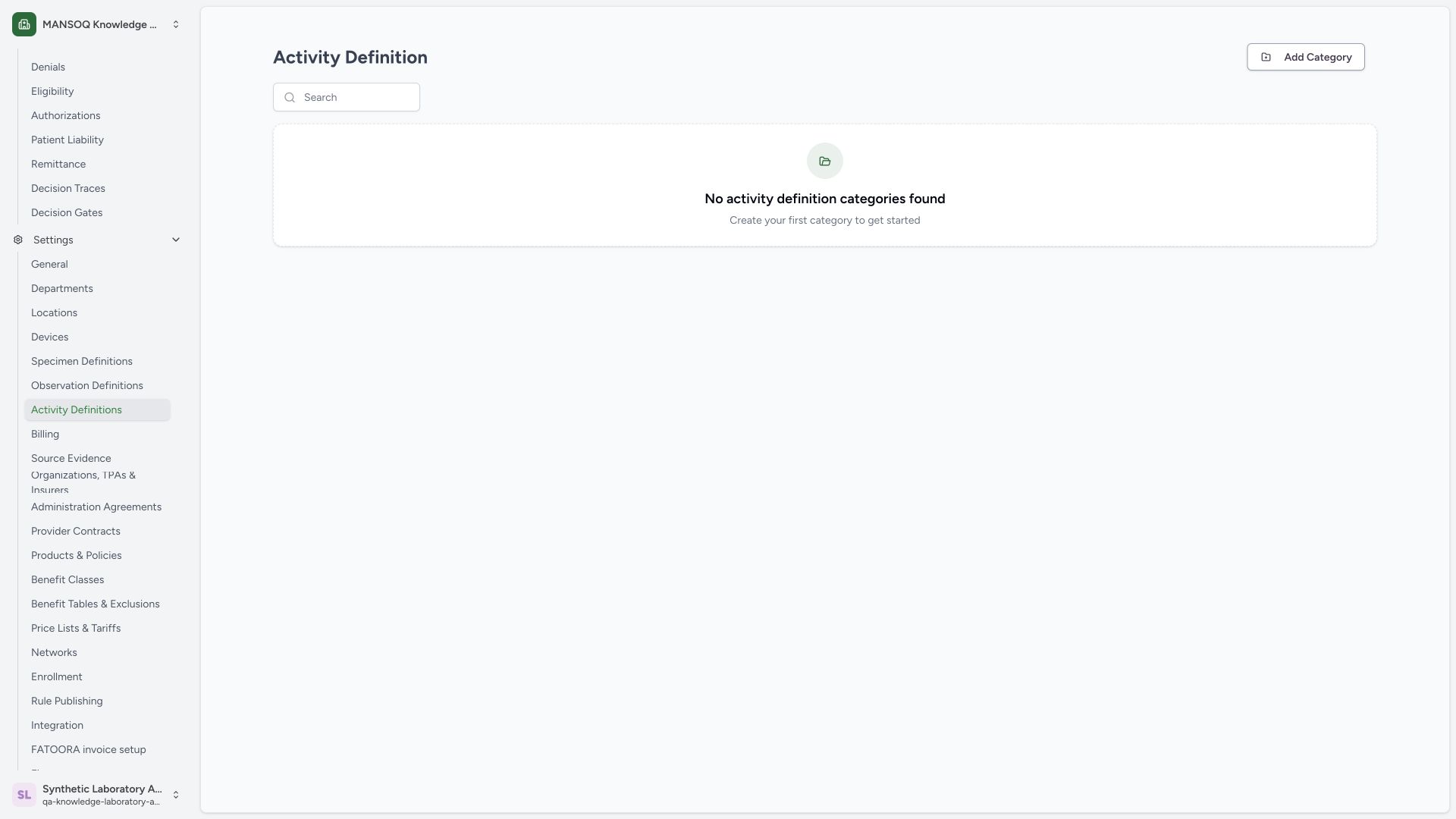
As the existing authorized Facility Admin, open Settings → Activity Definitions in the intended Laboratory. The illustrated empty catalogue says No activity definition categories found. Use Add Category to begin the synthetic example.
 1234
1234Capture details
Actual 1920 × 1080 Chrome pixels; pinned source f6e9f05f. normal Laboratory Facility Admin synthetic activity catalogue creation
- Activity Definitions: Open this catalogue under Settings.
- Empty catalogue context: No categories exist in this isolated Laboratory yet.
- Add Category: Start the first clearly synthetic teaching category.
- Existing Laboratory Admin: This normal account has actual catalogue-write rights.
2. Correct the required category fields
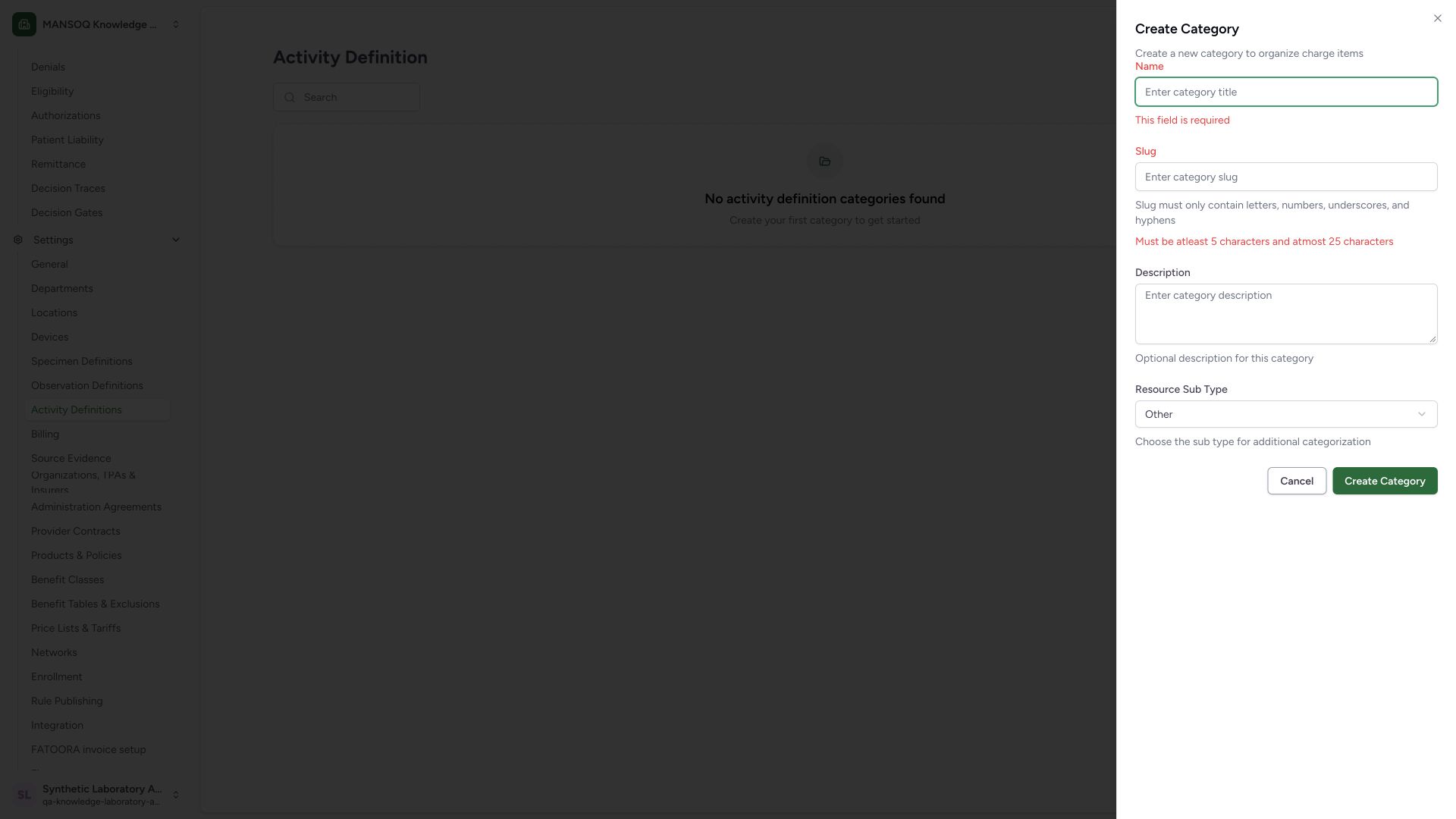
Submitting the blank category form shows a required Name and the Slug length rule of 5–25 characters. The slug accepts letters, numbers, underscores and hyphens. The generic sheet description mentions charge items even in this Activity Definition context; confirm the catalogue you opened.
 1234
1234Capture details
Actual 1920 × 1080 Chrome pixels; pinned source f6e9f05f. normal Laboratory Facility Admin synthetic activity catalogue creation
- Category Name required: Complete the name before saving.
- Category Slug required: Use 5–25 allowed characters.
- Resource subtype: The base example keepsOther.
- Create Category: Retry after correcting the required fields.
3. Review the category and save once
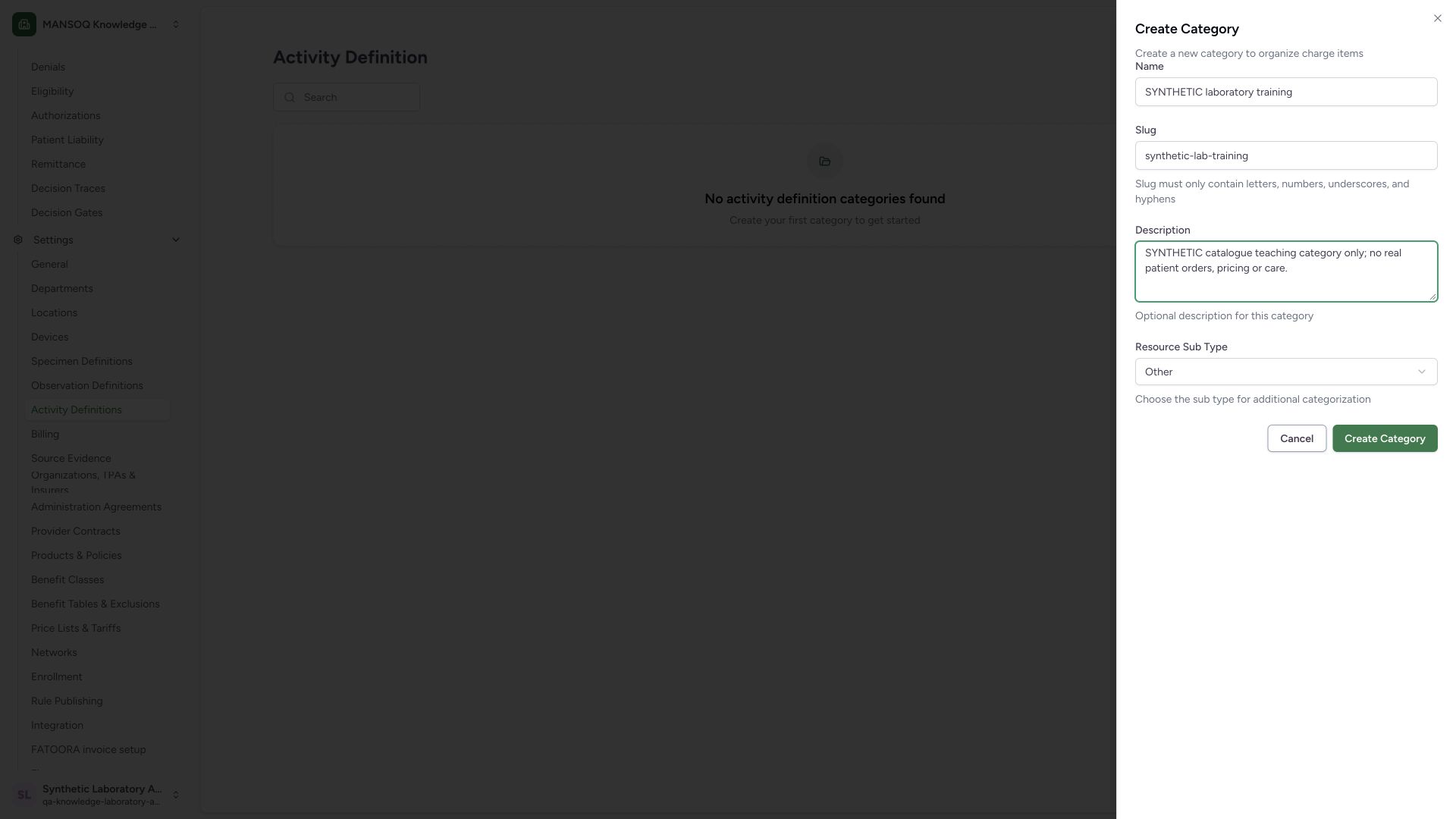
Enter SYNTHETIC laboratory training, review synthetic-lab-training, add the training-only description and keep Other as this example’s resource subtype. Use Create Category once after reviewing the fields.
 12345
12345Capture details
Actual 1920 × 1080 Chrome pixels; pinned source f6e9f05f. normal Laboratory Facility Admin synthetic activity catalogue creation
- Synthetic category name: Make the training purpose clear.
- Stable category slug: Review synthetic-lab-training.
- Synthetic description: The category represents no real orders or care.
- Other subtype: This base category keeps the default subtype.
- Create Category: Save once after reviewing the values.
4. Verify the saved category workspace
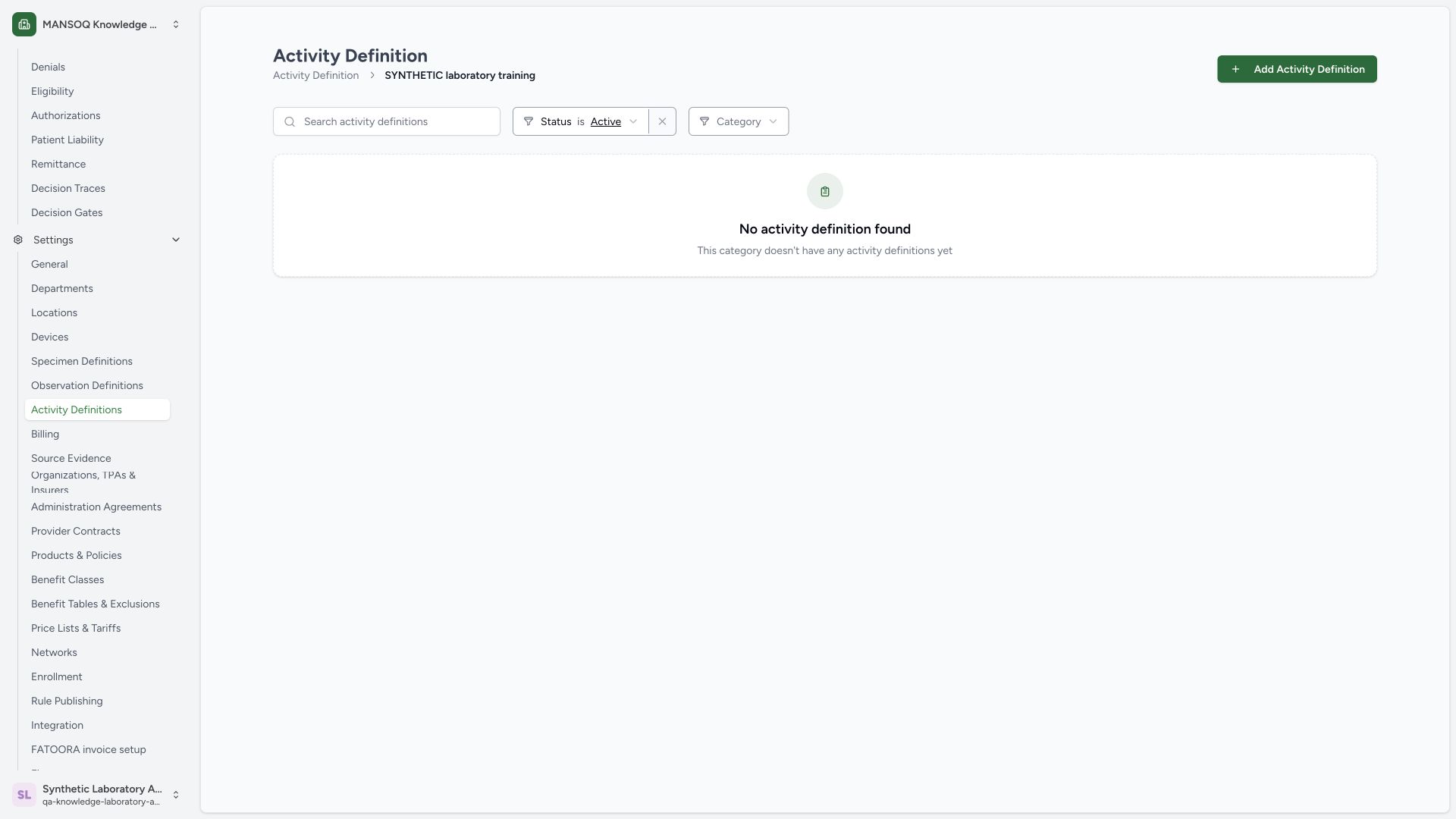
The new category appears in the breadcrumb with Status is Active, an empty definitions list and Add Activity Definition. Independent normal category GET200 verifies the saved activity-definition resource category and facility-scoped slug. Saving the folder does not create an activity or patient order.
 1234
1234Capture details
Actual 1920 × 1080 Chrome pixels; pinned source f6e9f05f. normal Laboratory Facility Admin synthetic activity catalogue creation
- Saved synthetic category: Confirm the category breadcrumb.
- Default Active filter: This filter controls the displayed definitions.
- No activity entries yet: The category is saved separately from its items.
- Add Activity Definition: Create a clearly synthetic entry inside this category.
Category classification versus Resource Category
In the activity form, Category classifies the activity as Service, Laboratory, Imaging, Procedure, Counselling or Education. Resource Category identifies the catalogue folder. The example uses Laboratory classification inside the separate SYNTHETIC laboratory training folder.
Role and version scope
These are actual original f6e9 screens with one existing Laboratory Facility Admin. The source grants activity-definition writes to Facility Admin/Admin; other observed Staff/Doctor accounts have read rights. Visible generic controls alone do not prove another role’s authorization or every facility variant.
Further configuration
Specimen and observation requirements, charge definitions, healthcare service, locations, body site, report codes and derived URI are left empty in this base guide. Their visible selectors do not establish a completed linked catalogue or downstream laboratory/billing workflow. Edit, status maintenance and Delete are separate actions; none is executed in this creation package.
Troubleshooting
A required field is shown in red
Complete the indicated field and review the chosen classification, resource folder and actual terminology code before saving again.
The expected entry is missing from the category
Confirm the selected category, search text and Status filter. The default category list filters Active entries; other statuses need their own list selection.
Source evidence
References are pinned to the private MANSOQ source repository. Repository access is required to open these links.
- repositories/platform/mansoq-web/src/pages/Facility/settings/activityDefinition/ActivityDefinitionList.tsx:17 · f6e9f05f
- repositories/platform/mansoq-web/src/components/Common/ResourceCategoryList.tsx:387 · f6e9f05f
- repositories/platform/mansoq-web/src/components/Common/ResourceCategoryForm.tsx:70 · f6e9f05f
- repositories/platform/mansoq-web/src/components/Common/ResourceCategoryForm.tsx:170 · f6e9f05f
- repositories/platform/mansoq-web/src/pages/Facility/settings/activityDefinition/ActivityDefinitionForm.tsx:131 · f6e9f05f
- repositories/platform/mansoq-web/src/pages/Facility/settings/activityDefinition/ActivityDefinitionForm.tsx:393 · f6e9f05f
- repositories/platform/mansoq-web/src/pages/Facility/settings/activityDefinition/ActivityDefinitionForm.tsx:685 · f6e9f05f
- repositories/platform/mansoq-web/src/pages/Facility/settings/activityDefinition/ActivityDefinitionListComponent.tsx:184 · f6e9f05f
- repositories/platform/mansoq-web/src/pages/Facility/settings/activityDefinition/ActivityDefinitionListComponent.tsx:244 · f6e9f05f
- repositories/platform/mansoq-web/src/pages/Facility/settings/activityDefinition/ActivityDefinitionView.tsx:97 · f6e9f05f
- repositories/platform/mansoq-web/src/types/emr/activityDefinition/activityDefinitionApi.ts:19 · f6e9f05f
- repositories/platform/mansoq-core/mansoq/security/permissions/activity_definition.py:16 · f6e9f05f
- repositories/platform/mansoq-core/mansoq/emr/api/viewsets/activity_definition.py:202 · f6e9f05f
- repositories/platform/mansoq-core/mansoq/emr/api/viewsets/activity_definition.py:162 · f6e9f05f
- repositories/platform/mansoq-core/mansoq/emr/api/viewsets/activity_definition.py:95 · f6e9f05f
- repositories/platform/mansoq-core/mansoq/emr/resources/activity_definition/spec.py:71 · f6e9f05f