 MANSOQ
 Facility administration
Create and verify a base laboratory activity definition
Complete the required catalogue information, select an actual installed code, save the base definition, and find it through search and its detail page.
10 min read · Source baseline f6e9f05f
Verification and applicability
Ten actual 1920 × 1080 Chrome screenshots of original f6e9 local synthetic Laboratory UI. Existing normal Facility Admin created one category and one base activity through normal forms. Normal category/detail/search GET200 reads confirm category86c1cfe0…, activity5e5b82c5…, Active/Laboratory/Service Request, exact installed NPHIES laboratory code73050-15-50, controlled slugs and empty optional associations. No patient/order, charge, diagnosis/treatment, grant change or deletion.
Check your installed version, permissions and local configuration.
Before you begin
- Sign in with your existing Facility Admin account and open the intended facility. This observed account belongs to one synthetic Laboratory and has actual activity-definition and resource-category read/write permissions. No role or membership is changed.
- The category and activity in these screenshots are explicitly synthetic catalogue examples. They are reusable definitions; no patient, real laboratory order, clinical treatment, pricing or external transaction is created.
- Create or choose the intended Resource Category first. This guide continues inside the already saved SYNTHETIC laboratory training category. Use only genuine returned terminology results; do not invent a code to bypass validation.
1. Open Add Activity Definition and identify required fields
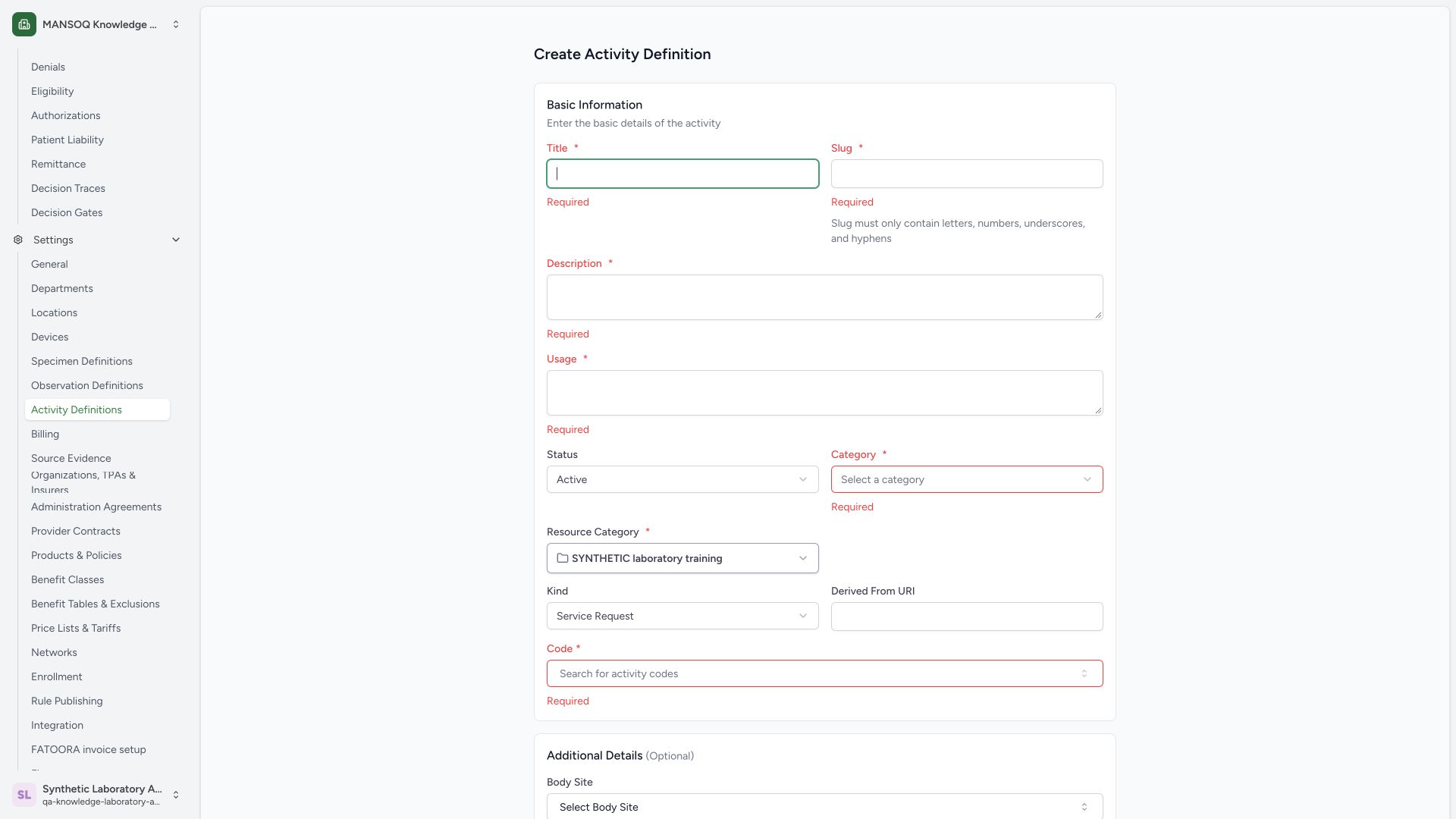
Inside the saved category, use Add Activity Definition. A blank Create attempt identifies required Title, Slug, Description, Usage, Category classification and Code. Resource Category is already populated from the parent folder. Correct these fields before saving.
 1234567
Capture details
Actual 1920 × 1080 Chrome pixels; pinned source f6e9f05f. normal Laboratory Facility Admin synthetic activity catalogue creation
- Title required: Enter a clearly synthetic catalogue title.
- Slug required: Use a stable5–25 character identifier.
- Description required: Explain the training-only purpose.
- Usage required: State the intended catalogue usage.
- Category classification required: This classifies the activity, separately from its folder.
- Resource Category folder: The saved synthetic category is already selected.
- Code required: Choose an actual installed terminology result.
2. Enter the synthetic identity and select an actual code
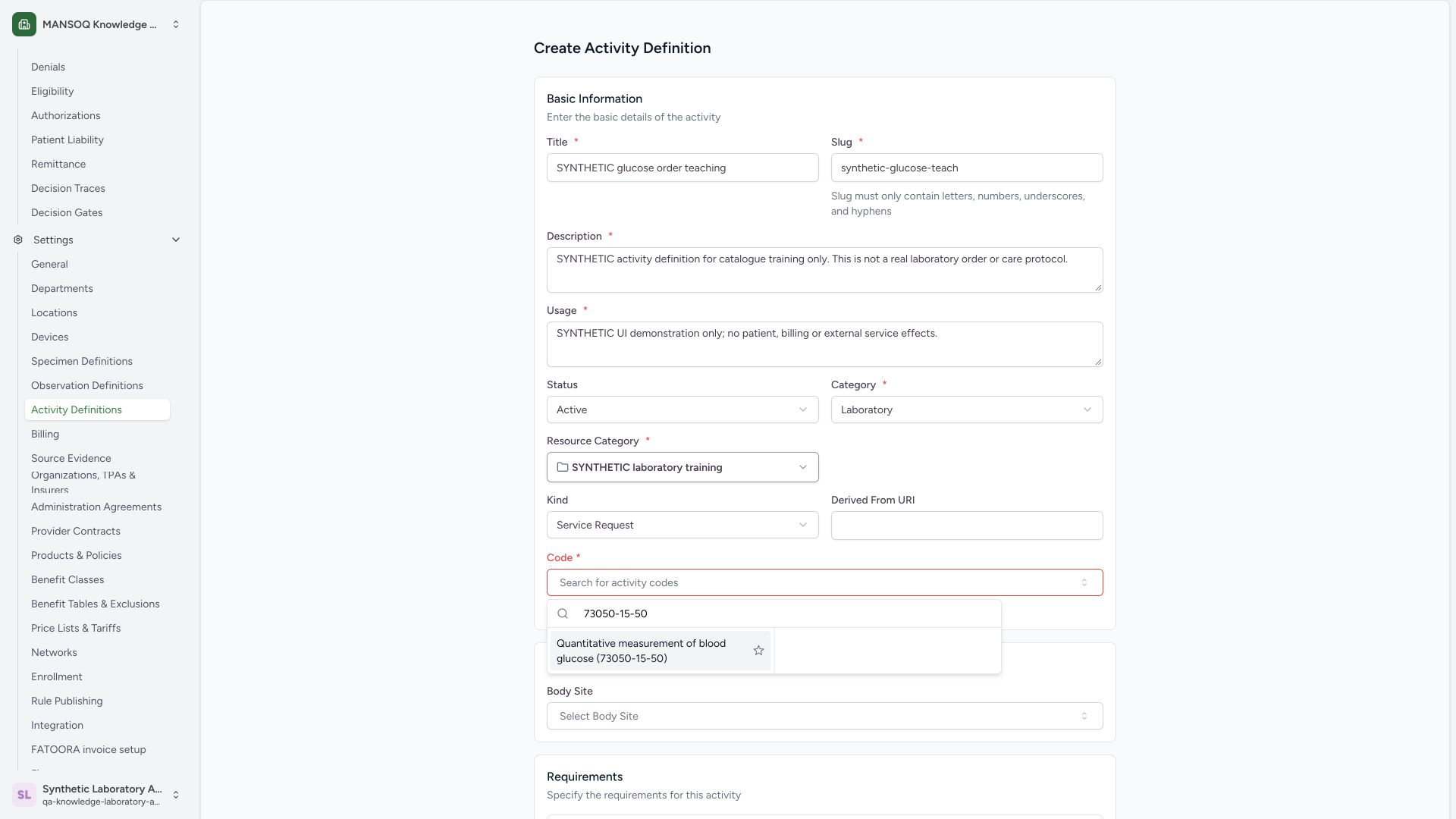
Enter the clearly synthetic title, stable synthetic-glucose-teach slug, description and usage. Choose Laboratory in the classification field, keep the intended Resource Category and search 73050-15-50 in Code. The normal lookup actually returns Quantitative measurement of blood glucose (73050-15-50); select that result.
 123456
Capture details
Actual 1920 × 1080 Chrome pixels; pinned source f6e9f05f. normal Laboratory Facility Admin synthetic activity catalogue creation
- Synthetic activity title: The catalogue entry is explicitly fictional.
- Stable activity slug: Review synthetic-glucose-teach.
- Laboratory classification: Separate this class from the Resource Category folder.
- Selected folder: Use the saved synthetic laboratory category.
- Code search: Search the installed official code.
- Actual returned result: Select Quantitative measurement of blood glucose 73050-15-50.
3. Review the selected base definition
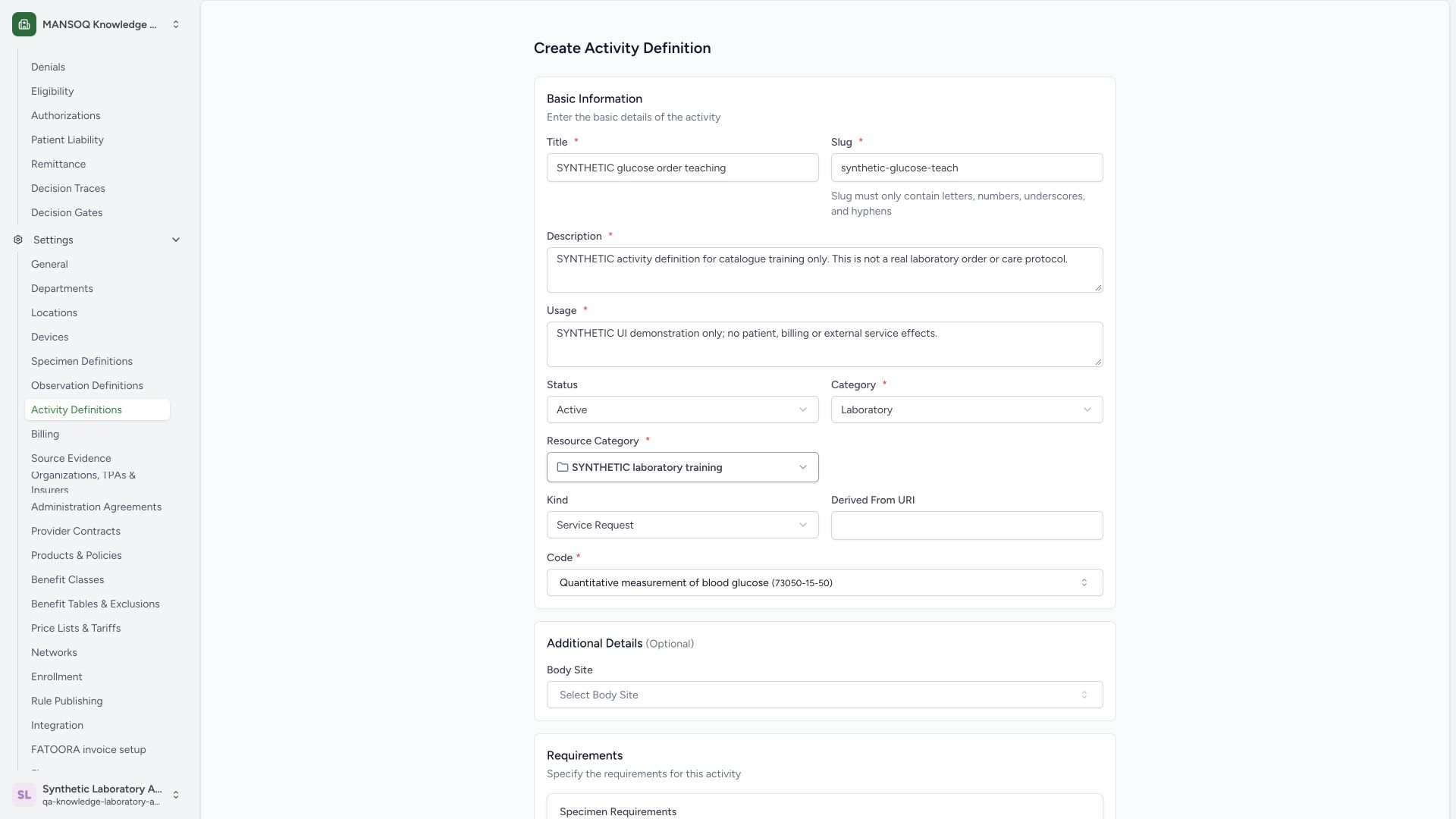
Confirm Active, Laboratory, the synthetic Resource Category, Service Request, the saved synthetic text and the selected code. This step defines a reusable catalogue item; it does not execute the test or create a patient service request. Derived From URI and Body Site remain empty in this base example.
 1234567
Capture details
Actual 1920 × 1080 Chrome pixels; pinned source f6e9f05f. normal Laboratory Facility Admin synthetic activity catalogue creation
- Synthetic identity: Verify the intended catalogue title.
- Stable activity slug: Review synthetic-glucose-teach.
- Active status: This is catalogue availability, not patient order completion.
- Laboratory classification: Review the activity class.
- Resource Category folder: Confirm the synthetic training category.
- Service Request kind: The supported kind creates a service-order definition.
- Selected actual code: Verifyblood glucose 73050-15-50.
4. Review optional associations and use Create
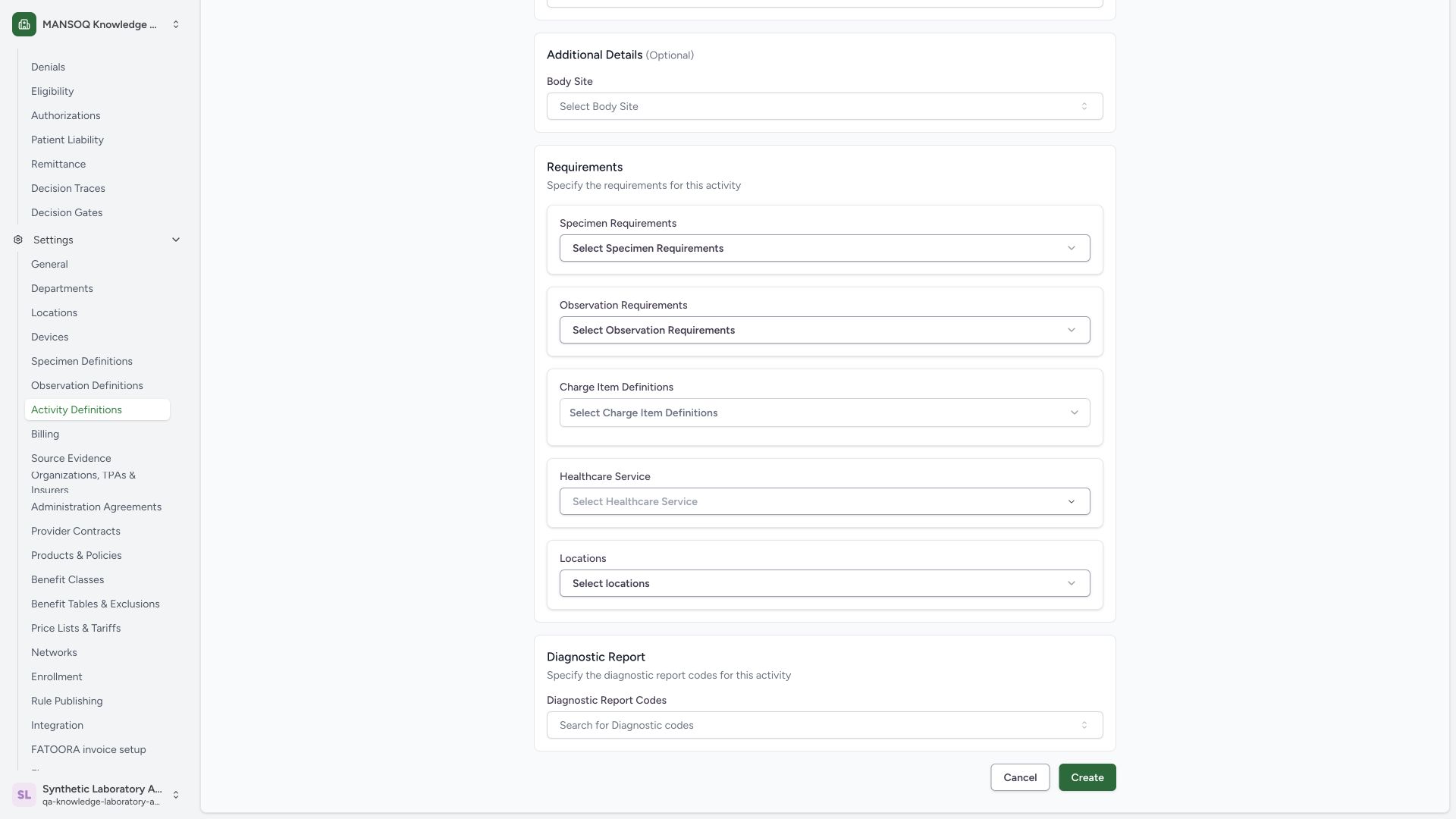
Scroll through Requirements and Diagnostic Report Codes. The illustrated base definition leaves specimen, observation, charge, service, location and report-code associations unselected. These links need separate setup and verification. Use Create once to save the reviewed base definition.
 12345678
Capture details
Actual 1920 × 1080 Chrome pixels; pinned source f6e9f05f. normal Laboratory Facility Admin synthetic activity catalogue creation
- Optional body site: No body site is selected for this base exercise.
- Specimen requirements: Linking specimens is a separate configured workflow.
- Observation requirements: Linking result definitions is separate.
- Charge definitions: No pricing/billing dependency is added.
- Healthcare service: No operational service is assigned here.
- Location requirements: No laboratory location is linked yet.
- Diagnostic report codes: No report code is selected in this base example.
- Create: Save the reviewed synthetic base definition once.
5. Find the saved Active entry in its category
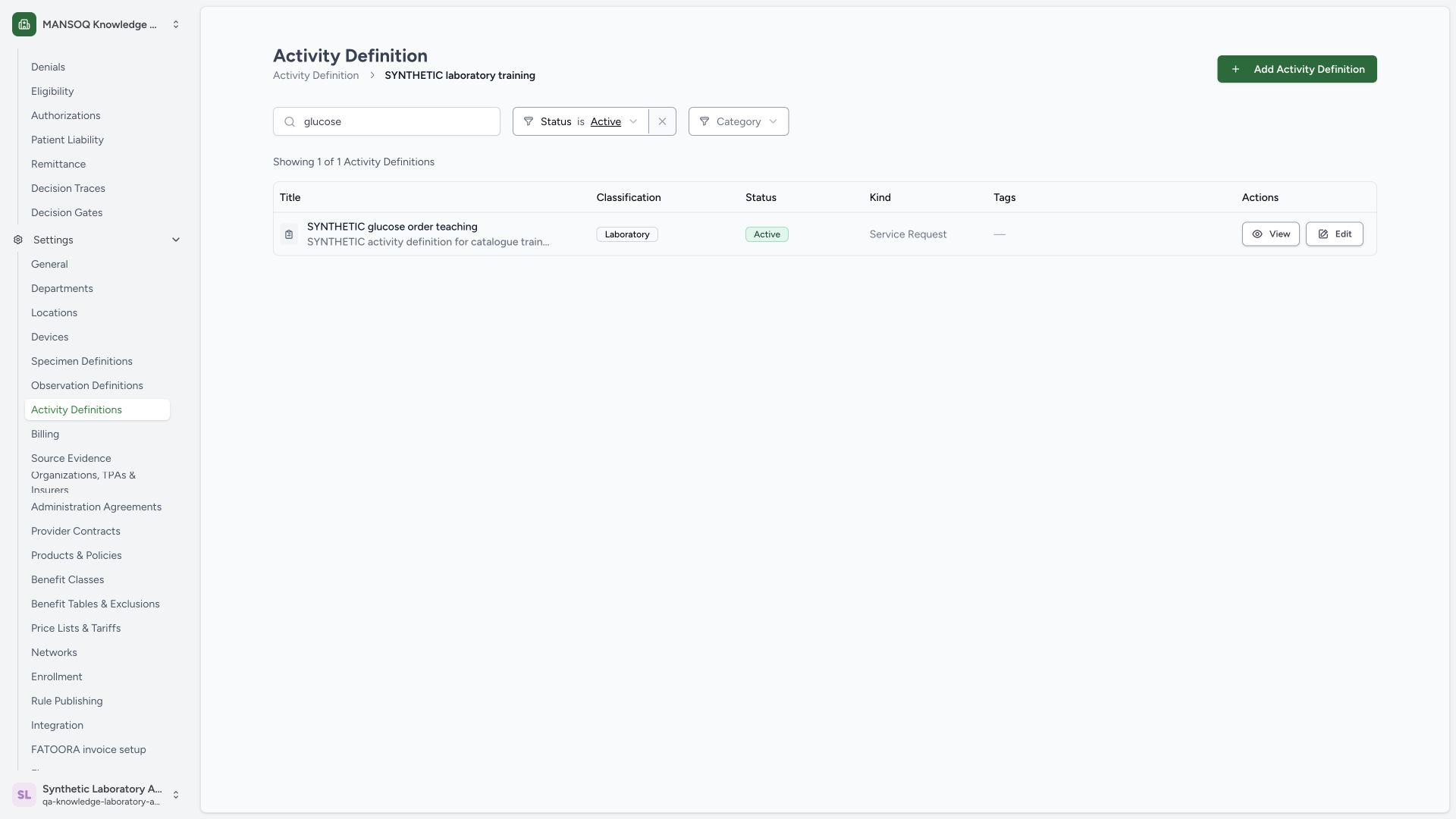
After creation returns to the catalogue root, open the same synthetic category. Search glucose with Status is Active. Verify Showing 1 of 1, the intended title, Laboratory classification and Service Request kind. Use View on that row; Edit is a separate maintenance action. Normal scoped search GET200 confirms the same saved UUID.
 1234567
Capture details
Actual 1920 × 1080 Chrome pixels; pinned source f6e9f05f. normal Laboratory Facility Admin synthetic activity catalogue creation
- Catalogue search: Search glucose in the intended category.
- Active status filter: This result is currently Active.
- Saved synthetic activity: Verify the intended title and description.
- Laboratory classification: Confirm the saved activity class.
- Service Request kind: The row is a definition, not an executed patient order.
- View: Open the saved definition details.
- Edit: Authorized maintenance is a separate next workflow.
6. Verify the persisted details
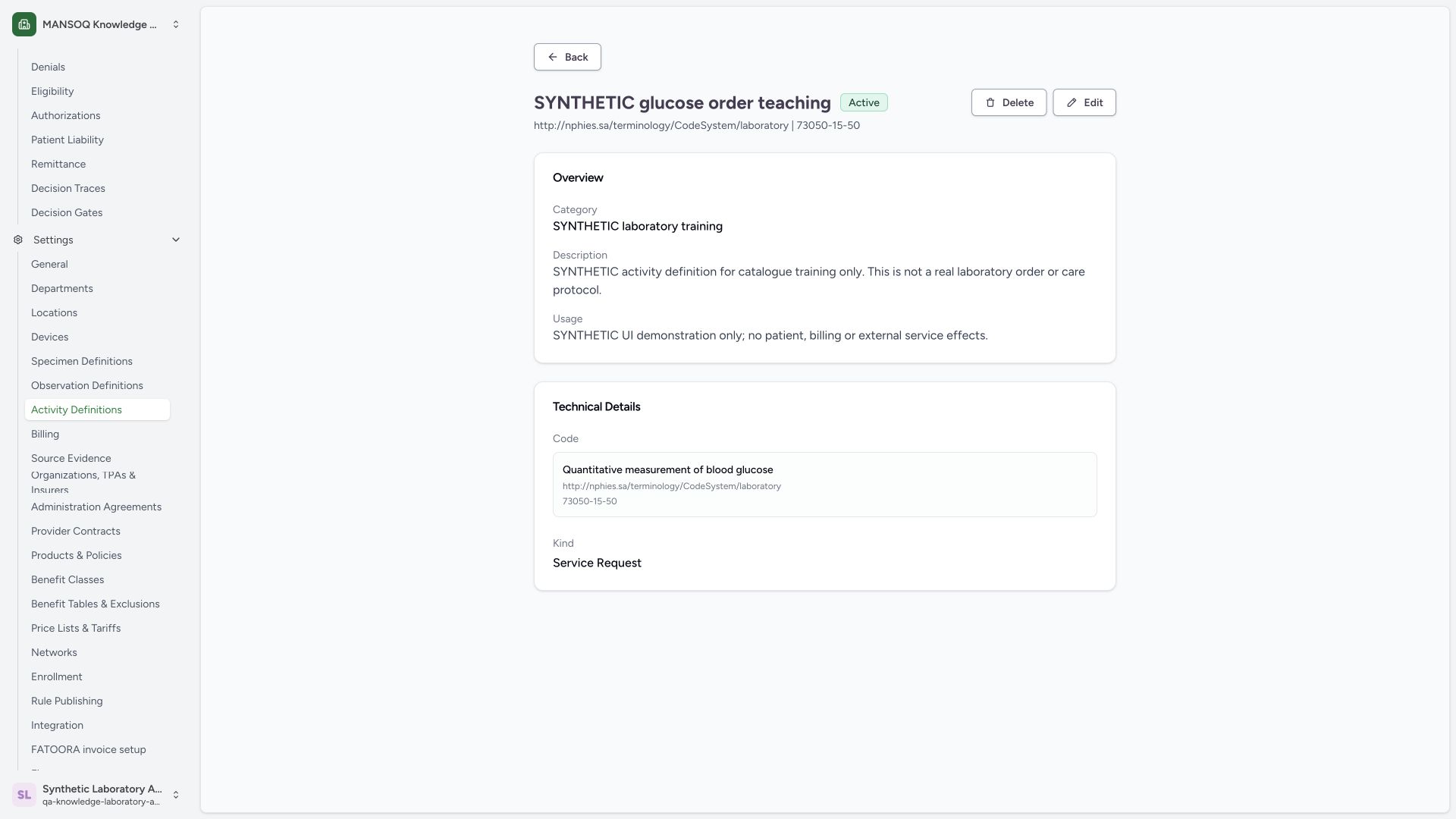
On the detail page, confirm the synthetic title, Active, folder, description and usage. Under Technical Details, verify the exact display, NPHIES laboratory system, 73050-15-50 code and Service Request kind. Independent normal detail GET200 corroborates this record and its empty optional associations. Delete and Edit are visible but are not executed in this creation guide.
 1234567
Capture details
Actual 1920 × 1080 Chrome pixels; pinned source f6e9f05f. normal Laboratory Facility Admin synthetic activity catalogue creation
- Saved synthetic activity: Verify the intended title and Active state.
- Saved category: Confirm the synthetic catalogue folder.
- Saved description: The entry remains training-only.
- Saved usage: No patient, billing or external service effects are requested.
- Actual saved terminology code: Verify the display, system and 73050-15-50 code.
- Service Request kind: This is a reusable definition, not an executed order.
- Edit: Continue supported maintenance separately.
Category classification versus Resource Category
In the activity form, Category classifies the activity as Service, Laboratory, Imaging, Procedure, Counselling or Education. Resource Category identifies the catalogue folder. The example uses Laboratory classification inside the separate SYNTHETIC laboratory training folder.
Role and version scope
These are actual original f6e9 screens with one existing Laboratory Facility Admin. The source grants activity-definition writes to Facility Admin/Admin; other observed Staff/Doctor accounts have read rights. Visible generic controls alone do not prove another role’s authorization or every facility variant.
Further configuration
Specimen and observation requirements, charge definitions, healthcare service, locations, body site, report codes and derived URI are left empty in this base guide. Their visible selectors do not establish a completed linked catalogue or downstream laboratory/billing workflow. Edit, status maintenance and Delete are separate actions; none is executed in this creation package.
Troubleshooting
A required field is shown in red
Complete the indicated field and review the chosen classification, resource folder and actual terminology code before saving again.
The expected entry is missing from the category
Confirm the selected category, search text and Status filter. The default category list filters Active entries; other statuses need their own list selection.
Source evidence
References are pinned to the private MANSOQ source repository. Repository access is required to open these links.
- repositories/platform/mansoq-web/src/pages/Facility/settings/activityDefinition/ActivityDefinitionList.tsx:17 · f6e9f05f
- repositories/platform/mansoq-web/src/components/Common/ResourceCategoryList.tsx:387 · f6e9f05f
- repositories/platform/mansoq-web/src/components/Common/ResourceCategoryForm.tsx:70 · f6e9f05f
- repositories/platform/mansoq-web/src/components/Common/ResourceCategoryForm.tsx:170 · f6e9f05f
- repositories/platform/mansoq-web/src/pages/Facility/settings/activityDefinition/ActivityDefinitionForm.tsx:131 · f6e9f05f
- repositories/platform/mansoq-web/src/pages/Facility/settings/activityDefinition/ActivityDefinitionForm.tsx:393 · f6e9f05f
- repositories/platform/mansoq-web/src/pages/Facility/settings/activityDefinition/ActivityDefinitionForm.tsx:685 · f6e9f05f
- repositories/platform/mansoq-web/src/pages/Facility/settings/activityDefinition/ActivityDefinitionListComponent.tsx:184 · f6e9f05f
- repositories/platform/mansoq-web/src/pages/Facility/settings/activityDefinition/ActivityDefinitionListComponent.tsx:244 · f6e9f05f
- repositories/platform/mansoq-web/src/pages/Facility/settings/activityDefinition/ActivityDefinitionView.tsx:97 · f6e9f05f
- repositories/platform/mansoq-web/src/types/emr/activityDefinition/activityDefinitionApi.ts:19 · f6e9f05f
- repositories/platform/mansoq-core/mansoq/security/permissions/activity_definition.py:16 · f6e9f05f
- repositories/platform/mansoq-core/mansoq/emr/api/viewsets/activity_definition.py:202 · f6e9f05f
- repositories/platform/mansoq-core/mansoq/emr/api/viewsets/activity_definition.py:162 · f6e9f05f
- repositories/platform/mansoq-core/mansoq/emr/api/viewsets/activity_definition.py:95 · f6e9f05f
- repositories/platform/mansoq-core/mansoq/emr/resources/activity_definition/spec.py:71 · f6e9f05f