Register a distinct person and switch phone-linked patient context
Check for an existing record, complete required demographics and verify whose appointments you are managing.
Current source · source reviewed · 7 min read
Before you begin
You are authorized to act for the intended person and have verified the appropriate phone.
You selected a public practitioner and slot, then reached Select/Register Patient.
Check existing records first and follow the facility’s identity and caregiver authorization process.
1. Check existing records first
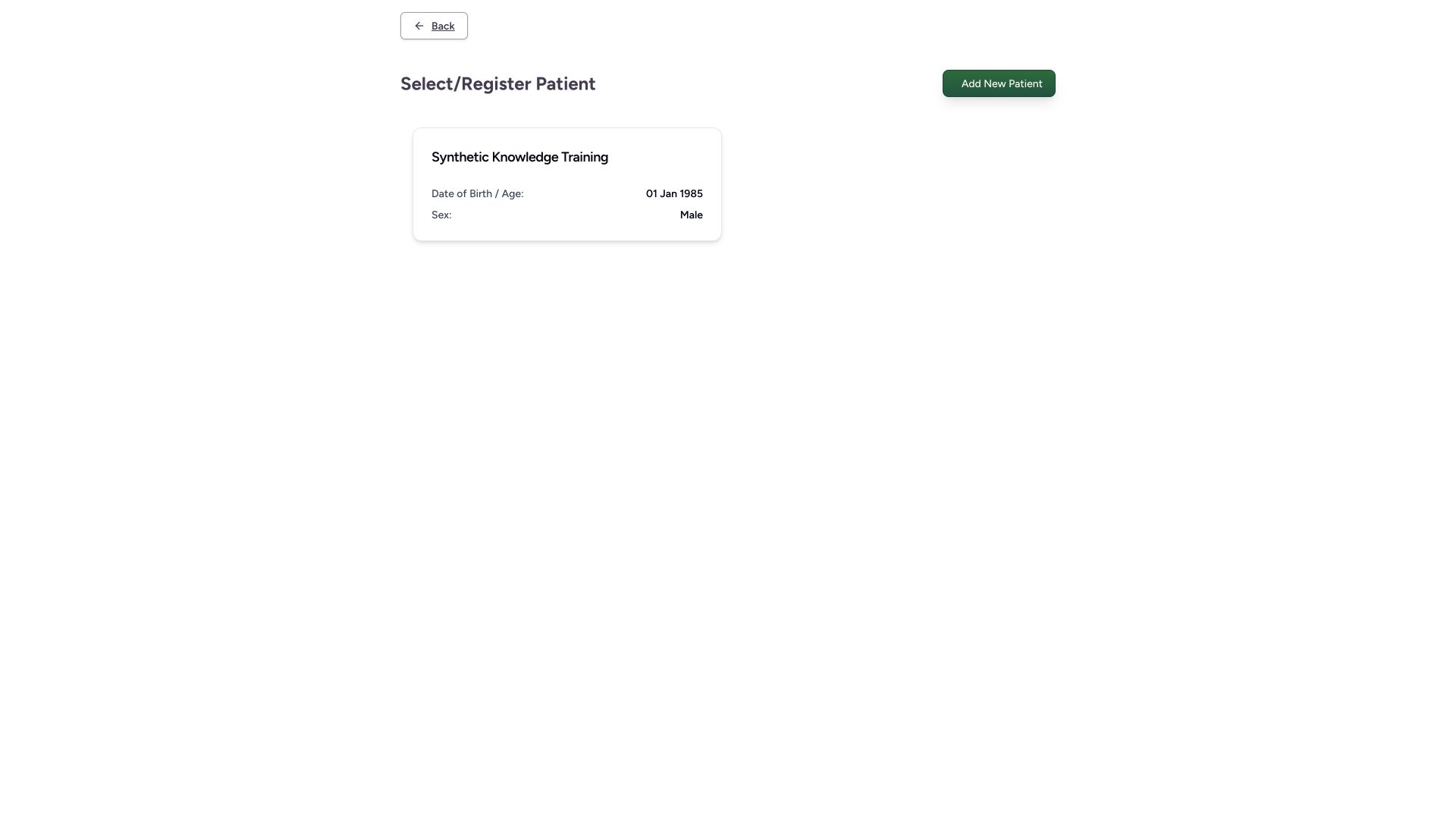
On Select/Register Patient, compare the listed patient identities. If the intended person is absent, confirm the phone and existing record with the facility before creating a duplicate. For a genuinely distinct new person, select Add New Patient.
1
Linked patient selection · 2026-10-18Actual unchanged MANSOQ production build in an isolated fictional Clinic with patient login explicitly enabled for this local configuration. No real patient, SMS, payment or attendance. Other facility types, deployed portal availability and formal caregiver delegation are not established. Action: Select/Register Patient lists only records linked to the verified phone; choose the intended patient, or Add New Patient for a distinct person.
Select the correct phone-linked patient after checking name, date of birth and sex: Select the correct phone-linked patient after checking name, date of birth and sex
1
New patient form · 2026-10-18Actual unchanged MANSOQ production build in an isolated fictional Clinic with patient login explicitly enabled for this local configuration. No real patient, SMS, payment or attendance. Other facility types, deployed portal availability and formal caregiver delegation are not established. Start: Add New Patient opens registration under the already verified phone; it asks for a distinct person’s identity, sex, DOB/age, address, PIN and administrative location.
Patient Name: register a distinct person only after checking whether their record is already listed: Patient Name: register a distinct person only after checking whether their record is already listed
2. Complete the required identity fields
The verified phone is displayed on the registration form. Enter the distinct person’s Patient Name, select Sex, and choose Date of Birth or Age. Required validation blocks an incomplete registration; resolve the marked fields before continuing.
1
New patient form · 2026-10-18Actual unchanged MANSOQ production build in an isolated fictional Clinic with patient login explicitly enabled for this local configuration. No real patient, SMS, payment or attendance. Other facility types, deployed portal availability and formal caregiver delegation are not established. Start: Add New Patient opens registration under the already verified phone; it asks for a distinct person’s identity, sex, DOB/age, address, PIN and administrative location.
Patient Name: register a distinct person only after checking whether their record is already listed: Patient Name: register a distinct person only after checking whether their record is already listed
1
Registration required · 2026-10-18Actual unchanged MANSOQ production build in an isolated fictional Clinic with patient login explicitly enabled for this local configuration. No real patient, SMS, payment or attendance. Other facility types, deployed portal availability and formal caregiver delegation are not established. Error: empty registration shows required name, sex, address, PIN and State validation; no patient was created.
Resolve the required identity fields before registering a new person: Resolve the required identity fields before registering a new person
3. Choose exact date or age deliberately
Enter a known date using day, month and year, or select Age when that is the available information. The form explicitly says Age stores only a year of birth. In this synthetic example Age 26 produced year 2000 with no exact DOB, independently checked.
1
Registration identity · 2026-10-18Actual unchanged MANSOQ production build in an isolated fictional Clinic with patient login explicitly enabled for this local configuration. No real patient, SMS, payment or attendance. Other facility types, deployed portal availability and formal caregiver delegation are not established. Action: distinct fictional name, Female and Age 26 are entered. The form explains that Age stores only year of birth 2000, rather than an exact DOB.
Age stores a year of birth only; choose Date of Birth when an exact birth date is known: Age stores a year of birth only; choose Date of Birth when an exact birth date is known
4. Complete address and configured geography
Enter the required Current Address and Route to Home, PIN Code and every required administrative location. In the illustrated configuration the country, region and city selectors all show the caption State; inspect each selected value and complete the actual configured hierarchy.
1
Registration submit · 2026-10-18Actual unchanged MANSOQ production build in an isolated fictional Clinic with patient login explicitly enabled for this local configuration. No real patient, SMS, payment or attendance. Other facility types, deployed portal availability and formal caregiver delegation are not established. Action: fictional address, PIN 111111 and complete configured country/region/city hierarchy are reviewed before Register Patient. Repeated State captions reflect configured hierarchy labels in this build.
Register Patient: save the distinct phone-linked person and complete the selected booking: Register Patient: save the distinct phone-linked person and complete the selected booking
5. Register and verify the selected booking
Review all information, then select Register Patient. In this booking path, registration saves the new person and then creates their selected appointment. Wait for success and verify the new patient name, practitioner, date and time. The illustrated 10:00 booking persisted independently.
1
Registration submit · 2026-10-18Actual unchanged MANSOQ production build in an isolated fictional Clinic with patient login explicitly enabled for this local configuration. No real patient, SMS, payment or attendance. Other facility types, deployed portal availability and formal caregiver delegation are not established. Action: fictional address, PIN 111111 and complete configured country/region/city hierarchy are reviewed before Register Patient. Repeated State captions reflect configured hierarchy labels in this build.
Register Patient: save the distinct phone-linked person and complete the selected booking: Register Patient: save the distinct phone-linked person and complete the selected booking
1
Registration success · 2026-10-18Actual unchanged MANSOQ production build in an isolated fictional Clinic with patient login explicitly enabled for this local configuration. No real patient, SMS, payment or attendance. Other facility types, deployed portal availability and formal caregiver delegation are not established. Success: normal public registration created the distinct fictional person and their 10:00 appointment; selected patient context now shows Synthetic Portal Family Training.
Switch: always verify the selected phone-linked person before viewing appointments: Switch: always verify the selected phone-linked person before viewing appointments
6. Switch the selected person carefully
Use Switch in the sidebar and select the intended phone-linked person. The check mark identifies the selected record. This list reflects phone association; it is not proof of a formal caregiver proxy relationship.
1
Phone linked switch · 2026-10-18Actual unchanged MANSOQ production build in an isolated fictional Clinic with patient login explicitly enabled for this local configuration. No real patient, SMS, payment or attendance. Other facility types, deployed portal availability and formal caregiver delegation are not established. Action: Switch lists two distinct fictional records linked to the same verified phone. This is phone association, not evidence of formal caregiver proxy authorization.
Select the intended phone-linked person; the listed relationship does not establish caregiver delegation: Select the intended phone-linked person; the listed relationship does not establish caregiver delegation
7. Verify the appointment filter
Open Appointments after switching. Confirm the selected person and their records before any change. In this example the original person’s two cancelled times appear; the distinct new person’s 10:00 booking does not appear in that selected person’s list.
1
Selected person filter · 2026-10-18Actual unchanged MANSOQ production build in an isolated fictional Clinic with patient login explicitly enabled for this local configuration. No real patient, SMS, payment or attendance. Other facility types, deployed portal availability and formal caregiver delegation are not established. Success: after switching back, Patient Home shows only the selected original person’s two future cancelled appointments; the second person’s 10:00 booking is not mixed into this list.
Selected person controls which appointments appear; check this context before every action: Selected person controls which appointments appear; check this context before every action
Availability and training scope
These wide screenshots show a source-clean production build with patient login enabled only in isolated training. The original staff preview disables patient login. Your own deployment must enable this service and publish the relevant facility, practitioner and schedule. All names, phone numbers, addresses and appointments pictured are fictional. No SMS or external care occurred.
1
New patient form · 2026-10-18Actual unchanged MANSOQ production build in an isolated fictional Clinic with patient login explicitly enabled for this local configuration. No real patient, SMS, payment or attendance. Other facility types, deployed portal availability and formal caregiver delegation are not established. Start: Add New Patient opens registration under the already verified phone; it asks for a distinct person’s identity, sex, DOB/age, address, PIN and administrative location.
Patient Name: register a distinct person only after checking whether their record is already listed: Patient Name: register a distinct person only after checking whether their record is already listed
1
Registration success · 2026-10-18Actual unchanged MANSOQ production build in an isolated fictional Clinic with patient login explicitly enabled for this local configuration. No real patient, SMS, payment or attendance. Other facility types, deployed portal availability and formal caregiver delegation are not established. Success: normal public registration created the distinct fictional person and their 10:00 appointment; selected patient context now shows Synthetic Portal Family Training.
Switch: always verify the selected phone-linked person before viewing appointments: Switch: always verify the selected phone-linked person before viewing appointments
Patient and caregiver boundary
This guide documents the actual phone-linked registration and context switch. No formal caregiver delegation, consent approval or access to staff clinical records was established by this flow. Follow the organization’s verified process for someone else’s care.
1
Phone linked switch · 2026-10-18Actual unchanged MANSOQ production build in an isolated fictional Clinic with patient login explicitly enabled for this local configuration. No real patient, SMS, payment or attendance. Other facility types, deployed portal availability and formal caregiver delegation are not established. Action: Switch lists two distinct fictional records linked to the same verified phone. This is phone association, not evidence of formal caregiver proxy authorization.
Select the intended phone-linked person; the listed relationship does not establish caregiver delegation: Select the intended phone-linked person; the listed relationship does not establish caregiver delegation
1
Selected person filter · 2026-10-18Actual unchanged MANSOQ production build in an isolated fictional Clinic with patient login explicitly enabled for this local configuration. No real patient, SMS, payment or attendance. Other facility types, deployed portal availability and formal caregiver delegation are not established. Success: after switching back, Patient Home shows only the selected original person’s two future cancelled appointments; the second person’s 10:00 booking is not mixed into this list.
Selected person controls which appointments appear; check this context before every action: Selected person controls which appointments appear; check this context before every action
Troubleshooting
Register Patient marks required fields
Complete the displayed name, sex, birth information, address, PIN and administrative hierarchy. Do not enter a fictitious exact birthday when only age is known.
1
Registration required · 2026-10-18Actual unchanged MANSOQ production build in an isolated fictional Clinic with patient login explicitly enabled for this local configuration. No real patient, SMS, payment or attendance. Other facility types, deployed portal availability and formal caregiver delegation are not established. Error: empty registration shows required name, sex, address, PIN and State validation; no patient was created.
Resolve the required identity fields before registering a new person: Resolve the required identity fields before registering a new person
1
Registration identity · 2026-10-18Actual unchanged MANSOQ production build in an isolated fictional Clinic with patient login explicitly enabled for this local configuration. No real patient, SMS, payment or attendance. Other facility types, deployed portal availability and formal caregiver delegation are not established. Action: distinct fictional name, Female and Age 26 are entered. The form explains that Age stores only year of birth 2000, rather than an exact DOB.
Age stores a year of birth only; choose Date of Birth when an exact birth date is known: Age stores a year of birth only; choose Date of Birth when an exact birth date is known
Registration succeeded but there is no appointment success
Registration and booking are separate persisted operations. Check the listed person and actual appointments, then contact the facility before creating another person or duplicate booking.
1
Registration success · 2026-10-18Actual unchanged MANSOQ production build in an isolated fictional Clinic with patient login explicitly enabled for this local configuration. No real patient, SMS, payment or attendance. Other facility types, deployed portal availability and formal caregiver delegation are not established. Success: normal public registration created the distinct fictional person and their 10:00 appointment; selected patient context now shows Synthetic Portal Family Training.
Switch: always verify the selected phone-linked person before viewing appointments: Switch: always verify the selected phone-linked person before viewing appointments
Appointments seem to belong to another person
Check Switch and the selected name before changing anything. Choose the correct linked person and recheck their list.
1
Phone linked switch · 2026-10-18Actual unchanged MANSOQ production build in an isolated fictional Clinic with patient login explicitly enabled for this local configuration. No real patient, SMS, payment or attendance. Other facility types, deployed portal availability and formal caregiver delegation are not established. Action: Switch lists two distinct fictional records linked to the same verified phone. This is phone association, not evidence of formal caregiver proxy authorization.
Select the intended phone-linked person; the listed relationship does not establish caregiver delegation: Select the intended phone-linked person; the listed relationship does not establish caregiver delegation
1
Selected person filter · 2026-10-18Actual unchanged MANSOQ production build in an isolated fictional Clinic with patient login explicitly enabled for this local configuration. No real patient, SMS, payment or attendance. Other facility types, deployed portal availability and formal caregiver delegation are not established. Success: after switching back, Patient Home shows only the selected original person’s two future cancelled appointments; the second person’s 10:00 booking is not mixed into this list.
Selected person controls which appointments appear; check this context before every action: Selected person controls which appointments appear; check this context before every action
Source evidence
References are pinned to the private MANSOQ source repository. Repository access is required to open these links.
 MANSOQ
  1
1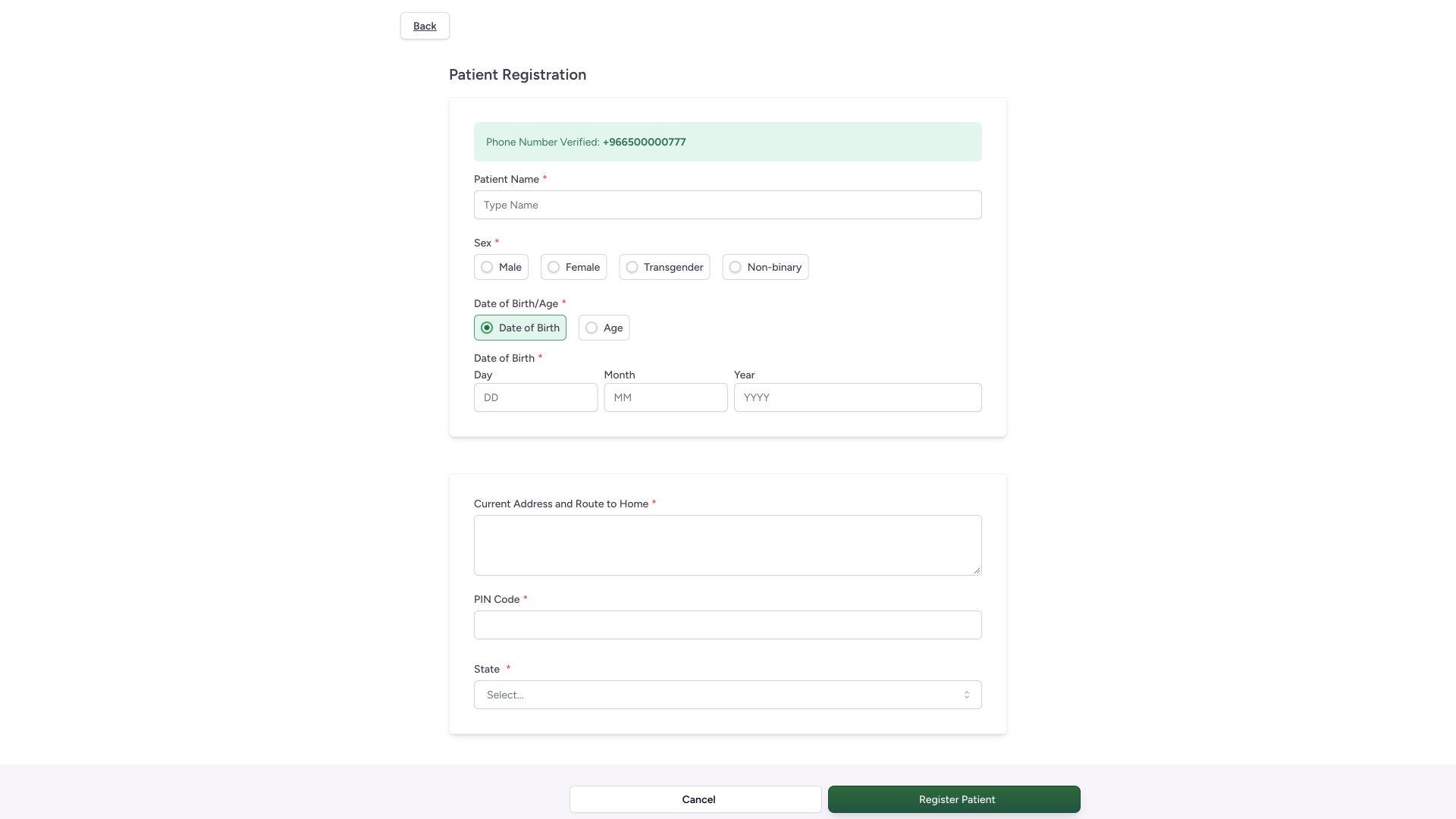 1
1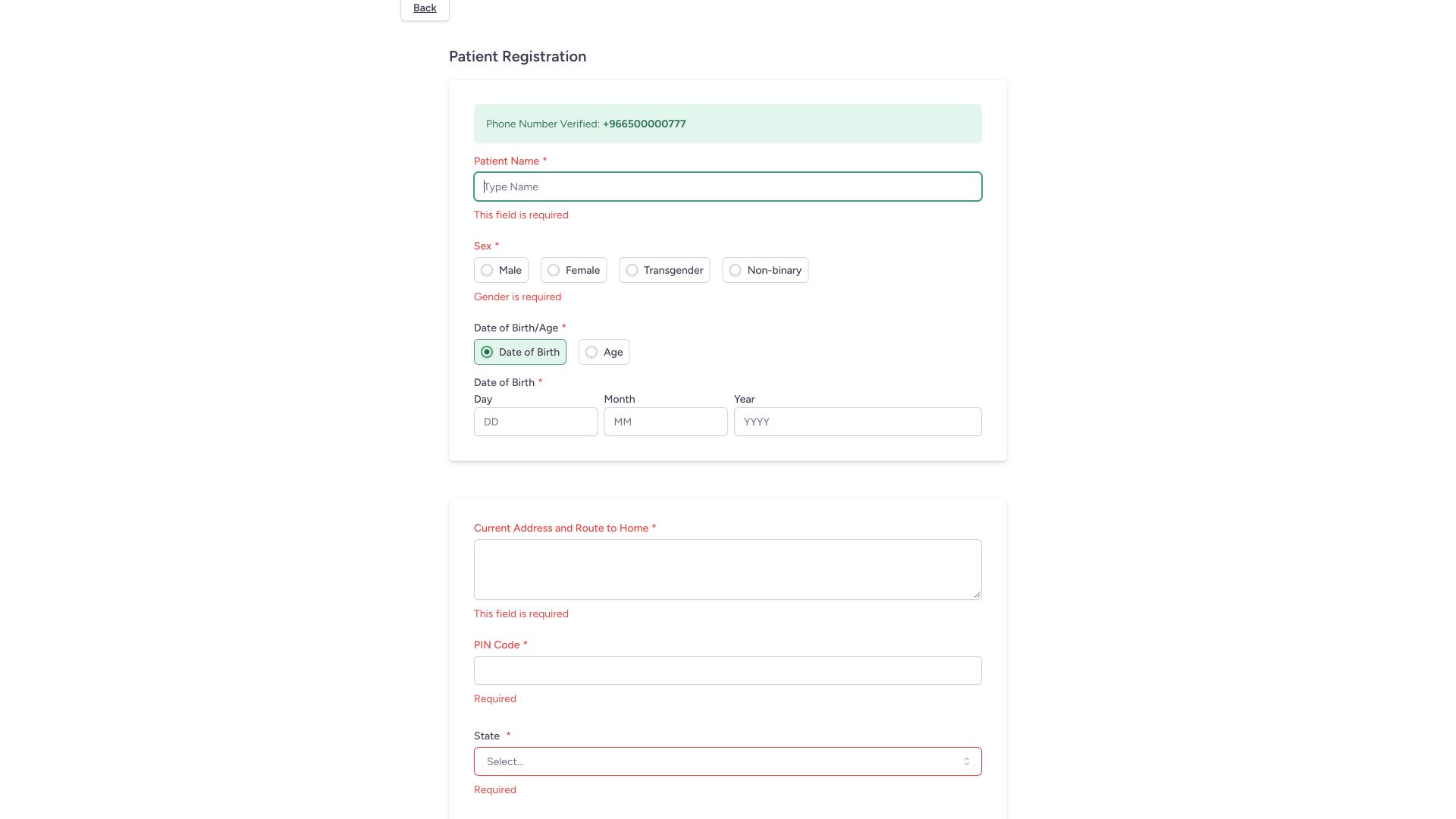 1
1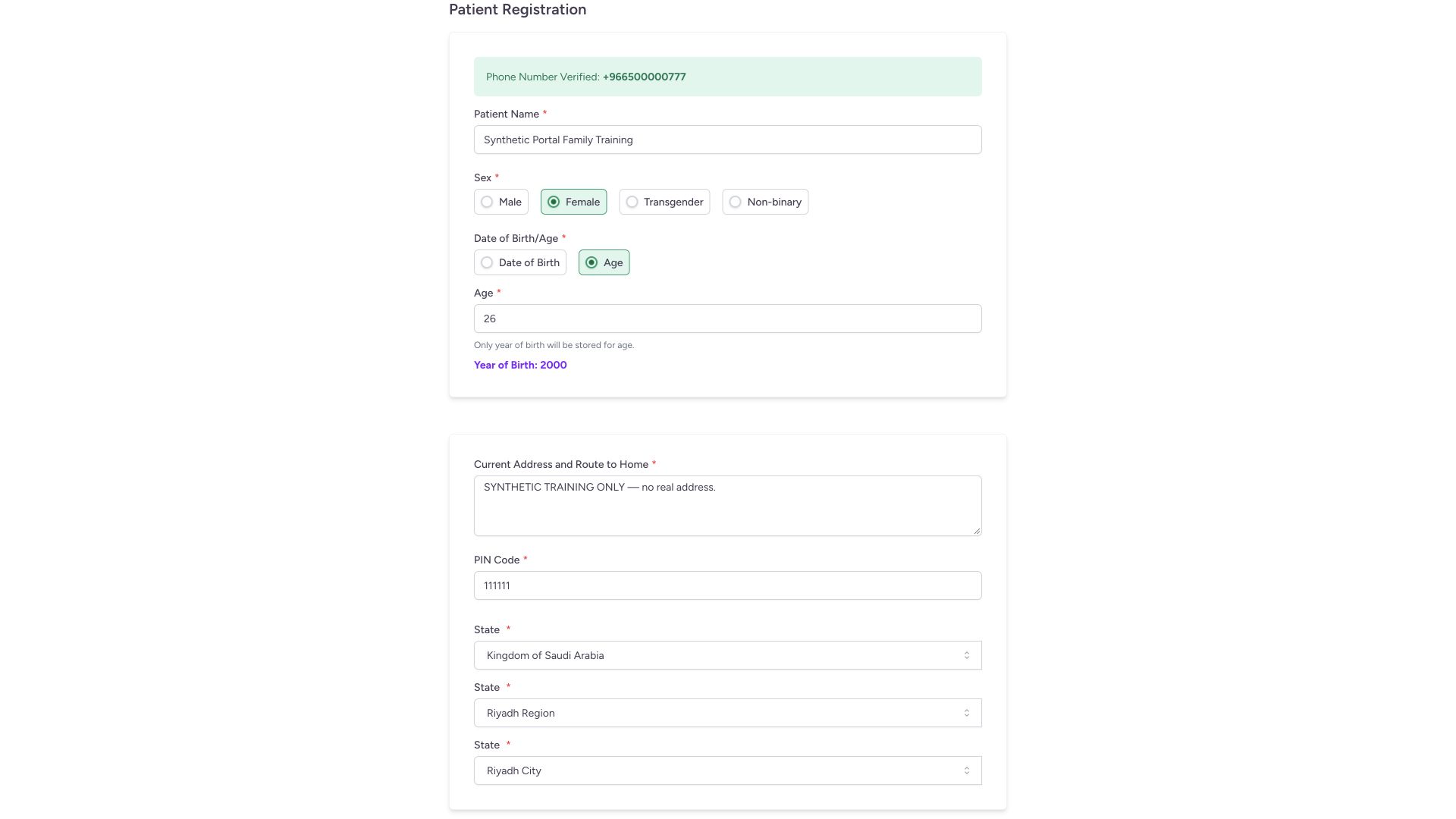 1
1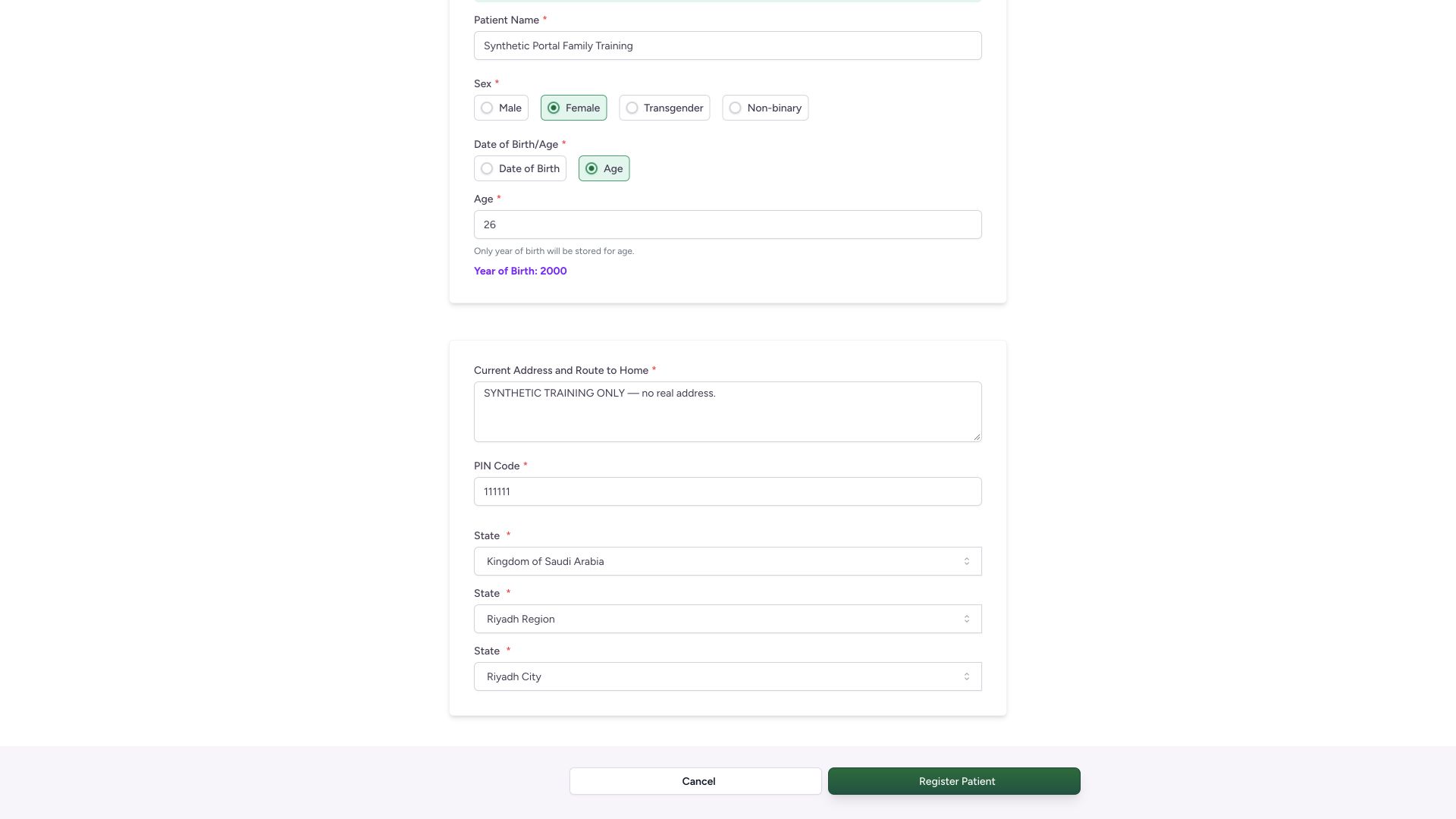 1
1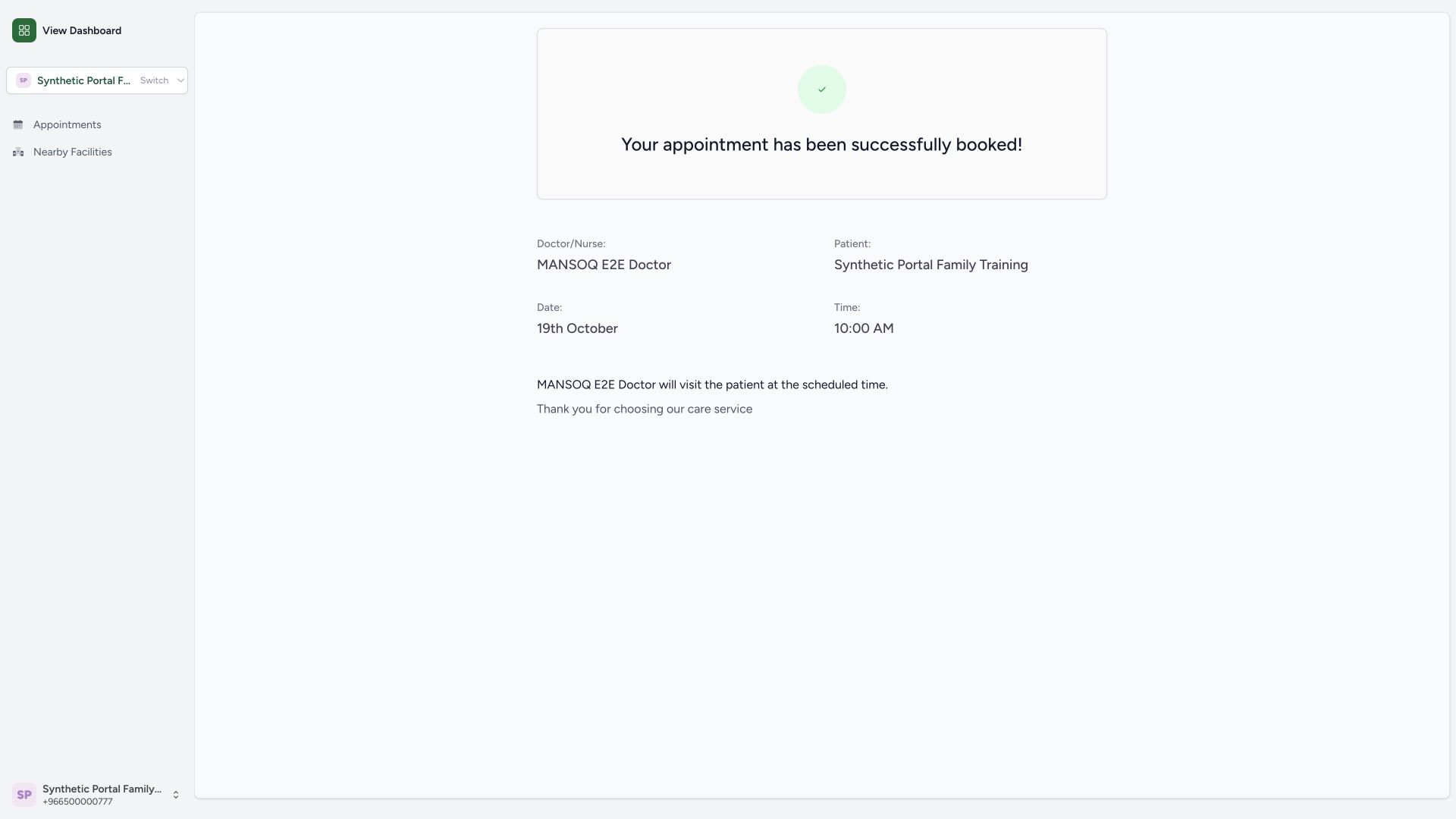 1
1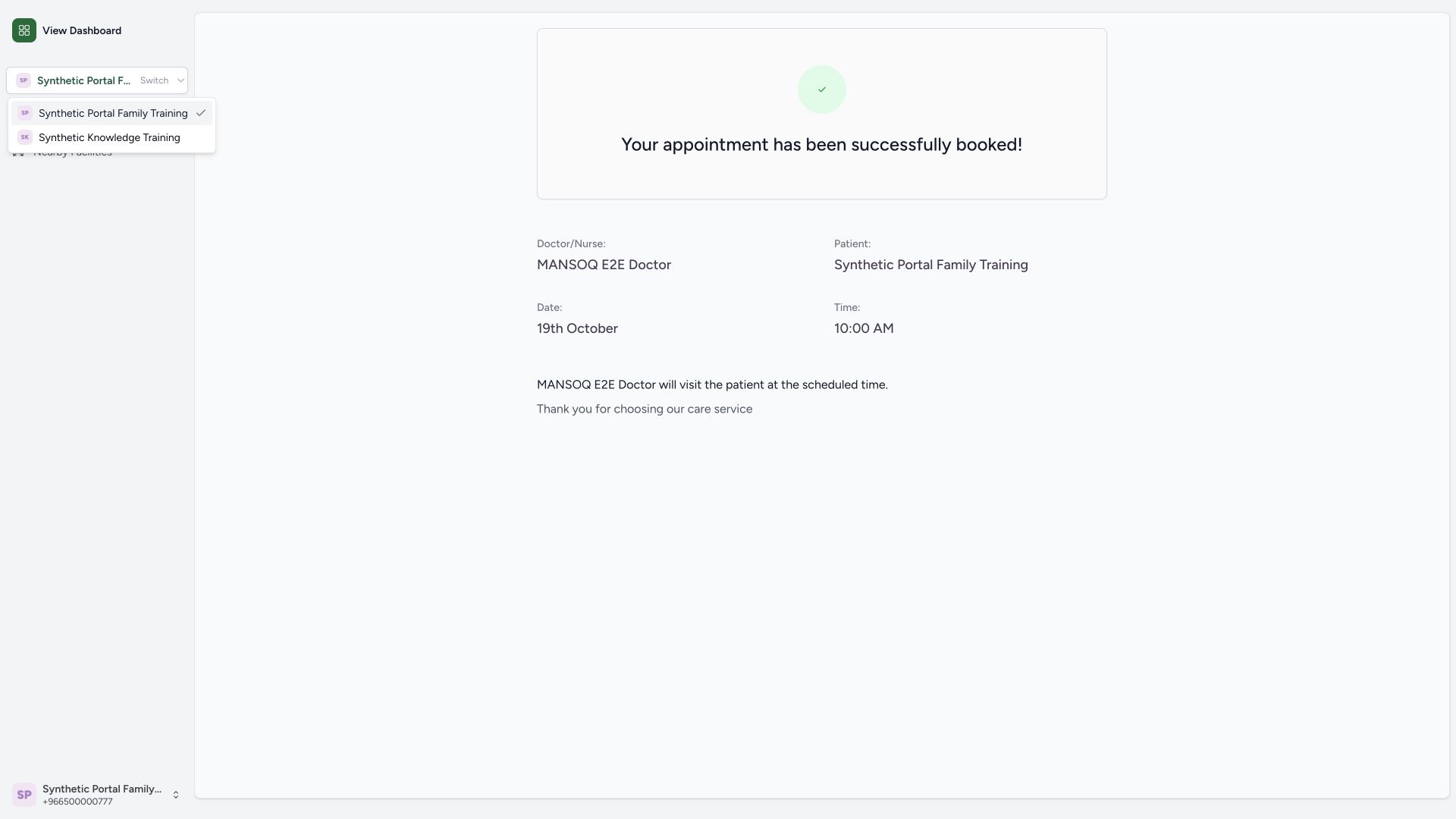 1
1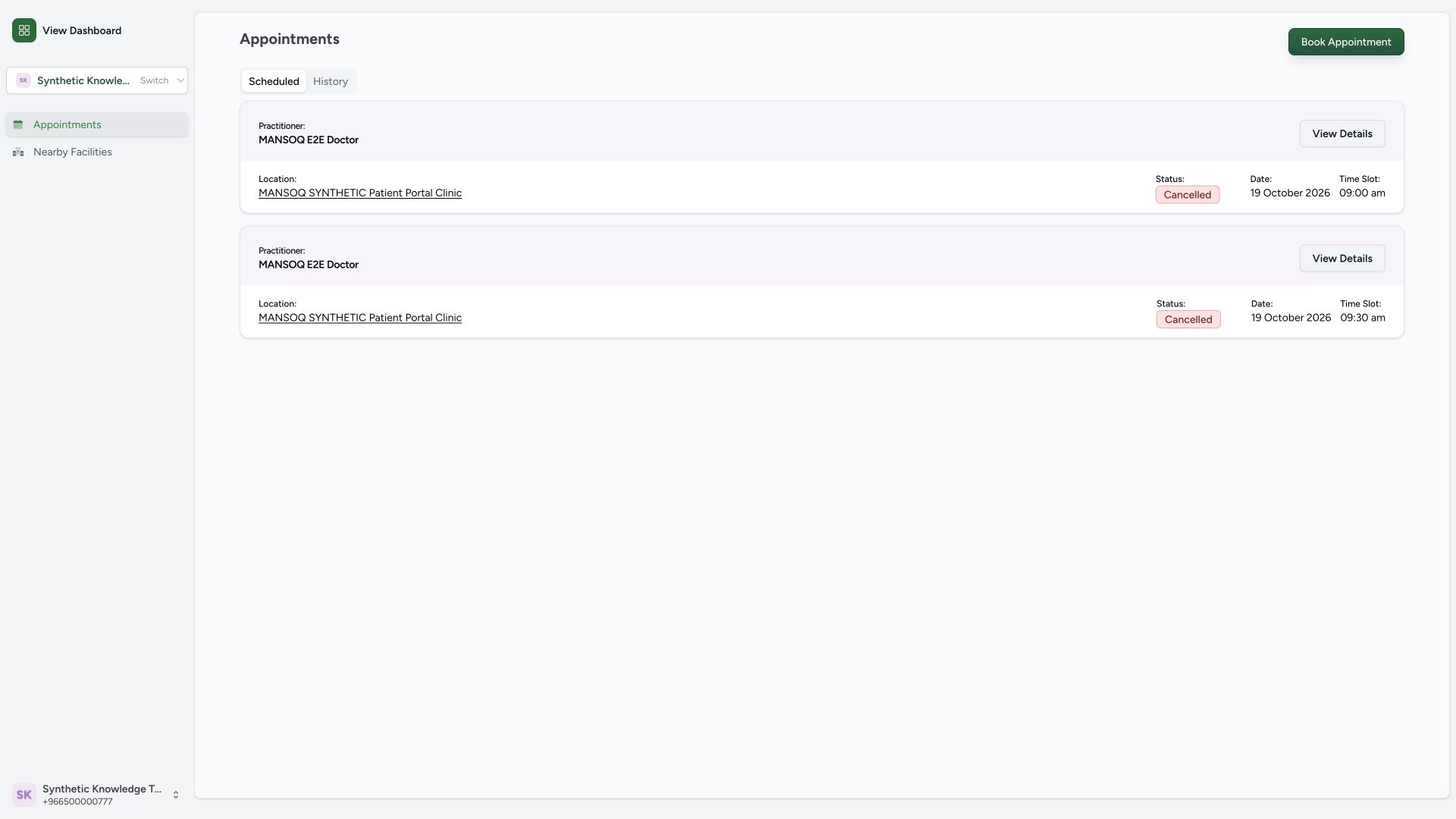 1
1