 MANSOQ
 Appointments & queues
Book an existing patient with a scheduled practitioner
Verify the existing patient, choose a department and practitioner, review available dates and the selected time, and confirm the saved appointment.
10 min read · Source baseline f6e9f05f
Verification and applicability
Seven actual 1920 × 1080 Chrome screenshots from original f6e9 synthetic training runtime. Normal existing Staff created one practitioner appointment for an existing synthetic patient. Independently preserved detail and resource-filtered list GET200 confirm Booked, original UUID d24889d6…, 09:00–09:15 Riyadh (06:00–06:15Z), allocated one, no charge/token/encounter. Identity validation, resource prerequisite, department selection, empty date, time review and saved state are illustrated. No new role/grant, duplicate patient, clinical encounter or external contact.
Check your installed version, permissions and local configuration.
Before you begin
- Sign in using an existing account with patient-search and booking permissions in the intended facility. This example uses the existing Staff account and one synthetic Clinic; Receptionist describes a job function, not an additional built-in security role.
- Use an existing registered patient whose phone and year of birth you can verify. The synthetic example uses year 1990. Do not register a second record to bypass identity verification.
- A practitioner must already belong to the appropriate department and have available schedule capacity. The illustrated Doctor has a private synthetic 15-minute schedule with capacity one and no charge definition or automatic tokens.
1. Find the existing patient
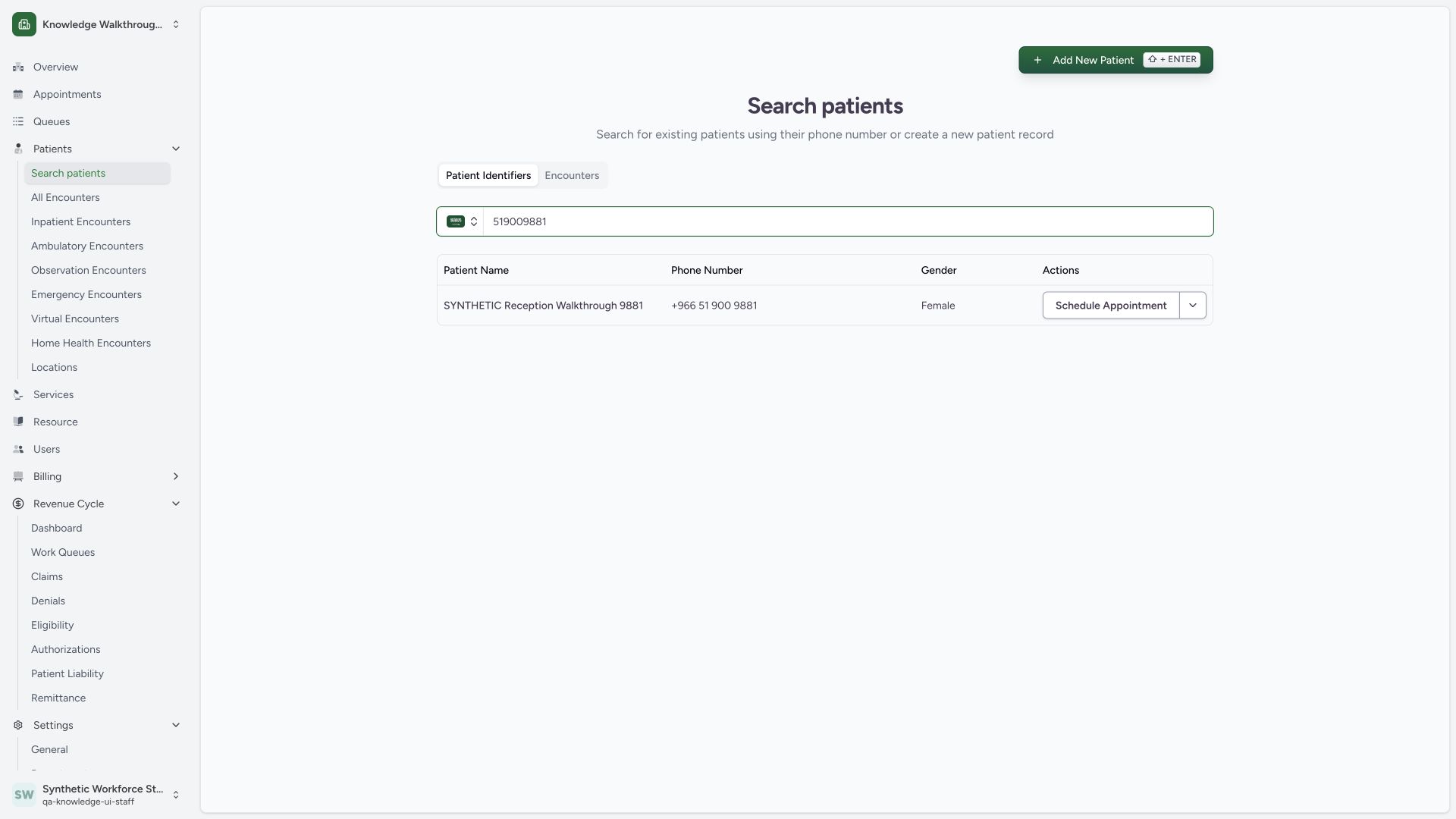
Open Patients → Search patients, search the existing phone and confirm the matching identity. Use Schedule Appointment on that existing patient row. This example selects SYNTHETIC Reception Walkthrough 9881 and creates no duplicate patient.
 123
123Capture details
Actual 1920 × 1080 Chrome pixels; pinned source f6e9f05f. Staff booking of an existing synthetic patient with one practitioner
- Search existing patient: Use the existing synthetic patient phone.
- Matching patient: Check the intended identity before proceeding.
- Schedule Appointment: Start booking for this existing record.
2. Verify the year of birth
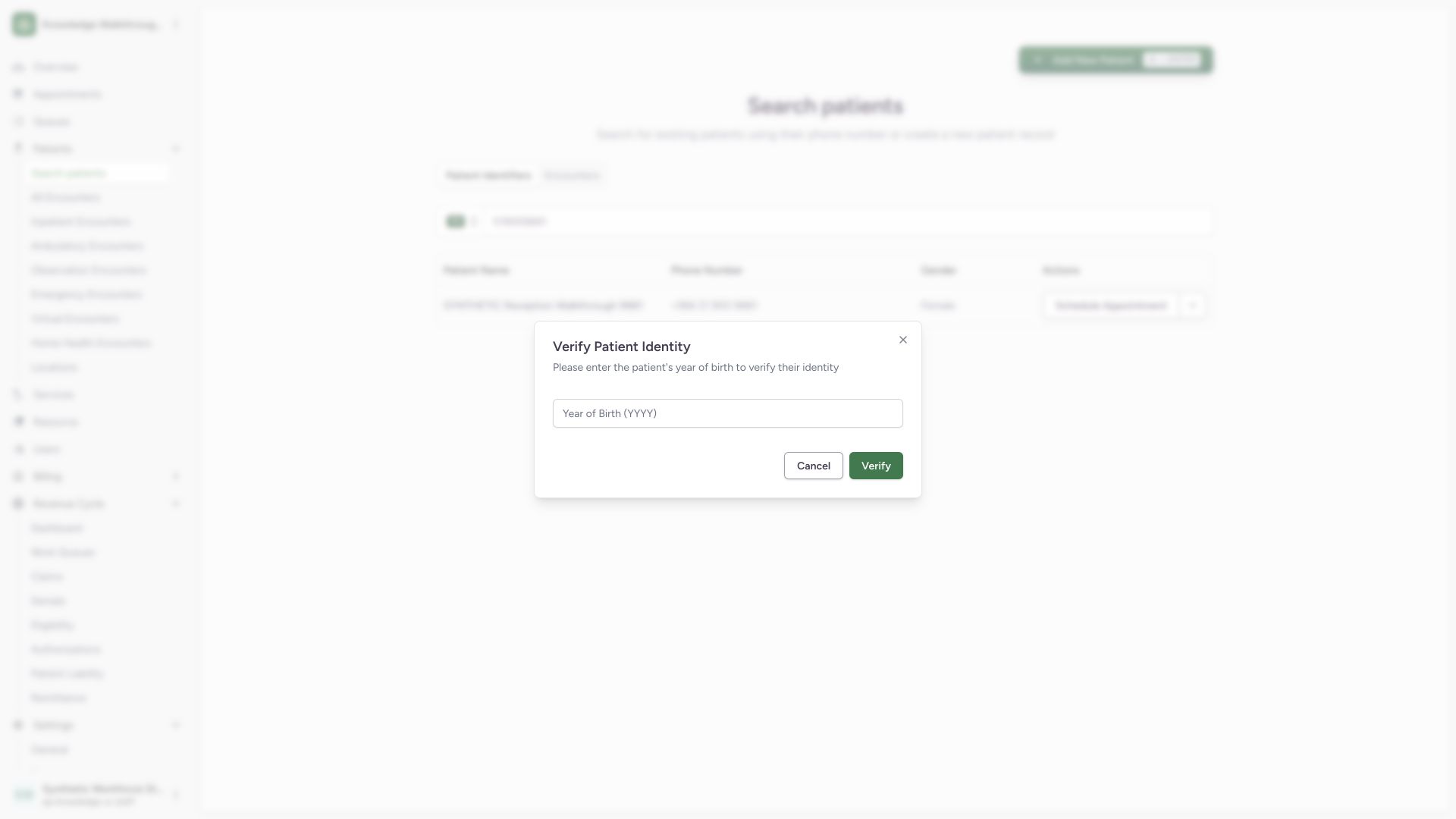
The Verify Patient Identity dialog requires a valid four-digit year. Leaving it empty displays Please enter a valid year of birth (YYYY). Enter the verified year, 1990 for this synthetic record, and use Verify to continue. This is the operational booking identity check; it does not grant unrestricted clinical-chart access.
 123
123Capture details
Actual 1920 × 1080 Chrome pixels; pinned source f6e9f05f. Staff booking of an existing synthetic patient with one practitioner
- Required year feedback: Enter a valid four-digit year of birth.
- Year of birth: Use the verified existing patient value.
- Verify: Proceed after entering the correct value.
3. Choose the appointment resource
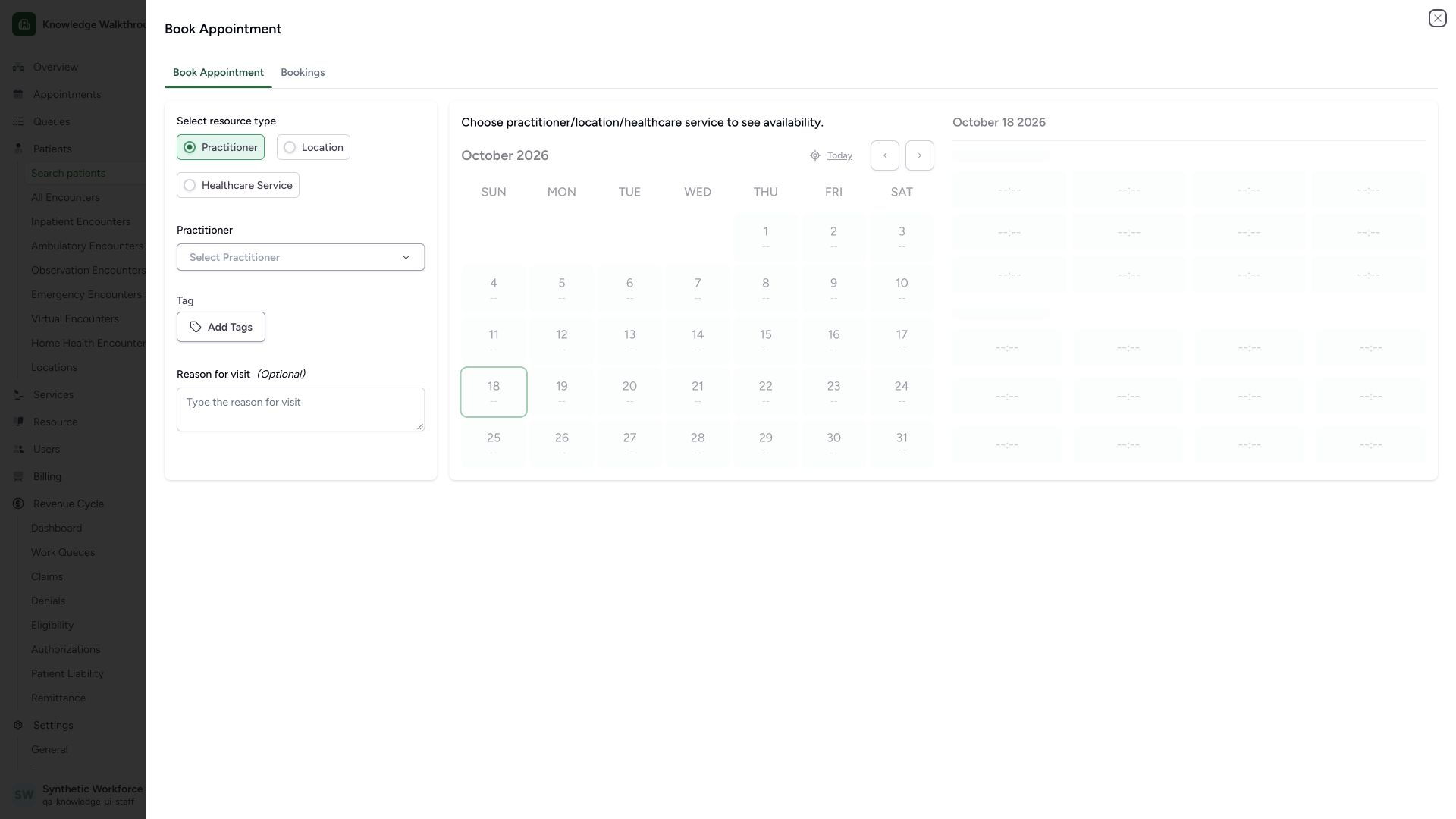
The Book Appointment sheet starts with Practitioner as the resource type. Choose Select Practitioner before using availability. The calendar is inactive until a resource is selected. The reason for visit is optional. The visible Location and Healthcare Service alternatives require their own scheduling setup and are separate booking variants.
 1234
1234Capture details
Actual 1920 × 1080 Chrome pixels; pinned source f6e9f05f. Staff booking of an existing synthetic patient with one practitioner
- Resource type: This walkthrough uses Practitioner.
- Select Practitioner: Choose the existing authorized practitioner.
- Availability prerequisite: The calendar requires a resource selection.
- Optional visit reason: Use a clearly synthetic note for this exercise.
4. Select the existing department and Doctor
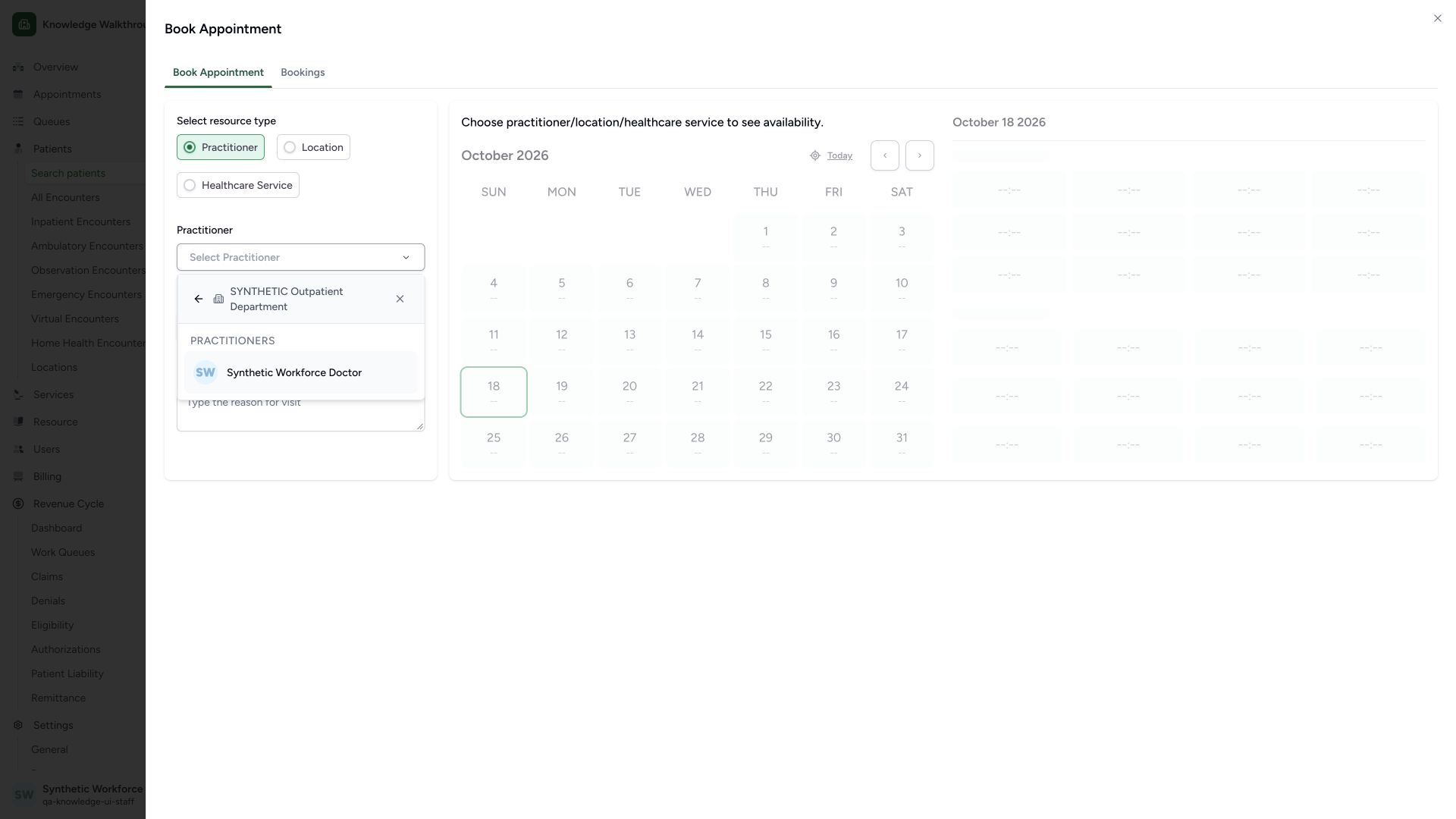
In the practitioner selector, use My Dept., choose SYNTHETIC Outpatient Department, then select Synthetic Workforce Doctor. Confirm that this is the intended existing department and practitioner. This step changes the booking selection; it does not add memberships.
 123
123Capture details
Actual 1920 × 1080 Chrome pixels; pinned source f6e9f05f. Staff booking of an existing synthetic patient with one practitioner
- Selected department: Confirm the intended existing department.
- Synthetic Workforce Doctor: Choose this existing scheduled practitioner.
- Department back control: Return to department choices if needed.
5. Choose a date that has available capacity
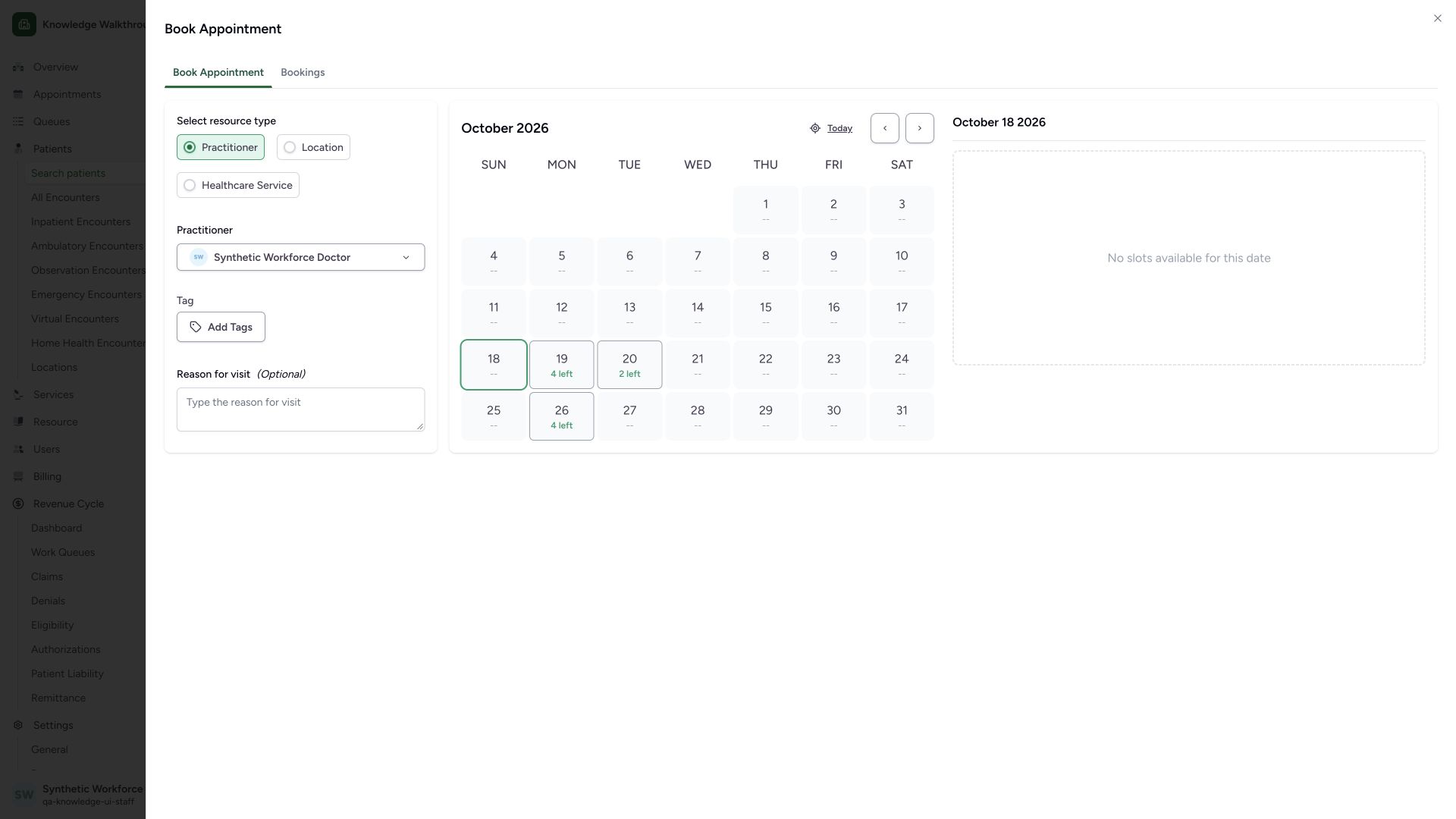
For the selected Doctor, the current 18 October date displays No slots available for this date. Choose an offered date with capacity, such as 19 October / 4 left. Disabled dates cannot be selected. These capacity counts belong to this synthetic schedule and can change when appointments are booked.
 1234
1234Capture details
Actual 1920 × 1080 Chrome pixels; pinned source f6e9f05f. Staff booking of an existing synthetic patient with one practitioner
- No slots on selected date: Review the selected day before booking.
- 19 October available: Choose an offered date with available capacity.
- 20 October available: Another offered date has separate capacity.
- Unavailable date: Disabled dates are not selectable appointment times.
6. Review the selected time and confirm once
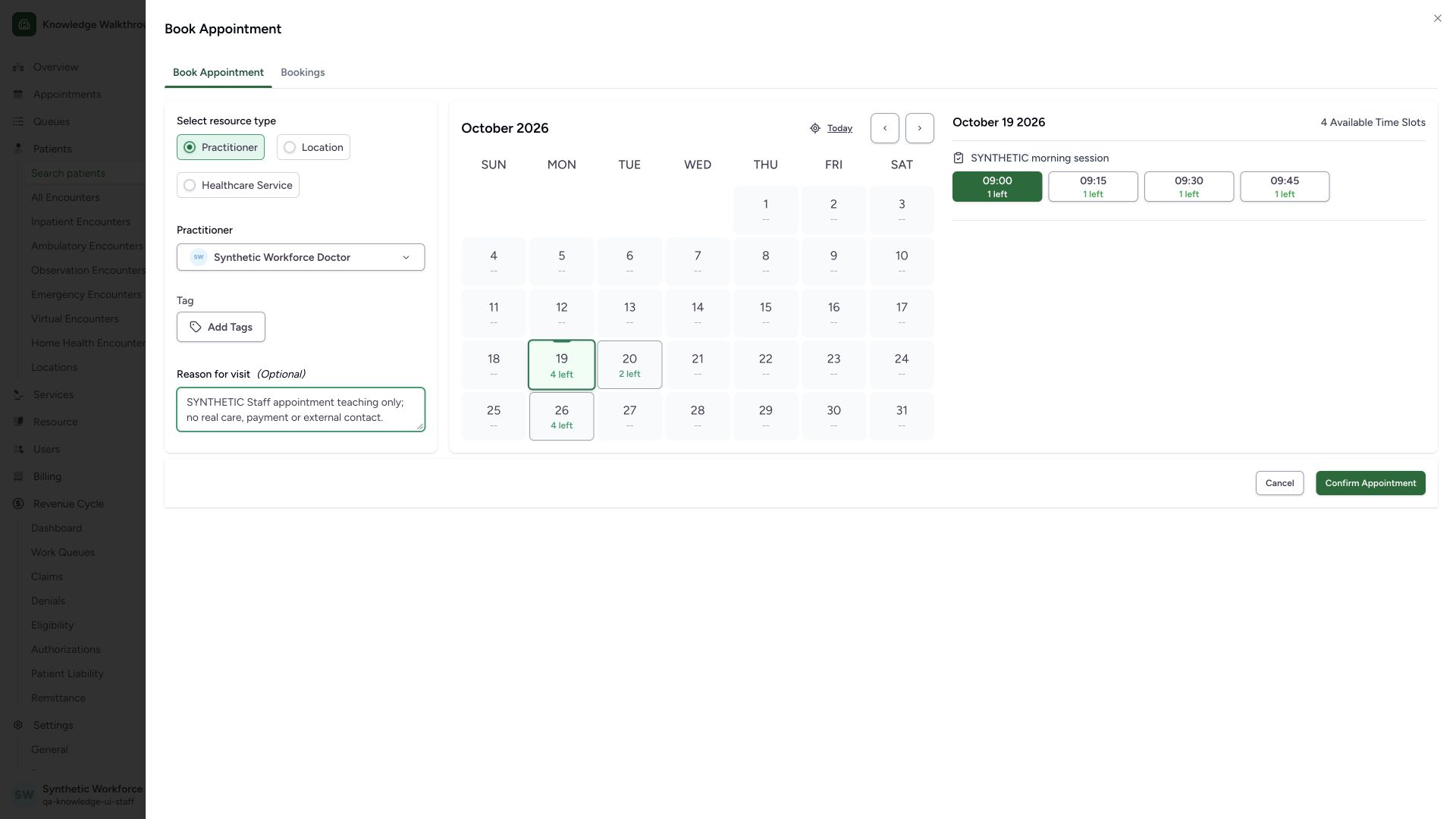
On 19 October, review the four morning times and remaining capacity. The first available 09:00 time is automatically selected in green; explicitly check the time before saving. Add the optional synthetic reason and use Confirm Appointment once. The illustrated note requests no real care, payment or external contact.
 12345
12345Capture details
Actual 1920 × 1080 Chrome pixels; pinned source f6e9f05f. Staff booking of an existing synthetic patient with one practitioner
- Existing Doctor: Confirm the chosen practitioner.
- Selected appointment date: Check19October2026.
- Selected09:00 time: The first available slot is automatically selected; review it.
- Synthetic note: This exercise requests no real care, payment or external contact.
- Confirm Appointment: Save the reviewed booking once.
7. Verify the saved Booked appointment
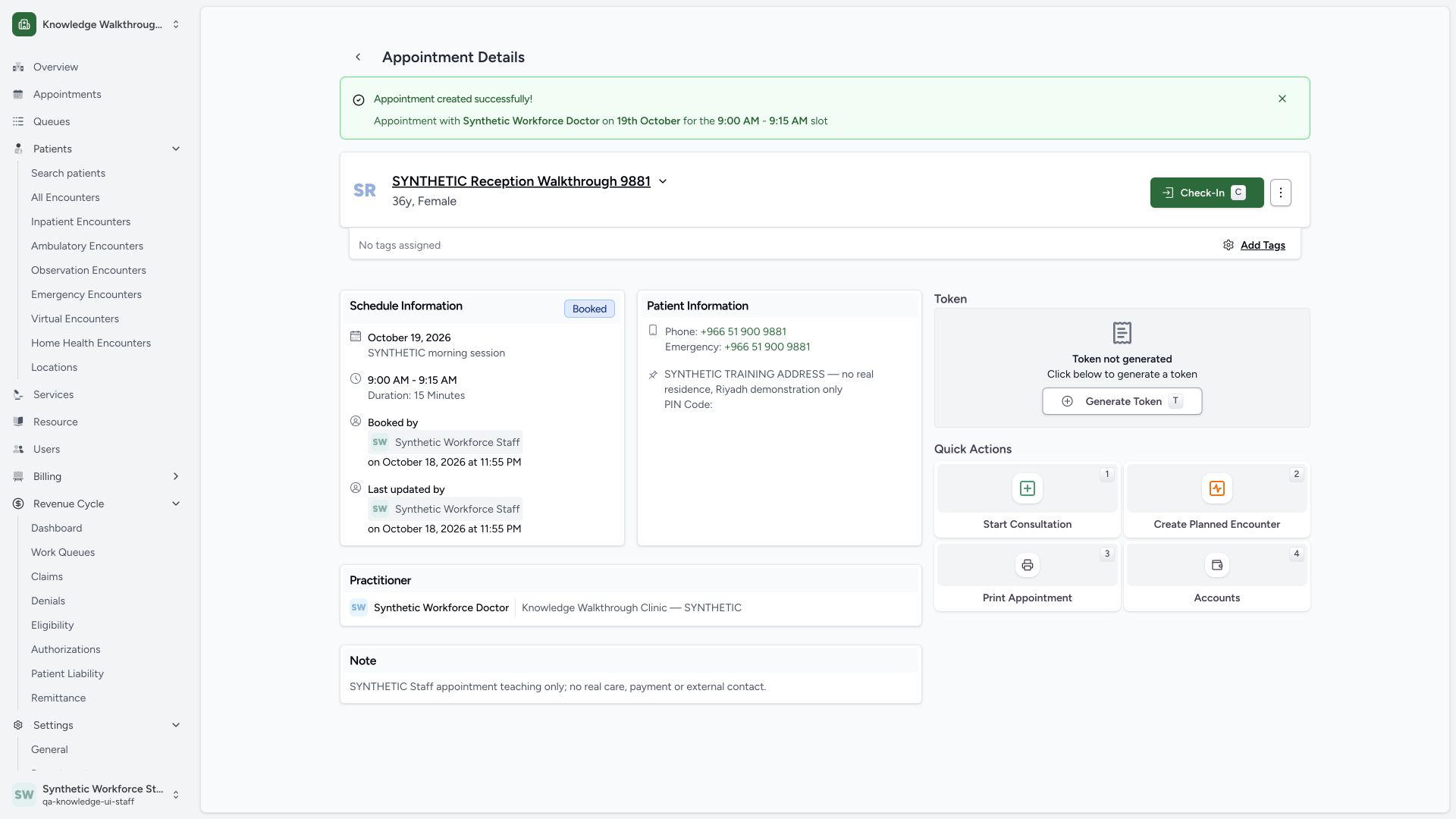
Confirm the success banner, Booked status, 19 October 2026, 09:00–09:15, 15 Minutes, Staff actor, assigned Doctor and saved note. Independent normal Staff detail and scoped list GET200 reads confirmed the saved appointment and one allocated slot. No charge, queue token or encounter was created in this example. The appointment actions menu is visible for later authorized maintenance.
 1234567
Capture details
Actual 1920 × 1080 Chrome pixels; pinned source f6e9f05f. Staff booking of an existing synthetic patient with one practitioner
- Booking success: Check the intended Doctor, date and selected time.
- Booked state: Verify the persisted appointment status.
- Time and duration: Confirm09:00–09:15 and15Minutes.
- Booking actor: The saved appointment identifies the Staff user.
- Assigned practitioner: Use the scheduled Doctor for clinical handoff.
- Saved synthetic note: No real care, payment or external contact is requested.
- Appointment actions menu: Authorized reschedule/cancel actions are opened here in later steps.
What the saved appointment means
The booking reserves this practitioner’s time for the verified existing patient. The observed record is Booked and is separate from check-in, a queue token, billing and a clinical encounter. This example establishes one existing Staff account, practitioner and Clinic only.
Clinical handoff and original-version control boundary
Use the assigned practitioner and scheduled time for the clinician handoff. The original f6e9 appointment screen visibly offers Start Consultation and Create Planned Encounter; they were not used in this Staff walkthrough. Source permissions and the current Staff facility readback do not grant this account encounter creation. A later corrected product version gates those controls; these original-version screenshots are not images of that correction.
Further appointment branches
Rescheduling, cancellation, check-in, consultation, location or healthcare-service appointments, charging, token generation, overbooking, concurrent requests and other roles/facility types need their own observed steps. They are not certified by the seven booking images.
Troubleshooting
The calendar shows no availability
Confirm the chosen resource and offered date. Select a date with available capacity, or use your facility’s scheduling support process. Do not change memberships or create a schedule merely to bypass the message.
The selected time differs from the intended visit
Review the highlighted time before confirming. The source automatically selects the first available slot; choose the intended available time when it differs.
The expected practitioner is absent
Confirm the intended department and your assigned access. The selector reflects existing department/resource setup; a visible sidebar does not grant booking rights.
Source evidence
References are pinned to the private MANSOQ source repository. Repository access is required to open these links.
- repositories/platform/mansoq-web/src/Routers/routes/PatientRoutes.tsx:78 · f6e9f05f
- repositories/platform/mansoq-web/src/Routers/routes/ScheduleRoutes.tsx:14 · f6e9f05f
- repositories/platform/mansoq-web/src/pages/Patient/PatientHome.tsx:85 · f6e9f05f
- repositories/platform/mansoq-web/src/pages/Appointments/BookAppointment/BookAppointmentDetails.tsx:90 · f6e9f05f
- repositories/platform/mansoq-web/src/pages/Appointments/BookAppointment/AppointmentSlotPicker.tsx:127 · f6e9f05f
- repositories/platform/mansoq-web/src/pages/Appointments/AppointmentDetail.tsx:196 · f6e9f05f
- repositories/platform/mansoq-web/src/pages/Appointments/AppointmentDetail.tsx:904 · f6e9f05f
- repositories/platform/mansoq-web/src/pages/Appointments/AppointmentDetail.tsx:868 · f6e9f05f
- repositories/platform/mansoq-core/mansoq/emr/api/viewsets/scheduling/availability.py:126 · f6e9f05f
- repositories/platform/mansoq-core/mansoq/emr/api/viewsets/scheduling/booking.py:213 · f6e9f05f
- repositories/platform/mansoq-core/mansoq/emr/api/viewsets/scheduling/booking.py:180 · f6e9f05f
- repositories/platform/mansoq-core/mansoq/security/authorization/booking.py:87 · f6e9f05f
- repositories/platform/mansoq-core/mansoq/security/permissions/schedule.py:59 · f6e9f05f
- repositories/platform/mansoq-core/mansoq/security/permissions/encounter.py:33 · f6e9f05f
- repositories/platform/mansoq-core/mansoq/security/authorization/encounter.py:28 · f6e9f05f
- repositories/platform/mansoq-web/src/pages/Appointments/AppointmentDetail.tsx:471 · f6e9f05f
- repositories/platform/mansoq-web/src/components/Encounter/CreateEncounterForm.tsx:156 · f6e9f05f