 MANSOQ
 Getting started
Sign out and sign in with an existing Staff account
Recognize the Staff login form, correct required fields, keep the password masked and confirm the signed-in identity and facility.
5 min read · Source baseline f6e9f05f
Verification and applicability
Six actual 1920 × 1080 Chrome screenshots from original f6e9 synthetic training runtime: existing Staff account context, normal Log Out, blank form, required-field feedback, masked existing credentials and successful dashboard/facility return. One valid browser sign-in; independent normal Staff current-user/Clinic GET200 corroboration. No password/token disclosure, credential or permission changes, MFA/reset/CAPTCHA operation, invalid-password retries, real identity or all-role/facility claim.
Check your installed version, permissions and local configuration.
Before you begin
- Use the MANSOQ address and an existing account supplied by your organization. The illustrated account, facility and background record are synthetic local training fixtures; this guide publishes no password or token.
- This observed account has MFA disabled and belongs to one synthetic Clinic. MFA-enabled sign-in, account recovery, password changes, patient OTP, CAPTCHA and additional role/facility branches need their own instructions and evidence.
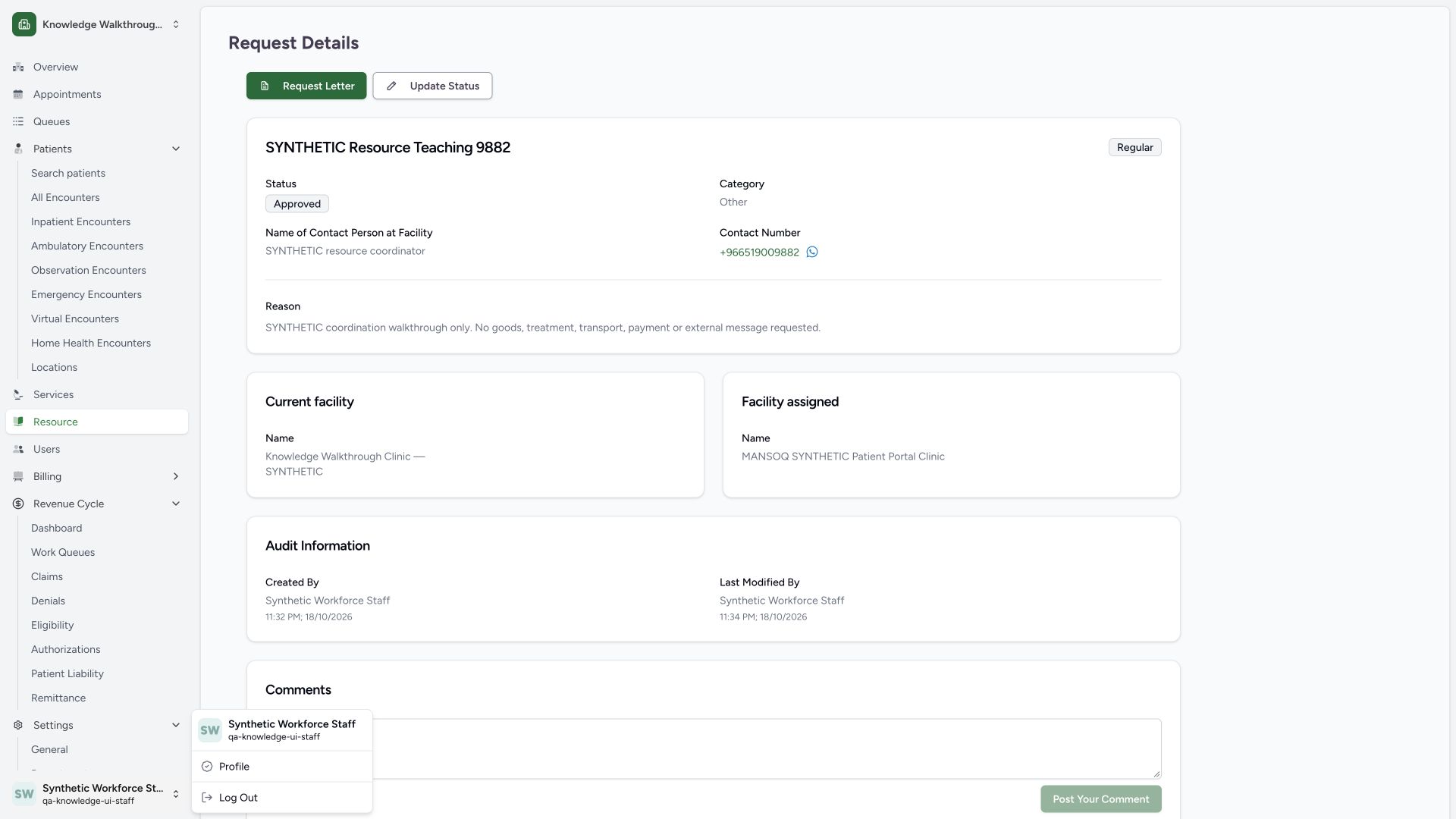
1. Confirm the current account before signing out
Open the account menu at the bottom of the sidebar. Check the displayed name and username, then use Log Out. This example starts as Synthetic Workforce Staff / qa-knowledge-ui-staff. The background resource is already saved and is not changed by this account action.
 12
12Capture details
Actual 1920 × 1080 Chrome pixels; pinned source f6e9f05f. existing Staff account sign-out and masked sign-in
- Current account identity: Confirm the displayed Staff name and username.
- Log Out: Use this normal account action to leave the session.
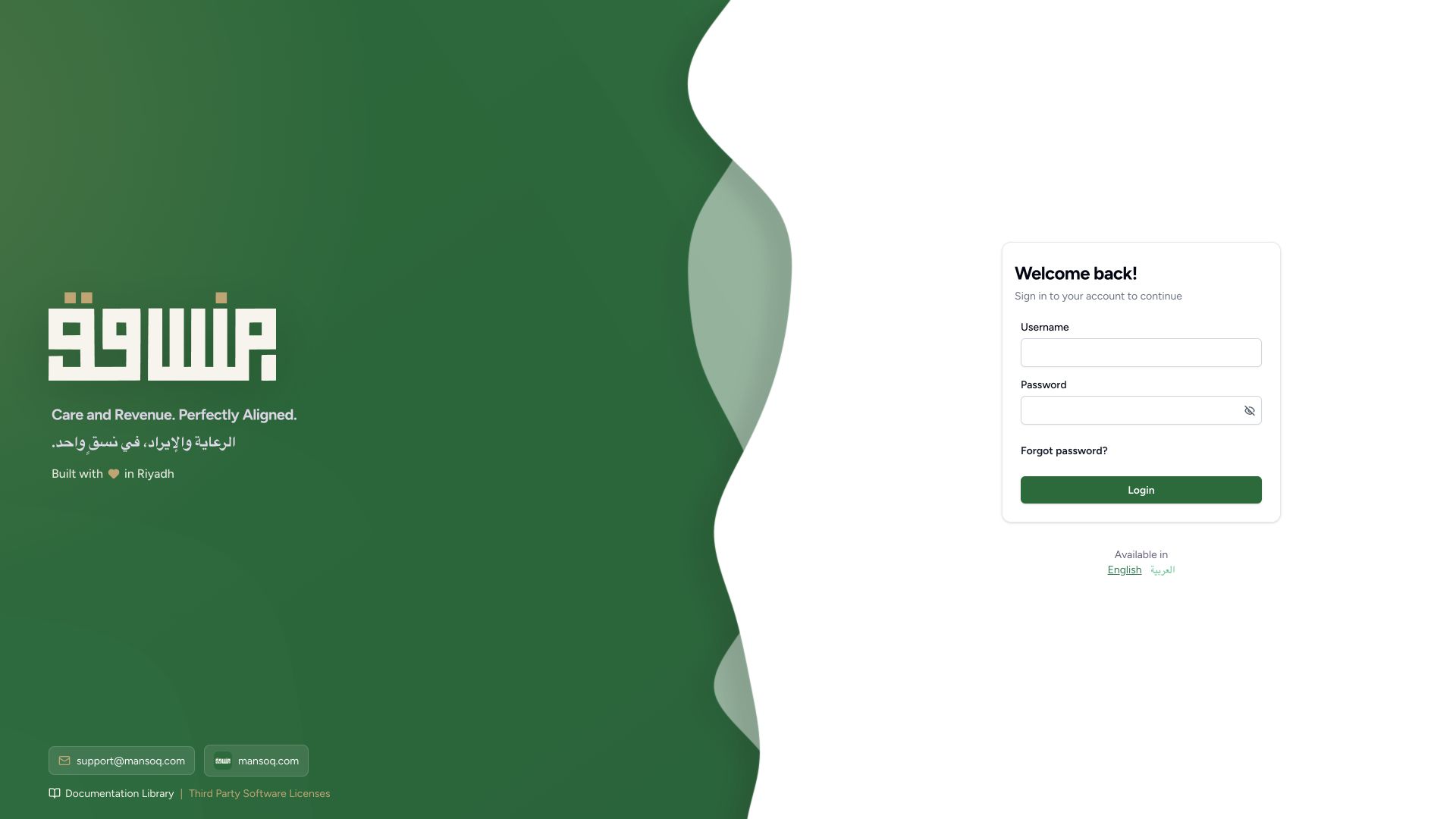
2. Recognize the signed-out Staff form
The signed-out page shows Username, Password and Login. The password control is masked. Forgot password? and language choices are visible, but this walkthrough continues with the existing Staff credentials.
 123
123Capture details
Actual 1920 × 1080 Chrome pixels; pinned source f6e9f05f. existing Staff account sign-out and masked sign-in
- Username: Enter the existing Staff account username.
- Password: The password input is masked.
- Login: Submit the completed existing account credentials.
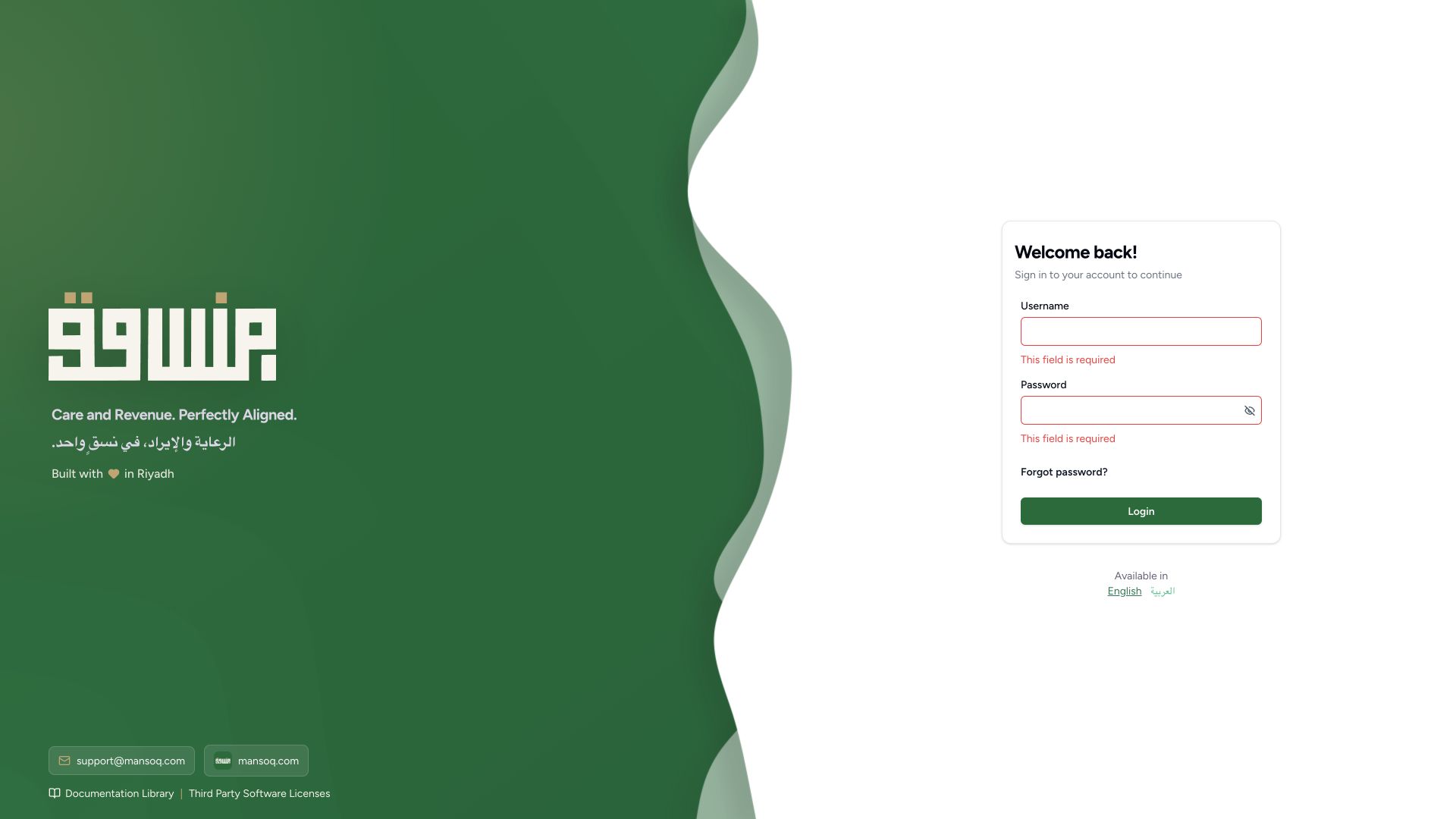
3. Correct required-field feedback
Submitting the empty form displays This field is required under both Username and Password. Complete both fields before trying to sign in. The source validates these blanks before signIn; this screenshot is not an incorrect-password attempt or an account-lockout example.
 12
12Capture details
Actual 1920 × 1080 Chrome pixels; pinned source f6e9f05f. existing Staff account sign-out and masked sign-in
- Required username: Complete the username field.
- Required password: Complete the masked password field.
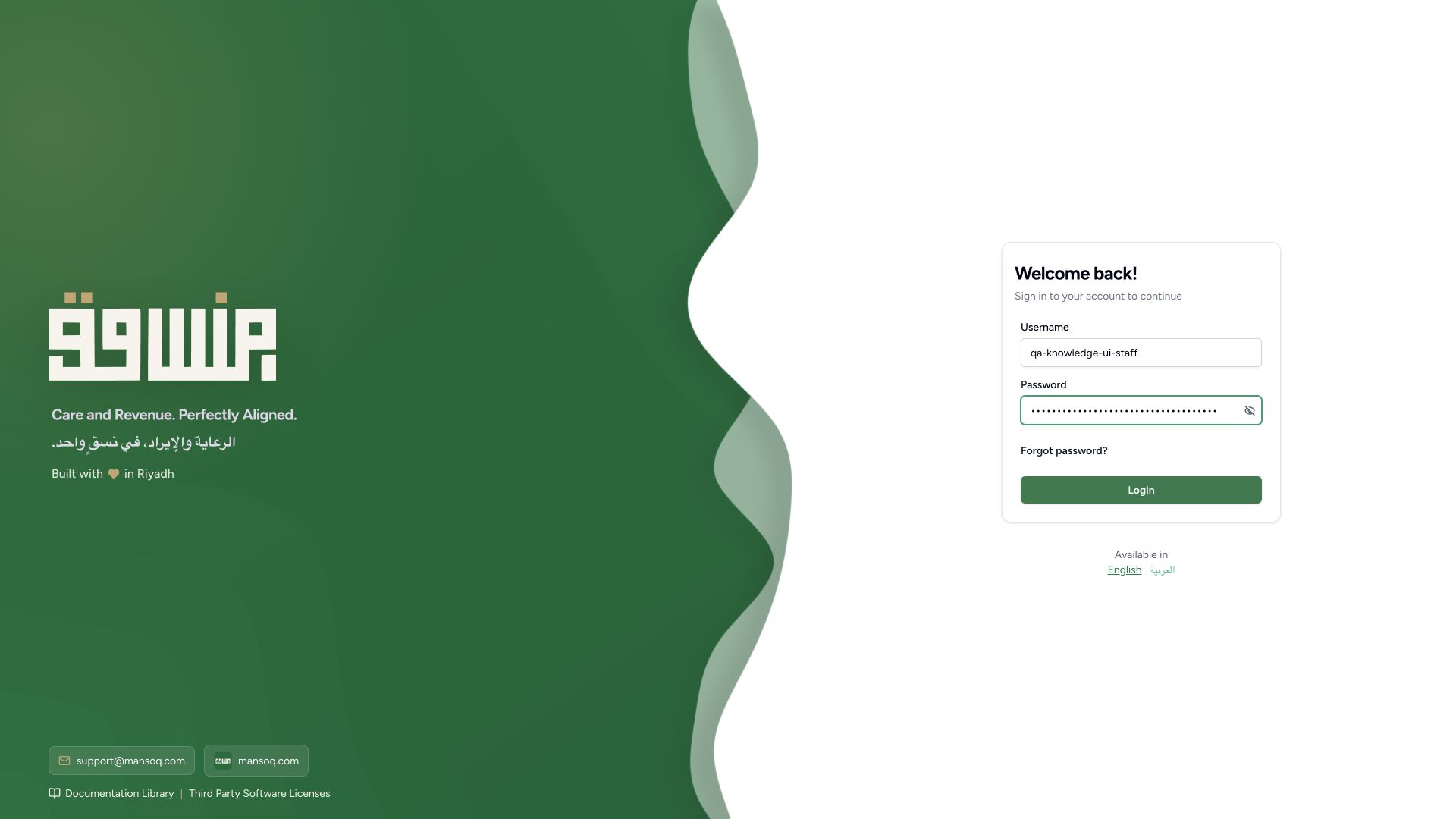
4. Enter the existing credentials with the password masked
Enter your existing Staff username and password, keep the password masked and use Login once. The illustration exposes only the synthetic username and password bullets. No password reveal, new credential or browser password storage is performed.
 123
123Capture details
Actual 1920 × 1080 Chrome pixels; pinned source f6e9f05f. existing Staff account sign-out and masked sign-in
- Existing Staff username: Use the account supplied by your organization.
- Masked password: The entered password remains masked.
- Login once: Submit the existing complete account credentials.
5. Confirm the authenticated dashboard and selected facility
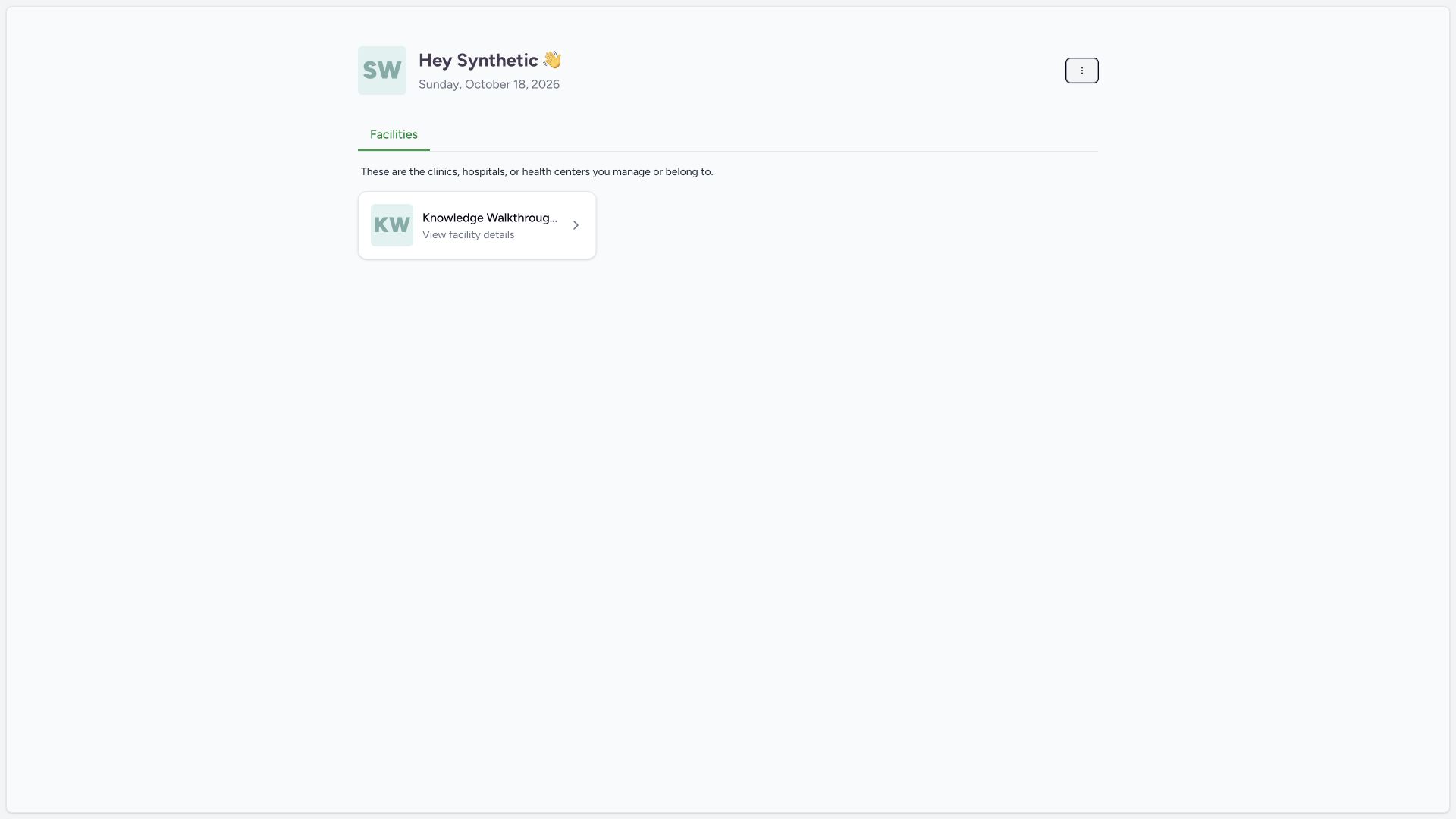
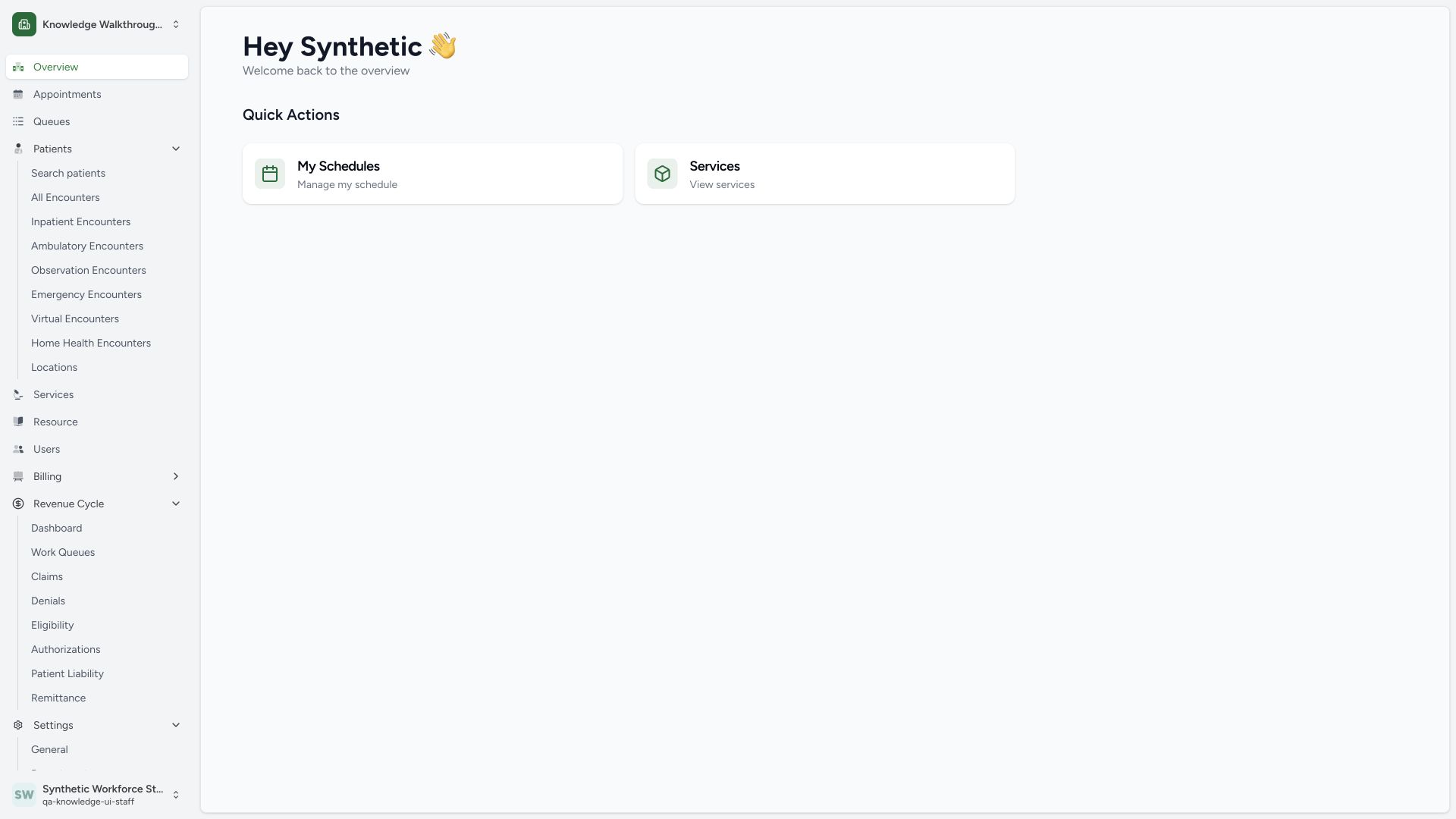
A successful sign-in reaches the dashboard with an authenticated greeting and the available Facilities card. Open the intended facility and confirm its name at the top of the sidebar and the expected Staff name/username at the bottom. This example reaches Knowledge Walkthrough Clinic — SYNTHETIC as the same existing Staff account. Independent normal current-user and Clinic GET200 reads corroborate the displayed account and facility membership.
 12
12Capture details
Actual 1920 × 1080 Chrome pixels; pinned source f6e9f05f. existing Staff account sign-out and masked sign-in
- Authenticated greeting: The dashboard is displayed after sign-in.
- Own facility card: Open the facility you are authorized to use.
 123
123Capture details
Actual 1920 × 1080 Chrome pixels; pinned source f6e9f05f. existing Staff account sign-out and masked sign-in
- Selected Clinic: Confirm the facility before starting work.
- Signed-in Staff identity: Verify the expected Staff name and username.
- Search patients: Continue into the authorized patient operations workflow.
Account identity and facility access
Successful sign-in identifies the account. The facility workspace and its actions depend on that account’s assigned memberships and permissions. This example observes one existing Staff account and one Clinic; it does not establish access for every role or facility.
What the sign-out observation proves
The account menu action returns this tab to the signed-out login form. The source clears local authentication state and attempts the normal logout API. This package does not claim that every other device/session was revoked or that it tested session expiry.
Additional authentication branches
Forgot password, MFA, patient OTP authentication, CAPTCHA, changed credentials, invalid-password responses and locked accounts are outside this six-image observation. Their visible entry points are not completed recovery or security workflows.
Troubleshooting
Username and Password show required messages
Complete both fields with the existing account values and keep the password masked before using Login.
The expected facility is absent after sign-in
Confirm that the displayed account is the intended one and use your organization’s access-support process. The listed facilities reflect assigned access; this walkthrough does not add memberships.
Source evidence
References are pinned to the private MANSOQ source repository. Repository access is required to open these links.
- repositories/platform/mansoq-web/src/components/Auth/Login.tsx:215 · f6e9f05f
- repositories/platform/mansoq-web/src/components/Auth/Login.tsx:241 · f6e9f05f
- repositories/platform/mansoq-web/src/Providers/AuthUserProvider.tsx:94 · f6e9f05f
- repositories/platform/mansoq-web/src/Providers/AuthUserProvider.tsx:148 · f6e9f05f
- repositories/platform/mansoq-web/src/components/ui/sidebar/nav-user.tsx:133 · f6e9f05f
- repositories/platform/mansoq-web/src/pages/UserDashboard.tsx:50 · f6e9f05f