 MANSOQ
 Patient administration
Find an existing patient, recover identity verification and avoid duplicate registration
Reopen an existing patient with correct birth year, recover a mismatch, handle the duplicate-contact advisory and recognize the pre-encounter profile boundary.
8 min read · Source baseline f6e9f05f
Verification and applicability
Seven actual1920×1080 screenshots. Existing same-Staff correct verification200, wrong-year403, direct full-profile404 and exact one-result search independently verified. Duplicate advisory follows source callback back to search; no second record or admission submitted. Demographic edit under this pre-encounter Staff context remains unavailable and is explicitly not certified.
Check your installed version, permissions and local configuration.
Before you begin
- Use the correct facility and an approved identity-search account. This example uses the same existing synthetic Staff and the patient created in the companion guide.
- Know the accurate patient contact and year of birth. Do not guess identity information or create another record to get around access or verification errors.
1. Review the existing patient search result
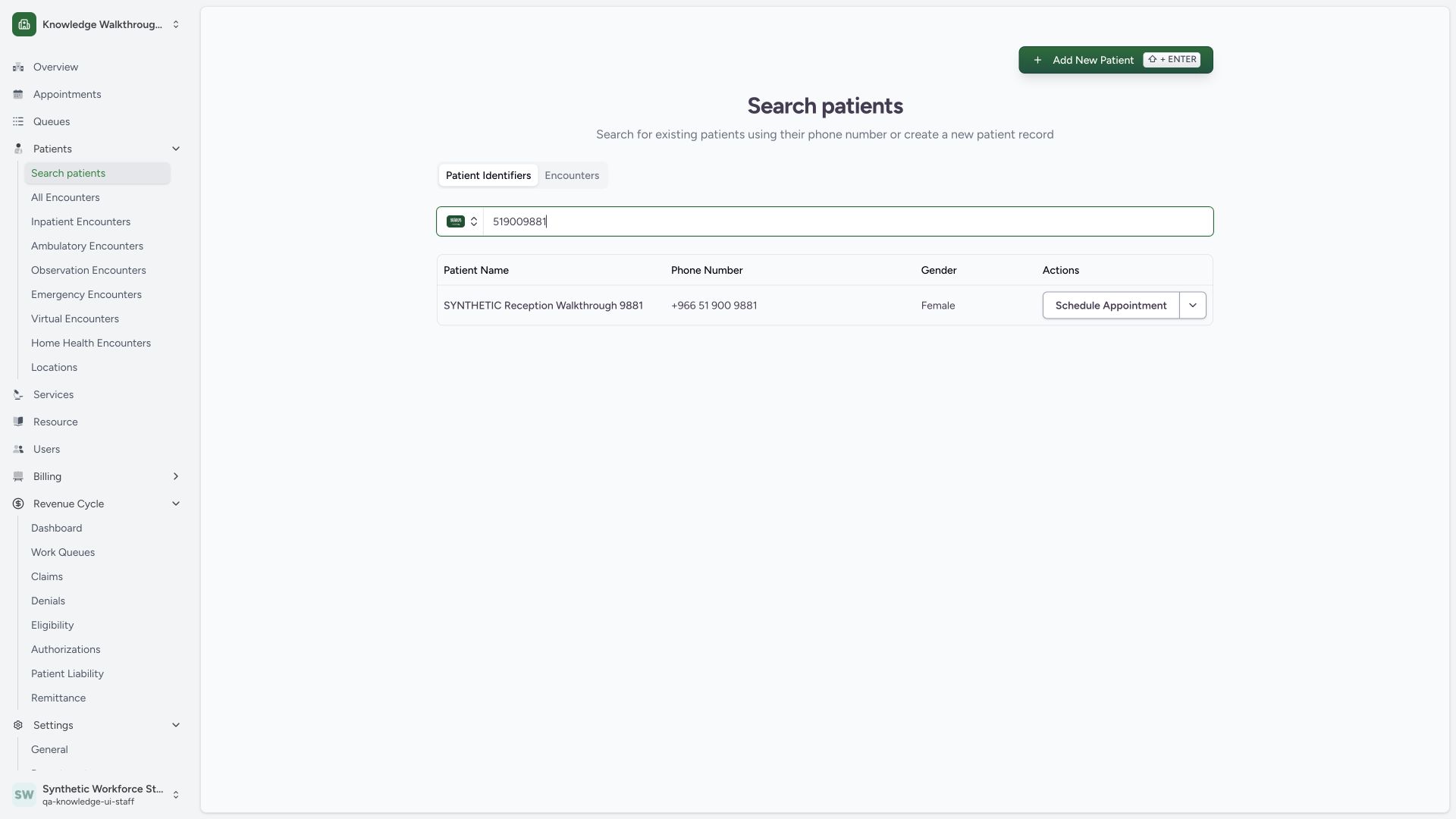
Search the intended contact under Patient Identifiers. The same synthetic name, contact and Female now appear in a row. Open the row action menu and choose Patient Home for this existing match. Visible Schedule Appointment/Create Encounter choices do not by themselves prove authorization to submit those actions.
 123
123Capture details
Actual1920×1080 Chrome pixels; source f6e9f05f. Existing Staff role, synthetic patient only. Staff registration and verified existing identity; no encounter/finance.
- Repeat the identifier search: Use the same intended contact.
- Review the existing patient row: Match name/contact/demographics before proceeding.
- Row action menu: Choose supported existing-patient actions instead of creating a duplicate.
2. Recover an incorrect birth-year verification
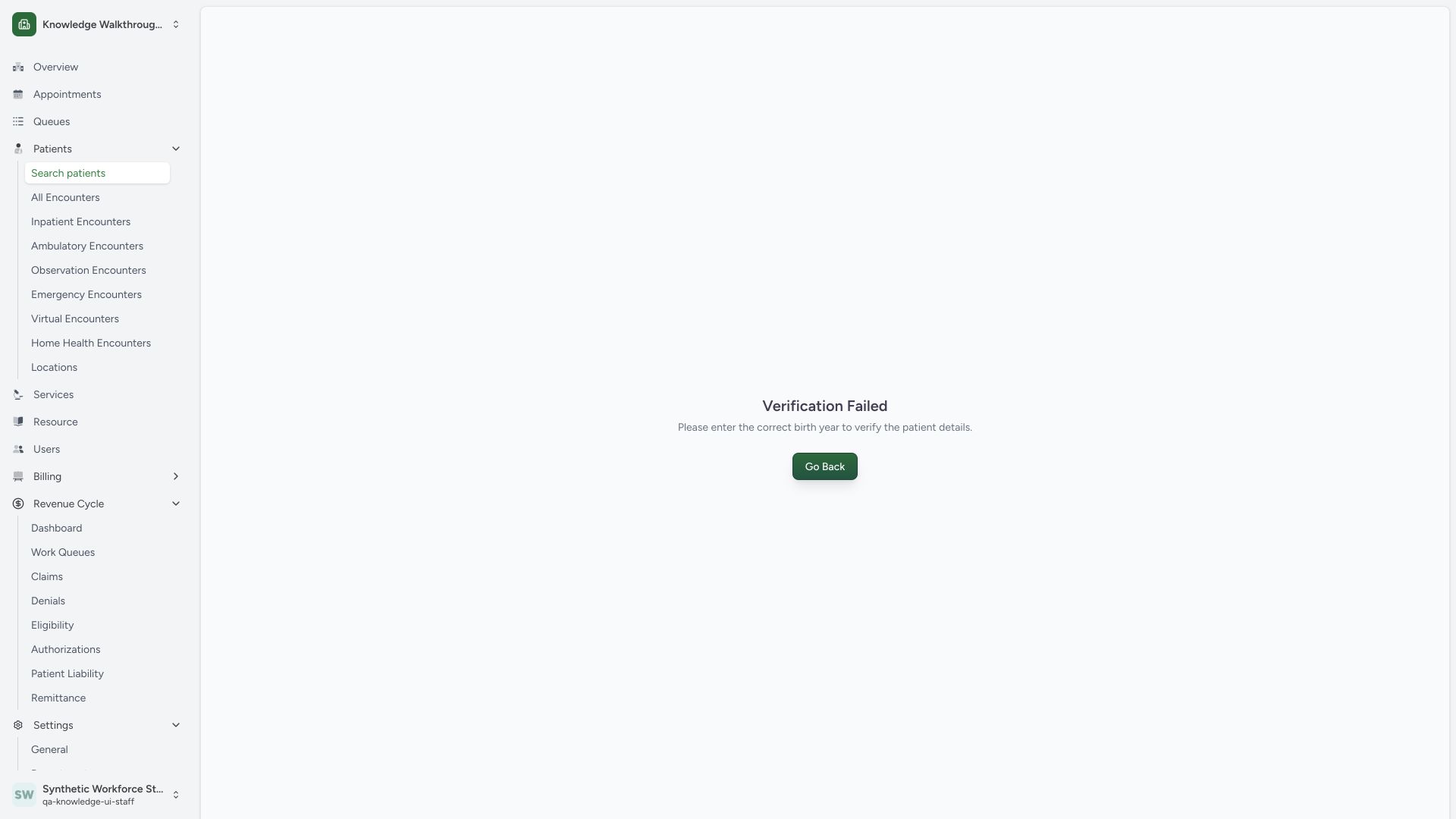
An incorrect year 1989 produces Verification Failed and asks for the correct birth year. The independent same-Staff verification read returns403 for that mismatch. Use Go Back, find the existing record again and supply accurate known information; no second record is needed.
 12
12Capture details
Actual1920×1080 Chrome pixels; source f6e9f05f. Existing Staff role, synthetic patient only. Staff registration and verified existing identity; no encounter/finance.
- Actual verification failure: The supplied year did not match this synthetic patient.
- Go Back and correct identity: Return to search and use accurate identifiers instead of registering another record.
3. Enter the correct known year and verify
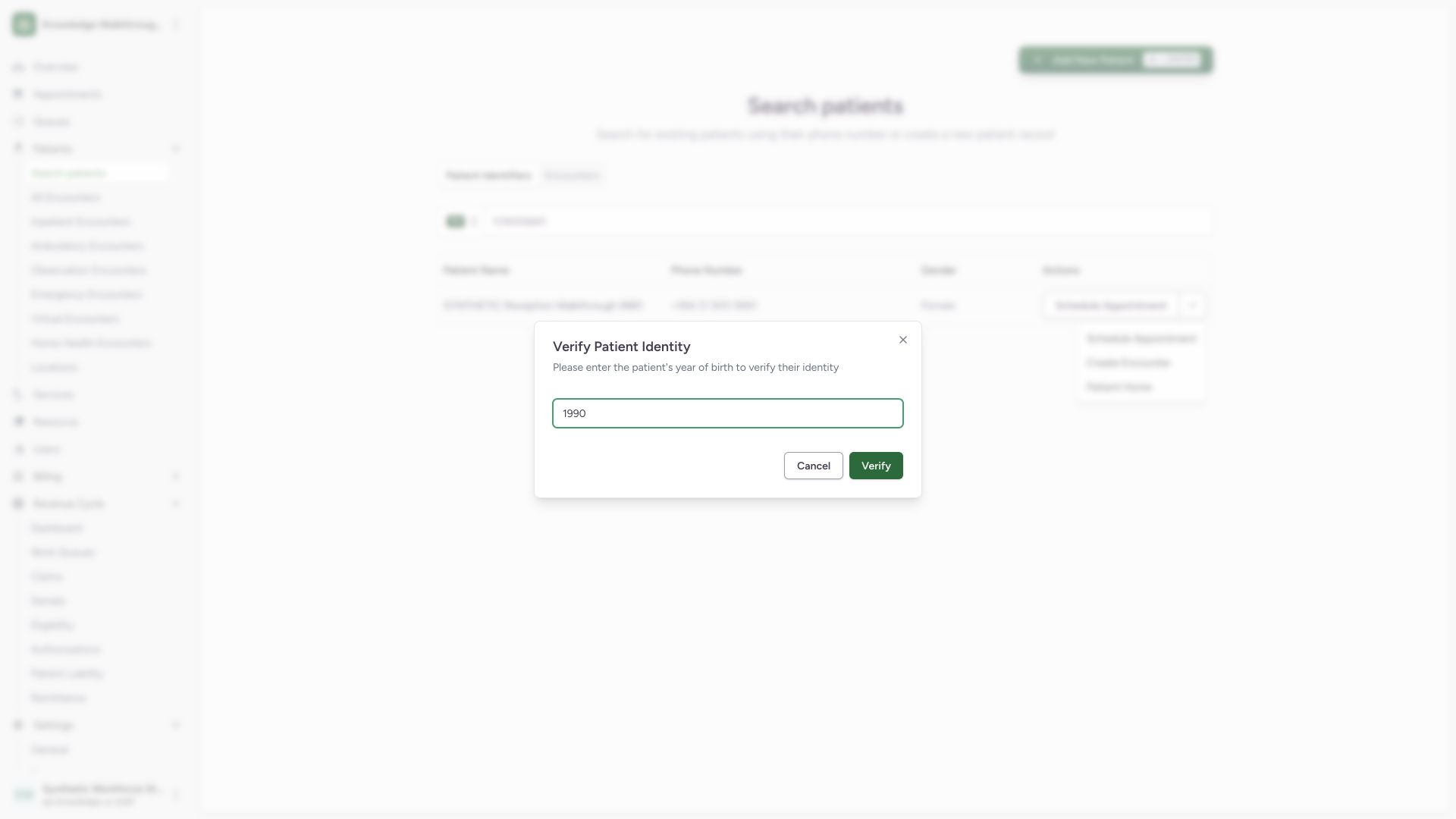
The Verify Patient Identity dialog asks for year of birth. This synthetic record’s known correct value is 1990. Select Verify after reviewing it. The blurred backdrop is the native product dialog presentation, preserved in the actual desktop screenshot.
 12
12Capture details
Actual1920×1080 Chrome pixels; source f6e9f05f. Existing Staff role, synthetic patient only. Staff registration and verified existing identity; no encounter/finance.
- Correct year of birth: Use the known accurate year, not a guessed value.
- Verify: Reopen the existing patient after accurate identity verification.
4. Verify the same saved patient reopens
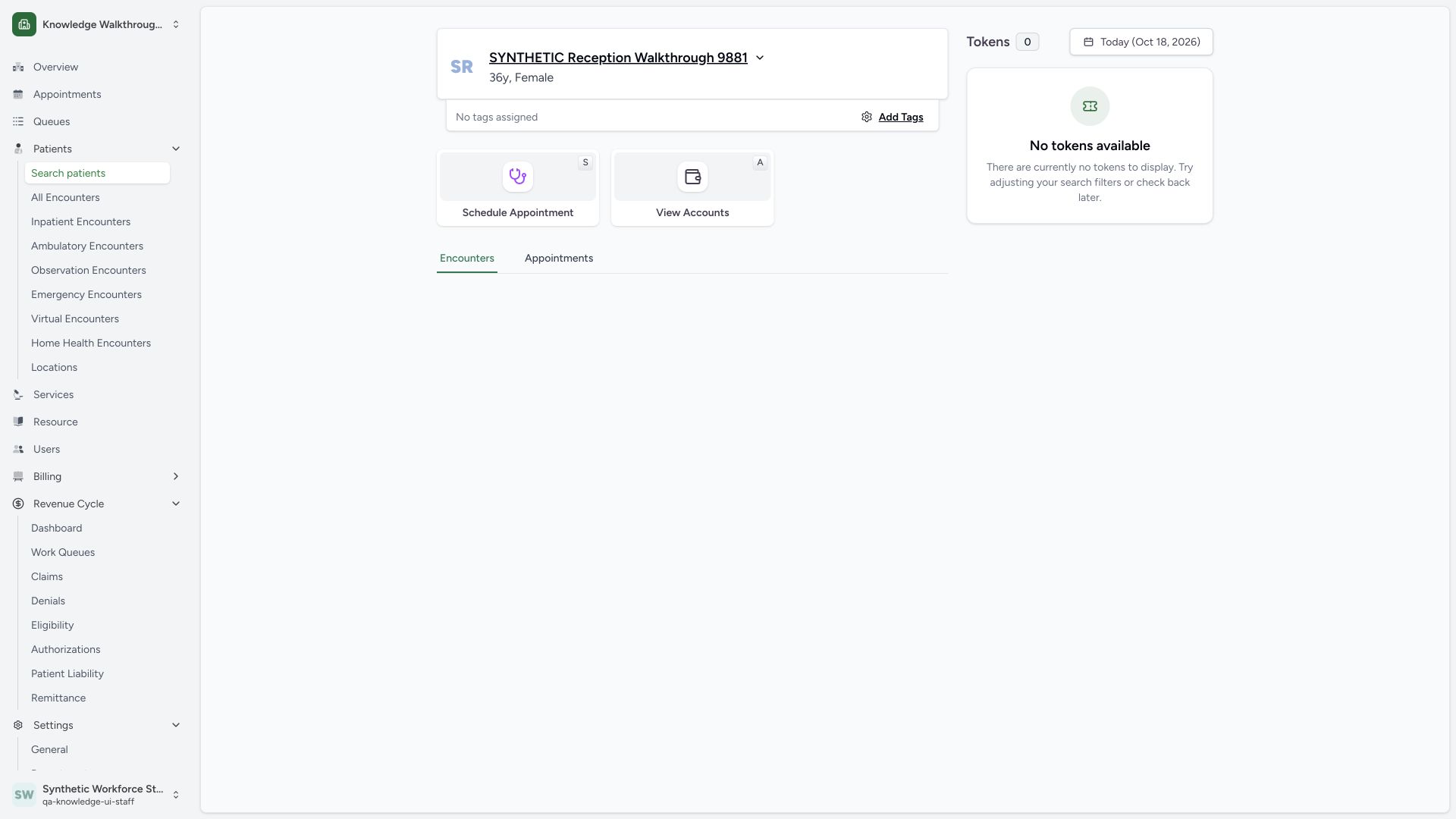
Correct verification opens the original patient home with the same identity and zero tokens. Normal same-Staff search_retrievePOST200 returns the same stable patient ID. SearchPOST200 returns one matching record. No encounter, account, appointment or token is created by this verification step.
 123
123Capture details
Actual1920×1080 Chrome pixels; source f6e9f05f. Existing Staff role, synthetic patient only. Staff registration and verified existing identity; no encounter/finance.
- Same saved identity reopened: Correct identity verification returns the original synthetic patient.
- Still zero tokens: Verification itself creates no encounter or queue token.
- Separate encounter action: No clinical encounter was created to bypass the profile boundary.
5. Recognize the separate full-profile boundary
From this newly registered patient home, the normal View Profile link leads to Patient Not Found for this Staff context. Same-Staff direct patient GETs returned404; identity-search verification still returns200. Full-profile retrieval follows different object/clinical-access checks. Return to supported search and use the approved support/access process; this guide does not show a demographic edit that the account could not reach.
 12
12Capture details
Actual1920×1080 Chrome pixels; source f6e9f05f. Existing Staff role, synthetic patient only. Staff registration and verified existing identity; no encounter/finance.
- Actual Patient Not Found result: Search verification and full clinical-profile retrieval use different authorization paths.
- Return to Search patients: Use the supported identity-verification workflow; do not create a duplicate to bypass this state.
6. Handle Patient Records Found as an existing-record advisory
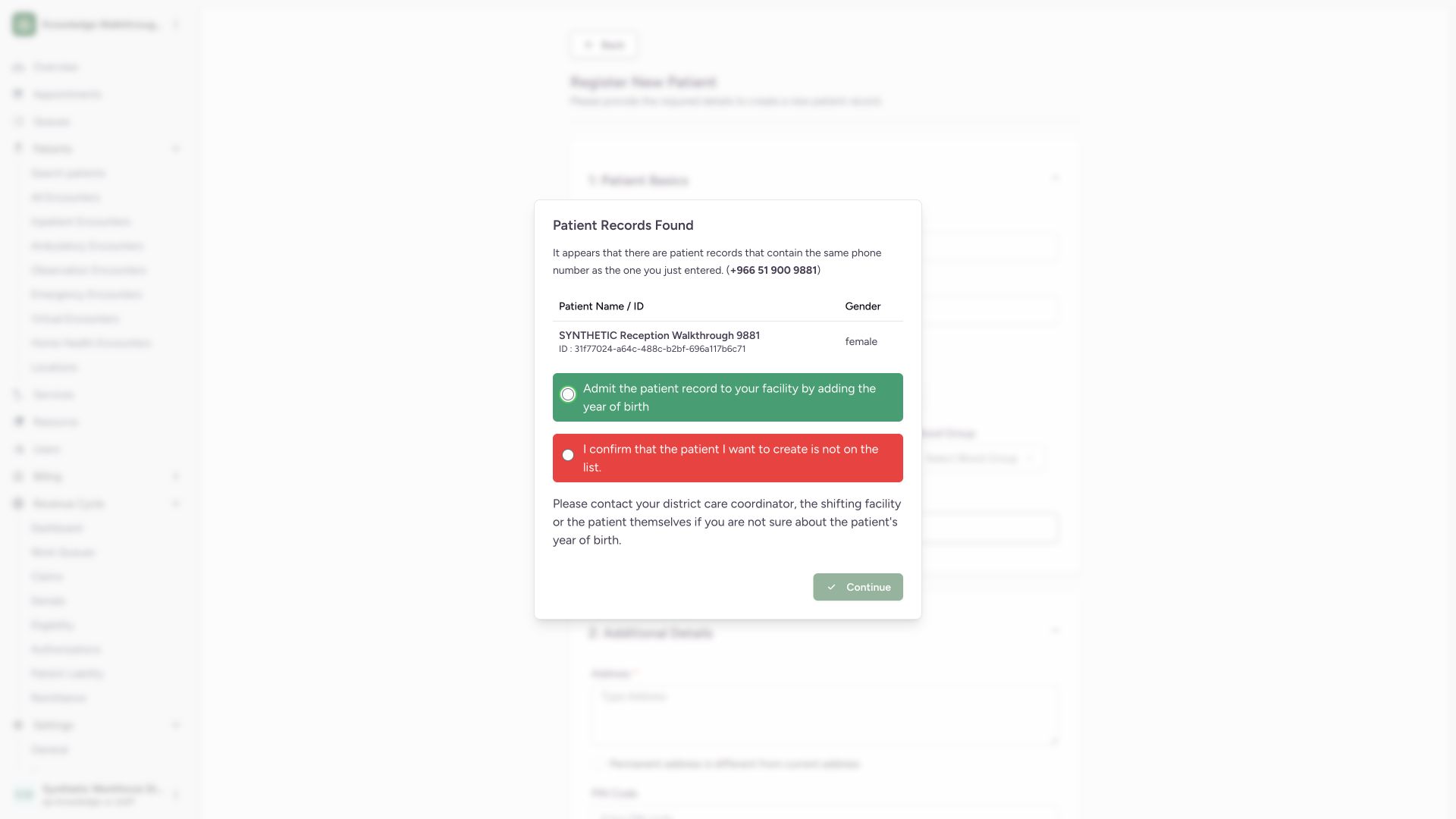
Entering this already-used contact in a new registration opens Patient Records Found. Review the matching patient. For this known match, select Admit the patient record to your facility by adding the year of birth, then Continue. Despite the pinned wording, the source callback returns to patient search for identity verification; it does not itself admit or create an encounter. The new-record assertion is not selected here. The displayed partial-search ID is randomized by the source and is not a stable patient identifier.
 1234
1234Capture details
Actual1920×1080 Chrome pixels; source f6e9f05f. Existing Staff role, synthetic patient only. Staff registration and verified existing identity; no encounter/finance.
- Existing patient match: Review matching name/contact/demographics. Displayed partial-search ID is not a stable record identifier.
- Existing-record option: Pinned wording says Admit, but callback returns to patient search for year-of-birth verification; it does not create an encounter.
- New-record assertion: Only appropriate when intended patient is genuinely absent; not selected here.
- Continue requires selection: Use the verified existing-record path for this known match.
7. Confirm return to the existing record without duplication
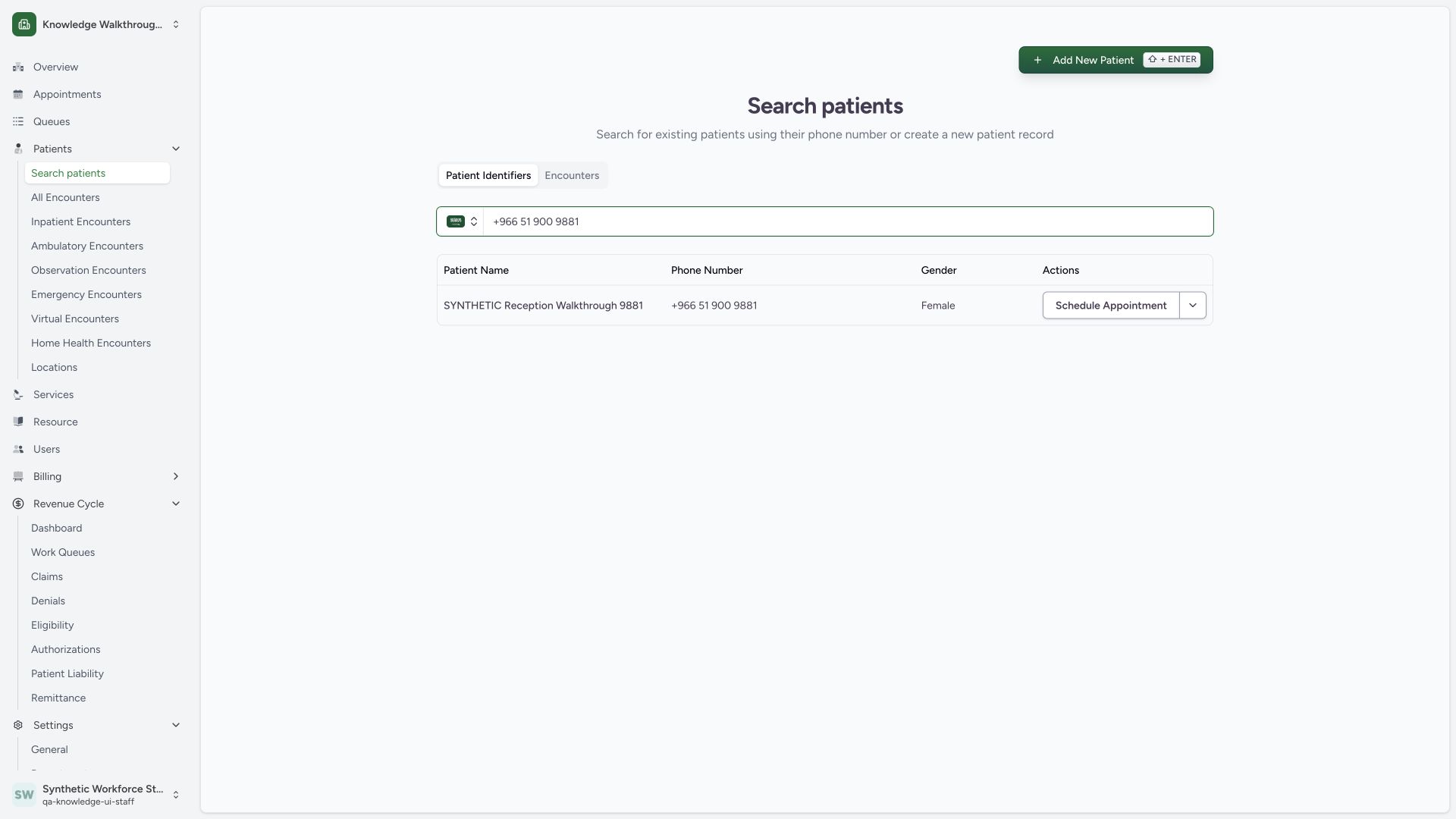
The advisory returns to Search patients with the original contact and one matching row. Independent normal same-Staff searchPOST200 confirms exactly one match, and search_retrieve200 returns the original stable patient ID. No second patient, encounter or admission was submitted. Continue through accurate identity verification when needed.
 12
12Capture details
Actual1920×1080 Chrome pixels; source f6e9f05f. Existing Staff role, synthetic patient only. Staff registration and verified existing identity; no encounter/finance.
- Original contact retained: The advisory returns to supported identity search.
- Single existing match: Use the existing record rather than creating another.
Partial search IDs and stable identity
The backend partial-search specification generates a random UUID for the displayed id and separately provides the first five characters of the true external ID as partial_id. The duplicate dialog prints the partial-search id. Do not use the displayed random UUID as a stable patient reference; correct identity verification returns the actual saved identity.
Source-defined access boundary
Full patient-detail retrieval uses the clinical-data authorization path or filtered patient query. Patient authorization derives roles from encounters, organizations and patient-user associations. The newly created record in this example has no encounter, so ordinary full profile retrieval was unavailable to this Staff context despite the View Profile link. No role was broadened, no fabricated encounter was created and no successful Staff demographic edit is claimed.
Troubleshooting
Verification Failed appears
Return to search and verify accurate known identifiers and year. If these cannot be confirmed, follow the deployment’s identity-resolution process.
Patient Not Found appears after a successful search verification
Treat identity verification and full-profile access as separate. Confirm the intended workflow and authorized scope with the deployment administrator instead of duplicating the patient.
Source evidence
References are pinned to the private MANSOQ source repository. Repository access is required to open these links.
- repositories/platform/mansoq-web/src/components/Patient/PatientIndex.tsx:171 · f6e9f05f
- repositories/platform/mansoq-web/src/components/Patient/PatientIndex.tsx:649 · f6e9f05f
- repositories/platform/mansoq-web/src/components/Patient/PatientRegistration.tsx:254 · f6e9f05f
- repositories/platform/mansoq-web/src/components/Patient/PatientRegistration.tsx:470 · f6e9f05f
- repositories/platform/mansoq-web/src/components/Facility/DuplicatePatientDialog.tsx:98 · f6e9f05f
- repositories/platform/mansoq-web/src/components/Facility/DuplicatePatientDialog.tsx:140 · f6e9f05f
- repositories/platform/mansoq-web/src/pages/Patient/PatientHome.tsx:83 · f6e9f05f
- repositories/platform/mansoq-core/mansoq/emr/api/viewsets/patient.py:93 · f6e9f05f
- repositories/platform/mansoq-core/mansoq/emr/api/viewsets/patient.py:269 · f6e9f05f
- repositories/platform/mansoq-core/mansoq/emr/resources/patient/spec.py:232 · f6e9f05f
- repositories/platform/mansoq-core/mansoq/security/authorization/patient.py:16 · f6e9f05f