 MANSOQ
 Patient administration
Register a patient as Staff and verify the saved identity
Search first, review required demographics and configured geography, register once and distinguish patient creation from an encounter.
7 min read · Source baseline f6e9f05f
Verification and applicability
Five actual1920×1080 screenshots. Normal existing Staff UI registers one synthetic Clinic patient; independent same-Staff search_retrievePOST200 confirms exact saved identity. No encounter, appointment, account, token or outbound communication. Optional registration variants and effective access for other roles/facilities remain separate.
Check your installed version, permissions and local configuration.
Before you begin
- Use a deployment-approved account with patient-create permission and select the correct facility. This example uses the existing synthetic Staff role in one synthetic Clinic. Receptionist is a learner audience; no extra native Receptionist role or rights are asserted.
- Use only approved synthetic data in training. All pictured identity/address/contact values are demonstration data; no outbound communication, appointment, encounter or payment occurs.
1. Search for the patient before creating a record
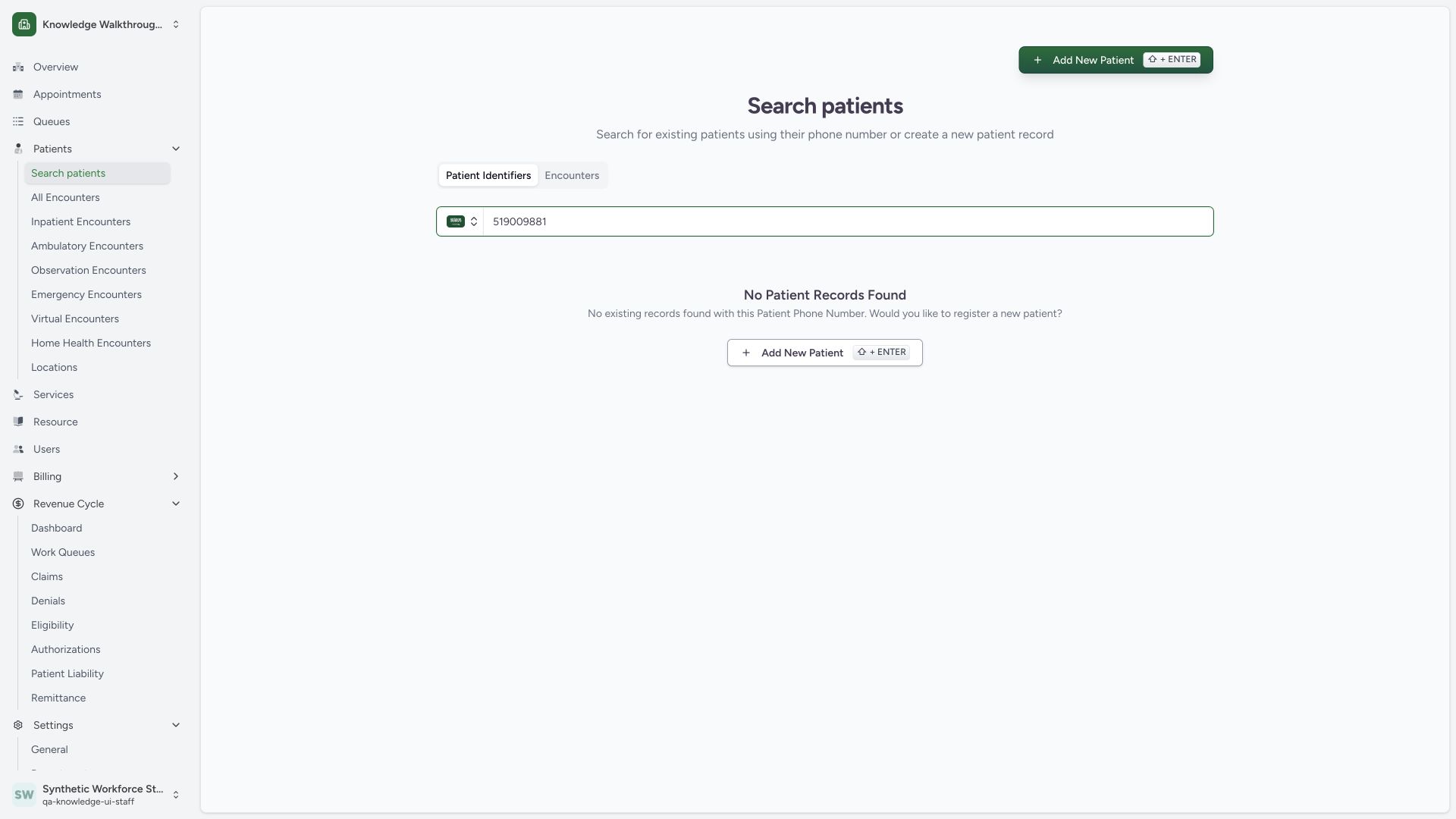
Open Search patients and use the intended identifier/contact. The initial synthetic search shows No Patient Records Found. Review the result before choosing Add New Patient; creating another record is not the recovery for a known patient with an access or verification error.
 123
123Capture details
Actual1920×1080 Chrome pixels; source f6e9f05f. Existing Staff role, synthetic patient only. Staff registration and verified existing identity; no encounter/finance.
- Search existing identifiers first: Search the intended contact in the selected facility before adding a record.
- Actual no-match result: No existing record for the synthetic contact at this point.
- Add New Patient: Open the registration form after reviewing the search result.
2. Read the required basics and verify inherited contact
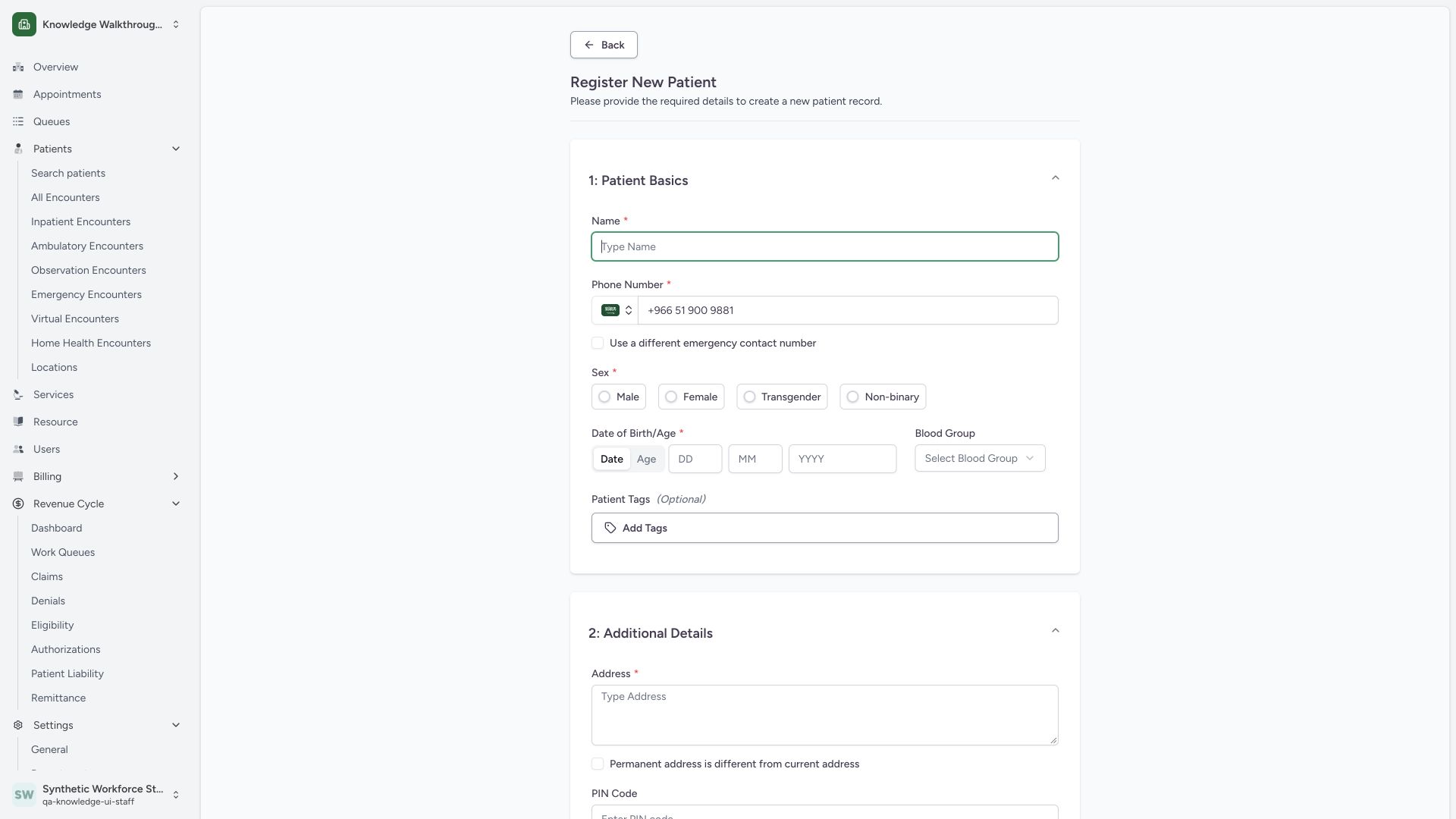
The new form inherits the contact used in search. Confirm Name, Phone Number, Sex and Date of Birth/Age. The screen also exposes optional Blood Group/tags and a separate-emergency-contact toggle; those optional branches are not submitted in this example. The blank form alone is not a registered patient.
 1234
1234Capture details
Actual1920×1080 Chrome pixels; source f6e9f05f. Existing Staff role, synthetic patient only. Staff registration and verified existing identity; no encounter/finance.
- Required patient name: Use the approved identity; this example is clearly SYNTHETIC.
- Inherited searched contact: Verify phone and country before continuing.
- Required Sex: Choose the correct recorded demographic option.
- Date or Age input: Choose the available method and confirm accurate values.
3. Review accurate demographic values
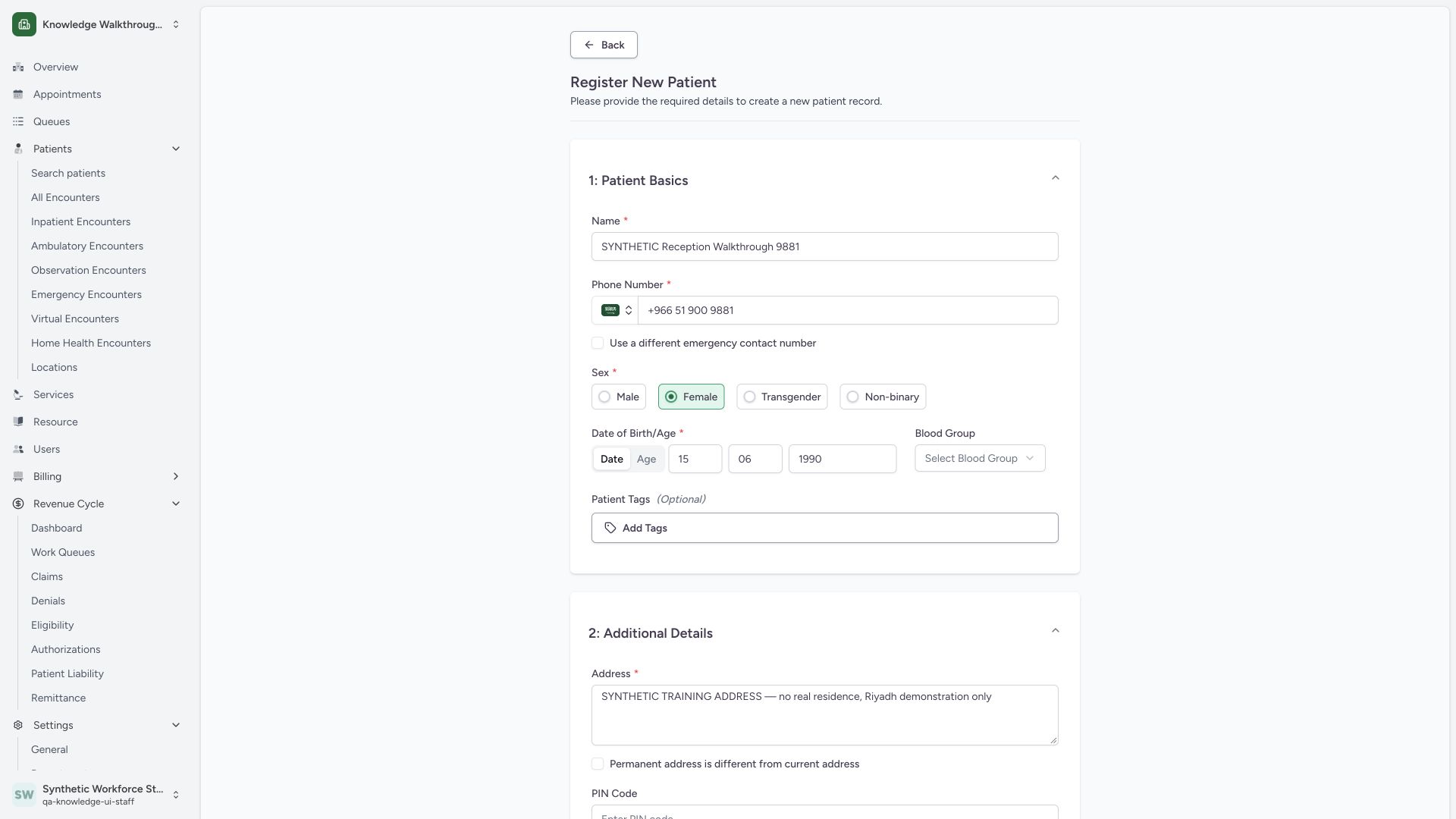
This training record uses SYNTHETIC Reception Walkthrough 9881, the searched contact, Female and 15June1990 through the Date day/month/year method. Review each value before registration. This example retains the same emergency contact and does not select blood group or patient tags.
 1234
1234Capture details
Actual1920×1080 Chrome pixels; source f6e9f05f. Existing Staff role, synthetic patient only. Staff registration and verified existing identity; no encounter/finance.
- Review exact name: Clearly marked synthetic identity in this training environment.
- Review country and contact: Verify inherited searched contact.
- Selected demographic value: Female selected for this synthetic record.
- Review full birth date: 15June1990 using day/month/year fields.
4. Review address and configured geographic hierarchy, then register
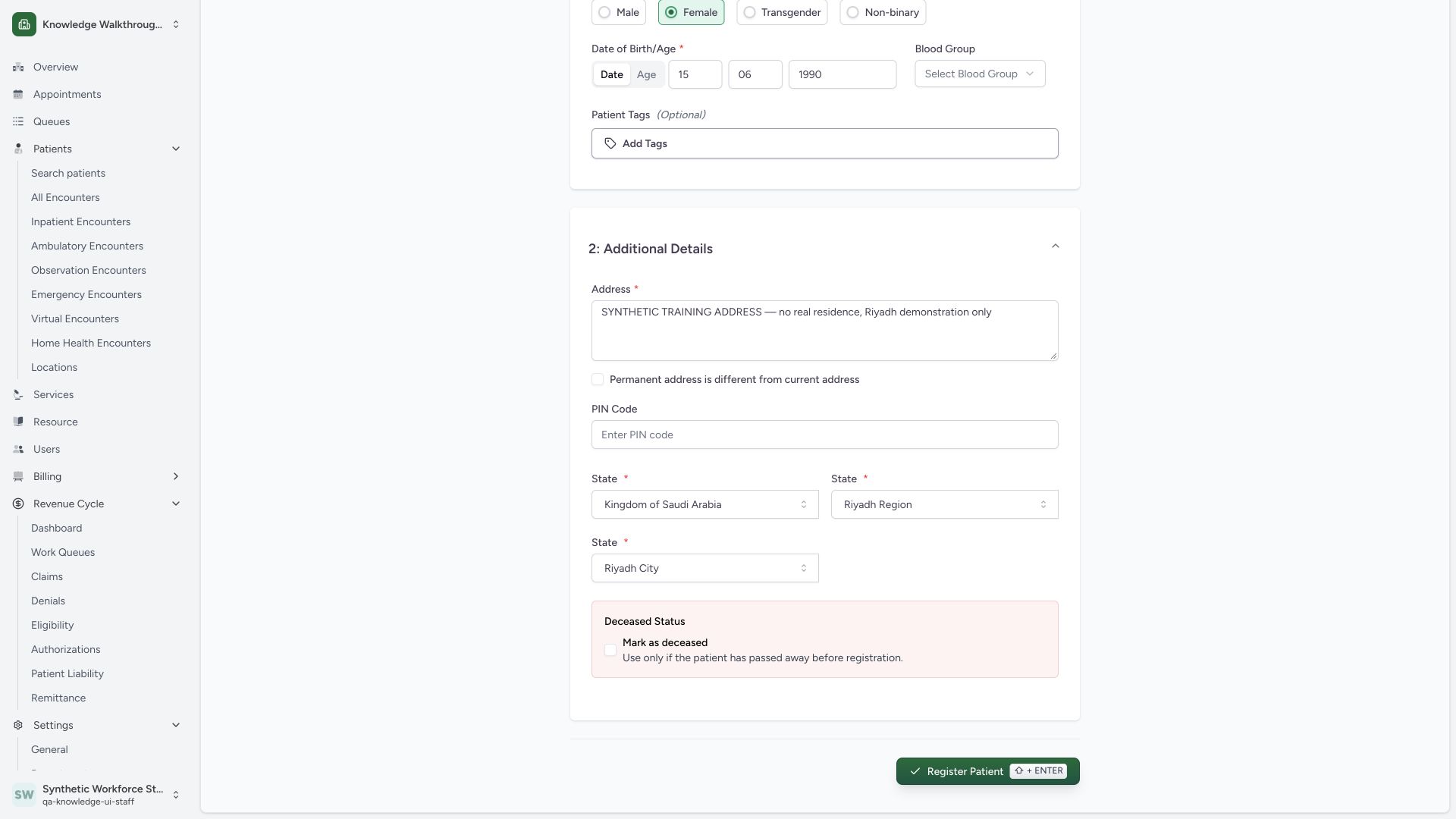
The required address is explicitly synthetic. The configured hierarchy here is Kingdom of Saudi Arabia → Riyadh Region → Riyadh City; this pinned interface repeats the label State for these levels. Confirm all selections. PIN remains blank, permanent address remains the same and deceased status stays unchecked. Use Register Patient to save one patient record.
 12345
12345Capture details
Actual1920×1080 Chrome pixels; source f6e9f05f. Existing Staff role, synthetic patient only. Staff registration and verified existing identity; no encounter/finance.
- Required synthetic address: Use the approved address; no real residence in this fixture.
- Geographic root: This pinned UI repeats State labels for hierarchy levels.
- Region: Riyadh Region follows the chosen root.
- Leaf city: Confirm Riyadh City in this configured hierarchy.
- Register reviewed patient: Save one patient record; this does not start an encounter.
5. Verify saved registration separately from clinical work
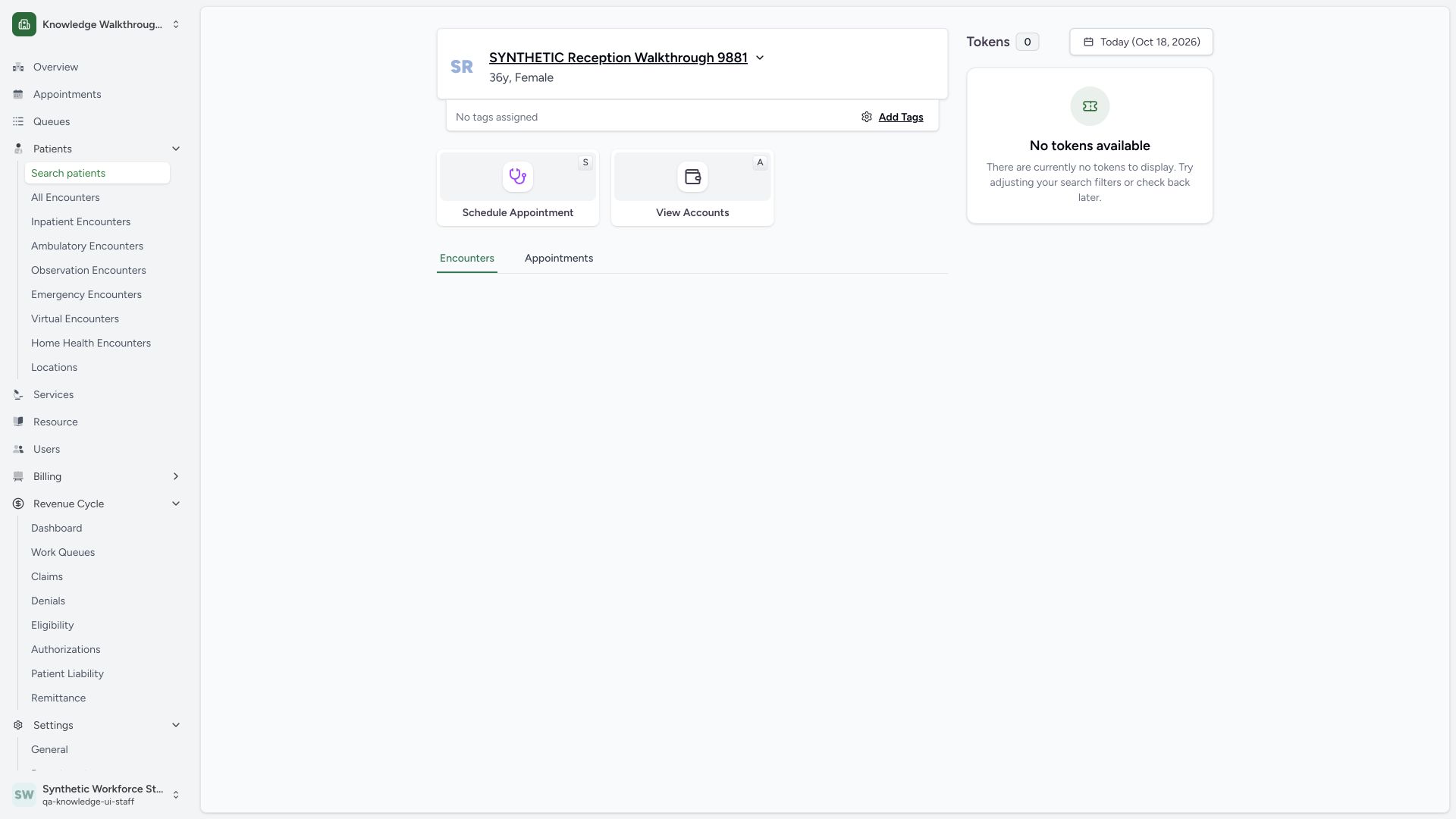
The saved patient home shows the same synthetic name and 36y, Female. Independent normal same-Staff search_retrieve returned200 and confirmed the stable patient ID, name, DOB1990-06-15, address and geography. The workspace has zero tokens and no encounter rows: registration did not itself create an appointment, account or encounter.
 1234
1234Capture details
Actual1920×1080 Chrome pixels; source f6e9f05f. Existing Staff role, synthetic patient only. Staff registration and verified existing identity; no encounter/finance.
- New patient identity: Match the name and demographics to the reviewed registration.
- Tags are separate: No tags assigned in this registration example.
- No automatic token: Zero tokens; registration is not a queue or encounter action.
- Encounter area: No encounter was started by this Staff registration.
Registration and later workflows are separate
This guide qualifies one source-supported Staff registration in a synthetic Clinic. Different configured identifiers, extensions, quick-registration settings, age-only entry, separate emergency/permanent address, deceased details and patient tags have their own validation and teaching requirements. No all-facility or all-role registration claim is made.
The normal readback contract matters
The patient-home UI verifies using contact, year of birth and the partial identifier. In this fixture the same Staff account’s direct patient detail GET returned404, while the actual search_retrieve contract returned200. That difference is recorded rather than worked around with another role or an artificial encounter.
Troubleshooting
A record already matches the contact
Use the existing-record identity-verification path. The companion guide demonstrates the warning and correct/incorrect birth-year recovery.
A required value is missing
Review the marked fields and normal form validation before retrying; an enabled registration button is not itself proof that the draft is valid.
Source evidence
References are pinned to the private MANSOQ source repository. Repository access is required to open these links.
- repositories/platform/mansoq-web/src/components/Patient/PatientRegistration.tsx:117 · f6e9f05f
- repositories/platform/mansoq-web/src/components/Patient/PatientRegistration.tsx:254 · f6e9f05f
- repositories/platform/mansoq-web/src/components/Patient/PatientRegistration.tsx:267 · f6e9f05f
- repositories/platform/mansoq-web/src/components/Patient/PatientRegistration.tsx:528 · f6e9f05f
- repositories/platform/mansoq-web/src/components/Patient/PatientRegistration.tsx:614 · f6e9f05f
- repositories/platform/mansoq-web/src/pages/Patient/PatientHome.tsx:83 · f6e9f05f
- repositories/platform/mansoq-core/mansoq/emr/api/viewsets/patient.py:269 · f6e9f05f