 MANSOQ
 Appointments & queues
Reschedule an appointment and verify both records
Record the previous-appointment reason, review a replacement slot, and distinguish the new Booked record from the retained Rescheduled record.
8 min read · Source baseline f6e9f05f
Verification and applicability
Eight actual 1920 × 1080 Chrome images of original f6e9 local synthetic runtime. Independent normal Staff detail and resource-filtered list GET200 checkpoints corroborate old Rescheduled/allocated0, separate new Booked/allocated1, then the same replacement Cancelled/allocated0. Both records retained, no charge/token/encounter, no new grants or external patient communication.
Check your installed version, permissions and local configuration.
Before you begin
- Use an existing account with booking access in the intended facility. The observed Staff account has booking-write and reschedule permissions; Receptionist names a job function and is not a new built-in security role.
- Open the intended existing patient appointment and confirm its practitioner, time and status. The illustrated records are synthetic appointments in one Clinic, with no charge, token or encounter.
- This isolated training runtime uses local notification transport. The visible product warnings mention patient notification; these captures do not prove external message delivery.
1. Open Reschedule on the saved booking
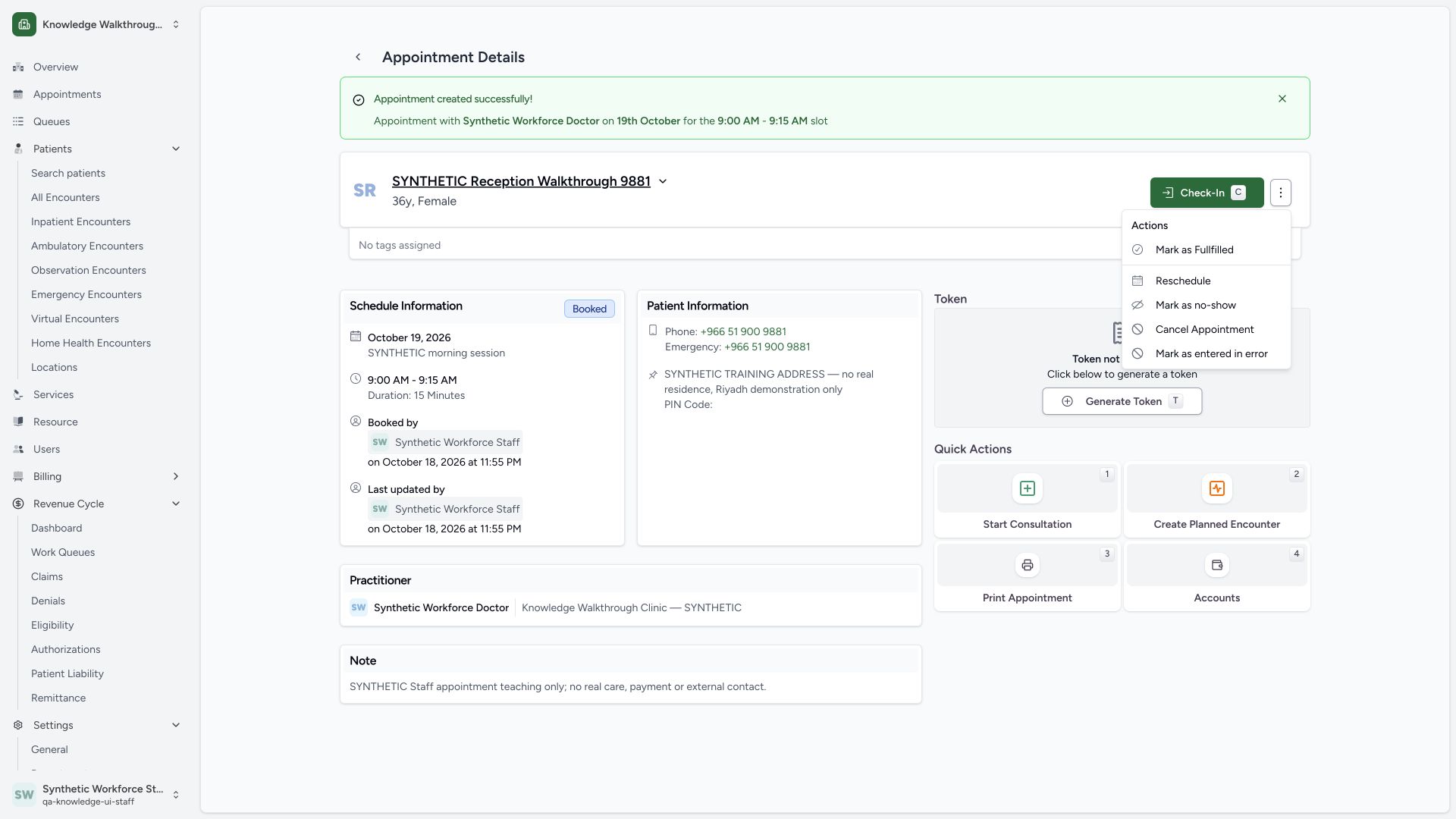
On the intended Booked appointment, open the three-dot Actions menu beside Check-In, then choose Reschedule. The menu also exposes other lifecycle actions; this guide continues only through rescheduling.
 123
123Capture details
Actual 1920 × 1080 Chrome pixels; pinned source f6e9f05f. Staff reschedule and cancellation of synthetic practitioner appointments
- Appointment actions: Open the three-dot menu beside Check-In.
- Reschedule: Begin the authorized move to another available time.
- Cancel Appointment: Cancellation is a separate saved-status action.
2. Record the reason for the previous appointment
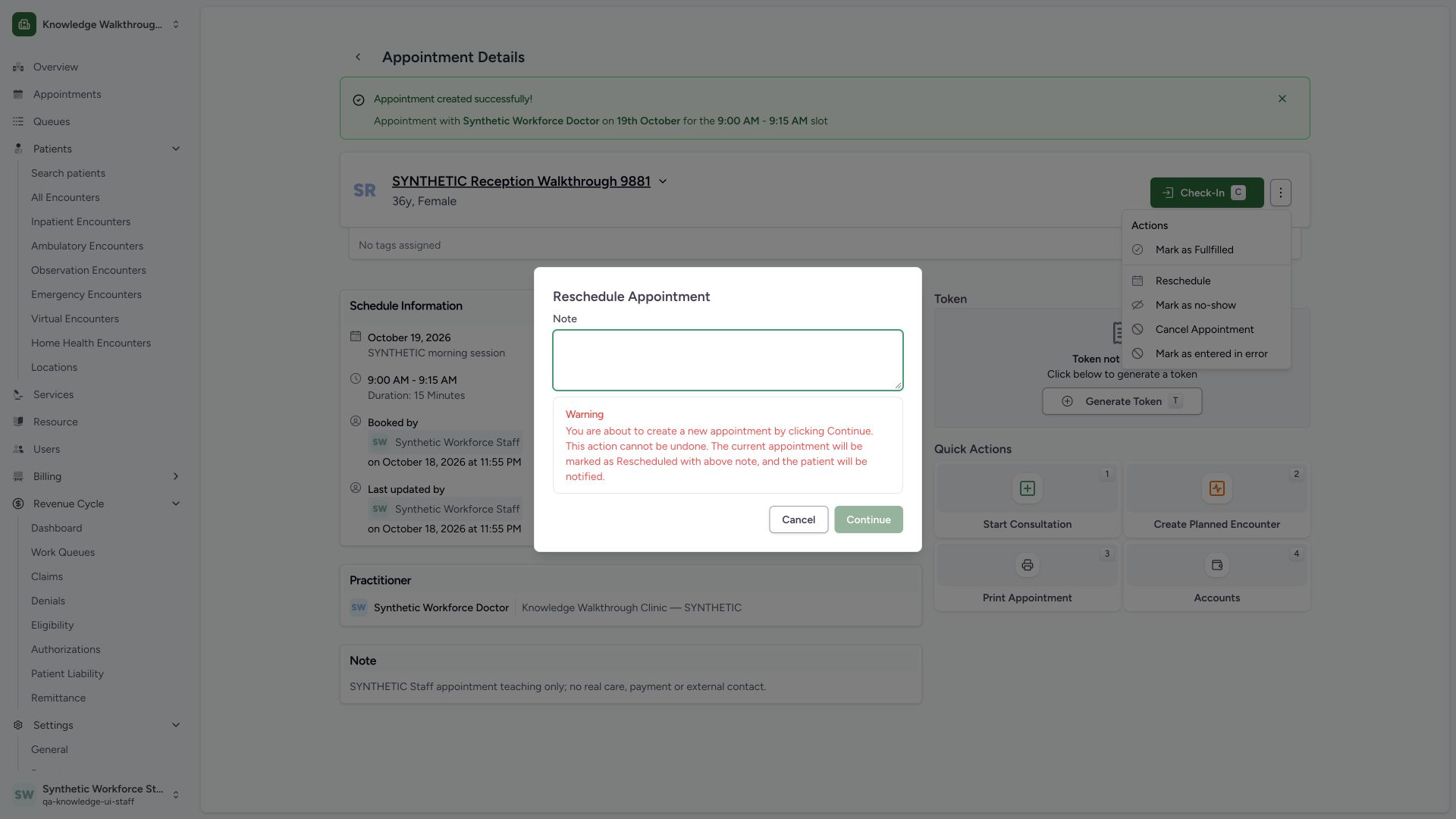
The first Reschedule Appointment dialog contains the note that will be saved on the previous record. Clearing it disables Continue. Enter the intended reason, then use Continue to choose the replacement. The synthetic example uses SYNTHETIC previous appointment moved for teaching.
 123
123Capture details
Actual 1920 × 1080 Chrome pixels; pinned source f6e9f05f. Staff reschedule and cancellation of synthetic practitioner appointments
- Previous appointment note: A note is required before Continue is enabled.
- Reschedule warning: Read how the current appointment will be retained.
- Continue disabled: Complete the note before choosing the replacement slot.
3. Review the replacement note, practitioner, date and time
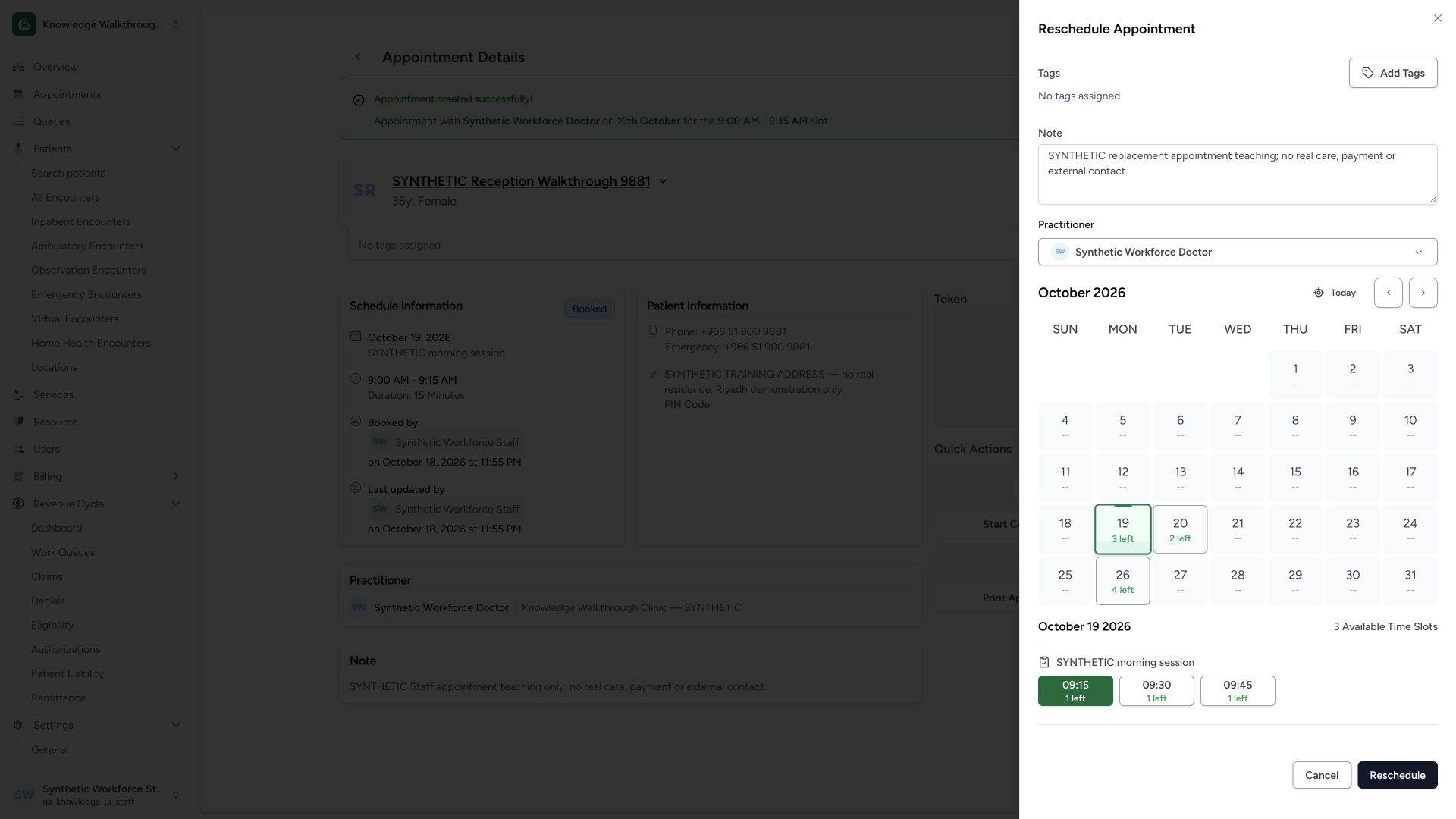
In the replacement sheet, enter the separate note for the new booking and confirm the practitioner. Choose 19 October in this example. The original 09:00 slot is excluded; the first available 09:15 slot is automatically selected. Review the selected time and remaining capacity, then use Reschedule once.
 12345
12345Capture details
Actual 1920 × 1080 Chrome pixels; pinned source f6e9f05f. Staff reschedule and cancellation of synthetic practitioner appointments
- Replacement appointment note: This is the note for the new booking, separate from the previous-record note.
- Same scheduled practitioner: Confirm the intended resource.
- Selected date: Review 19 October and available capacity.
- Selected 09:15 replacement: The original 09:00 slot is excluded; review the new time.
- Reschedule: Save the old and replacement appointment transition once.
4. Verify the newly saved replacement
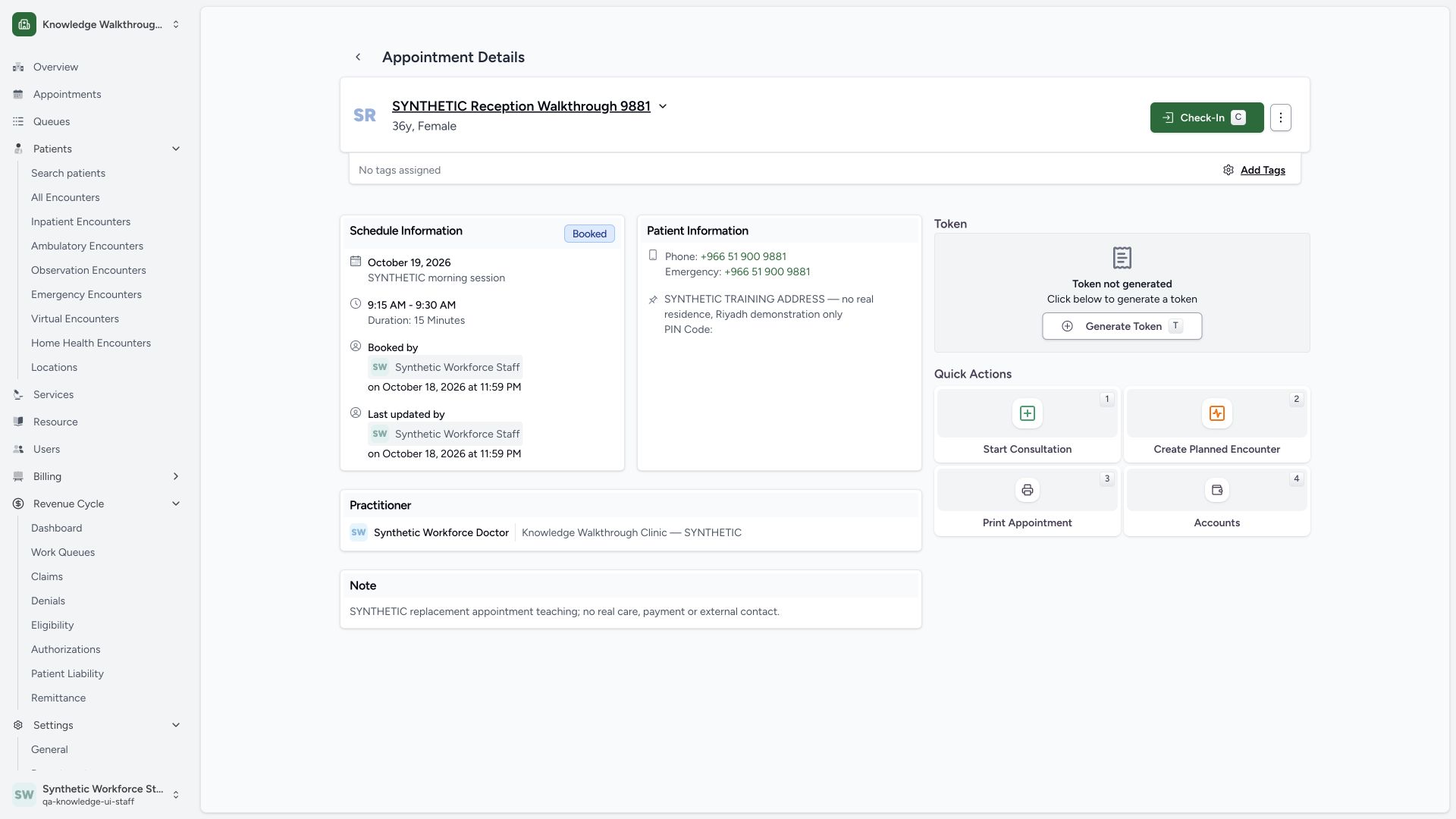
The resulting page shows the separate replacement record as Booked, 09:15–09:30, 15 Minutes, the existing Staff actor, Doctor and replacement note. A normal independent Staff read confirmed the new appointment UUID and slot allocation of one.
 1234
1234Capture details
Actual 1920 × 1080 Chrome pixels; pinned source f6e9f05f. Staff reschedule and cancellation of synthetic practitioner appointments
- Replacement Booked status: The replacement is a new saved appointment record.
- New 09:15–09:30 time: Verify the intended replacement time and duration.
- Staff booking actor: The replacement records the existing Staff user.
- Replacement note: This note is separate from the retained previous-record reason.
5. Distinguish the retained previous record
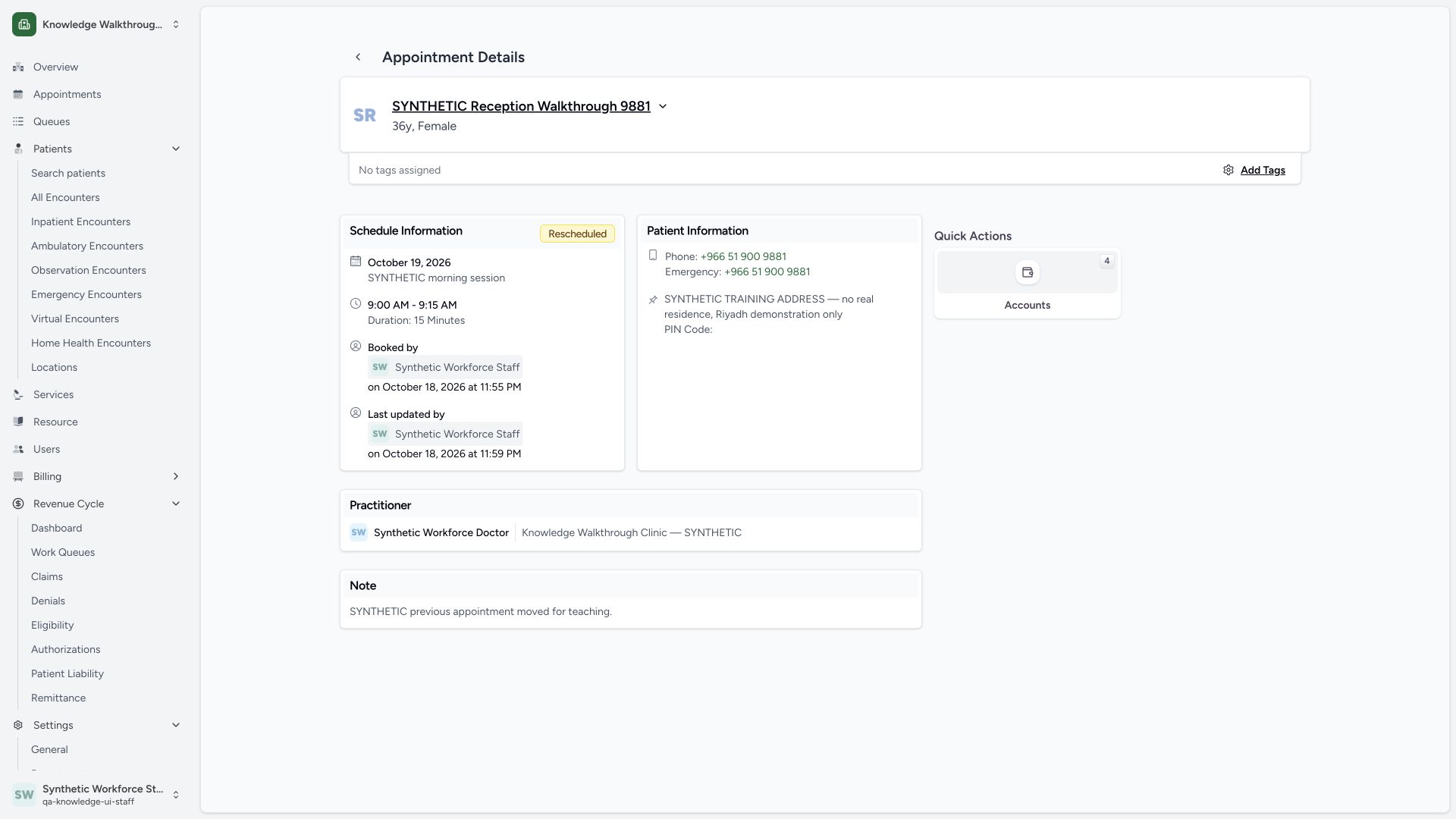
The previous appointment remains Rescheduled, keeps 09:00–09:15, and shows the reason entered in the first dialog. Its original slot allocation is now zero. This is the retained previous record, not the new Booked appointment; no record was deleted.
 1234
1234Capture details
Actual 1920 × 1080 Chrome pixels; pinned source f6e9f05f. Staff reschedule and cancellation of synthetic practitioner appointments
- Previous Rescheduled status: The old record remains in the system.
- Original 09:00–09:15 time: This retained record keeps its former time.
- Updated Staff actor: The reschedule is reflected in the audit actor and time.
- Previous-record reason: The first dialog note is saved on this old record.
Preserved appointment history
Rescheduling retains the old appointment as Rescheduled and creates a separate replacement record. Cancellation retains the cancelled record and reason. These are saved workflow statuses; no appointment is deleted in this walkthrough.
Role and version boundary
The images show original source f6e9 and one existing Staff account in one synthetic Clinic. Clinical quick actions visible on the original Booked screen were not executed. Staff has no encounter-create permission; later candidate control fixes are not represented by these pixels.
Troubleshooting
Continue or Confirm is disabled
Complete the required reason and review the intended appointment before submitting. A blank note is not accepted by these dialogs.
A replacement time is missing
Choose an offered date and available slot. The current appointment slot is excluded from replacement choices. Availability and your existing scheduling permissions still apply.
Source evidence
References are pinned to the private MANSOQ source repository. Repository access is required to open these links.
- repositories/platform/mansoq-web/src/pages/Appointments/AppointmentDetail.tsx:904 · f6e9f05f
- repositories/platform/mansoq-web/src/pages/Appointments/AppointmentDetail.tsx:997 · f6e9f05f
- repositories/platform/mansoq-web/src/pages/Appointments/AppointmentDetail.tsx:1146 · f6e9f05f
- repositories/platform/mansoq-web/src/pages/Appointments/BookAppointment/AppointmentSlotPicker.tsx:63 · f6e9f05f
- repositories/platform/mansoq-core/mansoq/emr/api/viewsets/scheduling/booking.py:213 · f6e9f05f