 MANSOQ
 Clinical care
Create a resource request and record coordination notes
Choose a public support facility, complete the required synthetic request details, verify the saved Pending record and review the posted note.
12 min read · Source baseline f6e9f05f
Verification and applicability
Actual 1920 × 1080 Chrome screenshots from isolated synthetic MANSOQ source f6e9f05f. Existing Staff creates one own-origin request to an existing synthetic public destination, saves one note and changes Pending to Approved through normal UI. Independent normal Staff resource/comment GET200 reads verify the same UUID, exact origin/destination, no patient, no assigned person and retained note. No new grants, directory visibility changes, external contact, real care/financial/transport action or all-role/facility qualification.
Check your installed version, permissions and local configuration.
Before you begin
- Use an operator authorized for the origin facility and the intended saved request. This example uses the existing synthetic Staff role in its own Clinic; another role or a visible sidebar alone does not establish access.
- The destination is an existing clearly synthetic public Clinic. No patient, real goods, treatment, transport, payment or external message is requested. Software status labels in this exercise do not represent care approval, delivery or acceptance by the destination.
1. Review the facility resource list and its filters
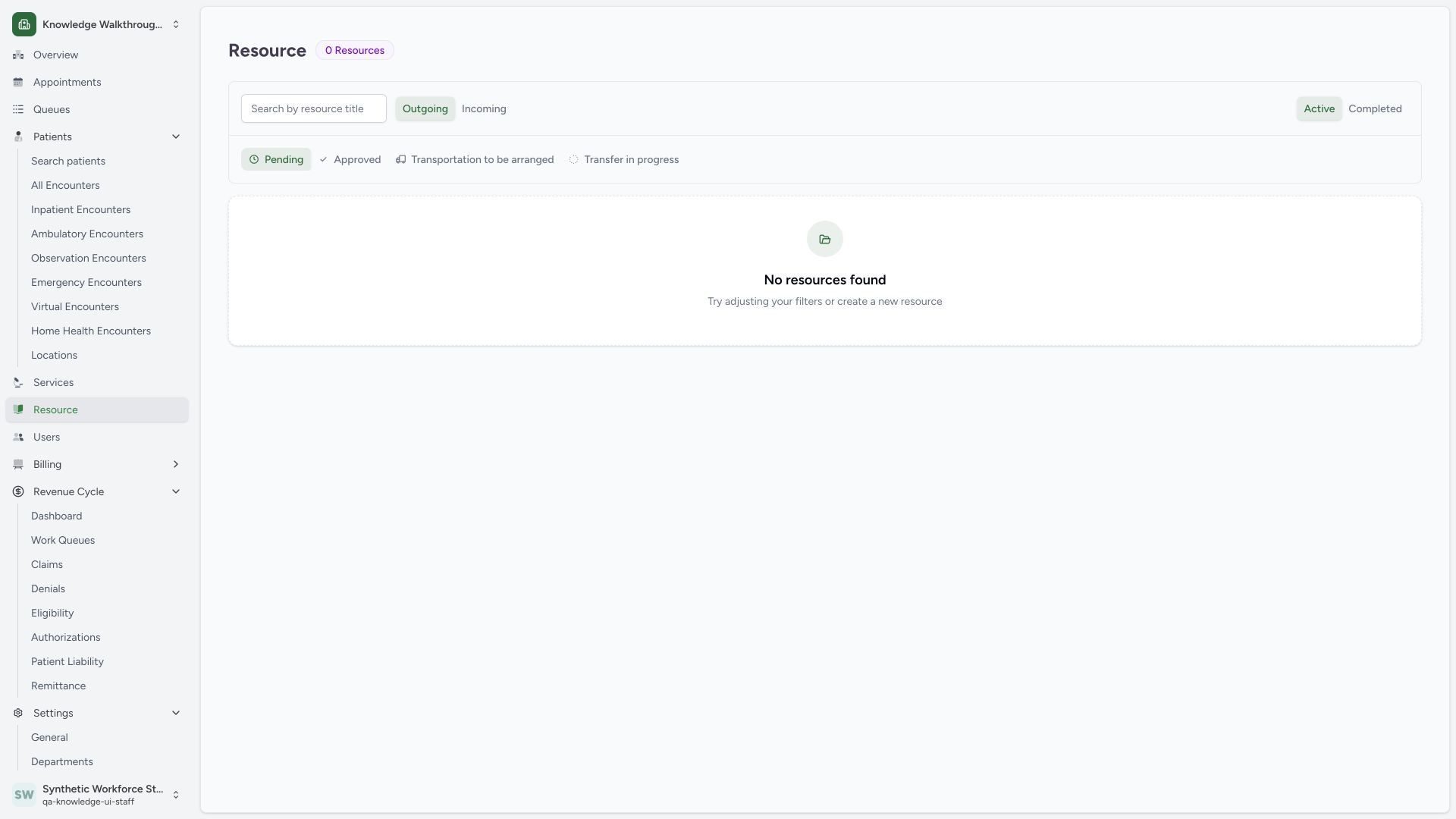
Open Resource for the intended facility. This starting view has Outgoing, Active and Pending selected, with title search and no matching request. The pictured pinned facility list has no Create action. This guide next uses the source-defined facility-only Create Request URL provided for the training facility; it does not imply there is a list button.
 12345
12345Capture details
Actual 1920 × 1080 Chrome pixels; pinned source f6e9f05f. Staff own-origin synthetic resource coordination, comments and request letter
- Resource navigation: Open the facility resource workspace.
- Search by title: Use the resource title to find a saved request.
- Outgoing and Incoming: These use different origin and assigned facility filters.
- Active and Completed groups: Choose the matching group and status tab.
- Pending status: A saved Approved or Completed record is not in this filter.
2. Review the source-defined Create Request form
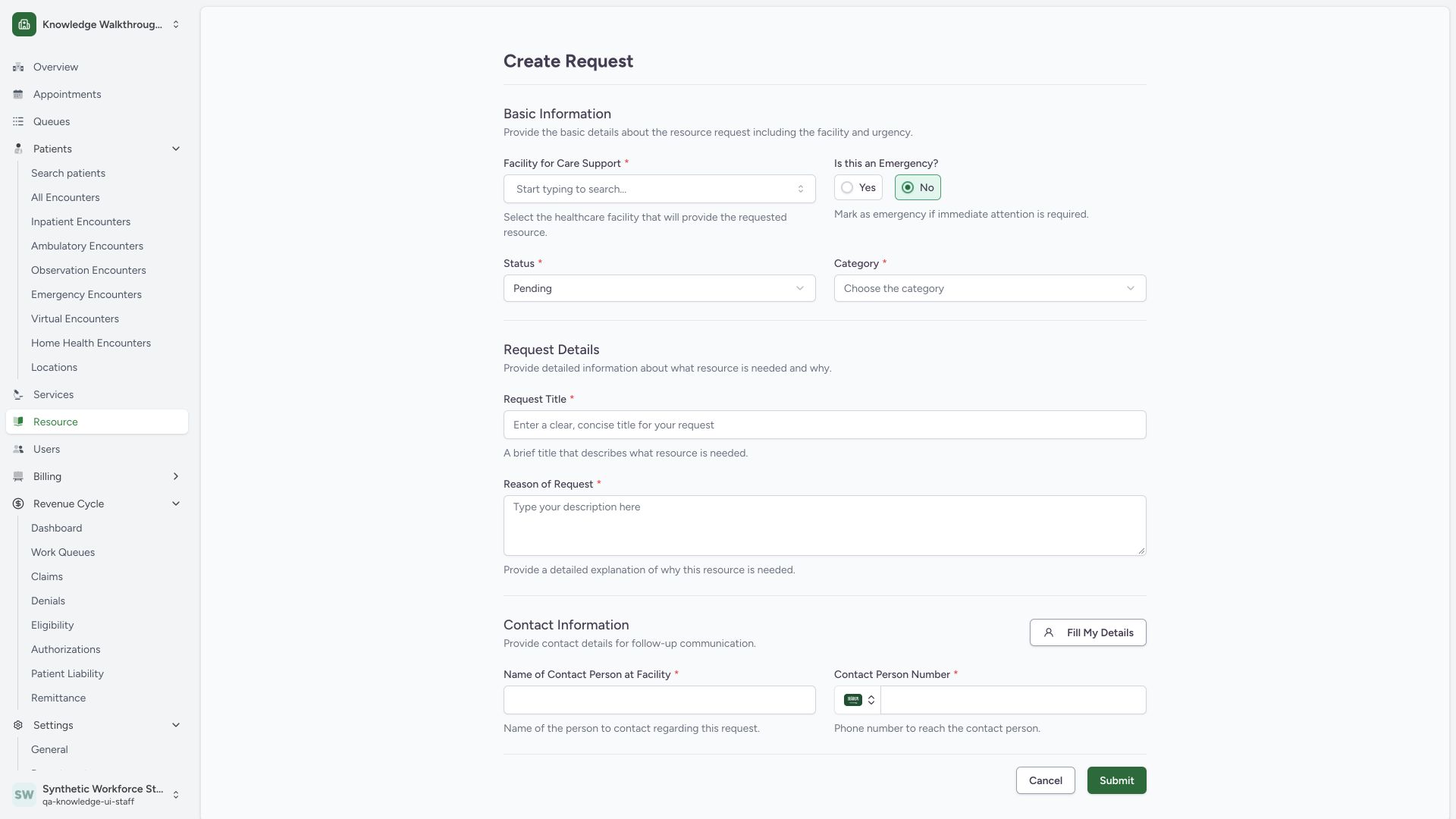
At the authorized /facility/:facilityId/resource/new route, review Facility for Care Support, Is this an Emergency?, Status, Category, title, reason and contact inputs. The blank form defaults to No emergency and Pending. Submit is at the bottom. This facility-only example has no patient link.
 12345
12345Capture details
Actual 1920 × 1080 Chrome pixels; pinned source f6e9f05f. Staff own-origin synthetic resource coordination, comments and request letter
- Support facility: Choose the permitted destination from the public directory.
- Emergency flag: No is selected in this nonclinical synthetic example.
- Initial status: Pending is the form default.
- Category: Select the category before submission.
- Submit: Submit after reviewing required details and synthetic contact fields.
3. Recognize missing required details before a record is saved
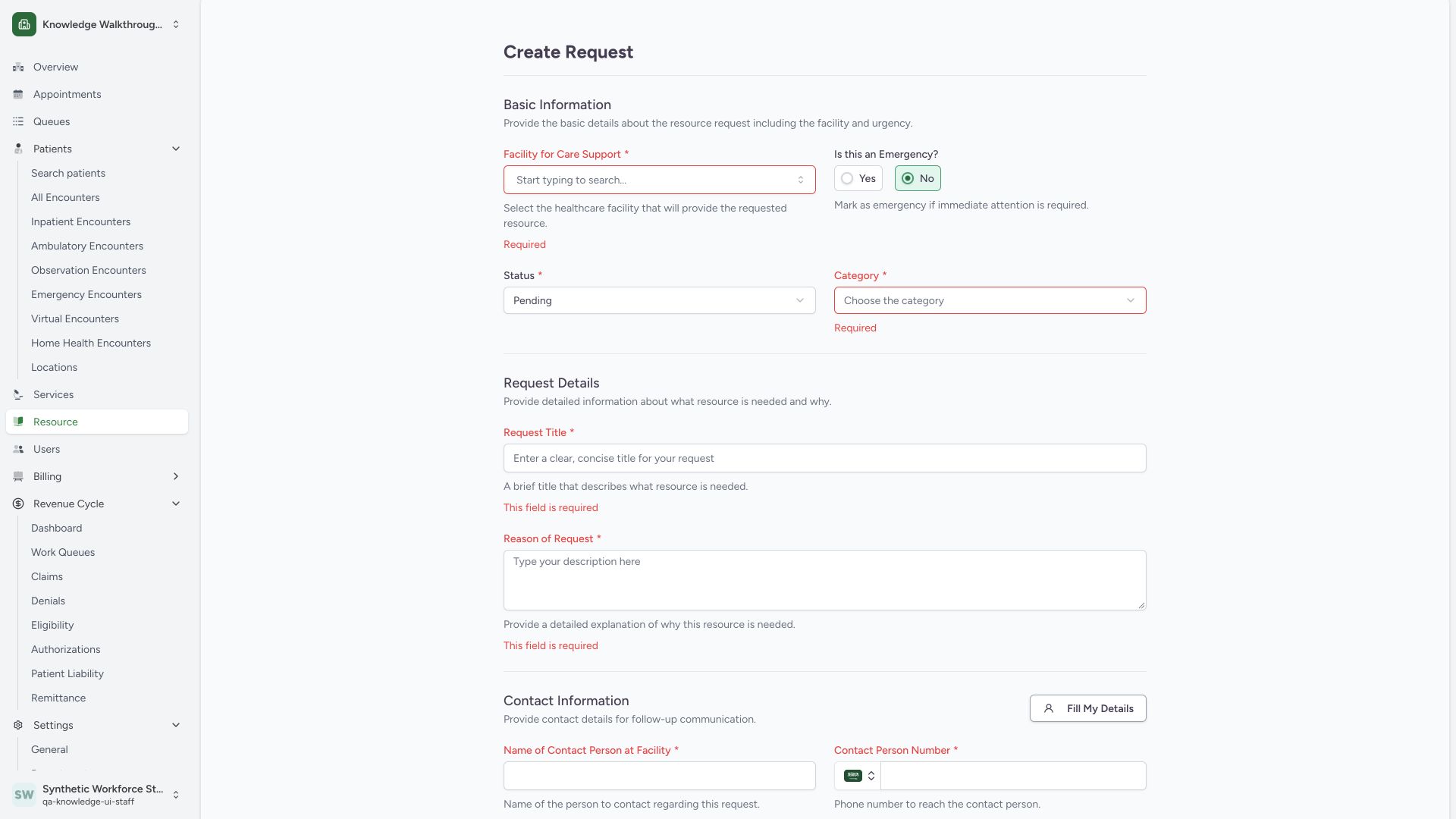
Submitting the blank form displays Required at support facility and category and This field is required at title and reason. Complete these visible required fields before submitting the request. The lower contact fields are also required by the form; their complete error messages are outside this particular screenshot.
 1234
1234Capture details
Actual 1920 × 1080 Chrome pixels; pinned source f6e9f05f. Staff own-origin synthetic resource coordination, comments and request letter
- Required support facility: Choose a permitted public directory destination.
- Required category: Select the category matching the resource request.
- Title: An empty title is rejected before submission.
- Reason: Explain the request before submitting.
4. Recognize when the private origin is not a public destination
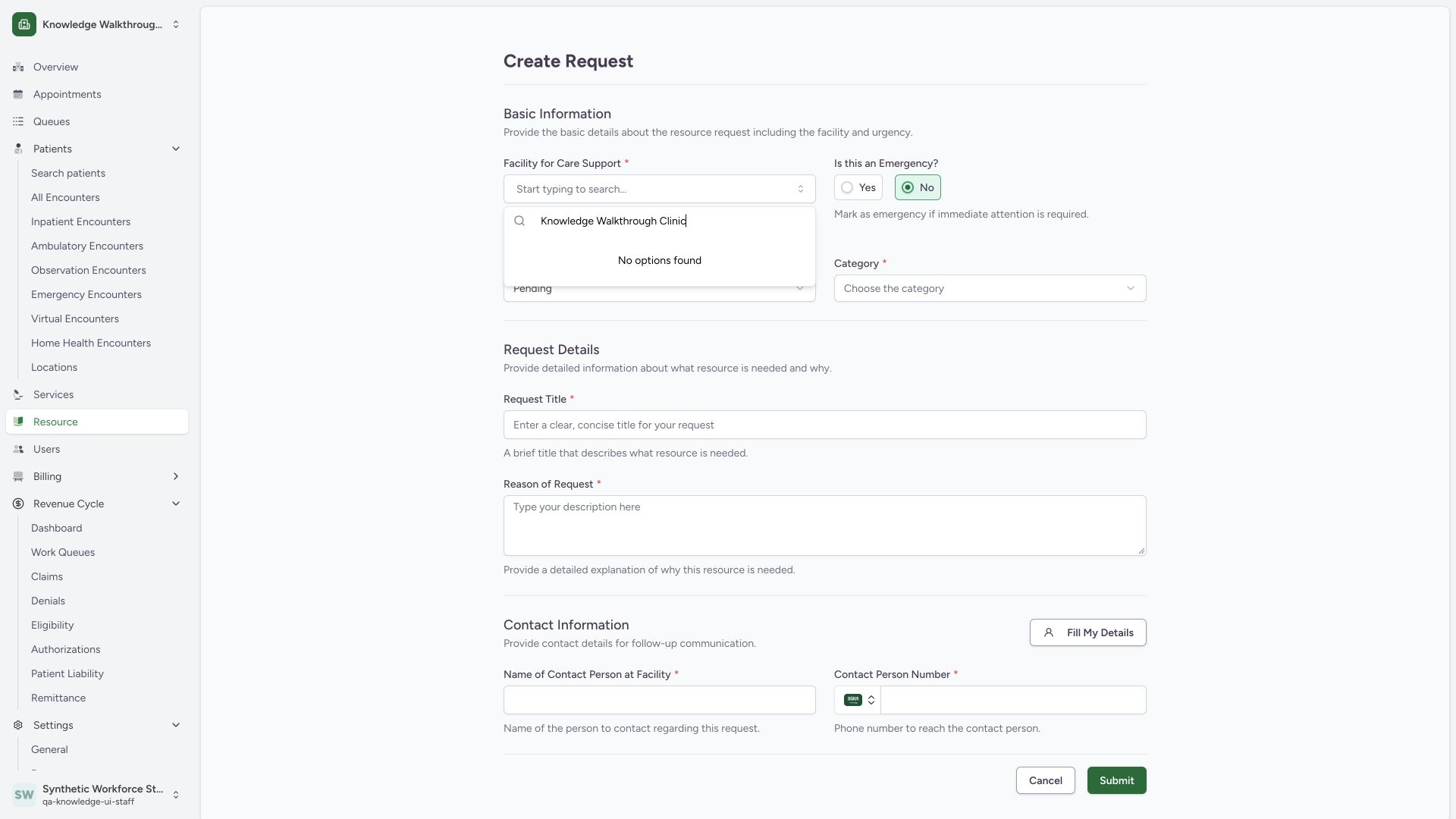
Searching the own private Knowledge Walkthrough Clinic in support facility shows No options found. This selector uses the public facility directory; an independent normal read confirms that the origin Clinic has is_public false. Select an authorized listed support facility instead of changing facility visibility or permissions for this walkthrough.
 12
12Capture details
Actual 1920 × 1080 Chrome pixels; pinned source f6e9f05f. Staff own-origin synthetic resource coordination, comments and request letter
- Own Clinic search: Searching the private origin does not make it a public destination.
- No options found: Choose an authorized listed support facility rather than changing directory visibility or grants.
5. Choose the existing synthetic public destination
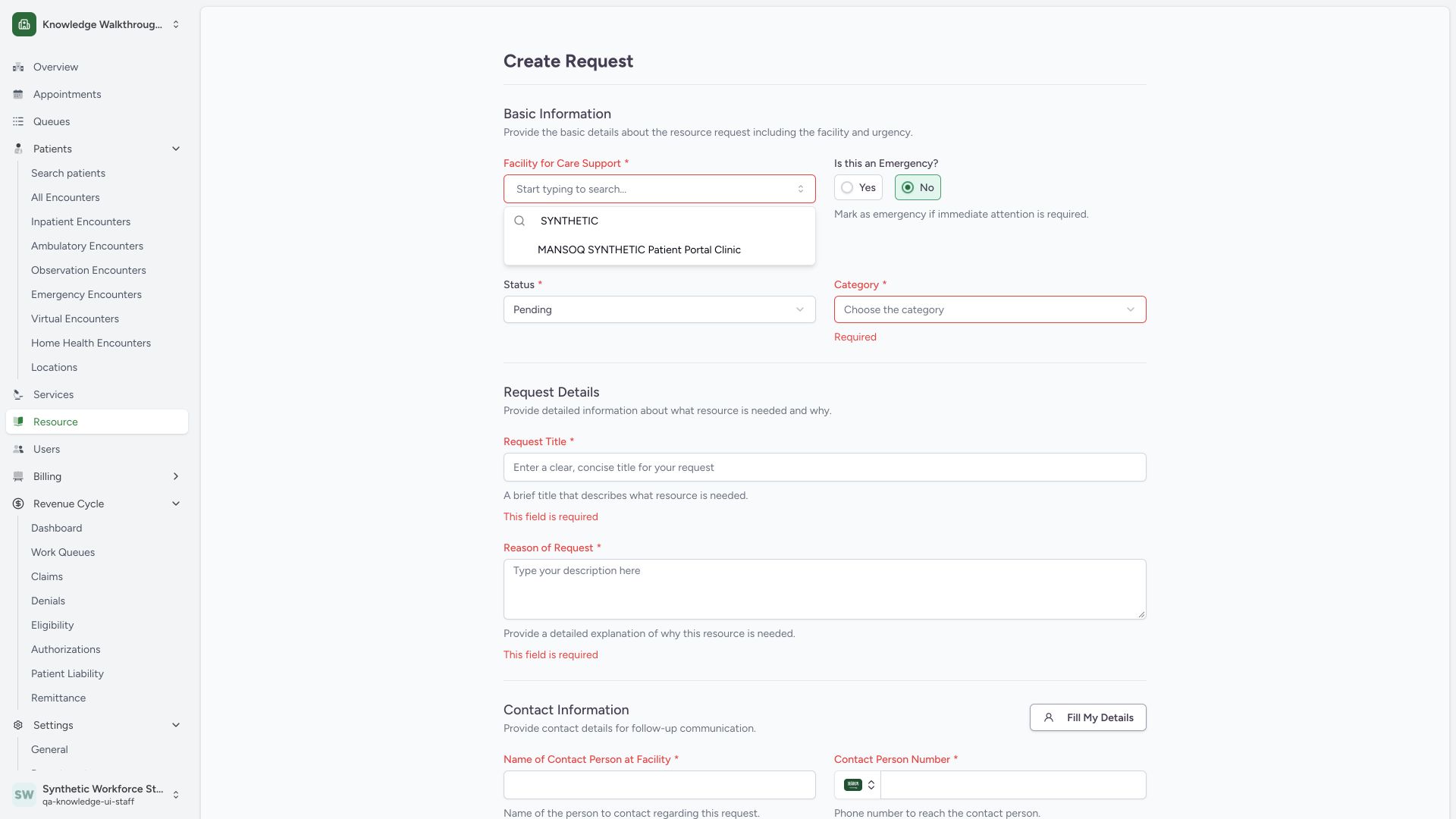
Search the support facility selector for SYNTHETIC and select MANSOQ SYNTHETIC Patient Portal Clinic. The origin remains the current synthetic Clinic. The pictured result is an existing directory entry; choosing it does not create a new facility or assign a person.
 12
12Capture details
Actual 1920 × 1080 Chrome pixels; pinned source f6e9f05f. Staff own-origin synthetic resource coordination, comments and request letter
- Search public destinations: Use the public support facility selector.
- Synthetic portal Clinic: Choose the existing authorized training destination.
6. Choose the matching resource category
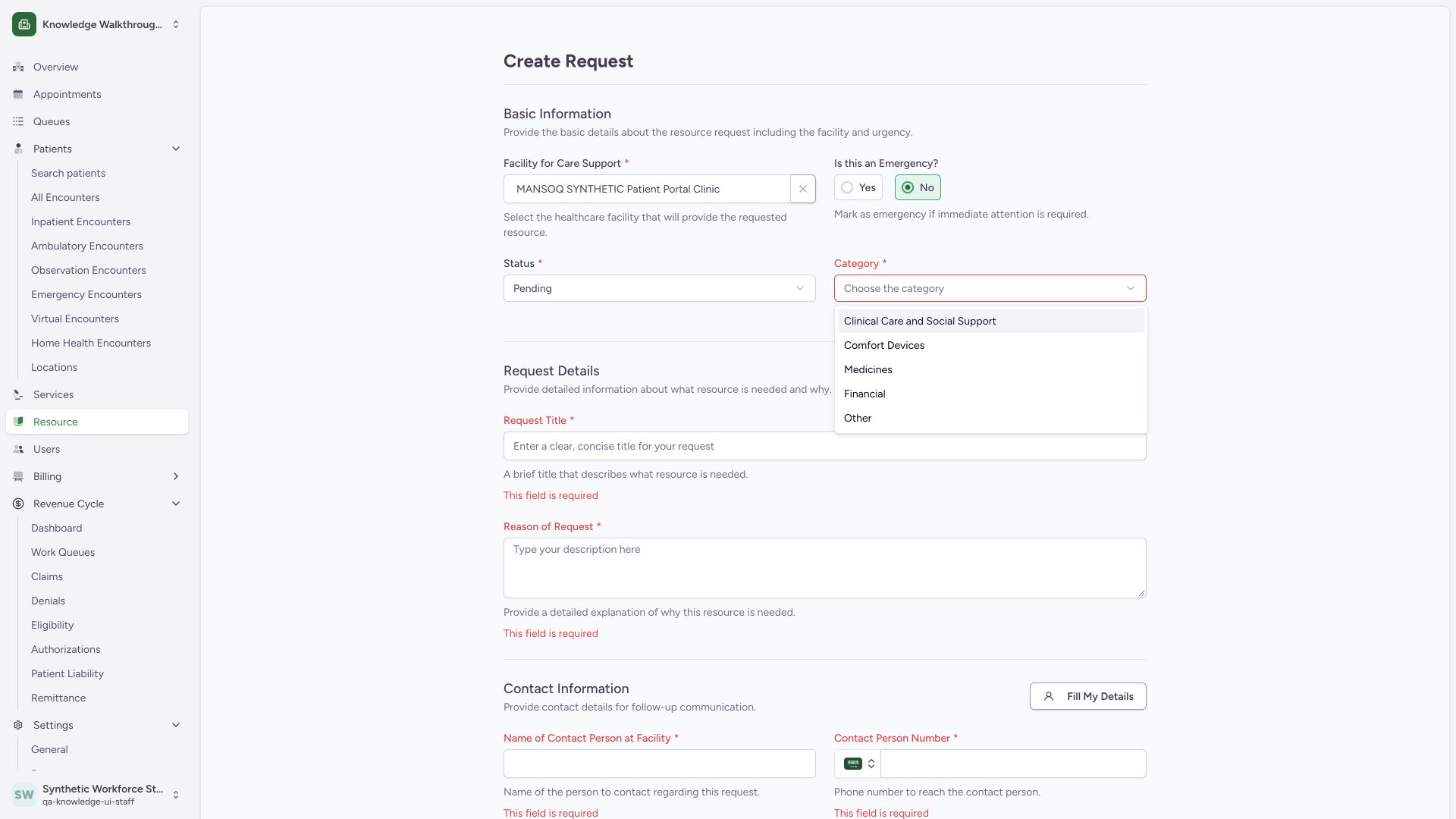
The category menu presents Clinical Care and Social Support, Comfort Devices, Medicines, Financial and Other. Select Other for this local nonclinical teaching request. Seeing the other categories does not demonstrate their medical, supply or financial fulfillment workflows.
 12
12Capture details
Actual 1920 × 1080 Chrome pixels; pinned source f6e9f05f. Staff own-origin synthetic resource coordination, comments and request letter
- Category menu: Review the five visible choices; this example selects Other.
- Other: Use Other for this nonclinical synthetic coordination example.
7. Review all entered details and submit once
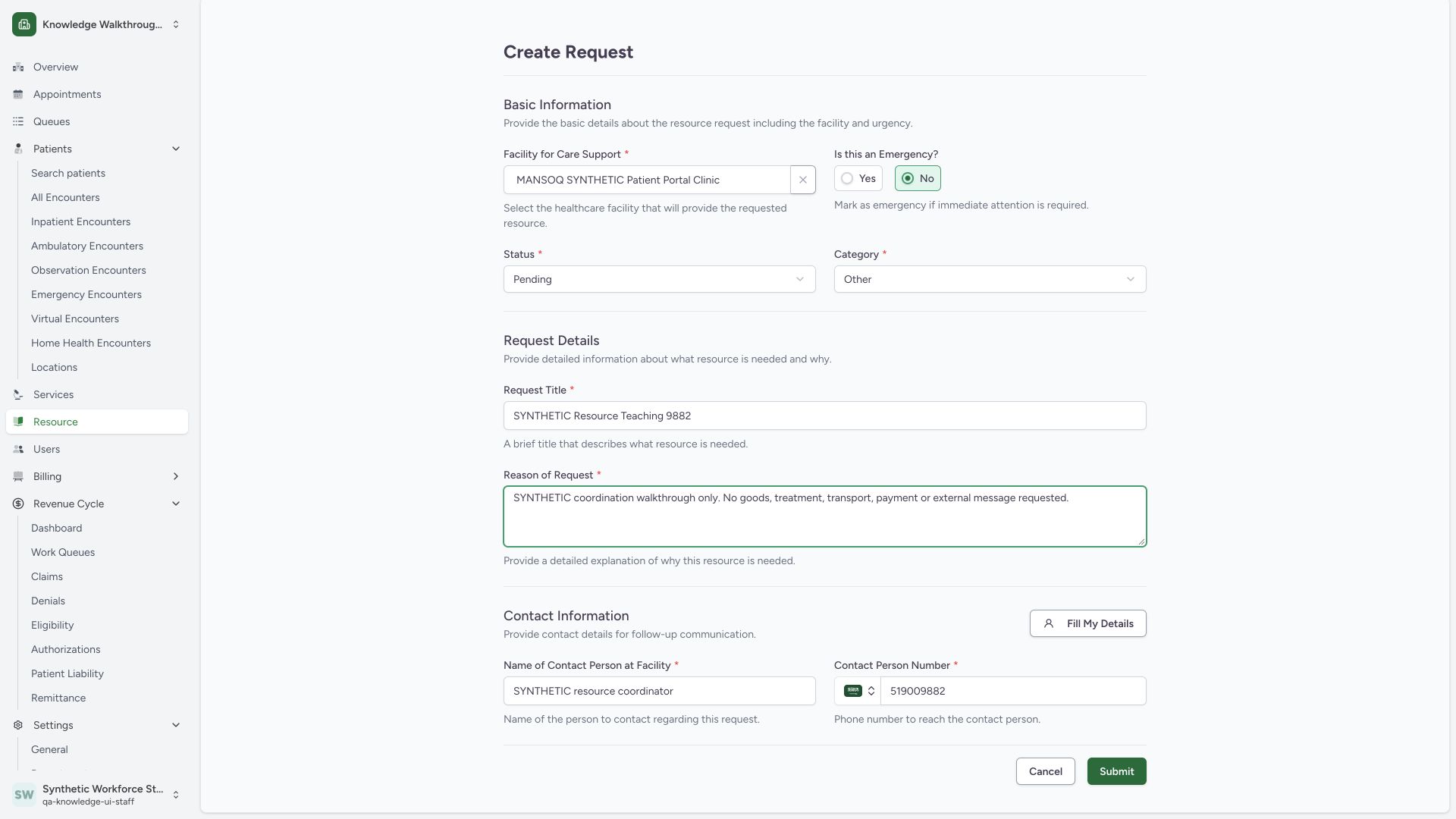
Check the existing synthetic destination, No emergency, Pending, Other, the synthetic title and reason, contact name and Saudi training number. The reason explicitly states that no goods, treatment, transport, payment or external message is requested. Use the pictured Submit button once.
 123456
Capture details
Actual 1920 × 1080 Chrome pixels; pinned source f6e9f05f. Staff own-origin synthetic resource coordination, comments and request letter
- Training destination: Verify the existing synthetic support Clinic.
- No emergency: The example is regular synthetic coordination.
- Pending: Keep the initial record state Pending.
- Other: The example does not request actual clinical, financial or medicine support.
- Reason: The text explicitly describes the local synthetic exercise.
- Submit once: Save after checking title, contact and destination.
8. Verify the saved Pending request, origin and destination
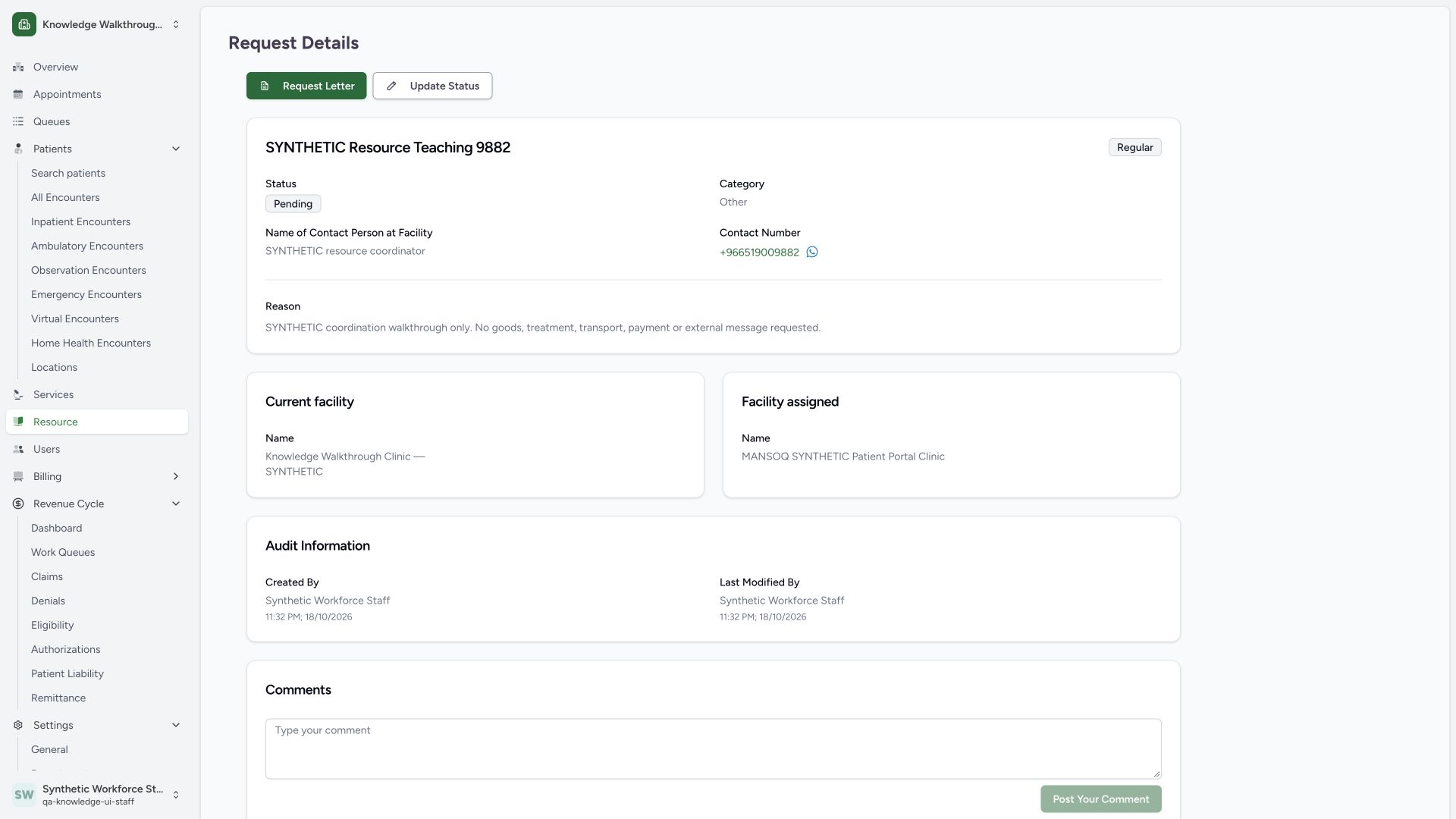
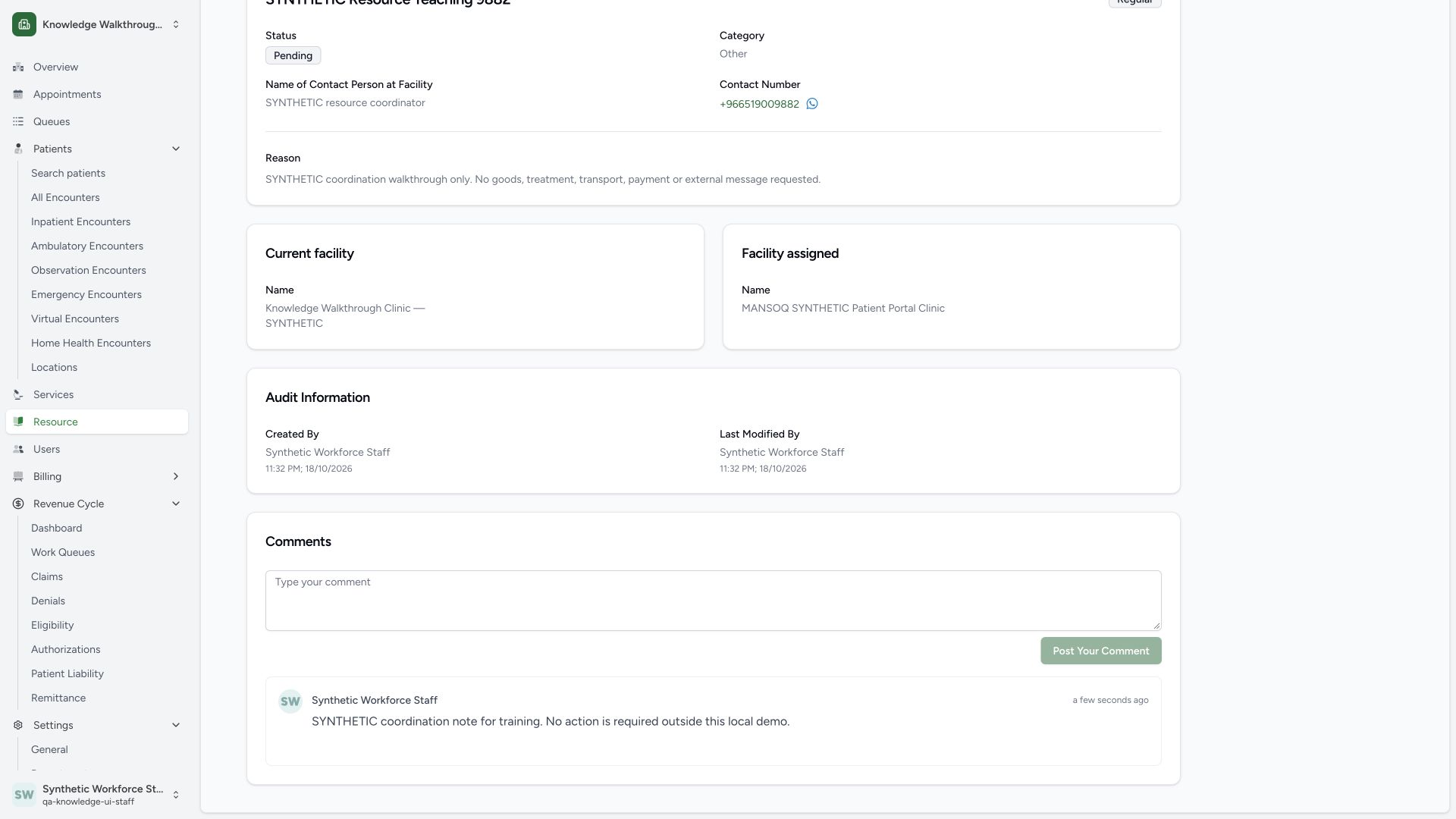
The saved detail shows SYNTHETIC Resource Teaching 9882, Pending, Other, the synthetic reason/contact and separate Current facility and Facility assigned cards. Review the Staff actor in Audit Information. Independent Staff GET200 confirms the expected record UUID, origin/destination, no patient and no assigned person.
 123456
Capture details
Actual 1920 × 1080 Chrome pixels; pinned source f6e9f05f. Staff own-origin synthetic resource coordination, comments and request letter
- Saved Pending state: Confirm the saved request status.
- Saved synthetic title: Check this is the intended record.
- Origin facility: The current/origin Clinic remains distinct from the support destination.
- Assigned facility: Verify the existing synthetic public destination.
- Audit actor: The record identifies the existing Staff user.
- Update Status: This opens the full update form.
9. Record a note and verify its author and retained text
The saved detail provides the Comments entry box and Post Your Comment action. After the synthetic coordination note is posted, verify its saved text and Synthetic Workforce Staff author below the box. The box is cleared and posting is disabled while it is blank. Independent normal comment GET200 confirms exactly one saved note and the unchanged Pending request.
123456Capture details
Actual 1920 × 1080 Chrome pixels; pinned source f6e9f05f. Staff own-origin synthetic resource coordination, comments and request letter
- Saved Pending state: Confirm the saved request status.
- Saved synthetic title: Check this is the intended record.
- Origin facility: The current/origin Clinic remains distinct from the support destination.
- Assigned facility: Verify the existing synthetic public destination.
- Audit actor: The record identifies the existing Staff user.
- Update Status: This opens the full update form.
 1234
1234Capture details
Actual 1920 × 1080 Chrome pixels; pinned source f6e9f05f. Staff own-origin synthetic resource coordination, comments and request letter
- Saved note: Verify the posted synthetic coordination note.
- Comment author: The note identifies Synthetic Workforce Staff.
- Blank post disabled: The form clears after posting and blocks an empty note.
- Request audit: Request audit information remains separate from note authorship.
Navigation and patient scope
The pinned facility Resource list contains filters and View Details but no Create control. A source-defined Create Request route also appears from patient ResourceRequests with a related_patient query value. This guide uses the authorized facility-only URL and does not qualify patient-linked referral, chart access or encounter creation.
Fields that are not fulfilled by this example
The API has a priority value, defaulted to 1 by this form, but no visible priority input here. The backend category supplies is absent from the five frontend category options. These source differences are not additional pictured controls. The example saves no assigned user, approving facility or patient. Real medical/social support, device/medicine supply, funding, emergency referral and transport need their own approved operational processes and evidence.
Troubleshooting
The own facility is missing from support facility search
This form searches the public directory. The pictured private origin is not listed there; use an authorized public support destination. Do not assume your membership makes a private facility public.
The form remains on Create Request
Review the visible required-field messages and correct the destination, category, title, reason and contact details. Verify the saved detail and record identity after submission before trying again.
Source evidence
References are pinned to the private MANSOQ source repository. Repository access is required to open these links.
- repositories/platform/mansoq-web/src/Routers/routes/ResourceRoutes.tsx:9 · f6e9f05f
- repositories/platform/mansoq-web/src/components/Resource/ResourceList.tsx:32 · f6e9f05f
- repositories/platform/mansoq-web/src/components/Resource/ResourceForm.tsx:65 · f6e9f05f
- repositories/platform/mansoq-web/src/components/Resource/ResourceForm.tsx:172 · f6e9f05f
- repositories/platform/mansoq-web/src/components/Resource/ResourceForm.tsx:197 · f6e9f05f
- repositories/platform/mansoq-web/src/components/Resource/ResourceForm.tsx:277 · f6e9f05f
- repositories/platform/mansoq-web/src/types/facility/publicFacilityApi.ts:8 · f6e9f05f
- repositories/platform/mansoq-core/mansoq/emr/api/viewsets/facility.py:221 · f6e9f05f
- repositories/platform/mansoq-core/mansoq/emr/api/viewsets/resource_request.py:47 · f6e9f05f
- repositories/platform/mansoq-core/mansoq/emr/resources/resource_request/spec.py:64 · f6e9f05f