 MANSOQ
 Billing · VERSION 3dfb7c9f
Find an existing account and filter its account status
Open the assigned facility’s Accounts, inspect and clear account-status filters, then open the intended existing patient account.
Billing Officer
 123
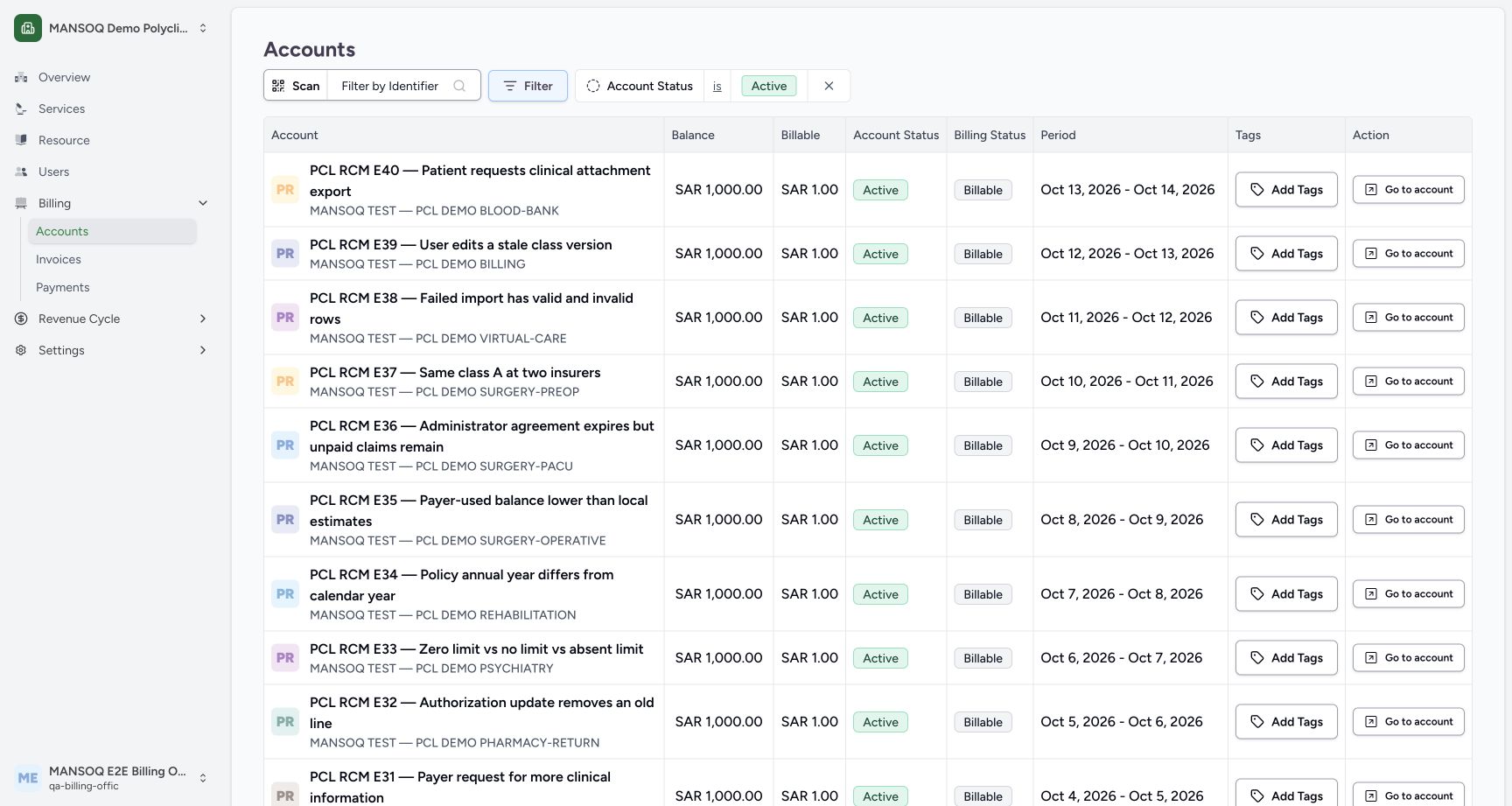
123Review the default Active account list
Capture details
Exact committed 3dfb source and existing ordinary Billing Officer. Genuine unchanged desktop/native pixels; existing synthetic records only. No billing lifecycle or payment action.
Image SHA-256 305af529320545c29c3e14d532fab5024855bc1c9d636a9331e4b11834c38fa9
- Filter by Identifier: Open the patient identifier search.
- Filter: Open the account filter menu.
- Account status Active: Read the current Active filter.
 12
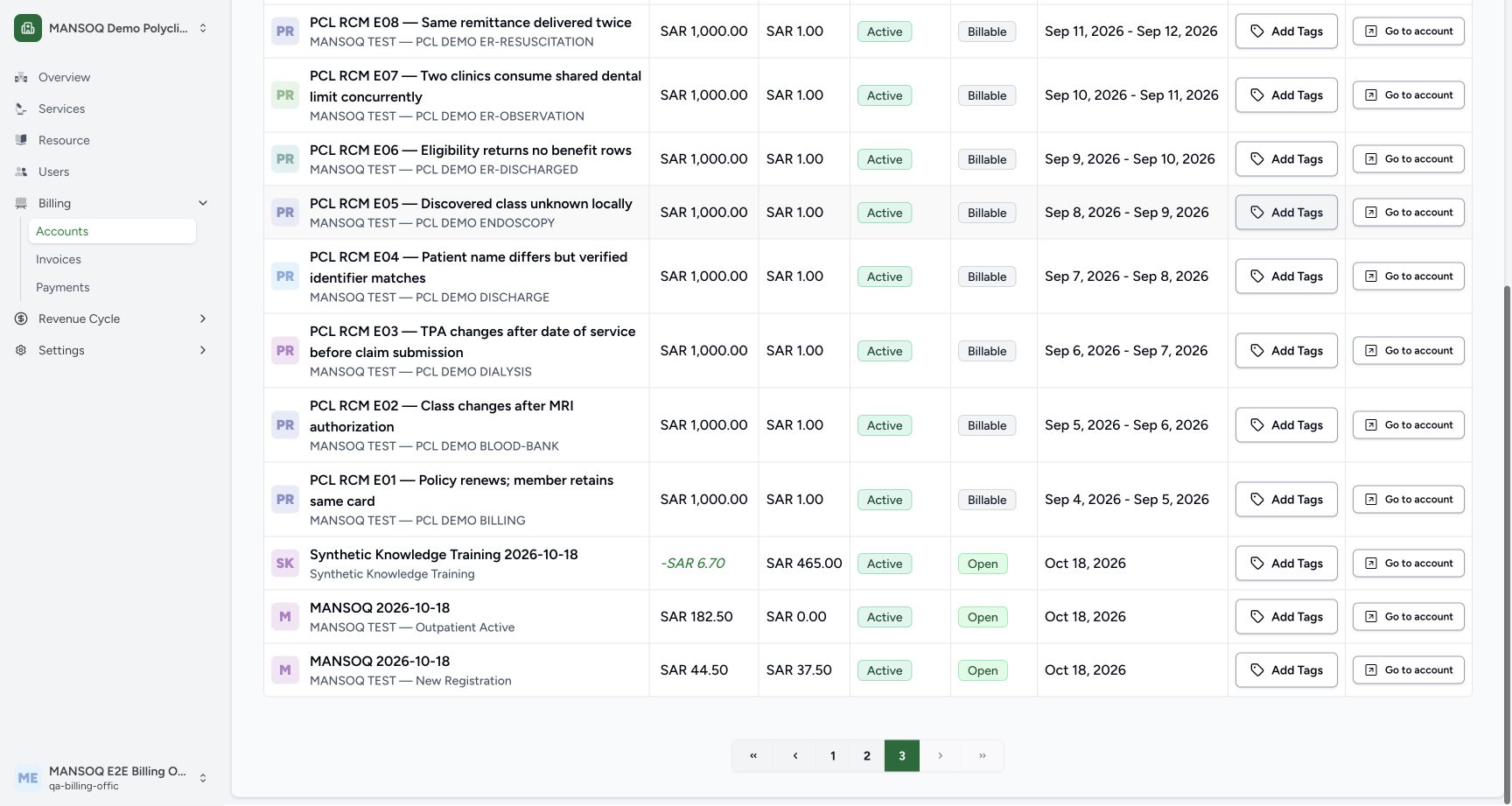
12Open the Synthetic Knowledge Training account
Capture details
Exact committed 3dfb source and existing ordinary Billing Officer. Genuine unchanged desktop/native pixels; existing synthetic records only. No billing lifecycle or payment action.
Image SHA-256 b9b616694f1e2a4086aff9ab89bb268e632bc301e2fd15161c9a3e0e3ca07c3e
- Go to account for Synthetic Knowledge Training: Open the intended patient’s existing account.
- Synthetic Knowledge Training account: Check the account name and patient in this row.
9 of 9 content blocks have reviewed image alignment. Missing overview or prerequisite images remain open.
Before you begin
- Use an already authenticated, authorized Billing Officer session. This dated fictional Polyclinic already contains the Synthetic Knowledge Training account. The example reviews existing records.
 1
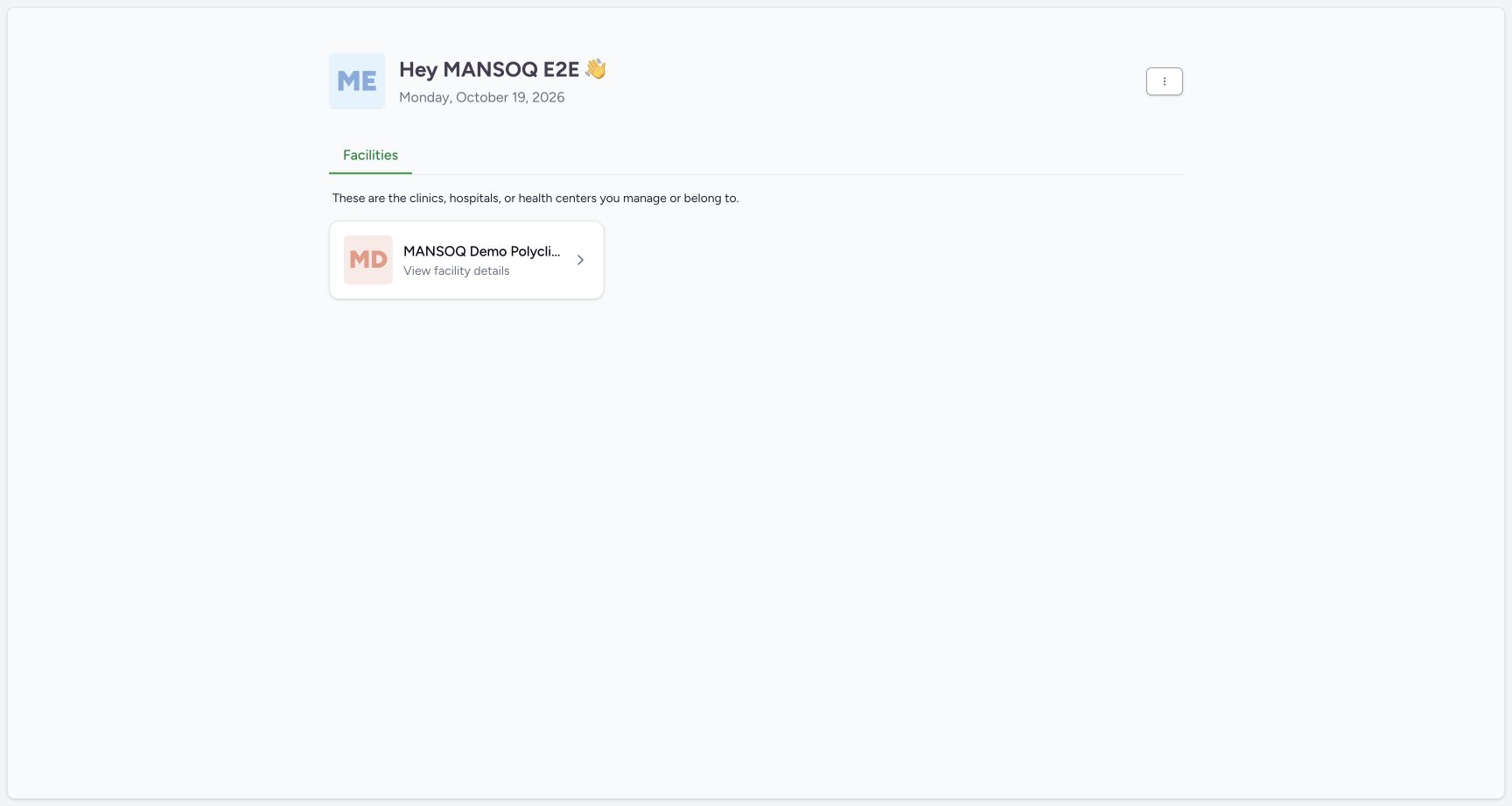
1Recorded release 3dfb7c9f · 2026-10-19T07:01:18.647Z · 1728 × 921 Open the assigned fictional facility as the existing Billing Officer
Capture details
Exact committed 3dfb source and existing ordinary Billing Officer. Genuine unchanged desktop/native pixels; existing synthetic records only. No billing lifecycle or payment action.
Image SHA-256
20d6d16a95163ce4ce81247c8ef6001177d35eee71c687d7a7496d4d60251ad6- MANSOQ Demo Polyclinic: Open the assigned fictional Polyclinic.
 1
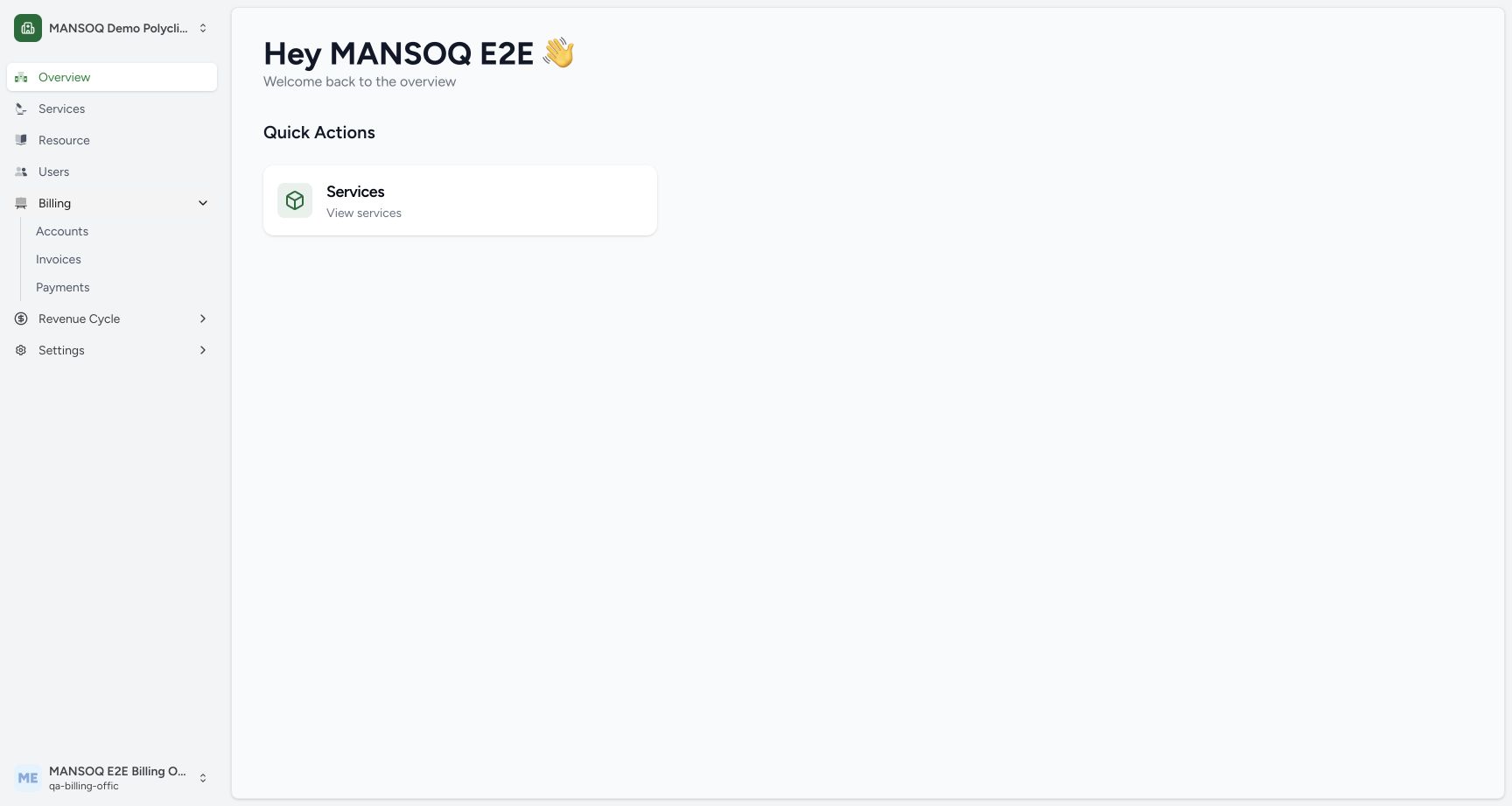
1Recorded release 3dfb7c9f · 2026-10-19T07:03:17.436Z · 1728 × 921 Open Accounts from Billing
Capture details
Exact committed 3dfb source and existing ordinary Billing Officer. Genuine unchanged desktop/native pixels; existing synthetic records only. No billing lifecycle or payment action.
Image SHA-256
5453352a1f320853e6c506b7607bc2c99e0bd67bfd3c2c5fda2c09210711e482- Accounts: Choose Accounts from the expanded Billing navigation.
1. Open the assigned facility and Accounts
Choose MANSOQ Demo Polyclinic from Facilities. In the expanded sidebar, open Billing → Accounts. Confirm the facility name before using the list.
1Open the assigned fictional facility as the existing Billing Officer
Capture details
Exact committed 3dfb source and existing ordinary Billing Officer. Genuine unchanged desktop/native pixels; existing synthetic records only. No billing lifecycle or payment action.
Image SHA-256 20d6d16a95163ce4ce81247c8ef6001177d35eee71c687d7a7496d4d60251ad6
- MANSOQ Demo Polyclinic: Open the assigned fictional Polyclinic.
1Open Accounts from Billing
Capture details
Exact committed 3dfb source and existing ordinary Billing Officer. Genuine unchanged desktop/native pixels; existing synthetic records only. No billing lifecycle or payment action.
Image SHA-256 5453352a1f320853e6c506b7607bc2c99e0bd67bfd3c2c5fda2c09210711e482
- Accounts: Choose Accounts from the expanded Billing navigation.
2. Read the current list filter
The pictured Accounts list initially applies Account Status is Active. Read the account name and patient, Balance, Billable, Account Status, Billing Status and Period as separate columns.
123Review the default Active account list
Capture details
Exact committed 3dfb source and existing ordinary Billing Officer. Genuine unchanged desktop/native pixels; existing synthetic records only. No billing lifecycle or payment action.
Image SHA-256 305af529320545c29c3e14d532fab5024855bc1c9d636a9331e4b11834c38fa9
- Filter by Identifier: Open the patient identifier search.
- Filter: Open the account filter menu.
- Account status Active: Read the current Active filter.
3. Inspect patient-name lookup without assuming absence
Open Filter by Identifier, expand Search by, and select Patient Name. The pictured query Synthetic Knowledge Training settled on No matches found in this role session. That empty dropdown is not proof that no account or patient exists. Use the input’s X to clear the query, then dismiss the lookup.
123Review the default Active account list
Capture details
Exact committed 3dfb source and existing ordinary Billing Officer. Genuine unchanged desktop/native pixels; existing synthetic records only. No billing lifecycle or payment action.
Image SHA-256 305af529320545c29c3e14d532fab5024855bc1c9d636a9331e4b11834c38fa9
- Filter by Identifier: Open the patient identifier search.
- Filter: Open the account filter menu.
- Account status Active: Read the current Active filter.
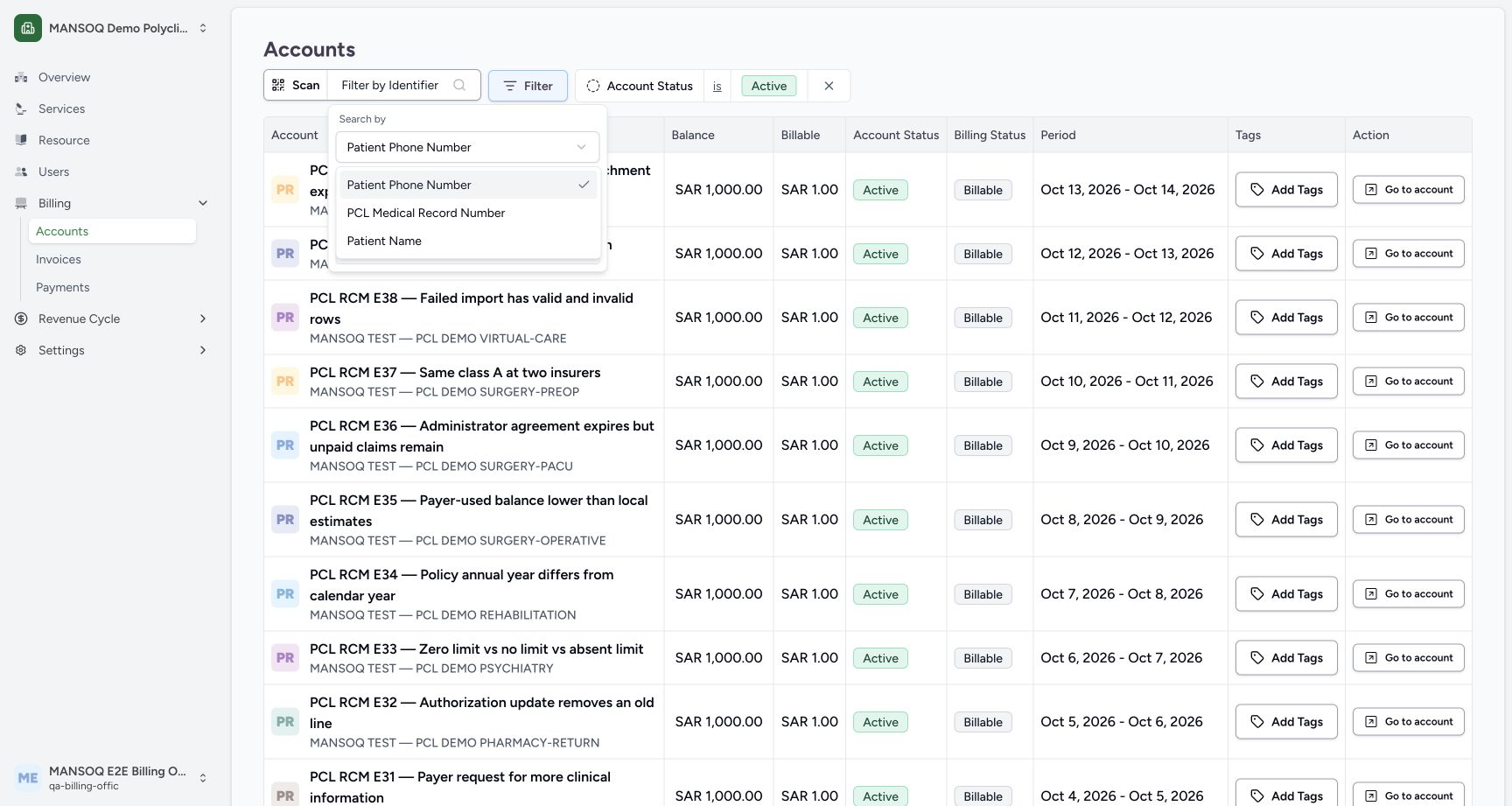 1
1Choose Patient Name for account search
Capture details
Exact committed 3dfb source and existing ordinary Billing Officer. Genuine unchanged desktop/native pixels; existing synthetic records only. No billing lifecycle or payment action.
Image SHA-256 98cbd9748c81323f577bb03bb8bcb37d641bddd25b2abeda81e69f585e719650
- Patient Name: Select Patient Name from the available search identifiers.
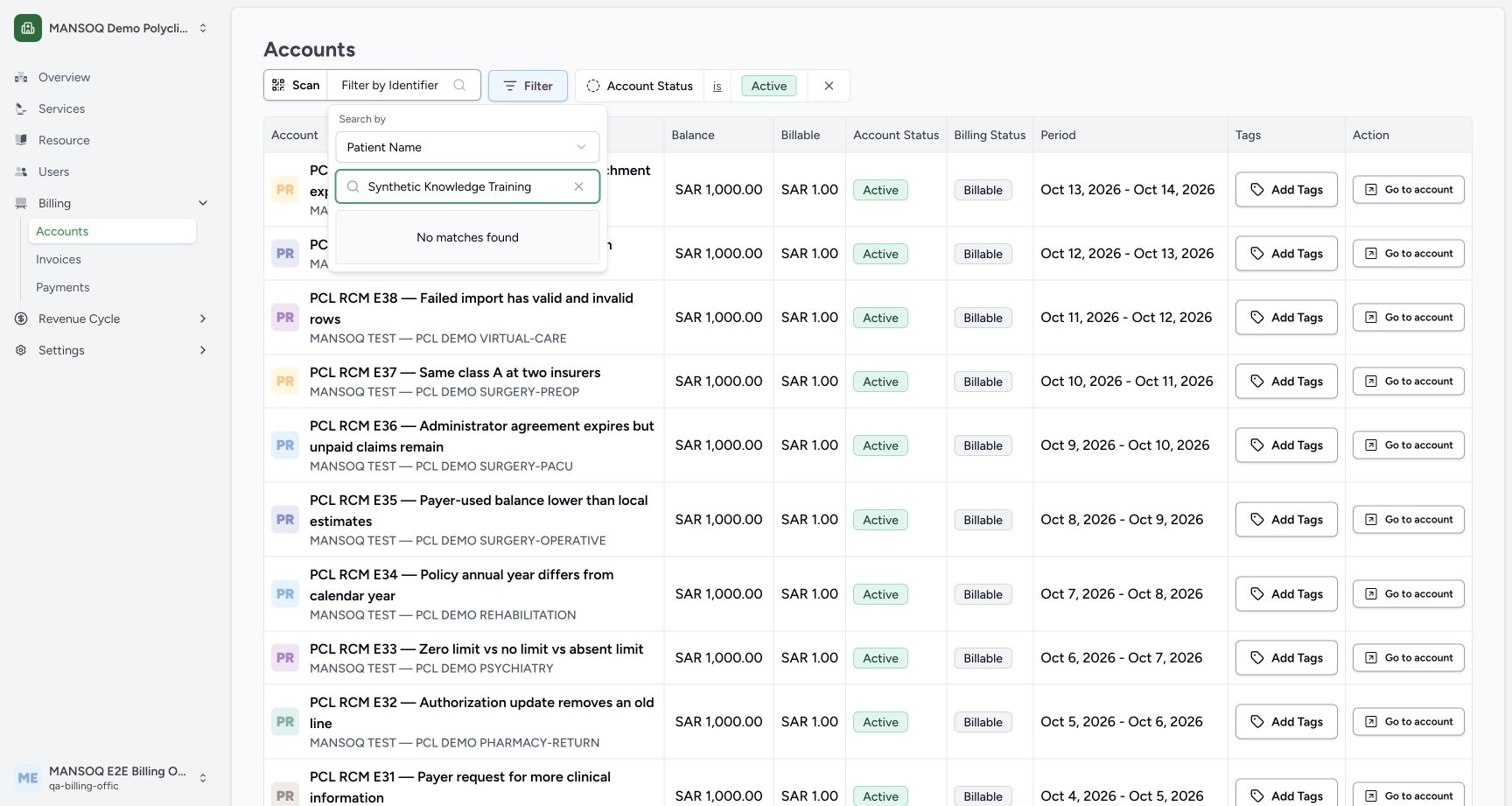 123
123Patient-name lookup shows No matches found
Capture details
Exact committed 3dfb source and existing ordinary Billing Officer. Genuine unchanged desktop/native pixels; existing synthetic records only. No billing lifecycle or payment action.
Image SHA-256 e77cf5c614991f7b98b7b66aa12fadd085e8d2f4a519410bef7cd570eb8ce6ce
- Patient name query: Read the patient-name query used in this example.
- No matches found: The dropdown displays No matches found; this alone does not prove the patient is absent.
- Clear search input: Clear this patient-name query.
4. Filter the list to Inactive accounts
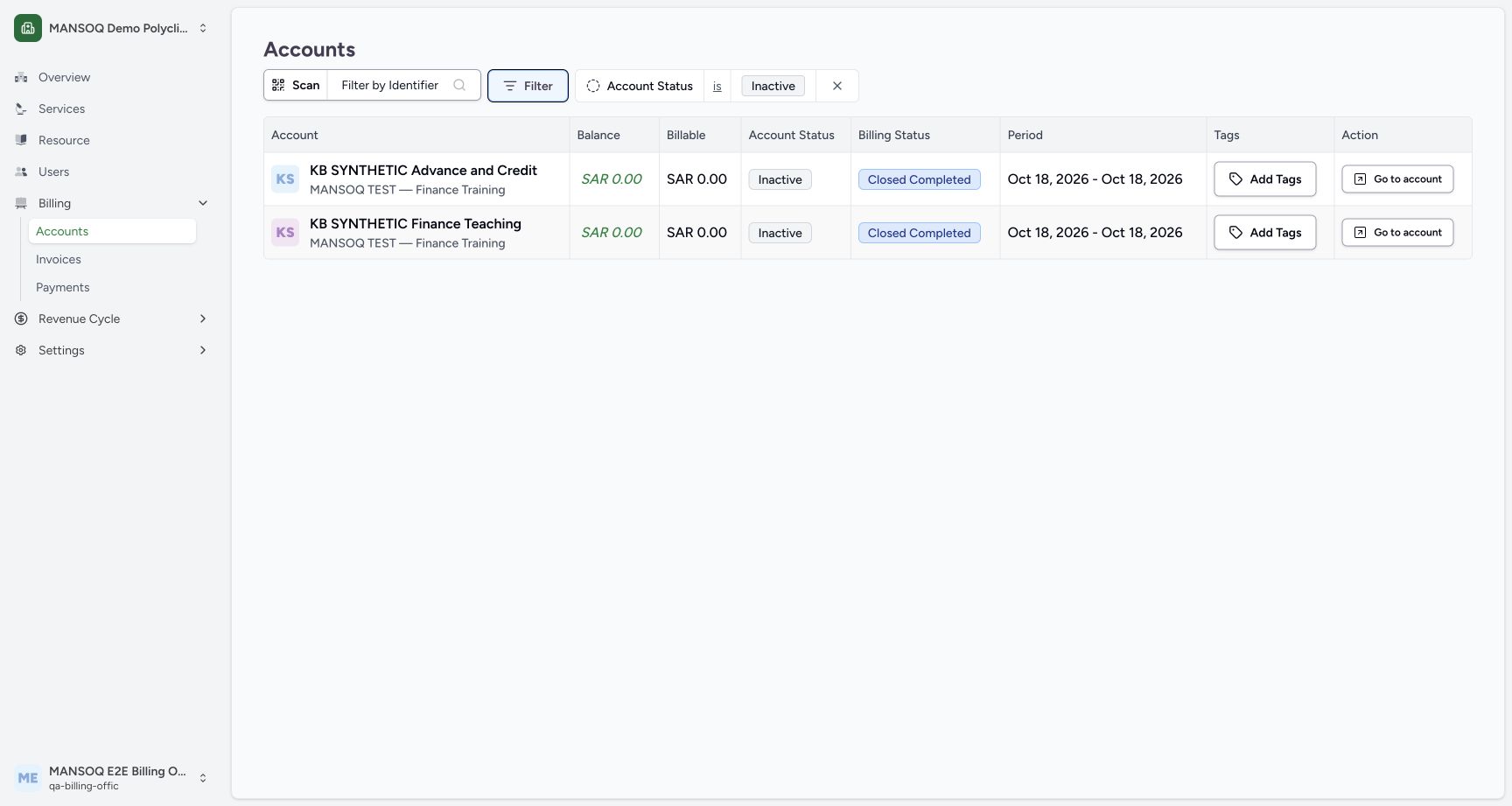
Open Filter → Account Status, then select Inactive. Dismiss the menu. The resulting list shows two fictional Inactive accounts, each separately marked Closed Completed in Billing Status.
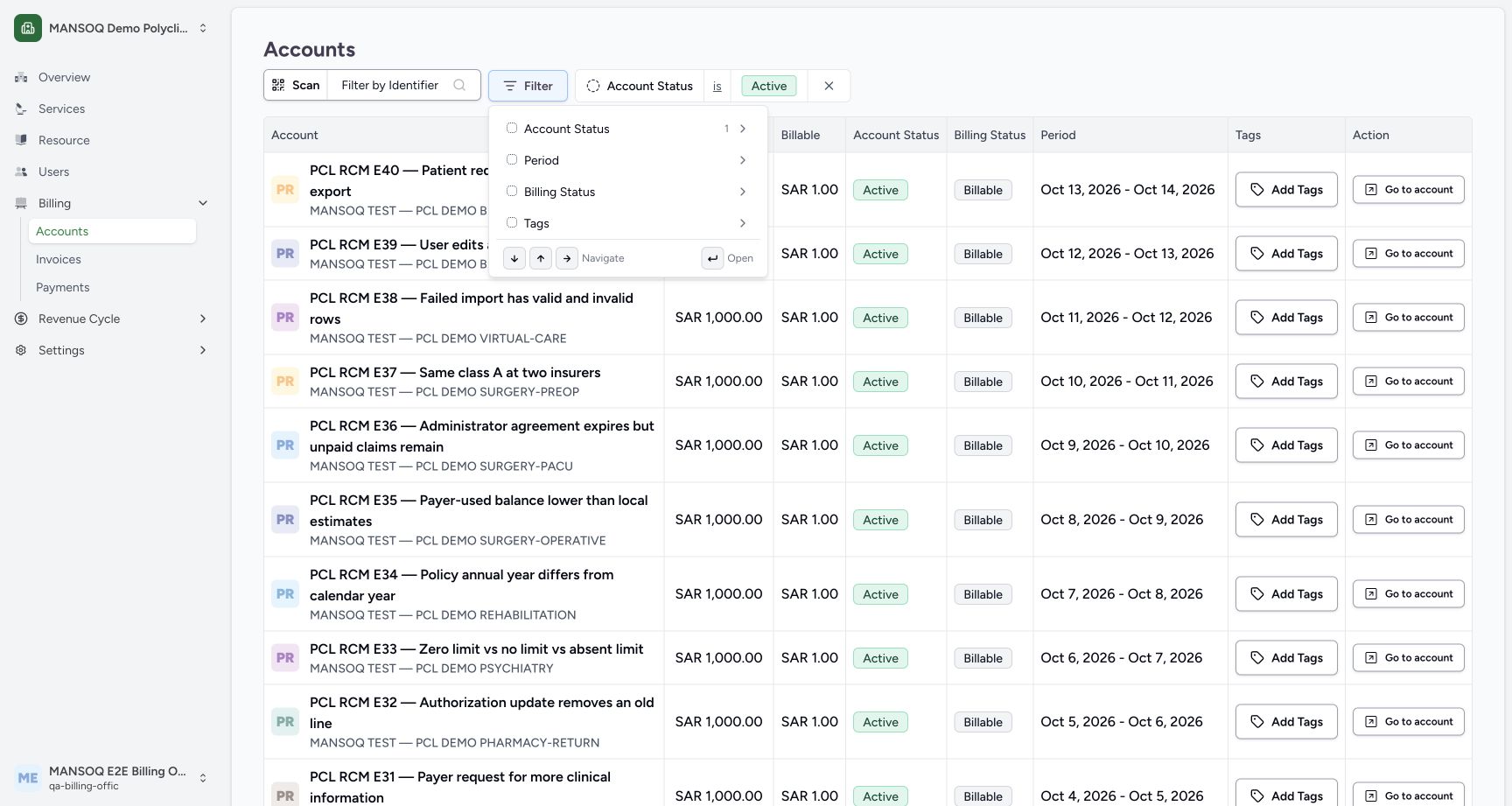 12
12Inspect the account filters
Capture details
Exact committed 3dfb source and existing ordinary Billing Officer. Genuine unchanged desktop/native pixels; existing synthetic records only. No billing lifecycle or payment action.
Image SHA-256 65fef9326784459e1c3e2439e3db4acf698085e2113a55942bedd54389769ec0
- Account Status: Open Account Status to select the account-list filter.
- Billing Status: Billing Status is a separate filter in this menu; it is not changed in this walkthrough.
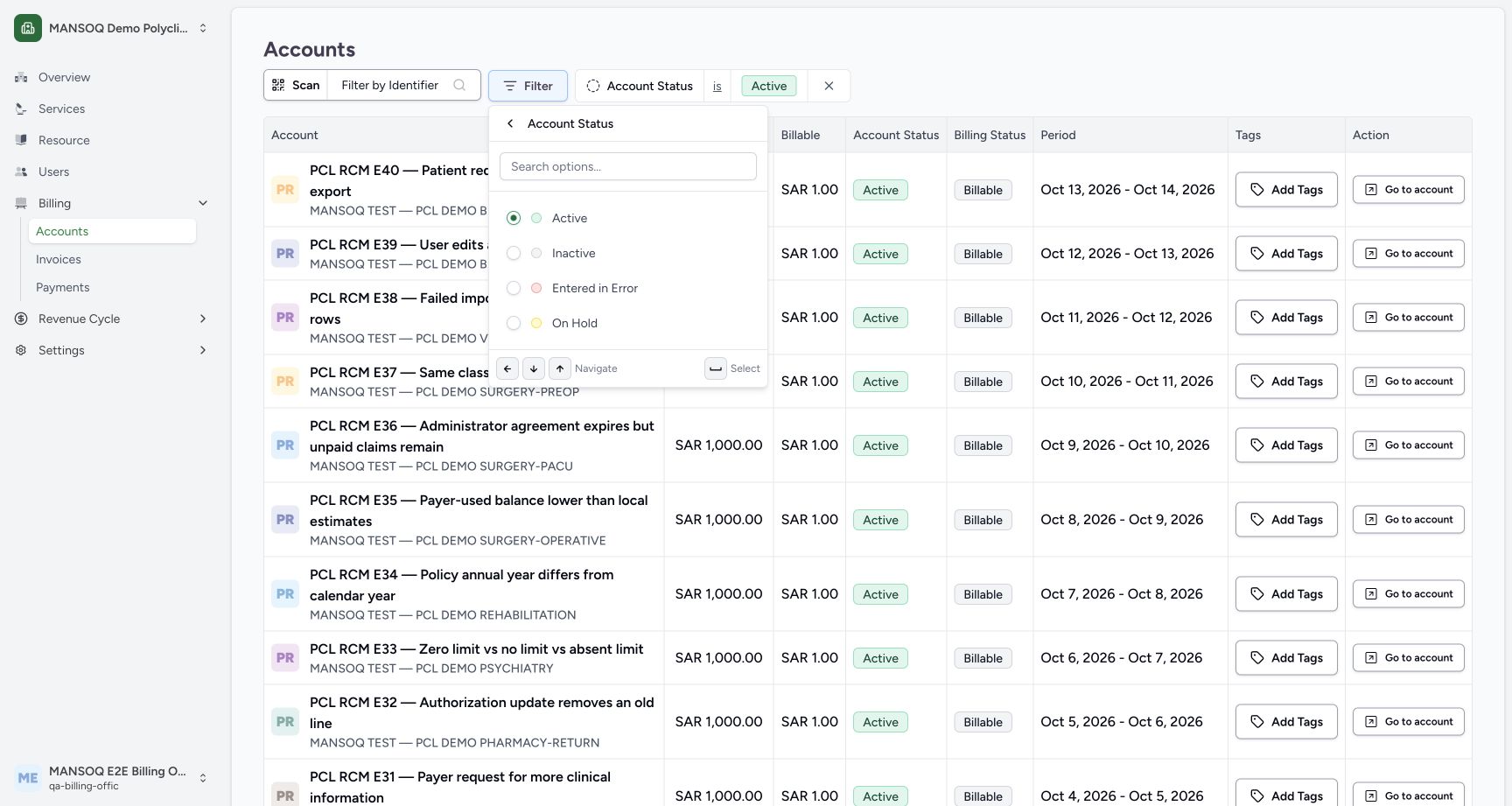 1
1Choose the Inactive account filter
Capture details
Exact committed 3dfb source and existing ordinary Billing Officer. Genuine unchanged desktop/native pixels; existing synthetic records only. No billing lifecycle or payment action.
Image SHA-256 eff608e3c164e09dbb98ce8bdf76a13bed85202fd4d6b4bacd32ee7252716730
- Inactive: Select Inactive as the account-list filter.
 12
12Review Inactive results and clear the filter
Capture details
Exact committed 3dfb source and existing ordinary Billing Officer. Genuine unchanged desktop/native pixels; existing synthetic records only. No billing lifecycle or payment action.
Image SHA-256 f2493d661a2651d941eff0c980d30f1924405a91f6c7fe0736008c73e1c737af
- Inactive account filter: Read the applied Inactive filter.
- Clear account status filter (×): Remove the Account Status filter with its X control.
5. Clear the filter and navigate the account list
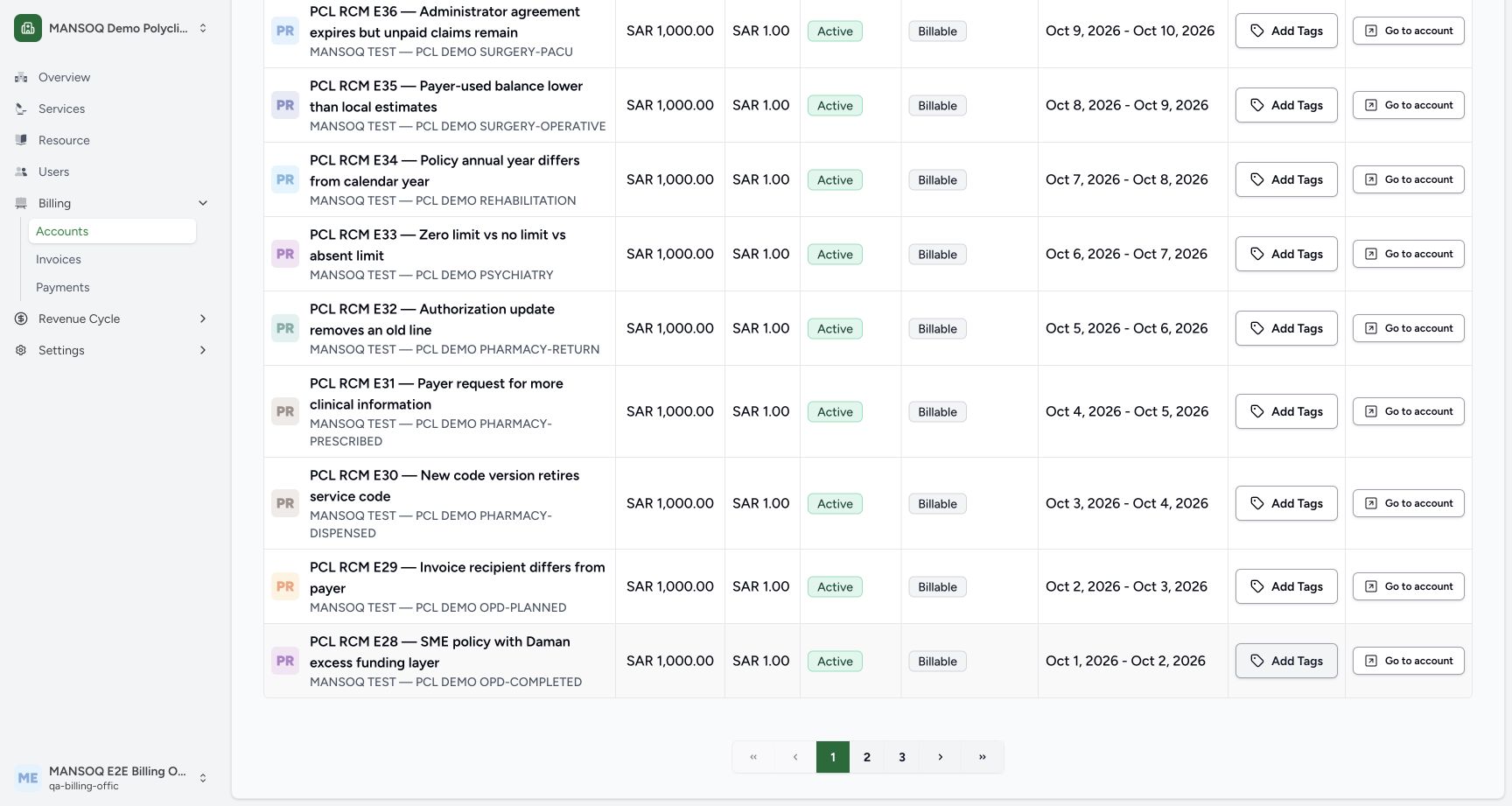
Use the X on the Account Status filter to remove it. Scroll to the pagination and select 3 in this dated example. This is a list filter and page change; the records retain their saved status. Page positions can differ in your facility.
12Review Inactive results and clear the filter
Capture details
Exact committed 3dfb source and existing ordinary Billing Officer. Genuine unchanged desktop/native pixels; existing synthetic records only. No billing lifecycle or payment action.
Image SHA-256 f2493d661a2651d941eff0c980d30f1924405a91f6c7fe0736008c73e1c737af
- Inactive account filter: Read the applied Inactive filter.
- Clear account status filter (×): Remove the Account Status filter with its X control.
 1
1Page through the unfiltered accounts
Capture details
Exact committed 3dfb source and existing ordinary Billing Officer. Genuine unchanged desktop/native pixels; existing synthetic records only. No billing lifecycle or payment action.
Image SHA-256 ebccaee27bbf863c5ac9a489b8fcc0b1276ab68971e59c28ebd979f4ed08fb74
- Page 3: Select page 3 in this dated example’s account list.
6. Open the intended existing account
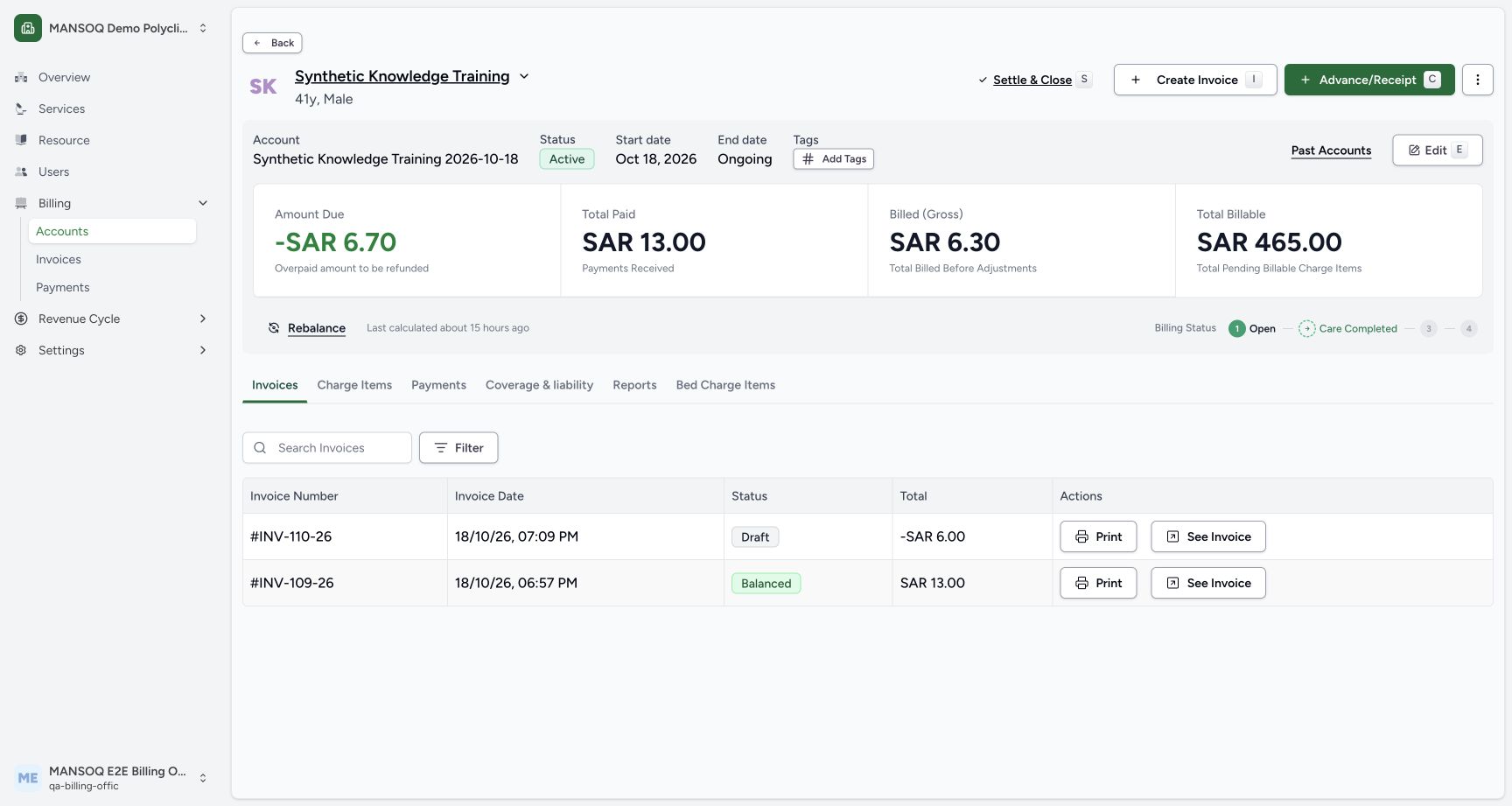
Locate Synthetic Knowledge Training 2026-10-18, verify Synthetic Knowledge Training beneath it and select that row’s Go to account. Confirm the same account name on the opened page.
12Open the Synthetic Knowledge Training account
Capture details
Exact committed 3dfb source and existing ordinary Billing Officer. Genuine unchanged desktop/native pixels; existing synthetic records only. No billing lifecycle or payment action.
Image SHA-256 b9b616694f1e2a4086aff9ab89bb268e632bc301e2fd15161c9a3e0e3ca07c3e
- Go to account for Synthetic Knowledge Training: Open the intended patient’s existing account.
- Synthetic Knowledge Training account: Check the account name and patient in this row.
 123
123Read the account identity and separate summary amounts
Capture details
Exact committed 3dfb source and existing ordinary Billing Officer. Genuine unchanged desktop/native pixels; existing synthetic records only. No billing lifecycle or payment action.
Image SHA-256 7b223e749c1f0c827a2db59459c167c94992ea05d19df527aaa421a1438b6649
- Account name: Check the selected account name.
- Amount Due: Read Amount Due with its explanatory label.
- Search Invoices: Enter an invoice number in this account’s invoice search.
Troubleshooting
The patient-name dropdown shows No matches found
Clear the lookup query with its X. Use the existing account list and pagination to locate and verify the intended account as shown. An empty lookup and a missing account are different observations.
123Patient-name lookup shows No matches found
Capture details
Exact committed 3dfb source and existing ordinary Billing Officer. Genuine unchanged desktop/native pixels; existing synthetic records only. No billing lifecycle or payment action.
Image SHA-256 e77cf5c614991f7b98b7b66aa12fadd085e8d2f4a519410bef7cd570eb8ce6ce
- Patient name query: Read the patient-name query used in this example.
- No matches found: The dropdown displays No matches found; this alone does not prove the patient is absent.
- Clear search input: Clear this patient-name query.
1Page through the unfiltered accounts
Capture details
Exact committed 3dfb source and existing ordinary Billing Officer. Genuine unchanged desktop/native pixels; existing synthetic records only. No billing lifecycle or payment action.
Image SHA-256 ebccaee27bbf863c5ac9a489b8fcc0b1276ab68971e59c28ebd979f4ed08fb74
- Page 3: Select page 3 in this dated example’s account list.
12Open the Synthetic Knowledge Training account
Capture details
Exact committed 3dfb source and existing ordinary Billing Officer. Genuine unchanged desktop/native pixels; existing synthetic records only. No billing lifecycle or payment action.
Image SHA-256 b9b616694f1e2a4086aff9ab89bb268e632bc301e2fd15161c9a3e0e3ca07c3e
- Go to account for Synthetic Knowledge Training: Open the intended patient’s existing account.
- Synthetic Knowledge Training account: Check the account name and patient in this row.
Source evidence
Every citation uses this exact committed version. The private source repository requires access.
- repositories/platform/mansoq-web/src/pages/Facility/billing/account/AccountList.tsx:92 ·
3dfb7c9f519fb5b4cd4452439f3c12346bf58319Source file checksum
8d78c0b600c7149af0de91162af9a1dd87590ee44597e2b30f158d2ff20b4ba7 - repositories/platform/mansoq-web/src/pages/Facility/billing/account/AccountList.tsx:209 ·
3dfb7c9f519fb5b4cd4452439f3c12346bf58319Source file checksum
8d78c0b600c7149af0de91162af9a1dd87590ee44597e2b30f158d2ff20b4ba7 - repositories/platform/mansoq-web/src/components/Patient/PatientIdentifierFilter.tsx:385 ·
3dfb7c9f519fb5b4cd4452439f3c12346bf58319Source file checksum
50d2cc2acbb414040148b30d6664ccdcae33df64bc7b19953fe34ee6afd3eed7 - repositories/platform/mansoq-core/mansoq/emr/api/viewsets/patient.py:230 ·
3dfb7c9f519fb5b4cd4452439f3c12346bf58319Source file checksum
4d3204a488bd87a6092ef1457cde56548e35e5c56901b8324d7a7272a519fb1f - repositories/platform/mansoq-core/mansoq/emr/api/viewsets/account.py:180 ·
3dfb7c9f519fb5b4cd4452439f3c12346bf58319Source file checksum
9cf841caa4df6bbf6ca52dfbc7ce9acafa86bab37cbe8cfa6cdb64b55fe2ee51