 MANSOQ
 Clinical care · VERSION 3dfb7c9f
Create one separate synthetic Emergency encounter
Confirm an existing fictional patient, practise an untouched Cancel, review the class, minute-level start time, status, priority and department, then create one dedicated training encounter.
Doctor
 12
12Existing synthetic patient profile and home link
Capture details
Captured committed 3dfb interface. One separate Emergency create, one On Hold update and one return to In Progress; no triage, discharge or change to the older Ambulatory encounter. Browser and native originals retain their actual dimensions.
Image SHA-256 71f570730dbc162c980a84f3073daaac96cbcb24d66a846bb56db4693a767252
- Confirm the fictional patient: Use the assigned SYNTHETIC training identity.
- Choose Patient Home: Open the existing patient home without editing the profile.
14 of 14 content blocks have reviewed image alignment. Missing overview or prerequisite images remain open.
Before you begin
- Use an authorised ordinary Doctor account in the assigned synthetic facility and patient scope. Actual native screenshots demonstrate Doctor only; Nurse and Staff checks are read-only authority observations.
 12345678910
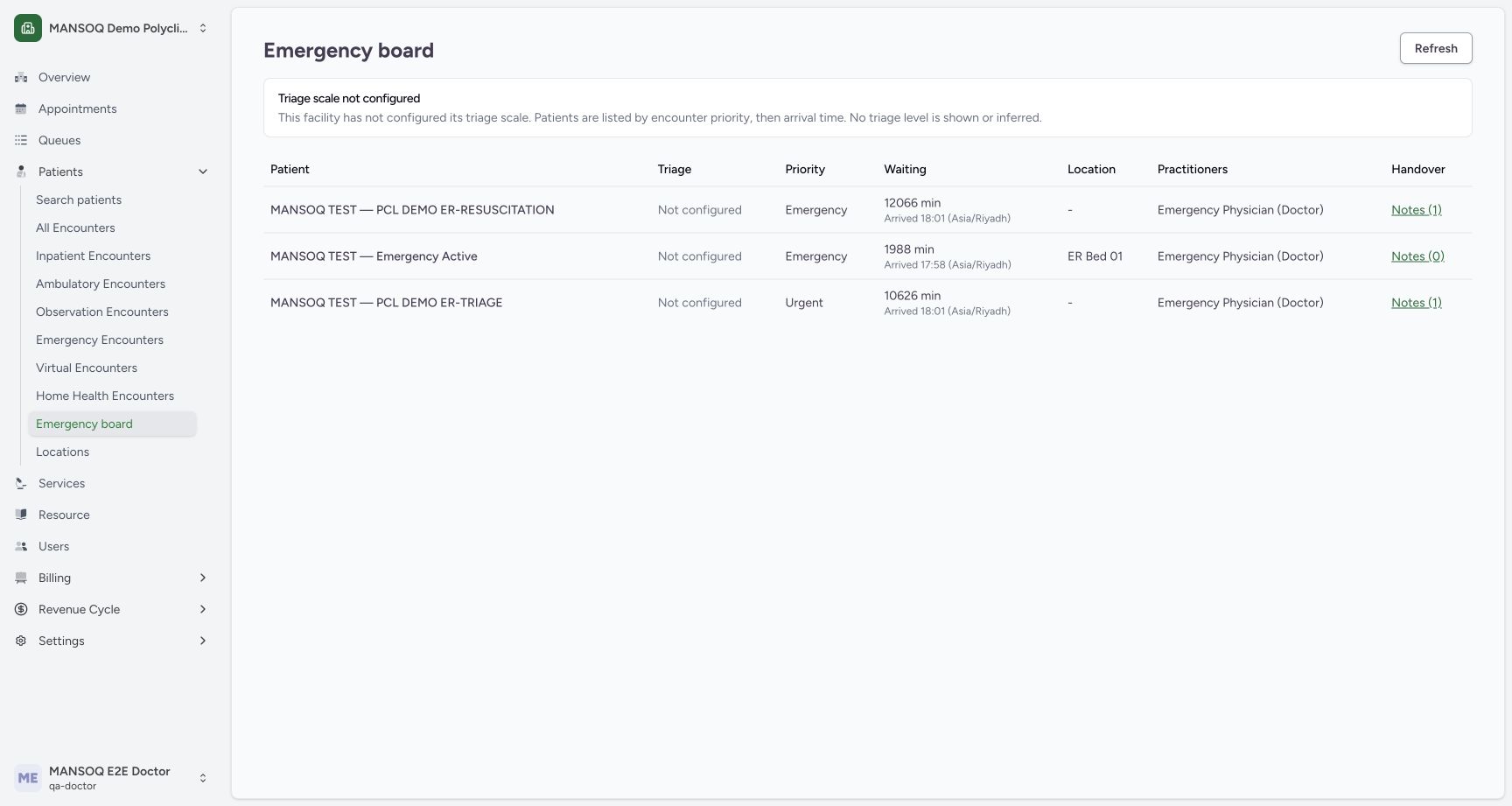
Recorded release 3dfb7c9f · 2026-10-20T00:07:53.010Z · 1728 × 921 Emergency board unconfigured existing rows
Capture details
Captured committed 3dfb interface. One separate Emergency create, one On Hold update and one return to In Progress; no triage, discharge or change to the older Ambulatory encounter. Browser and native originals retain their actual dimensions.
Image SHA-256
772ce2e5bcd1b03a608e96e88bc15717c2ceb0e826833e46149477b4b8b0c367- Open Emergency board: Use the facility sidebar Patients section.
- Check the ordinary Doctor account: The actual account is MANSOQ E2E Doctor / qa-doctor.
- Read the unconfigured triage warning: Priority and arrival ordering does not infer a triage level.
- Read Not configured: This cell contains no triage level.
- Read encounter priority: This Emergency label is a priority, not a calculated triage result.
- Read waiting and arrival: The cell includes elapsed minutes and the displayed time zone.
- Read location: An existing demonstration row displays ER Bed 01; no location was assigned in this exercise.
- Read practitioners: The row shows its recorded practitioner role.
- Read Handover Notes: The link count is associated with that particular row.
- Locate Refresh: Manual Refresh requests the current board data.
- Use only an approved fictional software-training case with validated creation/update prerequisites. No triage, treatment, clinical urgency, handover, admission or discharge decision is represented.12
Recorded release 3dfb7c9f · 2026-10-20T00:08:26.168Z · 1728 × 921 Existing synthetic patient profile and home link
Capture details
Captured committed 3dfb interface. One separate Emergency create, one On Hold update and one return to In Progress; no triage, discharge or change to the older Ambulatory encounter. Browser and native originals retain their actual dimensions.
Image SHA-256
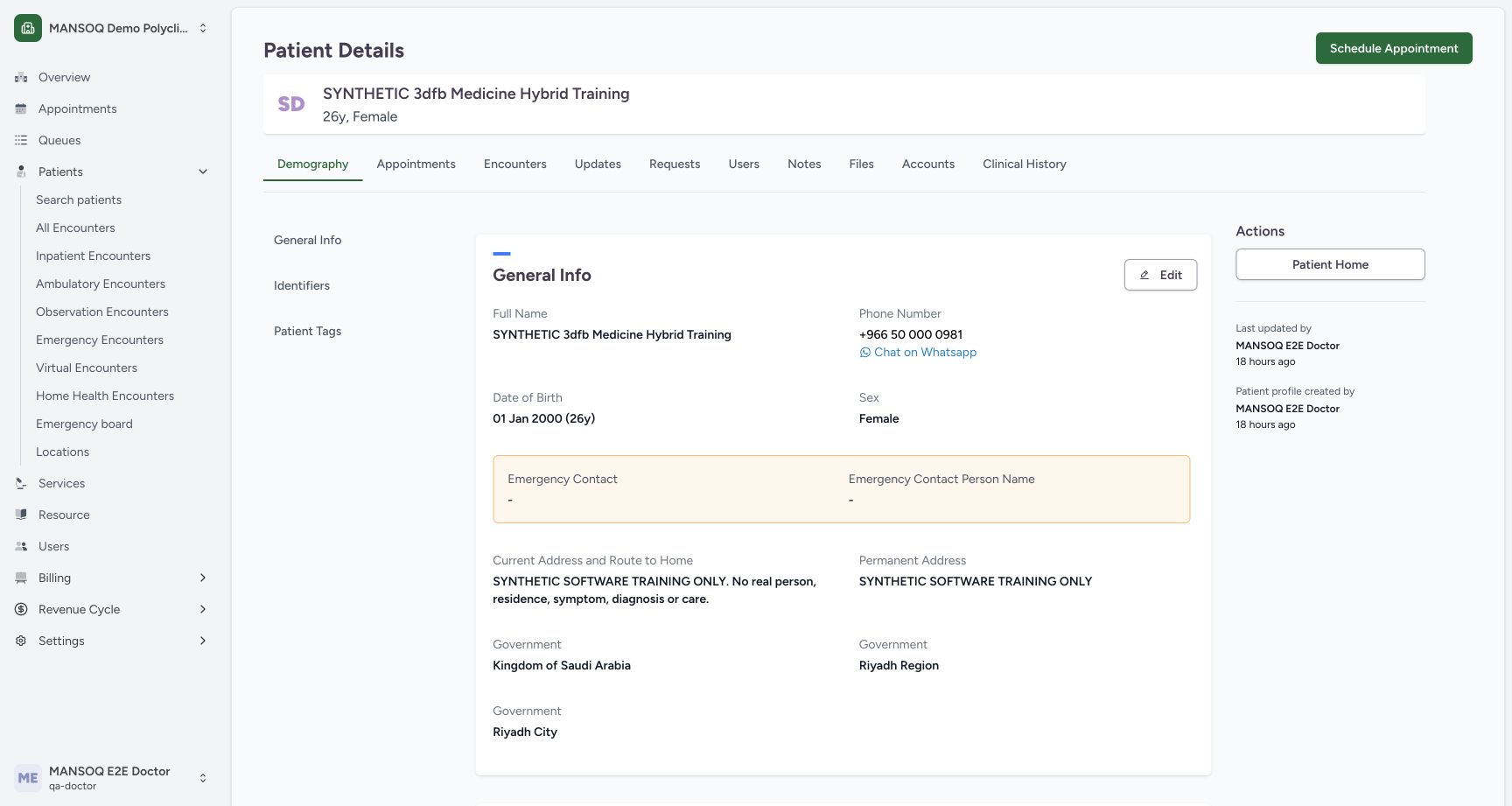
71f570730dbc162c980a84f3073daaac96cbcb24d66a846bb56db4693a767252- Confirm the fictional patient: Use the assigned SYNTHETIC training identity.
- Choose Patient Home: Open the existing patient home without editing the profile.
1. Confirm the assigned fictional patient and open Patient Home
Use the existing SYNTHETIC 3dfb Medicine Hybrid Training patient for this authorised software demonstration. On Patient Details, check the name and choose Patient Home. Registration, patient editing and appointment scheduling are separate tasks.
12Existing synthetic patient profile and home link
Capture details
Captured committed 3dfb interface. One separate Emergency create, one On Hold update and one return to In Progress; no triage, discharge or change to the older Ambulatory encounter. Browser and native originals retain their actual dimensions.
Image SHA-256 71f570730dbc162c980a84f3073daaac96cbcb24d66a846bb56db4693a767252
- Confirm the fictional patient: Use the assigned SYNTHETIC training identity.
- Choose Patient Home: Open the existing patient home without editing the profile.
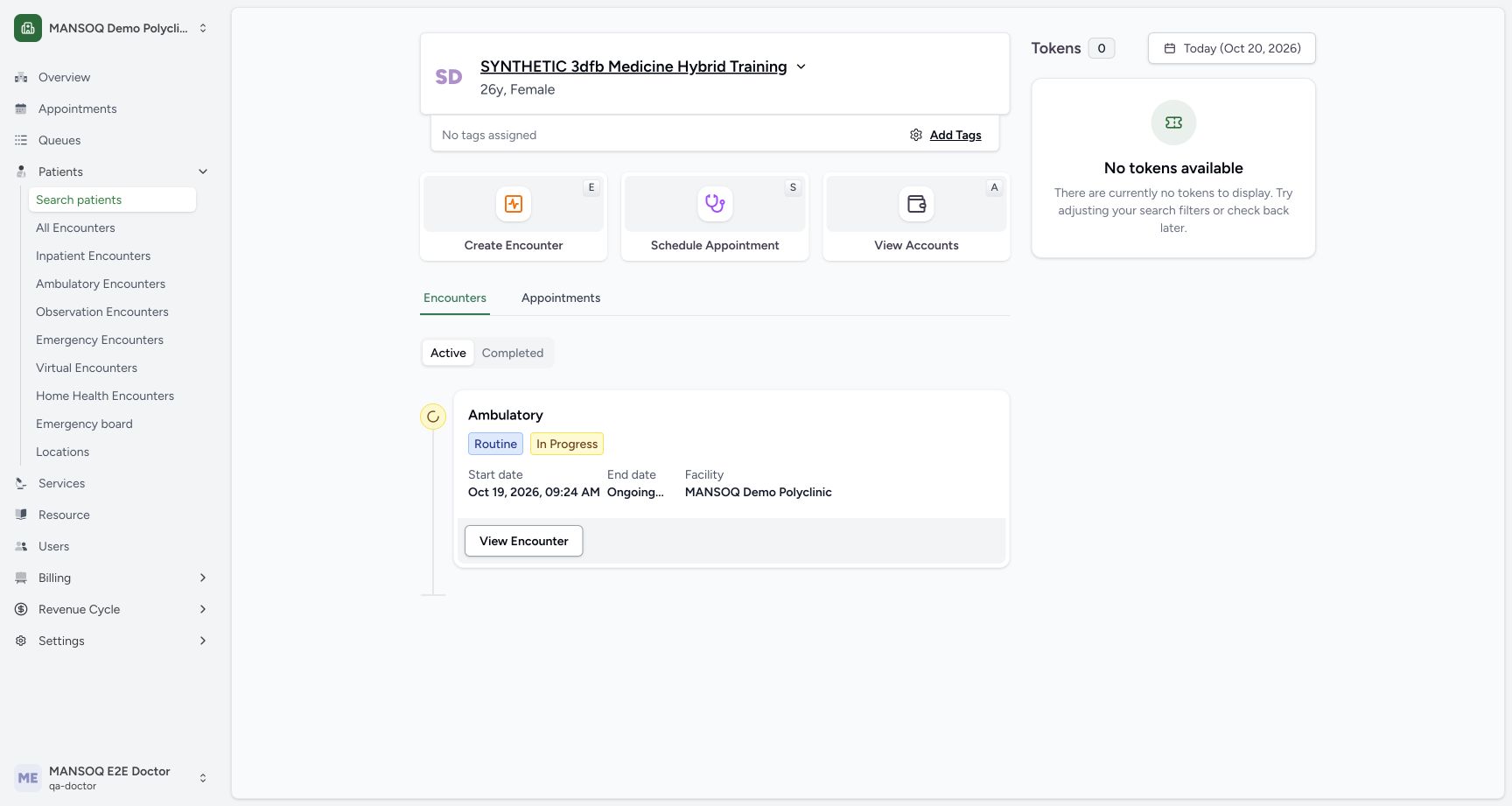
2. Read the existing encounter before starting another
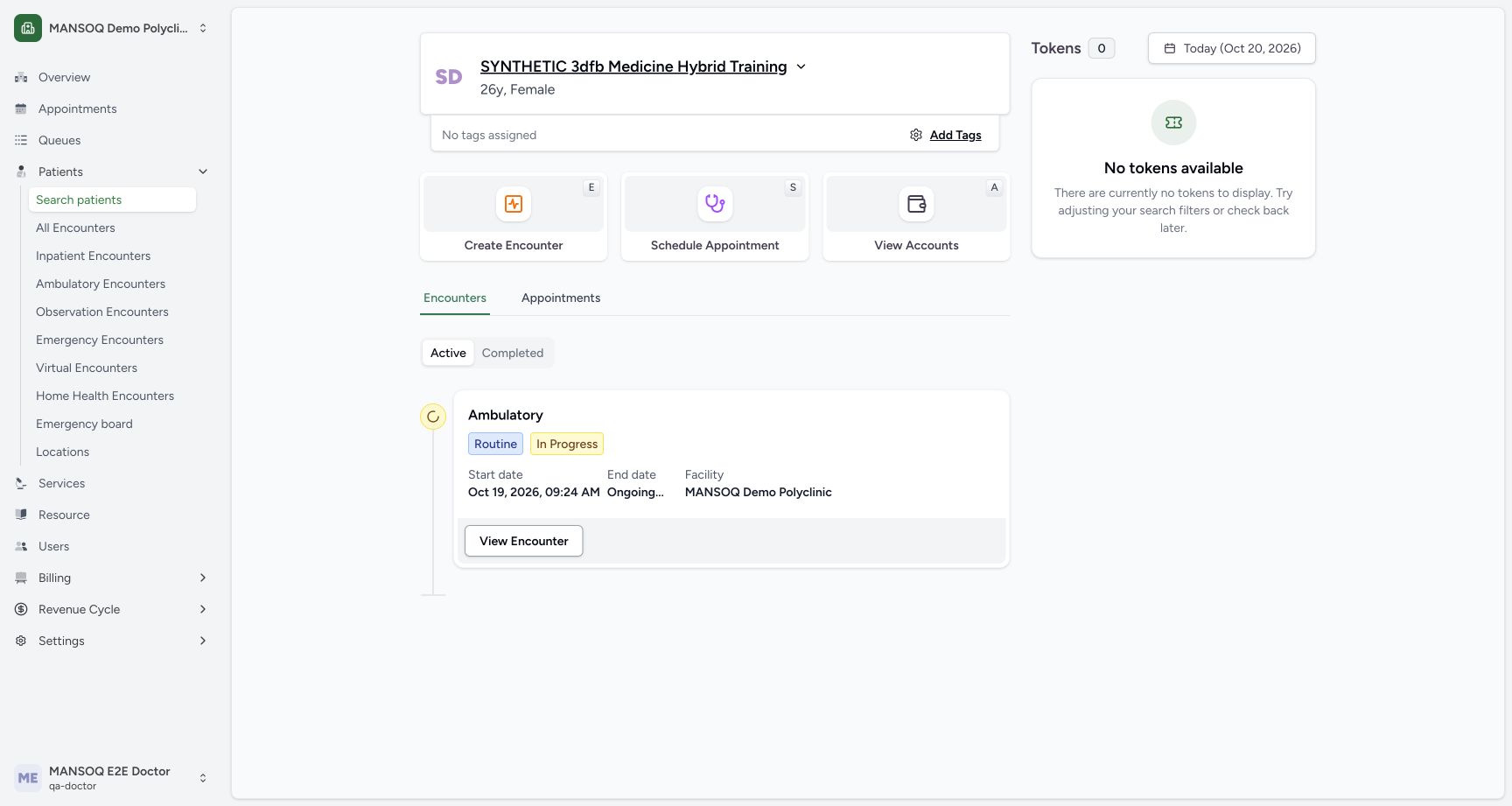
Patient Home initially shows the earlier Ambulatory encounter In Progress. Keep that encounter intact. Choose Create Encounter only after confirming that the assigned training case is allowed another active encounter and that the required identifiers, department and creation permission already exist. This example passed those prerequisites; do not close an existing encounter to imitate it.
 12
12Existing home original ambulatory encounter
Capture details
Captured committed 3dfb interface. One separate Emergency create, one On Hold update and one return to In Progress; no triage, discharge or change to the older Ambulatory encounter. Browser and native originals retain their actual dimensions.
Image SHA-256 7a9015690496c7537b4e2a41f34730e922cb53f556068584fc67961eff4bbb9a
- Choose Create Encounter: Open the dedicated encounter create sheet.
- Read the older Ambulatory encounter: Keep this earlier encounter separate and unchanged.
3. Inspect the untouched create sheet and cancel it
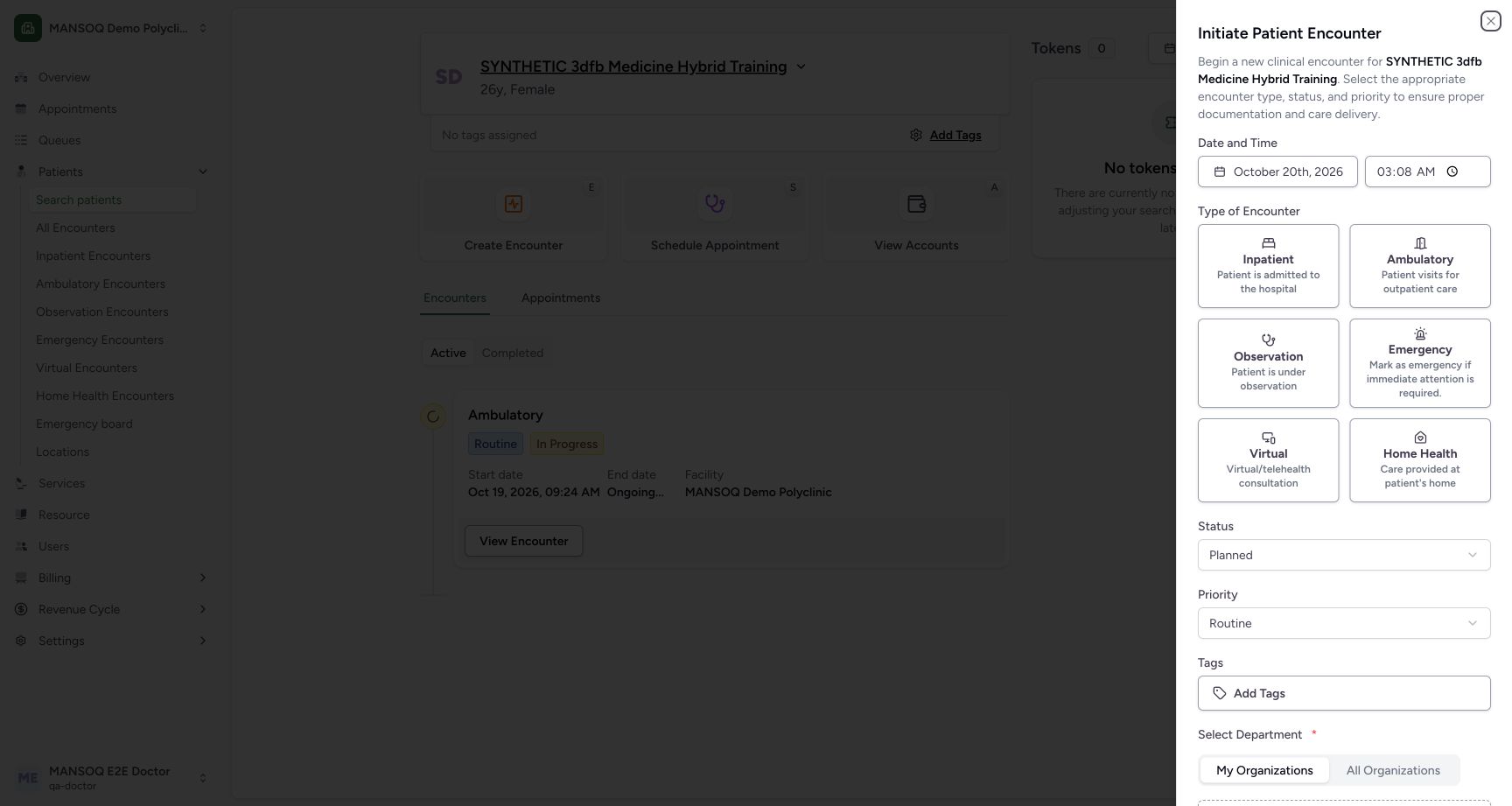
The sheet offers a local Date and Time, six Type of Encounter tiles, Status, Priority, optional Tags and a required department. The untouched example starts Planned and Routine. Scroll to the lower controls and choose Cancel without editing. The later lower-sheet reference shows where Cancel sits; it is not a second capture of the earlier untouched sheet. The Patient Home view returns without a new encounter.
 123456
Untouched create form before cancel
Capture details
Captured committed 3dfb interface. One separate Emergency create, one On Hold update and one return to In Progress; no triage, discharge or change to the older Ambulatory encounter. Browser and native originals retain their actual dimensions.
Image SHA-256 311f8388404d93343c9329eb4047089842e1ede210c7a8545a9c46578677a5af
- Read Date: The untouched local date is visible.
- Read Time: The untouched clock field shows hours and minutes.
- Locate Emergency type: This tile is selected only after reopening for the approved create.
- Read initial Planned: The untouched default has not been saved.
- Read initial Routine: Routine is the retained fictional priority.
- Read required department label: Scroll down for the selected department and final controls.
 12345
12345Reviewed administration and create controls
Capture details
Captured committed 3dfb interface. One separate Emergency create, one On Hold update and one return to In Progress; no triage, discharge or change to the older Ambulatory encounter. Browser and native originals retain their actual dimensions.
Image SHA-256 56710ad30eb6bf5cc399d5fcb0820bb9f149145c64bc78dcaa4de815bc81ac92
- Verify Administration is selected: The selected department is already supplied under My Organizations.
- Read My Organizations: This is the current department-list scope.
- Leave Add Tags unused: No tag was selected.
- Locate Cancel: This later lower-sheet reference illustrates the control used on the earlier untouched sheet.
- Choose Create Encounter once: Create only the reviewed dedicated fictional encounter.
 12
12Untouched cancel returned original home
Capture details
Captured committed 3dfb interface. One separate Emergency create, one On Hold update and one return to In Progress; no triage, discharge or change to the older Ambulatory encounter. Browser and native originals retain their actual dimensions.
Image SHA-256 7a9015690496c7537b4e2a41f34730e922cb53f556068584fc67961eff4bbb9a
- Verify the original home after Cancel: Only the earlier Ambulatory card is shown at this point.
- Reopen Create Encounter: Continue the one authorised fictional create.
4. Reopen Create Encounter and choose Emergency
Choose Create Encounter again. In Type of Encounter, select Emergency. The available tiles are Inpatient, Ambulatory, Observation, Emergency, Virtual and Home Health. This example chooses only Emergency; the labels describe software categories and are not instructions for selecting care for a real person.
12Untouched cancel returned original home
Capture details
Captured committed 3dfb interface. One separate Emergency create, one On Hold update and one return to In Progress; no triage, discharge or change to the older Ambulatory encounter. Browser and native originals retain their actual dimensions.
Image SHA-256 7a9015690496c7537b4e2a41f34730e922cb53f556068584fc67961eff4bbb9a
- Verify the original home after Cancel: Only the earlier Ambulatory card is shown at this point.
- Reopen Create Encounter: Continue the one authorised fictional create.
123456Untouched create form before cancel
Capture details
Captured committed 3dfb interface. One separate Emergency create, one On Hold update and one return to In Progress; no triage, discharge or change to the older Ambulatory encounter. Browser and native originals retain their actual dimensions.
Image SHA-256 311f8388404d93343c9329eb4047089842e1ede210c7a8545a9c46578677a5af
- Read Date: The untouched local date is visible.
- Read Time: The untouched clock field shows hours and minutes.
- Locate Emergency type: This tile is selected only after reopening for the approved create.
- Read initial Planned: The untouched default has not been saved.
- Read initial Routine: Routine is the retained fictional priority.
- Read required department label: Scroll down for the selected department and final controls.
 1234
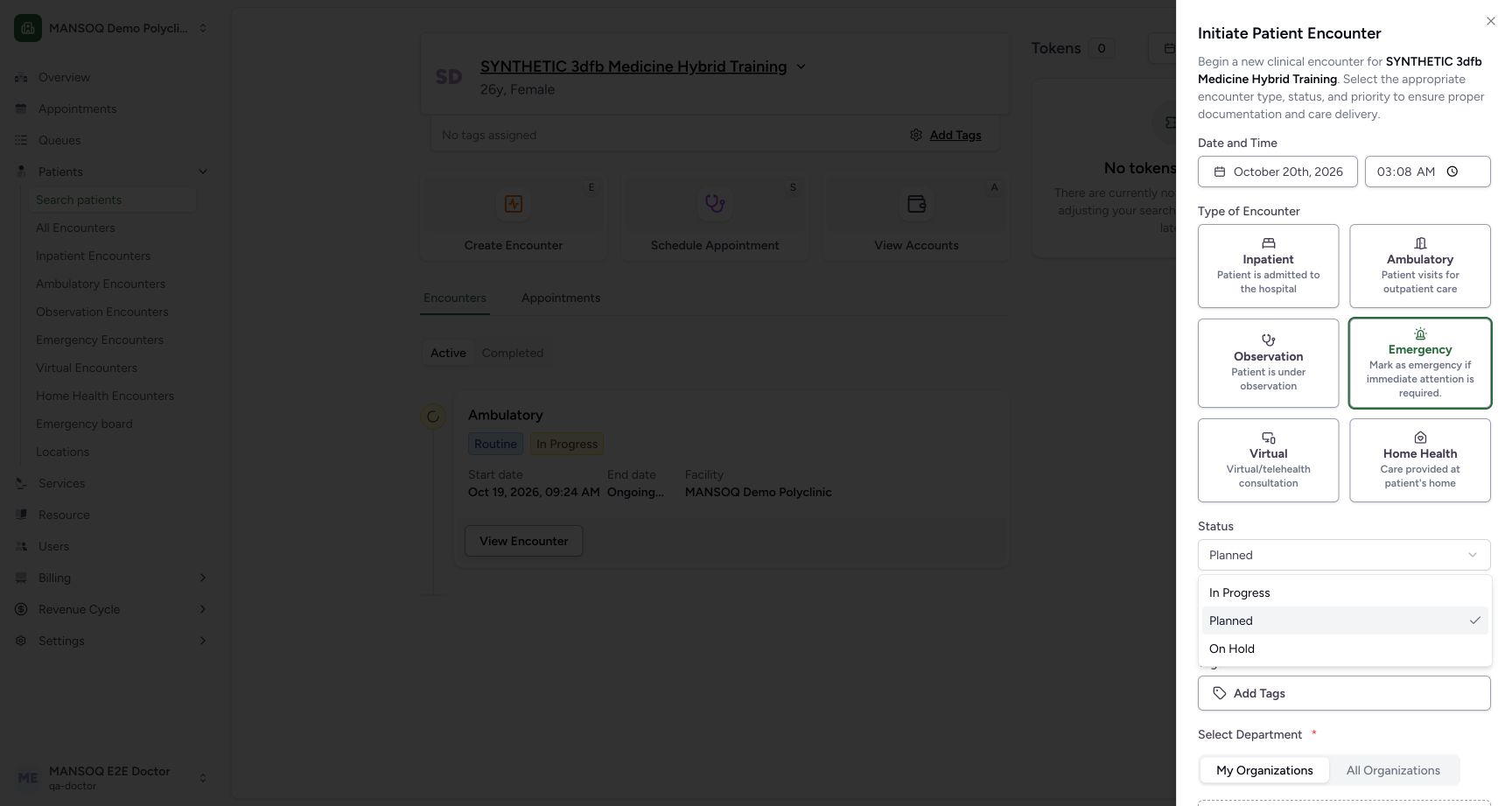
1234Create status options
Capture details
Captured committed 3dfb interface. One separate Emergency create, one On Hold update and one return to In Progress; no triage, discharge or change to the older Ambulatory encounter. Browser and native originals retain their actual dimensions.
Image SHA-256 5a246dd50f1e8b749648061d3cbd226d8779079eb4814ef1a8717e3d8e1a599f
- Read selected Emergency: The create form class tile is selected.
- Choose In Progress: This is the approved create status.
- Read Planned alternative: The create menu has three options.
- Read On Hold alternative: This is another create option, not yet saved.
5. Read the three create statuses and select In Progress
Open Status. The create menu offers In Progress, Planned and On Hold. Choose In Progress for this approved fictional example. Do not substitute the wider status-filter list or the separate update form’s options for this create menu.
1234Create status options
Capture details
Captured committed 3dfb interface. One separate Emergency create, one On Hold update and one return to In Progress; no triage, discharge or change to the older Ambulatory encounter. Browser and native originals retain their actual dimensions.
Image SHA-256 5a246dd50f1e8b749648061d3cbd226d8779079eb4814ef1a8717e3d8e1a599f
- Read selected Emergency: The create form class tile is selected.
- Choose In Progress: This is the approved create status.
- Read Planned alternative: The create menu has three options.
- Read On Hold alternative: This is another create option, not yet saved.
 12345
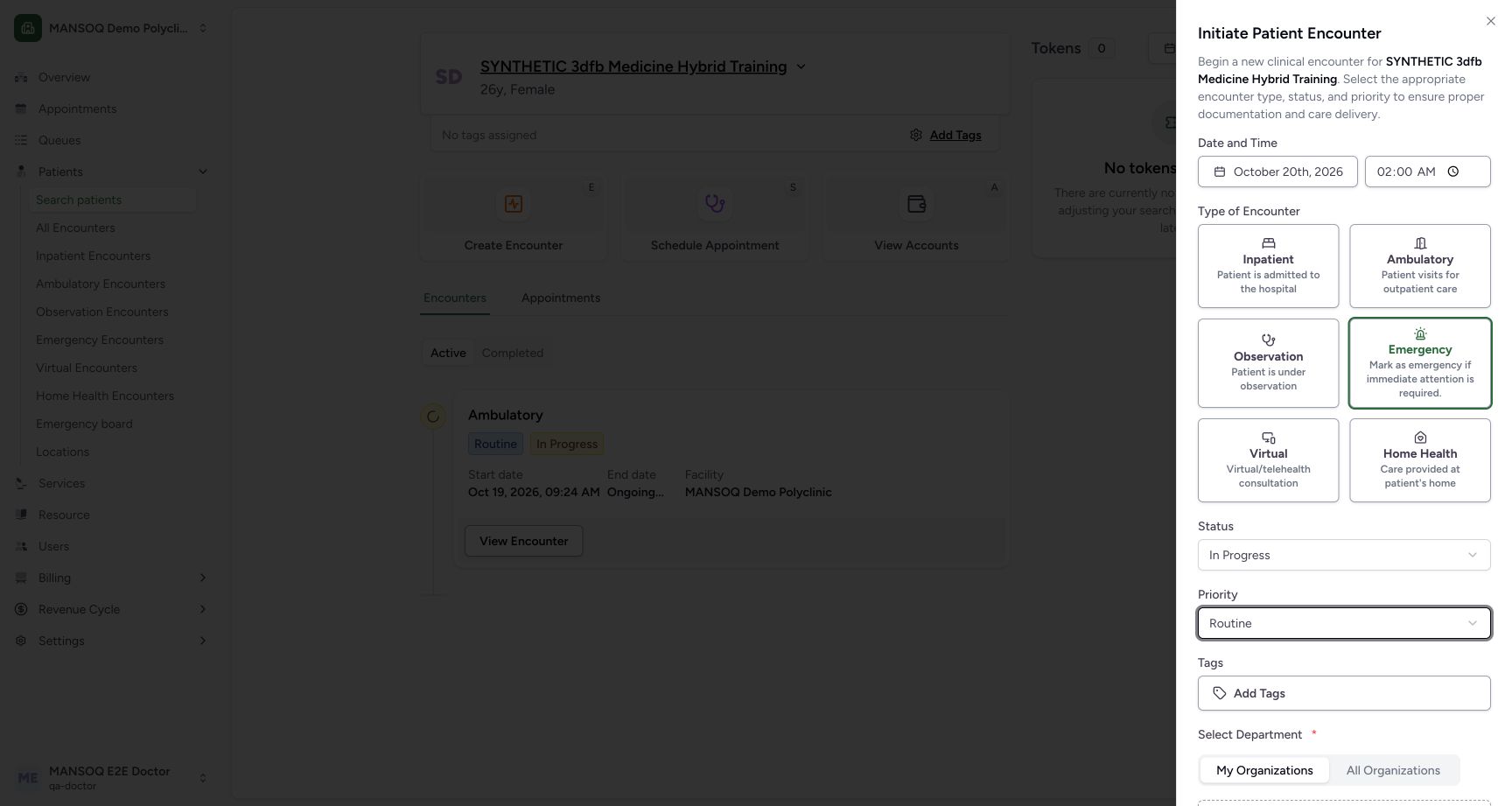
12345Reviewed emergency date time status priority
Capture details
Captured committed 3dfb interface. One separate Emergency create, one On Hold update and one return to In Progress; no triage, discharge or change to the older Ambulatory encounter. Browser and native originals retain their actual dimensions.
Image SHA-256 036e3e4aa7ac77fd7017dcf9d7af18028db76d62e960a33e3899f5bf3d31e3b5
- Recheck 20 October 2026: Use the approved local fictional date.
- Enter and recheck 02:00 AM: Read hour, minute and AM after moving focus away.
- Recheck Emergency: The selected class remains Emergency.
- Recheck In Progress: This is the final create status.
- Recheck Routine: The priority remains unchanged.
6. Enter the approved local date and minute-level time
For this captured example, keep 20 October 2026 and enter 02:00 AM using the time control’s hour, minute and AM segments. Move focus away, re-read the time and verify it again after another field has rendered. Use your organisation’s approved training date when practising; this fixed date/time is only the software sample. The visible control shows minutes and does not expose seconds.
12345Reviewed emergency date time status priority
Capture details
Captured committed 3dfb interface. One separate Emergency create, one On Hold update and one return to In Progress; no triage, discharge or change to the older Ambulatory encounter. Browser and native originals retain their actual dimensions.
Image SHA-256 036e3e4aa7ac77fd7017dcf9d7af18028db76d62e960a33e3899f5bf3d31e3b5
- Recheck 20 October 2026: Use the approved local fictional date.
- Enter and recheck 02:00 AM: Read hour, minute and AM after moving focus away.
- Recheck Emergency: The selected class remains Emergency.
- Recheck In Progress: This is the final create status.
- Recheck Routine: The priority remains unchanged.
7. Read the priority options and retain Routine
Open Priority and read the actual menu: Stat, ASAP, Emergency, Urgent, Routine, Elective, Rush reporting, Timing critical, Callback results, Callback for scheduling, Pre-op, As needed and Use as directed. Retain Routine for this fictional exercise. No urgency or treatment recommendation is represented by these software labels.
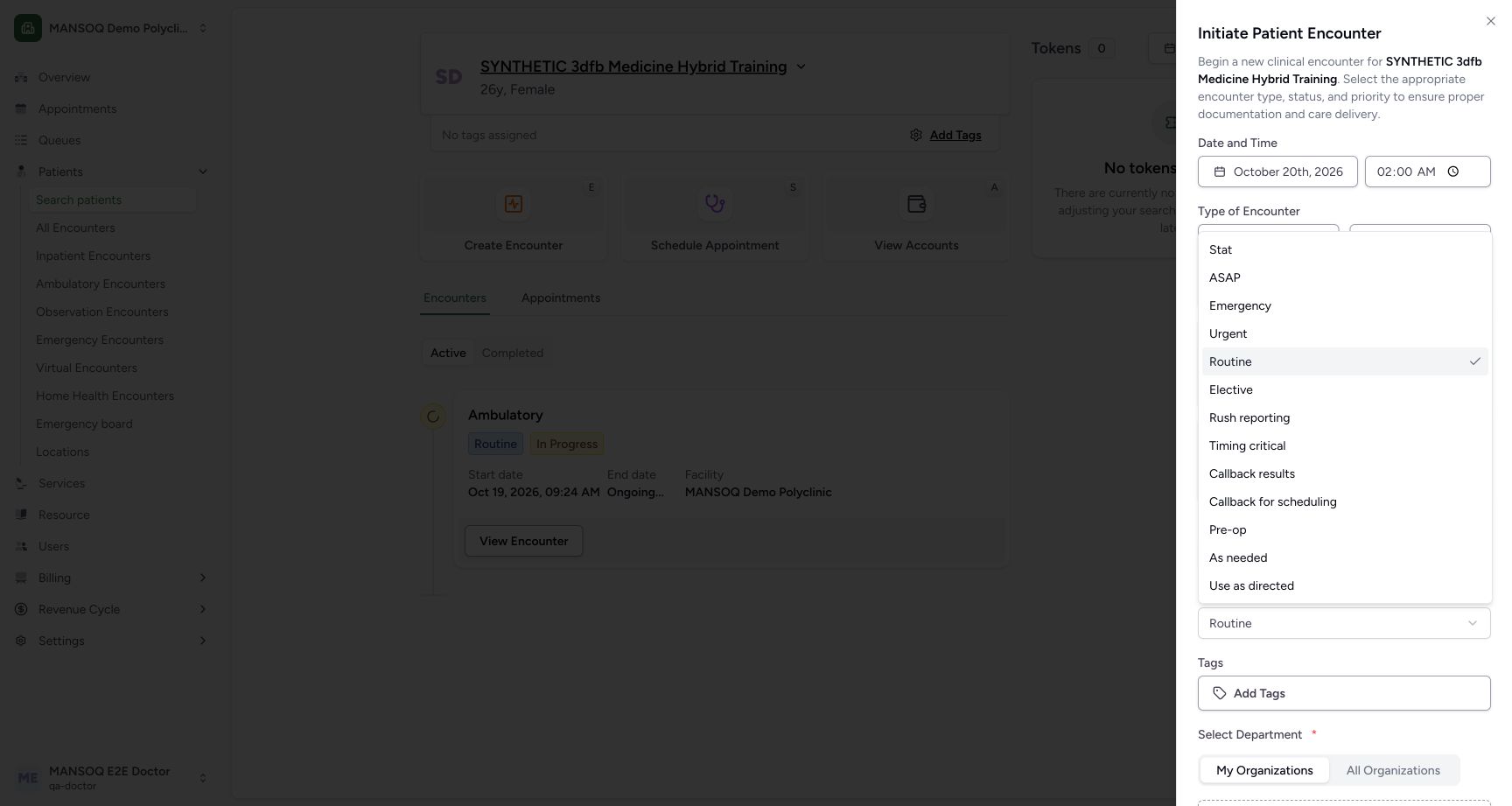 12345678910111213
Priority options routine retained
Capture details
Captured committed 3dfb interface. One separate Emergency create, one On Hold update and one return to In Progress; no triage, discharge or change to the older Ambulatory encounter. Browser and native originals retain their actual dimensions.
Image SHA-256 3784c163cd220a54aaf1bbcc5cdb7fc92d1f02eeb6b25708f29aea002800f439
- Read Stat: The menu begins with this priority label.
- Read ASAP: Priority labels are software choices, not advice.
- Read Emergency priority: Priority and encounter class are separate.
- Read Urgent: This alternative was not selected.
- Retain Routine: The checkmark identifies the retained value.
- Read Elective: This is another installed option.
- Read Rush reporting: The actual option is visible.
- Read Timing critical: No temporary priority change is saved.
- Read Callback results: The option is listed in this menu.
- Read Callback for scheduling: This is a selectable priority label.
- Read Pre-op: The label is part of the installed list.
- Read As needed: This alternative is not used here.
- Read Use as directed: The last visible priority option is not a treatment instruction.
12345Reviewed emergency date time status priority
Capture details
Captured committed 3dfb interface. One separate Emergency create, one On Hold update and one return to In Progress; no triage, discharge or change to the older Ambulatory encounter. Browser and native originals retain their actual dimensions.
Image SHA-256 036e3e4aa7ac77fd7017dcf9d7af18028db76d62e960a33e3899f5bf3d31e3b5
- Recheck 20 October 2026: Use the approved local fictional date.
- Enter and recheck 02:00 AM: Read hour, minute and AM after moving focus away.
- Recheck Emergency: The selected class remains Emergency.
- Recheck In Progress: This is the final create status.
- Recheck Routine: The priority remains unchanged.
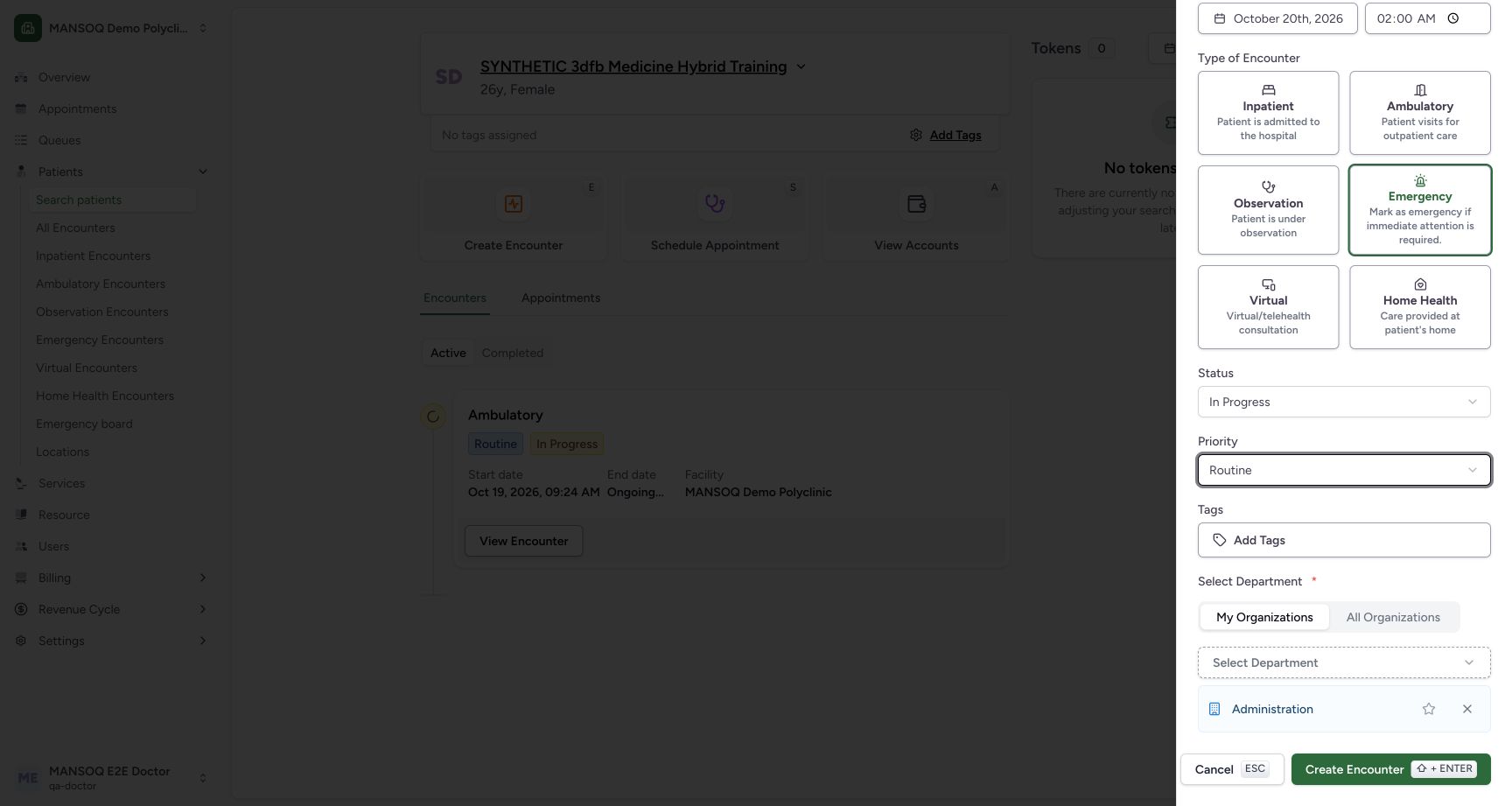
8. Review the required department without changing tags or preferences
Scroll to the lower sheet. In this example, My Organizations has already supplied Administration, shown as a selected department. Recheck that exact department. Tags remain empty. The star beside Administration is a preference control, not the selected-department indicator; no preference or tag action is part of this exercise.
12345Reviewed administration and create controls
Capture details
Captured committed 3dfb interface. One separate Emergency create, one On Hold update and one return to In Progress; no triage, discharge or change to the older Ambulatory encounter. Browser and native originals retain their actual dimensions.
Image SHA-256 56710ad30eb6bf5cc399d5fcb0820bb9f149145c64bc78dcaa4de815bc81ac92
- Verify Administration is selected: The selected department is already supplied under My Organizations.
- Read My Organizations: This is the current department-list scope.
- Leave Add Tags unused: No tag was selected.
- Locate Cancel: This later lower-sheet reference illustrates the control used on the earlier untouched sheet.
- Choose Create Encounter once: Create only the reviewed dedicated fictional encounter.
9. Review once, then choose Create Encounter once
Re-read the patient, Emergency, In Progress, Routine, 20 October 02:00 AM and Administration across the reviewed upper and lower views. Choose Create Encounter once. If the result is uncertain, inspect the saved state before another action instead of repeating Create.
12345Reviewed emergency date time status priority
Capture details
Captured committed 3dfb interface. One separate Emergency create, one On Hold update and one return to In Progress; no triage, discharge or change to the older Ambulatory encounter. Browser and native originals retain their actual dimensions.
Image SHA-256 036e3e4aa7ac77fd7017dcf9d7af18028db76d62e960a33e3899f5bf3d31e3b5
- Recheck 20 October 2026: Use the approved local fictional date.
- Enter and recheck 02:00 AM: Read hour, minute and AM after moving focus away.
- Recheck Emergency: The selected class remains Emergency.
- Recheck In Progress: This is the final create status.
- Recheck Routine: The priority remains unchanged.
12345Reviewed administration and create controls
Capture details
Captured committed 3dfb interface. One separate Emergency create, one On Hold update and one return to In Progress; no triage, discharge or change to the older Ambulatory encounter. Browser and native originals retain their actual dimensions.
Image SHA-256 56710ad30eb6bf5cc399d5fcb0820bb9f149145c64bc78dcaa4de815bc81ac92
- Verify Administration is selected: The selected department is already supplied under My Organizations.
- Read My Organizations: This is the current department-list scope.
- Leave Add Tags unused: No tag was selected.
- Locate Cancel: This later lower-sheet reference illustrates the control used on the earlier untouched sheet.
- Choose Create Encounter once: Create only the reviewed dedicated fictional encounter.
10. Verify the newly selected Emergency encounter
The saved Overview selects Emergency In Progress with Routine, the same local start and an ongoing end. The older Ambulatory encounter remains under Other Encounters. This is a separate new encounter; it did not convert the older encounter to Emergency.
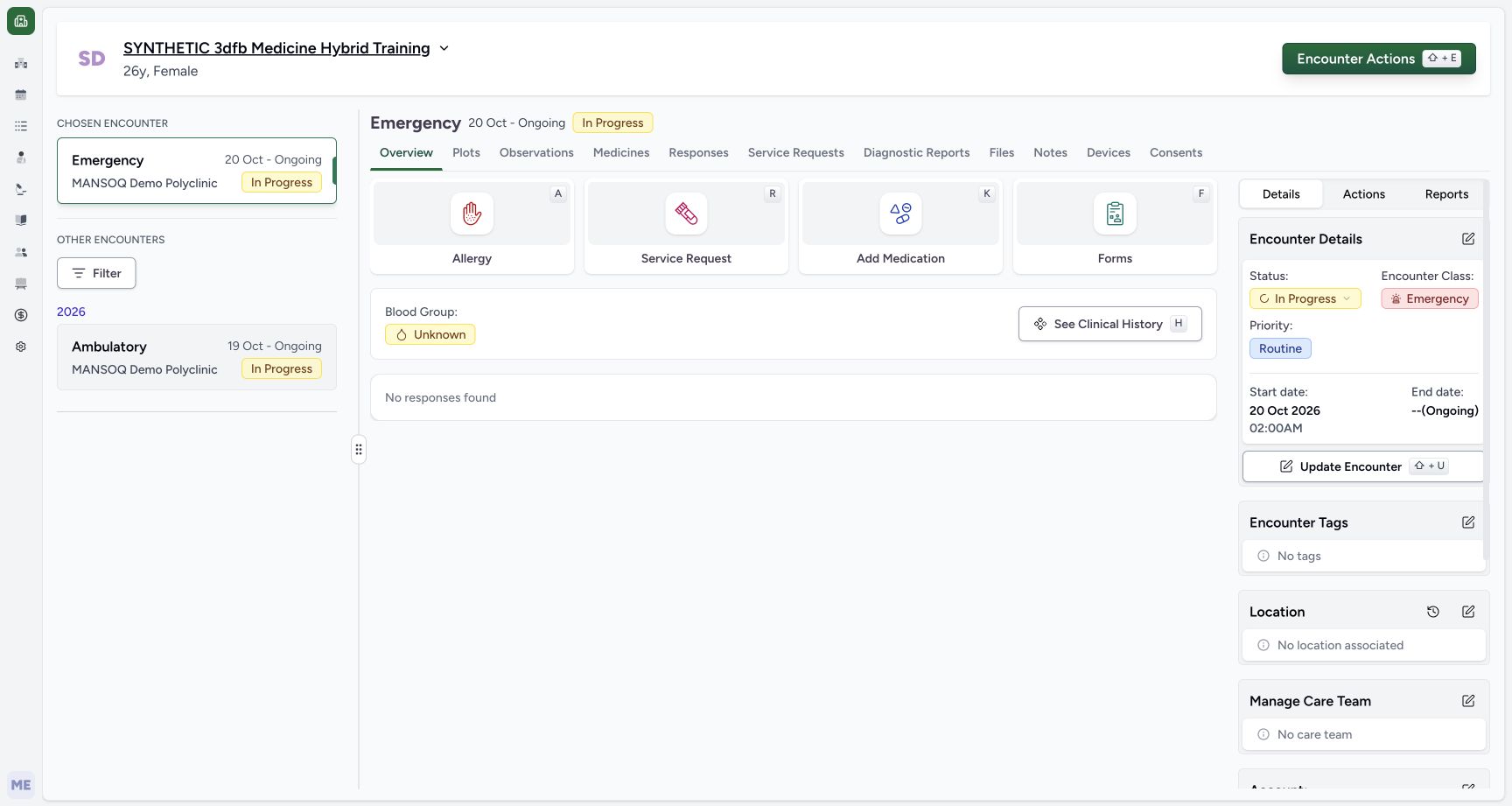 12345678
Created emergency overview new identity
Capture details
Captured committed 3dfb interface. One separate Emergency create, one On Hold update and one return to In Progress; no triage, discharge or change to the older Ambulatory encounter. Browser and native originals retain their actual dimensions.
Image SHA-256 e3f4523f6cc18fb07eed82d5b442c5197f0499fda8fd85260c03257e98656bec
- Read the chosen Emergency encounter: This is the separate new encounter.
- Read In Progress: The newly saved status is visible.
- Verify Emergency class: The older Ambulatory encounter was not converted.
- Verify Routine: The saved priority matches the review.
- Verify the local start: The saved display is 20 Oct 2026 02:00 AM.
- Read ongoing end: The create did not complete or discharge the encounter.
- Keep the older Ambulatory encounter separate: The previous encounter remains under Other Encounters.
- Choose Update Encounter: Open only the dedicated Emergency encounter editor.
Keep creation separate from clinical admission and triage
The demonstration created one encounter record and its Administration association. It assigned no location, practitioner, device, triage level, clinical observation, prescription or financial account. Empty display areas are not proof that a clinical admission or assessment was completed.
12345678Created emergency overview new identity
Capture details
Captured committed 3dfb interface. One separate Emergency create, one On Hold update and one return to In Progress; no triage, discharge or change to the older Ambulatory encounter. Browser and native originals retain their actual dimensions.
Image SHA-256 e3f4523f6cc18fb07eed82d5b442c5197f0499fda8fd85260c03257e98656bec
- Read the chosen Emergency encounter: This is the separate new encounter.
- Read In Progress: The newly saved status is visible.
- Verify Emergency class: The older Ambulatory encounter was not converted.
- Verify Routine: The saved priority matches the review.
- Verify the local start: The saved display is 20 Oct 2026 02:00 AM.
- Read ongoing end: The create did not complete or discharge the encounter.
- Keep the older Ambulatory encounter separate: The previous encounter remains under Other Encounters.
- Choose Update Encounter: Open only the dedicated Emergency encounter editor.
Source evidence
Every citation uses this exact committed version. The private source repository requires access.
- repositories/platform/mansoq-web/src/pages/Facility/emergency/EmergencyBoard.tsx:44 ·
3dfb7c9f519fb5b4cd4452439f3c12346bf58319Source file checksum
f71db4dd0fdea13df8ed5f587dfabd03648516256e75badde7077dd604cb5b6c - repositories/platform/mansoq-web/src/pages/Facility/emergency/emergencyBoardApi.ts:27 ·
3dfb7c9f519fb5b4cd4452439f3c12346bf58319Source file checksum
33e8286f0f259e49267bd02152c02769cdaad32c5764bac9c4fe4d3e031fd513 - repositories/platform/mansoq-web/src/components/ui/sidebar/facility/facility-nav.tsx:89 ·
3dfb7c9f519fb5b4cd4452439f3c12346bf58319Source file checksum
26a257157ad5c4272295c13ac63f349cc4f2ba61ede92af64e671a0eb9be5d95 - repositories/platform/mansoq-web/src/Routers/routes/FacilityRoutes.tsx:54 ·
3dfb7c9f519fb5b4cd4452439f3c12346bf58319Source file checksum
e42381cbb2ce6c5ba8cdf2203ad05e90582e6bf59c27be491a071ea5417cc534 - repositories/platform/mansoq-web/src/pages/Encounters/EncounterList.tsx:187 ·
3dfb7c9f519fb5b4cd4452439f3c12346bf58319Source file checksum
2dbe49fe5456b9161dbd171510f1614cd81a9c915ae766dd48346643d2ba61b1 - repositories/platform/mansoq-web/src/components/ui/multi-filter/filterConfigs.tsx:80 ·
3dfb7c9f519fb5b4cd4452439f3c12346bf58319Source file checksum
ff846a8365ca3b3351883b7b41bd5ecd3577d8d3c2bd422029c3d2bf0d9046a5 - repositories/platform/mansoq-web/src/components/Encounter/CreateEncounterForm.tsx:89 ·
3dfb7c9f519fb5b4cd4452439f3c12346bf58319Source file checksum
849ee40ade505c03c37ead86ac160b0c611bedf5f35da2e7dec1700288d4daca - repositories/platform/mansoq-web/src/components/Questionnaire/QuestionTypes/EncounterQuestion.tsx:69 ·
3dfb7c9f519fb5b4cd4452439f3c12346bf58319Source file checksum
3a18093287f1975b8f3387b83216b981d9ec6e75975ccecde4544e4d4c91cb2c - repositories/platform/mansoq-web/src/components/Questionnaire/QuestionnaireForm.tsx:834 ·
3dfb7c9f519fb5b4cd4452439f3c12346bf58319Source file checksum
ee6c2195f13e48f0896a2d3da566c2f2a67910adad08894df6b77862f9cfdeec - repositories/platform/mansoq-web/src/components/Questionnaire/structured/handlers.ts:179 ·
3dfb7c9f519fb5b4cd4452439f3c12346bf58319Source file checksum
459ade48f77316279ab2978dc7b4466cb96acb8223c61b9a1f87ca9973be7c7f - repositories/platform/mansoq-web/src/pages/Encounters/EncounterProperties.tsx:23 ·
3dfb7c9f519fb5b4cd4452439f3c12346bf58319Source file checksum
f8077c29c8df9f307e2687894d4997526efb015feb628832378c3aefd1521091 - repositories/platform/mansoq-web/src/components/Encounter/EncounterCommandDialog.tsx:248 ·
3dfb7c9f519fb5b4cd4452439f3c12346bf58319Source file checksum
361a31246fc38a50a86c8960dadb3254afcfcb7fb8eb53d7bf59c1699512683c - repositories/platform/mansoq-web/src/pages/Encounters/utils/EncounterProvider.tsx:162 ·
3dfb7c9f519fb5b4cd4452439f3c12346bf58319Source file checksum
d2609fc0452c91c20104237bf02be40ecb3bf48225011aba1f4bca2d50620d75 - repositories/platform/mansoq-web/src/pages/Encounters/utils/useEncounterProgressController.ts:19 ·
3dfb7c9f519fb5b4cd4452439f3c12346bf58319Source file checksum
d627cc15e3bad6b3bfd3fd61271787f274bfc325dc0d815e846e5d580554a265 - repositories/platform/mansoq-web/src/types/emr/encounter/encounter.ts:117 ·
3dfb7c9f519fb5b4cd4452439f3c12346bf58319Source file checksum
178ad4319d92bef379a78ed07c74d87d4c185774b3cdf989affc0f7e06ac08db - repositories/platform/mansoq-web/src/types/emr/encounter/encounterApi.ts:17 ·
3dfb7c9f519fb5b4cd4452439f3c12346bf58319Source file checksum
dc3397b24f1343b3d39f1b8ee3b01da8b3b9c16011d53427d118e6f48a674eaf - repositories/platform/mansoq-core/mansoq/emr/resources/encounter/emergency_board.py:35 ·
3dfb7c9f519fb5b4cd4452439f3c12346bf58319Source file checksum
de05aec7b2b1c2a956bde172243c221aadc9dcc4c671e0775d929664d5273cff - repositories/platform/mansoq-core/mansoq/emr/resources/facility/triage.py:15 ·
3dfb7c9f519fb5b4cd4452439f3c12346bf58319Source file checksum
a77ef80e937c9592c90051ad870c6efbf087e68dbbafc3f648b77509650f0ab4 - repositories/platform/mansoq-core/mansoq/emr/api/viewsets/encounter.py:172 ·
3dfb7c9f519fb5b4cd4452439f3c12346bf58319Source file checksum
95deb76fba78fa3426ea5eae2fa175db4a31bd3ea8a6bc70da5f80632a05d2f8 - repositories/platform/mansoq-core/mansoq/emr/resources/encounter/spec.py:44 ·
3dfb7c9f519fb5b4cd4452439f3c12346bf58319Source file checksum
c500756ac656d65d419fd08381905d7201414d63cb7910205a6eb7fd52099545 - repositories/platform/mansoq-core/mansoq/emr/resources/encounter/constants.py:4 ·
3dfb7c9f519fb5b4cd4452439f3c12346bf58319Source file checksum
4cb075b4aee3c09c6275cab553865929e2ea1bced4c5e66eb571855bcbb9f52a - repositories/platform/mansoq-core/mansoq/security/authorization/encounter.py:28 ·
3dfb7c9f519fb5b4cd4452439f3c12346bf58319Source file checksum
0e7ff8afcfb57b2371201e16ee6fac26125d6e686af66ed7edd95e49bc07de78 - repositories/platform/mansoq-core/mansoq/security/permissions/encounter.py:24 ·
3dfb7c9f519fb5b4cd4452439f3c12346bf58319Source file checksum
06b74efb763810e425de8529660f748ebd56509c729ebc532c8d115102b29218 - repositories/platform/mansoq-core/mansoq/emr/models/encounter.py:43 ·
3dfb7c9f519fb5b4cd4452439f3c12346bf58319Source file checksum
9a506456aba3ae2e3be5cfd25f32e552d3406ddd7290c0d0edef5e136782b46e - repositories/platform/mansoq-core/mansoq/emr/models/patient.py:116 ·
3dfb7c9f519fb5b4cd4452439f3c12346bf58319Source file checksum
35fa574cbdb97bd985a5561827116945e5acb81a38a93c678774ec422721e8aa - repositories/platform/mansoq-core/mansoq/emr/signals/patient/base.py:68 ·
3dfb7c9f519fb5b4cd4452439f3c12346bf58319Source file checksum
c6b7fc7fdd8af00756411343db2a4e2503c2f0166a4df0cb0e8e6bb7536b2d32 - repositories/platform/mansoq-core/mansoq/emr/signals/patient/facility_name_identifier.py:27 ·
3dfb7c9f519fb5b4cd4452439f3c12346bf58319Source file checksum
dd72b45263ce4c61a552f3d461eba4b4cd49ac295e2b31c9e2e5a84c11e26c34 - repositories/platform/mansoq-core/mansoq/emr/signals/patient/name_identifier.py:26 ·
3dfb7c9f519fb5b4cd4452439f3c12346bf58319Source file checksum
bd6bf5abfe31beeafd5bc07b9ad78b00c36506fe57dd68e929bd0e4060129821 - repositories/platform/mansoq-core/mansoq/emr/signals/patient/phone_number_identifier.py:26 ·
3dfb7c9f519fb5b4cd4452439f3c12346bf58319Source file checksum
843f7eeef76c4ee36117303644590f357f0b7d6ad2415e869dd26abe49c81f15 - repositories/platform/mansoq-core/mansoq/emr/resources/patient_identifier/default_expression_evaluator.py:48 ·
3dfb7c9f519fb5b4cd4452439f3c12346bf58319Source file checksum
0c5d676a96d65c6ca897ac6c9ae968e4497810260d1e7b4d7ce84f48621e8a31 - repositories/platform/mansoq-core/mansoq/emr/api/viewsets/location.py:558 ·
3dfb7c9f519fb5b4cd4452439f3c12346bf58319Source file checksum
646ce12d299831d9c6dba43121d80fba8a10afb85a69a26c73cae8d4a7e10a31 - repositories/platform/mansoq-core/mansoq/emr/api/viewsets/device.py:517 ·
3dfb7c9f519fb5b4cd4452439f3c12346bf58319Source file checksum
2940ecc132dd70b97cbbdadffcca205260dd65df63f16572c22b981b7bf207d7 - repositories/platform/mansoq-core/mansoq/emr/rcm/services/service_date.py:15 ·
3dfb7c9f519fb5b4cd4452439f3c12346bf58319Source file checksum
f98d08481591f0c3526a9c81dc0744267f3ba93f5abcc885379a7911d5e2aa77 - repositories/platform/mansoq-web/src/components/Questionnaire/data/StructuredFormData.tsx:3 ·
3dfb7c9f519fb5b4cd4452439f3c12346bf58319Source file checksum
434386c27b8e583e1dbd0a6f506250e7a0fb3640963c572445123bae62880f0f - repositories/platform/mansoq-core/config/settings/config.py:13 ·
3dfb7c9f519fb5b4cd4452439f3c12346bf58319Source file checksum
80e2bd16a124b5b9e80eefab7a9d5b2f20a874a8fe645b223f26cad04e6cd60a - repositories/platform/mansoq-core/config/settings/base.py:23 ·
3dfb7c9f519fb5b4cd4452439f3c12346bf58319Source file checksum
34f8931a2bae5a35f45bf6247695ee6bac09ccada3be766773861b4245817d6f - repositories/platform/mansoq-core/mansoq/emr/models/organization.py:102 ·
3dfb7c9f519fb5b4cd4452439f3c12346bf58319Source file checksum
1658c05cd0022370c55fe9d9a39d87278228141543fa3542b395119c32ee85f0 - repositories/platform/mansoq-core/mansoq/emr/models/location.py:12 ·
3dfb7c9f519fb5b4cd4452439f3c12346bf58319Source file checksum
3cafb18e62f616c20adc01ba2d5f9f11c4dd2f79451fa02e9b0ee1f2b9587a83 - repositories/platform/mansoq-core/mansoq/emr/models/device.py:7 ·
3dfb7c9f519fb5b4cd4452439f3c12346bf58319Source file checksum
9f9e3b431230d969391ac50d204d36b45eeca895fcd9423cb256974f5f7540f0 - repositories/platform/mansoq-core/mansoq/emr/resources/permissions.py:30 ·
3dfb7c9f519fb5b4cd4452439f3c12346bf58319Source file checksum
6822429d64e1f5a5c4cf7bdf37cb401e2f270d89d3b105d075ac42c6bce70f3e - repositories/platform/mansoq-core/mansoq/emr/resources/facility/spec.py:28 ·
3dfb7c9f519fb5b4cd4452439f3c12346bf58319Source file checksum
33c04d305762ea2f0f89dd6499544701aef27241e46874085f6b9c0973acbc9d - repositories/platform/mansoq-core/mansoq/emr/resources/base.py:82 ·
3dfb7c9f519fb5b4cd4452439f3c12346bf58319Source file checksum
bc406c723888997dd99fc408cb3c5dec51fb0b54d10272ca31bfd8c98c893229 - repositories/platform/mansoq-core/mansoq/facility/models/facility.py:155 ·
3dfb7c9f519fb5b4cd4452439f3c12346bf58319Source file checksum
64d598b63209caefad63c76e14d5010ba6838b9fd2cb5deca345d065a7e25ca3