 MANSOQ
 Facility setup and administration · VERSION 3dfb7c9f
Create an administrative Patient tag config
Complete the required Display name, recover from its validation error and verify the saved parent tag.
Facility Admin
 1234
1234Open facility Tag config
Capture details
Exact committed3dfb training profile on20 October2026 (Asia/Riyadh). Two inert administrative Patient-resource tag configs; no tag application.
Image SHA-256 40a71e9faacd1ba59a7f692a3045252d36b411a953247fdd9b37eb6500c2d48d
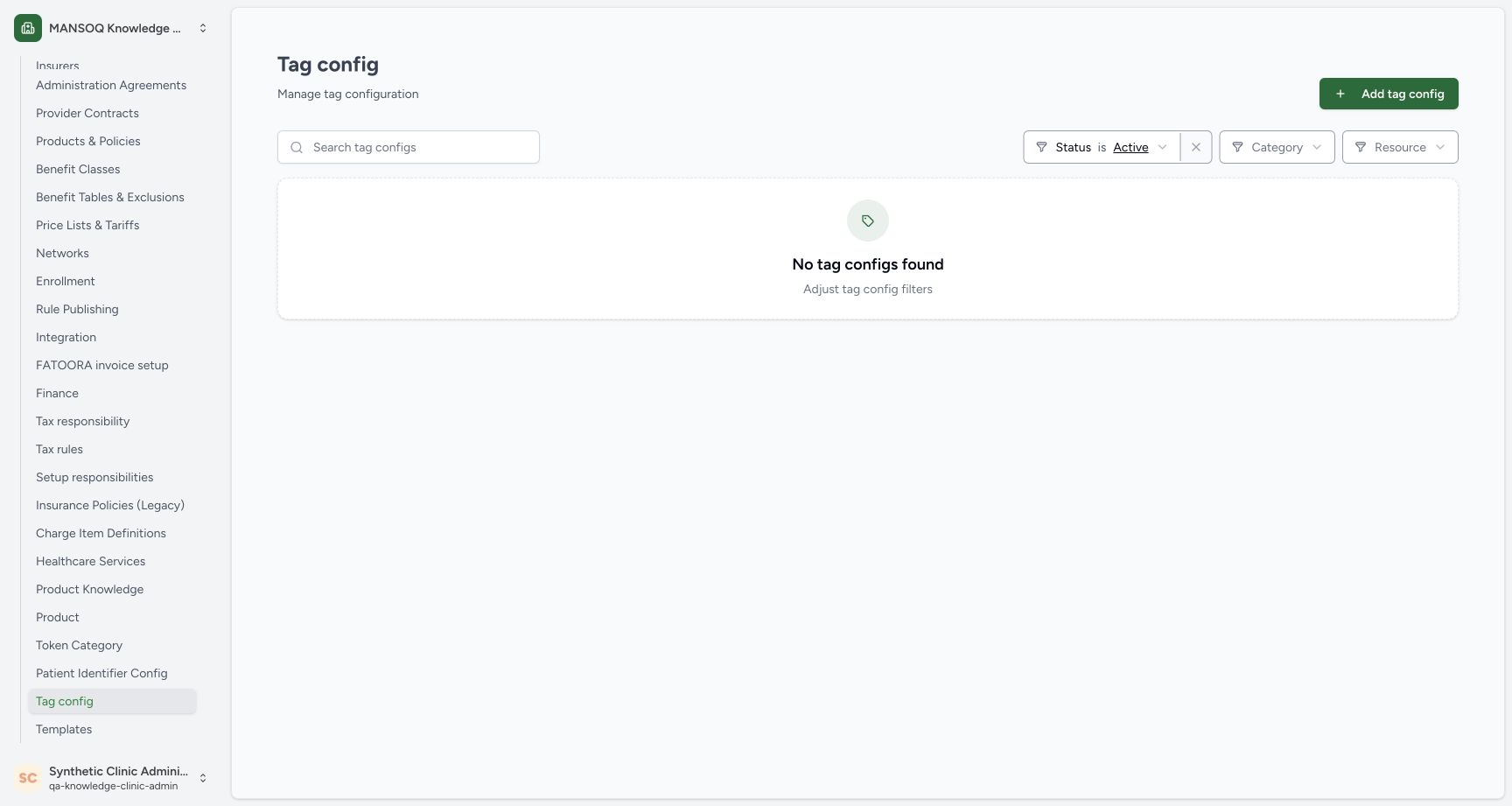
- Check the Facility Admin account: The pictured account is qa-knowledge-clinic-admin in the assigned synthetic Clinic.
- Open Tag config: Open Tag config under facility Settings.
- Read the Active filter: The list is currently filtered to Active top-level tag configs.
- Add tag config: Open the new tag form.
 1234
1234Verify the newly saved parent
Capture details
Exact committed3dfb training profile on20 October2026 (Asia/Riyadh). Two inert administrative Patient-resource tag configs; no tag application.
Image SHA-256 3b277981d77194562bc2e42479b38fb4b261b30c2dda328cefde2557f5ac5fe8
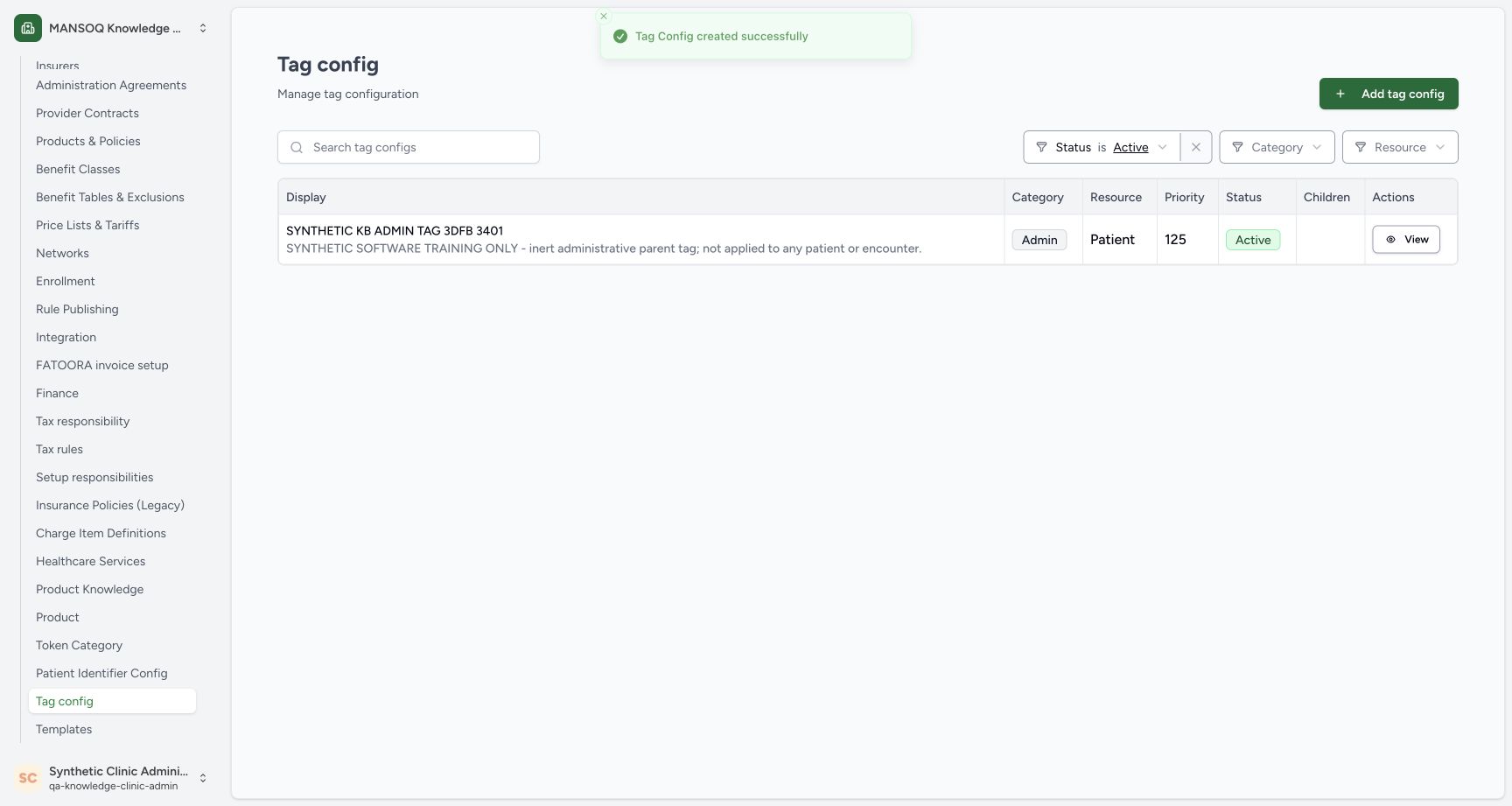
- Read the saved confirmation: Tag Config created successfully is the actual result.
- Verify the saved parent name: Match the exact intended synthetic parent.
- Verify Active: The saved parent is Active.
- View the saved parent: Open the saved tag details.
12 of 12 content blocks have reviewed image alignment. Missing overview or prerequisite images remain open.
Before you begin
- Use an already authenticated, authorized Facility Admin session in the assigned synthetic Clinic. The pictured existing account is qa-knowledge-clinic-admin; sign-in is a separate procedure.1234
Recorded release 3dfb7c9f · 2026-10-19T23:12:38.061Z · 1728 × 921 Open facility Tag config
Capture details
Exact committed3dfb training profile on20 October2026 (Asia/Riyadh). Two inert administrative Patient-resource tag configs; no tag application.
Image SHA-256
40a71e9faacd1ba59a7f692a3045252d36b411a953247fdd9b37eb6500c2d48d- Check the Facility Admin account: The pictured account is qa-knowledge-clinic-admin in the assigned synthetic Clinic.
- Open Tag config: Open Tag config under facility Settings.
- Read the Active filter: The list is currently filtered to Active top-level tag configs.
- Add tag config: Open the new tag form.
- This isolated exercise creates an inert tag config, not a patient tag application. The example parent label is SYNTHETIC KB ADMIN TAG 3DFB 3401; use your separately assigned training label when practising.
 123456789
Recorded release 3dfb7c9f · 2026-10-19T23:13:43.611Z · 1728 × 921 Review the complete parent tag form
Capture details
Exact committed3dfb training profile on20 October2026 (Asia/Riyadh). Two inert administrative Patient-resource tag configs; no tag application.
Image SHA-256
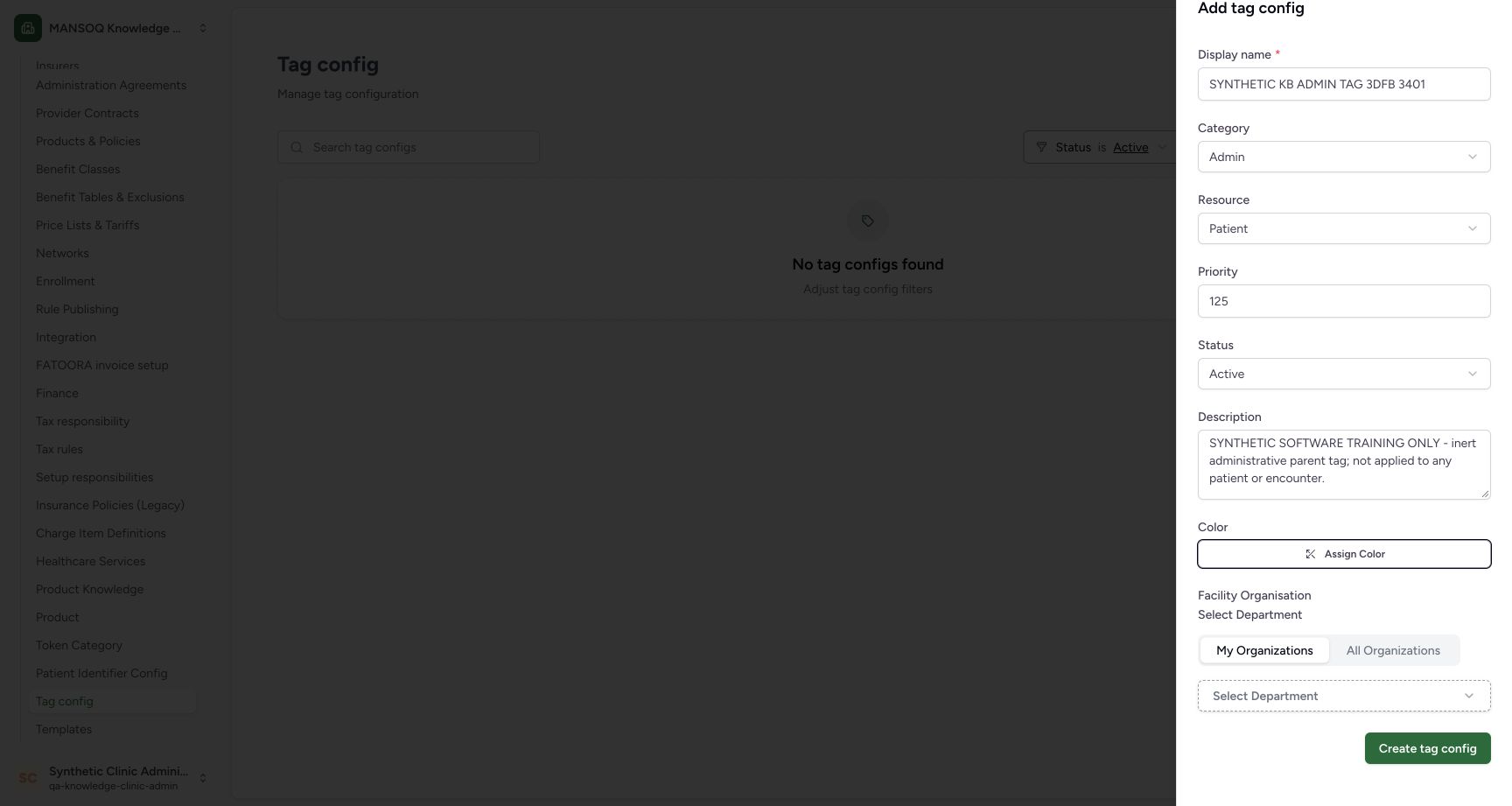
e36dc2b6940d774ae7d356d17cecfdef253ce9e3771a04dcffad8cf1edfb93dc- Parent tag display name: The training parent is SYNTHETIC KB ADMIN TAG 3DFB 3401.
- Admin: Keep the approved administrative category.
- Patient: This parent is a Patient-resource tag.
- Priority 125: Review the intended numeric priority.
- Active: Create the parent with Active status.
- Training description: The description explicitly identifies inert software training.
- Color remains unassigned: The button still says Assign Color; this example chooses no color.
- No department selected: Leave the optional department selector empty for this example.
- Create tag config: After reviewing the intended values, create the training parent.
1234Recorded release 3dfb7c9f · 2026-10-19T23:14:14.598Z · 1728 × 921 Verify the newly saved parent
Capture details
Exact committed3dfb training profile on20 October2026 (Asia/Riyadh). Two inert administrative Patient-resource tag configs; no tag application.
Image SHA-256
3b277981d77194562bc2e42479b38fb4b261b30c2dda328cefde2557f5ac5fe8- Read the saved confirmation: Tag Config created successfully is the actual result.
- Verify the saved parent name: Match the exact intended synthetic parent.
- Verify Active: The saved parent is Active.
- View the saved parent: Open the saved tag details.
1. Open Tag config
Under facility Settings, open Tag config. Confirm the assigned Clinic and account. The pictured list is filtered to Active; No tag configs found describes that current list view.
1234Open facility Tag config
Capture details
Exact committed3dfb training profile on20 October2026 (Asia/Riyadh). Two inert administrative Patient-resource tag configs; no tag application.
Image SHA-256 40a71e9faacd1ba59a7f692a3045252d36b411a953247fdd9b37eb6500c2d48d
- Check the Facility Admin account: The pictured account is qa-knowledge-clinic-admin in the assigned synthetic Clinic.
- Open Tag config: Open Tag config under facility Settings.
- Read the Active filter: The list is currently filtered to Active top-level tag configs.
- Add tag config: Open the new tag form.
2. Open the new tag form
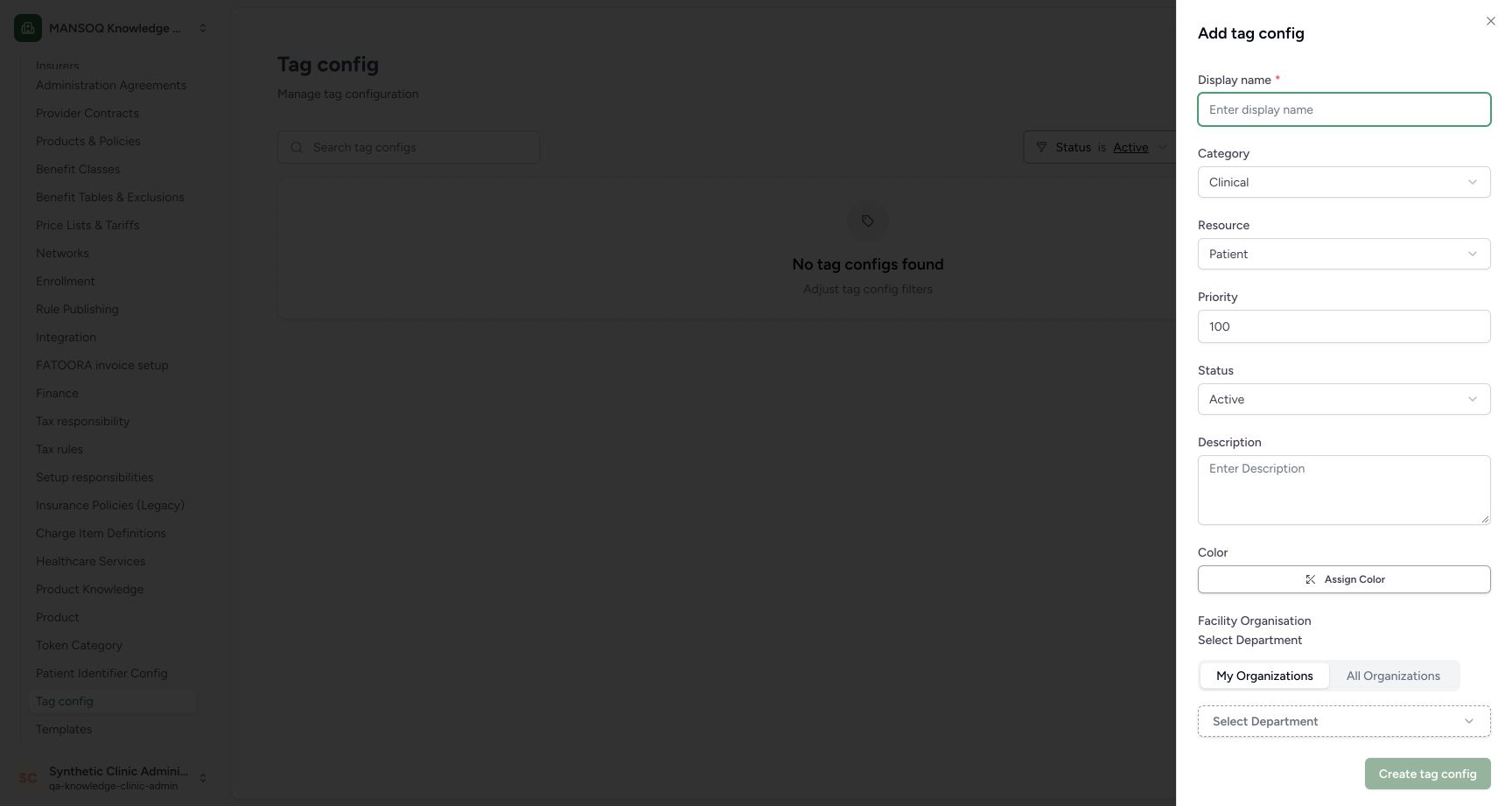
Select Add tag config. Display name is required. Review the starting Clinical category, Patient resource, priority 100 and Active status before changing values.
1234Open facility Tag config
Capture details
Exact committed3dfb training profile on20 October2026 (Asia/Riyadh). Two inert administrative Patient-resource tag configs; no tag application.
Image SHA-256 40a71e9faacd1ba59a7f692a3045252d36b411a953247fdd9b37eb6500c2d48d
- Check the Facility Admin account: The pictured account is qa-knowledge-clinic-admin in the assigned synthetic Clinic.
- Open Tag config: Open Tag config under facility Settings.
- Read the Active filter: The list is currently filtered to Active top-level tag configs.
- Add tag config: Open the new tag form.
 12345678
Inspect a new tag form
Capture details
Exact committed3dfb training profile on20 October2026 (Asia/Riyadh). Two inert administrative Patient-resource tag configs; no tag application.
Image SHA-256 ba039d67be0ac6f2788418b0aede6f6eb7bf9345bbe4fe3c719046931391f786
- Display name is required: The asterisk marks the required tag name.
- Resource starts as Patient: Review the resource before creating the tag.
- Priority starts at 100: This is the initial value before the example changes it to 125.
- Status starts as Active: The new tag begins with Active selected.
- Description: Enter the approved training description here.
- Optional Color: Assign Color is available; this walkthrough leaves it unassigned.
- Optional Facility Organisation: Select Department is the empty optional selector in this facility form.
- Untouched Create is disabled: The initial unchanged form does not enable Create tag config.
3. Choose the administrative values
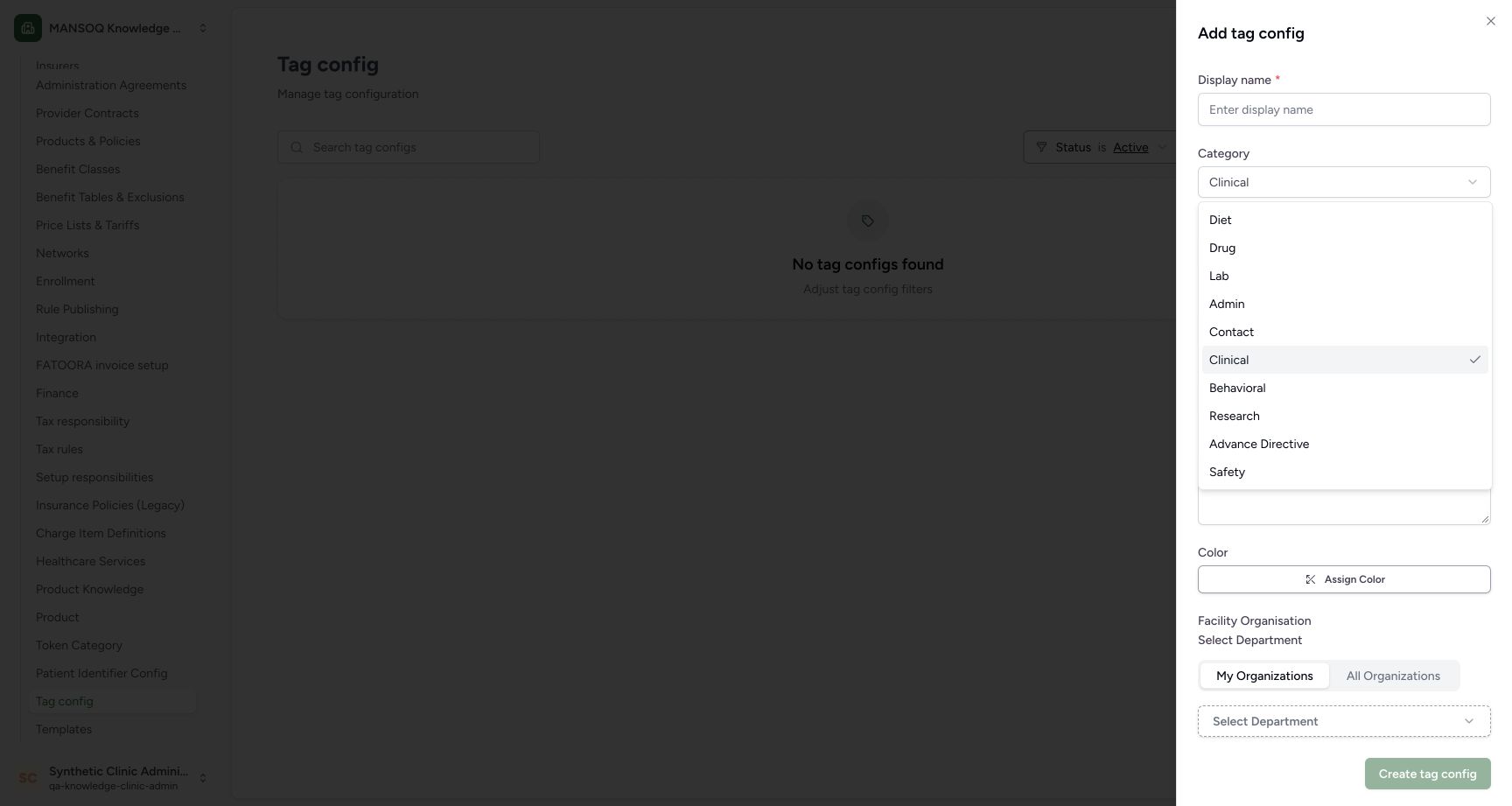
Open Category and choose Admin. Change Priority to 125. Keep Resource as Patient and Status as Active for this example.
 1
1Choose the Admin category
Capture details
Exact committed3dfb training profile on20 October2026 (Asia/Riyadh). Two inert administrative Patient-resource tag configs; no tag application.
Image SHA-256 72f3b38046badb66f7fb8f3e0a012e6d57e0ce77732403d615db7a6bfa4c0526
- Choose Admin: Select the actual Admin category option.
 123
123Attempt Create with the name empty
Capture details
Exact committed3dfb training profile on20 October2026 (Asia/Riyadh). Two inert administrative Patient-resource tag configs; no tag application.
Image SHA-256 3c5d329a87f806c1d2e839c30987516e99d5d8b7e0d35300baaf8fa03158c8d1
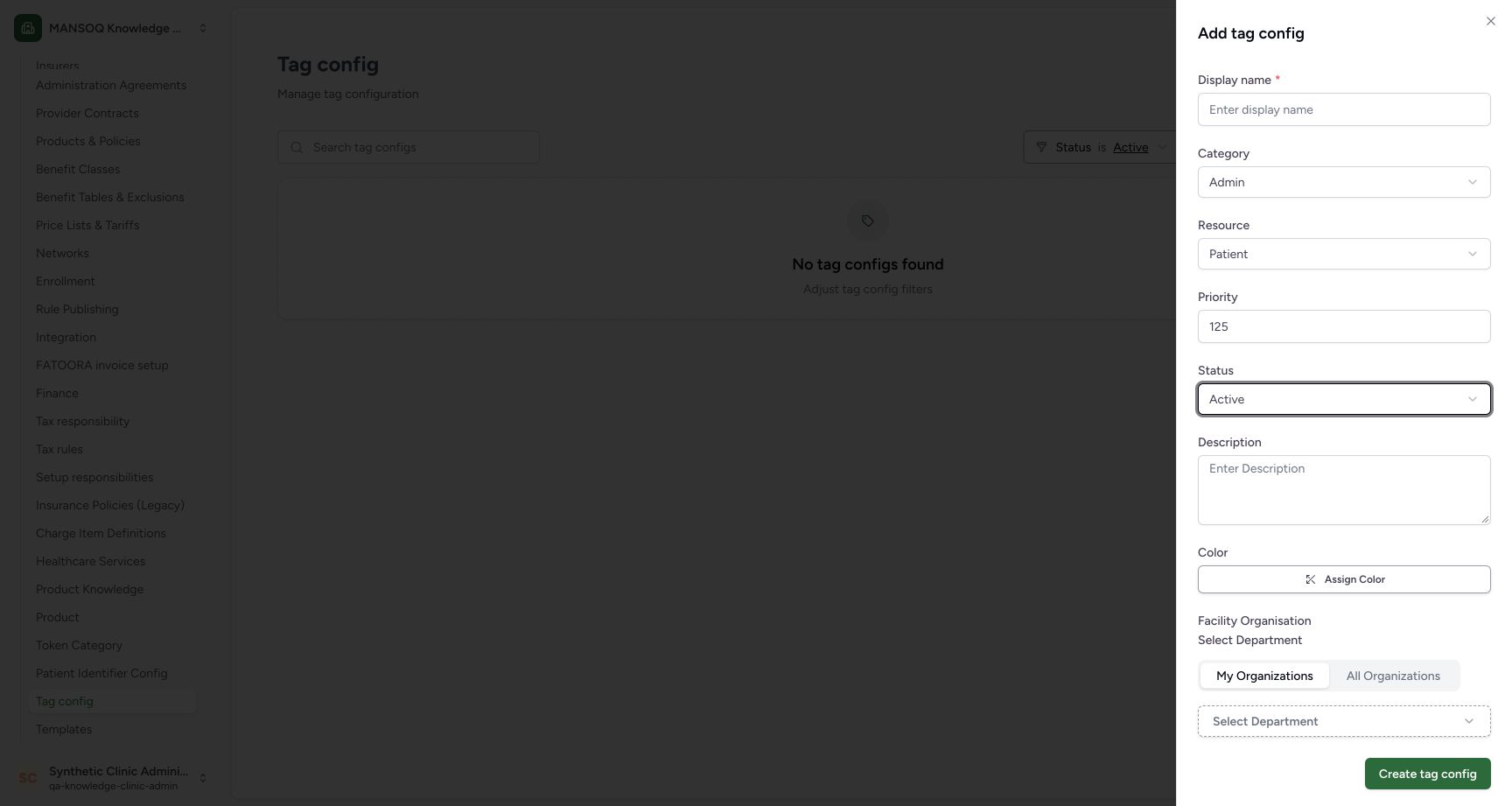
- Admin category selected: Admin is selected for the administrative training tag.
- Priority 125: The example changes the priority to 125.
- Create with the required name empty: This example attempts Create once while Display name is still empty.
4. Read and correct the missing-name refusal
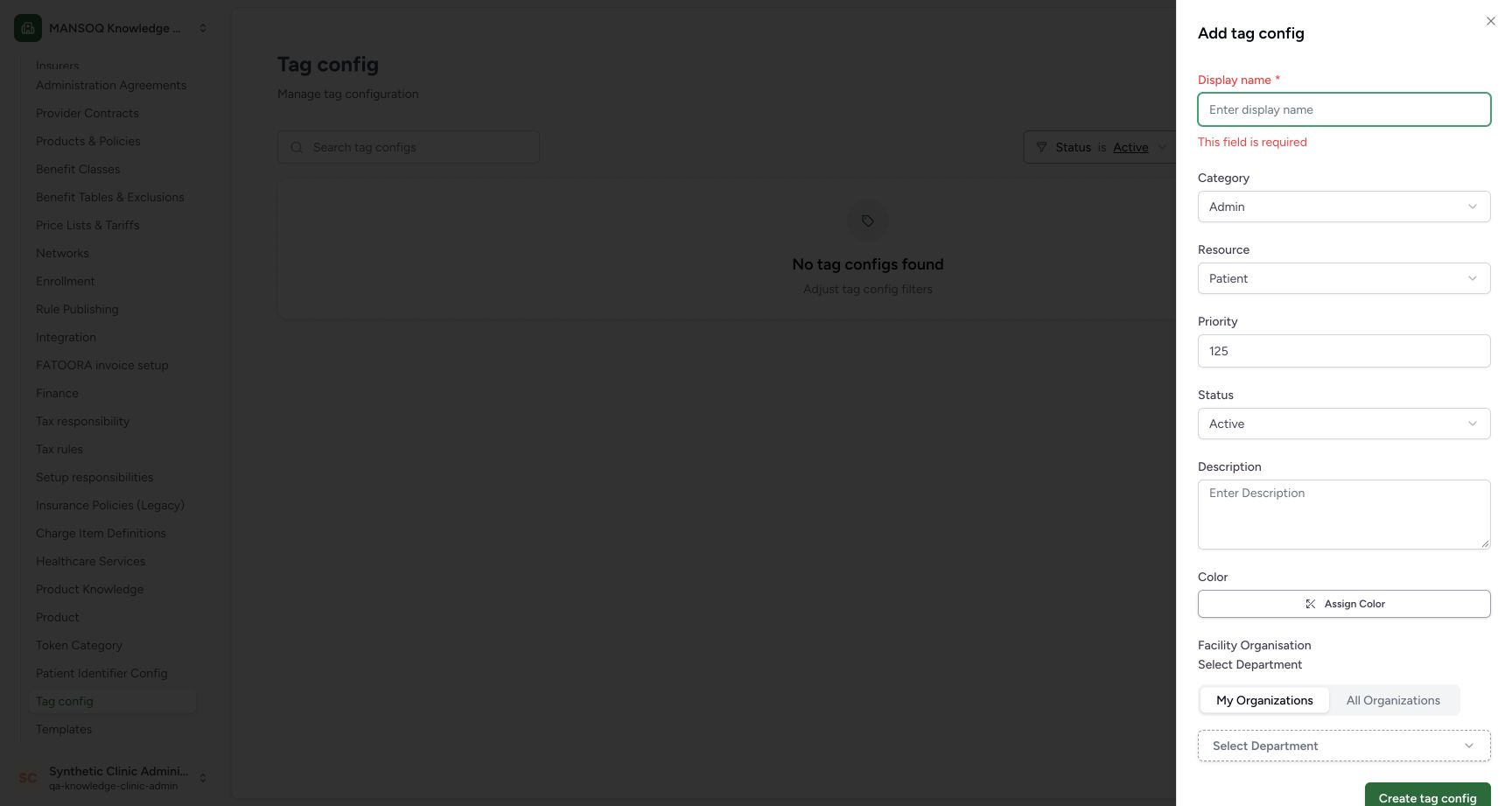
The example selects Create tag config once with Display name still empty. The form stays open and shows This field is required. Enter the required display name in the same form; a validation refusal is not a saved tag.
123Attempt Create with the name empty
Capture details
Exact committed3dfb training profile on20 October2026 (Asia/Riyadh). Two inert administrative Patient-resource tag configs; no tag application.
Image SHA-256 3c5d329a87f806c1d2e839c30987516e99d5d8b7e0d35300baaf8fa03158c8d1
- Admin category selected: Admin is selected for the administrative training tag.
- Priority 125: The example changes the priority to 125.
- Create with the required name empty: This example attempts Create once while Display name is still empty.
 12
12Read the required Display name refusal
Capture details
Exact committed3dfb training profile on20 October2026 (Asia/Riyadh). Two inert administrative Patient-resource tag configs; no tag application.
Image SHA-256 1aa27812cc894ef94649849edd3d2cf9554cabef42db9700f96bee50e1245d51
- Read the required-name refusal: This field is required appears beneath the empty Display name.
- Enter the missing Display name: Complete the required name in the same form.
5. Complete the parent details
Enter SYNTHETIC KB ADMIN TAG 3DFB 3401 and the pictured description: SYNTHETIC SOFTWARE TRAINING ONLY - inert administrative parent tag; not applied to any patient or encounter. Review Admin, Patient, 125 and Active. Leave Color unassigned and the optional Facility Organisation selector at Select Department.
123456789Review the complete parent tag form
Capture details
Exact committed3dfb training profile on20 October2026 (Asia/Riyadh). Two inert administrative Patient-resource tag configs; no tag application.
Image SHA-256 e36dc2b6940d774ae7d356d17cecfdef253ce9e3771a04dcffad8cf1edfb93dc
- Parent tag display name: The training parent is SYNTHETIC KB ADMIN TAG 3DFB 3401.
- Admin: Keep the approved administrative category.
- Patient: This parent is a Patient-resource tag.
- Priority 125: Review the intended numeric priority.
- Active: Create the parent with Active status.
- Training description: The description explicitly identifies inert software training.
- Color remains unassigned: The button still says Assign Color; this example chooses no color.
- No department selected: Leave the optional department selector empty for this example.
- Create tag config: After reviewing the intended values, create the training parent.
6. Create and verify the parent
After reviewing the intended values, select Create tag config. Read the success message and match the saved row name, Admin category, Patient resource, priority 125 and Active status.
123456789Review the complete parent tag form
Capture details
Exact committed3dfb training profile on20 October2026 (Asia/Riyadh). Two inert administrative Patient-resource tag configs; no tag application.
Image SHA-256 e36dc2b6940d774ae7d356d17cecfdef253ce9e3771a04dcffad8cf1edfb93dc
- Parent tag display name: The training parent is SYNTHETIC KB ADMIN TAG 3DFB 3401.
- Admin: Keep the approved administrative category.
- Patient: This parent is a Patient-resource tag.
- Priority 125: Review the intended numeric priority.
- Active: Create the parent with Active status.
- Training description: The description explicitly identifies inert software training.
- Color remains unassigned: The button still says Assign Color; this example chooses no color.
- No department selected: Leave the optional department selector empty for this example.
- Create tag config: After reviewing the intended values, create the training parent.
1234Verify the newly saved parent
Capture details
Exact committed3dfb training profile on20 October2026 (Asia/Riyadh). Two inert administrative Patient-resource tag configs; no tag application.
Image SHA-256 3b277981d77194562bc2e42479b38fb4b261b30c2dda328cefde2557f5ac5fe8
- Read the saved confirmation: Tag Config created successfully is the actual result.
- Verify the saved parent name: Match the exact intended synthetic parent.
- Verify Active: The saved parent is Active.
- View the saved parent: Open the saved tag details.
7. Open the saved details
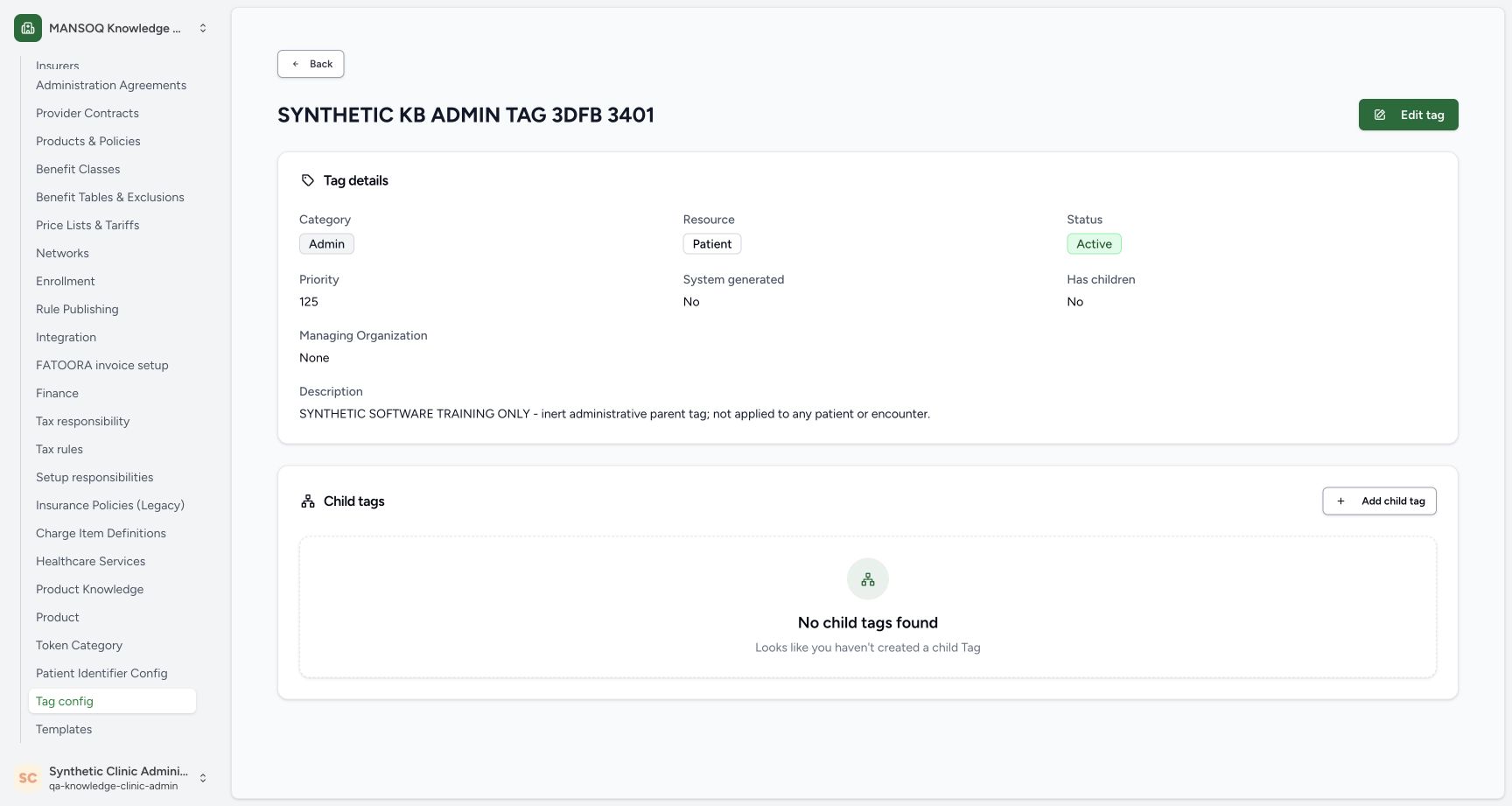
Select View on the saved parent row. Verify the description, Managing Organization None and Has children No. The empty Child tags section belongs to this parent.
1234Verify the newly saved parent
Capture details
Exact committed3dfb training profile on20 October2026 (Asia/Riyadh). Two inert administrative Patient-resource tag configs; no tag application.
Image SHA-256 3b277981d77194562bc2e42479b38fb4b261b30c2dda328cefde2557f5ac5fe8
- Read the saved confirmation: Tag Config created successfully is the actual result.
- Verify the saved parent name: Match the exact intended synthetic parent.
- Verify Active: The saved parent is Active.
- View the saved parent: Open the saved tag details.
 123
123Open the saved parent and its empty children section
Capture details
Exact committed3dfb training profile on20 October2026 (Asia/Riyadh). Two inert administrative Patient-resource tag configs; no tag application.
Image SHA-256 bdfaeda486c5e993977e765e8570e16f4af852f5c8cfff2a68adf11e123c0bd1
- Has children: No: This parent has no child before the next lesson.
- No child tags found: The current parent has an empty Child tags section.
- Add child tag: Start a child from this exact parent.
Configuration and application are separate
The saved row is a reusable tag config. This exercise stops at its configuration and does not apply the tag to a patient or encounter.
1234Verify the newly saved parent
Capture details
Exact committed3dfb training profile on20 October2026 (Asia/Riyadh). Two inert administrative Patient-resource tag configs; no tag application.
Image SHA-256 3b277981d77194562bc2e42479b38fb4b261b30c2dda328cefde2557f5ac5fe8
- Read the saved confirmation: Tag Config created successfully is the actual result.
- Verify the saved parent name: Match the exact intended synthetic parent.
- Verify Active: The saved parent is Active.
- View the saved parent: Open the saved tag details.
123Open the saved parent and its empty children section
Capture details
Exact committed3dfb training profile on20 October2026 (Asia/Riyadh). Two inert administrative Patient-resource tag configs; no tag application.
Image SHA-256 bdfaeda486c5e993977e765e8570e16f4af852f5c8cfff2a68adf11e123c0bd1
- Has children: No: This parent has no child before the next lesson.
- No child tags found: The current parent has an empty Child tags section.
- Add child tag: Start a child from this exact parent.
Keep the current view in mind
The initial empty message appears under the Active list filter. The new parent appears after creation; this does not show every other tag or every status.
1234Open facility Tag config
Capture details
Exact committed3dfb training profile on20 October2026 (Asia/Riyadh). Two inert administrative Patient-resource tag configs; no tag application.
Image SHA-256 40a71e9faacd1ba59a7f692a3045252d36b411a953247fdd9b37eb6500c2d48d
- Check the Facility Admin account: The pictured account is qa-knowledge-clinic-admin in the assigned synthetic Clinic.
- Open Tag config: Open Tag config under facility Settings.
- Read the Active filter: The list is currently filtered to Active top-level tag configs.
- Add tag config: Open the new tag form.
1234Verify the newly saved parent
Capture details
Exact committed3dfb training profile on20 October2026 (Asia/Riyadh). Two inert administrative Patient-resource tag configs; no tag application.
Image SHA-256 3b277981d77194562bc2e42479b38fb4b261b30c2dda328cefde2557f5ac5fe8
- Read the saved confirmation: Tag Config created successfully is the actual result.
- Verify the saved parent name: Match the exact intended synthetic parent.
- Verify Active: The saved parent is Active.
- View the saved parent: Open the saved tag details.
Source evidence
Every citation uses this exact committed version. The private source repository requires access.
- repositories/platform/mansoq-web/src/pages/Facility/settings/layout.tsx:380 ·
3dfb7c9f519fb5b4cd4452439f3c12346bf58319Source file checksum
6fbc4ae56f122fb81af6c8664c8dd6a147d2afda10e937a69aa5ff01faf8bd79 - repositories/platform/mansoq-web/src/pages/Admin/TagConfig/TagConfigList.tsx:36 ·
3dfb7c9f519fb5b4cd4452439f3c12346bf58319Source file checksum
1728044c2f69437e062d6b2e7ae7a3c046f90bad03c4d1b7c985b63004f522f1 - repositories/platform/mansoq-web/src/pages/Admin/TagConfig/TagConfigForm.tsx:79 ·
3dfb7c9f519fb5b4cd4452439f3c12346bf58319Source file checksum
84f9136c12df0f9e9c9663d63755919f215e6993ce5f1bf8c557d17890fc28d4 - repositories/platform/mansoq-web/src/pages/Admin/TagConfig/components/TagConfigFormDrawer.tsx:60 ·
3dfb7c9f519fb5b4cd4452439f3c12346bf58319Source file checksum
9467ab8f0e4ed645ef1af837bf85f185f3ec6f23e59e2869539df4406efec27d - repositories/platform/mansoq-web/src/pages/Admin/TagConfig/TagConfigView.tsx:66 ·
3dfb7c9f519fb5b4cd4452439f3c12346bf58319Source file checksum
e4d7d1af6db724c5e45b8ce12be6abb35a53a83c8ea0760b50acda2548974051 - repositories/platform/mansoq-web/src/pages/Admin/TagConfig/components/TagConfigTable.tsx:97 ·
3dfb7c9f519fb5b4cd4452439f3c12346bf58319Source file checksum
f4e2fe97475bf9b7a5b0fa9589533f5e6d1907222a39de6cc5a048e468a36eea - repositories/platform/mansoq-web/src/components/Common/ConfirmActionDialog.tsx:53 ·
3dfb7c9f519fb5b4cd4452439f3c12346bf58319Source file checksum
035fade7079e1d5b58f7cfea2802c345c55571f43fc48e77cbdc36487ed74154 - repositories/platform/mansoq-web/src/types/emr/tagConfig/tagConfig.ts:12 ·
3dfb7c9f519fb5b4cd4452439f3c12346bf58319Source file checksum
a03f0eb2c434a93641173019dbb1f0d912b9207d57494bb3e10a87d2fac6a947 - repositories/platform/mansoq-web/src/types/emr/tagConfig/tagConfigApi.ts:20 ·
3dfb7c9f519fb5b4cd4452439f3c12346bf58319Source file checksum
5db1f98a70d86338d2e46d2b6124f5c413a1144a2aa19d9f1b48e2c9d82bef05 - repositories/platform/mansoq-core/mansoq/security/permissions/tag_config.py:17 ·
3dfb7c9f519fb5b4cd4452439f3c12346bf58319Source file checksum
0faa94f695ad9f8eeda9645b713ac279e01409698d3f76e3d85856e2d5a3082e - repositories/platform/mansoq-core/mansoq/security/authorization/tag_config.py:17 ·
3dfb7c9f519fb5b4cd4452439f3c12346bf58319Source file checksum
8aa3af453879597db5ce27ab9f6a9204adaea660a39e11731158ccf79ac3a0bd - repositories/platform/mansoq-core/mansoq/emr/api/viewsets/tag_config.py:46 ·
3dfb7c9f519fb5b4cd4452439f3c12346bf58319Source file checksum
4fb0f5b78f5d3edbfdd4b2995eb61fbd92b7b5b5ab071de21e1c462964d83f2c - repositories/platform/mansoq-core/mansoq/emr/resources/tag/config_spec.py:92 ·
3dfb7c9f519fb5b4cd4452439f3c12346bf58319Source file checksum
9e42cf433a203c64106d598be030fa4f186a1cfa8dbb5932b6362c4abe125665 - repositories/platform/mansoq-core/mansoq/emr/models/tag_config.py:58 ·
3dfb7c9f519fb5b4cd4452439f3c12346bf58319Source file checksum
3896df87914b65fbc191bd0055a5db66a7ca46ea31037ba04547635b78727f8c - repositories/platform/mansoq-web/public/locale/en.json:791 ·
3dfb7c9f519fb5b4cd4452439f3c12346bf58319Source file checksum
96498c8b964dce856d43c09e4241708efdd175d935e7ebbd14fa2f8d62efa507