 MANSOQ
 Clinical care · VERSION 3dfb7c9f
Save three fictional Allergy entries with separate dates and notes
Use Food, Environment and Biologic categories on three software-only terms, review each row, save once and verify the three retained Active entries after reload.
Nurse
 12
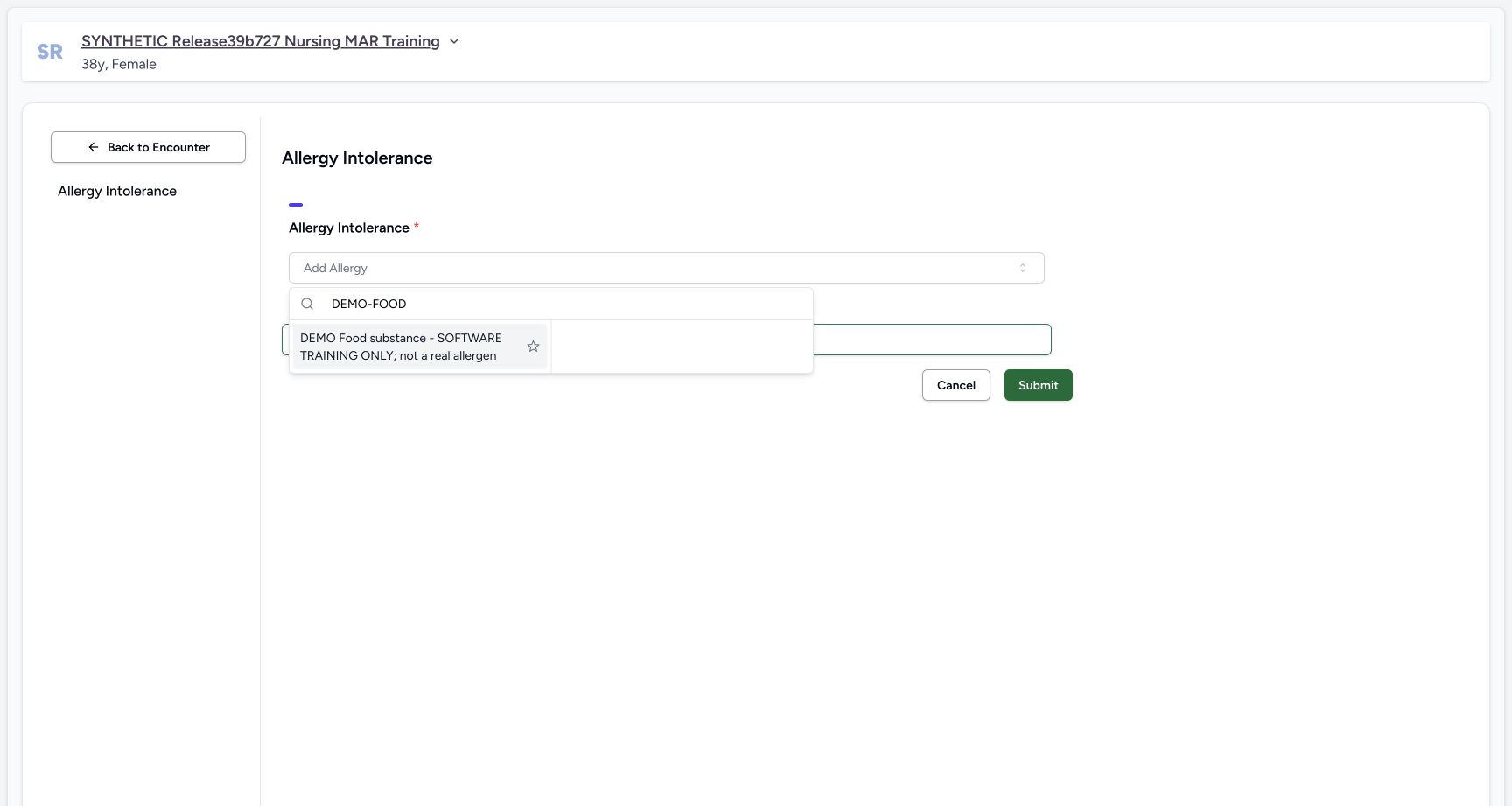
12Food code search result
Capture details
Observed committed 3dfb software on 20 October 2026. Captions distinguish discarded drafts, reviewed saves and read-only retained state. All pixels remain original.
Image SHA-256 412f1862b8f8ae584c6295ee84af5a4e7ab7d8355c675bfb8c59f436e4522c95
- Search DEMO-FOOD: Enter the exact fictional code DEMO-FOOD in the picker search field.
- Choose the exact training item: Select DEMO Food substance. This label is explicitly fictional and does not describe a real allergen.
20 of 20 content blocks have reviewed image alignment.
Before you begin
- Use an authorised Nurse account on the assigned active synthetic training encounter.
 1
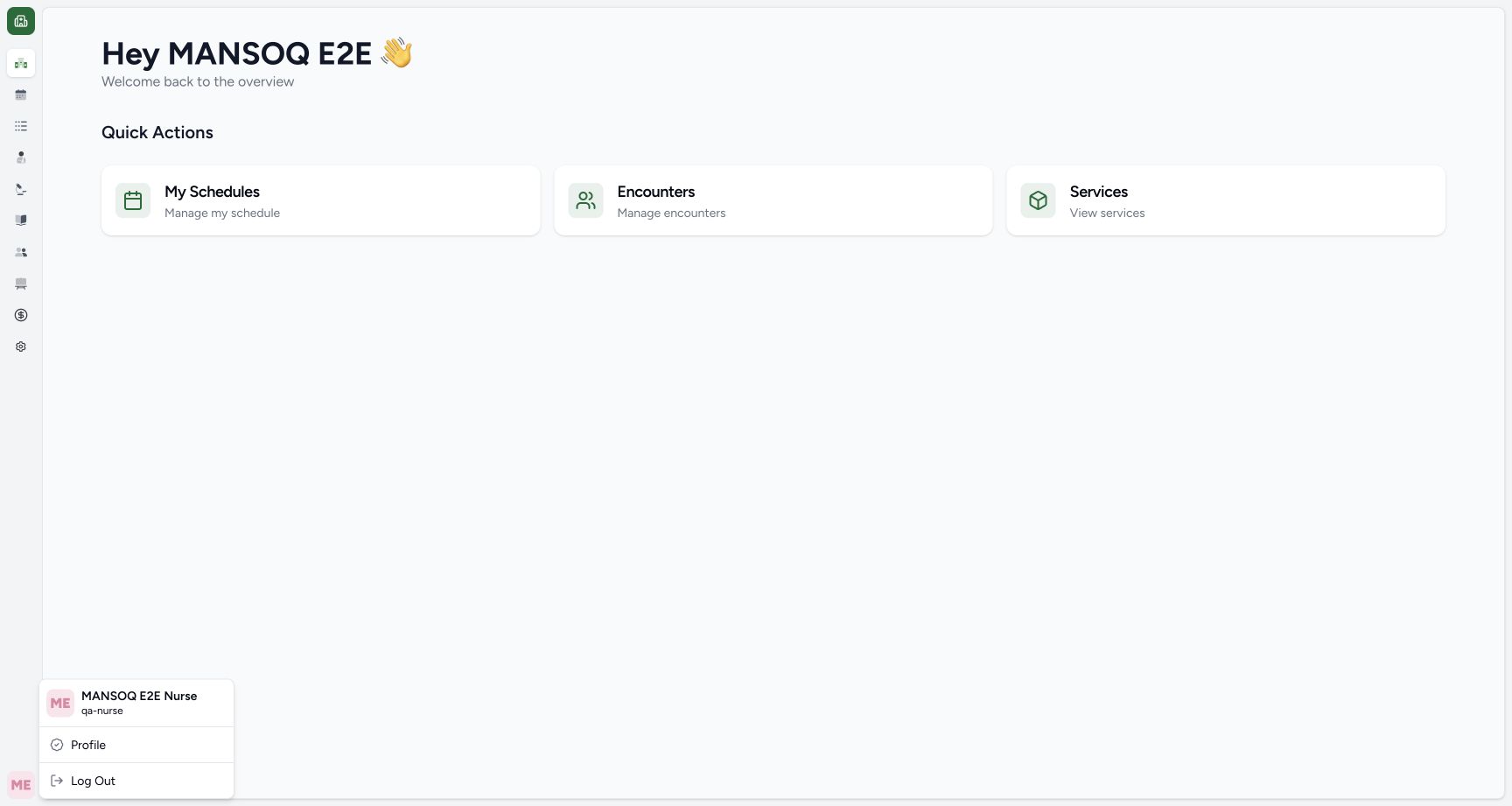
1Recorded release 3dfb7c9f · 2026-10-20T04:17:09.314Z · 1728 × 921 Nurse identity
Capture details
Observed committed 3dfb software on 20 October 2026. Captions distinguish discarded drafts, reviewed saves and read-only retained state. All pixels remain original.
Image SHA-256
3f974acb6b73a0c97c9e8683f3df6f6fbd149c41c6fe1d45417d8c84b813800b- Verify the Nurse account: Read qa-nurse beneath the MANSOQ E 2 E Nurse account name in the open menu.
- Use only the clearly fictional DEMO terms supplied in your organisation’s training environment. If they are unavailable, obtain the approved training setup rather than substituting a real clinical term.12
Recorded release 3dfb7c9f · 2026-10-20T04:18:35.933Z · 1728 × 921 Food code search result
Capture details
Observed committed 3dfb software on 20 October 2026. Captions distinguish discarded drafts, reviewed saves and read-only retained state. All pixels remain original.
Image SHA-256
412f1862b8f8ae584c6295ee84af5a4e7ab7d8355c675bfb8c59f436e4522c95- Search DEMO-FOOD: Enter the exact fictional code DEMO-FOOD in the picker search field.
- Choose the exact training item: Select DEMO Food substance. This label is explicitly fictional and does not describe a real allergen.
- All substance names, categories, notes and values in this software example are fictional. They are not clinical assessment, advice, treatment or patient-care decisions.
 12
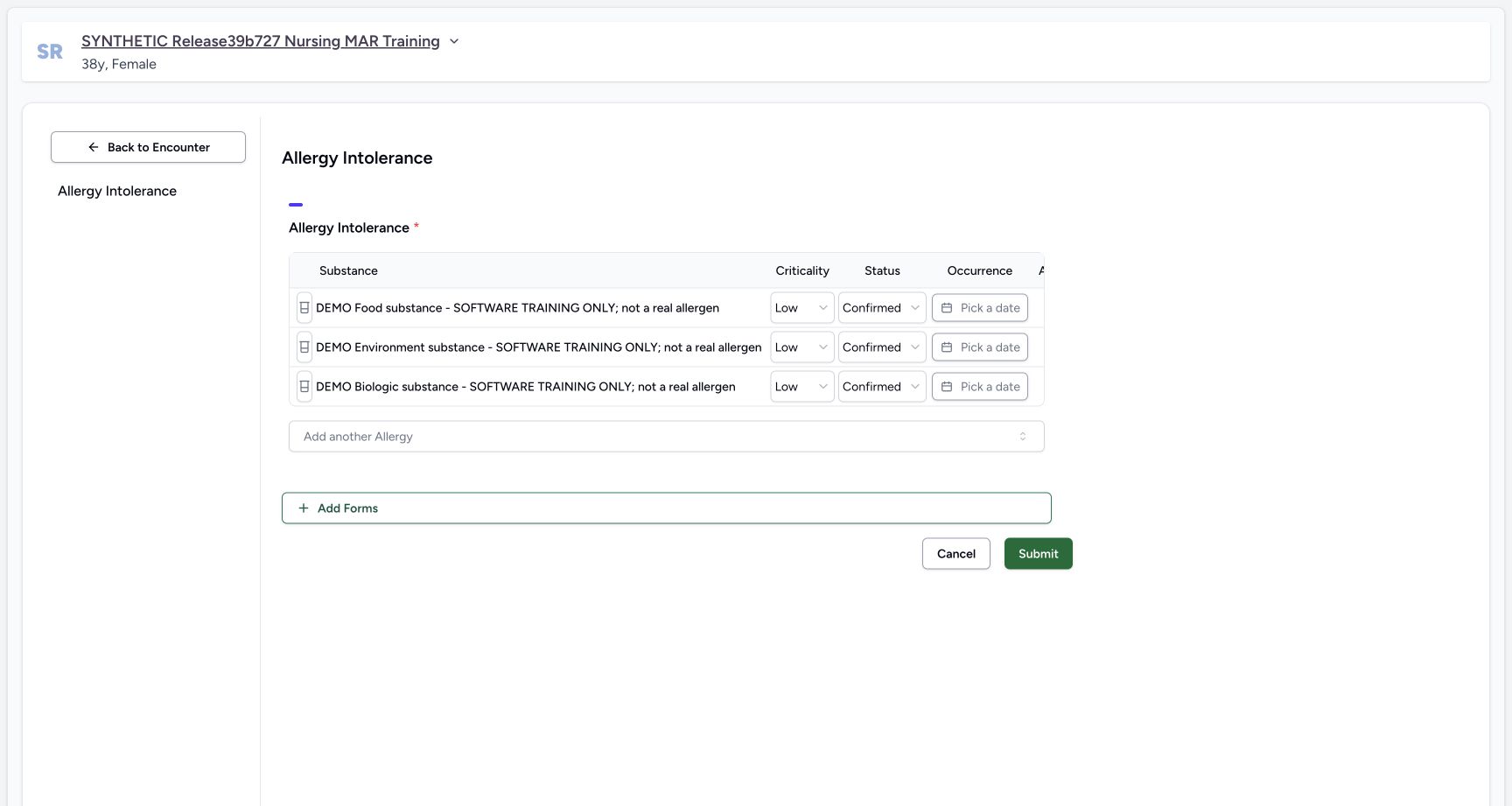
12Recorded release 3dfb7c9f · 2026-10-20T04:19:57.952Z · 1728 × 921 Three unsaved default rows
Capture details
Observed committed 3dfb software on 20 October 2026. Captions distinguish discarded drafts, reviewed saves and read-only retained state. All pixels remain original.
Image SHA-256
485c9ba802f13b782092c54abfb95957dee766e1eb116cf693f684f53bccf065- Three unsaved entries: All three selected fictional substances are present as separate draft rows. No Submit has occurred.
- Scroll the allergy table right: Use a horizontal scroll gesture over this table header to reveal the Action column beyond its right edge. This target is a noninteractive scroll area, not a date control or pictured scrollbar.
1. Start a new three-row draft
After the discarded-draft check, select the same exact DEMO-FOOD, DEMO-ENVIRONMENT and DEMO-BIOLOGIC terms once each, in that order. The earlier picker images illustrate the same search controls; the three-row image is the actual second draft. Keep the clearly fictional labels visible and avoid the stars.
12Food code search result
Capture details
Observed committed 3dfb software on 20 October 2026. Captions distinguish discarded drafts, reviewed saves and read-only retained state. All pixels remain original.
Image SHA-256 412f1862b8f8ae584c6295ee84af5a4e7ab7d8355c675bfb8c59f436e4522c95
- Search DEMO-FOOD: Enter the exact fictional code DEMO-FOOD in the picker search field.
- Choose the exact training item: Select DEMO Food substance. This label is explicitly fictional and does not describe a real allergen.
 12
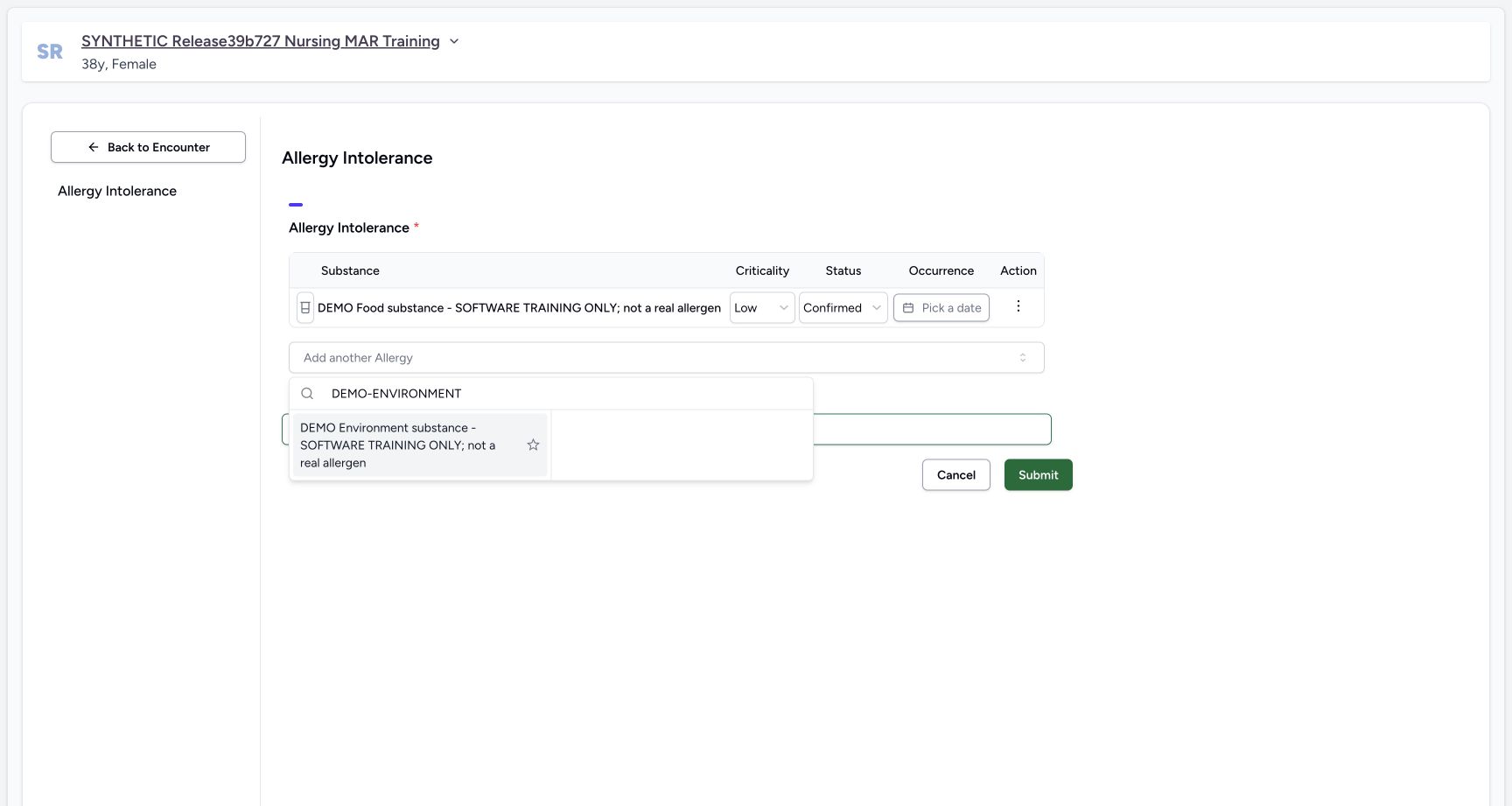
12Environment code search result
Capture details
Observed committed 3dfb software on 20 October 2026. Captions distinguish discarded drafts, reviewed saves and read-only retained state. All pixels remain original.
Image SHA-256 5fb17386cfe4ce465be573757946d91c6d7c3295046c3f479b19b9a8e761116d
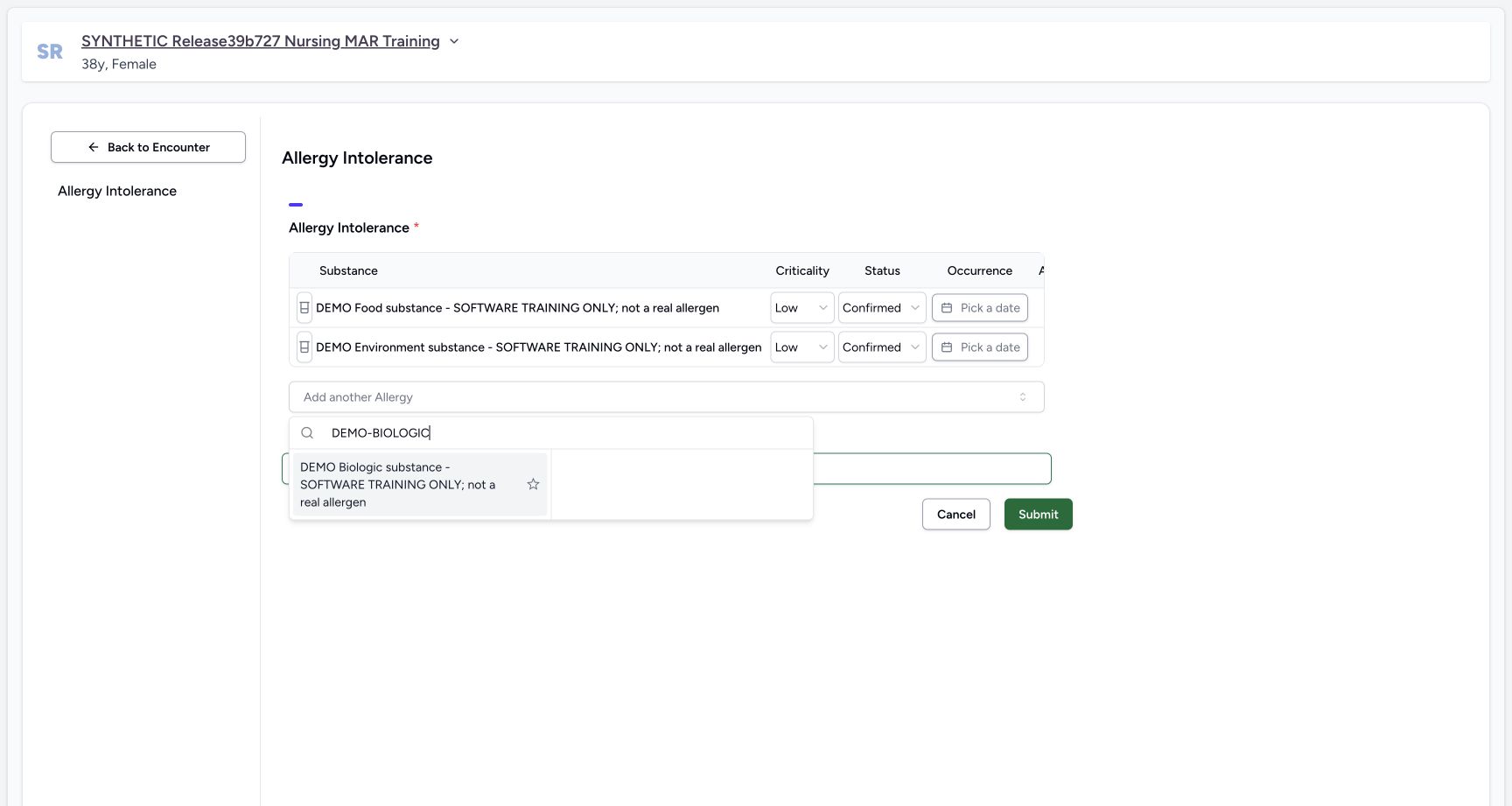
- Search DEMO-ENVIRONMENT: Enter the second exact fictional code in this picker search field.
- Select the second distinct code: Choose the exact fictional DEMO Environment item, without using the star control.
 12
12Biologic code search result
Capture details
Observed committed 3dfb software on 20 October 2026. Captions distinguish discarded drafts, reviewed saves and read-only retained state. All pixels remain original.
Image SHA-256 53237fbbe596bdf2fc528a3d599a0cf058d6ad1a113b63195d2c636b437cac41
- Search DEMO-BIOLOGIC: Enter the third exact fictional code in this picker search field.
- Choose the third fictional item: Select DEMO Biologic substance once. Keep its fictional software-training label visible.
 1
1Empty form after cancel and reopen
Capture details
Observed committed 3dfb software on 20 October 2026. Captions distinguish discarded drafts, reviewed saves and read-only retained state. All pixels remain original.
Image SHA-256 a2c8aa3f45f575e3cb0941cccea19d231d23eef326c884758117c0a946605023
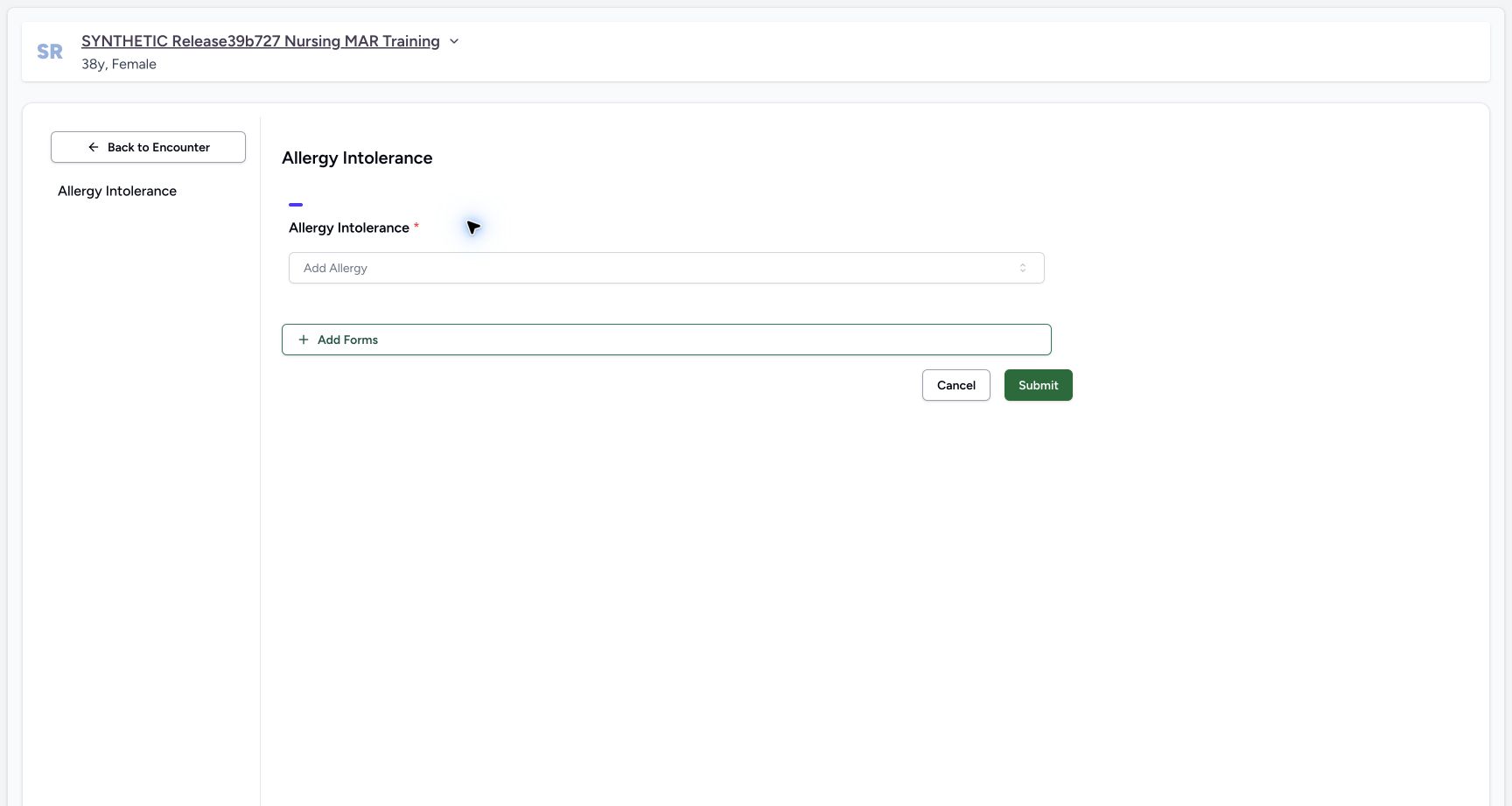
- No draft rows were retained: The same encounter’s reopened Allergy form has an empty Add Allergy control. This verifies the draft was discarded; it is not a clinical no-allergy declaration.
 12
12Create three default rows
Capture details
Observed committed 3dfb software on 20 October 2026. Captions distinguish discarded drafts, reviewed saves and read-only retained state. All pixels remain original.
Image SHA-256 3a7a3b7635c8a86d165fb462dbebc6f847882daedc86222c948d01d4dfadcda9
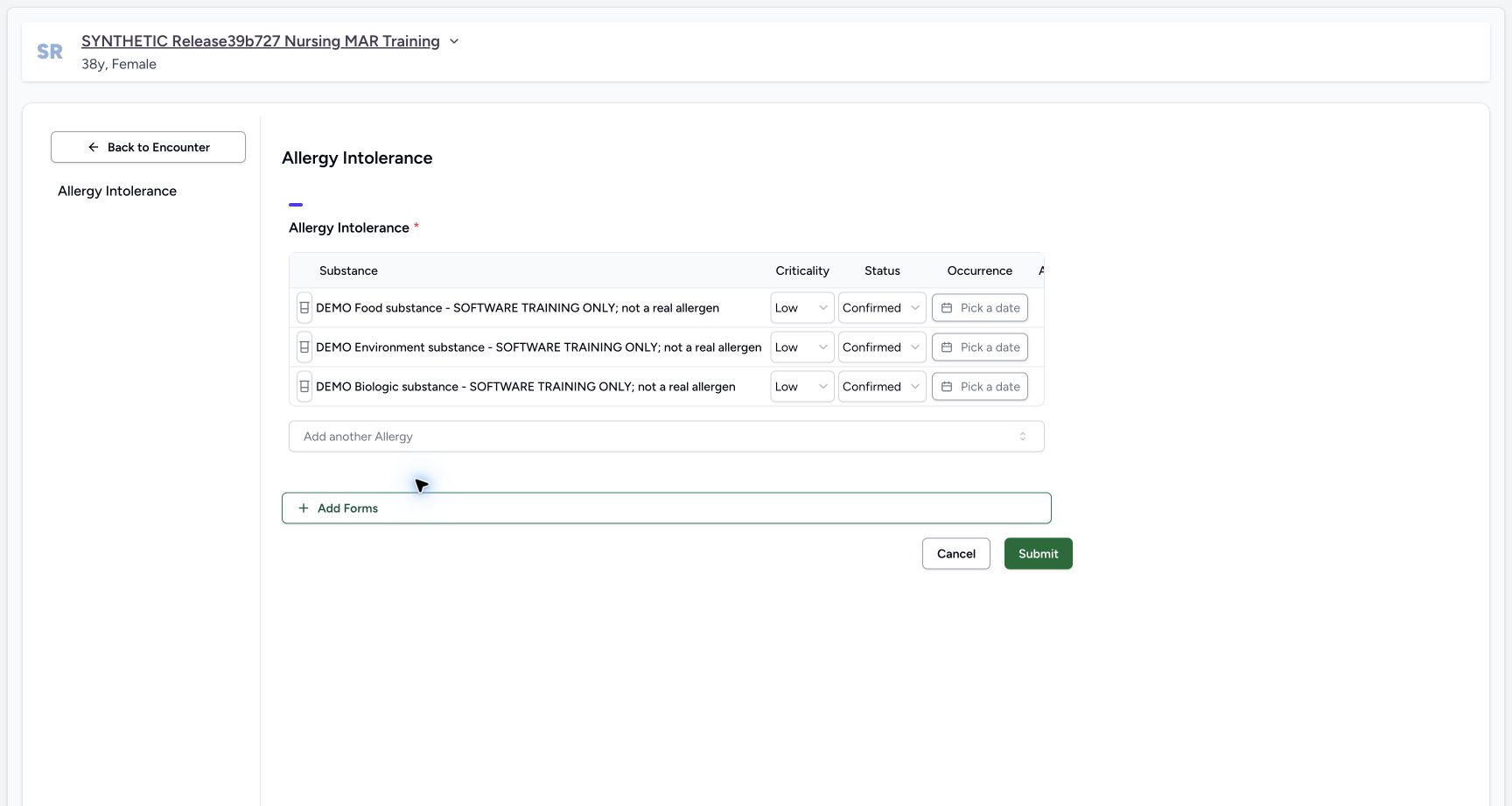
- Review the second three-row draft: Read Food, Environment and Biologic as three separate new unsaved rows after the cancelled first set.
- Open the Food category: Use the category icon on the first Food row; the fictional substance label does not assign category automatically.
2. Set Food category
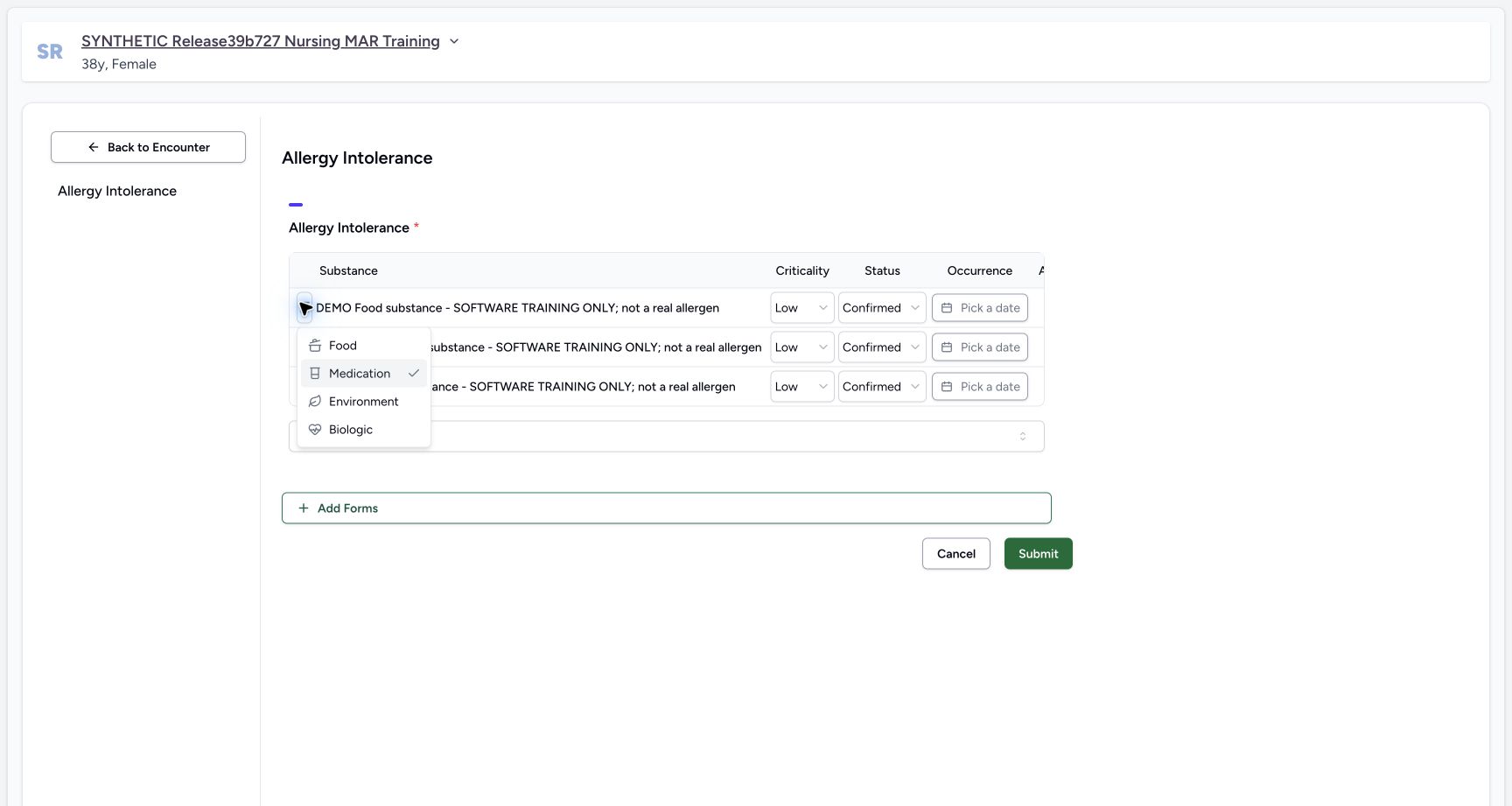
Open the first row category icon and choose Food. A fictional term name does not automatically select the matching category.
12Create three default rows
Capture details
Observed committed 3dfb software on 20 October 2026. Captions distinguish discarded drafts, reviewed saves and read-only retained state. All pixels remain original.
Image SHA-256 3a7a3b7635c8a86d165fb462dbebc6f847882daedc86222c948d01d4dfadcda9
- Review the second three-row draft: Read Food, Environment and Biologic as three separate new unsaved rows after the cancelled first set.
- Open the Food category: Use the category icon on the first Food row; the fictional substance label does not assign category automatically.
 1
1Category options
Capture details
Observed committed 3dfb software on 20 October 2026. Captions distinguish discarded drafts, reviewed saves and read-only retained state. All pixels remain original.
Image SHA-256 eea50b147d6865f67d807fbd5a5738d3d9f6228e13b960d547a17528b6ad5486
- Choose Food: Choose Food in the first row category menu. Medication is still checked in this pre-selection frame.
3. Set Food criticality and verification
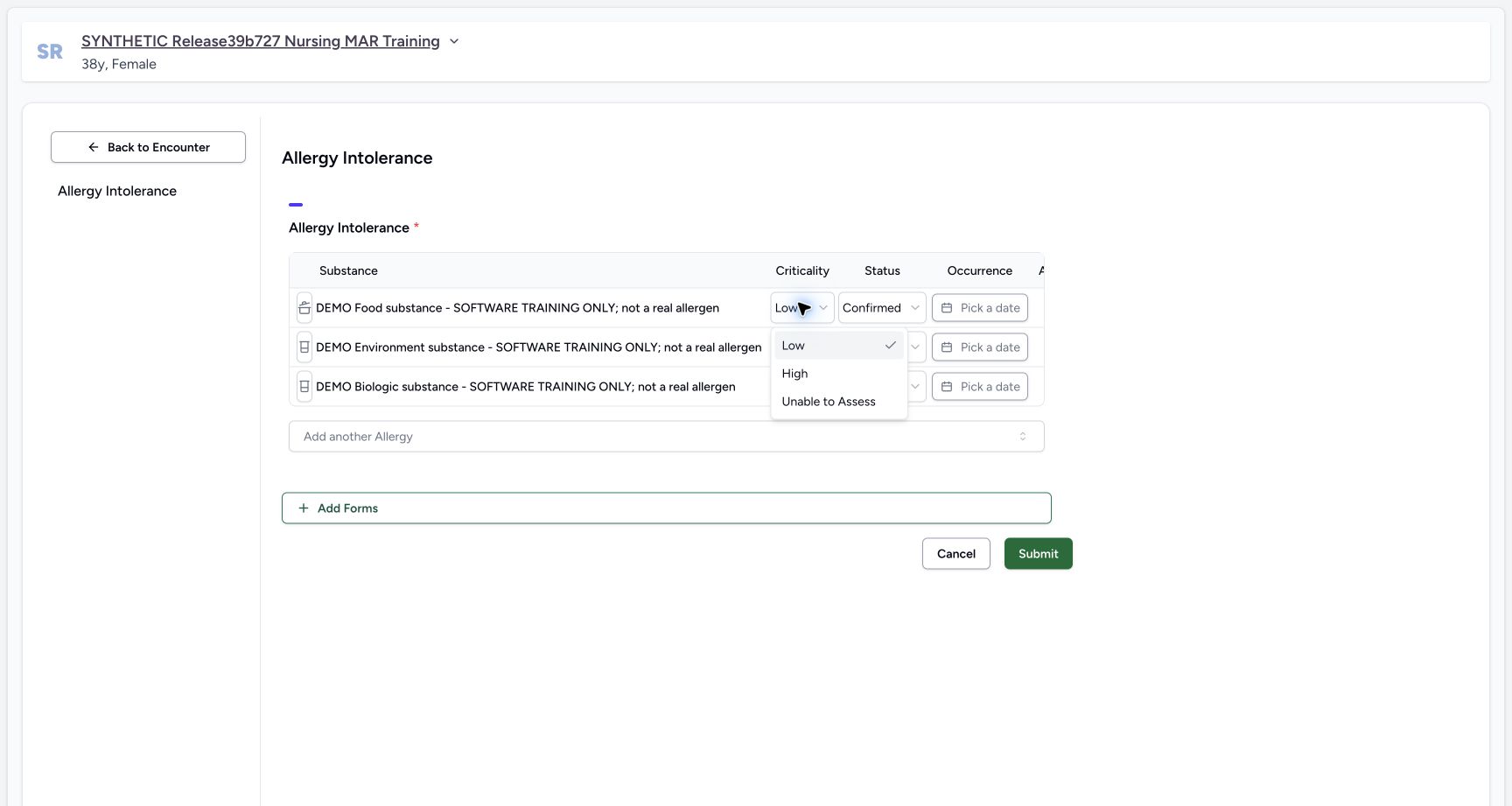
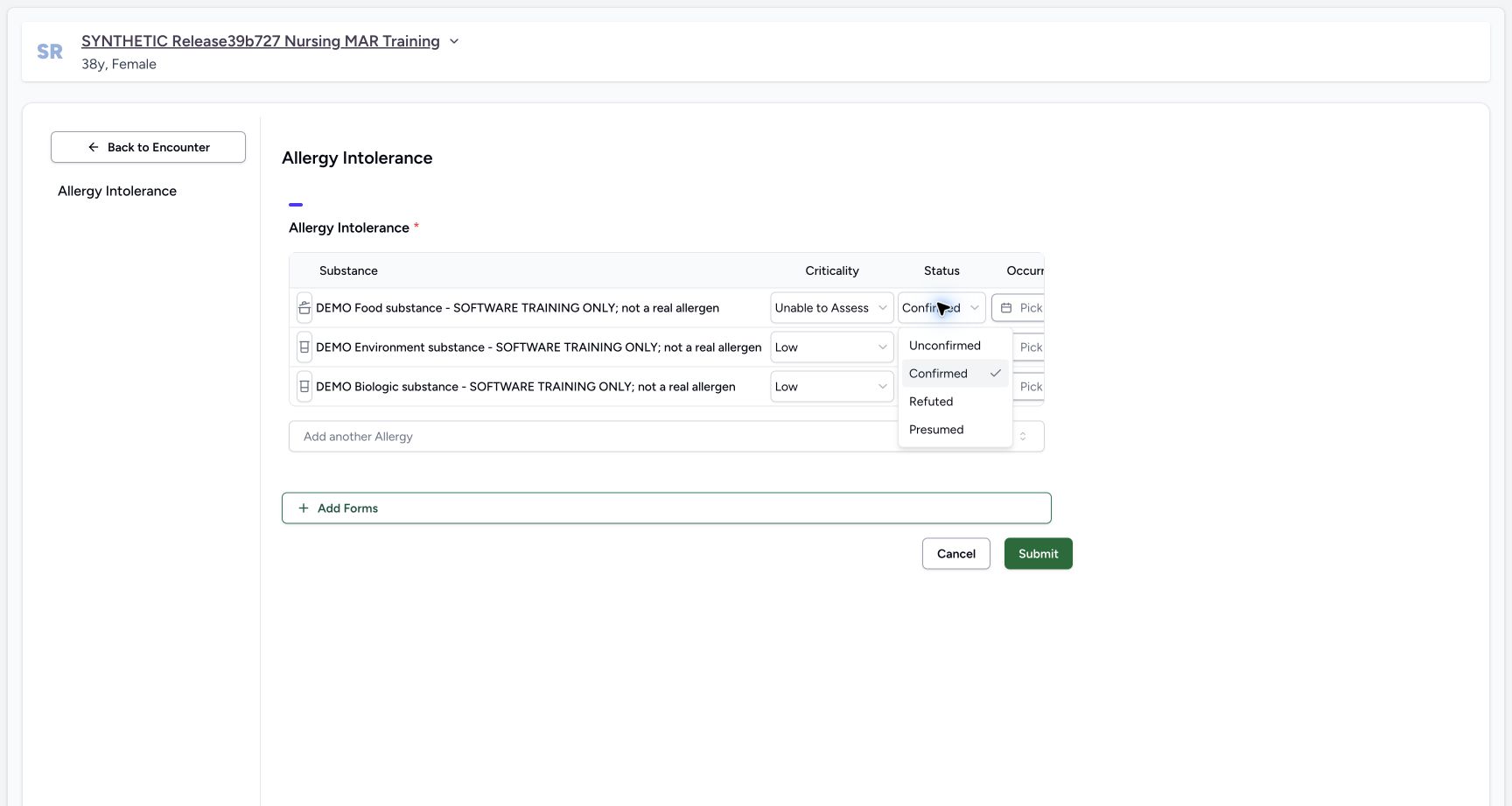
In the Food row, choose Unable to Assess for Criticality and Unconfirmed in the column labelled Status. That Status selector holds the verification value. Review the resulting Food/Unable to Assess/Unconfirmed row. Leave its initially blank occurrence date unchanged.
 12
12Criticality options
Capture details
Observed committed 3dfb software on 20 October 2026. Captions distinguish discarded drafts, reviewed saves and read-only retained state. All pixels remain original.
Image SHA-256 0dfa6bdef6ef59d9b98b167472f95f173b00c4e4463710911613ae07d793cf98
- Food Criticality selector: This is the first row Criticality control, shown open.
- Choose Unable to Assess for Food: Choose the visible Unable to Assess option for this fictional interface example. This is not a clinical risk assessment.
 12
12Verification options
Capture details
Observed committed 3dfb software on 20 October 2026. Captions distinguish discarded drafts, reviewed saves and read-only retained state. All pixels remain original.
Image SHA-256 61e7f05ea4153b84a886ba6c2af22ddad6e6d5169010c1bf881cfbf06908f9eb
- Food verification selector: This is the first row Status/verification control, shown open after the Criticality change.
- Choose Unconfirmed for Food: Select Unconfirmed. The current check remains beside Confirmed until this choice is made.
 1234
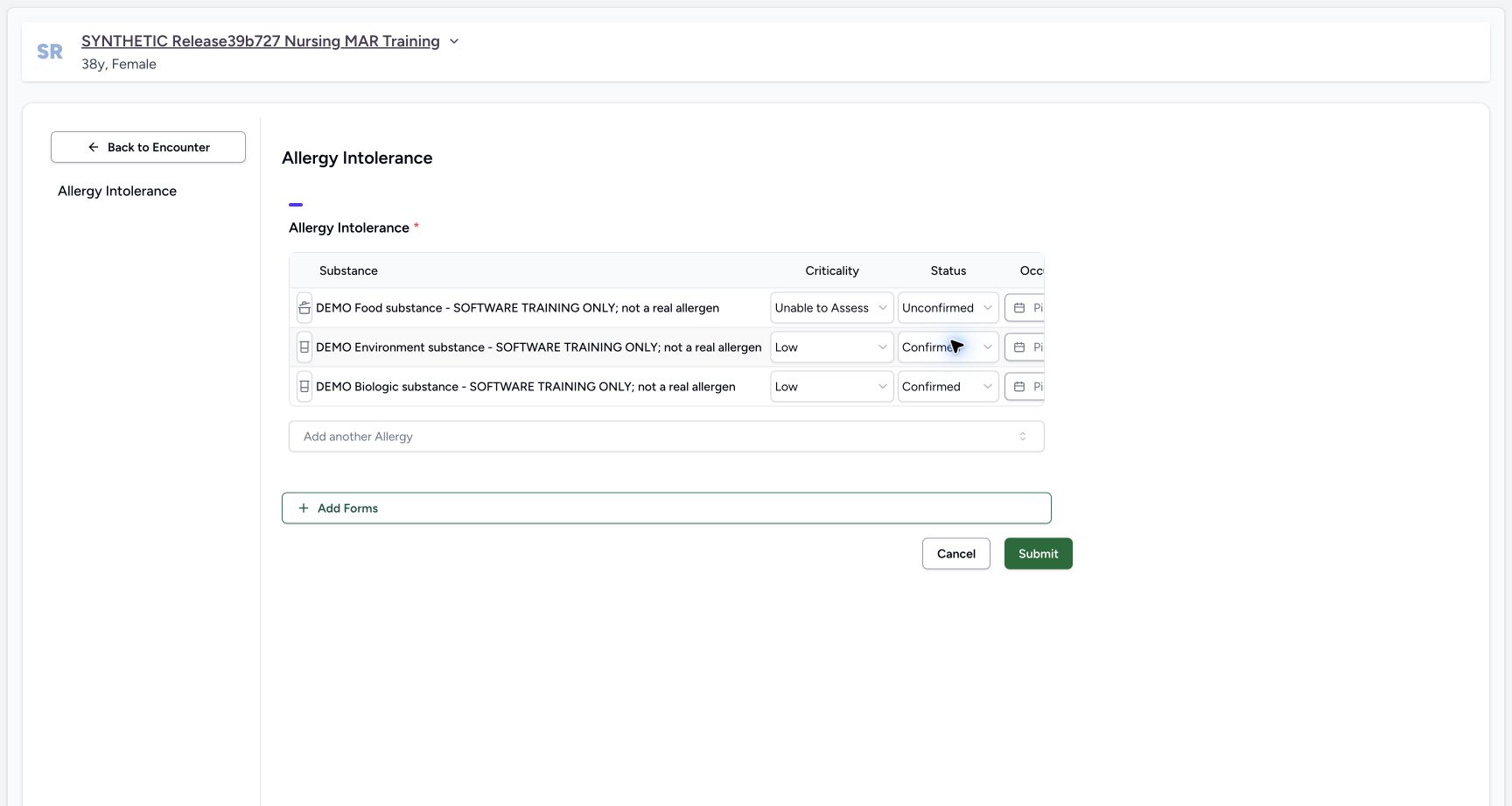
1234Food category and verification set
Capture details
Observed committed 3dfb software on 20 October 2026. Captions distinguish discarded drafts, reviewed saves and read-only retained state. All pixels remain original.
Image SHA-256 c78e1ac099b0405989139a1922cdac945837f35ead00c2d802f080e952312c5f
- Review the Food category: The Food icon is visible; the full AX names this closed control Food allergy.
- Review Food Criticality: Food now displays Unable to Assess.
- Review Food verification: Food now displays Unconfirmed. Dates and notes are not fully reviewed in this frame.
- Open Environment category: Use the category icon on the second Environment row.
4. Set Environment category and criticality
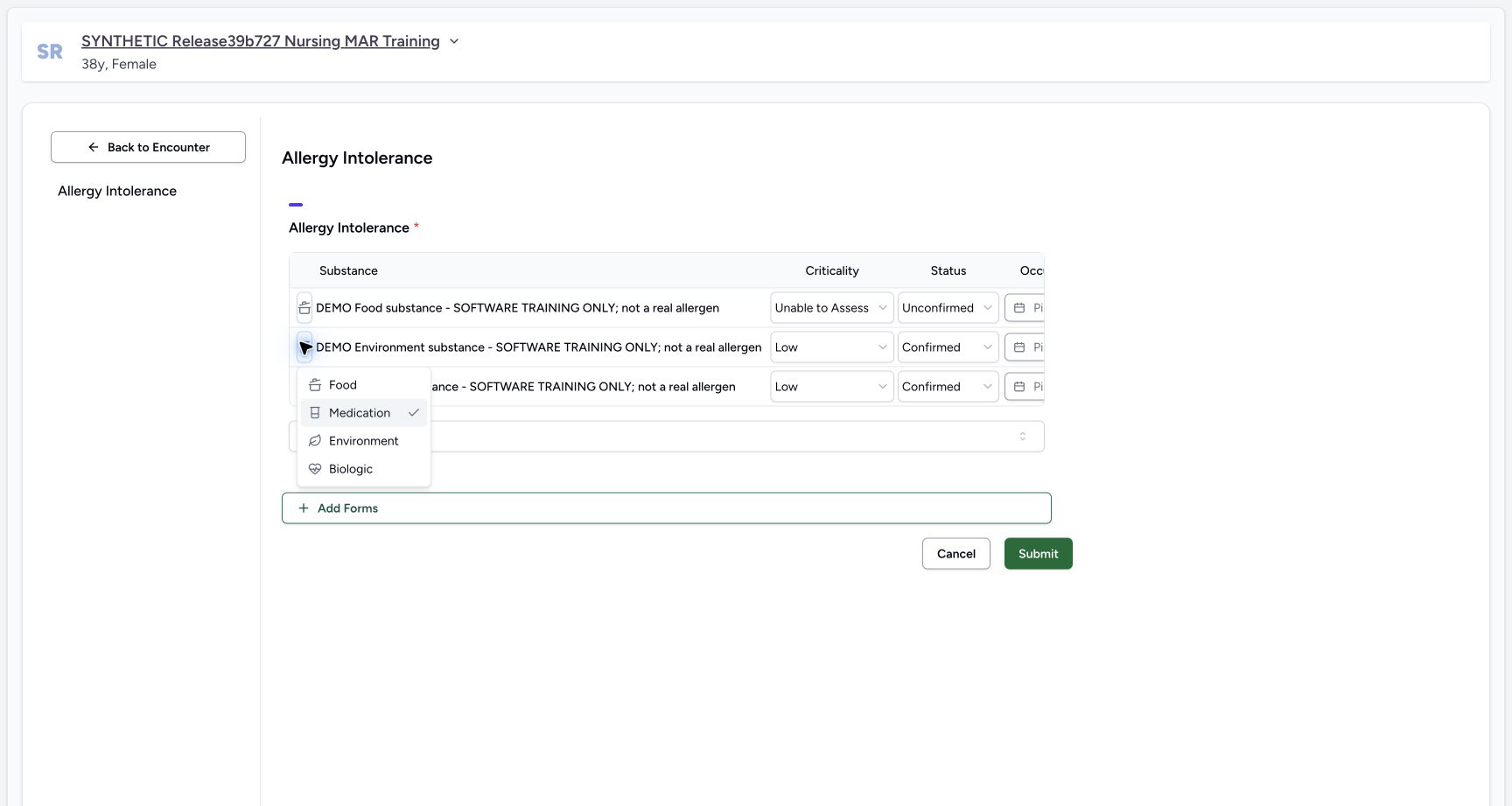
Open the second row category icon and choose Environment. Then choose Unable to Assess in its Criticality menu. These are fictional interface selections, not a real risk assessment.
 1
1Environment category choice
Capture details
Observed committed 3dfb software on 20 October 2026. Captions distinguish discarded drafts, reviewed saves and read-only retained state. All pixels remain original.
Image SHA-256 a1855c1966204b2d981eafa29e623aac4b55ad88f7ee74d346427043a1d31a40
- Choose Environment: Choose Environment in the second row category menu; this is distinct from the first Food row.
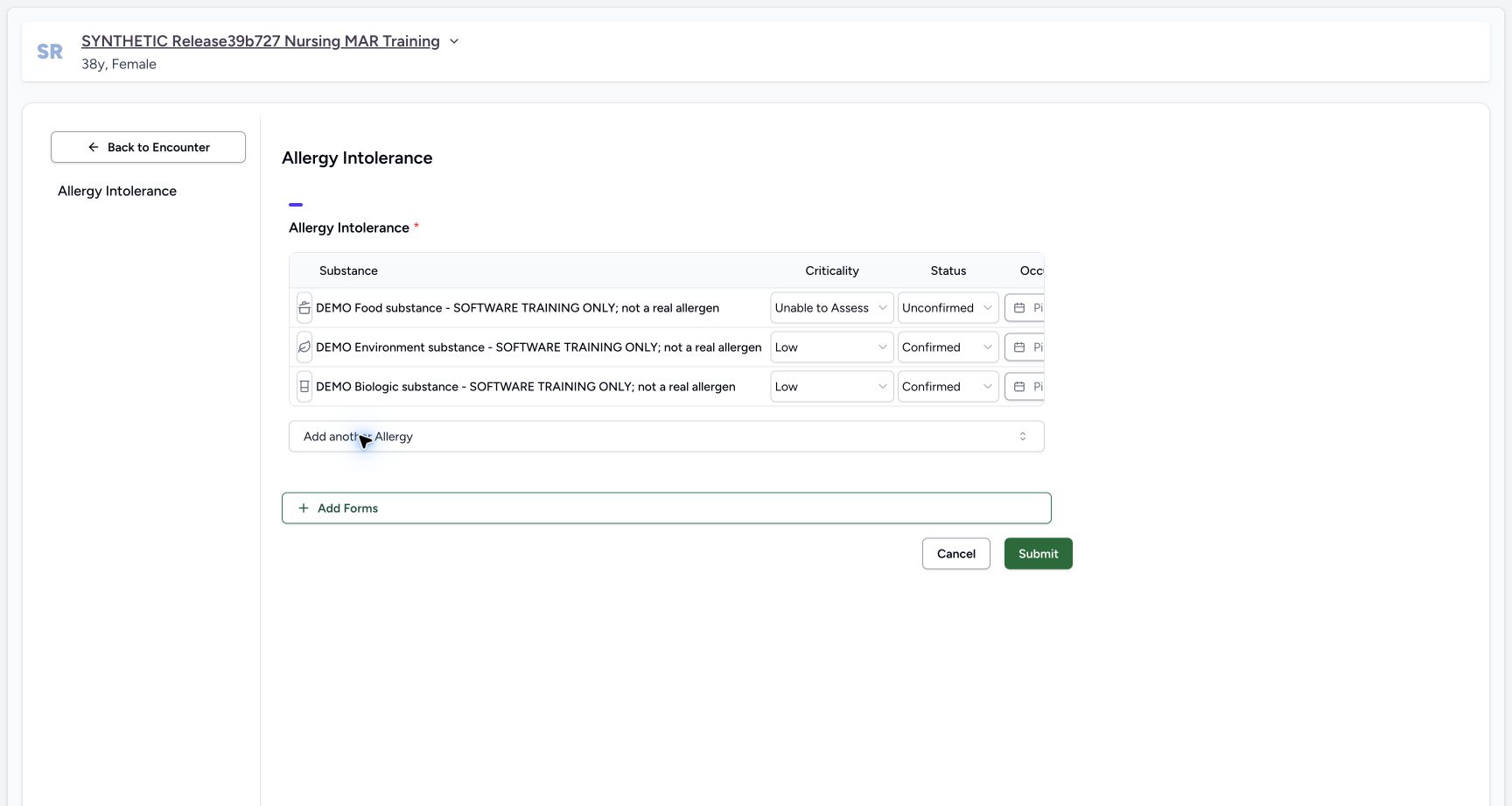 12
12Environment category set
Capture details
Observed committed 3dfb software on 20 October 2026. Captions distinguish discarded drafts, reviewed saves and read-only retained state. All pixels remain original.
Image SHA-256 1502975ddfaadd1eb82b2c497fdb256362ae11a6fc9bbbfa72731064feaf138d
- Review Environment category: The leaf icon is visible and AX names it Environmental allergy.
- Open Environment Criticality: Open the second row Criticality selector, which currently displays Low.
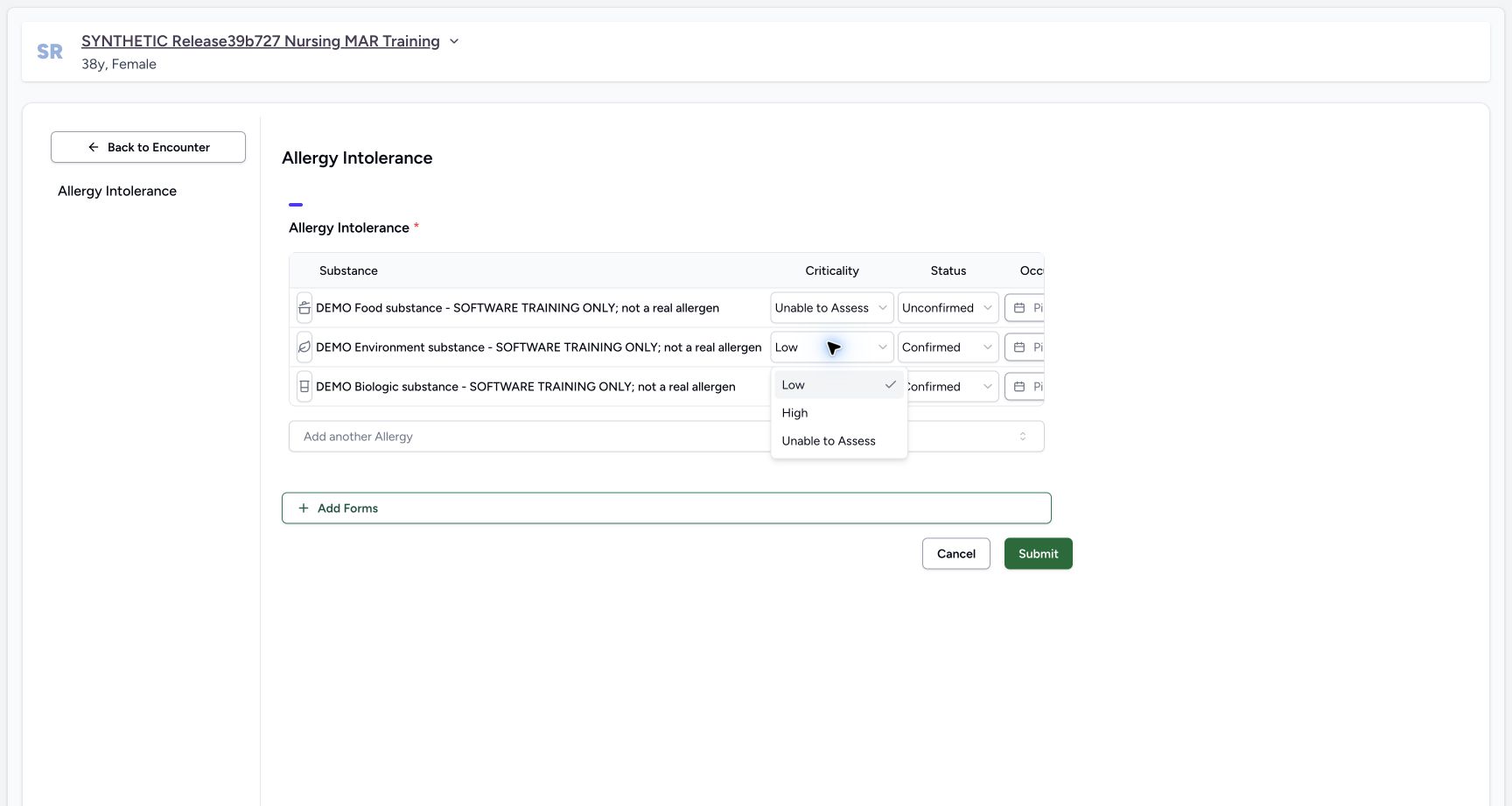 12
12Environment criticality choice
Capture details
Observed committed 3dfb software on 20 October 2026. Captions distinguish discarded drafts, reviewed saves and read-only retained state. All pixels remain original.
Image SHA-256 25cdb7a2eca250a58adf43d34cb15a102771415b58fedb8acfae37a9dbd70075
- Environment Criticality selector: The second row Criticality selector is shown open.
- Choose Unable to Assess for Environment: Select the actual Unable to Assess option in this second row menu.
5. Set Environment verification to Presumed
Open the Environment verification selector and choose Presumed. The choice image still has Confirmed checked; the following stable image shows Presumed selected.
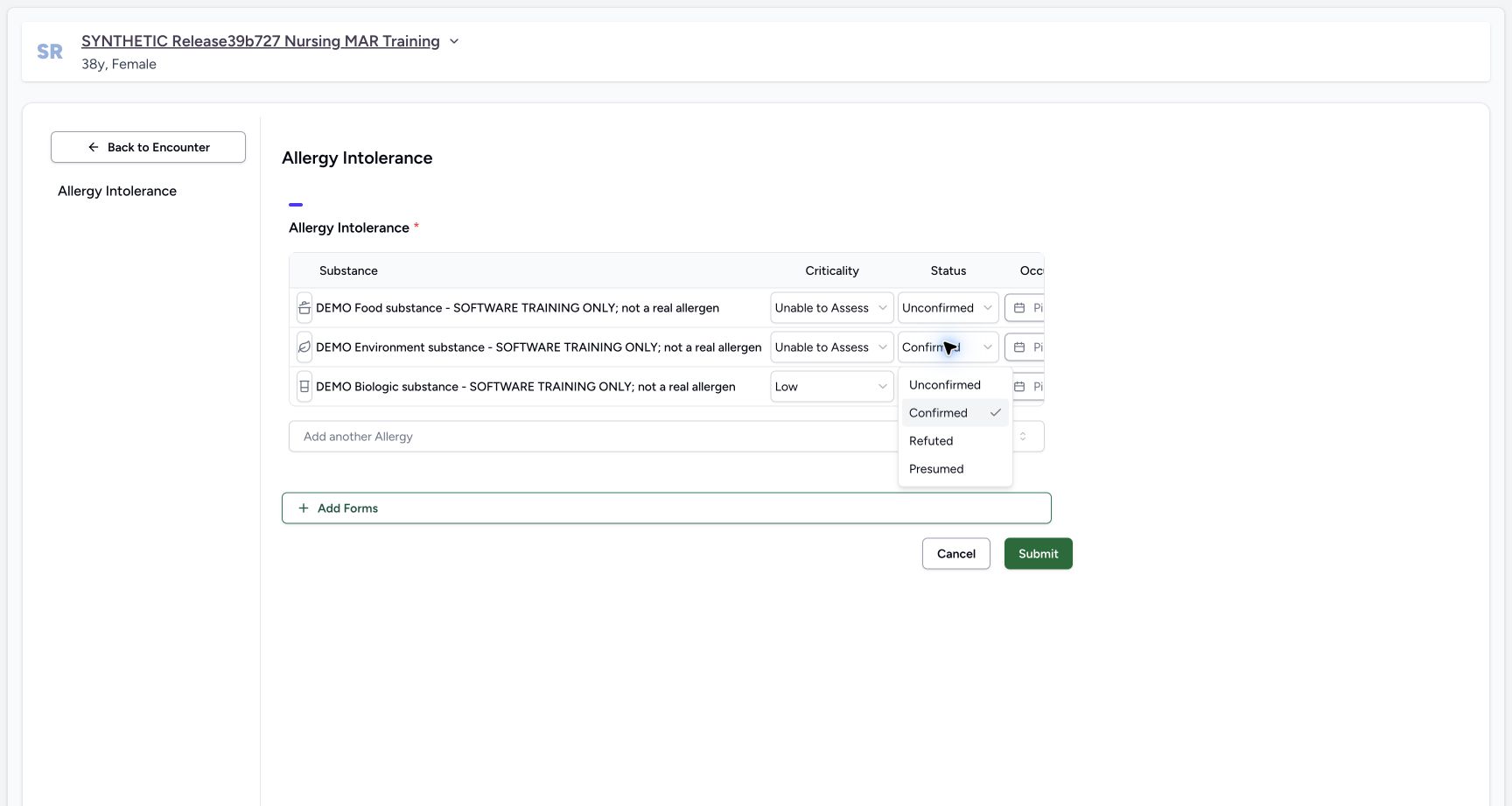 12
12Environment verification choice
Capture details
Observed committed 3dfb software on 20 October 2026. Captions distinguish discarded drafts, reviewed saves and read-only retained state. All pixels remain original.
Image SHA-256 daffb8fb6ecbb01eae5cd02c800d195bee28fb837231ebcafa2a6deb905e8bb8
- Environment verification selector: The second row Status/verification control is shown open; Confirmed is still checked.
- Choose Presumed for Environment: Choose Presumed from the visible options. This original shows the choice before selection, not its later result.
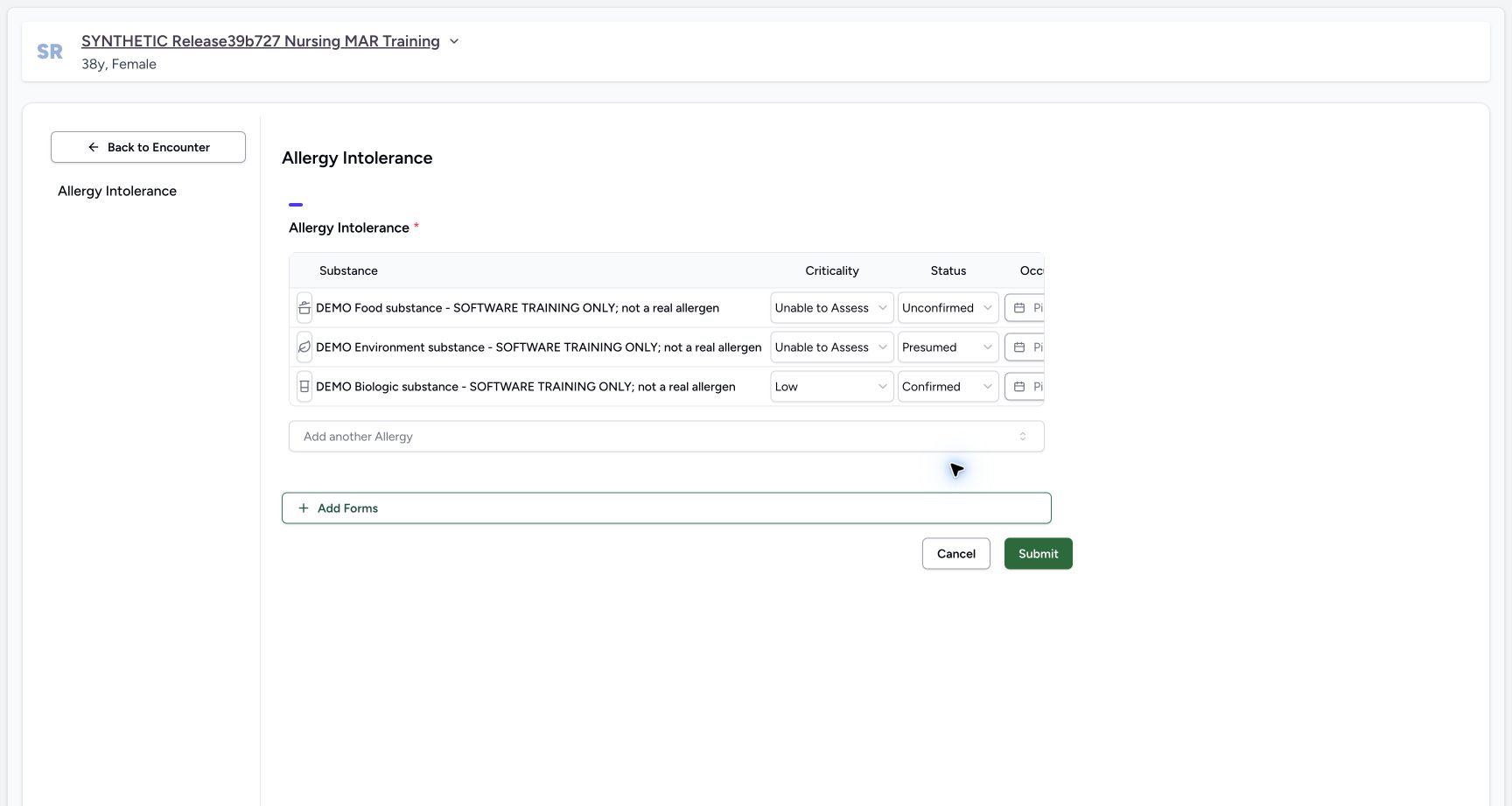 12
12Environment fields before date
Capture details
Observed committed 3dfb software on 20 October 2026. Captions distinguish discarded drafts, reviewed saves and read-only retained state. All pixels remain original.
Image SHA-256 60e18d2e7666f93a827b4a843c037016d89bd58ce996a2d17e76545c8b0675b7
- Review Environment Presumed: Read the selected Environment verification value after the choice shown in frame29.
- Review Environment criticality: Unable to Assess remains selected for this fictional interface example.
6. Choose the Environment occurrence date
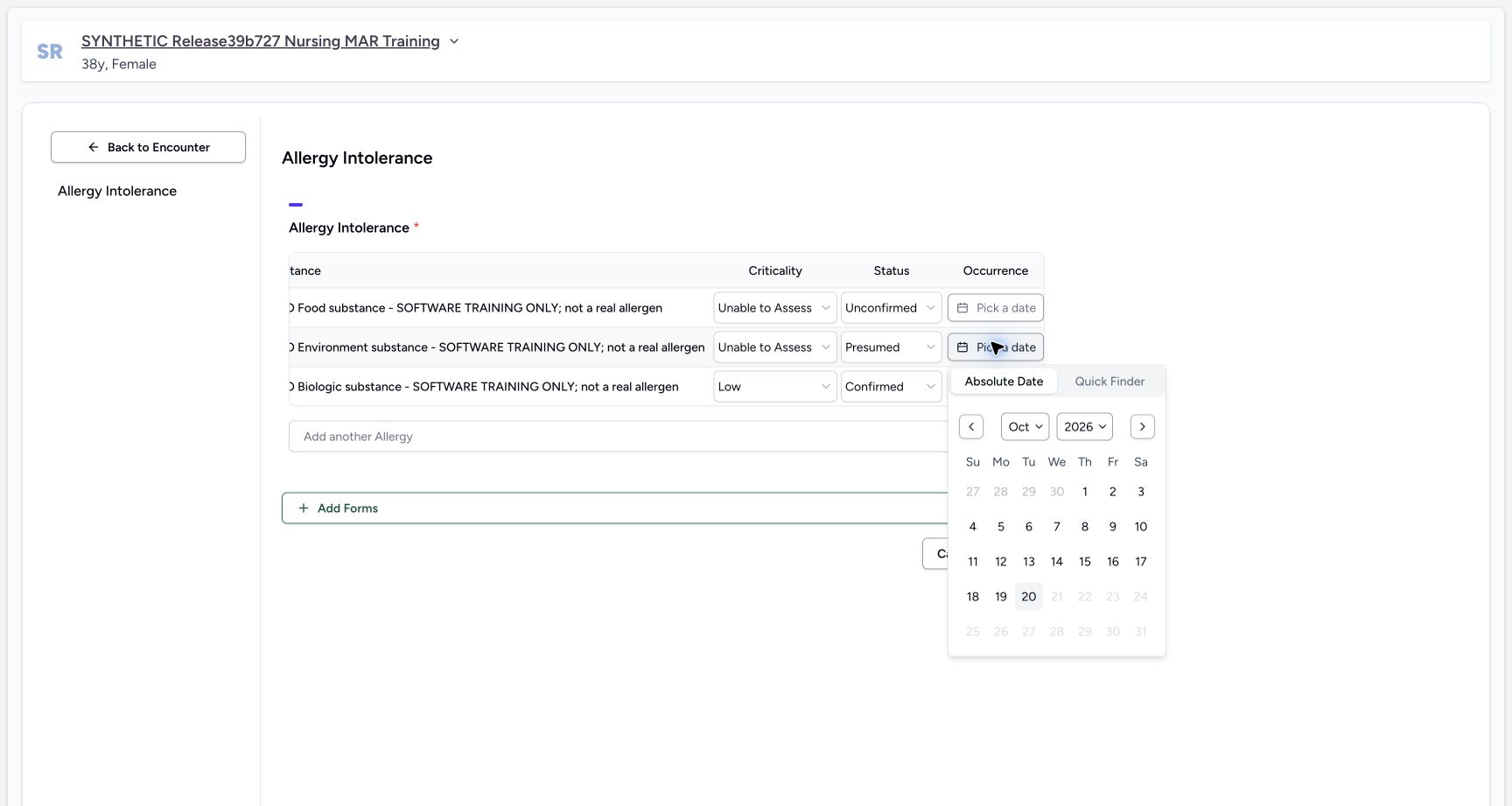
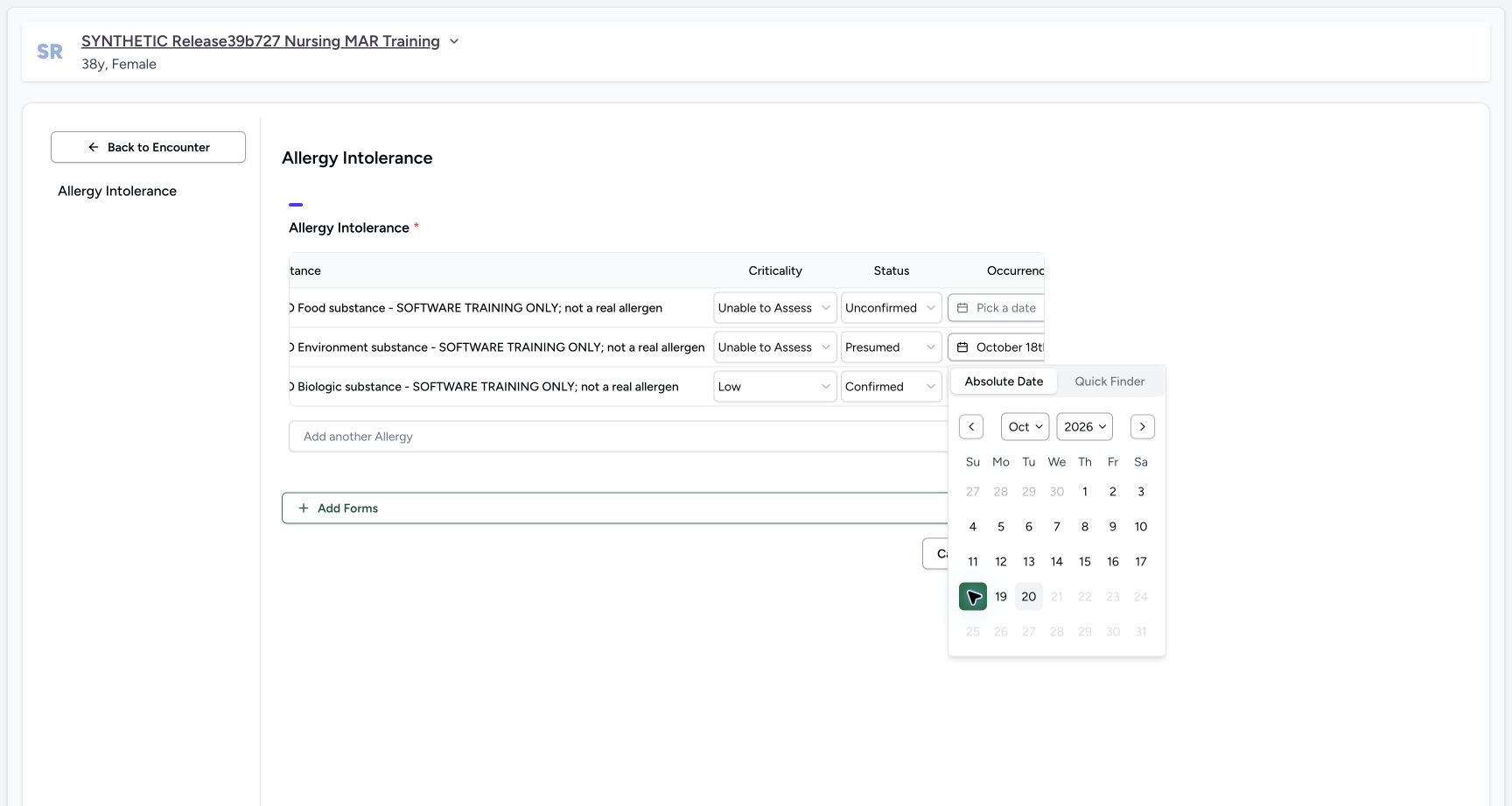
Scroll right as needed and open the Environment occurrence picker. In Absolute Date, choose 18 October 2026. The calendar applies the choice without a separate Confirm button. Review the selected 18 and the updated occurrence value.
 123
123Environment occurrence calendar
Capture details
Observed committed 3dfb software on 20 October 2026. Captions distinguish discarded drafts, reviewed saves and read-only retained state. All pixels remain original.
Image SHA-256 391a3e0765fcacc6688db5c7fd9ca6214dd49af97514ba67909eae2f47410cbf
- Environment occurrence picker: The second-row occurrence picker is open.
- Review Absolute Date mode: Review Absolute Date mode
- Choose 18 October: Choose Sunday 18 in the October 2026 calendar. The source applies the selection without a separate confirmation button.
 12
12Environment date selected
Capture details
Observed committed 3dfb software on 20 October 2026. Captions distinguish discarded drafts, reviewed saves and read-only retained state. All pixels remain original.
Image SHA-256 361c03399a662209720cad73cb43d3bb62fbc986847f8039c20d7e2f8f0228c9
- Review selected 18 October: The selected calendar day is visibly highlighted.
- Review Environment date: The occurrence button has updated; its complete value is retained in AX.
7. Set Biologic category
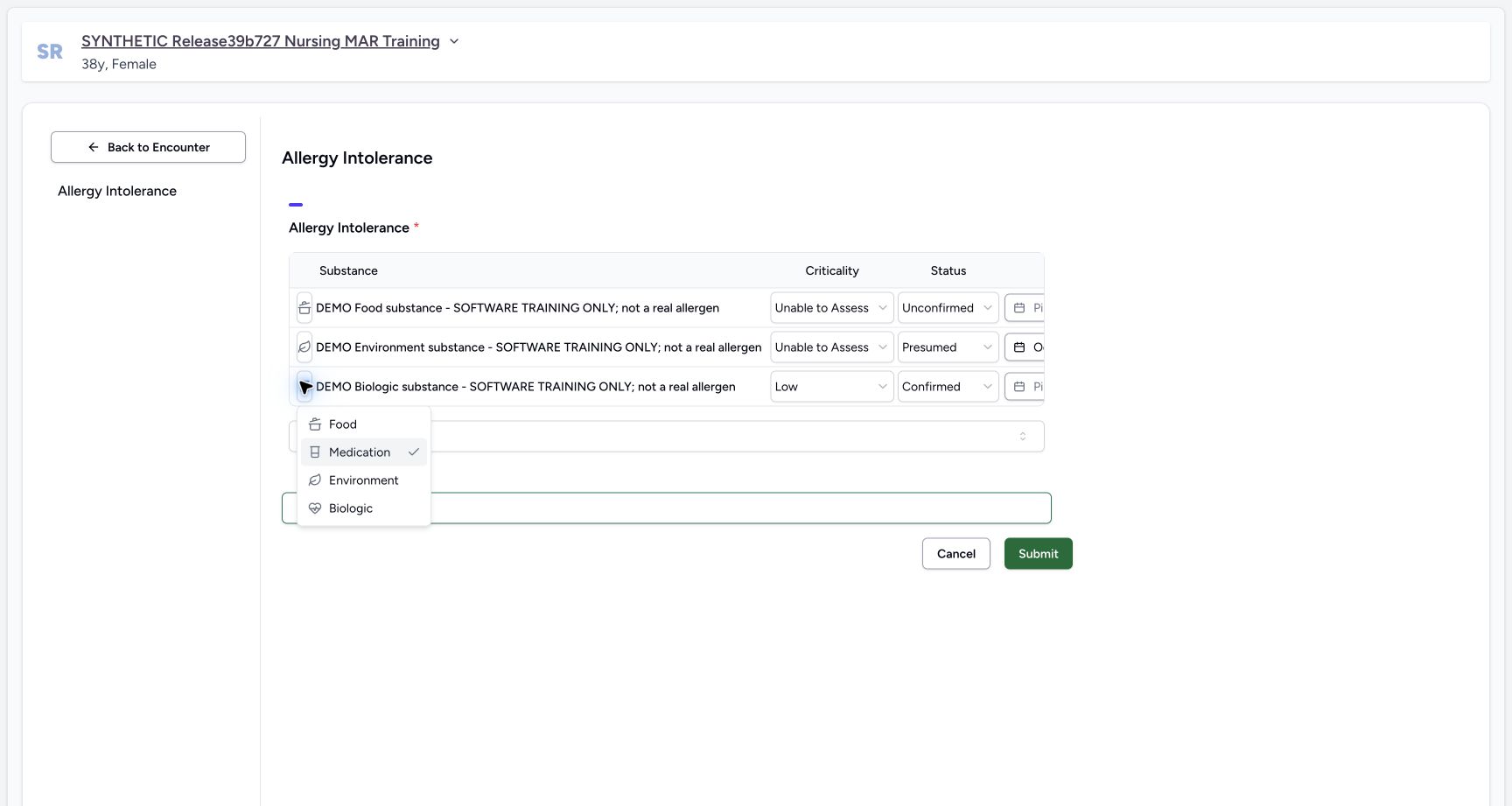
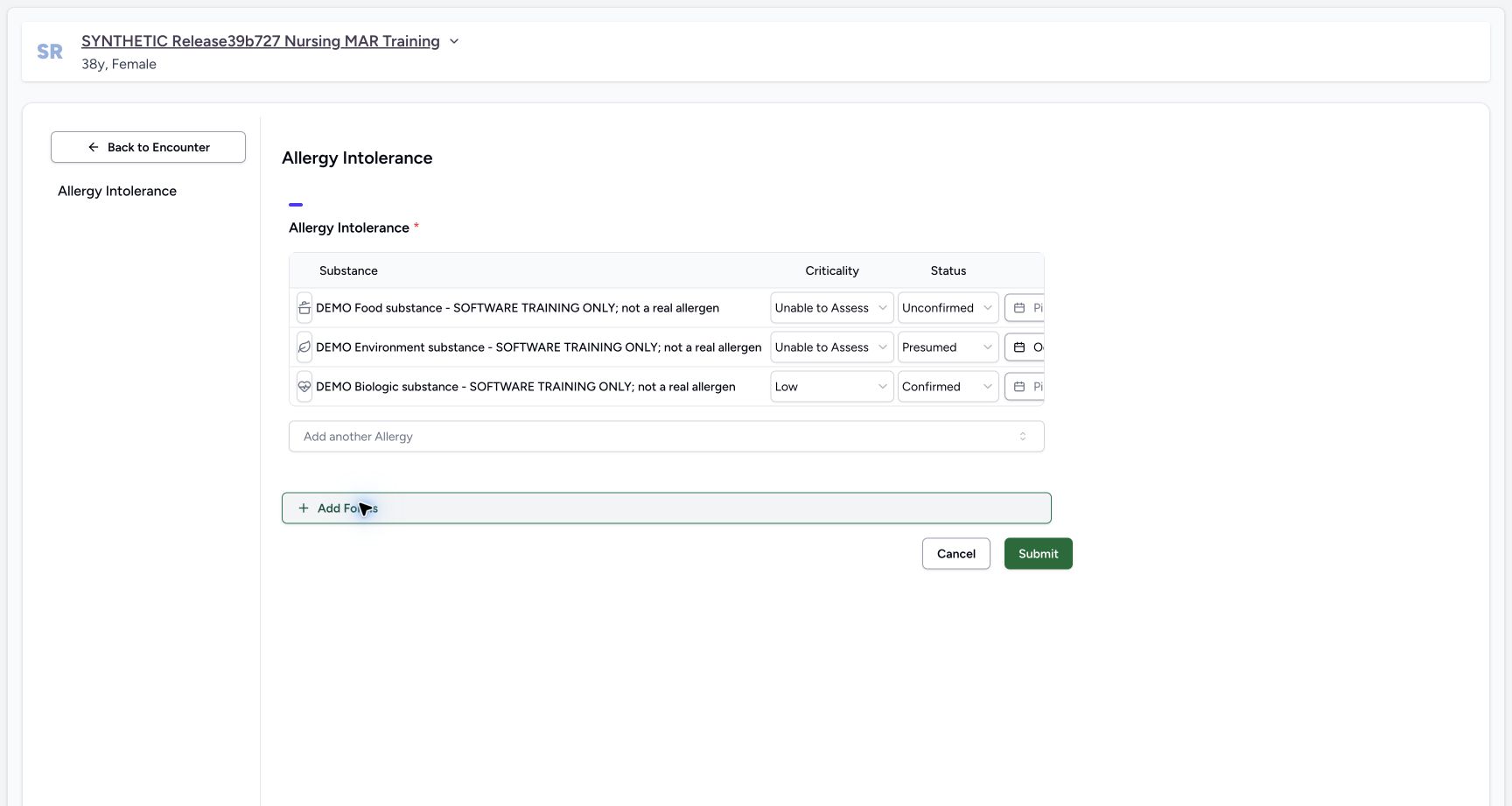
Open the third row category menu and choose Biologic. Review the changed category icon while its existing Low and Confirmed values remain.
 12
12Biologic category choice
Capture details
Observed committed 3dfb software on 20 October 2026. Captions distinguish discarded drafts, reviewed saves and read-only retained state. All pixels remain original.
Image SHA-256 65a9adebbe3431add1d50d3d91f754f4e9bd786c35804509d0c9cc8376fabf40
- Biologic category selector: The third-row category control is open.
- Choose Biologic: Select Biologic for the explicitly fictional DEMO-BIOLOGIC entry.
 12
12Biologic category set
Capture details
Observed committed 3dfb software on 20 October 2026. Captions distinguish discarded drafts, reviewed saves and read-only retained state. All pixels remain original.
Image SHA-256 dd51884d8c7f3a2f85e4245357e9430e2ca89920224f7d599ae3cc3ae8088354
- Review Biologic category: Review Biologic category
- Open Biologic verification: Open the third-row verification selector.
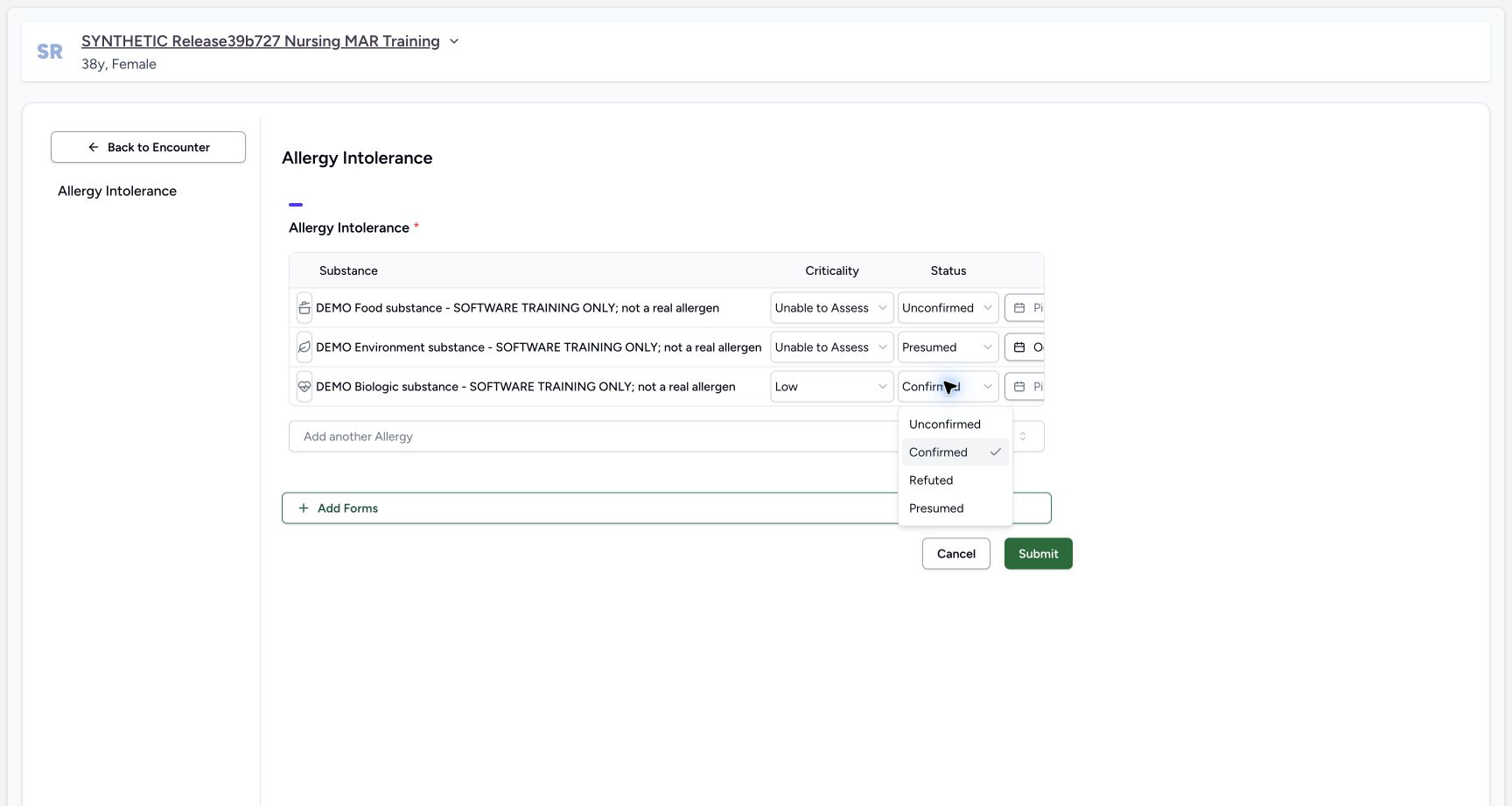
8. Set Biologic verification and retain Low
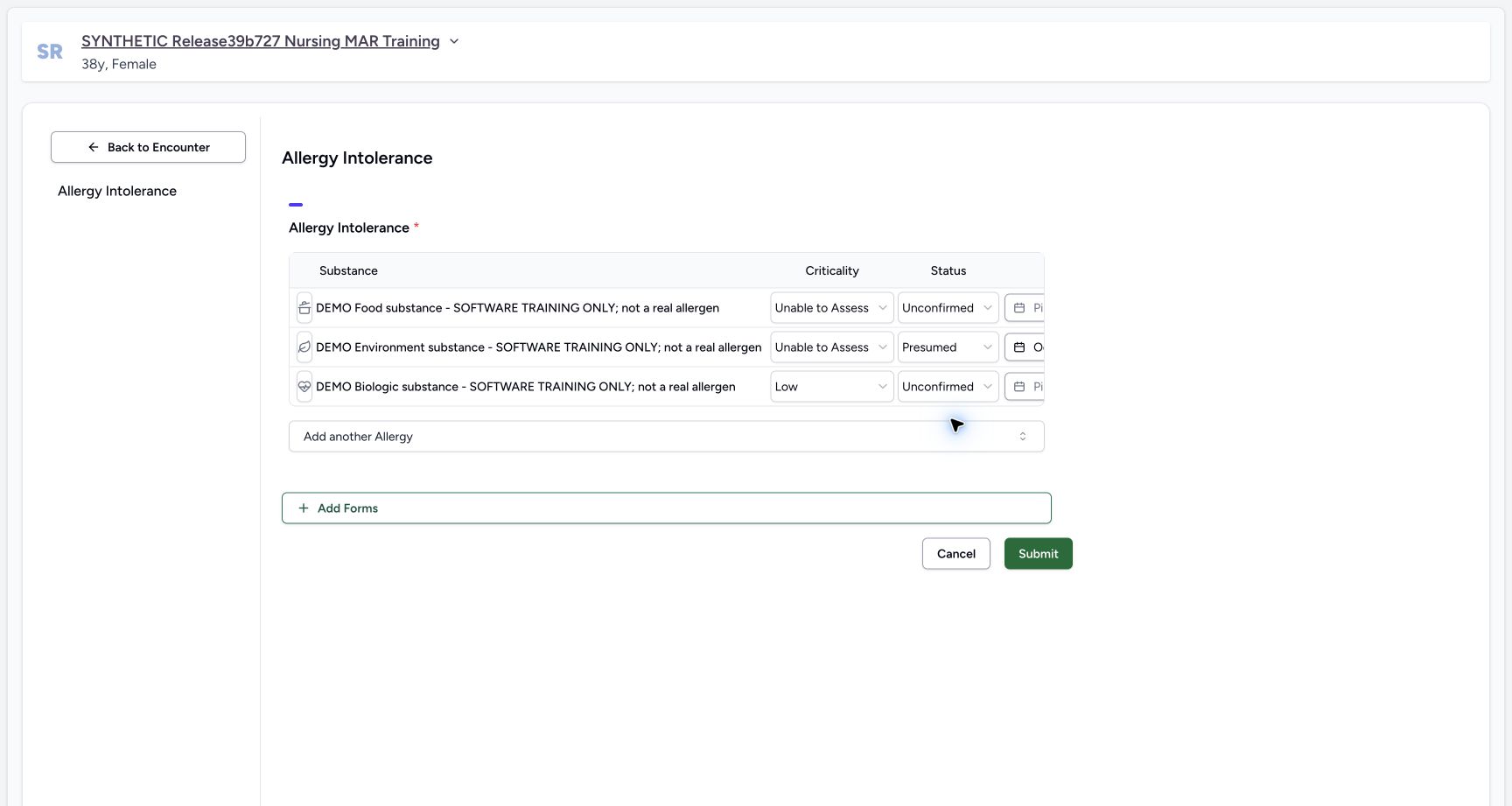
Choose Unconfirmed for Biologic verification, then review Low and Unconfirmed. Low was retained from the draft default in this example; no clinical assessment is implied.
 12
12Biologic verification choice
Capture details
Observed committed 3dfb software on 20 October 2026. Captions distinguish discarded drafts, reviewed saves and read-only retained state. All pixels remain original.
Image SHA-256 258c0b342abe29d447d598d88342025ff0fbfa4901ebb490a5ad7c45a4b2e8fa
- Biologic verification selector: The third-row selector is shown open.
- Choose Unconfirmed: Select the visible Unconfirmed option for the fictional Biologic row.
 12
12Biologic fields before date
Capture details
Observed committed 3dfb software on 20 October 2026. Captions distinguish discarded drafts, reviewed saves and read-only retained state. All pixels remain original.
Image SHA-256 dac3e8fb42e1a301cc8c73f63b817bb320ae29f8d26448f6f49e5ed86f2a86fe
- Review Biologic Low: Review Biologic Low
- Review Biologic Unconfirmed: Review Biologic Unconfirmed
9. Choose the Biologic date and compare all three
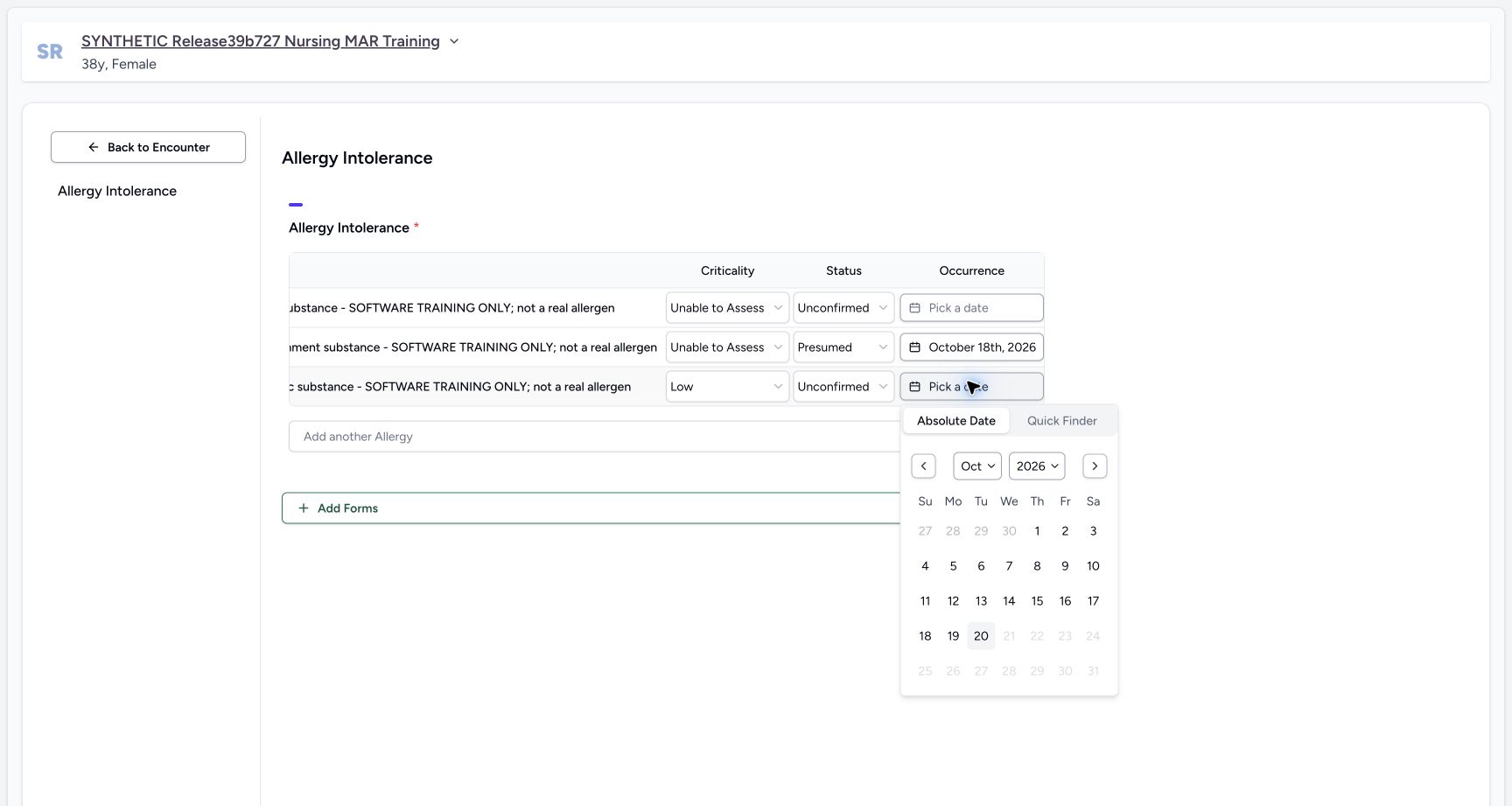
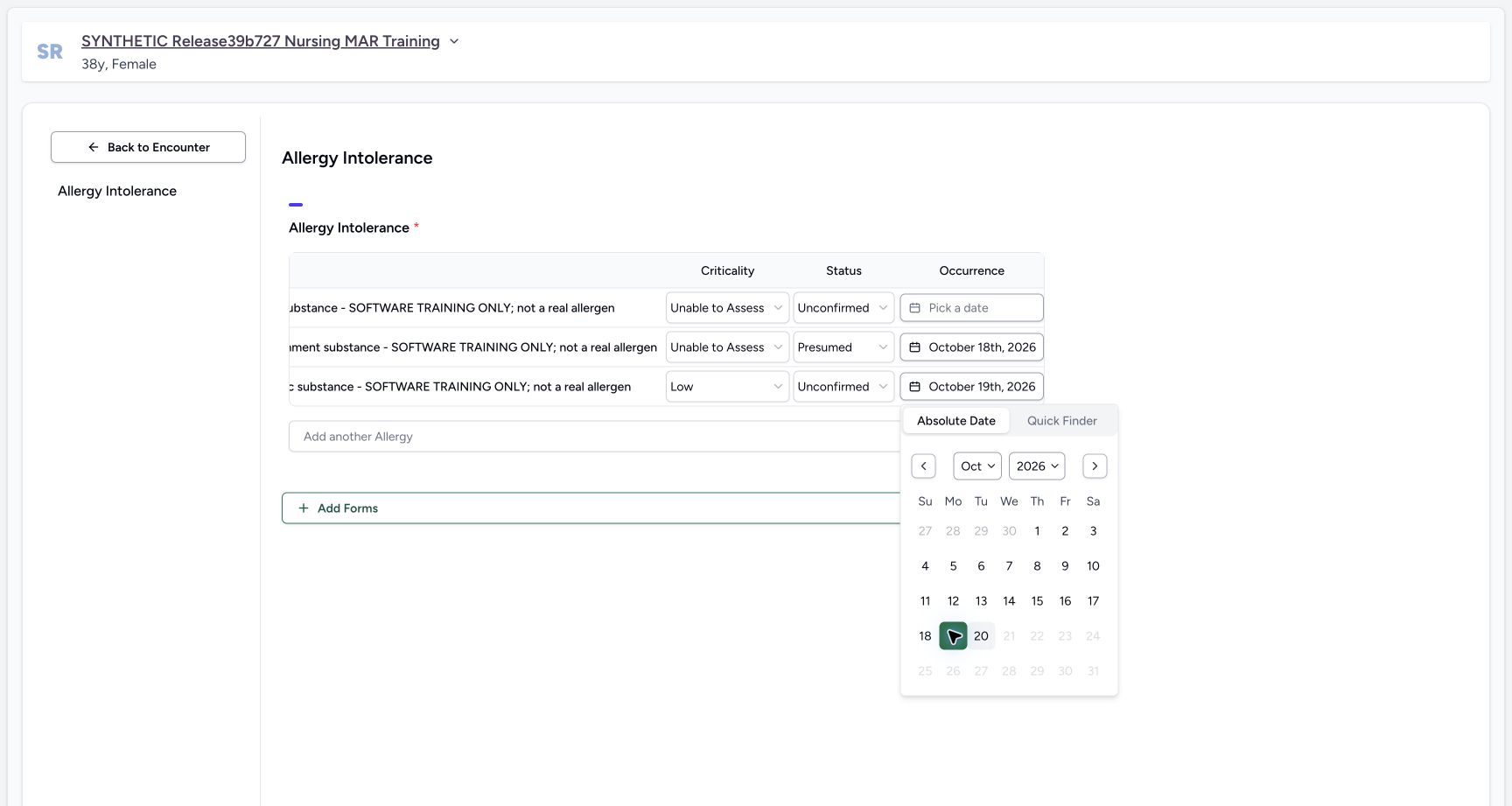
Open Biologic occurrence in Absolute Date and choose 19 October 2026. Review Food still Pick a date, Environment 18 October and Biologic 19 October. Food was never cleared: it stayed blank from the beginning. The source interface shown here provides calendar replacement, not a date-clear or typed-date control.
 123
123Biologic occurrence calendar
Capture details
Observed committed 3dfb software on 20 October 2026. Captions distinguish discarded drafts, reviewed saves and read-only retained state. All pixels remain original.
Image SHA-256 b62eec85371ffda7d45a5b2cfd99a60abdcded30d61d1b4534ba173ff91670c2
- Biologic occurrence picker: The third-row picker is shown open.
- Review Absolute Date mode: Review Absolute Date mode
- Choose 19 October: Choose Monday 19 in the October 2026 calendar.
 1234
1234Biologic date selected
Capture details
Observed committed 3dfb software on 20 October 2026. Captions distinguish discarded drafts, reviewed saves and read-only retained state. All pixels remain original.
Image SHA-256 aeaf4c949ec8cd1f4b4c8ee28d1b29af22a3e8b2da30750b6d635bc2b2ecd53b
- Review selected 19 October: Review selected 19 October
- Review Food date left blank: Food was initially blank and was never cleared.
- Review Environment 18 October: Review Environment 18 October
- Review Biologic 19 October: Review Biologic 19 October
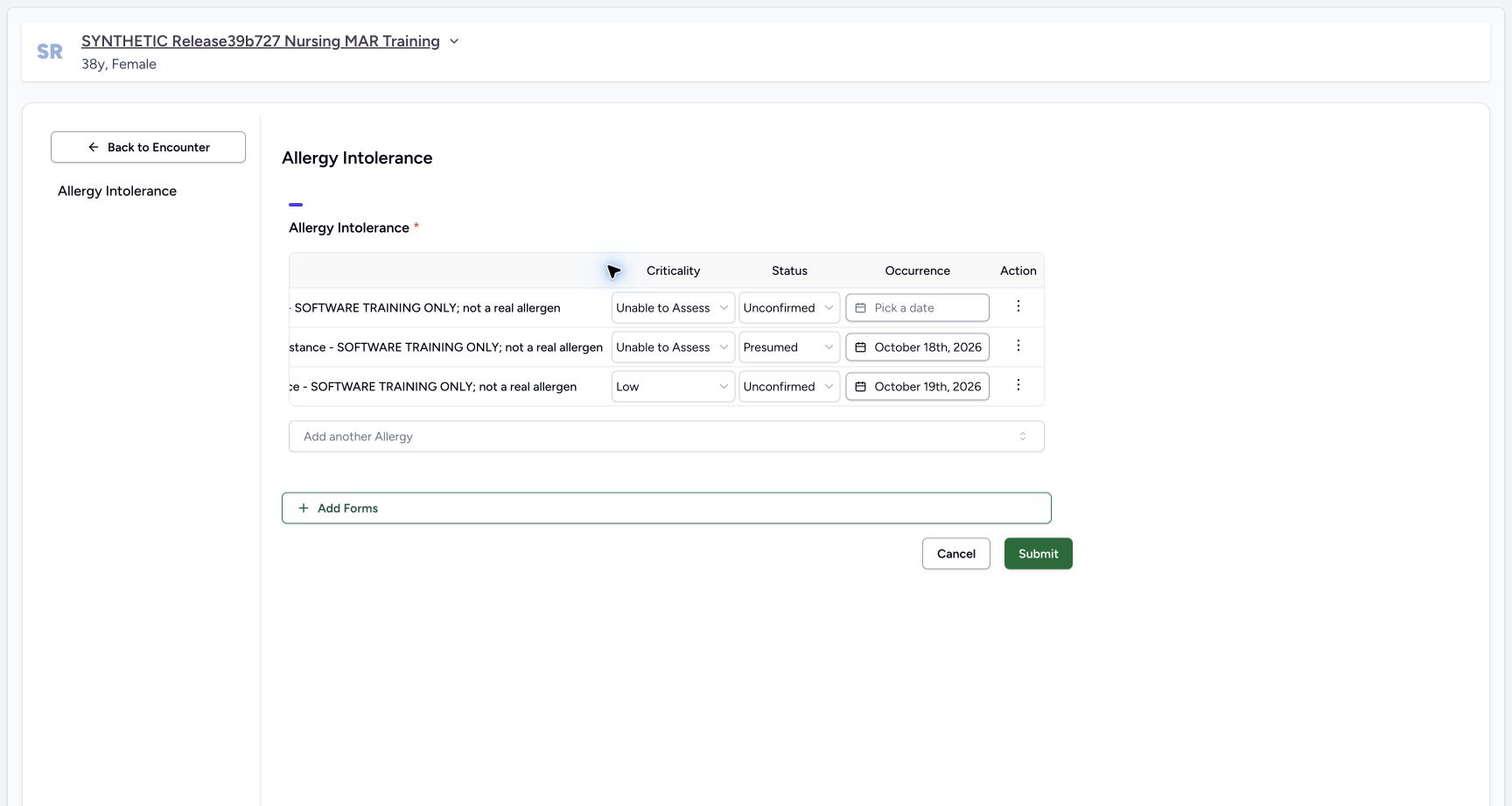 123
123Row actions before notes
Capture details
Observed committed 3dfb software on 20 October 2026. Captions distinguish discarded drafts, reviewed saves and read-only retained state. All pixels remain original.
Image SHA-256 b332454e2b4b6499fd1949f30c51e7c1503555e6cfad61d7a3b0c71ea46a38e3
- Open Food Actions: Use the first-row Actions control.
- Environment Actions reference: This separate control belongs to the second row.
- Biologic Actions reference: This separate control belongs to the third row.
10. Enter the Food note
Open the first row Actions menu, choose Add notes and enter this exact example: SYNTHETIC SOFTWARE TRAINING ONLY: DEMO-FOOD is a fictional interface example, not a real substance, allergy, reaction or clinical decision. The entry image shows a clipped portion of this long single-line input; the final reviewed value retained the complete text.
123Row actions before notes
Capture details
Observed committed 3dfb software on 20 October 2026. Captions distinguish discarded drafts, reviewed saves and read-only retained state. All pixels remain original.
Image SHA-256 b332454e2b4b6499fd1949f30c51e7c1503555e6cfad61d7a3b0c71ea46a38e3
- Open Food Actions: Use the first-row Actions control.
- Environment Actions reference: This separate control belongs to the second row.
- Biologic Actions reference: This separate control belongs to the third row.
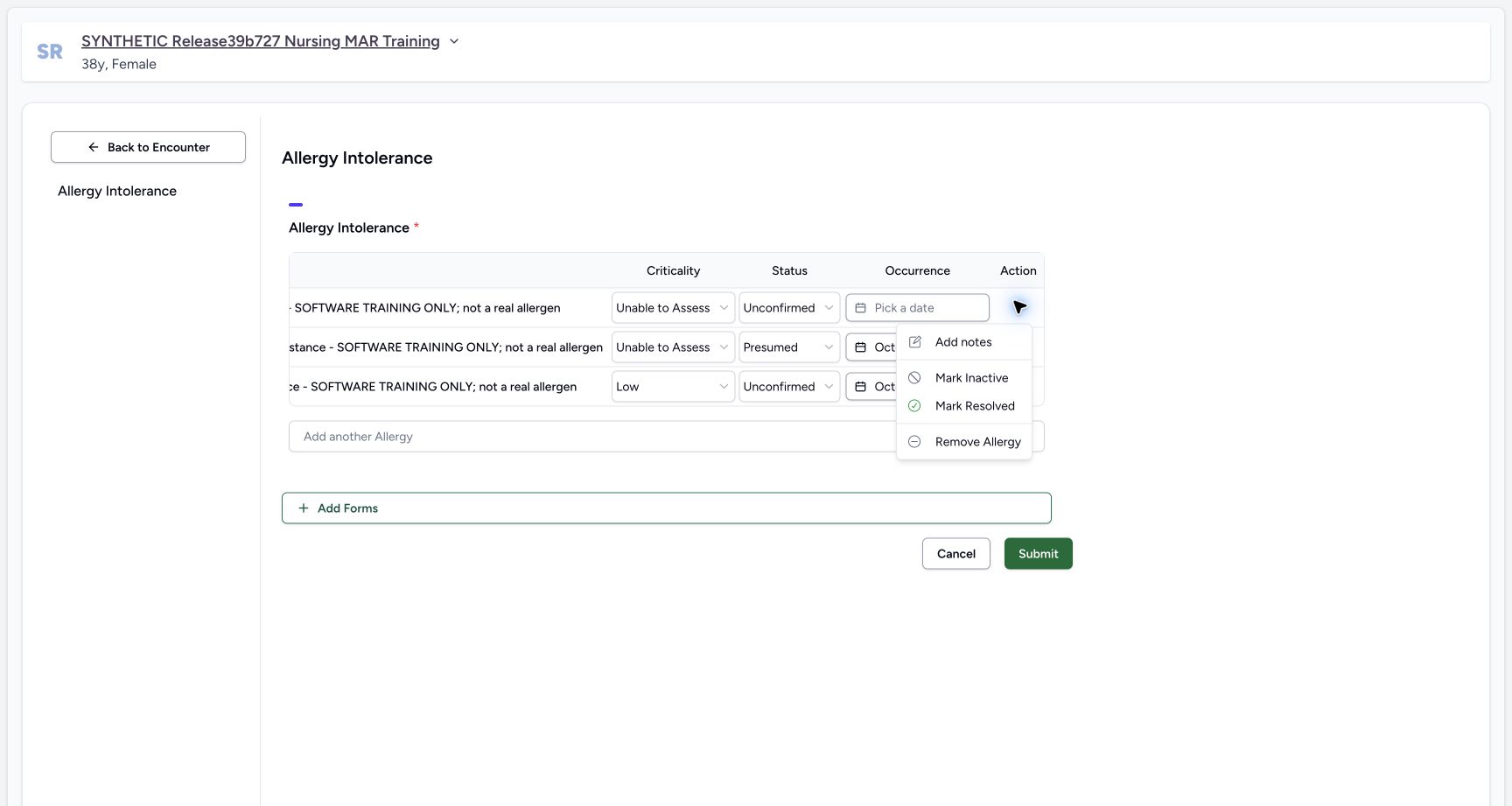 1
1Food add notes menu
Capture details
Observed committed 3dfb software on 20 October 2026. Captions distinguish discarded drafts, reviewed saves and read-only retained state. All pixels remain original.
Image SHA-256 e9cf9b6ec027943390153ca758e1a3f2ecdf16451805e82f8f9febc1e77b8223
- Choose Add notes for Food: Select the visible Add notes menu item.
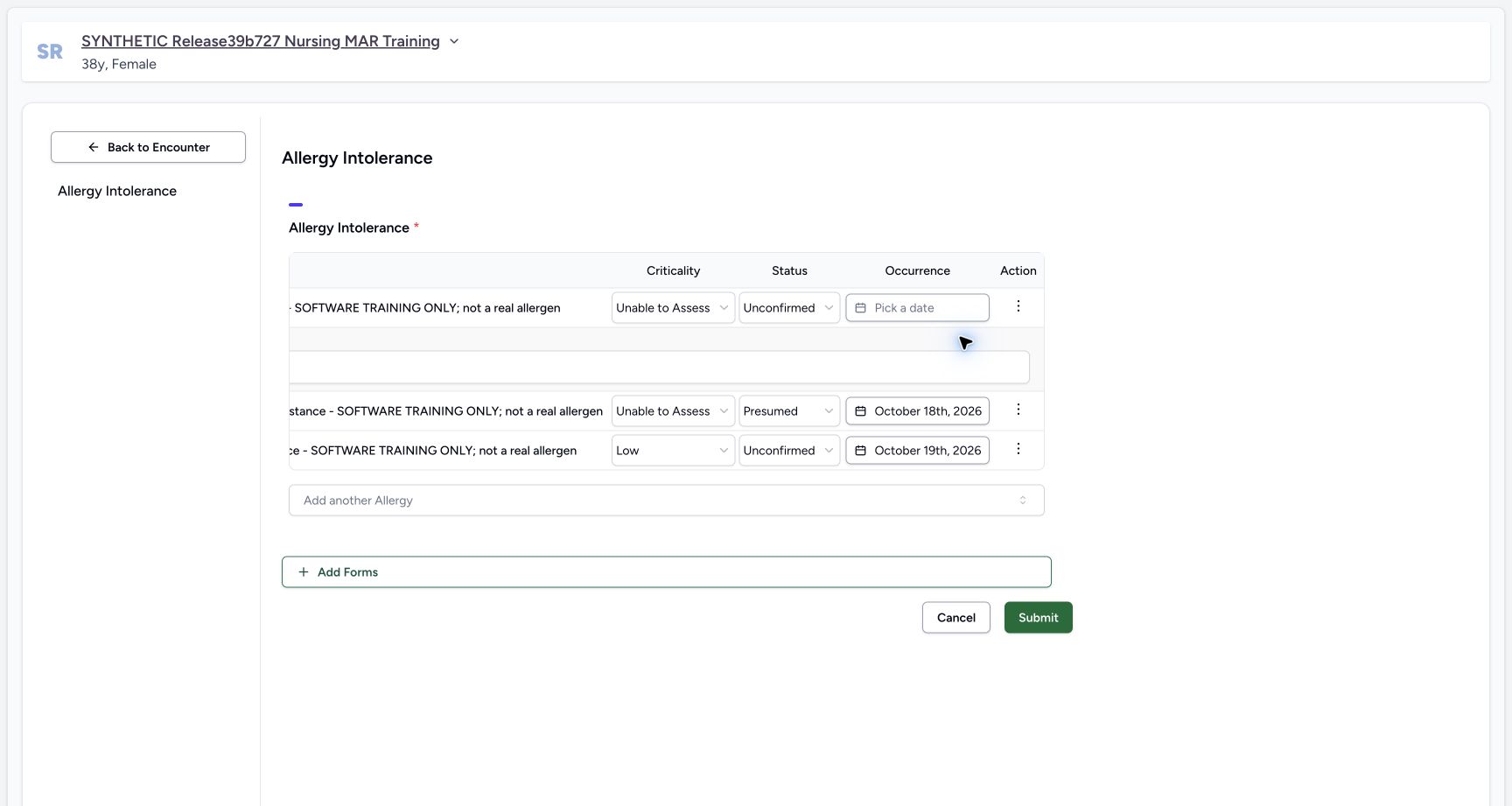 1
1Food note field open
Capture details
Observed committed 3dfb software on 20 October 2026. Captions distinguish discarded drafts, reviewed saves and read-only retained state. All pixels remain original.
Image SHA-256 3cf0e317851609682beaaf6f2883e65dc8f666ee0f4a82f0500d09d375f3082b
- Enter the Food training note: Type the exact software-only Food note in this empty note field.
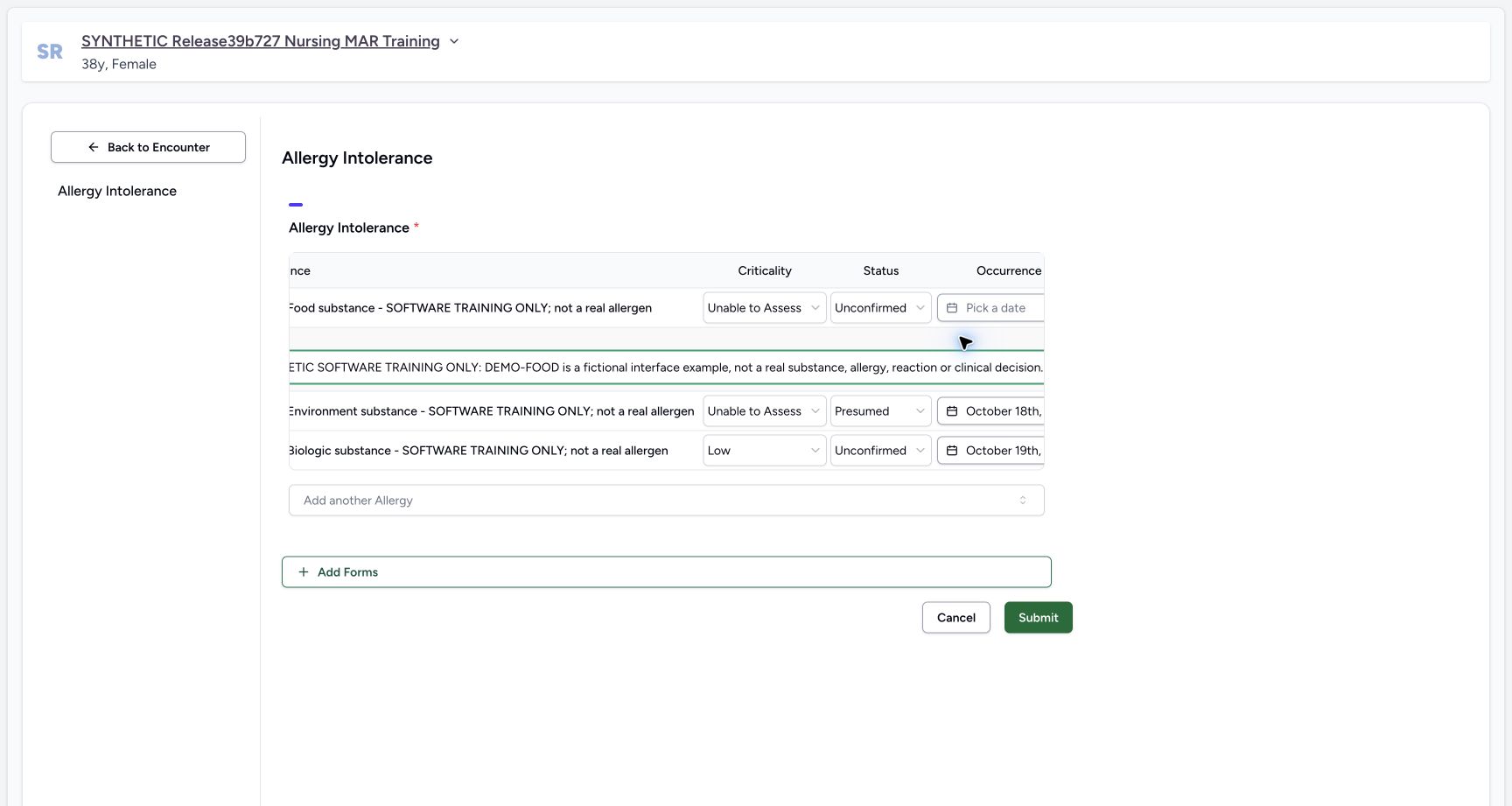 1
1Food note complete
Capture details
Observed committed 3dfb software on 20 October 2026. Captions distinguish discarded drafts, reviewed saves and read-only retained state. All pixels remain original.
Image SHA-256 435151a1c0abfdb8e91248c06b1a9daef0fd6deb44bb00eef47a0964d7a82c09
- Review the Food note: Read the visible portion and retain the exact full note from the source-qualified observation.
11. Hide and show the Food note without clearing it
Open Food Actions and choose Hide notes. The next image shows the note hidden and the menu closed. Reopen Actions, choose Show notes and verify that the authored value returns. Hiding the note is not deleting it.
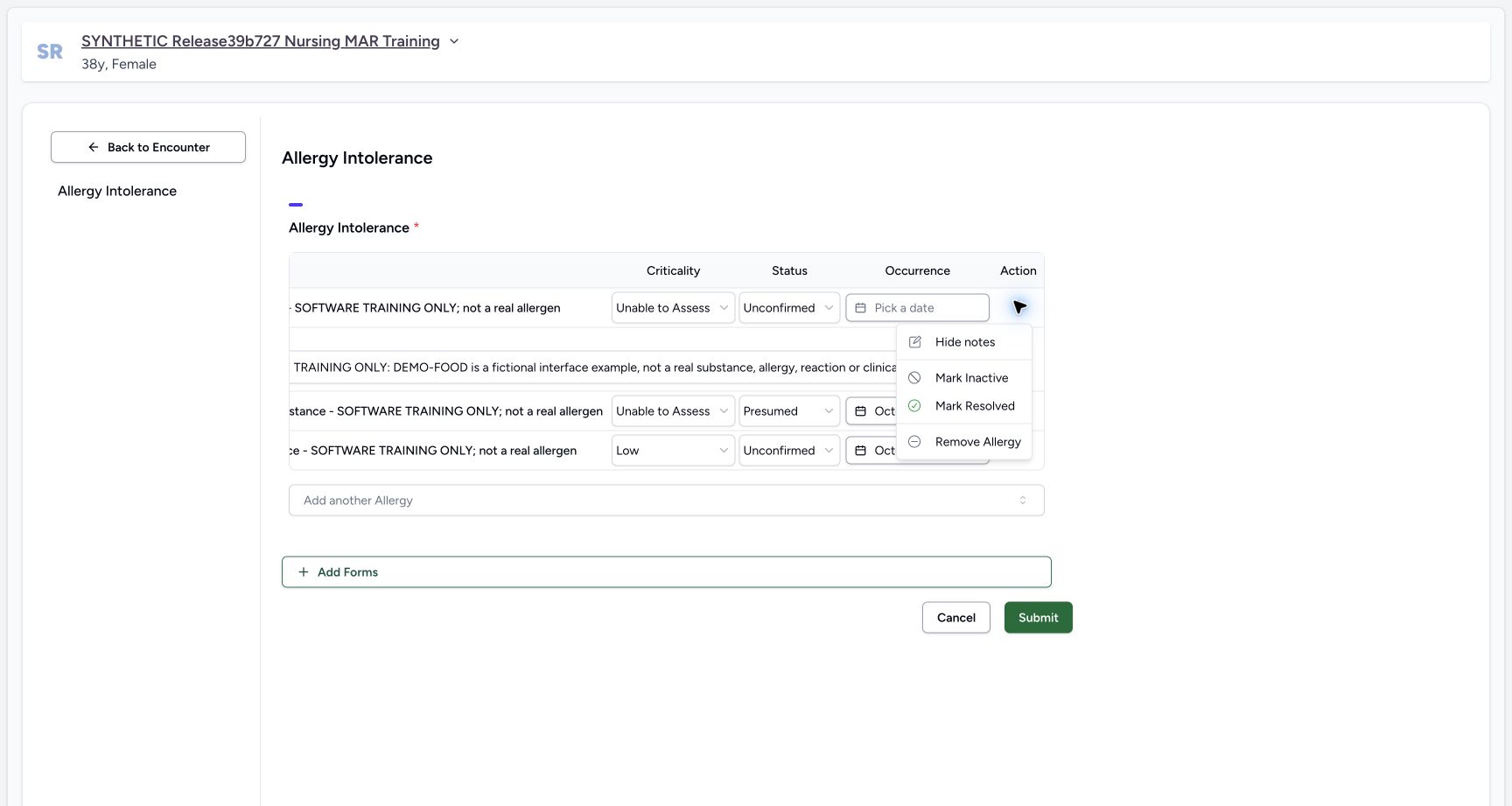 1
1Food hide notes menu
Capture details
Observed committed 3dfb software on 20 October 2026. Captions distinguish discarded drafts, reviewed saves and read-only retained state. All pixels remain original.
Image SHA-256 6f36c78a0ae4456373a7dcbb7865cd192e6859433540e1ca2a8c6270269b5b0c
- Choose Hide notes: Hide the Food note field without clearing its value.
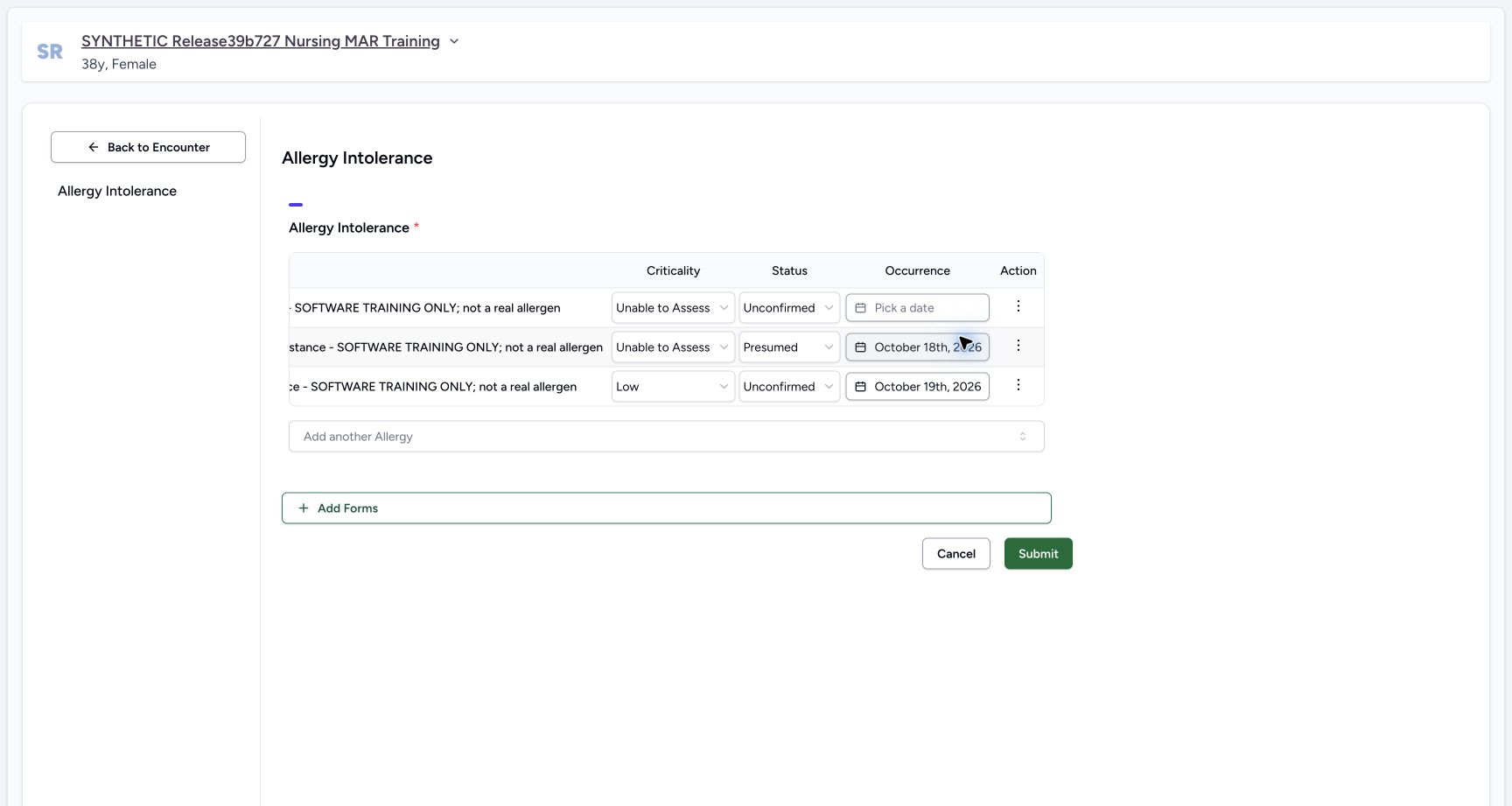 1
1Food note hidden with Actions menu closed
Capture details
Observed committed 3dfb software on 20 October 2026. Captions distinguish discarded drafts, reviewed saves and read-only retained state. All pixels remain original.
Image SHA-256 0f77d870fd499193c05bd9d6d95feac45ab796a9ee67dd2ed4033ab00500b171
- Open Food Actions again: Open the first-row Actions control to reveal Show notes. No menu is currently pictured.
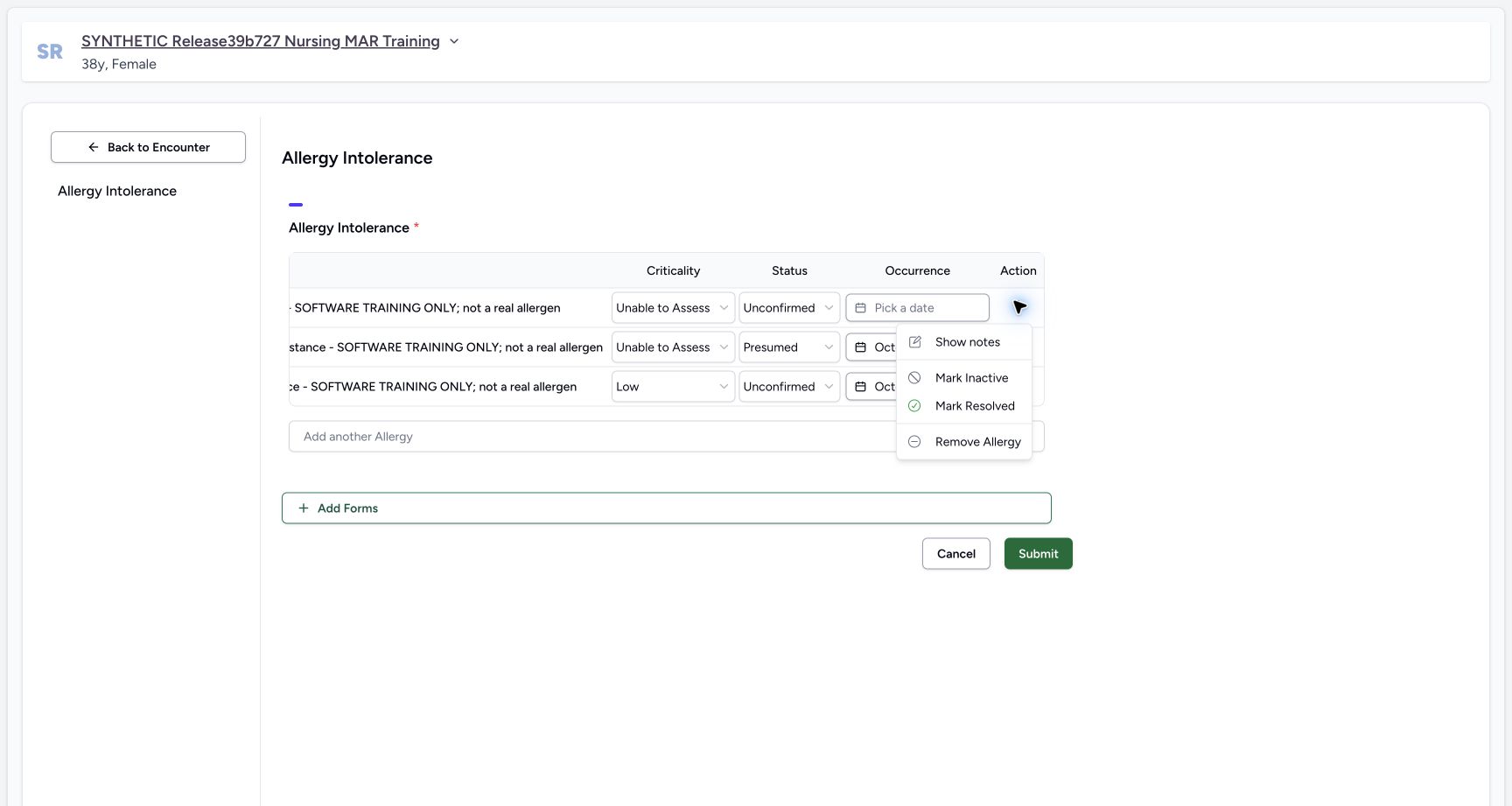 1
1Food show notes menu open
Capture details
Observed committed 3dfb software on 20 October 2026. Captions distinguish discarded drafts, reviewed saves and read-only retained state. All pixels remain original.
Image SHA-256 f68aff3cd7301bdb442ef8748597faa3ab0196aa502ecc2909bb0aaee34f2e99
- Choose Show notes: Show the previously authored Food note again.
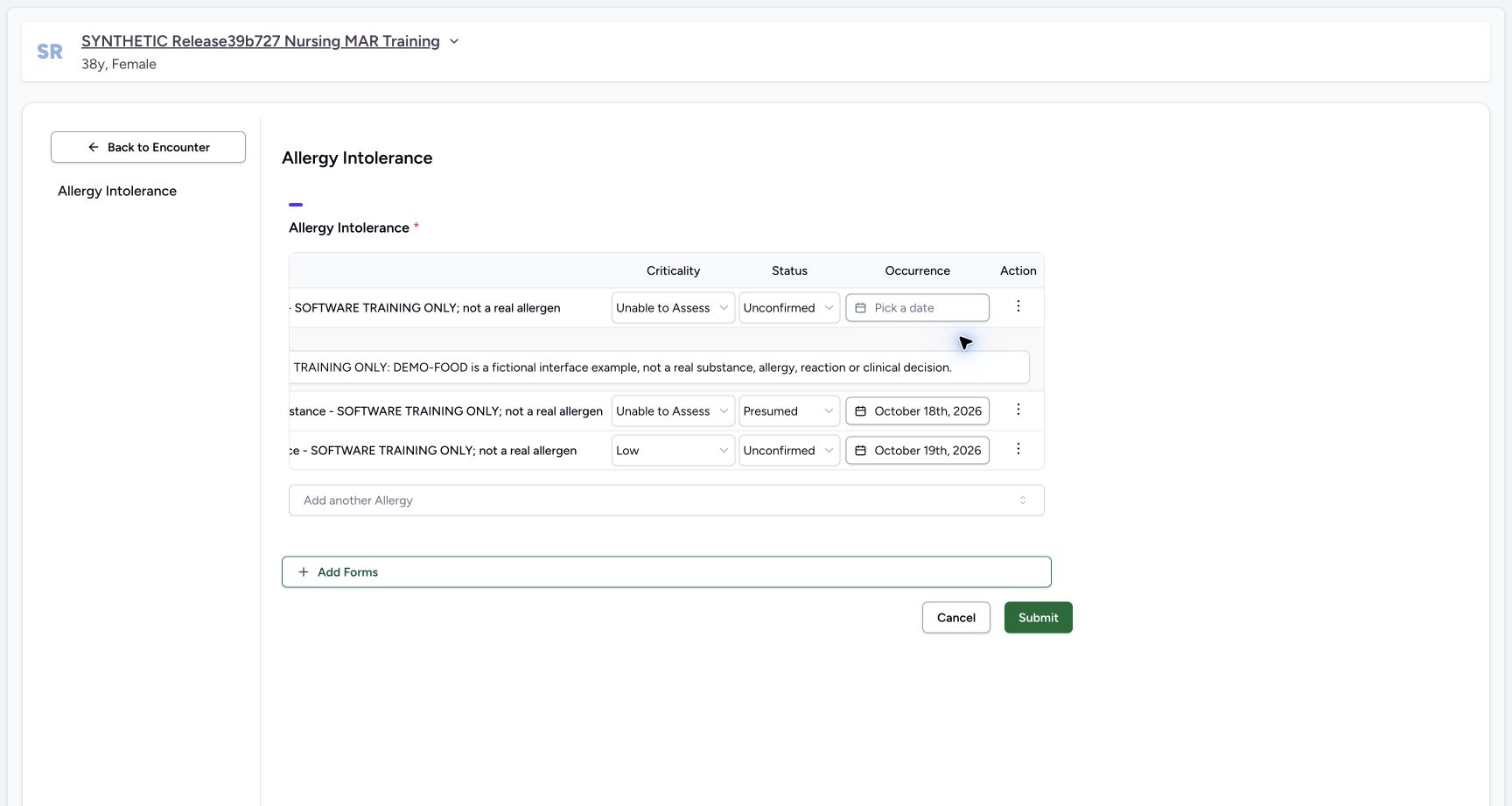 1
1Food note retained after show
Capture details
Observed committed 3dfb software on 20 October 2026. Captions distinguish discarded drafts, reviewed saves and read-only retained state. All pixels remain original.
Image SHA-256 9990a22131f4bfd0610d5af18ca27f261803b33c497e71bafb58d1cf26f72b1a
- Review the retained Food note: Confirm the existing Food note reappears after Show notes.
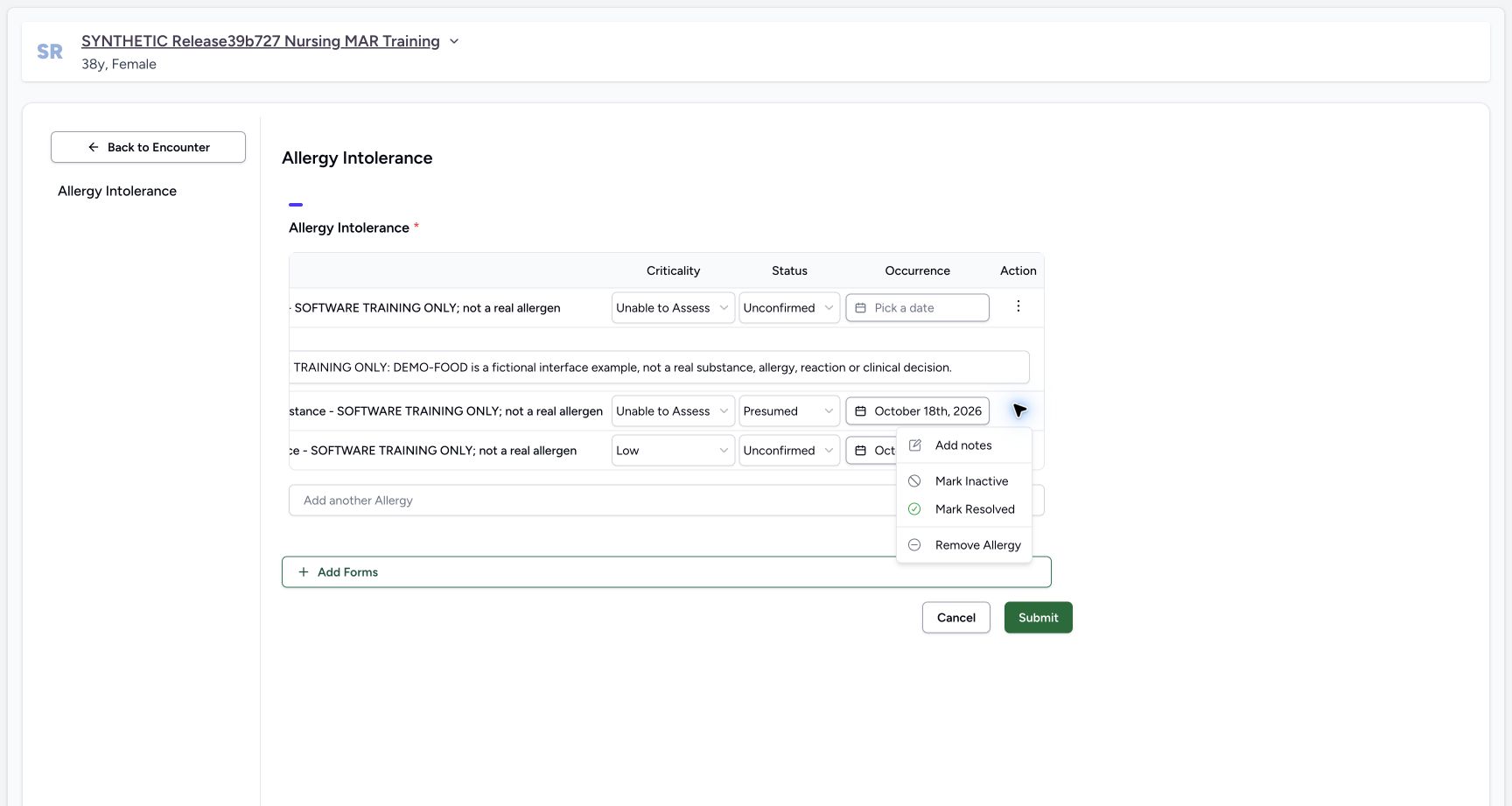
12. Enter the Environment note
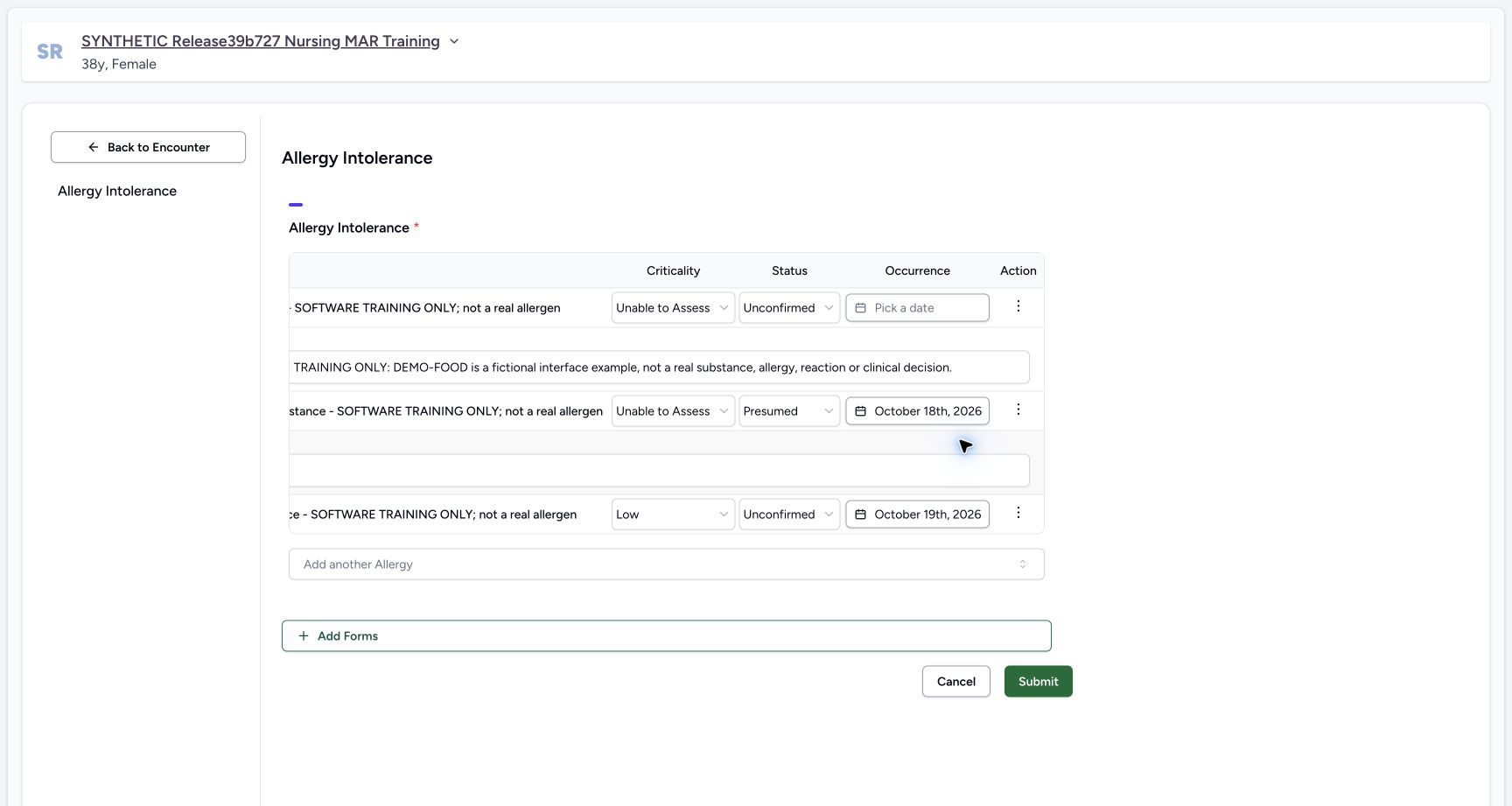
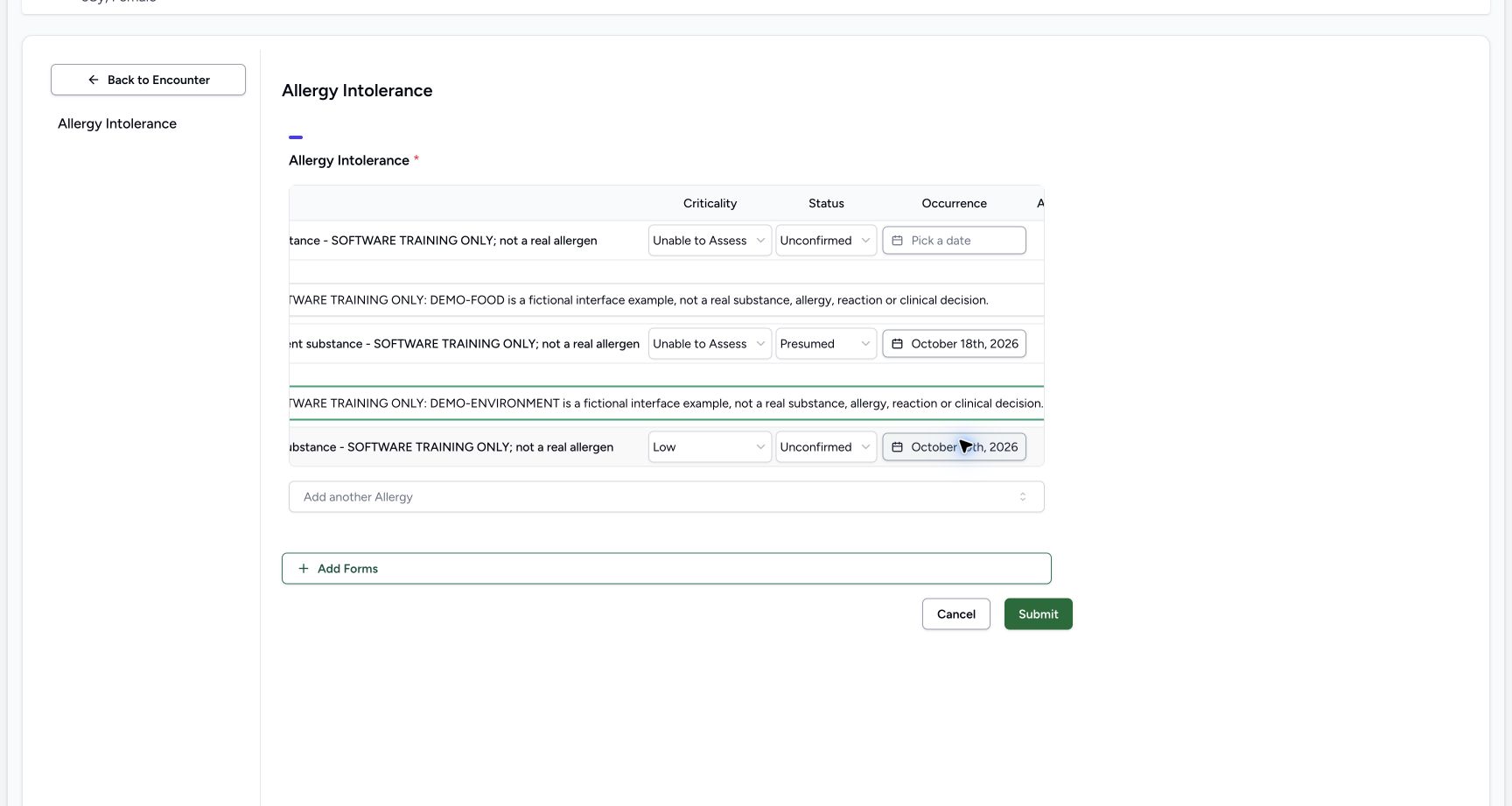
Open Environment Actions, choose Add notes and enter: SYNTHETIC SOFTWARE TRAINING ONLY: DEMO-ENVIRONMENT is a fictional interface example, not a real substance, allergy, reaction or clinical decision. The Food note stays retained above. The Environment input moves after the form scrolls, so follow the point on each separate image.
 12
12Environment add notes menu
Capture details
Observed committed 3dfb software on 20 October 2026. Captions distinguish discarded drafts, reviewed saves and read-only retained state. All pixels remain original.
Image SHA-256 2dab22dfba5849df145caf7cd055afdf6e0c98597a56568a644cc8e0a49c1626
- Environment Actions: The second-row control is shown open.
- Choose Add notes for Environment: Open the Environment note field.
 1
1Environment note field open
Capture details
Observed committed 3dfb software on 20 October 2026. Captions distinguish discarded drafts, reviewed saves and read-only retained state. All pixels remain original.
Image SHA-256 6b41888ab03be0792b1935c7cc3eea3c53a3c0a0526979c4973071bd8c198f1f
- Enter the Environment training note: Type the exact software-only Environment note in the empty second-row note field.
 1
1Environment note complete
Capture details
Observed committed 3dfb software on 20 October 2026. Captions distinguish discarded drafts, reviewed saves and read-only retained state. All pixels remain original.
Image SHA-256 a60cf04c35f10554d5a4defc4e39c479d2097ea46e87fea2a6dd35ef1c0a0c37
- Review the Environment note: Review the authored note at its actual post-scroll position.
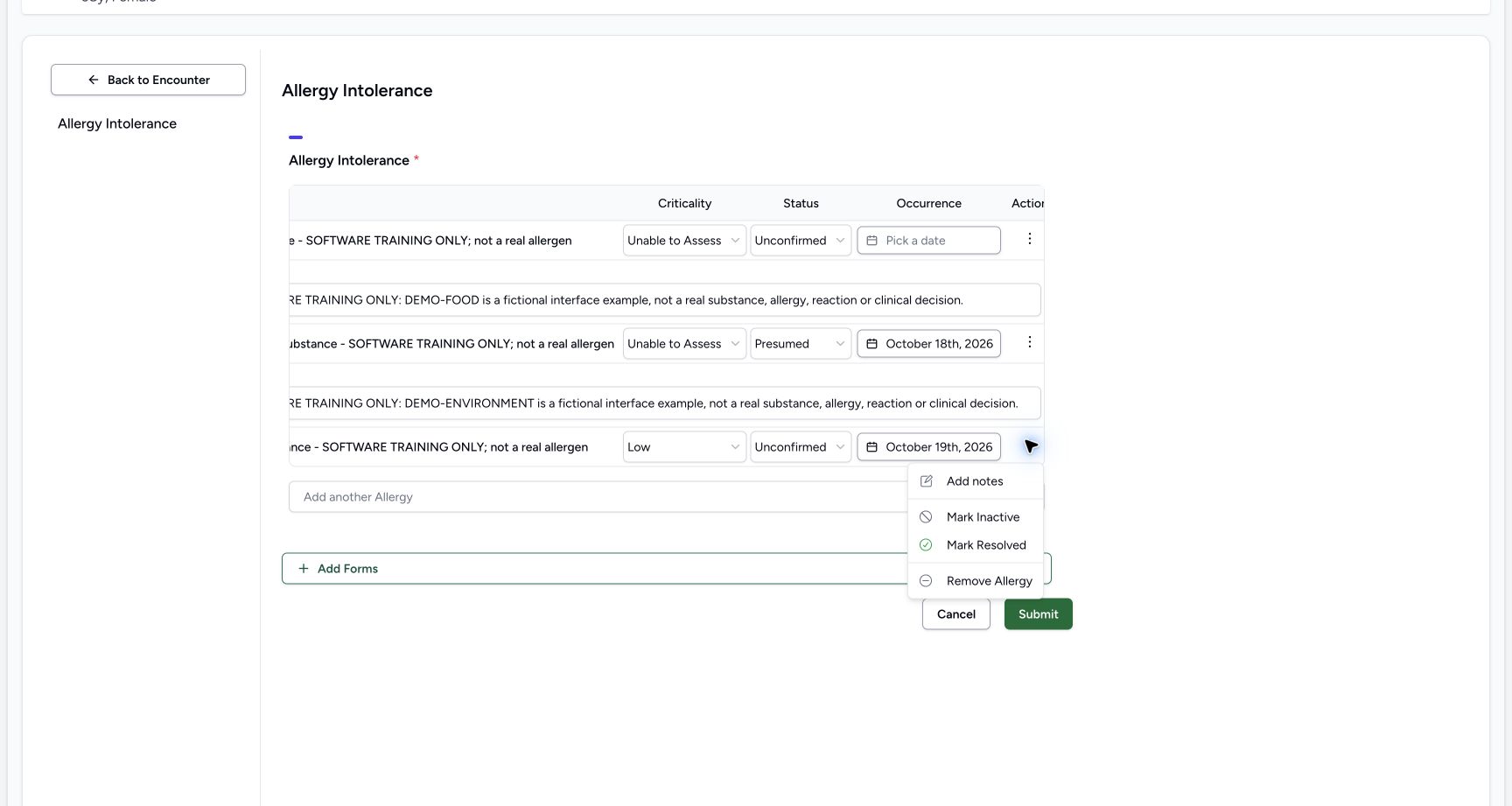
13. Enter the Biologic note
Open Biologic Actions, choose Add notes and enter: SYNTHETIC SOFTWARE TRAINING ONLY: DEMO-BIOLOGIC is a fictional interface example, not a real substance, allergy, reaction or clinical decision. Review its separate input while the other two notes remain. The images show clipped portions of the long text, not a claim that every character is pictured at once.
 12
12Biologic add notes menu
Capture details
Observed committed 3dfb software on 20 October 2026. Captions distinguish discarded drafts, reviewed saves and read-only retained state. All pixels remain original.
Image SHA-256 013b5e9b48829ef8f88b808485199eb381dc2377f5a9a9f9912733663a65a6f0
- Biologic Actions: The third-row Actions control is shown open.
- Choose Add notes for Biologic: Open the third-row note field.
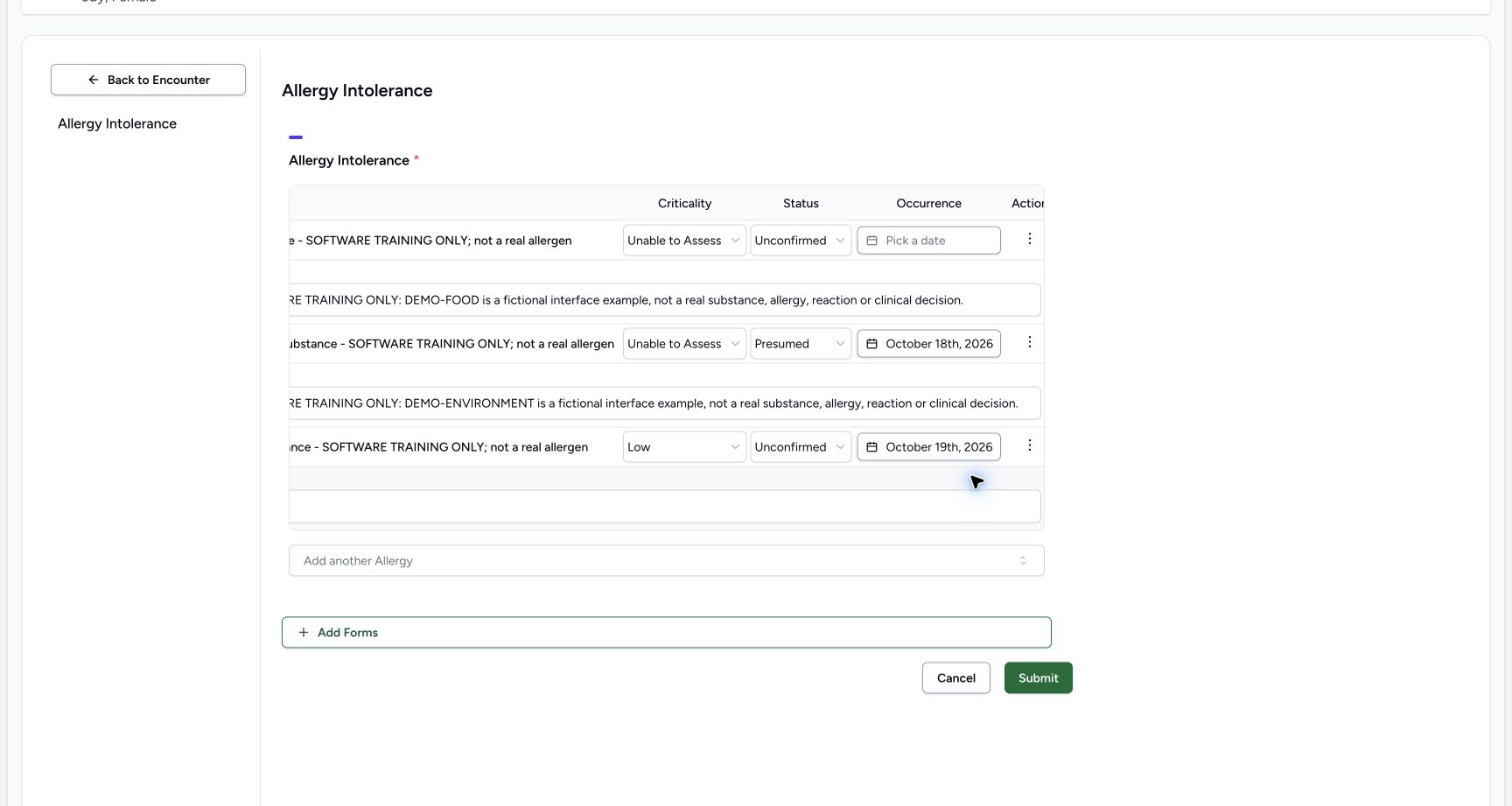 1
1Biologic note field open
Capture details
Observed committed 3dfb software on 20 October 2026. Captions distinguish discarded drafts, reviewed saves and read-only retained state. All pixels remain original.
Image SHA-256 7272c443a154b5fa1f9c3ed33a1f5a58aa12f8250d75a25c0f1de2a30502ce62
- Enter the Biologic training note: Type the exact software-only Biologic note into the empty third-row note field.
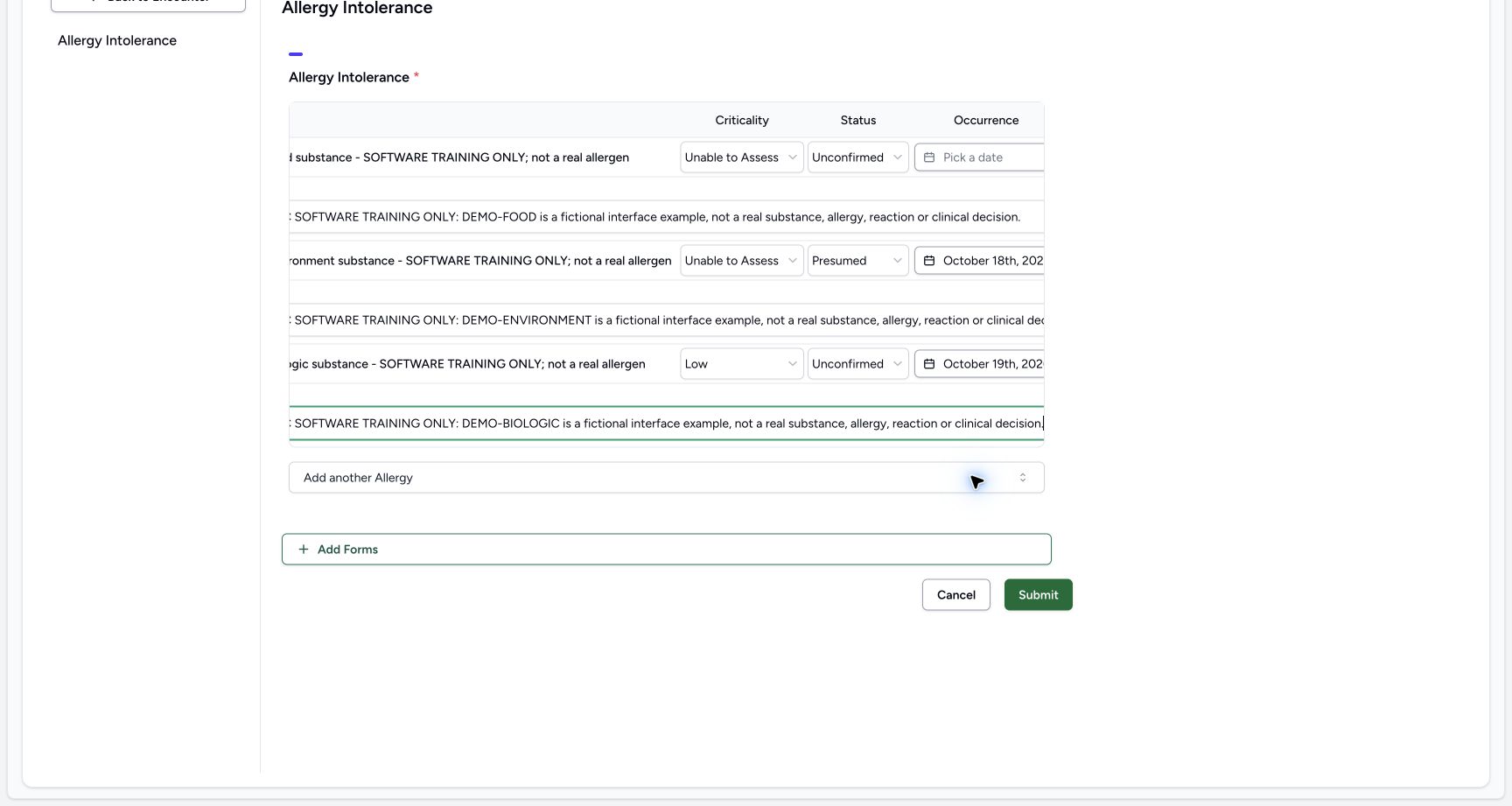 1
1Biologic note complete
Capture details
Observed committed 3dfb software on 20 October 2026. Captions distinguish discarded drafts, reviewed saves and read-only retained state. All pixels remain original.
Image SHA-256 b43f18c7fd106d569b2e193da7ae65d72326101c586c68b6b9266b4602c9056e
- Review the Biologic note: Read the authored third-row note at its actual post-scroll position.
14. Review the full draft and Submit once
Review the separate left and right views: Food/Unable to Assess/Unconfirmed/blank date; Environment/Unable to Assess/Presumed/18 October 2026; Biologic/Low/Unconfirmed/19 October 2026. Check each complete note. The saved summary will report Active separately from verification. Then choose Submit once. The two images are separate genuine views of the same reviewed draft, not one stitched screen.
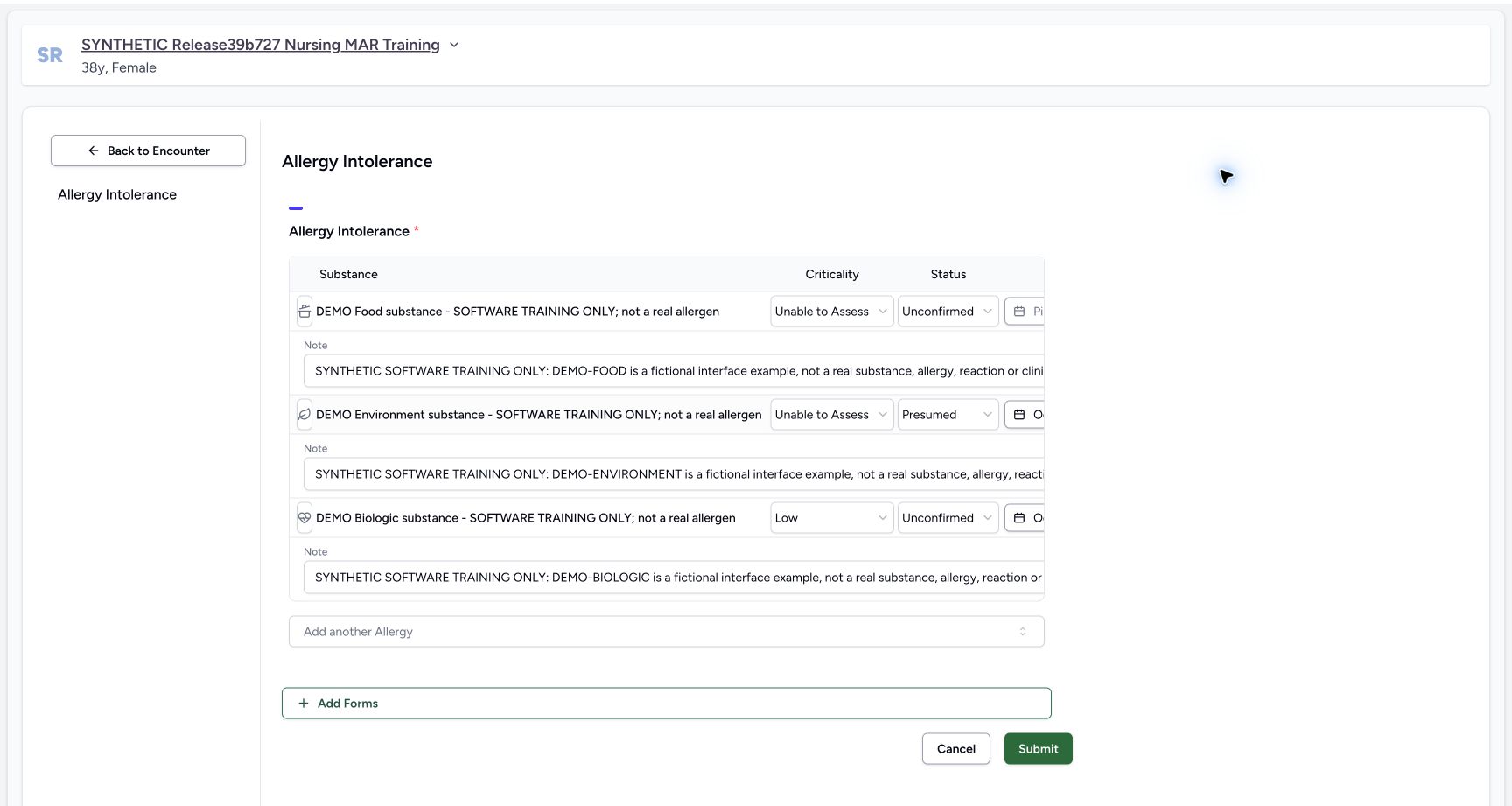 123456
Create final left context
Capture details
Observed committed 3dfb software on 20 October 2026. Captions distinguish discarded drafts, reviewed saves and read-only retained state. All pixels remain original.
Image SHA-256 7f956ec5fdfe15525b9a8a2dede8c177bf538b7aa8146cae2f7660e6e073fea0
- Review Food identity: Review Food identity
- Review Environment identity: Review Environment identity
- Review Biologic identity: Review Biologic identity
- Review Food note beginning: Review Food note beginning
- Review Environment note beginning: Review Environment note beginning
- Review Biologic note beginning: Review Biologic note beginning
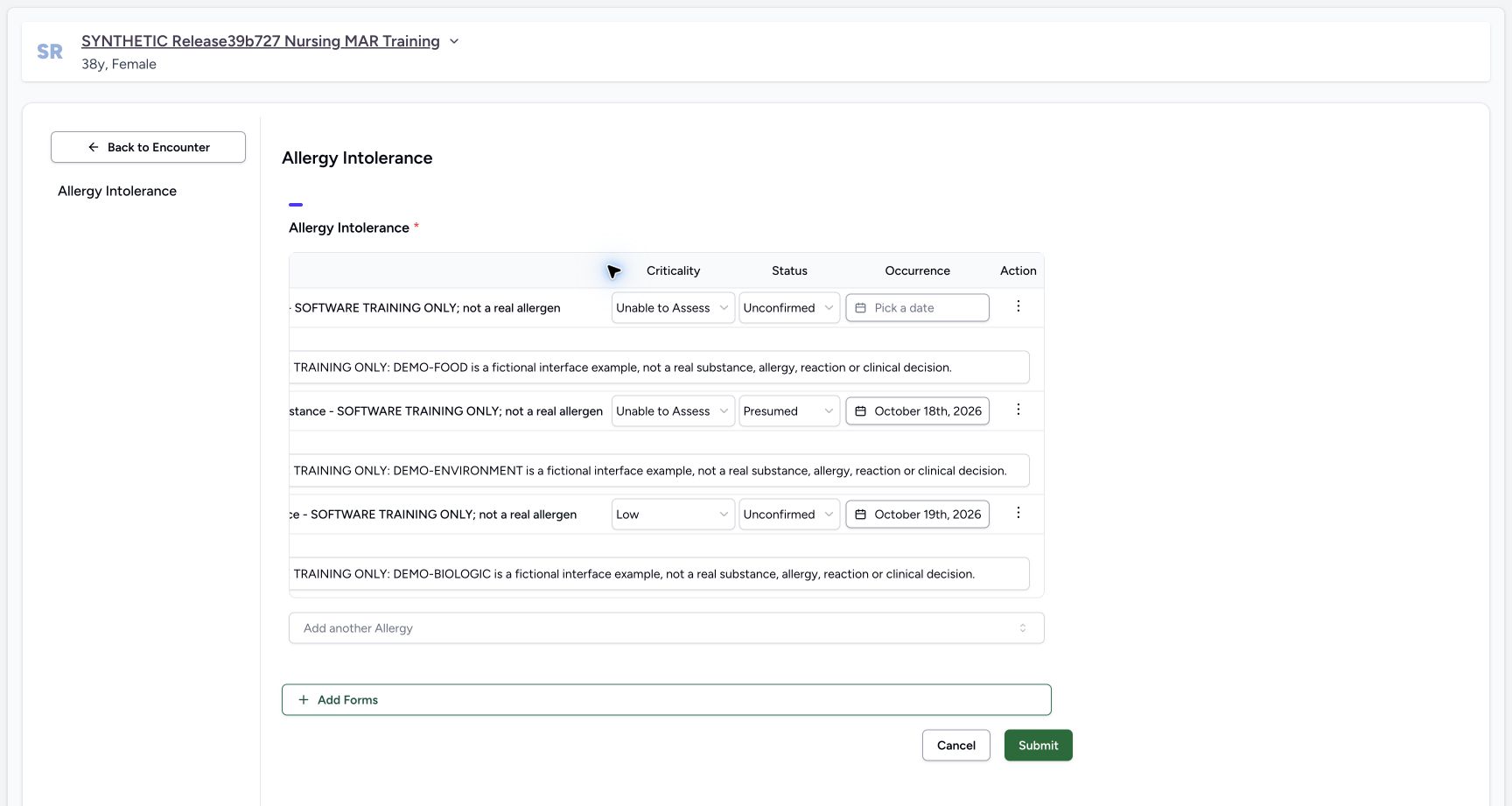 12345
12345Create final right dates and submit
Capture details
Observed committed 3dfb software on 20 October 2026. Captions distinguish discarded drafts, reviewed saves and read-only retained state. All pixels remain original.
Image SHA-256 63d579c6a3b87c9982c2b0cf25c098521ff9ea178c1d970e91db29bb0994c9f5
- Review Food date still blank: Food started blank and no clear-date operation occurred.
- Review Environment 18 October: Review Environment 18 October
- Review Biologic 19 October: Review Biologic 19 October
- Submit the reviewed three-row draft: This is the visible Submit control. It was used once only after the separate root-reviewed create-intent passed.
- Cancel control reference: Cancel is available for leaving the draft; it was not used for this final three-row save.
15. Check the saved result and reload
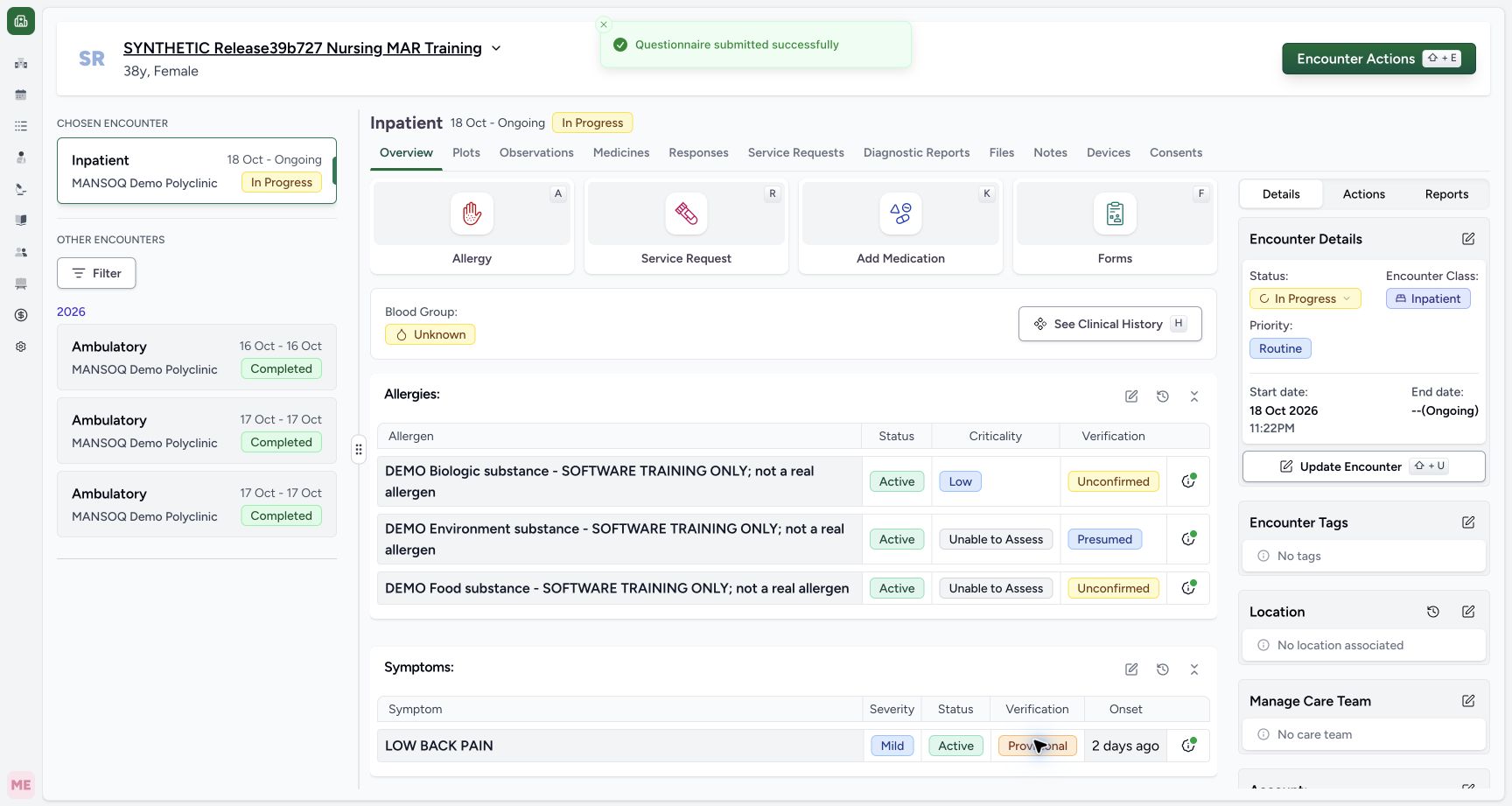
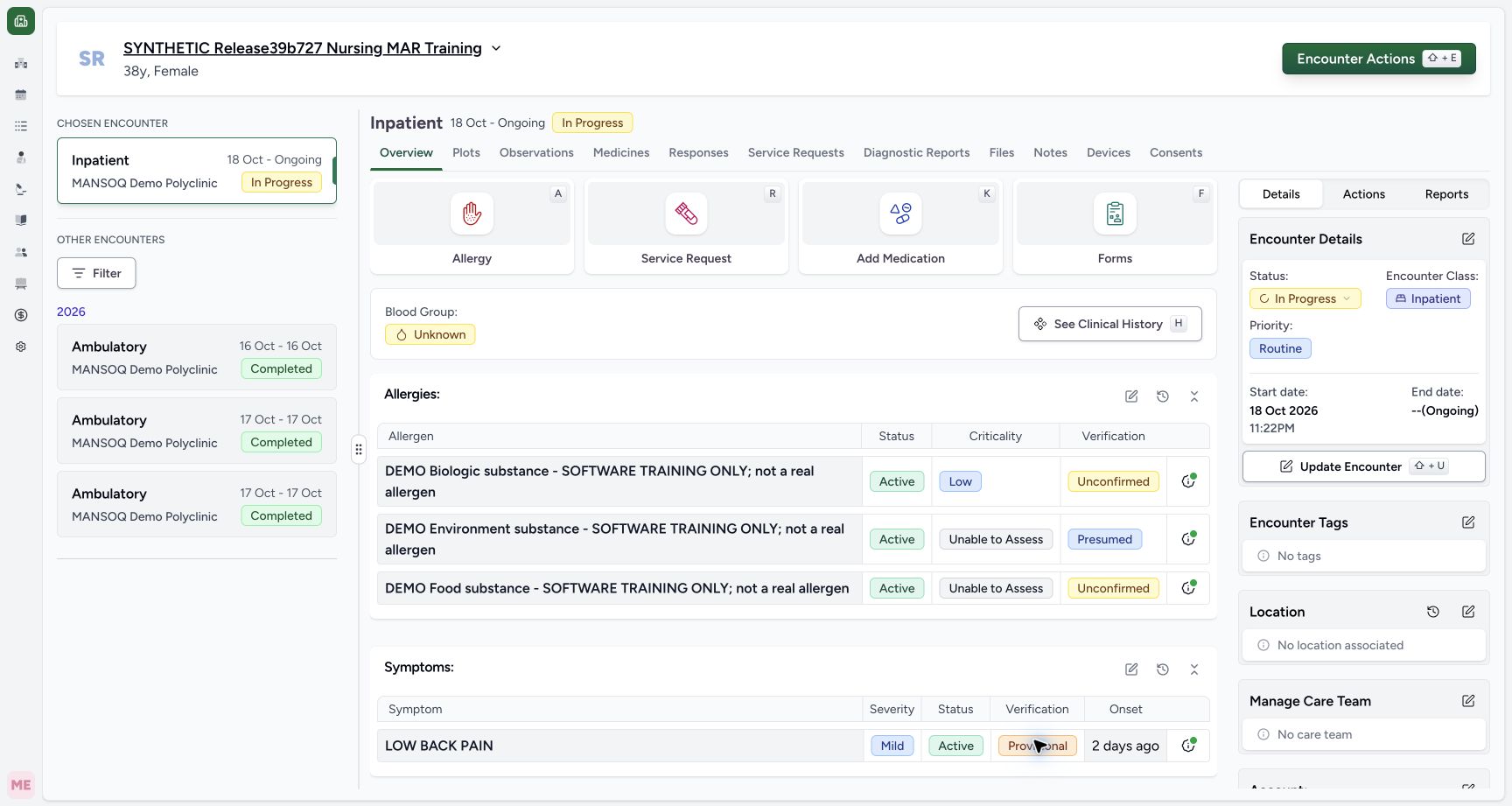
The success notice returns to Overview with all three Active entries. The saved order is Biologic, Environment, Food. After a normal reload, the same values remain. Has Note indicators show notes exist; dates and full note text are not pictured in this summary.
 1234
1234Created success overview
Capture details
Observed committed 3dfb software on 20 October 2026. Captions distinguish discarded drafts, reviewed saves and read-only retained state. All pixels remain original.
Image SHA-256 de78762512bba306ef8149980dde20879d9f7d876d08572cba975d76e2be6f3c
- Read the success notice: Questionnaire submitted successfully is visibly pictured.
- Review Biologic Low: The first summary row is the fictional Biologic entry with Active, Low and Unconfirmed.
- Review Environment Presumed: The second summary row retains Active, Unable to Assess and Presumed.
- Review Food Unconfirmed: The third summary row retains Active, Unable to Assess and Unconfirmed.
 123
123Created reloaded active allergies
Capture details
Observed committed 3dfb software on 20 October 2026. Captions distinguish discarded drafts, reviewed saves and read-only retained state. All pixels remain original.
Image SHA-256 8a739c622af75cdb1dc557eda85f4a6ecb66e307fc2eedadff3d01a937b7b6e7
- Review Biologic Low: The first summary row is the fictional Biologic entry with Active, Low and Unconfirmed.
- Review Environment Presumed: The second summary row retains Active, Unable to Assess and Presumed.
- Review Food Unconfirmed: The third summary row retains Active, Unable to Assess and Unconfirmed.
Separate category, criticality and verification
Category, Criticality and the form Status selector are different controls. The saved summary shows clinical Active separately from verification. These examples teach the controls using software-only terms; they are not real allergy, reaction or treatment decisions.
1234Food category and verification set
Capture details
Observed committed 3dfb software on 20 October 2026. Captions distinguish discarded drafts, reviewed saves and read-only retained state. All pixels remain original.
Image SHA-256 c78e1ac099b0405989139a1922cdac945837f35ead00c2d802f080e952312c5f
- Review the Food category: The Food icon is visible; the full AX names this closed control Food allergy.
- Review Food Criticality: Food now displays Unable to Assess.
- Review Food verification: Food now displays Unconfirmed. Dates and notes are not fully reviewed in this frame.
- Open Environment category: Use the category icon on the second Environment row.
12Biologic fields before date
Capture details
Observed committed 3dfb software on 20 October 2026. Captions distinguish discarded drafts, reviewed saves and read-only retained state. All pixels remain original.
Image SHA-256 dac3e8fb42e1a301cc8c73f63b817bb320ae29f8d26448f6f49e5ed86f2a86fe
- Review Biologic Low: Review Biologic Low
- Review Biologic Unconfirmed: Review Biologic Unconfirmed
1234Created success overview
Capture details
Observed committed 3dfb software on 20 October 2026. Captions distinguish discarded drafts, reviewed saves and read-only retained state. All pixels remain original.
Image SHA-256 de78762512bba306ef8149980dde20879d9f7d876d08572cba975d76e2be6f3c
- Read the success notice: Questionnaire submitted successfully is visibly pictured.
- Review Biologic Low: The first summary row is the fictional Biologic entry with Active, Low and Unconfirmed.
- Review Environment Presumed: The second summary row retains Active, Unable to Assess and Presumed.
- Review Food Unconfirmed: The third summary row retains Active, Unable to Assess and Unconfirmed.
Source evidence
Every citation uses this exact committed version. The private source repository requires access.
- repositories/platform/mansoq-web/src/components/Questionnaire/QuestionTypes/AllergyQuestion.tsx:84 ·
3dfb7c9f519fb5b4cd4452439f3c12346bf58319Source file checksum
254d481b67a09bf7bb33fc18e6e7d92b1f4fb54d4b67e5d4aa6bda8fde7cea96 - repositories/platform/mansoq-web/src/components/Questionnaire/structured/handlers.ts:30 ·
3dfb7c9f519fb5b4cd4452439f3c12346bf58319Source file checksum
459ade48f77316279ab2978dc7b4466cb96acb8223c61b9a1f87ca9973be7c7f - repositories/platform/mansoq-web/src/components/Patient/allergy/list.tsx:88 ·
3dfb7c9f519fb5b4cd4452439f3c12346bf58319Source file checksum
bc8ef47eb25cf88a026260eb0bcd989b0f93cfae23acf9ecb7d35e5ffbb82fd7 - repositories/platform/mansoq-web/src/components/Patient/allergy/AllergyTable.tsx:183 ·
3dfb7c9f519fb5b4cd4452439f3c12346bf58319Source file checksum
90ad547be1793fbd6b7341e9ffa497337ecb227a623c95444d85c9e980dd2a84 - repositories/platform/mansoq-web/src/components/Patient/Common/ClinicalInformationRow.tsx:92 ·
3dfb7c9f519fb5b4cd4452439f3c12346bf58319Source file checksum
087ba137455f77d10d911c939b4123d81561668f5ec15f265af7f13d7ba72975 - repositories/platform/mansoq-web/src/components/Questionnaire/ValueSetSearchContent.tsx:334 ·
3dfb7c9f519fb5b4cd4452439f3c12346bf58319Source file checksum
d6adc1b84f5956cd554042aa8579a0a83b9a13c5337c64bd0ee6b7f9af5b8019 - repositories/platform/mansoq-web/src/components/ui/combined-date-picker.tsx:54 ·
3dfb7c9f519fb5b4cd4452439f3c12346bf58319Source file checksum
272caeefe90613a5018d1ff31b46cf3d37e557cbe988450a99a2c22da2522d04 - repositories/platform/mansoq-web/src/Utils/utils.ts:81 ·
3dfb7c9f519fb5b4cd4452439f3c12346bf58319Source file checksum
42db3c7a21342795ae94608ded05958c34844fb0004399c4360b94b45bde2357 - repositories/platform/mansoq-web/src/components/Questionnaire/QuestionnaireForm.tsx:587 ·
3dfb7c9f519fb5b4cd4452439f3c12346bf58319Source file checksum
ee6c2195f13e48f0896a2d3da566c2f2a67910adad08894df6b77862f9cfdeec - repositories/platform/mansoq-web/src/types/emr/allergyIntolerance/allergyIntolerance.ts:4 ·
3dfb7c9f519fb5b4cd4452439f3c12346bf58319Source file checksum
af5b8029b7b8cfc769fe108a02fa9566bf8df23723fc05b11bc9ec03461862f2 - repositories/platform/mansoq-web/src/types/emr/allergyIntolerance/allergyIntoleranceApi.ts:6 ·
3dfb7c9f519fb5b4cd4452439f3c12346bf58319Source file checksum
508e7c035908d31af3e1dde061e9cb25f6335492960a9a22bad52454a5c62c63 - repositories/platform/mansoq-core/mansoq/emr/api/viewsets/allergy_intolerance.py:81 ·
3dfb7c9f519fb5b4cd4452439f3c12346bf58319Source file checksum
d9ae1ae9e05ebe02fa61b89e71d10b371c7ca07d020d74875f449d80ce85ed54 - repositories/platform/mansoq-core/mansoq/emr/api/viewsets/base.py:269 ·
3dfb7c9f519fb5b4cd4452439f3c12346bf58319Source file checksum
6a287dd315b8a4957b29c58e4bbc1bef7b8d9d257f9149f93045ff0adbdcae6c - repositories/platform/mansoq-core/mansoq/emr/resources/allergy_intolerance/spec.py:28 ·
3dfb7c9f519fb5b4cd4452439f3c12346bf58319Source file checksum
54dfb856b2c10739e7a5a0d3761d501d25dcb0dca8d063412fd9d52eaff1fc06 - repositories/platform/mansoq-core/mansoq/emr/models/allergy_intolerance.py:16 ·
3dfb7c9f519fb5b4cd4452439f3c12346bf58319Source file checksum
dd9c7b0b3eaa442d09ebaa3cb3a665f1fab0a74792def3d7c76a3139dec0ba9f - repositories/platform/mansoq-core/mansoq/security/authorization/patient.py:58 ·
3dfb7c9f519fb5b4cd4452439f3c12346bf58319Source file checksum
45de75f24e42fa30316a96efb92b23c577e2c3831e17ec96e7ff2c73d0d1973d - repositories/platform/mansoq-core/mansoq/security/authorization/encounter.py:97 ·
3dfb7c9f519fb5b4cd4452439f3c12346bf58319Source file checksum
0e7ff8afcfb57b2371201e16ee6fac26125d6e686af66ed7edd95e49bc07de78 - repositories/platform/mansoq-core/mansoq/emr/models/valueset.py:40 ·
3dfb7c9f519fb5b4cd4452439f3c12346bf58319Source file checksum
36e46250876bf40cc74268c495bfd96b75784b7dc067a514ca0e572e8107a68d - repositories/platform/mansoq-core/mansoq/emr/utils/local_terminology.py:21 ·
3dfb7c9f519fb5b4cd4452439f3c12346bf58319Source file checksum
d1a9126bcc12e59f1efa2a4fa48585c2c98921f9e0f098b815b7ac8d3525837e - repositories/platform/mansoq-core/config/settings/base.py:55 ·
3dfb7c9f519fb5b4cd4452439f3c12346bf58319Source file checksum
34f8931a2bae5a35f45bf6247695ee6bac09ccada3be766773861b4245817d6f - repositories/platform/mansoq-core/mansoq/emr/api/viewsets/valueset.py:223 ·
3dfb7c9f519fb5b4cd4452439f3c12346bf58319Source file checksum
772841c50105d523530a79f758964537988b9366e3a8fb7ec90cef1fa3b13fe2 - repositories/platform/mansoq-core/mansoq/emr/fhir/resources/code_concept.py:24 ·
3dfb7c9f519fb5b4cd4452439f3c12346bf58319Source file checksum
0ca1b831d57391f8a47ab7dd44acddcfdba9f11ea2429f689f95467755105a6d - repositories/platform/mansoq-core/config/auth_views.py:89 ·
3dfb7c9f519fb5b4cd4452439f3c12346bf58319Source file checksum
2f6466c03f5102a08bf18968bf240dcd34f8c9f9b69311b0499e1c32765cb6e1 - repositories/platform/mansoq-web/src/pages/Encounters/tabs/overview/quick-actions.tsx:55 ·
3dfb7c9f519fb5b4cd4452439f3c12346bf58319Source file checksum
555331d2be0793af35974e2ac2b3642f222ebbb49ddbec83bdb74331a7d963d4 - repositories/platform/mansoq-web/src/components/Questionnaire/data/StructuredFormData.tsx:41 ·
3dfb7c9f519fb5b4cd4452439f3c12346bf58319Source file checksum
434386c27b8e583e1dbd0a6f506250e7a0fb3640963c572445123bae62880f0f