 MANSOQ
 Clinical care · VERSION 3dfb7c9f
Handle a prescription that cannot be copied into a medication statement
Recognise a missing-medication-code refusal, verify that no statement row was added, inspect the retained history and leave without submitting.
Nurse
 12
12Settled empty form after the refused copy
Capture details
Observed committed 3dfb software on 20 October 2026. Original pixels and capture times retained; one Add Selected refusal, no Submit.
Image SHA-256 5b5ea23ec8a95954c10ae4444273a00eb6e2f3d1bc7bd2f2605673dadf25b0e1
- Verify no statement row was added: The fully settled form is empty after the refused copy.
- Reopen Medication History: Open the selector again to check retained history and reset selection.
12 of 12 content blocks have reviewed image alignment.
Before you begin
- Use an authorised Nurse account and verify the assigned fictional patient and selected ongoing encounter. This example uses an In Progress Inpatient encounter in the synthetic Polyclinic.
 123
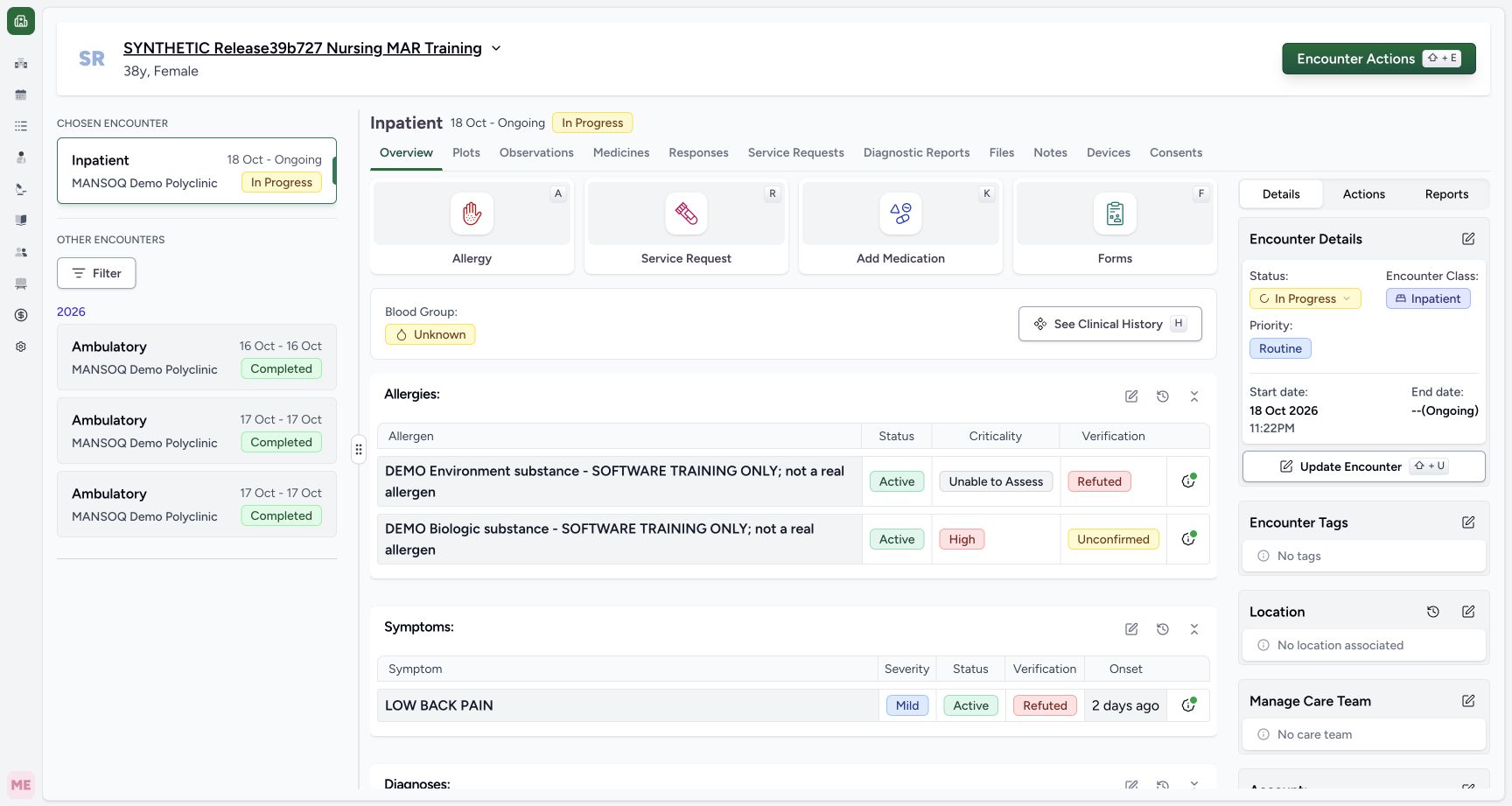
123Recorded release 3dfb7c9f · 2026-10-20T07:44:57.856Z · 1728 × 921 Nurse encounter Overview before opening Forms
Capture details
Observed committed 3dfb software on 20 October 2026. Original pixels and capture times retained; one Add Selected refusal, no Submit.
Image SHA-256
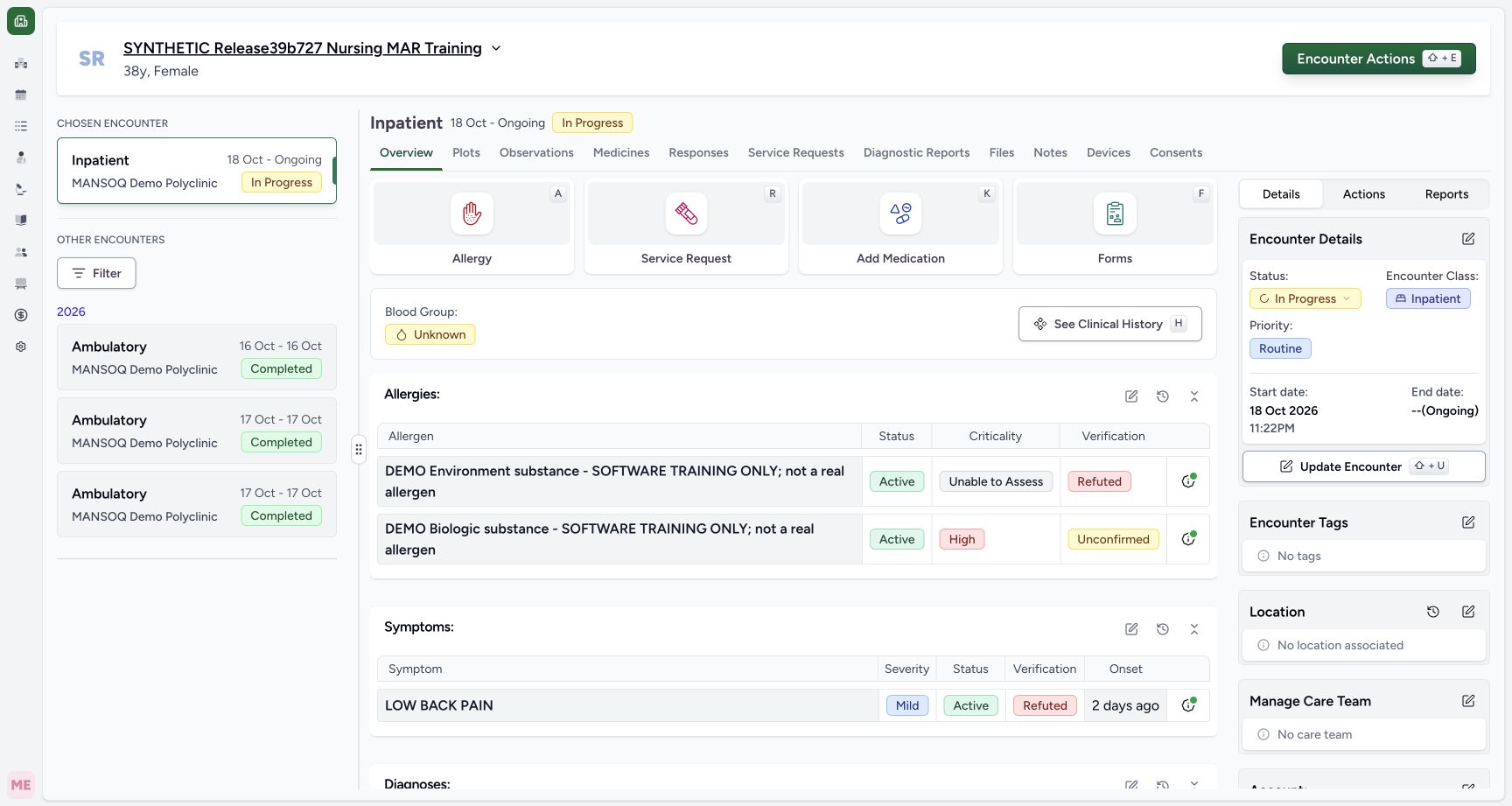
591d4ee248c2c29db4a8f665a876f74d20dee53ce0d202adc44f6b698d6a0522- Check the fictional patient: Verify the synthetic training patient banner before opening a form.
- Check the selected ongoing encounter: The selected Inpatient encounter is In Progress.
- Open Forms: Choose the encounter’s Forms tile.
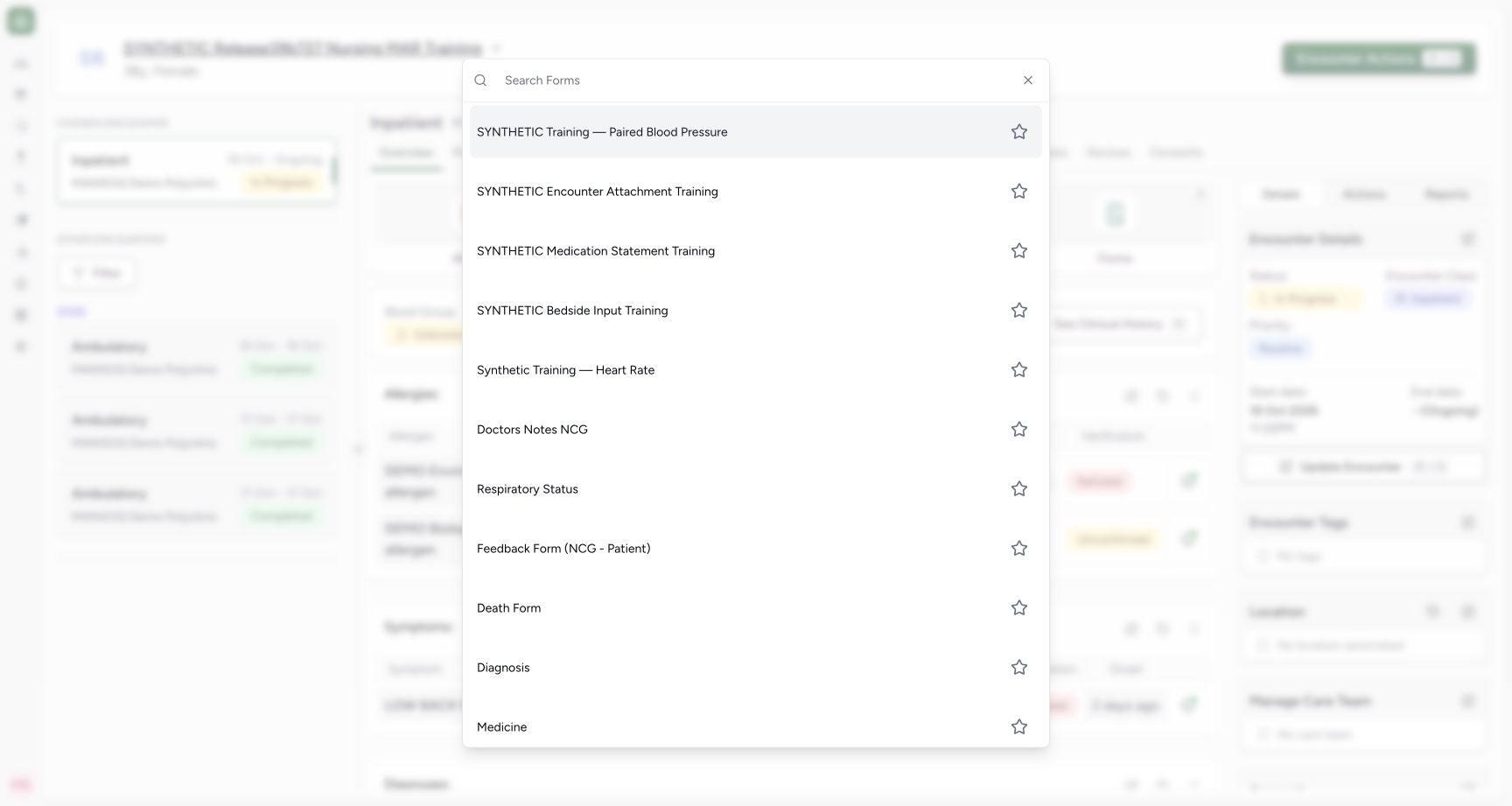
- Use the installed SYNTHETIC Medication Statement Training form. This exercise uses a fictional inventory-product prescription to demonstrate a copy refusal; its example doses and dates are not care instructions.
 1
1Recorded release 3dfb7c9f · 2026-10-20T07:45:03.667Z · 1728 × 921 Installed medication statement training form
Capture details
Observed committed 3dfb software on 20 October 2026. Original pixels and capture times retained; one Add Selected refusal, no Submit.
Image SHA-256
e95d5f402d739c23e33245a7b6589e4421e66a1ce2e716689f4bdb52411796c0- Choose SYNTHETIC Medication Statement Training: Select this installed reported-medication form; do not use Add Medication to prescribe.
 1234567
Recorded release 3dfb7c9f · 2026-10-20T07:47:41.024Z · 1728 × 921 Past Prescriptions with no selection
Capture details
Observed committed 3dfb software on 20 October 2026. Original pixels and capture times retained; one Add Selected refusal, no Submit.
Image SHA-256
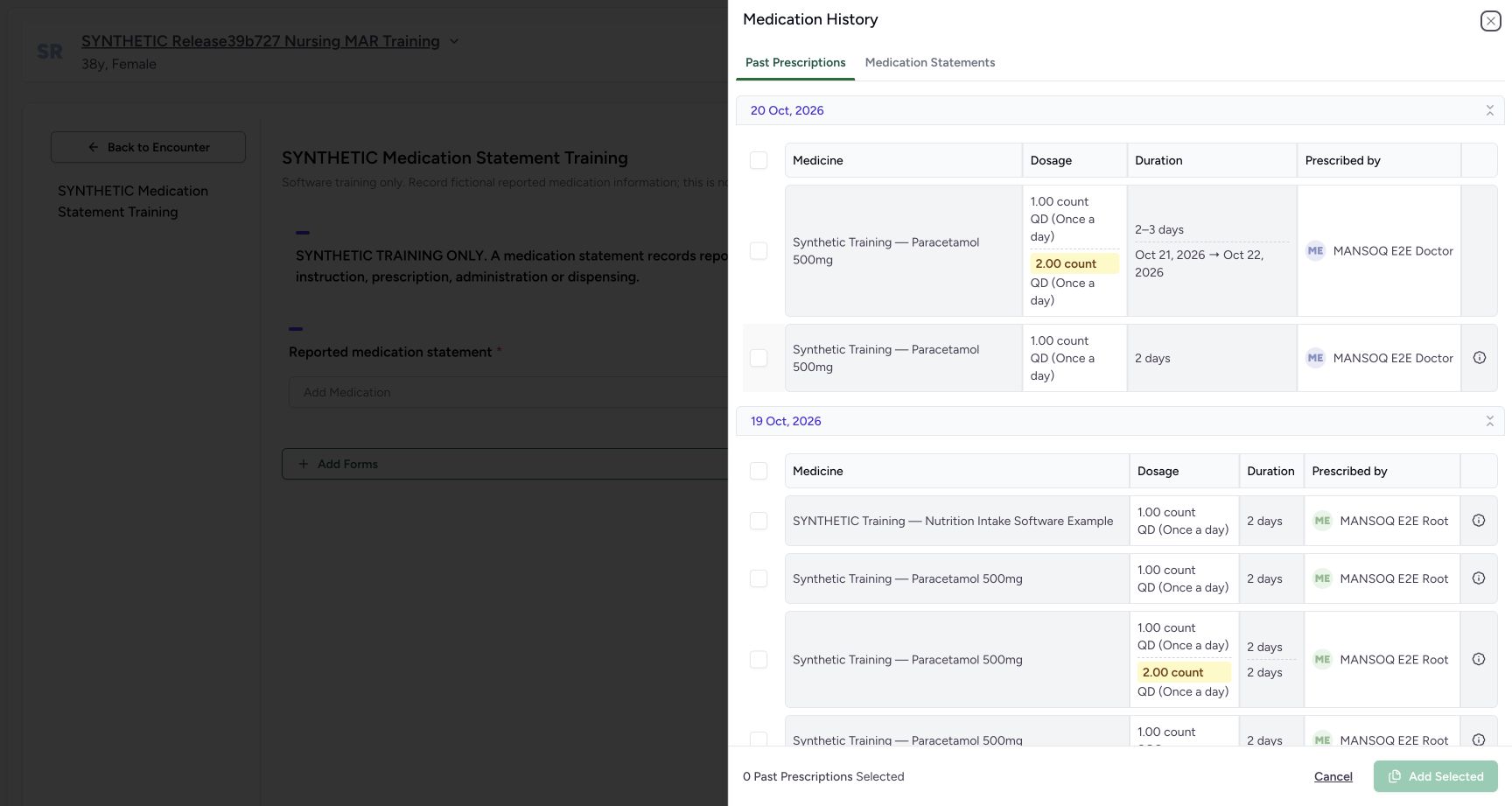
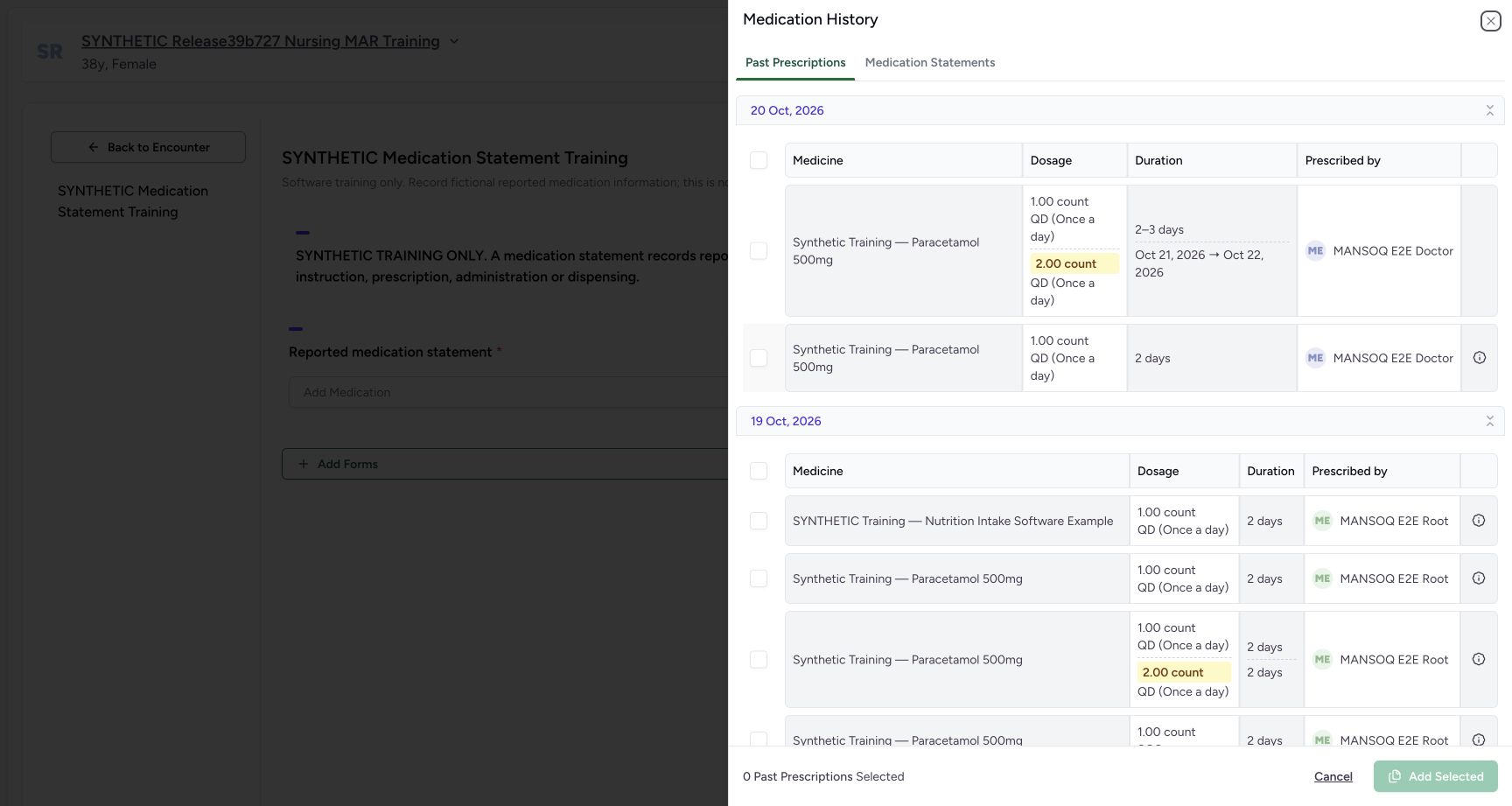
ff7ec0a09c020585338042ddaebafbd893d6969cd83d8bb666af242ea89713b6- Keep Past Prescriptions selected: Use the prescription-history tab, not Medication Statements.
- Read the 20 Oct, 2026 group: This selector groups by creation day, not the earlier Medicines card’s time.
- Identify the synthetic product: Find Synthetic Training — Paracetamol 500mg in the first row of this group.
- Check the two dosage lines: The distinctive row has 1.00 count and 2.00 count, each QD.
- Check both duration types: It has 2–3 days plus October 21→22, 2026 fixed dates.
- Check the Doctor prescriber: The row identifies MANSOQ E2E Doctor.
- Select only this prescription row: Use this individual row checkbox, not the group checkbox above.
- A reported medication statement is separate from a prescription, dispensing or administration. This walkthrough attempts one history copy and then leaves with Cancel; do not use Submit.
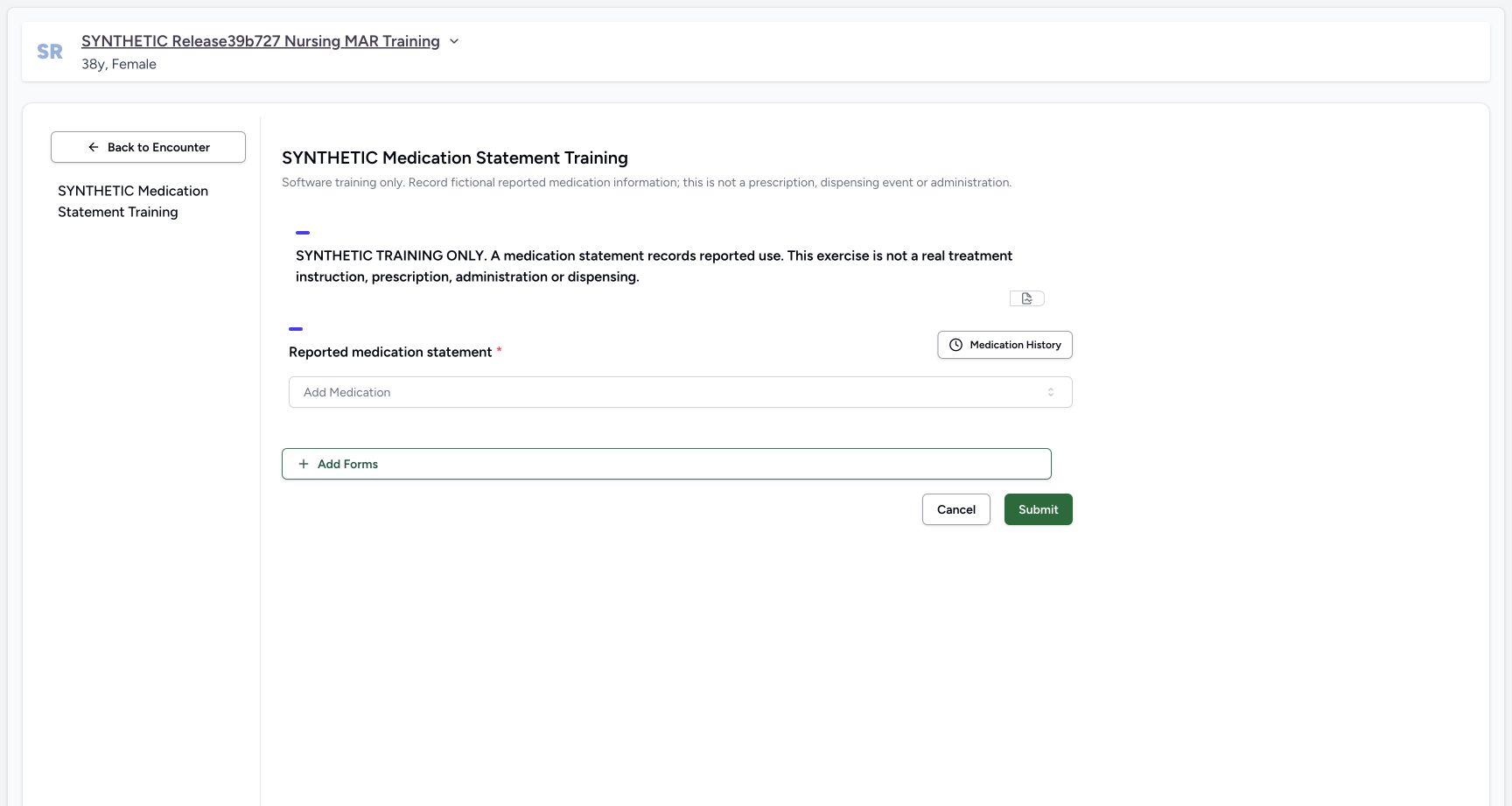 123
123Recorded release 3dfb7c9f · 2026-10-20T07:47:30.813Z · 1728 × 921 Empty reported medication statement form
Capture details
Observed committed 3dfb software on 20 October 2026. Original pixels and capture times retained; one Add Selected refusal, no Submit.
Image SHA-256
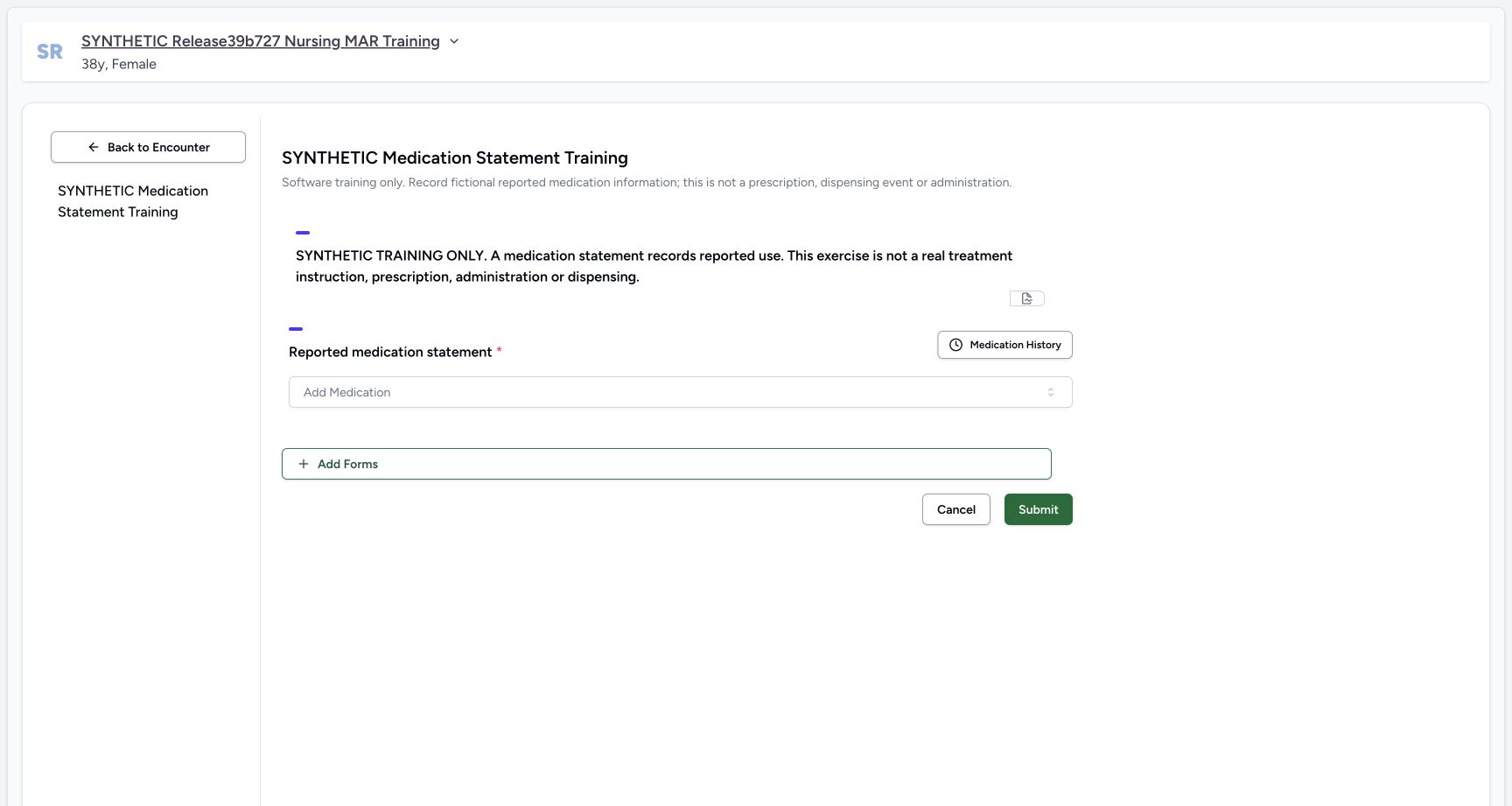
5b5ea23ec8a95954c10ae4444273a00eb6e2f3d1bc7bd2f2605673dadf25b0e1- Read the reported-use notice: A medication statement records reported information, separate from prescribing, dispensing and administration.
- Check the initially empty statement area: No medication row is present in this form.
- Open Medication History: Use the history button to inspect a past prescription for this software exercise.
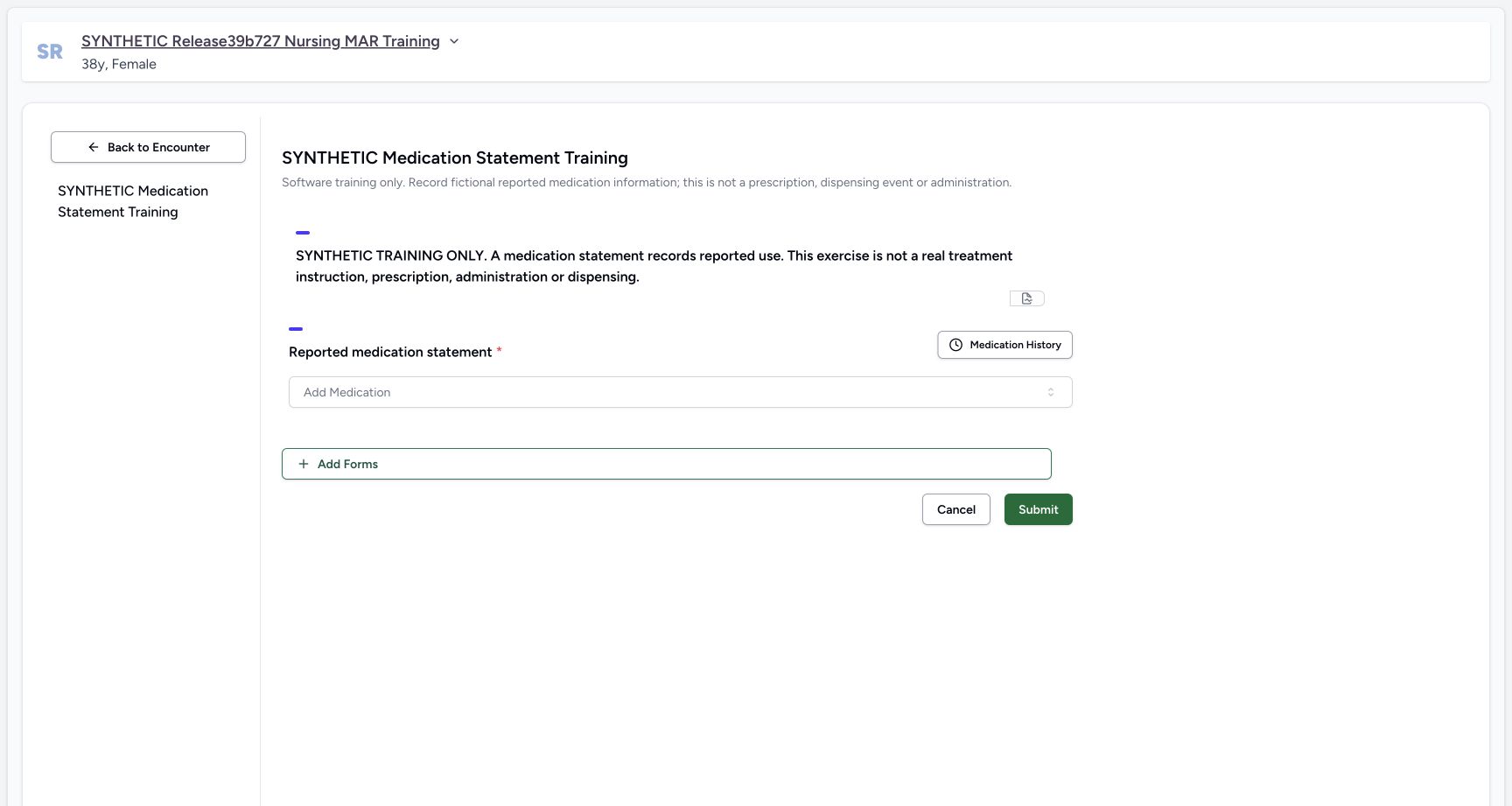 12
12Recorded release 3dfb7c9f · 2026-10-20T07:48:15.355Z · 1728 × 921 Empty form before Cancel
Capture details
Observed committed 3dfb software on 20 October 2026. Original pixels and capture times retained; one Add Selected refusal, no Submit.
Image SHA-256
5b5ea23ec8a95954c10ae4444273a00eb6e2f3d1bc7bd2f2605673dadf25b0e1- Recheck the empty form after history Cancel: The form still has no imported medication row.
- Choose the form’s Cancel: This returns to the encounter without using Submit.
1. Open the reported medication statement form
On Overview check the patient banner and selected In Progress encounter. Select Forms, then choose SYNTHETIC Medication Statement Training. Read the software-only notice and check that the reported medication statement area is empty.
123Nurse encounter Overview before opening Forms
Capture details
Observed committed 3dfb software on 20 October 2026. Original pixels and capture times retained; one Add Selected refusal, no Submit.
Image SHA-256 591d4ee248c2c29db4a8f665a876f74d20dee53ce0d202adc44f6b698d6a0522
- Check the fictional patient: Verify the synthetic training patient banner before opening a form.
- Check the selected ongoing encounter: The selected Inpatient encounter is In Progress.
- Open Forms: Choose the encounter’s Forms tile.
1Installed medication statement training form
Capture details
Observed committed 3dfb software on 20 October 2026. Original pixels and capture times retained; one Add Selected refusal, no Submit.
Image SHA-256 e95d5f402d739c23e33245a7b6589e4421e66a1ce2e716689f4bdb52411796c0
- Choose SYNTHETIC Medication Statement Training: Select this installed reported-medication form; do not use Add Medication to prescribe.
123Empty reported medication statement form
Capture details
Observed committed 3dfb software on 20 October 2026. Original pixels and capture times retained; one Add Selected refusal, no Submit.
Image SHA-256 5b5ea23ec8a95954c10ae4444273a00eb6e2f3d1bc7bd2f2605673dadf25b0e1
- Read the reported-use notice: A medication statement records reported information, separate from prescribing, dispensing and administration.
- Check the initially empty statement area: No medication row is present in this form.
- Open Medication History: Use the history button to inspect a past prescription for this software exercise.
2. Find the intended prescription in Medication History
Select Medication History and keep Past Prescriptions selected. In the 20 Oct, 2026 group identify Synthetic Training — Paracetamol 500mg prescribed by MANSOQ E2E Doctor. Use its distinctive two instruction lines: 1.00 count/QD/2–3 days, and 2.00 count/QD/October 21–22, 2026. This history groups entries by day; do not expect the earlier Medicines card’s 10:26 AM label here.
123Empty reported medication statement form
Capture details
Observed committed 3dfb software on 20 October 2026. Original pixels and capture times retained; one Add Selected refusal, no Submit.
Image SHA-256 5b5ea23ec8a95954c10ae4444273a00eb6e2f3d1bc7bd2f2605673dadf25b0e1
- Read the reported-use notice: A medication statement records reported information, separate from prescribing, dispensing and administration.
- Check the initially empty statement area: No medication row is present in this form.
- Open Medication History: Use the history button to inspect a past prescription for this software exercise.
1234567Past Prescriptions with no selection
Capture details
Observed committed 3dfb software on 20 October 2026. Original pixels and capture times retained; one Add Selected refusal, no Submit.
Image SHA-256 ff7ec0a09c020585338042ddaebafbd893d6969cd83d8bb666af242ea89713b6
- Keep Past Prescriptions selected: Use the prescription-history tab, not Medication Statements.
- Read the 20 Oct, 2026 group: This selector groups by creation day, not the earlier Medicines card’s time.
- Identify the synthetic product: Find Synthetic Training — Paracetamol 500mg in the first row of this group.
- Check the two dosage lines: The distinctive row has 1.00 count and 2.00 count, each QD.
- Check both duration types: It has 2–3 days plus October 21→22, 2026 fixed dates.
- Check the Doctor prescriber: The row identifies MANSOQ E2E Doctor.
- Select only this prescription row: Use this individual row checkbox, not the group checkbox above.
3. Select only that row and attempt the copy
Select the individual checkbox beside that two-step prescription, leaving the group checkbox and other rows alone. Check that the footer reads 1 Past Prescriptions Selected. Choose Add Selected once. This control attempts to add a statement draft; it does not submit the form.
1234567Past Prescriptions with no selection
Capture details
Observed committed 3dfb software on 20 October 2026. Original pixels and capture times retained; one Add Selected refusal, no Submit.
Image SHA-256 ff7ec0a09c020585338042ddaebafbd893d6969cd83d8bb666af242ea89713b6
- Keep Past Prescriptions selected: Use the prescription-history tab, not Medication Statements.
- Read the 20 Oct, 2026 group: This selector groups by creation day, not the earlier Medicines card’s time.
- Identify the synthetic product: Find Synthetic Training — Paracetamol 500mg in the first row of this group.
- Check the two dosage lines: The distinctive row has 1.00 count and 2.00 count, each QD.
- Check both duration types: It has 2–3 days plus October 21→22, 2026 fixed dates.
- Check the Doctor prescriber: The row identifies MANSOQ E2E Doctor.
- Select only this prescription row: Use this individual row checkbox, not the group checkbox above.
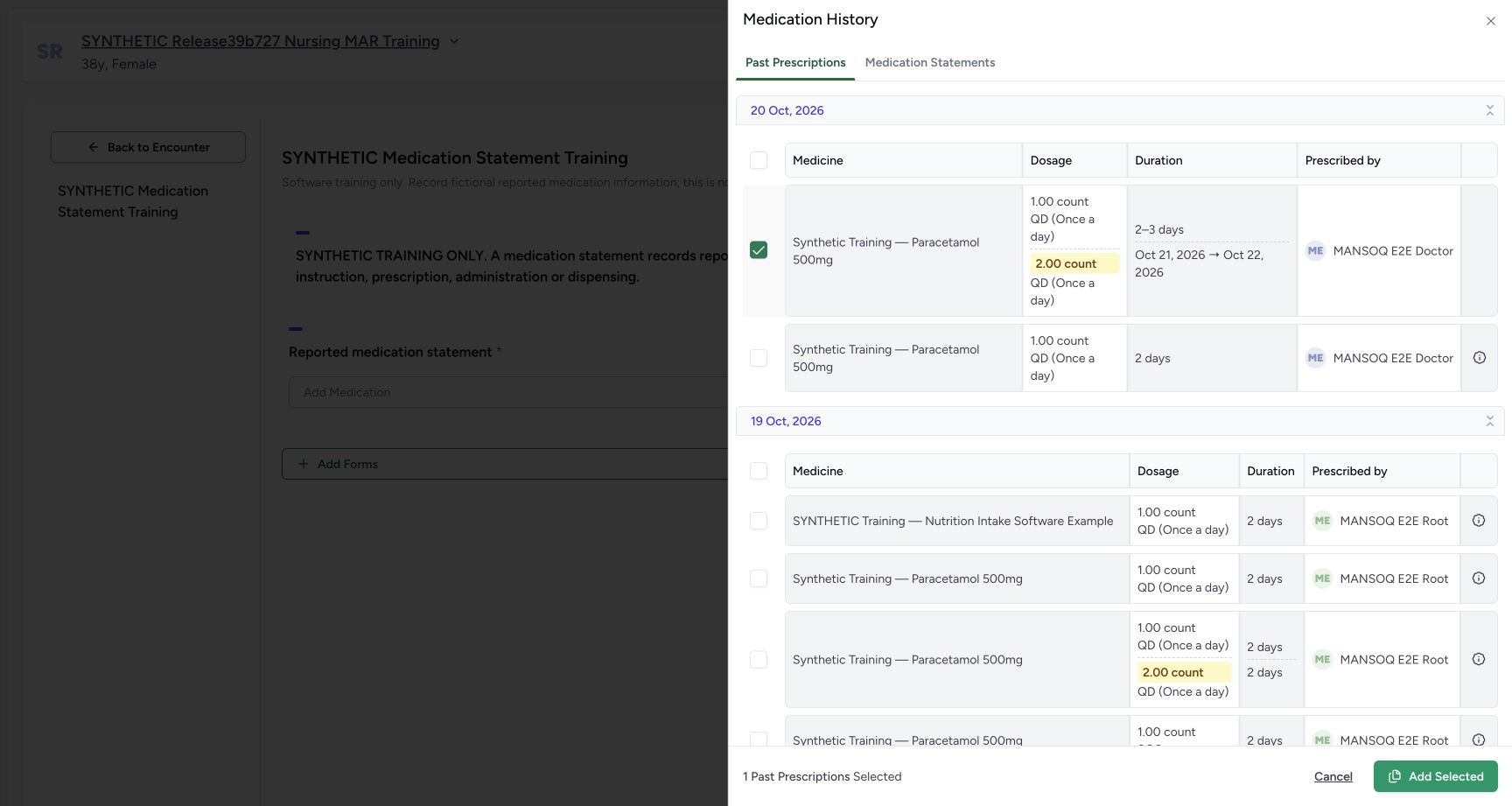 123
123One distinctive two-step prescription selected
Capture details
Observed committed 3dfb software on 20 October 2026. Original pixels and capture times retained; one Add Selected refusal, no Submit.
Image SHA-256 080aaded96b73ab36b83798df5457ae38f9b7d8f2680182dc8aa2c9ad5948793
- Verify only the intended row is checked: Only the two-step synthetic prescription is selected.
- Read 1 Past Prescriptions Selected: Confirm the footer selection count before the attempted copy.
- Choose Add Selected once: This attempts to copy into the statement draft; it is not the form’s Submit.
4. Read the refusal and check the settled form
The notification explains that this selection includes a prescription without a medication code and that nothing was imported. It directs you to use a verified medication code and reconcile its details before saving. Wait for the history drawer to finish closing. The full statement form remains empty; no reported-medication row has been added. Do not use Submit to bypass this refusal.
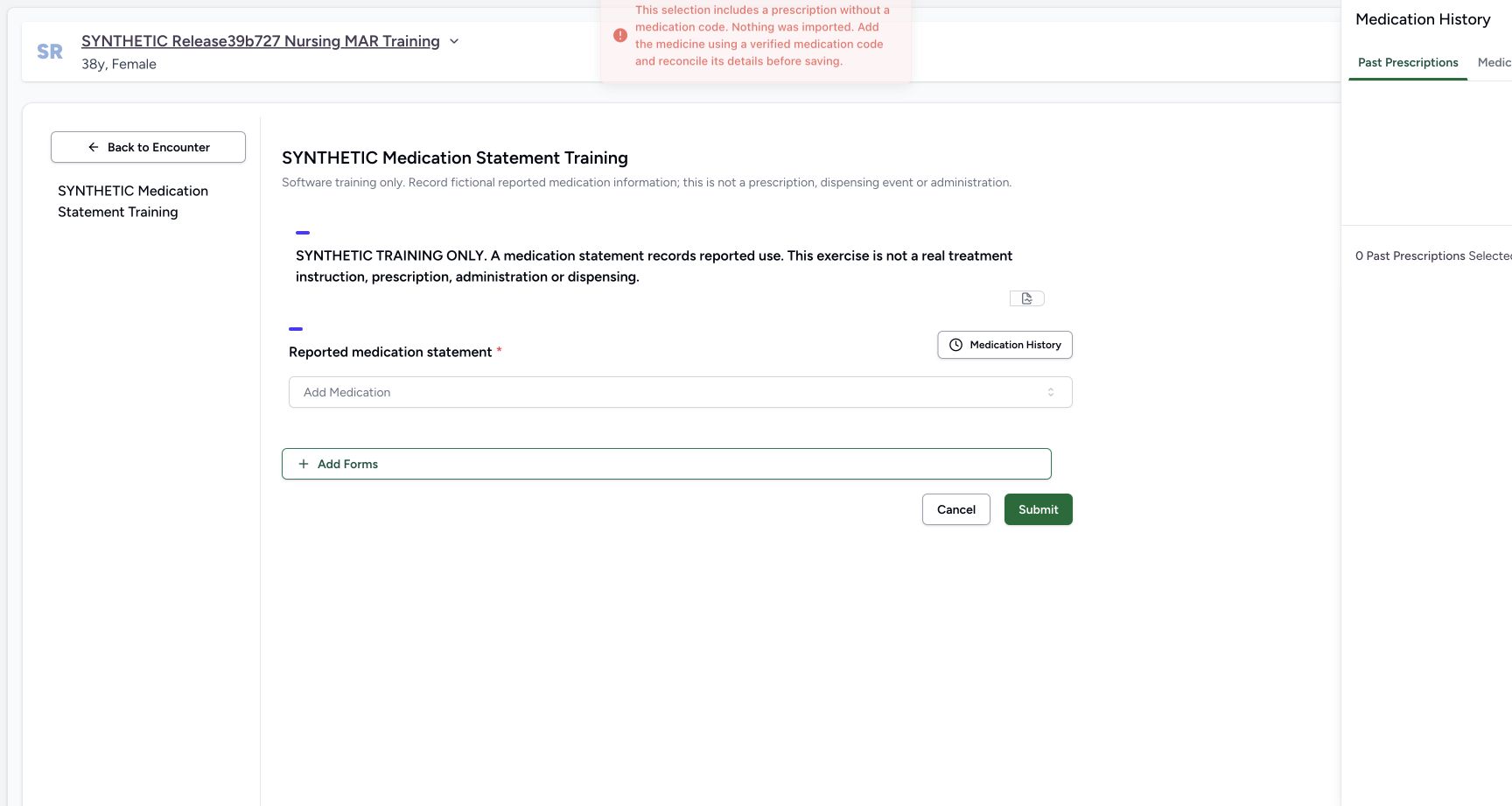 12
12Missing-code refusal while history closes
Capture details
Observed committed 3dfb software on 20 October 2026. Original pixels and capture times retained; one Add Selected refusal, no Submit.
Image SHA-256 0cc46d0a76180538576c6b0fddb9b4d032d19fb9e0202c1bccf4eaa8a87b02f7
- Read the missing-medication-code notification: The notice says the selection includes a prescription without a medication code and nothing was imported. Its first line sits close to the top edge.
- Observe the still-empty statement area: Wait for the history drawer to finish closing before checking the full form.
12Settled empty form after the refused copy
Capture details
Observed committed 3dfb software on 20 October 2026. Original pixels and capture times retained; one Add Selected refusal, no Submit.
Image SHA-256 5b5ea23ec8a95954c10ae4444273a00eb6e2f3d1bc7bd2f2605673dadf25b0e1
- Verify no statement row was added: The fully settled form is empty after the refused copy.
- Reopen Medication History: Open the selector again to check retained history and reset selection.
5. Reopen history and confirm its retained entries
Select Medication History again. The original two-step prescription is still present. The footer now reads 0 Past Prescriptions Selected and Add Selected is disabled. This reset concerns the current selection; it does not mean that the original prescription was deleted. Choose Cancel in the history selector.
12Settled empty form after the refused copy
Capture details
Observed committed 3dfb software on 20 October 2026. Original pixels and capture times retained; one Add Selected refusal, no Submit.
Image SHA-256 5b5ea23ec8a95954c10ae4444273a00eb6e2f3d1bc7bd2f2605673dadf25b0e1
- Verify no statement row was added: The fully settled form is empty after the refused copy.
- Reopen Medication History: Open the selector again to check retained history and reset selection.
 1234
1234Reopened history retained with zero selection
Capture details
Observed committed 3dfb software on 20 October 2026. Original pixels and capture times retained; one Add Selected refusal, no Submit.
Image SHA-256 835c2f3553cee85ed1c47af09273cb9db1f193d1cee47fe26bad91fe517d8887
- Read the original two-step prescription again: The same original entry remains present in history.
- Read 0 Past Prescriptions Selected: Reopening begins with no row selected.
- Observe Add Selected disabled: There is no current selection to add.
- Cancel the history selector: Leave this selector without selecting another record.
6. Leave the empty form without submitting
After cancelling history, recheck the empty reported medication area. Choose the form’s Cancel, beside Submit, and verify the return to the same encounter Overview. In this demonstrated empty-form exit no browser confirmation appeared. No medication statement was submitted in this walkthrough.
12Empty form before Cancel
Capture details
Observed committed 3dfb software on 20 October 2026. Original pixels and capture times retained; one Add Selected refusal, no Submit.
Image SHA-256 5b5ea23ec8a95954c10ae4444273a00eb6e2f3d1bc7bd2f2605673dadf25b0e1
- Recheck the empty form after history Cancel: The form still has no imported medication row.
- Choose the form’s Cancel: This returns to the encounter without using Submit.
 12
12Returned encounter Overview without Submit
Capture details
Observed committed 3dfb software on 20 October 2026. Original pixels and capture times retained; one Add Selected refusal, no Submit.
Image SHA-256 591d4ee248c2c29db4a8f665a876f74d20dee53ce0d202adc44f6b698d6a0522
- Verify the return to the same encounter: The selected Inpatient encounter is still In Progress.
- Read the returned Overview: This exercise has returned without submitting a medication statement.
A product name is not a medication code
An inventory-backed prescription can display a product name and dosage instructions without supplying the terminology code and system required for a coded medication statement. The app refuses that copy rather than treating the product identifier as a medication code. Follow the message: use a verified coded medicine and review the reported details in a separate entry workflow. This lesson does not demonstrate a successful coded copy or a saved statement.
1234567Past Prescriptions with no selection
Capture details
Observed committed 3dfb software on 20 October 2026. Original pixels and capture times retained; one Add Selected refusal, no Submit.
Image SHA-256 ff7ec0a09c020585338042ddaebafbd893d6969cd83d8bb666af242ea89713b6
- Keep Past Prescriptions selected: Use the prescription-history tab, not Medication Statements.
- Read the 20 Oct, 2026 group: This selector groups by creation day, not the earlier Medicines card’s time.
- Identify the synthetic product: Find Synthetic Training — Paracetamol 500mg in the first row of this group.
- Check the two dosage lines: The distinctive row has 1.00 count and 2.00 count, each QD.
- Check both duration types: It has 2–3 days plus October 21→22, 2026 fixed dates.
- Check the Doctor prescriber: The row identifies MANSOQ E2E Doctor.
- Select only this prescription row: Use this individual row checkbox, not the group checkbox above.
12Missing-code refusal while history closes
Capture details
Observed committed 3dfb software on 20 October 2026. Original pixels and capture times retained; one Add Selected refusal, no Submit.
Image SHA-256 0cc46d0a76180538576c6b0fddb9b4d032d19fb9e0202c1bccf4eaa8a87b02f7
- Read the missing-medication-code notification: The notice says the selection includes a prescription without a medication code and nothing was imported. Its first line sits close to the top edge.
- Observe the still-empty statement area: Wait for the history drawer to finish closing before checking the full form.
12Settled empty form after the refused copy
Capture details
Observed committed 3dfb software on 20 October 2026. Original pixels and capture times retained; one Add Selected refusal, no Submit.
Image SHA-256 5b5ea23ec8a95954c10ae4444273a00eb6e2f3d1bc7bd2f2605673dadf25b0e1
- Verify no statement row was added: The fully settled form is empty after the refused copy.
- Reopen Medication History: Open the selector again to check retained history and reset selection.
Keep the refusal separate from deleting or saving
Add Selected acts on the history selection. Here it produced a refusal and reset the selector; the later reopened history still shows the original prescription. The statement form stayed empty and was left with Cancel. These views do not show a saved statement, a prescription deletion or medication administration.
123One distinctive two-step prescription selected
Capture details
Observed committed 3dfb software on 20 October 2026. Original pixels and capture times retained; one Add Selected refusal, no Submit.
Image SHA-256 080aaded96b73ab36b83798df5457ae38f9b7d8f2680182dc8aa2c9ad5948793
- Verify only the intended row is checked: Only the two-step synthetic prescription is selected.
- Read 1 Past Prescriptions Selected: Confirm the footer selection count before the attempted copy.
- Choose Add Selected once: This attempts to copy into the statement draft; it is not the form’s Submit.
12Settled empty form after the refused copy
Capture details
Observed committed 3dfb software on 20 October 2026. Original pixels and capture times retained; one Add Selected refusal, no Submit.
Image SHA-256 5b5ea23ec8a95954c10ae4444273a00eb6e2f3d1bc7bd2f2605673dadf25b0e1
- Verify no statement row was added: The fully settled form is empty after the refused copy.
- Reopen Medication History: Open the selector again to check retained history and reset selection.
1234Reopened history retained with zero selection
Capture details
Observed committed 3dfb software on 20 October 2026. Original pixels and capture times retained; one Add Selected refusal, no Submit.
Image SHA-256 835c2f3553cee85ed1c47af09273cb9db1f193d1cee47fe26bad91fe517d8887
- Read the original two-step prescription again: The same original entry remains present in history.
- Read 0 Past Prescriptions Selected: Reopening begins with no row selected.
- Observe Add Selected disabled: There is no current selection to add.
- Cancel the history selector: Leave this selector without selecting another record.
12Returned encounter Overview without Submit
Capture details
Observed committed 3dfb software on 20 October 2026. Original pixels and capture times retained; one Add Selected refusal, no Submit.
Image SHA-256 591d4ee248c2c29db4a8f665a876f74d20dee53ce0d202adc44f6b698d6a0522
- Verify the return to the same encounter: The selected Inpatient encounter is still In Progress.
- Read the returned Overview: This exercise has returned without submitting a medication statement.
Source evidence
Every citation uses this exact committed version. The private source repository requires access.
- repositories/platform/mansoq-web/src/components/Questionnaire/QuestionTypes/MedicationStatementQuestion.tsx:260 ·
3dfb7c9f519fb5b4cd4452439f3c12346bf58319Source file checksum
aa6bfad3dcb6e4315c58908fe9fffdc4ea47cb84f8c2596cb3db30fe640c19d7 - repositories/platform/mansoq-web/src/components/HistoricalRecordSelector/index.tsx:292 ·
3dfb7c9f519fb5b4cd4452439f3c12346bf58319Source file checksum
0ab03afa6a5954112061e0bf07b15cd3f4c901444f3c3de8a8e194524ef1f0c2 - repositories/platform/mansoq-web/src/components/HistoricalRecordSelector/RecordItem.tsx:41 ·
3dfb7c9f519fb5b4cd4452439f3c12346bf58319Source file checksum
91960b93e01760bc021d0a08d2684905e269a1091bff162bf0e4c3b5e63ef468 - repositories/platform/mansoq-web/src/types/emr/medicationRequest/medicationRequest.ts:1024 ·
3dfb7c9f519fb5b4cd4452439f3c12346bf58319Source file checksum
a39df63f9b7f2d976d4379511d7a2d4c8e3e284fd1e9b67c28e59392e8545b2b - repositories/platform/mansoq-web/public/locale/en.json:3653 ·
3dfb7c9f519fb5b4cd4452439f3c12346bf58319Source file checksum
96498c8b964dce856d43c09e4241708efdd175d935e7ebbd14fa2f8d62efa507