 MANSOQ
 Clinical care · VERSION 3dfb7c9f
Select two medication requests and cancel the bulk draft
Identify the scheduled and PRN requests, read the selected-item count, then leave both unsaved entries through Cancel.
Nurse
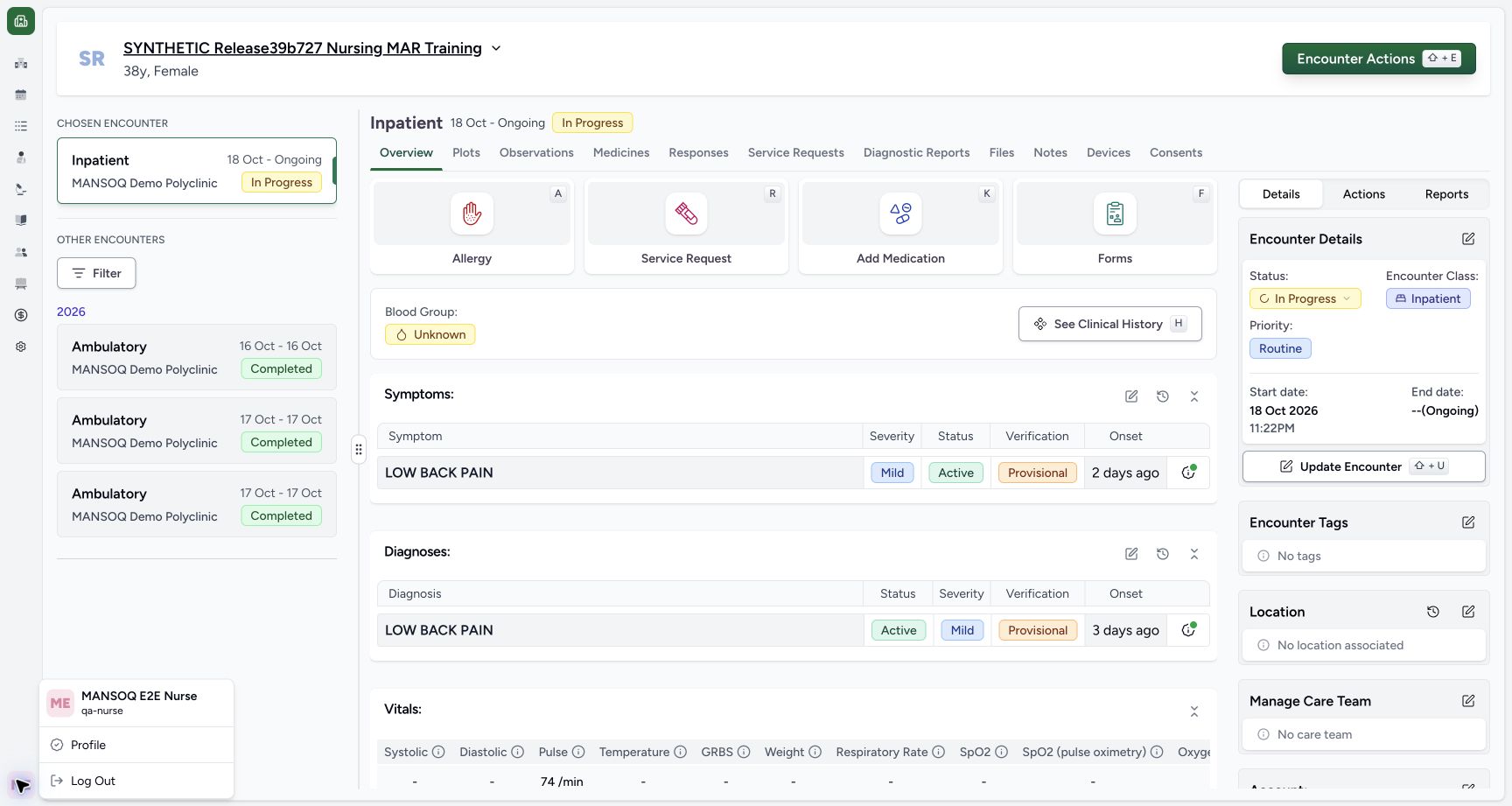 1234
1234Nurse account and synthetic encounter context
Capture details
Captured controls from committed release 3dfb. Fictional scheduled MAR-A and PRN requests; one mixed batch save, normal reload and unchanged saved-detail Cancels. No medicine was administered and no clinical omission, refusal, infusion or care decision is represented.
Image SHA-256 ff9e1b43b6c84bf913c744173bc372d3dd2b54c28216a6d5ed86934723b6fedb
- Check the ordinary Nurse account: The menu shows MANSOQ E2E Nurse and qa-nurse.
- Match the fictional training case: Use the assigned synthetic patient and active inpatient encounter.
- Check In Progress: Keep the same active inpatient encounter.
- Open Medicines: Use the encounter Medicines tab.
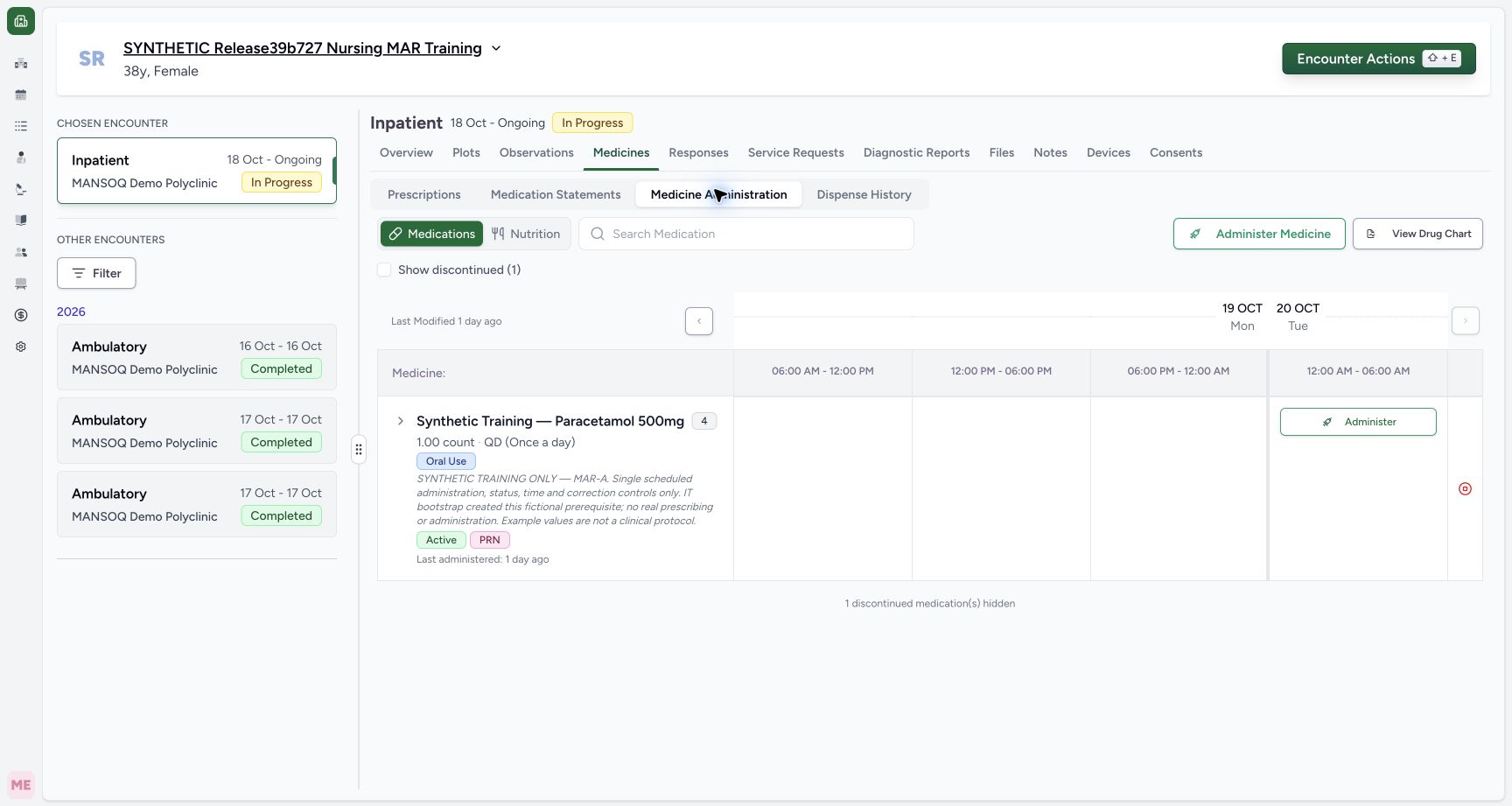 123
123Open the bulk administration sheet
Capture details
Captured controls from committed release 3dfb. Fictional scheduled MAR-A and PRN requests; one mixed batch save, normal reload and unchanged saved-detail Cancels. No medicine was administered and no clinical omission, refusal, infusion or care decision is represented.
Image SHA-256 8cb1cf53ec25cf9c3644bd06747955adfa2b02b70a90fcdcdbdcdc61c994301d
- Open Medicine Administration: This is inside Medicines.
- Choose Medications: Nutrition is a separate tab.
- Open the bulk sheet: Use the top Administer Medicine button.
10 of 10 content blocks have reviewed image alignment. Missing overview or prerequisite images remain open.
Before you begin
- Use an authorised Nurse account on an assigned fictional software-training case with an active encounter and existing medication requests. The captured account is MANSOQ E2E Nurse / qa-nurse.1234
Recorded release 3dfb7c9f · 2026-10-20T00:52:40.941Z · 1728 × 921 Nurse account and synthetic encounter context
Capture details
Captured controls from committed release 3dfb. Fictional scheduled MAR-A and PRN requests; one mixed batch save, normal reload and unchanged saved-detail Cancels. No medicine was administered and no clinical omission, refusal, infusion or care decision is represented.
Image SHA-256
ff9e1b43b6c84bf913c744173bc372d3dd2b54c28216a6d5ed86934723b6fedb- Check the ordinary Nurse account: The menu shows MANSOQ E2E Nurse and qa-nurse.
- Match the fictional training case: Use the assigned synthetic patient and active inpatient encounter.
- Check In Progress: Keep the same active inpatient encounter.
- Open Medicines: Use the encounter Medicines tab.
- All names, doses, times and notes here are software examples. No medicine administration, clinical omission, refusal, infusion or treatment decision is represented. Use your organisation’s approved training process; these examples are not clinical instructions.1234
Recorded release 3dfb7c9f · 2026-10-20T00:52:40.941Z · 1728 × 921 Nurse account and synthetic encounter context
Capture details
Captured controls from committed release 3dfb. Fictional scheduled MAR-A and PRN requests; one mixed batch save, normal reload and unchanged saved-detail Cancels. No medicine was administered and no clinical omission, refusal, infusion or care decision is represented.
Image SHA-256
ff9e1b43b6c84bf913c744173bc372d3dd2b54c28216a6d5ed86934723b6fedb- Check the ordinary Nurse account: The menu shows MANSOQ E2E Nurse and qa-nurse.
- Match the fictional training case: Use the assigned synthetic patient and active inpatient encounter.
- Check In Progress: Keep the same active inpatient encounter.
- Open Medicines: Use the encounter Medicines tab.
123Recorded release 3dfb7c9f · 2026-10-20T00:52:52.481Z · 1728 × 921 Open the bulk administration sheet
Capture details
Captured controls from committed release 3dfb. Fictional scheduled MAR-A and PRN requests; one mixed batch save, normal reload and unchanged saved-detail Cancels. No medicine was administered and no clinical omission, refusal, infusion or care decision is represented.
Image SHA-256
8cb1cf53ec25cf9c3644bd06747955adfa2b02b70a90fcdcdbdcdc61c994301d- Open Medicine Administration: This is inside Medicines.
- Choose Medications: Nutrition is a separate tab.
- Open the bulk sheet: Use the top Administer Medicine button.
1. Match the Nurse, patient and active encounter
Confirm the Nurse account and the assigned synthetic patient. In the example, the chosen encounter is Inpatient and In Progress. Open Medicines in that encounter.
1234Nurse account and synthetic encounter context
Capture details
Captured controls from committed release 3dfb. Fictional scheduled MAR-A and PRN requests; one mixed batch save, normal reload and unchanged saved-detail Cancels. No medicine was administered and no clinical omission, refusal, infusion or care decision is represented.
Image SHA-256 ff9e1b43b6c84bf913c744173bc372d3dd2b54c28216a6d5ed86934723b6fedb
- Check the ordinary Nurse account: The menu shows MANSOQ E2E Nurse and qa-nurse.
- Match the fictional training case: Use the assigned synthetic patient and active inpatient encounter.
- Check In Progress: Keep the same active inpatient encounter.
- Open Medicines: Use the encounter Medicines tab.
2. Open the top bulk administration sheet
Choose Medicine Administration, keep Medications selected, then choose the top Administer Medicine button. The similarly named row action is a separate entry point.
123Open the bulk administration sheet
Capture details
Captured controls from committed release 3dfb. Fictional scheduled MAR-A and PRN requests; one mixed batch save, normal reload and unchanged saved-detail Cancels. No medicine was administered and no clinical omission, refusal, infusion or care decision is represented.
Image SHA-256 8cb1cf53ec25cf9c3644bd06747955adfa2b02b70a90fcdcdbdcdc61c994301d
- Open Medicine Administration: This is inside Medicines.
- Choose Medications: Nutrition is a separate tab.
- Open the bulk sheet: Use the top Administer Medicine button.
3. Read the unchecked starting state
The new sheet lists the existing MAR-A, MAR-MULTIDOSE and MAR-PRN requests. All boxes are unchecked and Administer Medicines (0) is disabled. Match the request notes before selecting anything.
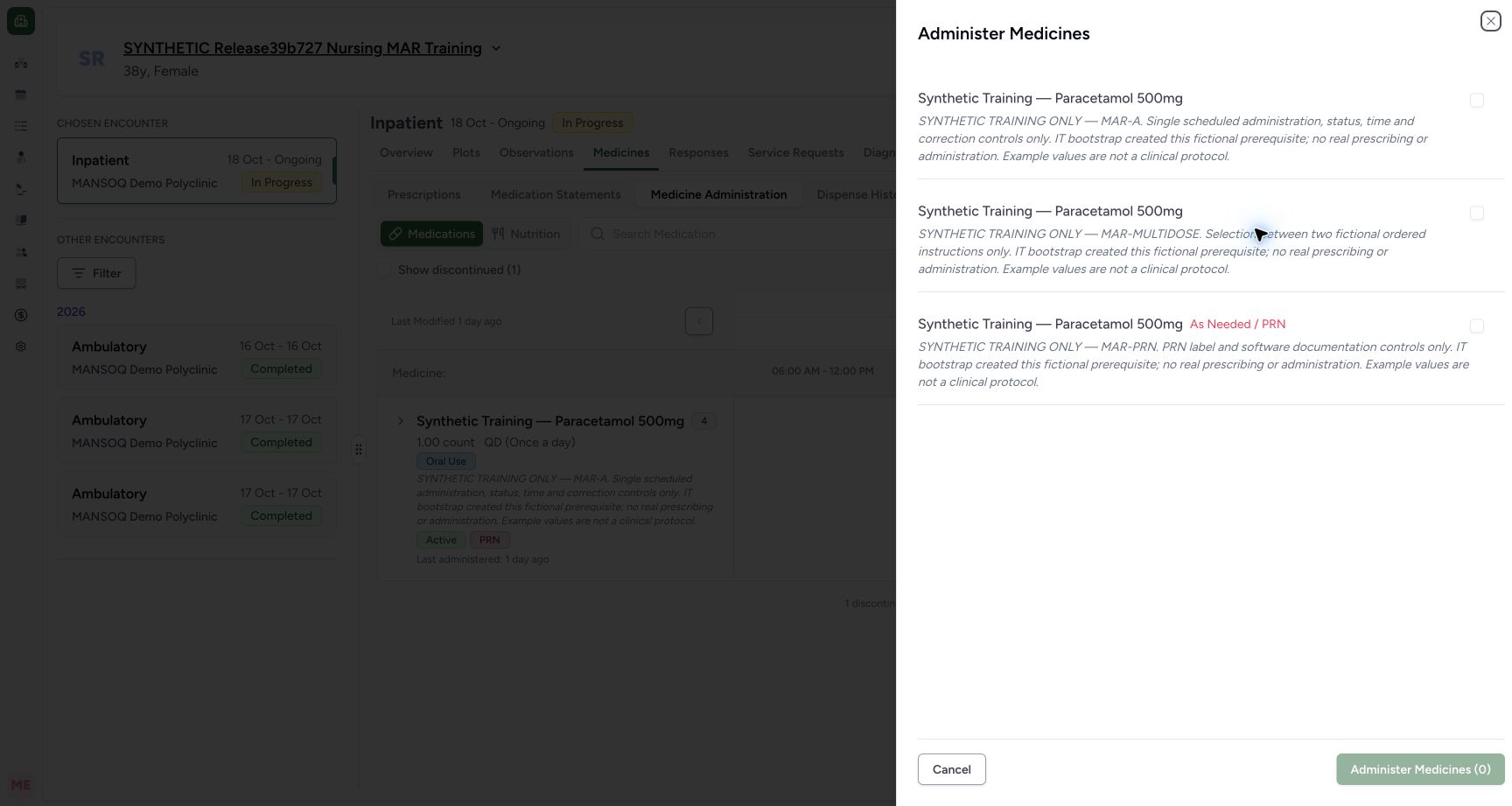 12345
12345Unchecked requests and disabled zero-item button
Capture details
Captured controls from committed release 3dfb. Fictional scheduled MAR-A and PRN requests; one mixed batch save, normal reload and unchanged saved-detail Cancels. No medicine was administered and no clinical omission, refusal, infusion or care decision is represented.
Image SHA-256 b659bc43673613198934108e588dcaee548bd66fbb41cf5526d65ae72e61bdfd
- Select the MAR-A request: Match its fictional MAR-A note before checking it.
- Locate the PRN request: This is the separate MAR-PRN request.
- Leave MAR-MULTIDOSE unchecked: This request is outside this two-item exercise.
- Read the zero-item disabled button: No request is selected.
- Locate Cancel: Cancel closes the unsaved bulk sheet.
4. Select only MAR-A and MAR-PRN
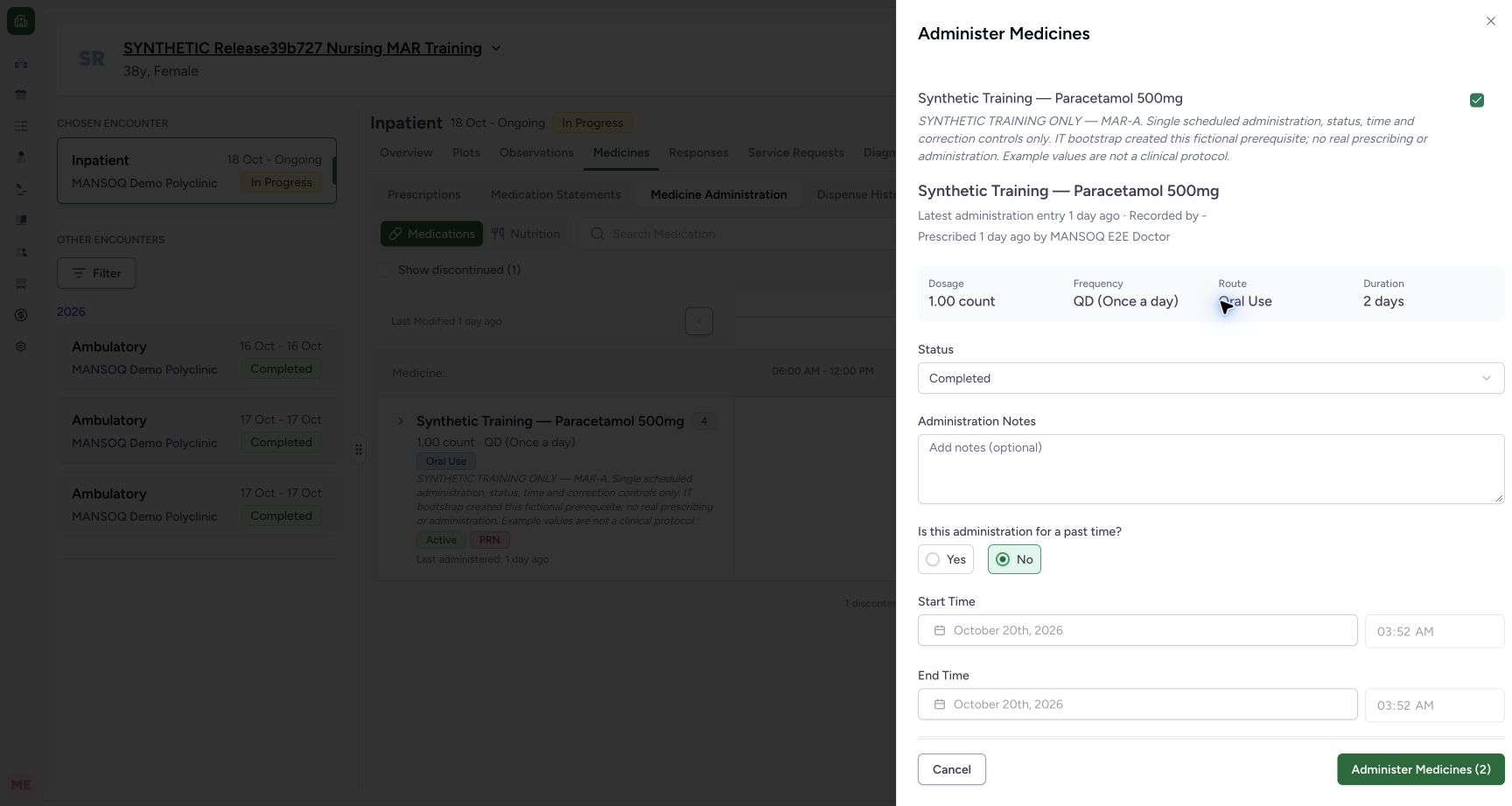
Check MAR-A and the separate As Needed / PRN request. Leave MAR-MULTIDOSE unchecked. Each selected request opens its own form and the button count becomes 2. These images show the checked result. The displayed dose, route and duration come from the existing fictional order.
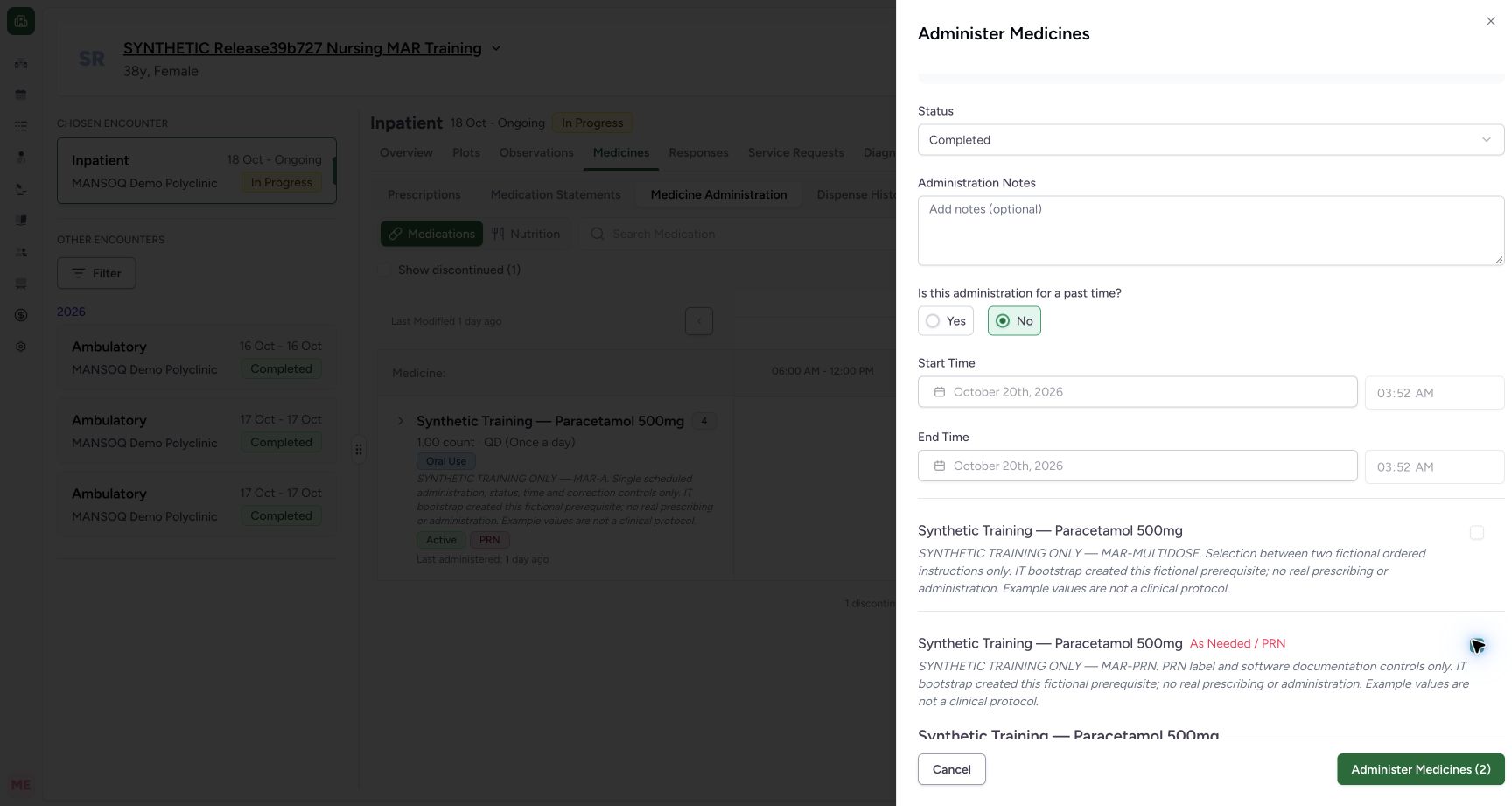 123
123Two selected requests including PRN
Capture details
Captured controls from committed release 3dfb. Fictional scheduled MAR-A and PRN requests; one mixed batch save, normal reload and unchanged saved-detail Cancels. No medicine was administered and no clinical omission, refusal, infusion or care decision is represented.
Image SHA-256 425055997b96ae6a4cd0e823f4de0313bb002b57690aa1eec3998cfda15fbbe5
- PRN is now selected: The PRN checkbox is checked after selection.
- Keep MAR-MULTIDOSE unchecked: Only MAR-A and PRN are selected.
- Read the two-item count: This capture shows both chosen requests selected.
 123
123Selected MAR-A and Cancel
Capture details
Captured controls from committed release 3dfb. Fictional scheduled MAR-A and PRN requests; one mixed batch save, normal reload and unchanged saved-detail Cancels. No medicine was administered and no clinical omission, refusal, infusion or care decision is represented.
Image SHA-256 330aa26f6cf9d3540ee51c84446ae614754a6333896972a7a7f85b1b2d8b9373
- MAR-A is selected: Its checked box belongs to the MAR-A note.
- Read the initial Completed default: This is still an unsaved draft.
- Cancel without saving: Use Cancel rather than the two-item save button.
5. Cancel without documenting an event
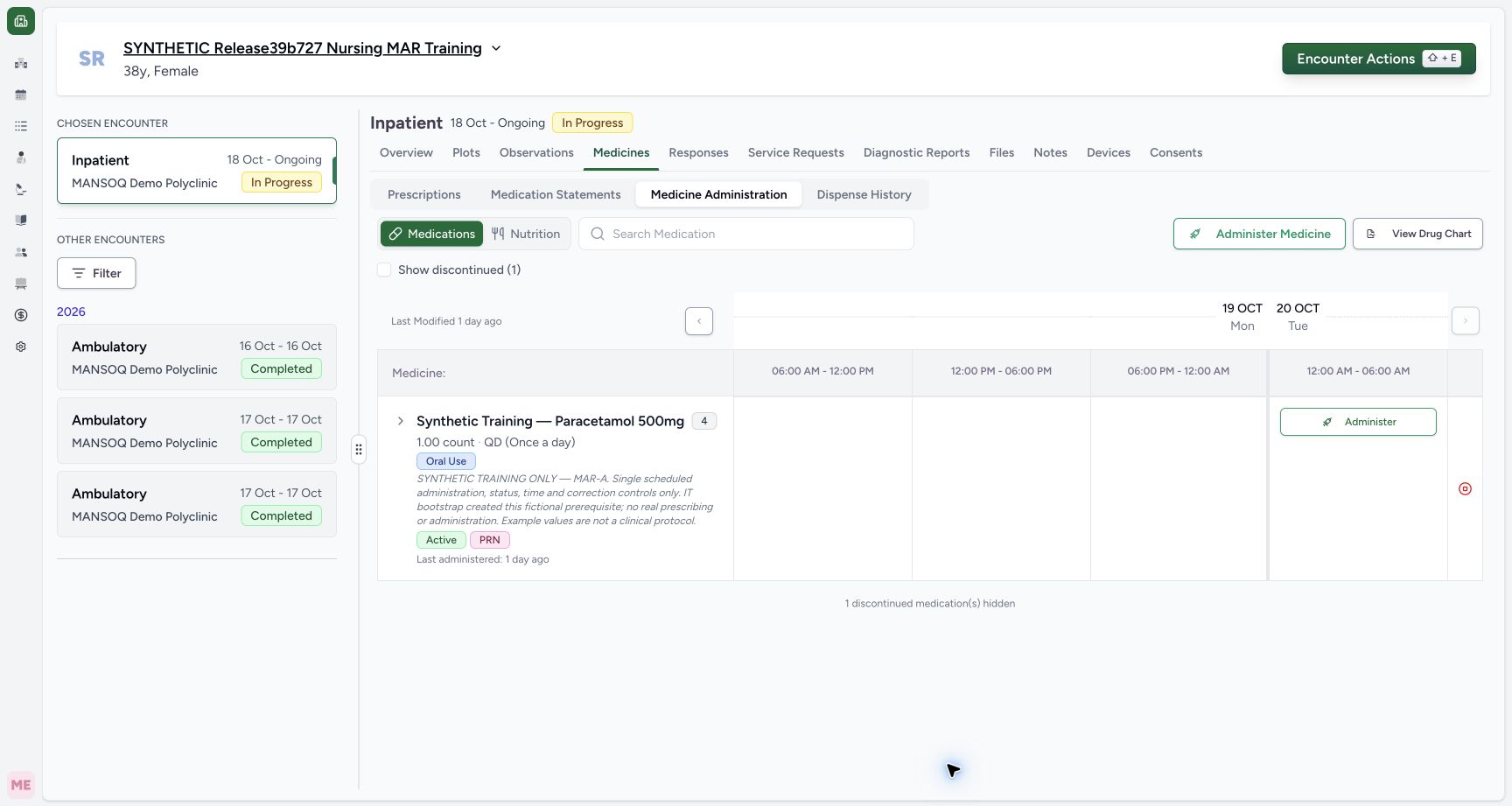
Leave both forms untouched and choose Cancel. The sheet closes and the medication list returns. This exercise saves no new administration entry.
123Selected MAR-A and Cancel
Capture details
Captured controls from committed release 3dfb. Fictional scheduled MAR-A and PRN requests; one mixed batch save, normal reload and unchanged saved-detail Cancels. No medicine was administered and no clinical omission, refusal, infusion or care decision is represented.
Image SHA-256 330aa26f6cf9d3540ee51c84446ae614754a6333896972a7a7f85b1b2d8b9373
- MAR-A is selected: Its checked box belongs to the MAR-A note.
- Read the initial Completed default: This is still an unsaved draft.
- Cancel without saving: Use Cancel rather than the two-item save button.
 1
1Medication list after unchanged Cancel
Capture details
Captured controls from committed release 3dfb. Fictional scheduled MAR-A and PRN requests; one mixed batch save, normal reload and unchanged saved-detail Cancels. No medicine was administered and no clinical omission, refusal, infusion or care decision is represented.
Image SHA-256 3ea1a8031cc4b00a6280cd2d5bf78d88f6000ed120fbea6e6dc87fee3432802c
- Read the returned medication list: The bulk sheet has closed after Cancel.
Distinguish the top batch action
The top Administer Medicine button opens the list of selectable requests. The grouped row also has an Administer action; this guide uses the top button so the selection starts empty.
123Open the bulk administration sheet
Capture details
Captured controls from committed release 3dfb. Fictional scheduled MAR-A and PRN requests; one mixed batch save, normal reload and unchanged saved-detail Cancels. No medicine was administered and no clinical omission, refusal, infusion or care decision is represented.
Image SHA-256 8cb1cf53ec25cf9c3644bd06747955adfa2b02b70a90fcdcdbdcdc61c994301d
- Open Medicine Administration: This is inside Medicines.
- Choose Medications: Nutrition is a separate tab.
- Open the bulk sheet: Use the top Administer Medicine button.
12345Unchecked requests and disabled zero-item button
Capture details
Captured controls from committed release 3dfb. Fictional scheduled MAR-A and PRN requests; one mixed batch save, normal reload and unchanged saved-detail Cancels. No medicine was administered and no clinical omission, refusal, infusion or care decision is represented.
Image SHA-256 b659bc43673613198934108e588dcaee548bd66fbb41cf5526d65ae72e61bdfd
- Select the MAR-A request: Match its fictional MAR-A note before checking it.
- Locate the PRN request: This is the separate MAR-PRN request.
- Leave MAR-MULTIDOSE unchecked: This request is outside this two-item exercise.
- Read the zero-item disabled button: No request is selected.
- Locate Cancel: Cancel closes the unsaved bulk sheet.
Troubleshooting
Several cards have the same product name
Match the request note and PRN label rather than the product name alone. Leave the multi-instruction request unchecked in this exercise.
12345Unchecked requests and disabled zero-item button
Capture details
Captured controls from committed release 3dfb. Fictional scheduled MAR-A and PRN requests; one mixed batch save, normal reload and unchanged saved-detail Cancels. No medicine was administered and no clinical omission, refusal, infusion or care decision is represented.
Image SHA-256 b659bc43673613198934108e588dcaee548bd66fbb41cf5526d65ae72e61bdfd
- Select the MAR-A request: Match its fictional MAR-A note before checking it.
- Locate the PRN request: This is the separate MAR-PRN request.
- Leave MAR-MULTIDOSE unchecked: This request is outside this two-item exercise.
- Read the zero-item disabled button: No request is selected.
- Locate Cancel: Cancel closes the unsaved bulk sheet.
123Two selected requests including PRN
Capture details
Captured controls from committed release 3dfb. Fictional scheduled MAR-A and PRN requests; one mixed batch save, normal reload and unchanged saved-detail Cancels. No medicine was administered and no clinical omission, refusal, infusion or care decision is represented.
Image SHA-256 425055997b96ae6a4cd0e823f4de0313bb002b57690aa1eec3998cfda15fbbe5
- PRN is now selected: The PRN checkbox is checked after selection.
- Keep MAR-MULTIDOSE unchecked: Only MAR-A and PRN are selected.
- Read the two-item count: This capture shows both chosen requests selected.
Source evidence
Every citation uses this exact committed version. The private source repository requires access.
- repositories/platform/mansoq-web/src/components/Medicine/MedicationAdministration/MedicineAdminSheet.tsx:64 ·
3dfb7c9f519fb5b4cd4452439f3c12346bf58319Source file checksum
342ae4e4635dedb808bada1db0ef95248184feb0fd548a99f1016e69d764f5ef - repositories/platform/mansoq-web/src/components/Medicine/MedicationAdministration/MedicineAdminForm.tsx:242 ·
3dfb7c9f519fb5b4cd4452439f3c12346bf58319Source file checksum
795ecc32c7a730e8d8eccf0285a14f84fedb89d3b0f3beab7e816934cbf84940 - repositories/platform/mansoq-web/src/components/Medicine/MedicationAdministration/MedicineAdminDialog.tsx:80 ·
3dfb7c9f519fb5b4cd4452439f3c12346bf58319Source file checksum
c6ccd39c46d4093d346e97987eebd9dd1b51ffae1c8688f5305a7eed5336d6f2 - repositories/platform/mansoq-web/src/components/Medicine/MedicationAdministration/AdministrationTab.tsx:354 ·
3dfb7c9f519fb5b4cd4452439f3c12346bf58319Source file checksum
170c246835ea1966b8512f5baf72ff0ea60635f28cbcec6a465bb8c17506555f - repositories/platform/mansoq-web/src/components/Medicine/MedicationAdministration/GroupedMedicationRow.tsx:61 ·
3dfb7c9f519fb5b4cd4452439f3c12346bf58319Source file checksum
e497c113ba63d31c09068cdab1ebe7c495794548f218112599914ef06cc191d2 - repositories/platform/mansoq-web/src/components/Medicine/MedicationAdministration/utils.ts:54 ·
3dfb7c9f519fb5b4cd4452439f3c12346bf58319Source file checksum
3df1d0c6fd4265ef3b0ea3d5704b463290b1f72b6ee0a77141f13d8debaccfbb - repositories/platform/mansoq-web/src/components/Medicine/MedicationAdministration/PrintMedicationAdministration.tsx:113 ·
3dfb7c9f519fb5b4cd4452439f3c12346bf58319Source file checksum
d7ad7b8001cc6e86026ad23fe1f2d7eacd5cd385d2fa9bb3f455a5ff360460dc - repositories/platform/mansoq-web/src/components/Medicine/MedicationRequestTable/index.tsx:59 ·
3dfb7c9f519fb5b4cd4452439f3c12346bf58319Source file checksum
031e169fb1f09e4559edb7b2ab0eba7c3c2a6fa9bd6ace44d1b05e1563106457 - repositories/platform/mansoq-web/src/pages/Encounters/utils/EncounterProvider.tsx:185 ·
3dfb7c9f519fb5b4cd4452439f3c12346bf58319Source file checksum
d2609fc0452c91c20104237bf02be40ecb3bf48225011aba1f4bca2d50620d75 - repositories/platform/mansoq-web/src/types/emr/medicationAdministration/medicationAdministration.ts:10 ·
3dfb7c9f519fb5b4cd4452439f3c12346bf58319Source file checksum
aba9ae9ba873b5da05a41e9188fcacf1d1f5169794a85c72652b570cfa1079d1 - repositories/platform/mansoq-web/src/types/emr/medicationAdministration/medicationAdministrationApi.ts:10 ·
3dfb7c9f519fb5b4cd4452439f3c12346bf58319Source file checksum
e83e9fcc1a40ca9e82e794772c643d669e8dbae9402b4a68ba10d8097a49454d - repositories/platform/mansoq-web/src/types/emr/medicationRequest/medicationRequest.ts:256 ·
3dfb7c9f519fb5b4cd4452439f3c12346bf58319Source file checksum
a39df63f9b7f2d976d4379511d7a2d4c8e3e284fd1e9b67c28e59392e8545b2b - repositories/platform/mansoq-web/src/types/emr/medicationRequest/medicationRequestApi.ts:6 ·
3dfb7c9f519fb5b4cd4452439f3c12346bf58319Source file checksum
2e18bb5bef449fb67b01d4b763e8ca1e57bad00a6381c5c0e3a2eac1d6a272c3 - repositories/platform/mansoq-core/mansoq/emr/api/viewsets/medication_administration.py:19 ·
3dfb7c9f519fb5b4cd4452439f3c12346bf58319Source file checksum
7e68ba6671f267ec29008e1aca6e8bfe594a2e510833ae5db5e0b18c39408072 - repositories/platform/mansoq-core/mansoq/emr/resources/medication/administration/spec.py:27 ·
3dfb7c9f519fb5b4cd4452439f3c12346bf58319Source file checksum
57ad204f4a0e2aa93376f8abff6f687e41fab8b3b90ea1dd136d5662f489f215 - repositories/platform/mansoq-core/mansoq/emr/models/medication_administration.py:8 ·
3dfb7c9f519fb5b4cd4452439f3c12346bf58319Source file checksum
ce47a759768ef80ccb64f70ba701ba6e4b5c038b392aef3788e65cf014e56324 - repositories/platform/mansoq-core/mansoq/emr/api/viewsets/encounter_authz_base.py:15 ·
3dfb7c9f519fb5b4cd4452439f3c12346bf58319Source file checksum
852c308f990e192a1003e286be7dd57ddcc78840d218da1b90c1fab2eebec4f7 - repositories/platform/mansoq-core/mansoq/security/authorization/encounter.py:97 ·
3dfb7c9f519fb5b4cd4452439f3c12346bf58319Source file checksum
0e7ff8afcfb57b2371201e16ee6fac26125d6e686af66ed7edd95e49bc07de78 - repositories/platform/mansoq-core/mansoq/emr/api/viewsets/base.py:94 ·
3dfb7c9f519fb5b4cd4452439f3c12346bf58319Source file checksum
6a287dd315b8a4957b29c58e4bbc1bef7b8d9d257f9149f93045ff0adbdcae6c - repositories/platform/mansoq-core/mansoq/emr/resources/base.py:82 ·
3dfb7c9f519fb5b4cd4452439f3c12346bf58319Source file checksum
bc406c723888997dd99fc408cb3c5dec51fb0b54d10272ca31bfd8c98c893229 - repositories/platform/mansoq-core/mansoq/emr/models/questionnaire.py:57 ·
3dfb7c9f519fb5b4cd4452439f3c12346bf58319Source file checksum
2e422990f996654b71999dd1303f0bf9b5706ffc38c4271cdcdc741faf1a08d0 - repositories/platform/mansoq-core/mansoq/emr/models/base.py:8 ·
3dfb7c9f519fb5b4cd4452439f3c12346bf58319Source file checksum
61f50a19078c8a6435398e6b3e9174326038e9047129382c0d882f1e8f367b4c - repositories/platform/mansoq-core/mansoq/utils/models/base.py:15 ·
3dfb7c9f519fb5b4cd4452439f3c12346bf58319Source file checksum
1a5270f50188d1e0b044210773ca86a483b904f3a9724bb7b321d4ea463acfaf