 MANSOQ
 Pharmacy · VERSION 3dfb7c9f
Print a saved prescription and check the PDF
Open the intended prescription, review its printable details, then save and reopen the actual PDF using Chrome on macOS.
Pharmacist
 12
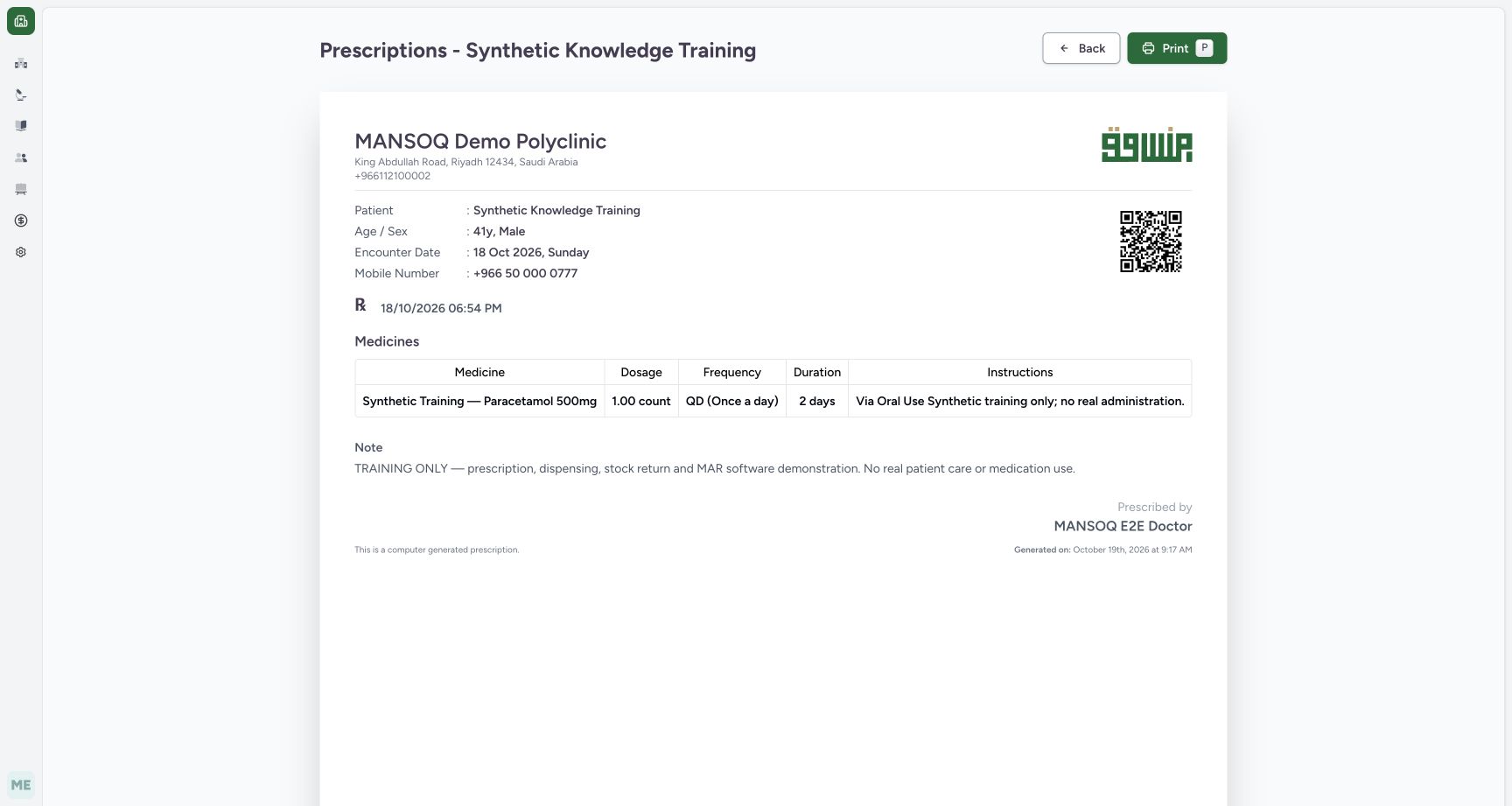
12Review the printable saved prescription and use its Print button
Capture details
Exact committed 3dfb source, existing ordinary Pharmacist and fictional Polyclinic. Original unchanged screenshot. This is read-only prescription printing; it does not dispense medication or record payment.
Image SHA-256 3472fd175c5c4d4c5372b3e602acf5e1436b1a4c2d6149445bf40fe997b20405
- Print: Open Chrome's native print dialog after checking the prescription.
- Training-only instructions retained: Read the full training-only note before exporting.
 123
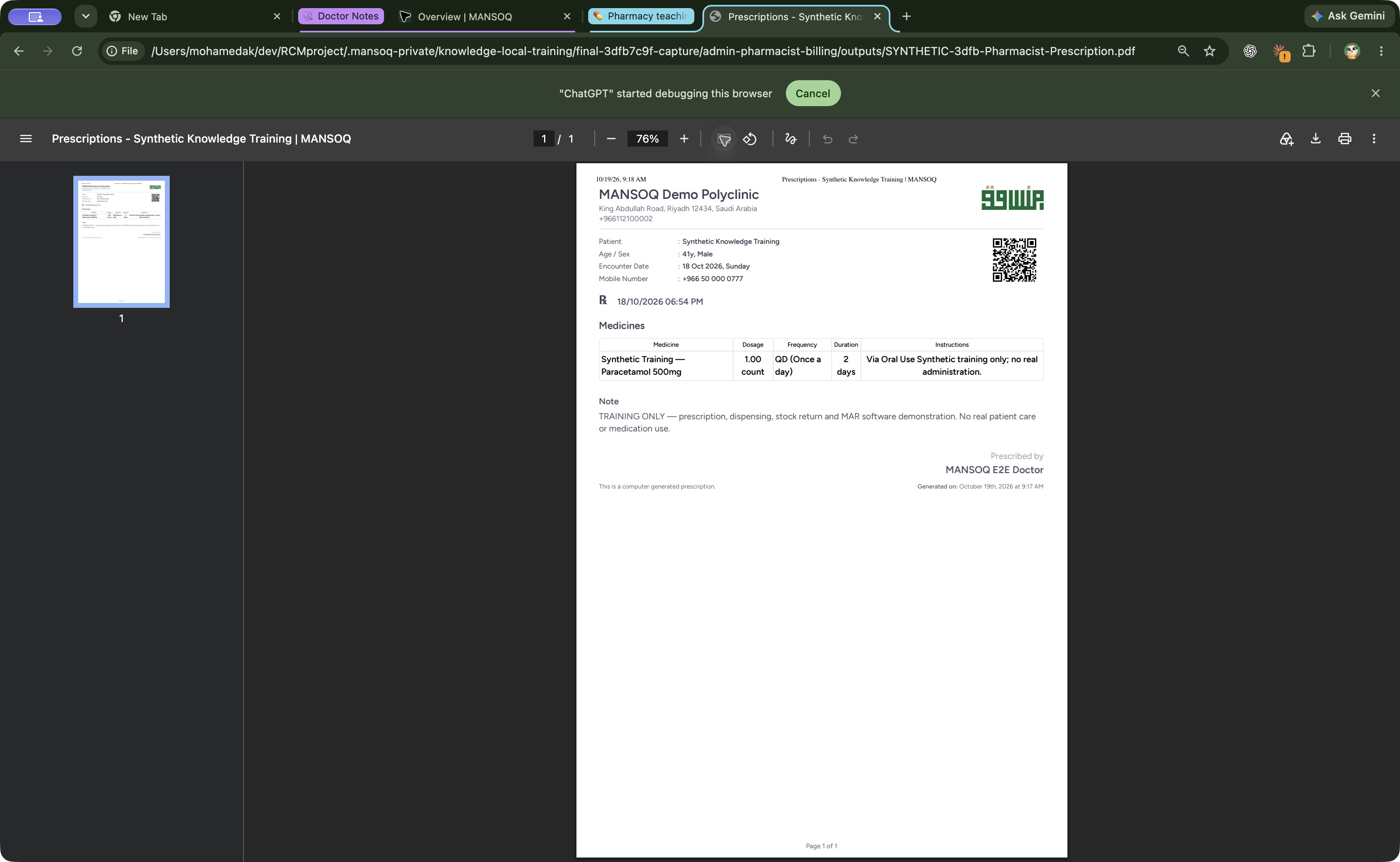
123Open the exact saved synthetic prescription PDF and review its single page
Saved PDF in Google Chrome (macOS) · page 1 of 1.
Capture details
Exact committed 3dfb source, existing ordinary Pharmacist and fictional Polyclinic. Original unchanged screenshot. This is read-only prescription printing; it does not dispense medication or record payment.
Image SHA-256 22f3f7bc2dd9b4176eefbd67d44fa9b45d2d6455792230e1d76c1debd68863fe
- Page 1 of 1: Check the actual saved PDF page count.
- Saved prescription: Review the saved medicine table and training-only instructions.
- Training note: Confirm that the complete nonclinical training note is retained.
8 of 8 content blocks have reviewed image alignment. Missing overview or prerequisite images remain open.
Before you begin
- Use the existing authorized Pharmacist in the fictional MANSOQ Demo Polyclinic. This example starts at Prescription Preview for Synthetic Knowledge Training, with one Completed prescription and an explicitly training-only medicine. It demonstrates software output, not medication use.
 123
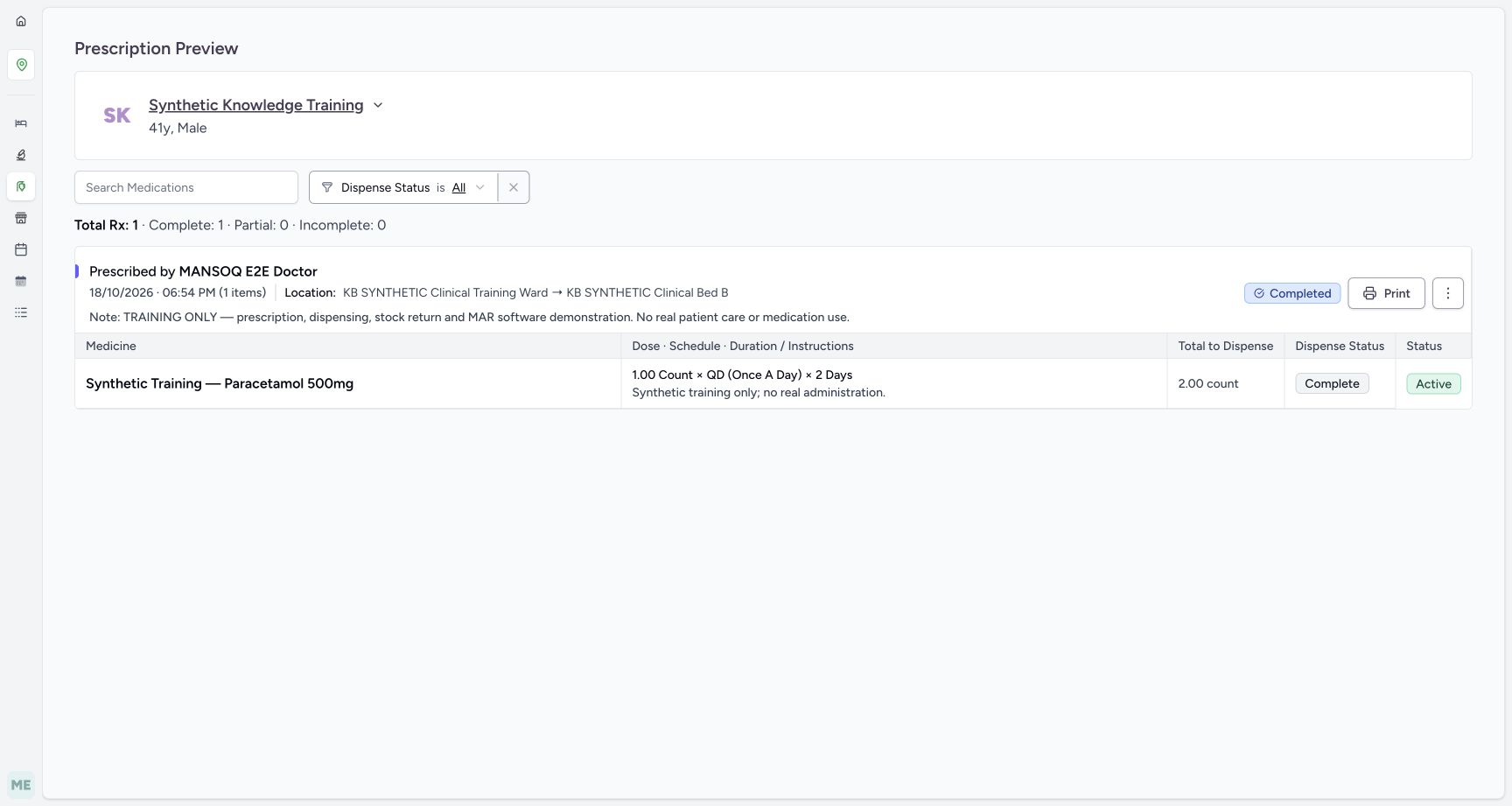
123Recorded release 3dfb7c9f · 2026-10-19T06:17:02.897Z · 1728 × 921 Review the fictional prescription, training note, medication and completion counts
Capture details
Exact committed 3dfb source, existing ordinary Pharmacist and fictional Polyclinic. Original unchanged screenshot. This is read-only prescription printing; it does not dispense medication or record payment.
Image SHA-256
fcb074b676c2f473aa0eb93f9a980a992e7353c1f27b26ad0c20b2bfdbcbd681- Search Medications: Check that the medication search is clear before printing the intended prescription.
- Print prescription: Open this prescription's printable page.
- Training-only medication row: Review the explicitly fictional medication row.
1. Review the intended prescription
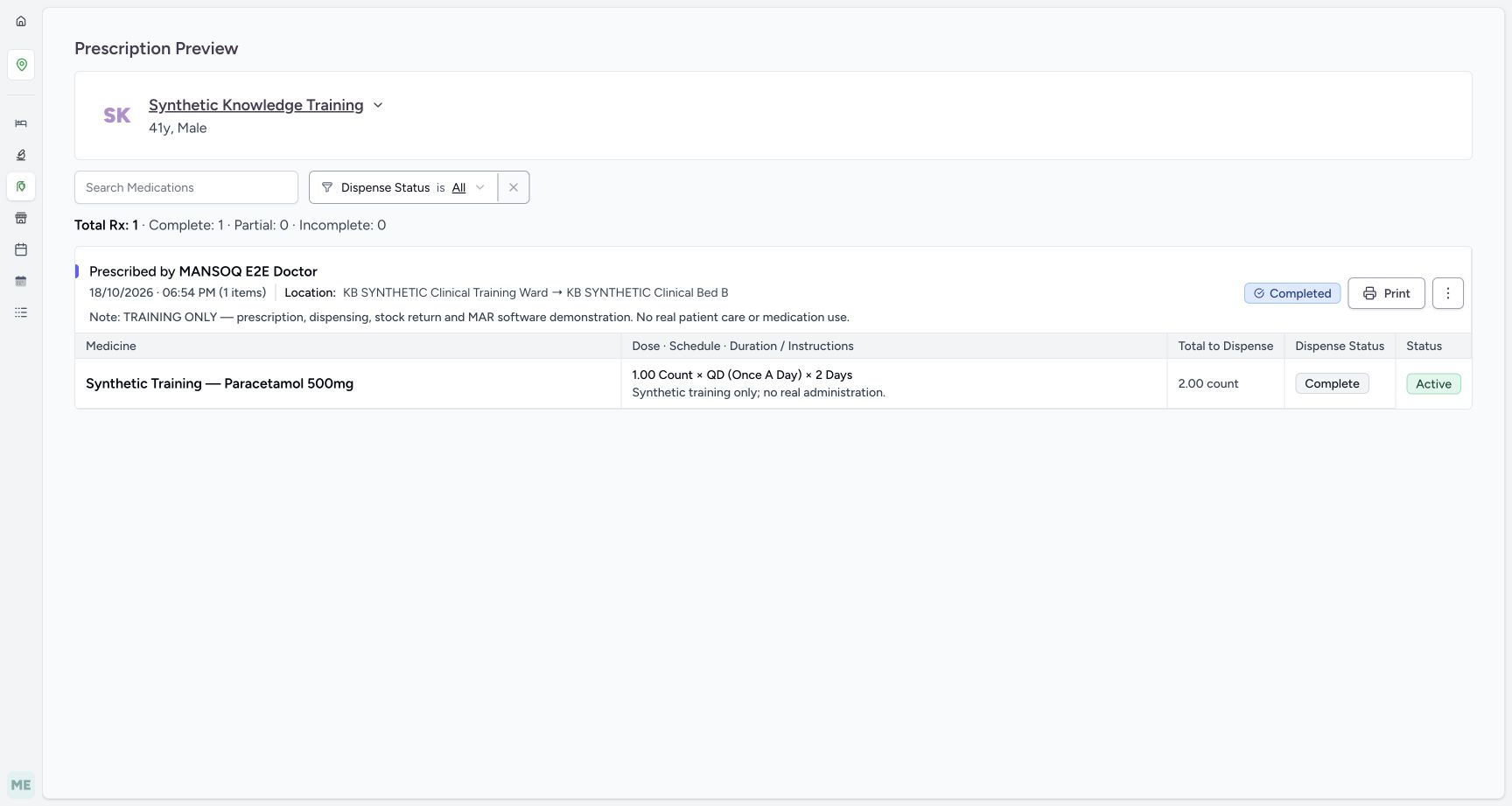
Check Synthetic Knowledge Training, the prescription's Completed badge, prescriber, location and full training note. The example has one fictional medicine, and All is selected in Dispense Status with no medication search text.
123Review the fictional prescription, training note, medication and completion counts
Capture details
Exact committed 3dfb source, existing ordinary Pharmacist and fictional Polyclinic. Original unchanged screenshot. This is read-only prescription printing; it does not dispense medication or record payment.
Image SHA-256 fcb074b676c2f473aa0eb93f9a980a992e7353c1f27b26ad0c20b2bfdbcbd681
- Search Medications: Check that the medication search is clear before printing the intended prescription.
- Print prescription: Open this prescription's printable page.
- Training-only medication row: Review the explicitly fictional medication row.
 12
12Return the dispense filter to All before opening the prescription print view
Capture details
Exact committed 3dfb source, existing ordinary Pharmacist and fictional Polyclinic. Original unchanged screenshot. This is read-only prescription printing; it does not dispense medication or record payment.
Image SHA-256 fcb074b676c2f473aa0eb93f9a980a992e7353c1f27b26ad0c20b2bfdbcbd681
- All filter selected: Check that All is selected in Dispense Status.
- Print prescription: Open the intended prescription print preview.
2. Open the prescription print preview
Select Print on the intended prescription card. The printable page shows the facility, patient, encounter date, medicine, dosage, frequency, duration, instructions and training note. Check these details before selecting the page's Print button.
12Return the dispense filter to All before opening the prescription print view
Capture details
Exact committed 3dfb source, existing ordinary Pharmacist and fictional Polyclinic. Original unchanged screenshot. This is read-only prescription printing; it does not dispense medication or record payment.
Image SHA-256 fcb074b676c2f473aa0eb93f9a980a992e7353c1f27b26ad0c20b2bfdbcbd681
- All filter selected: Check that All is selected in Dispense Status.
- Print prescription: Open the intended prescription print preview.
12Review the printable saved prescription and use its Print button
Capture details
Exact committed 3dfb source, existing ordinary Pharmacist and fictional Polyclinic. Original unchanged screenshot. This is read-only prescription printing; it does not dispense medication or record payment.
Image SHA-256 3472fd175c5c4d4c5372b3e602acf5e1436b1a4c2d6149445bf40fe997b20405
- Print: Open Chrome's native print dialog after checking the prescription.
- Training-only instructions retained: Read the full training-only note before exporting.
3. Review the browser print settings
In this observed Chrome on macOS print dialog, check Save as PDF, All pages and Portrait. The preview reports 1 page and retains the full training note. Select Save to open the file save dialog. Other browsers and physical printers may show different controls.
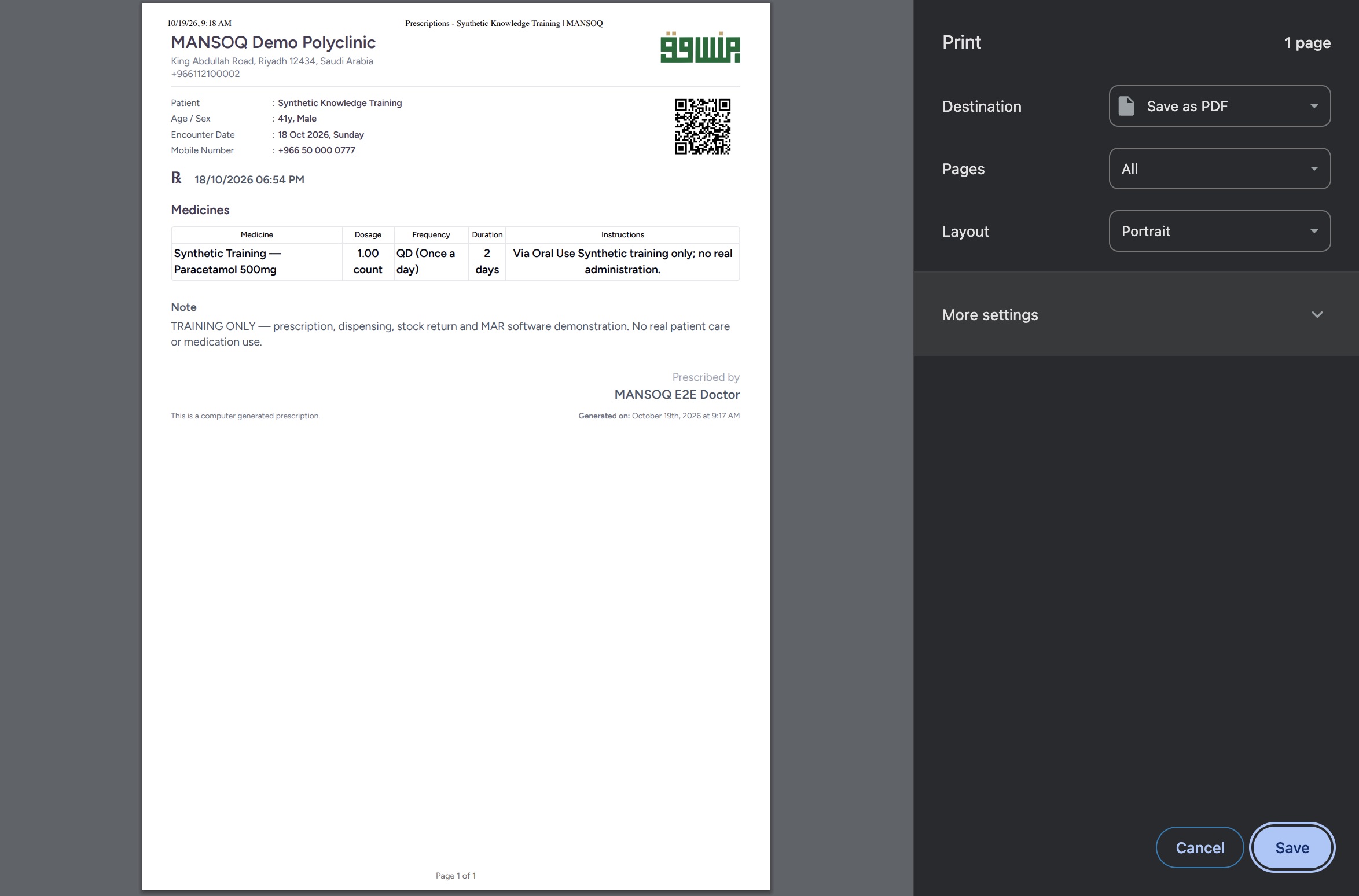 1234
1234Review the native macOS Chrome Save as PDF settings for the saved prescription
Native macOS print/save dialog.
Capture details
Exact committed 3dfb source, existing ordinary Pharmacist and fictional Polyclinic. Original unchanged screenshot. This is read-only prescription printing; it does not dispense medication or record payment.
Image SHA-256 4a672ea42bf5e3432cac8fc8195d320a38b0292b541e25038600bb3e45adeb50
- Save as PDF: Check the selected browser destination.
- All pages: Keep all pages of this one-page example.
- Portrait: Check the pictured page orientation.
- Save: Open the macOS file save dialog.
4. Choose the local file and save it
In the macOS Save dialog, review the filename and destination folder, then choose Save. This example saves SYNTHETIC-3dfb-Pharmacist-Prescription.pdf to a local outputs folder. Choose your own approved destination when using the system.
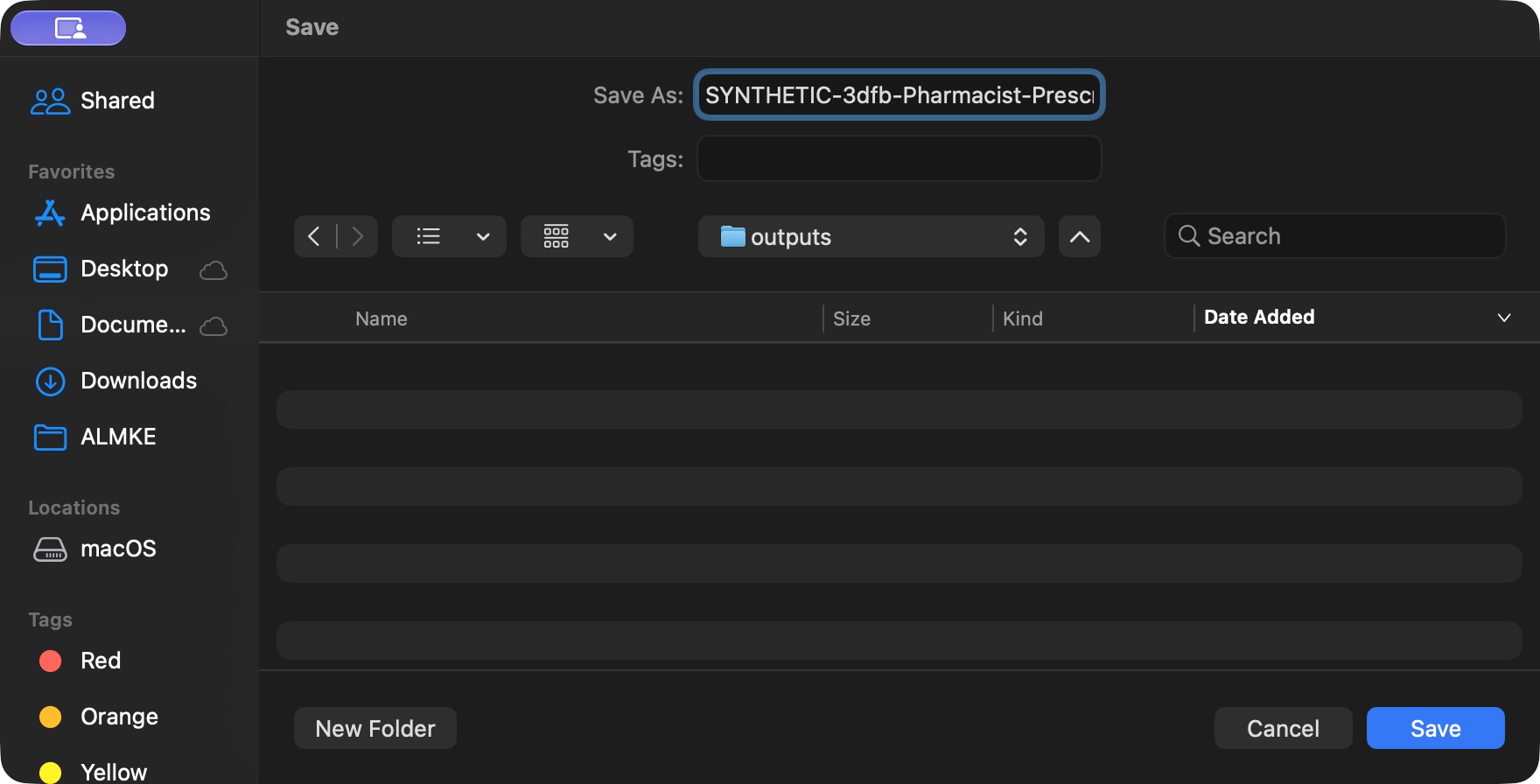 123
123Choose the local PDF name and save in the dedicated folder
Native macOS print/save dialog.
Capture details
Exact committed 3dfb source, existing ordinary Pharmacist and fictional Polyclinic. Original unchanged screenshot. This is read-only prescription printing; it does not dispense medication or record payment.
Image SHA-256 ebc4770ed416d20fe5dd5d4abe58347330725103421d72b988ca634409d03163
- Save As: Choose the intended PDF filename.
- Save folder: Check the destination folder before saving.
- Save PDF: Save the PDF to this selected local folder.
5. Open and inspect the saved PDF
Open the exact saved file in Chrome. Check 1 / 1, the intended patient, medicine table, instructions, complete training note and prescriber. The actual file in this exercise is a readable one-page A4 PDF. Review the saved output, rather than assuming that opening the print preview has saved a file.
123Open the exact saved synthetic prescription PDF and review its single page
Saved PDF in Google Chrome (macOS) · page 1 of 1.
Capture details
Exact committed 3dfb source, existing ordinary Pharmacist and fictional Polyclinic. Original unchanged screenshot. This is read-only prescription printing; it does not dispense medication or record payment.
Image SHA-256 22f3f7bc2dd9b4176eefbd67d44fa9b45d2d6455792230e1d76c1debd68863fe
- Page 1 of 1: Check the actual saved PDF page count.
- Saved prescription: Review the saved medicine table and training-only instructions.
- Training note: Confirm that the complete nonclinical training note is retained.
Keep prescription printing distinct from dispensing
The pictured prescription is already Completed, and its medicine row is Complete. This walkthrough reads and prints those saved details. It does not demonstrate a new dispense, stock movement, invoice or payment.
123Review the fictional prescription, training note, medication and completion counts
Capture details
Exact committed 3dfb source, existing ordinary Pharmacist and fictional Polyclinic. Original unchanged screenshot. This is read-only prescription printing; it does not dispense medication or record payment.
Image SHA-256 fcb074b676c2f473aa0eb93f9a980a992e7353c1f27b26ad0c20b2bfdbcbd681
- Search Medications: Check that the medication search is clear before printing the intended prescription.
- Print prescription: Open this prescription's printable page.
- Training-only medication row: Review the explicitly fictional medication row.
123Open the exact saved synthetic prescription PDF and review its single page
Saved PDF in Google Chrome (macOS) · page 1 of 1.
Capture details
Exact committed 3dfb source, existing ordinary Pharmacist and fictional Polyclinic. Original unchanged screenshot. This is read-only prescription printing; it does not dispense medication or record payment.
Image SHA-256 22f3f7bc2dd9b4176eefbd67d44fa9b45d2d6455792230e1d76c1debd68863fe
- Page 1 of 1: Check the actual saved PDF page count.
- Saved prescription: Review the saved medicine table and training-only instructions.
- Training note: Confirm that the complete nonclinical training note is retained.
Source evidence
Every citation uses this exact committed version. The private source repository requires access.
- repositories/platform/mansoq-web/src/pages/Facility/services/pharmacy/components/PrescriptionsPreviewTable.tsx:204 ·
3dfb7c9f519fb5b4cd4452439f3c12346bf58319Source file checksum
0e57013b34eb10f479600ecf182cc77c4cf896062d69aab5dd2f4c04f7fde701 - repositories/platform/mansoq-web/src/pages/Encounters/PrintPrescription.tsx:43 ·
3dfb7c9f519fb5b4cd4452439f3c12346bf58319Source file checksum
8a348f22614630e88f98379d5a22f0e8f890ea218d17c24e8a86ca7629142e98 - repositories/platform/mansoq-web/src/components/Prescription/PrescriptionPreview.tsx:41 ·
3dfb7c9f519fb5b4cd4452439f3c12346bf58319Source file checksum
819c4ef6738f1f1c85d5cd8725a5877d832348b9415e1671b6a2ecad1c4930ee - repositories/platform/mansoq-web/src/MansoqUI/misc/PrintPreview.tsx:127 ·
3dfb7c9f519fb5b4cd4452439f3c12346bf58319Source file checksum
66b44ba3d2996d2db6d1d37c275a084db50c2ac1d68468f5355cc2522c67679b