 MANSOQ
 Pharmacy · VERSION 3dfb7c9f
Find and review an existing completed dispensing order
Use Pharmacy’s Dispense history to open the intended saved order, inspect its medicine and recorded payment details, and close the read-only detail popover.
Pharmacist
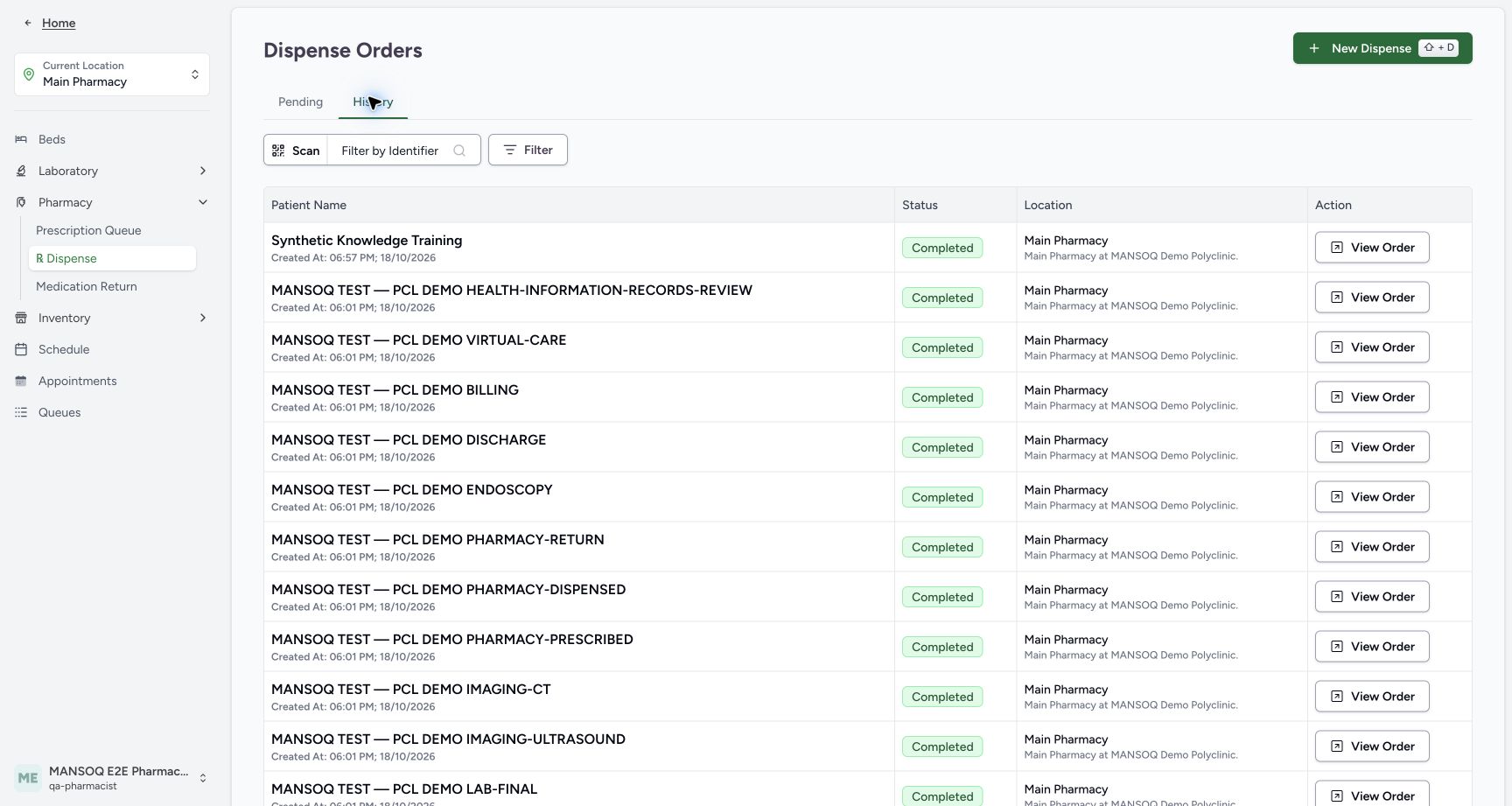 12
12Open the existing Completed Synthetic Knowledge Training order
Capture details
Exact committed 3dfb source and existing ordinary Pharmacist. Original unchanged desktop pixels; this bounded flow is navigation, filtering and existing-order review only.
Image SHA-256 ff916edabcf951d89e2a5d0a8aebf9b252dfba60611a48d6500936bd64954f34
- View Order: Open this existing completed order.
- Completed order: Check the selected order’s actual Completed status.
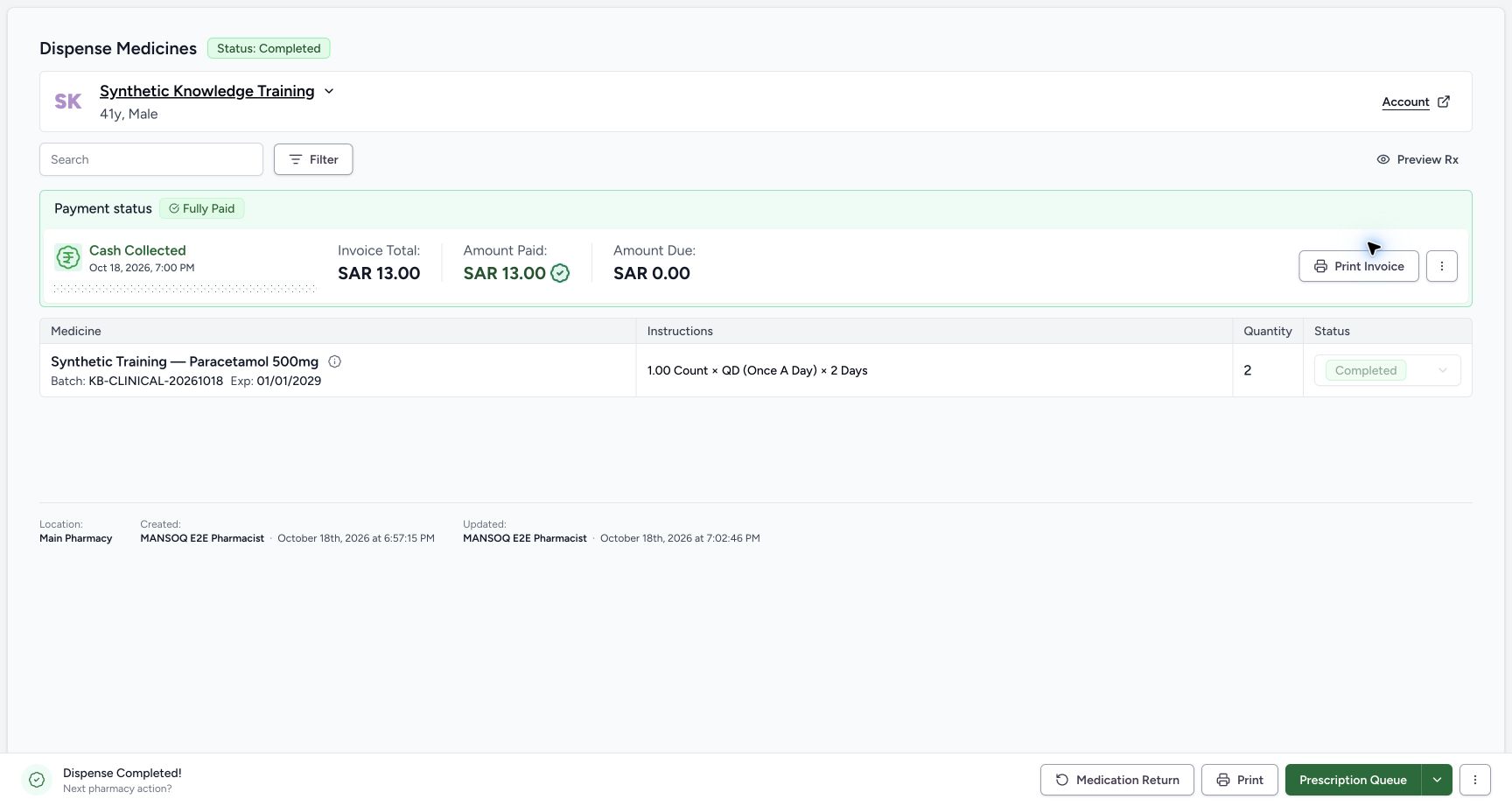 12
12Review the existing completed order and its recorded payment summary
Capture details
Exact committed 3dfb source and existing ordinary Pharmacist. Original unchanged desktop pixels; this bounded flow is navigation, filtering and existing-order review only.
Image SHA-256 74079c7d77a8dbb4705800022c296a8adf534aecce5db5c61c3b5f33f6a6848a
- Dispense Details: Open the read-only Dispense Details popover.
- Recorded Fully Paid: Read the recorded payment status separately from the order status.
9 of 9 content blocks have reviewed image alignment. Missing overview or prerequisite images remain open.
Before you begin
- Use the existing authorized Pharmacist at the fictional Main Pharmacy. The Pharmacy sidebar is expanded in this example. Synthetic Knowledge Training already has a Completed order; this walkthrough reviews that record rather than starting a new dispense.
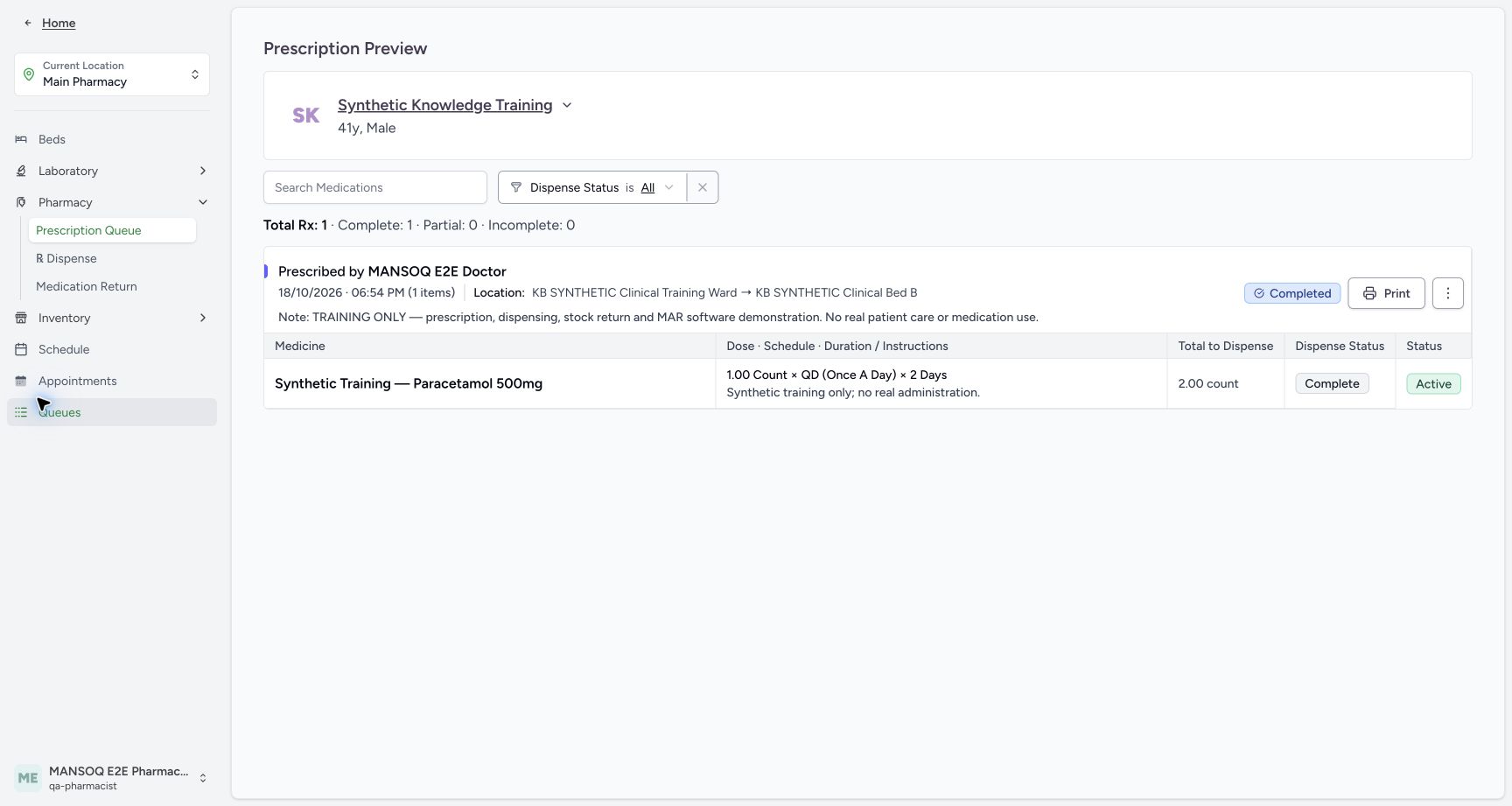 1
1Recorded release 3dfb7c9f · 2026-10-19T06:53:59.626Z · 1728 × 921 Open Dispense from the actual Pharmacy navigation
Capture details
Exact committed 3dfb source and existing ordinary Pharmacist. Original unchanged desktop pixels; this bounded flow is navigation, filtering and existing-order review only.
Image SHA-256
066d5f91b4707482dc5ab08f3b458d0a7f981dbc256fd4d1d0331bacd85fef9c- Dispense: Choose Dispense in the expanded Pharmacy navigation.
12Recorded release 3dfb7c9f · 2026-10-19T06:54:29.178Z · 1728 × 921 Open the existing Completed Synthetic Knowledge Training order
Capture details
Exact committed 3dfb source and existing ordinary Pharmacist. Original unchanged desktop pixels; this bounded flow is navigation, filtering and existing-order review only.
Image SHA-256
ff916edabcf951d89e2a5d0a8aebf9b252dfba60611a48d6500936bd64954f34- View Order: Open this existing completed order.
- Completed order: Check the selected order’s actual Completed status.
1. Open Dispense and choose History
In the expanded Pharmacy navigation for Main Pharmacy, select Dispense. The pictured Pending tab has no matching orders. Select History to review the saved orders.
1Open Dispense from the actual Pharmacy navigation
Capture details
Exact committed 3dfb source and existing ordinary Pharmacist. Original unchanged desktop pixels; this bounded flow is navigation, filtering and existing-order review only.
Image SHA-256 066d5f91b4707482dc5ab08f3b458d0a7f981dbc256fd4d1d0331bacd85fef9c
- Dispense: Choose Dispense in the expanded Pharmacy navigation.
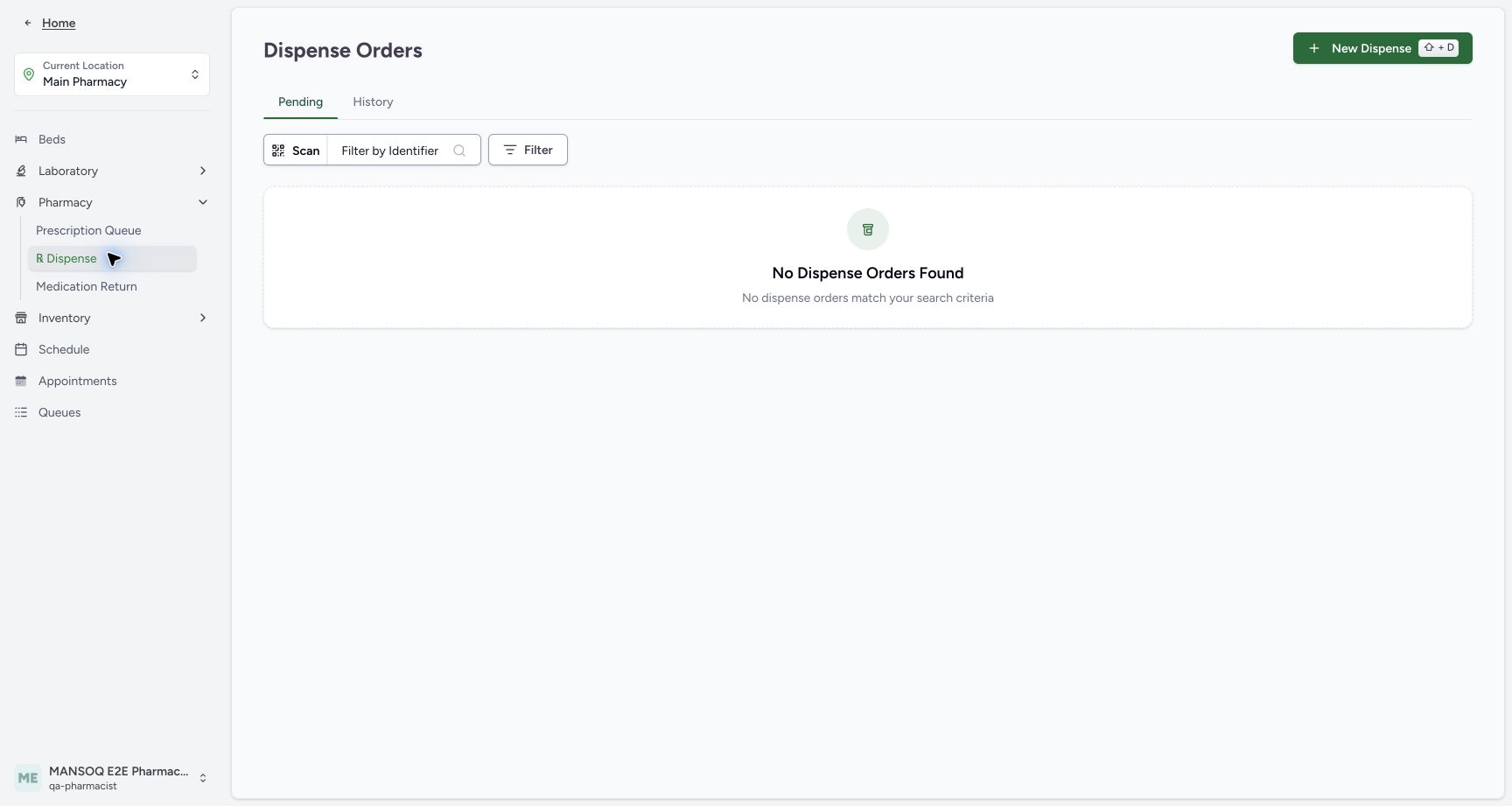 1
1Choose History to find an already completed dispensing order
Capture details
Exact committed 3dfb source and existing ordinary Pharmacist. Original unchanged desktop pixels; this bounded flow is navigation, filtering and existing-order review only.
Image SHA-256 38aa1a7aa9d02b3191ec9e8c5631f72a45d797d5979b26f0218e695c258cb080
- History: Open History for the saved completed order.
2. Open the intended completed order
On History, check Synthetic Knowledge Training, Completed and Main Pharmacy in the same row. Select that row’s View Order. This opens the existing order without a new-dispense action.
12Open the existing Completed Synthetic Knowledge Training order
Capture details
Exact committed 3dfb source and existing ordinary Pharmacist. Original unchanged desktop pixels; this bounded flow is navigation, filtering and existing-order review only.
Image SHA-256 ff916edabcf951d89e2a5d0a8aebf9b252dfba60611a48d6500936bd64954f34
- View Order: Open this existing completed order.
- Completed order: Check the selected order’s actual Completed status.
3. Read order, medicine and recorded payment states separately
Check Status: Completed and the intended patient. The existing medicine has quantity 2, the pictured batch/expiry and a disabled Completed status selector. Its payment summary separately reads Fully Paid, invoice total SAR 13.00, amount paid SAR 13.00 and amount due SAR 0.00. The footer identifies the recorded creator and updater. These are the saved example’s displayed fields.
12Review the existing completed order and its recorded payment summary
Capture details
Exact committed 3dfb source and existing ordinary Pharmacist. Original unchanged desktop pixels; this bounded flow is navigation, filtering and existing-order review only.
Image SHA-256 74079c7d77a8dbb4705800022c296a8adf534aecce5db5c61c3b5f33f6a6848a
- Dispense Details: Open the read-only Dispense Details popover.
- Recorded Fully Paid: Read the recorded payment status separately from the order status.
4. Read the medicine’s detail popover
Select the information icon beside the medicine name to open Dispense Details. Read Prescription Details, prescribed-by name/time, instructions and note, then Billing Details. This medicine’s panel displays quantity 2, base/total price SAR 12.60, the linked invoice and Balanced. Its line-detail price and the order’s invoice-total summary are separate displayed amounts; do not substitute one for the other.
12Review the existing completed order and its recorded payment summary
Capture details
Exact committed 3dfb source and existing ordinary Pharmacist. Original unchanged desktop pixels; this bounded flow is navigation, filtering and existing-order review only.
Image SHA-256 74079c7d77a8dbb4705800022c296a8adf534aecce5db5c61c3b5f33f6a6848a
- Dispense Details: Open the read-only Dispense Details popover.
- Recorded Fully Paid: Read the recorded payment status separately from the order status.
 12
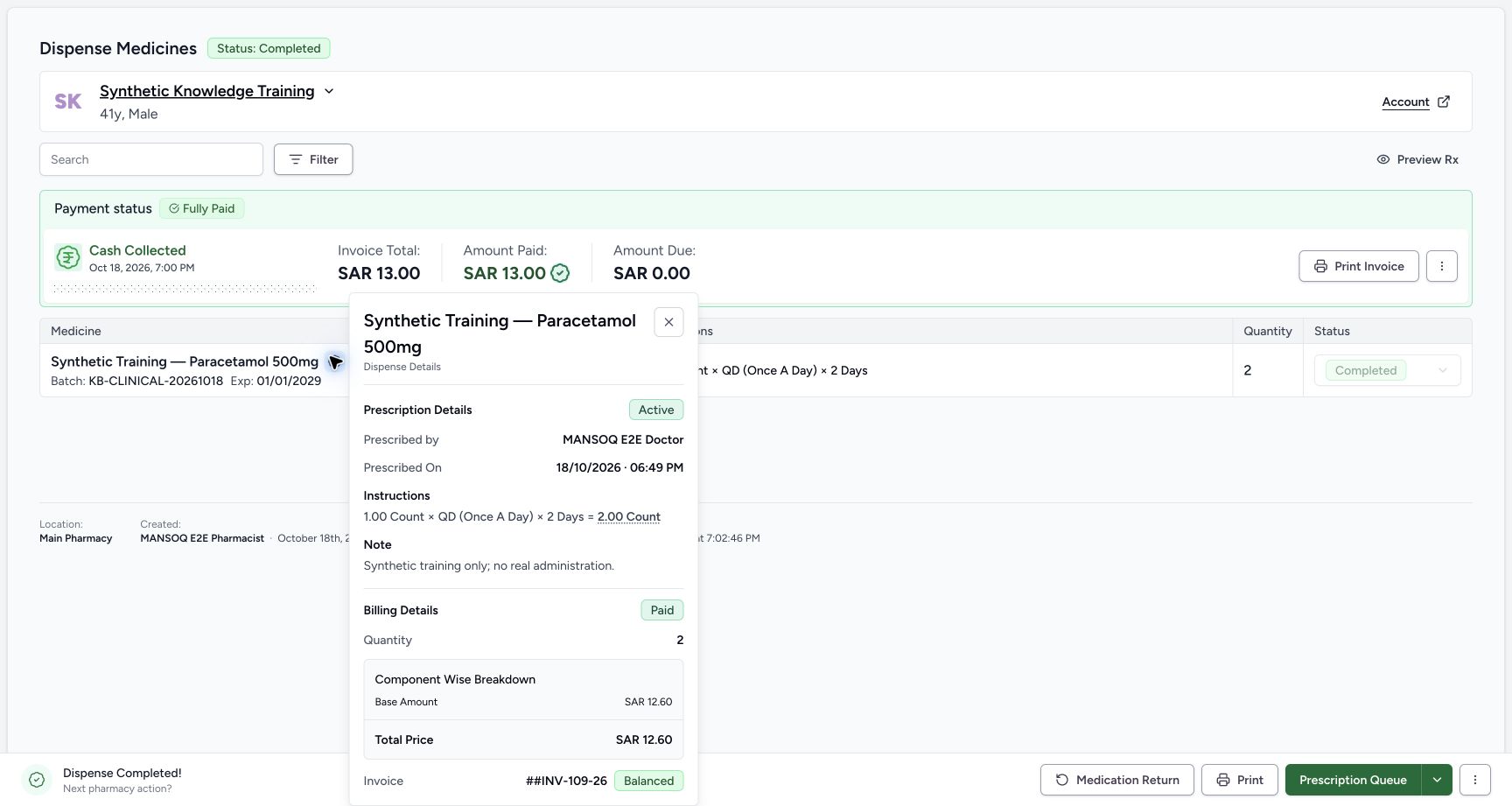
12Read prescription and billing details, then close the read-only popover
Capture details
Exact committed 3dfb source and existing ordinary Pharmacist. Original unchanged desktop pixels; this bounded flow is navigation, filtering and existing-order review only.
Image SHA-256 49522e555c18f8bebc095a8f3c840108ca2f26f77c9683e0fe512295e0dcd80a
- Close details: Close the read-only details popover.
- Recorded billing details: Read this medicine’s recorded billing detail and linked invoice.
5. Close the read-only details
Use the top-right X on Dispense Details to close the popover and return to the existing order. This closes the detail view; it does not change the saved order or medicine status.
12Read prescription and billing details, then close the read-only popover
Capture details
Exact committed 3dfb source and existing ordinary Pharmacist. Original unchanged desktop pixels; this bounded flow is navigation, filtering and existing-order review only.
Image SHA-256 49522e555c18f8bebc095a8f3c840108ca2f26f77c9683e0fe512295e0dcd80a
- Close details: Close the read-only details popover.
- Recorded billing details: Read this medicine’s recorded billing detail and linked invoice.
Keep the saved status fields distinct
The order page is Completed. Inside its medicine details, Prescription Details displays Active, while Billing Details displays Paid and the linked invoice displays Balanced. Read each label with its own section; they are not interchangeable order-state controls.
12Review the existing completed order and its recorded payment summary
Capture details
Exact committed 3dfb source and existing ordinary Pharmacist. Original unchanged desktop pixels; this bounded flow is navigation, filtering and existing-order review only.
Image SHA-256 74079c7d77a8dbb4705800022c296a8adf534aecce5db5c61c3b5f33f6a6848a
- Dispense Details: Open the read-only Dispense Details popover.
- Recorded Fully Paid: Read the recorded payment status separately from the order status.
12Read prescription and billing details, then close the read-only popover
Capture details
Exact committed 3dfb source and existing ordinary Pharmacist. Original unchanged desktop pixels; this bounded flow is navigation, filtering and existing-order review only.
Image SHA-256 49522e555c18f8bebc095a8f3c840108ca2f26f77c9683e0fe512295e0dcd80a
- Close details: Close the read-only details popover.
- Recorded billing details: Read this medicine’s recorded billing detail and linked invoice.
Troubleshooting
Pending shows no dispensing orders
Check which tab is selected. In this example, Pending shows No Dispense Orders Found, but History contains the existing completed order. Choose History and verify the intended patient and location before opening View Order.
1Choose History to find an already completed dispensing order
Capture details
Exact committed 3dfb source and existing ordinary Pharmacist. Original unchanged desktop pixels; this bounded flow is navigation, filtering and existing-order review only.
Image SHA-256 38aa1a7aa9d02b3191ec9e8c5631f72a45d797d5979b26f0218e695c258cb080
- History: Open History for the saved completed order.
12Open the existing Completed Synthetic Knowledge Training order
Capture details
Exact committed 3dfb source and existing ordinary Pharmacist. Original unchanged desktop pixels; this bounded flow is navigation, filtering and existing-order review only.
Image SHA-256 ff916edabcf951d89e2a5d0a8aebf9b252dfba60611a48d6500936bd64954f34
- View Order: Open this existing completed order.
- Completed order: Check the selected order’s actual Completed status.
Source evidence
Every citation uses this exact committed version. The private source repository requires access.
- repositories/platform/mansoq-web/src/pages/Facility/services/pharmacy/MedicationDispenseHistory.tsx:140 ·
3dfb7c9f519fb5b4cd4452439f3c12346bf58319Source file checksum
84c433d3613c4b3b2fdc2980d21f4fcdad7fc1bf81b8d8b2efddc6ec7e2085c6 - repositories/platform/mansoq-web/src/pages/Facility/services/pharmacy/MedicationDispenseHistory.tsx:359 ·
3dfb7c9f519fb5b4cd4452439f3c12346bf58319Source file checksum
84c433d3613c4b3b2fdc2980d21f4fcdad7fc1bf81b8d8b2efddc6ec7e2085c6 - repositories/platform/mansoq-web/src/pages/Facility/services/pharmacy/DispenseOrderView.tsx:290 ·
3dfb7c9f519fb5b4cd4452439f3c12346bf58319Source file checksum
59bebd01a2422d3b62d5e57b0f3a9211d5eb03ddd94f81704e3dbecd47cd197d - repositories/platform/mansoq-web/src/pages/Facility/services/pharmacy/DispenseOrderView.tsx:672 ·
3dfb7c9f519fb5b4cd4452439f3c12346bf58319Source file checksum
59bebd01a2422d3b62d5e57b0f3a9211d5eb03ddd94f81704e3dbecd47cd197d - repositories/platform/mansoq-web/src/pages/Facility/services/pharmacy/components/DispenseGroupCard.tsx:146 ·
3dfb7c9f519fb5b4cd4452439f3c12346bf58319Source file checksum
dd00f3c4b7ec9c6839e9b50bba7256410883fa4e816c6f7226ccd36b164cc551 - repositories/platform/mansoq-web/src/pages/Facility/services/pharmacy/components/DispenseInfoPopover.tsx:91 ·
3dfb7c9f519fb5b4cd4452439f3c12346bf58319Source file checksum
334e120116701ff616b319b2235e6793e56d3bd43fd21ab5f399616a75eeb34d