 MANSOQ
 Pharmacy · VERSION 3dfb7c9f
Find a pharmacy prescription and use search and status filters
Open the assigned pharmacy, review a completed prescription and distinguish an empty filtered medicine list from the saved prescription.
Pharmacist
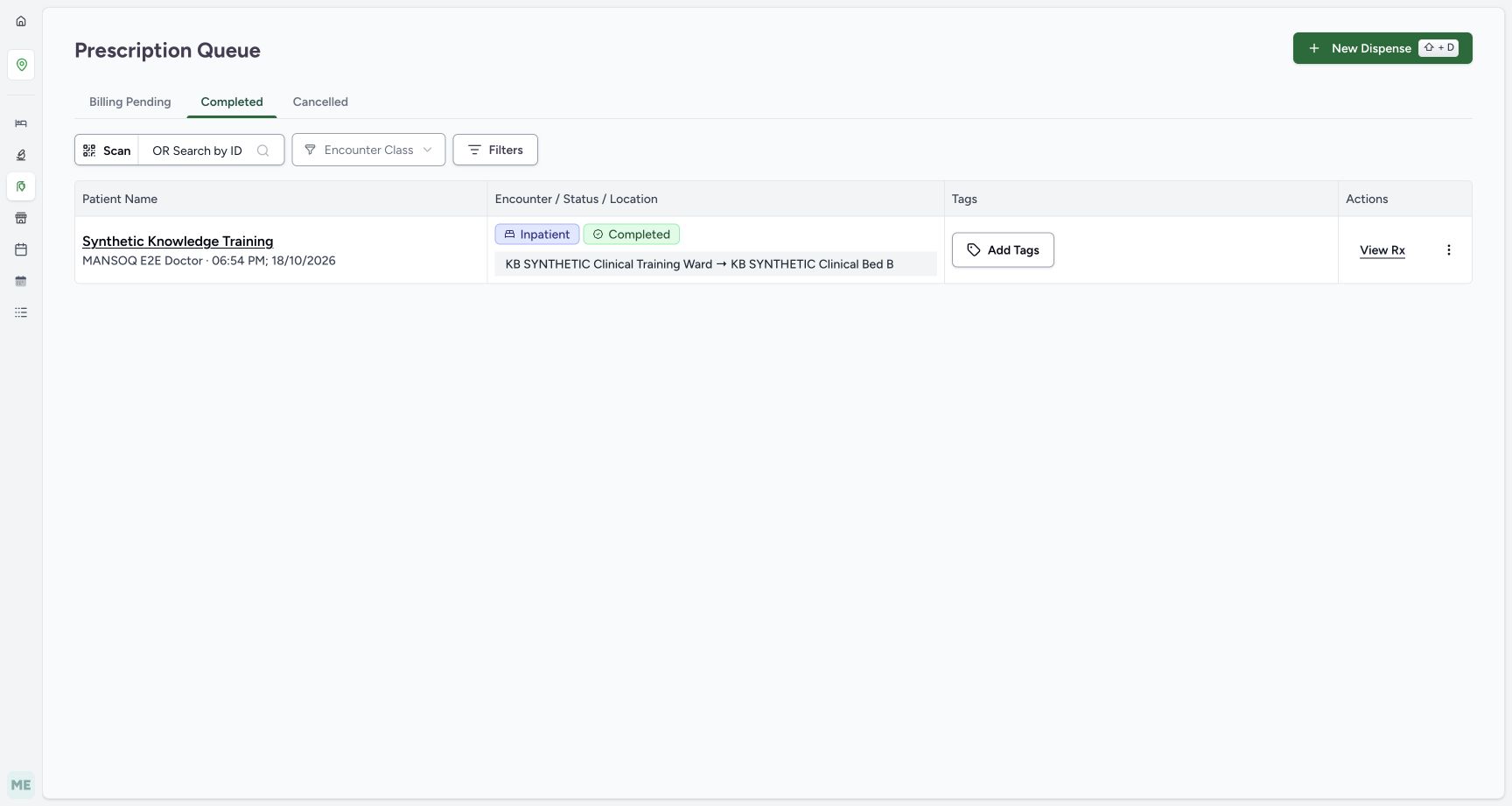 12
12Review the completed fictional prescription and open View Rx
Capture details
Exact committed 3dfb source and existing ordinary Pharmacist. Original unchanged desktop pixels; this bounded flow is navigation, filtering and existing-order review only.
Image SHA-256 c96beb3548460ee458482e83bb9130a13b58fedbc15d517554d4962505be1767
- Completed selected: Check that Completed is the selected tab.
- View Rx: Open the intended patient’s prescription preview.
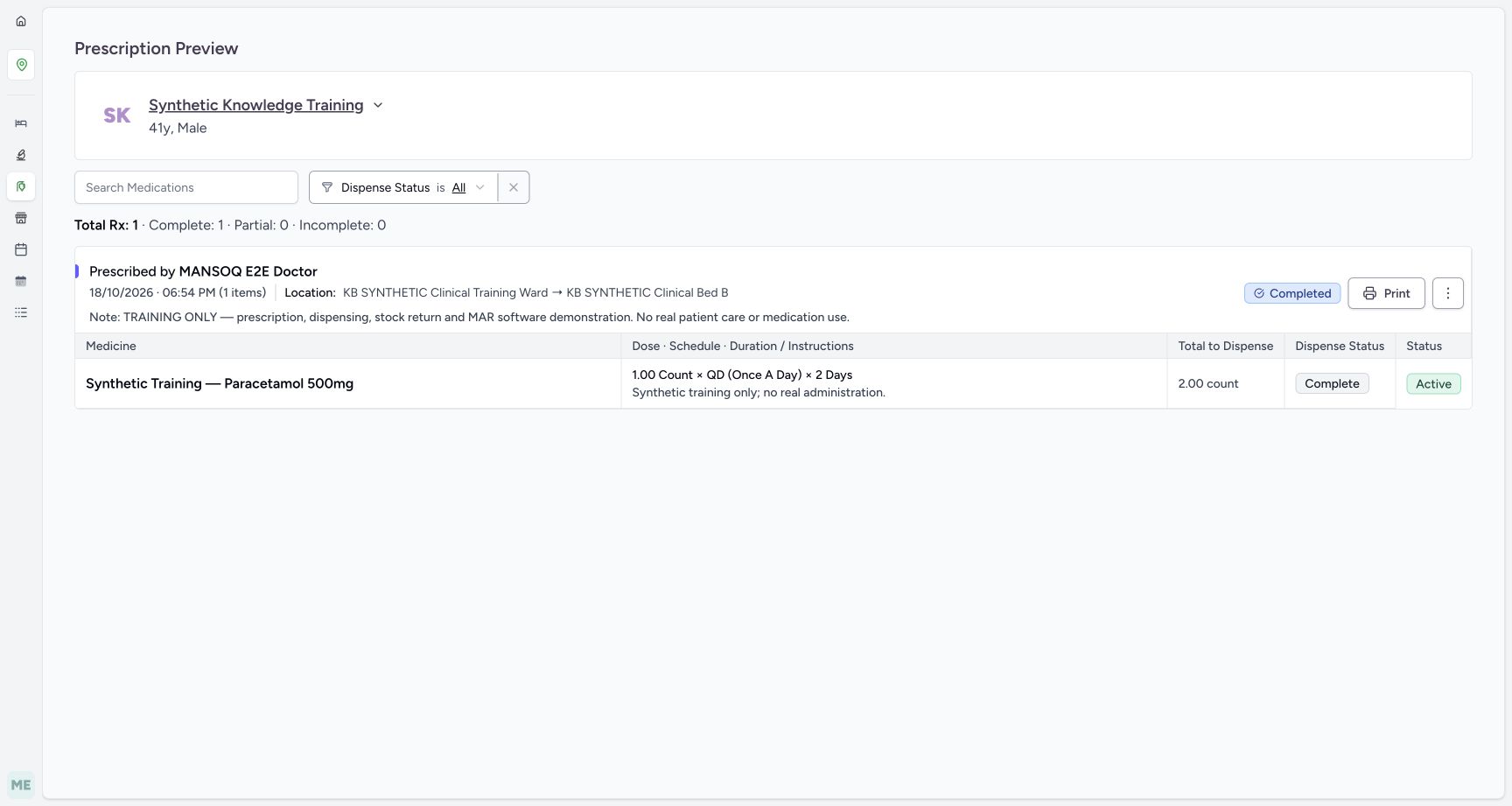 12
12Review the fictional prescription, training note, medication and completion counts
Capture details
Exact committed 3dfb source and existing ordinary Pharmacist. Original unchanged desktop pixels; this bounded flow is navigation, filtering and existing-order review only.
Image SHA-256 fcb074b676c2f473aa0eb93f9a980a992e7353c1f27b26ad0c20b2bfdbcbd681
- Search Medications: Search the medicine names within this prescription preview.
- Training-only medication row: Read the existing fictional medicine row.
13 of 13 content blocks have reviewed image alignment. Missing overview or prerequisite images remain open.
Before you begin
- Use the existing authorized Pharmacist in the fictional MANSOQ Demo Polyclinic. The pictured Main Pharmacy and Synthetic Knowledge Training prescription are training data; available services and locations depend on your assigned facility.
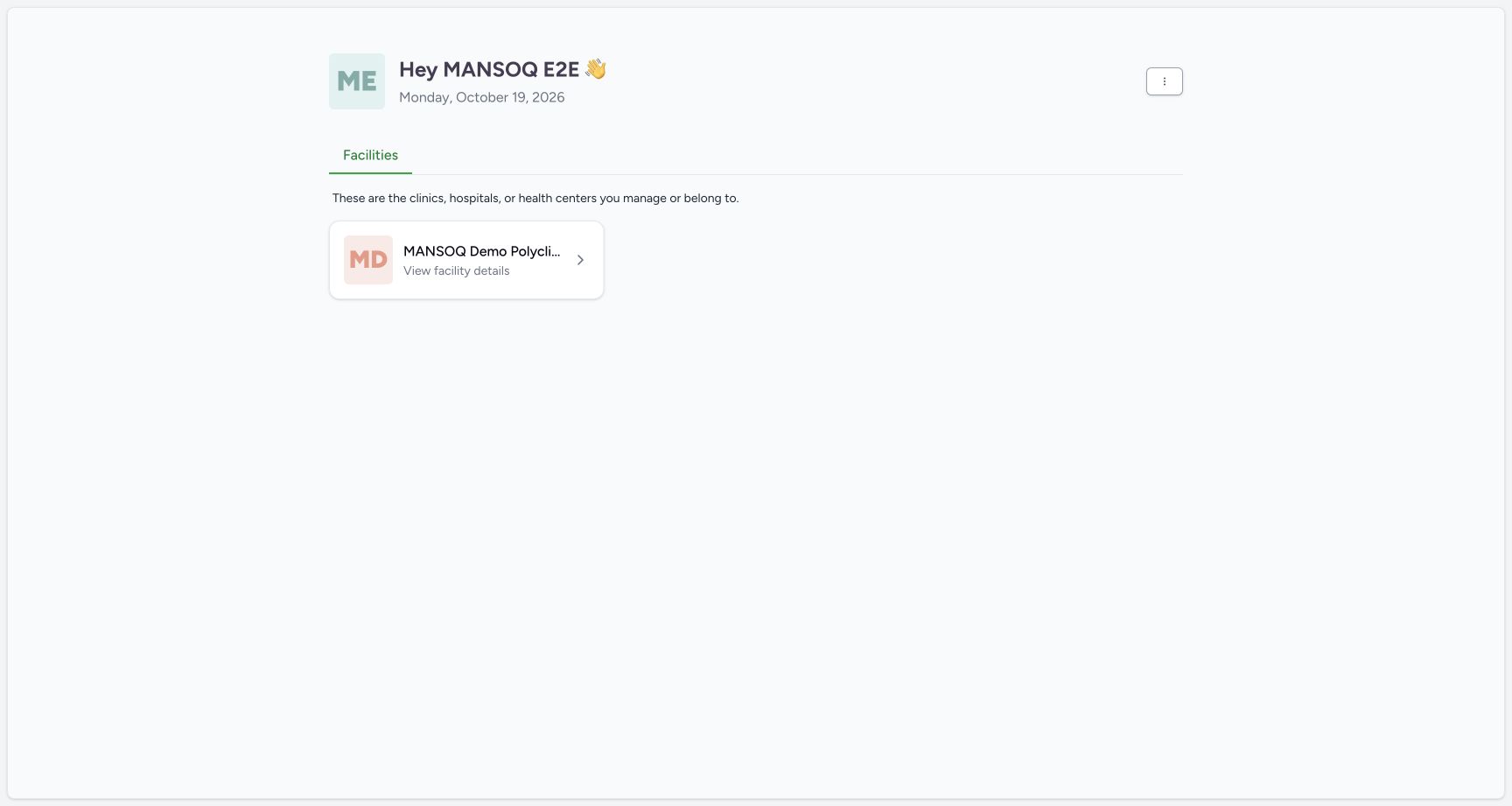 1
1Recorded release 3dfb7c9f · 2026-10-19T06:15:03.111Z · 1728 × 921 Open the assigned fictional facility as the existing Pharmacist
Capture details
Exact committed 3dfb source and existing ordinary Pharmacist. Original unchanged desktop pixels; this bounded flow is navigation, filtering and existing-order review only.
Image SHA-256
0deeedea5b378652548c5d5d79f7ee4c4160a24421c0deee16a070fbd16e57f3- Assigned facility: Open the assigned fictional Polyclinic.
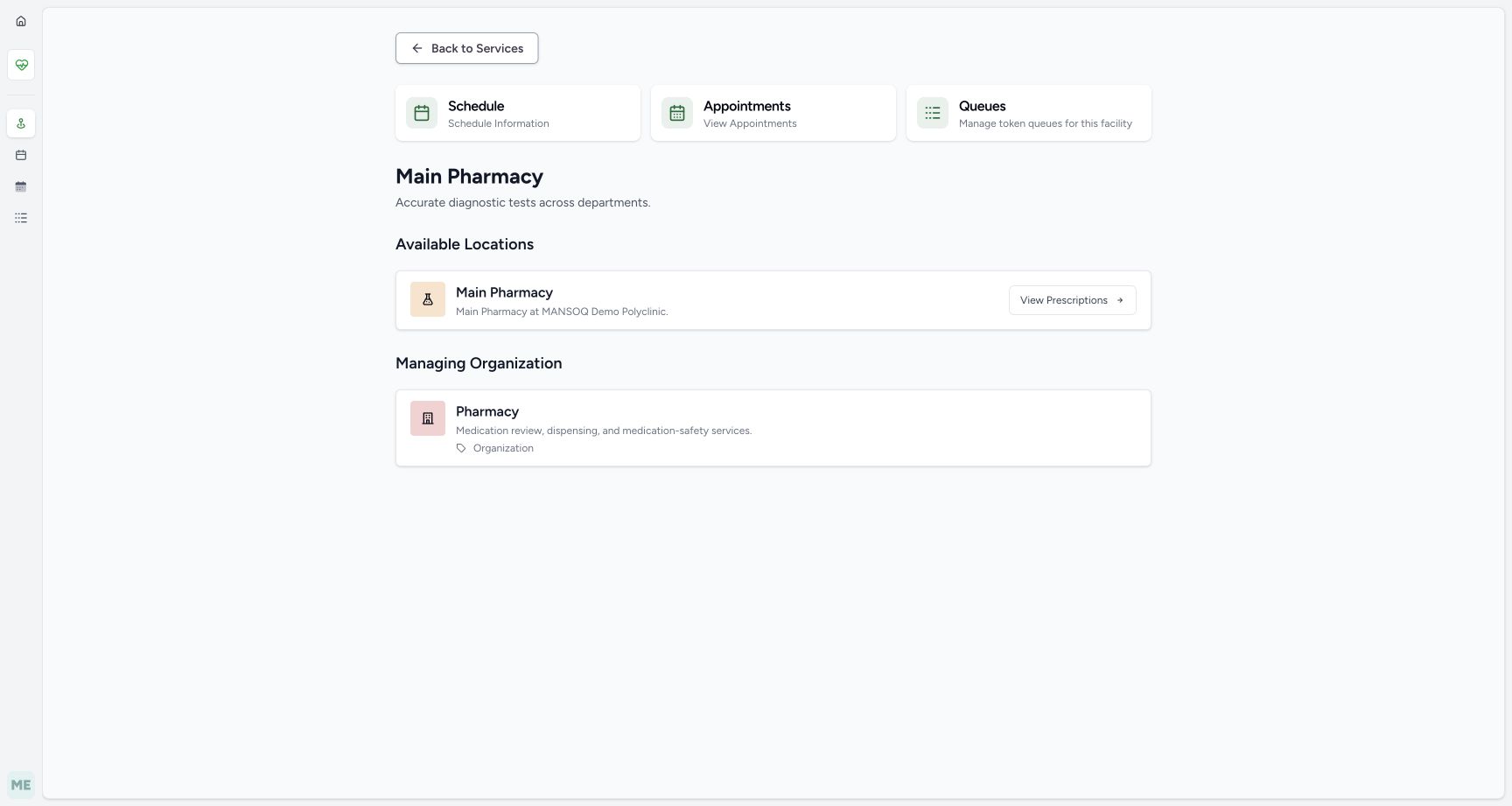 1
1Recorded release 3dfb7c9f · 2026-10-19T06:16:16.114Z · 1728 × 921 Open the Main Pharmacy location prescription workspace
Capture details
Exact committed 3dfb source and existing ordinary Pharmacist. Original unchanged desktop pixels; this bounded flow is navigation, filtering and existing-order review only.
Image SHA-256
4a6e8361469c8be9041d217871e93d7c5bef11705301f54cbae3d948d94099e2- Main Pharmacy — View Prescriptions: Open the intended Main Pharmacy location’s Prescription Queue.
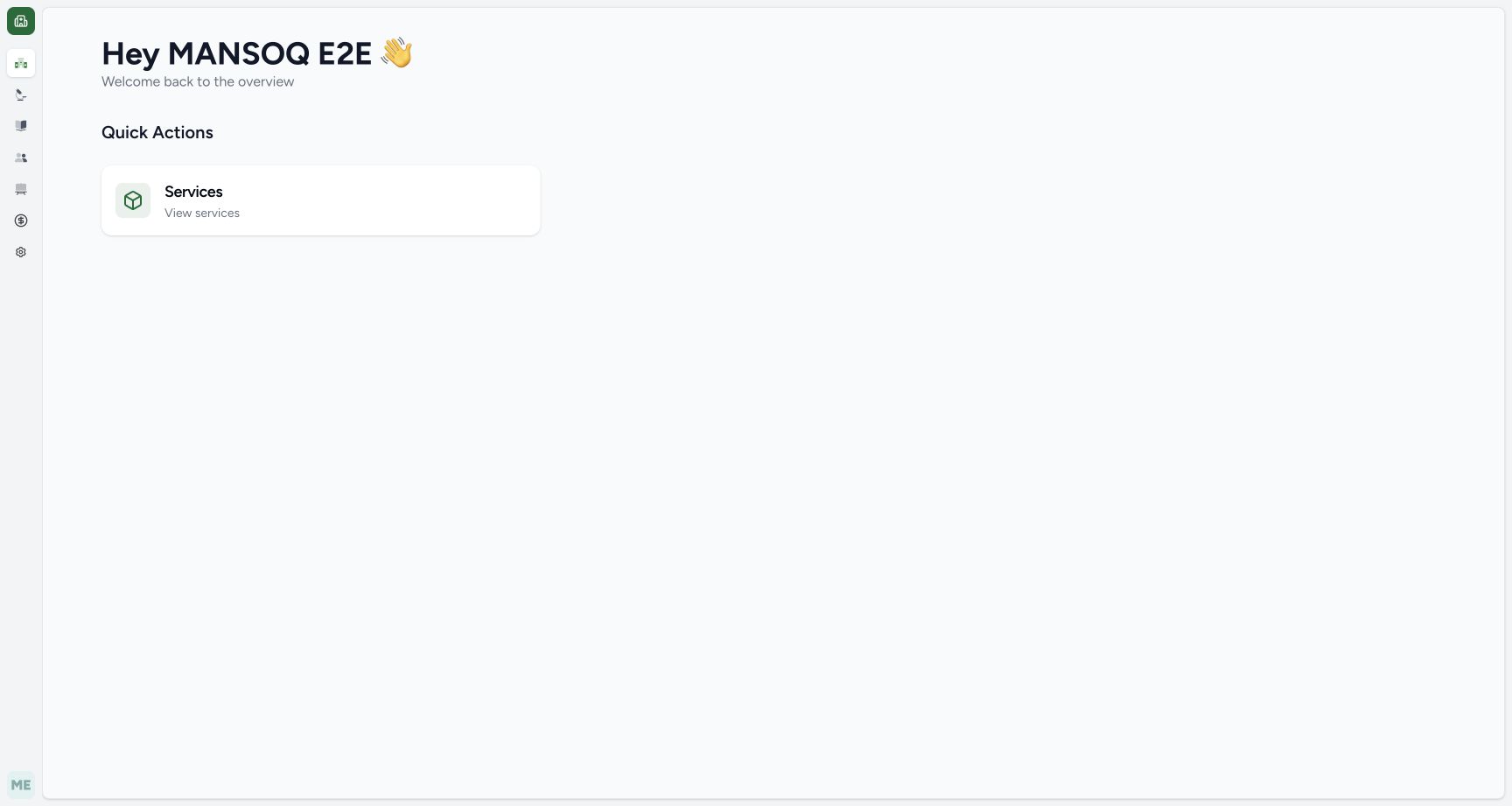
1. Open the assigned facility and Services
Choose MANSOQ Demo Polyclinic, then Services.
1Open the assigned fictional facility as the existing Pharmacist
Capture details
Exact committed 3dfb source and existing ordinary Pharmacist. Original unchanged desktop pixels; this bounded flow is navigation, filtering and existing-order review only.
Image SHA-256 0deeedea5b378652548c5d5d79f7ee4c4160a24421c0deee16a070fbd16e57f3
- Assigned facility: Open the assigned fictional Polyclinic.
 1
1Use the Services entry available to the Pharmacist
Capture details
Exact committed 3dfb source and existing ordinary Pharmacist. Original unchanged desktop pixels; this bounded flow is navigation, filtering and existing-order review only.
Image SHA-256 6786742d4c3e49c0bd74a00d75ef40c5e0c7e1a66c12226acbc3cd74853d989f
- Services: Open Services for this facility.
2. Find Main Pharmacy in the service list
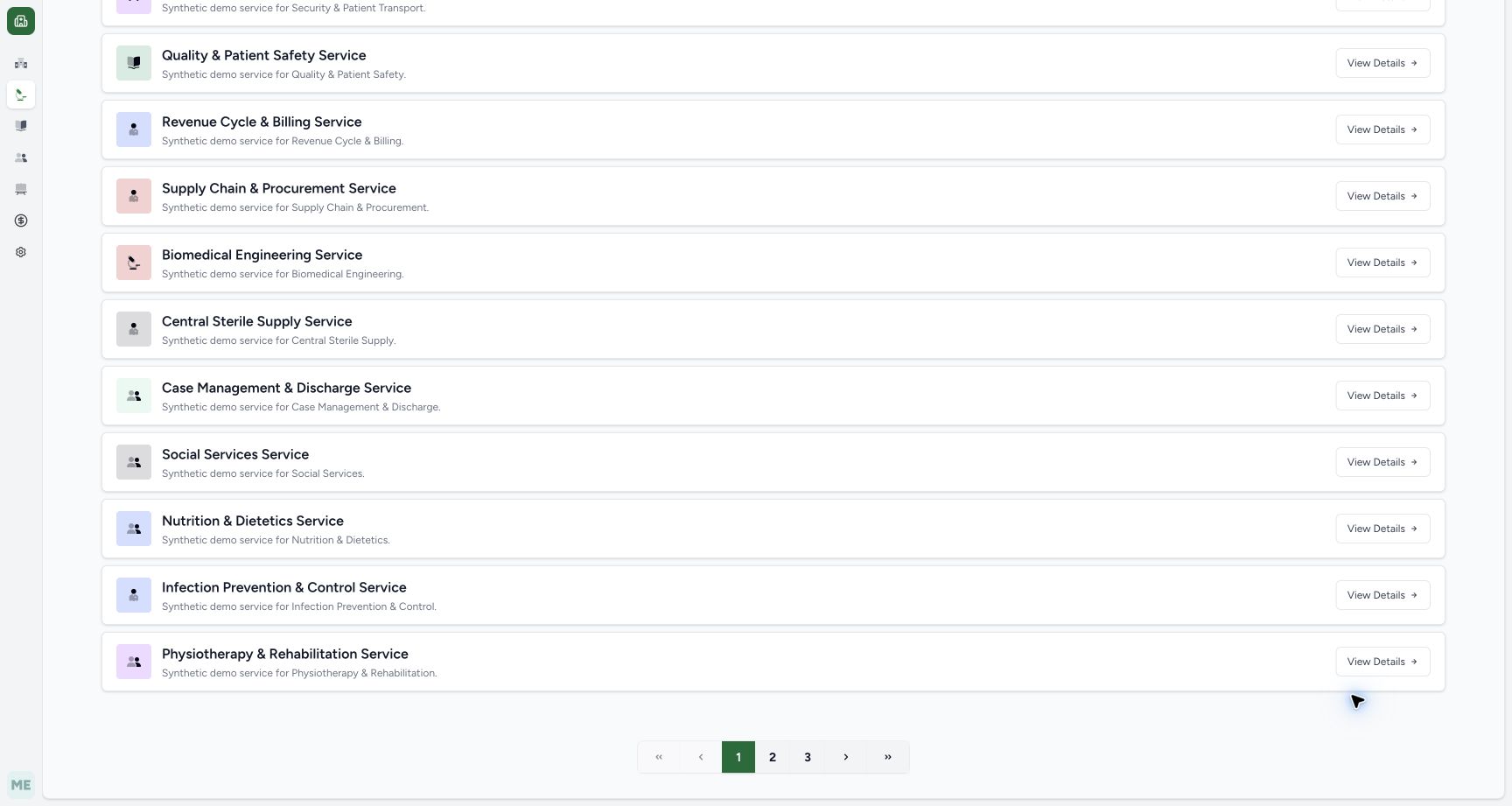
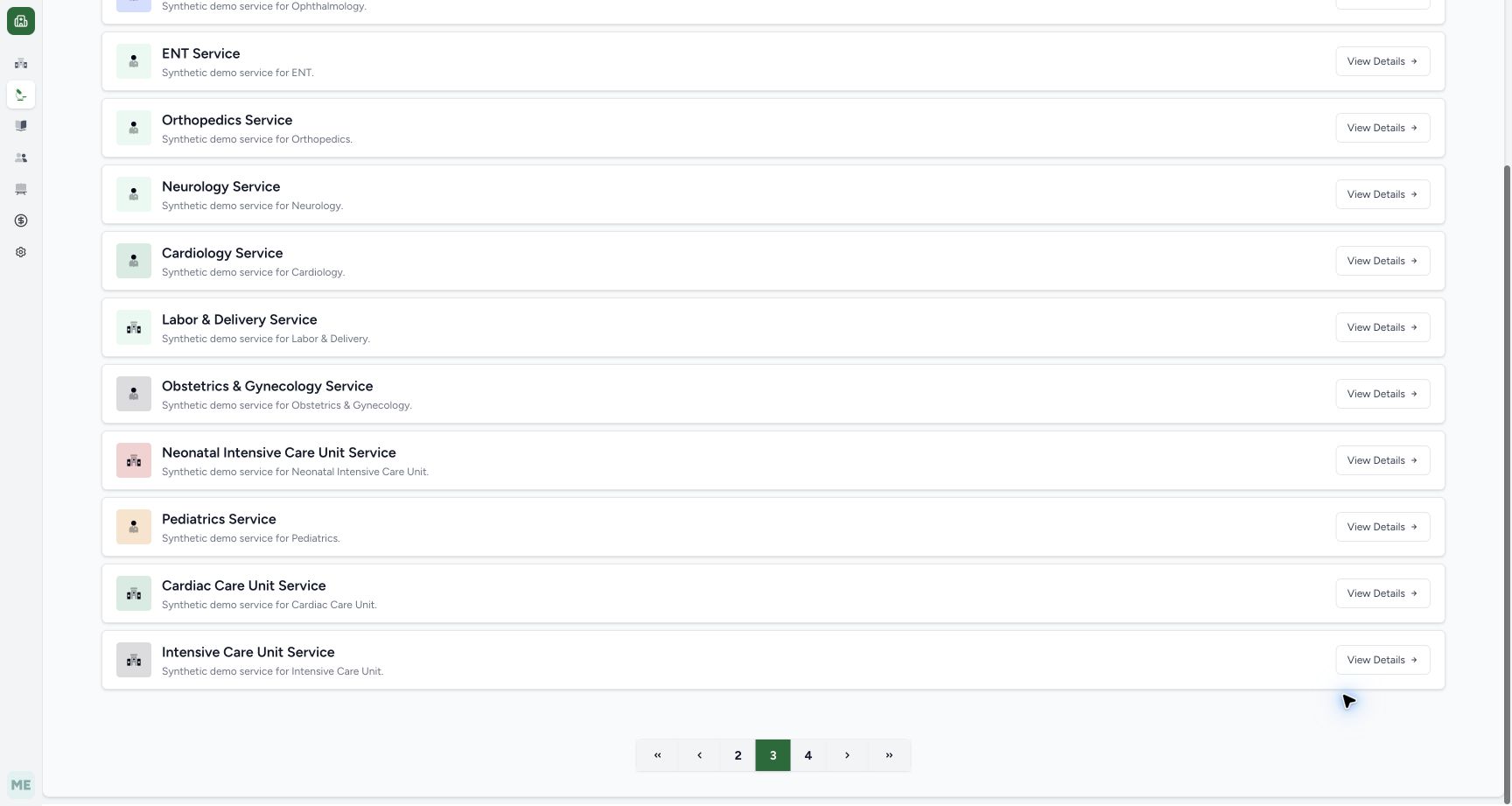
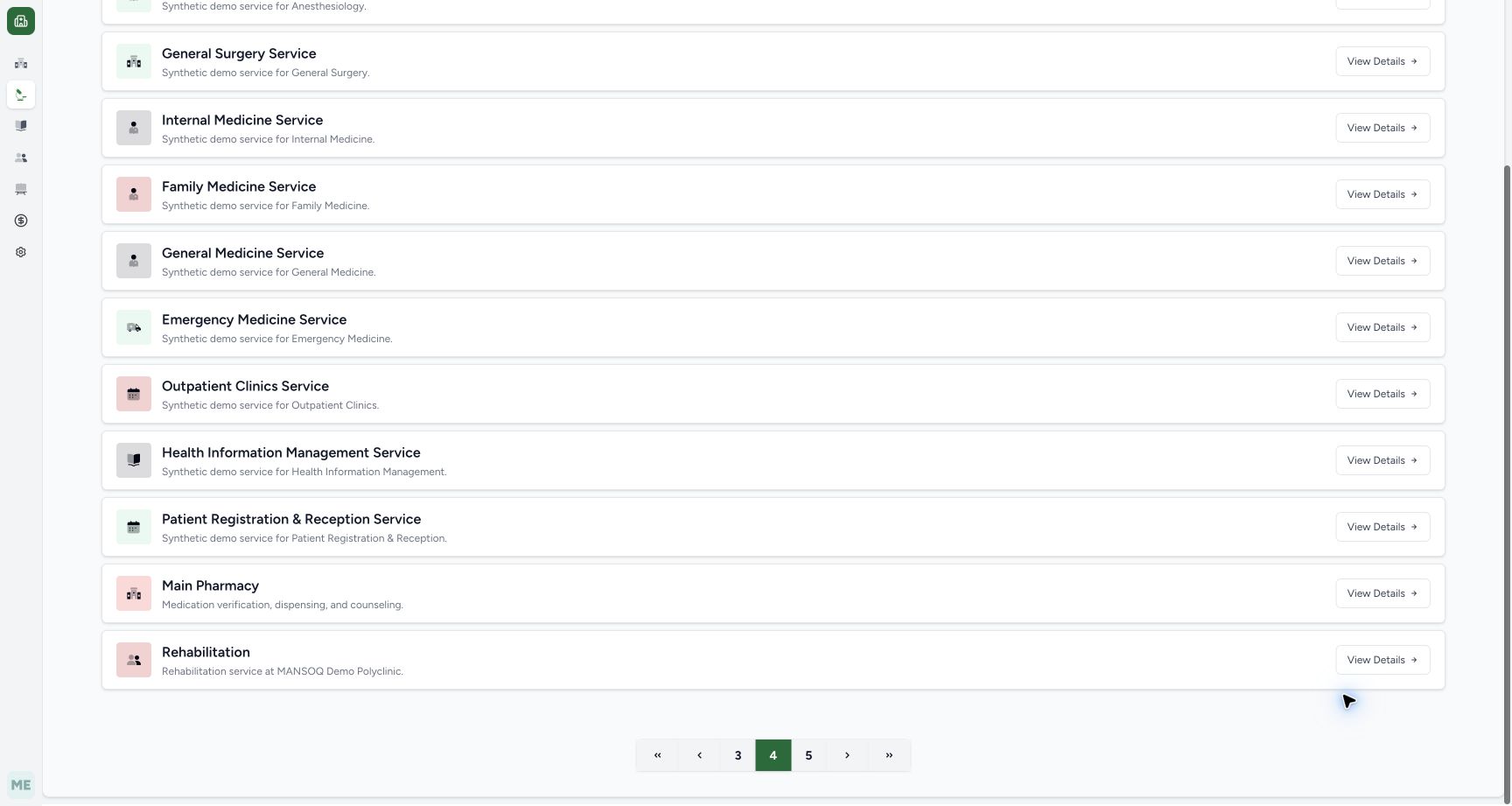
Scroll to the service-list pagination. In this dated fictional facility, choose 3, then 4 when it appears in the page controls. On page 4, select Main Pharmacy. The pictured scroll position keeps the target fully visible. Page numbers can differ when your facility has different services.
 1
1Scroll to the actual service pagination and choose page 3
Capture details
Exact committed 3dfb source and existing ordinary Pharmacist. Original unchanged desktop pixels; this bounded flow is navigation, filtering and existing-order review only.
Image SHA-256 98bfce7f65e9ffacdc5be88521d879b985fb79e2ef1583815703763a9c18e86c
- Page 3: Select page 3 from the visible service-list pagination.
 1
1Choose page 4 from the visible service pagination
Capture details
Exact committed 3dfb source and existing ordinary Pharmacist. Original unchanged desktop pixels; this bounded flow is navigation, filtering and existing-order review only.
Image SHA-256 aaa04287677db7e4052eb11cc1eda26d3284b8b5d40ab41916930a416015e9e6
- Page 4: Select page 4 from this pagination window.
 1
1Open the fully visible Main Pharmacy service
Capture details
Exact committed 3dfb source and existing ordinary Pharmacist. Original unchanged desktop pixels; this bounded flow is navigation, filtering and existing-order review only.
Image SHA-256 b543a9f477c0662a2994c31d36c06e674f20ec2a5a58ba38fcc304b4da25bb5e
- Main Pharmacy: Open the fully visible Main Pharmacy service.
3. Open the intended pharmacy location
Under Available Locations, check Main Pharmacy and choose View Prescriptions. This opens that location’s Prescription Queue.
1Open the Main Pharmacy location prescription workspace
Capture details
Exact committed 3dfb source and existing ordinary Pharmacist. Original unchanged desktop pixels; this bounded flow is navigation, filtering and existing-order review only.
Image SHA-256 4a6e8361469c8be9041d217871e93d7c5bef11705301f54cbae3d948d94099e2
- Main Pharmacy — View Prescriptions: Open the intended Main Pharmacy location’s Prescription Queue.
4. Find the completed prescription
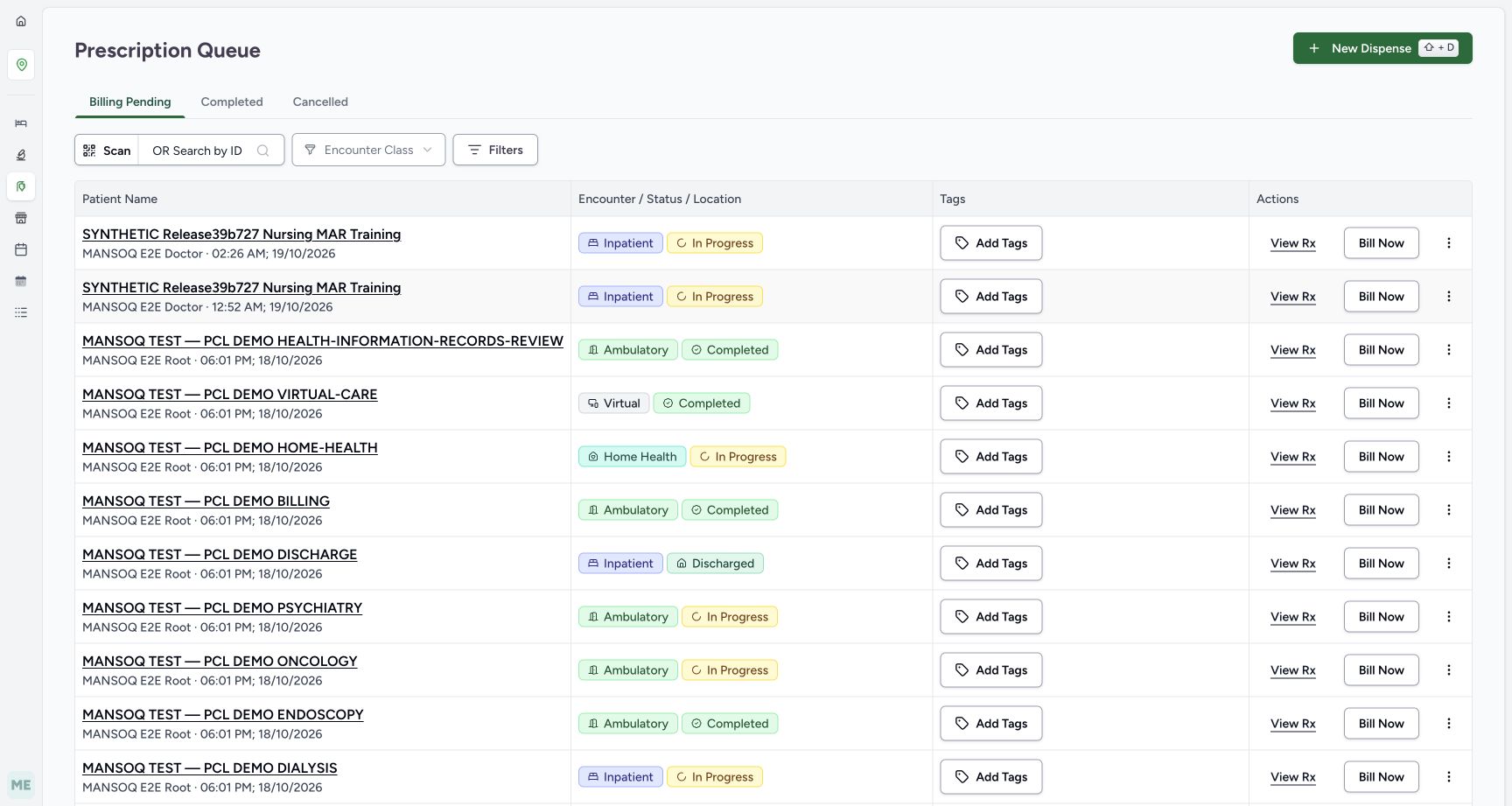
Select Completed in Prescription Queue. Check the intended Synthetic Knowledge Training row, encounter status and location, then choose View Rx on that row.
 1
1Distinguish the current Billing Pending queue from completed work
Capture details
Exact committed 3dfb source and existing ordinary Pharmacist. Original unchanged desktop pixels; this bounded flow is navigation, filtering and existing-order review only.
Image SHA-256 0e5c87d6cc74d8bcca01da0c692dfa68f95f2f923bdbb3a4b71476a851709f9b
- Completed: Select the Completed prescriptions tab.
12Review the completed fictional prescription and open View Rx
Capture details
Exact committed 3dfb source and existing ordinary Pharmacist. Original unchanged desktop pixels; this bounded flow is navigation, filtering and existing-order review only.
Image SHA-256 c96beb3548460ee458482e83bb9130a13b58fedbc15d517554d4962505be1767
- Completed selected: Check that Completed is the selected tab.
- View Rx: Open the intended patient’s prescription preview.
5. Review patient, prescription and medicine context
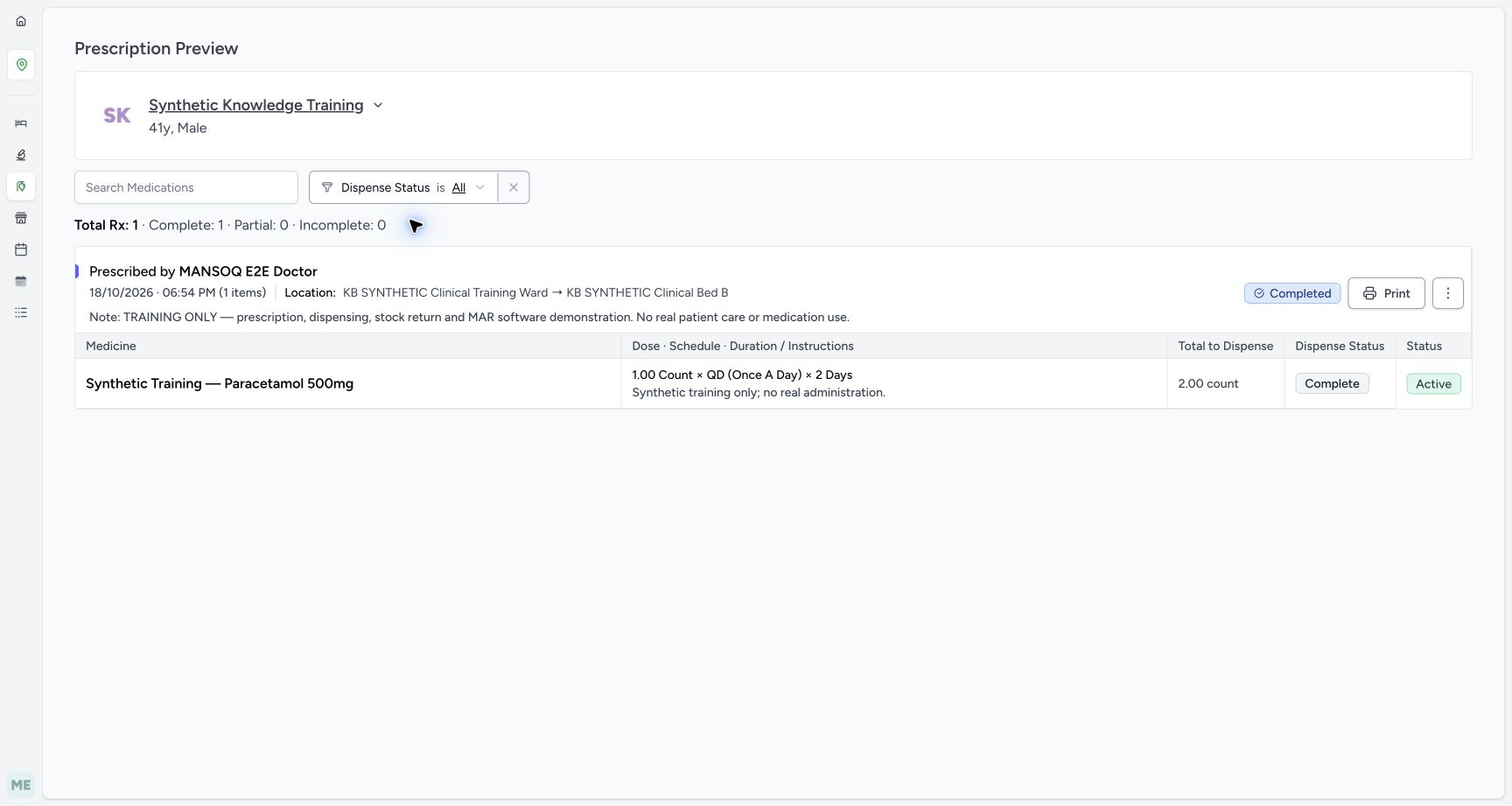
On Prescription Preview, check the patient, prescription’s Completed badge, prescriber, date/time, location and training note. The pictured medicine row has Dispense Status: Complete, Status: Active and total to dispense 2.00 count. These are distinct displayed fields on this existing example.
12Review the fictional prescription, training note, medication and completion counts
Capture details
Exact committed 3dfb source and existing ordinary Pharmacist. Original unchanged desktop pixels; this bounded flow is navigation, filtering and existing-order review only.
Image SHA-256 fcb074b676c2f473aa0eb93f9a980a992e7353c1f27b26ad0c20b2bfdbcbd681
- Search Medications: Search the medicine names within this prescription preview.
- Training-only medication row: Read the existing fictional medicine row.
6. Search within the medicine names
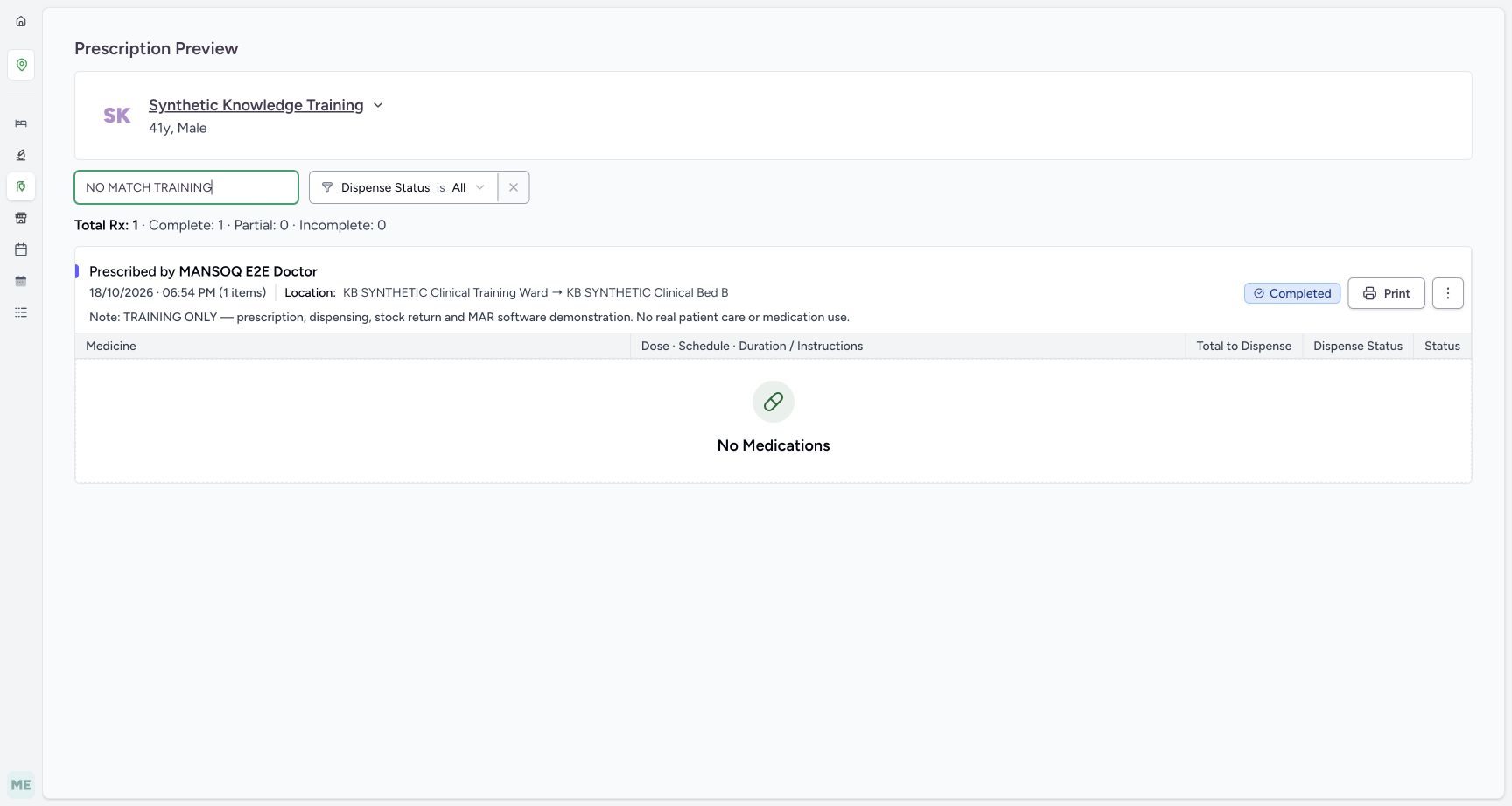
Enter NO MATCH TRAINING in Search Medications. This example shows No Medications while the prescription header and Total Rx: 1 remain. The search narrows the visible medicine rows; this empty result does not mean that the saved prescription was deleted.
12Review the fictional prescription, training note, medication and completion counts
Capture details
Exact committed 3dfb source and existing ordinary Pharmacist. Original unchanged desktop pixels; this bounded flow is navigation, filtering and existing-order review only.
Image SHA-256 fcb074b676c2f473aa0eb93f9a980a992e7353c1f27b26ad0c20b2bfdbcbd681
- Search Medications: Search the medicine names within this prescription preview.
- Training-only medication row: Read the existing fictional medicine row.
 12
12Recognize an empty medication result caused by the search text
Capture details
Exact committed 3dfb source and existing ordinary Pharmacist. Original unchanged desktop pixels; this bounded flow is navigation, filtering and existing-order review only.
Image SHA-256 57e9620a9ec238f602d3c357f2db8d478b21047fbb73b7e9a5d6dd17ed6fb638
- Clear the search text: Delete the no-match search text to restore the row.
- No Medications result: Read the empty filtered result alongside the retained prescription header.
7. Clear the medication search
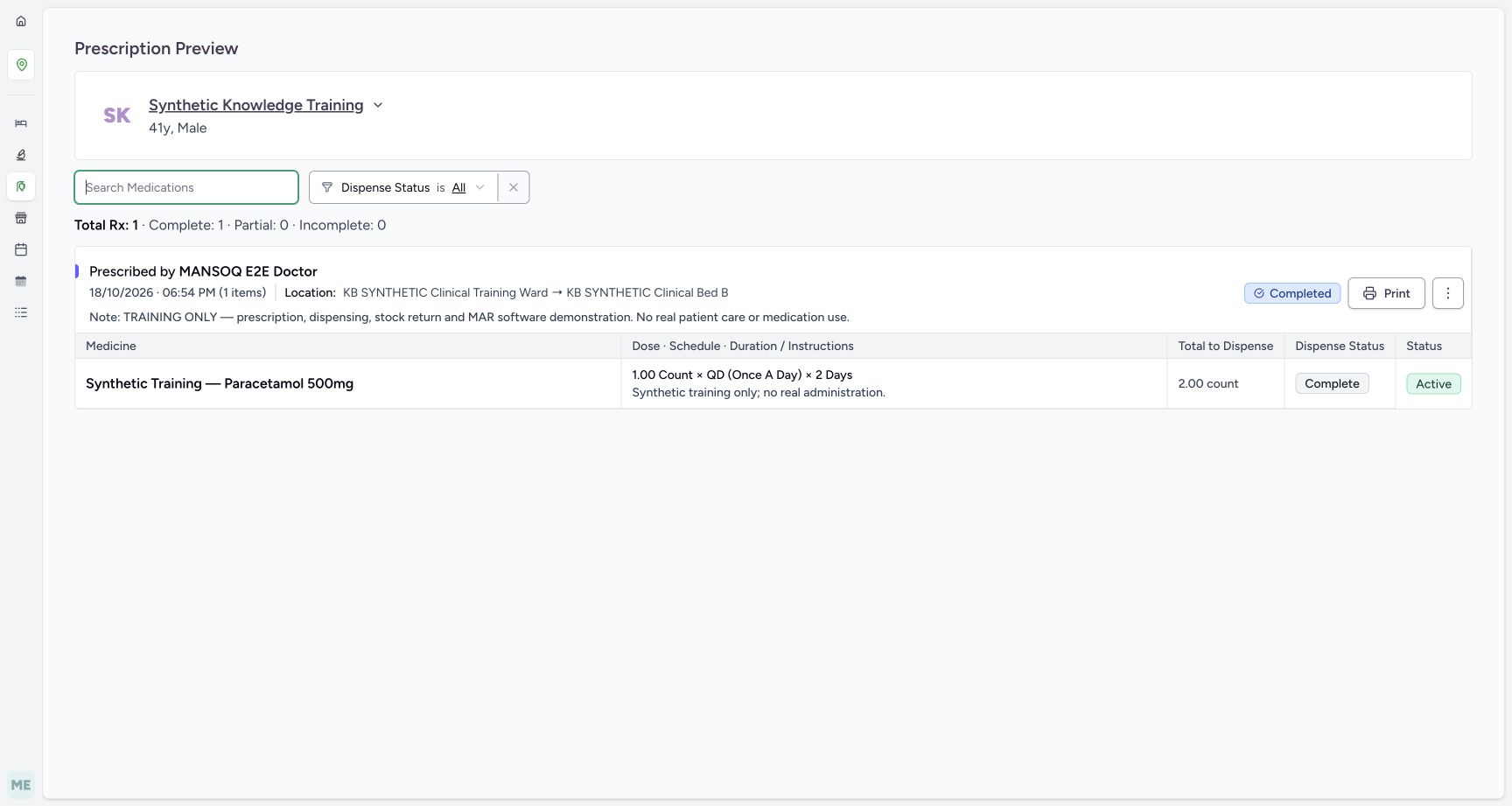
Delete the search text. The fictional medicine row returns with its saved instructions and Complete dispense status.
12Recognize an empty medication result caused by the search text
Capture details
Exact committed 3dfb source and existing ordinary Pharmacist. Original unchanged desktop pixels; this bounded flow is navigation, filtering and existing-order review only.
Image SHA-256 57e9620a9ec238f602d3c357f2db8d478b21047fbb73b7e9a5d6dd17ed6fb638
- Clear the search text: Delete the no-match search text to restore the row.
- No Medications result: Read the empty filtered result alongside the retained prescription header.
 12
12Clear the search to restore the saved medication row
Capture details
Exact committed 3dfb source and existing ordinary Pharmacist. Original unchanged desktop pixels; this bounded flow is navigation, filtering and existing-order review only.
Image SHA-256 b80e6a7cdf158b324eb505bd12f9117c86d45ac8aa3419ece5e26dc11d3f6d03
- Cleared medication search: Check that the search field is clear.
- Dispense Status: Open the Dispense Status selector.
8. Use Incomplete and Complete deliberately
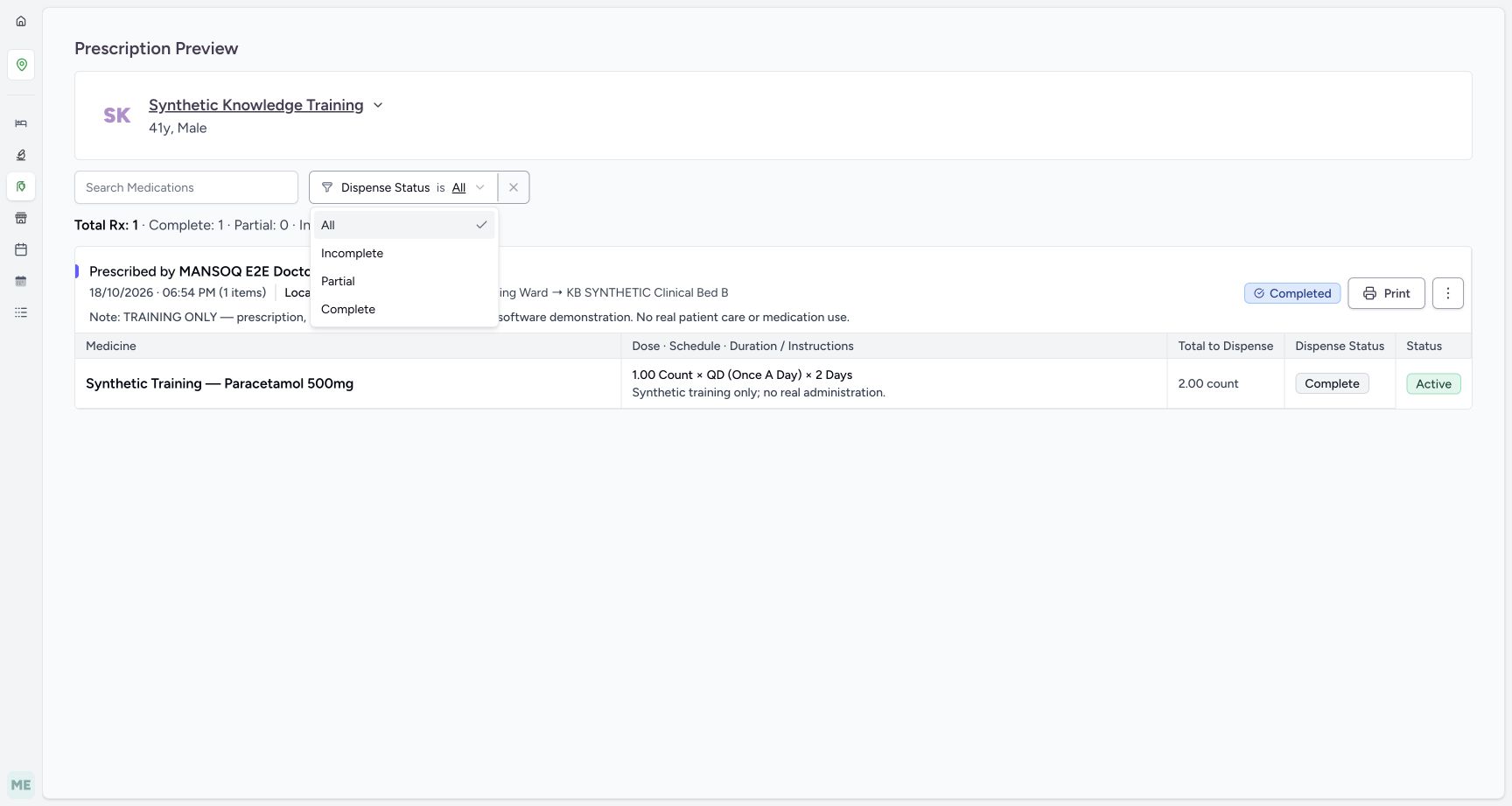
Open Dispense Status and choose Incomplete. The saved example has no matching medicine rows. Reopen the same selector and choose Complete; its one completed medicine row returns.
 12
12Review the available dispense-status filter choices
Capture details
Exact committed 3dfb source and existing ordinary Pharmacist. Original unchanged desktop pixels; this bounded flow is navigation, filtering and existing-order review only.
Image SHA-256 e2a9ec967a094f1d2a4c966bd268770fc0d0a459eee67298bf325b8a38066538
- Incomplete filter: Select Incomplete to inspect its matching medicine rows.
- Complete filter: Select Complete to inspect its matching medicine rows.
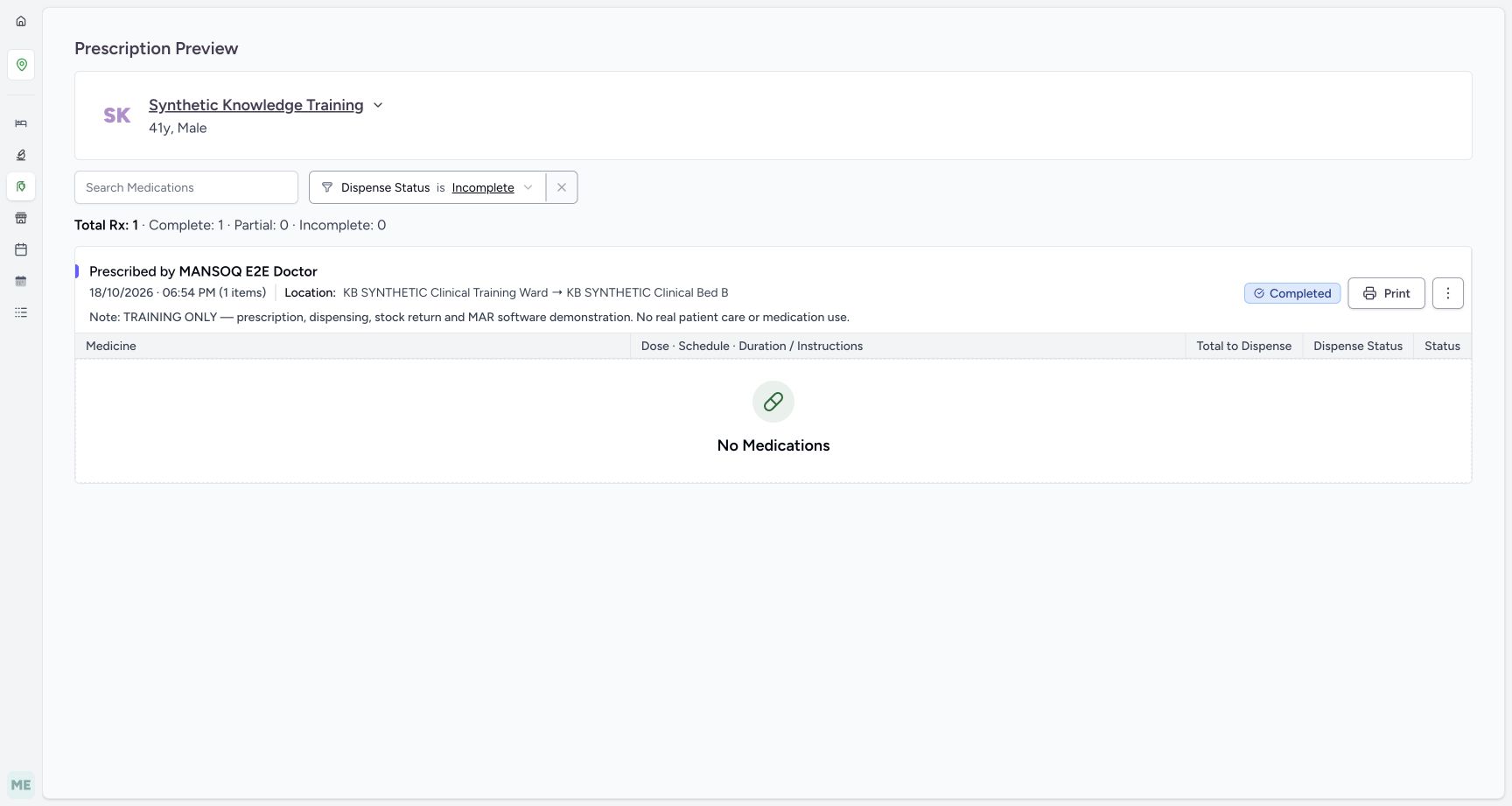 12
12The Incomplete filter hides this already complete medication
Capture details
Exact committed 3dfb source and existing ordinary Pharmacist. Original unchanged desktop pixels; this bounded flow is navigation, filtering and existing-order review only.
Image SHA-256 d56679806e6f00c717fabdb19b0ba2f75d744eae906883ab2c95db136f60b30a
- Incomplete filter selected: Check that Incomplete is the active filter.
- No matching medications: This completed example has no incomplete matching medicines.
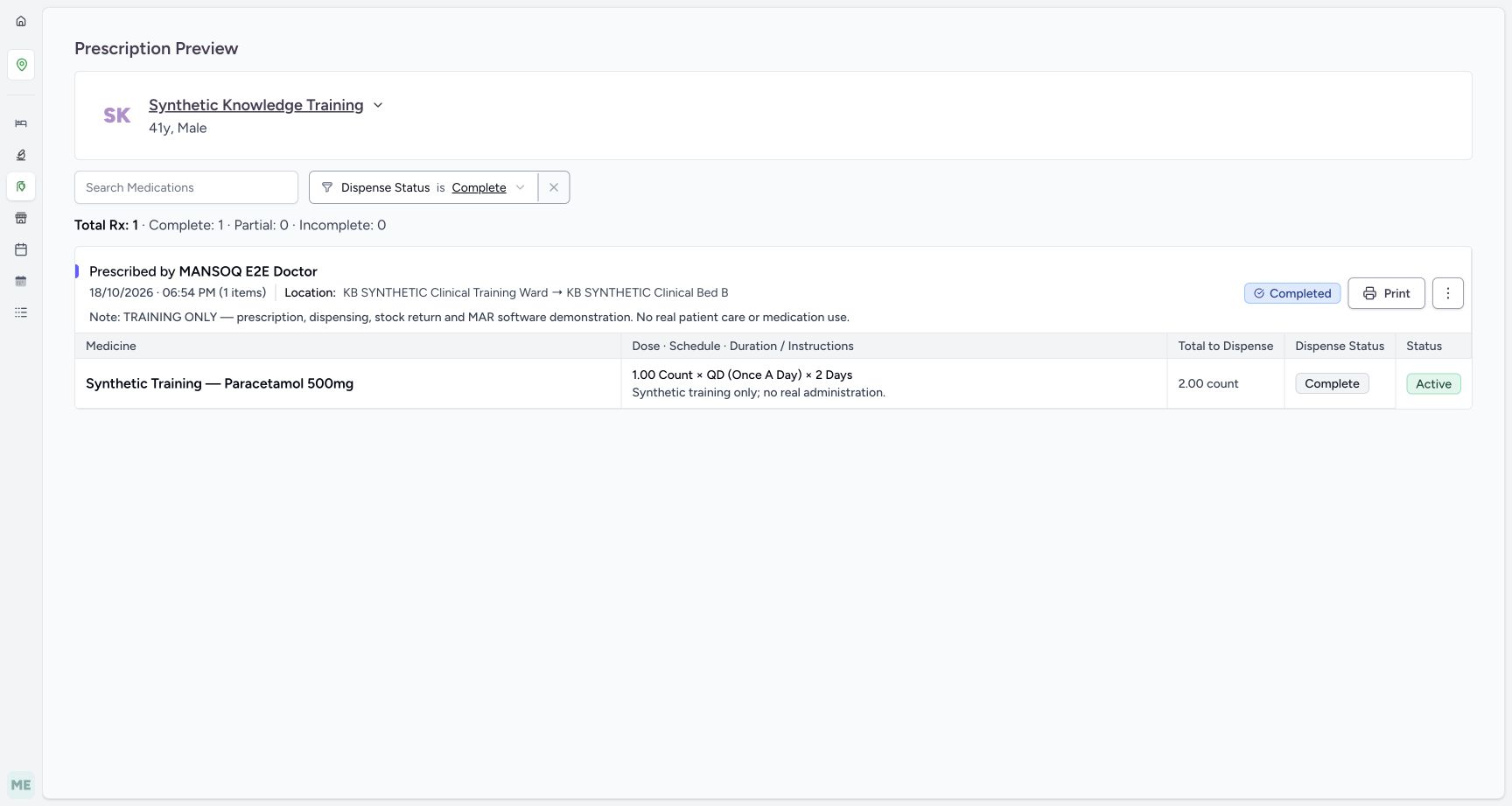 12
12The Complete filter restores this completed medication
Capture details
Exact committed 3dfb source and existing ordinary Pharmacist. Original unchanged desktop pixels; this bounded flow is navigation, filtering and existing-order review only.
Image SHA-256 e675ae3954c9a8e80710f58512012a25ce98fdd7786881ba55c9772ab8ed58f9
- Complete filter selected: Check that Complete is the active filter.
- Restored medication: The existing complete medicine is visible again.
9. Review Partial and return to All
Open Dispense Status and choose Partial. This completed example has no matching partial medicine rows. Reopen the selector and choose All to restore the saved medicine row.
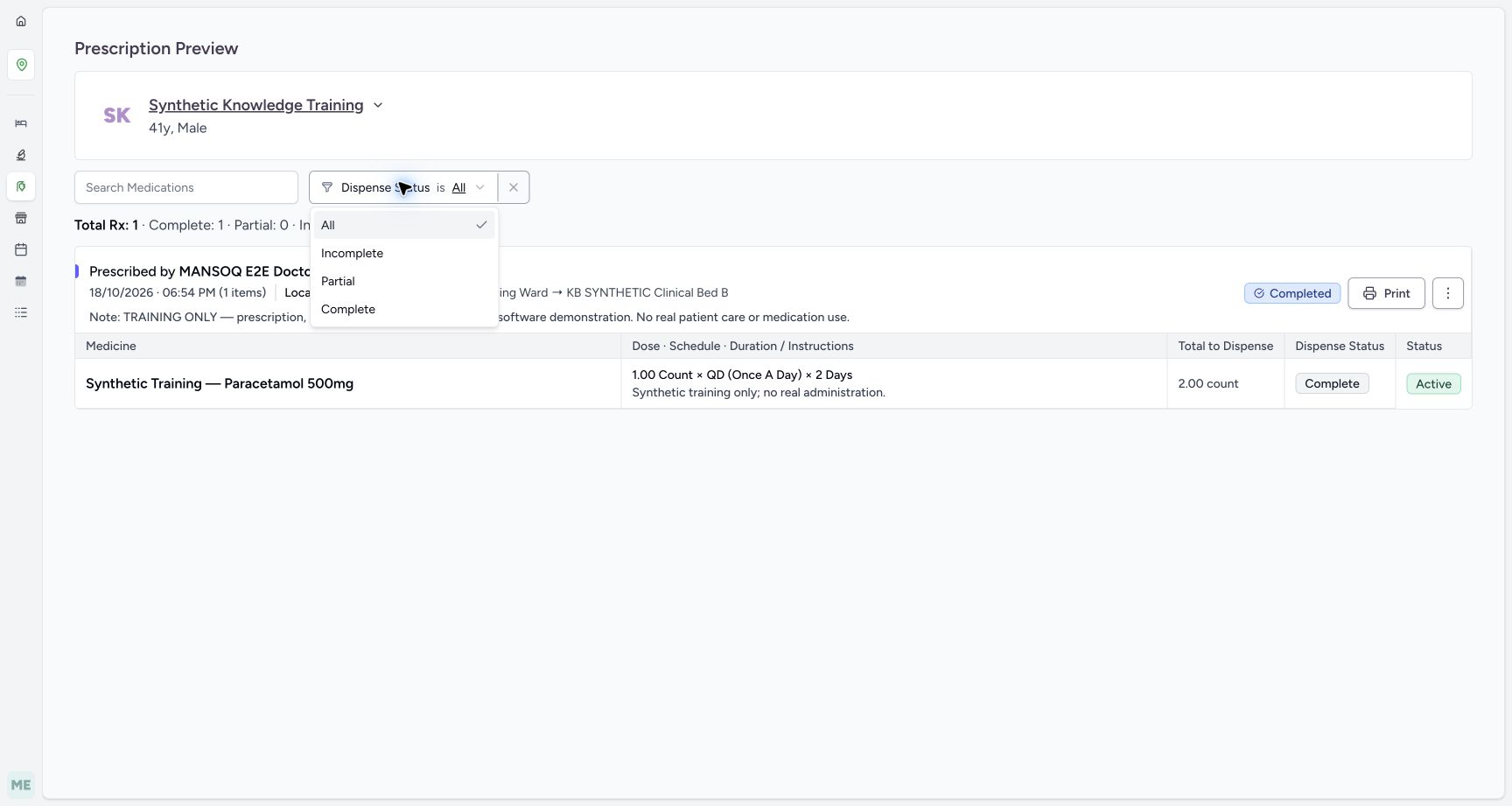 12
12Choose Partial or All from the actual Dispense Status selector
Capture details
Exact committed 3dfb source and existing ordinary Pharmacist. Original unchanged desktop pixels; this bounded flow is navigation, filtering and existing-order review only.
Image SHA-256 e21aeba0c6afc145043eb91c24999c2ec50bf365df2e8cea8b7300b455ede104
- Partial: Select Partial to inspect that filtered medicine list.
- All: Select All to restore all matching medicine rows.
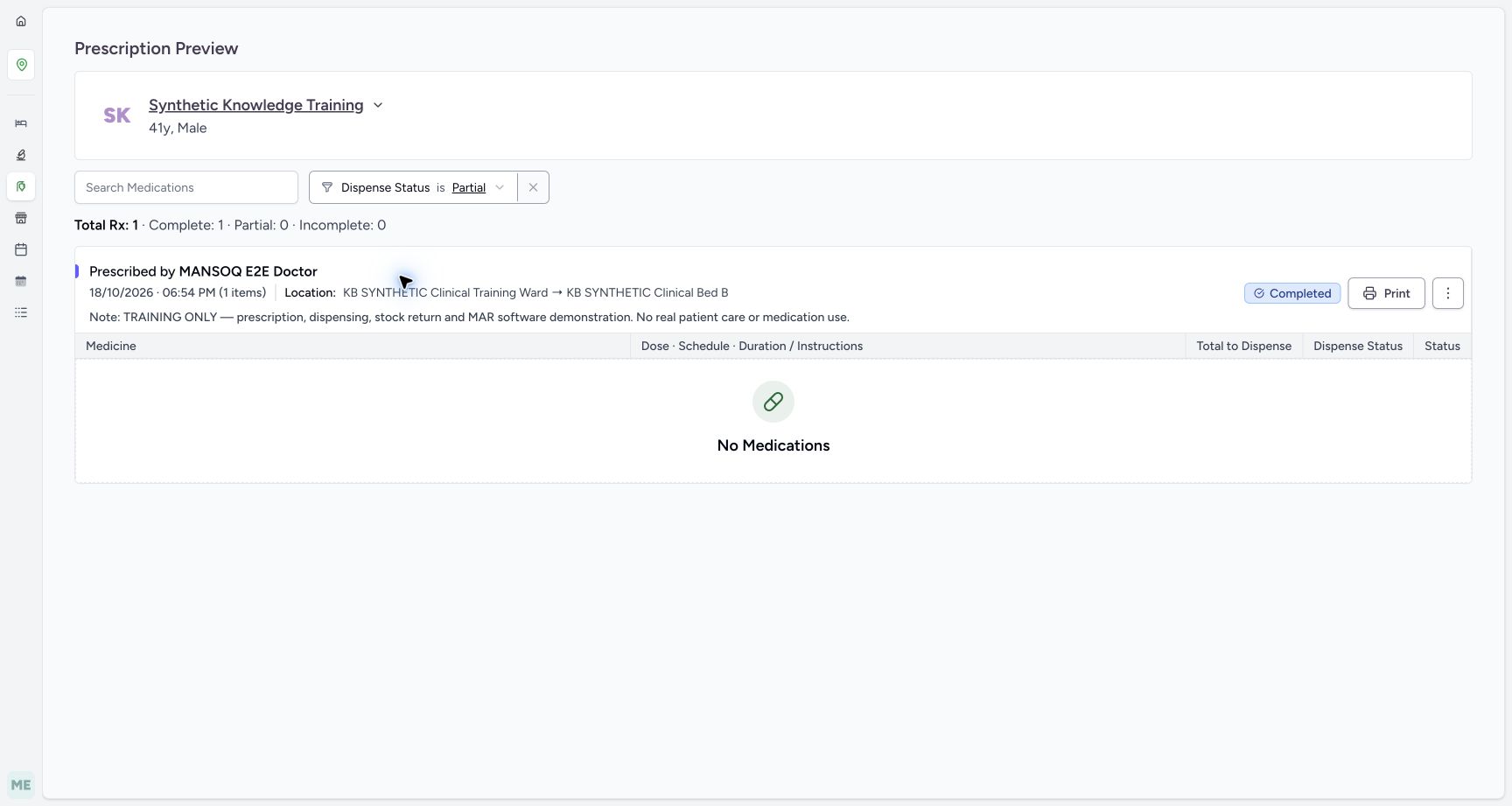 12
12Partial displays no matching medicines in this completed prescription
Capture details
Exact committed 3dfb source and existing ordinary Pharmacist. Original unchanged desktop pixels; this bounded flow is navigation, filtering and existing-order review only.
Image SHA-256 eac11e77200f68e3cefc70a8e9495314e00fb3ac65cee8275ebeb3620b2aeef5
- Partial selected: Check that Partial is selected.
- No matching medicines: This example has no partially dispensed medicine rows.
 12
12All restores the existing completed medicine row
Capture details
Exact committed 3dfb source and existing ordinary Pharmacist. Original unchanged desktop pixels; this bounded flow is navigation, filtering and existing-order review only.
Image SHA-256 e9380e09274fb057aa34000e3e734702db96e63dbe6f66a1a0cf09f551925e4e
- All restored: Check that All has been restored.
- Existing medicine restored: Review the restored existing medicine row.
Read the counts and filtered rows together
The header still shows Total Rx: 1 · Complete: 1 · Partial: 0 · Incomplete: 0 when a no-match medicine search or Incomplete filter hides the row. Read the selected search/status control alongside those prescription counts.
12Review the fictional prescription, training note, medication and completion counts
Capture details
Exact committed 3dfb source and existing ordinary Pharmacist. Original unchanged desktop pixels; this bounded flow is navigation, filtering and existing-order review only.
Image SHA-256 fcb074b676c2f473aa0eb93f9a980a992e7353c1f27b26ad0c20b2bfdbcbd681
- Search Medications: Search the medicine names within this prescription preview.
- Training-only medication row: Read the existing fictional medicine row.
12Recognize an empty medication result caused by the search text
Capture details
Exact committed 3dfb source and existing ordinary Pharmacist. Original unchanged desktop pixels; this bounded flow is navigation, filtering and existing-order review only.
Image SHA-256 57e9620a9ec238f602d3c357f2db8d478b21047fbb73b7e9a5d6dd17ed6fb638
- Clear the search text: Delete the no-match search text to restore the row.
- No Medications result: Read the empty filtered result alongside the retained prescription header.
12The Incomplete filter hides this already complete medication
Capture details
Exact committed 3dfb source and existing ordinary Pharmacist. Original unchanged desktop pixels; this bounded flow is navigation, filtering and existing-order review only.
Image SHA-256 d56679806e6f00c717fabdb19b0ba2f75d744eae906883ab2c95db136f60b30a
- Incomplete filter selected: Check that Incomplete is the active filter.
- No matching medications: This completed example has no incomplete matching medicines.
Troubleshooting
No Medications appears for a saved prescription
Check the current search text and Dispense Status. Clear the search and return the selector to All. In this exercise those read-only changes restore the existing complete medicine; do not start a new dispense merely to remove an empty filtered view.
12Recognize an empty medication result caused by the search text
Capture details
Exact committed 3dfb source and existing ordinary Pharmacist. Original unchanged desktop pixels; this bounded flow is navigation, filtering and existing-order review only.
Image SHA-256 57e9620a9ec238f602d3c357f2db8d478b21047fbb73b7e9a5d6dd17ed6fb638
- Clear the search text: Delete the no-match search text to restore the row.
- No Medications result: Read the empty filtered result alongside the retained prescription header.
12The Incomplete filter hides this already complete medication
Capture details
Exact committed 3dfb source and existing ordinary Pharmacist. Original unchanged desktop pixels; this bounded flow is navigation, filtering and existing-order review only.
Image SHA-256 d56679806e6f00c717fabdb19b0ba2f75d744eae906883ab2c95db136f60b30a
- Incomplete filter selected: Check that Incomplete is the active filter.
- No matching medications: This completed example has no incomplete matching medicines.
12All restores the existing completed medicine row
Capture details
Exact committed 3dfb source and existing ordinary Pharmacist. Original unchanged desktop pixels; this bounded flow is navigation, filtering and existing-order review only.
Image SHA-256 e9380e09274fb057aa34000e3e734702db96e63dbe6f66a1a0cf09f551925e4e
- All restored: Check that All has been restored.
- Existing medicine restored: Review the restored existing medicine row.
Source evidence
Every citation uses this exact committed version. The private source repository requires access.
- repositories/platform/mansoq-web/src/pages/Facility/services/FacilityServices.tsx:23 ·
3dfb7c9f519fb5b4cd4452439f3c12346bf58319Source file checksum
81938a877311725f375328c2e8bd33813e406fd2692a1894acf11d70b887a535 - repositories/platform/mansoq-web/src/pages/Facility/services/HealthcareServiceShow.tsx:51 ·
3dfb7c9f519fb5b4cd4452439f3c12346bf58319Source file checksum
4d7356b19adcc37d5f521e343ce7b35cafe1f5f04e1ec05683b5f84915e27d19 - repositories/platform/mansoq-web/src/pages/Facility/services/pharmacy/PrescriptionQueue.tsx:89 ·
3dfb7c9f519fb5b4cd4452439f3c12346bf58319Source file checksum
20c2f3e573ae315ec5ff79b19575c1a6e3b2f7ca76b5e98bad319ef595b11d04 - repositories/platform/mansoq-web/src/pages/Facility/services/pharmacy/PrescriptionsPreviewPage.tsx:90 ·
3dfb7c9f519fb5b4cd4452439f3c12346bf58319Source file checksum
2a76a064861548bc2d0c5e036bbc9a2ec448582cb8bcb3e970c05a8362498a2e - repositories/platform/mansoq-web/src/pages/Facility/services/pharmacy/PrescriptionsPreviewPage.tsx:68 ·
3dfb7c9f519fb5b4cd4452439f3c12346bf58319Source file checksum
2a76a064861548bc2d0c5e036bbc9a2ec448582cb8bcb3e970c05a8362498a2e - repositories/platform/mansoq-web/src/pages/Facility/services/pharmacy/components/PrescriptionsPreviewTable.tsx:136 ·
3dfb7c9f519fb5b4cd4452439f3c12346bf58319Source file checksum
0e57013b34eb10f479600ecf182cc77c4cf896062d69aab5dd2f4c04f7fde701