 MANSOQ
 Scheduling and appointments · VERSION 8d99bb8a
Create a service point and choose its board display
Choose an existing practitioner and queue, review the required-name and Cancel behavior, save one Active fictional service point and check its board display selection.
Staff · Receptionist
 123
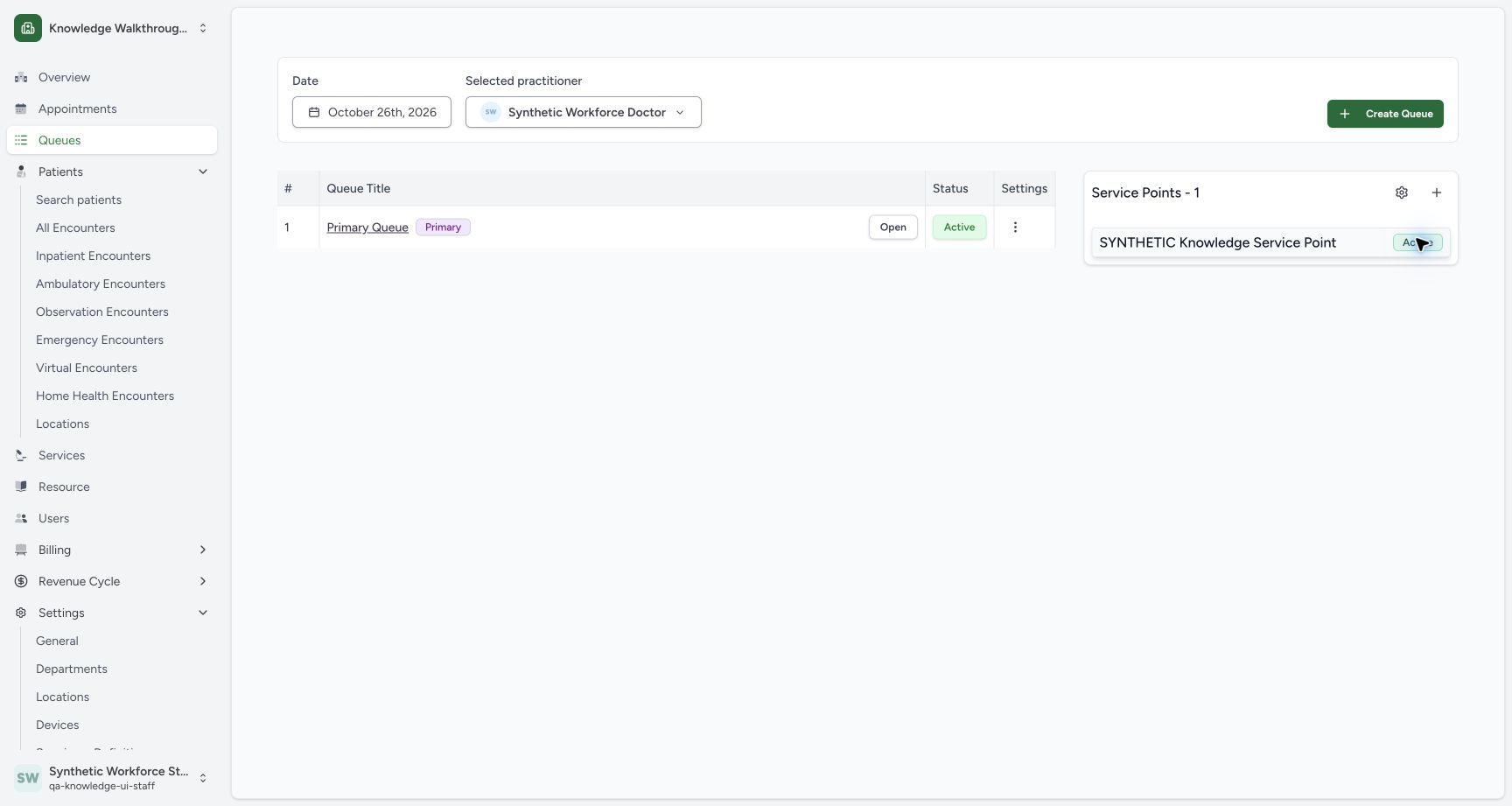
123The newly saved synthetic service point appears Active for the selected practitioner.
Capture details
Exact committed 8d99 source, existing non-superuser Staff in the isolated fictional Clinic. The newly saved synthetic service point appears Active for the selected practitioner. Genuine unedited wide screenshot; other roles and facilities are not qualified.
Image SHA-256 3f68454d8a2bd937f4c0de4f79341bb2dbebe49cef1f20b8e5b461d9514aaf05
- Primary Queue: Open the already saved Primary Queue.
- Saved point: The new point appears with its exact name and Active status.
- Service Points 1: The saved point count is now one.
 123
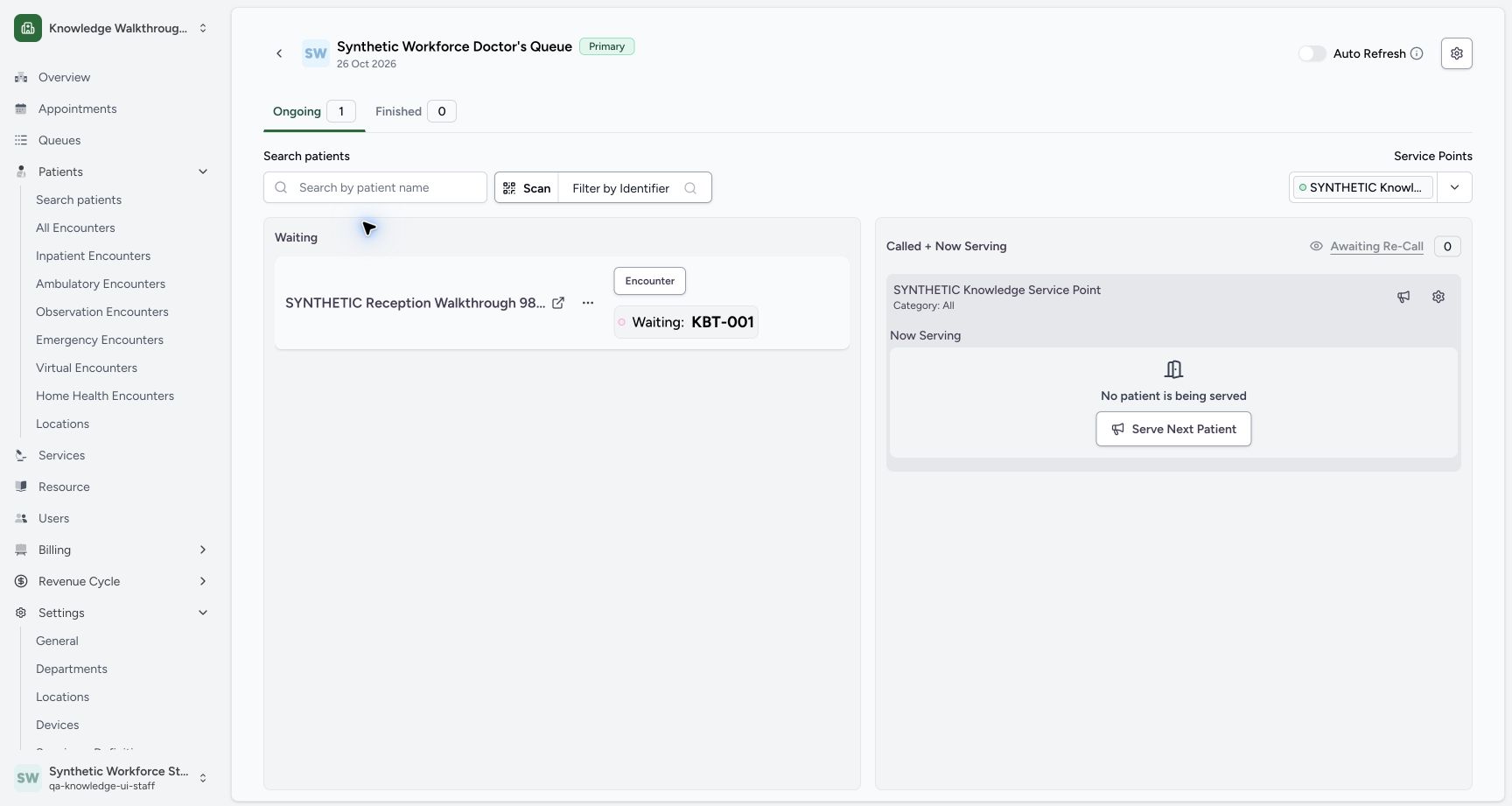
123The active point is already selected when the existing queue board loads.
Capture details
Exact committed 8d99 source, existing non-superuser Staff in the isolated fictional Clinic. The active point is already selected when the existing queue board loads. Genuine unedited wide screenshot; other roles and facilities are not qualified.
Image SHA-256 ce7f819007cfecab6e9f0cd986f0855cbfdaf0ed06b3fb4d57b7194d3138608d
- Displayed point: The active point is already selected for this board.
- Point panel: The board displays this point under Called + Now Serving.
- Existing Waiting token: KBT-001 remains Waiting at this setup checkpoint.
 12
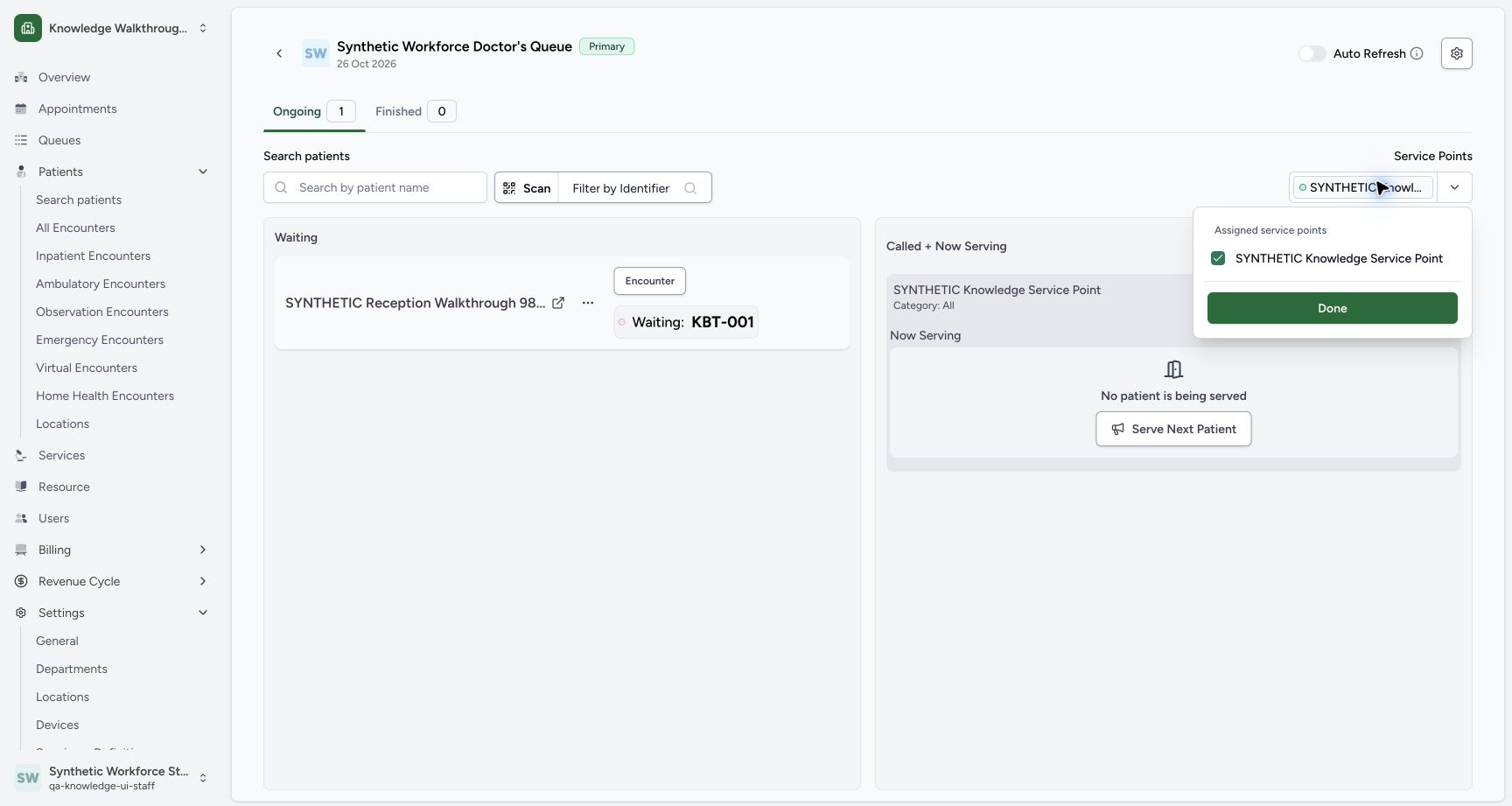
12The new active point is already selected for this board. This selection controls board display, not permissions.
Capture details
Exact committed 8d99 source, existing non-superuser Staff in the isolated fictional Clinic. The new active point is already selected for this board. This selection controls board display, not permissions. Genuine unedited wide screenshot; other roles and facilities are not qualified.
Image SHA-256 60b4a6275d6e425e975ef3ad4be16b40476cf20ccc3ef1314e3da0eee3c8981d
- Display selection row: Click the actual visible row to toggle this board selection.
- Done: Close the selection after leaving the point checked.
12 of 12 content blocks have reviewed image alignment. Missing overview or prerequisite images remain open.
Before you begin
- Use the existing ordinary Staff account in Knowledge Walkthrough Clinic — SYNTHETIC. The pictured practitioner is Synthetic Workforce Doctor and the saved Primary Queue is dated 26 October 2026. Its existing fictional token is Waiting: KBT-001. This exercise configures queue software only.
 1234
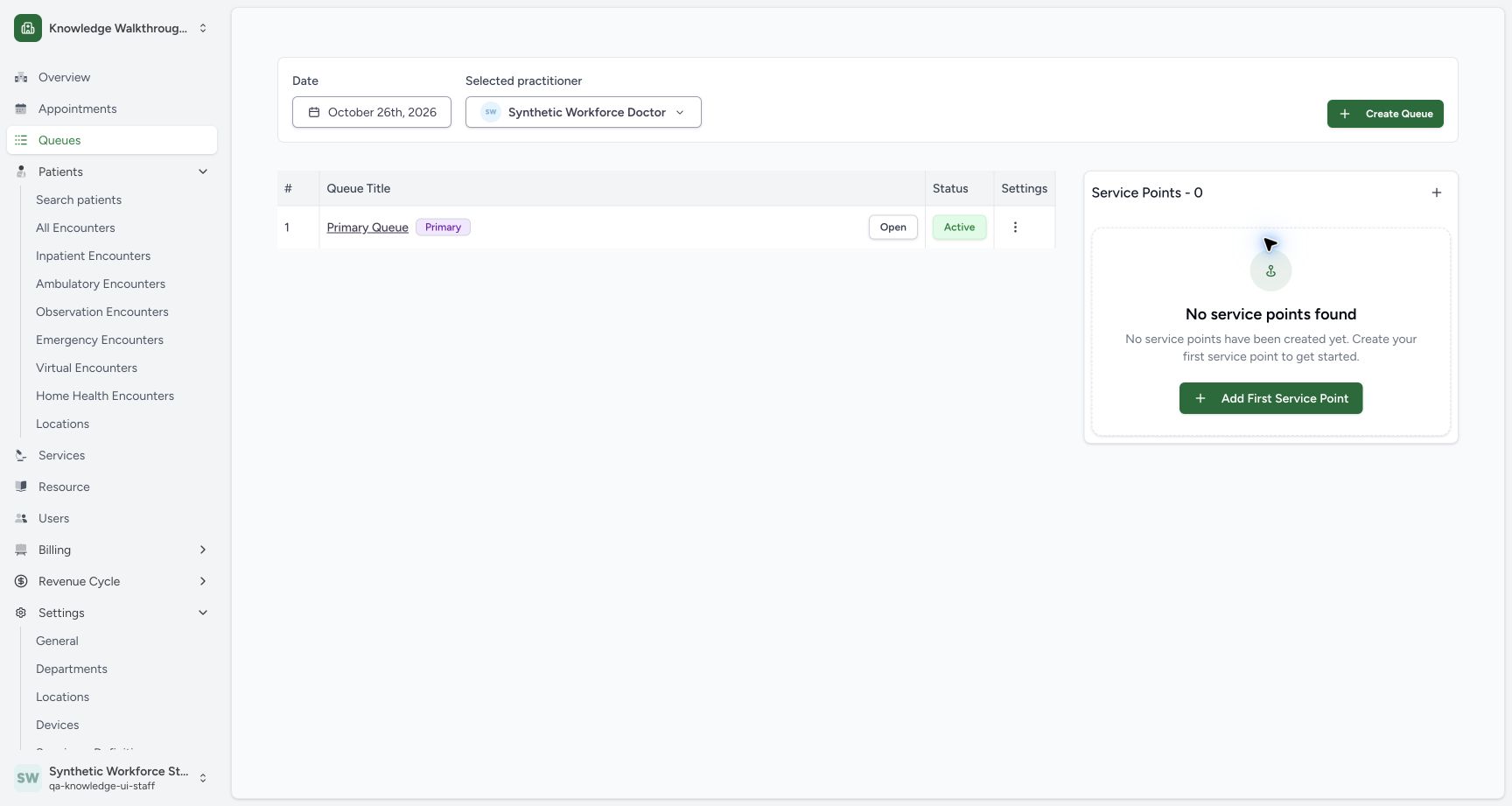
1234Recorded release 8d99bb8a · 2026-10-19T05:05:38.142Z · 1728 × 921 Cancel closes the draft. The existing queue remains and Service Points is still zero.
Capture details
Exact committed 8d99 source, existing non-superuser Staff in the isolated fictional Clinic. Cancel closes the draft. The existing queue remains and Service Points is still zero. Genuine unedited wide screenshot; other roles and facilities are not qualified.
Image SHA-256
73b9969c120305c3f12b83b2e661e0e40077898d4a0b5285e5e4f4aeb57d9e86- Queues: Open the resource queue index from the sidebar.
- Selected practitioner: Check the intended practitioner.
- Add First Service Point: Open a new point form.
- Service Points 0: After Cancel, the point catalogue remains empty.
123Recorded release 8d99bb8a · 2026-10-19T05:06:33.686Z · 1728 × 921 The active point is already selected when the existing queue board loads.
Capture details
Exact committed 8d99 source, existing non-superuser Staff in the isolated fictional Clinic. The active point is already selected when the existing queue board loads. Genuine unedited wide screenshot; other roles and facilities are not qualified.
Image SHA-256
ce7f819007cfecab6e9f0cd986f0855cbfdaf0ed06b3fb4d57b7194d3138608d- Displayed point: The active point is already selected for this board.
- Point panel: The board displays this point under Called + Now Serving.
- Existing Waiting token: KBT-001 remains Waiting at this setup checkpoint.
1. Select the existing practitioner
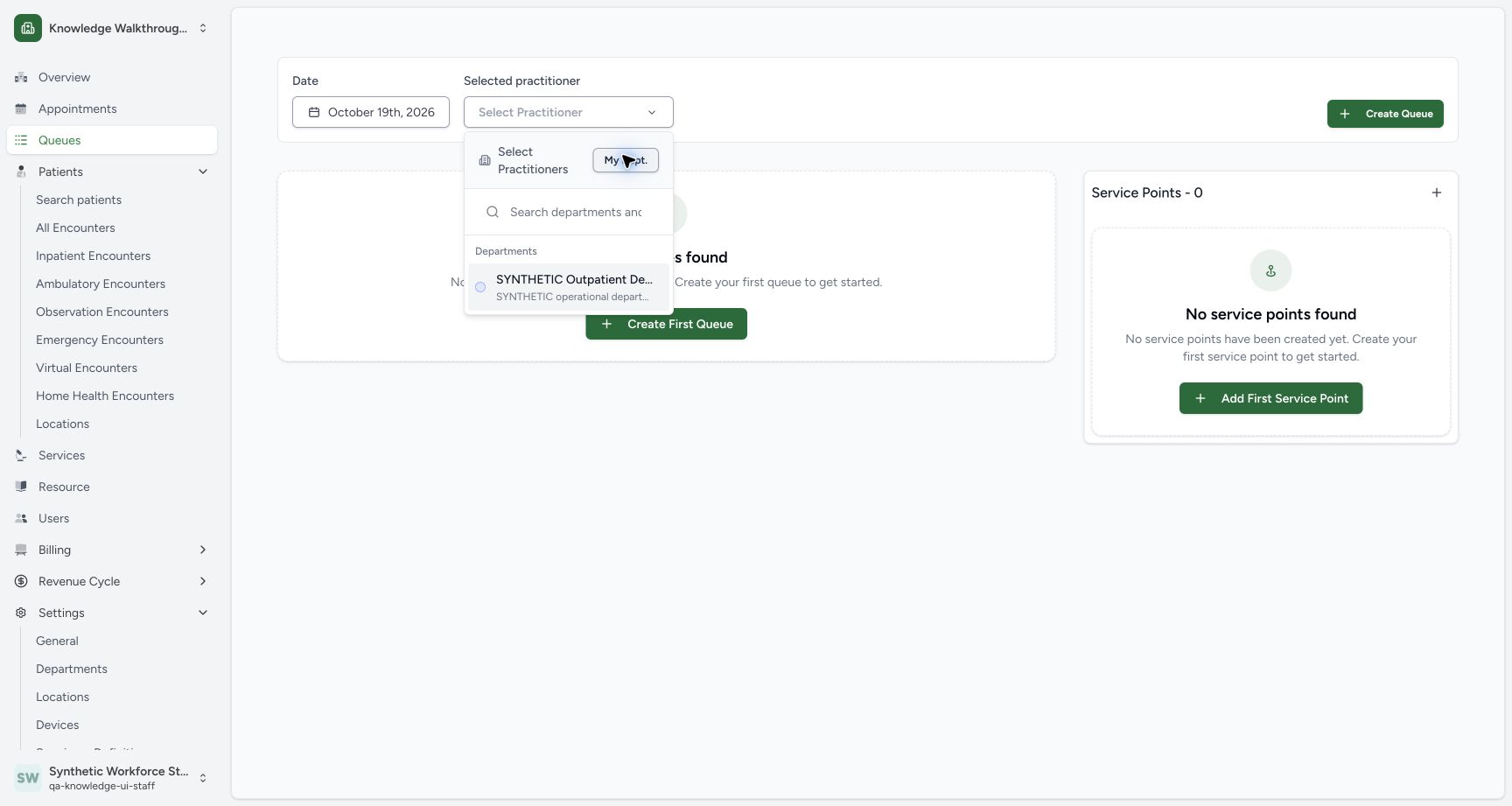
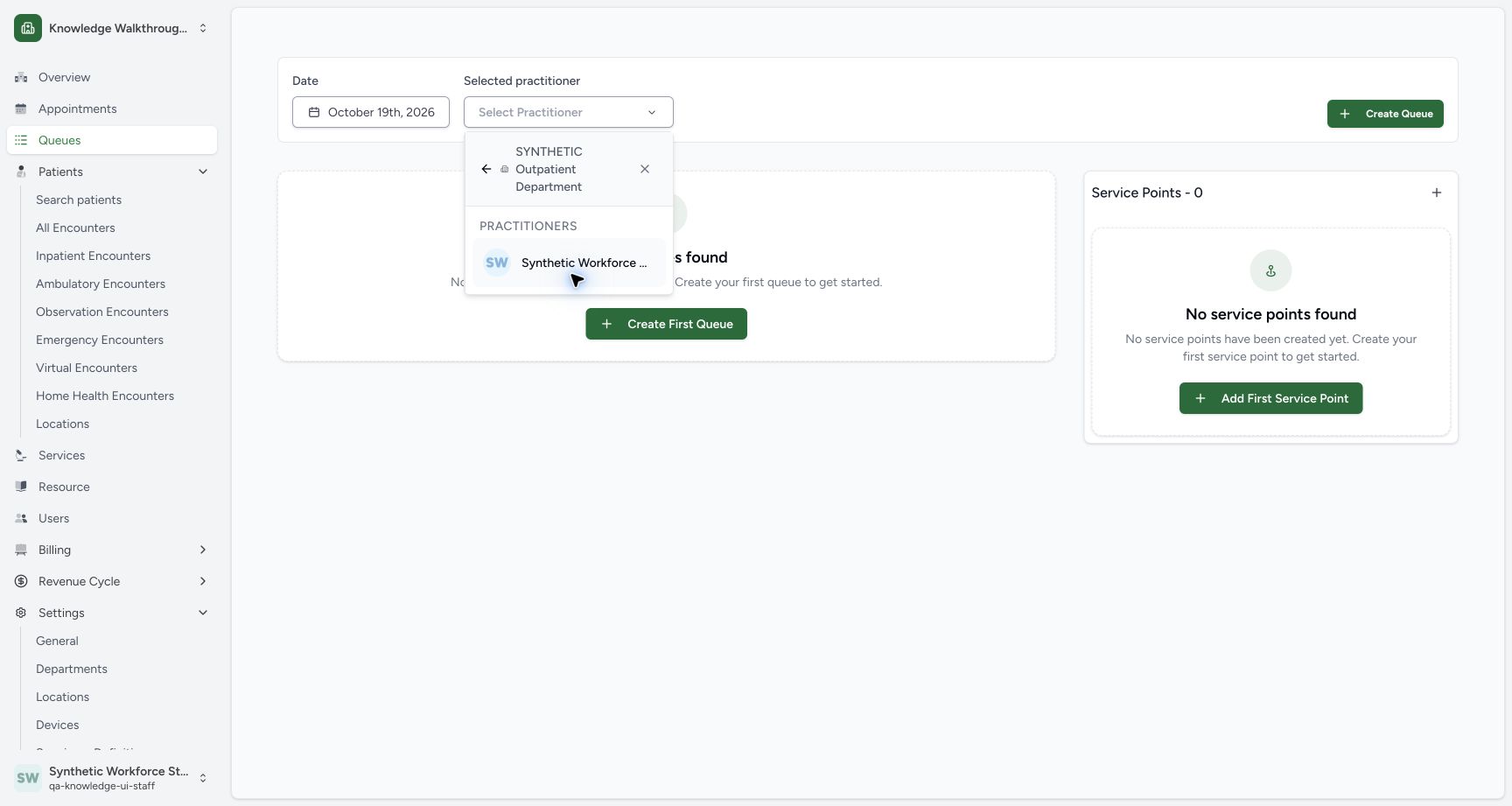
Open Queues in the sidebar. Open Selected practitioner, choose the existing SYNTHETIC Outpatient Department, then choose its Synthetic Workforce Doctor row.
1234Cancel closes the draft. The existing queue remains and Service Points is still zero.
Capture details
Exact committed 8d99 source, existing non-superuser Staff in the isolated fictional Clinic. Cancel closes the draft. The existing queue remains and Service Points is still zero. Genuine unedited wide screenshot; other roles and facilities are not qualified.
Image SHA-256 73b9969c120305c3f12b83b2e661e0e40077898d4a0b5285e5e4f4aeb57d9e86
- Queues: Open the resource queue index from the sidebar.
- Selected practitioner: Check the intended practitioner.
- Add First Service Point: Open a new point form.
- Service Points 0: After Cancel, the point catalogue remains empty.
 1
1Select the existing synthetic outpatient department before choosing its practitioner.
Capture details
Exact committed 8d99 source, existing non-superuser Staff in the isolated fictional Clinic. Select the existing synthetic outpatient department before choosing its practitioner. Genuine unedited wide screenshot; other roles and facilities are not qualified.
Image SHA-256 5502087cd6414be7598835aa7aed632b56be49faf5f05c964752edfe4273d6a9
- Existing department: Choose the already configured synthetic department.
 1
1Choose the existing Synthetic Workforce Doctor in the department.
Capture details
Exact committed 8d99 source, existing non-superuser Staff in the isolated fictional Clinic. Choose the existing Synthetic Workforce Doctor in the department. Genuine unedited wide screenshot; other roles and facilities are not qualified.
Image SHA-256 120e7c8b02602b764f803d47d78aafabaf3199b5900fe45a66ad14d89383f28d
- Existing practitioner: Choose the visible Synthetic Workforce Doctor row.
2. Choose the date of the saved queue
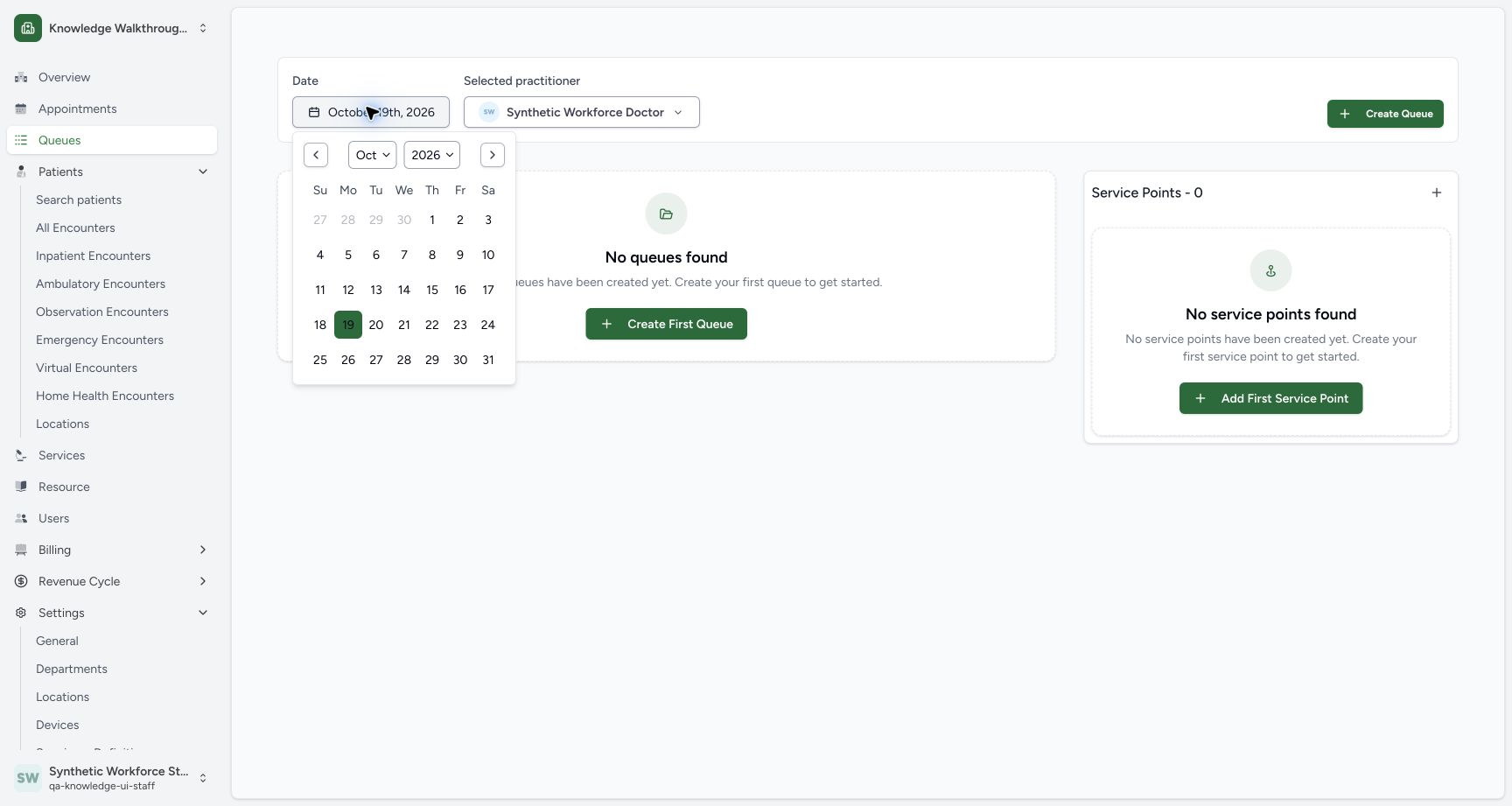
Open the Date picker and choose 26 October 2026. Close the calendar with the date button if it remains open. Confirm that the existing Primary Queue appears for Synthetic Workforce Doctor. The earlier empty queue view used 19 October; do not create another queue to replace a date-filtered result.
 12
12Choose October 26, 2026, the date of the already saved synthetic queue and appointment.
Capture details
Exact committed 8d99 source, existing non-superuser Staff in the isolated fictional Clinic. Choose October 26, 2026, the date of the already saved synthetic queue and appointment. Genuine unedited wide screenshot; other roles and facilities are not qualified.
Image SHA-256 8e1e722d1b0a593cb090662a0dab1ad0277f0e2f31dce61c62546cc71e62cb48
- 26 October: Choose the date of the existing saved queue.
- Date filter: Open or close this date picker using the date button.
1234Cancel closes the draft. The existing queue remains and Service Points is still zero.
Capture details
Exact committed 8d99 source, existing non-superuser Staff in the isolated fictional Clinic. Cancel closes the draft. The existing queue remains and Service Points is still zero. Genuine unedited wide screenshot; other roles and facilities are not qualified.
Image SHA-256 73b9969c120305c3f12b83b2e661e0e40077898d4a0b5285e5e4f4aeb57d9e86
- Queues: Open the resource queue index from the sidebar.
- Selected practitioner: Check the intended practitioner.
- Add First Service Point: Open a new point form.
- Service Points 0: After Cancel, the point catalogue remains empty.
3. Open the service-point form
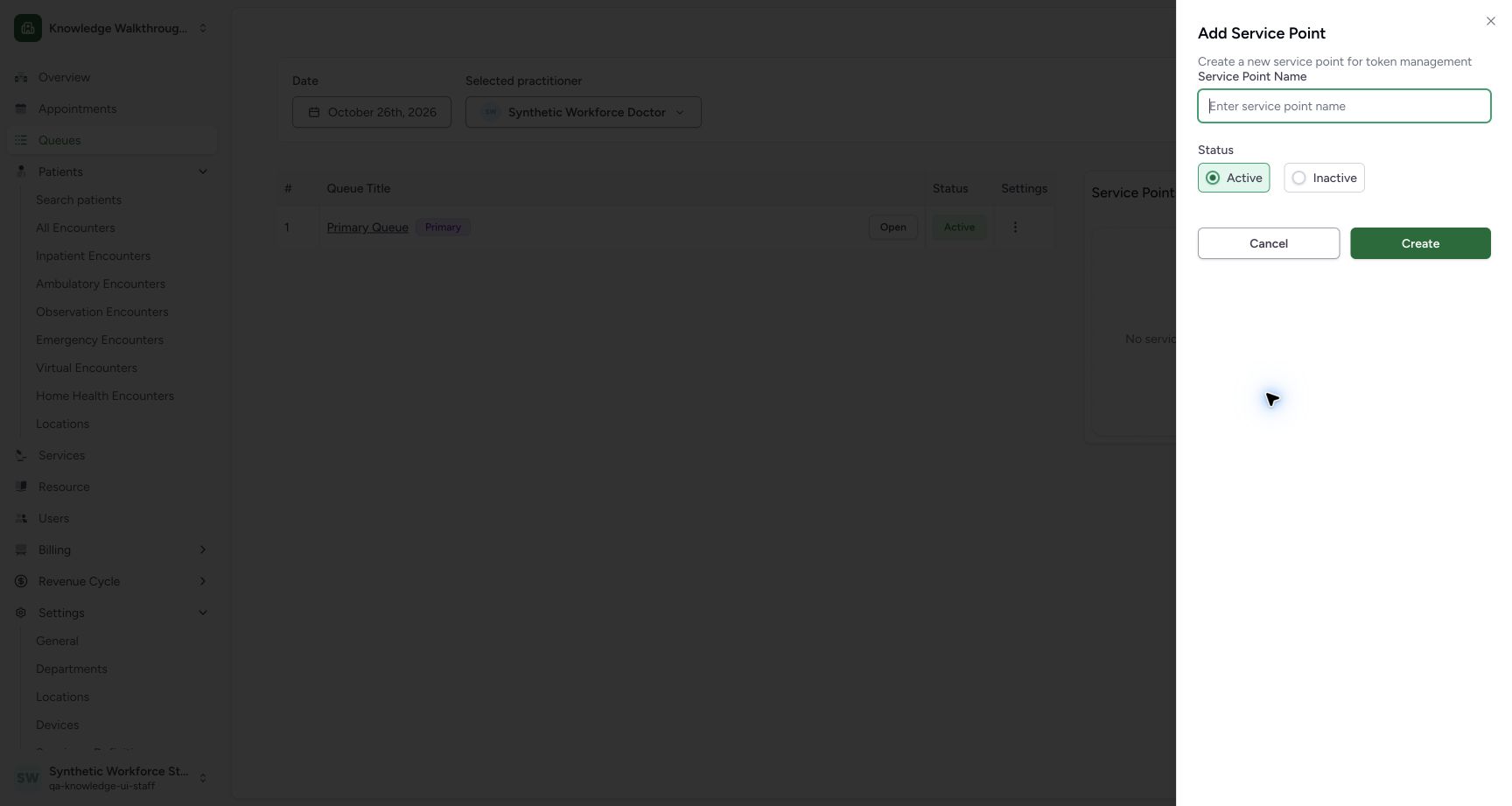
With the intended practitioner selected, choose Add First Service Point. The Add Service Point sheet has Service Point Name, Active/Inactive, Cancel and Create. The pictured new form starts with Active selected.
1234Cancel closes the draft. The existing queue remains and Service Points is still zero.
Capture details
Exact committed 8d99 source, existing non-superuser Staff in the isolated fictional Clinic. Cancel closes the draft. The existing queue remains and Service Points is still zero. Genuine unedited wide screenshot; other roles and facilities are not qualified.
Image SHA-256 73b9969c120305c3f12b83b2e661e0e40077898d4a0b5285e5e4f4aeb57d9e86
- Queues: Open the resource queue index from the sidebar.
- Selected practitioner: Check the intended practitioner.
- Add First Service Point: Open a new point form.
- Service Points 0: After Cancel, the point catalogue remains empty.
 123
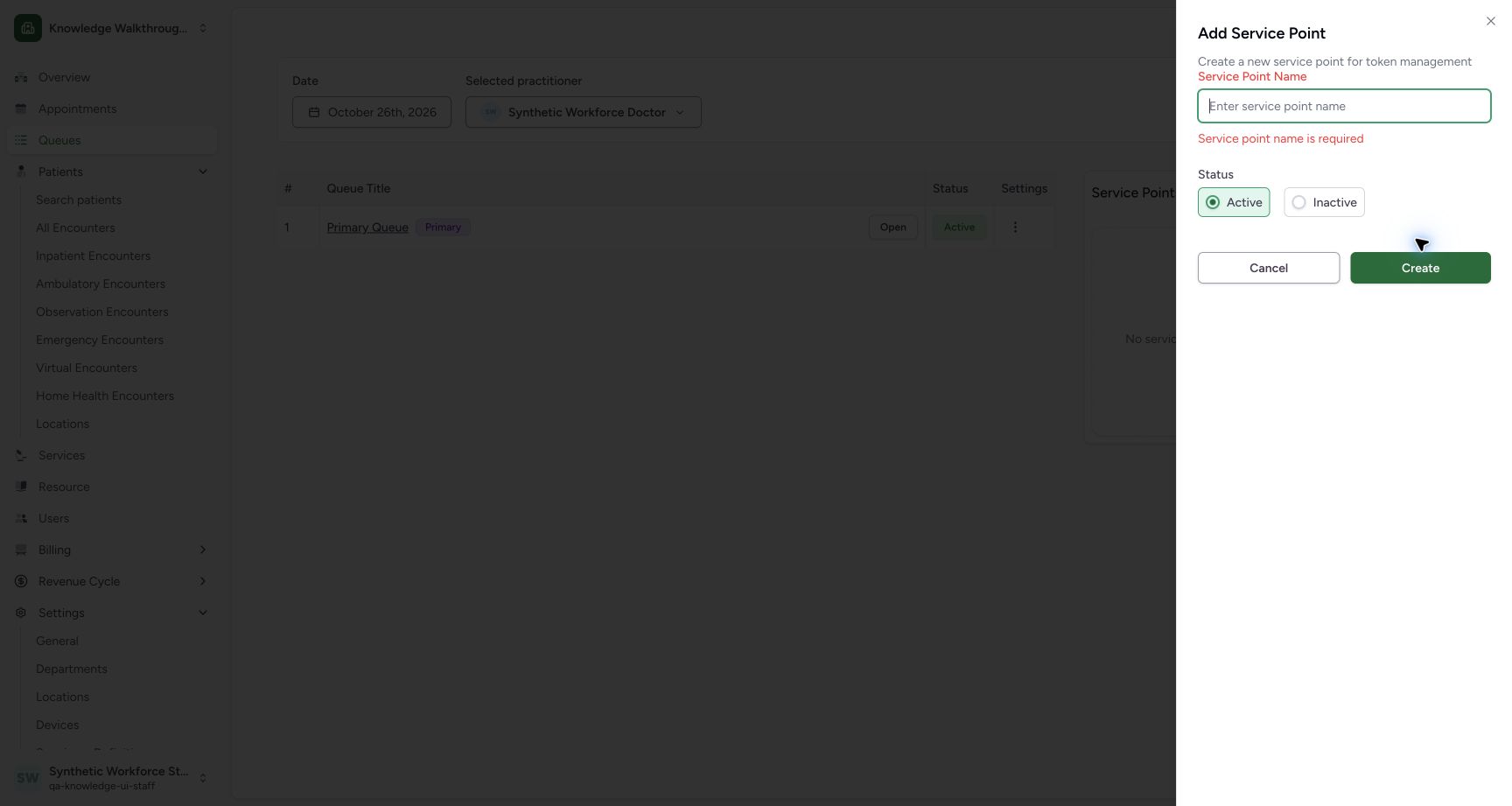
123The normal Staff service-point sheet requires a name and starts with Active selected.
Capture details
Exact committed 8d99 source, existing non-superuser Staff in the isolated fictional Clinic. The normal Staff service-point sheet requires a name and starts with Active selected. Genuine unedited wide screenshot; other roles and facilities are not qualified.
Image SHA-256 be2da914e1beb8e1b531bdad35c4516ce4f719d0ae92e6e82de2102b258d087d
- Service Point Name: Enter a nonblank service-point name.
- Active: The normal new-point form starts Active.
- Create: Submitting without a name produces the required-name message.
4. Understand the required name
In this training example, submitting Create with a blank name leaves the sheet open and shows Service point name is required. Enter a nonblank name before trying to create the point.
123The normal Staff service-point sheet requires a name and starts with Active selected.
Capture details
Exact committed 8d99 source, existing non-superuser Staff in the isolated fictional Clinic. The normal Staff service-point sheet requires a name and starts with Active selected. Genuine unedited wide screenshot; other roles and facilities are not qualified.
Image SHA-256 be2da914e1beb8e1b531bdad35c4516ce4f719d0ae92e6e82de2102b258d087d
- Service Point Name: Enter a nonblank service-point name.
- Active: The normal new-point form starts Active.
- Create: Submitting without a name produces the required-name message.
 123
123Submitting the blank service-point form shows Service point name is required.
Capture details
Exact committed 8d99 source, existing non-superuser Staff in the isolated fictional Clinic. Submitting the blank service-point form shows Service point name is required. Genuine unedited wide screenshot; other roles and facilities are not qualified.
Image SHA-256 afac28133df120d468ca42ea5000661011d3d1ff92ed825f56fbf9bb901e0494
- Required name: Enter a name after reading the required-field message.
- Name required: The form visibly says Service point name is required.
- Create: This is the submitted form button, separate from Cancel.
5. Cancel the first reviewed draft
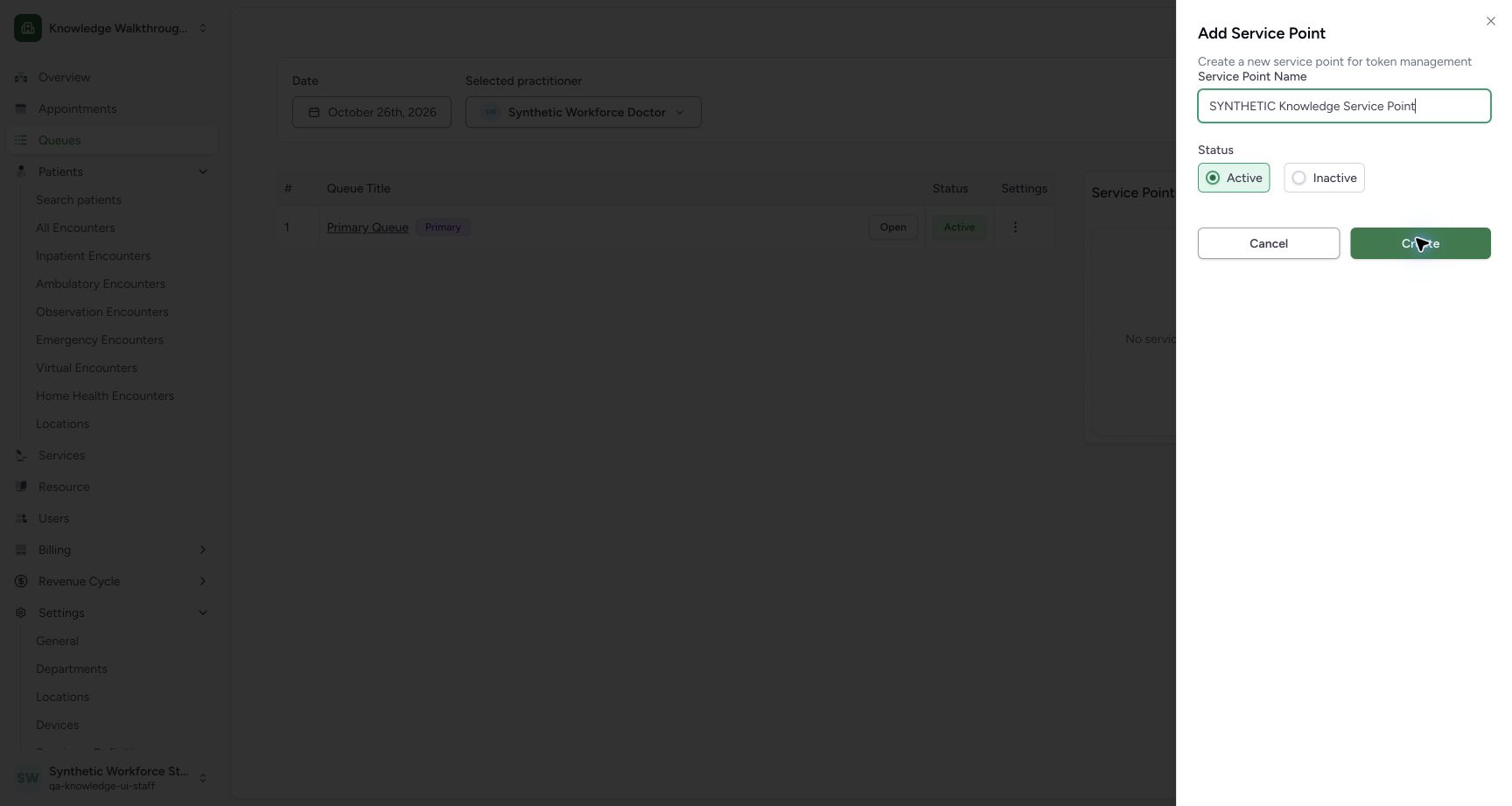
Enter SYNTHETIC Knowledge Service Point and review Active. Choose Cancel for this first draft. The sheet closes and Service Points - 0 remains visible; no point has been created.
 123
123Review the explicitly synthetic name and Active status, then use Cancel for this first draft.
Capture details
Exact committed 8d99 source, existing non-superuser Staff in the isolated fictional Clinic. Review the explicitly synthetic name and Active status, then use Cancel for this first draft. Genuine unedited wide screenshot; other roles and facilities are not qualified.
Image SHA-256 2d673211651de0a076df015036953614270a71b814cb84d02b4e95d35b142f35
- Fictional name: Review SYNTHETIC Knowledge Service Point.
- Active: Keep the pictured new synthetic point Active.
- Cancel draft: Close the first valid draft without creating a service point.
1234Cancel closes the draft. The existing queue remains and Service Points is still zero.
Capture details
Exact committed 8d99 source, existing non-superuser Staff in the isolated fictional Clinic. Cancel closes the draft. The existing queue remains and Service Points is still zero. Genuine unedited wide screenshot; other roles and facilities are not qualified.
Image SHA-256 73b9969c120305c3f12b83b2e661e0e40077898d4a0b5285e5e4f4aeb57d9e86
- Queues: Open the resource queue index from the sidebar.
- Selected practitioner: Check the intended practitioner.
- Add First Service Point: Open a new point form.
- Service Points 0: After Cancel, the point catalogue remains empty.
6. Create the single fictional point
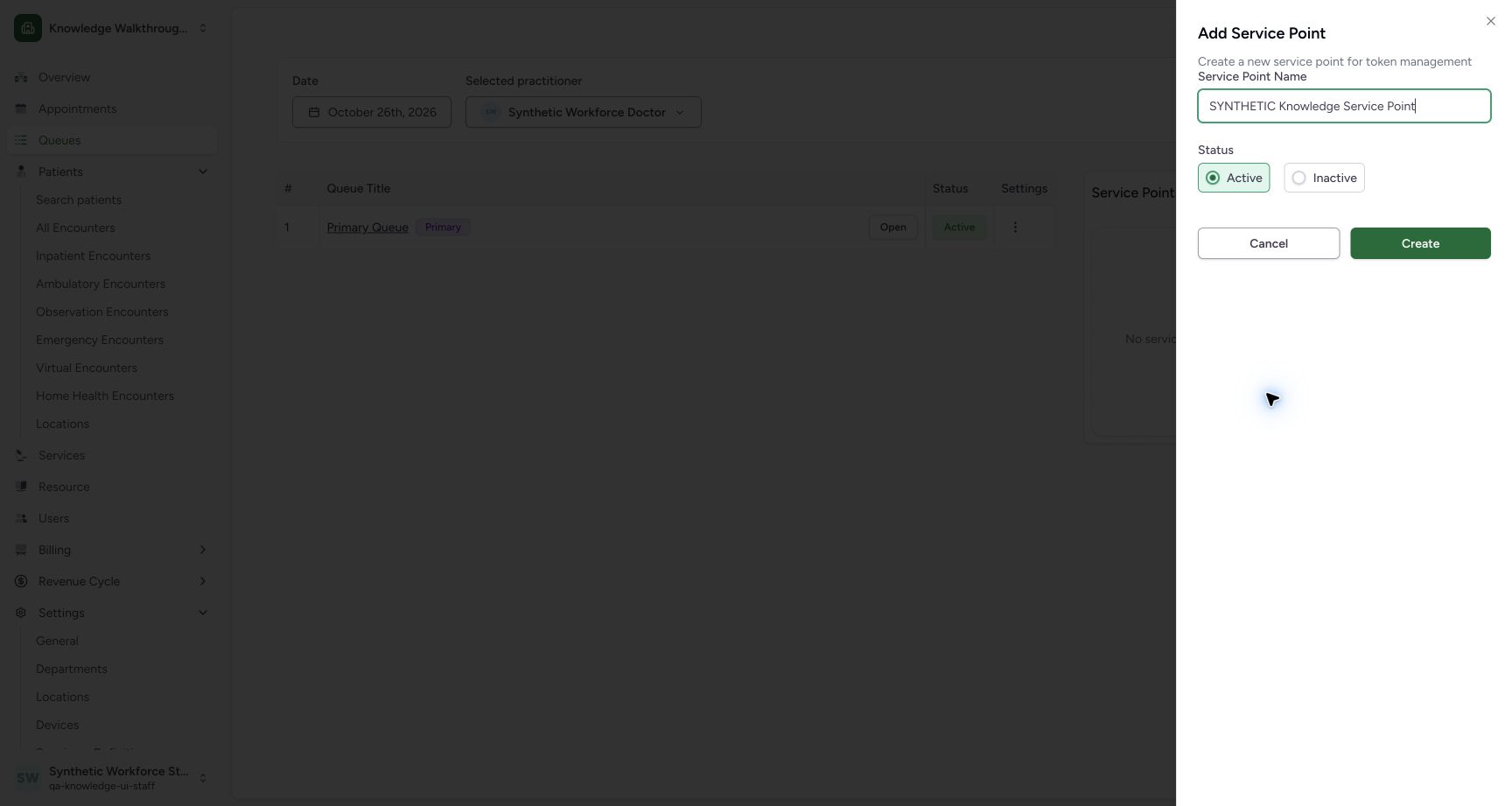
Choose Add First Service Point again. Enter SYNTHETIC Knowledge Service Point, keep Active, review the selected practitioner in the surrounding page, then choose Create once. The sheet closes and the page shows Service Points - 1, the same fictional name and Active.
1234Cancel closes the draft. The existing queue remains and Service Points is still zero.
Capture details
Exact committed 8d99 source, existing non-superuser Staff in the isolated fictional Clinic. Cancel closes the draft. The existing queue remains and Service Points is still zero. Genuine unedited wide screenshot; other roles and facilities are not qualified.
Image SHA-256 73b9969c120305c3f12b83b2e661e0e40077898d4a0b5285e5e4f4aeb57d9e86
- Queues: Open the resource queue index from the sidebar.
- Selected practitioner: Check the intended practitioner.
- Add First Service Point: Open a new point form.
- Service Points 0: After Cancel, the point catalogue remains empty.
 123
123Create one explicitly synthetic Active service point for the existing practitioner.
Capture details
Exact committed 8d99 source, existing non-superuser Staff in the isolated fictional Clinic. Create one explicitly synthetic Active service point for the existing practitioner. Genuine unedited wide screenshot; other roles and facilities are not qualified.
Image SHA-256 9a8b7ce70ff8691ca67399e06d3ce2670b555c9fb2fe199a02a0c1e0a465473c
- Reviewed name: The new fictional name is shown in the reopened form.
- Active: Review the active status.
- Create once: Save one point after reviewing its name and resource context.
123The newly saved synthetic service point appears Active for the selected practitioner.
Capture details
Exact committed 8d99 source, existing non-superuser Staff in the isolated fictional Clinic. The newly saved synthetic service point appears Active for the selected practitioner. Genuine unedited wide screenshot; other roles and facilities are not qualified.
Image SHA-256 3f68454d8a2bd937f4c0de4f79341bb2dbebe49cef1f20b8e5b461d9514aaf05
- Primary Queue: Open the already saved Primary Queue.
- Saved point: The new point appears with its exact name and Active status.
- Service Points 1: The saved point count is now one.
7. Open the existing board and check its default
Choose the existing Primary Queue link. In this observed board, the new active point is already selected and its panel appears under Called + Now Serving. The existing KBT-001 is still Waiting; creating a point has not served the token.
123The newly saved synthetic service point appears Active for the selected practitioner.
Capture details
Exact committed 8d99 source, existing non-superuser Staff in the isolated fictional Clinic. The newly saved synthetic service point appears Active for the selected practitioner. Genuine unedited wide screenshot; other roles and facilities are not qualified.
Image SHA-256 3f68454d8a2bd937f4c0de4f79341bb2dbebe49cef1f20b8e5b461d9514aaf05
- Primary Queue: Open the already saved Primary Queue.
- Saved point: The new point appears with its exact name and Active status.
- Service Points 1: The saved point count is now one.
123The active point is already selected when the existing queue board loads.
Capture details
Exact committed 8d99 source, existing non-superuser Staff in the isolated fictional Clinic. The active point is already selected when the existing queue board loads. Genuine unedited wide screenshot; other roles and facilities are not qualified.
Image SHA-256 ce7f819007cfecab6e9f0cd986f0855cbfdaf0ed06b3fb4d57b7194d3138608d
- Displayed point: The active point is already selected for this board.
- Point panel: The board displays this point under Called + Now Serving.
- Existing Waiting token: KBT-001 remains Waiting at this setup checkpoint.
8. Review the browser display choice
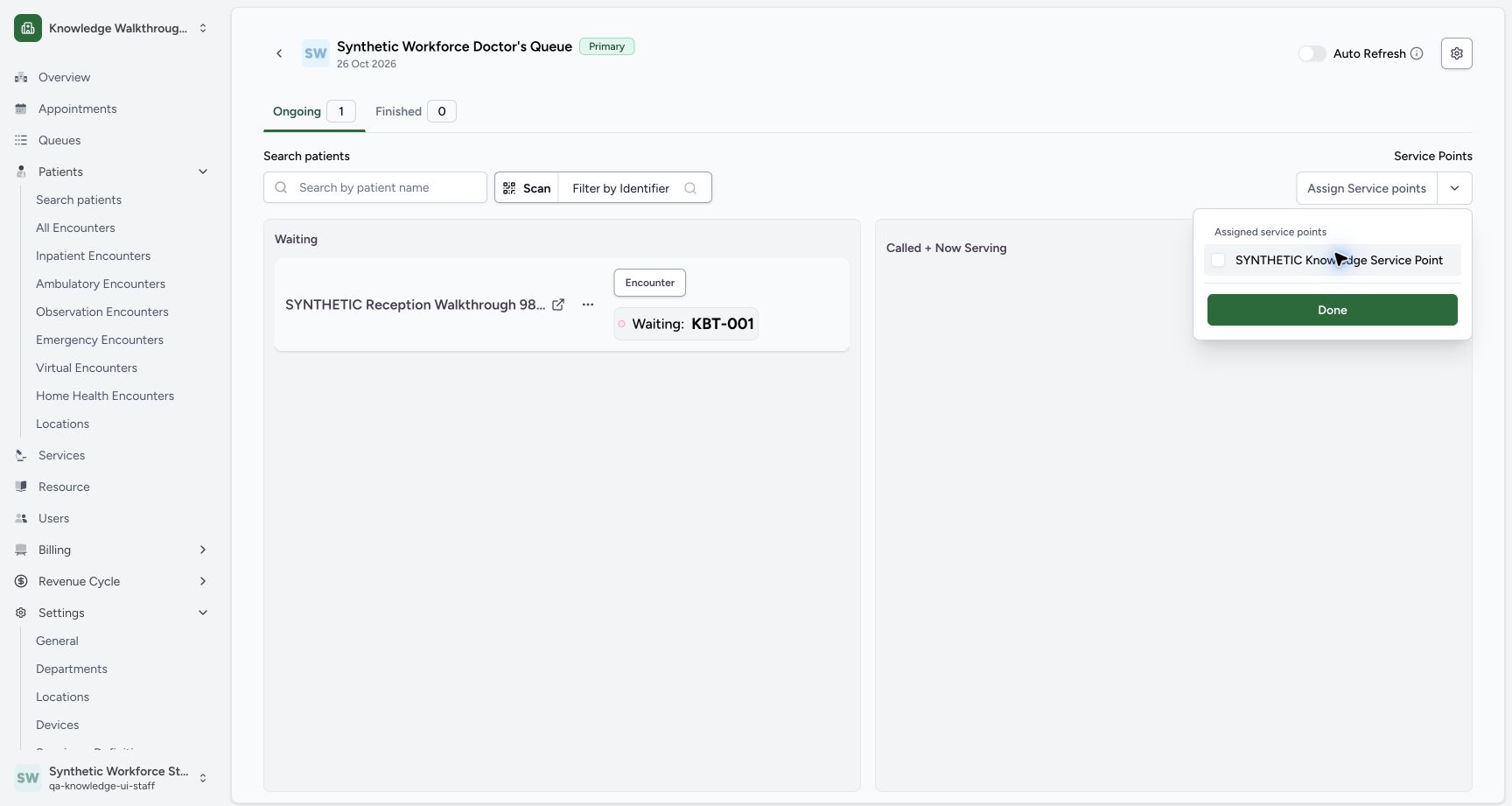
Open the service-point selector at the upper right. Its Assigned service points menu shows the fictional point checked. Clicking that visible row unchecks it and hides its panel. Click the same row again to leave it checked, then choose Done. This changes the board display choice in this browser; it does not delete the saved point or grant access.
12The new active point is already selected for this board. This selection controls board display, not permissions.
Capture details
Exact committed 8d99 source, existing non-superuser Staff in the isolated fictional Clinic. The new active point is already selected for this board. This selection controls board display, not permissions. Genuine unedited wide screenshot; other roles and facilities are not qualified.
Image SHA-256 60b4a6275d6e425e975ef3ad4be16b40476cf20ccc3ef1314e3da0eee3c8981d
- Display selection row: Click the actual visible row to toggle this board selection.
- Done: Close the selection after leaving the point checked.
 12
12Unchecking the displayed point changes the board selection only; it does not delete the saved service point.
Capture details
Exact committed 8d99 source, existing non-superuser Staff in the isolated fictional Clinic. Unchecking the displayed point changes the board selection only; it does not delete the saved service point. Genuine unedited wide screenshot; other roles and facilities are not qualified.
Image SHA-256 6b8ee69a21bc019b44deb44fed07e34a81e28744251440f31ed9d928d30b8a1f
- Done: Close the display-selection menu after reselecting the point.
- Unchecked display choice: The point panel is hidden while this browser-local selection is unchecked.
123The active point is already selected when the existing queue board loads.
Capture details
Exact committed 8d99 source, existing non-superuser Staff in the isolated fictional Clinic. The active point is already selected when the existing queue board loads. Genuine unedited wide screenshot; other roles and facilities are not qualified.
Image SHA-256 ce7f819007cfecab6e9f0cd986f0855cbfdaf0ed06b3fb4d57b7194d3138608d
- Displayed point: The active point is already selected for this board.
- Point panel: The board displays this point under Called + Now Serving.
- Existing Waiting token: KBT-001 remains Waiting at this setup checkpoint.
Read the setup result separately from token service
At this setup checkpoint, Service Points - 1 and Active describe the saved catalogue point. The board separately shows Waiting: KBT-001 and No patient is being served. Calling, serving, recalling and completing a token are separate actions.
123The newly saved synthetic service point appears Active for the selected practitioner.
Capture details
Exact committed 8d99 source, existing non-superuser Staff in the isolated fictional Clinic. The newly saved synthetic service point appears Active for the selected practitioner. Genuine unedited wide screenshot; other roles and facilities are not qualified.
Image SHA-256 3f68454d8a2bd937f4c0de4f79341bb2dbebe49cef1f20b8e5b461d9514aaf05
- Primary Queue: Open the already saved Primary Queue.
- Saved point: The new point appears with its exact name and Active status.
- Service Points 1: The saved point count is now one.
123The active point is already selected when the existing queue board loads.
Capture details
Exact committed 8d99 source, existing non-superuser Staff in the isolated fictional Clinic. The active point is already selected when the existing queue board loads. Genuine unedited wide screenshot; other roles and facilities are not qualified.
Image SHA-256 ce7f819007cfecab6e9f0cd986f0855cbfdaf0ed06b3fb4d57b7194d3138608d
- Displayed point: The active point is already selected for this board.
- Point panel: The board displays this point under Called + Now Serving.
- Existing Waiting token: KBT-001 remains Waiting at this setup checkpoint.
Troubleshooting
The queue is absent on the selected date
Check the Date and Selected practitioner first. This example shows no queue on 19 October, then the already saved Primary Queue on 26 October for Synthetic Workforce Doctor. Use the existing dated queue rather than creating a duplicate.
12Choose October 26, 2026, the date of the already saved synthetic queue and appointment.
Capture details
Exact committed 8d99 source, existing non-superuser Staff in the isolated fictional Clinic. Choose October 26, 2026, the date of the already saved synthetic queue and appointment. Genuine unedited wide screenshot; other roles and facilities are not qualified.
Image SHA-256 8e1e722d1b0a593cb090662a0dab1ad0277f0e2f31dce61c62546cc71e62cb48
- 26 October: Choose the date of the existing saved queue.
- Date filter: Open or close this date picker using the date button.
1234Cancel closes the draft. The existing queue remains and Service Points is still zero.
Capture details
Exact committed 8d99 source, existing non-superuser Staff in the isolated fictional Clinic. Cancel closes the draft. The existing queue remains and Service Points is still zero. Genuine unedited wide screenshot; other roles and facilities are not qualified.
Image SHA-256 73b9969c120305c3f12b83b2e661e0e40077898d4a0b5285e5e4f4aeb57d9e86
- Queues: Open the resource queue index from the sidebar.
- Selected practitioner: Check the intended practitioner.
- Add First Service Point: Open a new point form.
- Service Points 0: After Cancel, the point catalogue remains empty.
Source evidence
Every citation uses this exact committed version. The private source repository requires access.
- repositories/platform/mansoq-web/src/pages/Facility/queues/QueuesIndex.tsx:302 ·
8d99bb8a4712f6aa8446bcd3b40bf62dae280d39Source file checksum
b6879b8a5041119cafefc97f0b0edf93286e491b0ed085219d0975f1c68afa8e - repositories/platform/mansoq-web/src/pages/Facility/queues/QueuesIndex.tsx:457 ·
8d99bb8a4712f6aa8446bcd3b40bf62dae280d39Source file checksum
b6879b8a5041119cafefc97f0b0edf93286e491b0ed085219d0975f1c68afa8e - repositories/platform/mansoq-web/src/pages/Facility/queues/SubQueueFormSheet.tsx:40 ·
8d99bb8a4712f6aa8446bcd3b40bf62dae280d39Source file checksum
f10e4d7d8db65137143a78b1a82b7a7a10f9905c1ed2b01c46edb378834863af - repositories/platform/mansoq-web/src/pages/Facility/queues/SubQueueFormSheet.tsx:158 ·
8d99bb8a4712f6aa8446bcd3b40bf62dae280d39Source file checksum
f10e4d7d8db65137143a78b1a82b7a7a10f9905c1ed2b01c46edb378834863af - repositories/platform/mansoq-web/src/pages/Facility/queues/SubQueueFormSheet.tsx:237 ·
8d99bb8a4712f6aa8446bcd3b40bf62dae280d39Source file checksum
f10e4d7d8db65137143a78b1a82b7a7a10f9905c1ed2b01c46edb378834863af - repositories/platform/mansoq-web/src/pages/Facility/queues/useQueueServicePoints.ts:39 ·
8d99bb8a4712f6aa8446bcd3b40bf62dae280d39Source file checksum
704549e8371116926d87e3b3da109e7bfdd6803a576dc3de81efabfef2b0e53f - repositories/platform/mansoq-core/mansoq/emr/api/viewsets/scheduling/token_sub_queue.py:66 ·
8d99bb8a4712f6aa8446bcd3b40bf62dae280d39Source file checksum
ef9a73fe98d4bfc69010ab67db5c697f8a44bdd5506530ecd6dd6c825a4d9507 - repositories/platform/mansoq-core/mansoq/security/authorization/token.py:98 ·
8d99bb8a4712f6aa8446bcd3b40bf62dae280d39Source file checksum
d6ae61964447710ba49fd85fc0116be0ccacb1cca6457d5ffcd57b742f5d72bb