 MANSOQ
 Medication administration · VERSION 96ca7318
Review each request on the completed medication chart and save its PDF
Open the selected encounter’s completed drug chart, distinguish scheduled and PRN prescriptions, read every dose instruction and inspect the actual saved two-page PDF. This observed Nurse workflow uses a fictional Polyclinic inpatient case on release 96ca7318.
Nurse
 1
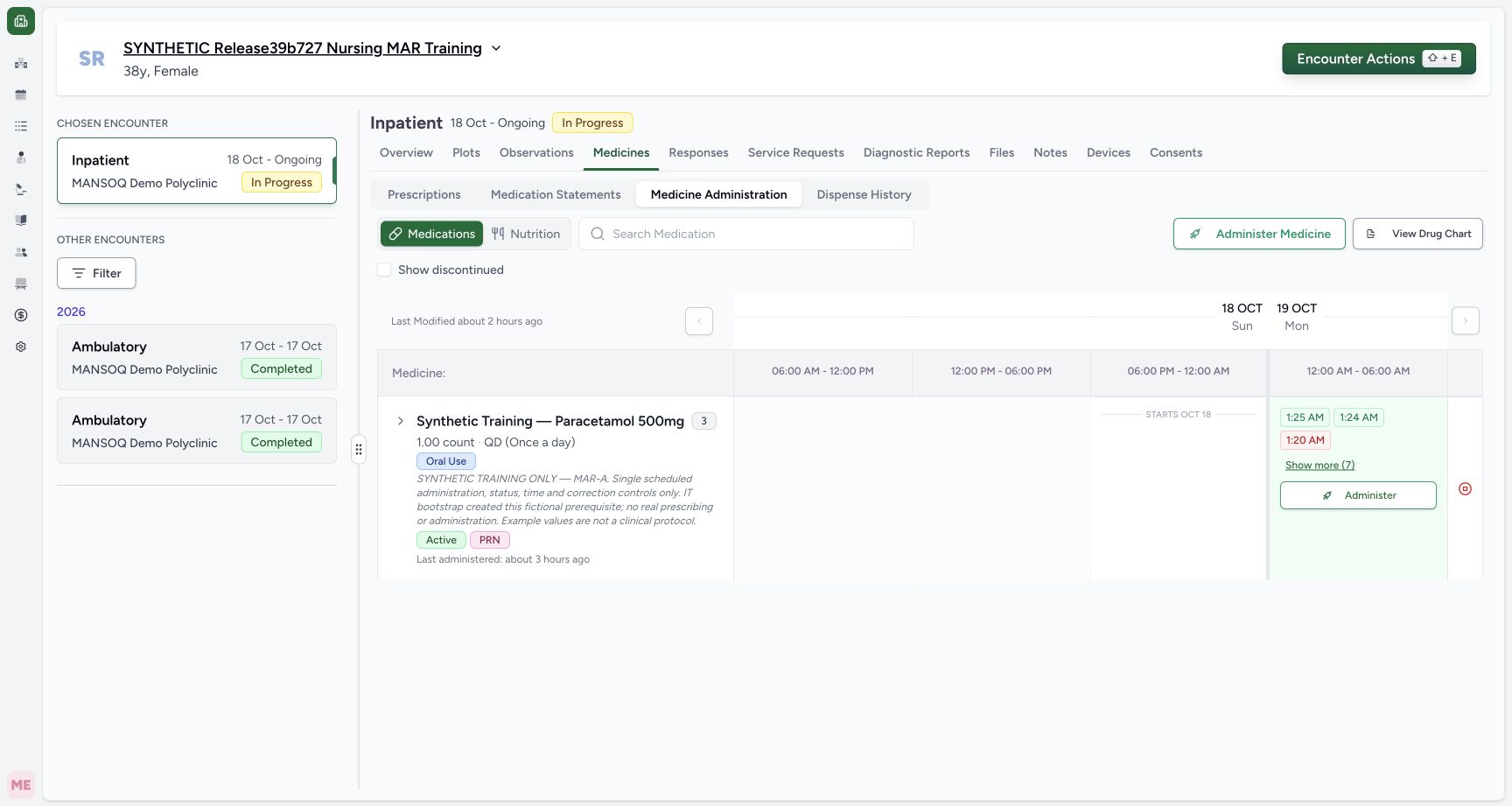
1Open the selected inpatient encounter’s drug chart
Capture details
Exact committed release 96ca7318 on an isolated nonproduction clone, using an existing Nurse and fictional Polyclinic inpatient case. The synthetic patient name retains an earlier release label. The retained fictional inpatient encounter has three active medication requests and ten medication administration events. This is the genuine Nurse Medicine Administration view; no event is saved in this read-only lesson.
Image SHA-256 8405ae0995c4e72e5cc71f7afe25c2be9aea3af5ae08dbaa99317ec5dff1e1b8
- View Drug Chart: Open the printable chart after confirming the intended patient, encounter and Medications tab.
 123
123Distinguish scheduled and as-needed request rows
Capture details
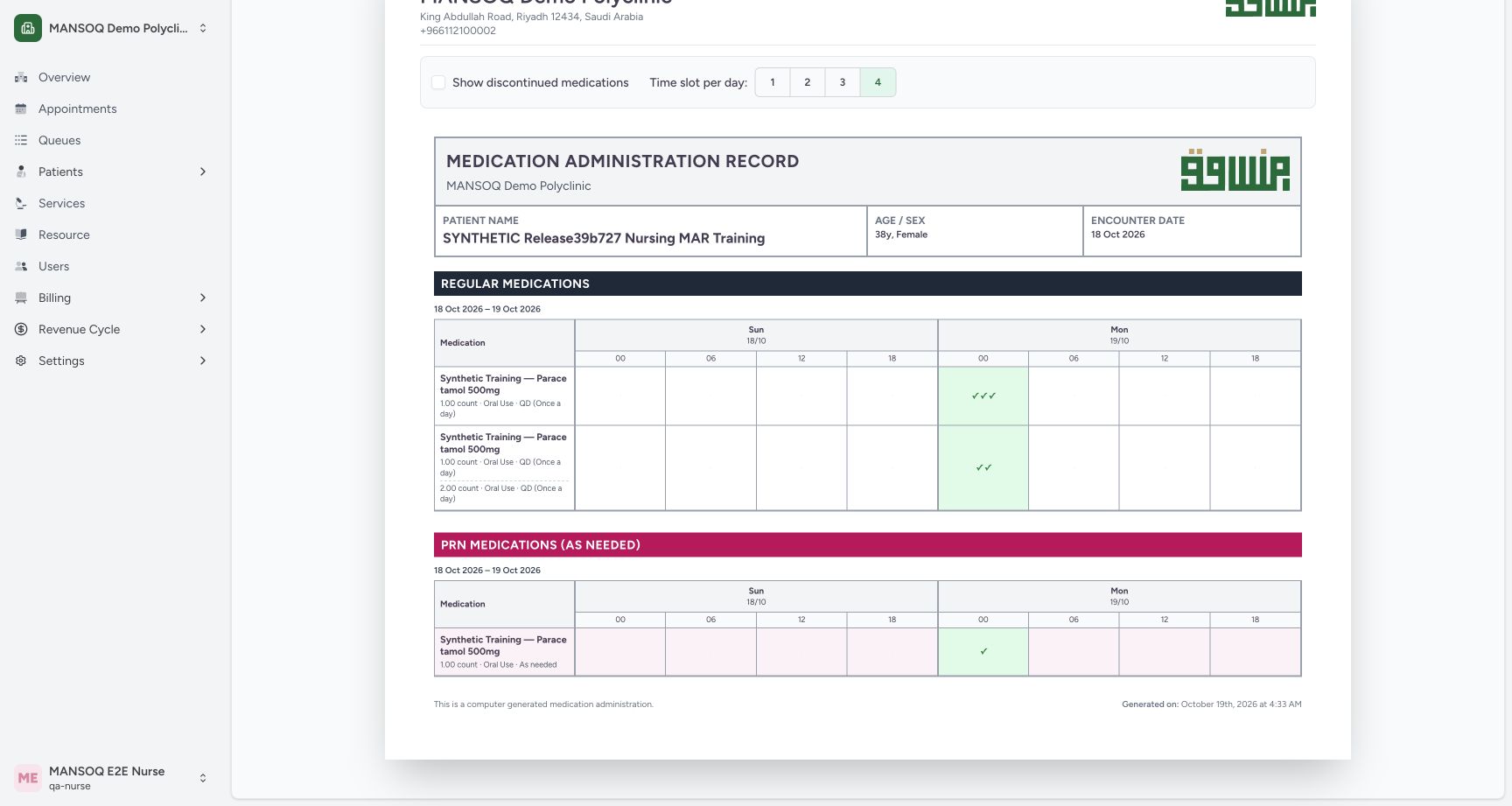
Exact committed release 96ca7318 on an isolated nonproduction clone, using an existing Nurse and fictional Polyclinic inpatient case. The synthetic patient name retains an earlier release label. Natural scrolling reveals the complete per-request table. Two regular request rows show three and two Completed occurrences, while the separate PRN section shows one Completed occurrence. Both ordered dose instructions remain visible for the second regular request. The chart totals six Completed events from ten medication event records.
Image SHA-256 88a1aec8b67ea4a9fe63e151e9723f3277b54628ad67eb0b2cb8a79b935b9242
- Both dose instructions: Read the 1 count and 2 count instruction lines on this single scheduled request.
- Separate PRN section: The as-needed request has its own section and retains its own instruction.
- One PRN completed event: This checkmark belongs only to the PRN request, separate from the three and two scheduled events.
 12
12Inspect saved page one in macOS Preview
Saved PDF in Preview (macOS) · page 1 of 2.
Capture details
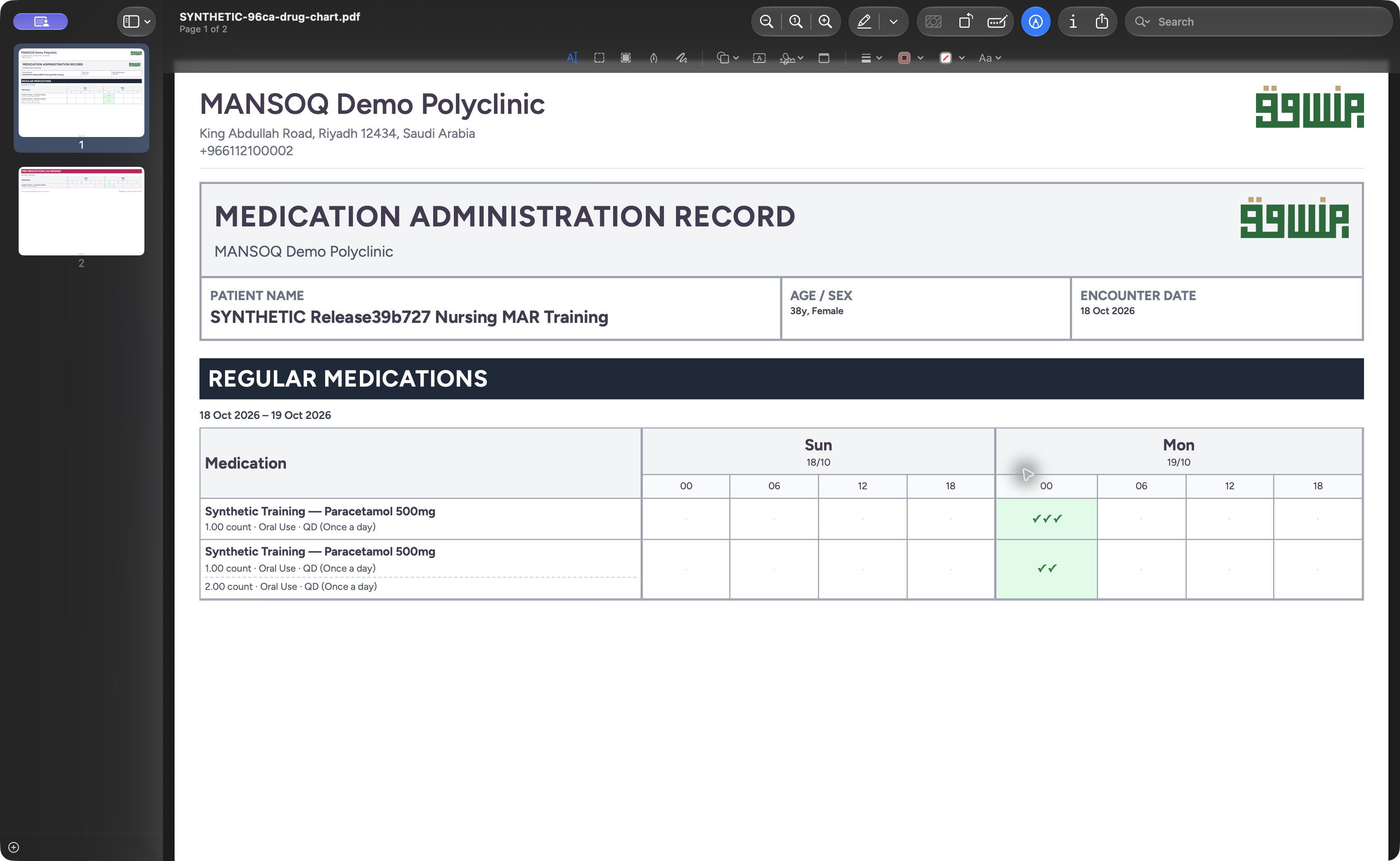
Exact committed release 96ca7318 on an isolated nonproduction clone, using an existing Nurse and fictional Polyclinic inpatient case. The synthetic patient name retains an earlier release label. Genuine macOS Preview output viewer opened the actual saved SYNTHETIC-96ca-drug-chart.pdf, Page 1 of 2. This saved page retains patient/encounter context, two scheduled request rows, all ordered dose instruction lines and three/two Completed marks. Preview is an operating-system viewer, separate from the MANSOQ source UI.
Image SHA-256 2f3700090f69beed26e60e054ac63f10883666437c29376b29032e80e33812c4
- Actual file and page count: Confirm the saved filename and Page 1 of 2 in Preview.
- Retained second instruction: The actual saved second scheduled request retains both its 1 count and 2 count instruction lines.
 123
123Inspect the saved as-needed page in macOS Preview
Saved PDF in Preview (macOS) · page 2 of 2.
Capture details
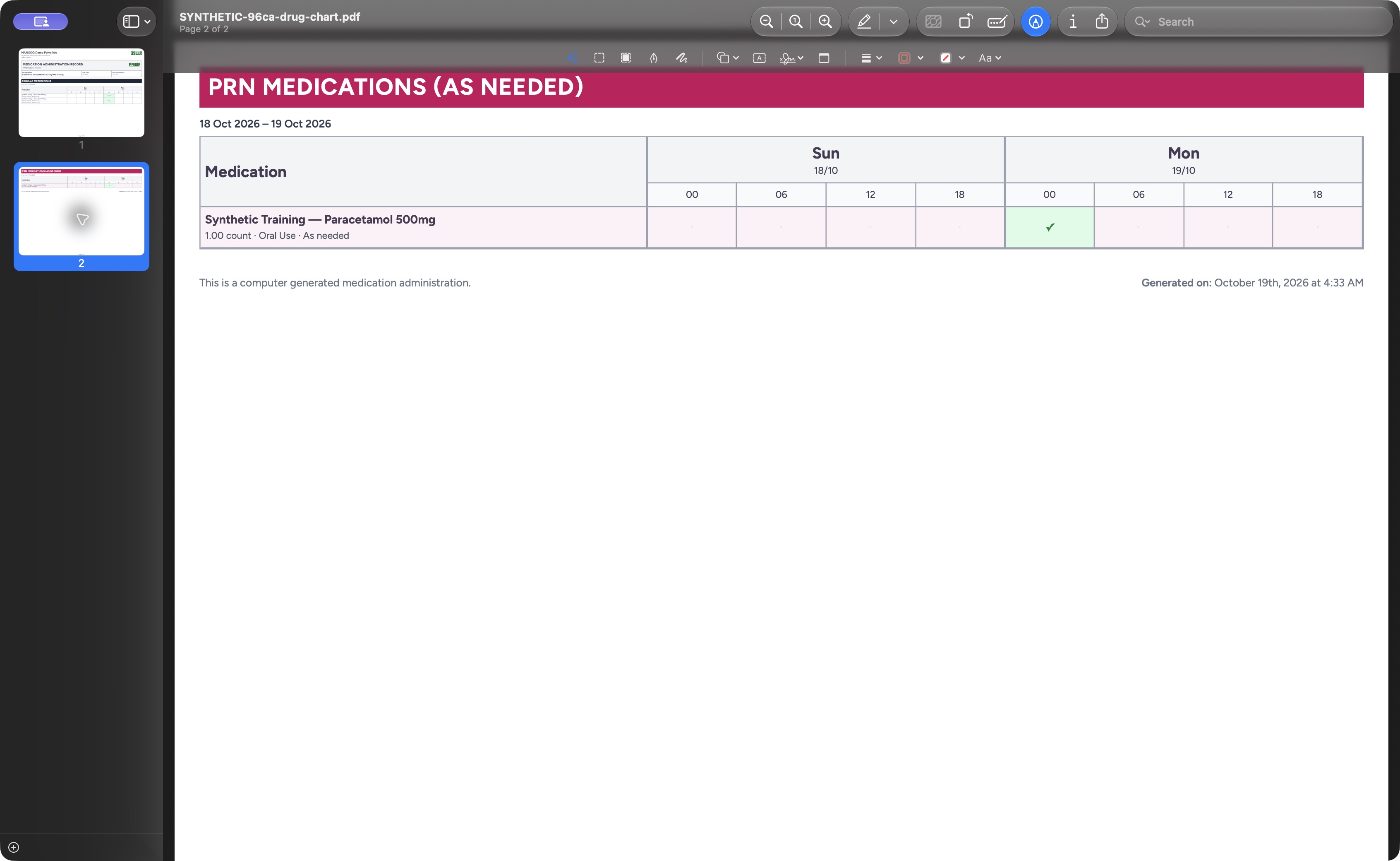
Exact committed release 96ca7318 on an isolated nonproduction clone, using an existing Nurse and fictional Polyclinic inpatient case. The synthetic patient name retains an earlier release label. Genuine macOS Preview output viewer shows Page 2 of 2 of the actual saved chart. The separate PRN request retains its As needed instruction and one Completed mark, plus the generated footer. Interactive occurrence notes/times and all-status history are not printed into this chart summary. Preview is the native saved-output viewer, not Chrome Print controls.
Image SHA-256 3747e995d3d83daeaa7f28dda04eb330afbe5b8f87801eb3bbea9edb00401208
- Saved second page: Confirm Page 2 of 2 for the same saved PDF.
- Separate PRN output section: The as-needed request remains separate on the actual saved second page.
- Retained PRN completed marker: The PDF preserves this request’s one Completed occurrence marker.
15 of 15 content blocks have reviewed image alignment. Missing overview or prerequisite images remain open.
Before you begin
- Confirm the intended patient and selected encounter before opening the chart. This fictional case has three active medication requests and ten medication administration records. Its synthetic patient name retains an earlier release label; the actual captured software is the exact 96ca7318 release.1
Recorded release 96ca7318 · 2026-10-19T01:33:07.598Z · 1728 × 921 Open the selected inpatient encounter’s drug chart
Capture details
Exact committed release 96ca7318 on an isolated nonproduction clone, using an existing Nurse and fictional Polyclinic inpatient case. The synthetic patient name retains an earlier release label. The retained fictional inpatient encounter has three active medication requests and ten medication administration events. This is the genuine Nurse Medicine Administration view; no event is saved in this read-only lesson.
Image SHA-256
8405ae0995c4e72e5cc71f7afe25c2be9aea3af5ae08dbaa99317ec5dff1e1b8- View Drug Chart: Open the printable chart after confirming the intended patient, encounter and Medications tab.
 12
12Recorded release 96ca7318 · 2026-10-19T01:33:42.524Z · 1728 × 921 Read both scheduled requests and every ordered dose
Capture details
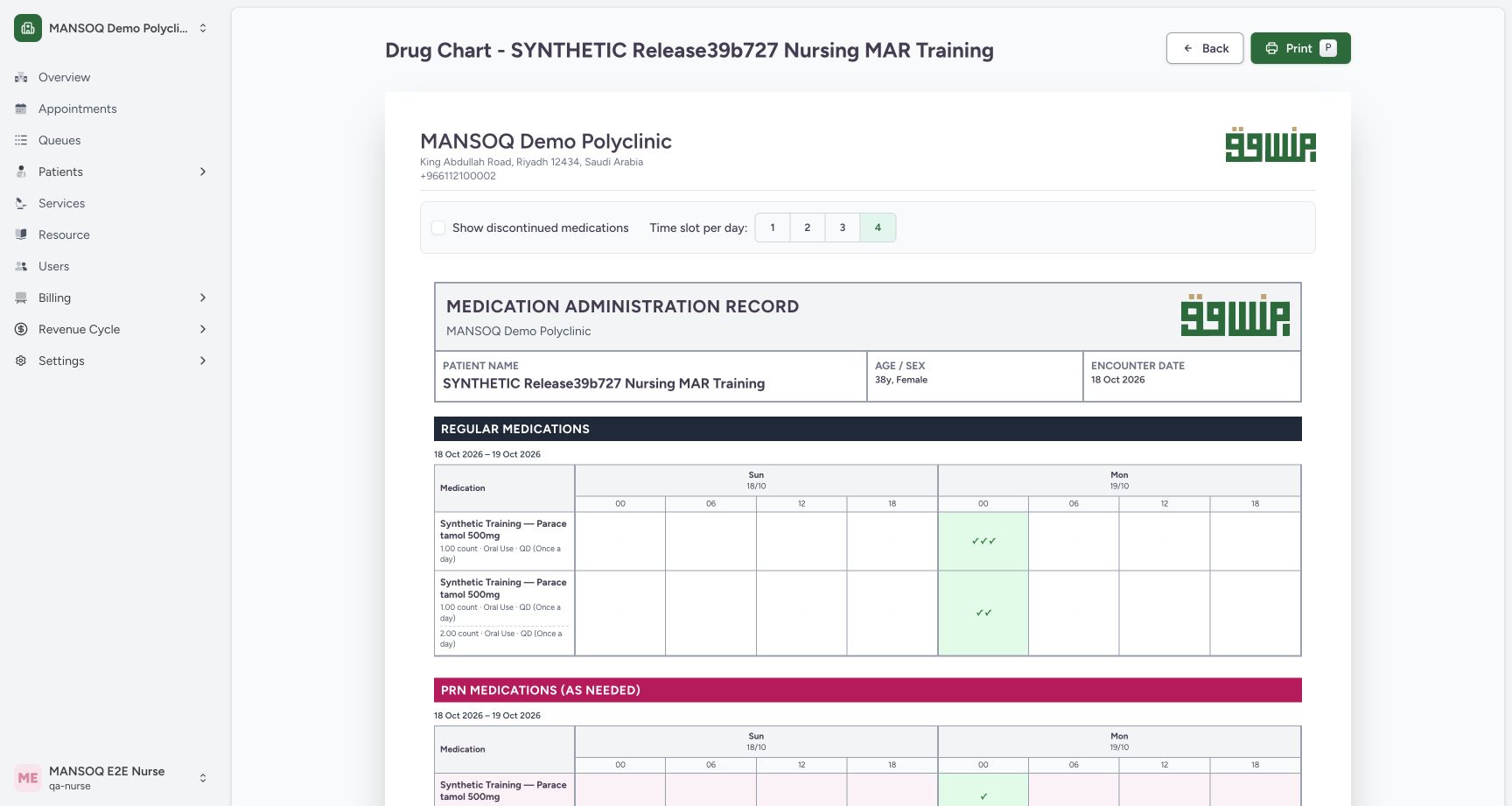
Exact committed release 96ca7318 on an isolated nonproduction clone, using an existing Nurse and fictional Polyclinic inpatient case. The synthetic patient name retains an earlier release label. The completed chart now renders each medication request separately. The first scheduled row has three Completed occurrences; the second scheduled request retains both 1 count and 2 count instructions and has two Completed occurrences. The PRN section continues below this viewport.
Image SHA-256
568696e1b5ed966532f83ae6f3de3dc2875cffa9141a74376abb17640a4360dc- Second ordered dose: The same request retains its second 2 count instruction beneath the 1 count instruction.
- Three completed events: Three checkmarks belong to this request; non-completed statuses are excluded from this chart.
- Use your authorized account and facility policy for reviewing, storing and sharing patient output. The demonstrated Nurse has access to this isolated Polyclinic case. IT created the fictional prerequisite orders separately; their quantities, notes and times demonstrate software controls and are not a clinical protocol.1
Recorded release 96ca7318 · 2026-10-19T01:33:07.598Z · 1728 × 921 Open the selected inpatient encounter’s drug chart
Capture details
Exact committed release 96ca7318 on an isolated nonproduction clone, using an existing Nurse and fictional Polyclinic inpatient case. The synthetic patient name retains an earlier release label. The retained fictional inpatient encounter has three active medication requests and ten medication administration events. This is the genuine Nurse Medicine Administration view; no event is saved in this read-only lesson.
Image SHA-256
8405ae0995c4e72e5cc71f7afe25c2be9aea3af5ae08dbaa99317ec5dff1e1b8- View Drug Chart: Open the printable chart after confirming the intended patient, encounter and Medications tab.
 123
123Recorded release 96ca7318 · 2026-10-19T01:37:54.903Z · 1760 × 896 Save the actual chart through the macOS Save dialog
Native macOS print/save dialog.
Capture details
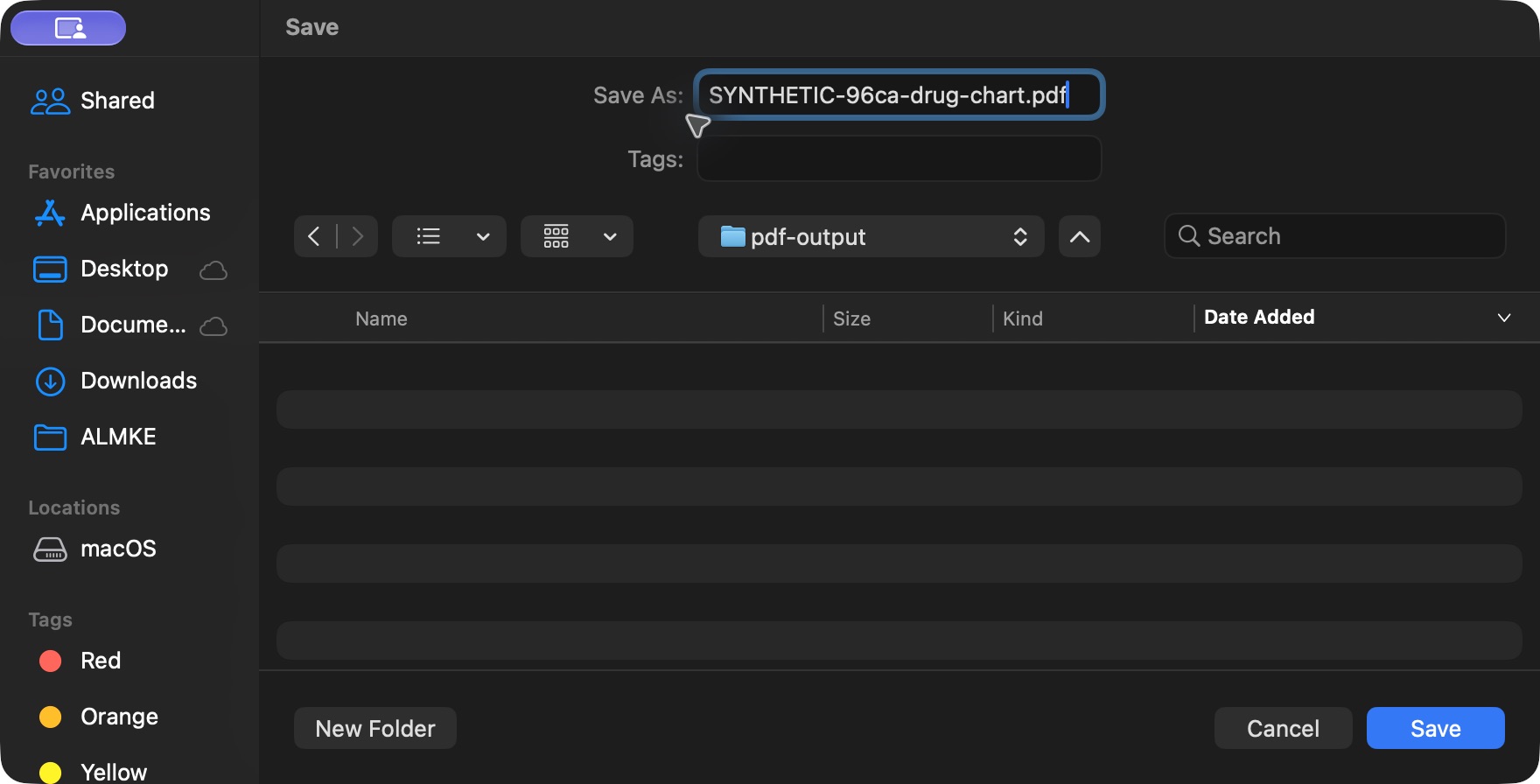
Exact committed release 96ca7318 on an isolated nonproduction clone, using an existing Nurse and fictional Polyclinic inpatient case. The synthetic patient name retains an earlier release label. Genuine native macOS Save dialog with the synthetic filename and private pdf-output folder selected. This saves the two-page chart PDF locally; it does not update a clinical record or send output externally.
Image SHA-256
1a4bd52dfb3c013025b7df191f00b1383425d48b72a1fd0dffb0f45f8c0d6d40- Recognizable synthetic filename: Confirm SYNTHETIC-96ca-drug-chart.pdf before saving.
- Selected local destination: The private pdf-output folder is selected through the normal Go to Folder control.
- Save once: Save the actual file, then open and inspect both output pages.
1. Open the intended encounter’s chart
In Medicines, select Medicine Administration and Medications, then choose View Drug Chart. This opens a printable view for the selected encounter. Confirm the patient identity and encounter date again on that view.
1Open the selected inpatient encounter’s drug chart
Capture details
Exact committed release 96ca7318 on an isolated nonproduction clone, using an existing Nurse and fictional Polyclinic inpatient case. The synthetic patient name retains an earlier release label. The retained fictional inpatient encounter has three active medication requests and ten medication administration events. This is the genuine Nurse Medicine Administration view; no event is saved in this read-only lesson.
Image SHA-256 8405ae0995c4e72e5cc71f7afe25c2be9aea3af5ae08dbaa99317ec5dff1e1b8
- View Drug Chart: Open the printable chart after confirming the intended patient, encounter and Medications tab.
12Read both scheduled requests and every ordered dose
Capture details
Exact committed release 96ca7318 on an isolated nonproduction clone, using an existing Nurse and fictional Polyclinic inpatient case. The synthetic patient name retains an earlier release label. The completed chart now renders each medication request separately. The first scheduled row has three Completed occurrences; the second scheduled request retains both 1 count and 2 count instructions and has two Completed occurrences. The PRN section continues below this viewport.
Image SHA-256 568696e1b5ed966532f83ae6f3de3dc2875cffa9141a74376abb17640a4360dc
- Second ordered dose: The same request retains its second 2 count instruction beneath the 1 count instruction.
- Three completed events: Three checkmarks belong to this request; non-completed statuses are excluded from this chart.
2. Read separate request rows and Completed counts
The initial chart uses four columns per day, starting at 00, 06, 12 and 18. This case spans 18–19 October and shows two Regular Medications rows plus a separate PRN Medications (As Needed) row, even though all three requests use the same fictional product. Their populated 19 October 00 cells contain three, two and one checkmarks respectively: six Completed events in total. The ten-record medication history also contains four non-completed records, which are excluded from this chart. An empty dot is an empty chart cell; it does not establish that no other-status record exists.
12Read both scheduled requests and every ordered dose
Capture details
Exact committed release 96ca7318 on an isolated nonproduction clone, using an existing Nurse and fictional Polyclinic inpatient case. The synthetic patient name retains an earlier release label. The completed chart now renders each medication request separately. The first scheduled row has three Completed occurrences; the second scheduled request retains both 1 count and 2 count instructions and has two Completed occurrences. The PRN section continues below this viewport.
Image SHA-256 568696e1b5ed966532f83ae6f3de3dc2875cffa9141a74376abb17640a4360dc
- Second ordered dose: The same request retains its second 2 count instruction beneath the 1 count instruction.
- Three completed events: Three checkmarks belong to this request; non-completed statuses are excluded from this chart.
123Distinguish scheduled and as-needed request rows
Capture details
Exact committed release 96ca7318 on an isolated nonproduction clone, using an existing Nurse and fictional Polyclinic inpatient case. The synthetic patient name retains an earlier release label. Natural scrolling reveals the complete per-request table. Two regular request rows show three and two Completed occurrences, while the separate PRN section shows one Completed occurrence. Both ordered dose instructions remain visible for the second regular request. The chart totals six Completed events from ten medication event records.
Image SHA-256 88a1aec8b67ea4a9fe63e151e9723f3277b54628ad67eb0b2cb8a79b935b9242
- Both dose instructions: Read the 1 count and 2 count instruction lines on this single scheduled request.
- Separate PRN section: The as-needed request has its own section and retains its own instruction.
- One PRN completed event: This checkmark belongs only to the PRN request, separate from the three and two scheduled events.
3. Choose the display intervals
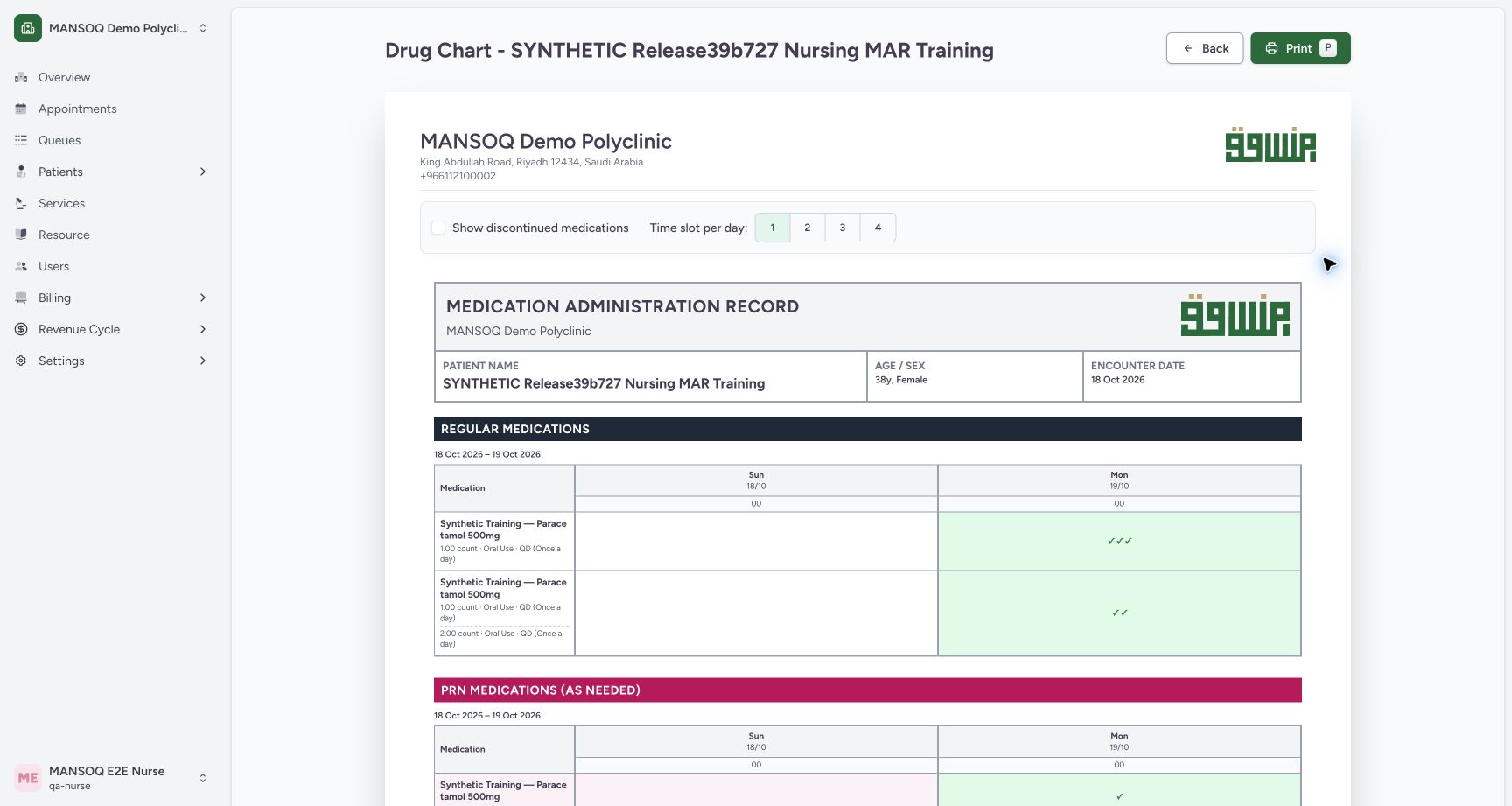
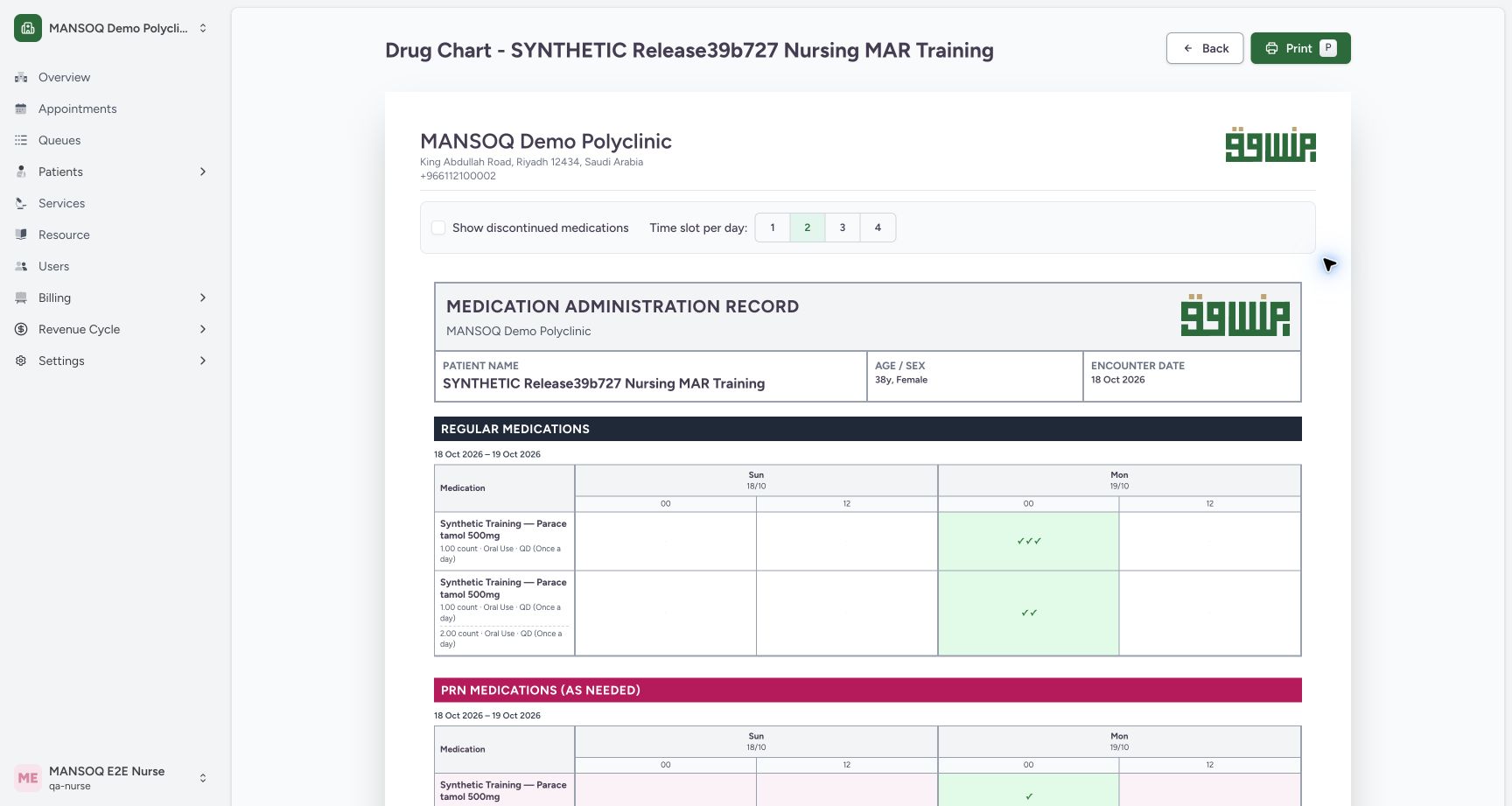
Use Time slot per day to choose 1, 2, 3 or 4. One gives a full-day 00 column; two gives 00 and 12; three gives 00, 08 and 16; four gives 00, 06, 12 and 18. These controls regroup the display without changing the saved occurrence times or the three, two and one Completed counts. Return to 4 for the demonstrated detail inspection and PDF.
 1
1Choose one readable full-day chart interval
Capture details
Exact committed release 96ca7318 on an isolated nonproduction clone, using an existing Nurse and fictional Polyclinic inpatient case. The synthetic patient name retains an earlier release label. Time slot per day is set to 1, with a single 00 column for each date. The scheduled rows retain their three and two Completed markers; the separate PRN row retains one. The pointer is moved into blank space so the selected control remains readable.
Image SHA-256 42abd10c90b53e8d2f8b35ad06369e16324656d9220fc5c4bc49db0612d87879
- One interval per day: Choose 1 to group each date into one full-day column.
 1
1Use two twelve-hour chart intervals
Capture details
Exact committed release 96ca7318 on an isolated nonproduction clone, using an existing Nurse and fictional Polyclinic inpatient case. The synthetic patient name retains an earlier release label. Time slot per day is set to 2, so each date has 00 and 12 columns. The same per-request Completed occurrences remain in their corresponding time intervals; instructions and PRN classification are unchanged.
Image SHA-256 4ada3f31fe352ccaf55875487dc4508237b7764837f1b127a4a90e4d73cdc829
- Two intervals per day: Choose 2 for the 00 and 12 chart columns.
 1
1Use three eight-hour chart intervals
Capture details
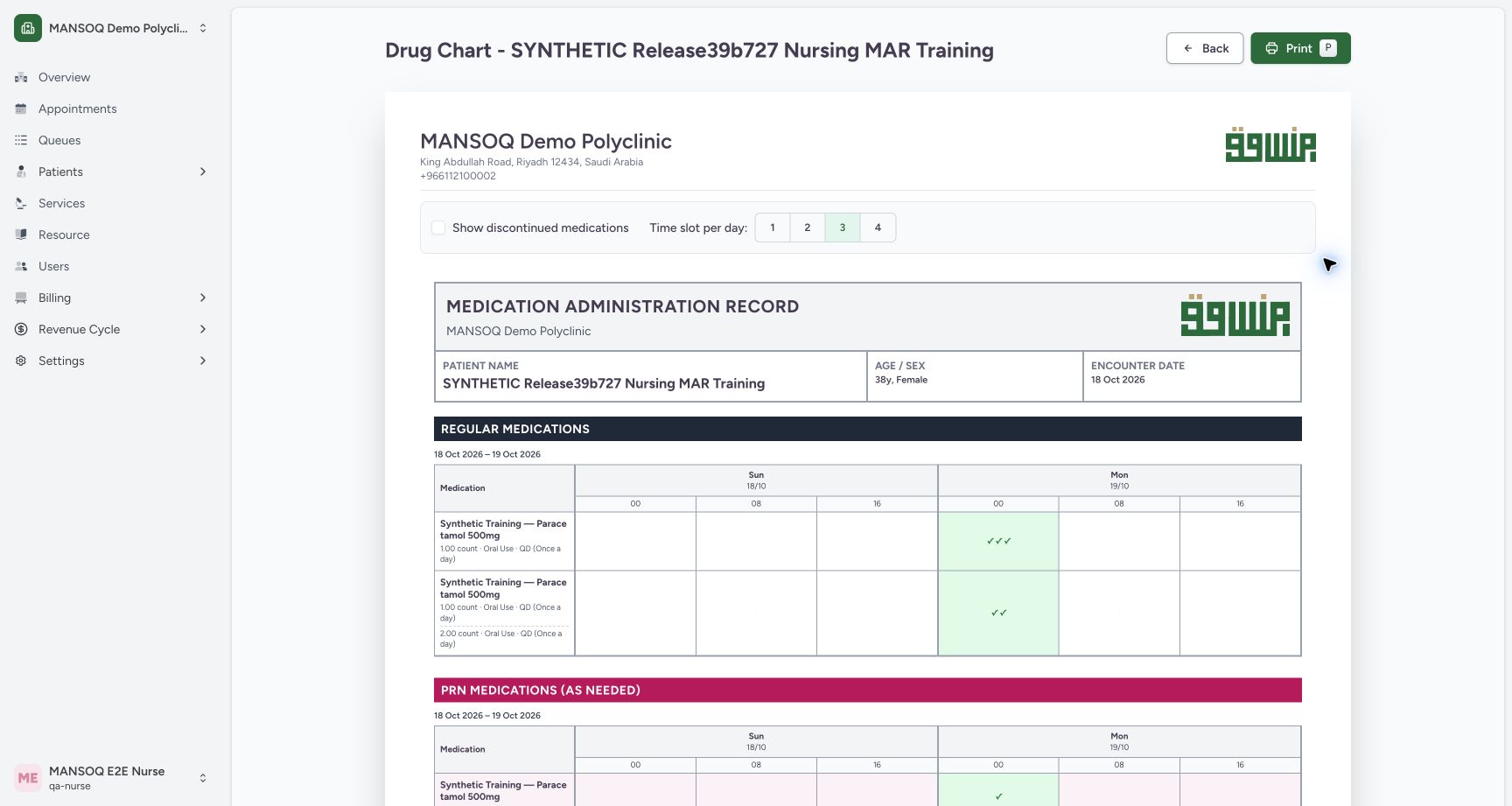
Exact committed release 96ca7318 on an isolated nonproduction clone, using an existing Nurse and fictional Polyclinic inpatient case. The synthetic patient name retains an earlier release label. Time slot per day is set to 3, giving 00, 08 and 16 columns for each date. The actual scheduled and PRN request rows retain the same Completed occurrences and all ordered instructions. This is presentation only; occurrence times are unchanged.
Image SHA-256 ccb7074552f779b926be66936ef6bf624d065c4470d702783a172e389f70392e
- Three intervals per day: Choose 3 for the 00, 08 and 16 chart columns.
12Read both scheduled requests and every ordered dose
Capture details
Exact committed release 96ca7318 on an isolated nonproduction clone, using an existing Nurse and fictional Polyclinic inpatient case. The synthetic patient name retains an earlier release label. The completed chart now renders each medication request separately. The first scheduled row has three Completed occurrences; the second scheduled request retains both 1 count and 2 count instructions and has two Completed occurrences. The PRN section continues below this viewport.
Image SHA-256 568696e1b5ed966532f83ae6f3de3dc2875cffa9141a74376abb17640a4360dc
- Second ordered dose: The same request retains its second 2 count instruction beneath the 1 count instruction.
- Three completed events: Three checkmarks belong to this request; non-completed statuses are excluded from this chart.
4. Inspect and scroll one scheduled request’s events
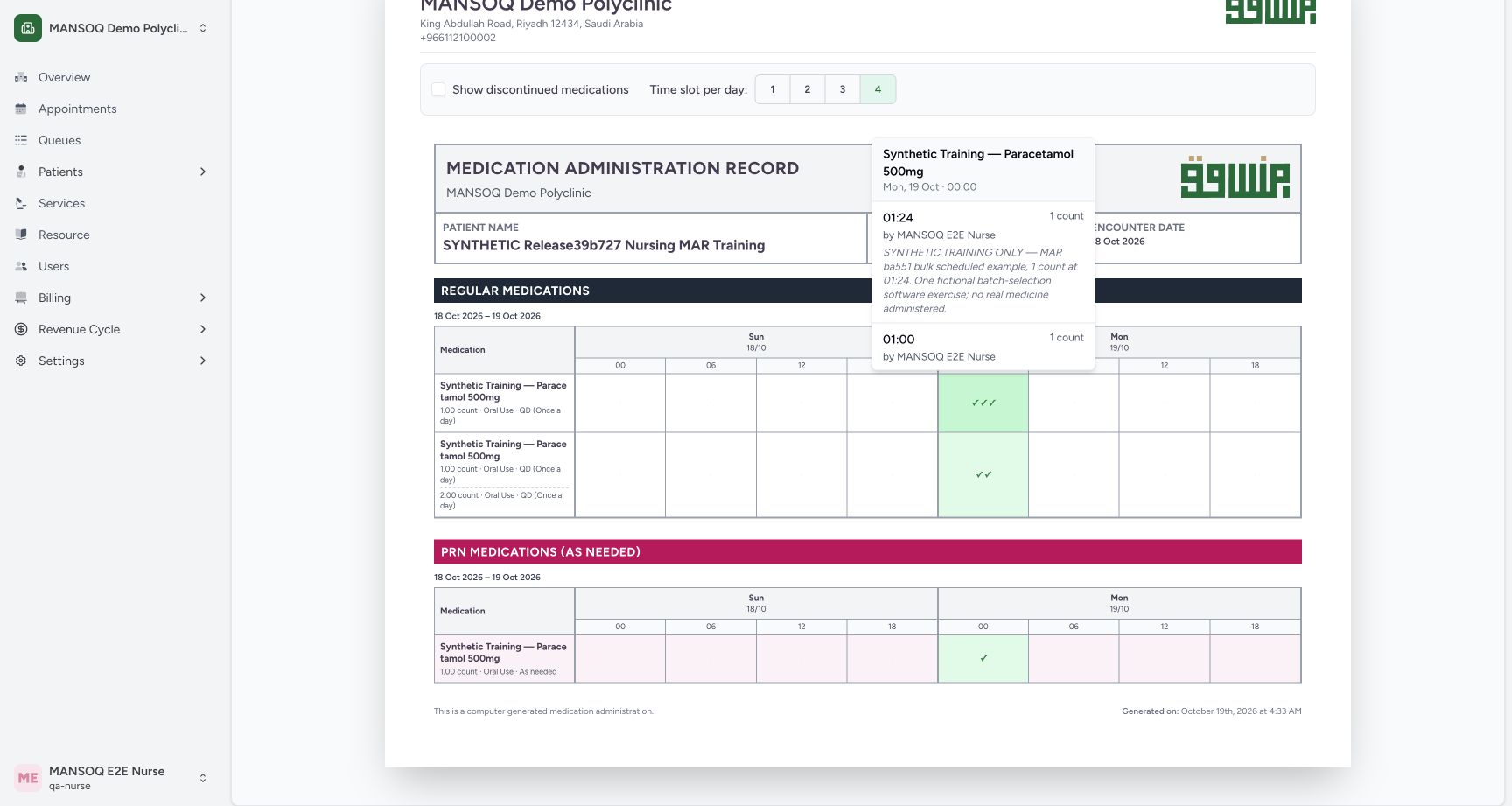
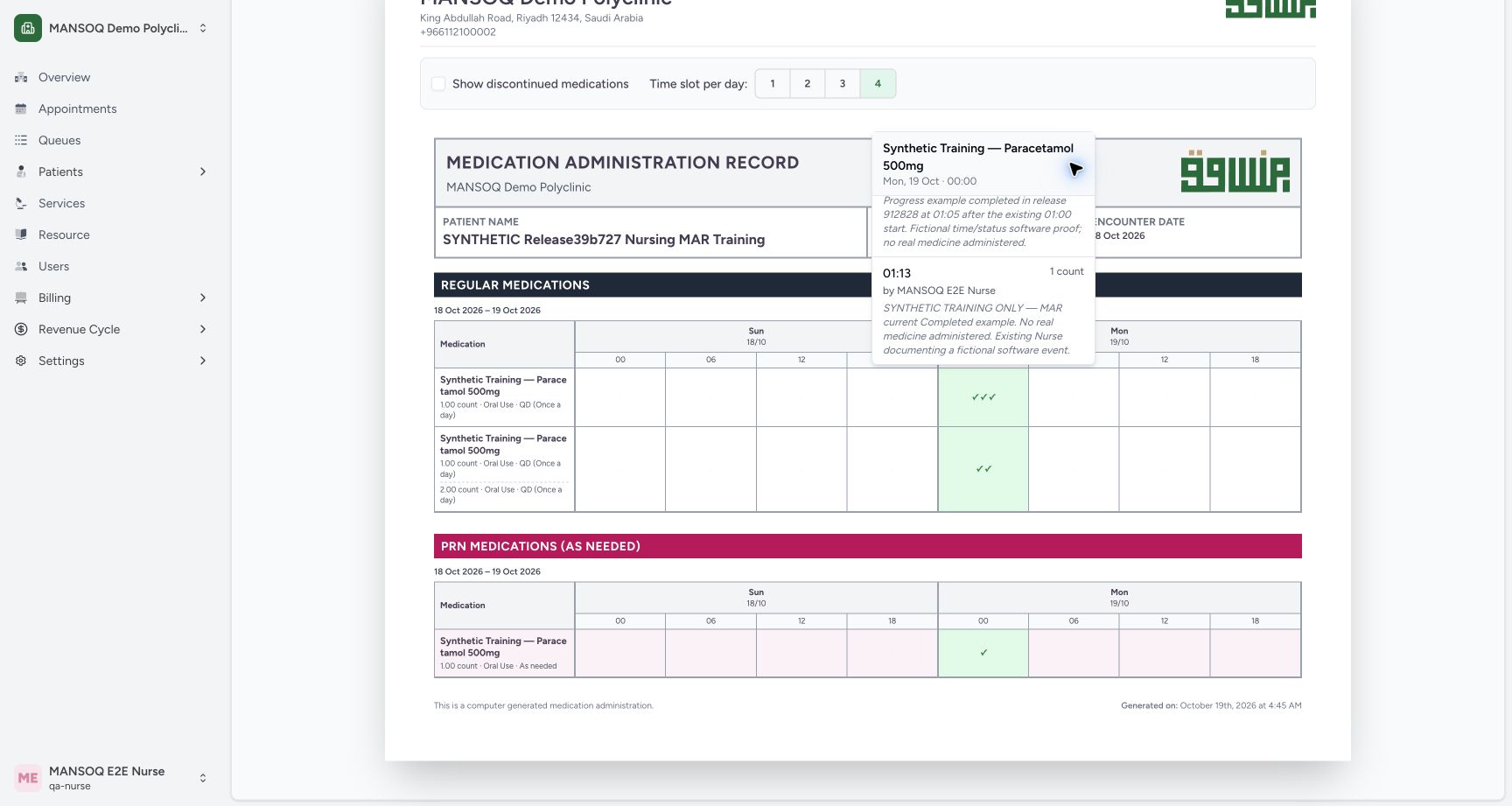
Select the first scheduled request’s populated three-checkmark cell. Read the individual occurrence start, selected dose, recorded-by account and note. The first visible example starts at 01:24 with 1 count; the popover heading’s 00:00 identifies the chart interval, not that event’s actual start. Scroll inside the detail list to reach the remaining 01:13 occurrence. The list is not presented as a single chronological timeline, so read each event’s time. The displayed account comes from the event creator and does not independently establish who physically performed a clinical action.
 12
12Read the scheduled request’s individual completed event
Capture details
Exact committed release 96ca7318 on an isolated nonproduction clone, using an existing Nurse and fictional Polyclinic inpatient case. The synthetic patient name retains an earlier release label. The first request’s three-checkmark cell opens only that request’s Completed-event details. The visible first occurrence is 01:24 with 1 count, Nurse recorder and its synthetic note. The header 00:00 labels the time interval; it is separate from the actual occurrence start. Other records continue in the scrollable detail list.
Image SHA-256 d2f361ec9098cf845c91872e904a2703bdde852d15ab67266c85f6b8fe72b7f0
- Actual occurrence start: Read 01:24 on the individual event row; 00:00 above is the chart interval.
- Recorded-by context: The event creator is the recorded-by account, not independent proof of who physically performed a clinical action.
 1
1Scroll the same request’s completed-event details
Capture details
Exact committed release 96ca7318 on an isolated nonproduction clone, using an existing Nurse and fictional Polyclinic inpatient case. The synthetic patient name retains an earlier release label. The same scheduled request’s detail list is scrolled to its remaining 01:13 Completed occurrence, with 1 count, Nurse recorded-by context and retained synthetic note. The event detail list has been scrolled; this did not select another request or change a clinical record.
Image SHA-256 a755adc4c68f2ab1aa44dd82e5f05b99bde12a54590be0db833df4e333fed8a9
- Remaining completed occurrence: Read the visible 01:13 start on this same scheduled request.
5. Distinguish ordered instructions from the saved event dose
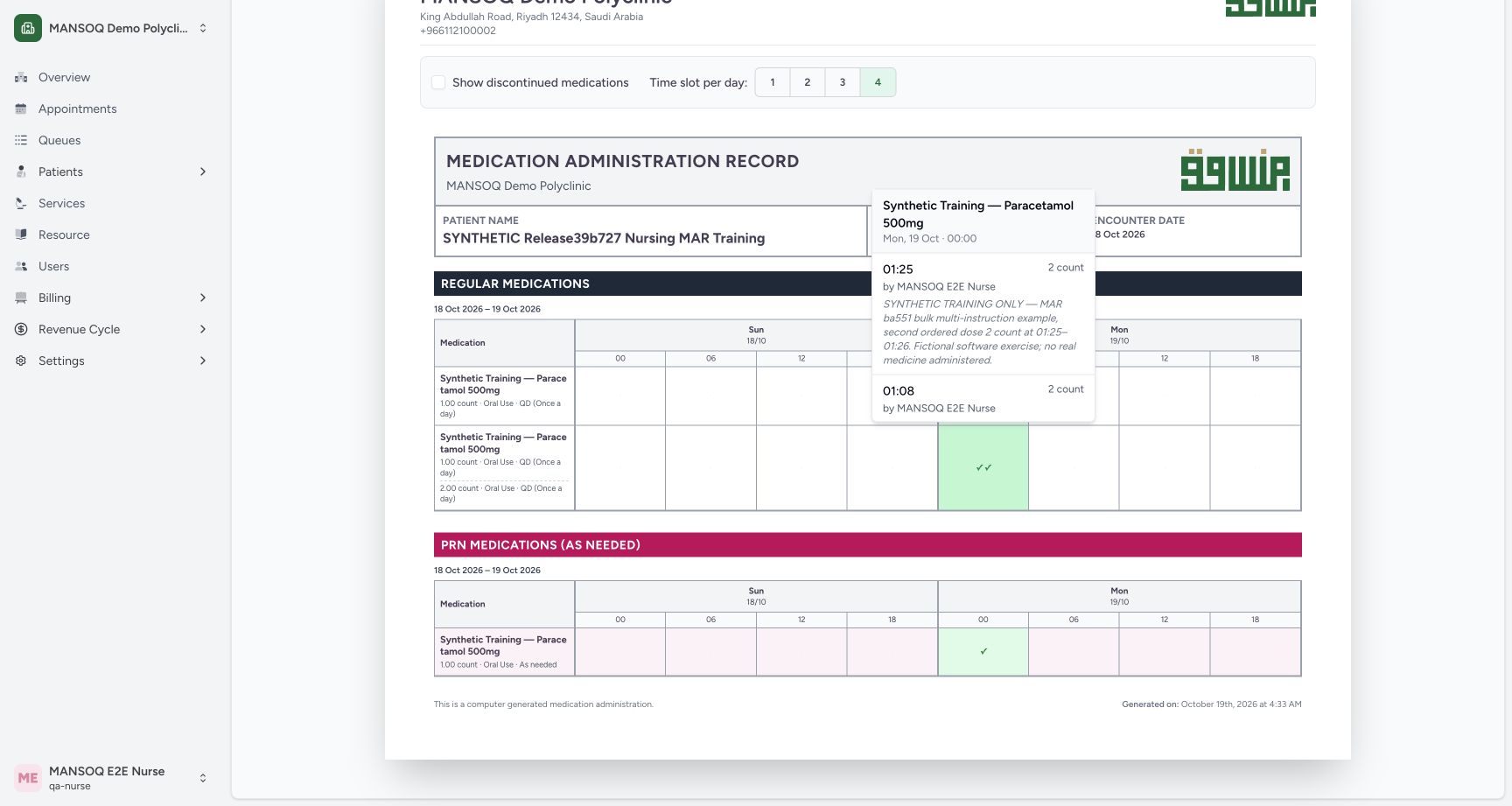
Close the first detail list by selecting its populated cell again, then open the second scheduled request’s two-checkmark cell. Its request row retains both 1 count and 2 count instruction lines. The individual 01:25 and 01:08 events each show the selected 2 count dose. Read the intended request and the event together rather than treating one instruction as the only dose on the request.
 12
12Inspect the selected dose on the multi-instruction request
Capture details
Exact committed release 96ca7318 on an isolated nonproduction clone, using an existing Nurse and fictional Polyclinic inpatient case. The synthetic patient name retains an earlier release label. Only this scheduled request’s two Completed occurrences appear in its chart cell. The visible 01:25 and 01:08 rows each retain the selected 2 count dose; the table continues to show both ordered 1 count and 2 count instructions. These are fictional software examples, not dosing guidance.
Image SHA-256 76c4bd352501b1d54c72333342e7d69693da9a6d48559e08dcc9c6701b7a75fa
- Individual occurrence start: Read the actual 01:25 event time separately from the 00:00 interval heading.
- Selected event dose: The saved event uses 2 count; this remains distinct from the other instruction on the request.
123Distinguish scheduled and as-needed request rows
Capture details
Exact committed release 96ca7318 on an isolated nonproduction clone, using an existing Nurse and fictional Polyclinic inpatient case. The synthetic patient name retains an earlier release label. Natural scrolling reveals the complete per-request table. Two regular request rows show three and two Completed occurrences, while the separate PRN section shows one Completed occurrence. Both ordered dose instructions remain visible for the second regular request. The chart totals six Completed events from ten medication event records.
Image SHA-256 88a1aec8b67ea4a9fe63e151e9723f3277b54628ad67eb0b2cb8a79b935b9242
- Both dose instructions: Read the 1 count and 2 count instruction lines on this single scheduled request.
- Separate PRN section: The as-needed request has its own section and retains its own instruction.
- One PRN completed event: This checkmark belongs only to the PRN request, separate from the three and two scheduled events.
6. Inspect the separate PRN occurrence
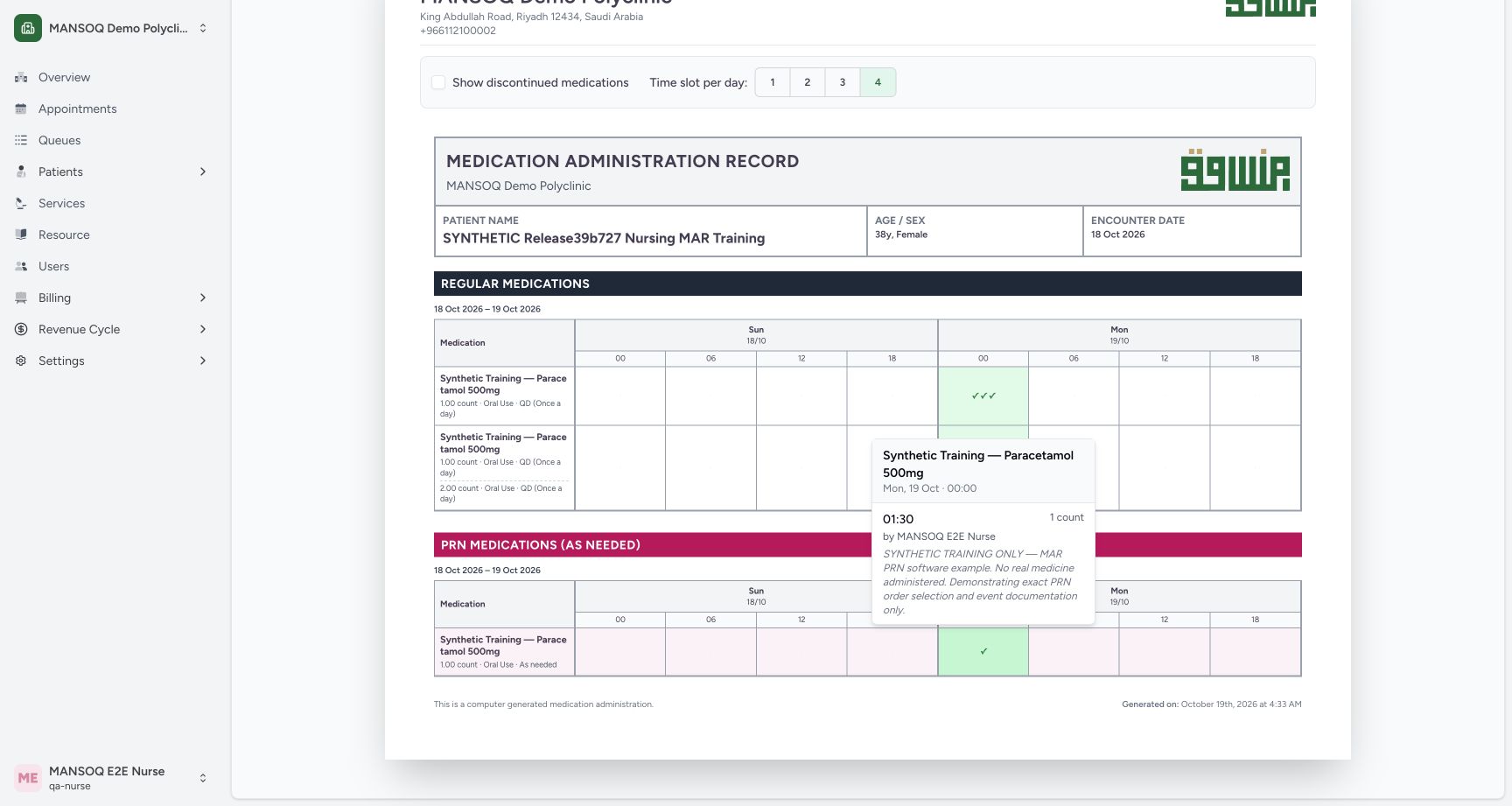
Close the scheduled detail list, then select the PRN row’s populated cell. The demonstrated PRN request has its own 01:30 Completed event, 1 count dose, Nurse recorded-by context and synthetic PRN note. Its As Needed classification remains separate from the regular rows on both the chart and saved output.
 12
12Read the separate as-needed occurrence
Capture details
Exact committed release 96ca7318 on an isolated nonproduction clone, using an existing Nurse and fictional Polyclinic inpatient case. The synthetic patient name retains an earlier release label. The PRN request’s own cell opens its single Completed occurrence: 01:30, 1 count, Nurse recorded-by context and synthetic PRN documentation note. The detail belongs to the PRN request only; no event or prescription is changed.
Image SHA-256 43d3dd53af6736109b3db152826660abac7e70155f8d28730345b25aa45b7f80
- PRN occurrence start: Read the actual 01:30 occurrence on this request’s event row.
- Recorded-by context: The visible account identifies the event creator. It does not independently establish a physical clinical performer.
123Distinguish scheduled and as-needed request rows
Capture details
Exact committed release 96ca7318 on an isolated nonproduction clone, using an existing Nurse and fictional Polyclinic inpatient case. The synthetic patient name retains an earlier release label. Natural scrolling reveals the complete per-request table. Two regular request rows show three and two Completed occurrences, while the separate PRN section shows one Completed occurrence. Both ordered dose instructions remain visible for the second regular request. The chart totals six Completed events from ten medication event records.
Image SHA-256 88a1aec8b67ea4a9fe63e151e9723f3277b54628ad67eb0b2cb8a79b935b9242
- Both dose instructions: Read the 1 count and 2 count instruction lines on this single scheduled request.
- Separate PRN section: The as-needed request has its own section and retains its own instruction.
- One PRN completed event: This checkmark belongs only to the PRN request, separate from the three and two scheduled events.
7. Check the genuine native Print preview
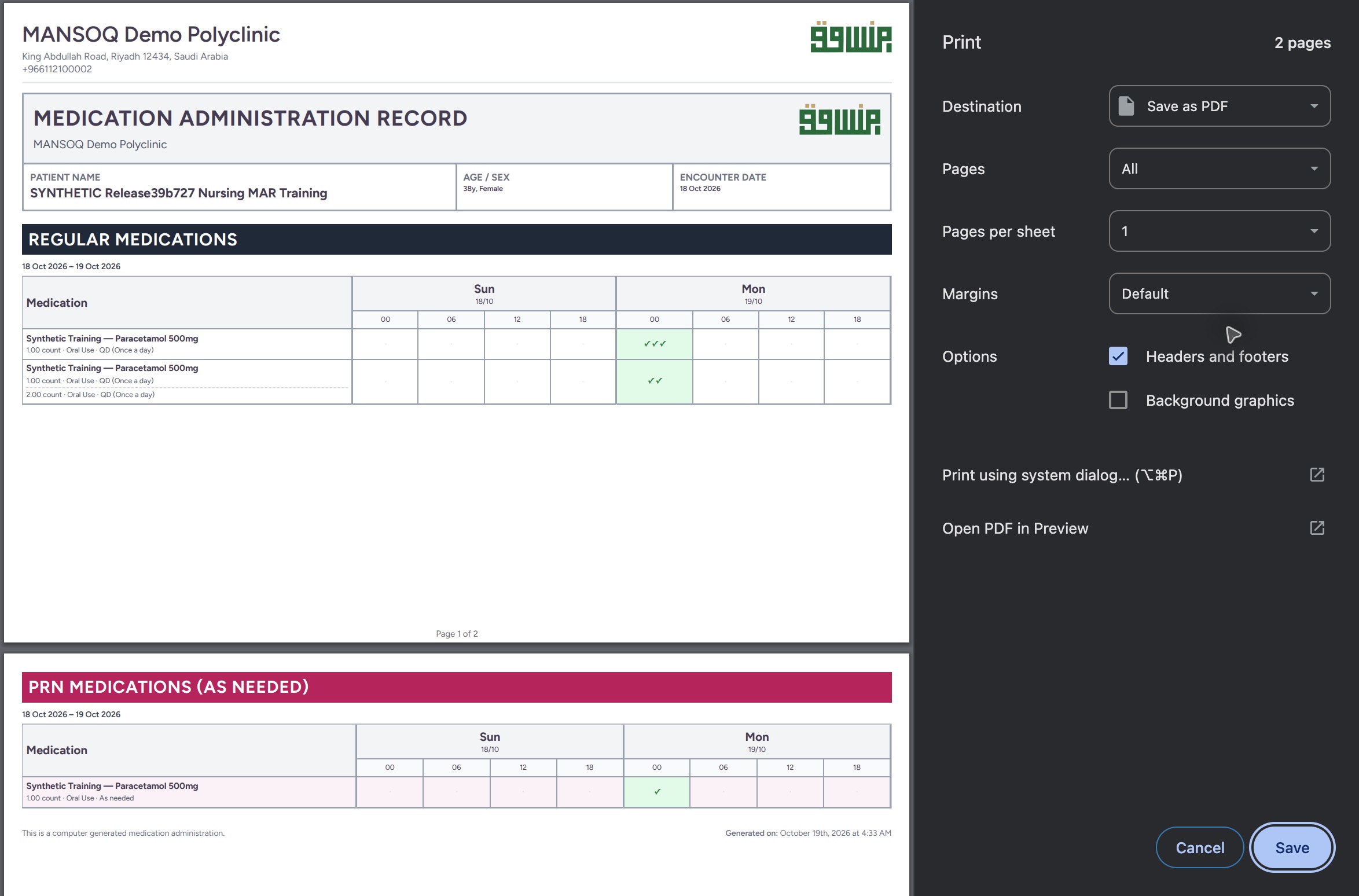
Close the event detail list and choose Print on the web chart. In the native Chrome Print dialog, confirm Save as PDF, All pages and the actual two-page count. The demonstrated preview uses landscape output, one page per sheet and default margins, with browser headers and footers enabled and background graphics disabled. The chart’s interactive event popovers are not printed. Browser and operating-system controls may differ on your workstation.
 123
123Review the genuine macOS Chrome Print dialog
Native macOS print/save dialog.
Capture details
Exact committed release 96ca7318 on an isolated nonproduction clone, using an existing Nurse and fictional Polyclinic inpatient case. The synthetic patient name retains an earlier release label. Genuine native Chrome Print controls for the exact 96ca chart output. Destination is Save as PDF, all pages selected, and the actual preview reports two pages. Scheduled request rows retain both instructions on page 1; the PRN request begins page 2. Operating-system/browser controls are separate from the product UI.
Image SHA-256 81433c8119a3e10d0539157c5ea51a485928b0e052ec8ed8f4130c79d6f734ca
- Two output pages: Confirm the actual page count before saving; this demonstrated output has two pages.
- Save as PDF: Confirm the intended local PDF destination.
- Save the PDF: Choose Save to open the native macOS filename and destination panel.
8. Save the actual chart PDF
Choose Save in the Print dialog. In the macOS Save dialog, confirm an identifiable filename and approved destination, then select Save once. The example saves SYNTHETIC-96ca-drug-chart.pdf into a private local training folder. This writes output locally and does not create or update an administration event.
123Review the genuine macOS Chrome Print dialog
Native macOS print/save dialog.
Capture details
Exact committed release 96ca7318 on an isolated nonproduction clone, using an existing Nurse and fictional Polyclinic inpatient case. The synthetic patient name retains an earlier release label. Genuine native Chrome Print controls for the exact 96ca chart output. Destination is Save as PDF, all pages selected, and the actual preview reports two pages. Scheduled request rows retain both instructions on page 1; the PRN request begins page 2. Operating-system/browser controls are separate from the product UI.
Image SHA-256 81433c8119a3e10d0539157c5ea51a485928b0e052ec8ed8f4130c79d6f734ca
- Two output pages: Confirm the actual page count before saving; this demonstrated output has two pages.
- Save as PDF: Confirm the intended local PDF destination.
- Save the PDF: Choose Save to open the native macOS filename and destination panel.
123Save the actual chart through the macOS Save dialog
Native macOS print/save dialog.
Capture details
Exact committed release 96ca7318 on an isolated nonproduction clone, using an existing Nurse and fictional Polyclinic inpatient case. The synthetic patient name retains an earlier release label. Genuine native macOS Save dialog with the synthetic filename and private pdf-output folder selected. This saves the two-page chart PDF locally; it does not update a clinical record or send output externally.
Image SHA-256 1a4bd52dfb3c013025b7df191f00b1383425d48b72a1fd0dffb0f45f8c0d6d40
- Recognizable synthetic filename: Confirm SYNTHETIC-96ca-drug-chart.pdf before saving.
- Selected local destination: The private pdf-output folder is selected through the normal Go to Folder control.
- Save once: Save the actual file, then open and inspect both output pages.
9. Open and verify both saved pages
Open the actual saved file in your normal document viewer. The example uses macOS Preview. Confirm the filename and Page 1 of 2, then inspect patient identity, encounter date, chart dates, both scheduled request rows, their three and two markers, and both instruction lines on the second request. Select page 2 and confirm Page 2 of 2, the separate PRN As Needed row, its single marker and the generated footer. Keep both pages together: the full patient identity block is on page 1. The saved table preserves per-request summaries and Completed markers, while the popovers’ individual event times and notes remain screen details.
12Inspect saved page one in macOS Preview
Saved PDF in Preview (macOS) · page 1 of 2.
Capture details
Exact committed release 96ca7318 on an isolated nonproduction clone, using an existing Nurse and fictional Polyclinic inpatient case. The synthetic patient name retains an earlier release label. Genuine macOS Preview output viewer opened the actual saved SYNTHETIC-96ca-drug-chart.pdf, Page 1 of 2. This saved page retains patient/encounter context, two scheduled request rows, all ordered dose instruction lines and three/two Completed marks. Preview is an operating-system viewer, separate from the MANSOQ source UI.
Image SHA-256 2f3700090f69beed26e60e054ac63f10883666437c29376b29032e80e33812c4
- Actual file and page count: Confirm the saved filename and Page 1 of 2 in Preview.
- Retained second instruction: The actual saved second scheduled request retains both its 1 count and 2 count instruction lines.
123Inspect the saved as-needed page in macOS Preview
Saved PDF in Preview (macOS) · page 2 of 2.
Capture details
Exact committed release 96ca7318 on an isolated nonproduction clone, using an existing Nurse and fictional Polyclinic inpatient case. The synthetic patient name retains an earlier release label. Genuine macOS Preview output viewer shows Page 2 of 2 of the actual saved chart. The separate PRN request retains its As needed instruction and one Completed mark, plus the generated footer. Interactive occurrence notes/times and all-status history are not printed into this chart summary. Preview is the native saved-output viewer, not Chrome Print controls.
Image SHA-256 3747e995d3d83daeaa7f28dda04eb330afbe5b8f87801eb3bbea9edb00401208
- Saved second page: Confirm Page 2 of 2 for the same saved PDF.
- Separate PRN output section: The as-needed request remains separate on the actual saved second page.
- Retained PRN completed marker: The PDF preserves this request’s one Completed occurrence marker.
10. Return to the loaded administration history
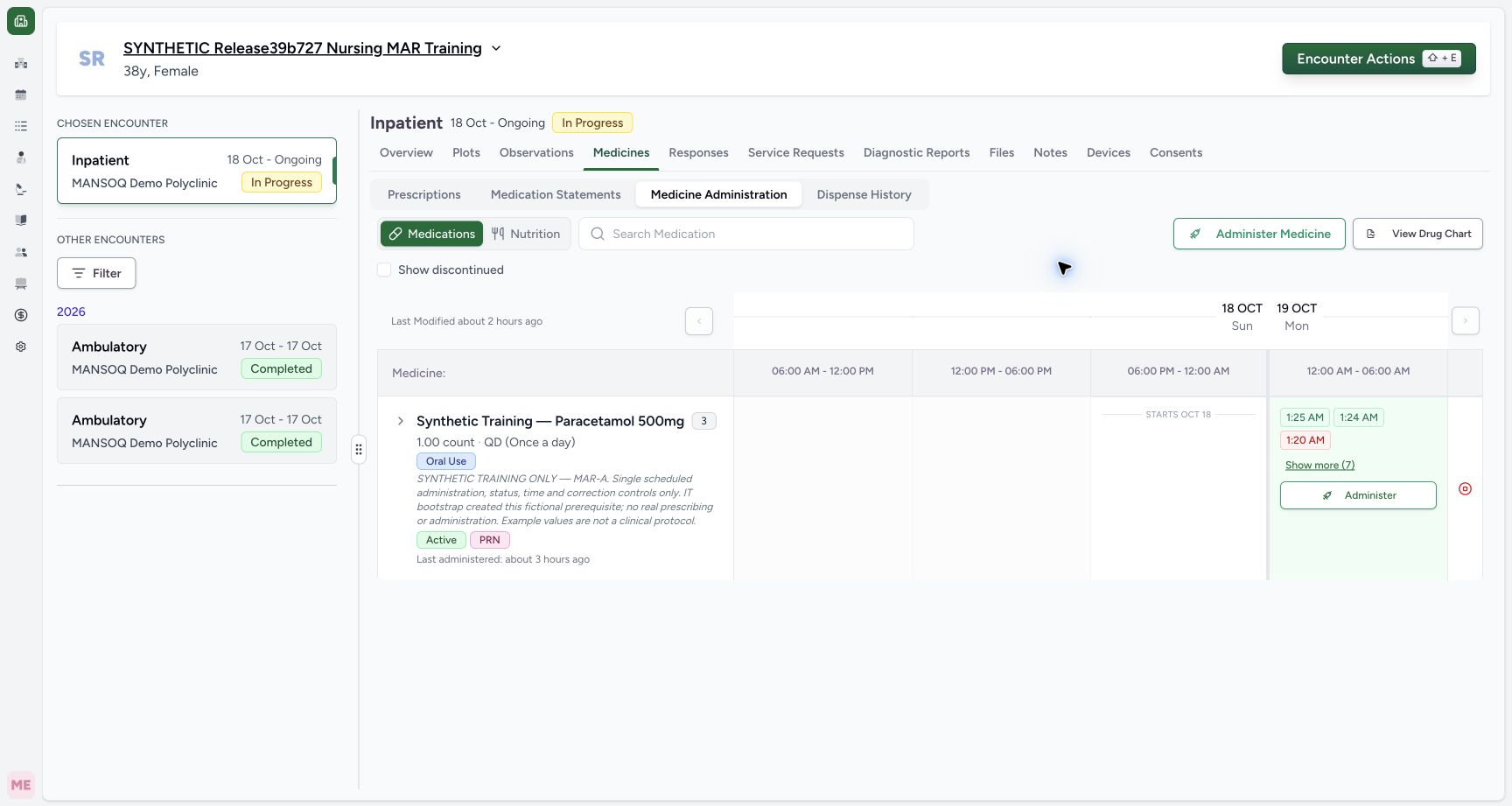
Close the document viewer and use Back on the web chart to return to Medicines. In this demonstrated path Prescriptions is selected initially, so select Medicine Administration again and wait for its saved history to load. The original Completed and Not Done markers remain visible. Independent ordinary Nurse and Doctor readbacks confirmed that all fourteen administration records, all four medication and nutrition requests, and the existing diagnoses and symptoms were unchanged by these display and output actions.
 12
12Return to the loaded, unchanged administration history
Capture details
Exact committed release 96ca7318 on an isolated nonproduction clone, using an existing Nurse and fictional Polyclinic inpatient case. The synthetic patient name retains an earlier release label. The returned Medicine Administration view has loaded the same saved medication requests and status markers. The cursor is moved into blank space so the selected tab and individual markers remain readable. Chart display/export/Preview controls did not create or update any clinical record.
Image SHA-256 fd3c9968721b5bbe9ac69281e31c24f44c843e103df3dc27ab1d3d9ab56d8b47
- Medicine Administration: After Back returns to Medicines, select Medicine Administration if Prescriptions is initially selected.
- Retained status history: The original Completed and Not Done markers remain visible after loading.
Keep the Completed chart and full status history distinct
This lesson demonstrates one authorized Nurse’s chart and local PDF workflow in a fictional Polyclinic inpatient case. The medication chart displays six Completed occurrences from ten medication administration records. Other statuses remain in administration history; the ended nutrition request and its four records are a separate teaching branch. This chart is not an all-status audit or a clinical assessment.
1Open the selected inpatient encounter’s drug chart
Capture details
Exact committed release 96ca7318 on an isolated nonproduction clone, using an existing Nurse and fictional Polyclinic inpatient case. The synthetic patient name retains an earlier release label. The retained fictional inpatient encounter has three active medication requests and ten medication administration events. This is the genuine Nurse Medicine Administration view; no event is saved in this read-only lesson.
Image SHA-256 8405ae0995c4e72e5cc71f7afe25c2be9aea3af5ae08dbaa99317ec5dff1e1b8
- View Drug Chart: Open the printable chart after confirming the intended patient, encounter and Medications tab.
123Distinguish scheduled and as-needed request rows
Capture details
Exact committed release 96ca7318 on an isolated nonproduction clone, using an existing Nurse and fictional Polyclinic inpatient case. The synthetic patient name retains an earlier release label. Natural scrolling reveals the complete per-request table. Two regular request rows show three and two Completed occurrences, while the separate PRN section shows one Completed occurrence. Both ordered dose instructions remain visible for the second regular request. The chart totals six Completed events from ten medication event records.
Image SHA-256 88a1aec8b67ea4a9fe63e151e9723f3277b54628ad67eb0b2cb8a79b935b9242
- Both dose instructions: Read the 1 count and 2 count instruction lines on this single scheduled request.
- Separate PRN section: The as-needed request has its own section and retains its own instruction.
- One PRN completed event: This checkmark belongs only to the PRN request, separate from the three and two scheduled events.
12Return to the loaded, unchanged administration history
Capture details
Exact committed release 96ca7318 on an isolated nonproduction clone, using an existing Nurse and fictional Polyclinic inpatient case. The synthetic patient name retains an earlier release label. The returned Medicine Administration view has loaded the same saved medication requests and status markers. The cursor is moved into blank space so the selected tab and individual markers remain readable. Chart display/export/Preview controls did not create or update any clinical record.
Image SHA-256 fd3c9968721b5bbe9ac69281e31c24f44c843e103df3dc27ab1d3d9ab56d8b47
- Medicine Administration: After Back returns to Medicines, select Medicine Administration if Prescriptions is initially selected.
- Retained status history: The original Completed and Not Done markers remain visible after loading.
Understand the demonstrated output scope
On this exact release, each request has its own chart row and PRN classification, and every ordered dose instruction remains in the request summary. The saved PDF retains two scheduled rows on page 1 and the PRN row on page 2. It does not reproduce the interactive event-detail popovers or independently establish a physical performer. Other facilities, roles, weeks, discontinued-only charts and output destinations require their own observed teaching.
12Inspect the selected dose on the multi-instruction request
Capture details
Exact committed release 96ca7318 on an isolated nonproduction clone, using an existing Nurse and fictional Polyclinic inpatient case. The synthetic patient name retains an earlier release label. Only this scheduled request’s two Completed occurrences appear in its chart cell. The visible 01:25 and 01:08 rows each retain the selected 2 count dose; the table continues to show both ordered 1 count and 2 count instructions. These are fictional software examples, not dosing guidance.
Image SHA-256 76c4bd352501b1d54c72333342e7d69693da9a6d48559e08dcc9c6701b7a75fa
- Individual occurrence start: Read the actual 01:25 event time separately from the 00:00 interval heading.
- Selected event dose: The saved event uses 2 count; this remains distinct from the other instruction on the request.
12Read the separate as-needed occurrence
Capture details
Exact committed release 96ca7318 on an isolated nonproduction clone, using an existing Nurse and fictional Polyclinic inpatient case. The synthetic patient name retains an earlier release label. The PRN request’s own cell opens its single Completed occurrence: 01:30, 1 count, Nurse recorded-by context and synthetic PRN documentation note. The detail belongs to the PRN request only; no event or prescription is changed.
Image SHA-256 43d3dd53af6736109b3db152826660abac7e70155f8d28730345b25aa45b7f80
- PRN occurrence start: Read the actual 01:30 occurrence on this request’s event row.
- Recorded-by context: The visible account identifies the event creator. It does not independently establish a physical clinical performer.
12Inspect saved page one in macOS Preview
Saved PDF in Preview (macOS) · page 1 of 2.
Capture details
Exact committed release 96ca7318 on an isolated nonproduction clone, using an existing Nurse and fictional Polyclinic inpatient case. The synthetic patient name retains an earlier release label. Genuine macOS Preview output viewer opened the actual saved SYNTHETIC-96ca-drug-chart.pdf, Page 1 of 2. This saved page retains patient/encounter context, two scheduled request rows, all ordered dose instruction lines and three/two Completed marks. Preview is an operating-system viewer, separate from the MANSOQ source UI.
Image SHA-256 2f3700090f69beed26e60e054ac63f10883666437c29376b29032e80e33812c4
- Actual file and page count: Confirm the saved filename and Page 1 of 2 in Preview.
- Retained second instruction: The actual saved second scheduled request retains both its 1 count and 2 count instruction lines.
123Inspect the saved as-needed page in macOS Preview
Saved PDF in Preview (macOS) · page 2 of 2.
Capture details
Exact committed release 96ca7318 on an isolated nonproduction clone, using an existing Nurse and fictional Polyclinic inpatient case. The synthetic patient name retains an earlier release label. Genuine macOS Preview output viewer shows Page 2 of 2 of the actual saved chart. The separate PRN request retains its As needed instruction and one Completed mark, plus the generated footer. Interactive occurrence notes/times and all-status history are not printed into this chart summary. Preview is the native saved-output viewer, not Chrome Print controls.
Image SHA-256 3747e995d3d83daeaa7f28dda04eb330afbe5b8f87801eb3bbea9edb00401208
- Saved second page: Confirm Page 2 of 2 for the same saved PDF.
- Separate PRN output section: The as-needed request remains separate on the actual saved second page.
- Retained PRN completed marker: The PDF preserves this request’s one Completed occurrence marker.
Source evidence
Every citation uses this exact committed version. The private source repository requires access.
- repositories/platform/mansoq-web/src/components/Medicine/MedicationAdministration/AdministrationTab.tsx:758 ·
96ca7318eb2b93f5fa477908a1543075e0d1f056Source file checksum
170c246835ea1966b8512f5baf72ff0ea60635f28cbcec6a465bb8c17506555f - repositories/platform/mansoq-web/src/components/Medicine/MedicationAdministration/PrintMedicationAdministration.tsx:113 ·
96ca7318eb2b93f5fa477908a1543075e0d1f056Source file checksum
78672ab923c3b78431be155d28256e3dac6ae32d52b336eaedbd26bcfb8ebb52 - repositories/platform/mansoq-web/src/components/Medicine/MedicationAdministration/PrintMedicationAdministration.tsx:131 ·
96ca7318eb2b93f5fa477908a1543075e0d1f056Source file checksum
78672ab923c3b78431be155d28256e3dac6ae32d52b336eaedbd26bcfb8ebb52 - repositories/platform/mansoq-web/src/components/Medicine/MedicationAdministration/PrintMedicationAdministration.tsx:211 ·
96ca7318eb2b93f5fa477908a1543075e0d1f056Source file checksum
78672ab923c3b78431be155d28256e3dac6ae32d52b336eaedbd26bcfb8ebb52 - repositories/platform/mansoq-web/src/components/Medicine/MedicationAdministration/PrintMedicationAdministration.tsx:519 ·
96ca7318eb2b93f5fa477908a1543075e0d1f056Source file checksum
78672ab923c3b78431be155d28256e3dac6ae32d52b336eaedbd26bcfb8ebb52 - repositories/platform/mansoq-web/src/components/Medicine/MedicationAdministration/PrintMedicationAdministration.tsx:629 ·
96ca7318eb2b93f5fa477908a1543075e0d1f056Source file checksum
78672ab923c3b78431be155d28256e3dac6ae32d52b336eaedbd26bcfb8ebb52 - repositories/platform/mansoq-web/src/MansoqUI/misc/PrintPreview.tsx:1 ·
96ca7318eb2b93f5fa477908a1543075e0d1f056Source file checksum
66b44ba3d2996d2db6d1d37c275a084db50c2ac1d68468f5355cc2522c67679b - repositories/platform/mansoq-web/src/Routers/routes/ConsultationRoutes.tsx:80 ·
96ca7318eb2b93f5fa477908a1543075e0d1f056Source file checksum
58d982de3558969447b6b74d9839168a8cbb82ba45b15995dff081d3a3dd0d57