 MANSOQ
 Medication administration · VERSION ba551c1d
Inspect and save the completed medication administration chart
Open the selected encounter’s drug chart, choose its time columns, inspect individual completed events and verify the actual saved PDF. This observed Nurse workflow uses a fictional Polyclinic inpatient case and documents the version’s grouping and output limits.
Nurse
 12
12Open the selected encounter’s drug chart
Capture details
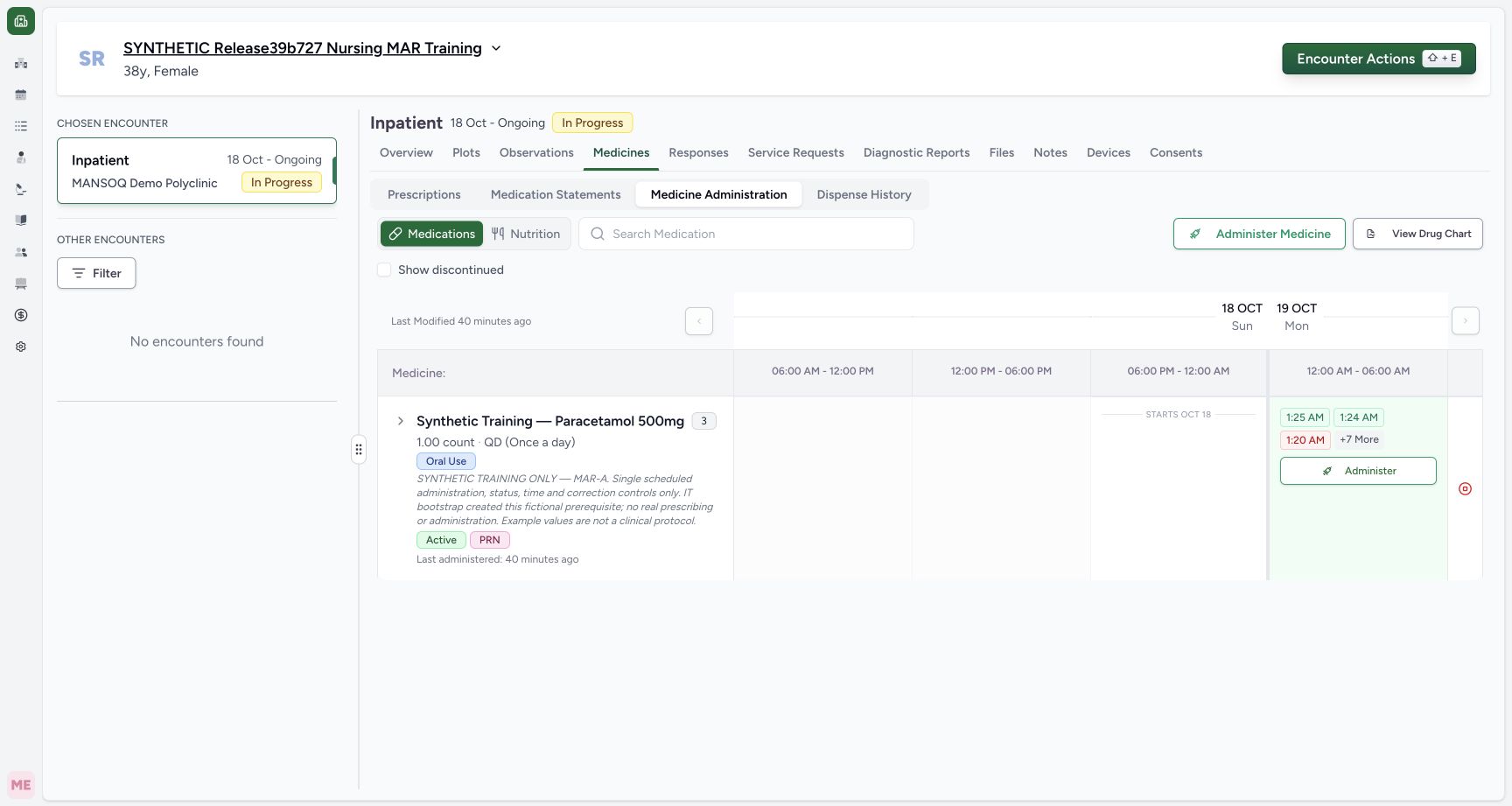
Exact committed release ba551c1d on an isolated nonproduction clone, using an existing Nurse and fictional Polyclinic Inpatient case. The synthetic patient name retains an earlier release label; the actual captured build is ba551c1d. The selected active fictional Polyclinic inpatient encounter has ten administration records; View Drug Chart opens a separate printable completed-event view.
Image SHA-256 a48ca6a6349a1796d8cb39d5dda9803575d0e8a534f0a7517967ce9d6d48b1e1
- View Drug Chart: Open the separate chart after confirming the intended patient and encounter.
- Confirm the patient: The retained fictional name is the intended patient on the actual ba551 build.
 123
123Inspect the saved one-page chart in macOS Preview
Capture details
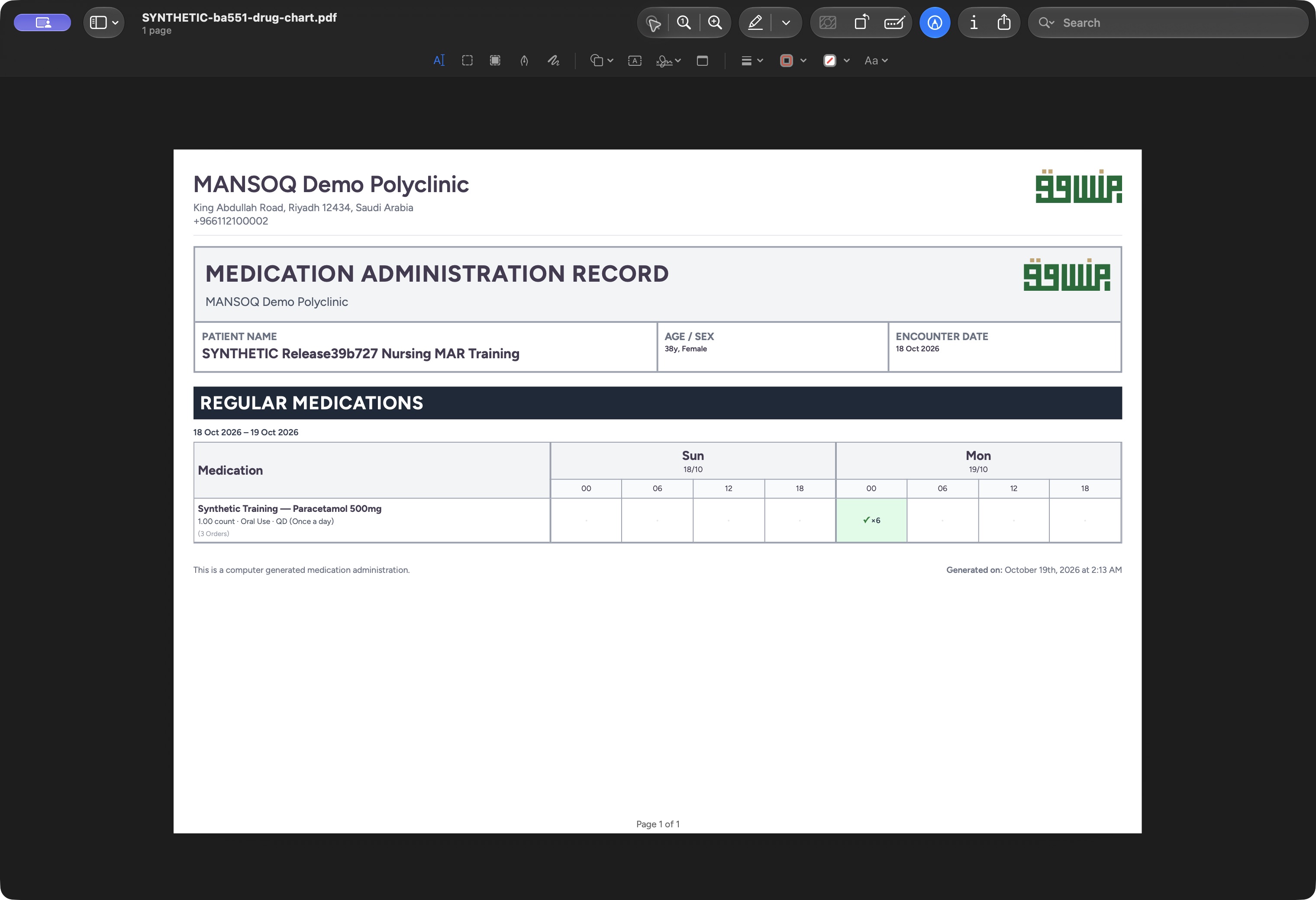
Actual native macOS UI while exporting or inspecting the drug chart from exact committed release ba551c1d on the isolated fictional Nurse/Polyclinic case. This is the actual saved PDF opened through native File/Open and zoomed out for whole-page inspection, not a Print dialog. Confirm the filename, one-page count, patient, dates and retained six-event marker. The detailed notes and event-specific quantities are not printed.
Image SHA-256 adb2357bbd3b765d008aa3198f5ab8960bc24acf655e11391a6d85db79b31b47
- Actual saved PDF and page count: The native output viewer identifies the saved file and reports one page.
- Retained completed-event marker: The printed table contains the six-event marker rather than the full interactive popover.
- Verify the final page footer: The actual output is Page 1 of 1; inspect the whole page before use.
14 of 14 content blocks have reviewed image alignment. Missing overview or prerequisite images remain open.
Before you begin
- Confirm the intended patient and selected encounter before opening the chart. The example has three active orders for the same fictional product and ten administration records. Its patient name retains an earlier release label; the actual captured software is the exact ba551c1d version.12
Recorded release ba551c1d · 2026-10-18T23:13:19.736Z · 1728 × 921 Open the selected encounter’s drug chart
Capture details
Exact committed release ba551c1d on an isolated nonproduction clone, using an existing Nurse and fictional Polyclinic Inpatient case. The synthetic patient name retains an earlier release label; the actual captured build is ba551c1d. The selected active fictional Polyclinic inpatient encounter has ten administration records; View Drug Chart opens a separate printable completed-event view.
Image SHA-256
a48ca6a6349a1796d8cb39d5dda9803575d0e8a534f0a7517967ce9d6d48b1e1- View Drug Chart: Open the separate chart after confirming the intended patient and encounter.
- Confirm the patient: The retained fictional name is the intended patient on the actual ba551 build.
 123
123Recorded release ba551c1d · 2026-10-18T23:13:36.373Z · 1728 × 921 Read the four-slot completed medication chart
Capture details
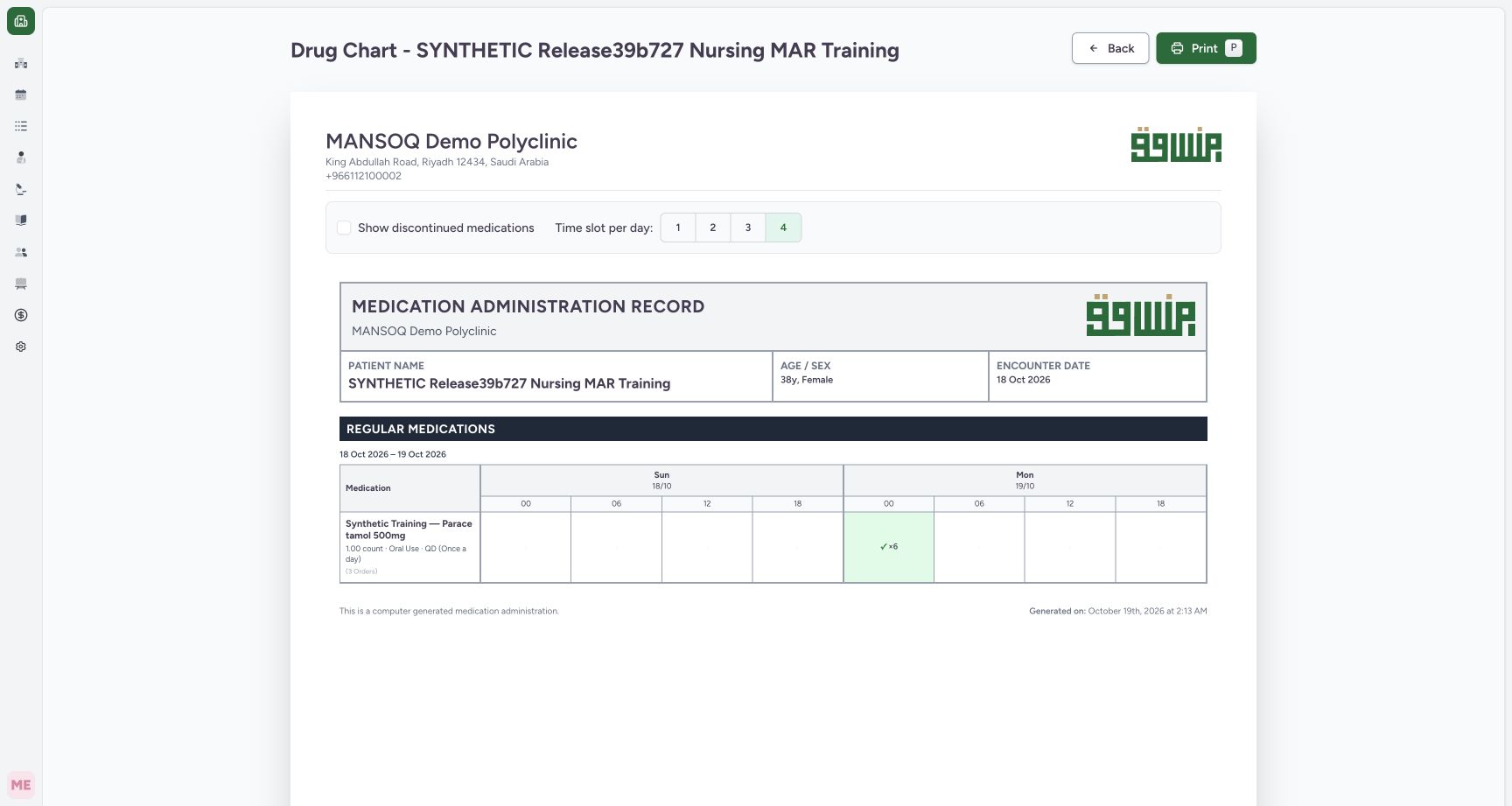
Exact committed release ba551c1d on an isolated nonproduction clone, using an existing Nurse and fictional Polyclinic Inpatient case. The synthetic patient name retains an earlier release label; the actual captured build is ba551c1d. The default chart groups all three same-product requests under Regular Medications and shows six Completed events at 00:00 on 19 October; it does not display the four non-completed events. The mixed scheduled/PRN grouping and first-request summary are version limitations.
Image SHA-256
7fa171b1cfaa3e6450b1960477d97f2e867a2104681560c54792a4535e7e7462- Four slots per day: The selected default creates 00, 06, 12 and 18 columns for each date.
- Six Completed occurrences: Open the populated cell to inspect individual times, quantities, recorder names and notes.
- Three orders share one product row: The displayed dose summary belongs to the first request and is not a separate summary of every order.
- Use your authorized account and facility policy for reviewing, storing and sharing patient output. The demonstrated Nurse has access in this isolated Polyclinic case. All quantities, notes and times are fictional software examples; the IT prerequisite orders are separate from the observed Nurse documentation.12
Recorded release ba551c1d · 2026-10-18T23:13:19.736Z · 1728 × 921 Open the selected encounter’s drug chart
Capture details
Exact committed release ba551c1d on an isolated nonproduction clone, using an existing Nurse and fictional Polyclinic Inpatient case. The synthetic patient name retains an earlier release label; the actual captured build is ba551c1d. The selected active fictional Polyclinic inpatient encounter has ten administration records; View Drug Chart opens a separate printable completed-event view.
Image SHA-256
a48ca6a6349a1796d8cb39d5dda9803575d0e8a534f0a7517967ce9d6d48b1e1- View Drug Chart: Open the separate chart after confirming the intended patient and encounter.
- Confirm the patient: The retained fictional name is the intended patient on the actual ba551 build.
 123
123Recorded release ba551c1d · 2026-10-18T23:15:49.891Z · 1760 × 896 Choose the filename in the macOS Save dialog
Capture details
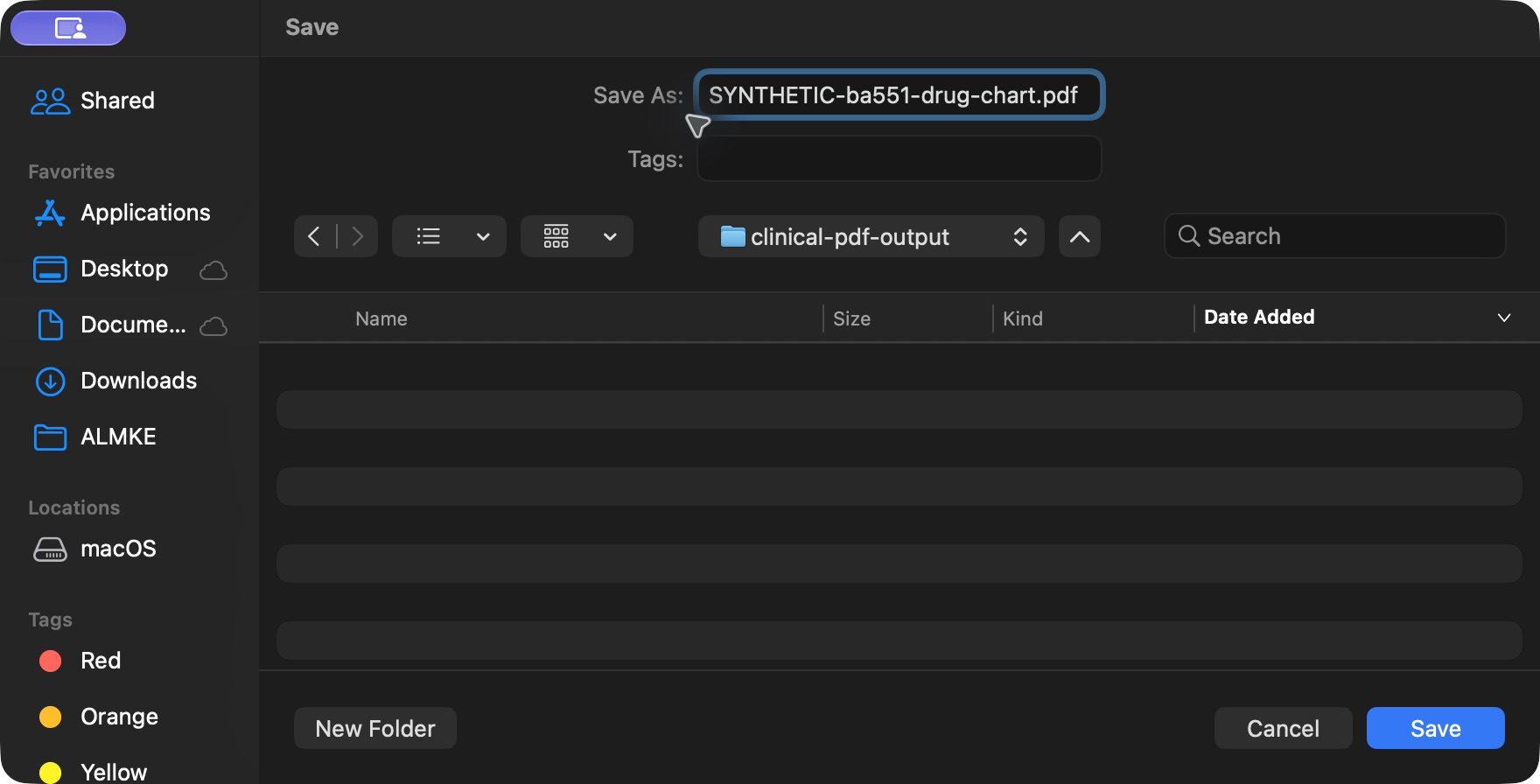
Actual native macOS UI while exporting or inspecting the drug chart from exact committed release ba551c1d on the isolated fictional Nurse/Polyclinic case. The actual Save panel names the fictional chart PDF in a private local output folder. This is a native macOS dialog rather than the MANSOQ web page.
Image SHA-256
ecaecea72cddc7252673b140f2f69d3a7a3aa9276a11368fb4df98b2d9cb79b2- Name the chart output: Use an identifiable filename and approved local destination for the selected patient output.
- Confirm the destination folder: This example saves only inside the isolated private training output folder.
- Save: Save once, then open and inspect the actual output file.
1. Open the intended encounter’s chart
In Medicines, select Medicine Administration and Medications, then choose View Drug Chart. This opens a separate printable view for the selected encounter. Confirm the patient identity and encounter date again on that view.
12Open the selected encounter’s drug chart
Capture details
Exact committed release ba551c1d on an isolated nonproduction clone, using an existing Nurse and fictional Polyclinic Inpatient case. The synthetic patient name retains an earlier release label; the actual captured build is ba551c1d. The selected active fictional Polyclinic inpatient encounter has ten administration records; View Drug Chart opens a separate printable completed-event view.
Image SHA-256 a48ca6a6349a1796d8cb39d5dda9803575d0e8a534f0a7517967ce9d6d48b1e1
- View Drug Chart: Open the separate chart after confirming the intended patient and encounter.
- Confirm the patient: The retained fictional name is the intended patient on the actual ba551 build.
123Read the four-slot completed medication chart
Capture details
Exact committed release ba551c1d on an isolated nonproduction clone, using an existing Nurse and fictional Polyclinic Inpatient case. The synthetic patient name retains an earlier release label; the actual captured build is ba551c1d. The default chart groups all three same-product requests under Regular Medications and shows six Completed events at 00:00 on 19 October; it does not display the four non-completed events. The mixed scheduled/PRN grouping and first-request summary are version limitations.
Image SHA-256 7fa171b1cfaa3e6450b1960477d97f2e867a2104681560c54792a4535e7e7462
- Four slots per day: The selected default creates 00, 06, 12 and 18 columns for each date.
- Six Completed occurrences: Open the populated cell to inspect individual times, quantities, recorder names and notes.
- Three orders share one product row: The displayed dose summary belongs to the first request and is not a separate summary of every order.
2. Read dates, slots and the completed-event count
The chart initially shows four columns per day, starting at 00, 06, 12 and 18. This case spans 18–19 October. The populated 19 October 00 column shows a checkmark with ×6, representing six Completed occurrences grouped in that time interval. The ten-record administration history also contains Entered in Error, Not Done and Cancelled records; those four non-completed records are excluded from this chart. An empty dot is an empty chart cell, not proof that no other-status record exists.
123Read the four-slot completed medication chart
Capture details
Exact committed release ba551c1d on an isolated nonproduction clone, using an existing Nurse and fictional Polyclinic Inpatient case. The synthetic patient name retains an earlier release label; the actual captured build is ba551c1d. The default chart groups all three same-product requests under Regular Medications and shows six Completed events at 00:00 on 19 October; it does not display the four non-completed events. The mixed scheduled/PRN grouping and first-request summary are version limitations.
Image SHA-256 7fa171b1cfaa3e6450b1960477d97f2e867a2104681560c54792a4535e7e7462
- Four slots per day: The selected default creates 00, 06, 12 and 18 columns for each date.
- Six Completed occurrences: Open the populated cell to inspect individual times, quantities, recorder names and notes.
- Three orders share one product row: The displayed dose summary belongs to the first request and is not a separate summary of every order.
3. Choose the presentation intervals
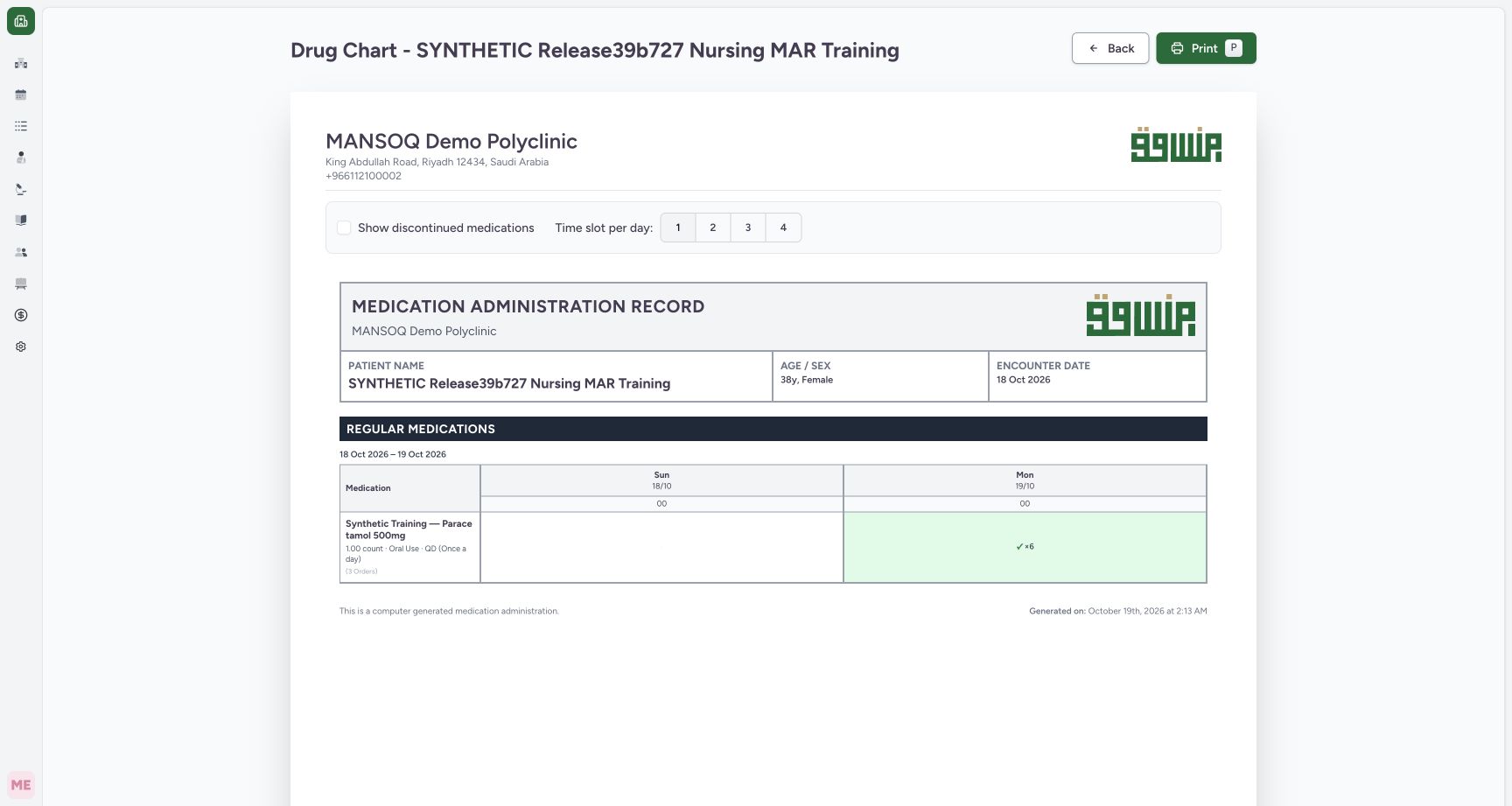
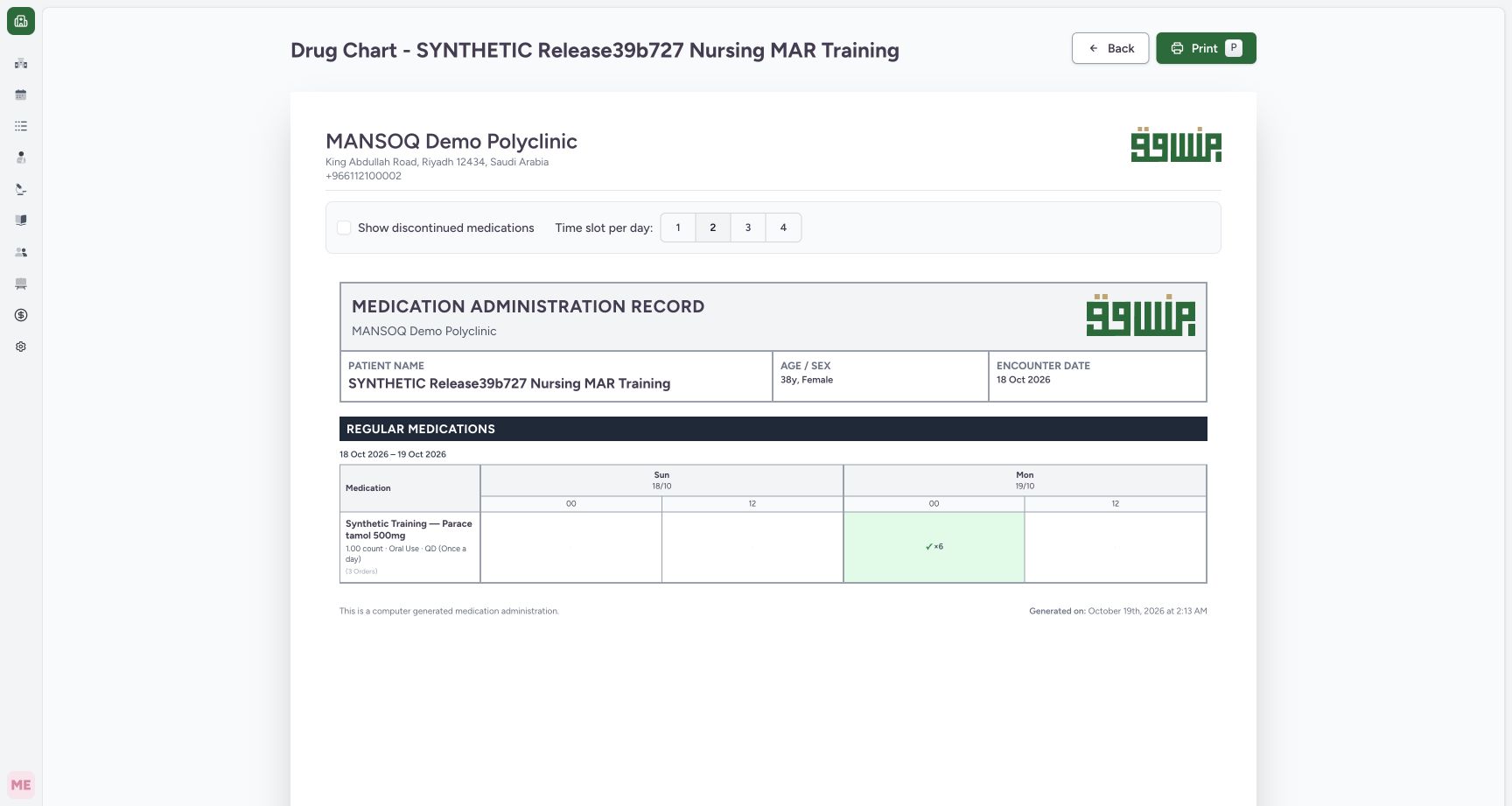
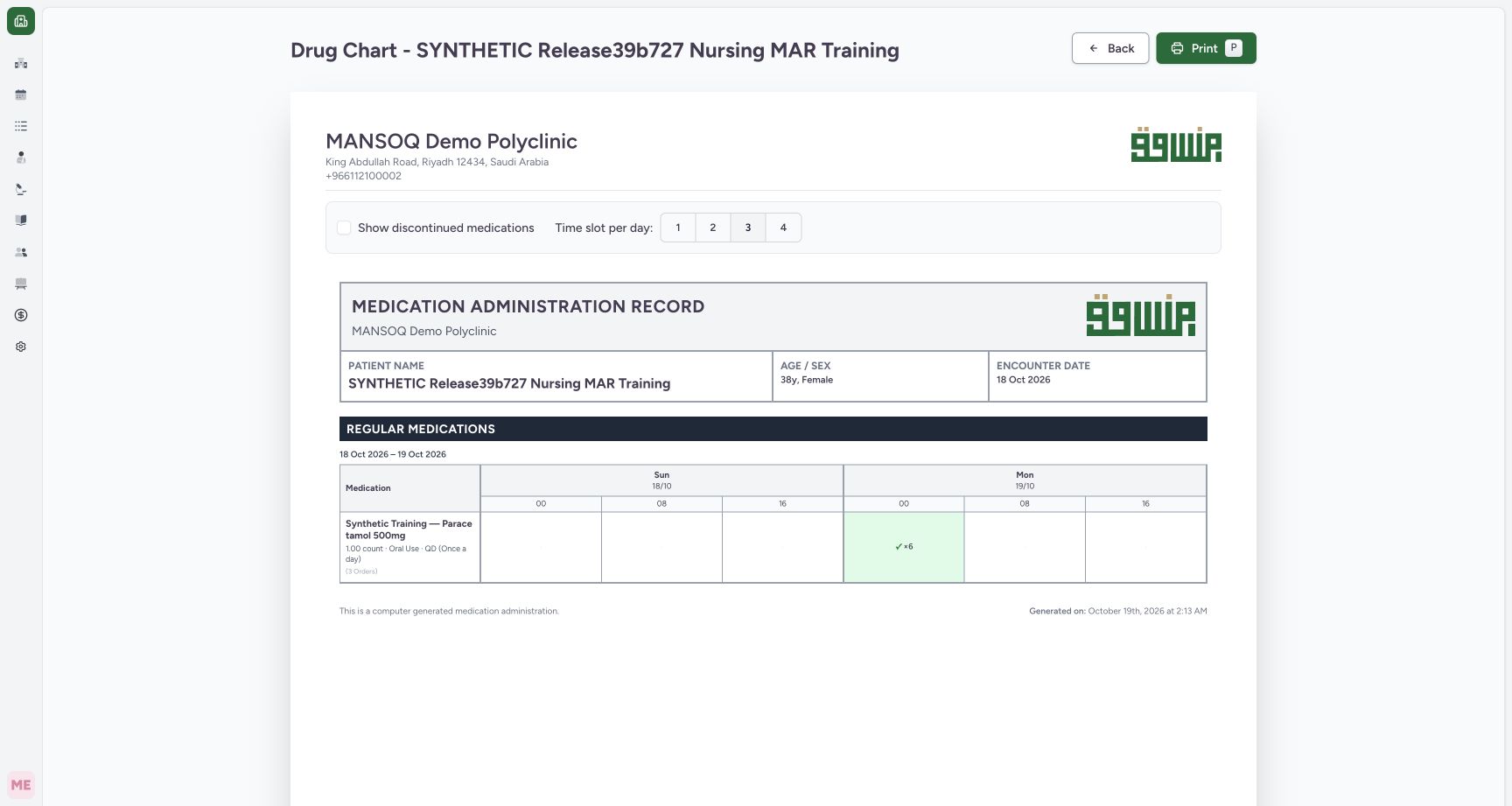
Use Time slot per day to choose 1, 2, 3 or 4. One gives a single full-day column; two gives 00 and 12; three gives 00, 08 and 16; four gives 00, 06, 12 and 18. These choices regroup the display without changing the saved occurrence times. The six-event count remains six in this case. Return to 4 for the demonstrated detailed inspection and export.
 12
12Display one full-day chart slot
Capture details
Exact committed release ba551c1d on an isolated nonproduction clone, using an existing Nurse and fictional Polyclinic Inpatient case. The synthetic patient name retains an earlier release label; the actual captured build is ba551c1d. Choosing 1 changes each date to a single 00:00 daily column; the same six Completed events remain counted in 19 October. This presentation setting does not change stored event times.
Image SHA-256 837ff16270d3dfec497b701f73dd507f2f9c67382180287fa83c5c0f40375ae1
- One slot per day: This view groups a full day into one column.
- Retained six-event count: Changing columns does not add, remove or modify the saved records.
 1
1Display two twelve-hour chart slots
Capture details
Exact committed release ba551c1d on an isolated nonproduction clone, using an existing Nurse and fictional Polyclinic Inpatient case. The synthetic patient name retains an earlier release label; the actual captured build is ba551c1d. Choosing 2 produces 00:00 and 12:00 columns for each date. All six Completed examples remain in the first 19 October slot.
Image SHA-256 09fa0696a4cec55870e421cb85acff31d704c57569493eaffaaee8c1ce1028ed
- Two slots per day: Read the 00 and 12 headings as the start hours of twelve-hour presentation intervals.
 1
1Display three eight-hour chart slots
Capture details
Exact committed release ba551c1d on an isolated nonproduction clone, using an existing Nurse and fictional Polyclinic Inpatient case. The synthetic patient name retains an earlier release label; the actual captured build is ba551c1d. Choosing 3 produces 00:00, 08:00 and 16:00 columns for each date. The count remains six for this fictional completed-event set.
Image SHA-256 b9ed987575ea0917607e2d70aec1e37ae94840fc56ebd8bb152d38dcf6b4e4b1
- Three slots per day: Read the three headings as the starts of eight-hour presentation intervals.
123Read the four-slot completed medication chart
Capture details
Exact committed release ba551c1d on an isolated nonproduction clone, using an existing Nurse and fictional Polyclinic Inpatient case. The synthetic patient name retains an earlier release label; the actual captured build is ba551c1d. The default chart groups all three same-product requests under Regular Medications and shows six Completed events at 00:00 on 19 October; it does not display the four non-completed events. The mixed scheduled/PRN grouping and first-request summary are version limitations.
Image SHA-256 7fa171b1cfaa3e6450b1960477d97f2e867a2104681560c54792a4535e7e7462
- Four slots per day: The selected default creates 00, 06, 12 and 18 columns for each date.
- Six Completed occurrences: Open the populated cell to inspect individual times, quantities, recorder names and notes.
- Three orders share one product row: The displayed dose summary belongs to the first request and is not a separate summary of every order.
4. Open and scroll the completed-event details
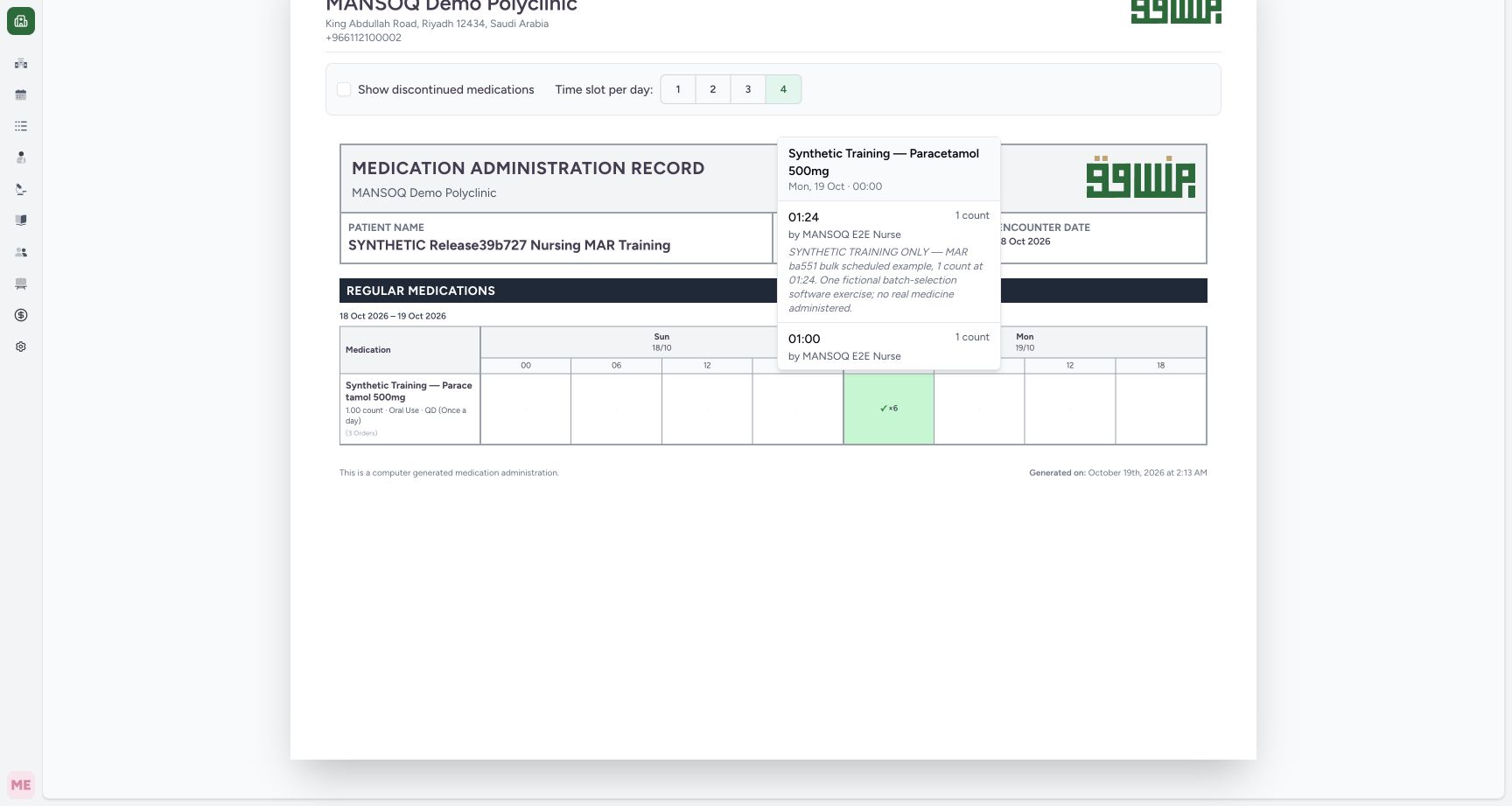
Select the populated checkmark/count cell. Read each occurrence’s start time, dose, recorded-by name and note, then scroll inside the detail list to inspect the remaining records. The example shows the 01:24 1 count batch event, a separate 01:25 2 count event, and the 01:30 PRN example at the bottom. This list groups records by their requests rather than sorting all start times chronologically. The displayed name comes from the event creator; it does not independently establish who physically performed an administration.
 12
12Inspect completed-event details in the chart cell
Capture details
Exact committed release ba551c1d on an isolated nonproduction clone, using an existing Nurse and fictional Polyclinic Inpatient case. The synthetic patient name retains an earlier release label; the actual captured build is ba551c1d. Opening the six-count cell reveals individual start times, dose quantities, record creator names and notes. The scrollable list is grouped by request rather than chronological start time, so read each entry rather than inferring the sequence.
Image SHA-256 806823d1c269a748f7905f6440f754a338e79320309e6bac4d9b02ed85358add
- Date and presentation slot: These headings identify the chart cell, while each record below has its own start time.
- Individual completed occurrence: The detail list includes the saved 1 count batch event and its recorder and note.
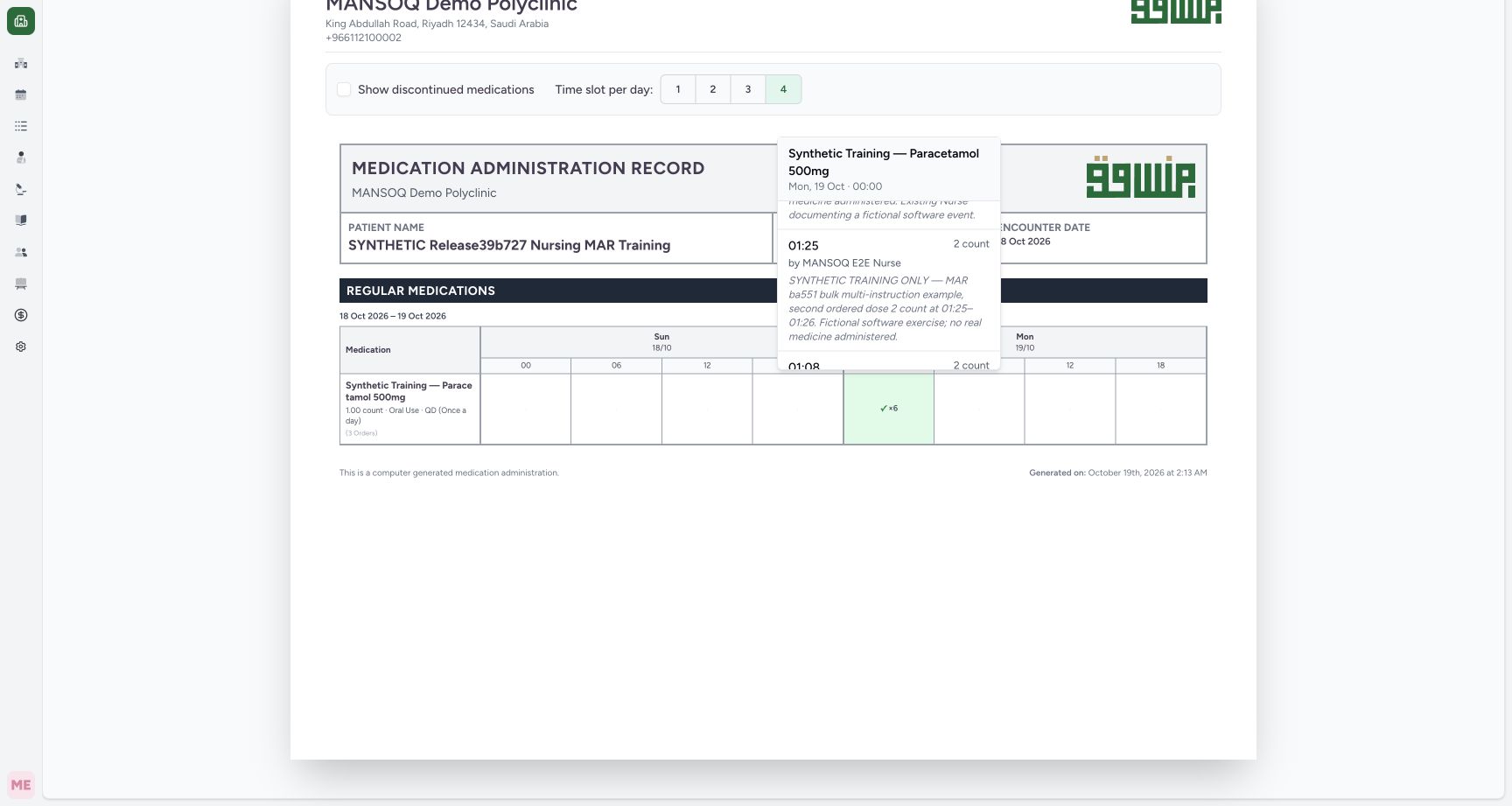 1
1Read the complete two-count event detail
Capture details
Exact committed release ba551c1d on an isolated nonproduction clone, using an existing Nurse and fictional Polyclinic Inpatient case. The synthetic patient name retains an earlier release label; the actual captured build is ba551c1d. The scrolled list clearly shows the 01:25 2 count record, actual Nurse recorder and identifying note. A following 01:08 event also has 2 count; the separate records are retained rather than merged into a single event.
Image SHA-256 9d776b28654ceb2d14f2537e805379839a7e060f29a0c62906cf0f483e03cf2d
- Read the saved occurrence: This is the selected 2 count multi-instruction event, separate from the first-order row summary.
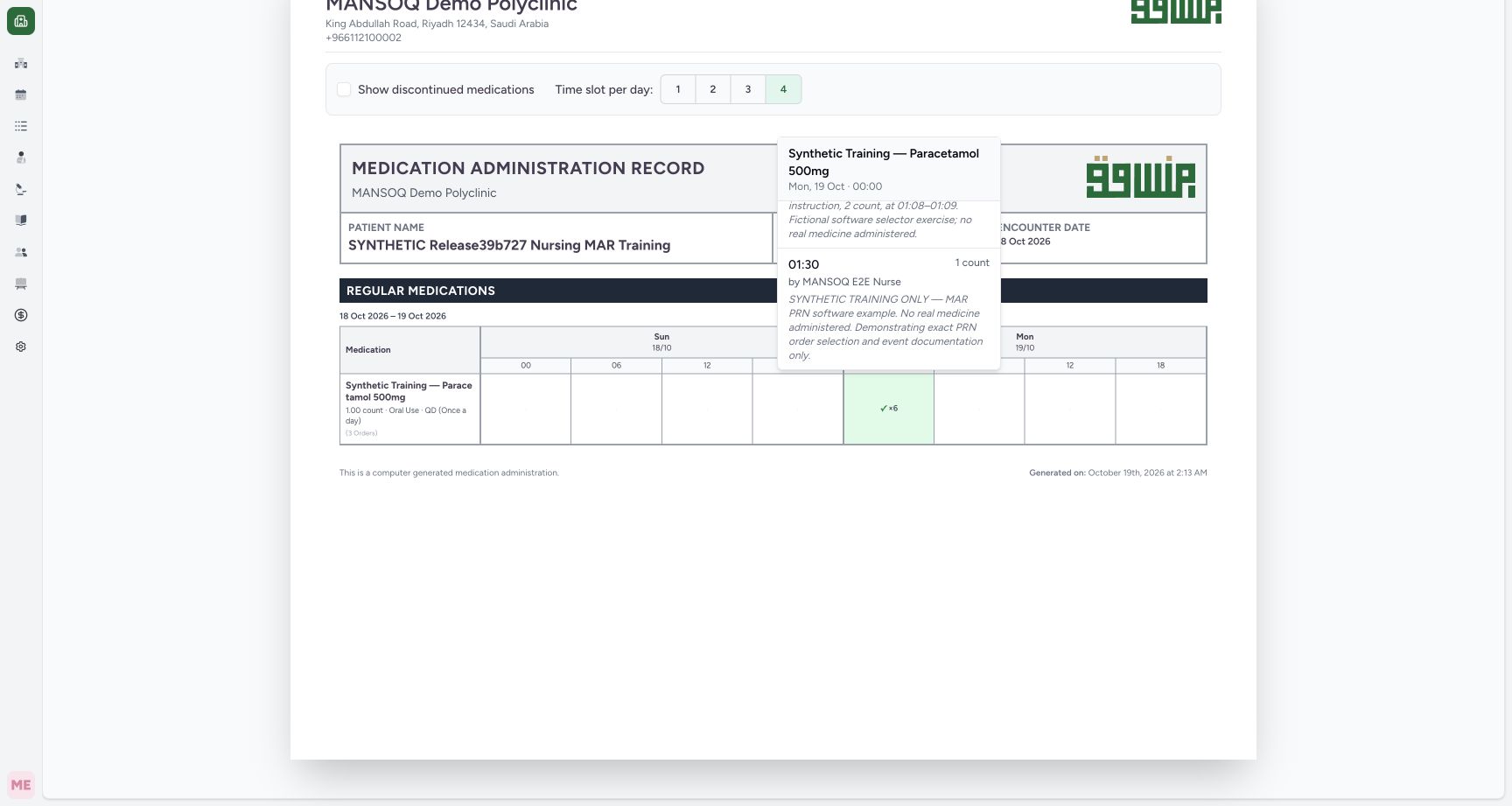 1
1Scroll the completed-event list to inspect the PRN example
Capture details
Exact committed release ba551c1d on an isolated nonproduction clone, using an existing Nurse and fictional Polyclinic Inpatient case. The synthetic patient name retains an earlier release label; the actual captured build is ba551c1d. The lower part of the same cell’s scrollable list shows the end of the preceding event note and the complete separate 01:30 1 count PRN example. The current product grouping places this PRN event under the Regular Medications row with the other same-product orders; inspect the individual request rather than relying on that row heading.
Image SHA-256 e3b1bcd357cd387a4460da83f597473926b7955f947e8f99f07edd7a7c083b86
- PRN occurrence in the shared cell: The note identifies the exact PRN software example; the group heading alone does not preserve its separate PRN classification.
5. Check individual orders when the product row is shared
Do not treat the single product-row summary as the complete instructions for every order. This version groups three same-product requests together, uses the first request’s dose summary and places the mixed scheduled/PRN group under Regular Medications. The actual details retain the 2 count occurrence and the separate PRN note. Review the intended prescription and individual event when those distinctions matter; the row heading alone does not preserve each request’s PRN classification.
123Read the four-slot completed medication chart
Capture details
Exact committed release ba551c1d on an isolated nonproduction clone, using an existing Nurse and fictional Polyclinic Inpatient case. The synthetic patient name retains an earlier release label; the actual captured build is ba551c1d. The default chart groups all three same-product requests under Regular Medications and shows six Completed events at 00:00 on 19 October; it does not display the four non-completed events. The mixed scheduled/PRN grouping and first-request summary are version limitations.
Image SHA-256 7fa171b1cfaa3e6450b1960477d97f2e867a2104681560c54792a4535e7e7462
- Four slots per day: The selected default creates 00, 06, 12 and 18 columns for each date.
- Six Completed occurrences: Open the populated cell to inspect individual times, quantities, recorder names and notes.
- Three orders share one product row: The displayed dose summary belongs to the first request and is not a separate summary of every order.
1Read the complete two-count event detail
Capture details
Exact committed release ba551c1d on an isolated nonproduction clone, using an existing Nurse and fictional Polyclinic Inpatient case. The synthetic patient name retains an earlier release label; the actual captured build is ba551c1d. The scrolled list clearly shows the 01:25 2 count record, actual Nurse recorder and identifying note. A following 01:08 event also has 2 count; the separate records are retained rather than merged into a single event.
Image SHA-256 9d776b28654ceb2d14f2537e805379839a7e060f29a0c62906cf0f483e03cf2d
- Read the saved occurrence: This is the selected 2 count multi-instruction event, separate from the first-order row summary.
1Scroll the completed-event list to inspect the PRN example
Capture details
Exact committed release ba551c1d on an isolated nonproduction clone, using an existing Nurse and fictional Polyclinic Inpatient case. The synthetic patient name retains an earlier release label; the actual captured build is ba551c1d. The lower part of the same cell’s scrollable list shows the end of the preceding event note and the complete separate 01:30 1 count PRN example. The current product grouping places this PRN event under the Regular Medications row with the other same-product orders; inspect the individual request rather than relying on that row heading.
Image SHA-256 e3b1bcd357cd387a4460da83f597473926b7955f947e8f99f07edd7a7c083b86
- PRN occurrence in the shared cell: The note identifies the exact PRN software example; the group heading alone does not preserve its separate PRN classification.
6. Review the native Print preview
Close the event detail list by selecting its populated cell again, then choose Print. In the native Chrome Print dialog, confirm the destination, page count and visible chart before continuing. The demonstrated output is one landscape page with the patient, encounter date, 18–19 October chart interval and six-event marker. The interactive event-detail popover is not part of the printed table.
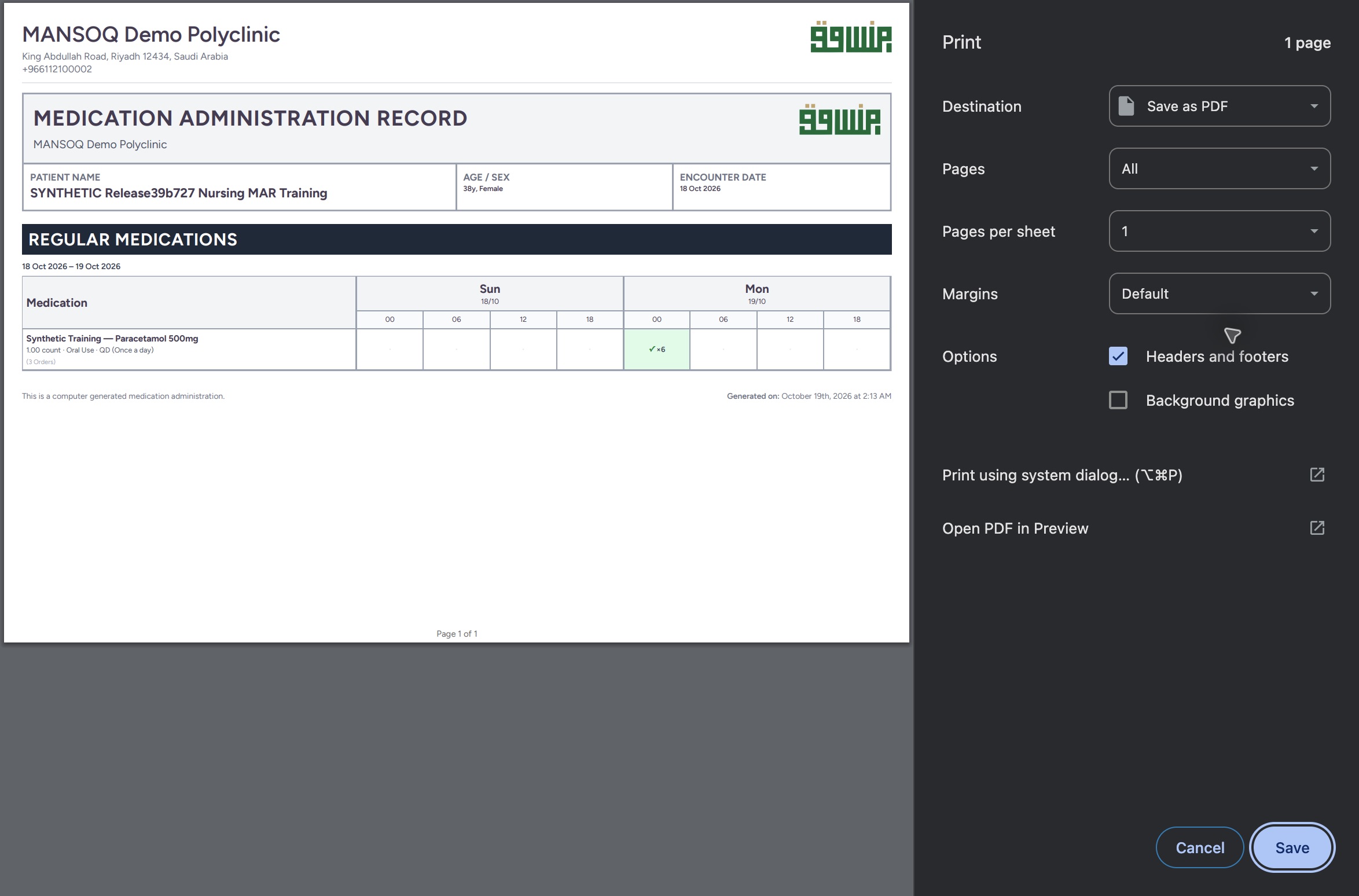 123
123Review the chart in the macOS Chrome Print dialog
Capture details
Actual native macOS UI while exporting or inspecting the drug chart from exact committed release ba551c1d on the isolated fictional Nurse/Polyclinic case. The actual preview shows one landscape page, Save as PDF and the six-event count. Individual event popover notes and dose details are absent from the printed table.
Image SHA-256 16a99c488d0ae76edff04d31915fda73c1600da9c1a1085fafe65d9973ef3441
- Save as PDF: Review the destination and one-page count before saving this fictional local chart.
- Inspect the printed count: Confirm patient, encounter date, interval and six-event marker. The individual event popover is not included.
- Save the reviewed PDF: Continue to the ordinary native Save dialog.
7. Save the actual PDF
With Save as PDF selected, choose Save. In the macOS Save dialog, enter an identifiable filename and approved destination, then select Save once. The example writes SYNTHETIC-ba551-drug-chart.pdf into a private local training folder. The native dialog is part of the operating system; your browser or operating system may present different save controls.
123Review the chart in the macOS Chrome Print dialog
Capture details
Actual native macOS UI while exporting or inspecting the drug chart from exact committed release ba551c1d on the isolated fictional Nurse/Polyclinic case. The actual preview shows one landscape page, Save as PDF and the six-event count. Individual event popover notes and dose details are absent from the printed table.
Image SHA-256 16a99c488d0ae76edff04d31915fda73c1600da9c1a1085fafe65d9973ef3441
- Save as PDF: Review the destination and one-page count before saving this fictional local chart.
- Inspect the printed count: Confirm patient, encounter date, interval and six-event marker. The individual event popover is not included.
- Save the reviewed PDF: Continue to the ordinary native Save dialog.
123Choose the filename in the macOS Save dialog
Capture details
Actual native macOS UI while exporting or inspecting the drug chart from exact committed release ba551c1d on the isolated fictional Nurse/Polyclinic case. The actual Save panel names the fictional chart PDF in a private local output folder. This is a native macOS dialog rather than the MANSOQ web page.
Image SHA-256 ecaecea72cddc7252673b140f2f69d3a7a3aa9276a11368fb4df98b2d9cb79b2
- Name the chart output: Use an identifiable filename and approved local destination for the selected patient output.
- Confirm the destination folder: This example saves only inside the isolated private training output folder.
- Save: Save once, then open and inspect the actual output file.
8. Open and inspect the saved output
Open the saved PDF in your normal document viewer. The example uses macOS Preview through File/Open and zooms out to inspect the whole page. Confirm the actual filename, one-page count, patient, dates, six-event marker, generated footer and Page 1 of 1. The saved file contains the grouped chart summary and markers, not each event’s detailed time, note or selected dose from the screen popover. Use the individual records when those details are needed.
123Inspect the saved one-page chart in macOS Preview
Capture details
Actual native macOS UI while exporting or inspecting the drug chart from exact committed release ba551c1d on the isolated fictional Nurse/Polyclinic case. This is the actual saved PDF opened through native File/Open and zoomed out for whole-page inspection, not a Print dialog. Confirm the filename, one-page count, patient, dates and retained six-event marker. The detailed notes and event-specific quantities are not printed.
Image SHA-256 adb2357bbd3b765d008aa3198f5ab8960bc24acf655e11391a6d85db79b31b47
- Actual saved PDF and page count: The native output viewer identifies the saved file and reports one page.
- Retained completed-event marker: The printed table contains the six-event marker rather than the full interactive popover.
- Verify the final page footer: The actual output is Page 1 of 1; inspect the whole page before use.
9. Return to administration history
Use Back on the web chart to return to Medicines. In this demonstrated path Prescriptions is selected initially, so select Medicine Administration again. The saved 01:24 and 01:25 occurrences remain visible. Independent ordinary Nurse readback confirmed all ten clinical records and all three active requests were unchanged by the chart controls, export and output inspection.
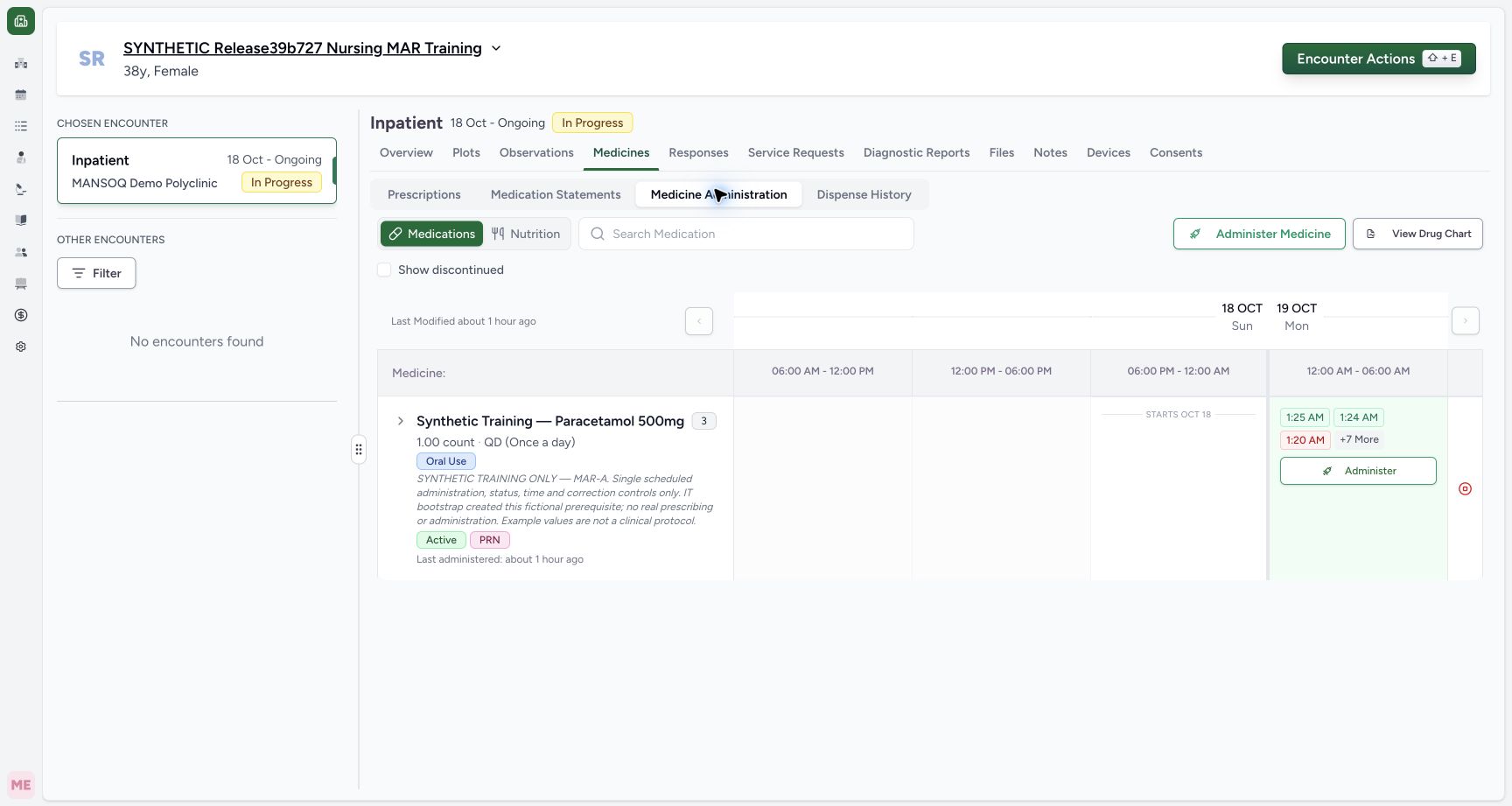 12
12Return to the saved administration history after printing
Capture details
Exact committed release ba551c1d on an isolated nonproduction clone, using an existing Nurse and fictional Polyclinic Inpatient case. The synthetic patient name retains an earlier release label; the actual captured build is ba551c1d. Back from the chart returns to Medicines with Prescriptions initially selected. Select Medicine Administration again to inspect the retained administration history. No chart presentation or print action changes the ten saved events.
Image SHA-256 16bca99bb7d33b6b281f8f1434214a2bad5e054077a5e1e7e30bf69db60bf2f9
- Return to administration history: Select this tab again after Back if Medicines opened Prescriptions.
- Retained saved occurrences: The two batch entries remain in the chart after the read-only print workflow.
Keep the completed chart and full status history distinct
This lesson qualifies one authorized Nurse’s chart and local PDF workflow in a fictional Polyclinic inpatient case. The chart is a Completed-event presentation, not a complete all-status audit or a clinical assessment. Other roles, facilities, discontinued-only groups, additional weeks, empty charts and other output formats remain separate teaching branches.
12Open the selected encounter’s drug chart
Capture details
Exact committed release ba551c1d on an isolated nonproduction clone, using an existing Nurse and fictional Polyclinic Inpatient case. The synthetic patient name retains an earlier release label; the actual captured build is ba551c1d. The selected active fictional Polyclinic inpatient encounter has ten administration records; View Drug Chart opens a separate printable completed-event view.
Image SHA-256 a48ca6a6349a1796d8cb39d5dda9803575d0e8a534f0a7517967ce9d6d48b1e1
- View Drug Chart: Open the separate chart after confirming the intended patient and encounter.
- Confirm the patient: The retained fictional name is the intended patient on the actual ba551 build.
123Read the four-slot completed medication chart
Capture details
Exact committed release ba551c1d on an isolated nonproduction clone, using an existing Nurse and fictional Polyclinic Inpatient case. The synthetic patient name retains an earlier release label; the actual captured build is ba551c1d. The default chart groups all three same-product requests under Regular Medications and shows six Completed events at 00:00 on 19 October; it does not display the four non-completed events. The mixed scheduled/PRN grouping and first-request summary are version limitations.
Image SHA-256 7fa171b1cfaa3e6450b1960477d97f2e867a2104681560c54792a4535e7e7462
- Four slots per day: The selected default creates 00, 06, 12 and 18 columns for each date.
- Six Completed occurrences: Open the populated cell to inspect individual times, quantities, recorder names and notes.
- Three orders share one product row: The displayed dose summary belongs to the first request and is not a separate summary of every order.
12Return to the saved administration history after printing
Capture details
Exact committed release ba551c1d on an isolated nonproduction clone, using an existing Nurse and fictional Polyclinic Inpatient case. The synthetic patient name retains an earlier release label; the actual captured build is ba551c1d. Back from the chart returns to Medicines with Prescriptions initially selected. Select Medicine Administration again to inspect the retained administration history. No chart presentation or print action changes the ten saved events.
Image SHA-256 16bca99bb7d33b6b281f8f1434214a2bad5e054077a5e1e7e30bf69db60bf2f9
- Return to administration history: Select this tab again after Back if Medicines opened Prescriptions.
- Retained saved occurrences: The two batch entries remain in the chart after the read-only print workflow.
Output and grouping limits observed in this version
The actual screen and saved PDF retain the same-product grouping limitation: mixed scheduled/PRN orders share the first request’s classification and summary. The six-event marker is retained, while the detailed popover is omitted from printing. These limits are explicitly preserved for ba551c1d; this guide does not claim a later repair has been captured or that every clinical field is present in the PDF.
123Read the four-slot completed medication chart
Capture details
Exact committed release ba551c1d on an isolated nonproduction clone, using an existing Nurse and fictional Polyclinic Inpatient case. The synthetic patient name retains an earlier release label; the actual captured build is ba551c1d. The default chart groups all three same-product requests under Regular Medications and shows six Completed events at 00:00 on 19 October; it does not display the four non-completed events. The mixed scheduled/PRN grouping and first-request summary are version limitations.
Image SHA-256 7fa171b1cfaa3e6450b1960477d97f2e867a2104681560c54792a4535e7e7462
- Four slots per day: The selected default creates 00, 06, 12 and 18 columns for each date.
- Six Completed occurrences: Open the populated cell to inspect individual times, quantities, recorder names and notes.
- Three orders share one product row: The displayed dose summary belongs to the first request and is not a separate summary of every order.
1Scroll the completed-event list to inspect the PRN example
Capture details
Exact committed release ba551c1d on an isolated nonproduction clone, using an existing Nurse and fictional Polyclinic Inpatient case. The synthetic patient name retains an earlier release label; the actual captured build is ba551c1d. The lower part of the same cell’s scrollable list shows the end of the preceding event note and the complete separate 01:30 1 count PRN example. The current product grouping places this PRN event under the Regular Medications row with the other same-product orders; inspect the individual request rather than relying on that row heading.
Image SHA-256 e3b1bcd357cd387a4460da83f597473926b7955f947e8f99f07edd7a7c083b86
- PRN occurrence in the shared cell: The note identifies the exact PRN software example; the group heading alone does not preserve its separate PRN classification.
1Read the complete two-count event detail
Capture details
Exact committed release ba551c1d on an isolated nonproduction clone, using an existing Nurse and fictional Polyclinic Inpatient case. The synthetic patient name retains an earlier release label; the actual captured build is ba551c1d. The scrolled list clearly shows the 01:25 2 count record, actual Nurse recorder and identifying note. A following 01:08 event also has 2 count; the separate records are retained rather than merged into a single event.
Image SHA-256 9d776b28654ceb2d14f2537e805379839a7e060f29a0c62906cf0f483e03cf2d
- Read the saved occurrence: This is the selected 2 count multi-instruction event, separate from the first-order row summary.
123Inspect the saved one-page chart in macOS Preview
Capture details
Actual native macOS UI while exporting or inspecting the drug chart from exact committed release ba551c1d on the isolated fictional Nurse/Polyclinic case. This is the actual saved PDF opened through native File/Open and zoomed out for whole-page inspection, not a Print dialog. Confirm the filename, one-page count, patient, dates and retained six-event marker. The detailed notes and event-specific quantities are not printed.
Image SHA-256 adb2357bbd3b765d008aa3198f5ab8960bc24acf655e11391a6d85db79b31b47
- Actual saved PDF and page count: The native output viewer identifies the saved file and reports one page.
- Retained completed-event marker: The printed table contains the six-event marker rather than the full interactive popover.
- Verify the final page footer: The actual output is Page 1 of 1; inspect the whole page before use.
Source evidence
Every citation uses this exact committed version. The private source repository requires access.
- repositories/platform/mansoq-web/src/components/Medicine/MedicationAdministration/AdministrationTab.tsx:756 ·
ba551c1d67031248136fd2016afe227b5fc994bdSource file checksum
170c246835ea1966b8512f5baf72ff0ea60635f28cbcec6a465bb8c17506555f - repositories/platform/mansoq-web/src/components/Medicine/MedicationAdministration/PrintMedicationAdministration.tsx:104 ·
ba551c1d67031248136fd2016afe227b5fc994bdSource file checksum
c64e8c203d09b403e8ad253b698e15ef32be8e342ac74fac2b9c201f767b9c4a - repositories/platform/mansoq-web/src/components/Medicine/MedicationAdministration/PrintMedicationAdministration.tsx:129 ·
ba551c1d67031248136fd2016afe227b5fc994bdSource file checksum
c64e8c203d09b403e8ad253b698e15ef32be8e342ac74fac2b9c201f767b9c4a - repositories/platform/mansoq-web/src/components/Medicine/MedicationAdministration/PrintMedicationAdministration.tsx:178 ·
ba551c1d67031248136fd2016afe227b5fc994bdSource file checksum
c64e8c203d09b403e8ad253b698e15ef32be8e342ac74fac2b9c201f767b9c4a - repositories/platform/mansoq-web/src/components/Medicine/MedicationAdministration/PrintMedicationAdministration.tsx:288 ·
ba551c1d67031248136fd2016afe227b5fc994bdSource file checksum
c64e8c203d09b403e8ad253b698e15ef32be8e342ac74fac2b9c201f767b9c4a - repositories/platform/mansoq-web/src/components/Medicine/MedicationAdministration/PrintMedicationAdministration.tsx:530 ·
ba551c1d67031248136fd2016afe227b5fc994bdSource file checksum
c64e8c203d09b403e8ad253b698e15ef32be8e342ac74fac2b9c201f767b9c4a - repositories/platform/mansoq-web/src/components/Medicine/MedicationAdministration/PrintMedicationAdministration.tsx:569 ·
ba551c1d67031248136fd2016afe227b5fc994bdSource file checksum
c64e8c203d09b403e8ad253b698e15ef32be8e342ac74fac2b9c201f767b9c4a - repositories/platform/mansoq-web/src/MansoqUI/misc/PrintPreview.tsx:1 ·
ba551c1d67031248136fd2016afe227b5fc994bdSource file checksum
66b44ba3d2996d2db6d1d37c275a084db50c2ac1d68468f5355cc2522c67679b - repositories/platform/mansoq-web/src/Routers/routes/ConsultationRoutes.tsx:80 ·
ba551c1d67031248136fd2016afe227b5fc994bdSource file checksum
58d982de3558969447b6b74d9839168a8cbb82ba45b15995dff081d3a3dd0d57