 MANSOQ
 Scheduling and appointments · VERSION ba551c1d
Print an existing appointment to a local PDF
Open a saved printable appointment, review its branded preview and save the actual one-page PDF through Chrome and the local file dialog.
Staff
 123
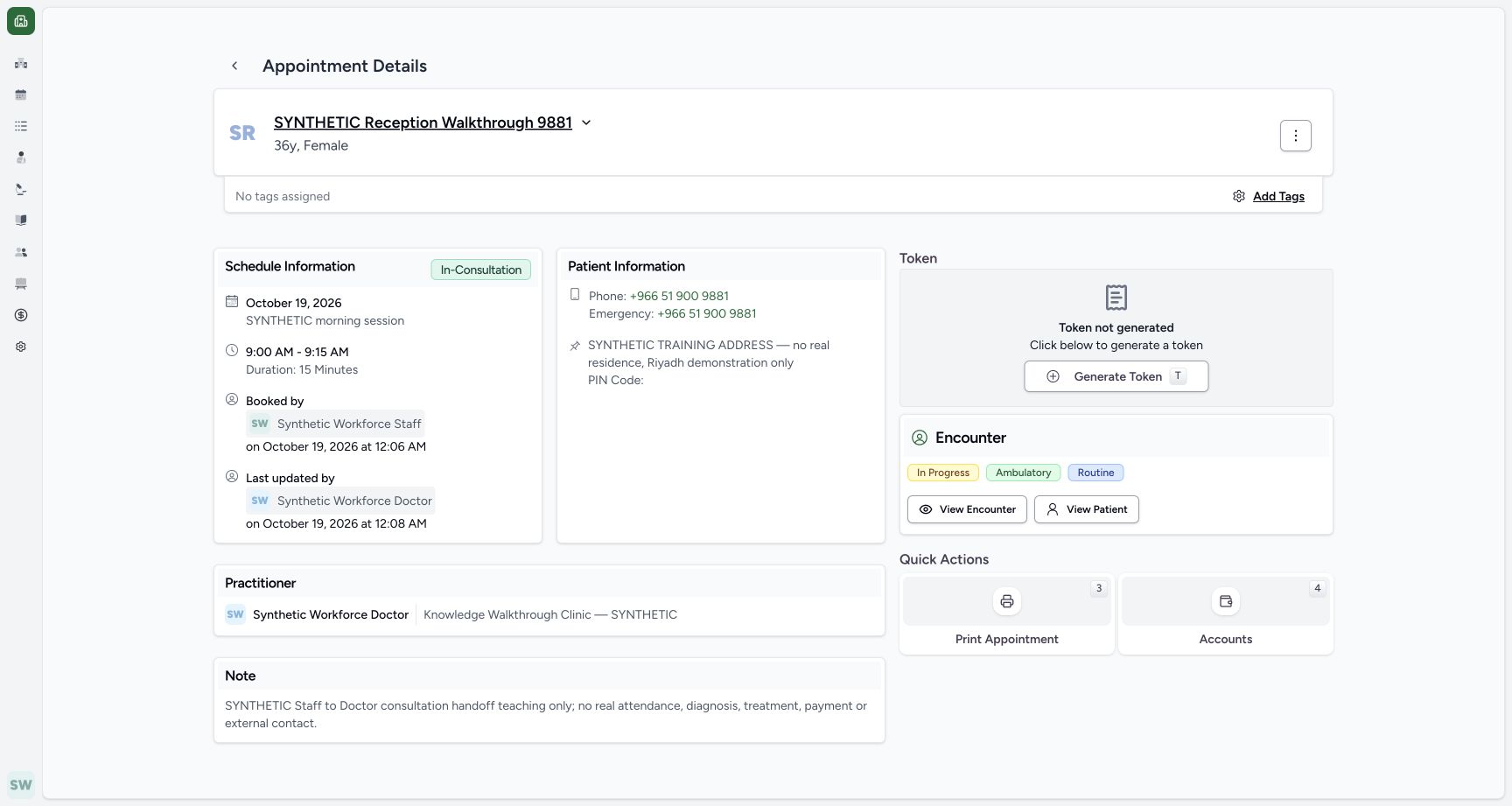
123Use the actual Print Appointment action
Capture details
Exact committed ba551c1d application; existing non-superuser Staff in its assigned fictional Clinic. Native print/save frames show actual Chrome/macOS controls and local output only.
Image SHA-256 7a948ff26edd70027d7c021dd3e2f200720a2302291b59279826e10a4507036c
- Print Appointment: Open the printable view for this saved In-Consultation appointment.
- Saved status: Verify the intended appointment state.
- Token not generated: Printing does not require generating a queue token in this pictured example.
 12345
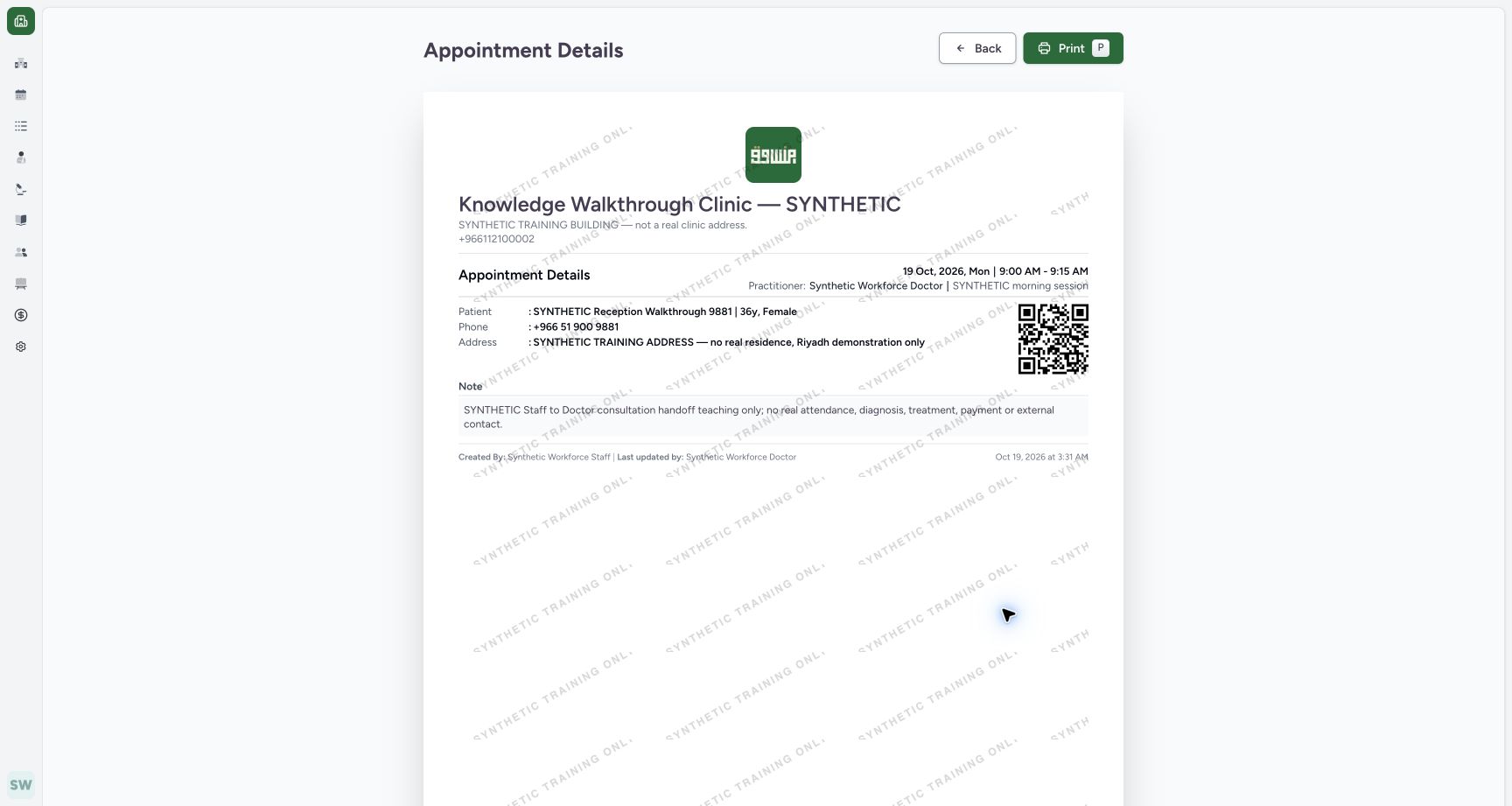
12345Review the branded appointment preview
Capture details
Exact committed ba551c1d application; existing non-superuser Staff in its assigned fictional Clinic. Native print/save frames show actual Chrome/macOS controls and local output only.
Image SHA-256 fc9471ed1ac91ea5334c95948fb3a6a761b5f4e3e02dc2f26e1b1c073f78eb6c
- Print: Open native printing after reviewing the displayed appointment.
- Back: Return without changing the appointment.
- Facility logo: The fictional logo now loads from the corrected existing template.
- Date and time: Review the intended 19 October 09:00–09:15 appointment.
- Patient identity: Verify the intended synthetic patient.
 1234
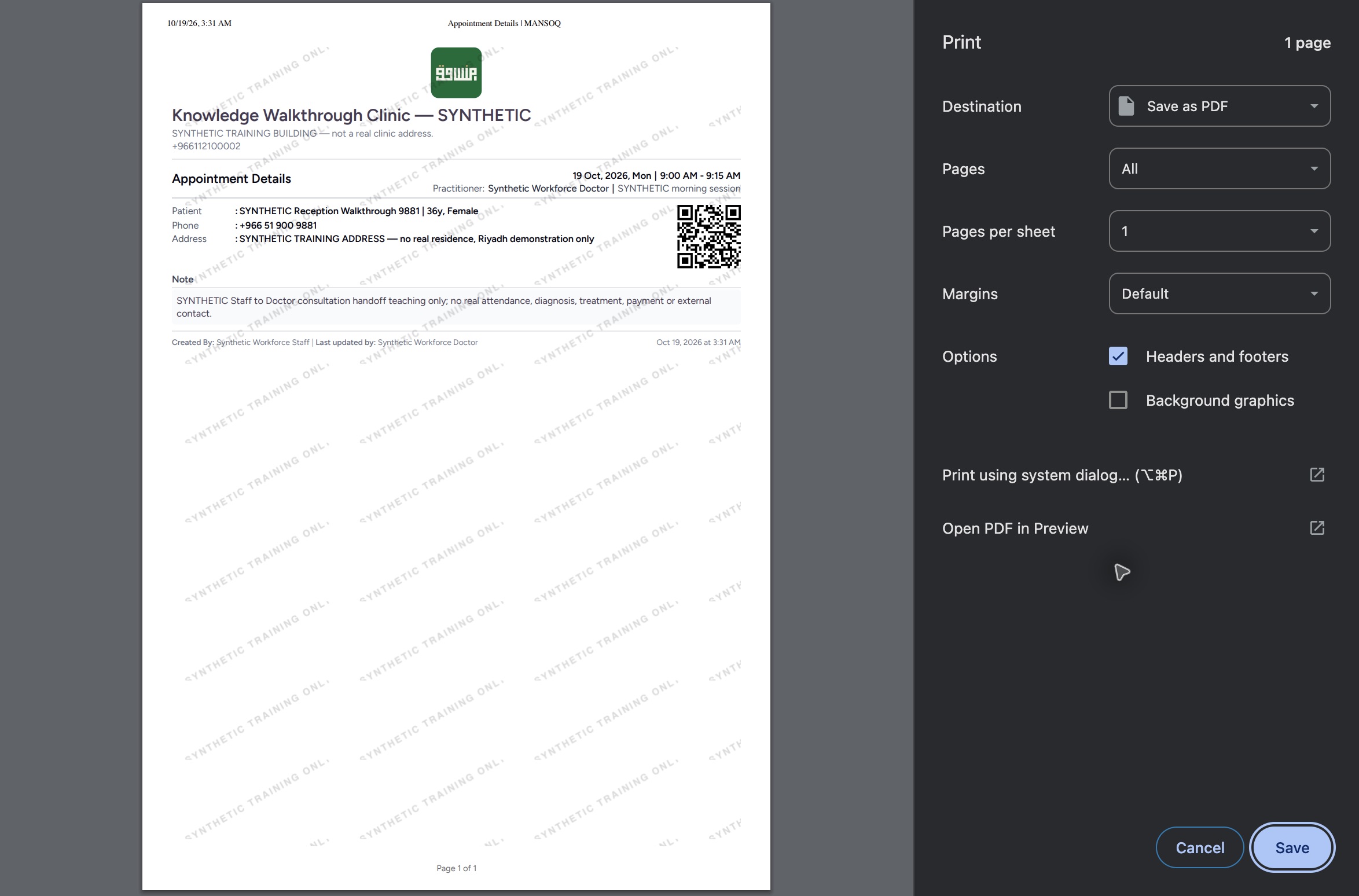
1234Review the real Chrome PDF preview
Capture details
Exact committed ba551c1d application; existing non-superuser Staff in its assigned fictional Clinic. Native print/save frames show actual Chrome/macOS controls and local output only.
Image SHA-256 8a2990242a2fbc0bd98cd74aeb775516acdc2d07faf2cb679b0c31b7fe4b4087
- Save as PDF: This local-output destination is selected.
- All pages: The actual document contains one page.
- Save: Open the native local file-save panel.
- Branding rendered: The actual one-page preview contains the configured logo.
 123
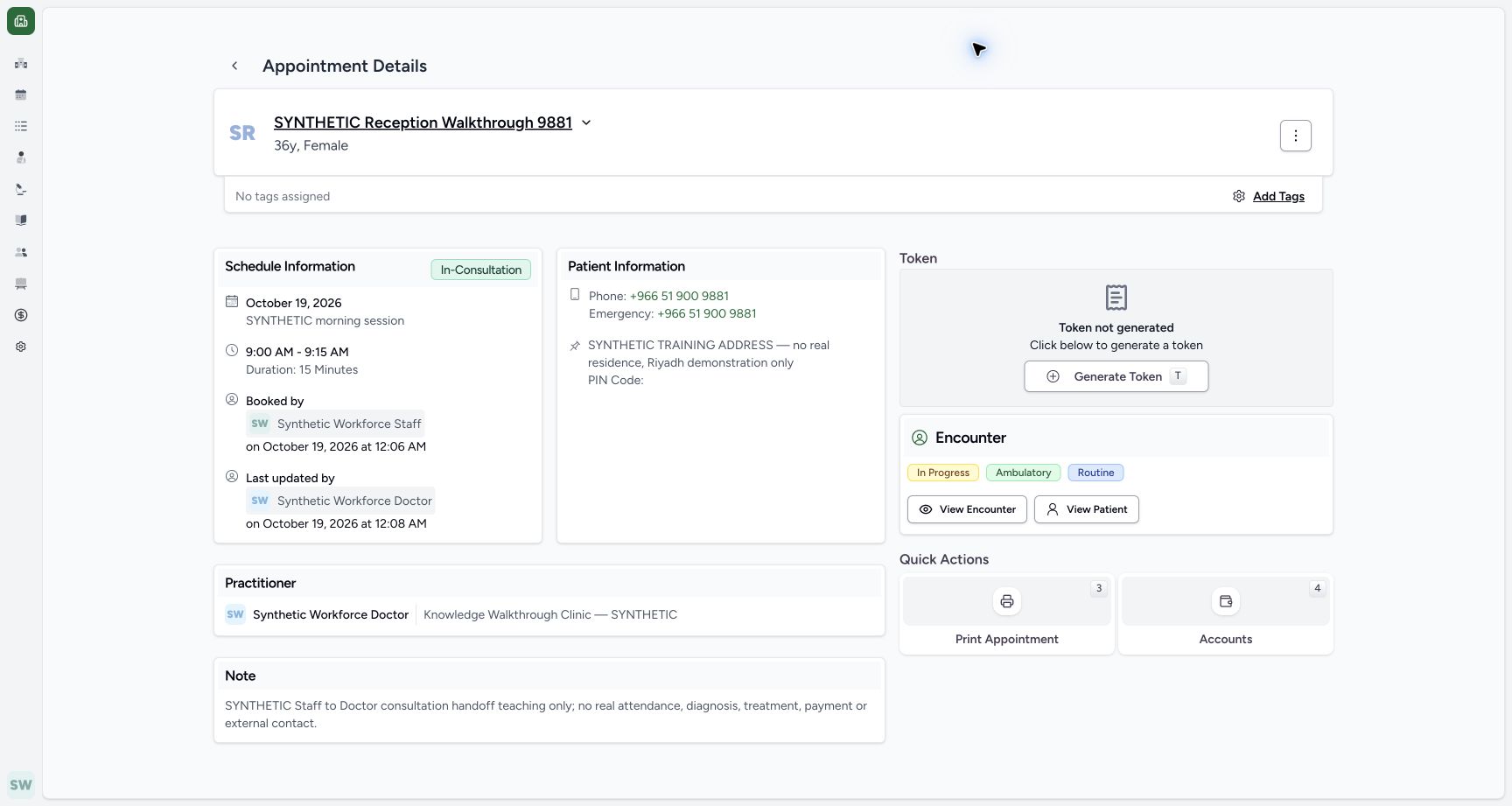
123Verify the preserved appointment after output
Capture details
Exact committed ba551c1d application; existing non-superuser Staff in its assigned fictional Clinic. Native print/save frames show actual Chrome/macOS controls and local output only.
Image SHA-256 885216351ee559e74895b909c1e7b80f163f23e7bc1abc53dbdff2ae211d7e08
- In-Consultation: The saved state is unchanged.
- Token not generated: No queue token was created.
- Existing encounter: The same linked encounter remains available.
9 of 9 content blocks have reviewed image alignment. Missing overview or prerequisite images remain open.
Before you begin
- Use the existing authorized Staff account in the fictional Clinic and the intended saved 19 October In-Consultation appointment. The patient, Doctor and existing encounter are already present.123
Recorded release ba551c1d · 2026-10-19T00:23:09.979Z · 1728 × 921 Use the actual Print Appointment action
Capture details
Exact committed ba551c1d application; existing non-superuser Staff in its assigned fictional Clinic. Native print/save frames show actual Chrome/macOS controls and local output only.
Image SHA-256
7a948ff26edd70027d7c021dd3e2f200720a2302291b59279826e10a4507036c- Print Appointment: Open the printable view for this saved In-Consultation appointment.
- Saved status: Verify the intended appointment state.
- Token not generated: Printing does not require generating a queue token in this pictured example.
1. Verify the intended saved appointment
Confirm the synthetic patient, Doctor, 19 October 2026, 09:00–09:15 and In-Consultation state. Use Print Appointment under Quick Actions. The existing token remains not generated.
123Use the actual Print Appointment action
Capture details
Exact committed ba551c1d application; existing non-superuser Staff in its assigned fictional Clinic. Native print/save frames show actual Chrome/macOS controls and local output only.
Image SHA-256 7a948ff26edd70027d7c021dd3e2f200720a2302291b59279826e10a4507036c
- Print Appointment: Open the printable view for this saved In-Consultation appointment.
- Saved status: Verify the intended appointment state.
- Token not generated: Printing does not require generating a queue token in this pictured example.
2. Review the actual printable page
Review the clinic branding, patient, practitioner, date/time and synthetic note. Use Print to open the native browser preview. Back returns to the appointment without changing it.
12345Review the branded appointment preview
Capture details
Exact committed ba551c1d application; existing non-superuser Staff in its assigned fictional Clinic. Native print/save frames show actual Chrome/macOS controls and local output only.
Image SHA-256 fc9471ed1ac91ea5334c95948fb3a6a761b5f4e3e02dc2f26e1b1c073f78eb6c
- Print: Open native printing after reviewing the displayed appointment.
- Back: Return without changing the appointment.
- Facility logo: The fictional logo now loads from the corrected existing template.
- Date and time: Review the intended 19 October 09:00–09:15 appointment.
- Patient identity: Verify the intended synthetic patient.
3. Review the native PDF destination
In the actual Chrome print dialog, check Save as PDF, All pages and the single-page preview, including the visible logo and intended appointment. Use Save.
1234Review the real Chrome PDF preview
Capture details
Exact committed ba551c1d application; existing non-superuser Staff in its assigned fictional Clinic. Native print/save frames show actual Chrome/macOS controls and local output only.
Image SHA-256 8a2990242a2fbc0bd98cd74aeb775516acdc2d07faf2cb679b0c31b7fe4b4087
- Save as PDF: This local-output destination is selected.
- All pages: The actual document contains one page.
- Save: Open the native local file-save panel.
- Branding rendered: The actual one-page preview contains the configured logo.
4. Save to a distinct local file
In the native file dialog, choose the local output folder and a distinct synthetic filename. Use Save. This example saves a PDF locally; it does not send the appointment or use a physical printer.
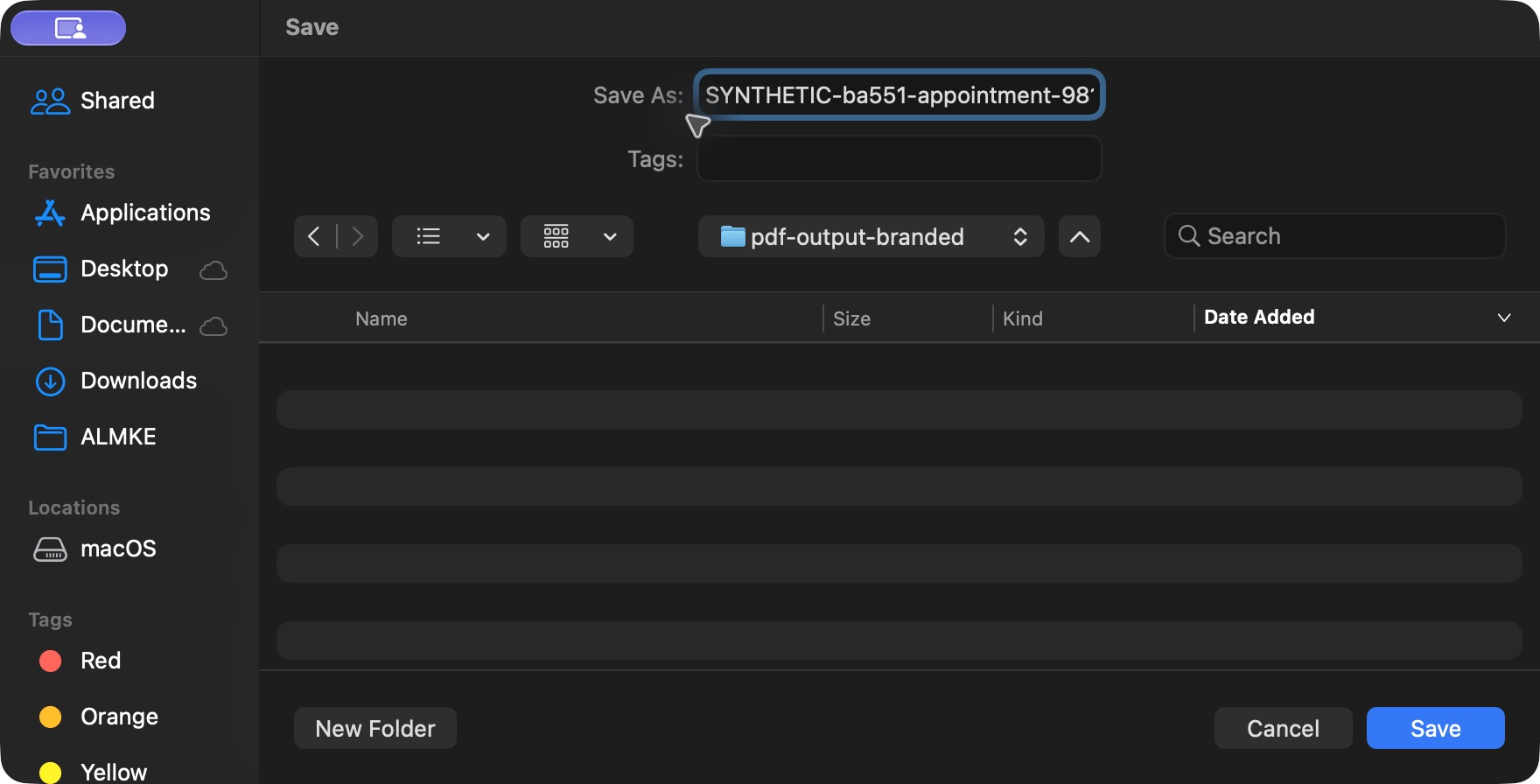 123
123Save a distinct local synthetic PDF
Capture details
Exact committed ba551c1d application; existing non-superuser Staff in its assigned fictional Clinic. Native print/save frames show actual Chrome/macOS controls and local output only.
Image SHA-256 91c32df1087db89c3fc2e9b15f34d9d3f2b6d1677a0d6ef81bd1a1d357beaaf6
- Filename: Give the example a distinct local filename.
- Output folder: This folder is reserved for the branded example.
- Save: Save the PDF locally; no physical print or external delivery is performed.
5. Return to the preserved appointment
Use the printable page’s Back button. Confirm the original In-Consultation state, Token not generated and existing encounter remain present.
12345Review the branded appointment preview
Capture details
Exact committed ba551c1d application; existing non-superuser Staff in its assigned fictional Clinic. Native print/save frames show actual Chrome/macOS controls and local output only.
Image SHA-256 fc9471ed1ac91ea5334c95948fb3a6a761b5f4e3e02dc2f26e1b1c073f78eb6c
- Print: Open native printing after reviewing the displayed appointment.
- Back: Return without changing the appointment.
- Facility logo: The fictional logo now loads from the corrected existing template.
- Date and time: Review the intended 19 October 09:00–09:15 appointment.
- Patient identity: Verify the intended synthetic patient.
123Verify the preserved appointment after output
Capture details
Exact committed ba551c1d application; existing non-superuser Staff in its assigned fictional Clinic. Native print/save frames show actual Chrome/macOS controls and local output only.
Image SHA-256 885216351ee559e74895b909c1e7b80f163f23e7bc1abc53dbdff2ae211d7e08
- In-Consultation: The saved state is unchanged.
- Token not generated: No queue token was created.
- Existing encounter: The same linked encounter remains available.
History status affects the displayed quick action
The pictured retained Rescheduled appointment shows Accounts without Print Appointment. The separate In-Consultation appointment shows the actual Print Appointment action. This lesson uses that existing eligible record.
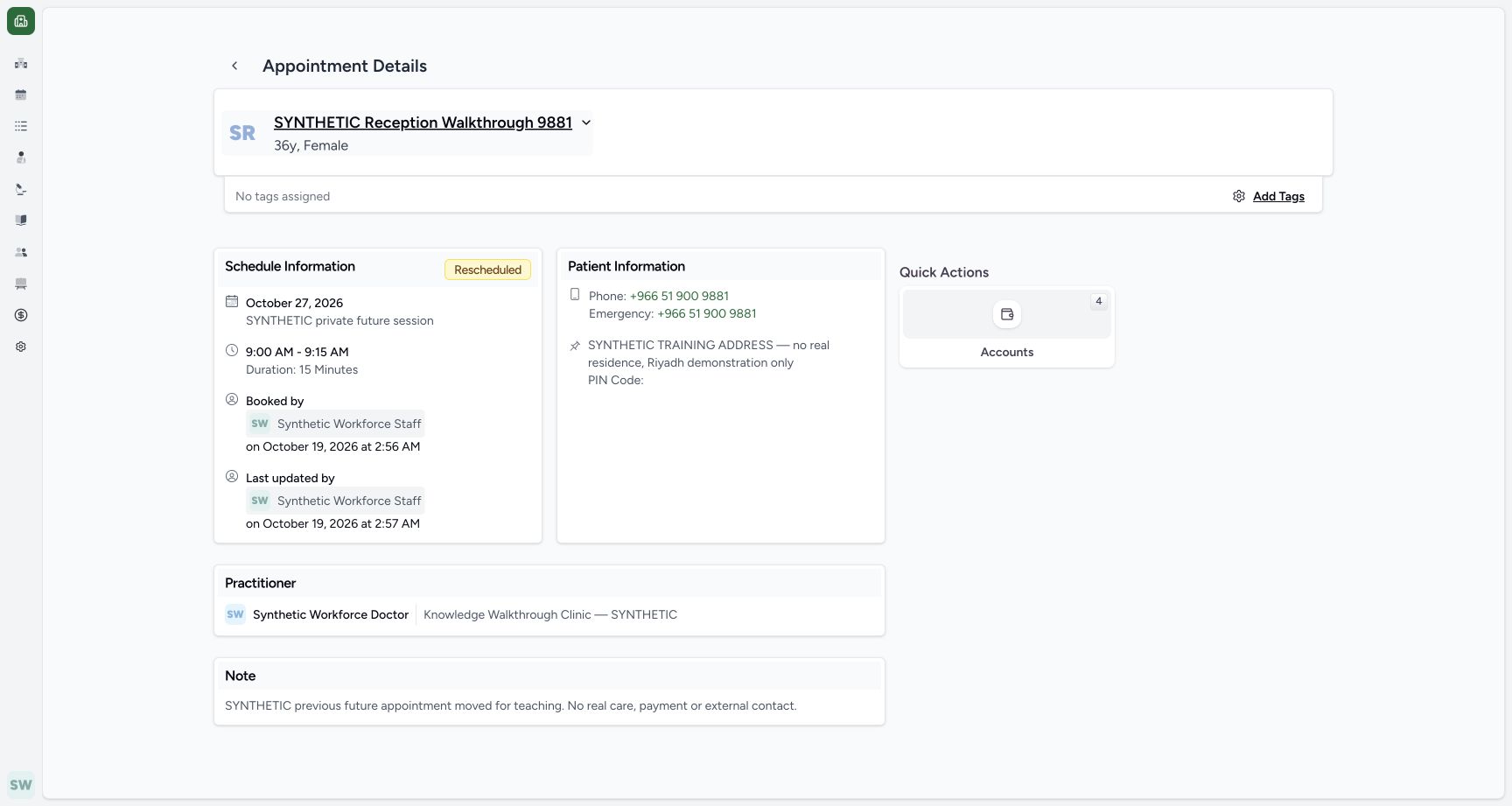 12
12Recognize the retained Rescheduled print-action boundary
Capture details
Exact committed ba551c1d application; existing non-superuser Staff in its assigned fictional Clinic. Native print/save frames show actual Chrome/macOS controls and local output only.
Image SHA-256 298796c6a204f43d67f9d6dd86a642ea9c358ee5388505bfe584c44e829b29ca
- Rescheduled: The retained original shows its history status.
- Quick Actions: Accounts is shown here; Print Appointment is absent in this observed state.
123Use the actual Print Appointment action
Capture details
Exact committed ba551c1d application; existing non-superuser Staff in its assigned fictional Clinic. Native print/save frames show actual Chrome/macOS controls and local output only.
Image SHA-256 7a948ff26edd70027d7c021dd3e2f200720a2302291b59279826e10a4507036c
- Print Appointment: Open the printable view for this saved In-Consultation appointment.
- Saved status: Verify the intended appointment state.
- Token not generated: Printing does not require generating a queue token in this pictured example.
Troubleshooting
Print Appointment is not shown on a retained history entry
Check the saved status and actual Quick Actions. The pictured Rescheduled entry has no Print Appointment action. The existing In-Consultation entry used here has it; do not change a history status just to expose printing.
12Recognize the retained Rescheduled print-action boundary
Capture details
Exact committed ba551c1d application; existing non-superuser Staff in its assigned fictional Clinic. Native print/save frames show actual Chrome/macOS controls and local output only.
Image SHA-256 298796c6a204f43d67f9d6dd86a642ea9c358ee5388505bfe584c44e829b29ca
- Rescheduled: The retained original shows its history status.
- Quick Actions: Accounts is shown here; Print Appointment is absent in this observed state.
123Use the actual Print Appointment action
Capture details
Exact committed ba551c1d application; existing non-superuser Staff in its assigned fictional Clinic. Native print/save frames show actual Chrome/macOS controls and local output only.
Image SHA-256 7a948ff26edd70027d7c021dd3e2f200720a2302291b59279826e10a4507036c
- Print Appointment: Open the printable view for this saved In-Consultation appointment.
- Saved status: Verify the intended appointment state.
- Token not generated: Printing does not require generating a queue token in this pictured example.
Source evidence
Every citation uses this exact committed version. The private source repository requires access.
- repositories/platform/mansoq-web/src/pages/Appointments/AppointmentDetail.tsx:549 ·
ba551c1d67031248136fd2016afe227b5fc994bdSource file checksum
8fc77ee6f1f7b145e2987ba272e80f35631e17907ea91cd305738250b137b839 - repositories/platform/mansoq-web/src/pages/Appointments/AppointmentPrint.tsx:64 ·
ba551c1d67031248136fd2016afe227b5fc994bdSource file checksum
27e81797db42d20b46f30bee8761c56b5e91b7ab9163371240291689fa97dac1 - repositories/platform/mansoq-web/src/pages/Appointments/AppointmentPrint.tsx:178 ·
ba551c1d67031248136fd2016afe227b5fc994bdSource file checksum
27e81797db42d20b46f30bee8761c56b5e91b7ab9163371240291689fa97dac1 - repositories/platform/mansoq-web/src/MansoqUI/misc/PrintPreview.tsx:282 ·
ba551c1d67031248136fd2016afe227b5fc994bdSource file checksum
66b44ba3d2996d2db6d1d37c275a084db50c2ac1d68468f5355cc2522c67679b - repositories/platform/mansoq-web/src/MansoqUI/misc/PrintPreview.tsx:326 ·
ba551c1d67031248136fd2016afe227b5fc994bdSource file checksum
66b44ba3d2996d2db6d1d37c275a084db50c2ac1d68468f5355cc2522c67679b