 MANSOQ
 Clinical care · VERSION 3dfb7c9f
Build two dosage instructions with different duration controls
Use one synthetic product to practise separate dosage lines, explicit count units, QD frequency, a rejected day range and a fixed-date duration. Leave this draft open for the following review-and-save lesson.
Doctor
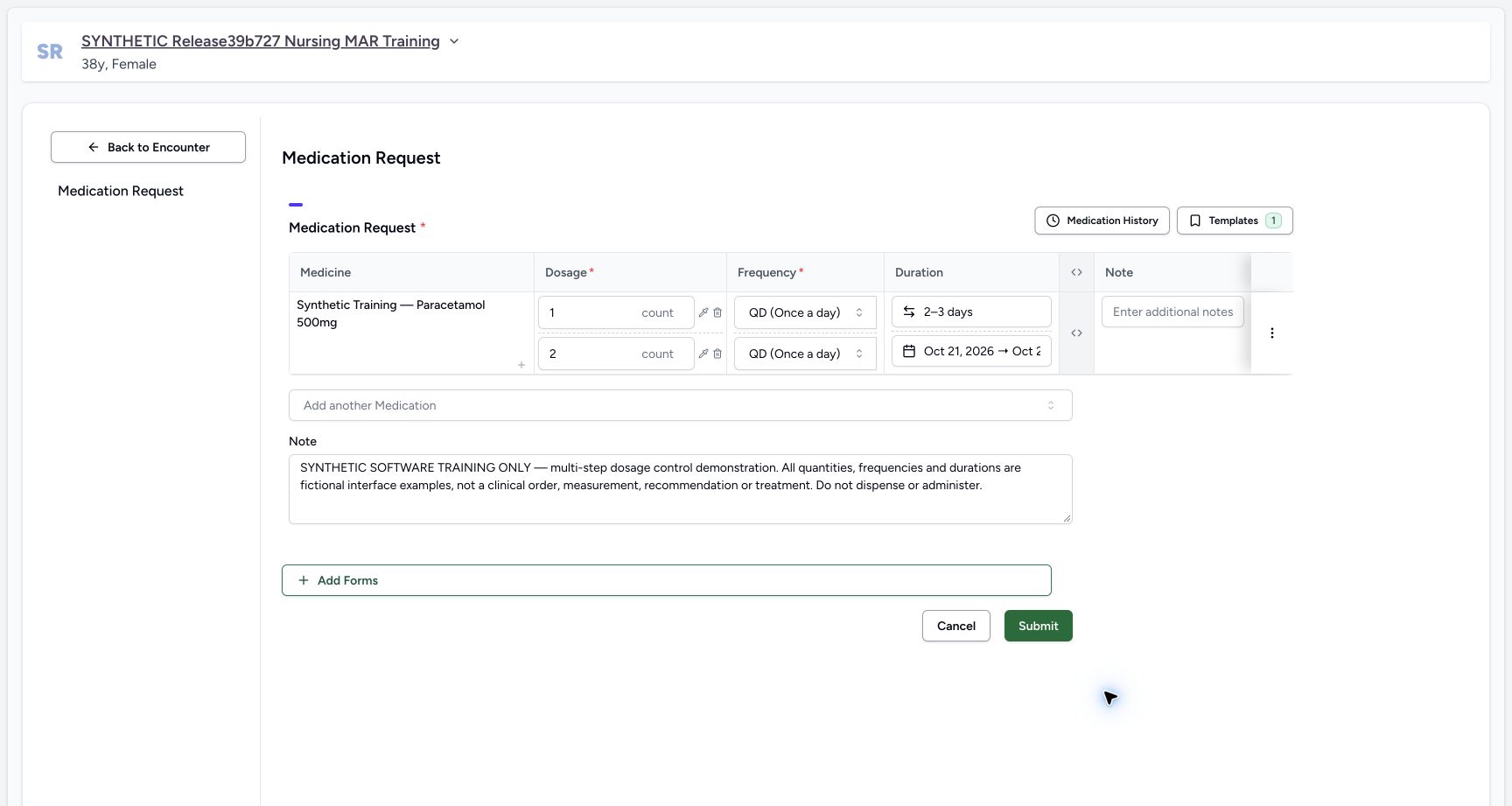 12
12Two duration bound types
Capture details
Observed committed 3dfb software on 20 October 2026. Software-only examples; no dispensing or administration. Original pixels and actual capture times retained.
Image SHA-256 b9e9e897509764c86a8abb3311a6c2eb2e91e23207d8c018ab54a40d65b274be
- Review the first duration type: The first instruction remains a 2–3 day range.
- Review the second duration type: The second instruction is a fixed-date range; the end is clipped here, so use the full calendar or saved summary to read it.
15 of 15 content blocks have reviewed image alignment.
Before you begin
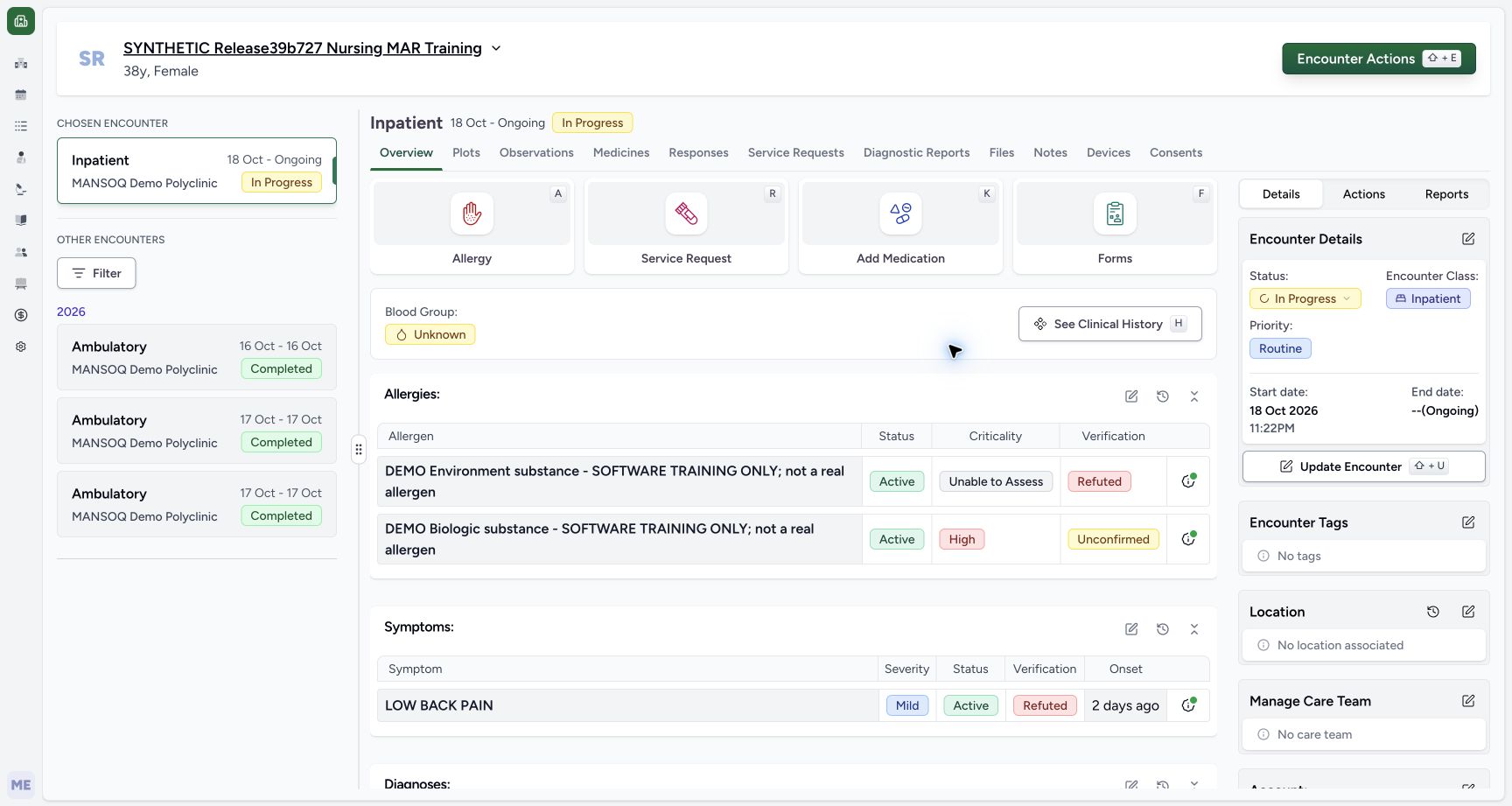
- Use an authorised Doctor account, verify the assigned fictional patient and select the intended ongoing encounter. This example shows an Inpatient encounter in the synthetic Polyclinic.
 123
123Recorded release 3dfb7c9f · 2026-10-20T07:17:32.402Z · 1728 × 921 Overview entry
Capture details
Observed committed 3dfb software on 20 October 2026. Software-only examples; no dispensing or administration. Original pixels and actual capture times retained.
Image SHA-256
d650b8a5d767db16ce75c818083ab54347162e3ea678ff47df31c4a30f30df0c- Verify the fictional patient: Check the synthetic patient banner before opening the form.
- Verify the selected ongoing encounter: The selected Inpatient encounter is In Progress.
- Open Add Medication: Use this encounter action to open Medication Request.
- This is a software exercise using Synthetic Training — Paracetamol 500mg. The example quantities, frequency and dates are not a clinical order or treatment advice. Do not dispense or administer this example.
 12
12Recorded release 3dfb7c9f · 2026-10-20T07:18:24.152Z · 1728 × 921 Synthetic product search
Capture details
Observed committed 3dfb software on 20 October 2026. Software-only examples; no dispensing or administration. Original pixels and actual capture times retained.
Image SHA-256
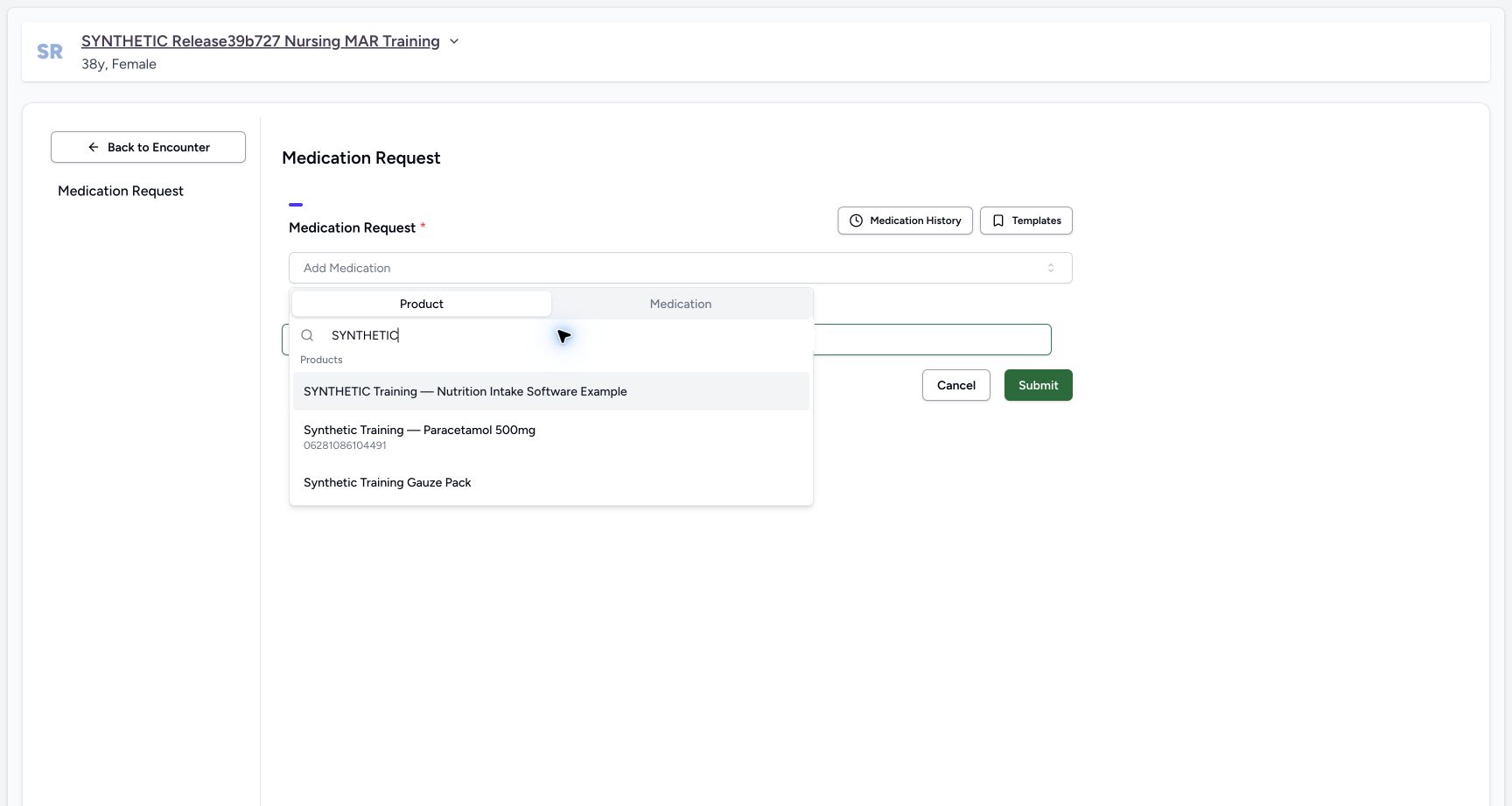
8b217f9f4870ecdd668206bfcdc290ca00876546992139055acc83e460f98080- Search for SYNTHETIC: The pictured search is already populated; type the same term in the search field.
- Choose the synthetic training product: Select Synthetic Training — Paracetamol 500mg, not either neighbouring result.
 1234
1234Recorded release 3dfb7c9f · 2026-10-20T07:18:38.770Z · 1728 × 921 New draft single step
Capture details
Observed committed 3dfb software on 20 October 2026. Software-only examples; no dispensing or administration. Original pixels and actual capture times retained.
Image SHA-256
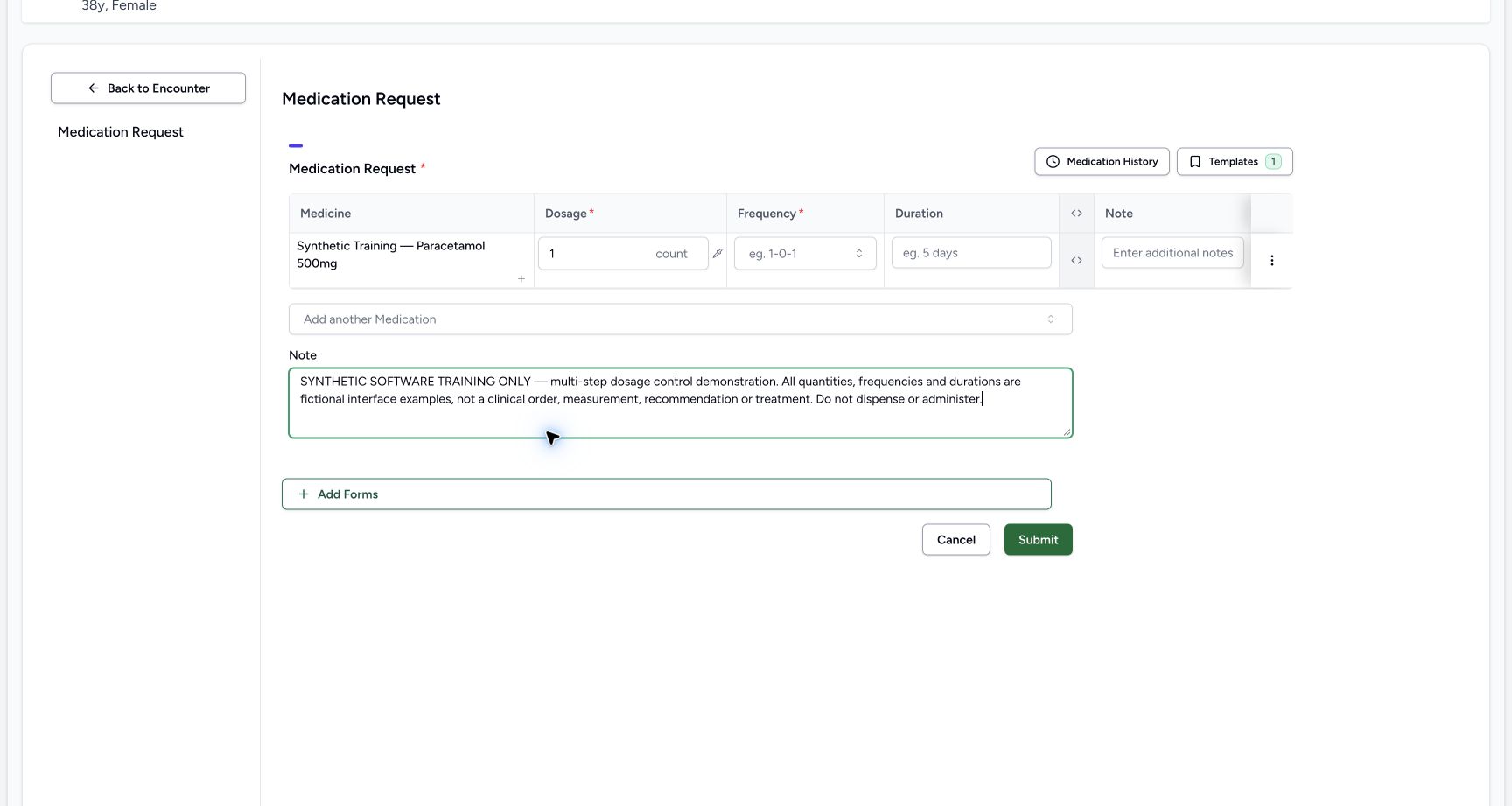
4f914daf3dbb9158cc97574b92eecbb690ef0d6f03f0a29c1c928a6d8064f477- Read the chosen synthetic product: Confirm the exact product before adding dosage steps.
- Read the first 1 count dose: The first quantity is 1 with count as its unit.
- Add another dosage step: Use the small plus beneath this product, not Add another Medication.
- Enter the software-only note: This shared Note belongs to the prescription; the full text explicitly forbids dispensing or administration.
- The two lessons follow one draft and one final Submit. Complete the next review-and-save lesson with this same draft rather than opening a duplicate prescription.12
Recorded release 3dfb7c9f · 2026-10-20T07:22:14.582Z · 1728 × 921 Two duration bound types
Capture details
Observed committed 3dfb software on 20 October 2026. Software-only examples; no dispensing or administration. Original pixels and actual capture times retained.
Image SHA-256
b9e9e897509764c86a8abb3311a6c2eb2e91e23207d8c018ab54a40d65b274be- Review the first duration type: The first instruction remains a 2–3 day range.
- Review the second duration type: The second instruction is a fixed-date range; the end is clipped here, so use the full calendar or saved summary to read it.
1. Open Medication Request for the selected encounter
On Overview, check the patient banner and selected In Progress encounter. Select Add Medication, then open the Add Medication selector in Medication Request.
123Overview entry
Capture details
Observed committed 3dfb software on 20 October 2026. Software-only examples; no dispensing or administration. Original pixels and actual capture times retained.
Image SHA-256 d650b8a5d767db16ce75c818083ab54347162e3ea678ff47df31c4a30f30df0c
- Verify the fictional patient: Check the synthetic patient banner before opening the form.
- Verify the selected ongoing encounter: The selected Inpatient encounter is In Progress.
- Open Add Medication: Use this encounter action to open Medication Request.
 12
12Empty request form
Capture details
Observed committed 3dfb software on 20 October 2026. Software-only examples; no dispensing or administration. Original pixels and actual capture times retained.
Image SHA-256 709e236d5b3d973cb3f6c842c0c43698fc96330bd82622c29a3516366e3c6500
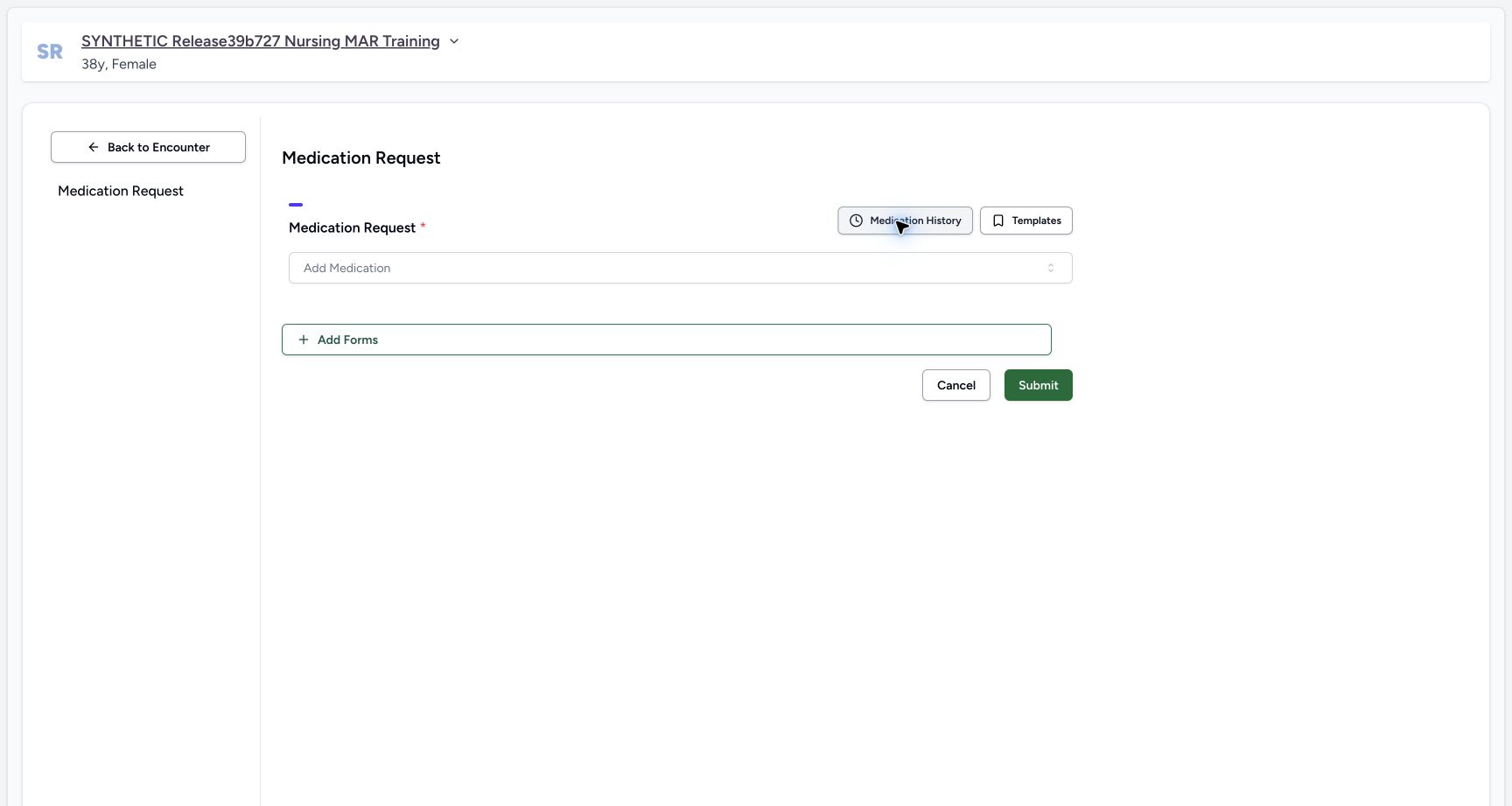
- Open Add Medication search: Open the empty medication selector; the illustrated flow uses Product search.
- Locate the final Submit button: This submits the whole form; it is different from popup Done or Save.
2. Find the synthetic product
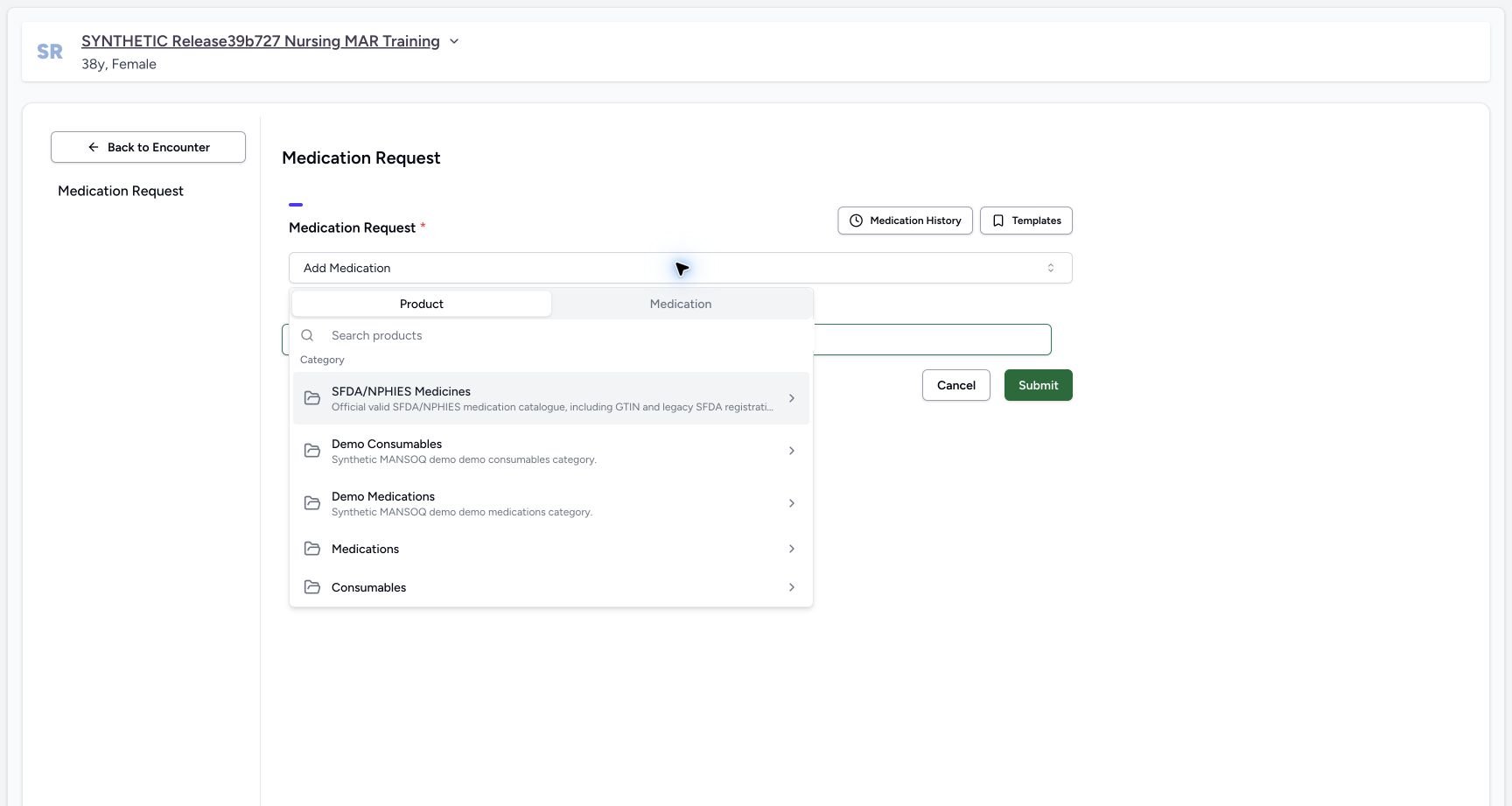
Keep the Product tab selected. The picker can show categories such as Demo Medications. Type SYNTHETIC in Search products, then choose Synthetic Training — Paracetamol 500mg from the actual results. Typing a product search searches across categories; do not select the neighbouring nutrition example or gauze pack.
 123
123Product category choices
Capture details
Observed committed 3dfb software on 20 October 2026. Software-only examples; no dispensing or administration. Original pixels and actual capture times retained.
Image SHA-256 7feeae3f67156402aae9858ab326769b1b4c6826e982c6a6f503a7f75d8e9742
- Keep Product selected: The demonstrated search uses the Product tab.
- Locate the product search: Search this field for the synthetic training product.
- Recognize Demo Medications: This is one actual category shown in this training catalogue, not a required category for every installation.
12Synthetic product search
Capture details
Observed committed 3dfb software on 20 October 2026. Software-only examples; no dispensing or administration. Original pixels and actual capture times retained.
Image SHA-256 8b217f9f4870ecdd668206bfcdc290ca00876546992139055acc83e460f98080
- Search for SYNTHETIC: The pictured search is already populated; type the same term in the search field.
- Choose the synthetic training product: Select Synthetic Training — Paracetamol 500mg, not either neighbouring result.
3. Check the first instruction and add the shared note
Confirm the selected product and the first dosage value of 1 count. In the shared Note below the table enter: SYNTHETIC SOFTWARE TRAINING ONLY — multi-step dosage control demonstration. All quantities, frequencies and durations are fictional interface examples, not a clinical order, measurement, recommendation or treatment. Do not dispense or administer. This is the prescription-level note, separate from the per-product Note cell.
1234New draft single step
Capture details
Observed committed 3dfb software on 20 October 2026. Software-only examples; no dispensing or administration. Original pixels and actual capture times retained.
Image SHA-256 4f914daf3dbb9158cc97574b92eecbb690ef0d6f03f0a29c1c928a6d8064f477
- Read the chosen synthetic product: Confirm the exact product before adding dosage steps.
- Read the first 1 count dose: The first quantity is 1 with count as its unit.
- Add another dosage step: Use the small plus beneath this product, not Add another Medication.
- Enter the software-only note: This shared Note belongs to the prescription; the full text explicitly forbids dispensing or administration.
4. Add a second instruction for this same product
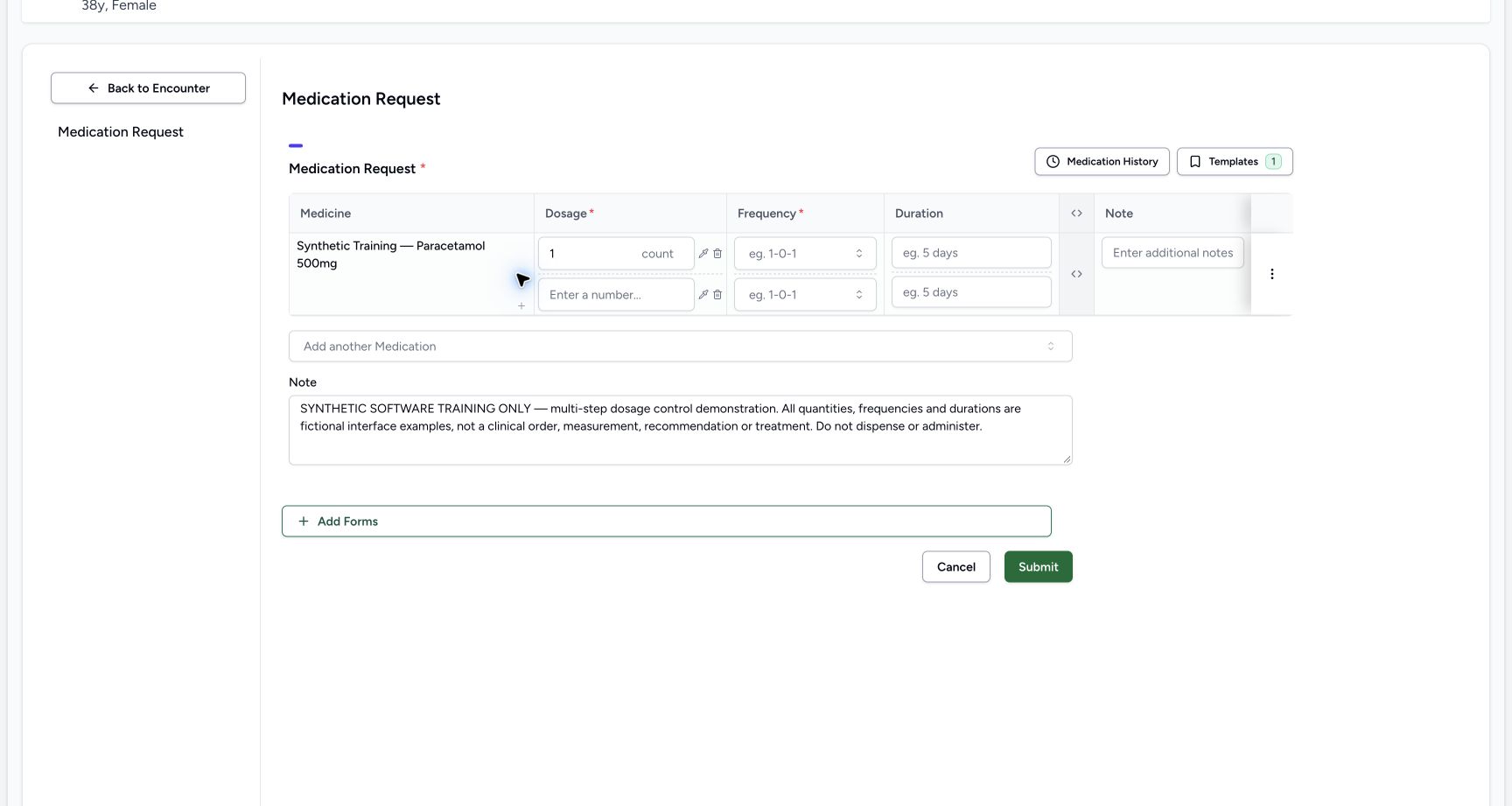
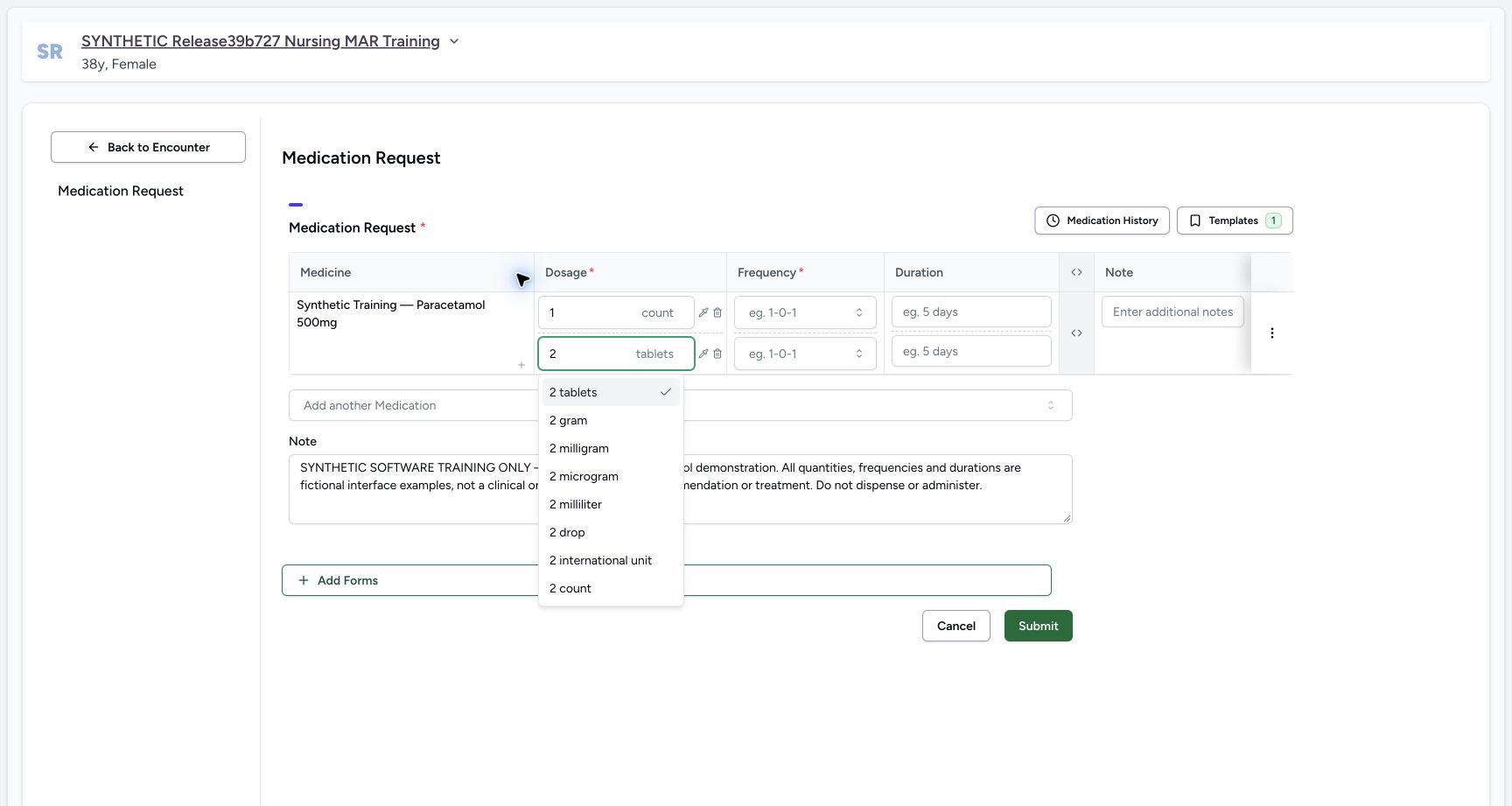
Select the small plus beneath the product name. A second blank dosage line appears beneath the first. This creates another instruction for the same product; Add another Medication is a different control. Enter 2 in the second Dosage field and explicitly select 2 count from the quantity options.
1234New draft single step
Capture details
Observed committed 3dfb software on 20 October 2026. Software-only examples; no dispensing or administration. Original pixels and actual capture times retained.
Image SHA-256 4f914daf3dbb9158cc97574b92eecbb690ef0d6f03f0a29c1c928a6d8064f477
- Read the chosen synthetic product: Confirm the exact product before adding dosage steps.
- Read the first 1 count dose: The first quantity is 1 with count as its unit.
- Add another dosage step: Use the small plus beneath this product, not Add another Medication.
- Enter the software-only note: This shared Note belongs to the prescription; the full text explicitly forbids dispensing or administration.
 12
12Two draft dosage steps
Capture details
Observed committed 3dfb software on 20 October 2026. Software-only examples; no dispensing or administration. Original pixels and actual capture times retained.
Image SHA-256 4fbc1859c4a484974ee8115ea7c4fb4ff465303f9e249630cc19997ade1d95ba
- Fill the new second dose: This new blank dosage line belongs to the same product.
- Locate the dosage-step plus: The plus adds another instruction; it does not add another product.
 12
12Second quantity units
Capture details
Observed committed 3dfb software on 20 October 2026. Software-only examples; no dispensing or administration. Original pixels and actual capture times retained.
Image SHA-256 05c6c923d7bf2ef859ad1e5fc704f3d0db5b20b9dc6c67c45dc92c5c27a3a886
- Enter 2 for the second dose: Use the second dosage line; the number alone does not establish the unit.
- Choose 2 count: Select count explicitly from the quantity options.
5. Set QD separately on both instructions
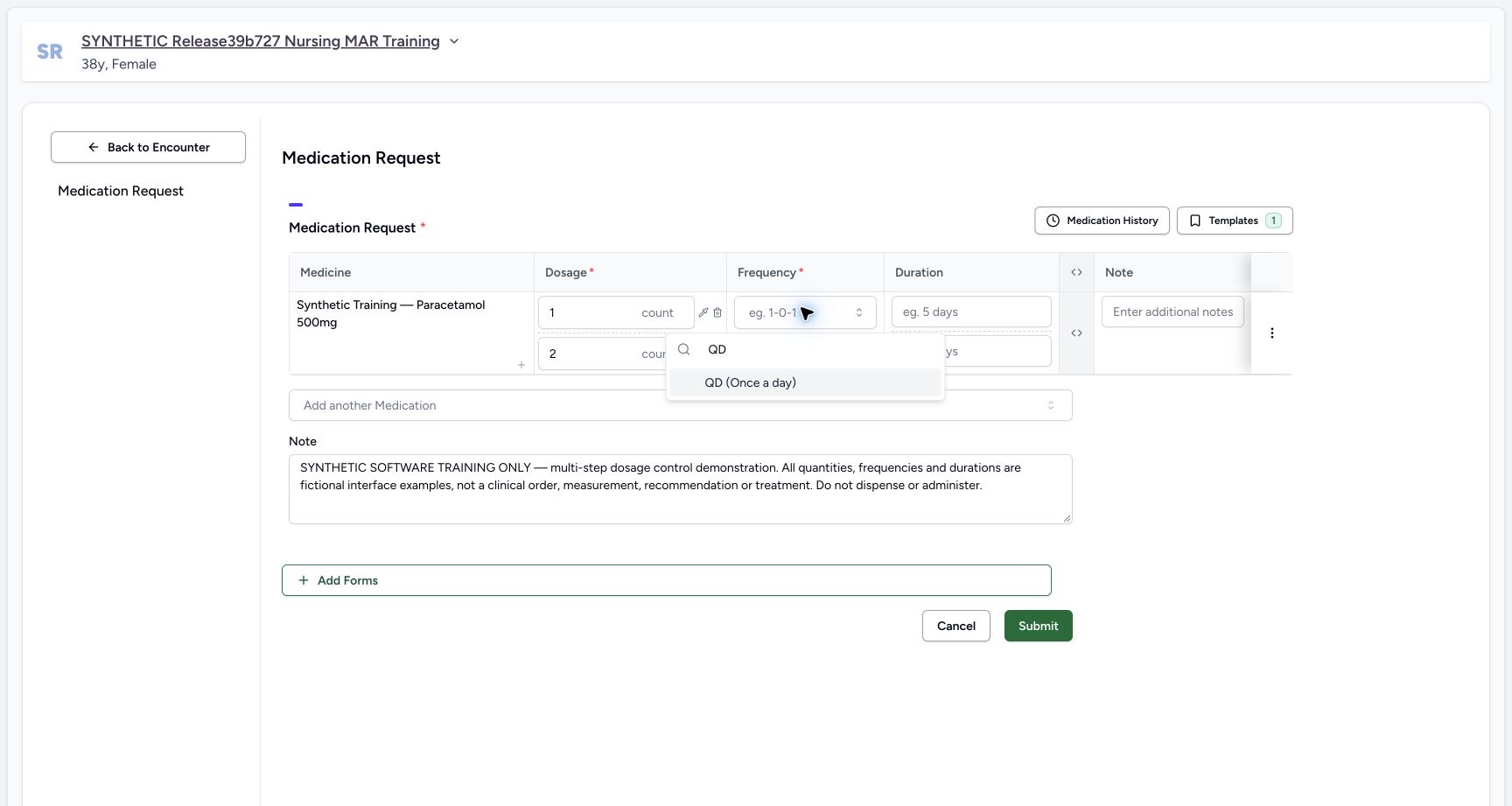
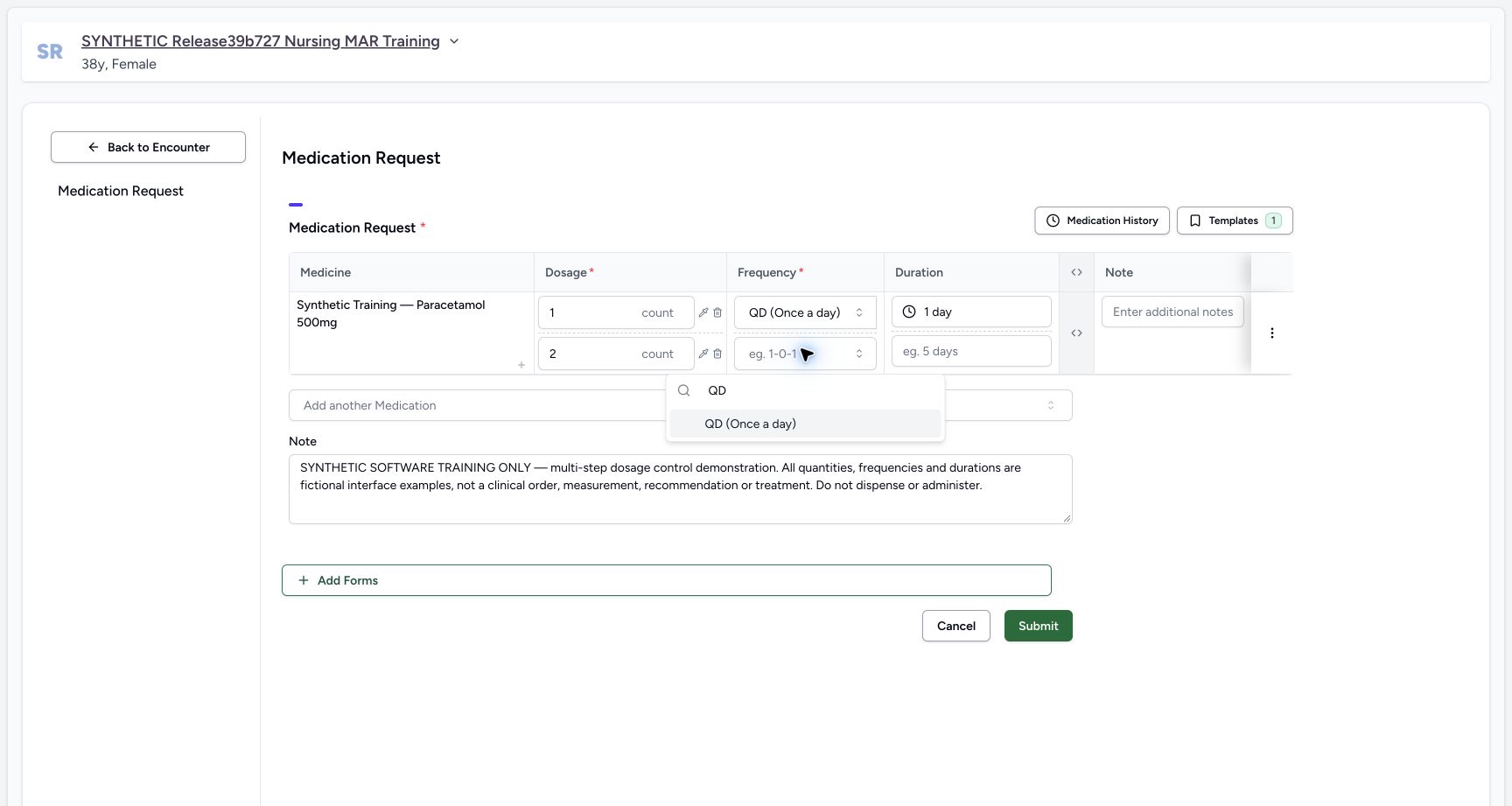
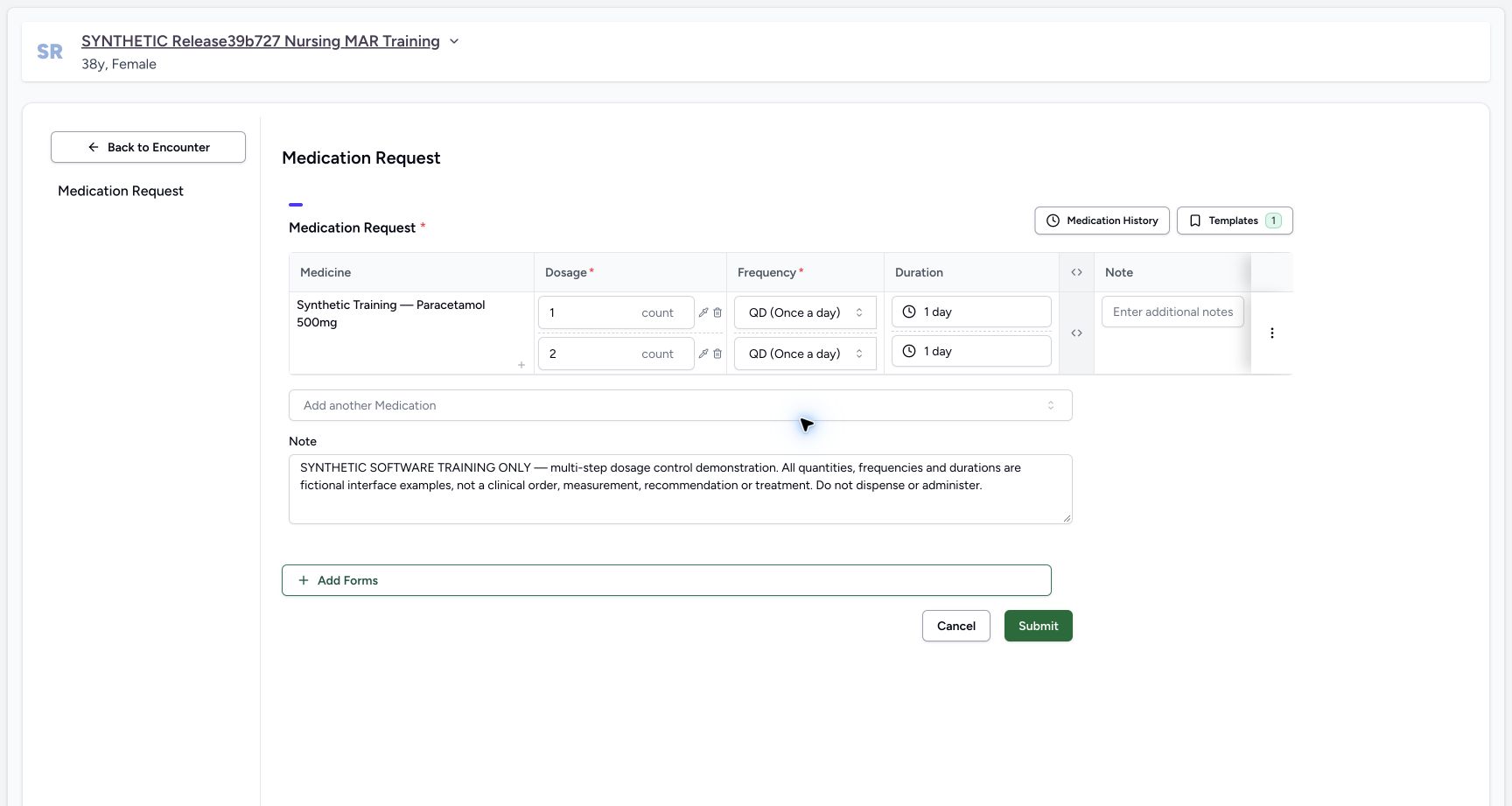
Open Frequency on the first line, search QD, and select QD (Once a day). Open the second line’s Frequency and repeat the selection there. Check both controls individually. In this draft the preset initially supplies 1 day in each Duration cell.
 123
123First step frequency search
Capture details
Observed committed 3dfb software on 20 October 2026. Software-only examples; no dispensing or administration. Original pixels and actual capture times retained.
Image SHA-256 80f9a90b724013a224e2c26d7c698bc2587a1a4cdda332c74e32912b78c94967
- Open first-step Frequency: Choose the first dosage line’s frequency control.
- Search QD: Type QD in this open frequency search.
- Choose QD (Once a day): Select the result for this fictional interface example.
 123
123Second step frequency search
Capture details
Observed committed 3dfb software on 20 October 2026. Software-only examples; no dispensing or administration. Original pixels and actual capture times retained.
Image SHA-256 d343361211369e719a32f56b730c5a8ae8d41aafd0076aa8bbc7ba8d9202ead9
- Open second-step Frequency: The second instruction has its own frequency control.
- Search QD on the second step: Repeat the search for this separate dosage line.
- Choose the second QD result: Selecting the first step’s frequency did not fill this one.
 1234
1234Two step frequency duration defaults
Capture details
Observed committed 3dfb software on 20 October 2026. Software-only examples; no dispensing or administration. Original pixels and actual capture times retained.
Image SHA-256 56072a01ccfd64a47d3a84f6b830f4e47032a00c43eb2e50edf8d9aaf46227c5
- Review first-step QD: The first instruction reads QD (Once a day).
- Review second-step QD: The second instruction also reads QD (Once a day).
- Review the current first duration: The frequency selection has populated a 1 day duration in this draft.
- Review the current second duration: The second duration is also 1 day before the next edits.
6. Open the first instruction’s day-range editor
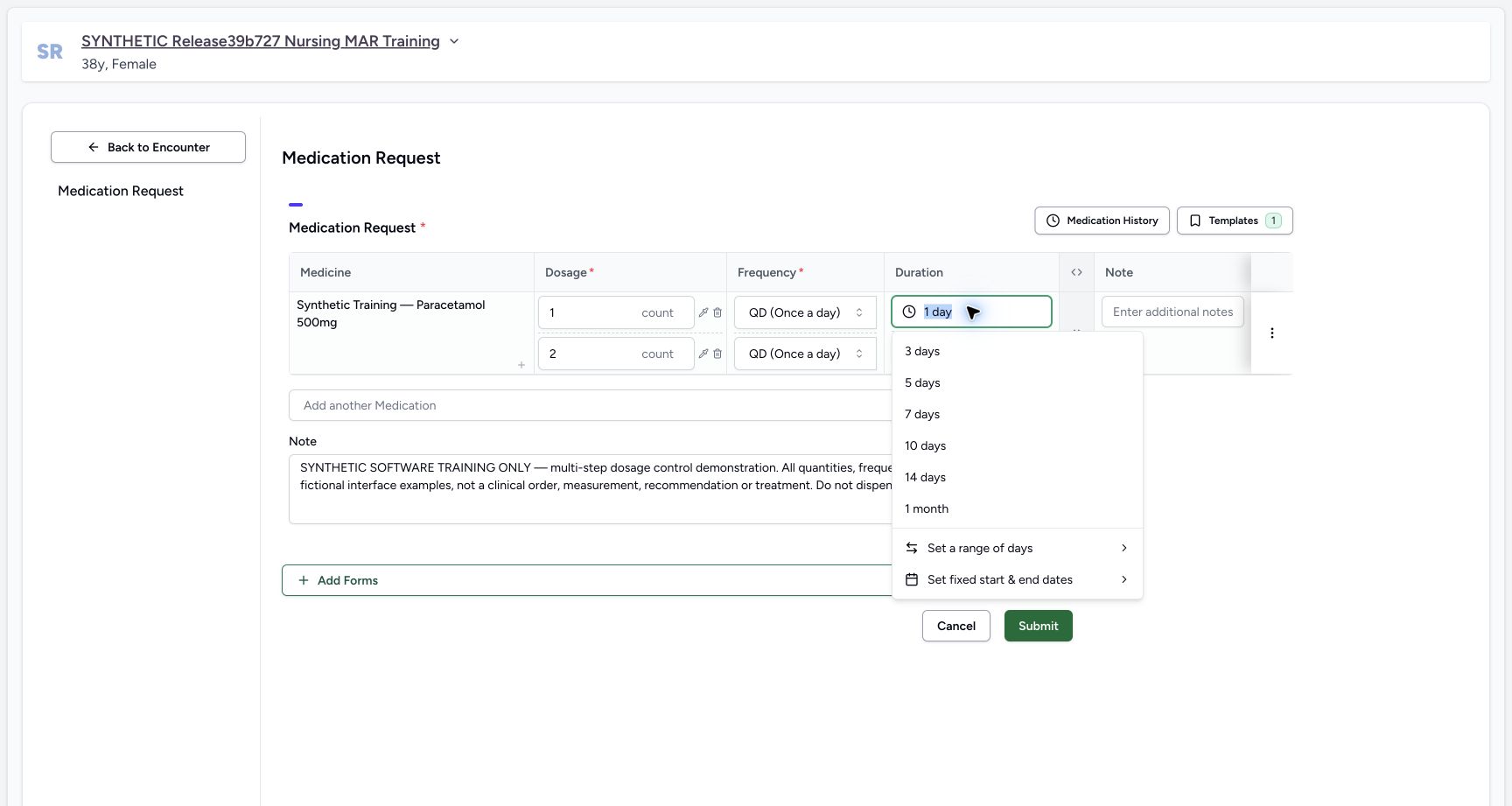
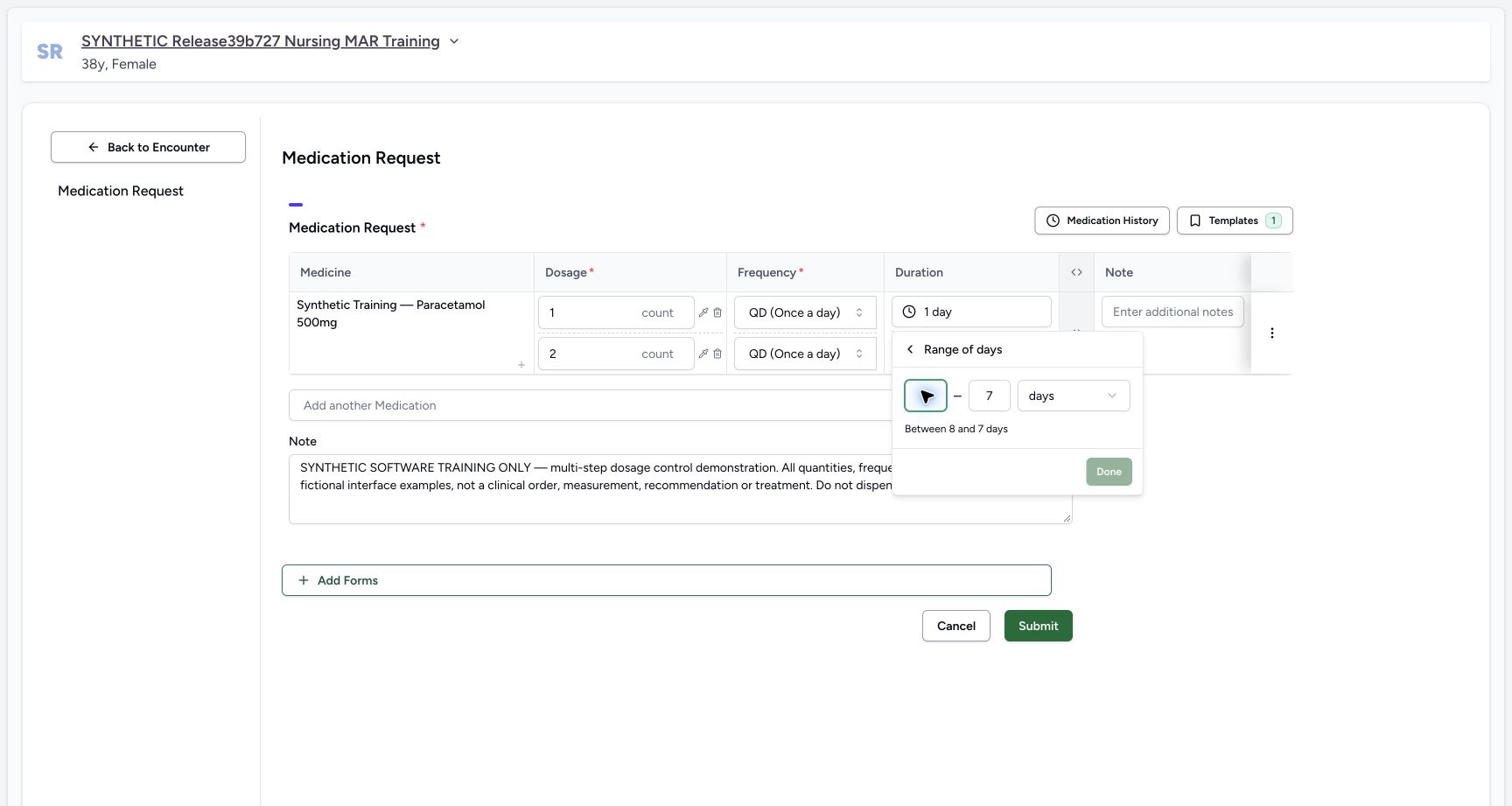
Open the first Duration and select Set a range of days. For this deliberate software validation exercise enter Start 8 and End 7. Read Between 8 and 7 days and observe that Done is disabled. This is a draft validation state, not a submitted order.
 12
12Duration modes
Capture details
Observed committed 3dfb software on 20 October 2026. Software-only examples; no dispensing or administration. Original pixels and actual capture times retained.
Image SHA-256 0932a4df6cefb82e54063ba2b1f646517ce3a9a93fdf4ac9f1869310736366c0
- Open first-step Duration: Use the duration on the first dosage line.
- Choose Set a range of days: This opens the day-range editor; fixed dates are a separate mode below.
 123
123Invalid day range blocked
Capture details
Observed committed 3dfb software on 20 October 2026. Software-only examples; no dispensing or administration. Original pixels and actual capture times retained.
Image SHA-256 1cc3113a5bd5e667b5dd5d4d6dee6a6fc55460fcccfdff49b90627a9acc46c06
- Read Start 8: The start field contains 8; the pointer partially covers the digit.
- Read End 7: The range is reversed for this deliberate validation exercise.
- Observe disabled Done: Done cannot apply the reversed 8-to-7 range.
7. Replace the rejected range with 2–3 days
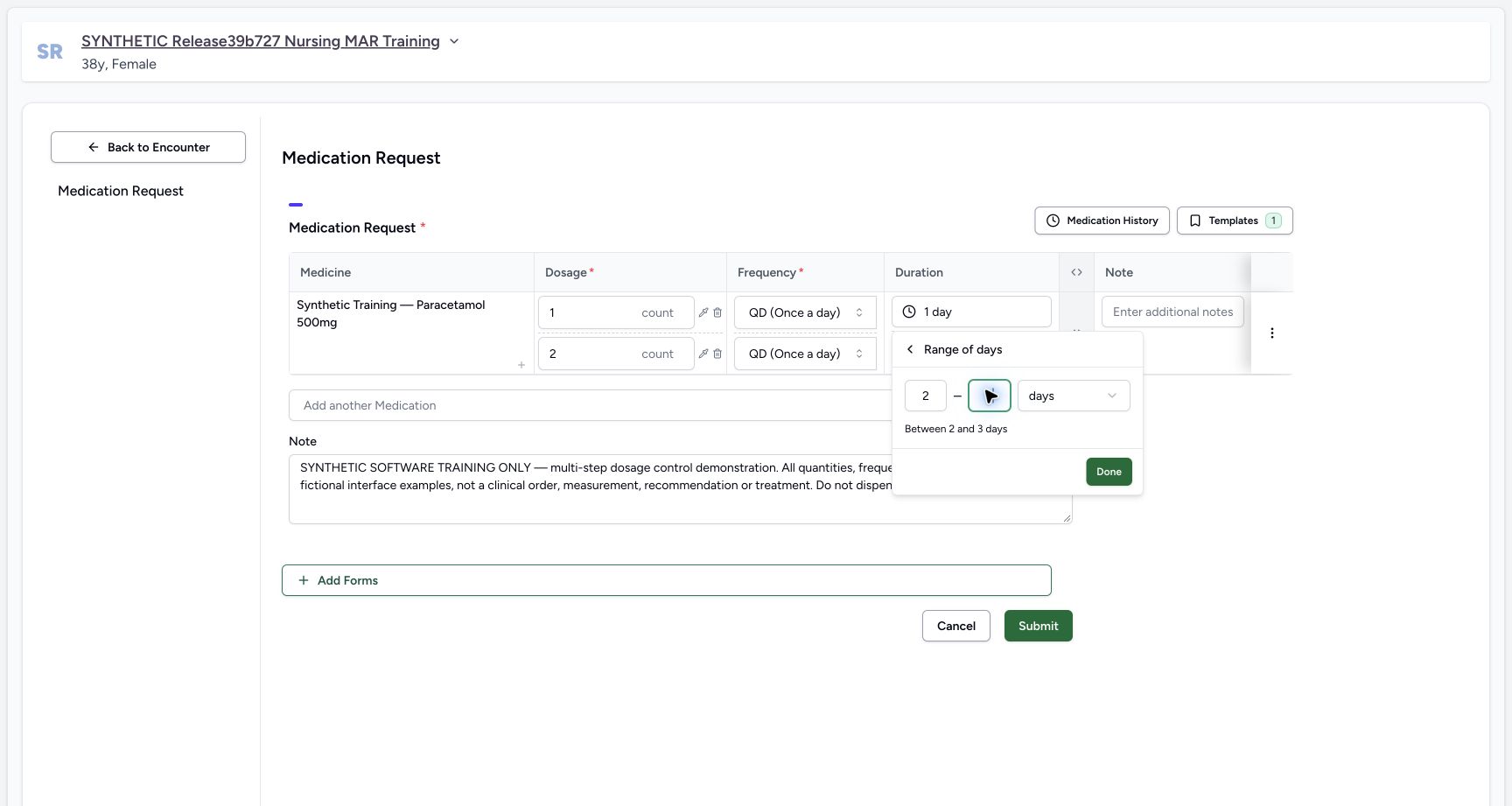
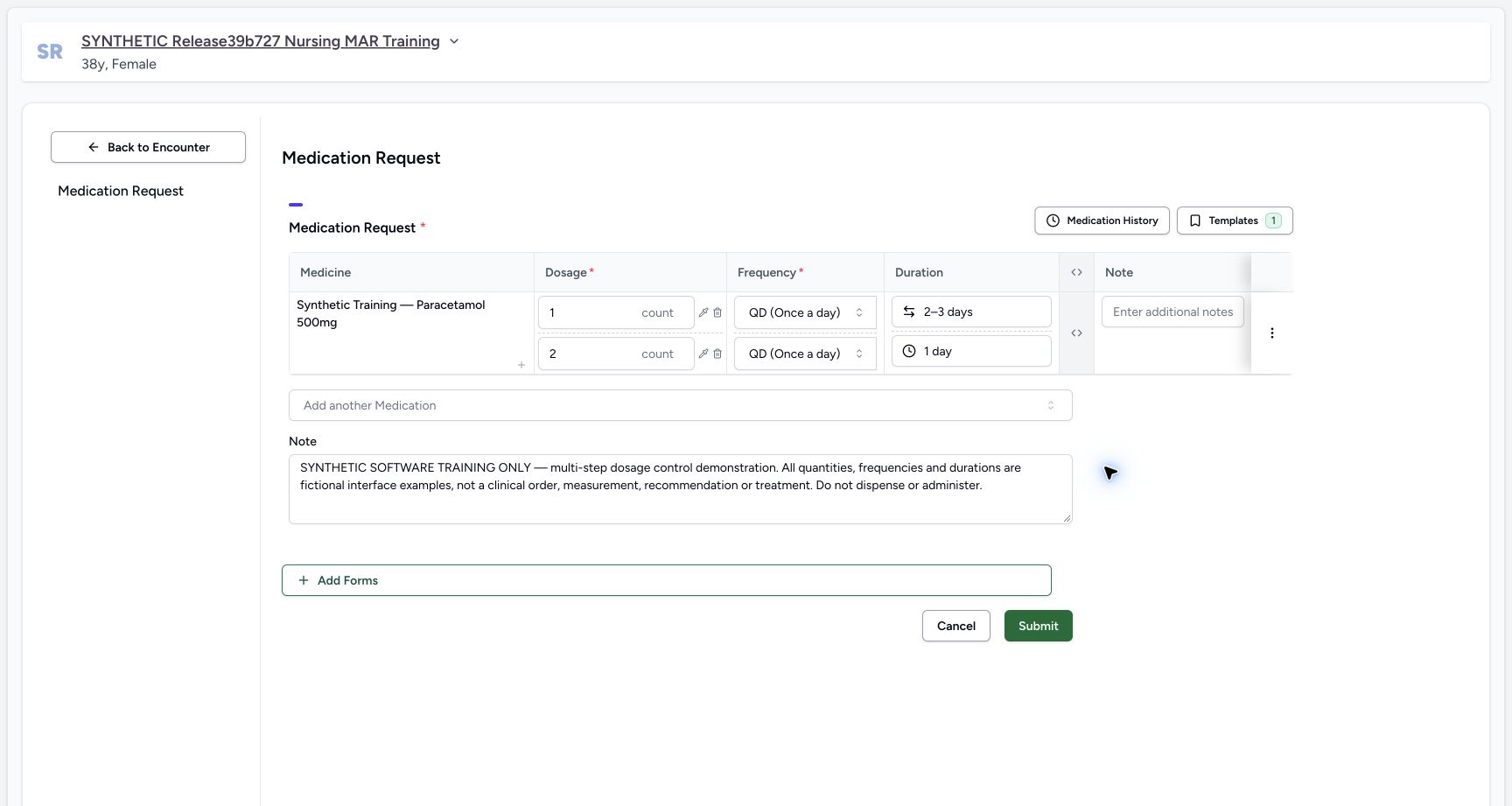
Set the range start to 2 and end to 3, keeping days as the unit. Read Between 2 and 3 days, then select Done. Verify 2–3 days in the first instruction’s Duration cell. Done applies this control’s value to the draft; it does not submit the whole prescription.
 1234
1234Valid day range pending done
Capture details
Observed committed 3dfb software on 20 October 2026. Software-only examples; no dispensing or administration. Original pixels and actual capture times retained.
Image SHA-256 0e8c288fd805264ba301801a9a71f391080add308c955d99fc971c86186834ce
- Set Start to 2: Replace the deliberate invalid start with 2.
- Set End to 3: The explanatory line below confirms Between 2 and 3 days.
- Keep days as the unit: Check the range unit before applying it.
- Choose Done: Done applies the duration to this draft dosage step; it does not submit the prescription.
 12
12Range applied first step
Capture details
Observed committed 3dfb software on 20 October 2026. Software-only examples; no dispensing or administration. Original pixels and actual capture times retained.
Image SHA-256 144035892c02756f8bc86603dcddf1a800f4ae49f207659cc56a3f8db4fe3d30
- Verify 2–3 days on the first step: The applied range is now shown in the first duration cell.
- Locate the second duration: The second dosage line is still separate and currently reads 1 day.
8. Choose fixed dates for the second instruction
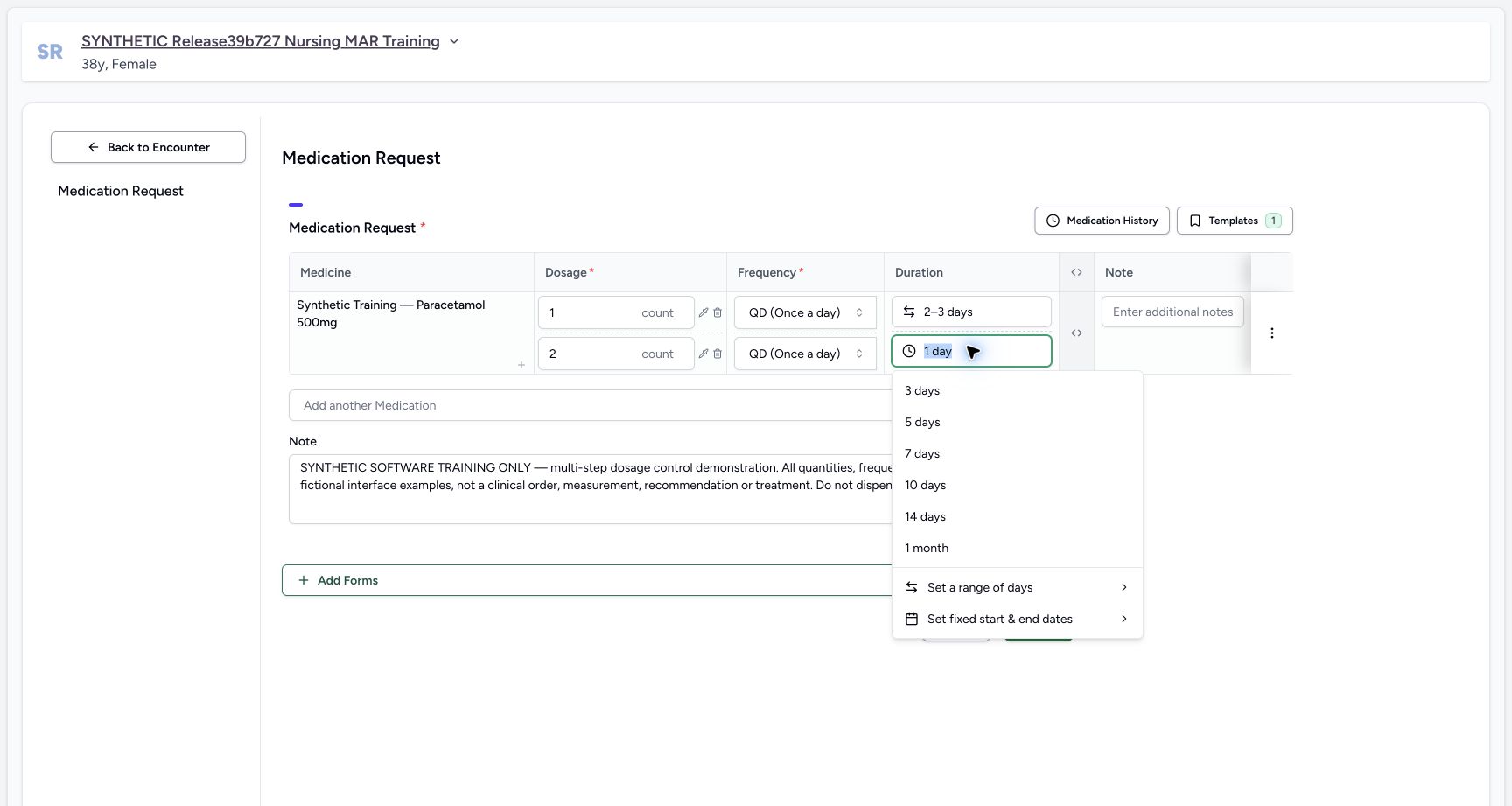
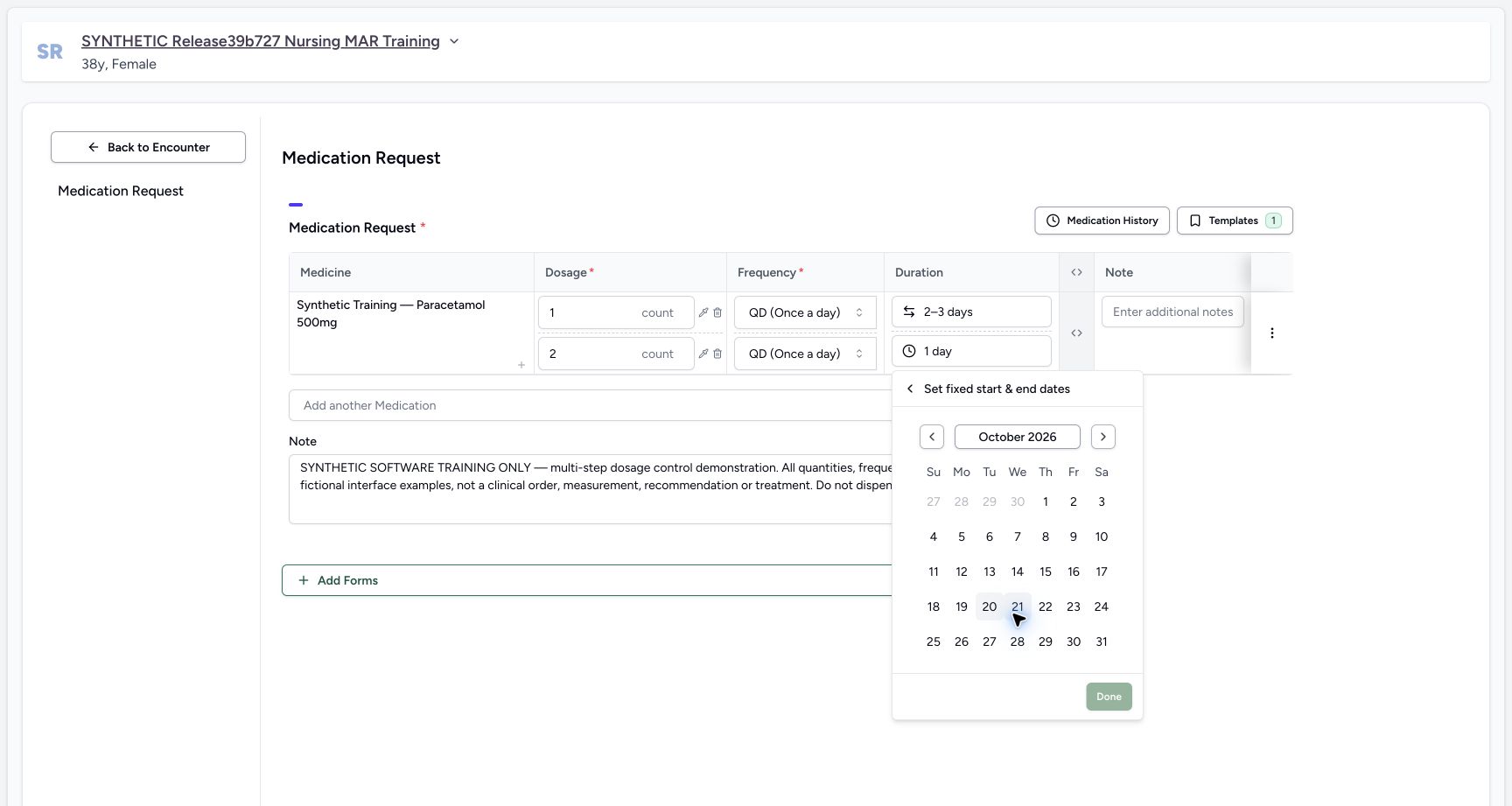
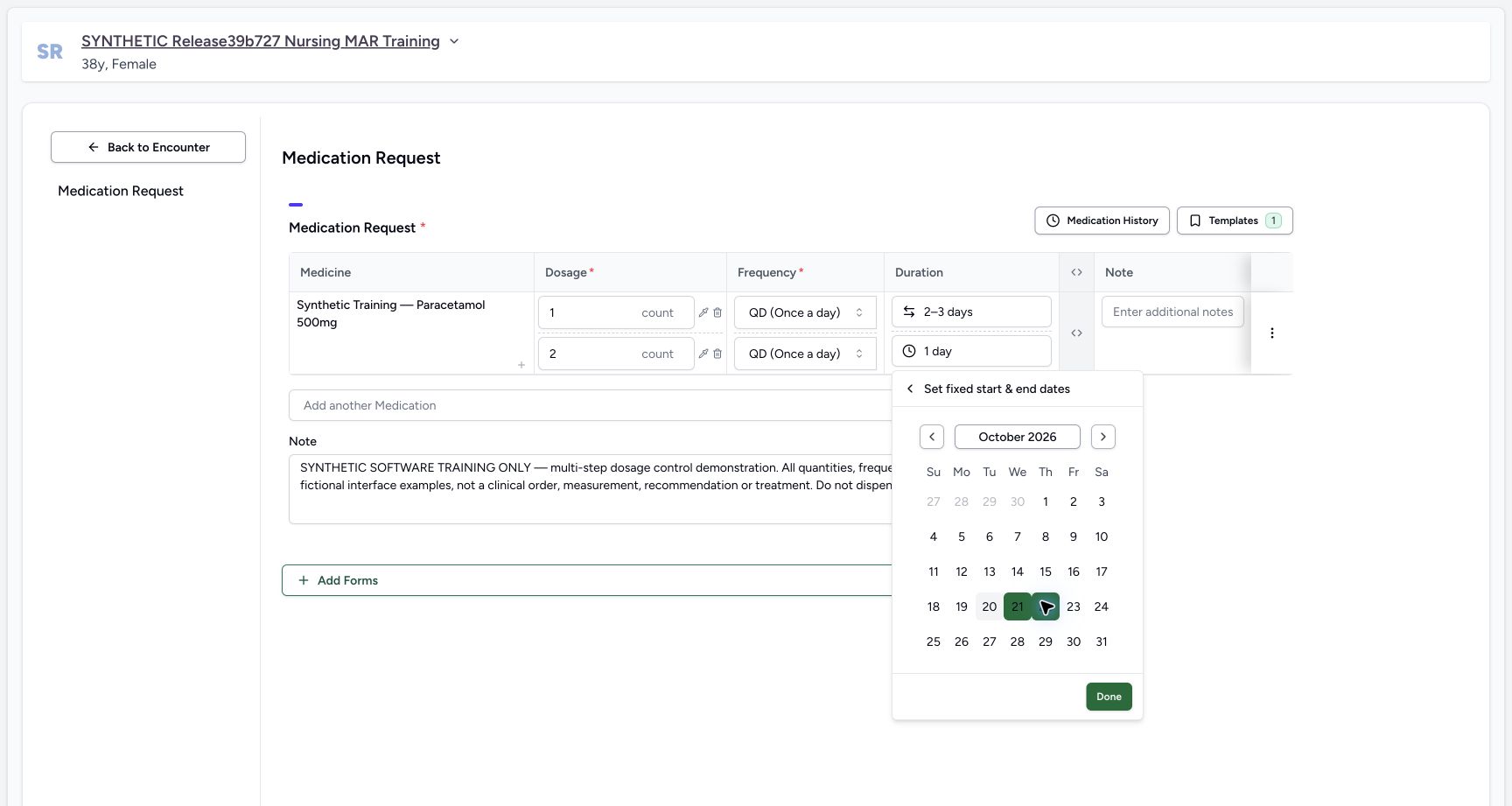
Open the second instruction’s Duration and choose Set fixed start & end dates. In October 2026 select October 21 as the start, then October 22 as the end. Check the selected range in the full calendar and choose Done. These dates are fictional software examples.
 12
12Second duration fixed date entry
Capture details
Observed committed 3dfb software on 20 October 2026. Software-only examples; no dispensing or administration. Original pixels and actual capture times retained.
Image SHA-256 cf0eeceed5f5a722fedae7d3aee2b9e2927086e7fae35b0b604e7b94878f1095
- Open the second duration: Change only the second instruction’s duration.
- Choose Set fixed start & end dates: Use the fixed-date mode, distinct from a range of days.
 123
123Fixed date empty selection
Capture details
Observed committed 3dfb software on 20 October 2026. Software-only examples; no dispensing or administration. Original pixels and actual capture times retained.
Image SHA-256 bb82b0dc7190c5798aee4e6447c1e8979d0c4159fe7254e74f9ddf31ac9599da
- Check October 2026: Confirm the calendar month and year for this fictional example.
- Choose October 21: Select the example start day.
- Then choose October 22: Select the example end day; the next view shows the selected range.
 123
123Fixed date range pending done
Capture details
Observed committed 3dfb software on 20 October 2026. Software-only examples; no dispensing or administration. Original pixels and actual capture times retained.
Image SHA-256 a123506108c6a0667893b5d60d66b2c35259df02be65b523abf6560c74128fce
- Read the selected October 21 start: The calendar shows the start of the selected fixed range.
- Read the selected October 22 end: The full calendar makes both dates visible.
- Choose Done for fixed dates: Apply the selected calendar range to the second draft instruction.
9. Review the two different bounds and continue the same draft
The first line now has 1 count, QD and a 2–3 day range. The second has 2 count, QD and fixed October 21–22 dates. The second input clips part of its end date, so use the full calendar view to check both dates. Keep this same draft open for the next lesson; Submit has not been used yet.
123Fixed date range pending done
Capture details
Observed committed 3dfb software on 20 October 2026. Software-only examples; no dispensing or administration. Original pixels and actual capture times retained.
Image SHA-256 a123506108c6a0667893b5d60d66b2c35259df02be65b523abf6560c74128fce
- Read the selected October 21 start: The calendar shows the start of the selected fixed range.
- Read the selected October 22 end: The full calendar makes both dates visible.
- Choose Done for fixed dates: Apply the selected calendar range to the second draft instruction.
12Two duration bound types
Capture details
Observed committed 3dfb software on 20 October 2026. Software-only examples; no dispensing or administration. Original pixels and actual capture times retained.
Image SHA-256 b9e9e897509764c86a8abb3311a6c2eb2e91e23207d8c018ab54a40d65b274be
- Review the first duration type: The first instruction remains a 2–3 day range.
- Review the second duration type: The second instruction is a fixed-date range; the end is clipped here, so use the full calendar or saved summary to read it.
Dosage lines do not define a clinical sequence
Dose, Frequency and Duration belong to each separate instruction. Adding a second line does not, by itself, demonstrate which instruction should be given first, a taper schedule or a patient-care decision. This example teaches the controls only.
12Two draft dosage steps
Capture details
Observed committed 3dfb software on 20 October 2026. Software-only examples; no dispensing or administration. Original pixels and actual capture times retained.
Image SHA-256 4fbc1859c4a484974ee8115ea7c4fb4ff465303f9e249630cc19997ade1d95ba
- Fill the new second dose: This new blank dosage line belongs to the same product.
- Locate the dosage-step plus: The plus adds another instruction; it does not add another product.
1234Two step frequency duration defaults
Capture details
Observed committed 3dfb software on 20 October 2026. Software-only examples; no dispensing or administration. Original pixels and actual capture times retained.
Image SHA-256 56072a01ccfd64a47d3a84f6b830f4e47032a00c43eb2e50edf8d9aaf46227c5
- Review first-step QD: The first instruction reads QD (Once a day).
- Review second-step QD: The second instruction also reads QD (Once a day).
- Review the current first duration: The frequency selection has populated a 1 day duration in this draft.
- Review the current second duration: The second duration is also 1 day before the next edits.
12Two duration bound types
Capture details
Observed committed 3dfb software on 20 October 2026. Software-only examples; no dispensing or administration. Original pixels and actual capture times retained.
Image SHA-256 b9e9e897509764c86a8abb3311a6c2eb2e91e23207d8c018ab54a40d65b274be
- Review the first duration type: The first instruction remains a 2–3 day range.
- Review the second duration type: The second instruction is a fixed-date range; the end is clipped here, so use the full calendar or saved summary to read it.
Keep duration choices distinct
The duration picker offers presets, a range of days and fixed dates. This exercise uses one range on the first line and one fixed period on the second. Read the selected mode for each line; do not mistake the 2–3 day range for the October 21–22 calendar period.
12Duration modes
Capture details
Observed committed 3dfb software on 20 October 2026. Software-only examples; no dispensing or administration. Original pixels and actual capture times retained.
Image SHA-256 0932a4df6cefb82e54063ba2b1f646517ce3a9a93fdf4ac9f1869310736366c0
- Open first-step Duration: Use the duration on the first dosage line.
- Choose Set a range of days: This opens the day-range editor; fixed dates are a separate mode below.
123Fixed date range pending done
Capture details
Observed committed 3dfb software on 20 October 2026. Software-only examples; no dispensing or administration. Original pixels and actual capture times retained.
Image SHA-256 a123506108c6a0667893b5d60d66b2c35259df02be65b523abf6560c74128fce
- Read the selected October 21 start: The calendar shows the start of the selected fixed range.
- Read the selected October 22 end: The full calendar makes both dates visible.
- Choose Done for fixed dates: Apply the selected calendar range to the second draft instruction.
12Two duration bound types
Capture details
Observed committed 3dfb software on 20 October 2026. Software-only examples; no dispensing or administration. Original pixels and actual capture times retained.
Image SHA-256 b9e9e897509764c86a8abb3311a6c2eb2e91e23207d8c018ab54a40d65b274be
- Review the first duration type: The first instruction remains a 2–3 day range.
- Review the second duration type: The second instruction is a fixed-date range; the end is clipped here, so use the full calendar or saved summary to read it.
Source evidence
Every citation uses this exact committed version. The private source repository requires access.
- repositories/platform/mansoq-core/mansoq/emr/api/viewsets/base.py:98 ·
3dfb7c9f519fb5b4cd4452439f3c12346bf58319Source file checksum
6a287dd315b8a4957b29c58e4bbc1bef7b8d9d257f9149f93045ff0adbdcae6c - repositories/platform/mansoq-core/mansoq/emr/api/viewsets/medication_request.py:39 ·
3dfb7c9f519fb5b4cd4452439f3c12346bf58319Source file checksum
a3f3ae8042fb8134112c5d04fe8b060e68bce11dae682d138aafaae64119c215 - repositories/platform/mansoq-core/mansoq/emr/resources/medication/request/spec.py:113 ·
3dfb7c9f519fb5b4cd4452439f3c12346bf58319Source file checksum
9f9e929369e186f88af131f2a1ccc3a773d9bfe9648f92a98f6a4935c09a7ade - repositories/platform/mansoq-web/src/components/Common/BackButton.tsx:18 ·
3dfb7c9f519fb5b4cd4452439f3c12346bf58319Source file checksum
56a741eff730a7b18a5fae594374068bab2d5413993c32dbbaf3625e14743ca3 - repositories/platform/mansoq-web/src/components/Common/ComboboxQuantityInput.tsx:33 ·
3dfb7c9f519fb5b4cd4452439f3c12346bf58319Source file checksum
dc2b42f282136e2c1f71318d93aa69af3935286de87176a4c1c8c093127f97a3 - repositories/platform/mansoq-web/src/components/Medicine/DosageFrequencyInput.tsx:88 ·
3dfb7c9f519fb5b4cd4452439f3c12346bf58319Source file checksum
25dd21fd48a38c46bc40f2fb8b8586e89ed72eb97451fadd29c3d54591a5e420 - repositories/platform/mansoq-web/src/components/Medicine/DurationInput.tsx:129 ·
3dfb7c9f519fb5b4cd4452439f3c12346bf58319Source file checksum
c271b7c60fd93d91bb97ce8ab38644b1999b0a1115db3db9d5c0626557eb0c11 - repositories/platform/mansoq-web/src/components/Medicine/MedicationsTable.tsx:96 ·
3dfb7c9f519fb5b4cd4452439f3c12346bf58319Source file checksum
8bdf0ac1770dc1423e4534f9ed0f75f51bda5be717ef7bd0aa345edc79244830 - repositories/platform/mansoq-web/src/components/Medicine/PrescriptionListSelector.tsx:62 ·
3dfb7c9f519fb5b4cd4452439f3c12346bf58319Source file checksum
d440785347dcc3045dea0d4d5c81052a9e3c7de074405fc4de87dea79cd4b083 - repositories/platform/mansoq-web/src/components/Medicine/PrescriptionView.tsx:37 ·
3dfb7c9f519fb5b4cd4452439f3c12346bf58319Source file checksum
af1781d51d3dd511231a79e034a7f98412434dfa4603b91dce6676c4474fad96 - repositories/platform/mansoq-web/src/components/Medicine/utils.ts:20 ·
3dfb7c9f519fb5b4cd4452439f3c12346bf58319Source file checksum
3cd9c9563e68a8ff18ac581c422477ddab664733f4c85a4b596403bf9cf87aa8 - repositories/platform/mansoq-web/src/components/Questionnaire/MedicationValueSetSelect.tsx:98 ·
3dfb7c9f519fb5b4cd4452439f3c12346bf58319Source file checksum
bb8d5d5f1595778be9e9ad260296e8f43e5696fe9d19fb608e27a33a6a739610 - repositories/platform/mansoq-web/src/components/Questionnaire/QuestionTypes/MedicationRequestQuestion.tsx:224 ·
3dfb7c9f519fb5b4cd4452439f3c12346bf58319Source file checksum
561259e73b1752c9844e31b798ad676878af5f4caf6be5fbd130cd31fcfc89cc - repositories/platform/mansoq-web/src/components/Questionnaire/QuestionnaireForm.tsx:380 ·
3dfb7c9f519fb5b4cd4452439f3c12346bf58319Source file checksum
ee6c2195f13e48f0896a2d3da566c2f2a67910adad08894df6b77862f9cfdeec - repositories/platform/mansoq-web/src/components/Questionnaire/structured/handlers.ts:65 ·
3dfb7c9f519fb5b4cd4452439f3c12346bf58319Source file checksum
459ade48f77316279ab2978dc7b4466cb96acb8223c61b9a1f87ca9973be7c7f - repositories/platform/mansoq-web/src/types/emr/medicationRequest/medicationRequest.ts:23 ·
3dfb7c9f519fb5b4cd4452439f3c12346bf58319Source file checksum
a39df63f9b7f2d976d4379511d7a2d4c8e3e284fd1e9b67c28e59392e8545b2b