 MANSOQ
 Clinical care · VERSION 3dfb7c9f
Practise dose-range Save and Clear, then submit and verify one prescription
Continue the same two-instruction draft through a temporary dose range, Clear, quantity restoration, extra-step removal, advanced-field review, one Submit and saved readback after reload.
Doctor
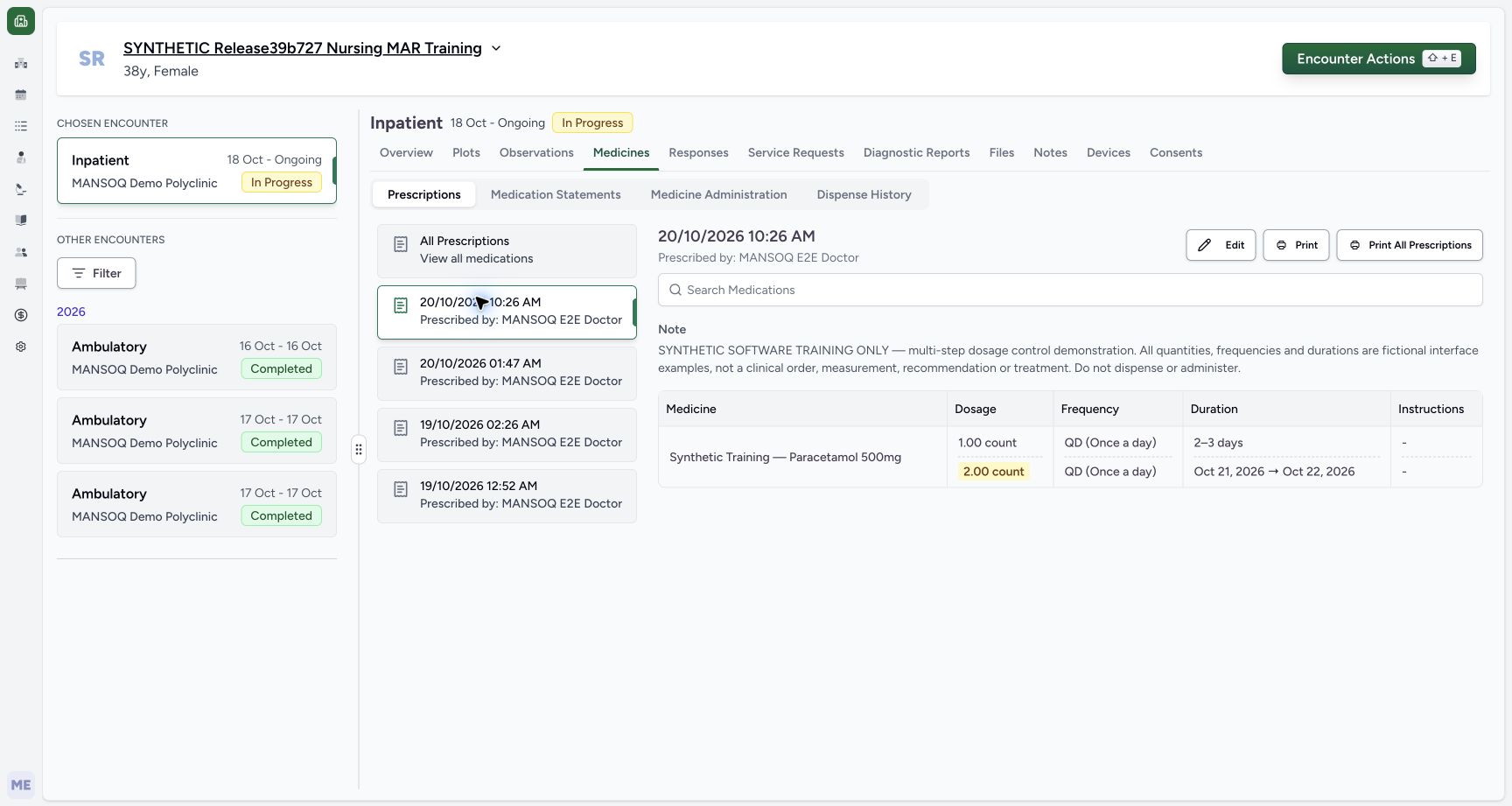 123456789
Exact saved prescription
Capture details
Observed committed 3dfb software on 20 October 2026. Software-only examples; no dispensing or administration. Original pixels and actual capture times retained.
Image SHA-256 9132d07574c6f90753cbce21de324006df741a821e21038daa749467fa557db7
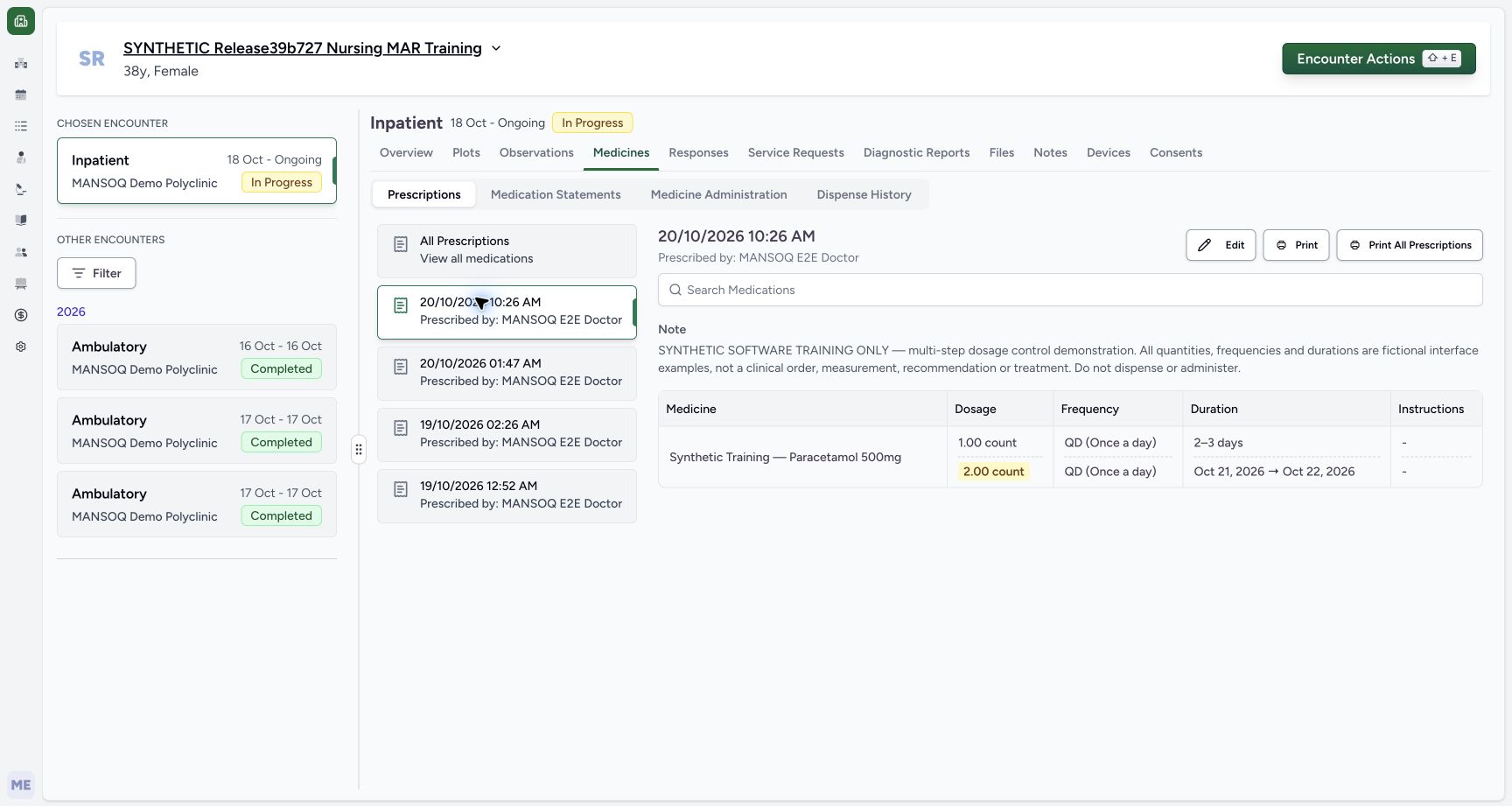
- Verify the selected new prescription: The selected card is 20/10/2026 10:26 AM.
- Read the prescriber: The detail header names MANSOQ E2E Doctor.
- Read the complete shared note: The note explicitly identifies fictional software controls and says not to dispense or administer.
- Read first saved dose 1.00 count: The temporary dose range was cleared and restored before submission.
- Read first saved QD: Frequency is shown separately from dose.
- Read the saved 2–3 days: The first duration is a range of days.
- Read second saved dose 2.00 count: The second instruction is a separate row.
- Read October 21, 2026 → October 22, 2026: The saved summary shows the full fixed-date range.
- Locate Edit for later inspection: Use this only after checking the normal reload in the next step.
17 of 17 content blocks have reviewed image alignment.
Before you begin
- Continue the same unsaved draft from Build two dosage instructions with different duration controls. It contains the synthetic product, two QD instructions, the 2–3 day range, fixed October 21–22 dates and the shared software-only note.
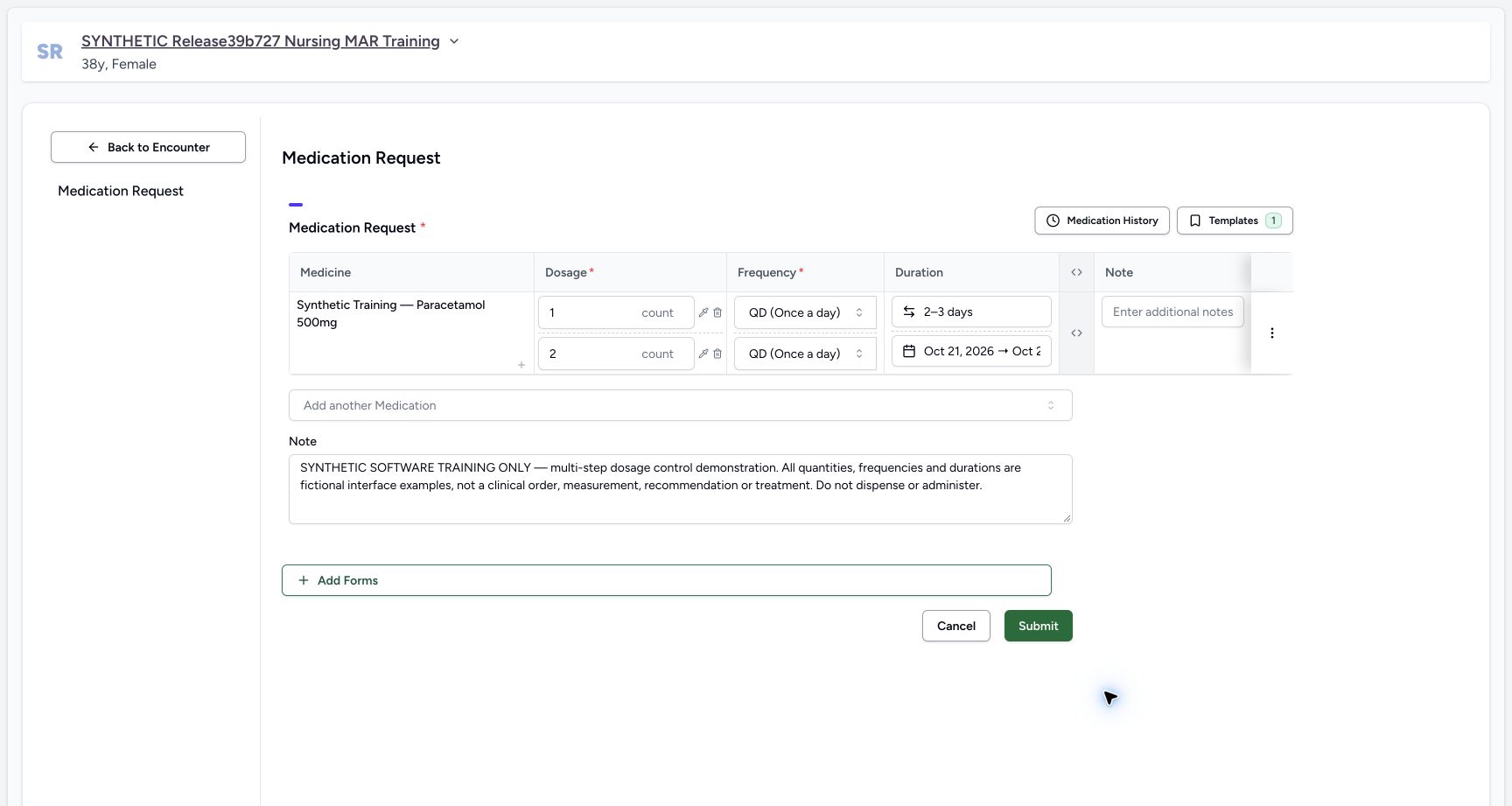 12
12Recorded release 3dfb7c9f · 2026-10-20T07:22:14.582Z · 1728 × 921 Two duration bound types
Capture details
Observed committed 3dfb software on 20 October 2026. Software-only examples; no dispensing or administration. Original pixels and actual capture times retained.
Image SHA-256
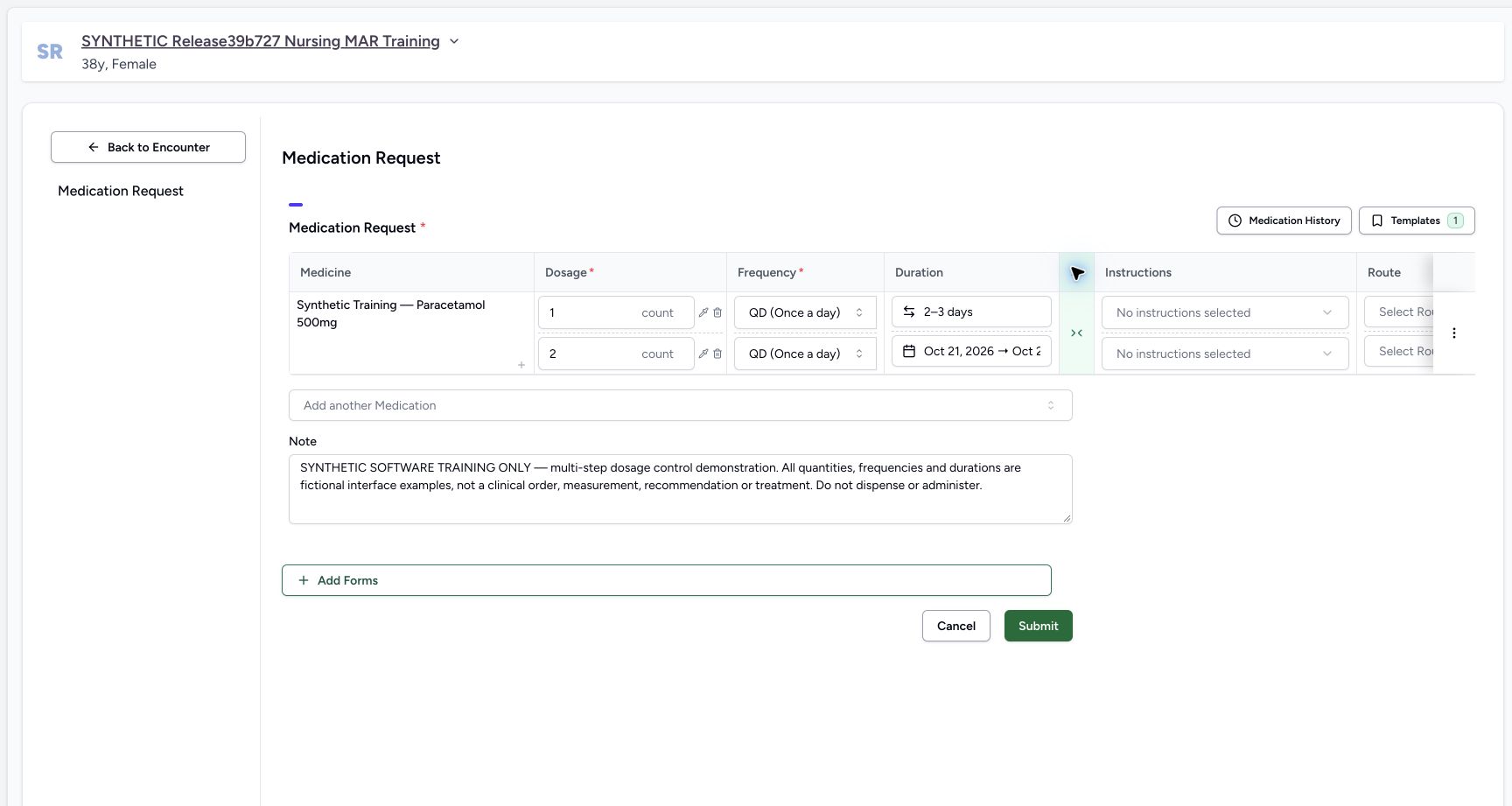
b9e9e897509764c86a8abb3311a6c2eb2e91e23207d8c018ab54a40d65b274be- Review the first duration type: The first instruction remains a 2–3 day range.
- Review the second duration type: The second instruction is a fixed-date range; the end is clipped here, so use the full calendar or saved summary to read it.
- Use the assigned fictional patient and intended ongoing encounter. Only the ordinary Doctor prescribing flow is demonstrated. All quantities, frequency and dates are interface examples; do not dispense or administer them.
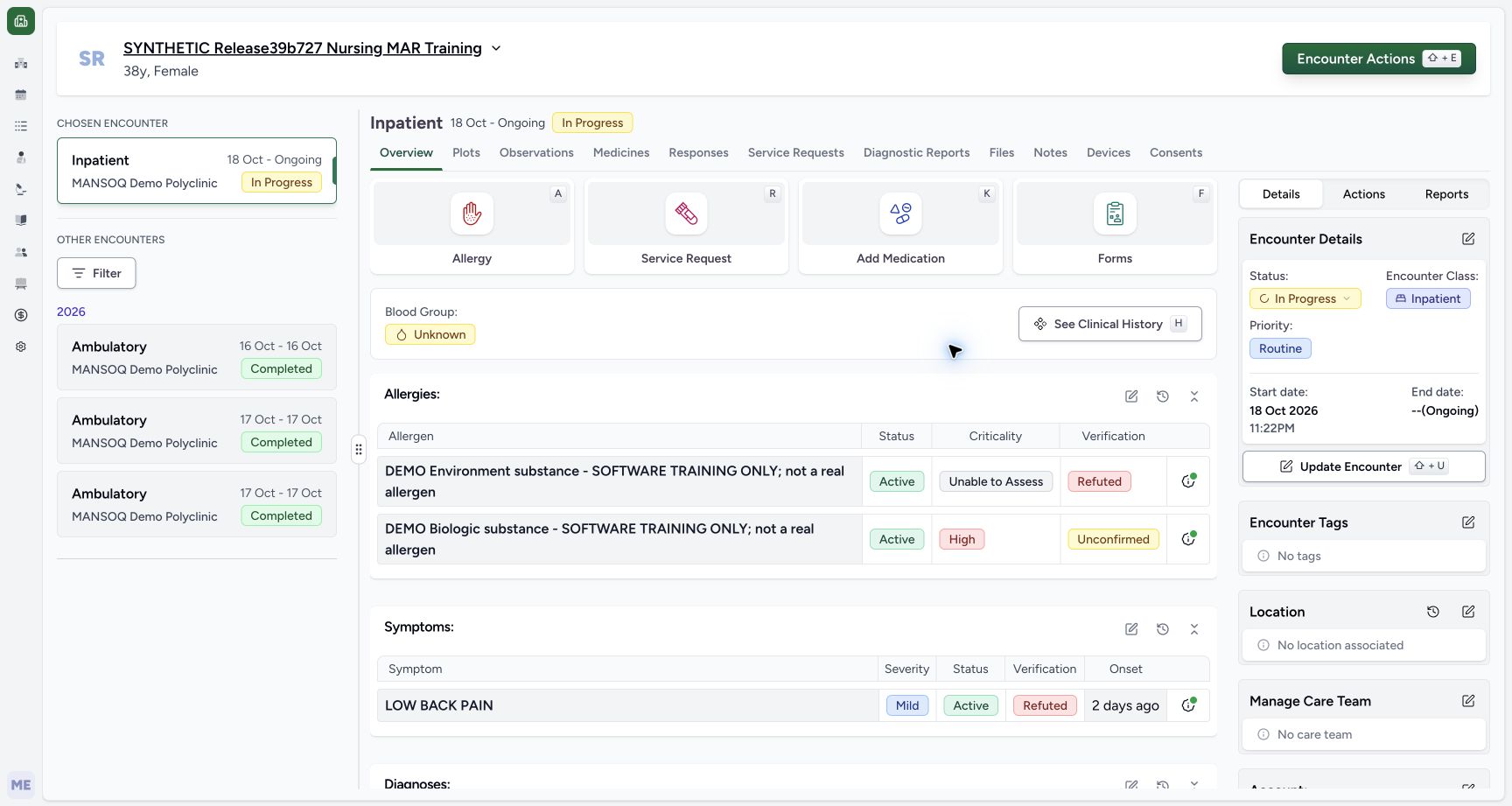 123
123Recorded release 3dfb7c9f · 2026-10-20T07:17:32.402Z · 1728 × 921 Overview entry
Capture details
Observed committed 3dfb software on 20 October 2026. Software-only examples; no dispensing or administration. Original pixels and actual capture times retained.
Image SHA-256
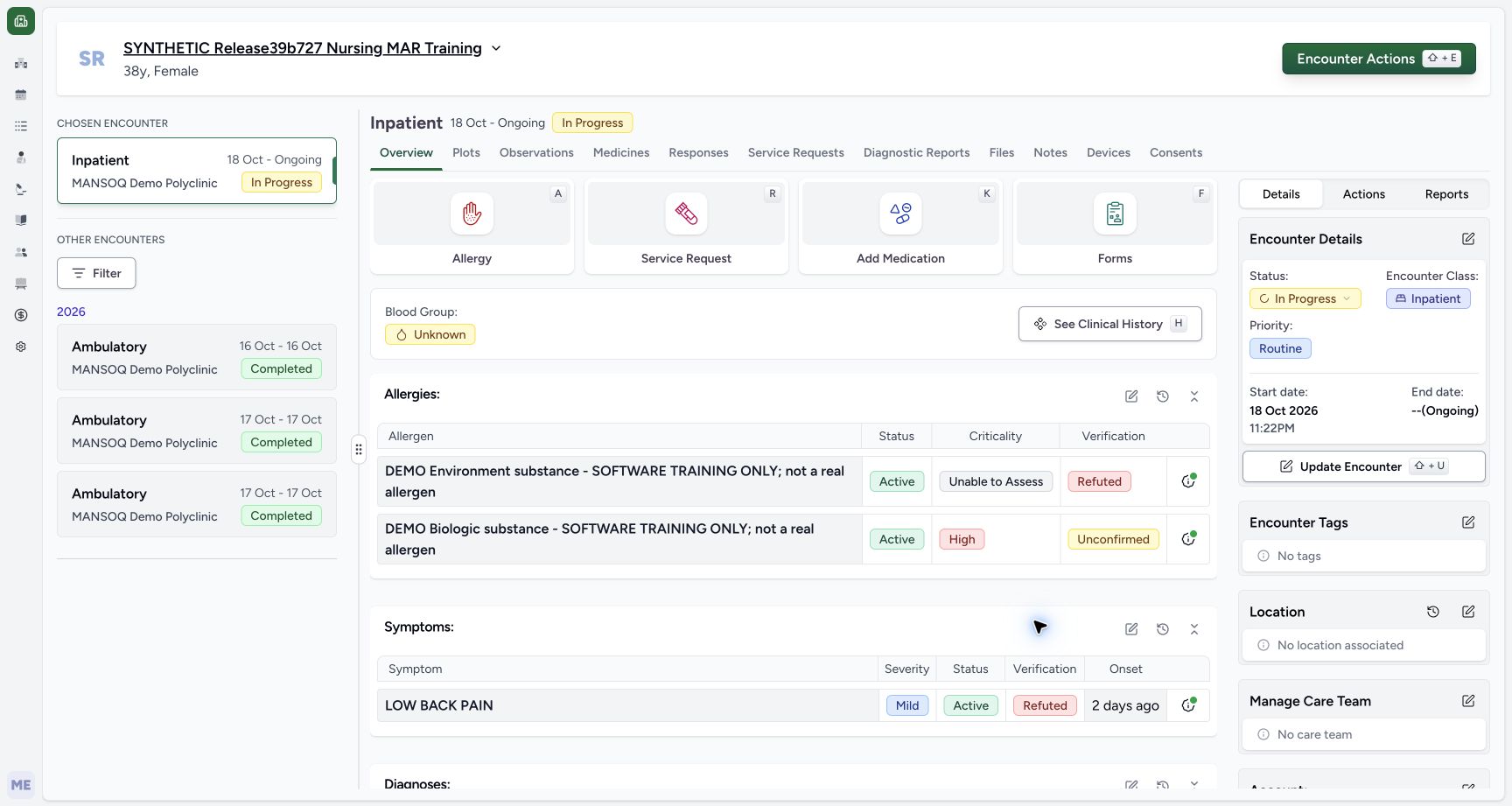
d650b8a5d767db16ce75c818083ab54347162e3ea678ff47df31c4a30f30df0c- Verify the fictional patient: Check the synthetic patient banner before opening the form.
- Verify the selected ongoing encounter: The selected Inpatient encounter is In Progress.
- Open Add Medication: Use this encounter action to open Medication Request.
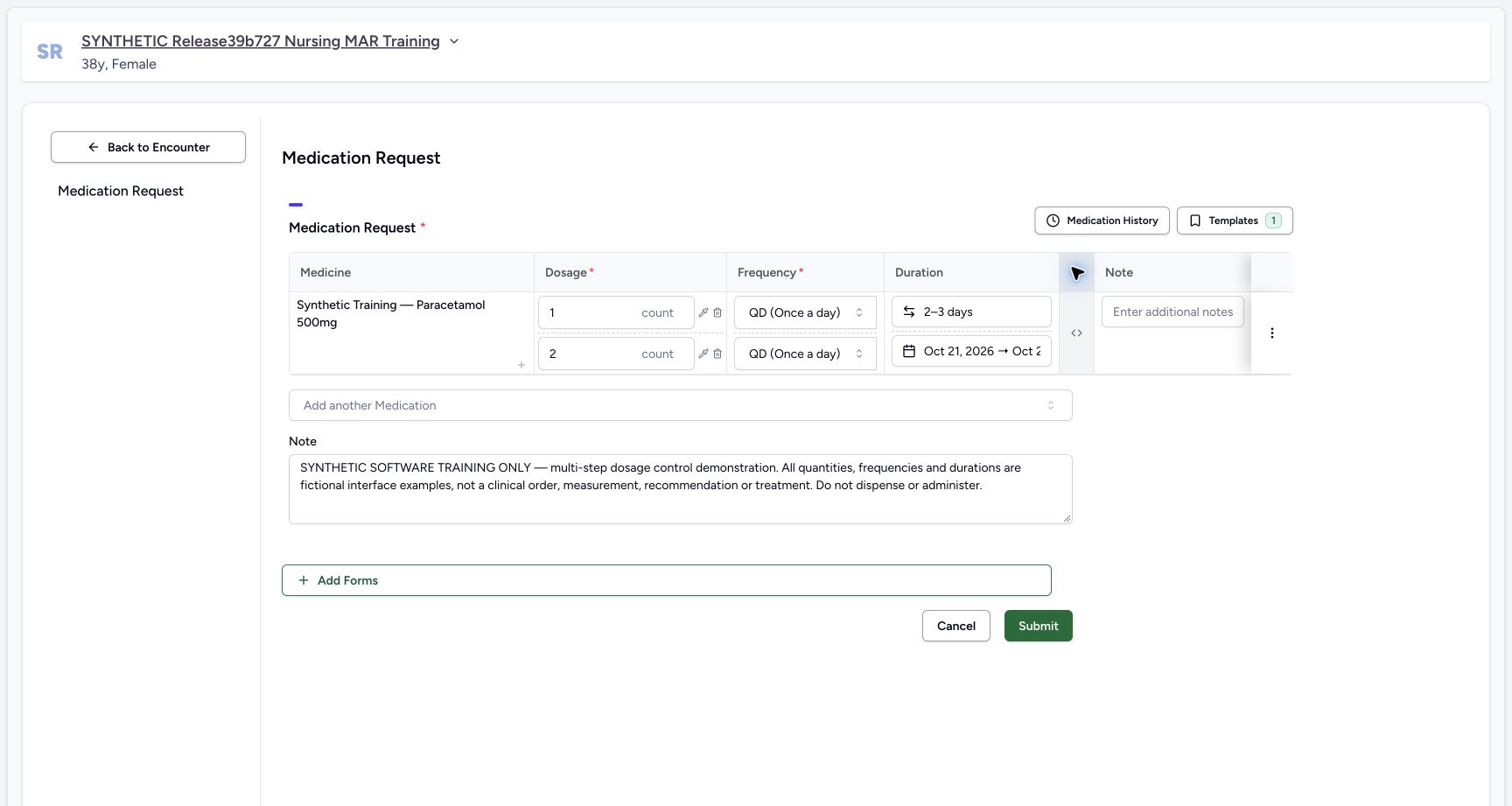 123456
Recorded release 3dfb7c9f · 2026-10-20T07:26:18.423Z · 1728 × 921 Final two step submit review
Capture details
Observed committed 3dfb software on 20 October 2026. Software-only examples; no dispensing or administration. Original pixels and actual capture times retained.
Image SHA-256
d4e7bfd35b46657eefa26f996706fe47d39e0779bdec15847cf6de7a92dcad47- Review final first dose: The saved example will use the restored 1 count, not the temporary range.
- Review final second dose: The second instruction remains 2 count.
- Check first-step QD: Check frequency independently on both lines.
- Check the 2–3 day duration: The first line uses a range of days.
- Read the complete software-only note: Review the shared prescription note before submission.
- Choose Submit once: This saves the reviewed prescription; it is distinct from earlier popup Save and Done.
- Popup Save and Done update the draft. The whole prescription is saved only by the final Submit. After that save, use the new prescription card for inspection rather than creating or submitting a second copy.
 123
123Recorded release 3dfb7c9f · 2026-10-20T07:22:43.293Z · 1728 × 921 Range popup review
Capture details
Observed committed 3dfb software on 20 October 2026. Software-only examples; no dispensing or administration. Original pixels and actual capture times retained.
Image SHA-256
c87f9521a03622caad8ba17ba561914aef49c6cf840bf9d85dc95c1a70ec86a7- Check Start Dose 1 count: Review the first endpoint.
- Check End Dose 2 count: Review the second endpoint.
- Choose popup Save: Apply the range to the draft instruction.
123456Recorded release 3dfb7c9f · 2026-10-20T07:26:18.423Z · 1728 × 921 Final two step submit review
Capture details
Observed committed 3dfb software on 20 October 2026. Software-only examples; no dispensing or administration. Original pixels and actual capture times retained.
Image SHA-256
d4e7bfd35b46657eefa26f996706fe47d39e0779bdec15847cf6de7a92dcad47- Review final first dose: The saved example will use the restored 1 count, not the temporary range.
- Review final second dose: The second instruction remains 2 count.
- Check first-step QD: Check frequency independently on both lines.
- Check the 2–3 day duration: The first line uses a range of days.
- Read the complete software-only note: Review the shared prescription note before submission.
- Choose Submit once: This saves the reviewed prescription; it is distinct from earlier popup Save and Done.
123456789Recorded release 3dfb7c9f · 2026-10-20T07:27:24.955Z · 1728 × 921 Exact saved prescription
Capture details
Observed committed 3dfb software on 20 October 2026. Software-only examples; no dispensing or administration. Original pixels and actual capture times retained.
Image SHA-256
9132d07574c6f90753cbce21de324006df741a821e21038daa749467fa557db7- Verify the selected new prescription: The selected card is 20/10/2026 10:26 AM.
- Read the prescriber: The detail header names MANSOQ E2E Doctor.
- Read the complete shared note: The note explicitly identifies fictional software controls and says not to dispense or administer.
- Read first saved dose 1.00 count: The temporary dose range was cleared and restored before submission.
- Read first saved QD: Frequency is shown separately from dose.
- Read the saved 2–3 days: The first duration is a range of days.
- Read second saved dose 2.00 count: The second instruction is a separate row.
- Read October 21, 2026 → October 22, 2026: The saved summary shows the full fixed-date range.
- Locate Edit for later inspection: Use this only after checking the normal reload in the next step.
1. Open the first dose’s range editor
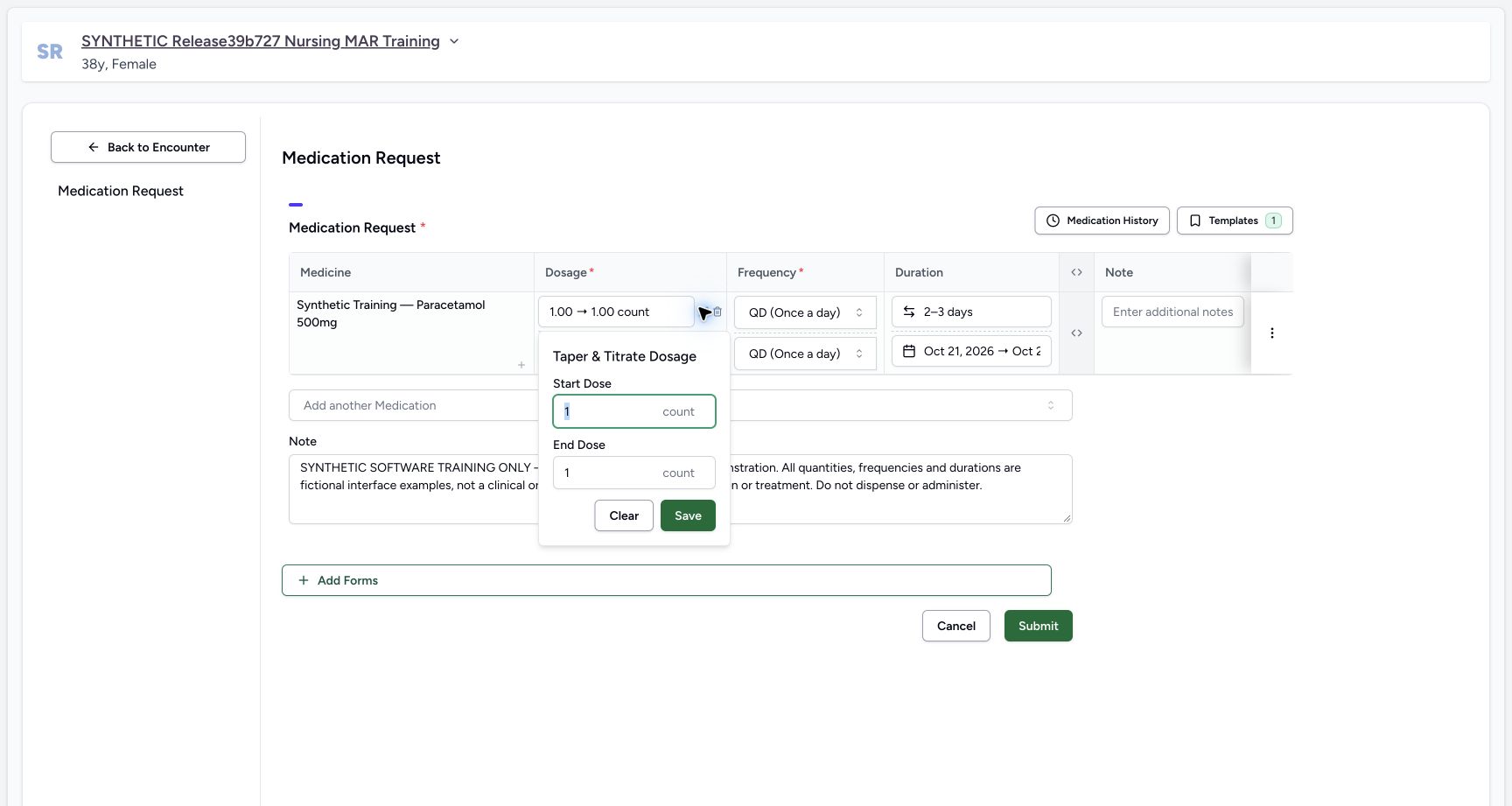
On the first dosage line select the pipette beside 1 count. The Taper & Titrate Dosage popup opens with Start Dose 1 count and End Dose 1 count. In this release opening the popup already converts the quantity to an equal-endpoint range in the draft. The popup title does not make these fictional values a clinical taper plan.
12Two duration bound types
Capture details
Observed committed 3dfb software on 20 October 2026. Software-only examples; no dispensing or administration. Original pixels and actual capture times retained.
Image SHA-256 b9e9e897509764c86a8abb3311a6c2eb2e91e23207d8c018ab54a40d65b274be
- Review the first duration type: The first instruction remains a 2–3 day range.
- Review the second duration type: The second instruction is a fixed-date range; the end is clipped here, so use the full calendar or saved summary to read it.
 1234
1234Pipette range editor
Capture details
Observed committed 3dfb software on 20 October 2026. Software-only examples; no dispensing or administration. Original pixels and actual capture times retained.
Image SHA-256 72a7627bd208f2b3a41629735769106e55ea1848dfa857f0dc989ab33cafe53e
- Open the first-step pipette: This earlier quantity is converted to a range in the draft when the popup opens.
- Read Start Dose 1 count: The popup is initially seeded from the existing single quantity.
- Read End Dose 1 count: The initial range has equal endpoints before you change the end.
- Locate popup Save: This applies dose-range popup values to the draft, not the entire prescription.
2. Apply a temporary 1-to-2 count range
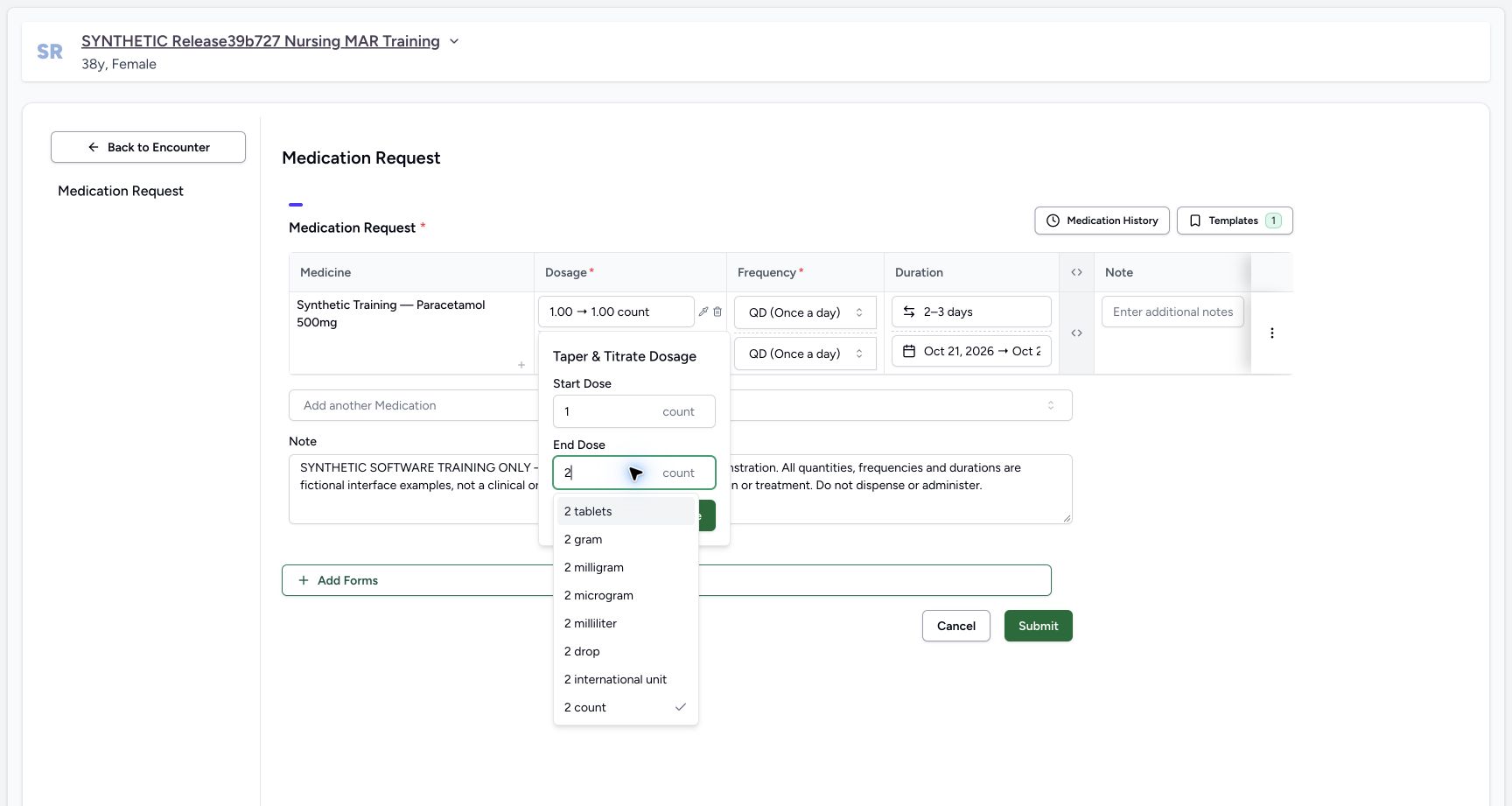
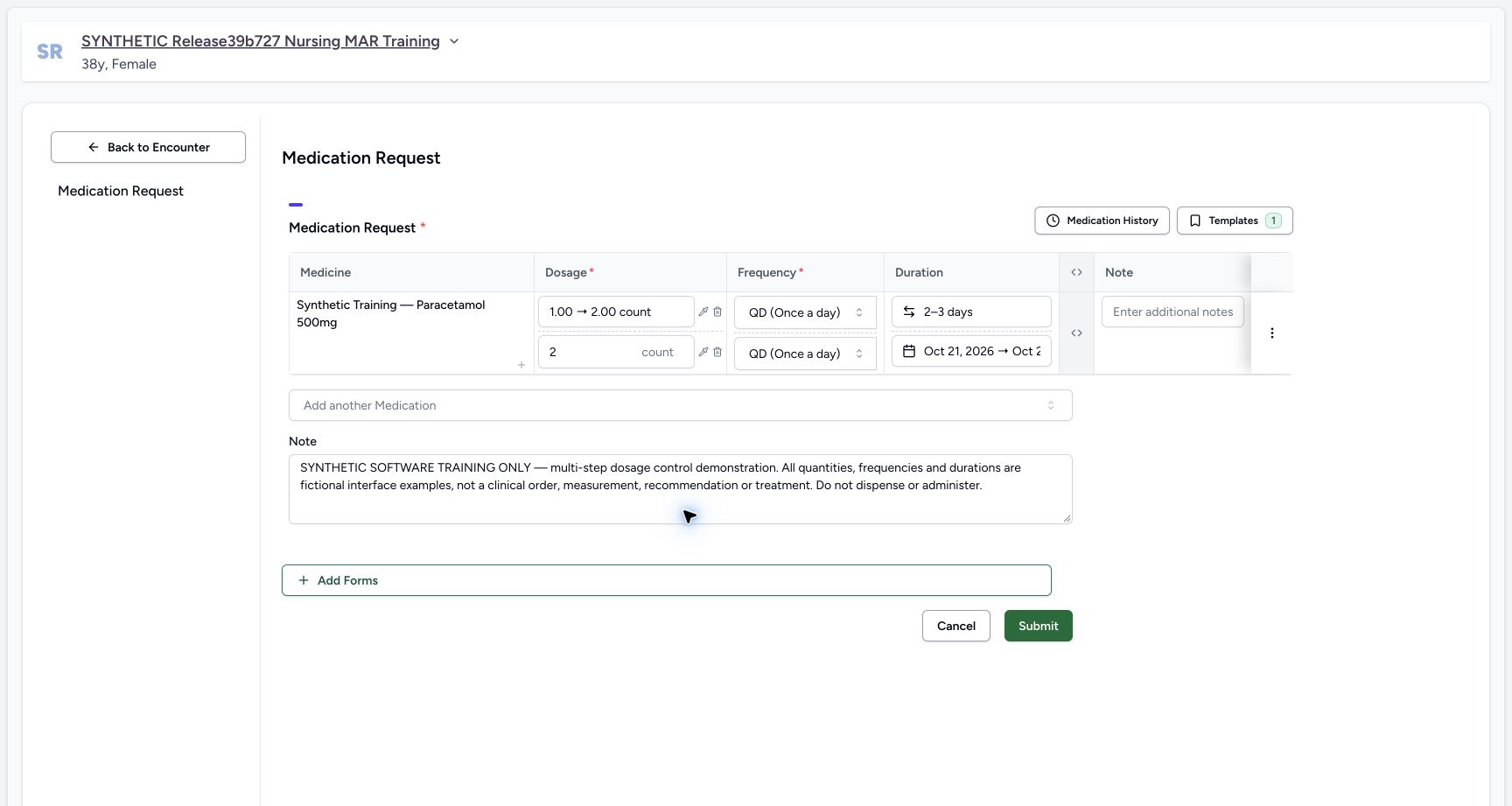
Keep Start Dose 1 count. Enter 2 in End Dose and explicitly select 2 count. Review both endpoints, then choose the popup Save. The first line now shows 1.00 → 2.00 count. This has changed the draft only; do not select the form’s Submit yet.
 12
12Range end unit options
Capture details
Observed committed 3dfb software on 20 October 2026. Software-only examples; no dispensing or administration. Original pixels and actual capture times retained.
Image SHA-256 0be43d01d931f2ff541964aa3298f30aa02a09a7e1314828ad7495d855f7fda3
- Enter End Dose 2: Edit the End Dose field in the popup.
- Choose 2 count for End Dose: Select the count option explicitly; Start Dose remains 1 count.
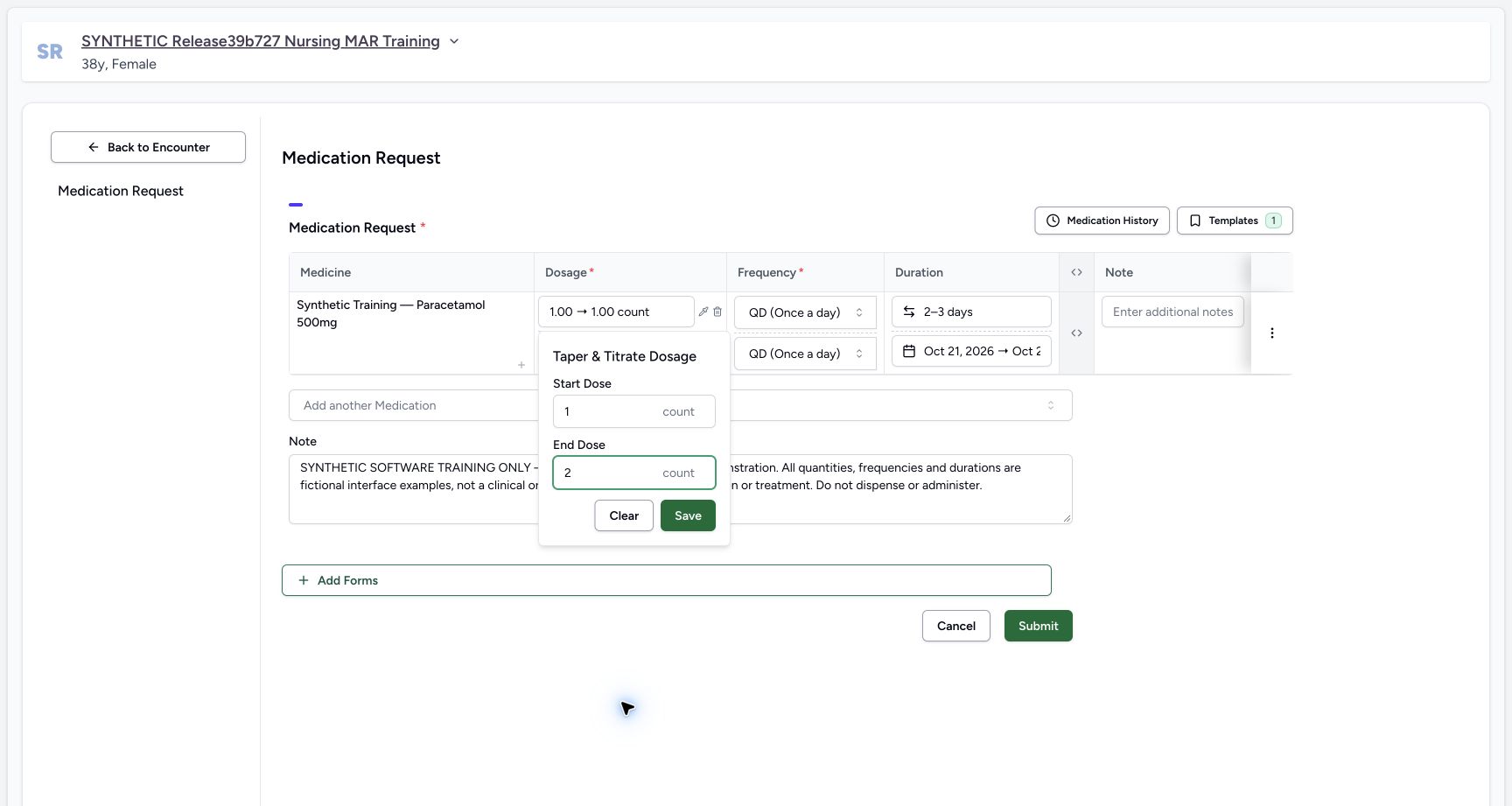
123Range popup review
Capture details
Observed committed 3dfb software on 20 October 2026. Software-only examples; no dispensing or administration. Original pixels and actual capture times retained.
Image SHA-256 c87f9521a03622caad8ba17ba561914aef49c6cf840bf9d85dc95c1a70ec86a7
- Check Start Dose 1 count: Review the first endpoint.
- Check End Dose 2 count: Review the second endpoint.
- Choose popup Save: Apply the range to the draft instruction.
 12
12Range applied draft
Capture details
Observed committed 3dfb software on 20 October 2026. Software-only examples; no dispensing or administration. Original pixels and actual capture times retained.
Image SHA-256 d521102fad90406439c3db0188f3c14264013497526fd9943afd3957c8279a3c
- Read the applied 1.00 → 2.00 count range: This is a temporary draft dose-range exercise.
- Reopen the range popup: Use the pipette again to inspect or clear it.
3. Reopen and clear the temporary dose range
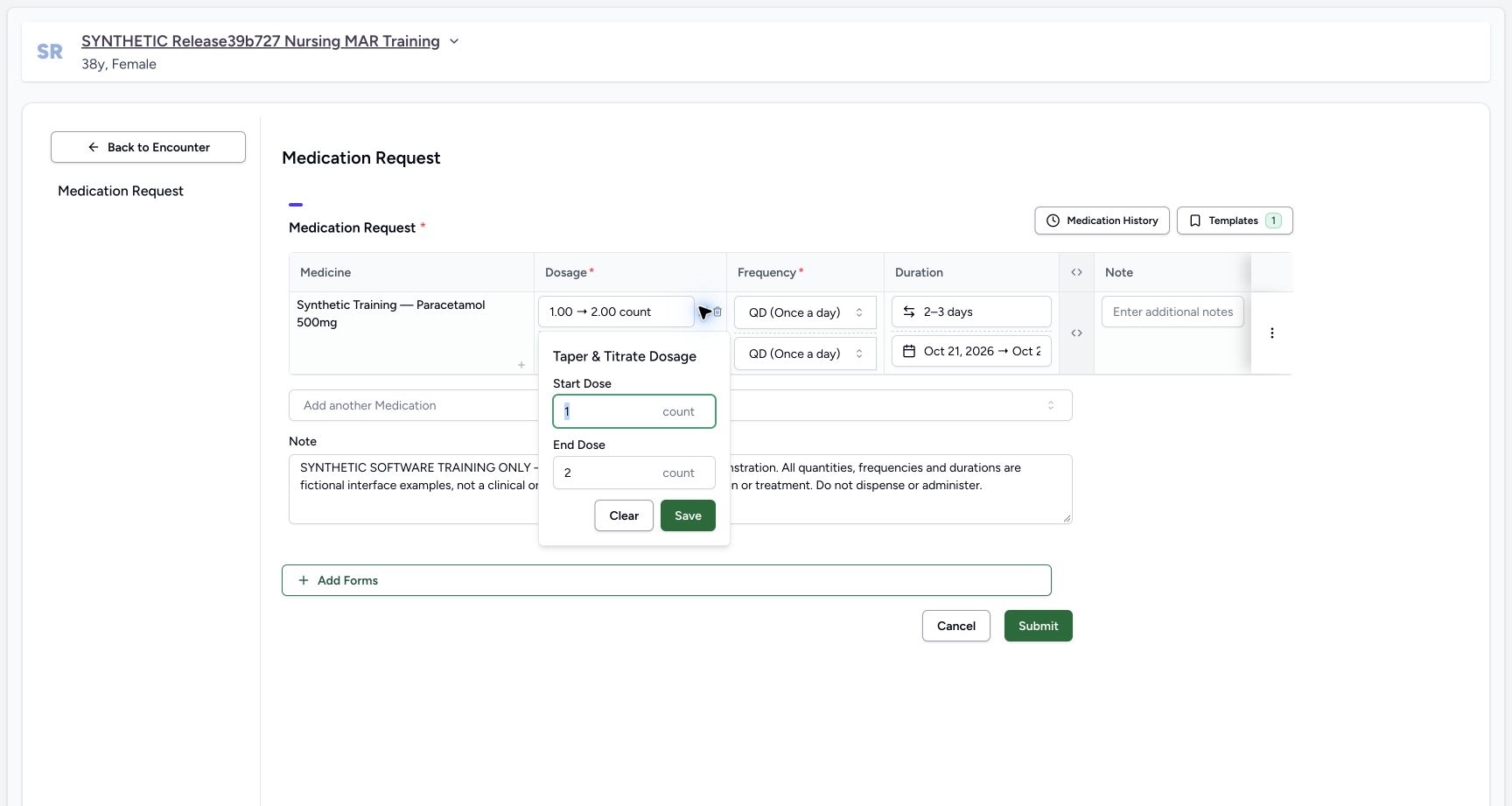
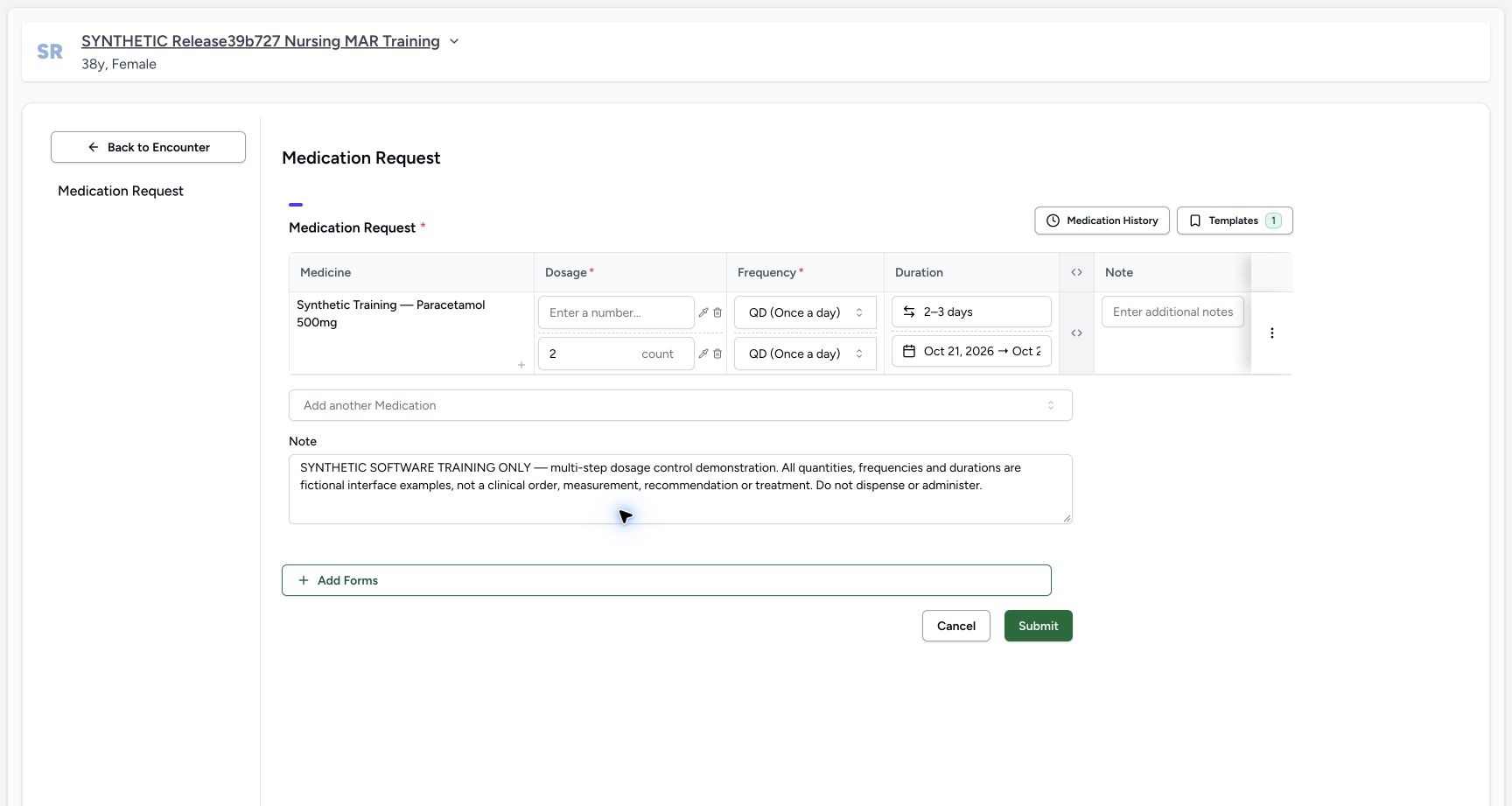
Use the first line’s pipette again. Check that Start Dose is 1 count and End Dose is 2 count, then choose Clear. The first dosage field becomes empty. QD and the 2–3 day duration remain. Clear removes the dose value; it does not restore the old single quantity.
12Range applied draft
Capture details
Observed committed 3dfb software on 20 October 2026. Software-only examples; no dispensing or administration. Original pixels and actual capture times retained.
Image SHA-256 d521102fad90406439c3db0188f3c14264013497526fd9943afd3957c8279a3c
- Read the applied 1.00 → 2.00 count range: This is a temporary draft dose-range exercise.
- Reopen the range popup: Use the pipette again to inspect or clear it.
 123
123Reopened dose range clear
Capture details
Observed committed 3dfb software on 20 October 2026. Software-only examples; no dispensing or administration. Original pixels and actual capture times retained.
Image SHA-256 c43dec666d39f37555be031a8fb20a9b802bed99d1636754351f062352ba54cb
- Read the reopened Start Dose: The applied range is retained in the popup.
- Read the reopened End Dose: The end remains 2 count.
- Choose Clear: Clear removes the entire dose value; it does not restore the previous single quantity.
 12345
12345Clear leaves dose empty
Capture details
Observed committed 3dfb software on 20 October 2026. Software-only examples; no dispensing or administration. Original pixels and actual capture times retained.
Image SHA-256 5fb5eddd832e8ee4d9f5850dbd8fee8bcb29b18176c96a13026e462bd48532c8
- Observe the empty first dose: Clear has left the first dosage input blank.
- Check retained first frequency: QD remains despite clearing the dose.
- Check retained first duration: The 2–3 day range remains.
- Restore 1 count before continuing: Enter 1 again and explicitly retain count; the next view shows the restored quantity.
- Locate the add-step plus before the extra line: After restoring the first dose to 1 count, use this plus to add the extra empty instruction. This earlier clear-state view shows the same control before that addition.
4. Restore the single dose and remove an extra empty step
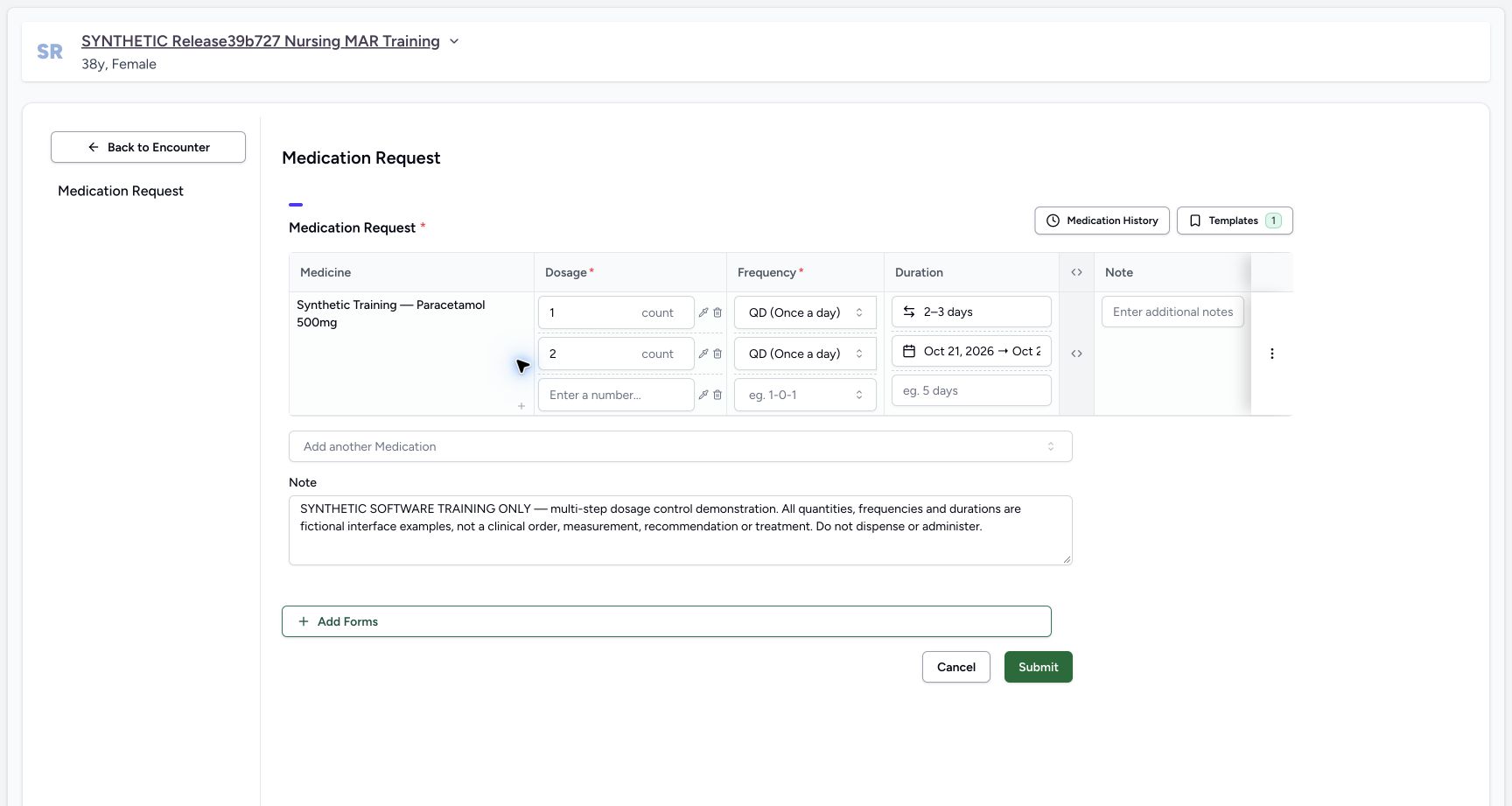
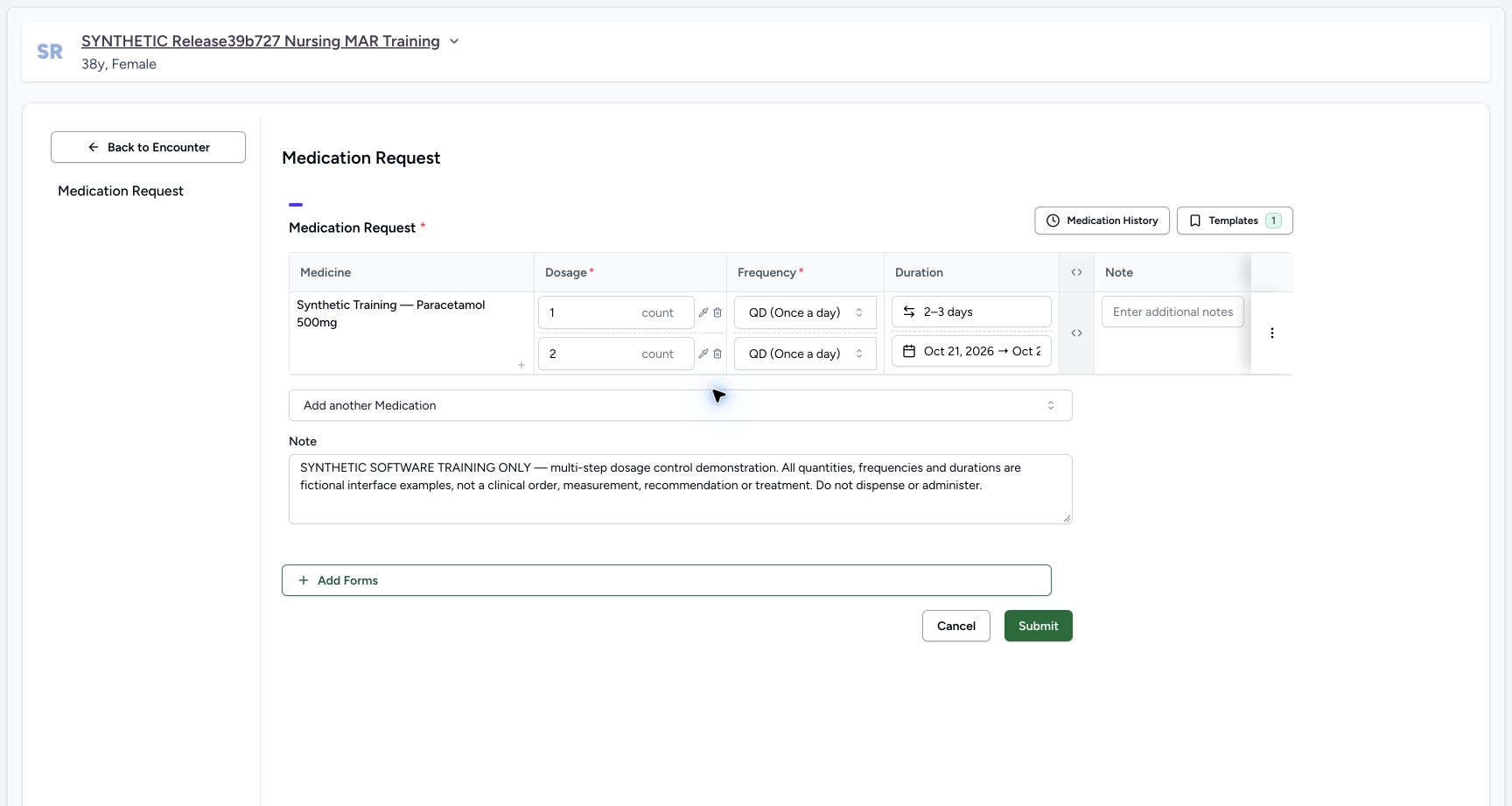
Enter 1 in the now-empty first Dosage field and explicitly retain count. Use the small plus beneath the product once more to add a third empty instruction. Select that third line’s trash icon to remove only the empty step. Check that exactly the two intended instructions remain. Do not use the product action menu at the far right.
12345Clear leaves dose empty
Capture details
Observed committed 3dfb software on 20 October 2026. Software-only examples; no dispensing or administration. Original pixels and actual capture times retained.
Image SHA-256 5fb5eddd832e8ee4d9f5850dbd8fee8bcb29b18176c96a13026e462bd48532c8
- Observe the empty first dose: Clear has left the first dosage input blank.
- Check retained first frequency: QD remains despite clearing the dose.
- Check retained first duration: The 2–3 day range remains.
- Restore 1 count before continuing: Enter 1 again and explicitly retain count; the next view shows the restored quantity.
- Locate the add-step plus before the extra line: After restoring the first dose to 1 count, use this plus to add the extra empty instruction. This earlier clear-state view shows the same control before that addition.
 123
123Third empty dosage step
Capture details
Observed committed 3dfb software on 20 October 2026. Software-only examples; no dispensing or administration. Original pixels and actual capture times retained.
Image SHA-256 a711f990c1b44647b627cf67c16ca558a0b5254753abeb975dd5cac15ba7c5a2
- Verify restored 1 count: The first instruction is restored to a single quantity.
- Locate the step plus: The same plus has added a third empty instruction for this exercise.
- Remove only the third empty step: Use this blank line’s trash control, not the product action menu at the right.
 123
123Two steps after removal
Capture details
Observed committed 3dfb software on 20 October 2026. Software-only examples; no dispensing or administration. Original pixels and actual capture times retained.
Image SHA-256 8211883f8758d42b5742e259cd858c3b70944cefcd8a7b94d215e0045c43eff7
- Verify the first remaining instruction: First dose is 1 count with QD and a 2–3 day range.
- Verify the second remaining instruction: Second dose is 2 count with QD and fixed dates.
- Expand advanced columns: Use the header chevrons to reveal additional fields.
5. Expand and read the advanced request fields
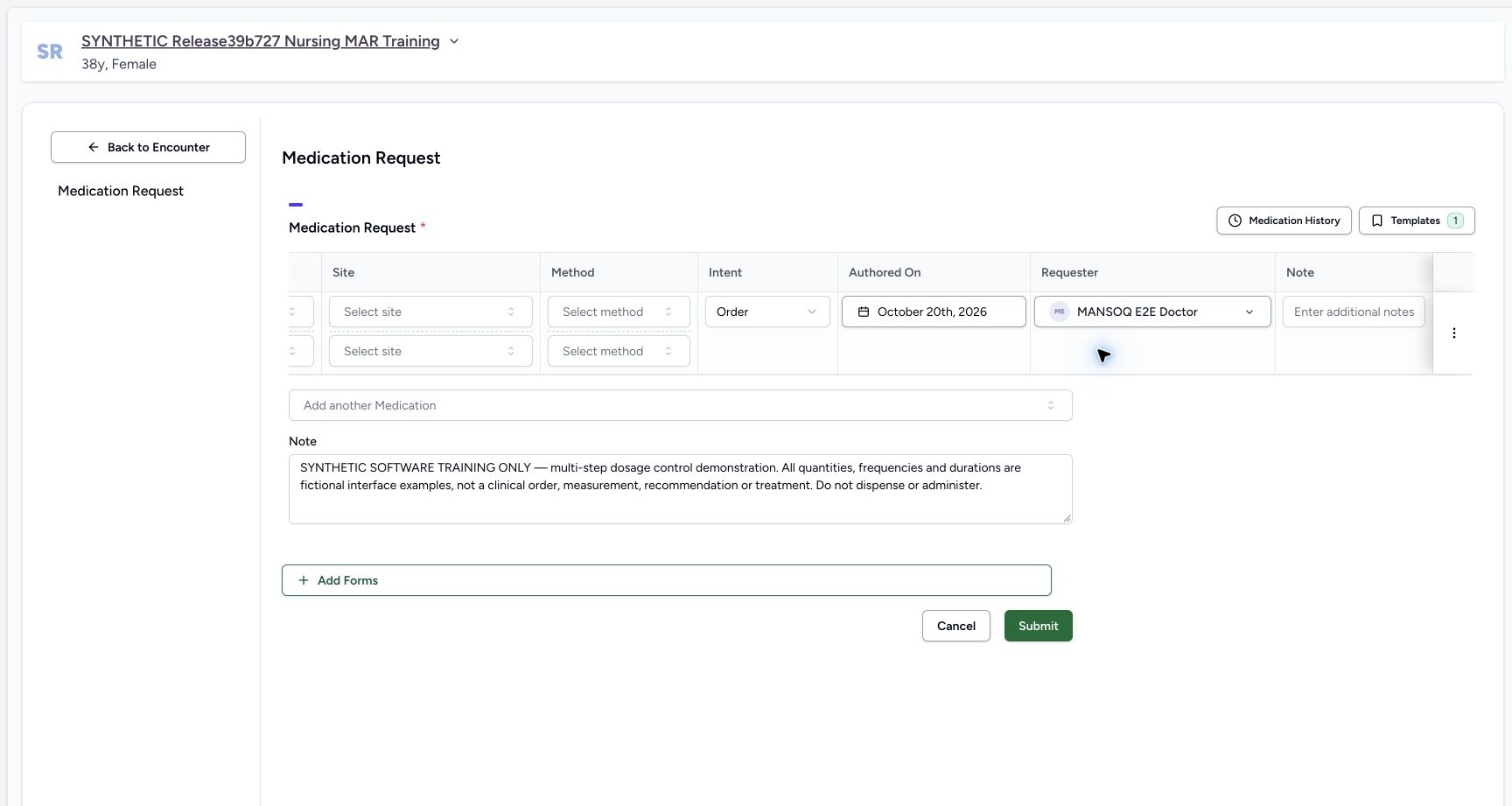
Select the table header’s chevrons to expand the advanced columns. Scroll the table horizontally to the right. Review Intent Order, Authored On October 20th, 2026 and Requester MANSOQ E2E Doctor without changing them. The right-scrolled picture is a separate view of the same draft. Scroll back left and use the header chevrons, illustrated in the earlier left view, to collapse the advanced columns.
123Two steps after removal
Capture details
Observed committed 3dfb software on 20 October 2026. Software-only examples; no dispensing or administration. Original pixels and actual capture times retained.
Image SHA-256 8211883f8758d42b5742e259cd858c3b70944cefcd8a7b94d215e0045c43eff7
- Verify the first remaining instruction: First dose is 1 count with QD and a 2–3 day range.
- Verify the second remaining instruction: Second dose is 2 count with QD and fixed dates.
- Expand advanced columns: Use the header chevrons to reveal additional fields.
 123
123Expand advanced fields
Capture details
Observed committed 3dfb software on 20 October 2026. Software-only examples; no dispensing or administration. Original pixels and actual capture times retained.
Image SHA-256 31f03f417d243aff9679fa82d29754c32cb95591d43b3af22fc4a648ee7adaba
- Locate the header chevrons: The header control expands or collapses advanced columns.
- Read the advanced instruction column: Additional columns are visible in this left view.
- Scroll the table horizontally to the right: Use a horizontal scroll within the table to reach Requester and Authored On; this is a separate view, not a stitched image.
 1234
1234Advanced requester authored date
Capture details
Observed committed 3dfb software on 20 October 2026. Software-only examples; no dispensing or administration. Original pixels and actual capture times retained.
Image SHA-256 58e5ac21b170c319d5afd72164010312129450c255dc7b533b941a48cf0f1580
- Read Intent Order: The request intent is Order in this example.
- Review Authored On October 20th, 2026: Review this displayed date without changing it.
- Review Requester MANSOQ E2E Doctor: Verify the intended prescriber before the final submission.
- Scroll back to the dosage columns: Return left within this table, then use the earlier header chevron reference to collapse the advanced columns.
123456Final two step submit review
Capture details
Observed committed 3dfb software on 20 October 2026. Software-only examples; no dispensing or administration. Original pixels and actual capture times retained.
Image SHA-256 d4e7bfd35b46657eefa26f996706fe47d39e0779bdec15847cf6de7a92dcad47
- Review final first dose: The saved example will use the restored 1 count, not the temporary range.
- Review final second dose: The second instruction remains 2 count.
- Check first-step QD: Check frequency independently on both lines.
- Check the 2–3 day duration: The first line uses a range of days.
- Read the complete software-only note: Review the shared prescription note before submission.
- Choose Submit once: This saves the reviewed prescription; it is distinct from earlier popup Save and Done.
6. Review the final draft and Submit once
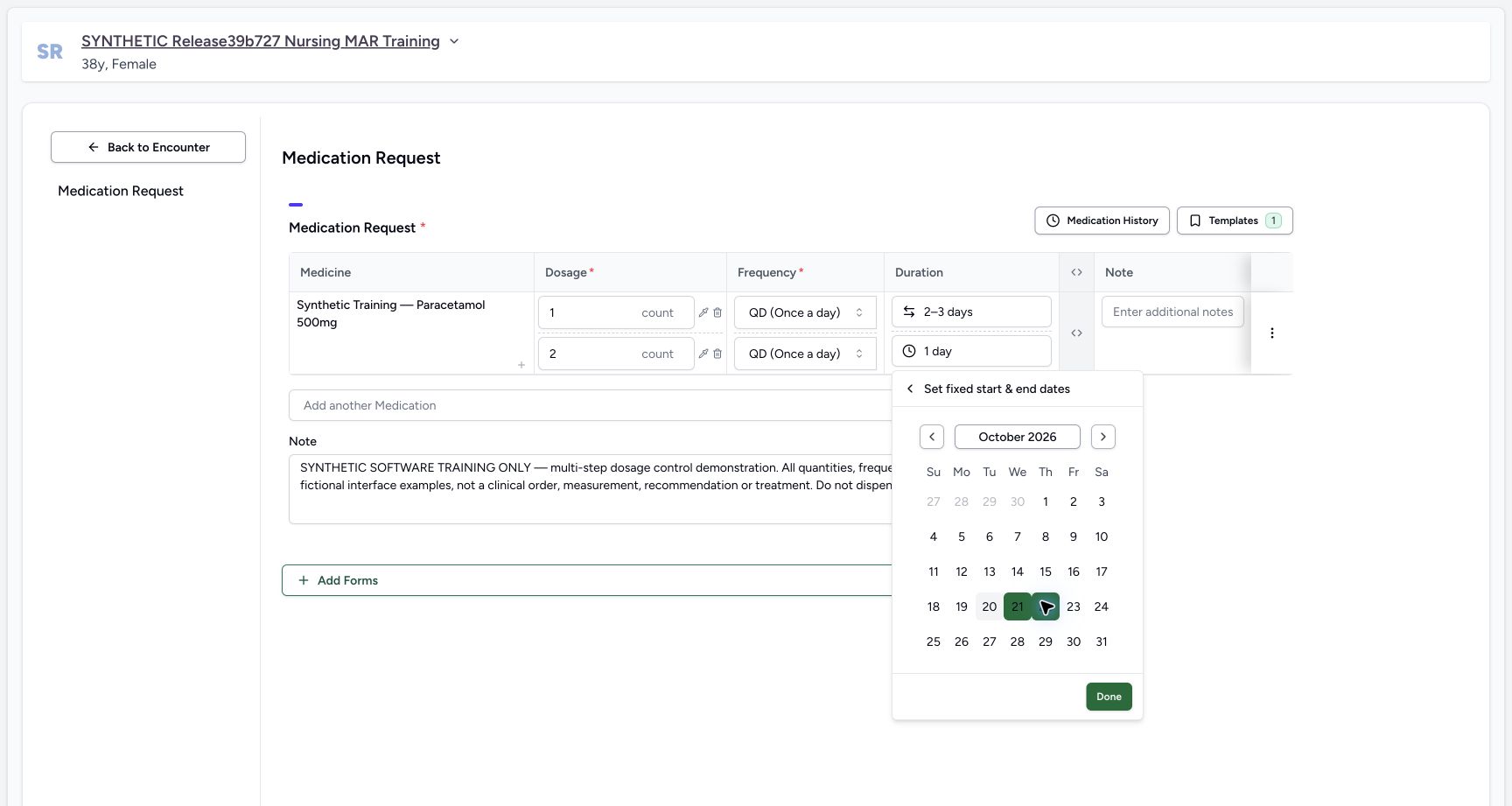
Review the restored first dose 1 count with QD and 2–3 days, and the second dose 2 count with QD and fixed October 21–22 dates. Use the earlier full calendar picture to check both fixed dates because the draft cell clips its end. Recheck the shared software-only note and the reviewed requester. Select the form’s Submit once, then wait for the return to Overview.
 123
123Fixed date range pending done
Capture details
Observed committed 3dfb software on 20 October 2026. Software-only examples; no dispensing or administration. Original pixels and actual capture times retained.
Image SHA-256 a123506108c6a0667893b5d60d66b2c35259df02be65b523abf6560c74128fce
- Read the selected October 21 start: The calendar shows the start of the selected fixed range.
- Read the selected October 22 end: The full calendar makes both dates visible.
- Choose Done for fixed dates: Apply the selected calendar range to the second draft instruction.
1234Advanced requester authored date
Capture details
Observed committed 3dfb software on 20 October 2026. Software-only examples; no dispensing or administration. Original pixels and actual capture times retained.
Image SHA-256 58e5ac21b170c319d5afd72164010312129450c255dc7b533b941a48cf0f1580
- Read Intent Order: The request intent is Order in this example.
- Review Authored On October 20th, 2026: Review this displayed date without changing it.
- Review Requester MANSOQ E2E Doctor: Verify the intended prescriber before the final submission.
- Scroll back to the dosage columns: Return left within this table, then use the earlier header chevron reference to collapse the advanced columns.
123456Final two step submit review
Capture details
Observed committed 3dfb software on 20 October 2026. Software-only examples; no dispensing or administration. Original pixels and actual capture times retained.
Image SHA-256 d4e7bfd35b46657eefa26f996706fe47d39e0779bdec15847cf6de7a92dcad47
- Review final first dose: The saved example will use the restored 1 count, not the temporary range.
- Review final second dose: The second instruction remains 2 count.
- Check first-step QD: Check frequency independently on both lines.
- Check the 2–3 day duration: The first line uses a range of days.
- Read the complete software-only note: Review the shared prescription note before submission.
- Choose Submit once: This saves the reviewed prescription; it is distinct from earlier popup Save and Done.
 12
12Returned overview after submit
Capture details
Observed committed 3dfb software on 20 October 2026. Software-only examples; no dispensing or administration. Original pixels and actual capture times retained.
Image SHA-256 82d7901359080bd9bf1f8bcfddc0c959711bda5219446cc9f957d0f5c9a87259
- Open Medicines after returning: Wait for the return to Overview, then use Medicines to inspect the saved prescription.
- Verify the same encounter: The selected Inpatient encounter remains In Progress.
7. Select the newly saved prescription
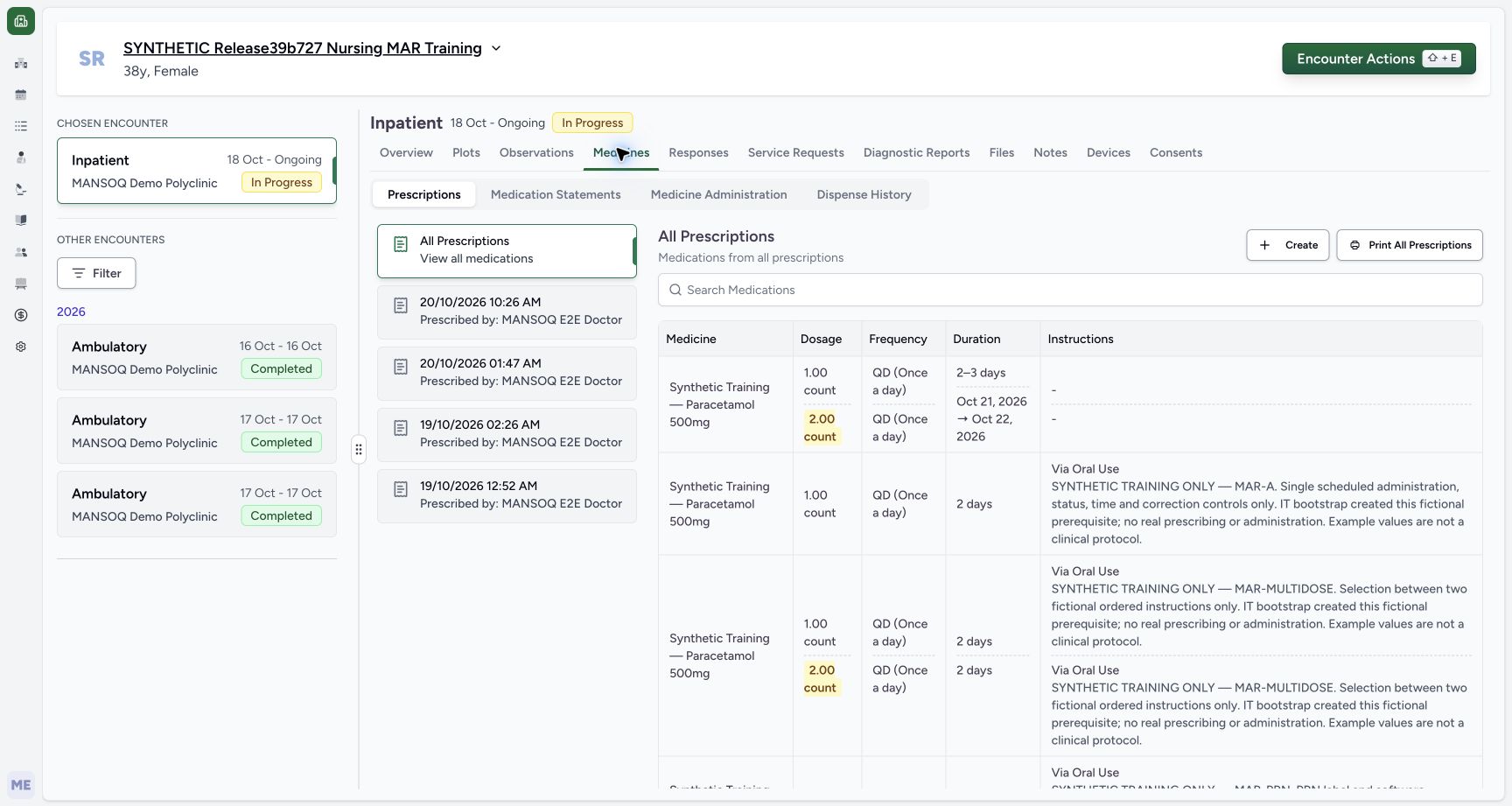
On the returned Overview select Medicines, keep Prescriptions selected, and inspect All Prescriptions. Select the new 20/10/2026 10:26 AM card prescribed by MANSOQ E2E Doctor. The older cards below are separate prescriptions. The selected card shows the shared note and both saved dosage instructions.
12Returned overview after submit
Capture details
Observed committed 3dfb software on 20 October 2026. Software-only examples; no dispensing or administration. Original pixels and actual capture times retained.
Image SHA-256 82d7901359080bd9bf1f8bcfddc0c959711bda5219446cc9f957d0f5c9a87259
- Open Medicines after returning: Wait for the return to Overview, then use Medicines to inspect the saved prescription.
- Verify the same encounter: The selected Inpatient encounter remains In Progress.
 1234
1234All prescriptions saved two steps
Capture details
Observed committed 3dfb software on 20 October 2026. Software-only examples; no dispensing or administration. Original pixels and actual capture times retained.
Image SHA-256 e096e039e94ac67f8658c70ad011f2cf09d39b896a81ea7c979e47d2fb8b6e0a
- Keep Prescriptions selected: Medicines opens the prescriptions area in this flow.
- Read All Prescriptions: This combines entries from separate saved prescription cards.
- Select the new 20/10/2026 10:26 AM card: Choose the exact new card, not an older prescription below.
- Read the two saved instruction rows: The new product has two dosage lines; older entries remain separate below.
123456789Exact saved prescription
Capture details
Observed committed 3dfb software on 20 October 2026. Software-only examples; no dispensing or administration. Original pixels and actual capture times retained.
Image SHA-256 9132d07574c6f90753cbce21de324006df741a821e21038daa749467fa557db7
- Verify the selected new prescription: The selected card is 20/10/2026 10:26 AM.
- Read the prescriber: The detail header names MANSOQ E2E Doctor.
- Read the complete shared note: The note explicitly identifies fictional software controls and says not to dispense or administer.
- Read first saved dose 1.00 count: The temporary dose range was cleared and restored before submission.
- Read first saved QD: Frequency is shown separately from dose.
- Read the saved 2–3 days: The first duration is a range of days.
- Read second saved dose 2.00 count: The second instruction is a separate row.
- Read October 21, 2026 → October 22, 2026: The saved summary shows the full fixed-date range.
- Locate Edit for later inspection: Use this only after checking the normal reload in the next step.
8. Reload and verify the same saved values
Use the browser’s Reload command once and wait for Medicines to load. Reselect the same 20/10/2026 10:26 AM prescription. Check 1.00 count / QD / 2–3 days on the first line and 2.00 count / QD / October 21, 2026 → October 22, 2026 on the second. Read the complete software-only note and Doctor prescriber. The temporary dose range is not the saved first dose.
123456789Exact saved prescription
Capture details
Observed committed 3dfb software on 20 October 2026. Software-only examples; no dispensing or administration. Original pixels and actual capture times retained.
Image SHA-256 9132d07574c6f90753cbce21de324006df741a821e21038daa749467fa557db7
- Verify the selected new prescription: The selected card is 20/10/2026 10:26 AM.
- Read the prescriber: The detail header names MANSOQ E2E Doctor.
- Read the complete shared note: The note explicitly identifies fictional software controls and says not to dispense or administer.
- Read first saved dose 1.00 count: The temporary dose range was cleared and restored before submission.
- Read first saved QD: Frequency is shown separately from dose.
- Read the saved 2–3 days: The first duration is a range of days.
- Read second saved dose 2.00 count: The second instruction is a separate row.
- Read October 21, 2026 → October 22, 2026: The saved summary shows the full fixed-date range.
- Locate Edit for later inspection: Use this only after checking the normal reload in the next step.
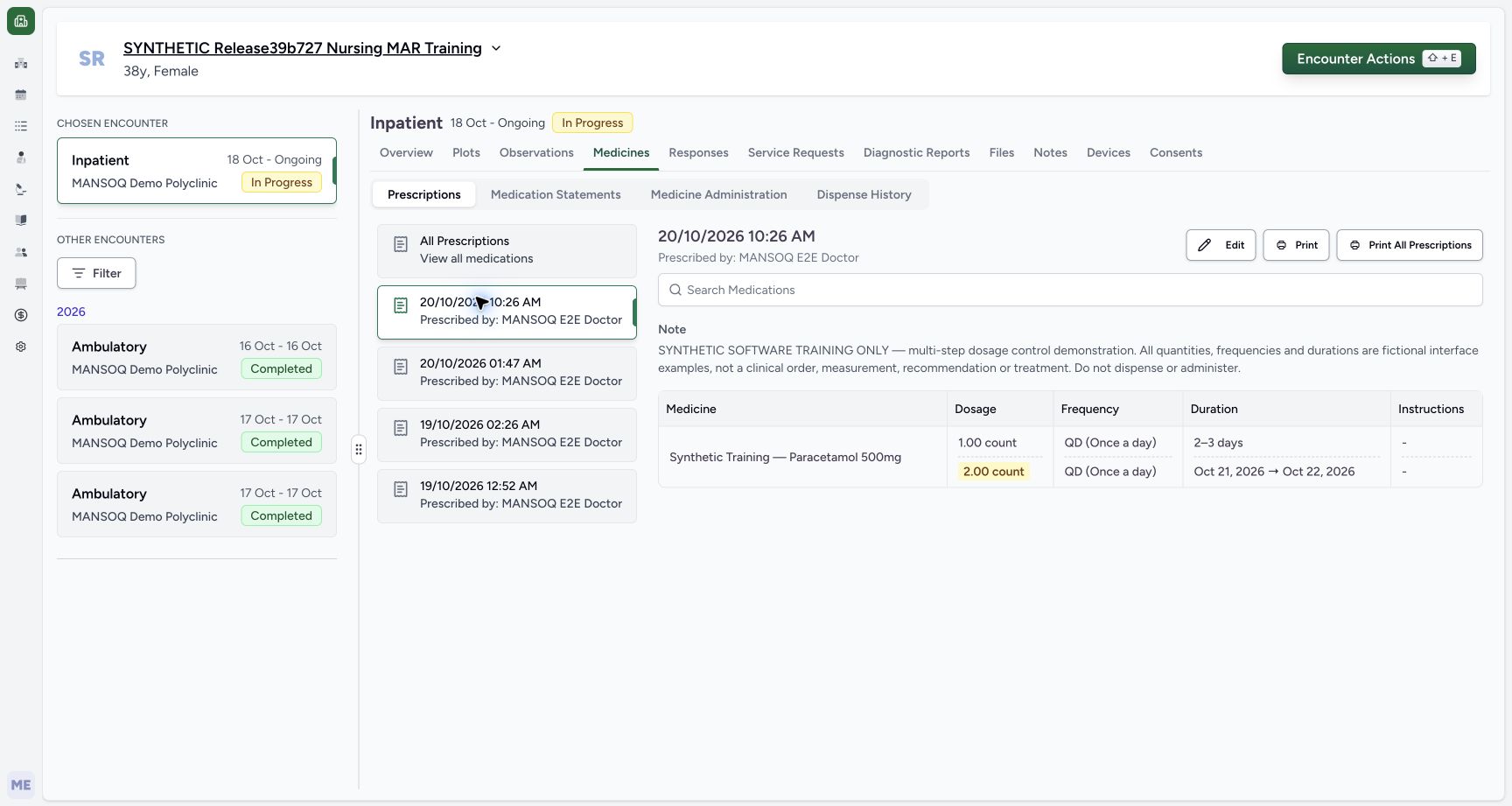 123
123Saved prescription after reload
Capture details
Observed committed 3dfb software on 20 October 2026. Software-only examples; no dispensing or administration. Original pixels and actual capture times retained.
Image SHA-256 9132d07574c6f90753cbce21de324006df741a821e21038daa749467fa557db7
- Reselect the same card after browser Reload: The same 10:26 AM prescription is selected after the ordinary reload.
- Verify the full fixed-date range again: Both dates remain visible after the reload.
- Choose Edit to inspect saved fields: Open the saved prescription without changing it.
9. Inspect the saved fields through Edit
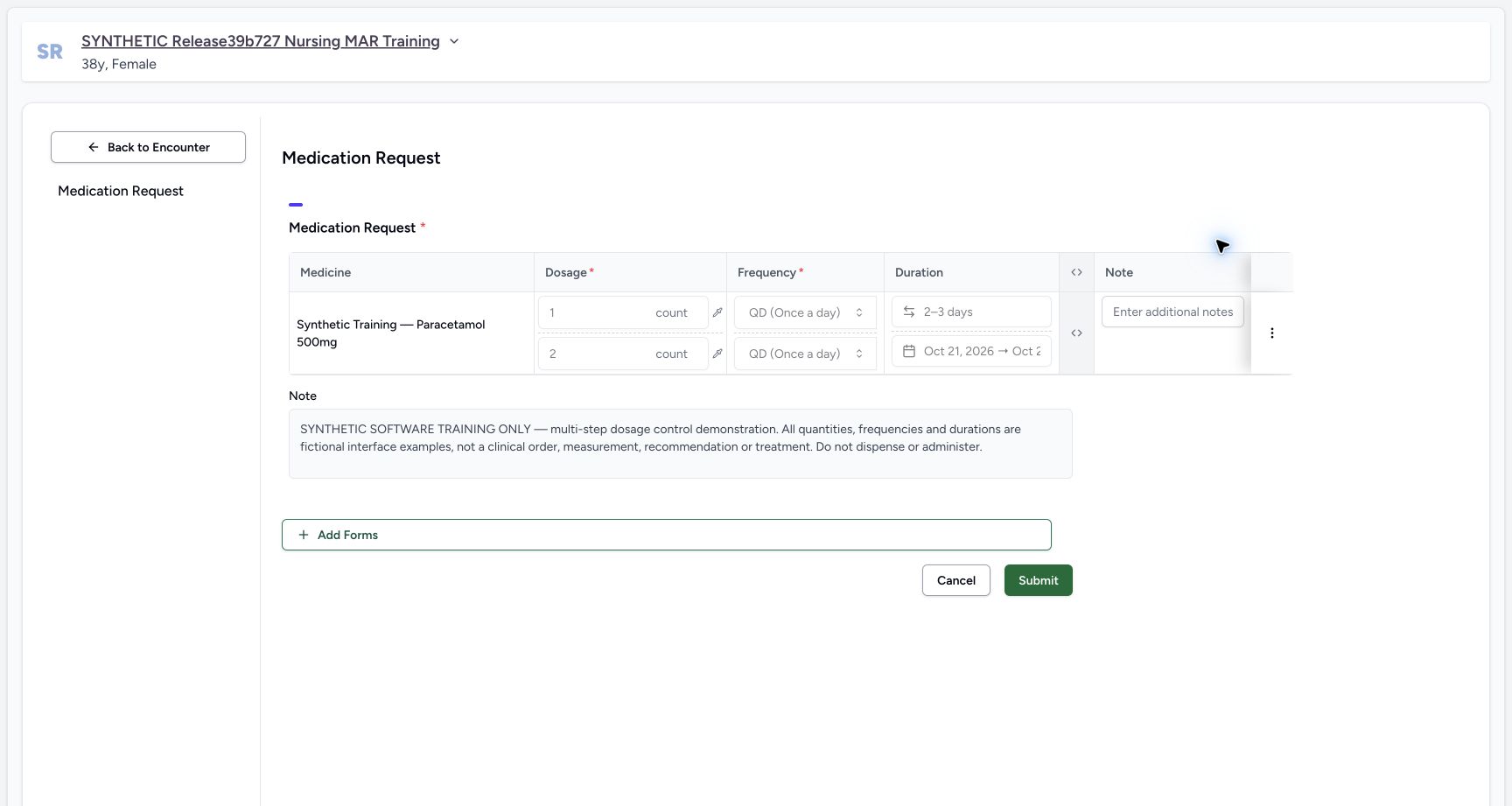
From that same selected prescription choose Edit. Read the two saved instructions. In this release the saved dosage, frequency and duration controls are disabled, and the shared prescription note is read-only. Do not force a value into them or submit this inspection. Choose Cancel.
123Saved prescription after reload
Capture details
Observed committed 3dfb software on 20 October 2026. Software-only examples; no dispensing or administration. Original pixels and actual capture times retained.
Image SHA-256 9132d07574c6f90753cbce21de324006df741a821e21038daa749467fa557db7
- Reselect the same card after browser Reload: The same 10:26 AM prescription is selected after the ordinary reload.
- Verify the full fixed-date range again: Both dates remain visible after the reload.
- Choose Edit to inspect saved fields: Open the saved prescription without changing it.
 12345
12345Reopened saved two step fields
Capture details
Observed committed 3dfb software on 20 October 2026. Software-only examples; no dispensing or administration. Original pixels and actual capture times retained.
Image SHA-256 c8cc86f1718ddfc71850d2069fac7db5e9e96f4113dd28d9efb28857c37f18fa
- Read the disabled first dose: Saved dosage fields are disabled in this release.
- Read the disabled first frequency: This inspection does not make a new draft prescription.
- Read the disabled fixed-date duration: Its end remains clipped in the input; the saved detail view provides both dates.
- Read the disabled shared note: The prescription note is also read-only here.
- Choose Cancel after unchanged inspection: The actual app asks for leave confirmation even after this unchanged inspection.
10. Leave through the actual confirmation and recheck the card
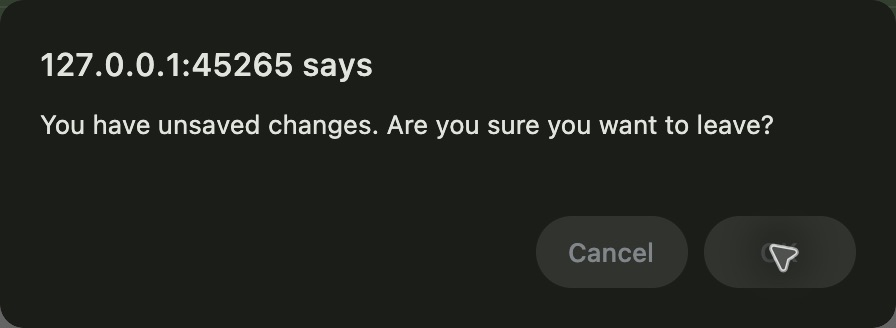
After Cancel, this app can show You have unsaved changes. Are you sure you want to leave? even after the unchanged saved-field inspection. Cancel in that browser dialog keeps the editor open; choose the right-hand OK button to leave. The picture shows the actual Chrome confirmation; the pointer partly covers the OK label. After leaving, verify the same saved card and both instructions. No second Submit is needed.
12345Reopened saved two step fields
Capture details
Observed committed 3dfb software on 20 October 2026. Software-only examples; no dispensing or administration. Original pixels and actual capture times retained.
Image SHA-256 c8cc86f1718ddfc71850d2069fac7db5e9e96f4113dd28d9efb28857c37f18fa
- Read the disabled first dose: Saved dosage fields are disabled in this release.
- Read the disabled first frequency: This inspection does not make a new draft prescription.
- Read the disabled fixed-date duration: Its end remains clipped in the input; the saved detail view provides both dates.
- Read the disabled shared note: The prescription note is also read-only here.
- Choose Cancel after unchanged inspection: The actual app asks for leave confirmation even after this unchanged inspection.
 123
123Native Chrome unsaved-change confirmation
Native macOS confirmation dialog, shown in its original proportions.
Capture details
Observed committed 3dfb software on 20 October 2026. Software-only examples; no dispensing or administration. Original pixels and actual capture times retained.
Image SHA-256 cb3505584902efcbadf95b26cc9b35e96492d832899a82b8e6fad5094b9865a7
- Read the unsaved-change confirmation: This is Chrome’s leave confirmation for the medication form.
- Locate Cancel to stay: Cancel would keep the editor open; it was not selected in this captured exit.
- Choose the right-hand OK button to leave: The pointer partly covers its label in this image; the accompanying native accessibility text identifies OK.
 1234
1234Final prescription after cancel confirmations
Capture details
Observed committed 3dfb software on 20 October 2026. Software-only examples; no dispensing or administration. Original pixels and actual capture times retained.
Image SHA-256 80debe6083552f5502ee663b1b12b790804522ff7d68725b126ab49c13160ea2
- Verify the same saved card after leaving: The same 10:26 AM prescription remains selected.
- Recheck 1.00 count: The unchanged inspection did not replace the first instruction.
- Recheck both full fixed dates: The second instruction and its dates remain retained.
- Recheck the retained software-only note: Leaving through the browser confirmation did not submit a second prescription.
Different save controls have different scope
The range popup’s Save applies its endpoints to the draft; Clear removes the dose; duration Done applies that duration. None of those controls is the form’s final Submit. This walkthrough saves one new prescription only after restoring the first dose to 1 count and removing the extra empty step.
 1234
1234Valid day range pending done
Capture details
Observed committed 3dfb software on 20 October 2026. Software-only examples; no dispensing or administration. Original pixels and actual capture times retained.
Image SHA-256 0e8c288fd805264ba301801a9a71f391080add308c955d99fc971c86186834ce
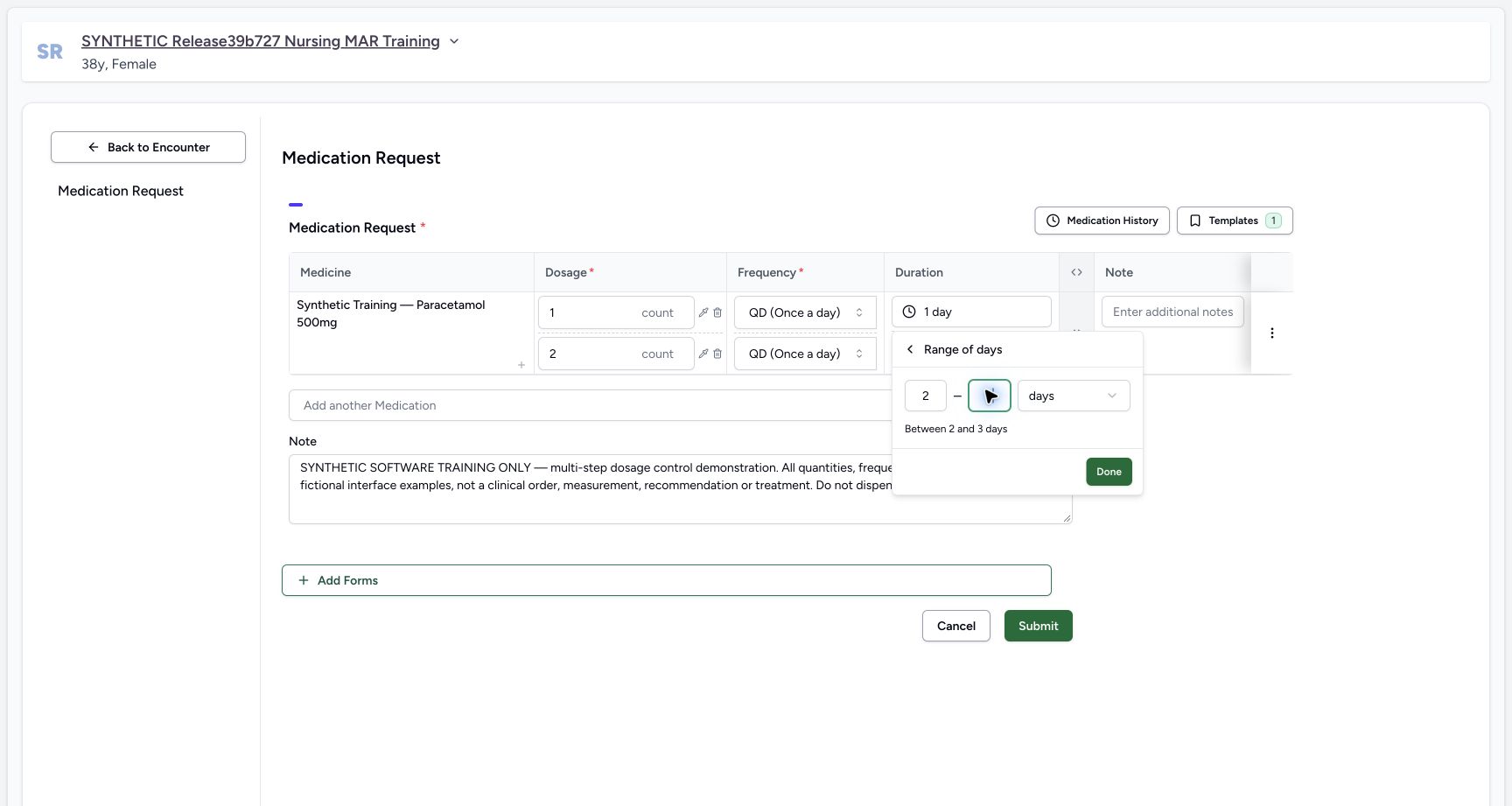
- Set Start to 2: Replace the deliberate invalid start with 2.
- Set End to 3: The explanatory line below confirms Between 2 and 3 days.
- Keep days as the unit: Check the range unit before applying it.
- Choose Done: Done applies the duration to this draft dosage step; it does not submit the prescription.
123Range popup review
Capture details
Observed committed 3dfb software on 20 October 2026. Software-only examples; no dispensing or administration. Original pixels and actual capture times retained.
Image SHA-256 c87f9521a03622caad8ba17ba561914aef49c6cf840bf9d85dc95c1a70ec86a7
- Check Start Dose 1 count: Review the first endpoint.
- Check End Dose 2 count: Review the second endpoint.
- Choose popup Save: Apply the range to the draft instruction.
123Reopened dose range clear
Capture details
Observed committed 3dfb software on 20 October 2026. Software-only examples; no dispensing or administration. Original pixels and actual capture times retained.
Image SHA-256 c43dec666d39f37555be031a8fb20a9b802bed99d1636754351f062352ba54cb
- Read the reopened Start Dose: The applied range is retained in the popup.
- Read the reopened End Dose: The end remains 2 count.
- Choose Clear: Clear removes the entire dose value; it does not restore the previous single quantity.
123456Final two step submit review
Capture details
Observed committed 3dfb software on 20 October 2026. Software-only examples; no dispensing or administration. Original pixels and actual capture times retained.
Image SHA-256 d4e7bfd35b46657eefa26f996706fe47d39e0779bdec15847cf6de7a92dcad47
- Review final first dose: The saved example will use the restored 1 count, not the temporary range.
- Review final second dose: The second instruction remains 2 count.
- Check first-step QD: Check frequency independently on both lines.
- Check the 2–3 day duration: The first line uses a range of days.
- Read the complete software-only note: Review the shared prescription note before submission.
- Choose Submit once: This saves the reviewed prescription; it is distinct from earlier popup Save and Done.
Read complete dates and the correct note
The narrow draft and Edit inputs clip the fixed end date. The calendar and selected saved prescription show the full October 21–22 range. The complete software-only text is in the shared prescription Note, not the separate blank product Note cell. These fictional controls do not establish a treatment sequence or authorise dispensing or administration.
123Fixed date range pending done
Capture details
Observed committed 3dfb software on 20 October 2026. Software-only examples; no dispensing or administration. Original pixels and actual capture times retained.
Image SHA-256 a123506108c6a0667893b5d60d66b2c35259df02be65b523abf6560c74128fce
- Read the selected October 21 start: The calendar shows the start of the selected fixed range.
- Read the selected October 22 end: The full calendar makes both dates visible.
- Choose Done for fixed dates: Apply the selected calendar range to the second draft instruction.
123456Final two step submit review
Capture details
Observed committed 3dfb software on 20 October 2026. Software-only examples; no dispensing or administration. Original pixels and actual capture times retained.
Image SHA-256 d4e7bfd35b46657eefa26f996706fe47d39e0779bdec15847cf6de7a92dcad47
- Review final first dose: The saved example will use the restored 1 count, not the temporary range.
- Review final second dose: The second instruction remains 2 count.
- Check first-step QD: Check frequency independently on both lines.
- Check the 2–3 day duration: The first line uses a range of days.
- Read the complete software-only note: Review the shared prescription note before submission.
- Choose Submit once: This saves the reviewed prescription; it is distinct from earlier popup Save and Done.
123456789Exact saved prescription
Capture details
Observed committed 3dfb software on 20 October 2026. Software-only examples; no dispensing or administration. Original pixels and actual capture times retained.
Image SHA-256 9132d07574c6f90753cbce21de324006df741a821e21038daa749467fa557db7
- Verify the selected new prescription: The selected card is 20/10/2026 10:26 AM.
- Read the prescriber: The detail header names MANSOQ E2E Doctor.
- Read the complete shared note: The note explicitly identifies fictional software controls and says not to dispense or administer.
- Read first saved dose 1.00 count: The temporary dose range was cleared and restored before submission.
- Read first saved QD: Frequency is shown separately from dose.
- Read the saved 2–3 days: The first duration is a range of days.
- Read second saved dose 2.00 count: The second instruction is a separate row.
- Read October 21, 2026 → October 22, 2026: The saved summary shows the full fixed-date range.
- Locate Edit for later inspection: Use this only after checking the normal reload in the next step.
Understand the leave confirmation
The compact Chrome confirmation belongs to an unchanged saved-field inspection. Its warning does not, by itself, mean that the disabled dosage controls were edited. Leave through OK and check the same saved prescription afterward. This exit does not submit another order.
12345Reopened saved two step fields
Capture details
Observed committed 3dfb software on 20 October 2026. Software-only examples; no dispensing or administration. Original pixels and actual capture times retained.
Image SHA-256 c8cc86f1718ddfc71850d2069fac7db5e9e96f4113dd28d9efb28857c37f18fa
- Read the disabled first dose: Saved dosage fields are disabled in this release.
- Read the disabled first frequency: This inspection does not make a new draft prescription.
- Read the disabled fixed-date duration: Its end remains clipped in the input; the saved detail view provides both dates.
- Read the disabled shared note: The prescription note is also read-only here.
- Choose Cancel after unchanged inspection: The actual app asks for leave confirmation even after this unchanged inspection.
123Native Chrome unsaved-change confirmation
Native macOS confirmation dialog, shown in its original proportions.
Capture details
Observed committed 3dfb software on 20 October 2026. Software-only examples; no dispensing or administration. Original pixels and actual capture times retained.
Image SHA-256 cb3505584902efcbadf95b26cc9b35e96492d832899a82b8e6fad5094b9865a7
- Read the unsaved-change confirmation: This is Chrome’s leave confirmation for the medication form.
- Locate Cancel to stay: Cancel would keep the editor open; it was not selected in this captured exit.
- Choose the right-hand OK button to leave: The pointer partly covers its label in this image; the accompanying native accessibility text identifies OK.
1234Final prescription after cancel confirmations
Capture details
Observed committed 3dfb software on 20 October 2026. Software-only examples; no dispensing or administration. Original pixels and actual capture times retained.
Image SHA-256 80debe6083552f5502ee663b1b12b790804522ff7d68725b126ab49c13160ea2
- Verify the same saved card after leaving: The same 10:26 AM prescription remains selected.
- Recheck 1.00 count: The unchanged inspection did not replace the first instruction.
- Recheck both full fixed dates: The second instruction and its dates remain retained.
- Recheck the retained software-only note: Leaving through the browser confirmation did not submit a second prescription.
Source evidence
Every citation uses this exact committed version. The private source repository requires access.
- repositories/platform/mansoq-core/mansoq/emr/api/viewsets/base.py:98 ·
3dfb7c9f519fb5b4cd4452439f3c12346bf58319Source file checksum
6a287dd315b8a4957b29c58e4bbc1bef7b8d9d257f9149f93045ff0adbdcae6c - repositories/platform/mansoq-core/mansoq/emr/api/viewsets/medication_request.py:39 ·
3dfb7c9f519fb5b4cd4452439f3c12346bf58319Source file checksum
a3f3ae8042fb8134112c5d04fe8b060e68bce11dae682d138aafaae64119c215 - repositories/platform/mansoq-core/mansoq/emr/resources/medication/request/spec.py:113 ·
3dfb7c9f519fb5b4cd4452439f3c12346bf58319Source file checksum
9f9e929369e186f88af131f2a1ccc3a773d9bfe9648f92a98f6a4935c09a7ade - repositories/platform/mansoq-web/src/components/Common/BackButton.tsx:18 ·
3dfb7c9f519fb5b4cd4452439f3c12346bf58319Source file checksum
56a741eff730a7b18a5fae594374068bab2d5413993c32dbbaf3625e14743ca3 - repositories/platform/mansoq-web/src/components/Common/ComboboxQuantityInput.tsx:33 ·
3dfb7c9f519fb5b4cd4452439f3c12346bf58319Source file checksum
dc2b42f282136e2c1f71318d93aa69af3935286de87176a4c1c8c093127f97a3 - repositories/platform/mansoq-web/src/components/Medicine/DosageFrequencyInput.tsx:88 ·
3dfb7c9f519fb5b4cd4452439f3c12346bf58319Source file checksum
25dd21fd48a38c46bc40f2fb8b8586e89ed72eb97451fadd29c3d54591a5e420 - repositories/platform/mansoq-web/src/components/Medicine/DurationInput.tsx:129 ·
3dfb7c9f519fb5b4cd4452439f3c12346bf58319Source file checksum
c271b7c60fd93d91bb97ce8ab38644b1999b0a1115db3db9d5c0626557eb0c11 - repositories/platform/mansoq-web/src/components/Medicine/MedicationsTable.tsx:96 ·
3dfb7c9f519fb5b4cd4452439f3c12346bf58319Source file checksum
8bdf0ac1770dc1423e4534f9ed0f75f51bda5be717ef7bd0aa345edc79244830 - repositories/platform/mansoq-web/src/components/Medicine/PrescriptionListSelector.tsx:62 ·
3dfb7c9f519fb5b4cd4452439f3c12346bf58319Source file checksum
d440785347dcc3045dea0d4d5c81052a9e3c7de074405fc4de87dea79cd4b083 - repositories/platform/mansoq-web/src/components/Medicine/PrescriptionView.tsx:37 ·
3dfb7c9f519fb5b4cd4452439f3c12346bf58319Source file checksum
af1781d51d3dd511231a79e034a7f98412434dfa4603b91dce6676c4474fad96 - repositories/platform/mansoq-web/src/components/Medicine/utils.ts:20 ·
3dfb7c9f519fb5b4cd4452439f3c12346bf58319Source file checksum
3cd9c9563e68a8ff18ac581c422477ddab664733f4c85a4b596403bf9cf87aa8 - repositories/platform/mansoq-web/src/components/Questionnaire/MedicationValueSetSelect.tsx:98 ·
3dfb7c9f519fb5b4cd4452439f3c12346bf58319Source file checksum
bb8d5d5f1595778be9e9ad260296e8f43e5696fe9d19fb608e27a33a6a739610 - repositories/platform/mansoq-web/src/components/Questionnaire/QuestionTypes/MedicationRequestQuestion.tsx:224 ·
3dfb7c9f519fb5b4cd4452439f3c12346bf58319Source file checksum
561259e73b1752c9844e31b798ad676878af5f4caf6be5fbd130cd31fcfc89cc - repositories/platform/mansoq-web/src/components/Questionnaire/QuestionnaireForm.tsx:380 ·
3dfb7c9f519fb5b4cd4452439f3c12346bf58319Source file checksum
ee6c2195f13e48f0896a2d3da566c2f2a67910adad08894df6b77862f9cfdeec - repositories/platform/mansoq-web/src/components/Questionnaire/structured/handlers.ts:65 ·
3dfb7c9f519fb5b4cd4452439f3c12346bf58319Source file checksum
459ade48f77316279ab2978dc7b4466cb96acb8223c61b9a1f87ca9973be7c7f - repositories/platform/mansoq-web/src/types/emr/medicationRequest/medicationRequest.ts:23 ·
3dfb7c9f519fb5b4cd4452439f3c12346bf58319Source file checksum
a39df63f9b7f2d976d4379511d7a2d4c8e3e284fd1e9b67c28e59392e8545b2b