 MANSOQ
 Pharmacy · VERSION 5344edb2
Save and read a standalone medicine note
Add an optional note to one standalone synthetic medicine, save the preparation once, and read the saved note after reload in Dispense Details. Optionally abandon the unpaid training order and read the same note on its Cancelled row.
Pharmacist
 12345678
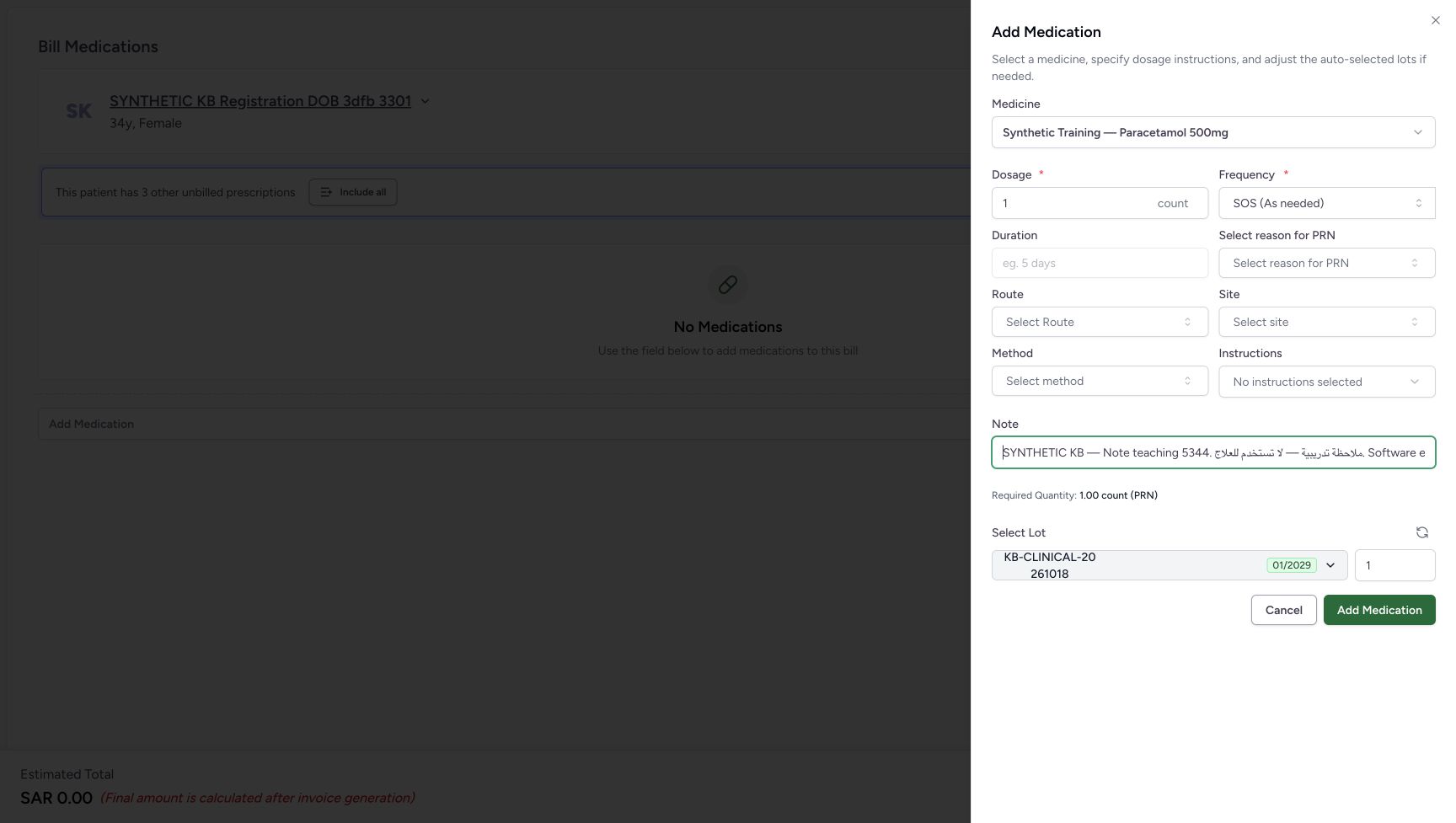
Enter the optional medicine Note before adding
Capture details
Actual source5344 standalone medicine Note software example at MANSOQ Demo Polyclinic/Main Pharmacy. No medicine handover, invoice issuance, payment or external exchange is demonstrated.
Image SHA-256 76a2c9cddc3e5ce98cd4dded3fe19297929be3a03e271b8447396f0c4946572c
- Read the example dosage count one: This captured software input is not clinical advice.
- Read the example SOS frequency: The captured default is SOS (As needed); do not derive a treatment regimen from this lesson.
- Enter the medicine Note: This is the optional per-medicine Note, not a prescription or whole-order note.
- Verify required quantity one: The form shows 1.00 count (PRN) for this software example.
- Keep the selected example lot: The closed label is shortened; use the prior open list for full identification.
- Verify the one-unit lot quantity: Do not add another lot or change quantity in this note exercise.
- Choose Add Medication once: This appends a local unsaved medicine line; it does not yet create the preparation.
- Use Cancel to leave the medicine sheet if needed: Review before adding the local line.
 123456
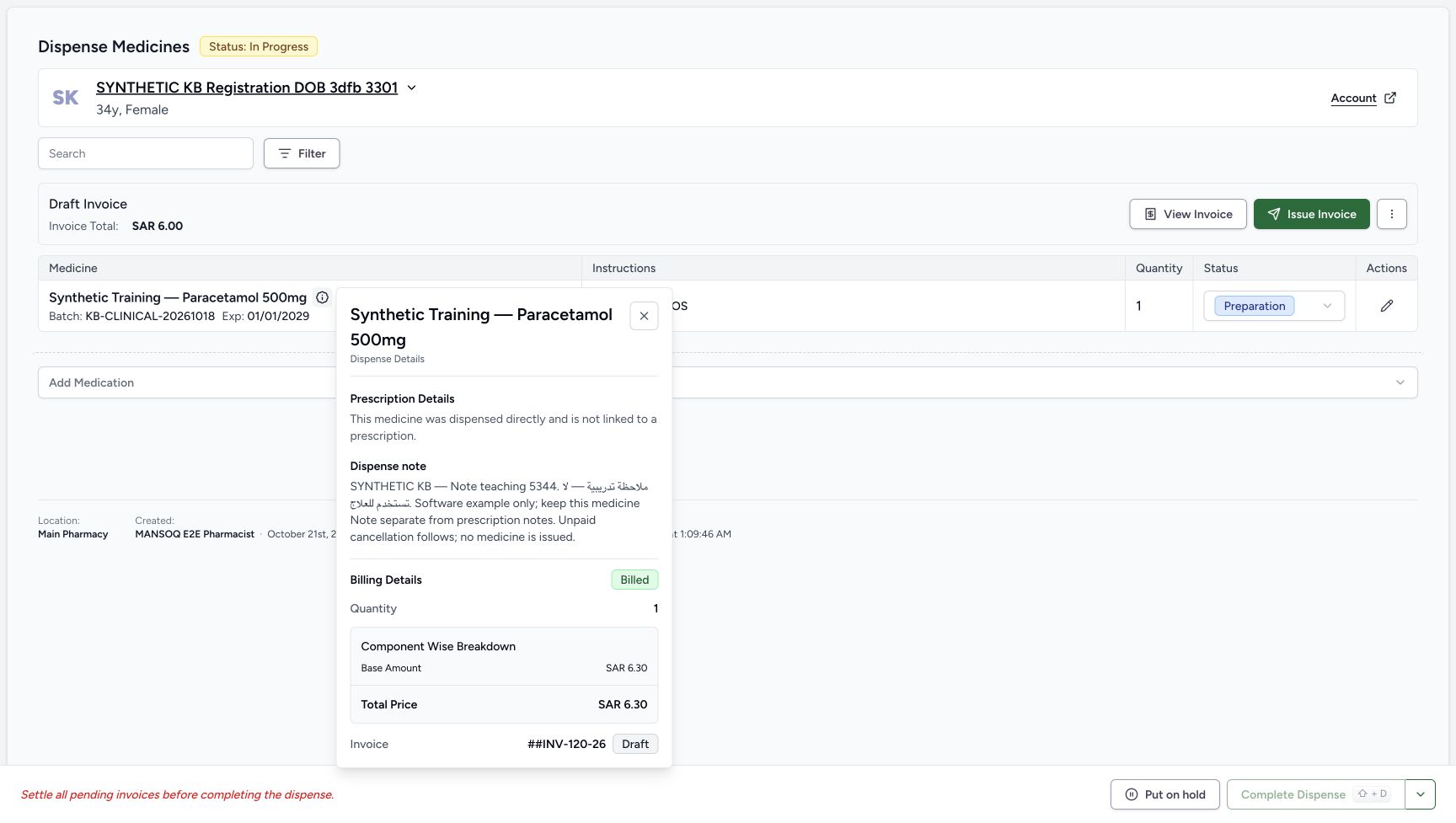
Read the saved Note in its separate section
Capture details
Actual source5344 standalone medicine Note software example at MANSOQ Demo Polyclinic/Main Pharmacy. No medicine handover, invoice issuance, payment or external exchange is demonstrated.
Image SHA-256 272eee39c236351e9f22b765a6427b44445097fb8255df83179d3534d3fe16c9
- Read the no-prescription notice: This standalone medicine is not linked to a prescription.
- Read the separate Dispense note: The complete authored text is visible and wraps naturally; it has not become a prescription note.
- Recognise Billed as the charge state: This label does not mean payment or medicine handover.
- Read the displayed SAR 6.30 charge: Keep this distinct from the SAR 6.00 invoice header.
- Recognise the Draft invoice reference: The popover shows INV-120-26 as Draft, not issued or paid.
- Close the read-only Details popover: No Edit or Save is required to read the note.
 1234
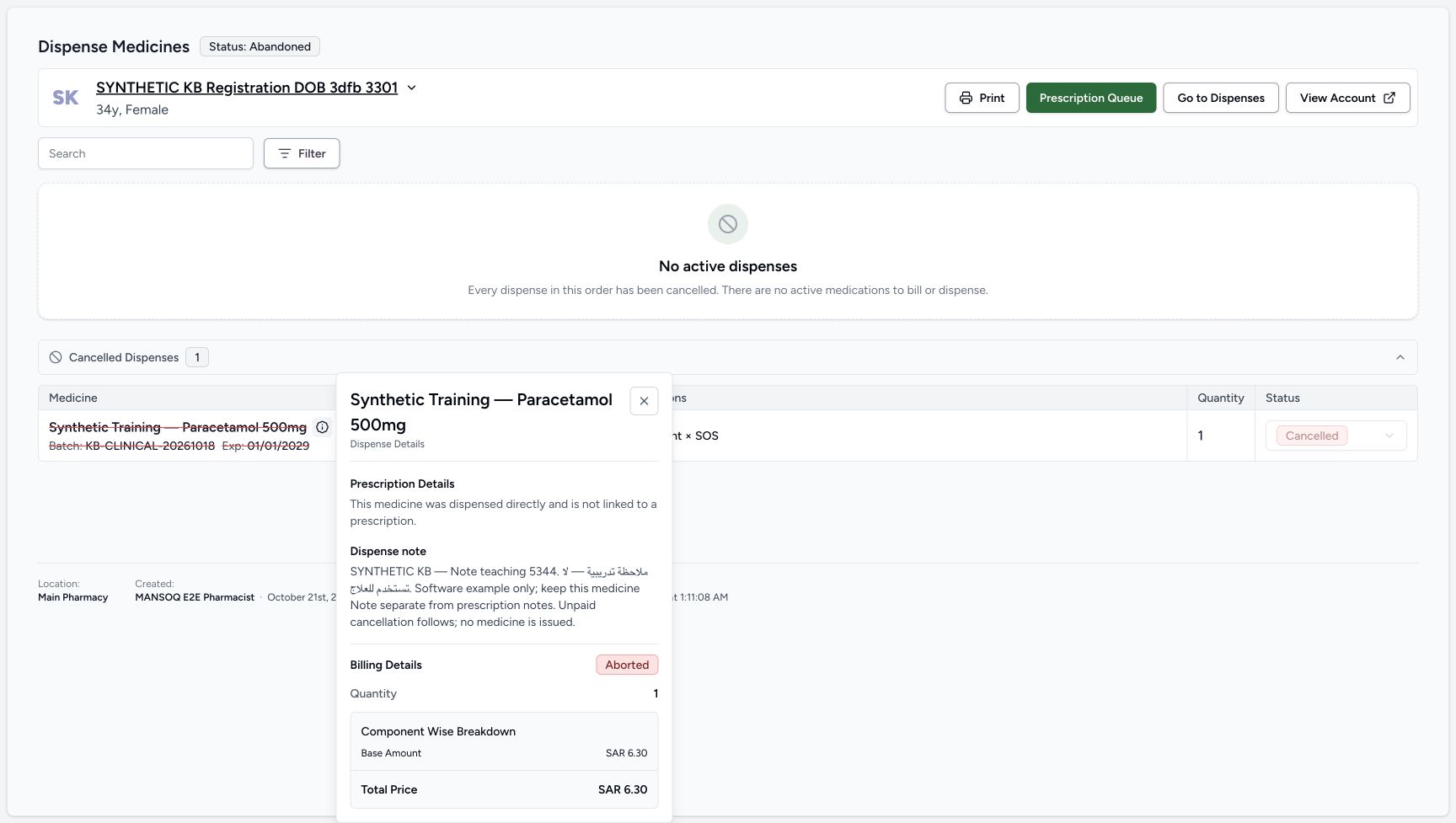
1234Read the same saved Note after cancellation
Capture details
Actual source5344 standalone medicine Note software example at MANSOQ Demo Polyclinic/Main Pharmacy. No medicine handover, invoice issuance, payment or external exchange is demonstrated.
Image SHA-256 088e0333ef408215a89ccf7c37c00f3394330d3f96d4955661fbe3ad868df2a1
- Keep the standalone no-prescription context: No prescription note has been substituted.
- Read the unchanged saved Dispense note: The exact authored text remains readable on the cancelled row without editing.
- Read Aborted as the charge label: Do not infer that an invoice is Cancelled or paid from this badge.
- Close the read-only cancelled-row popover: No new save, billing or payment action is needed.
16 of 16 content blocks have reviewed image alignment.
Before you begin
- Use the existing assigned Pharmacist account at MANSOQ Demo Polyclinic/Main Pharmacy and the existing SYNTHETIC KB Registration DOB 3dfb 3301 patient. Start from the established Main Pharmacy Prescription Queue. This lesson demonstrates only the observed Polyclinic workflow; it does not establish access in other facilities.
 12
12Recorded release 5344edb2 · 2026-10-20T22:07:17.806335+00:00 · 1728 × 977 Verify the existing Pharmacist and facility
Capture details
Actual source5344 standalone medicine Note software example at MANSOQ Demo Polyclinic/Main Pharmacy. No medicine handover, invoice issuance, payment or external exchange is demonstrated.
Image SHA-256
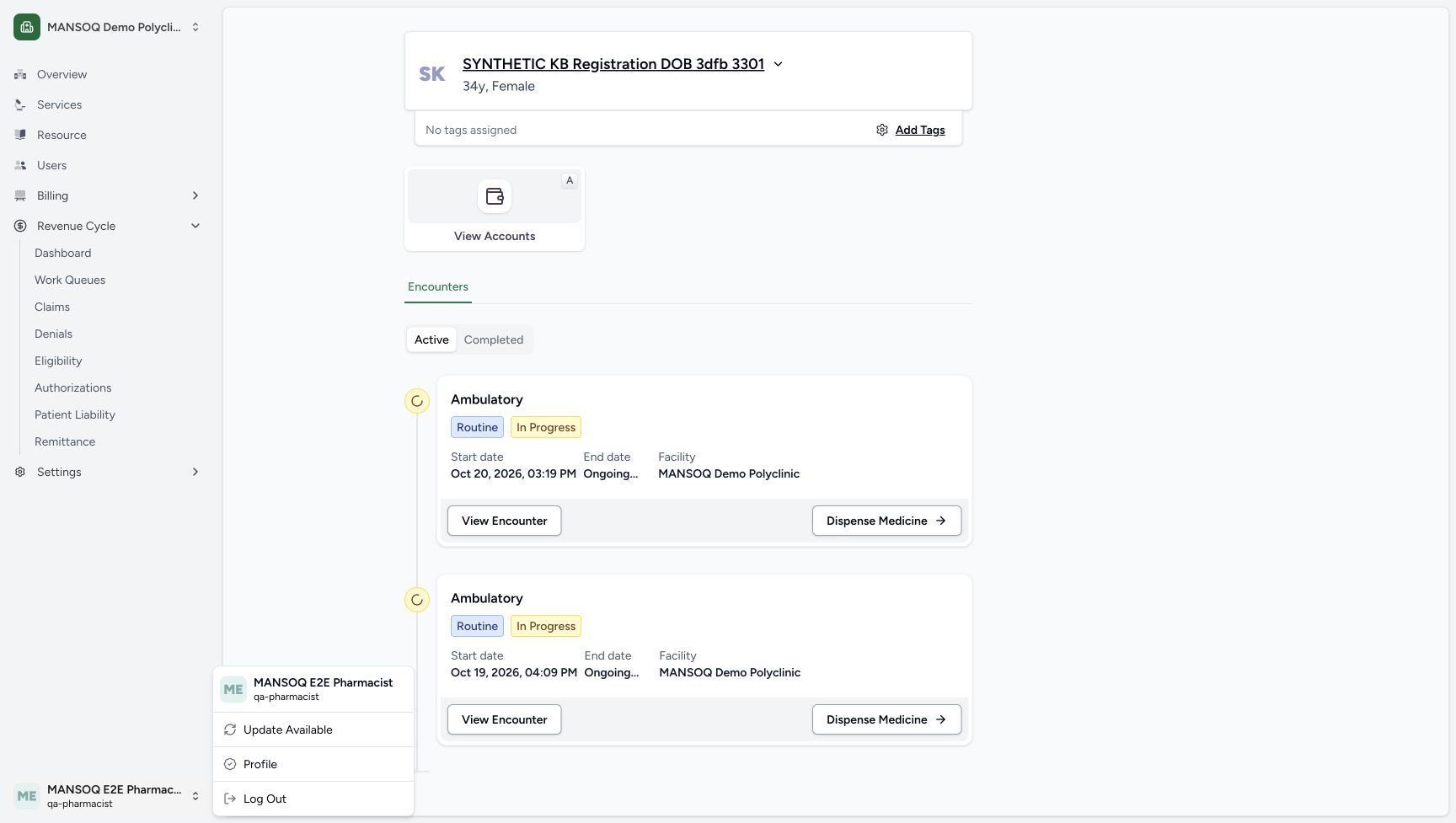
6473336d3fd764343b520b26dac523c96e818d5acfe26391f9c55a5adfeb7442- Verify the existing Pharmacist account: The menu shows MANSOQ E2E Pharmacist and qa-pharmacist.
- Verify MANSOQ Demo Polyclinic: Keep the observed facility context; no other facility access is demonstrated.
 123
123Recorded release 5344edb2 · 2026-10-20T22:08:11.374923+00:00 · 1728 × 977 Start from the established Main Pharmacy queue
Capture details
Actual source5344 standalone medicine Note software example at MANSOQ Demo Polyclinic/Main Pharmacy. No medicine handover, invoice issuance, payment or external exchange is demonstrated.
Image SHA-256
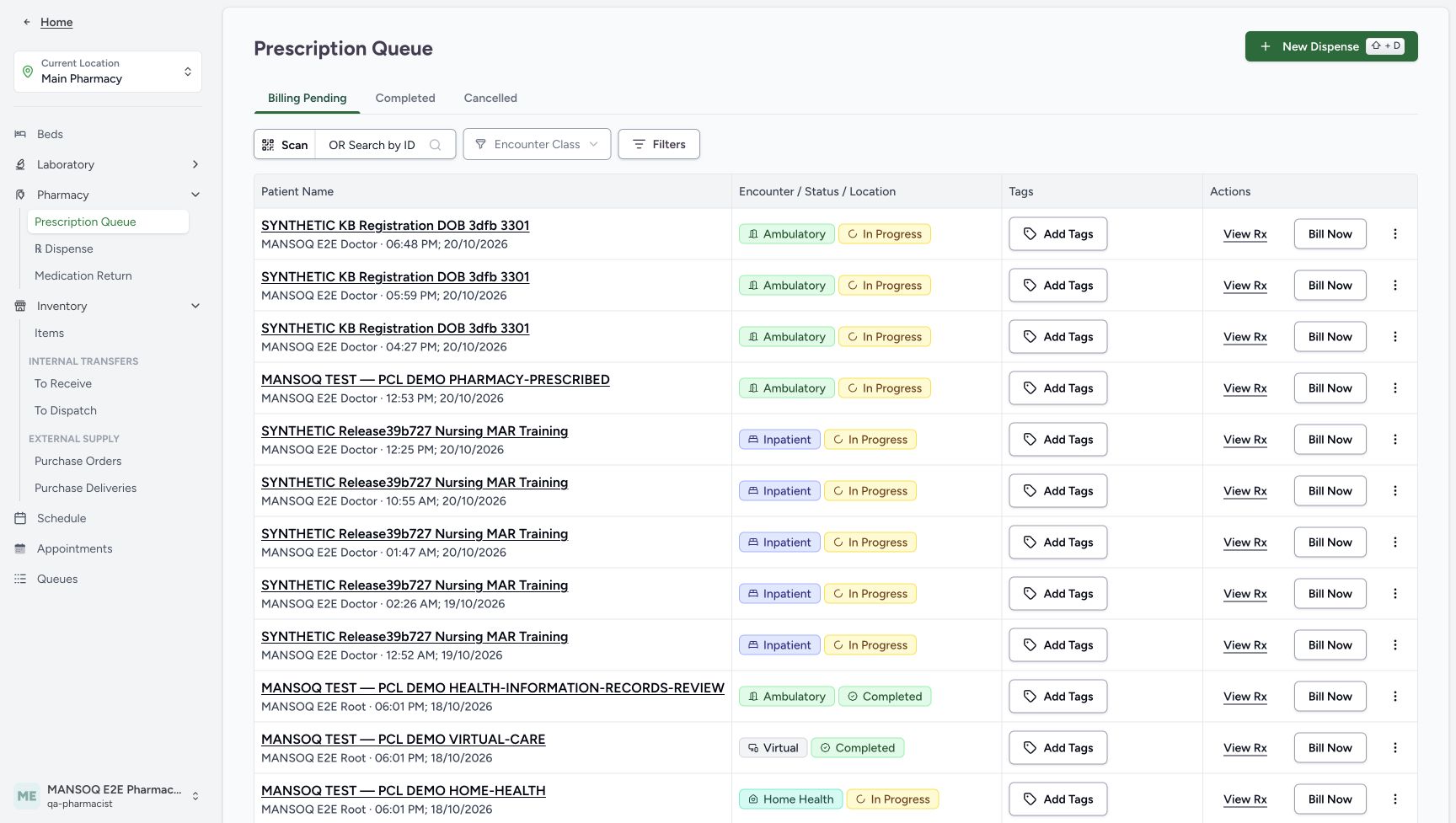
8de2f0c64be6bfc795c3dc99d491597ef4ad0d85ca3cab6c0451a48817c18713- Verify Main Pharmacy: Use the observed location for this software example.
- Verify Prescription Queue: This is the established starting page; no Services navigation is implied.
- Choose New Dispense: Start a standalone medicine line rather than Bill Now on an existing prescription.
 1234
1234Recorded release 5344edb2 · 2026-10-20T22:08:37.399297+00:00 · 1728 × 977 Verify the patient before proceeding
Capture details
Actual source5344 standalone medicine Note software example at MANSOQ Demo Polyclinic/Main Pharmacy. No medicine handover, invoice issuance, payment or external exchange is demonstrated.
Image SHA-256
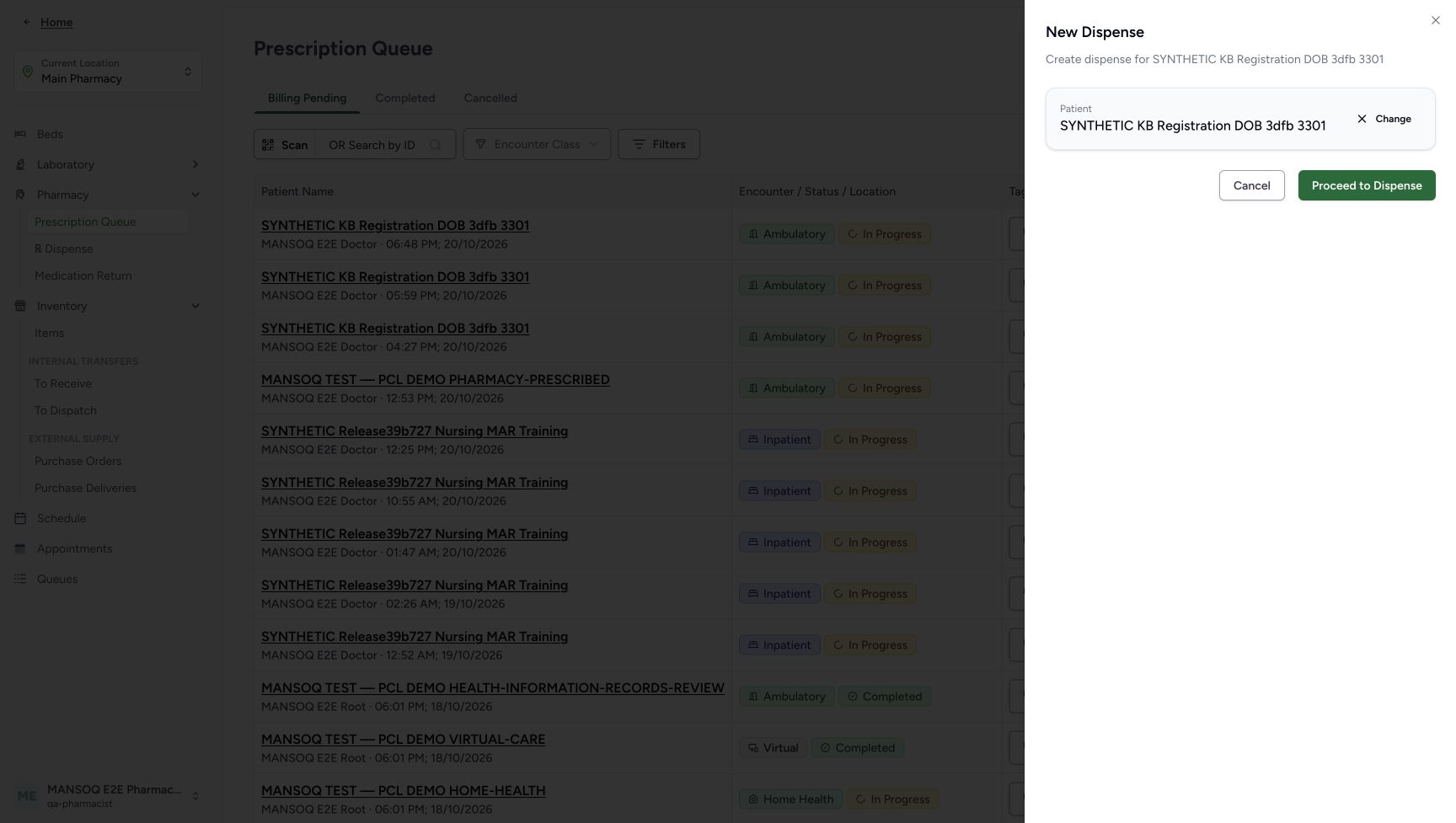
8842326ade7e87eed9a77105cf490e73c94cd1f892b0602234eb3ba309b5d7c9- Verify the full patient name: Check the existing synthetic patient before proceeding.
- Use Change if the patient is wrong: Correct selection before proceeding.
- Use Cancel to leave this selection: This control stops this unsaved selection if needed.
- Choose Proceed to Dispense: Continue to the existing patient and encounter selection.
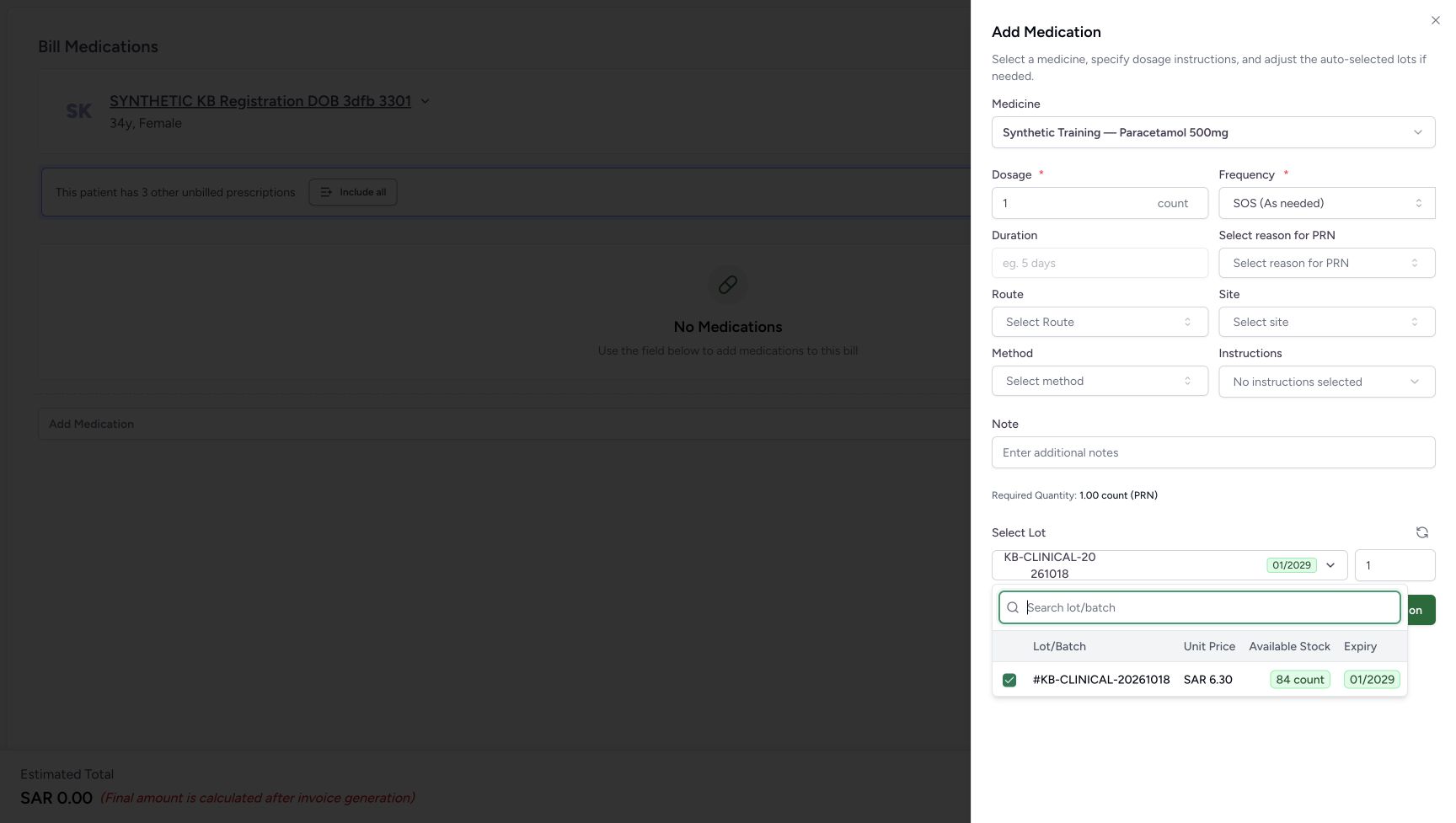
- This is an isolated software example, not medication or dosing advice. It uses the synthetic Paracetamol 500mg catalogue product code 06281086104491 and batch KB-CLINICAL-20261018, with stock 84 before saving and expiry January 2029. No medicine is handed over, invoice issued, payment recorded or external service used.
 123
123Recorded release 5344edb2 · 2026-10-20T22:09:02.985647+00:00 · 1728 × 977 Choose the exact synthetic catalogue product
Capture details
Actual source5344 standalone medicine Note software example at MANSOQ Demo Polyclinic/Main Pharmacy. No medicine handover, invoice issuance, payment or external exchange is demonstrated.
Image SHA-256
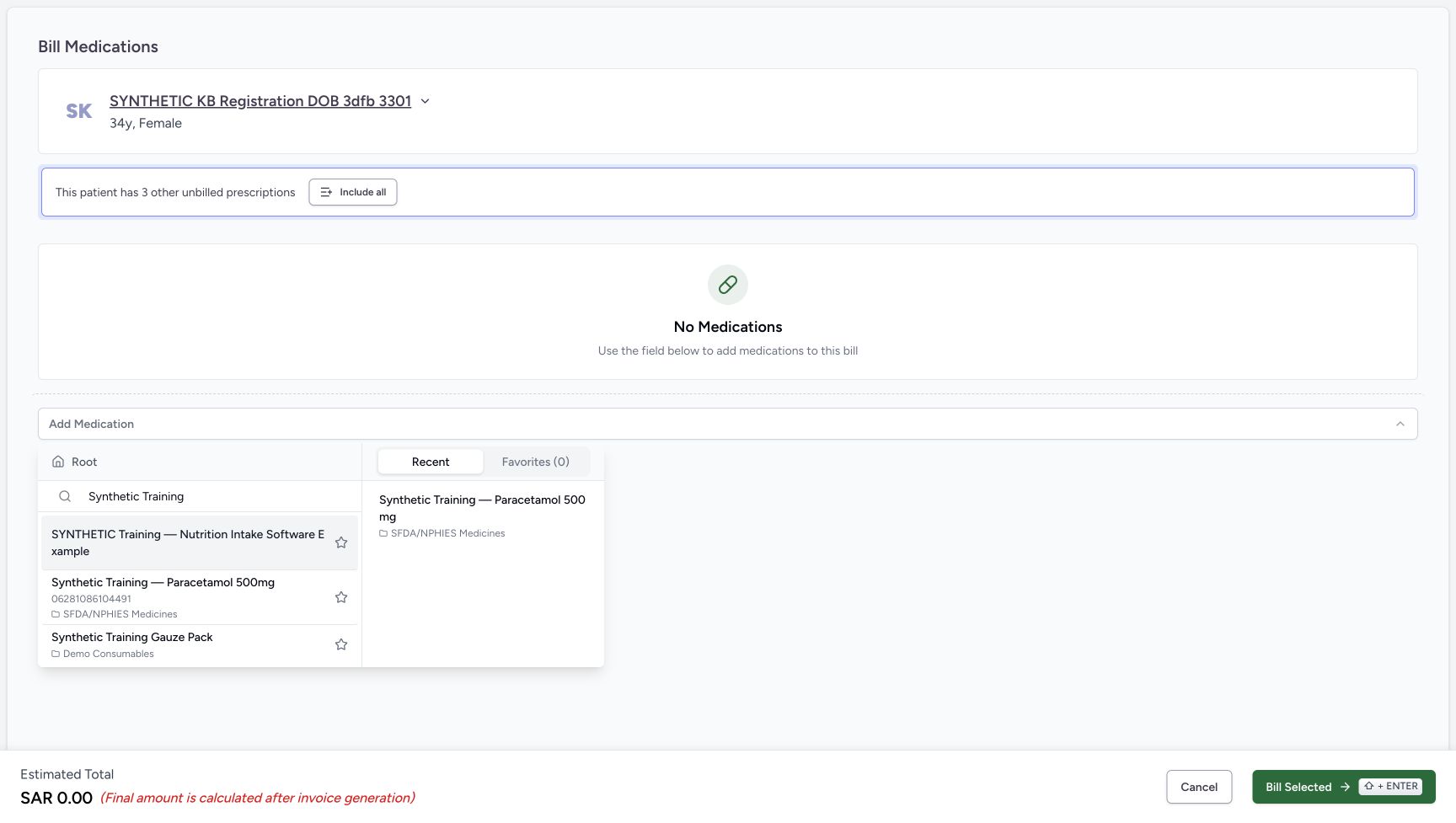
d8345ed97328f354599c14f294fc992afb26c8b37cf5500d65846e1e9aa8e847- Verify Root catalogue context: Search the catalogue shown in this picker.
- Search for Synthetic Training: Find the intended software-only product among similarly named results.
- Choose Paracetamol code 06281086104491: Use the exact result, not the nutrition or gauze entry.
 1234567
Recorded release 5344edb2 · 2026-10-20T22:09:18.597447+00:00 · 1728 × 977 Read the complete selected batch
Capture details
Actual source5344 standalone medicine Note software example at MANSOQ Demo Polyclinic/Main Pharmacy. No medicine handover, invoice issuance, payment or external exchange is demonstrated.
Image SHA-256
8787fdec0b7416f6d405f4ff1a278d4c7a5334ce167b7c7c398727e3c1963990- Verify the selected Paracetamol product: Match the intended synthetic catalogue product.
- Read full batch KB-CLINICAL-20261018: The open row provides the complete batch identifier.
- Read the displayed unit price: The selected lot shows SAR 6.30; this is not a reconciled invoice total.
- Verify eighty-four available: This is stock before the preparation is saved.
- Verify January 2029 expiry: Keep the selected example batch unchanged.
- Verify quantity one: This software example uses one unit without a quantity change.
- Open the selected-lot control: Use this selector to inspect the lot list; this image shows the list already open.
12345678Recorded release 5344edb2 · 2026-10-20T22:09:31.588992+00:00 · 1728 × 977 Enter the optional medicine Note before adding
Capture details
Actual source5344 standalone medicine Note software example at MANSOQ Demo Polyclinic/Main Pharmacy. No medicine handover, invoice issuance, payment or external exchange is demonstrated.
Image SHA-256
76a2c9cddc3e5ce98cd4dded3fe19297929be3a03e271b8447396f0c4946572c- Read the example dosage count one: This captured software input is not clinical advice.
- Read the example SOS frequency: The captured default is SOS (As needed); do not derive a treatment regimen from this lesson.
- Enter the medicine Note: This is the optional per-medicine Note, not a prescription or whole-order note.
- Verify required quantity one: The form shows 1.00 count (PRN) for this software example.
- Keep the selected example lot: The closed label is shortened; use the prior open list for full identification.
- Verify the one-unit lot quantity: Do not add another lot or change quantity in this note exercise.
- Choose Add Medication once: This appends a local unsaved medicine line; it does not yet create the preparation.
- Use Cancel to leave the medicine sheet if needed: Review before adding the local line.
1. Start a separate dispense for the existing patient
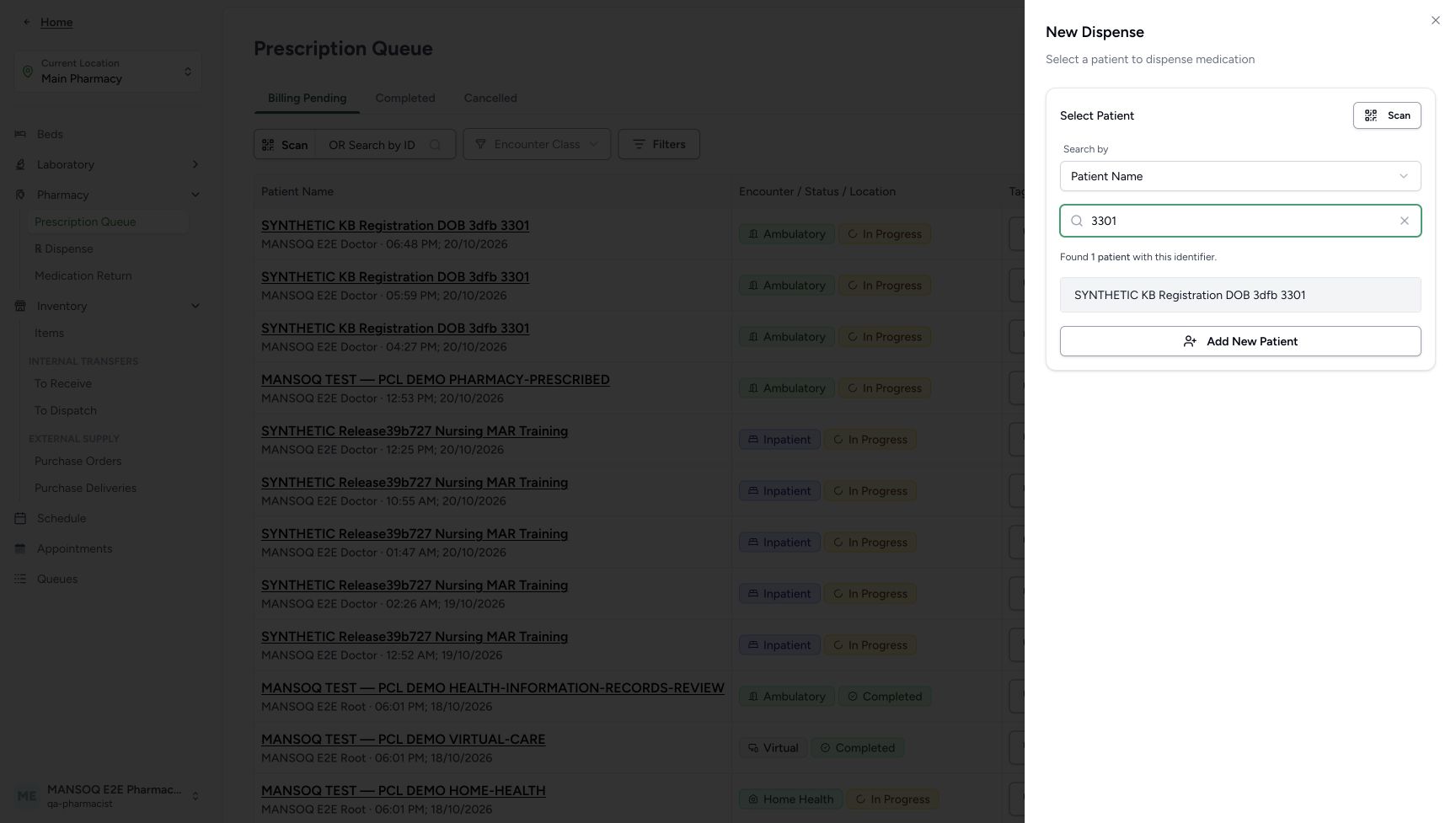
From the established Main Pharmacy Prescription Queue, choose New Dispense. In Select Patient, verify Search by is Patient Name, enter 3301 and select SYNTHETIC KB Registration DOB 3dfb 3301. Verify the full selected name. Use Change or Cancel if it is wrong; otherwise choose Proceed to Dispense. Do not choose Bill Now on an existing prescription.
123Start from the established Main Pharmacy queue
Capture details
Actual source5344 standalone medicine Note software example at MANSOQ Demo Polyclinic/Main Pharmacy. No medicine handover, invoice issuance, payment or external exchange is demonstrated.
Image SHA-256 8de2f0c64be6bfc795c3dc99d491597ef4ad0d85ca3cab6c0451a48817c18713
- Verify Main Pharmacy: Use the observed location for this software example.
- Verify Prescription Queue: This is the established starting page; no Services navigation is implied.
- Choose New Dispense: Start a standalone medicine line rather than Bill Now on an existing prescription.
 123
123Find the existing synthetic patient
Capture details
Actual source5344 standalone medicine Note software example at MANSOQ Demo Polyclinic/Main Pharmacy. No medicine handover, invoice issuance, payment or external exchange is demonstrated.
Image SHA-256 4494562b4b38c18e5ae17de734af94b3b9aaddbdc22f445aad31cc14f697dd32
- Verify Patient Name search: Use the existing synthetic patient rather than creating another record.
- Enter the name fragment 3301: Wait for the matching result.
- Select the matching synthetic patient: Match SYNTHETIC KB Registration DOB 3dfb 3301.
1234Verify the patient before proceeding
Capture details
Actual source5344 standalone medicine Note software example at MANSOQ Demo Polyclinic/Main Pharmacy. No medicine handover, invoice issuance, payment or external exchange is demonstrated.
Image SHA-256 8842326ade7e87eed9a77105cf490e73c94cd1f892b0602234eb3ba309b5d7c9
- Verify the full patient name: Check the existing synthetic patient before proceeding.
- Use Change if the patient is wrong: Correct selection before proceeding.
- Use Cancel to leave this selection: This control stops this unsaved selection if needed.
- Choose Proceed to Dispense: Continue to the existing patient and encounter selection.
2. Choose the intended existing encounter
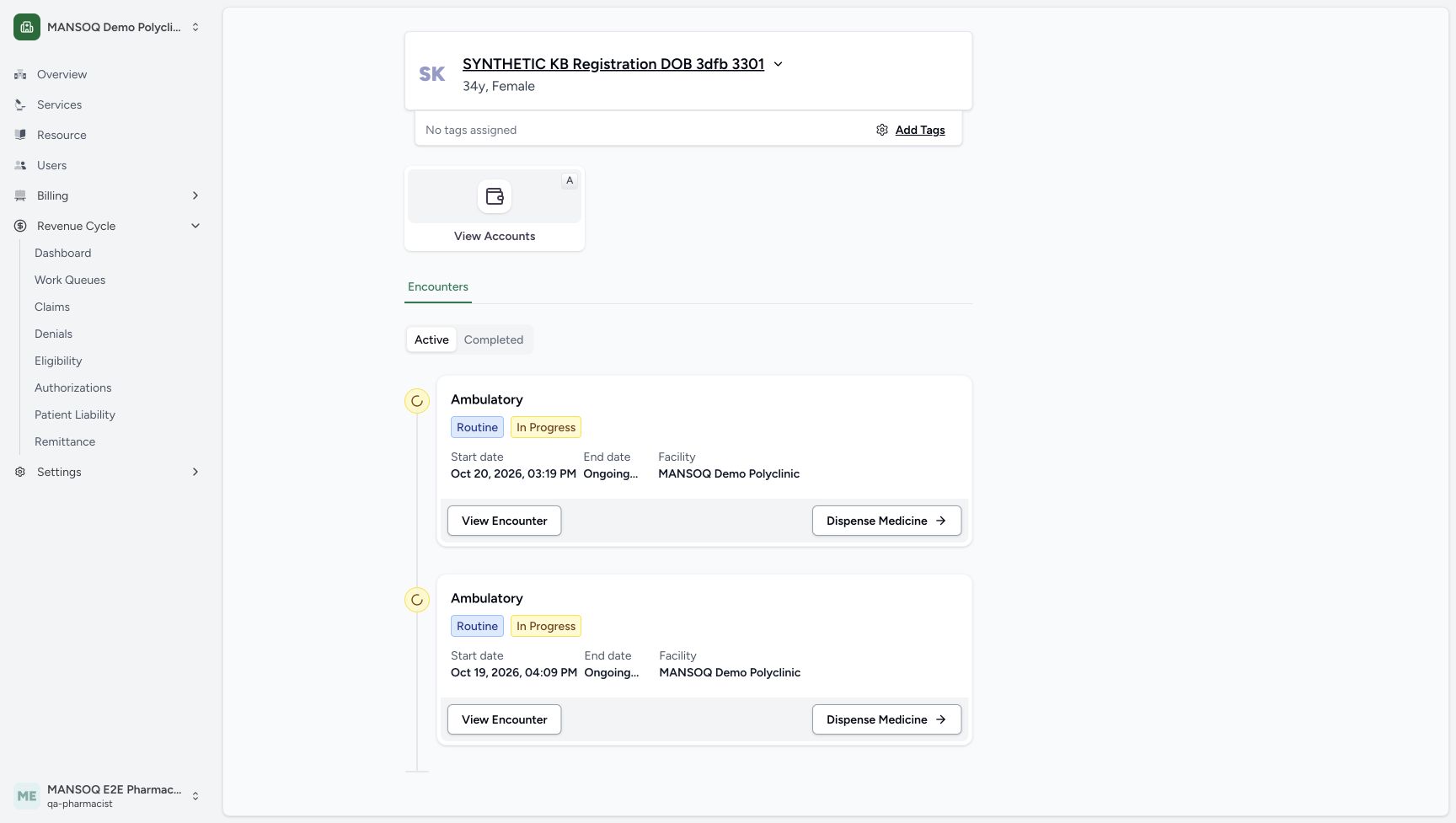
On the patient page, find the active encounter started October 20, 2026 at 03:19 PM. Choose its Dispense Medicine button. The older October 19 encounter has a separate button and is not used. Selecting the patient or encounter has not yet saved a medicine.
 123
123Choose the current encounter
Capture details
Actual source5344 standalone medicine Note software example at MANSOQ Demo Polyclinic/Main Pharmacy. No medicine handover, invoice issuance, payment or external exchange is demonstrated.
Image SHA-256 28c7d5aadd23b837a77e049b9d02fdc77adc053719d331611881d02e90b58a07
- Verify the same synthetic patient: Continue only for the selected existing record.
- Match October 20 at 03:19 PM: Choose this encounter rather than the older October 19 card.
- Choose Dispense Medicine on the current encounter: Open standalone billing for this encounter.
3. Add the exact standalone medicine
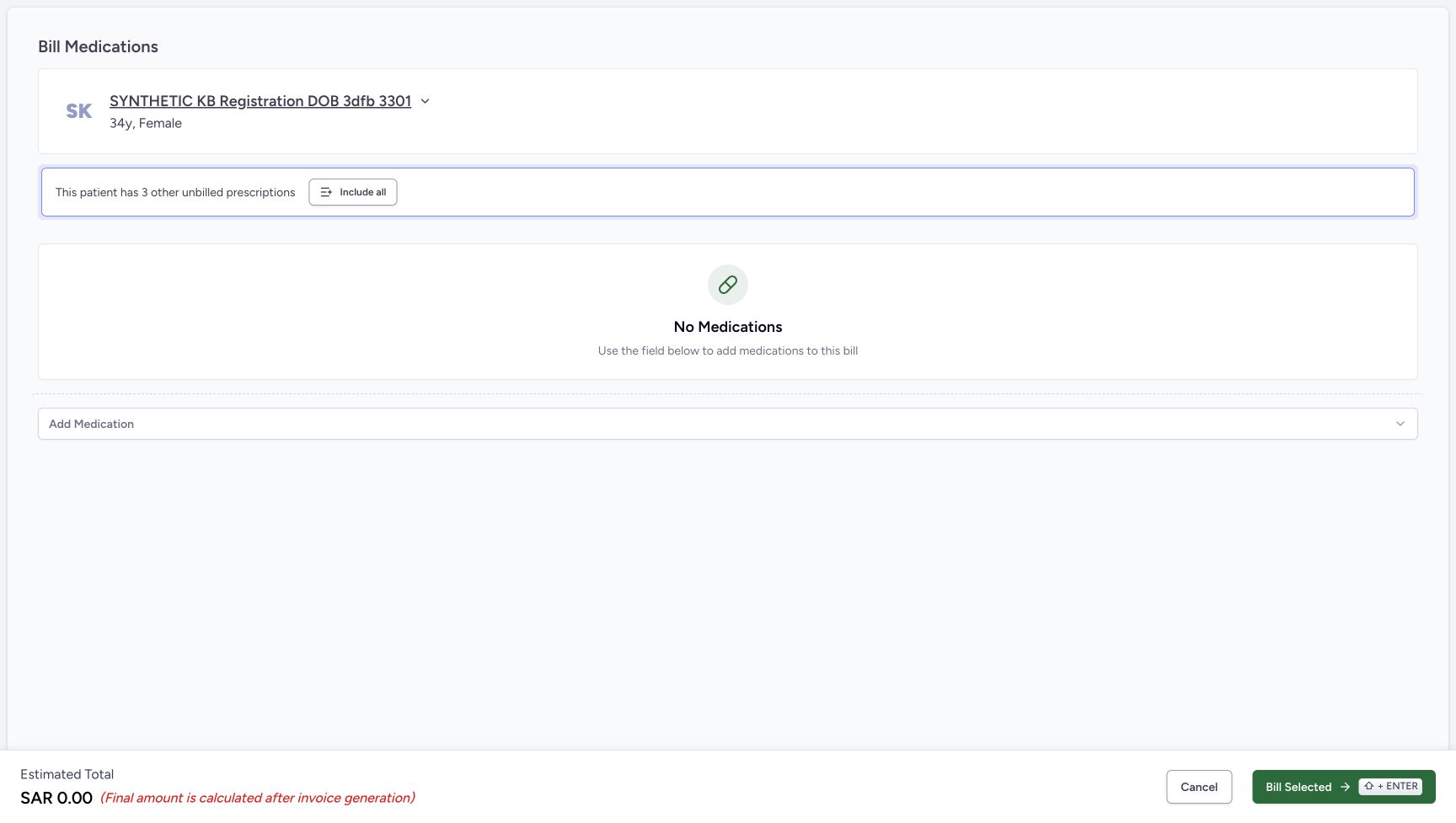
On the empty Bill Medications page, leave Include all unused so the three other unbilled prescriptions stay separate. Open Add Medication. In its Root catalogue search, enter Synthetic Training and choose Synthetic Training — Paracetamol 500mg with code 06281086104491 under SFDA/NPHIES Medicines. Distinguish it from the similarly named nutrition and gauze entries.
 1234
1234Open the empty standalone medicine bill
Capture details
Actual source5344 standalone medicine Note software example at MANSOQ Demo Polyclinic/Main Pharmacy. No medicine handover, invoice issuance, payment or external exchange is demonstrated.
Image SHA-256 32146b673a6e3c9a81e6b0e32be89dfbbdb7bc673b8f8ea337d3469216bb8ec5
- Verify No Medications: The standalone bill has no medicine lines yet.
- Keep the other prescriptions separate: Leave Include all unused; this lesson does not bill an existing prescription.
- Open Add Medication: Choose one synthetic catalogue product.
- Use Cancel before billing if needed: Cancel is available before saving this new preparation.
123Choose the exact synthetic catalogue product
Capture details
Actual source5344 standalone medicine Note software example at MANSOQ Demo Polyclinic/Main Pharmacy. No medicine handover, invoice issuance, payment or external exchange is demonstrated.
Image SHA-256 d8345ed97328f354599c14f294fc992afb26c8b37cf5500d65846e1e9aa8e847
- Verify Root catalogue context: Search the catalogue shown in this picker.
- Search for Synthetic Training: Find the intended software-only product among similarly named results.
- Choose Paracetamol code 06281086104491: Use the exact result, not the nutrition or gauze entry.
4. Review the selected lot and software-only quantity
Open the selected-lot control to inspect the chosen stock; the lot screenshot shows that list already open. Read the open lot picker: the checked batch is KB-CLINICAL-20261018, with 84 count available, expiry January 2029 and displayed unit price SAR 6.30. Keep quantity one. The captured dosage fields show 1 count and SOS (As needed), with required quantity 1.00 count (PRN); these are software inputs in a synthetic example and are not treatment instructions. No dose, quantity or lot change is needed for this note demonstration.
1234567Read the complete selected batch
Capture details
Actual source5344 standalone medicine Note software example at MANSOQ Demo Polyclinic/Main Pharmacy. No medicine handover, invoice issuance, payment or external exchange is demonstrated.
Image SHA-256 8787fdec0b7416f6d405f4ff1a278d4c7a5334ce167b7c7c398727e3c1963990
- Verify the selected Paracetamol product: Match the intended synthetic catalogue product.
- Read full batch KB-CLINICAL-20261018: The open row provides the complete batch identifier.
- Read the displayed unit price: The selected lot shows SAR 6.30; this is not a reconciled invoice total.
- Verify eighty-four available: This is stock before the preparation is saved.
- Verify January 2029 expiry: Keep the selected example batch unchanged.
- Verify quantity one: This software example uses one unit without a quantity change.
- Open the selected-lot control: Use this selector to inspect the lot list; this image shows the list already open.
12345678Enter the optional medicine Note before adding
Capture details
Actual source5344 standalone medicine Note software example at MANSOQ Demo Polyclinic/Main Pharmacy. No medicine handover, invoice issuance, payment or external exchange is demonstrated.
Image SHA-256 76a2c9cddc3e5ce98cd4dded3fe19297929be3a03e271b8447396f0c4946572c
- Read the example dosage count one: This captured software input is not clinical advice.
- Read the example SOS frequency: The captured default is SOS (As needed); do not derive a treatment regimen from this lesson.
- Enter the medicine Note: This is the optional per-medicine Note, not a prescription or whole-order note.
- Verify required quantity one: The form shows 1.00 count (PRN) for this software example.
- Keep the selected example lot: The closed label is shortened; use the prior open list for full identification.
- Verify the one-unit lot quantity: Do not add another lot or change quantity in this note exercise.
- Choose Add Medication once: This appends a local unsaved medicine line; it does not yet create the preparation.
- Use Cancel to leave the medicine sheet if needed: Review before adding the local line.
5. Write the optional medicine Note, then add the local line
Press Escape to close the lot list, then select the Note input and enter the single-line synthetic note: “SYNTHETIC KB — Note teaching 5344. ملاحظة تدريبية — لا تستخدم للعلاج. Software example only; keep this medicine Note separate from prescription notes. Unpaid cancellation follows; no medicine is issued.” The input is a single line and its visible text is clipped; the complete text will be checked in saved Details. Choose Add Medication once. This appends an unsaved local medicine line; it does not yet create a saved preparation, order or invoice. If the medicine sheet is wrong, use Cancel before adding.
1234567Read the complete selected batch
Capture details
Actual source5344 standalone medicine Note software example at MANSOQ Demo Polyclinic/Main Pharmacy. No medicine handover, invoice issuance, payment or external exchange is demonstrated.
Image SHA-256 8787fdec0b7416f6d405f4ff1a278d4c7a5334ce167b7c7c398727e3c1963990
- Verify the selected Paracetamol product: Match the intended synthetic catalogue product.
- Read full batch KB-CLINICAL-20261018: The open row provides the complete batch identifier.
- Read the displayed unit price: The selected lot shows SAR 6.30; this is not a reconciled invoice total.
- Verify eighty-four available: This is stock before the preparation is saved.
- Verify January 2029 expiry: Keep the selected example batch unchanged.
- Verify quantity one: This software example uses one unit without a quantity change.
- Open the selected-lot control: Use this selector to inspect the lot list; this image shows the list already open.
12345678Enter the optional medicine Note before adding
Capture details
Actual source5344 standalone medicine Note software example at MANSOQ Demo Polyclinic/Main Pharmacy. No medicine handover, invoice issuance, payment or external exchange is demonstrated.
Image SHA-256 76a2c9cddc3e5ce98cd4dded3fe19297929be3a03e271b8447396f0c4946572c
- Read the example dosage count one: This captured software input is not clinical advice.
- Read the example SOS frequency: The captured default is SOS (As needed); do not derive a treatment regimen from this lesson.
- Enter the medicine Note: This is the optional per-medicine Note, not a prescription or whole-order note.
- Verify required quantity one: The form shows 1.00 count (PRN) for this software example.
- Keep the selected example lot: The closed label is shortened; use the prior open list for full identification.
- Verify the one-unit lot quantity: Do not add another lot or change quantity in this note exercise.
- Choose Add Medication once: This appends a local unsaved medicine line; it does not yet create the preparation.
- Use Cancel to leave the medicine sheet if needed: Review before adding the local line.
 12345
12345Review the selected line before the save boundary
Capture details
Actual source5344 standalone medicine Note software example at MANSOQ Demo Polyclinic/Main Pharmacy. No medicine handover, invoice issuance, payment or external exchange is demonstrated.
Image SHA-256 4c59dde89a377c0f18fa2584f7e8a1052f14cf899f251ec8ca651a3bf637f523
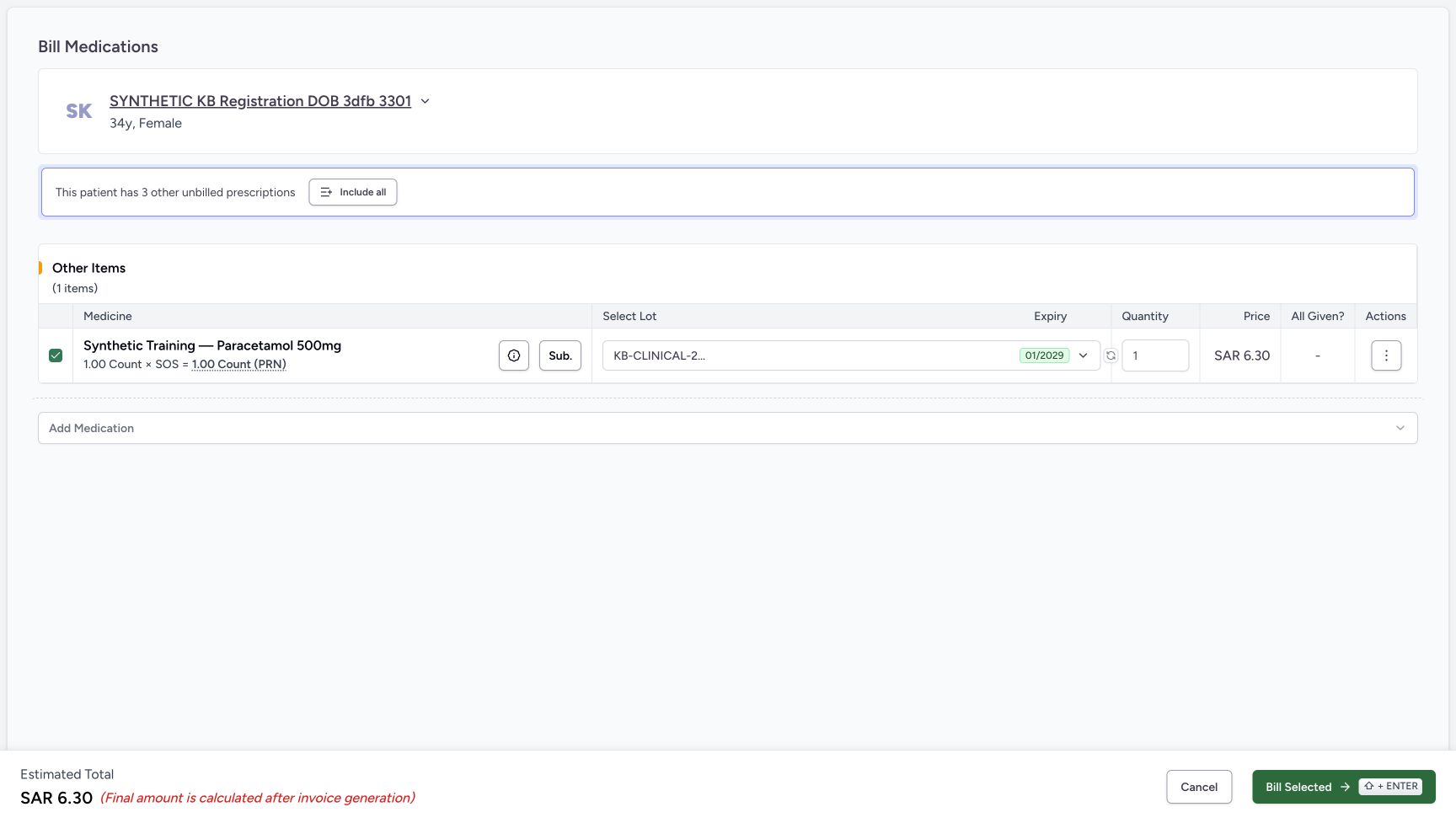
- Verify the sole medicine line is selected: Only this standalone line is included.
- Match the standalone medicine: The row is under Other Items, separate from the other prescriptions.
- Verify quantity one before saving: Keep the single reviewed unit.
- Read the SAR 6.30 estimate: The footer warns the final amount is calculated after invoice generation.
- Choose Bill Selected once: Wait for the saved order; do not repeat while the result is uncertain.
6. Save only the reviewed line with Bill Selected
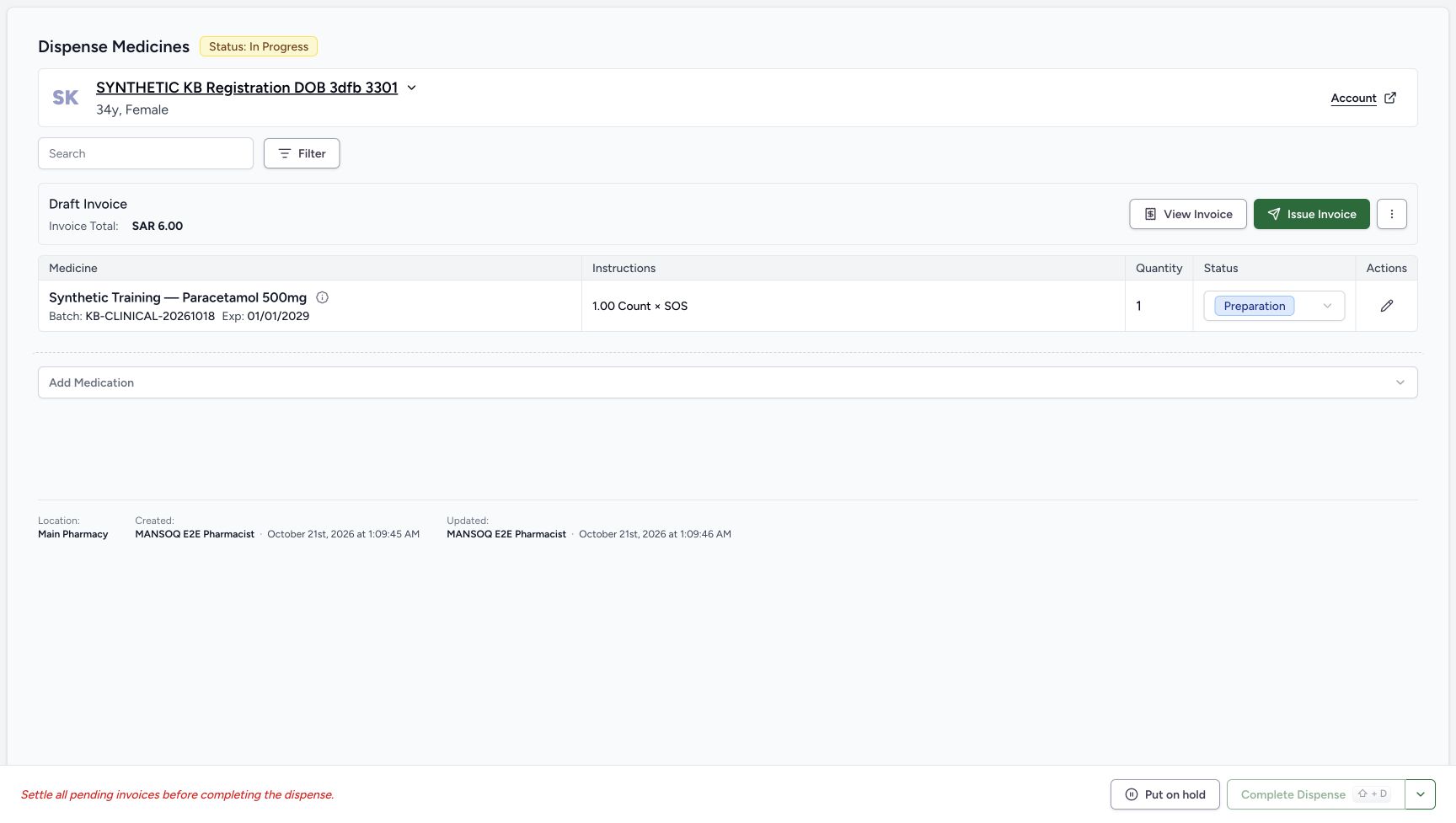
Under Other Items, verify exactly one selected Paracetamol line, the intended lot and quantity one. Choose Bill Selected once and wait for the saved order. The order becomes In Progress and the medicine row Preparation, with a new unissued Draft invoice. The estimate was SAR 6.30, but this saved page shows an initial invoice header of SAR 6.00; Details later shows the charge as SAR 6.30. This lesson records that difference and does not reconcile it. Do not issue the invoice, record a payment or complete the dispense for this note exercise.
12345Review the selected line before the save boundary
Capture details
Actual source5344 standalone medicine Note software example at MANSOQ Demo Polyclinic/Main Pharmacy. No medicine handover, invoice issuance, payment or external exchange is demonstrated.
Image SHA-256 4c59dde89a377c0f18fa2584f7e8a1052f14cf899f251ec8ca651a3bf637f523
- Verify the sole medicine line is selected: Only this standalone line is included.
- Match the standalone medicine: The row is under Other Items, separate from the other prescriptions.
- Verify quantity one before saving: Keep the single reviewed unit.
- Read the SAR 6.30 estimate: The footer warns the final amount is calculated after invoice generation.
- Choose Bill Selected once: Wait for the saved order; do not repeat while the result is uncertain.
 123456
Read the saved unpaid preparation
Capture details
Actual source5344 standalone medicine Note software example at MANSOQ Demo Polyclinic/Main Pharmacy. No medicine handover, invoice issuance, payment or external exchange is demonstrated.
Image SHA-256 df37aab382414739f2ca2acd39387837833b1c9266b2040d85bcb5876bf1c420
- Verify order In Progress: This saved order has not been completed.
- Read Draft Invoice: The new invoice remains unissued.
- Read the displayed SAR 6.00 header: This differs from the SAR 6.30 estimate; the lesson does not reconcile that display difference.
- Verify the child is Preparation: Saving the note does not mean medicine was handed over.
- Verify saved quantity one: There is one saved standalone medicine row.
- Read the pending-invoice completion message: Completion remains unavailable; do not issue or settle an invoice in this lesson.
123456Read the saved Note in its separate section
Capture details
Actual source5344 standalone medicine Note software example at MANSOQ Demo Polyclinic/Main Pharmacy. No medicine handover, invoice issuance, payment or external exchange is demonstrated.
Image SHA-256 272eee39c236351e9f22b765a6427b44445097fb8255df83179d3534d3fe16c9
- Read the no-prescription notice: This standalone medicine is not linked to a prescription.
- Read the separate Dispense note: The complete authored text is visible and wraps naturally; it has not become a prescription note.
- Recognise Billed as the charge state: This label does not mean payment or medicine handover.
- Read the displayed SAR 6.30 charge: Keep this distinct from the SAR 6.00 invoice header.
- Recognise the Draft invoice reference: The popover shows INV-120-26 as Draft, not issued or paid.
- Close the read-only Details popover: No Edit or Save is required to read the note.
7. Reload and read the saved medicine Note
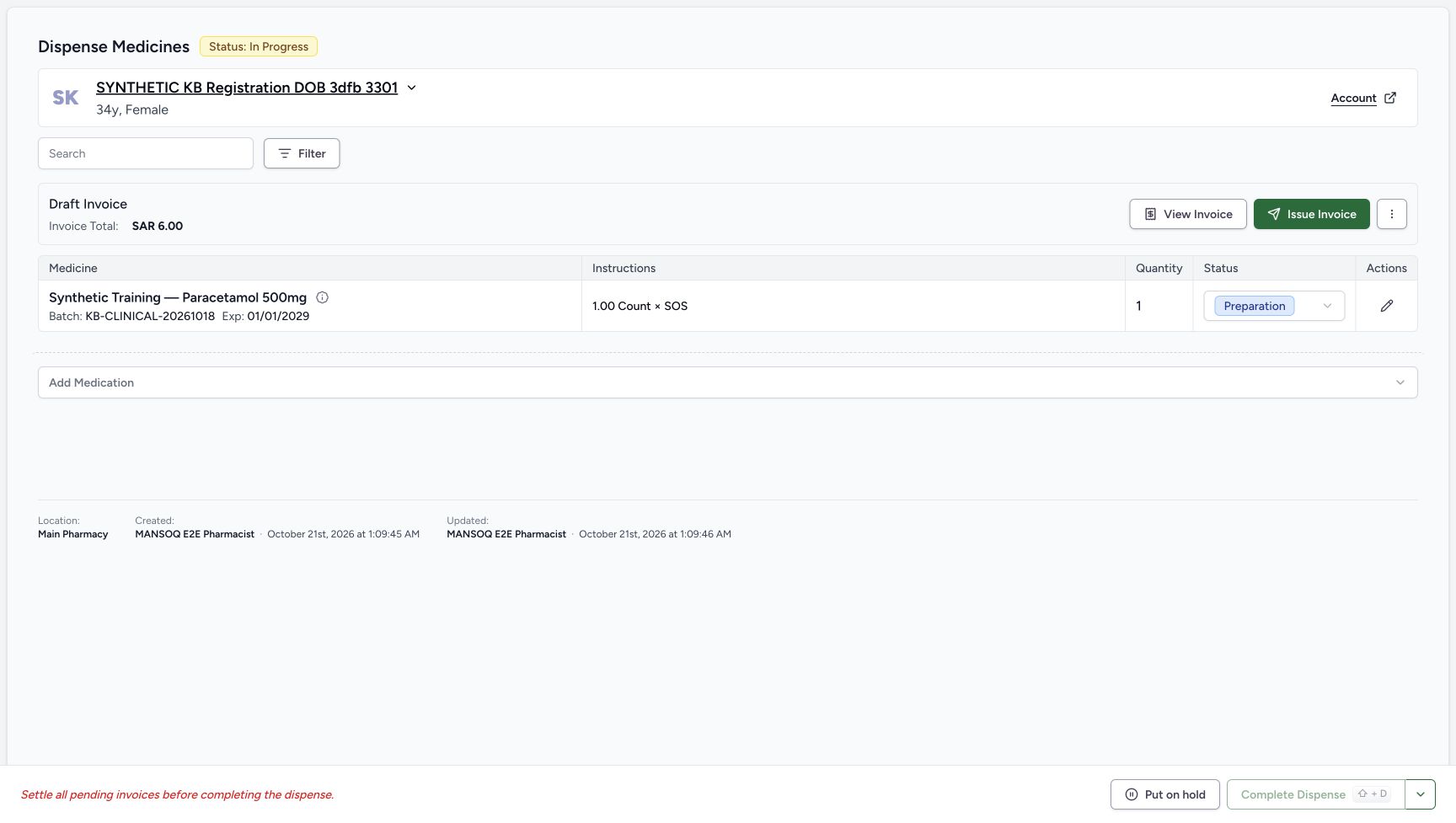
Reload the saved order normally. Verify the same In Progress order and Preparation row, then choose the small information control beside the medicine, labelled Dispense Details. Read the separate Dispense note section and match the complete authored bilingual text. The Prescription Details notice says this standalone medicine is not linked to a prescription. The note is readable without using the pencil edit control or saving again. Close Details with its X when finished.
 123
123Reload and locate read-only Dispense Details
Capture details
Actual source5344 standalone medicine Note software example at MANSOQ Demo Polyclinic/Main Pharmacy. No medicine handover, invoice issuance, payment or external exchange is demonstrated.
Image SHA-256 df37aab382414739f2ca2acd39387837833b1c9266b2040d85bcb5876bf1c420
- Open Dispense Details: Use the information control, not the separate pencil edit control.
- Verify Preparation after reload: Read the same saved row.
- Verify In Progress after reload: The page is the reloaded saved order. This original has the same pixels as the earlier saved-state image.
123456Read the saved Note in its separate section
Capture details
Actual source5344 standalone medicine Note software example at MANSOQ Demo Polyclinic/Main Pharmacy. No medicine handover, invoice issuance, payment or external exchange is demonstrated.
Image SHA-256 272eee39c236351e9f22b765a6427b44445097fb8255df83179d3534d3fe16c9
- Read the no-prescription notice: This standalone medicine is not linked to a prescription.
- Read the separate Dispense note: The complete authored text is visible and wraps naturally; it has not become a prescription note.
- Recognise Billed as the charge state: This label does not mean payment or medicine handover.
- Read the displayed SAR 6.30 charge: Keep this distinct from the SAR 6.00 invoice header.
- Recognise the Draft invoice reference: The popover shows INV-120-26 as Draft, not issued or paid.
- Close the read-only Details popover: No Edit or Save is required to read the note.
8. Optional: abandon the deliberately discontinued unpaid order
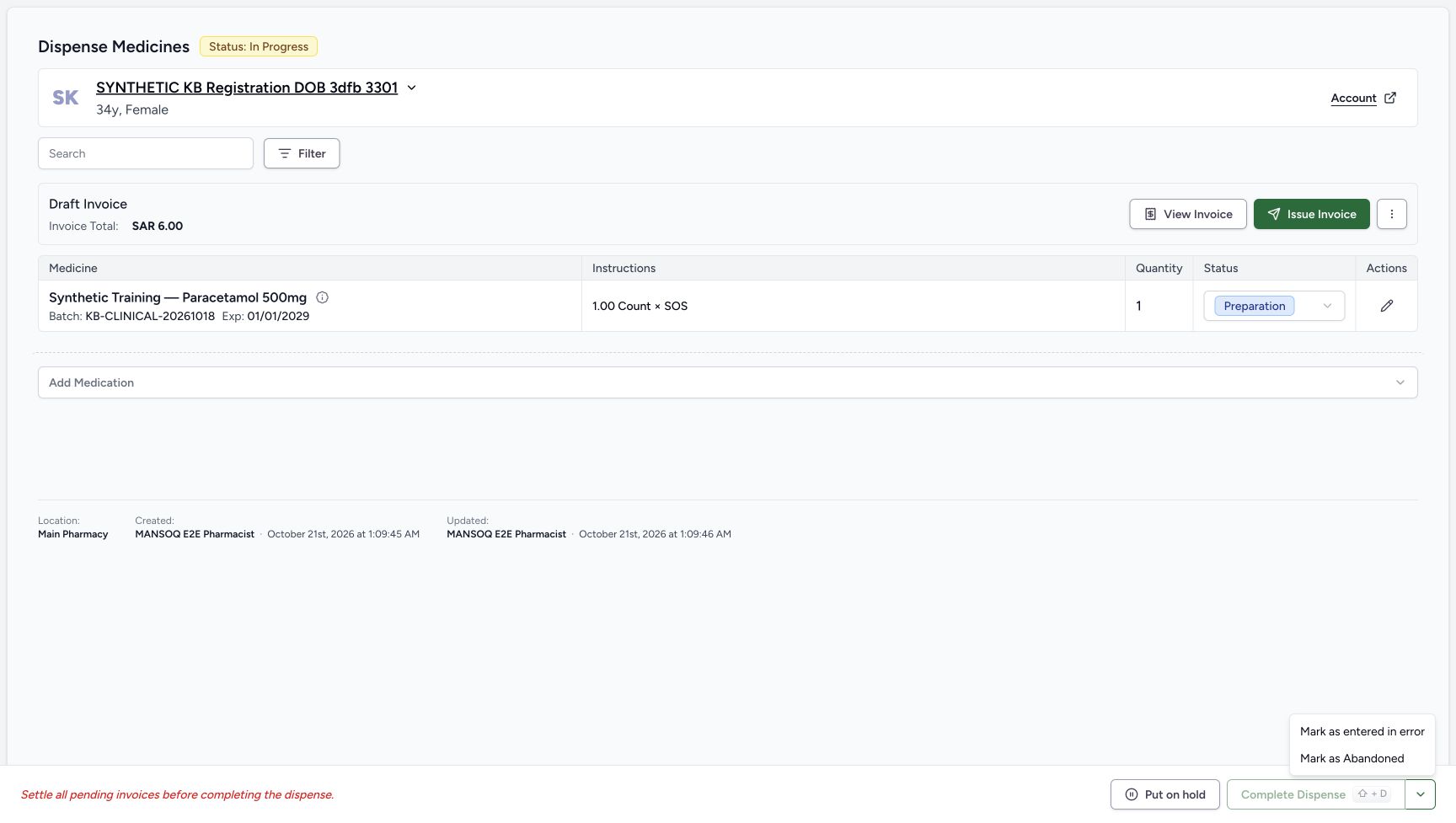
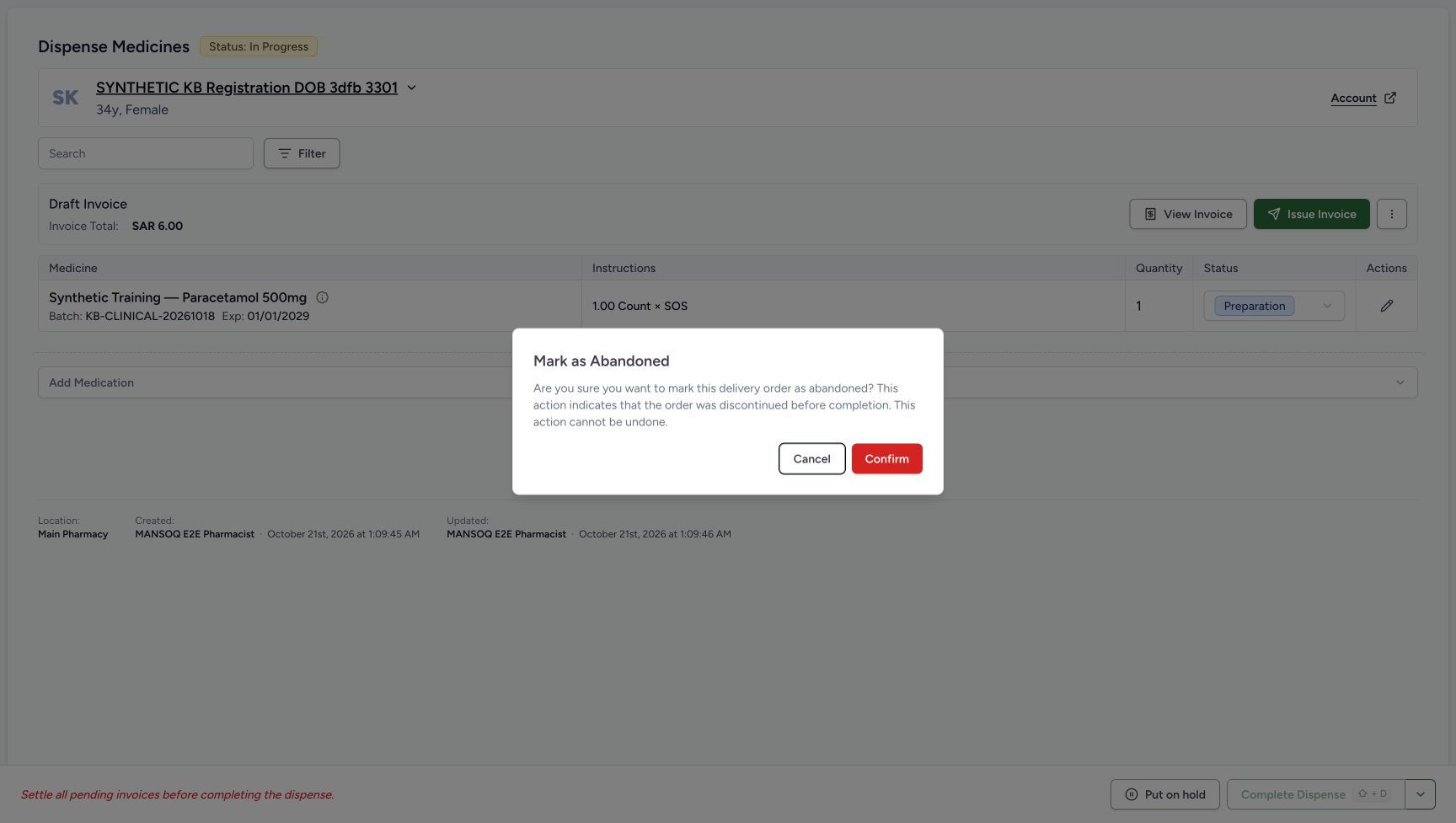
The note-reading task can end at the previous step. For the captured synthetic cleanup only, close Details, open the footer arrow menu beside Complete Dispense and choose Mark as Abandoned. Read the confirmation: this means the order was discontinued before completion and cannot be undone. Use Cancel if that is not intended. For this deliberately discontinued unpaid example, choose Confirm once and wait for the saved result. Mark as entered in error is a separate action and is not used.
123456Read the saved Note in its separate section
Capture details
Actual source5344 standalone medicine Note software example at MANSOQ Demo Polyclinic/Main Pharmacy. No medicine handover, invoice issuance, payment or external exchange is demonstrated.
Image SHA-256 272eee39c236351e9f22b765a6427b44445097fb8255df83179d3534d3fe16c9
- Read the no-prescription notice: This standalone medicine is not linked to a prescription.
- Read the separate Dispense note: The complete authored text is visible and wraps naturally; it has not become a prescription note.
- Recognise Billed as the charge state: This label does not mean payment or medicine handover.
- Read the displayed SAR 6.30 charge: Keep this distinct from the SAR 6.00 invoice header.
- Recognise the Draft invoice reference: The popover shows INV-120-26 as Draft, not issued or paid.
- Close the read-only Details popover: No Edit or Save is required to read the note.
 12
12Optional: choose whole-order abandonment
Capture details
Actual source5344 standalone medicine Note software example at MANSOQ Demo Polyclinic/Main Pharmacy. No medicine handover, invoice issuance, payment or external exchange is demonstrated.
Image SHA-256 a3e190b0227de3578e255d3fb705f76782514b465e074a3e562e60e5791c9b08
- Open the footer order-actions menu: Use this whole-order control only for the optional discontinued-order example.
- Choose Mark as Abandoned: Do not substitute the separate entered-in-error action.
 123
123Review the abandonment confirmation
Capture details
Actual source5344 standalone medicine Note software example at MANSOQ Demo Polyclinic/Main Pharmacy. No medicine handover, invoice issuance, payment or external exchange is demonstrated.
Image SHA-256 90de32c7a004846b60de5ba7e0d78a45ae81959162c2f8e73a70ce16f634f227
- Read the discontinued-order warning: Only continue for the intentionally discontinued unpaid synthetic order.
- Choose Cancel if abandonment is not intended: The dialog can still be dismissed without confirming.
- Confirm abandonment once if intended: Wait for the saved result, then reload; this frame alone does not establish success.
9. Reload and read the Note on the Cancelled row
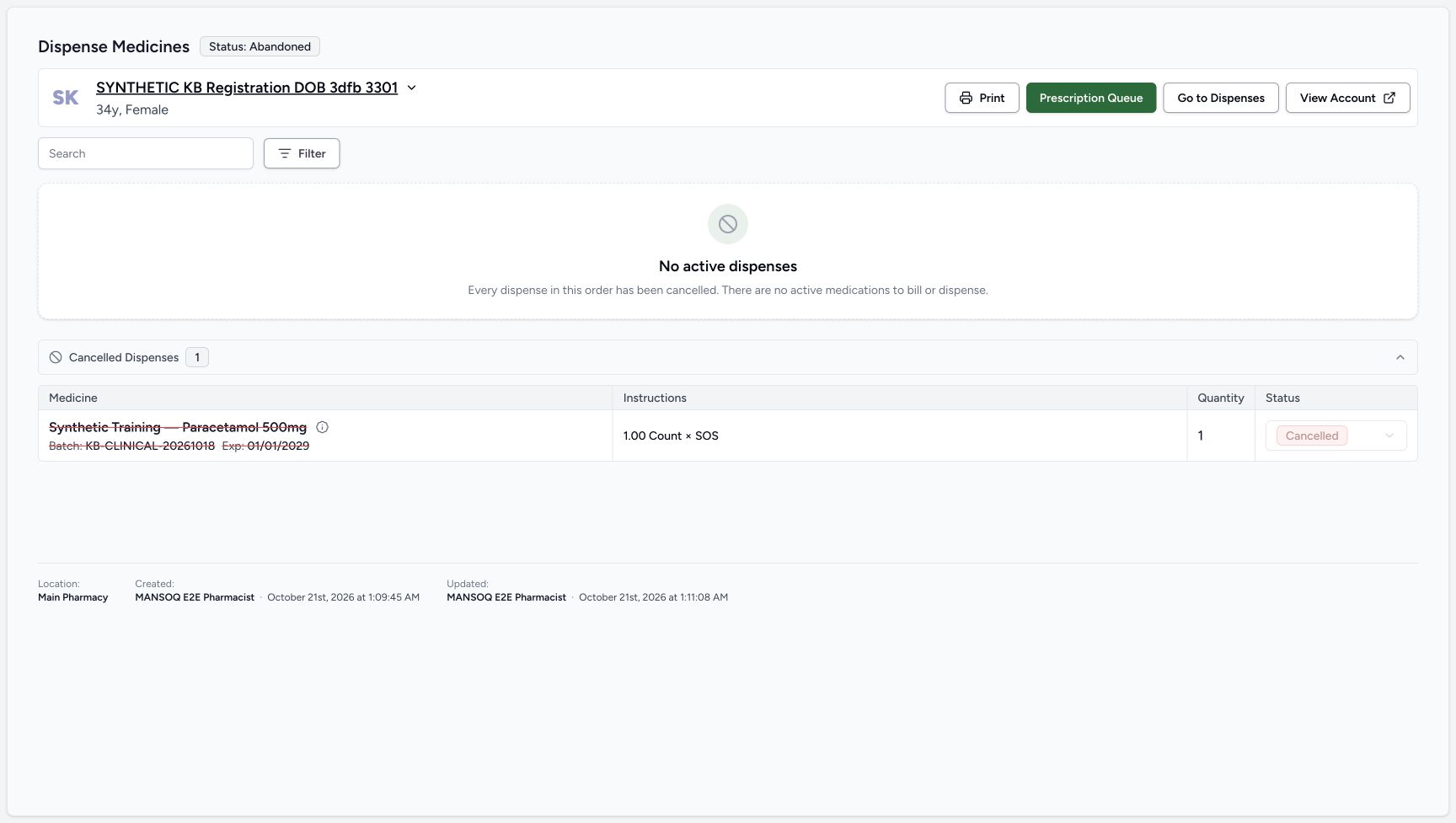
Reload normally. Verify the parent is Abandoned, No active dispenses is shown and the one Cancelled row is visible in the expanded Cancelled Dispenses group. Its status is disabled and there is no pencil edit control. Choose the row’s information control and read the same saved Dispense note. The exact text remains available read-only after cancellation and reload. Close the popover when finished; no further save is needed.
 12345
12345Read the reloaded cancelled medicine row
Capture details
Actual source5344 standalone medicine Note software example at MANSOQ Demo Polyclinic/Main Pharmacy. No medicine handover, invoice issuance, payment or external exchange is demonstrated.
Image SHA-256 7c0a7913e9ef2d39de895df6927a8bad4efc453c6ebd53ee886f322d10c3218f
- Verify parent Abandoned after reload: Read the saved terminal order status.
- Verify No active dispenses: The page does not show a completed medicine handover.
- Locate the expanded Cancelled Dispenses group: The one cancelled row is already visible in this capture.
- Open the cancelled row Dispense Details: The same read-only information control remains available.
- Verify the row is Cancelled: Its status is disabled and no Edit control is shown.
1234Read the same saved Note after cancellation
Capture details
Actual source5344 standalone medicine Note software example at MANSOQ Demo Polyclinic/Main Pharmacy. No medicine handover, invoice issuance, payment or external exchange is demonstrated.
Image SHA-256 088e0333ef408215a89ccf7c37c00f3394330d3f96d4955661fbe3ad868df2a1
- Keep the standalone no-prescription context: No prescription note has been substituted.
- Read the unchanged saved Dispense note: The exact authored text remains readable on the cancelled row without editing.
- Read Aborted as the charge label: Do not infer that an invoice is Cancelled or paid from this badge.
- Close the read-only cancelled-row popover: No new save, billing or payment action is needed.
Keep the medicine Note separate from prescription notes
The Note entered in Add Medication belongs to this medicine’s saved dispense. In Details it is labelled Dispense note and is separate from Prescription Details. This example has no authorizing prescription, so the popover shows the no-prescription notice instead of a prescription note. An optional empty or whitespace-only medicine note does not produce a Dispense note section. Do not treat a whole-order note or a prescription note as a substitute for this field.
1234567Read the complete selected batch
Capture details
Actual source5344 standalone medicine Note software example at MANSOQ Demo Polyclinic/Main Pharmacy. No medicine handover, invoice issuance, payment or external exchange is demonstrated.
Image SHA-256 8787fdec0b7416f6d405f4ff1a278d4c7a5334ce167b7c7c398727e3c1963990
- Verify the selected Paracetamol product: Match the intended synthetic catalogue product.
- Read full batch KB-CLINICAL-20261018: The open row provides the complete batch identifier.
- Read the displayed unit price: The selected lot shows SAR 6.30; this is not a reconciled invoice total.
- Verify eighty-four available: This is stock before the preparation is saved.
- Verify January 2029 expiry: Keep the selected example batch unchanged.
- Verify quantity one: This software example uses one unit without a quantity change.
- Open the selected-lot control: Use this selector to inspect the lot list; this image shows the list already open.
12345678Enter the optional medicine Note before adding
Capture details
Actual source5344 standalone medicine Note software example at MANSOQ Demo Polyclinic/Main Pharmacy. No medicine handover, invoice issuance, payment or external exchange is demonstrated.
Image SHA-256 76a2c9cddc3e5ce98cd4dded3fe19297929be3a03e271b8447396f0c4946572c
- Read the example dosage count one: This captured software input is not clinical advice.
- Read the example SOS frequency: The captured default is SOS (As needed); do not derive a treatment regimen from this lesson.
- Enter the medicine Note: This is the optional per-medicine Note, not a prescription or whole-order note.
- Verify required quantity one: The form shows 1.00 count (PRN) for this software example.
- Keep the selected example lot: The closed label is shortened; use the prior open list for full identification.
- Verify the one-unit lot quantity: Do not add another lot or change quantity in this note exercise.
- Choose Add Medication once: This appends a local unsaved medicine line; it does not yet create the preparation.
- Use Cancel to leave the medicine sheet if needed: Review before adding the local line.
123456Read the saved Note in its separate section
Capture details
Actual source5344 standalone medicine Note software example at MANSOQ Demo Polyclinic/Main Pharmacy. No medicine handover, invoice issuance, payment or external exchange is demonstrated.
Image SHA-256 272eee39c236351e9f22b765a6427b44445097fb8255df83179d3534d3fe16c9
- Read the no-prescription notice: This standalone medicine is not linked to a prescription.
- Read the separate Dispense note: The complete authored text is visible and wraps naturally; it has not become a prescription note.
- Recognise Billed as the charge state: This label does not mean payment or medicine handover.
- Read the displayed SAR 6.30 charge: Keep this distinct from the SAR 6.00 invoice header.
- Recognise the Draft invoice reference: The popover shows INV-120-26 as Draft, not issued or paid.
- Close the read-only Details popover: No Edit or Save is required to read the note.
1234Read the same saved Note after cancellation
Capture details
Actual source5344 standalone medicine Note software example at MANSOQ Demo Polyclinic/Main Pharmacy. No medicine handover, invoice issuance, payment or external exchange is demonstrated.
Image SHA-256 088e0333ef408215a89ccf7c37c00f3394330d3f96d4955661fbe3ad868df2a1
- Keep the standalone no-prescription context: No prescription note has been substituted.
- Read the unchanged saved Dispense note: The exact authored text remains readable on the cancelled row without editing.
- Read Aborted as the charge label: Do not infer that an invoice is Cancelled or paid from this badge.
- Close the read-only cancelled-row popover: No new save, billing or payment action is needed.
 123
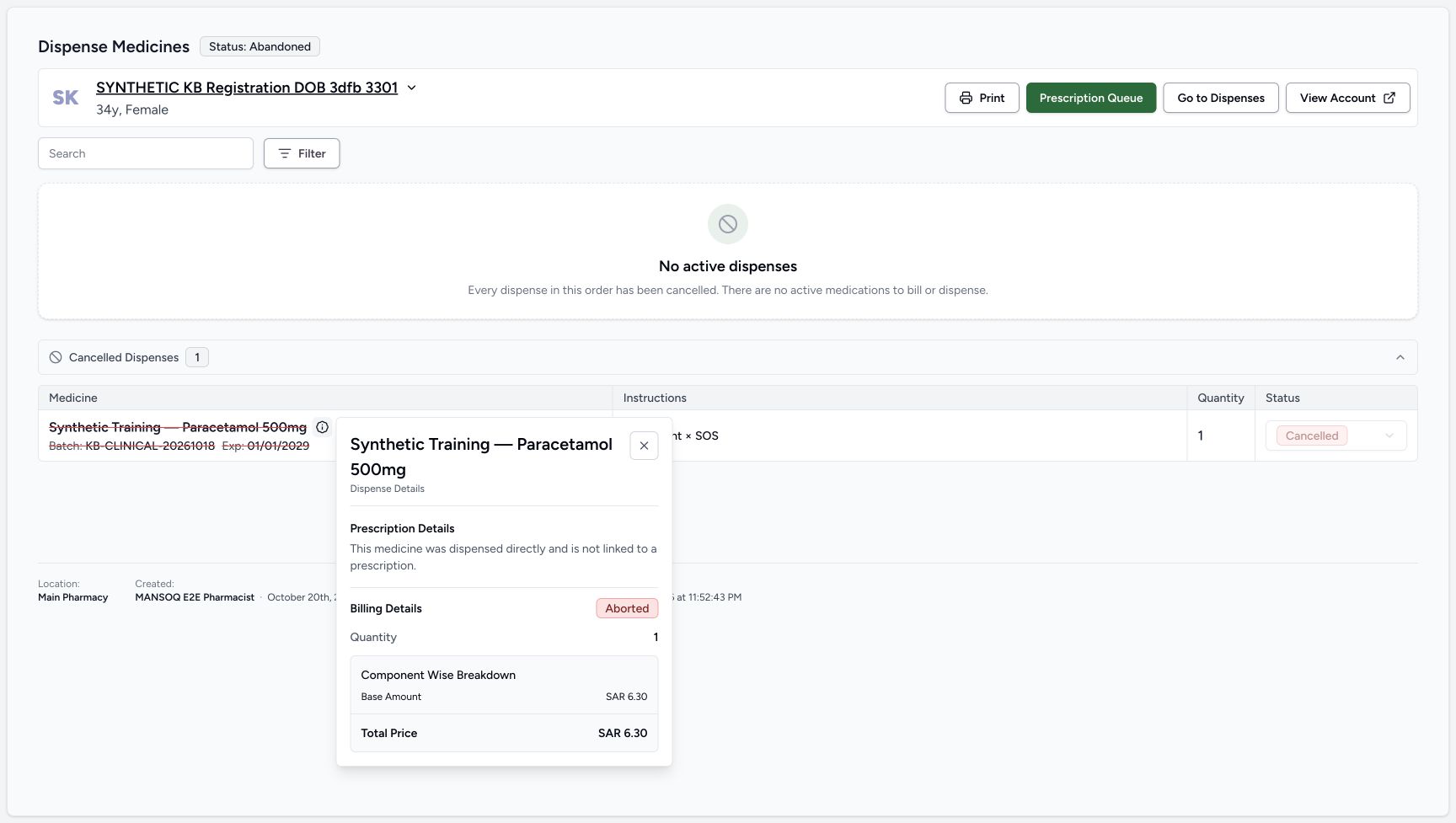
123Read an older record with no saved medicine Note
Capture details
Current5344 read-only companion of a separate older saved record with no medicine Note. No blank note was authored, no missing text was reconstructed, and no business record was changed.
Image SHA-256 13384e3397ed77a2b6e27b3250df3686a387da036ff4e4d06ebc802f20c4cce3
- Read Prescription Details on the older record: The separate prior cancelled row still shows the no-prescription notice.
- See Billing Details immediately after the prescription notice: There is no Dispense note section between these sections on this older saved record.
- Close this read-only older-record popover: This actual X closes Details without editing or saving a note.
Read status labels without inferring financial settlement
Preparation and In Progress after billing are saved states, not evidence of medicine handover. After the optional abandonment, the parent is Abandoned and its medicine row Cancelled. The Aborted badge in the final Details belongs to the charge; it does not prove the invoice is Cancelled or paid. No post-cancellation invoice or account screen is part of this note lesson, and no payment or settlement is demonstrated. For the separate captured stock and financial checks around an unpaid cancellation, see Abandon an unpaid preparation order.
123456Read the saved unpaid preparation
Capture details
Actual source5344 standalone medicine Note software example at MANSOQ Demo Polyclinic/Main Pharmacy. No medicine handover, invoice issuance, payment or external exchange is demonstrated.
Image SHA-256 df37aab382414739f2ca2acd39387837833b1c9266b2040d85bcb5876bf1c420
- Verify order In Progress: This saved order has not been completed.
- Read Draft Invoice: The new invoice remains unissued.
- Read the displayed SAR 6.00 header: This differs from the SAR 6.30 estimate; the lesson does not reconcile that display difference.
- Verify the child is Preparation: Saving the note does not mean medicine was handed over.
- Verify saved quantity one: There is one saved standalone medicine row.
- Read the pending-invoice completion message: Completion remains unavailable; do not issue or settle an invoice in this lesson.
123456Read the saved Note in its separate section
Capture details
Actual source5344 standalone medicine Note software example at MANSOQ Demo Polyclinic/Main Pharmacy. No medicine handover, invoice issuance, payment or external exchange is demonstrated.
Image SHA-256 272eee39c236351e9f22b765a6427b44445097fb8255df83179d3534d3fe16c9
- Read the no-prescription notice: This standalone medicine is not linked to a prescription.
- Read the separate Dispense note: The complete authored text is visible and wraps naturally; it has not become a prescription note.
- Recognise Billed as the charge state: This label does not mean payment or medicine handover.
- Read the displayed SAR 6.30 charge: Keep this distinct from the SAR 6.00 invoice header.
- Recognise the Draft invoice reference: The popover shows INV-120-26 as Draft, not issued or paid.
- Close the read-only Details popover: No Edit or Save is required to read the note.
12345Read the reloaded cancelled medicine row
Capture details
Actual source5344 standalone medicine Note software example at MANSOQ Demo Polyclinic/Main Pharmacy. No medicine handover, invoice issuance, payment or external exchange is demonstrated.
Image SHA-256 7c0a7913e9ef2d39de895df6927a8bad4efc453c6ebd53ee886f322d10c3218f
- Verify parent Abandoned after reload: Read the saved terminal order status.
- Verify No active dispenses: The page does not show a completed medicine handover.
- Locate the expanded Cancelled Dispenses group: The one cancelled row is already visible in this capture.
- Open the cancelled row Dispense Details: The same read-only information control remains available.
- Verify the row is Cancelled: Its status is disabled and no Edit control is shown.
1234Read the same saved Note after cancellation
Capture details
Actual source5344 standalone medicine Note software example at MANSOQ Demo Polyclinic/Main Pharmacy. No medicine handover, invoice issuance, payment or external exchange is demonstrated.
Image SHA-256 088e0333ef408215a89ccf7c37c00f3394330d3f96d4955661fbe3ad868df2a1
- Keep the standalone no-prescription context: No prescription note has been substituted.
- Read the unchanged saved Dispense note: The exact authored text remains readable on the cancelled row without editing.
- Read Aborted as the charge label: Do not infer that an invoice is Cancelled or paid from this badge.
- Close the read-only cancelled-row popover: No new save, billing or payment action is needed.
Troubleshooting
I added the medicine but cannot yet find a saved Note
Add Medication only appends the local line. Review that one selected Other Items row before Bill Selected. Bill Selected is the save boundary; wait for the saved In Progress order and Preparation row, then reload and open Dispense Details. If the save outcome is uncertain, inspect the saved order rather than repeating Bill Selected. Before billing, Cancel remains available to leave an incorrect new bill.
1234Open the empty standalone medicine bill
Capture details
Actual source5344 standalone medicine Note software example at MANSOQ Demo Polyclinic/Main Pharmacy. No medicine handover, invoice issuance, payment or external exchange is demonstrated.
Image SHA-256 32146b673a6e3c9a81e6b0e32be89dfbbdb7bc673b8f8ea337d3469216bb8ec5
- Verify No Medications: The standalone bill has no medicine lines yet.
- Keep the other prescriptions separate: Leave Include all unused; this lesson does not bill an existing prescription.
- Open Add Medication: Choose one synthetic catalogue product.
- Use Cancel before billing if needed: Cancel is available before saving this new preparation.
12345678Enter the optional medicine Note before adding
Capture details
Actual source5344 standalone medicine Note software example at MANSOQ Demo Polyclinic/Main Pharmacy. No medicine handover, invoice issuance, payment or external exchange is demonstrated.
Image SHA-256 76a2c9cddc3e5ce98cd4dded3fe19297929be3a03e271b8447396f0c4946572c
- Read the example dosage count one: This captured software input is not clinical advice.
- Read the example SOS frequency: The captured default is SOS (As needed); do not derive a treatment regimen from this lesson.
- Enter the medicine Note: This is the optional per-medicine Note, not a prescription or whole-order note.
- Verify required quantity one: The form shows 1.00 count (PRN) for this software example.
- Keep the selected example lot: The closed label is shortened; use the prior open list for full identification.
- Verify the one-unit lot quantity: Do not add another lot or change quantity in this note exercise.
- Choose Add Medication once: This appends a local unsaved medicine line; it does not yet create the preparation.
- Use Cancel to leave the medicine sheet if needed: Review before adding the local line.
12345Review the selected line before the save boundary
Capture details
Actual source5344 standalone medicine Note software example at MANSOQ Demo Polyclinic/Main Pharmacy. No medicine handover, invoice issuance, payment or external exchange is demonstrated.
Image SHA-256 4c59dde89a377c0f18fa2584f7e8a1052f14cf899f251ec8ca651a3bf637f523
- Verify the sole medicine line is selected: Only this standalone line is included.
- Match the standalone medicine: The row is under Other Items, separate from the other prescriptions.
- Verify quantity one before saving: Keep the single reviewed unit.
- Read the SAR 6.30 estimate: The footer warns the final amount is calculated after invoice generation.
- Choose Bill Selected once: Wait for the saved order; do not repeat while the result is uncertain.
123456Read the saved unpaid preparation
Capture details
Actual source5344 standalone medicine Note software example at MANSOQ Demo Polyclinic/Main Pharmacy. No medicine handover, invoice issuance, payment or external exchange is demonstrated.
Image SHA-256 df37aab382414739f2ca2acd39387837833b1c9266b2040d85bcb5876bf1c420
- Verify order In Progress: This saved order has not been completed.
- Read Draft Invoice: The new invoice remains unissued.
- Read the displayed SAR 6.00 header: This differs from the SAR 6.30 estimate; the lesson does not reconcile that display difference.
- Verify the child is Preparation: Saving the note does not mean medicine was handed over.
- Verify saved quantity one: There is one saved standalone medicine row.
- Read the pending-invoice completion message: Completion remains unavailable; do not issue or settle an invoice in this lesson.
123Reload and locate read-only Dispense Details
Capture details
Actual source5344 standalone medicine Note software example at MANSOQ Demo Polyclinic/Main Pharmacy. No medicine handover, invoice issuance, payment or external exchange is demonstrated.
Image SHA-256 df37aab382414739f2ca2acd39387837833b1c9266b2040d85bcb5876bf1c420
- Open Dispense Details: Use the information control, not the separate pencil edit control.
- Verify Preparation after reload: Read the same saved row.
- Verify In Progress after reload: The page is the reloaded saved order. This original has the same pixels as the earlier saved-state image.
123456Read the saved Note in its separate section
Capture details
Actual source5344 standalone medicine Note software example at MANSOQ Demo Polyclinic/Main Pharmacy. No medicine handover, invoice issuance, payment or external exchange is demonstrated.
Image SHA-256 272eee39c236351e9f22b765a6427b44445097fb8255df83179d3534d3fe16c9
- Read the no-prescription notice: This standalone medicine is not linked to a prescription.
- Read the separate Dispense note: The complete authored text is visible and wraps naturally; it has not become a prescription note.
- Recognise Billed as the charge state: This label does not mean payment or medicine handover.
- Read the displayed SAR 6.30 charge: Keep this distinct from the SAR 6.00 invoice header.
- Recognise the Draft invoice reference: The popover shows INV-120-26 as Draft, not issued or paid.
- Close the read-only Details popover: No Edit or Save is required to read the note.
The note is clipped, blank, or the row no longer has Edit
The Add Medication Note is a single-line input, so a long note may be only partly visible while typing. Use the saved Dispense Details section to read the full text after reload. An optional note with no saved text has no section. The older-record screenshot shows a different, older Cancelled record with no saved medicine Note: Prescription Details is followed directly by Billing Details. That read-only example is missing saved data, not a deliberately blank note authored in this run. Opening the older record has not reconstructed a missing note. On the new note example’s Cancelled row, the information control still reads the exact saved note even though Edit is unavailable. Match the intended record; do not substitute a prescription/order note or repeat billing to recover missing text.
1234567Read the complete selected batch
Capture details
Actual source5344 standalone medicine Note software example at MANSOQ Demo Polyclinic/Main Pharmacy. No medicine handover, invoice issuance, payment or external exchange is demonstrated.
Image SHA-256 8787fdec0b7416f6d405f4ff1a278d4c7a5334ce167b7c7c398727e3c1963990
- Verify the selected Paracetamol product: Match the intended synthetic catalogue product.
- Read full batch KB-CLINICAL-20261018: The open row provides the complete batch identifier.
- Read the displayed unit price: The selected lot shows SAR 6.30; this is not a reconciled invoice total.
- Verify eighty-four available: This is stock before the preparation is saved.
- Verify January 2029 expiry: Keep the selected example batch unchanged.
- Verify quantity one: This software example uses one unit without a quantity change.
- Open the selected-lot control: Use this selector to inspect the lot list; this image shows the list already open.
12345678Enter the optional medicine Note before adding
Capture details
Actual source5344 standalone medicine Note software example at MANSOQ Demo Polyclinic/Main Pharmacy. No medicine handover, invoice issuance, payment or external exchange is demonstrated.
Image SHA-256 76a2c9cddc3e5ce98cd4dded3fe19297929be3a03e271b8447396f0c4946572c
- Read the example dosage count one: This captured software input is not clinical advice.
- Read the example SOS frequency: The captured default is SOS (As needed); do not derive a treatment regimen from this lesson.
- Enter the medicine Note: This is the optional per-medicine Note, not a prescription or whole-order note.
- Verify required quantity one: The form shows 1.00 count (PRN) for this software example.
- Keep the selected example lot: The closed label is shortened; use the prior open list for full identification.
- Verify the one-unit lot quantity: Do not add another lot or change quantity in this note exercise.
- Choose Add Medication once: This appends a local unsaved medicine line; it does not yet create the preparation.
- Use Cancel to leave the medicine sheet if needed: Review before adding the local line.
123Reload and locate read-only Dispense Details
Capture details
Actual source5344 standalone medicine Note software example at MANSOQ Demo Polyclinic/Main Pharmacy. No medicine handover, invoice issuance, payment or external exchange is demonstrated.
Image SHA-256 df37aab382414739f2ca2acd39387837833b1c9266b2040d85bcb5876bf1c420
- Open Dispense Details: Use the information control, not the separate pencil edit control.
- Verify Preparation after reload: Read the same saved row.
- Verify In Progress after reload: The page is the reloaded saved order. This original has the same pixels as the earlier saved-state image.
123456Read the saved Note in its separate section
Capture details
Actual source5344 standalone medicine Note software example at MANSOQ Demo Polyclinic/Main Pharmacy. No medicine handover, invoice issuance, payment or external exchange is demonstrated.
Image SHA-256 272eee39c236351e9f22b765a6427b44445097fb8255df83179d3534d3fe16c9
- Read the no-prescription notice: This standalone medicine is not linked to a prescription.
- Read the separate Dispense note: The complete authored text is visible and wraps naturally; it has not become a prescription note.
- Recognise Billed as the charge state: This label does not mean payment or medicine handover.
- Read the displayed SAR 6.30 charge: Keep this distinct from the SAR 6.00 invoice header.
- Recognise the Draft invoice reference: The popover shows INV-120-26 as Draft, not issued or paid.
- Close the read-only Details popover: No Edit or Save is required to read the note.
12345Read the reloaded cancelled medicine row
Capture details
Actual source5344 standalone medicine Note software example at MANSOQ Demo Polyclinic/Main Pharmacy. No medicine handover, invoice issuance, payment or external exchange is demonstrated.
Image SHA-256 7c0a7913e9ef2d39de895df6927a8bad4efc453c6ebd53ee886f322d10c3218f
- Verify parent Abandoned after reload: Read the saved terminal order status.
- Verify No active dispenses: The page does not show a completed medicine handover.
- Locate the expanded Cancelled Dispenses group: The one cancelled row is already visible in this capture.
- Open the cancelled row Dispense Details: The same read-only information control remains available.
- Verify the row is Cancelled: Its status is disabled and no Edit control is shown.
1234Read the same saved Note after cancellation
Capture details
Actual source5344 standalone medicine Note software example at MANSOQ Demo Polyclinic/Main Pharmacy. No medicine handover, invoice issuance, payment or external exchange is demonstrated.
Image SHA-256 088e0333ef408215a89ccf7c37c00f3394330d3f96d4955661fbe3ad868df2a1
- Keep the standalone no-prescription context: No prescription note has been substituted.
- Read the unchanged saved Dispense note: The exact authored text remains readable on the cancelled row without editing.
- Read Aborted as the charge label: Do not infer that an invoice is Cancelled or paid from this badge.
- Close the read-only cancelled-row popover: No new save, billing or payment action is needed.
123Read an older record with no saved medicine Note
Capture details
Current5344 read-only companion of a separate older saved record with no medicine Note. No blank note was authored, no missing text was reconstructed, and no business record was changed.
Image SHA-256 13384e3397ed77a2b6e27b3250df3686a387da036ff4e4d06ebc802f20c4cce3
- Read Prescription Details on the older record: The separate prior cancelled row still shows the no-prescription notice.
- See Billing Details immediately after the prescription notice: There is no Dispense note section between these sections on this older saved record.
- Close this read-only older-record popover: This actual X closes Details without editing or saving a note.
Source evidence
Every citation uses this exact committed version. The private source repository requires access.
- repositories/platform/mansoq-core/mansoq/emr/api/viewsets/medication_dispense.py:78 ·
5344edb2d46b4aa67c38dd2ab82541fb3ce3f058Source file checksum
c1db5d5c78472ce05b7bf736c4563e0e4a29706c1f4d6b074304c112e89dd206 - repositories/platform/mansoq-core/mansoq/emr/models/medication_dispense.py:9 ·
5344edb2d46b4aa67c38dd2ab82541fb3ce3f058Source file checksum
b0331ea36659c535ba0fb8ddfc772dd7fc502b499c5342be0f0b2c84cec448d6 - repositories/platform/mansoq-core/mansoq/emr/resources/medication/dispense/spec.py:107 ·
5344edb2d46b4aa67c38dd2ab82541fb3ce3f058Source file checksum
e52a9ae743c750dd1a32ec8678ffc986406a42fa7d25940877af63de1a6862c7 - repositories/platform/mansoq-core/mansoq/security/authorization/medication.py:19 ·
5344edb2d46b4aa67c38dd2ab82541fb3ce3f058Source file checksum
217824d26b3ab77fecadd0df08d3bde2c96c3fa11c1be3dac35d256c2c596958 - repositories/platform/mansoq-web/public/locale/ar.json:2085 ·
5344edb2d46b4aa67c38dd2ab82541fb3ce3f058Source file checksum
72dc98ea1c816e435fa0669a2c18c9f3e49355dd80e557d4d73de4e0c1d8ded3 - repositories/platform/mansoq-web/public/locale/en.json:2013 ·
5344edb2d46b4aa67c38dd2ab82541fb3ce3f058Source file checksum
6fd300f5cf48580ef49465f4f6d9552159f24b1763f27df0c8b32867849c8307 - repositories/platform/mansoq-web/src/pages/Facility/services/pharmacy/billMedications/BillMedicationsForm.tsx:117 ·
5344edb2d46b4aa67c38dd2ab82541fb3ce3f058Source file checksum
0afc24e60d930e46a370e183f90837fd77897335e784ad42b1617c8d6dfff97f - repositories/platform/mansoq-web/src/pages/Facility/services/pharmacy/billMedications/formSchema.ts:63 ·
5344edb2d46b4aa67c38dd2ab82541fb3ce3f058Source file checksum
2e2c87f56b55b0fd45dcb51d7b484673e22ae22f645ef59467aabe55baca7cbf - repositories/platform/mansoq-web/src/pages/Facility/services/pharmacy/billMedications/utils/useBillMedications.ts:165 ·
5344edb2d46b4aa67c38dd2ab82541fb3ce3f058Source file checksum
b0a5426e5fea291e3dabb6a3b682b10223af0ff7d8c02591b040792e7329a534 - repositories/platform/mansoq-web/src/pages/Facility/services/pharmacy/components/DispenseInfoPopover.tsx:67 ·
5344edb2d46b4aa67c38dd2ab82541fb3ce3f058Source file checksum
a3c6d978b0c2a3dae94937715a2a4a6956103597a61fee879673e96a77d3a055 - repositories/platform/mansoq-web/tests/contracts/dispense-note-visibility.test.ts:190 ·
5344edb2d46b4aa67c38dd2ab82541fb3ce3f058Source file checksum
4cd0b261fad3fcdba48c50e899015214060a98768eeb89ca6bdd19f20919938c - repositories/platform/mansoq-web/tests/contracts/helpers/standalone-medicine-note-entry.ts:9 ·
5344edb2d46b4aa67c38dd2ab82541fb3ce3f058Source file checksum
60366ee175ccbe7b94a3b5d4aab302f7ab7d2154ed81d049c474513ca88c07f4 - repositories/platform/mansoq-web/tests/contracts/standalone-medicine-note.test.ts:482 ·
5344edb2d46b4aa67c38dd2ab82541fb3ce3f058Source file checksum
ae29b4de25ba6c813a41e3e7cdbcda94d3bddb650da44ba2f50a77449bbd64e8