 MANSOQ
 Clinical care · VERSION 3dfb7c9f
Copy a coded prescription and reconcile a reported medication statement
Import the demonstrated coded prescription, explicitly complete the reported source, dosage text and dates, then save one Nurse statement and verify its note and author after reload.
Nurse
 12345678
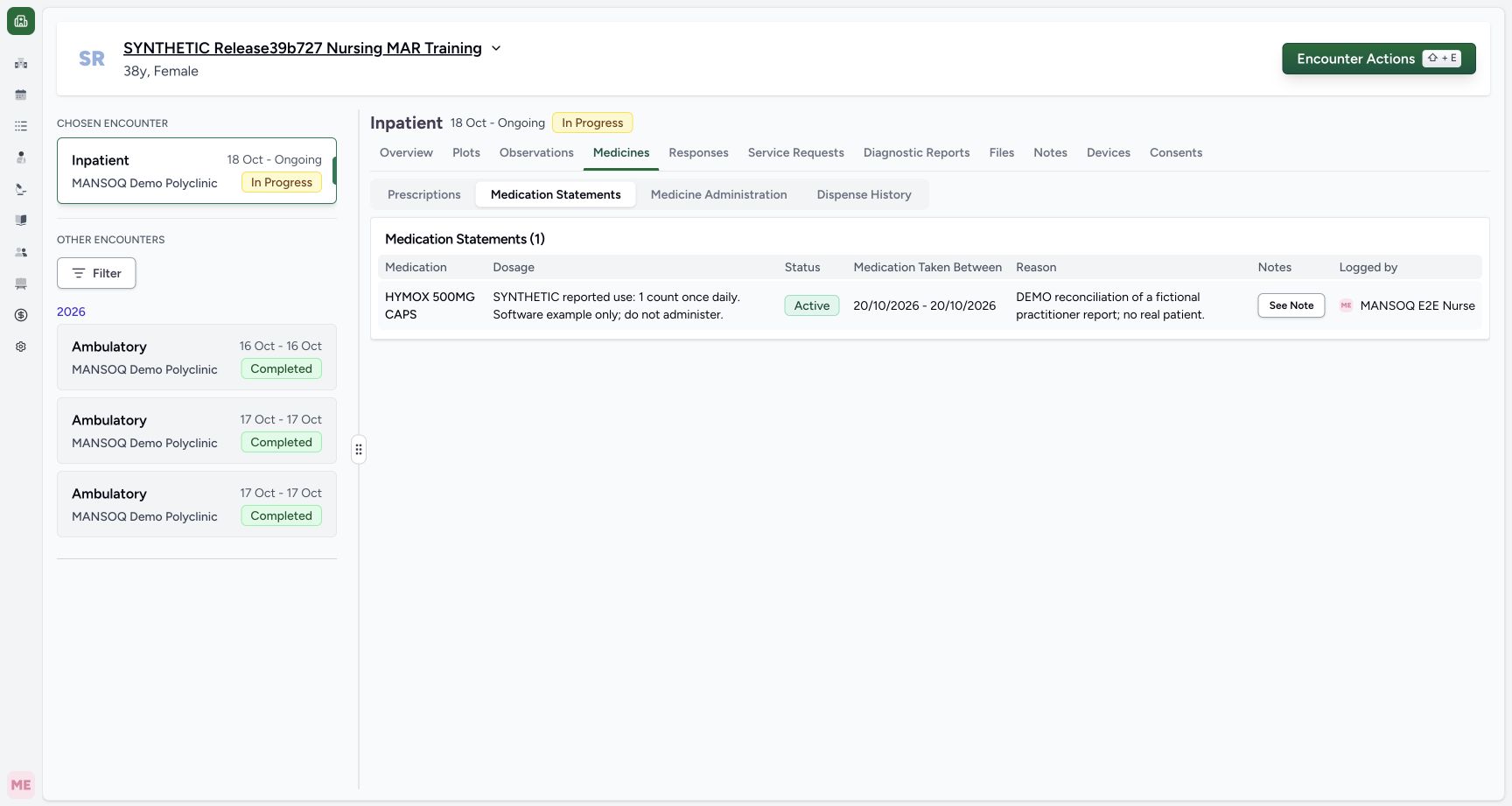
Saved statement table
Capture details
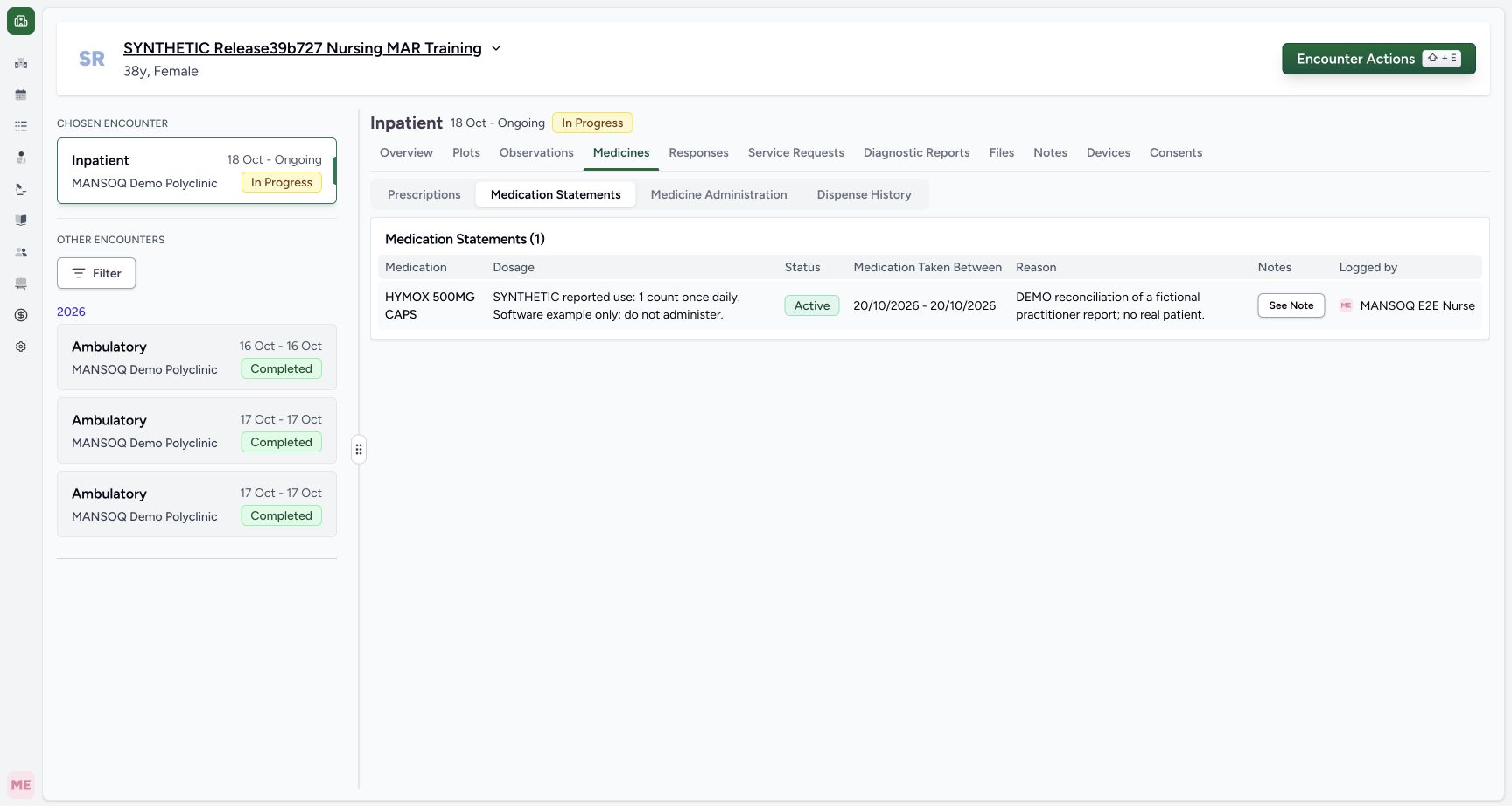
Observed committed 3dfb software on 20 October 2026. One Doctor prescription and one Nurse reported statement; software-only values, no dispensing or administration. Original pixels and capture times preserved.
Image SHA-256 7b81b836f3510d8bb67a30e0d315f6096ba1423c2663ccd487eb26d44a904da7
- Read Medication Statements (1): The table now contains the one new saved statement.
- Read the medicine: The statement is for HYMOX 500MG CAPS.
- Read the complete reported Dosage text: This is the free text entered by the Nurse, not a literal import of the prescription’s structured dosage.
- Read saved Active status: The table shows the statement’s software status.
- Read 20/10/2026 – 20/10/2026: Both displayed reported-period dates are local October 20.
- Read the complete fictional Reason: This is separate from the copied Note.
- Choose See Note: Open the saved statement’s note popover.
- Read Logged by MANSOQ E2E Nurse: This is the statement author, separate from its Practitioner information-source value.
16 of 16 content blocks have reviewed image alignment.
Before you begin
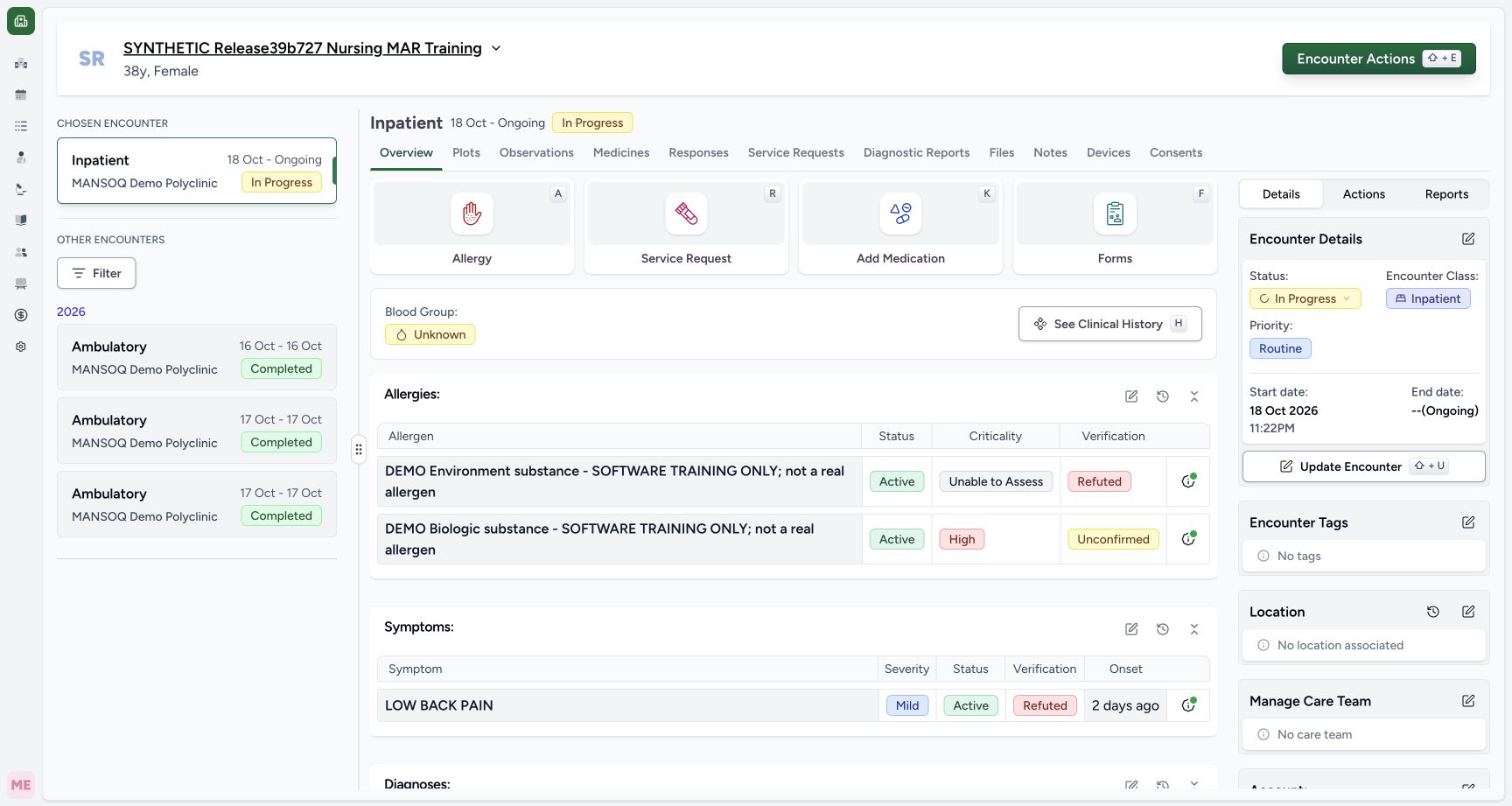
- Use an authorised Nurse account and the assigned fictional patient’s intended ongoing encounter. The earlier Nurse Overview picture illustrates the same Forms entry control; the current form selector is shown separately.
 123
123Recorded release 3dfb7c9f · 2026-10-20T07:44:57.856Z · 1728 × 921 Earlier Nurse Overview — same-patient Forms entry control
Capture details
Earlier Nurse image from the same release, patient and ongoing encounter. It illustrates the Forms tile only; later clinical sections are not relabelled as current.
Image SHA-256
591d4ee248c2c29db4a8f665a876f74d20dee53ce0d202adc44f6b698d6a0522- Check the fictional patient: Verify the synthetic training patient banner before opening a form.
- Check the selected ongoing encounter: The selected Inpatient encounter is In Progress.
- Open Forms: Choose the encounter’s Forms tile.
 1
1Recorded release 3dfb7c9f · 2026-10-20T07:56:56.174Z · 1728 × 921 Nurse forms entry
Capture details
Observed committed 3dfb software on 20 October 2026. One Doctor prescription and one Nurse reported statement; software-only values, no dispensing or administration. Original pixels and capture times preserved.
Image SHA-256
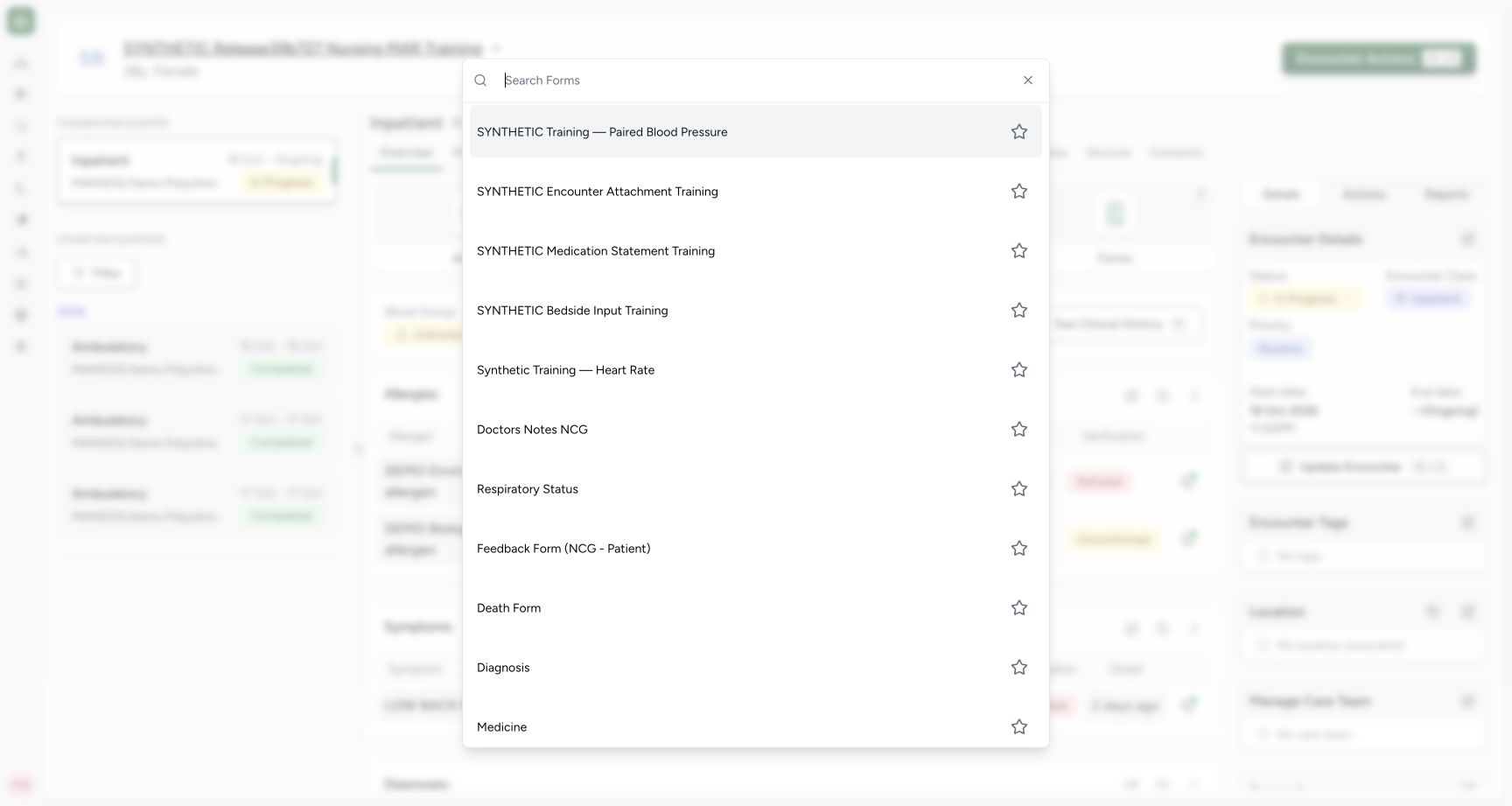
e8861537625c3cf6fb67929e9a4d89eb402645a7e251ee0fc8f29a9c25125f82- Choose the installed statement form: Select SYNTHETIC Medication Statement Training from the current Nurse form selector.
- Use the code-backed HYMOX 500MG CAPS source created in the preceding Doctor lesson. It is the new 20 October prescription with 1 count, QD and 1 day; leave the inventory-product entries below it alone.
 12345
12345Recorded release 3dfb7c9f · 2026-10-20T07:56:16.584Z · 1728 × 921 Saved coded prescription
Capture details
Observed committed 3dfb software on 20 October 2026. One Doctor prescription and one Nurse reported statement; software-only values, no dispensing or administration. Original pixels and capture times preserved.
Image SHA-256
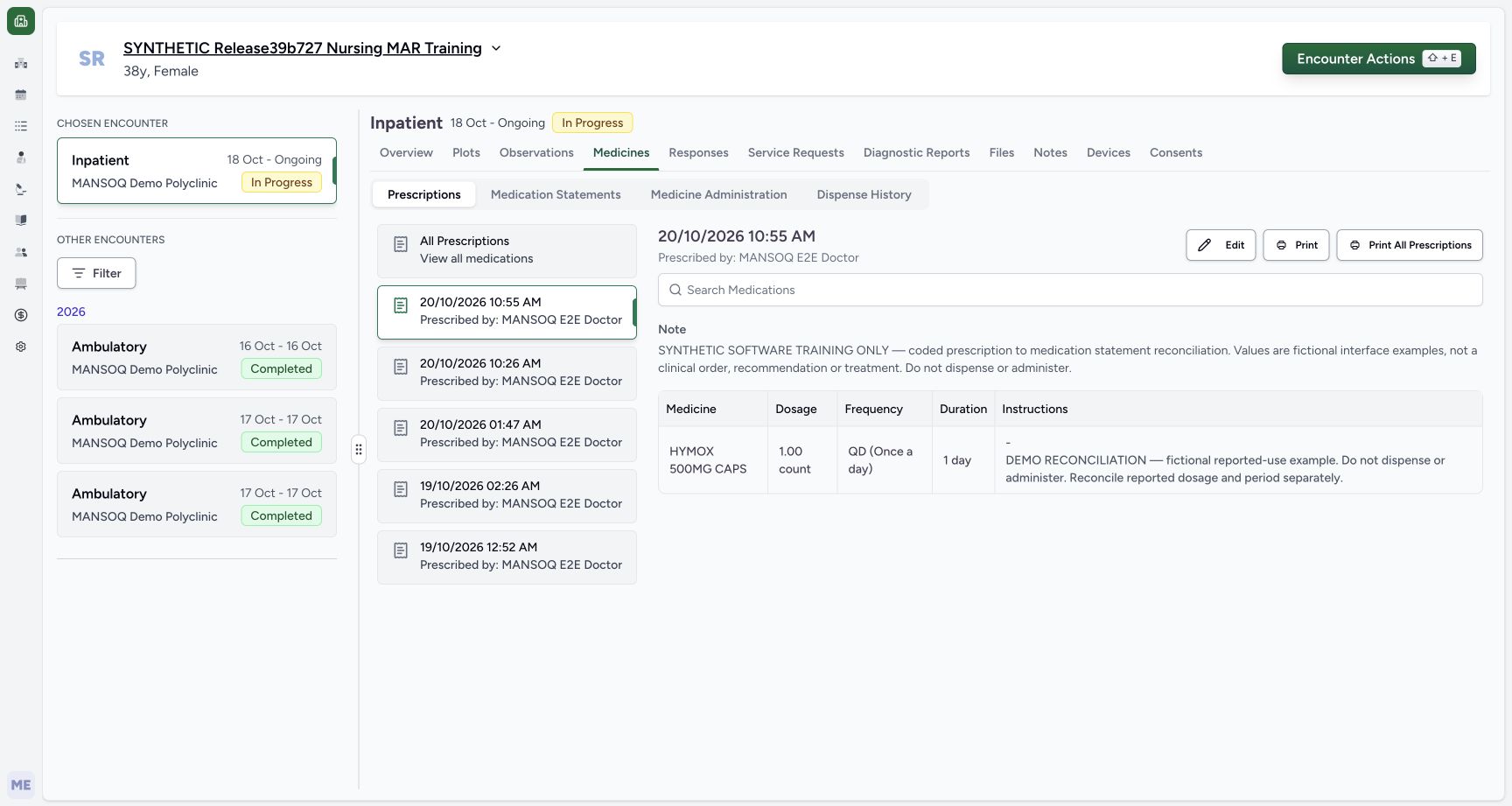
0f904563539f3b47f2b795caaaf5dfd191175fbb117b3550a5c88aff54ed011a- Verify the selected new card: The selected prescription is 20/10/2026 10:55 AM.
- Read the Doctor prescriber: The header identifies MANSOQ E2E Doctor.
- Read the shared prescription Note: This complete Note is the prescription-level training text.
- Review 1.00 count, QD and 1 day: The selected prescription’s dosage controls remain separate.
- Read the complete row-specific note: The row note appears in the Instructions cell below the dash; this is the note copied into the later statement.
 1234567
Recorded release 3dfb7c9f · 2026-10-20T07:57:09.418Z · 1728 × 921 Code backed history row
Capture details
Observed committed 3dfb software on 20 October 2026. One Doctor prescription and one Nurse reported statement; software-only values, no dispensing or administration. Original pixels and capture times preserved.
Image SHA-256
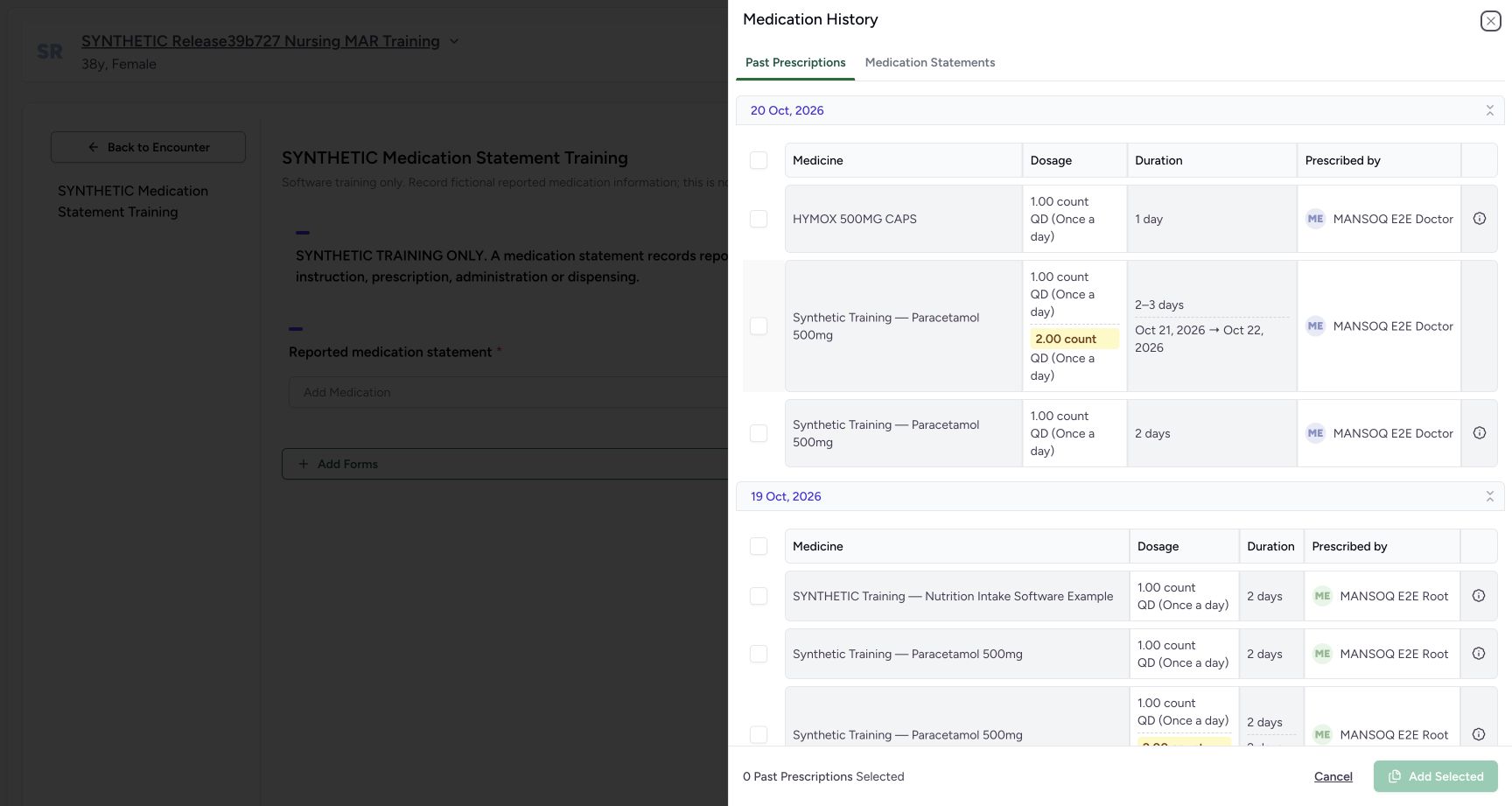
09138a05b8e6252ffd38dfaf0290a59131b58d9558a985aceb2170ca0a653795- Keep Past Prescriptions selected: This tab lists prescription source records.
- Read the 20 Oct, 2026 group: The history groups by creation day.
- Identify HYMOX 500MG CAPS: This is the new coded medicine, distinct from the inventory product entries below.
- Check 1.00 count and QD: Read the source prescription’s dosage and frequency.
- Check 1 day: The source prescription duration is shown here, not a reported-use period.
- Check the Doctor prescriber: The source row identifies MANSOQ E2E Doctor.
- Select only the HYMOX row: Use its individual checkbox, not the group checkbox.
- This is a fictional reported-medication exercise. Copying a prescription does not verify that a patient took it, and the default Source and Status are not evidence of reported use. Do not dispense or administer these examples.
 12
12Recorded release 3dfb7c9f · 2026-10-20T07:57:01.220Z · 1728 × 921 Empty statement before history
Capture details
Observed committed 3dfb software on 20 October 2026. One Doctor prescription and one Nurse reported statement; software-only values, no dispensing or administration. Original pixels and capture times preserved.
Image SHA-256
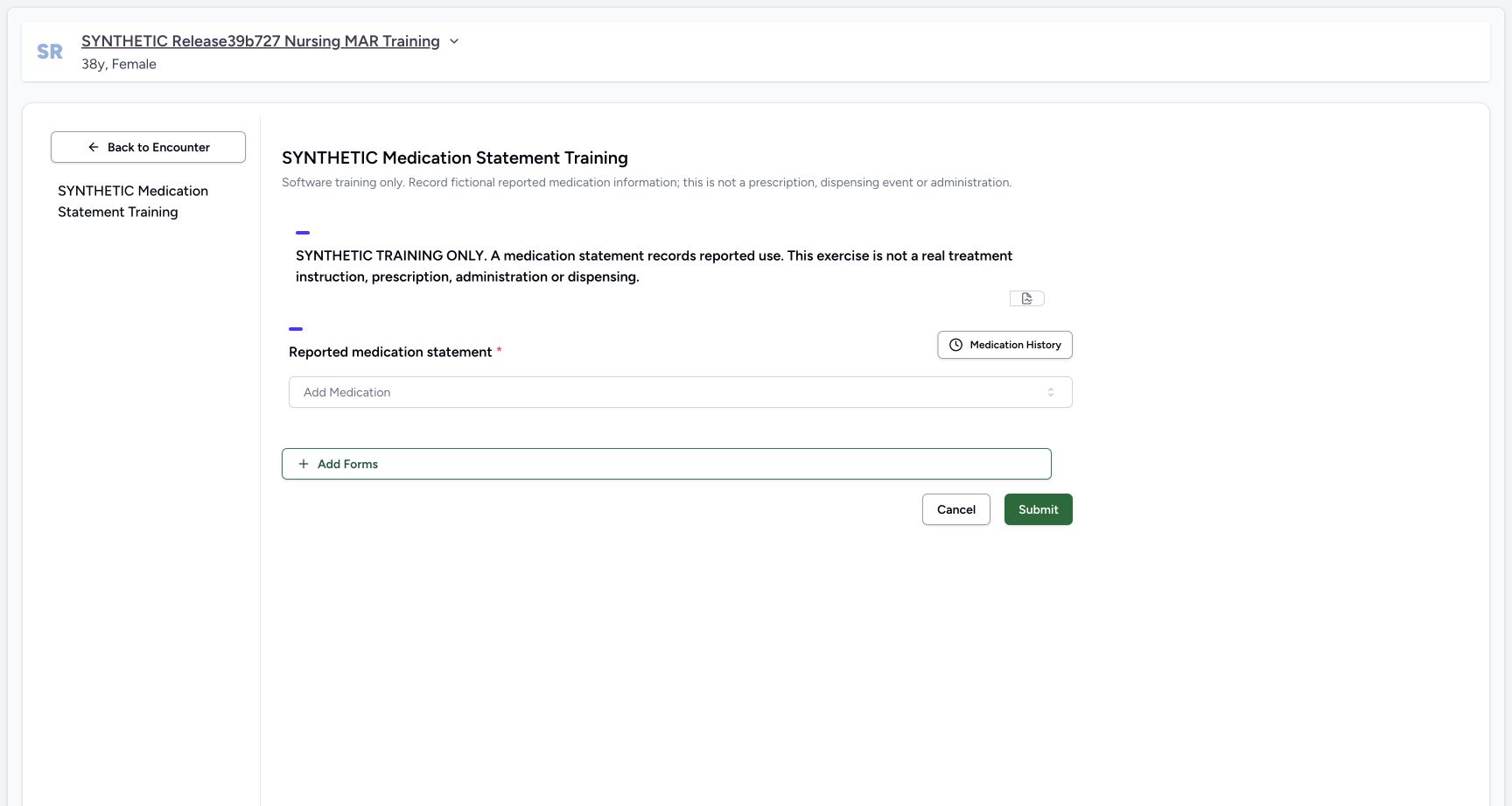
5b5ea23ec8a95954c10ae4444273a00eb6e2f3d1bc7bd2f2605673dadf25b0e1- Read the initially empty statement area: The Nurse starts with no reported medication row in this form.
- Open Medication History: Use this selector to copy the newly saved code-backed prescription.
 1234567
Recorded release 3dfb7c9f · 2026-10-20T07:58:36.847Z · 1728 × 921 Imported draft needs reconciliation
Capture details
Observed committed 3dfb software on 20 October 2026. One Doctor prescription and one Nurse reported statement; software-only values, no dispensing or administration. Original pixels and capture times preserved.
Image SHA-256
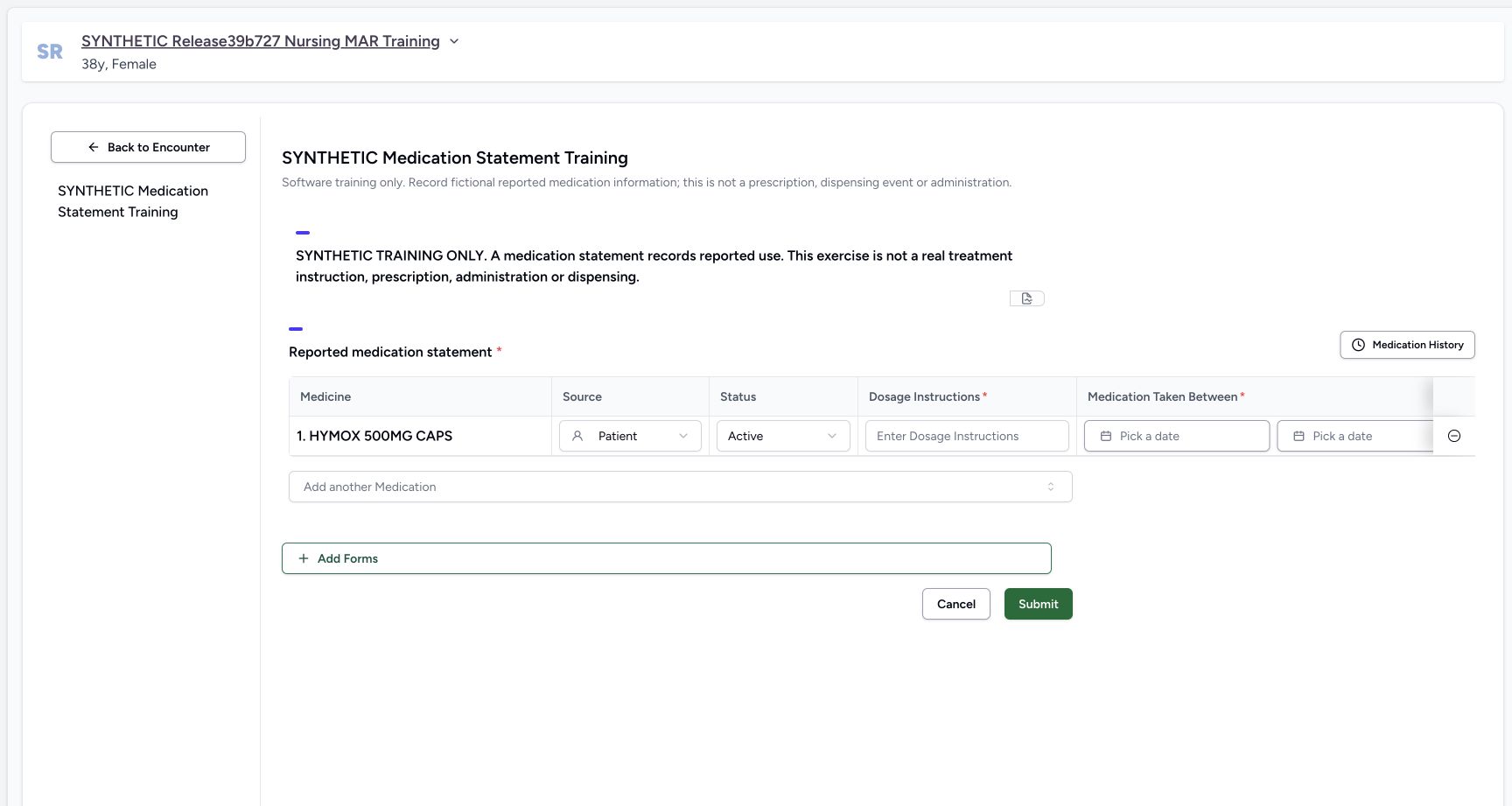
b8ffb8c1f3983ccfee4d77b77b1c1cb7fccceb9cb32e391312fbfc4b59f94d61- Read the imported HYMOX row: The coded source medicine has been added to this draft.
- Read default Source Patient: This is an initial default; it is not an inherited verification of the source.
- Read default Status Active: This software status is separate from information source.
- Locate required Dosage Instructions: The reported-text field is initially blank despite the source prescription’s structured dosage.
- Locate the blank start date: The reported period has not been copied from the prescription.
- Locate the blank end date: The end is also initially empty; it is optional under this form’s validation.
- Scroll this table horizontally to the right: Move within the table to reach Reason and the later columns, using a separate actual view.
1. Open the installed reported-medication form
On the selected encounter’s Overview choose Forms, using the earlier same-release Nurse Overview illustration of that tile. Select SYNTHETIC Medication Statement Training in the current form selector. Read the notice and check that the form initially has no reported medication row. Select Medication History.
123Earlier Nurse Overview — same-patient Forms entry control
Capture details
Earlier Nurse image from the same release, patient and ongoing encounter. It illustrates the Forms tile only; later clinical sections are not relabelled as current.
Image SHA-256 591d4ee248c2c29db4a8f665a876f74d20dee53ce0d202adc44f6b698d6a0522
- Check the fictional patient: Verify the synthetic training patient banner before opening a form.
- Check the selected ongoing encounter: The selected Inpatient encounter is In Progress.
- Open Forms: Choose the encounter’s Forms tile.
1Nurse forms entry
Capture details
Observed committed 3dfb software on 20 October 2026. One Doctor prescription and one Nurse reported statement; software-only values, no dispensing or administration. Original pixels and capture times preserved.
Image SHA-256 e8861537625c3cf6fb67929e9a4d89eb402645a7e251ee0fc8f29a9c25125f82
- Choose the installed statement form: Select SYNTHETIC Medication Statement Training from the current Nurse form selector.
12Empty statement before history
Capture details
Observed committed 3dfb software on 20 October 2026. One Doctor prescription and one Nurse reported statement; software-only values, no dispensing or administration. Original pixels and capture times preserved.
Image SHA-256 5b5ea23ec8a95954c10ae4444273a00eb6e2f3d1bc7bd2f2605673dadf25b0e1
- Read the initially empty statement area: The Nurse starts with no reported medication row in this form.
- Open Medication History: Use this selector to copy the newly saved code-backed prescription.
2. Select only the new coded prescription
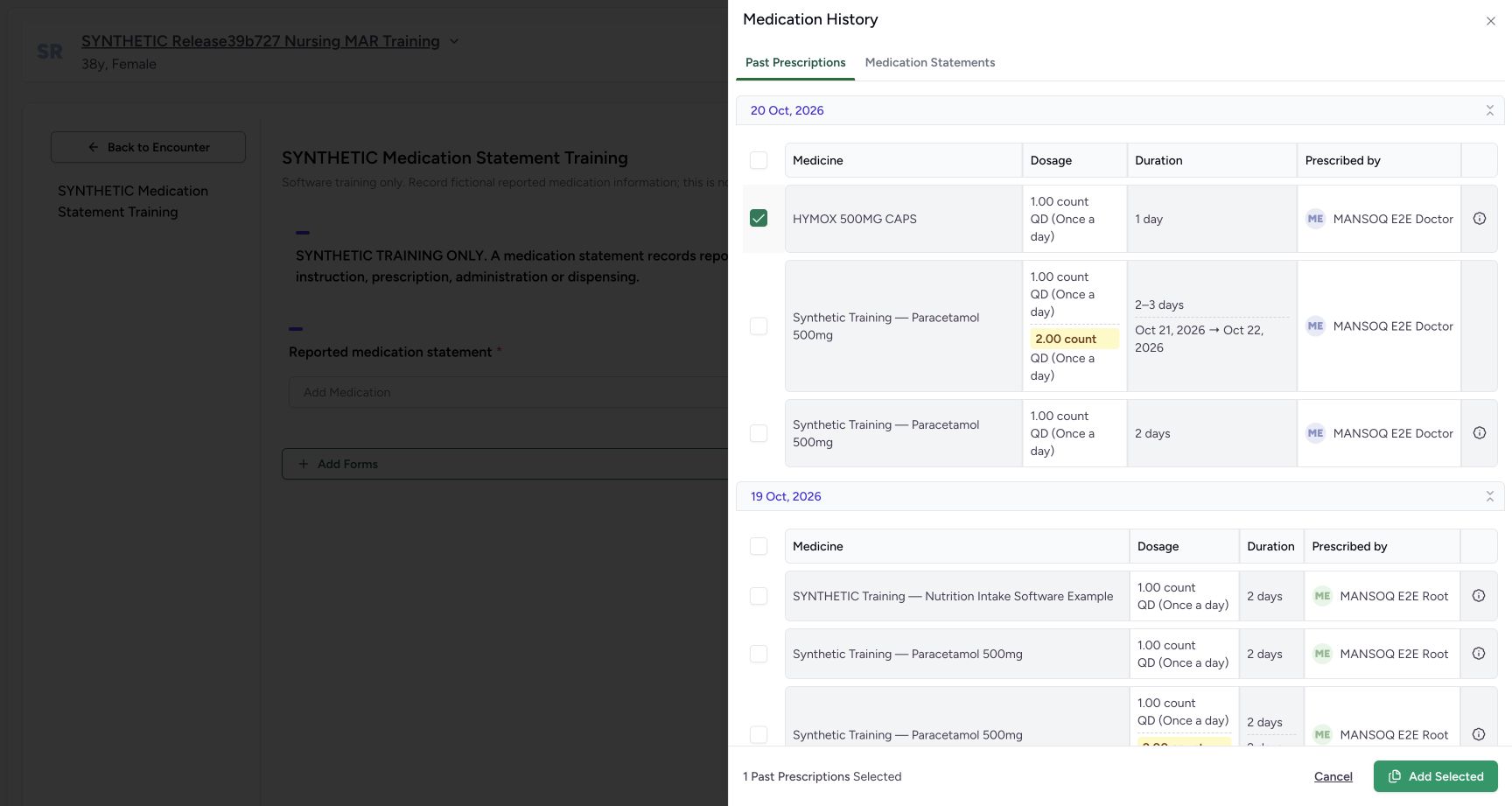
Keep Past Prescriptions selected. In the 20 Oct, 2026 group identify HYMOX 500MG CAPS, prescribed by MANSOQ E2E Doctor, with 1.00 count, QD and 1 day. Select only its row checkbox and review 1 Past Prescriptions Selected. Choose Add Selected once. This adds a draft row; it is not Submit.
1234567Code backed history row
Capture details
Observed committed 3dfb software on 20 October 2026. One Doctor prescription and one Nurse reported statement; software-only values, no dispensing or administration. Original pixels and capture times preserved.
Image SHA-256 09138a05b8e6252ffd38dfaf0290a59131b58d9558a985aceb2170ca0a653795
- Keep Past Prescriptions selected: This tab lists prescription source records.
- Read the 20 Oct, 2026 group: The history groups by creation day.
- Identify HYMOX 500MG CAPS: This is the new coded medicine, distinct from the inventory product entries below.
- Check 1.00 count and QD: Read the source prescription’s dosage and frequency.
- Check 1 day: The source prescription duration is shown here, not a reported-use period.
- Check the Doctor prescriber: The source row identifies MANSOQ E2E Doctor.
- Select only the HYMOX row: Use its individual checkbox, not the group checkbox.
 123
123One coded prescription selected
Capture details
Observed committed 3dfb software on 20 October 2026. One Doctor prescription and one Nurse reported statement; software-only values, no dispensing or administration. Original pixels and capture times preserved.
Image SHA-256 27e5d29aa4588a3ee042452236de0a5edb0f6c0d92199fbd6fb58e26b1a5a799
- Check the one selected source row: Only HYMOX is selected.
- Read 1 Past Prescriptions Selected: Review the selection count.
- Choose Add Selected once: This appends an unsaved statement draft; it does not save a reported statement.
3. Inspect what the copy did and did not fill
The settled form now contains one HYMOX row. Source initially reads Patient and Status reads Active. Dosage Instructions is blank, and both Medication Taken Between dates are blank. The prescription’s structured dose, QD and 1 day duration have not been converted into a reported-use text or period. The request row note is retained separately. Review these defaults rather than treating the imported row as complete.
1234567Imported draft needs reconciliation
Capture details
Observed committed 3dfb software on 20 October 2026. One Doctor prescription and one Nurse reported statement; software-only values, no dispensing or administration. Original pixels and capture times preserved.
Image SHA-256 b8ffb8c1f3983ccfee4d77b77b1c1cb7fccceb9cb32e391312fbfc4b59f94d61
- Read the imported HYMOX row: The coded source medicine has been added to this draft.
- Read default Source Patient: This is an initial default; it is not an inherited verification of the source.
- Read default Status Active: This software status is separate from information source.
- Locate required Dosage Instructions: The reported-text field is initially blank despite the source prescription’s structured dosage.
- Locate the blank start date: The reported period has not been copied from the prescription.
- Locate the blank end date: The end is also initially empty; it is optional under this form’s validation.
- Scroll this table horizontally to the right: Move within the table to reach Reason and the later columns, using a separate actual view.
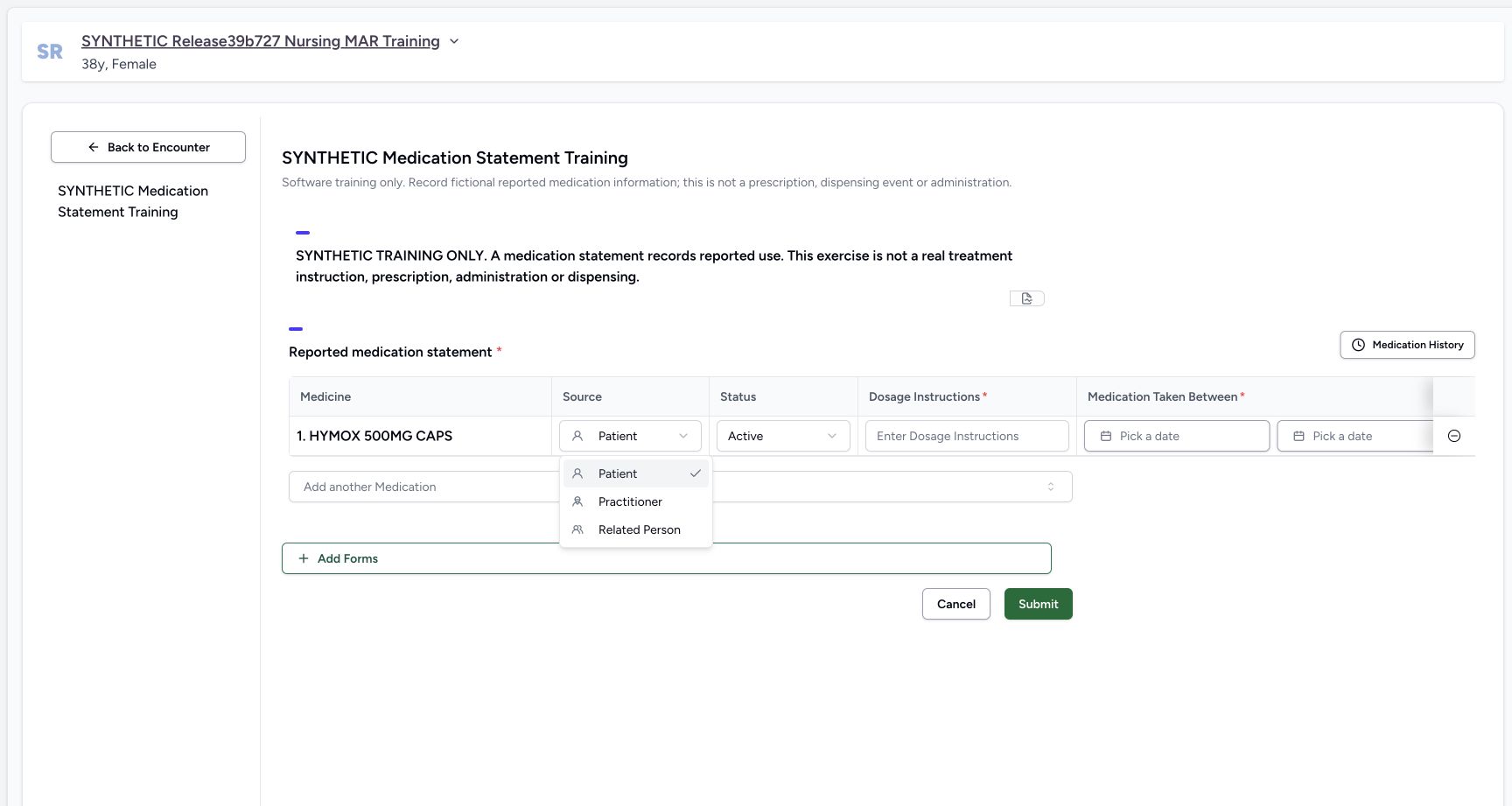
4. Choose the information source and enter reported text
Open Source and explicitly choose Practitioner for this fictional exercise; it is not automatically inherited from the Doctor prescriber. Leave Status Active in this example. In Dosage Instructions enter: SYNTHETIC reported use: 1 count once daily. Software example only; do not administer. Scroll the table horizontally to reach Reason and enter the optional explanation: DEMO reconciliation of a fictional practitioner report; no real patient. The narrow inputs clip their longer text; the saved table later provides complete readback. Keep the copied Note unchanged.
1234567Imported draft needs reconciliation
Capture details
Observed committed 3dfb software on 20 October 2026. One Doctor prescription and one Nurse reported statement; software-only values, no dispensing or administration. Original pixels and capture times preserved.
Image SHA-256 b8ffb8c1f3983ccfee4d77b77b1c1cb7fccceb9cb32e391312fbfc4b59f94d61
- Read the imported HYMOX row: The coded source medicine has been added to this draft.
- Read default Source Patient: This is an initial default; it is not an inherited verification of the source.
- Read default Status Active: This software status is separate from information source.
- Locate required Dosage Instructions: The reported-text field is initially blank despite the source prescription’s structured dosage.
- Locate the blank start date: The reported period has not been copied from the prescription.
- Locate the blank end date: The end is also initially empty; it is optional under this form’s validation.
- Scroll this table horizontally to the right: Move within the table to reach Reason and the later columns, using a separate actual view.
 12
12Information source options
Capture details
Observed committed 3dfb software on 20 October 2026. One Doctor prescription and one Nurse reported statement; software-only values, no dispensing or administration. Original pixels and capture times preserved.
Image SHA-256 1a68a91511ae9bd082a2b3c52af0cf8994d64449d739e243a38bf36a2408b41b
- Open Source: This menu is the information-source field.
- Choose Practitioner: Select Practitioner explicitly for this fictional demonstration; it is not chosen automatically from the Doctor prescriber.
 123456
Reported start calendar
Capture details
Observed committed 3dfb software on 20 October 2026. One Doctor prescription and one Nurse reported statement; software-only values, no dispensing or administration. Original pixels and capture times preserved.
Image SHA-256 f0889a484d777e45565dd3bbe784980f683479e7f1b1906d2b98b71d07ba98ae
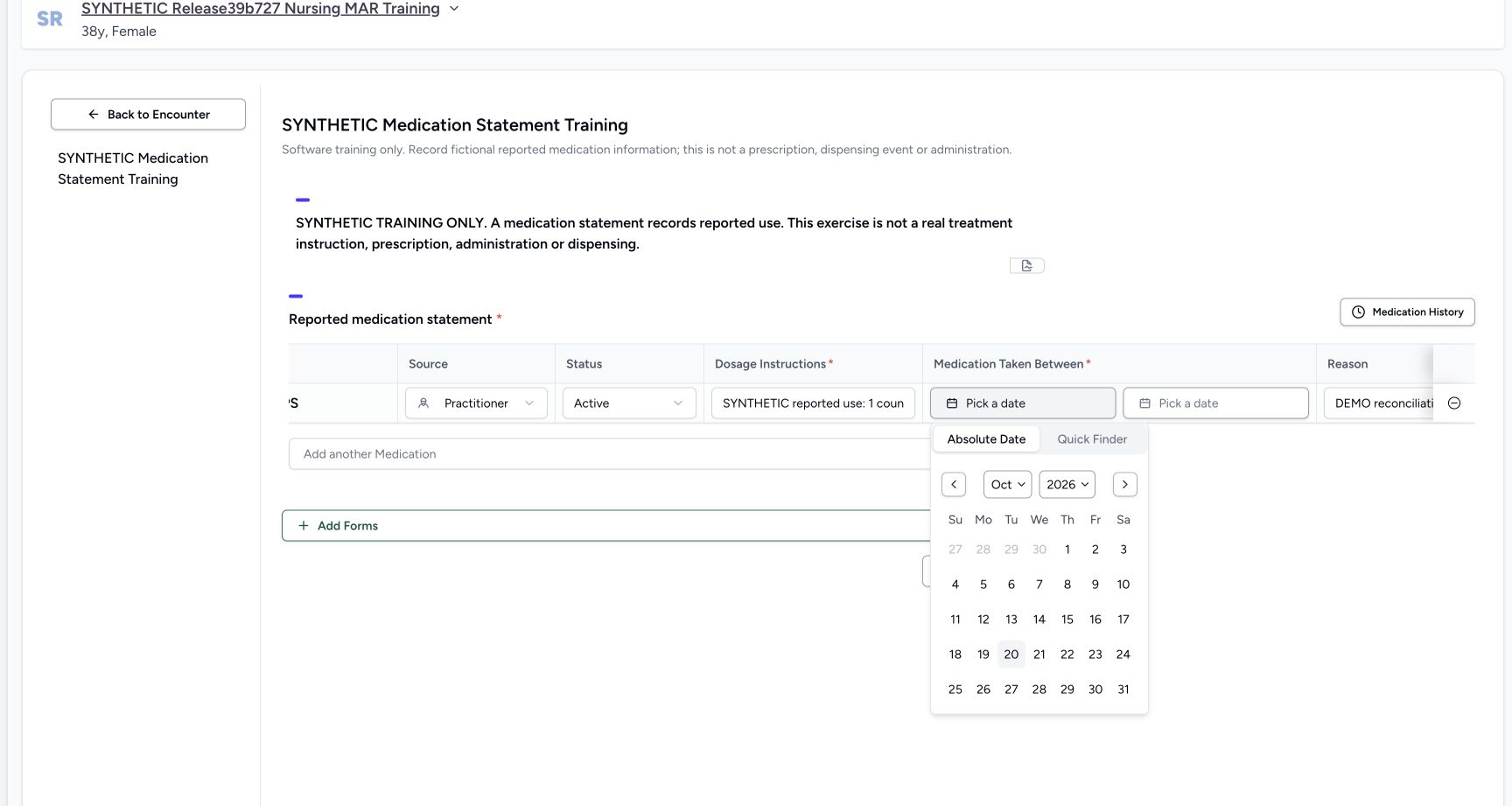
- Enter the fictional reported dosage text: This input clips its long text; the saved table later shows the complete entered text.
- Enter the optional fictional Reason: Reason is a separate optional field, not the copied Note.
- Open the reported start date: The start-date picker uses the Absolute Date calendar shown below.
- Check October: Review the month in the date picker.
- Check 2026: Review the year before choosing the day.
- Choose October 20 for the start: This fictional example uses local October 20, 2026.
5. Select the reported start date
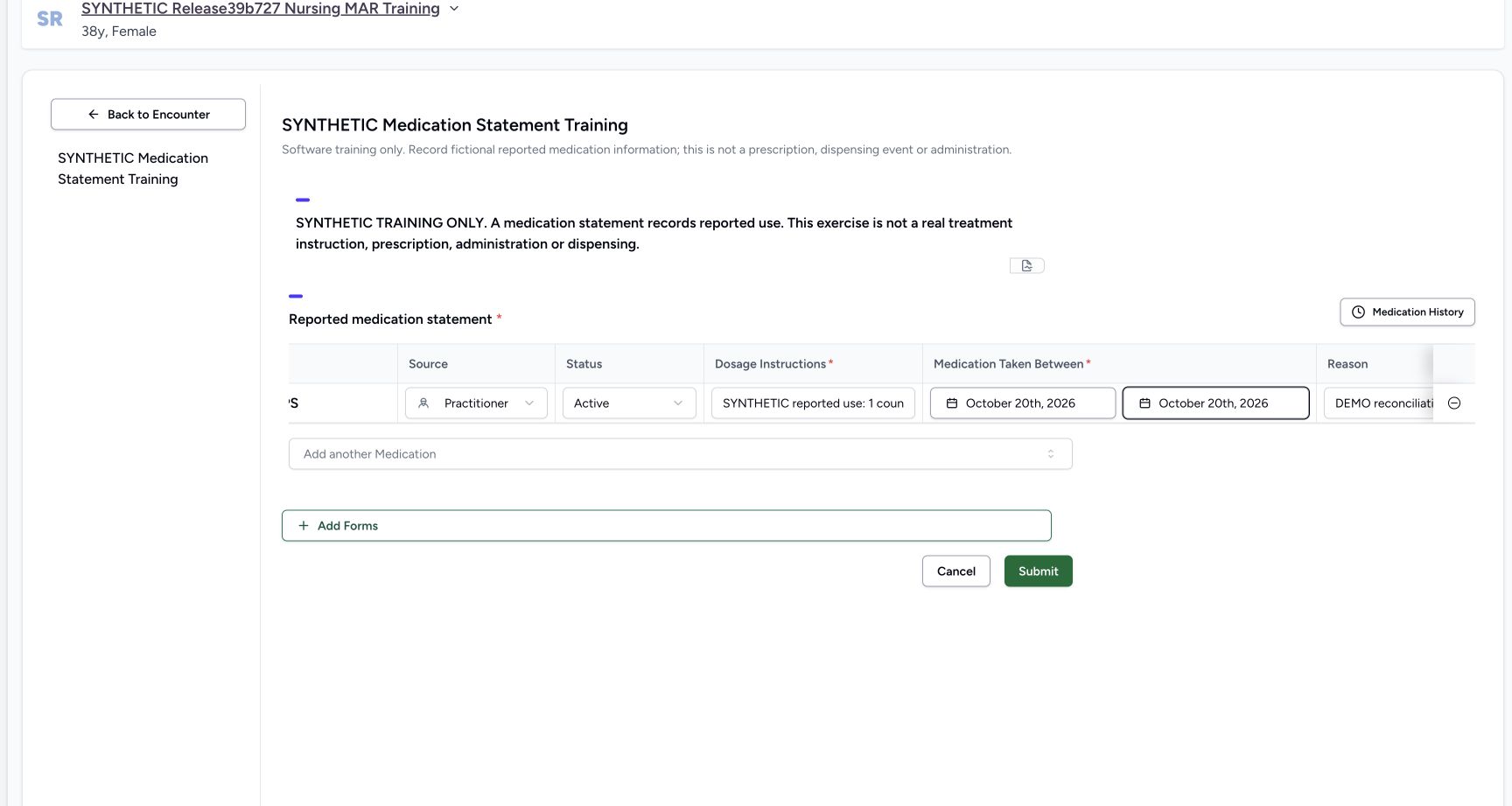
Open the first Medication Taken Between date field. On Absolute Date check October and 2026, then select day 20. Verify that the start field reads October 20th, 2026 while the end is still blank. The start is required by this form; this reported period is entered separately from the source prescription duration.
123456Reported start calendar
Capture details
Observed committed 3dfb software on 20 October 2026. One Doctor prescription and one Nurse reported statement; software-only values, no dispensing or administration. Original pixels and capture times preserved.
Image SHA-256 f0889a484d777e45565dd3bbe784980f683479e7f1b1906d2b98b71d07ba98ae
- Enter the fictional reported dosage text: This input clips its long text; the saved table later shows the complete entered text.
- Enter the optional fictional Reason: Reason is a separate optional field, not the copied Note.
- Open the reported start date: The start-date picker uses the Absolute Date calendar shown below.
- Check October: Review the month in the date picker.
- Check 2026: Review the year before choosing the day.
- Choose October 20 for the start: This fictional example uses local October 20, 2026.
 12
12Start selected end empty
Capture details
Observed committed 3dfb software on 20 October 2026. One Doctor prescription and one Nurse reported statement; software-only values, no dispensing or administration. Original pixels and capture times preserved.
Image SHA-256 322cc2dccc6eb875278cbf3f0268e587b37306b0dac848b7d0d2e68c6d5e5f21
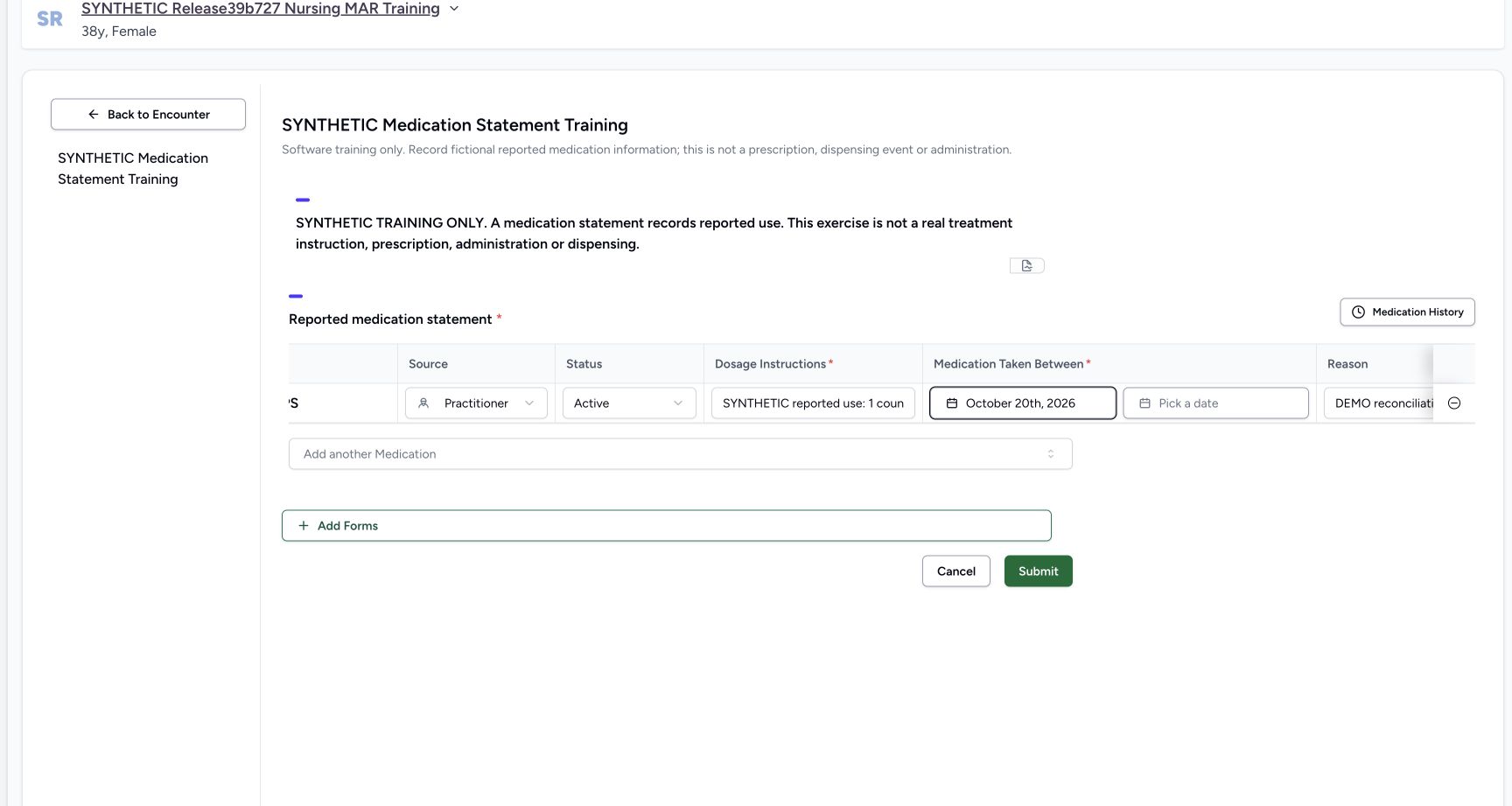
- Verify the selected start date: The displayed start is October 20th, 2026.
- Open the optional end date: The end is still blank before the next calendar selection.
6. Enter the optional same-day end and review the row
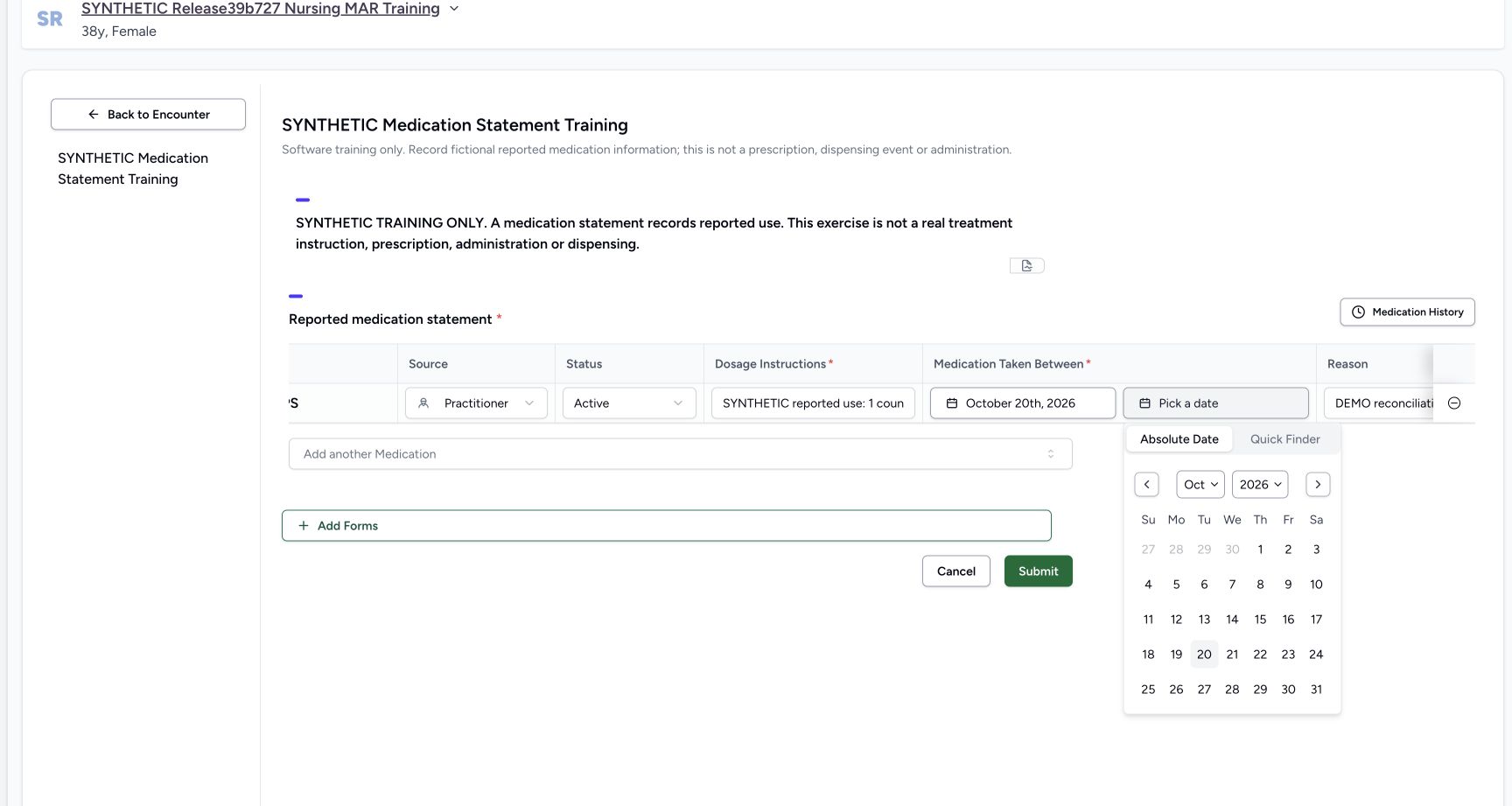
For this fictional same-day example open the second date picker, confirm October 2026 and select day 20 again. Review Practitioner, Active, your explicit Dosage Instructions and Reason, and October 20th, 2026 in both fields. End is optional under the form’s validation; here it was deliberately filled. An end before the start is not allowed. The retained copied Note remains distinct from Reason.
12Start selected end empty
Capture details
Observed committed 3dfb software on 20 October 2026. One Doctor prescription and one Nurse reported statement; software-only values, no dispensing or administration. Original pixels and capture times preserved.
Image SHA-256 322cc2dccc6eb875278cbf3f0268e587b37306b0dac848b7d0d2e68c6d5e5f21
- Verify the selected start date: The displayed start is October 20th, 2026.
- Open the optional end date: The end is still blank before the next calendar selection.
 123
123Reported end calendar
Capture details
Observed committed 3dfb software on 20 October 2026. One Doctor prescription and one Nurse reported statement; software-only values, no dispensing or administration. Original pixels and capture times preserved.
Image SHA-256 1827efb36cd9d25f583da6abfd214ff3cea0a44dd7de38b547dab6a69d052a3c
- Check October in the end picker: This is a separate date control from the start.
- Check 2026 in the end picker: Check the year again.
- Choose October 20 for the end: Use the same local day for this explicitly fictional reported period.
 1234567
Reconciled statement submit review
Capture details
Observed committed 3dfb software on 20 October 2026. One Doctor prescription and one Nurse reported statement; software-only values, no dispensing or administration. Original pixels and capture times preserved.
Image SHA-256 ec9294458bf749b244f3321d83ff392ce342996b4087b9074ab58069211afc52
- Review Source Practitioner: The information source was chosen explicitly.
- Review Status Active: The initial software status remains Active in this exercise.
- Review the entered dosage text: The input shows its beginning; use the saved table for the full text readback.
- Review the start October 20th, 2026: Read the start date separately from the end.
- Review the end October 20th, 2026: The same-day end was entered explicitly, not copied from the Doctor’s 1 day duration.
- Review the separate Reason: This field contains the fictional practitioner-report explanation.
- Submit the reconciled statement once: This saves the Nurse’s reported statement, separate from the Doctor’s earlier prescription.
7. Submit the reconciled statement once
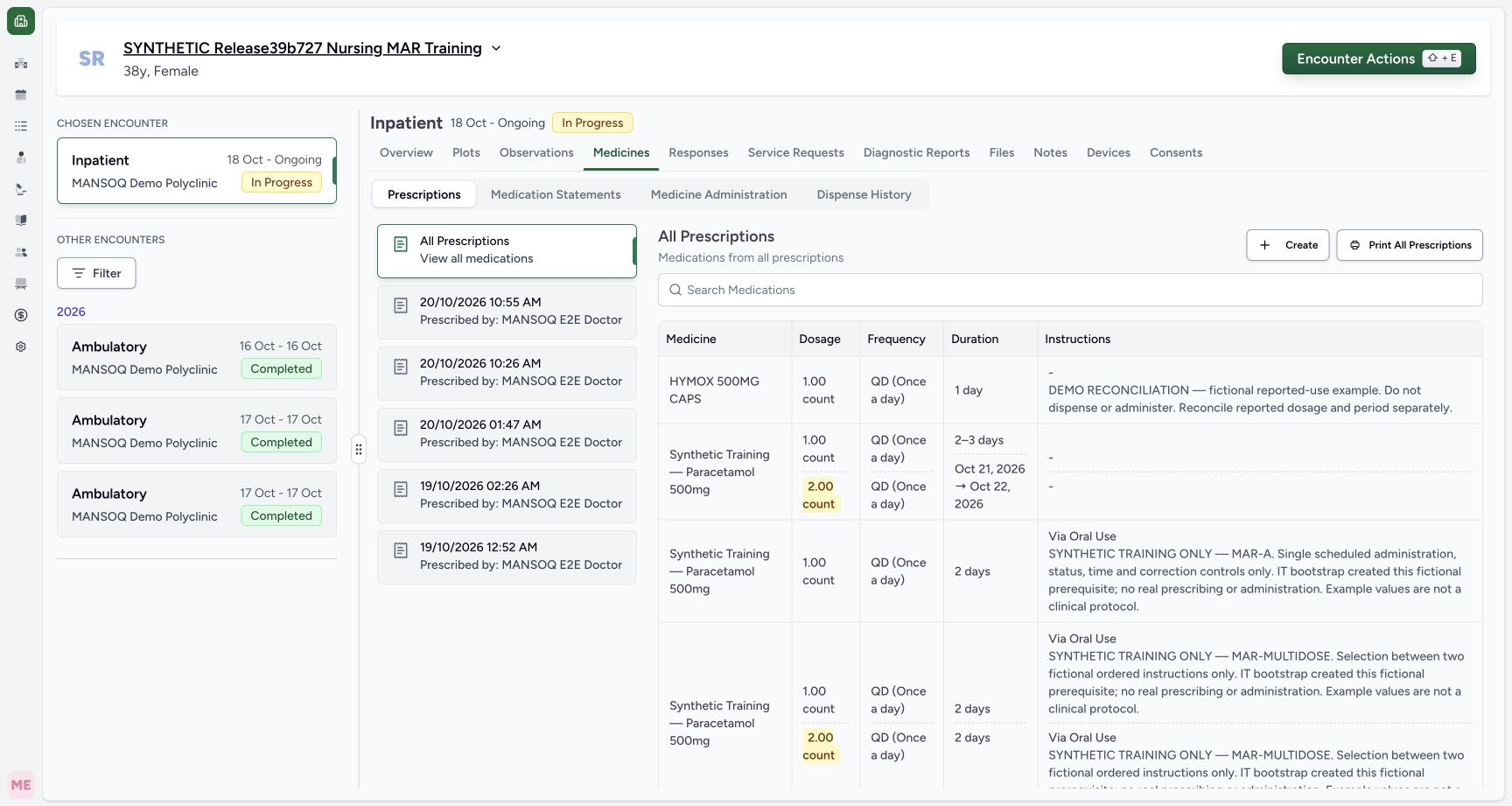
After reviewing the one HYMOX row and the reported fields you entered, choose Submit once and wait for Overview. This saves the Nurse’s reported statement; it is a separate action from the Doctor’s earlier prescription submission. Open Medicines, then select Medication Statements rather than staying on the default Prescriptions tab.
1234567Reconciled statement submit review
Capture details
Observed committed 3dfb software on 20 October 2026. One Doctor prescription and one Nurse reported statement; software-only values, no dispensing or administration. Original pixels and capture times preserved.
Image SHA-256 ec9294458bf749b244f3321d83ff392ce342996b4087b9074ab58069211afc52
- Review Source Practitioner: The information source was chosen explicitly.
- Review Status Active: The initial software status remains Active in this exercise.
- Review the entered dosage text: The input shows its beginning; use the saved table for the full text readback.
- Review the start October 20th, 2026: Read the start date separately from the end.
- Review the end October 20th, 2026: The same-day end was entered explicitly, not copied from the Doctor’s 1 day duration.
- Review the separate Reason: This field contains the fictional practitioner-report explanation.
- Submit the reconciled statement once: This saves the Nurse’s reported statement, separate from the Doctor’s earlier prescription.
 1
1Statement returned overview
Capture details
Observed committed 3dfb software on 20 October 2026. One Doctor prescription and one Nurse reported statement; software-only values, no dispensing or administration. Original pixels and capture times preserved.
Image SHA-256 591d4ee248c2c29db4a8f665a876f74d20dee53ce0d202adc44f6b698d6a0522
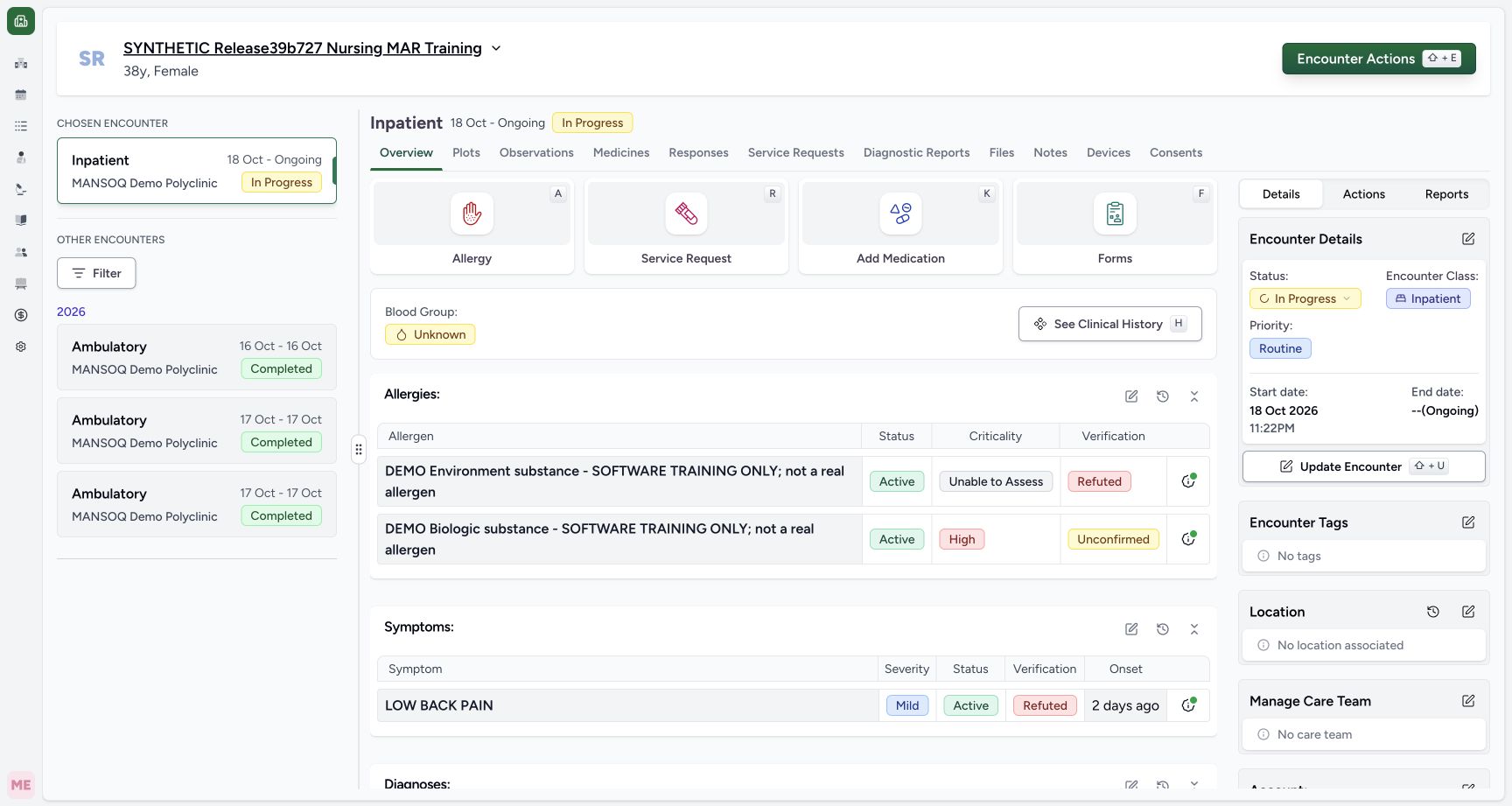
- Open Medicines after the Nurse save: Wait for Overview, then inspect the saved reported statement.
 1
1Medicines statement tab entry
Capture details
Observed committed 3dfb software on 20 October 2026. One Doctor prescription and one Nurse reported statement; software-only values, no dispensing or administration. Original pixels and capture times preserved.
Image SHA-256 4b0a7ae7bcfa8402604c3c346dc270964ef889f4cf4d79646d95bfc11f20913d
- Select Medication Statements: Medicines initially shows Prescriptions; switch to the separate statement tab. This same tab control is used again after Reload.
8. Read the saved statement and its complete note
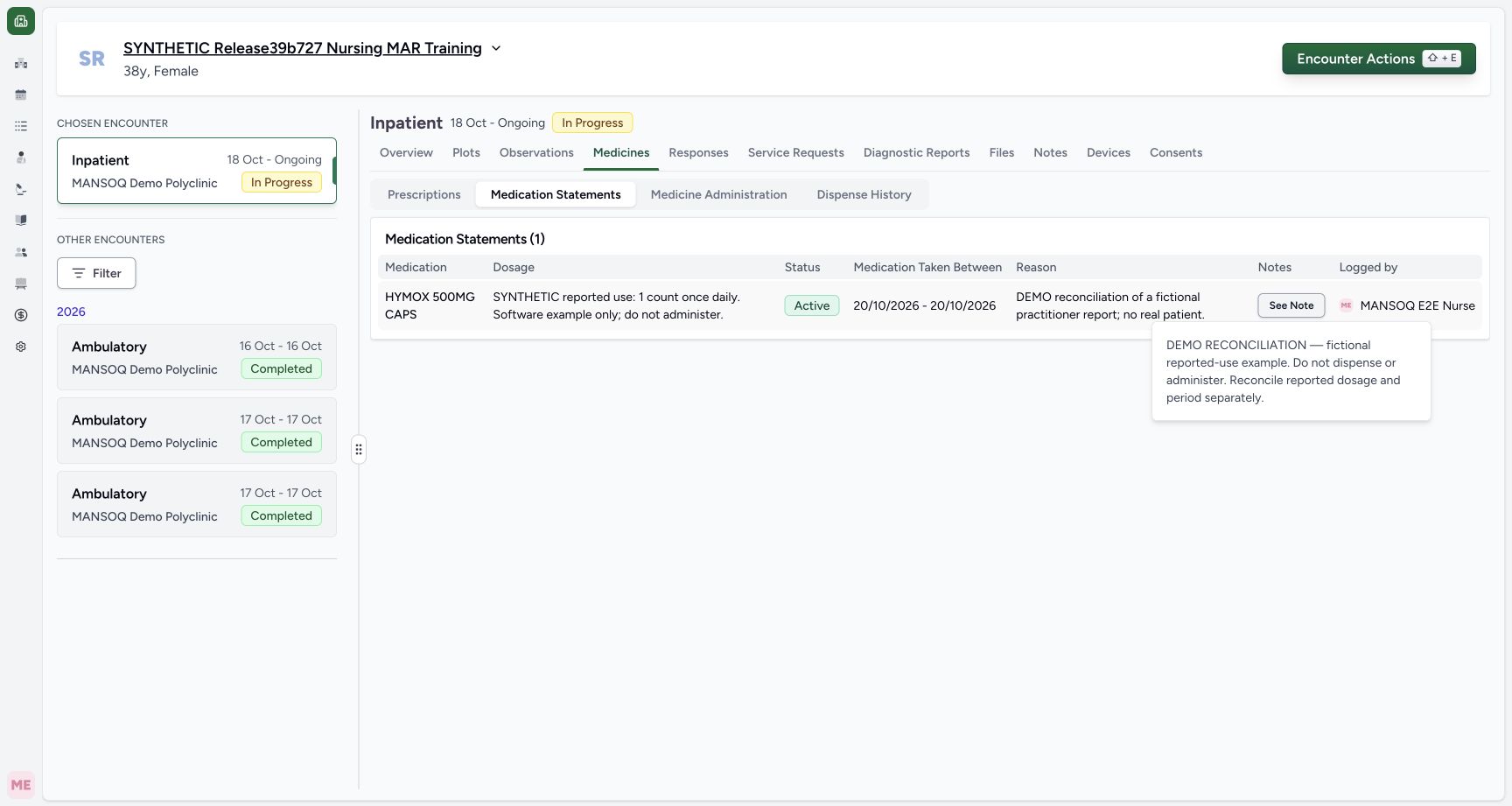
Check Medication Statements (1). Read the complete reported Dosage text, Active status, 20/10/2026 – 20/10/2026 period and fictional Reason. Logged by shows MANSOQ E2E Nurse, the author of this statement. Select See Note and read the complete DEMO RECONCILIATION text copied from the prescription row Note. The saved table’s Logged by author is different from the form’s Practitioner information-source choice.
12345678Saved statement table
Capture details
Observed committed 3dfb software on 20 October 2026. One Doctor prescription and one Nurse reported statement; software-only values, no dispensing or administration. Original pixels and capture times preserved.
Image SHA-256 7b81b836f3510d8bb67a30e0d315f6096ba1423c2663ccd487eb26d44a904da7
- Read Medication Statements (1): The table now contains the one new saved statement.
- Read the medicine: The statement is for HYMOX 500MG CAPS.
- Read the complete reported Dosage text: This is the free text entered by the Nurse, not a literal import of the prescription’s structured dosage.
- Read saved Active status: The table shows the statement’s software status.
- Read 20/10/2026 – 20/10/2026: Both displayed reported-period dates are local October 20.
- Read the complete fictional Reason: This is separate from the copied Note.
- Choose See Note: Open the saved statement’s note popover.
- Read Logged by MANSOQ E2E Nurse: This is the statement author, separate from its Practitioner information-source value.
 12
12Saved note popover
Capture details
Observed committed 3dfb software on 20 October 2026. One Doctor prescription and one Nurse reported statement; software-only values, no dispensing or administration. Original pixels and capture times preserved.
Image SHA-256 21901776e2e07473514814b0accfab0cbb47ccdceb36ed3a71db17ac3631d833
- Locate See Note: This popover belongs to the saved statement.
- Read the complete copied row note: The displayed DEMO RECONCILIATION text came from the prescription row Note, not the shared prescription Note.
9. Reload and verify the same saved statement
Use the browser’s Reload command once. Medicines initially shows Prescriptions; use the earlier tab-control picture to select Medication Statements again. Verify count 1, the same HYMOX row, full reported Dosage text, Active status, local 20/10/2026 – 20/10/2026 dates, Reason and Nurse author. Do not repeat Submit or create a second reported statement to refresh the display.
1Medicines statement tab entry
Capture details
Observed committed 3dfb software on 20 October 2026. One Doctor prescription and one Nurse reported statement; software-only values, no dispensing or administration. Original pixels and capture times preserved.
Image SHA-256 4b0a7ae7bcfa8402604c3c346dc270964ef889f4cf4d79646d95bfc11f20913d
- Select Medication Statements: Medicines initially shows Prescriptions; switch to the separate statement tab. This same tab control is used again after Reload.
 1234
1234Statement after reload
Capture details
Observed committed 3dfb software on 20 October 2026. One Doctor prescription and one Nurse reported statement; software-only values, no dispensing or administration. Original pixels and capture times preserved.
Image SHA-256 7b81b836f3510d8bb67a30e0d315f6096ba1423c2663ccd487eb26d44a904da7
- Recheck Medication Statements after Reload: After browser Reload, use the earlier tab-control view to select Medication Statements again.
- Verify the retained full Dosage text: The complete reported text persists.
- Verify the retained local dates: The table still reads 20/10/2026 – 20/10/2026.
- Verify the Nurse author: The saved statement is still logged by MANSOQ E2E Nurse.
Reported details require separate reconciliation
Add Selected carries the coded medicine and the request row Note. It initially uses Patient and Active defaults and leaves required reported dosage text and the period blank. Explicitly review and enter the reported details; neither a code-backed copy nor an Active software status establishes actual medication taking.
1234567Code backed history row
Capture details
Observed committed 3dfb software on 20 October 2026. One Doctor prescription and one Nurse reported statement; software-only values, no dispensing or administration. Original pixels and capture times preserved.
Image SHA-256 09138a05b8e6252ffd38dfaf0290a59131b58d9558a985aceb2170ca0a653795
- Keep Past Prescriptions selected: This tab lists prescription source records.
- Read the 20 Oct, 2026 group: The history groups by creation day.
- Identify HYMOX 500MG CAPS: This is the new coded medicine, distinct from the inventory product entries below.
- Check 1.00 count and QD: Read the source prescription’s dosage and frequency.
- Check 1 day: The source prescription duration is shown here, not a reported-use period.
- Check the Doctor prescriber: The source row identifies MANSOQ E2E Doctor.
- Select only the HYMOX row: Use its individual checkbox, not the group checkbox.
1234567Imported draft needs reconciliation
Capture details
Observed committed 3dfb software on 20 October 2026. One Doctor prescription and one Nurse reported statement; software-only values, no dispensing or administration. Original pixels and capture times preserved.
Image SHA-256 b8ffb8c1f3983ccfee4d77b77b1c1cb7fccceb9cb32e391312fbfc4b59f94d61
- Read the imported HYMOX row: The coded source medicine has been added to this draft.
- Read default Source Patient: This is an initial default; it is not an inherited verification of the source.
- Read default Status Active: This software status is separate from information source.
- Locate required Dosage Instructions: The reported-text field is initially blank despite the source prescription’s structured dosage.
- Locate the blank start date: The reported period has not been copied from the prescription.
- Locate the blank end date: The end is also initially empty; it is optional under this form’s validation.
- Scroll this table horizontally to the right: Move within the table to reach Reason and the later columns, using a separate actual view.
12Information source options
Capture details
Observed committed 3dfb software on 20 October 2026. One Doctor prescription and one Nurse reported statement; software-only values, no dispensing or administration. Original pixels and capture times preserved.
Image SHA-256 1a68a91511ae9bd082a2b3c52af0cf8994d64449d739e243a38bf36a2408b41b
- Open Source: This menu is the information-source field.
- Choose Practitioner: Select Practitioner explicitly for this fictional demonstration; it is not chosen automatically from the Doctor prescriber.
12345678Saved statement table
Capture details
Observed committed 3dfb software on 20 October 2026. One Doctor prescription and one Nurse reported statement; software-only values, no dispensing or administration. Original pixels and capture times preserved.
Image SHA-256 7b81b836f3510d8bb67a30e0d315f6096ba1423c2663ccd487eb26d44a904da7
- Read Medication Statements (1): The table now contains the one new saved statement.
- Read the medicine: The statement is for HYMOX 500MG CAPS.
- Read the complete reported Dosage text: This is the free text entered by the Nurse, not a literal import of the prescription’s structured dosage.
- Read saved Active status: The table shows the statement’s software status.
- Read 20/10/2026 – 20/10/2026: Both displayed reported-period dates are local October 20.
- Read the complete fictional Reason: This is separate from the copied Note.
- Choose See Note: Open the saved statement’s note popover.
- Read Logged by MANSOQ E2E Nurse: This is the statement author, separate from its Practitioner information-source value.
Read local dates and distinguish authorship from source
The calendar and saved table show 20 October 2026 for both dates in the demonstrated Riyadh environment. Source Practitioner is the chosen kind of reported-information source. Logged by MANSOQ E2E Nurse identifies the saved statement’s author; it does not replace that information-source field or rename the Doctor prescriber.
123Reported end calendar
Capture details
Observed committed 3dfb software on 20 October 2026. One Doctor prescription and one Nurse reported statement; software-only values, no dispensing or administration. Original pixels and capture times preserved.
Image SHA-256 1827efb36cd9d25f583da6abfd214ff3cea0a44dd7de38b547dab6a69d052a3c
- Check October in the end picker: This is a separate date control from the start.
- Check 2026 in the end picker: Check the year again.
- Choose October 20 for the end: Use the same local day for this explicitly fictional reported period.
1234567Reconciled statement submit review
Capture details
Observed committed 3dfb software on 20 October 2026. One Doctor prescription and one Nurse reported statement; software-only values, no dispensing or administration. Original pixels and capture times preserved.
Image SHA-256 ec9294458bf749b244f3321d83ff392ce342996b4087b9074ab58069211afc52
- Review Source Practitioner: The information source was chosen explicitly.
- Review Status Active: The initial software status remains Active in this exercise.
- Review the entered dosage text: The input shows its beginning; use the saved table for the full text readback.
- Review the start October 20th, 2026: Read the start date separately from the end.
- Review the end October 20th, 2026: The same-day end was entered explicitly, not copied from the Doctor’s 1 day duration.
- Review the separate Reason: This field contains the fictional practitioner-report explanation.
- Submit the reconciled statement once: This saves the Nurse’s reported statement, separate from the Doctor’s earlier prescription.
12345678Saved statement table
Capture details
Observed committed 3dfb software on 20 October 2026. One Doctor prescription and one Nurse reported statement; software-only values, no dispensing or administration. Original pixels and capture times preserved.
Image SHA-256 7b81b836f3510d8bb67a30e0d315f6096ba1423c2663ccd487eb26d44a904da7
- Read Medication Statements (1): The table now contains the one new saved statement.
- Read the medicine: The statement is for HYMOX 500MG CAPS.
- Read the complete reported Dosage text: This is the free text entered by the Nurse, not a literal import of the prescription’s structured dosage.
- Read saved Active status: The table shows the statement’s software status.
- Read 20/10/2026 – 20/10/2026: Both displayed reported-period dates are local October 20.
- Read the complete fictional Reason: This is separate from the copied Note.
- Choose See Note: Open the saved statement’s note popover.
- Read Logged by MANSOQ E2E Nurse: This is the statement author, separate from its Practitioner information-source value.
1234Statement after reload
Capture details
Observed committed 3dfb software on 20 October 2026. One Doctor prescription and one Nurse reported statement; software-only values, no dispensing or administration. Original pixels and capture times preserved.
Image SHA-256 7b81b836f3510d8bb67a30e0d315f6096ba1423c2663ccd487eb26d44a904da7
- Recheck Medication Statements after Reload: After browser Reload, use the earlier tab-control view to select Medication Statements again.
- Verify the retained full Dosage text: The complete reported text persists.
- Verify the retained local dates: The table still reads 20/10/2026 – 20/10/2026.
- Verify the Nurse author: The saved statement is still logged by MANSOQ E2E Nurse.
A shared note and a row note follow different paths
The earlier Doctor card contains both a shared SYNTHETIC SOFTWARE TRAINING ONLY note and a row DEMO RECONCILIATION note. The statement’s See Note shows the latter. Reason and Dosage Instructions were entered separately by the Nurse. Read each field in its own context rather than assuming all prescription information was copied.
12345Saved coded prescription
Capture details
Observed committed 3dfb software on 20 October 2026. One Doctor prescription and one Nurse reported statement; software-only values, no dispensing or administration. Original pixels and capture times preserved.
Image SHA-256 0f904563539f3b47f2b795caaaf5dfd191175fbb117b3550a5c88aff54ed011a
- Verify the selected new card: The selected prescription is 20/10/2026 10:55 AM.
- Read the Doctor prescriber: The header identifies MANSOQ E2E Doctor.
- Read the shared prescription Note: This complete Note is the prescription-level training text.
- Review 1.00 count, QD and 1 day: The selected prescription’s dosage controls remain separate.
- Read the complete row-specific note: The row note appears in the Instructions cell below the dash; this is the note copied into the later statement.
1234567Imported draft needs reconciliation
Capture details
Observed committed 3dfb software on 20 October 2026. One Doctor prescription and one Nurse reported statement; software-only values, no dispensing or administration. Original pixels and capture times preserved.
Image SHA-256 b8ffb8c1f3983ccfee4d77b77b1c1cb7fccceb9cb32e391312fbfc4b59f94d61
- Read the imported HYMOX row: The coded source medicine has been added to this draft.
- Read default Source Patient: This is an initial default; it is not an inherited verification of the source.
- Read default Status Active: This software status is separate from information source.
- Locate required Dosage Instructions: The reported-text field is initially blank despite the source prescription’s structured dosage.
- Locate the blank start date: The reported period has not been copied from the prescription.
- Locate the blank end date: The end is also initially empty; it is optional under this form’s validation.
- Scroll this table horizontally to the right: Move within the table to reach Reason and the later columns, using a separate actual view.
12345678Saved statement table
Capture details
Observed committed 3dfb software on 20 October 2026. One Doctor prescription and one Nurse reported statement; software-only values, no dispensing or administration. Original pixels and capture times preserved.
Image SHA-256 7b81b836f3510d8bb67a30e0d315f6096ba1423c2663ccd487eb26d44a904da7
- Read Medication Statements (1): The table now contains the one new saved statement.
- Read the medicine: The statement is for HYMOX 500MG CAPS.
- Read the complete reported Dosage text: This is the free text entered by the Nurse, not a literal import of the prescription’s structured dosage.
- Read saved Active status: The table shows the statement’s software status.
- Read 20/10/2026 – 20/10/2026: Both displayed reported-period dates are local October 20.
- Read the complete fictional Reason: This is separate from the copied Note.
- Choose See Note: Open the saved statement’s note popover.
- Read Logged by MANSOQ E2E Nurse: This is the statement author, separate from its Practitioner information-source value.
12Saved note popover
Capture details
Observed committed 3dfb software on 20 October 2026. One Doctor prescription and one Nurse reported statement; software-only values, no dispensing or administration. Original pixels and capture times preserved.
Image SHA-256 21901776e2e07473514814b0accfab0cbb47ccdceb36ed3a71db17ac3631d833
- Locate See Note: This popover belongs to the saved statement.
- Read the complete copied row note: The displayed DEMO RECONCILIATION text came from the prescription row Note, not the shared prescription Note.
Source evidence
Every citation uses this exact committed version. The private source repository requires access.
- repositories/platform/mansoq-core/mansoq/emr/resources/medication/statement/spec.py:25 ·
3dfb7c9f519fb5b4cd4452439f3c12346bf58319Source file checksum
542258fe317d93cd03fc4b0efe7fe5704069be9e99e172a63ece6d39f6f2920e - repositories/platform/mansoq-web/src/components/HistoricalRecordSelector/index.tsx:119 ·
3dfb7c9f519fb5b4cd4452439f3c12346bf58319Source file checksum
0ab03afa6a5954112061e0bf07b15cd3f4c901444f3c3de8a8e194524ef1f0c2 - repositories/platform/mansoq-web/src/components/Patient/MedicationStatementList.tsx:39 ·
3dfb7c9f519fb5b4cd4452439f3c12346bf58319Source file checksum
4dd254b2d7ab8c46c4178ec9962ed631b863a602450378050dc329bbac82a1e5 - repositories/platform/mansoq-web/src/components/Patient/MedicationStatementTable.tsx:61 ·
3dfb7c9f519fb5b4cd4452439f3c12346bf58319Source file checksum
24093db90d546211a702299533d012a8c28883c7ac936971c6fde01a1b8bce21 - repositories/platform/mansoq-web/src/components/Questionnaire/MedicationValueSetSelect.tsx:318 ·
3dfb7c9f519fb5b4cd4452439f3c12346bf58319Source file checksum
bb8d5d5f1595778be9e9ad260296e8f43e5696fe9d19fb608e27a33a6a739610 - repositories/platform/mansoq-web/src/components/Questionnaire/QuestionTypes/MedicationRequestQuestion.tsx:421 ·
3dfb7c9f519fb5b4cd4452439f3c12346bf58319Source file checksum
561259e73b1752c9844e31b798ad676878af5f4caf6be5fbd130cd31fcfc89cc - repositories/platform/mansoq-web/src/components/Questionnaire/QuestionTypes/MedicationStatementQuestion.tsx:91 ·
3dfb7c9f519fb5b4cd4452439f3c12346bf58319Source file checksum
aa6bfad3dcb6e4315c58908fe9fffdc4ea47cb84f8c2596cb3db30fe640c19d7 - repositories/platform/mansoq-web/src/components/Questionnaire/QuestionnaireForm.tsx:421 ·
3dfb7c9f519fb5b4cd4452439f3c12346bf58319Source file checksum
ee6c2195f13e48f0896a2d3da566c2f2a67910adad08894df6b77862f9cfdeec - repositories/platform/mansoq-web/src/components/Questionnaire/ValueSetSearchContent.tsx:118 ·
3dfb7c9f519fb5b4cd4452439f3c12346bf58319Source file checksum
d6adc1b84f5956cd554042aa8579a0a83b9a13c5337c64bd0ee6b7f9af5b8019 - repositories/platform/mansoq-web/src/components/Questionnaire/structured/handlers.ts:65 ·
3dfb7c9f519fb5b4cd4452439f3c12346bf58319Source file checksum
459ade48f77316279ab2978dc7b4466cb96acb8223c61b9a1f87ca9973be7c7f - repositories/platform/mansoq-web/src/types/emr/medicationRequest/medicationRequest.ts:661 ·
3dfb7c9f519fb5b4cd4452439f3c12346bf58319Source file checksum
a39df63f9b7f2d976d4379511d7a2d4c8e3e284fd1e9b67c28e59392e8545b2b - repositories/platform/mansoq-web/src/types/emr/medicationStatement.ts:7 ·
3dfb7c9f519fb5b4cd4452439f3c12346bf58319Source file checksum
5784010754caa19b544f2db2f1a374d7739d76518159a239b73a3a8c9fb5a091