 MANSOQ
 Pharmacy · VERSION 3f4f9e19
Enter, check and remove a medicine before billing
Practice finding a medicine, checking its dosage and lot quantity, adding a local preparation row, and removing it before leaving. This example uses Synthetic Training — Paracetamol 500mg in the synthetic training environment. Its values demonstrate the software and are not treatment advice.
Pharmacist
 123456789
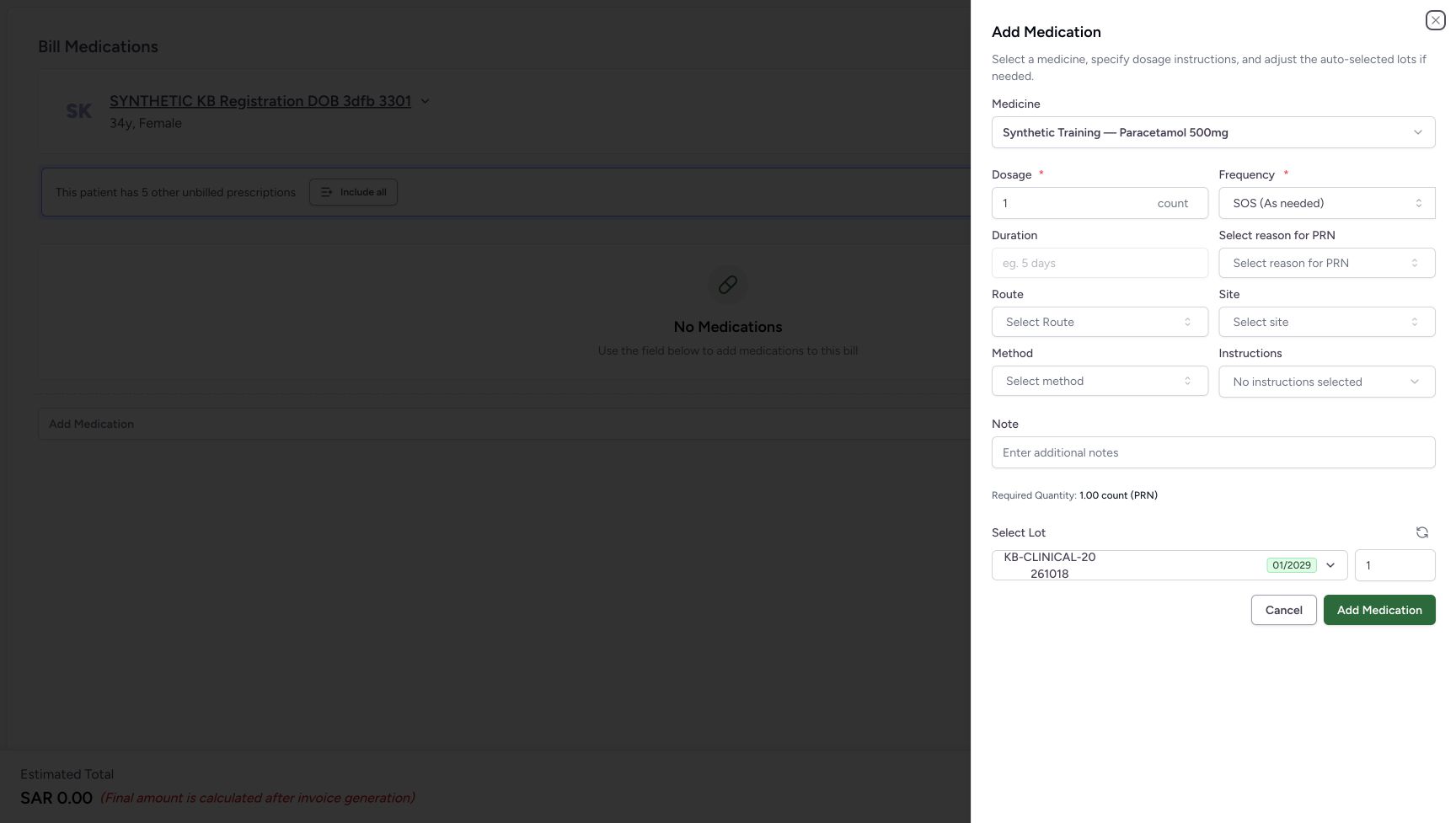
Inspect the initial SOS medicine sheet
Capture details
Synthetic medicine entry, local dose and lot validation, an unsaved Other Items row, local removal and Cancel. Bill Selected is not used; no saved dispense, invoice or payment is created in this example.
Image SHA-256 20200b4b521e2eac2e216dc629e91bca2470d2a9d4782cc22fe69aa24e843918
- Verify the medicine: Recheck the selected synthetic name.
- Inspect Dosage 1 count: These are the starting software-example values.
- Inspect SOS (As needed): The frequency starts as needed in this example.
- Read disabled Duration: Duration is not editable while this example is as needed.
- Locate Select reason for PRN: This optional reason is exposed for SOS; no reason is selected.
- Read Required Quantity: The starting calculation is 1.00 count (PRN).
- Open the selected lot control: The separate lot illustration shows the full stock details.
- Cancel an unadded medicine sheet: This closes the sheet without appending its medicine to Other Items.
- Distinguish the sheet Add Medication: This button appends a local row only when the sheet is valid.
 123456
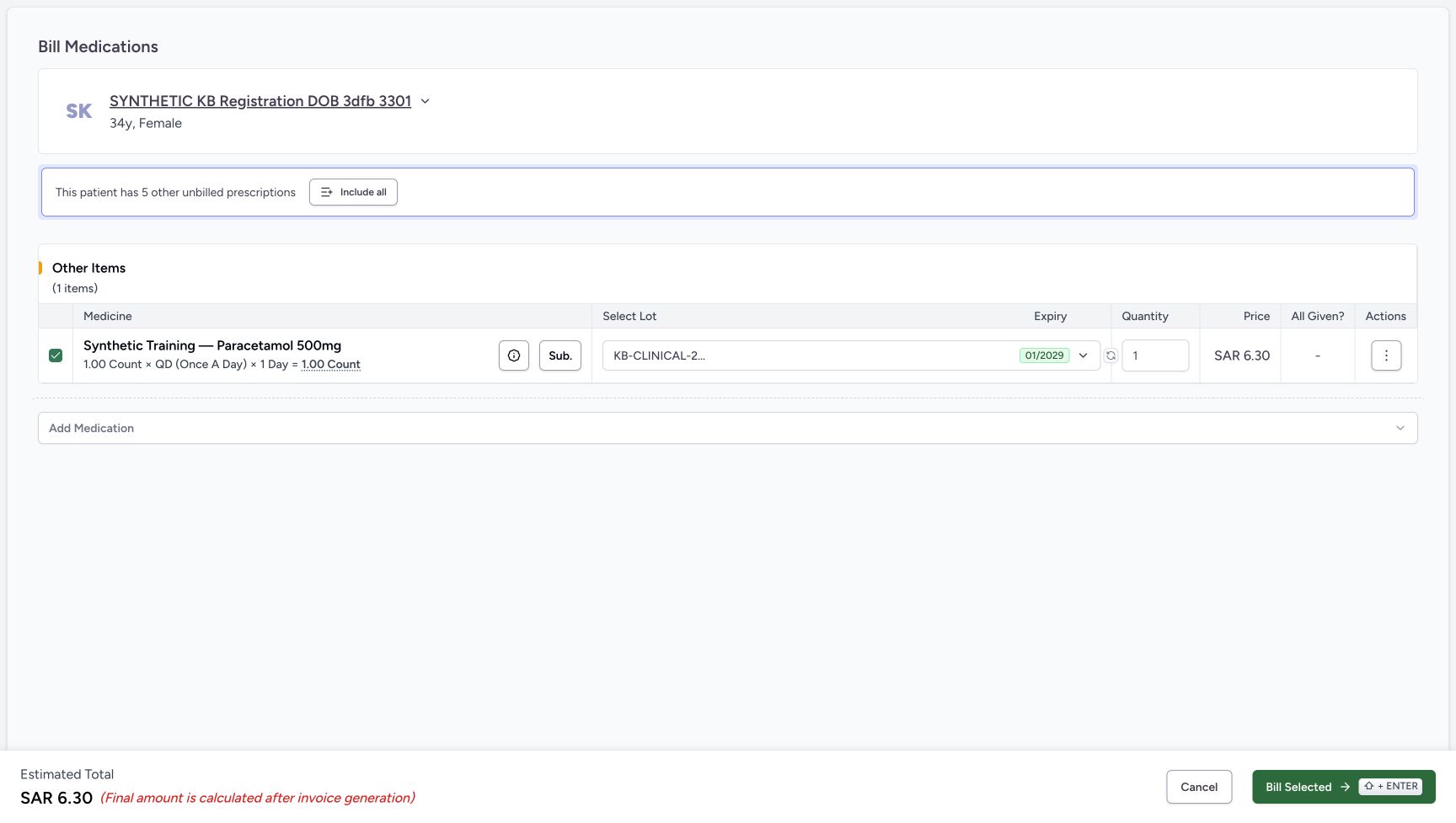
Inspect the one local Other Items row and estimate
Capture details
Synthetic medicine entry, local dose and lot validation, an unsaved Other Items row, local removal and Cancel. Bill Selected is not used; no saved dispense, invoice or payment is created in this example.
Image SHA-256 187b44807f8dec306bf6231e279fbc4bff80e43737e8241856103638547220fe
- Verify the intended local medicine row: Check its name and dosage summary before opening its actions.
- Review quantity 1: This is the local row allocation, not a completed goods issue.
- Read the displayed SAR 6.30: The row price is part of an unsaved preparation estimate.
- Open this row’s actions: The next view offers Remove Medication for this Other Items row.
- Read Estimated Total SAR 6.30: This estimate is not an issued invoice or payment.
- Leave Bill Selected unused: The example proceeds to local removal instead of submission.
 12345
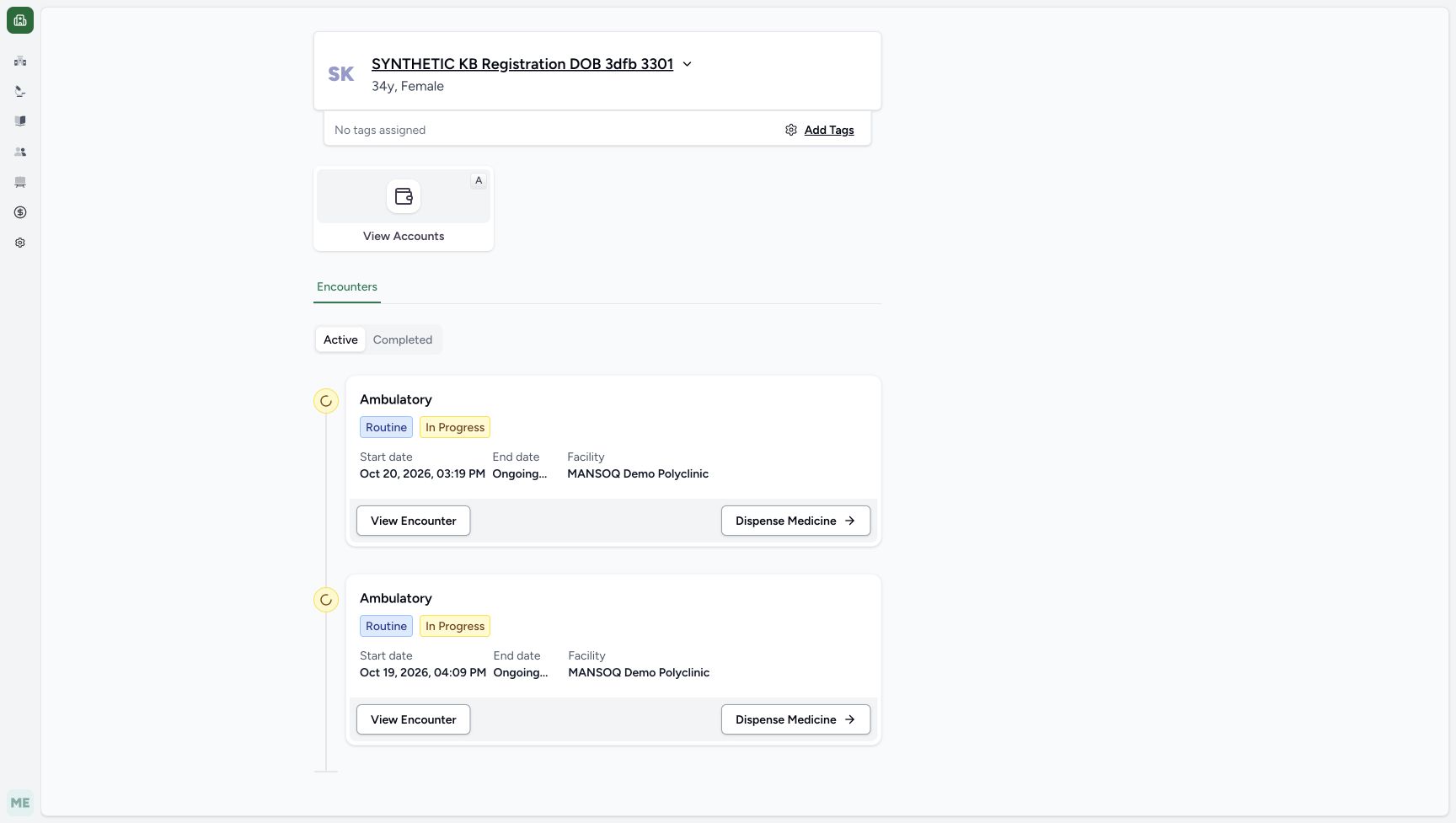
12345Verify the returned patient home
Capture details
Synthetic medicine entry, local dose and lot validation, an unsaved Other Items row, local removal and Cancel. Bill Selected is not used; no saved dispense, invoice or payment is created in this example.
Image SHA-256 44b479a7d3efbd617d57d21692b6293e1f55d0e2254cdce7c9e63490447650cc
- Verify the returned patient: Confirm the same synthetic identity after leaving preparation.
- Read Active encounters: The original active encounter list remains.
- Identify the intended Oct 20 encounter: This is the Oct 20, 2026, 03:19 PM card used for the example.
- Verify MANSOQ Demo Polyclinic: Check the facility context on the card.
- Locate this encounter’s Dispense Medicine link: Use the established patient-and-encounter lesson if beginning a new visit; no additional medicine save occurs here.
20 of 20 content blocks have reviewed image alignment.
Before you begin
- Use your assigned Pharmacist access at the intended facility and pharmacy. This example uses MANSOQ Demo Polyclinic → Main Pharmacy.
 123456
Recorded release 3f4f9e19 · 2026-10-21T03:20:32.127037+00:00 · 1728 × 977 Start with an empty new preparation
Capture details
Synthetic medicine entry, local dose and lot validation, an unsaved Other Items row, local removal and Cancel. Bill Selected is not used; no saved dispense, invoice or payment is created in this example.
Image SHA-256
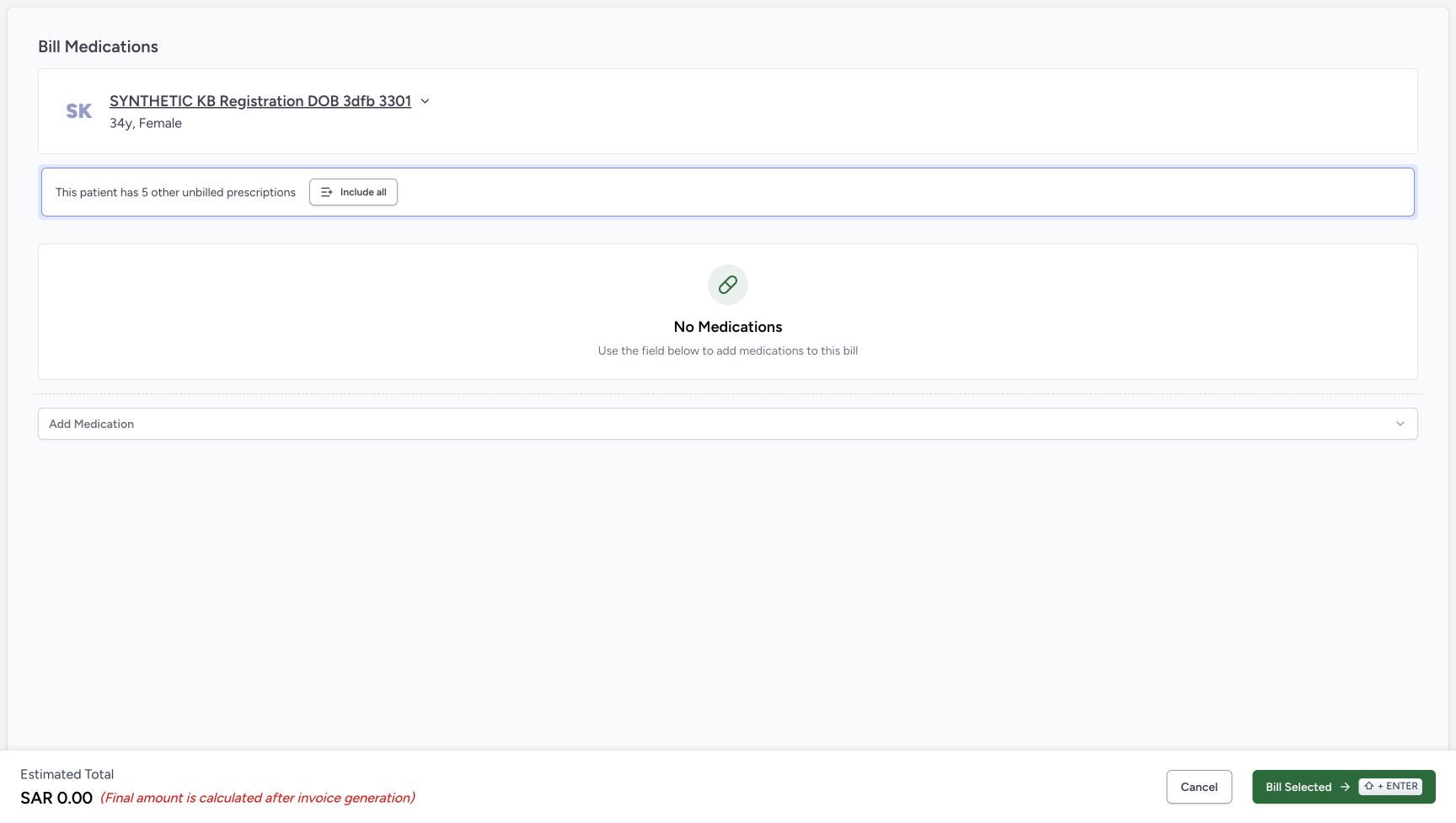
6a02e203d96273ee71722f2ab321be8cf24888e452d8ed26bdde169a877cb71a- Verify the patient: Check the intended synthetic patient before entering a medicine.
- Open Add Medication: This first control opens the catalogue selector.
- Read No Medications: There is no locally added medicine row in this state.
- Read the zero estimate: SAR 0.00 is the empty preparation estimate.
- Cancel the empty preparation: In this observed route Cancel returns to the verified patient home.
- Leave Bill Selected unused: This exercise does not submit a dispensing bill.
12345Recorded release 3f4f9e19 · 2026-10-21T03:34:08.456493+00:00 · 1728 × 977 Verify the returned patient home
Capture details
Synthetic medicine entry, local dose and lot validation, an unsaved Other Items row, local removal and Cancel. Bill Selected is not used; no saved dispense, invoice or payment is created in this example.
Image SHA-256
44b479a7d3efbd617d57d21692b6293e1f55d0e2254cdce7c9e63490447650cc- Verify the returned patient: Confirm the same synthetic identity after leaving preparation.
- Read Active encounters: The original active encounter list remains.
- Identify the intended Oct 20 encounter: This is the Oct 20, 2026, 03:19 PM card used for the example.
- Verify MANSOQ Demo Polyclinic: Check the facility context on the card.
- Locate this encounter’s Dispense Medicine link: Use the established patient-and-encounter lesson if beginning a new visit; no additional medicine save occurs here.
- Follow Choose a patient and encounter for New Dispense to verify the patient and open the intended encounter’s Dispense Medicine link. The example patient name ends in 3301; the intended encounter starts Oct 20, 2026, 03:19 PM. A different encounter for the same patient is not interchangeable.12345
Recorded release 3f4f9e19 · 2026-10-21T03:34:08.456493+00:00 · 1728 × 977 Verify the returned patient home
Capture details
Synthetic medicine entry, local dose and lot validation, an unsaved Other Items row, local removal and Cancel. Bill Selected is not used; no saved dispense, invoice or payment is created in this example.
Image SHA-256
44b479a7d3efbd617d57d21692b6293e1f55d0e2254cdce7c9e63490447650cc- Verify the returned patient: Confirm the same synthetic identity after leaving preparation.
- Read Active encounters: The original active encounter list remains.
- Identify the intended Oct 20 encounter: This is the Oct 20, 2026, 03:19 PM card used for the example.
- Verify MANSOQ Demo Polyclinic: Check the facility context on the card.
- Locate this encounter’s Dispense Medicine link: Use the established patient-and-encounter lesson if beginning a new visit; no additional medicine save occurs here.
123456Recorded release 3f4f9e19 · 2026-10-21T03:20:32.127037+00:00 · 1728 × 977 Start with an empty new preparation
Capture details
Synthetic medicine entry, local dose and lot validation, an unsaved Other Items row, local removal and Cancel. Bill Selected is not used; no saved dispense, invoice or payment is created in this example.
Image SHA-256
6a02e203d96273ee71722f2ab321be8cf24888e452d8ed26bdde169a877cb71a- Verify the patient: Check the intended synthetic patient before entering a medicine.
- Open Add Medication: This first control opens the catalogue selector.
- Read No Medications: There is no locally added medicine row in this state.
- Read the zero estimate: SAR 0.00 is the empty preparation estimate.
- Cancel the empty preparation: In this observed route Cancel returns to the verified patient home.
- Leave Bill Selected unused: This exercise does not submit a dispensing bill.
- Begin on the empty Bill Medications screen showing No Medications and Estimated Total SAR 0.00. This exercise ends without choosing Bill Selected.123456
Recorded release 3f4f9e19 · 2026-10-21T03:20:32.127037+00:00 · 1728 × 977 Start with an empty new preparation
Capture details
Synthetic medicine entry, local dose and lot validation, an unsaved Other Items row, local removal and Cancel. Bill Selected is not used; no saved dispense, invoice or payment is created in this example.
Image SHA-256
6a02e203d96273ee71722f2ab321be8cf24888e452d8ed26bdde169a877cb71a- Verify the patient: Check the intended synthetic patient before entering a medicine.
- Open Add Medication: This first control opens the catalogue selector.
- Read No Medications: There is no locally added medicine row in this state.
- Read the zero estimate: SAR 0.00 is the empty preparation estimate.
- Cancel the empty preparation: In this observed route Cancel returns to the verified patient home.
- Leave Bill Selected unused: This exercise does not submit a dispensing bill.
1. Find the intended synthetic medicine
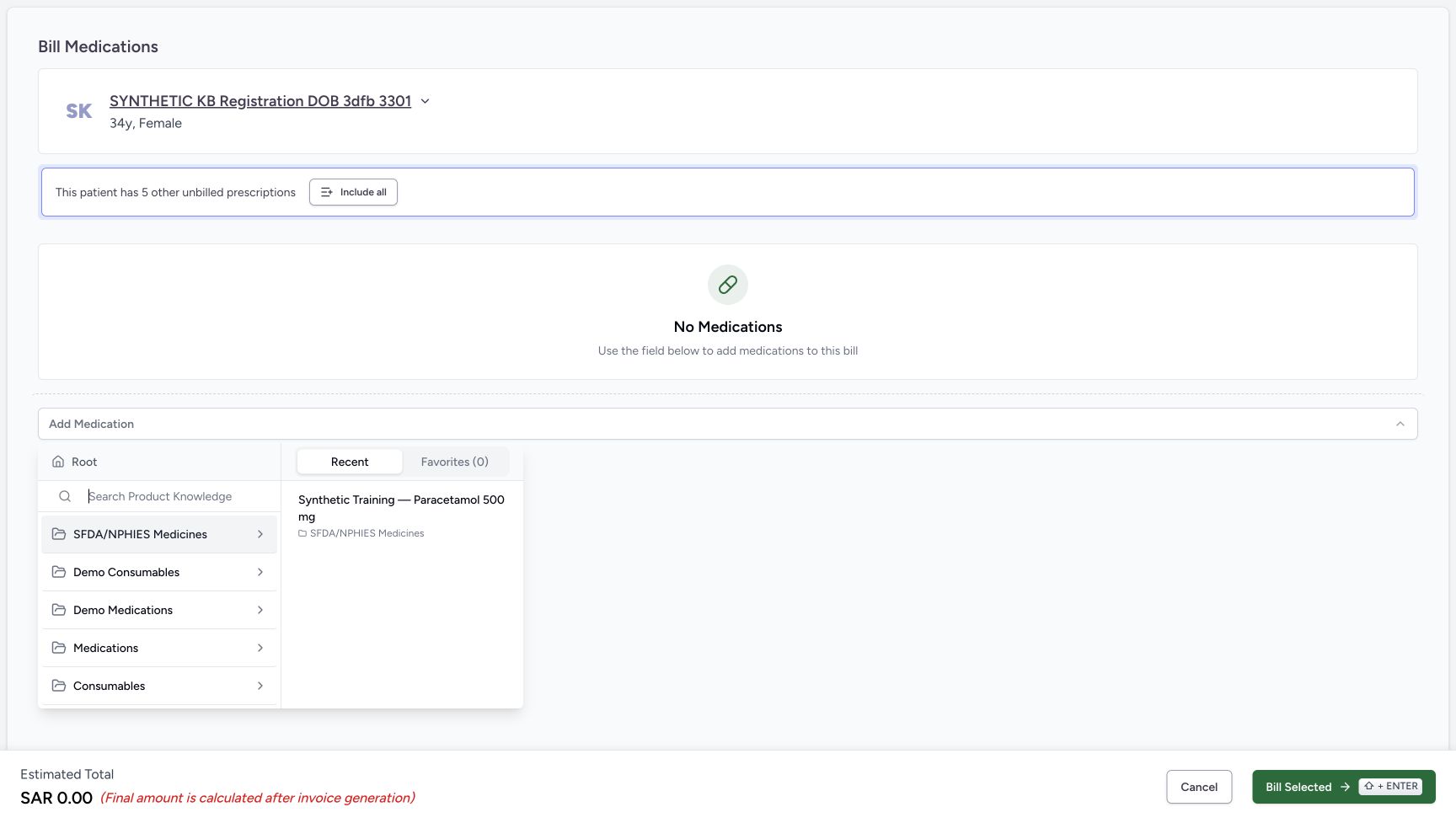
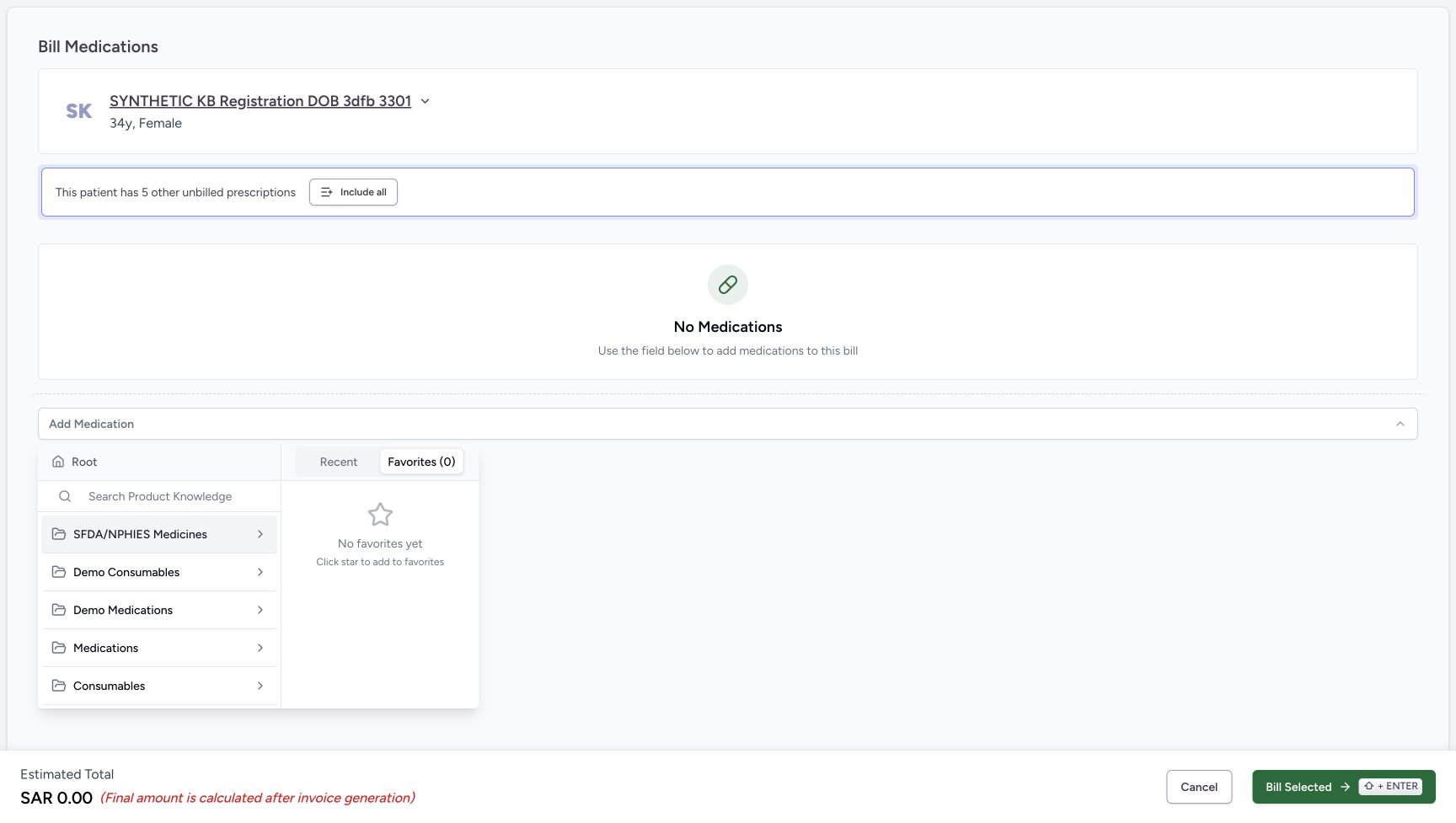
Choose Add Medication. The catalogue has category navigation and separate Recent and Favorites areas.
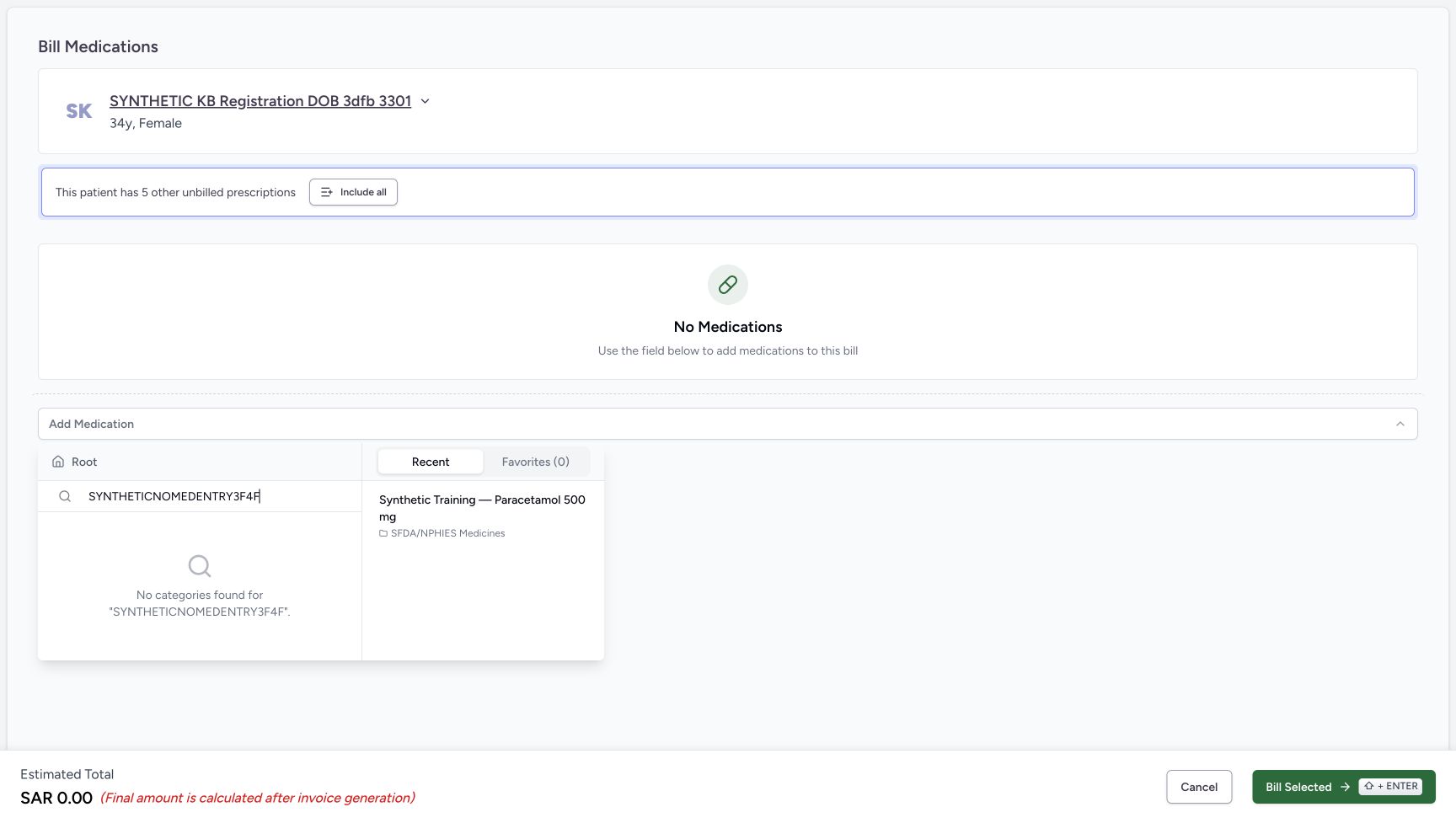
Open Favorites to inspect its state. No favorites yet means this personal list is empty; it does not mean the medicine catalogue is empty. Do not select a star for this exercise.
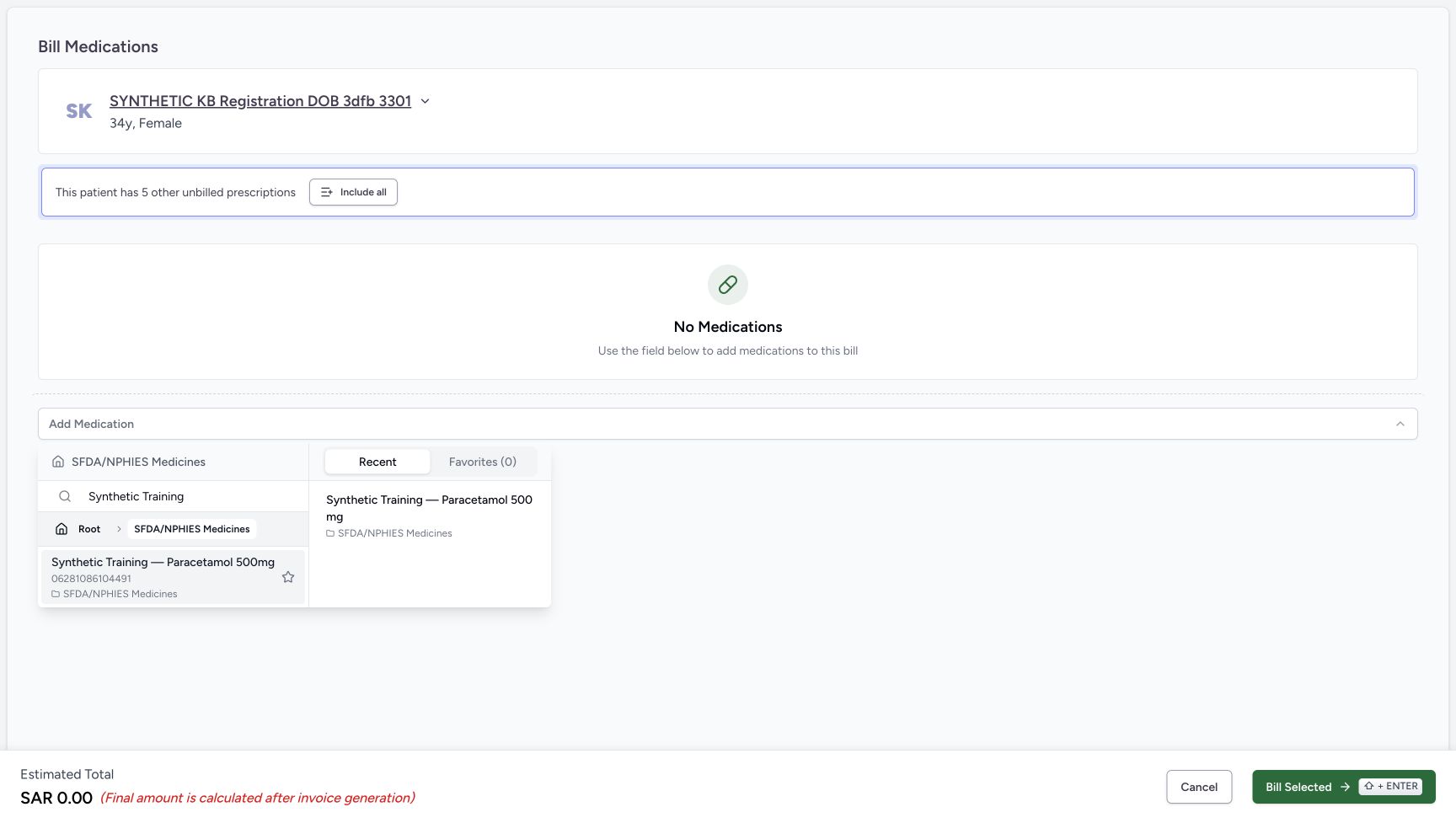
At Root, entering SYNTHETICNOMEDENTRY3F4F displays No categories found in the main area. A medicine can still appear under Recent because that list is separate. Do not treat the unchanged Recent entry as a match to the search text.
Clear that search, choose SFDA/NPHIES Medicines, and search for Synthetic Training. Wait for the left-hand result to settle. Verify Synthetic Training — Paracetamol 500mg, code 06281086104491, then select that result. Selecting a catalogue medicine can update your Recent list.
Expected result: the Add Medication sheet opens for the chosen medicine.
123456Start with an empty new preparation
Capture details
Synthetic medicine entry, local dose and lot validation, an unsaved Other Items row, local removal and Cancel. Bill Selected is not used; no saved dispense, invoice or payment is created in this example.
Image SHA-256 6a02e203d96273ee71722f2ab321be8cf24888e452d8ed26bdde169a877cb71a
- Verify the patient: Check the intended synthetic patient before entering a medicine.
- Open Add Medication: This first control opens the catalogue selector.
- Read No Medications: There is no locally added medicine row in this state.
- Read the zero estimate: SAR 0.00 is the empty preparation estimate.
- Cancel the empty preparation: In this observed route Cancel returns to the verified patient home.
- Leave Bill Selected unused: This exercise does not submit a dispensing bill.
 12345
12345Distinguish category search from Recent and Favorites
Capture details
Synthetic medicine entry, local dose and lot validation, an unsaved Other Items row, local removal and Cancel. Bill Selected is not used; no saved dispense, invoice or payment is created in this example.
Image SHA-256 438b680d38b53b49c4d7f701310750d7a0c36f2649beb4a63a2244f3cfdcbe99
- Locate Root: This is the category navigation context.
- Choose SFDA/NPHIES Medicines: Use this configured category before the illustrated medicine search.
- Use the catalogue search: The search belongs to the main category/result area.
- Read the separate Recent tab: Recent is not a filtered copy of the main search results.
- Inspect Favorites: The following view checks this separate personal list.
 123
123Read an empty personal Favorites list
Capture details
Synthetic medicine entry, local dose and lot validation, an unsaved Other Items row, local removal and Cancel. Bill Selected is not used; no saved dispense, invoice or payment is created in this example.
Image SHA-256 eb9e7fc602e1ec7ea6055a7be17cd1c7d69c844774c634a411a539c25e7547c9
- Read Favorites (0): This count describes the personal Favorites list.
- Read No favorites yet: No star is selected in this example.
- Locate the configured medicine category: Catalogue navigation remains available independently of Favorites.
 123
123Keep a root no-match separate from Recent
Capture details
Synthetic medicine entry, local dose and lot validation, an unsaved Other Items row, local removal and Cancel. Bill Selected is not used; no saved dispense, invoice or payment is created in this example.
Image SHA-256 67900f7ecbf6307d601199a54ba890773d43be15096d3a4b1be576c0484fd2fe
- Replace the deliberate no-match text: Clear this text before searching the selected medicine category.
- Read No categories found: This is the root search state shown here.
- Distinguish the unchanged Recent item: Do not select it as though it matched the deliberate no-match search.
 1234
1234Choose the settled left-hand synthetic medicine result
Capture details
Synthetic medicine entry, local dose and lot validation, an unsaved Other Items row, local removal and Cancel. Bill Selected is not used; no saved dispense, invoice or payment is created in this example.
Image SHA-256 16dcc9b3fc6f9679bd9d48cda903f2456dab3e4e06c3d85e7478e409c50173a9
- Check Synthetic Training: Wait for the selected-category search to settle.
- Verify the selected category: The breadcrumb reads SFDA/NPHIES Medicines.
- Select the verified left result: Check Synthetic Training — Paracetamol 500mg and code 06281086104491 before selecting this result.
- Keep Recent separate: The right-hand entry is a separate recent-use list, not the selected search result.
2. Inspect dosage, frequency and the starting lot
Verify the medicine name again. The example opens with Dosage 1 count and SOS (As needed). Duration is disabled, and Select reason for PRN is available. Required Quantity shows 1.00 count (PRN).
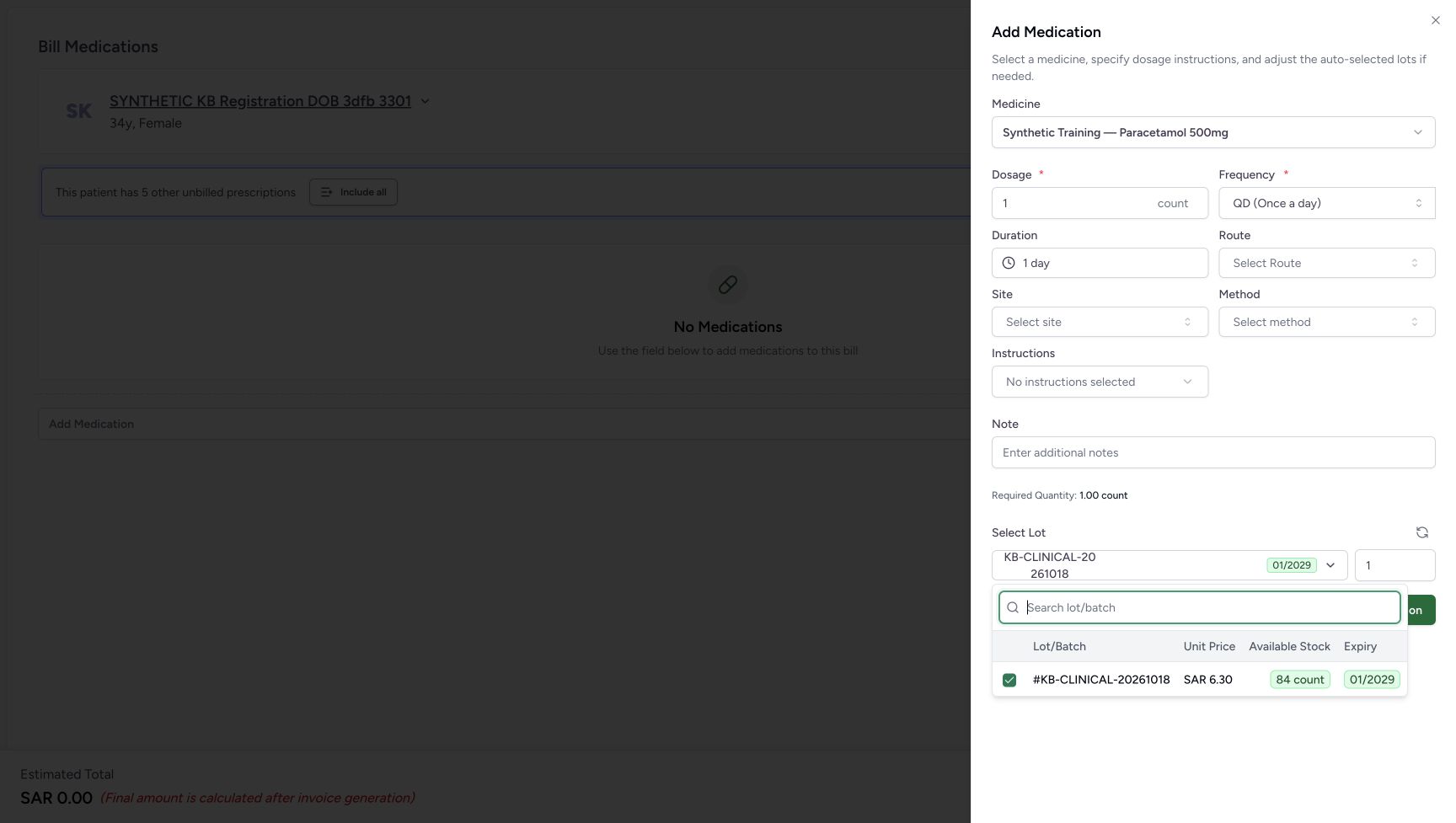
Inspect Select Lot. The selected batch is KB-CLINICAL-20261018, with expiry 01/2029, and quantity 1. Open the lot picker to verify the full batch, Available Stock 84 count, and the displayed SAR 6.30 unit price. The picker is a stock readback; do not change its selection in this exercise. Press Escape to close the lot list and return to the medicine sheet.
These starting values belong to this configured example. Check the actual medicine, instructions and available lot whenever using the form.
123456789Inspect the initial SOS medicine sheet
Capture details
Synthetic medicine entry, local dose and lot validation, an unsaved Other Items row, local removal and Cancel. Bill Selected is not used; no saved dispense, invoice or payment is created in this example.
Image SHA-256 20200b4b521e2eac2e216dc629e91bca2470d2a9d4782cc22fe69aa24e843918
- Verify the medicine: Recheck the selected synthetic name.
- Inspect Dosage 1 count: These are the starting software-example values.
- Inspect SOS (As needed): The frequency starts as needed in this example.
- Read disabled Duration: Duration is not editable while this example is as needed.
- Locate Select reason for PRN: This optional reason is exposed for SOS; no reason is selected.
- Read Required Quantity: The starting calculation is 1.00 count (PRN).
- Open the selected lot control: The separate lot illustration shows the full stock details.
- Cancel an unadded medicine sheet: This closes the sheet without appending its medicine to Other Items.
- Distinguish the sheet Add Medication: This button appends a local row only when the sheet is valid.
 123456
Read the full selected lot and available 84 count
Capture details
Synthetic medicine entry, local dose and lot validation, an unsaved Other Items row, local removal and Cancel. Bill Selected is not used; no saved dispense, invoice or payment is created in this example.
Image SHA-256 4d6341f851c23ee0844ca0d95abeea0959f59f3f7f62e16ccc77a57af2a4b02f
- Open the selected lot list: The full details are shown below the closed lot label.
- Close this lot list with Escape: With the list open, press Escape before cancelling the unadded medicine sheet.
- Verify KB-CLINICAL-20261018: Read the full batch identifier here.
- Read unit price SAR 6.30: This is the lot price displayed by the picker, not an issued invoice.
- Read Available Stock 84 count: Compare the proposed quantity against the actual available amount.
- Read expiry 01/2029: Check the expiry on the selected lot.
3. Recognize and correct invalid quantities
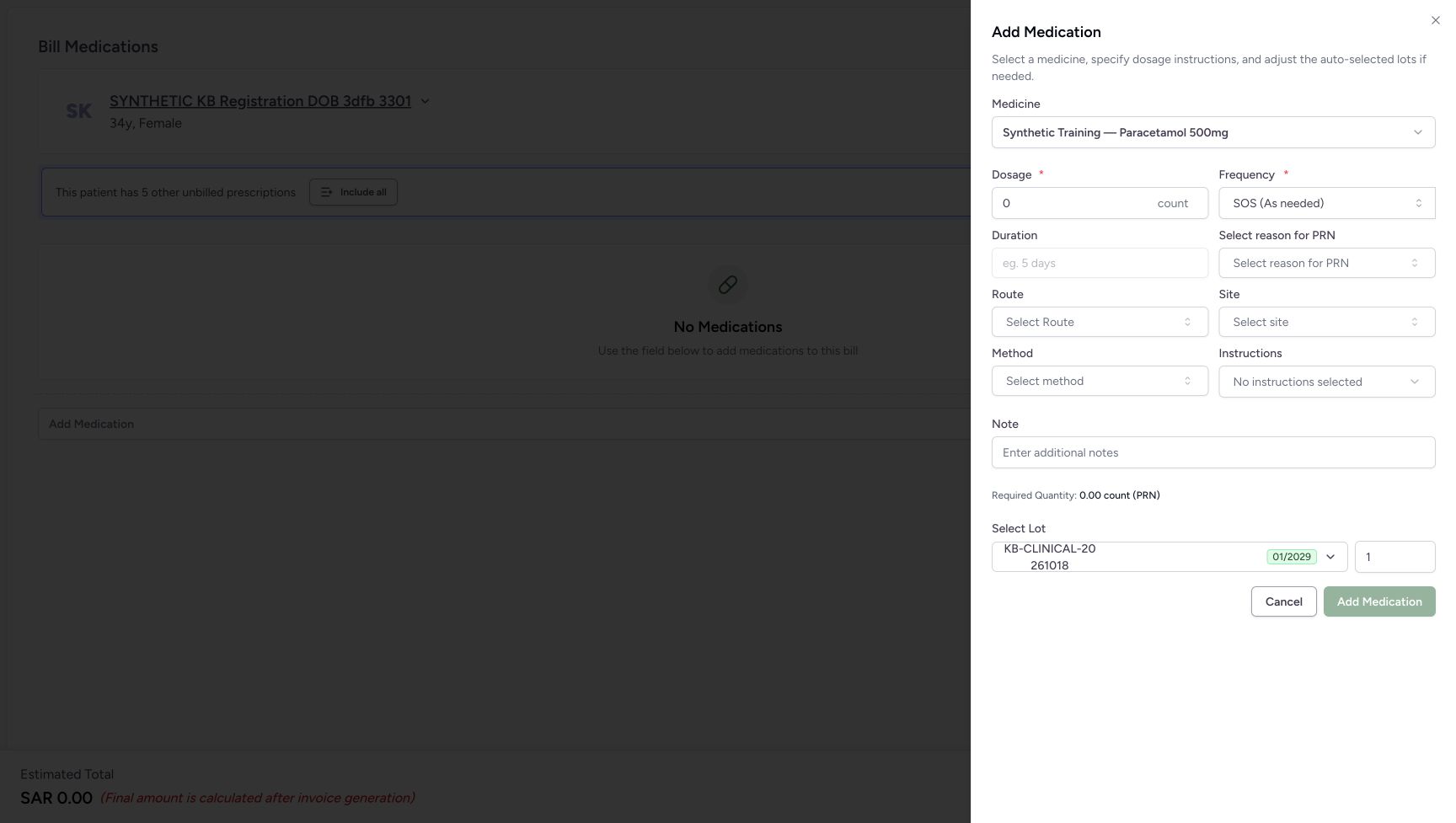
Change Dosage to 0. Required Quantity becomes zero and Add Medication is unavailable. Restore Dosage 1 count before continuing.
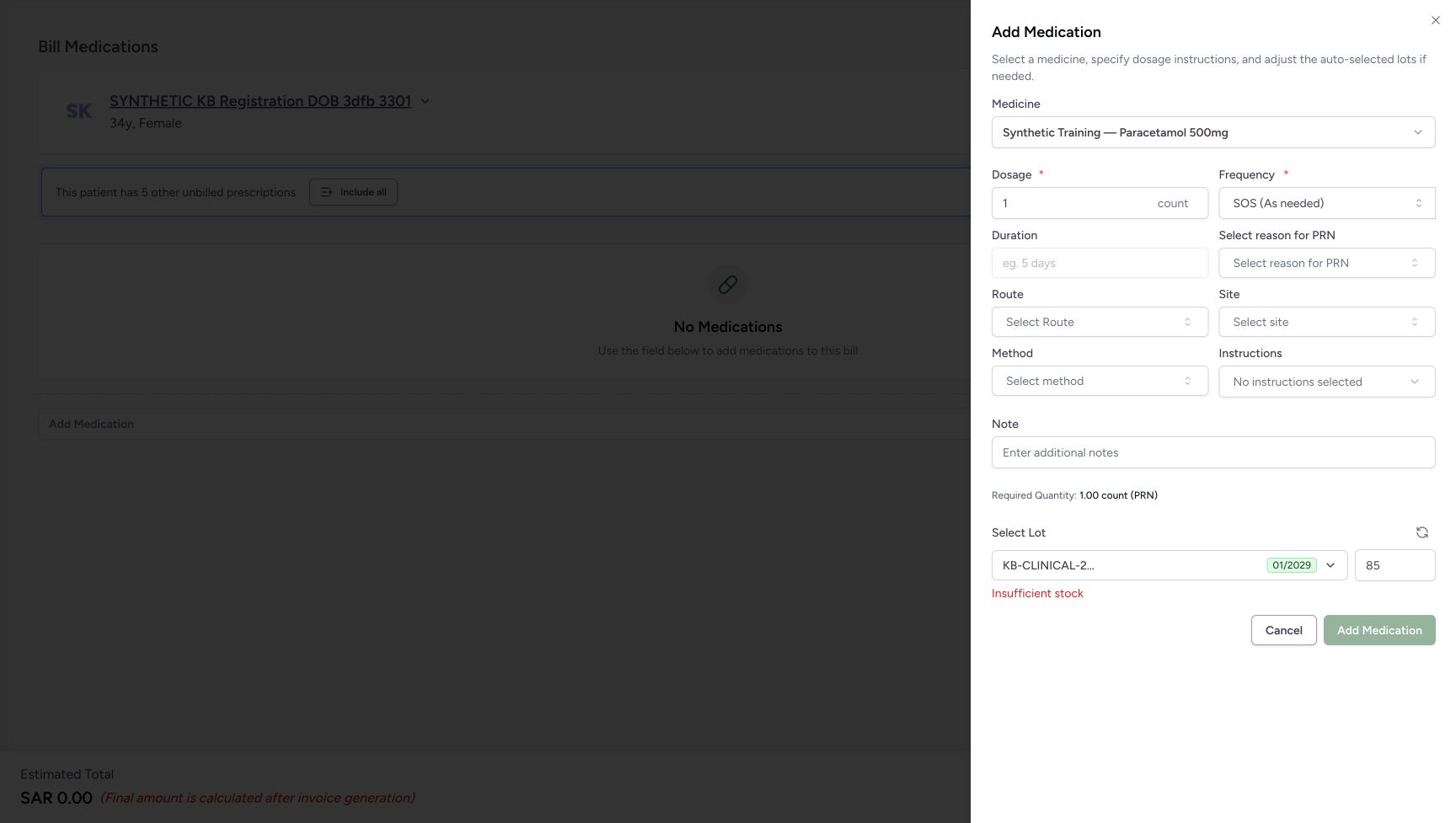
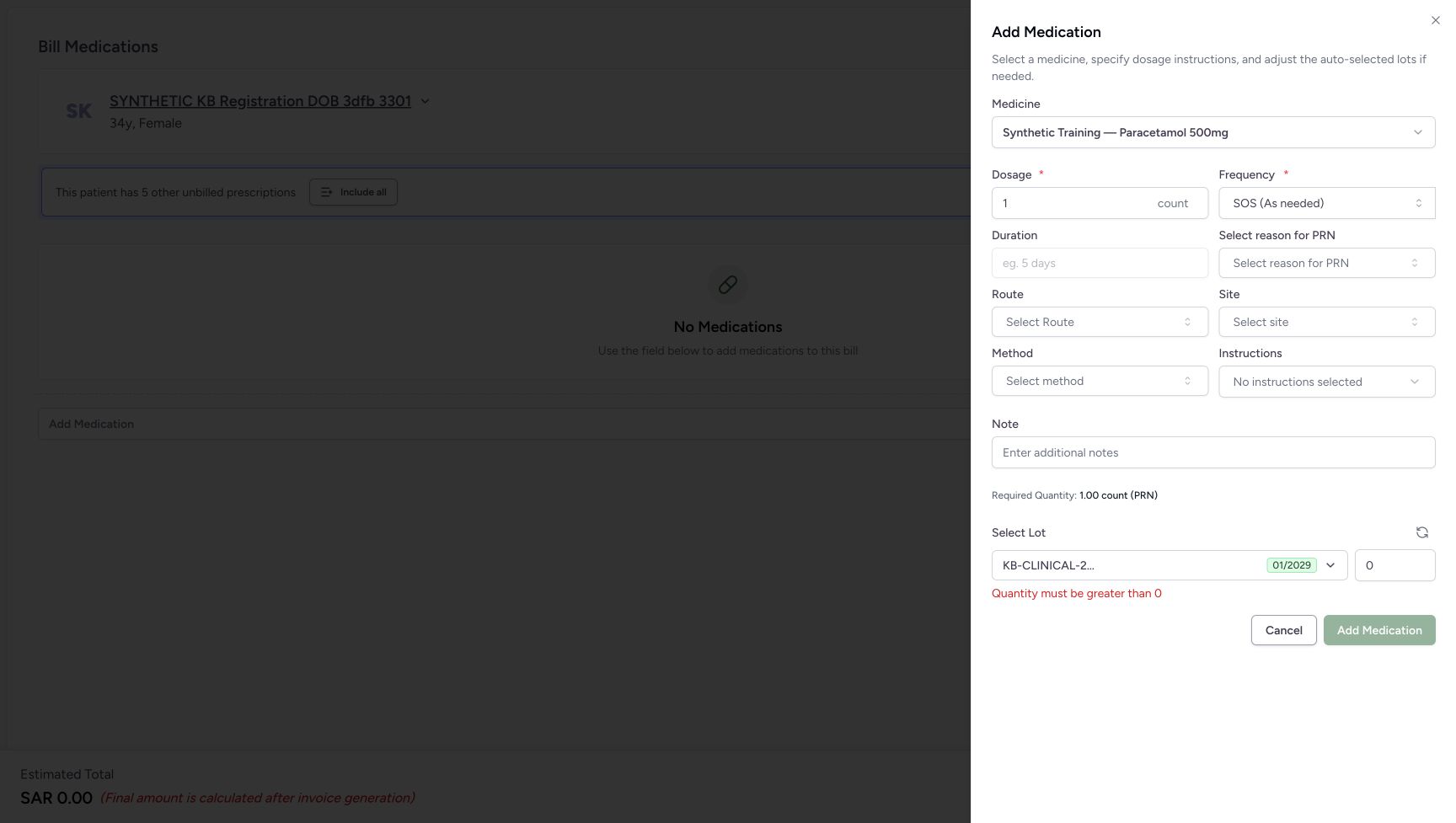
Change the selected lot quantity to 85. It exceeds the pictured available 84 count: Insufficient stock appears and Add Medication is unavailable. Change the lot quantity to 0; the button remains unavailable because the selected lot needs a positive quantity. Restore the lot quantity to 1.
Expected result: the example has a positive dose and one available unit. Do not try to bypass a disabled Add button.
 123
123See the zero-dose guard
Capture details
Synthetic medicine entry, local dose and lot validation, an unsaved Other Items row, local removal and Cancel. Bill Selected is not used; no saved dispense, invoice or payment is created in this example.
Image SHA-256 92383e1a070e4bc69b6c375606d1c7412131b0e0fcfd8918edd5fd2ee051254f
- Correct the zero dosage: Restore the approved fictional example dose before continuing.
- Read the zero required quantity: A selected lot does not make a zero dose valid.
- Read disabled Add Medication: Do not try to bypass the dose guard.
 123
123See insufficient stock for lot quantity 85
Capture details
Synthetic medicine entry, local dose and lot validation, an unsaved Other Items row, local removal and Cancel. Bill Selected is not used; no saved dispense, invoice or payment is created in this example.
Image SHA-256 28a2fa88d68fbe91666d6b744ec33e7166b9061aaddf575e6eb87312acd948f3
- Correct lot quantity 85: The example exceeds the separately pictured 84 count available.
- Read Insufficient stock: This is the current invalid quantity feedback.
- Read disabled Add Medication: Correct the quantity before adding the local row.
 123
123See the positive lot-quantity guard
Capture details
Synthetic medicine entry, local dose and lot validation, an unsaved Other Items row, local removal and Cancel. Bill Selected is not used; no saved dispense, invoice or payment is created in this example.
Image SHA-256 315a70360680fc361aa3d31e973c7183304a56d305cfaaab86f5a3d9e41535ba
- Restore a positive lot quantity: The fictional example restores quantity 1.
- Read Quantity must be greater than 0: A positive dose does not make a zero lot allocation valid.
- Read disabled Add Medication: The local row cannot be added in this state.
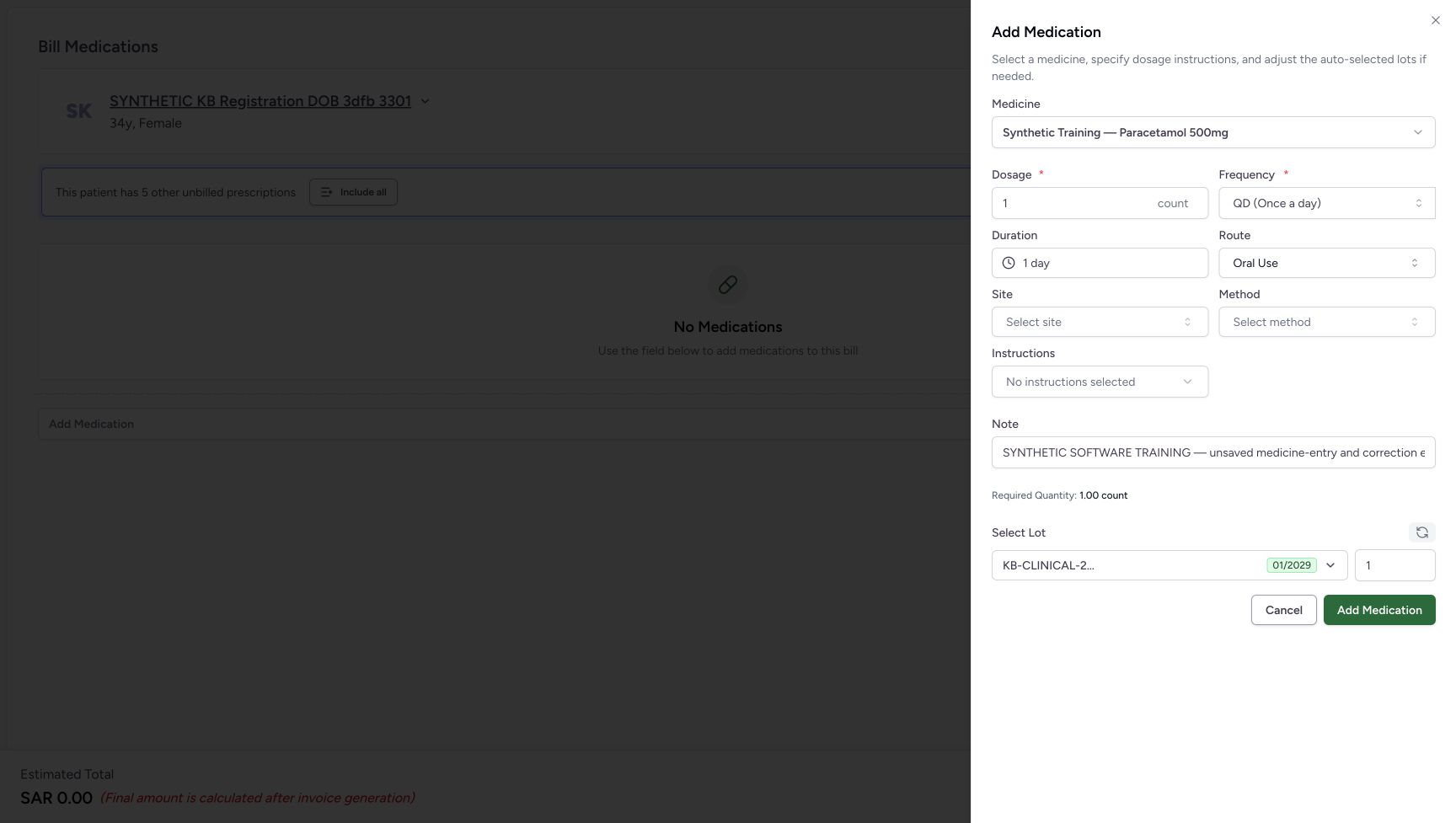 1234567
Review the fictional Note and valid local addition
Capture details
Synthetic medicine entry, local dose and lot validation, an unsaved Other Items row, local removal and Cancel. Bill Selected is not used; no saved dispense, invoice or payment is created in this example.
Image SHA-256 089da99e0ff1158b3412cd8bd105cb806609a3d4cb11b35d9c431012b9c2d735
- Review the software-only Note: The one-line input shows only part of the entered text; do not treat the visible fragment as the full Note.
- Keep Site unselected in this example: No site is invented when its lookup fails.
- Keep Method unselected in this example: No administration method is selected.
- Read No instructions selected: The optional instructions are left blank.
- Auto-select lots based on dosage instructions: Use the existing recalculate control, then check the resulting quantity.
- Verify lot quantity 1: Review the allocation before adding the local row.
- Add the local medicine row: The sheet Add Medication appends one Other Items row; it does not submit Bill Selected.
4. Choose the demonstrated scheduled frequency
Open Frequency, search QD, and choose the visible QD (Once a day) option. The search illustration isolates that option; the unfiltered menu contains other schedules.
Duration becomes editable and shows 1 day. The PRN reason control disappears, and Required Quantity shows 1.00 count. Verify these displayed values for this fictional exercise; choosing a schedule is not a clinical recommendation.
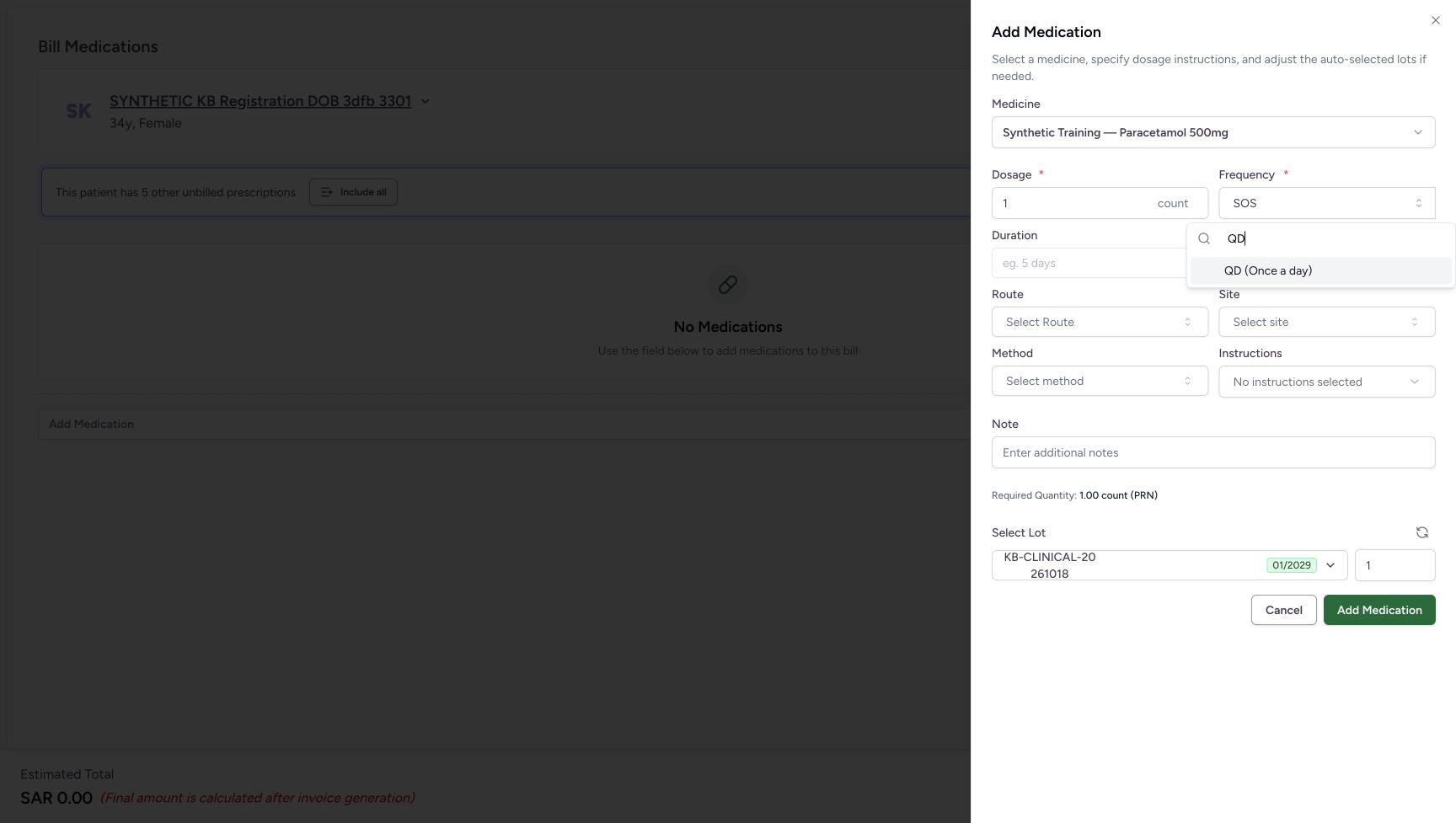 123
123Find QD in the frequency search
Capture details
Synthetic medicine entry, local dose and lot validation, an unsaved Other Items row, local removal and Cancel. Bill Selected is not used; no saved dispense, invoice or payment is created in this example.
Image SHA-256 0c9ef88f3f47717cfdf6a6c4b0a1c54b48089b7a676f16751cca38e72a29248f
- Open Frequency: The medicine sheet frequency control opens the searchable choices.
- Enter QD in the menu search: This focused search exposes the intended option.
- Choose QD (Once a day): This is the fully visible scheduled option.
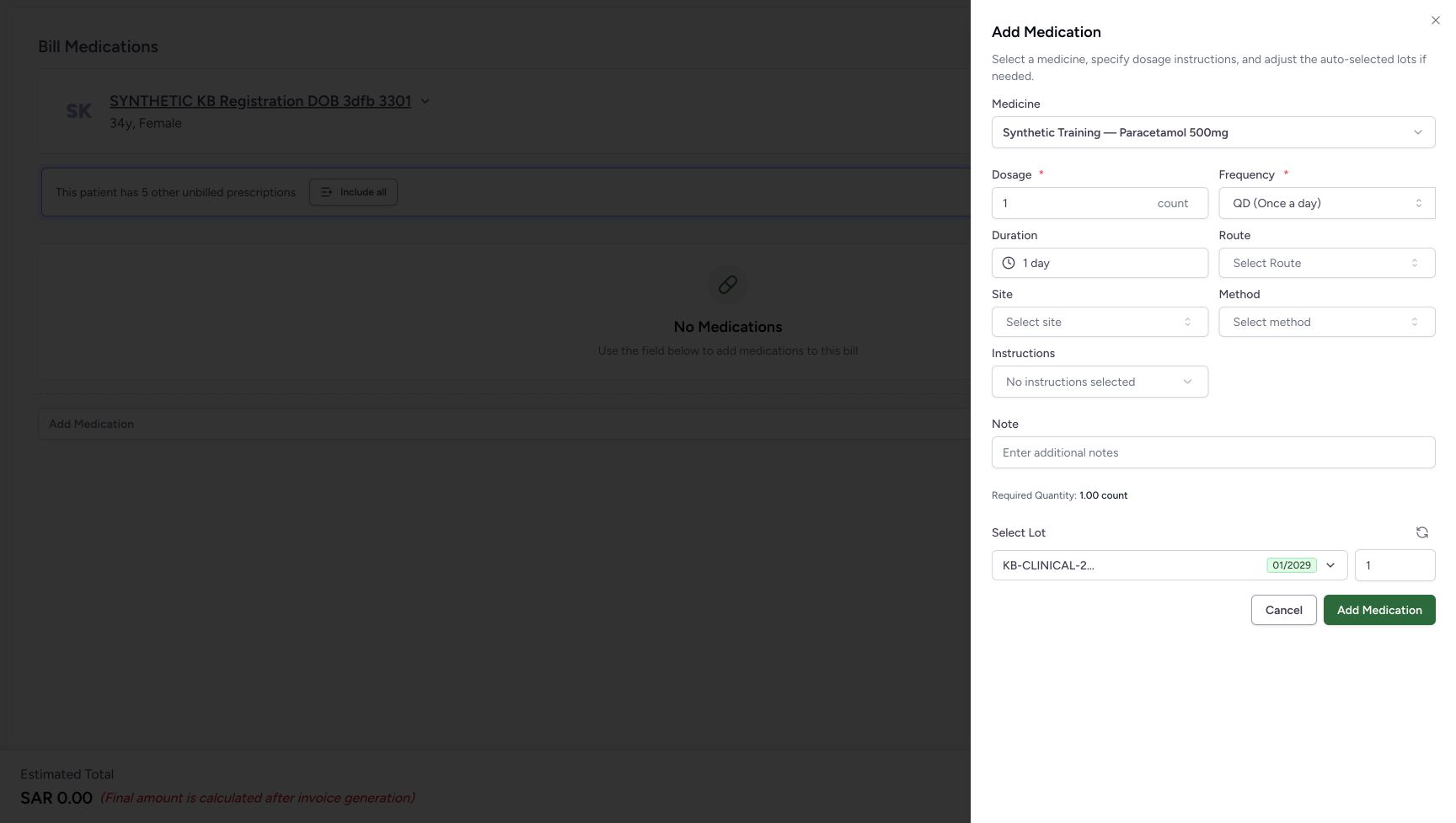 1234
1234Review QD and its enabled one-day duration
Capture details
Synthetic medicine entry, local dose and lot validation, an unsaved Other Items row, local removal and Cancel. Bill Selected is not used; no saved dispense, invoice or payment is created in this example.
Image SHA-256 b9f48070f4cee0bc1c3f94026b1d596951bf7ee5cf3e52bf6d57deae718d1c54
- Verify QD (Once a day): The separate searched menu supplies the visible option used to choose this schedule.
- Review Duration 1 day: Duration is editable after choosing the scheduled frequency.
- Open Route: This control opens the next illustrated terminology search.
- Read Required Quantity 1.00 count: Check the calculated requirement after changing the frequency.
5. Choose the exact route and leave other optional terms blank
Open Route and search Oral. Several different options contain that word. Choose the exact Oral Use result rather than a combined route such as Oral, Rectal or Oral Use, Vaginal Use.
Site, Method and Instructions are separate optional fields. Their searches failed in this example, so no value was selected. An older screen displayed No Results Found for those failures; that message did not establish that there were no matching terms. Do not invent a value or change access to force a result. Leave these fields blank in this example. See Recover a medication terminology search for the newer error and retry controls.
A prompt to enter at least three characters is search guidance. It is not evidence that a terminology service is working, nor proof that a shorter search made no request.
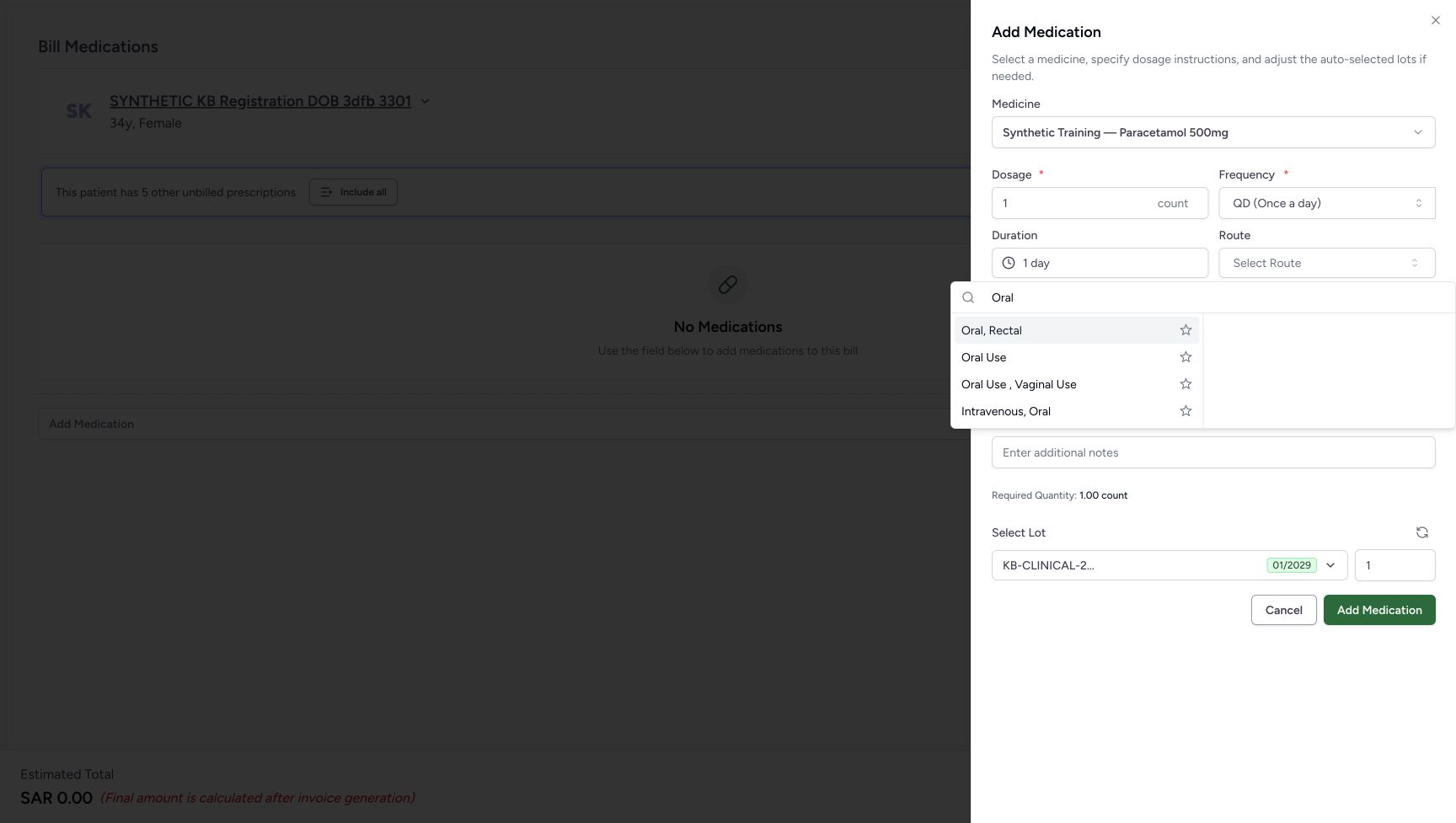 123
123Choose Oral Use rather than a combined route
Capture details
Synthetic medicine entry, local dose and lot validation, an unsaved Other Items row, local removal and Cancel. Bill Selected is not used; no saved dispense, invoice or payment is created in this example.
Image SHA-256 4695fd3d17347fbd5a6406b891261323cadb2ee285f9a2ca18daf75ccc9e62a2
- Locate the Route control: The route picker belongs to the medicine sheet.
- Check the Oral search: Wait for the configured route results.
- Choose Oral Use: Select this exact example option rather than a different combined route.
1234567Review the fictional Note and valid local addition
Capture details
Synthetic medicine entry, local dose and lot validation, an unsaved Other Items row, local removal and Cancel. Bill Selected is not used; no saved dispense, invoice or payment is created in this example.
Image SHA-256 089da99e0ff1158b3412cd8bd105cb806609a3d4cb11b35d9c431012b9c2d735
- Review the software-only Note: The one-line input shows only part of the entered text; do not treat the visible fragment as the full Note.
- Keep Site unselected in this example: No site is invented when its lookup fails.
- Keep Method unselected in this example: No administration method is selected.
- Read No instructions selected: The optional instructions are left blank.
- Auto-select lots based on dosage instructions: Use the existing recalculate control, then check the resulting quantity.
- Verify lot quantity 1: Review the allocation before adding the local row.
- Add the local medicine row: The sheet Add Medication appends one Other Items row; it does not submit Bill Selected.
6. Review the Note and add one local row
Enter the software-only Note:
SYNTHETIC SOFTWARE TRAINING — unsaved medicine-entry and correction exercise only. No real dispensing or treatment.
The Note input is one line and may show only part of this text. Review what you entered rather than assuming the visible portion is the whole Note.
Verify Dosage 1 count, QD (Once a day), Duration 1 day, Oral Use, and the blank optional terms. Choose the auto-selection control beside Select Lot to recalculate the example’s lot allocation, then verify quantity 1 and Required Quantity 1.00 count.
Choose the sheet’s Add Medication button once.
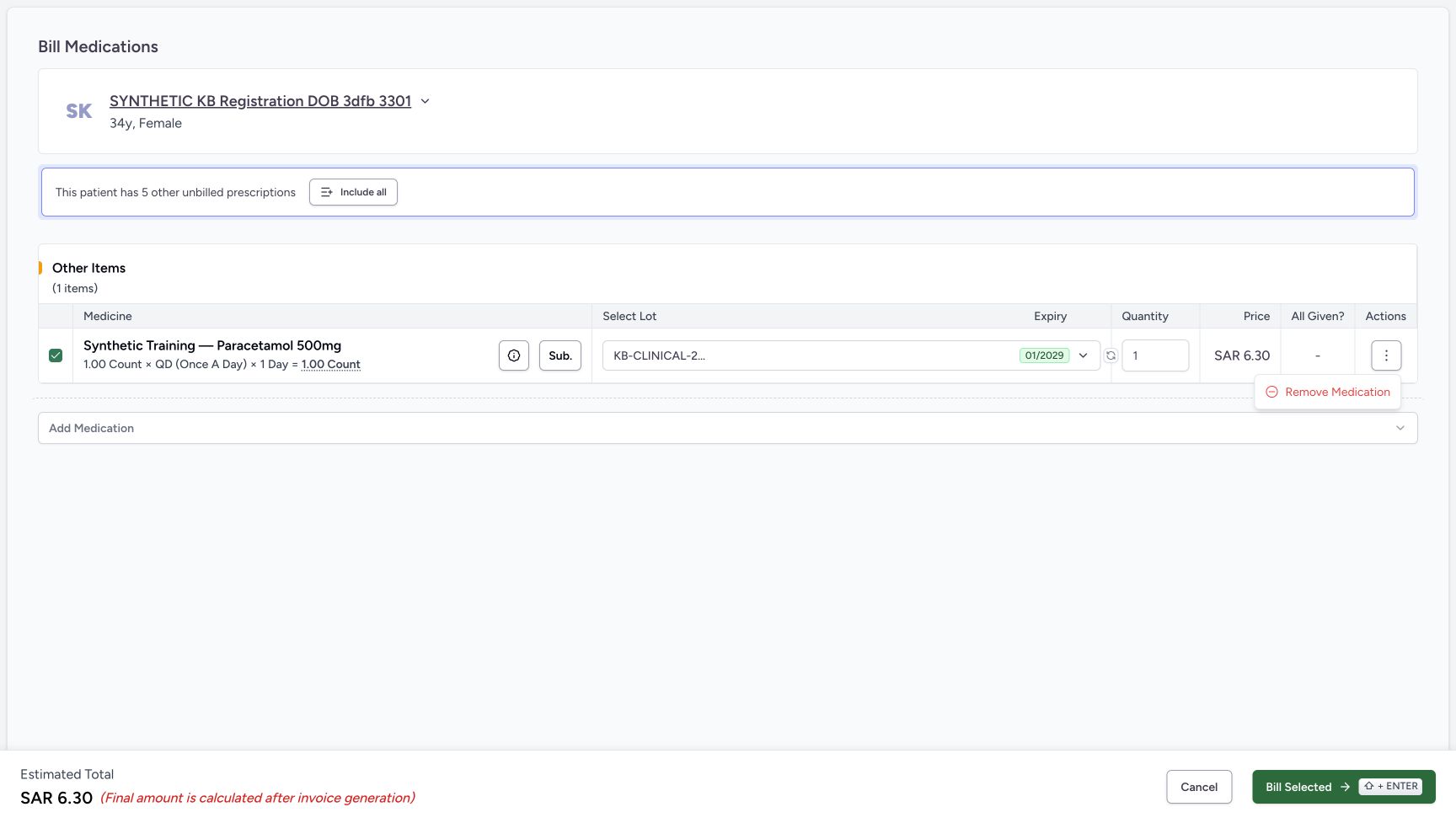
Expected result: Other Items (1 items) contains the synthetic medicine, its dosage summary and the selected one-unit lot. Estimated Total shows SAR 6.30, followed by Final amount is calculated after invoice generation. This is an unsaved preparation estimate, not an issued invoice or a payment.
1234567Review the fictional Note and valid local addition
Capture details
Synthetic medicine entry, local dose and lot validation, an unsaved Other Items row, local removal and Cancel. Bill Selected is not used; no saved dispense, invoice or payment is created in this example.
Image SHA-256 089da99e0ff1158b3412cd8bd105cb806609a3d4cb11b35d9c431012b9c2d735
- Review the software-only Note: The one-line input shows only part of the entered text; do not treat the visible fragment as the full Note.
- Keep Site unselected in this example: No site is invented when its lookup fails.
- Keep Method unselected in this example: No administration method is selected.
- Read No instructions selected: The optional instructions are left blank.
- Auto-select lots based on dosage instructions: Use the existing recalculate control, then check the resulting quantity.
- Verify lot quantity 1: Review the allocation before adding the local row.
- Add the local medicine row: The sheet Add Medication appends one Other Items row; it does not submit Bill Selected.
123456Inspect the one local Other Items row and estimate
Capture details
Synthetic medicine entry, local dose and lot validation, an unsaved Other Items row, local removal and Cancel. Bill Selected is not used; no saved dispense, invoice or payment is created in this example.
Image SHA-256 187b44807f8dec306bf6231e279fbc4bff80e43737e8241856103638547220fe
- Verify the intended local medicine row: Check its name and dosage summary before opening its actions.
- Review quantity 1: This is the local row allocation, not a completed goods issue.
- Read the displayed SAR 6.30: The row price is part of an unsaved preparation estimate.
- Open this row’s actions: The next view offers Remove Medication for this Other Items row.
- Read Estimated Total SAR 6.30: This estimate is not an issued invoice or payment.
- Leave Bill Selected unused: The example proceeds to local removal instead of submission.
7. Cancel a removal, then remove the intended local row
Identify the synthetic medicine in Other Items before opening its row action menu. Choose Remove Medication.
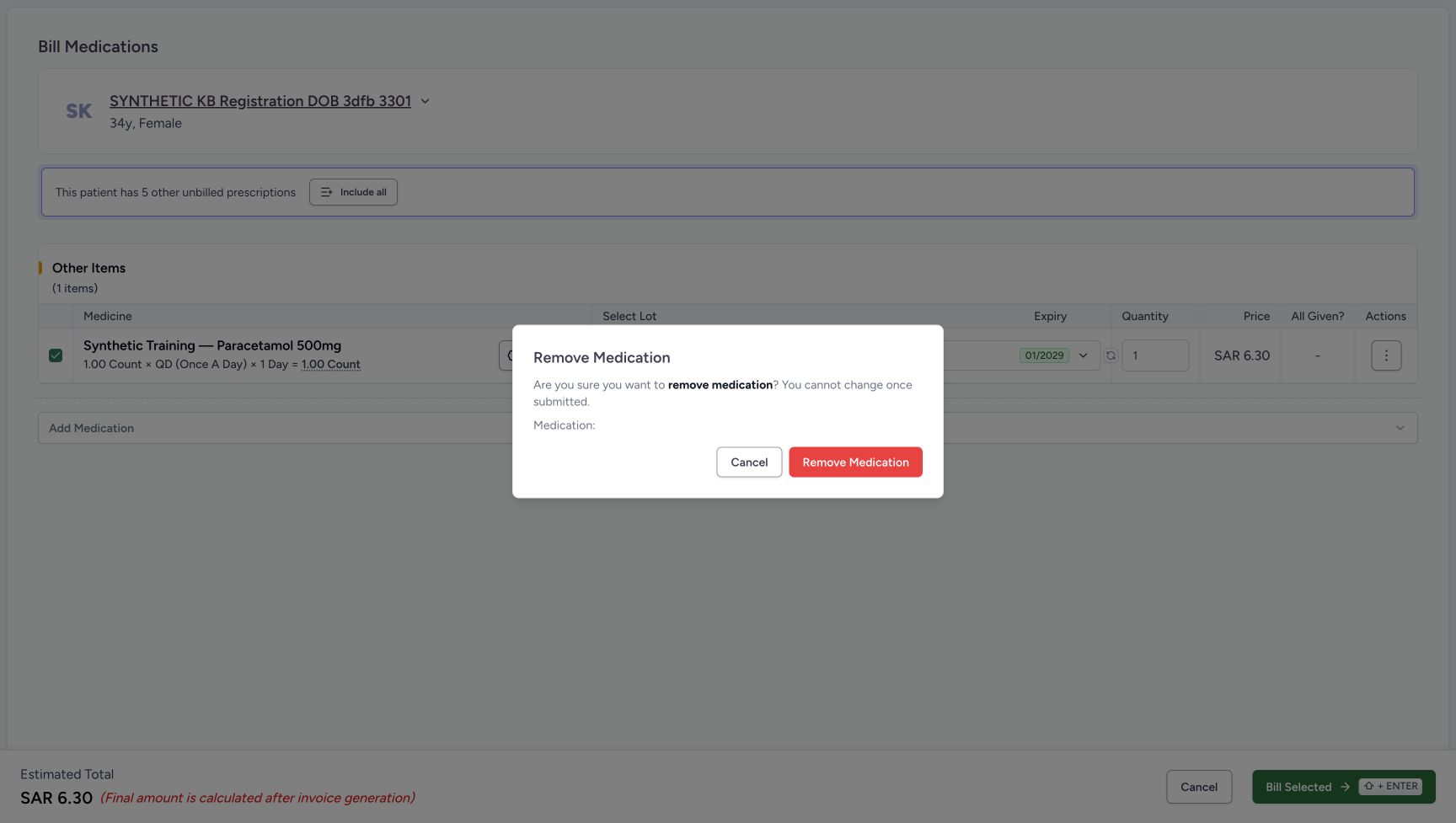
Inspect the confirmation. In this example the Medication: detail is blank, so it cannot confirm the medicine’s identity. If you are unsure which row opened the dialog, choose Cancel and inspect the row again.
Choose Cancel in the confirmation. The same row remains and the estimate stays SAR 6.30.
Open that row’s menu again and choose Remove Medication. After confirming that it is the intended unsaved row, choose Remove Medication in the dialog.
Expected result: No Medications returns and Estimated Total is SAR 0.00. This removed a local Other Items row. It did not cancel a saved prescription or delete a saved dispensing record.
123456Inspect the one local Other Items row and estimate
Capture details
Synthetic medicine entry, local dose and lot validation, an unsaved Other Items row, local removal and Cancel. Bill Selected is not used; no saved dispense, invoice or payment is created in this example.
Image SHA-256 187b44807f8dec306bf6231e279fbc4bff80e43737e8241856103638547220fe
- Verify the intended local medicine row: Check its name and dosage summary before opening its actions.
- Review quantity 1: This is the local row allocation, not a completed goods issue.
- Read the displayed SAR 6.30: The row price is part of an unsaved preparation estimate.
- Open this row’s actions: The next view offers Remove Medication for this Other Items row.
- Read Estimated Total SAR 6.30: This estimate is not an issued invoice or payment.
- Leave Bill Selected unused: The example proceeds to local removal instead of submission.
 12
12Choose Remove Medication for the intended local row
Capture details
Synthetic medicine entry, local dose and lot validation, an unsaved Other Items row, local removal and Cancel. Bill Selected is not used; no saved dispense, invoice or payment is created in this example.
Image SHA-256 1badc05ac340ac88b39b1198b040c943479a64a75d31f0b98939734ba161d7b2
- Recheck the originating row: Verify its identity before using the removal menu.
- Choose Remove Medication: This opens the local row confirmation.
 123
123Cancel or confirm removal without relying on the blank detail
Capture details
Synthetic medicine entry, local dose and lot validation, an unsaved Other Items row, local removal and Cancel. Bill Selected is not used; no saved dispense, invoice or payment is created in this example.
Image SHA-256 a84832cca5dbe98f38d6090465bed3916831dd3465f6eea7096df260f6acc9a5
- Notice the blank Medication detail: This field cannot identify the intended medicine in this version.
- Cancel the removal: Return to and verify the originating row; the local row is retained.
- Confirm Remove Medication: Use this only after checking the intended unsaved row.
123456Start with an empty new preparation
Capture details
Synthetic medicine entry, local dose and lot validation, an unsaved Other Items row, local removal and Cancel. Bill Selected is not used; no saved dispense, invoice or payment is created in this example.
Image SHA-256 6a02e203d96273ee71722f2ab321be8cf24888e452d8ed26bdde169a877cb71a
- Verify the patient: Check the intended synthetic patient before entering a medicine.
- Open Add Medication: This first control opens the catalogue selector.
- Read No Medications: There is no locally added medicine row in this state.
- Read the zero estimate: SAR 0.00 is the empty preparation estimate.
- Cancel the empty preparation: In this observed route Cancel returns to the verified patient home.
- Leave Bill Selected unused: This exercise does not submit a dispensing bill.
8. Leave the unsaved preparation
Choose the preparation page’s Cancel button. In this observed path it returns to the verified patient home with the same two Active encounter cards. Verify the patient and encounter context if you begin again; Cancel is not a promise of one universal destination from every route.
If you reopen the medicine sheet just to inspect a frequency or lot, use the sheet’s Cancel without adding the medicine, then cancel the empty preparation. This example returned to the same patient home.
123456Start with an empty new preparation
Capture details
Synthetic medicine entry, local dose and lot validation, an unsaved Other Items row, local removal and Cancel. Bill Selected is not used; no saved dispense, invoice or payment is created in this example.
Image SHA-256 6a02e203d96273ee71722f2ab321be8cf24888e452d8ed26bdde169a877cb71a
- Verify the patient: Check the intended synthetic patient before entering a medicine.
- Open Add Medication: This first control opens the catalogue selector.
- Read No Medications: There is no locally added medicine row in this state.
- Read the zero estimate: SAR 0.00 is the empty preparation estimate.
- Cancel the empty preparation: In this observed route Cancel returns to the verified patient home.
- Leave Bill Selected unused: This exercise does not submit a dispensing bill.
123456789Inspect the initial SOS medicine sheet
Capture details
Synthetic medicine entry, local dose and lot validation, an unsaved Other Items row, local removal and Cancel. Bill Selected is not used; no saved dispense, invoice or payment is created in this example.
Image SHA-256 20200b4b521e2eac2e216dc629e91bca2470d2a9d4782cc22fe69aa24e843918
- Verify the medicine: Recheck the selected synthetic name.
- Inspect Dosage 1 count: These are the starting software-example values.
- Inspect SOS (As needed): The frequency starts as needed in this example.
- Read disabled Duration: Duration is not editable while this example is as needed.
- Locate Select reason for PRN: This optional reason is exposed for SOS; no reason is selected.
- Read Required Quantity: The starting calculation is 1.00 count (PRN).
- Open the selected lot control: The separate lot illustration shows the full stock details.
- Cancel an unadded medicine sheet: This closes the sheet without appending its medicine to Other Items.
- Distinguish the sheet Add Medication: This button appends a local row only when the sheet is valid.
123456Read the full selected lot and available 84 count
Capture details
Synthetic medicine entry, local dose and lot validation, an unsaved Other Items row, local removal and Cancel. Bill Selected is not used; no saved dispense, invoice or payment is created in this example.
Image SHA-256 4d6341f851c23ee0844ca0d95abeea0959f59f3f7f62e16ccc77a57af2a4b02f
- Open the selected lot list: The full details are shown below the closed lot label.
- Close this lot list with Escape: With the list open, press Escape before cancelling the unadded medicine sheet.
- Verify KB-CLINICAL-20261018: Read the full batch identifier here.
- Read unit price SAR 6.30: This is the lot price displayed by the picker, not an issued invoice.
- Read Available Stock 84 count: Compare the proposed quantity against the actual available amount.
- Read expiry 01/2029: Check the expiry on the selected lot.
12345Verify the returned patient home
Capture details
Synthetic medicine entry, local dose and lot validation, an unsaved Other Items row, local removal and Cancel. Bill Selected is not used; no saved dispense, invoice or payment is created in this example.
Image SHA-256 44b479a7d3efbd617d57d21692b6293e1f55d0e2254cdce7c9e63490447650cc
- Verify the returned patient: Confirm the same synthetic identity after leaving preparation.
- Read Active encounters: The original active encounter list remains.
- Identify the intended Oct 20 encounter: This is the Oct 20, 2026, 03:19 PM card used for the example.
- Verify MANSOQ Demo Polyclinic: Check the facility context on the card.
- Locate this encounter’s Dispense Medicine link: Use the established patient-and-encounter lesson if beginning a new visit; no additional medicine save occurs here.
Understand the two Add Medication controls
The first Add Medication opens the catalogue. The Add Medication button inside the medicine sheet adds a row to the current preparation. It does not by itself save a dispensing order or generate an invoice. Bill Selected is a separate submission action and is not used in this exercise.
123456Start with an empty new preparation
Capture details
Synthetic medicine entry, local dose and lot validation, an unsaved Other Items row, local removal and Cancel. Bill Selected is not used; no saved dispense, invoice or payment is created in this example.
Image SHA-256 6a02e203d96273ee71722f2ab321be8cf24888e452d8ed26bdde169a877cb71a
- Verify the patient: Check the intended synthetic patient before entering a medicine.
- Open Add Medication: This first control opens the catalogue selector.
- Read No Medications: There is no locally added medicine row in this state.
- Read the zero estimate: SAR 0.00 is the empty preparation estimate.
- Cancel the empty preparation: In this observed route Cancel returns to the verified patient home.
- Leave Bill Selected unused: This exercise does not submit a dispensing bill.
123456789Inspect the initial SOS medicine sheet
Capture details
Synthetic medicine entry, local dose and lot validation, an unsaved Other Items row, local removal and Cancel. Bill Selected is not used; no saved dispense, invoice or payment is created in this example.
Image SHA-256 20200b4b521e2eac2e216dc629e91bca2470d2a9d4782cc22fe69aa24e843918
- Verify the medicine: Recheck the selected synthetic name.
- Inspect Dosage 1 count: These are the starting software-example values.
- Inspect SOS (As needed): The frequency starts as needed in this example.
- Read disabled Duration: Duration is not editable while this example is as needed.
- Locate Select reason for PRN: This optional reason is exposed for SOS; no reason is selected.
- Read Required Quantity: The starting calculation is 1.00 count (PRN).
- Open the selected lot control: The separate lot illustration shows the full stock details.
- Cancel an unadded medicine sheet: This closes the sheet without appending its medicine to Other Items.
- Distinguish the sheet Add Medication: This button appends a local row only when the sheet is valid.
123456Inspect the one local Other Items row and estimate
Capture details
Synthetic medicine entry, local dose and lot validation, an unsaved Other Items row, local removal and Cancel. Bill Selected is not used; no saved dispense, invoice or payment is created in this example.
Image SHA-256 187b44807f8dec306bf6231e279fbc4bff80e43737e8241856103638547220fe
- Verify the intended local medicine row: Check its name and dosage summary before opening its actions.
- Review quantity 1: This is the local row allocation, not a completed goods issue.
- Read the displayed SAR 6.30: The row price is part of an unsaved preparation estimate.
- Open this row’s actions: The next view offers Remove Medication for this Other Items row.
- Read Estimated Total SAR 6.30: This estimate is not an issued invoice or payment.
- Leave Bill Selected unused: The example proceeds to local removal instead of submission.
Did Add Medication dispense the medicine?
No. It added a local preparation row. This exercise removed that row and left without using Bill Selected. Selecting medicines or routes can still update your personal Recent metadata.
123456Start with an empty new preparation
Capture details
Synthetic medicine entry, local dose and lot validation, an unsaved Other Items row, local removal and Cancel. Bill Selected is not used; no saved dispense, invoice or payment is created in this example.
Image SHA-256 6a02e203d96273ee71722f2ab321be8cf24888e452d8ed26bdde169a877cb71a
- Verify the patient: Check the intended synthetic patient before entering a medicine.
- Open Add Medication: This first control opens the catalogue selector.
- Read No Medications: There is no locally added medicine row in this state.
- Read the zero estimate: SAR 0.00 is the empty preparation estimate.
- Cancel the empty preparation: In this observed route Cancel returns to the verified patient home.
- Leave Bill Selected unused: This exercise does not submit a dispensing bill.
123456Inspect the one local Other Items row and estimate
Capture details
Synthetic medicine entry, local dose and lot validation, an unsaved Other Items row, local removal and Cancel. Bill Selected is not used; no saved dispense, invoice or payment is created in this example.
Image SHA-256 187b44807f8dec306bf6231e279fbc4bff80e43737e8241856103638547220fe
- Verify the intended local medicine row: Check its name and dosage summary before opening its actions.
- Review quantity 1: This is the local row allocation, not a completed goods issue.
- Read the displayed SAR 6.30: The row price is part of an unsaved preparation estimate.
- Open this row’s actions: The next view offers Remove Medication for this Other Items row.
- Read Estimated Total SAR 6.30: This estimate is not an issued invoice or payment.
- Leave Bill Selected unused: The example proceeds to local removal instead of submission.
12345Verify the returned patient home
Capture details
Synthetic medicine entry, local dose and lot validation, an unsaved Other Items row, local removal and Cancel. Bill Selected is not used; no saved dispense, invoice or payment is created in this example.
Image SHA-256 44b479a7d3efbd617d57d21692b6293e1f55d0e2254cdce7c9e63490447650cc
- Verify the returned patient: Confirm the same synthetic identity after leaving preparation.
- Read Active encounters: The original active encounter list remains.
- Identify the intended Oct 20 encounter: This is the Oct 20, 2026, 03:19 PM card used for the example.
- Verify MANSOQ Demo Polyclinic: Check the facility context on the card.
- Locate this encounter’s Dispense Medicine link: Use the established patient-and-encounter lesson if beginning a new visit; no additional medicine save occurs here.
Can I correct the Note or dosage directly in the added row?
This row does not provide a general editor for those authored fields. Remove the intended local row and start Add Medication again if you need to re-enter them. Check the lot and quantity again rather than assuming the cancelled sheet will restore all values.
123456789Inspect the initial SOS medicine sheet
Capture details
Synthetic medicine entry, local dose and lot validation, an unsaved Other Items row, local removal and Cancel. Bill Selected is not used; no saved dispense, invoice or payment is created in this example.
Image SHA-256 20200b4b521e2eac2e216dc629e91bca2470d2a9d4782cc22fe69aa24e843918
- Verify the medicine: Recheck the selected synthetic name.
- Inspect Dosage 1 count: These are the starting software-example values.
- Inspect SOS (As needed): The frequency starts as needed in this example.
- Read disabled Duration: Duration is not editable while this example is as needed.
- Locate Select reason for PRN: This optional reason is exposed for SOS; no reason is selected.
- Read Required Quantity: The starting calculation is 1.00 count (PRN).
- Open the selected lot control: The separate lot illustration shows the full stock details.
- Cancel an unadded medicine sheet: This closes the sheet without appending its medicine to Other Items.
- Distinguish the sheet Add Medication: This button appends a local row only when the sheet is valid.
12Choose Remove Medication for the intended local row
Capture details
Synthetic medicine entry, local dose and lot validation, an unsaved Other Items row, local removal and Cancel. Bill Selected is not used; no saved dispense, invoice or payment is created in this example.
Image SHA-256 1badc05ac340ac88b39b1198b040c943479a64a75d31f0b98939734ba161d7b2
- Recheck the originating row: Verify its identity before using the removal menu.
- Choose Remove Medication: This opens the local row confirmation.
123Cancel or confirm removal without relying on the blank detail
Capture details
Synthetic medicine entry, local dose and lot validation, an unsaved Other Items row, local removal and Cancel. Bill Selected is not used; no saved dispense, invoice or payment is created in this example.
Image SHA-256 a84832cca5dbe98f38d6090465bed3916831dd3465f6eea7096df260f6acc9a5
- Notice the blank Medication detail: This field cannot identify the intended medicine in this version.
- Cancel the removal: Return to and verify the originating row; the local row is retained.
- Confirm Remove Medication: Use this only after checking the intended unsaved row.
Does this demonstrate a saved Note, invoice or payment?
No. Use the existing standalone medicine Note and unpaid-preparation cancellation lessons for their separate saved-record behavior. No real goods, clinical treatment or payment are demonstrated here.
1234567Review the fictional Note and valid local addition
Capture details
Synthetic medicine entry, local dose and lot validation, an unsaved Other Items row, local removal and Cancel. Bill Selected is not used; no saved dispense, invoice or payment is created in this example.
Image SHA-256 089da99e0ff1158b3412cd8bd105cb806609a3d4cb11b35d9c431012b9c2d735
- Review the software-only Note: The one-line input shows only part of the entered text; do not treat the visible fragment as the full Note.
- Keep Site unselected in this example: No site is invented when its lookup fails.
- Keep Method unselected in this example: No administration method is selected.
- Read No instructions selected: The optional instructions are left blank.
- Auto-select lots based on dosage instructions: Use the existing recalculate control, then check the resulting quantity.
- Verify lot quantity 1: Review the allocation before adding the local row.
- Add the local medicine row: The sheet Add Medication appends one Other Items row; it does not submit Bill Selected.
123456Inspect the one local Other Items row and estimate
Capture details
Synthetic medicine entry, local dose and lot validation, an unsaved Other Items row, local removal and Cancel. Bill Selected is not used; no saved dispense, invoice or payment is created in this example.
Image SHA-256 187b44807f8dec306bf6231e279fbc4bff80e43737e8241856103638547220fe
- Verify the intended local medicine row: Check its name and dosage summary before opening its actions.
- Review quantity 1: This is the local row allocation, not a completed goods issue.
- Read the displayed SAR 6.30: The row price is part of an unsaved preparation estimate.
- Open this row’s actions: The next view offers Remove Medication for this Other Items row.
- Read Estimated Total SAR 6.30: This estimate is not an issued invoice or payment.
- Leave Bill Selected unused: The example proceeds to local removal instead of submission.
12345Verify the returned patient home
Capture details
Synthetic medicine entry, local dose and lot validation, an unsaved Other Items row, local removal and Cancel. Bill Selected is not used; no saved dispense, invoice or payment is created in this example.
Image SHA-256 44b479a7d3efbd617d57d21692b6293e1f55d0e2254cdce7c9e63490447650cc
- Verify the returned patient: Confirm the same synthetic identity after leaving preparation.
- Read Active encounters: The original active encounter list remains.
- Identify the intended Oct 20 encounter: This is the Oct 20, 2026, 03:19 PM card used for the example.
- Verify MANSOQ Demo Polyclinic: Check the facility context on the card.
- Locate this encounter’s Dispense Medicine link: Use the established patient-and-encounter lesson if beginning a new visit; no additional medicine save occurs here.
Troubleshooting
Add Medication is unavailable.
Check for a positive dose and a selected lot with positive quantity that does not exceed its available stock. Correct the actual invalid value before trying to add the row.
123See the zero-dose guard
Capture details
Synthetic medicine entry, local dose and lot validation, an unsaved Other Items row, local removal and Cancel. Bill Selected is not used; no saved dispense, invoice or payment is created in this example.
Image SHA-256 92383e1a070e4bc69b6c375606d1c7412131b0e0fcfd8918edd5fd2ee051254f
- Correct the zero dosage: Restore the approved fictional example dose before continuing.
- Read the zero required quantity: A selected lot does not make a zero dose valid.
- Read disabled Add Medication: Do not try to bypass the dose guard.
123See insufficient stock for lot quantity 85
Capture details
Synthetic medicine entry, local dose and lot validation, an unsaved Other Items row, local removal and Cancel. Bill Selected is not used; no saved dispense, invoice or payment is created in this example.
Image SHA-256 28a2fa88d68fbe91666d6b744ec33e7166b9061aaddf575e6eb87312acd948f3
- Correct lot quantity 85: The example exceeds the separately pictured 84 count available.
- Read Insufficient stock: This is the current invalid quantity feedback.
- Read disabled Add Medication: Correct the quantity before adding the local row.
123See the positive lot-quantity guard
Capture details
Synthetic medicine entry, local dose and lot validation, an unsaved Other Items row, local removal and Cancel. Bill Selected is not used; no saved dispense, invoice or payment is created in this example.
Image SHA-256 315a70360680fc361aa3d31e973c7183304a56d305cfaaab86f5a3d9e41535ba
- Restore a positive lot quantity: The fictional example restores quantity 1.
- Read Quantity must be greater than 0: A positive dose does not make a zero lot allocation valid.
- Read disabled Add Medication: The local row cannot be added in this state.
The search area and Recent disagree.
They serve different purposes. Wait for the selected-category search result and verify its name and code; an unchanged Recent item is not proof that it matches the current search.
123Read an empty personal Favorites list
Capture details
Synthetic medicine entry, local dose and lot validation, an unsaved Other Items row, local removal and Cancel. Bill Selected is not used; no saved dispense, invoice or payment is created in this example.
Image SHA-256 eb9e7fc602e1ec7ea6055a7be17cd1c7d69c844774c634a411a539c25e7547c9
- Read Favorites (0): This count describes the personal Favorites list.
- Read No favorites yet: No star is selected in this example.
- Locate the configured medicine category: Catalogue navigation remains available independently of Favorites.
123Keep a root no-match separate from Recent
Capture details
Synthetic medicine entry, local dose and lot validation, an unsaved Other Items row, local removal and Cancel. Bill Selected is not used; no saved dispense, invoice or payment is created in this example.
Image SHA-256 67900f7ecbf6307d601199a54ba890773d43be15096d3a4b1be576c0484fd2fe
- Replace the deliberate no-match text: Clear this text before searching the selected medicine category.
- Read No categories found: This is the root search state shown here.
- Distinguish the unchanged Recent item: Do not select it as though it matched the deliberate no-match search.
1234Choose the settled left-hand synthetic medicine result
Capture details
Synthetic medicine entry, local dose and lot validation, an unsaved Other Items row, local removal and Cancel. Bill Selected is not used; no saved dispense, invoice or payment is created in this example.
Image SHA-256 16dcc9b3fc6f9679bd9d48cda903f2456dab3e4e06c3d85e7478e409c50173a9
- Check Synthetic Training: Wait for the selected-category search to settle.
- Verify the selected category: The breadcrumb reads SFDA/NPHIES Medicines.
- Select the verified left result: Check Synthetic Training — Paracetamol 500mg and code 06281086104491 before selecting this result.
- Keep Recent separate: The right-hand entry is a separate recent-use list, not the selected search result.
A terminology search fails or an optional value is unavailable.
Do not interpret the older No Results Found failure screen as a genuine empty result. Keep the field unselected in this example. See Recover a medication terminology search for the newer visible error and Try Again behavior.
123Choose Oral Use rather than a combined route
Capture details
Synthetic medicine entry, local dose and lot validation, an unsaved Other Items row, local removal and Cancel. Bill Selected is not used; no saved dispense, invoice or payment is created in this example.
Image SHA-256 4695fd3d17347fbd5a6406b891261323cadb2ee285f9a2ca18daf75ccc9e62a2
- Locate the Route control: The route picker belongs to the medicine sheet.
- Check the Oral search: Wait for the configured route results.
- Choose Oral Use: Select this exact example option rather than a different combined route.
1234567Review the fictional Note and valid local addition
Capture details
Synthetic medicine entry, local dose and lot validation, an unsaved Other Items row, local removal and Cancel. Bill Selected is not used; no saved dispense, invoice or payment is created in this example.
Image SHA-256 089da99e0ff1158b3412cd8bd105cb806609a3d4cb11b35d9c431012b9c2d735
- Review the software-only Note: The one-line input shows only part of the entered text; do not treat the visible fragment as the full Note.
- Keep Site unselected in this example: No site is invented when its lookup fails.
- Keep Method unselected in this example: No administration method is selected.
- Read No instructions selected: The optional instructions are left blank.
- Auto-select lots based on dosage instructions: Use the existing recalculate control, then check the resulting quantity.
- Verify lot quantity 1: Review the allocation before adding the local row.
- Add the local medicine row: The sheet Add Medication appends one Other Items row; it does not submit Bill Selected.
The removal dialog does not name the medicine.
Choose Cancel, return to the row and verify its identity before reopening the menu. Do not use the blank detail to guess.
123456Inspect the one local Other Items row and estimate
Capture details
Synthetic medicine entry, local dose and lot validation, an unsaved Other Items row, local removal and Cancel. Bill Selected is not used; no saved dispense, invoice or payment is created in this example.
Image SHA-256 187b44807f8dec306bf6231e279fbc4bff80e43737e8241856103638547220fe
- Verify the intended local medicine row: Check its name and dosage summary before opening its actions.
- Review quantity 1: This is the local row allocation, not a completed goods issue.
- Read the displayed SAR 6.30: The row price is part of an unsaved preparation estimate.
- Open this row’s actions: The next view offers Remove Medication for this Other Items row.
- Read Estimated Total SAR 6.30: This estimate is not an issued invoice or payment.
- Leave Bill Selected unused: The example proceeds to local removal instead of submission.
12Choose Remove Medication for the intended local row
Capture details
Synthetic medicine entry, local dose and lot validation, an unsaved Other Items row, local removal and Cancel. Bill Selected is not used; no saved dispense, invoice or payment is created in this example.
Image SHA-256 1badc05ac340ac88b39b1198b040c943479a64a75d31f0b98939734ba161d7b2
- Recheck the originating row: Verify its identity before using the removal menu.
- Choose Remove Medication: This opens the local row confirmation.
123Cancel or confirm removal without relying on the blank detail
Capture details
Synthetic medicine entry, local dose and lot validation, an unsaved Other Items row, local removal and Cancel. Bill Selected is not used; no saved dispense, invoice or payment is created in this example.
Image SHA-256 a84832cca5dbe98f38d6090465bed3916831dd3465f6eea7096df260f6acc9a5
- Notice the blank Medication detail: This field cannot identify the intended medicine in this version.
- Cancel the removal: Return to and verify the originating row; the local row is retained.
- Confirm Remove Medication: Use this only after checking the intended unsaved row.
Source evidence
Every citation uses this exact committed version. The private source repository requires access.
- repositories/platform/mansoq-web/src/pages/Facility/services/pharmacy/components/AddMedicationSheet.tsx:45 ·
3f4f9e19edc89abc8949a2dddd13a84a458ff149Source file checksum
842a70125b47efb8d6c682b65058f1f960b952c4c4860f5c6e16d10364317545 - repositories/platform/mansoq-web/src/pages/Facility/services/inventory/ProductKnowledgeSelect.tsx:52 ·
3f4f9e19edc89abc8949a2dddd13a84a458ff149Source file checksum
4f0d5e6a70e93b833387e3ab0029e40f614c83a04cf6aa6c78d213d920b3ad84 - repositories/platform/mansoq-web/src/components/Common/ResourceDefinitionCategoryPicker.tsx:204 ·
3f4f9e19edc89abc8949a2dddd13a84a458ff149Source file checksum
e3bbd6c3128be97b85b9df7781d87cf0c365a13341e17687711ada78a16770f0 - repositories/platform/mansoq-web/src/pages/Facility/services/pharmacy/billMedications/BillMedicationsForm.tsx:36 ·
3f4f9e19edc89abc8949a2dddd13a84a458ff149Source file checksum
0afc24e60d930e46a370e183f90837fd77897335e784ad42b1617c8d6dfff97f - repositories/platform/mansoq-web/src/pages/Facility/services/pharmacy/billMedications/BillMedicationsPrescriptionCard.tsx:171 ·
3f4f9e19edc89abc8949a2dddd13a84a458ff149Source file checksum
e64b9b9ffbc8388dba86070d36c8acef28639ac6166f650ca3586b43e9ac3134 - repositories/platform/mansoq-web/src/components/Medicine/DosageFrequencyInput.tsx:80 ·
3f4f9e19edc89abc8949a2dddd13a84a458ff149Source file checksum
25dd21fd48a38c46bc40f2fb8b8586e89ed72eb97451fadd29c3d54591a5e420 - repositories/platform/mansoq-web/src/pages/Facility/services/pharmacy/billMedications/utils/useInventoryItemsAutoSelect.ts:36 ·
3f4f9e19edc89abc8949a2dddd13a84a458ff149Source file checksum
689be89ed73722f369100ad448b2ceb37e559bb86a354edbd63393cc8d61af9b - repositories/platform/mansoq-web/src/pages/Facility/services/inventory/DispenseLotSelector.tsx:72 ·
3f4f9e19edc89abc8949a2dddd13a84a458ff149Source file checksum
4153614e75921f3325472744644989be488f49762c6b694d777538969664b6dc - repositories/platform/mansoq-web/src/components/Medicine/utils.ts:18 ·
3f4f9e19edc89abc8949a2dddd13a84a458ff149Source file checksum
3cd9c9563e68a8ff18ac581c422477ddab664733f4c85a4b596403bf9cf87aa8 - repositories/platform/mansoq-web/src/components/Common/BackButton.tsx:21 ·
3f4f9e19edc89abc8949a2dddd13a84a458ff149Source file checksum
56a741eff730a7b18a5fae594374068bab2d5413993c32dbbaf3625e14743ca3 - repositories/platform/mansoq-web/src/pages/Facility/services/pharmacy/billMedications/utils/useBillMedications.ts:44 ·
3f4f9e19edc89abc8949a2dddd13a84a458ff149Source file checksum
b0a5426e5fea291e3dabb6a3b682b10223af0ff7d8c02591b040792e7329a534 - repositories/platform/mansoq-web/src/components/Questionnaire/ValueSetSearchContent.tsx:169 ·
3f4f9e19edc89abc8949a2dddd13a84a458ff149Source file checksum
d6adc1b84f5956cd554042aa8579a0a83b9a13c5337c64bd0ee6b7f9af5b8019